> ## Documentation Index
> Fetch the complete documentation index at: https://docs.hiveinspect.com/llms.txt
> Use this file to discover all available pages before exploring further.

# Agreements

> Set up and manage inspection agreements in Hive

⏱️ **Estimated time:** \~5 minutes

## Video Tutorial

<Card title="Setting Up Templates and Agreements for Service Creation" icon="circle-play">
  <iframe width="100%" height="450" src="https://www.loom.com/embed/bfebfbe71a5d4f4db32c54af1479e679" frameborder="0" allowfullscreen />
</Card>

<Steps>
  <Step title="Add Templates and Agreements — 0:01">
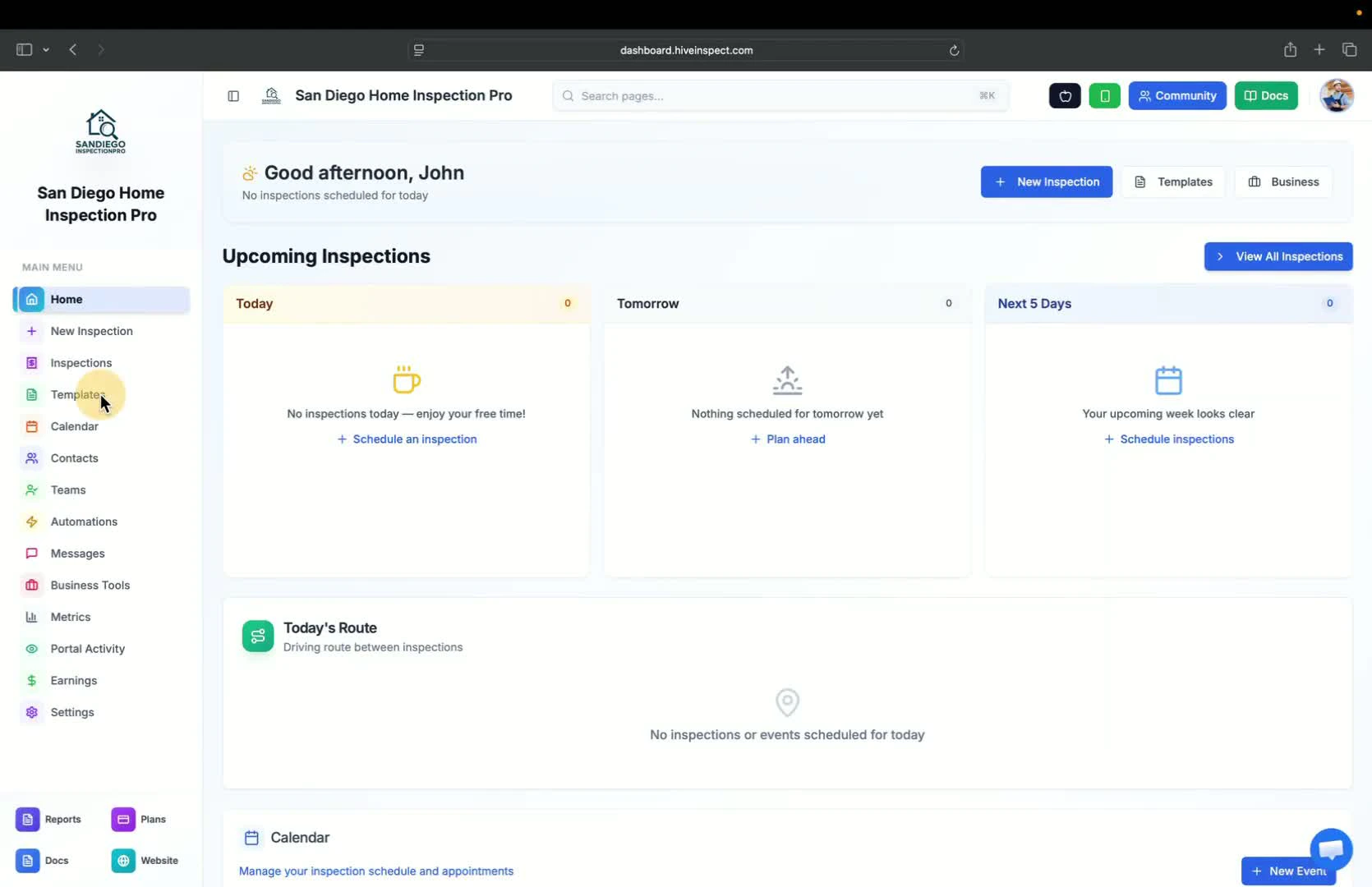
    * Begin by adding all necessary templates
    * Templates and agreements are the primary components needed before creating a service and inspection
    <img src="https://mintcdn.com/hiveinspect-43c85ed1/xYKGp_3A44kyTeKP/images/Agreements-1.jpg?fit=max&auto=format&n=xYKGp_3A44kyTeKP&q=85&s=3c44edf1b9a0209682d049acaf6e7368" alt="Adding templates and agreements" width="1670" height="1080" data-path="images/Agreements-1.jpg" />
  </Step>

  <Step title="Clear Formatting (if necessary) — 0:31">
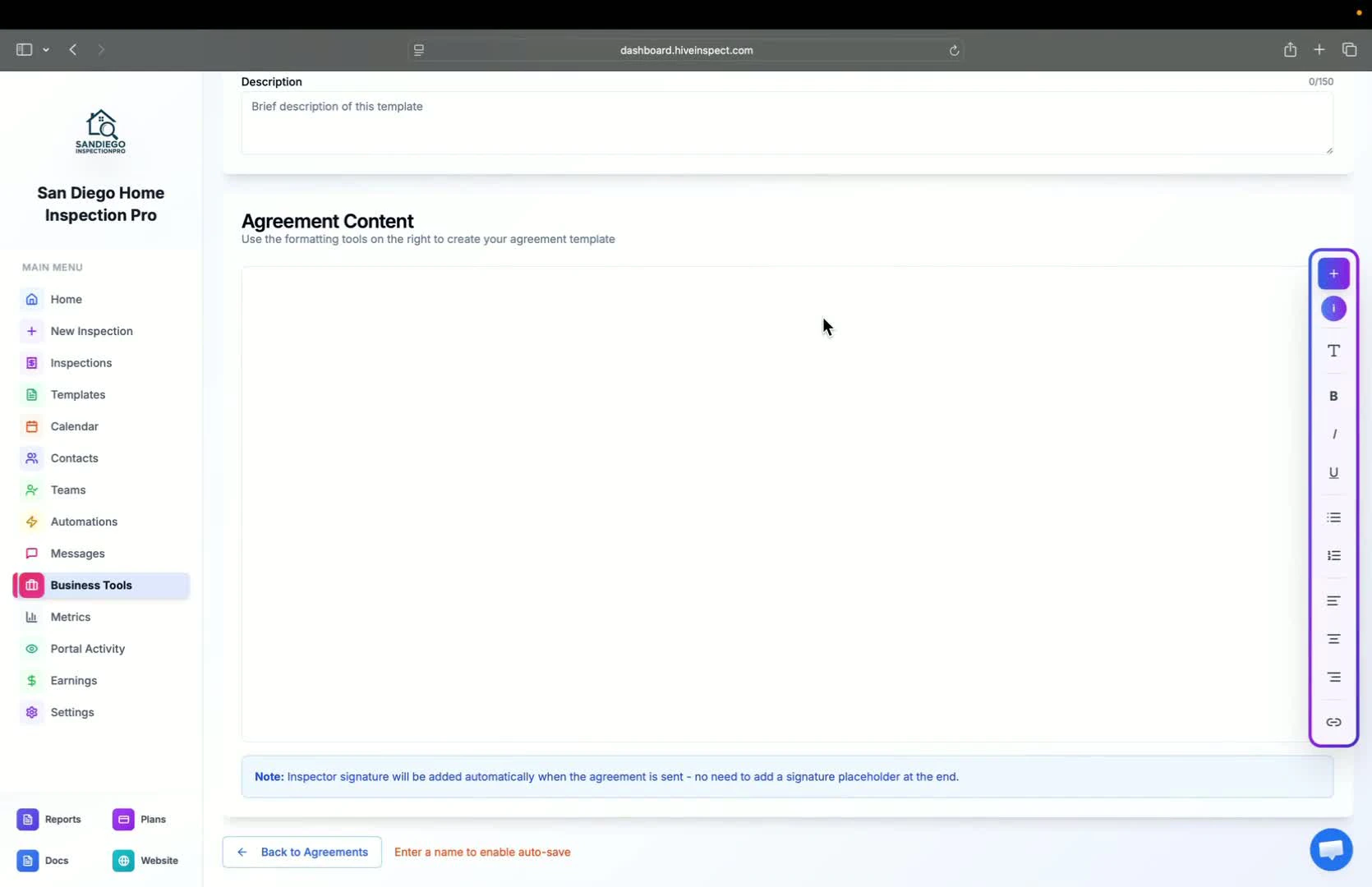
    * Ensure that the formatting is correct and not messed up
    * This is a one-time setup process
    <img src="https://mintcdn.com/hiveinspect-43c85ed1/xYKGp_3A44kyTeKP/images/Agreements-2.jpg?fit=max&auto=format&n=xYKGp_3A44kyTeKP&q=85&s=2ee7a88256138b48ef999ae44e75bbed" alt="Clearing formatting" width="1670" height="1080" data-path="images/Agreements-2.jpg" />
  </Step>

  <Step title="Use Existing Agreements — 0:38">
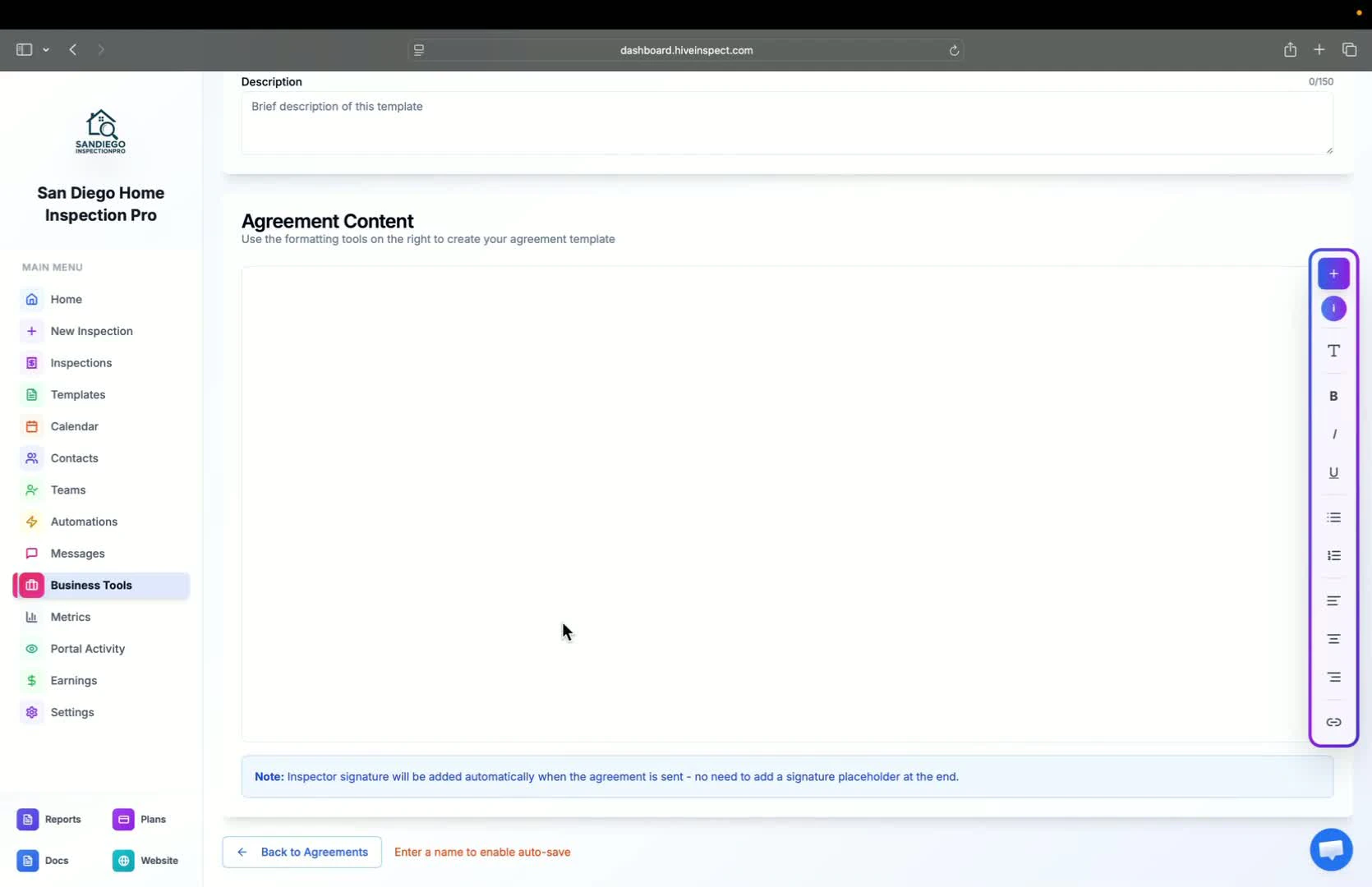
    * If transitioning from Spectora, note that placeholders may differ (e.g., number of parentheses)
    * Replace Spectora placeholders by clicking the plus button and selecting the appropriate option
    <img src="https://mintcdn.com/hiveinspect-43c85ed1/xYKGp_3A44kyTeKP/images/Agreements-3.jpg?fit=max&auto=format&n=xYKGp_3A44kyTeKP&q=85&s=afc307f99aaaf1f7a13e36f6605a0f6c" alt="Using existing agreements" width="1670" height="1080" data-path="images/Agreements-3.jpg" />
  </Step>

  <Step title="Replace Placeholders in Agreements — 1:05">
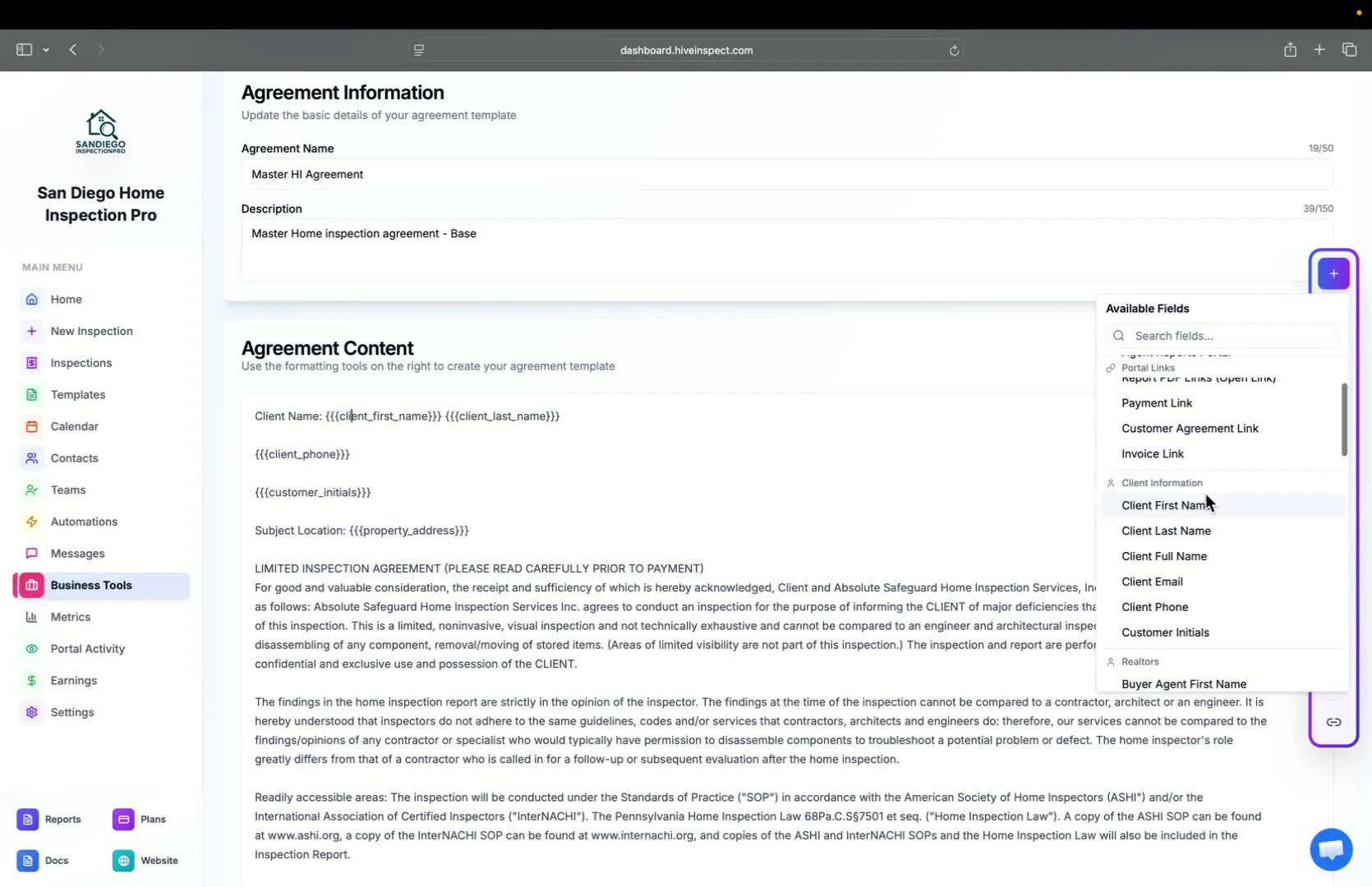
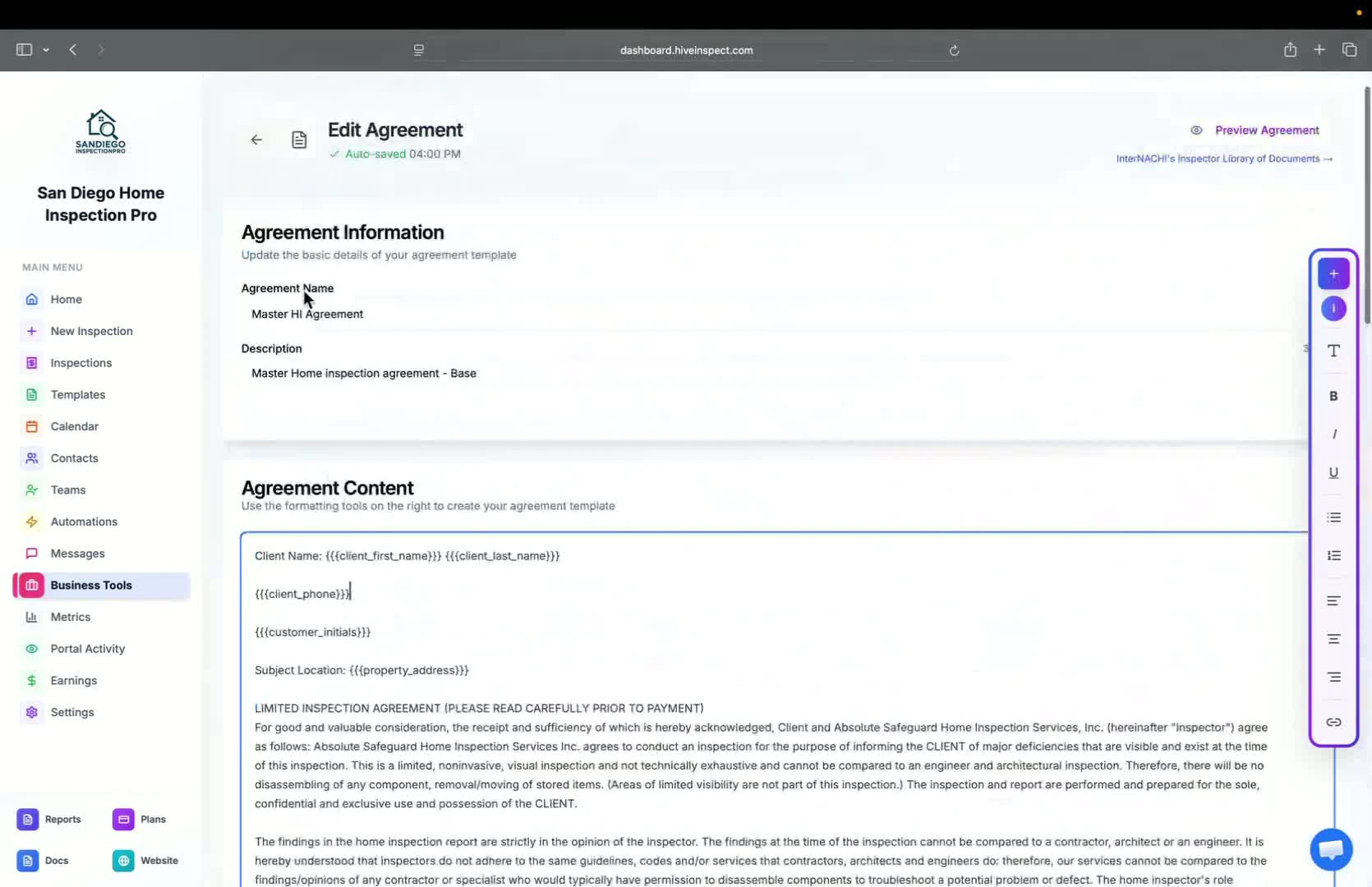
    * For example, to add the client's first name:
      * Click the plus button
      * Select **client first name** and place it in the desired location
    * Repeat this for all placeholders in the agreement
    <img src="https://mintcdn.com/hiveinspect-43c85ed1/xYKGp_3A44kyTeKP/images/Agreements-4.jpg?fit=max&auto=format&n=xYKGp_3A44kyTeKP&q=85&s=2a7886f3f4f688cf30a6a5afc3672efd" alt="Replacing placeholders in agreements" width="1670" height="1080" data-path="images/Agreements-4.jpg" />
  </Step>

  <Step title="Optional Placeholder Usage — 1:21">
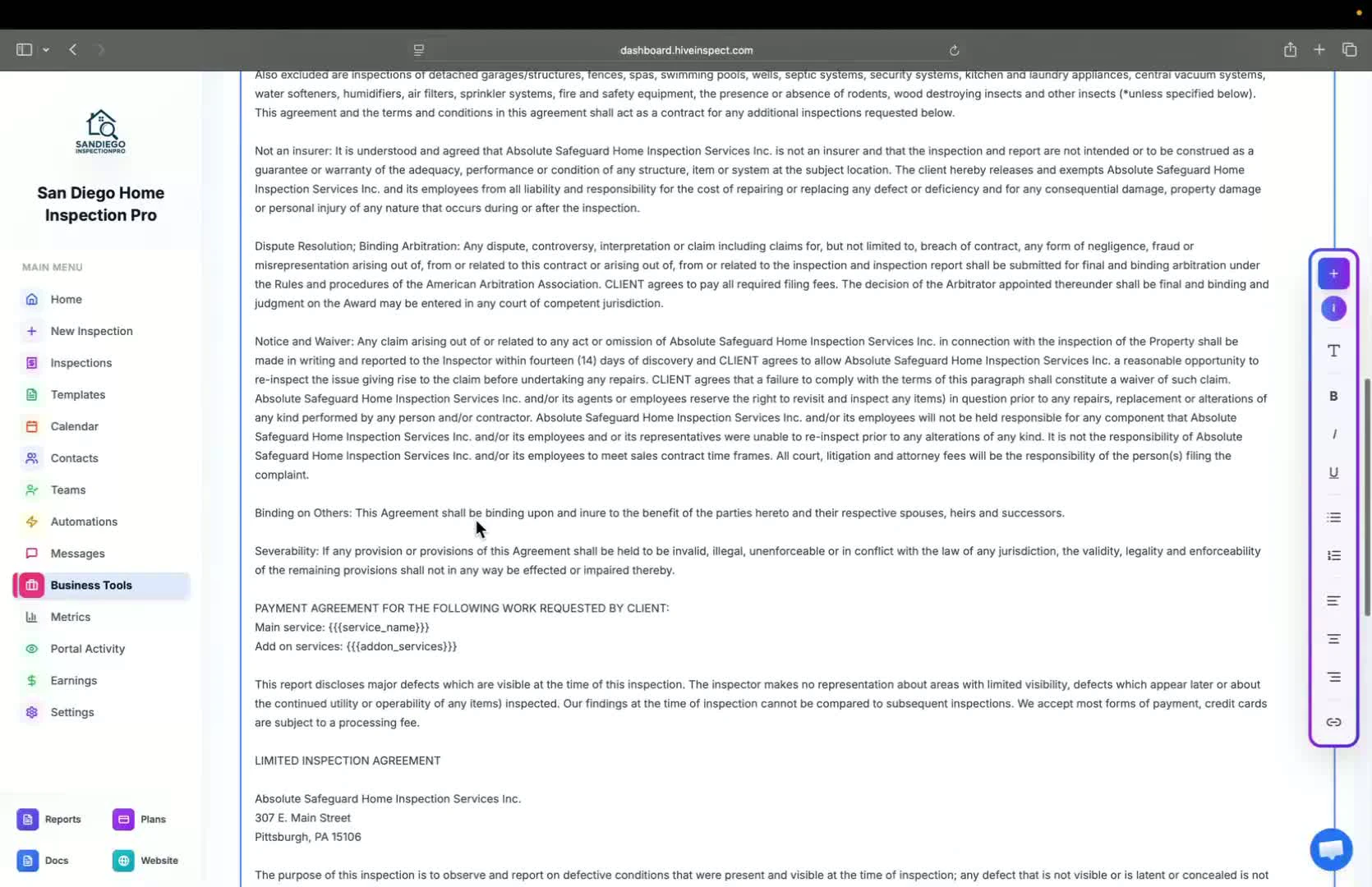
    * You can choose not to add placeholders if they are not required
    <img src="https://mintcdn.com/hiveinspect-43c85ed1/xYKGp_3A44kyTeKP/images/Agreements-5.jpg?fit=max&auto=format&n=xYKGp_3A44kyTeKP&q=85&s=39dc79a87bd0ca845d58fc34905fbba3" alt="Optional placeholder usage" width="1670" height="1080" data-path="images/Agreements-5.jpg" />
  </Step>

  <Step title="Signature Automation — 1:29">
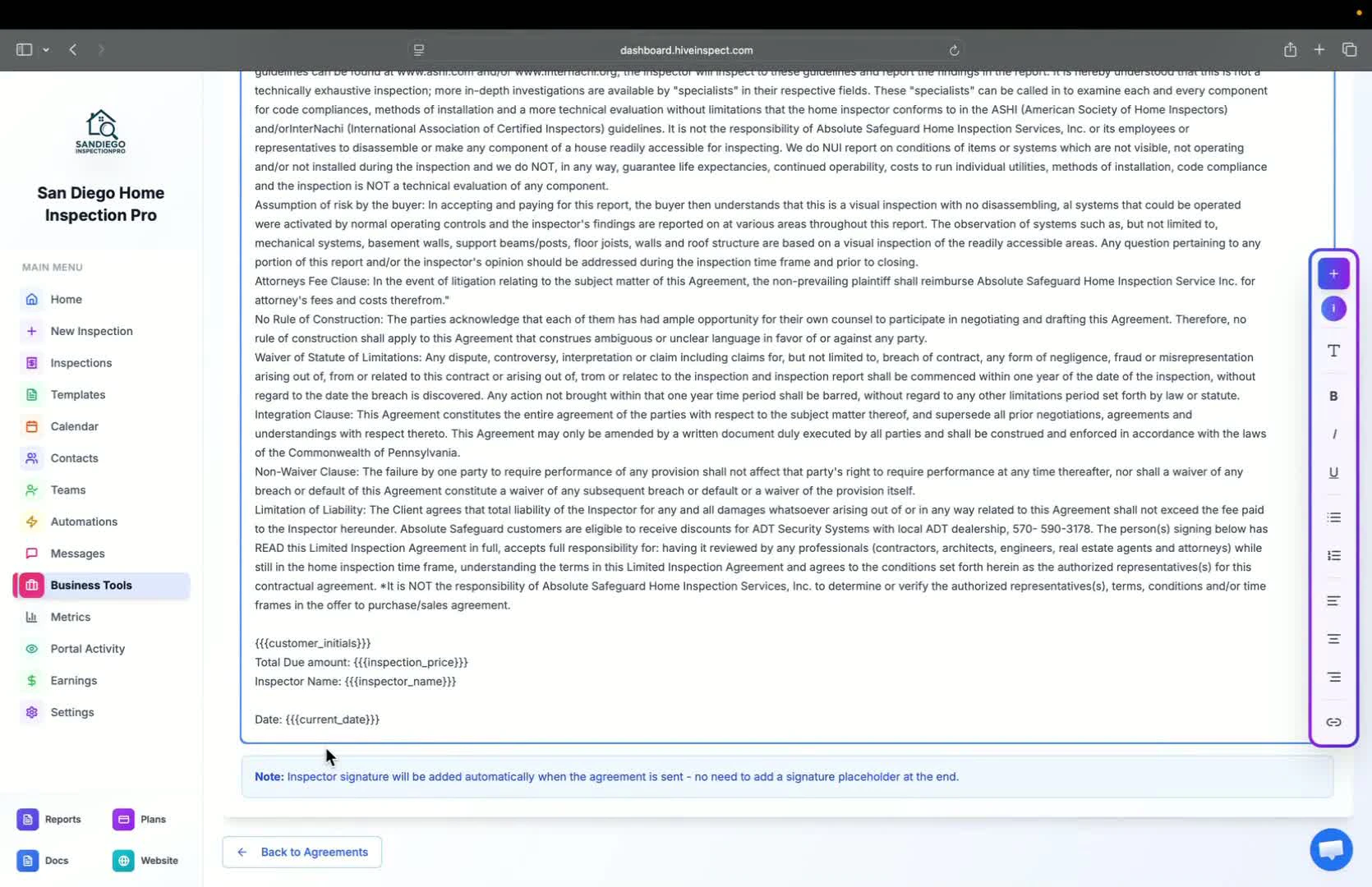
    * No need to manually add your signature; it will be automatically included when the agreement is shown or when creating a PDF after customer signing
    <img src="https://mintcdn.com/hiveinspect-43c85ed1/xYKGp_3A44kyTeKP/images/Agreements-6.jpg?fit=max&auto=format&n=xYKGp_3A44kyTeKP&q=85&s=dedcd84c076304b52bc4353ff96ad151" alt="Signature automation" width="1670" height="1080" data-path="images/Agreements-6.jpg" />
  </Step>

  <Step title="Create Multiple Agreements (if needed) — 1:42">
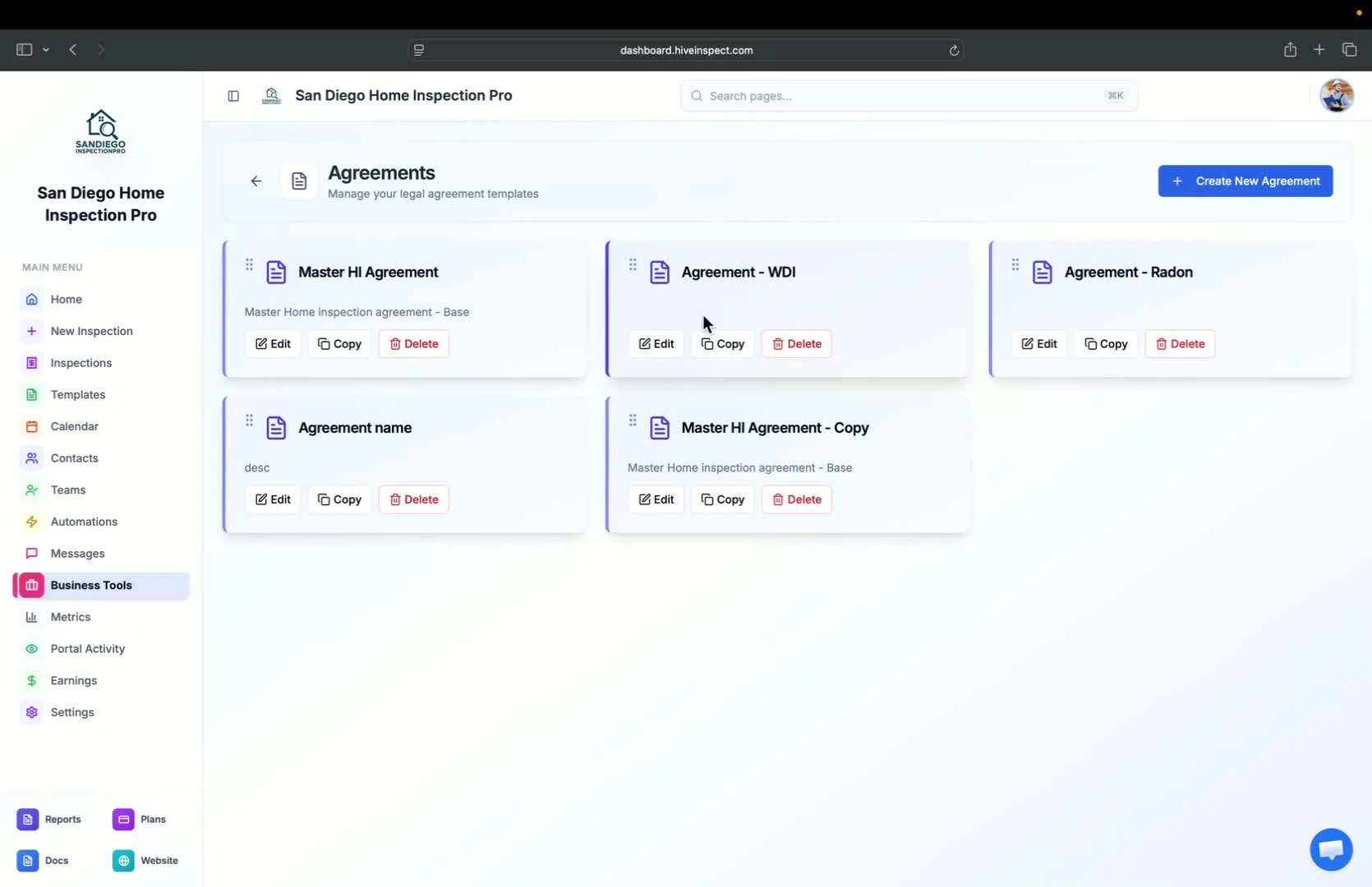
    * Depending on your business needs, you can create different agreements for various services
    <img src="https://mintcdn.com/hiveinspect-43c85ed1/xYKGp_3A44kyTeKP/images/Agreements-7.jpg?fit=max&auto=format&n=xYKGp_3A44kyTeKP&q=85&s=d8d472a53c00aef7a3a568e36d3c6b05" alt="Creating multiple agreements" width="1670" height="1080" data-path="images/Agreements-7.jpg" />
  </Step>

  <Step title="Preview Agreements — 1:53">
    * In edit mode, you can preview agreements to see how placeholders will look
    * Select an address to see auto-filled information (e.g., name, amount due, customer details)
    <img src="https://mintcdn.com/hiveinspect-43c85ed1/xYKGp_3A44kyTeKP/images/Agreements-8.jpg?fit=max&auto=format&n=xYKGp_3A44kyTeKP&q=85&s=c8d26b9750544cbea30f8d539be49b19" alt="Previewing agreements" width="1670" height="1080" data-path="images/Agreements-8.jpg" />
  </Step>

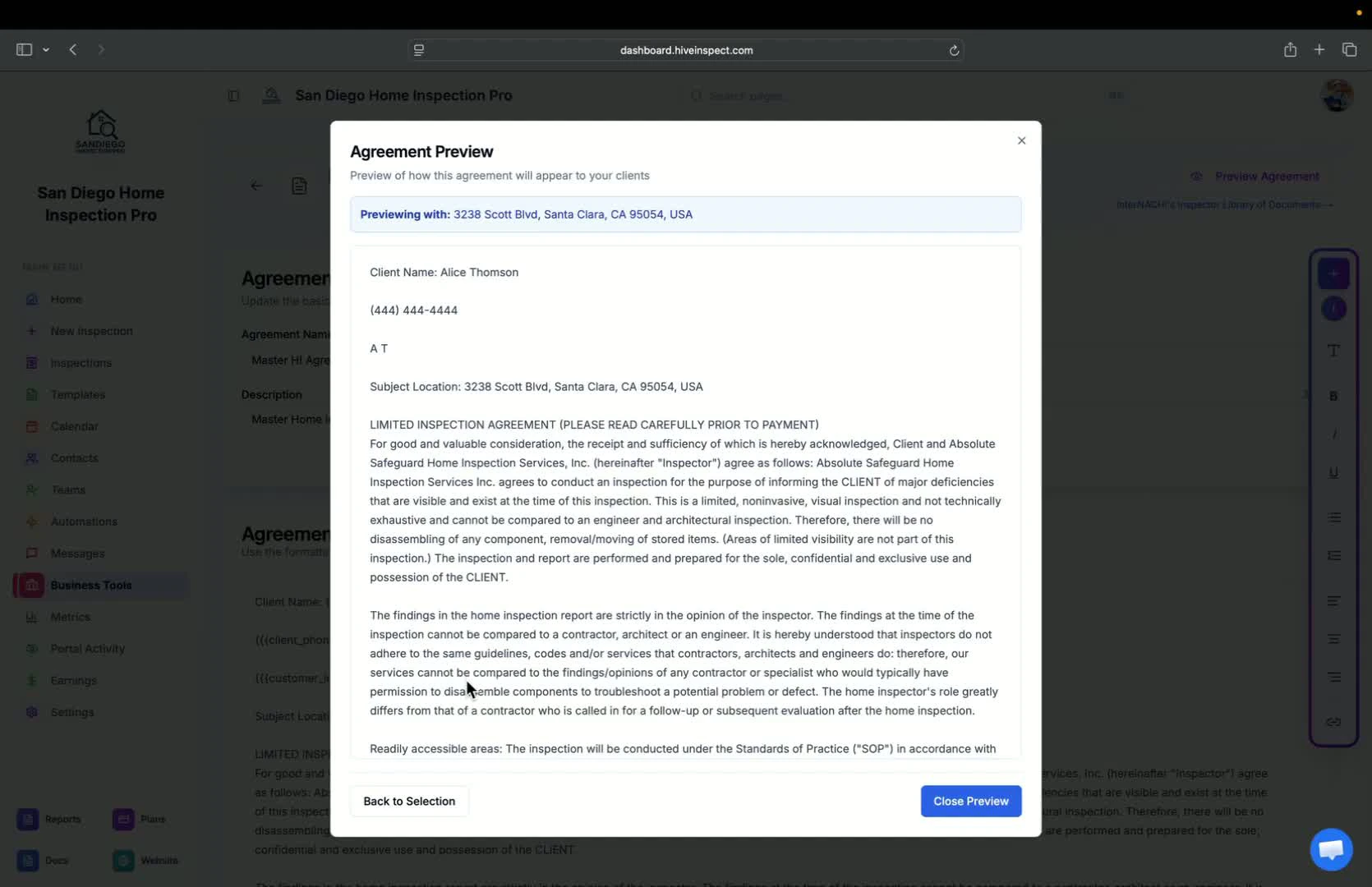
  <Step title="Check Placeholders After Inspection Creation — 2:10">
    * You can only check the filled placeholders after creating an inspection
    <img src="https://mintcdn.com/hiveinspect-43c85ed1/xYKGp_3A44kyTeKP/images/Agreements-9.jpg?fit=max&auto=format&n=xYKGp_3A44kyTeKP&q=85&s=3b1a63a7cb9395a7e4849b01edafe2a2" alt="Checking placeholders after inspection creation" width="1670" height="1080" data-path="images/Agreements-9.jpg" />
  </Step>

  <Step title="Conclusion — 2:41">
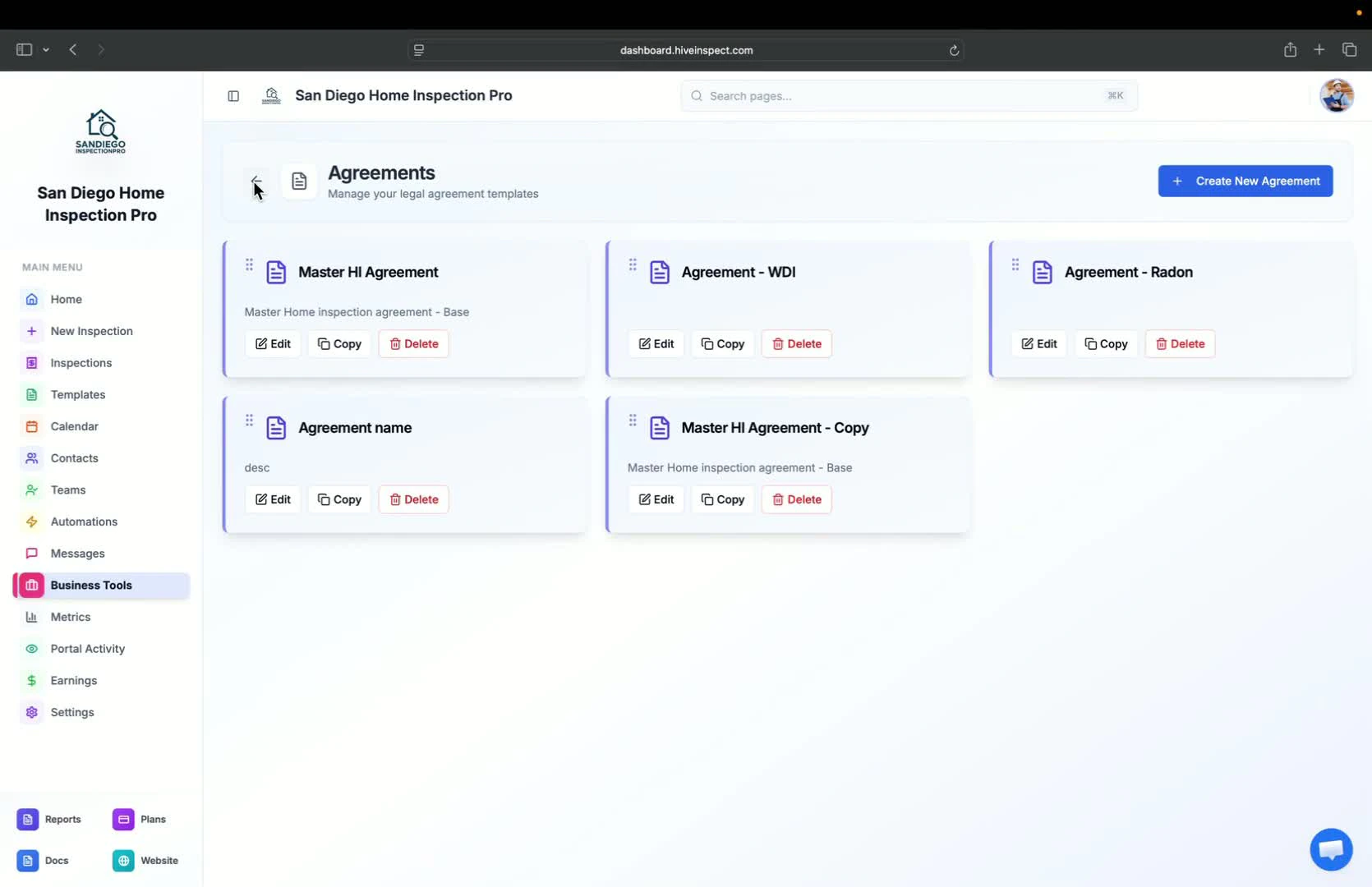
    * Thank you for following the setup process
    <img src="https://mintcdn.com/hiveinspect-43c85ed1/xYKGp_3A44kyTeKP/images/Agreements-10.jpg?fit=max&auto=format&n=xYKGp_3A44kyTeKP&q=85&s=09e08ba1c5044148f26895b98d14f9e8" alt="Conclusion" width="1670" height="1080" data-path="images/Agreements-10.jpg" />
  </Step>
</Steps>
