> ## Documentation Index
> Fetch the complete documentation index at: https://docs.hiveinspect.com/llms.txt
> Use this file to discover all available pages before exploring further.
# Payment Options
> Set up and manage payment options for your inspection business
⏱️ **Estimated time:** \~5 minutes
## Video Tutorial
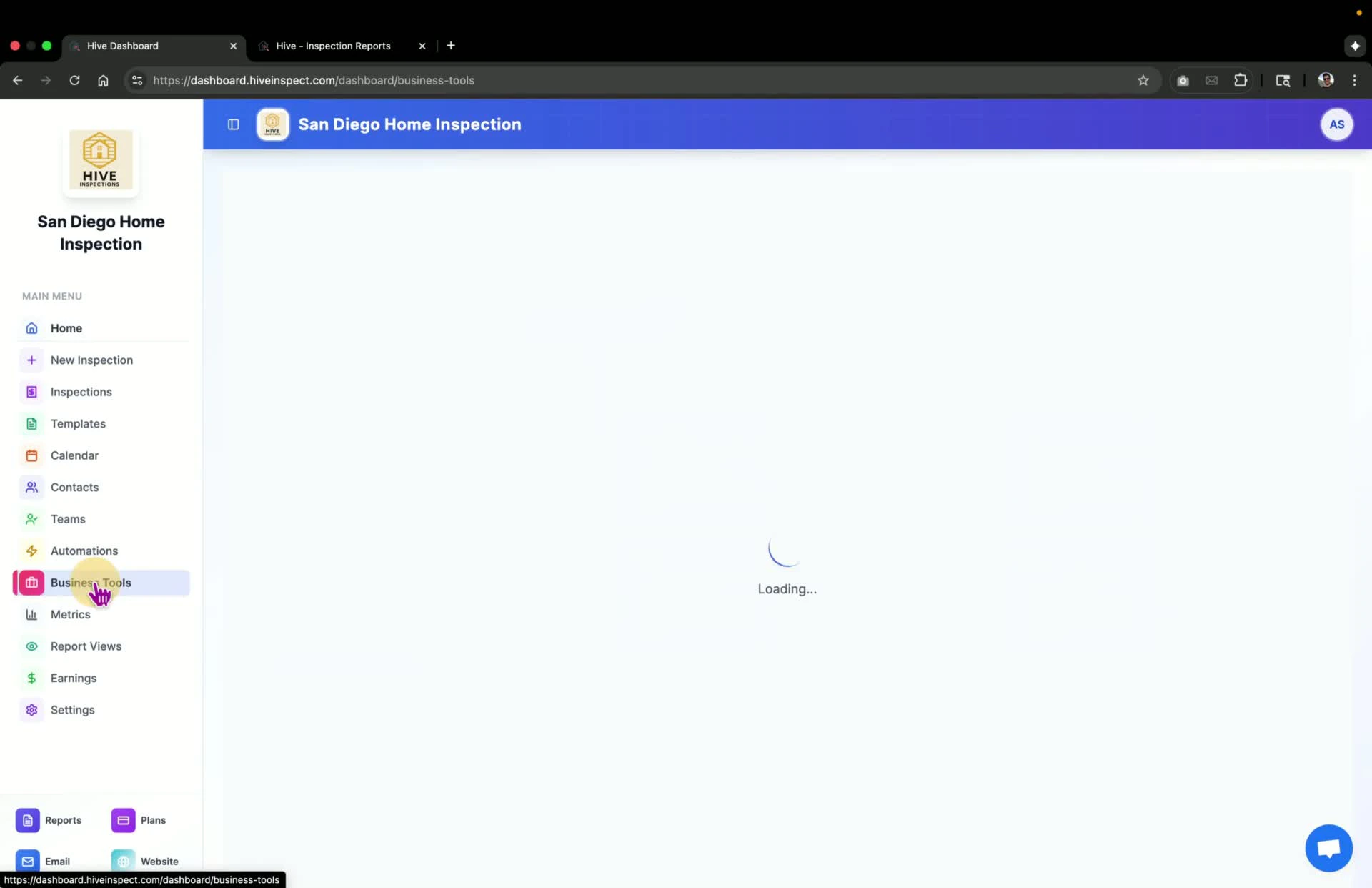
* Navigate to **Business Tools**
* Select **Payments**
* If this is your first time, click the **Connect your Stripe** button to link your Stripe account
 * Log in to your Stripe account or sign up if you don't have one
* Once connected, you will see various payment options available
* Log in to your Stripe account or sign up if you don't have one
* Once connected, you will see various payment options available
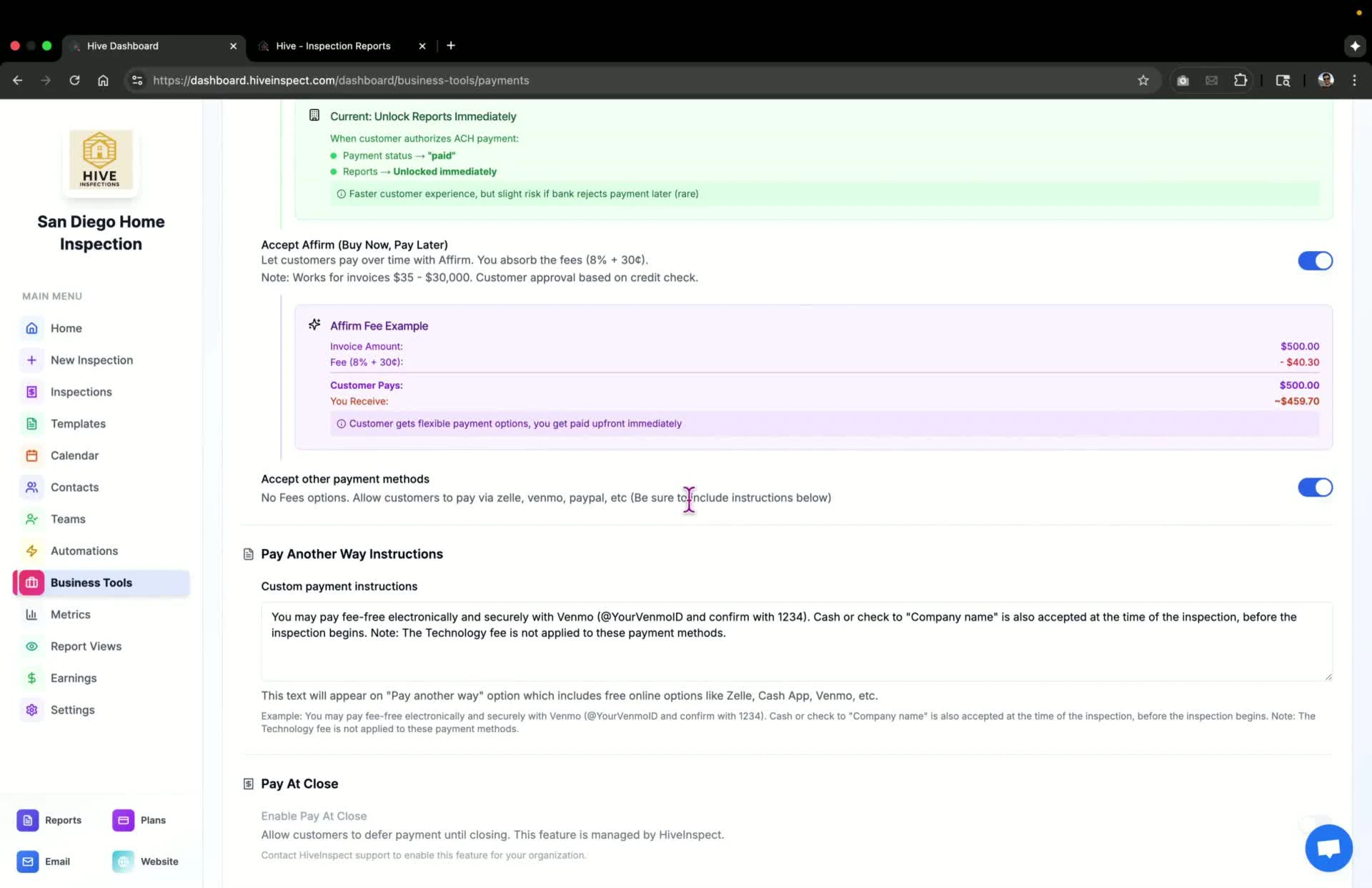
 * Toggle the option to **accept credit and debit cards** on or off
* This is the most common payment method for customers
* Enabling this option allows customers to pay via **Apple Pay** and **Google Pay**
* Toggle the option to **accept credit and debit cards** on or off
* This is the most common payment method for customers
* Enabling this option allows customers to pay via **Apple Pay** and **Google Pay**
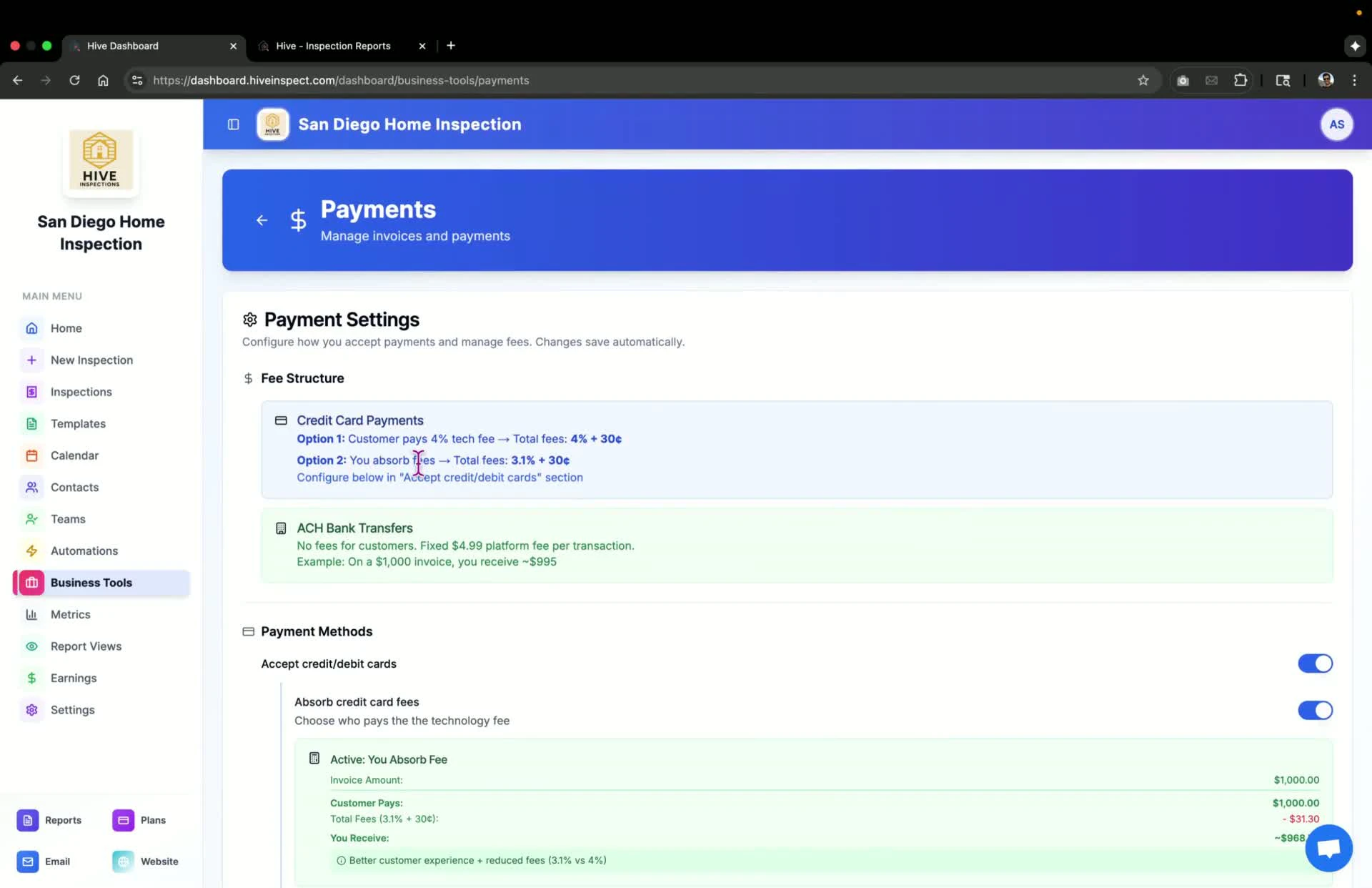 * Choose whether to absorb credit card fees or pass them on to customers
* If fees are passed on, a standard fee of **4% + \$0.30** will be added to the transaction
* Choose whether to absorb credit card fees or pass them on to customers
* If fees are passed on, a standard fee of **4% + \$0.30** will be added to the transaction
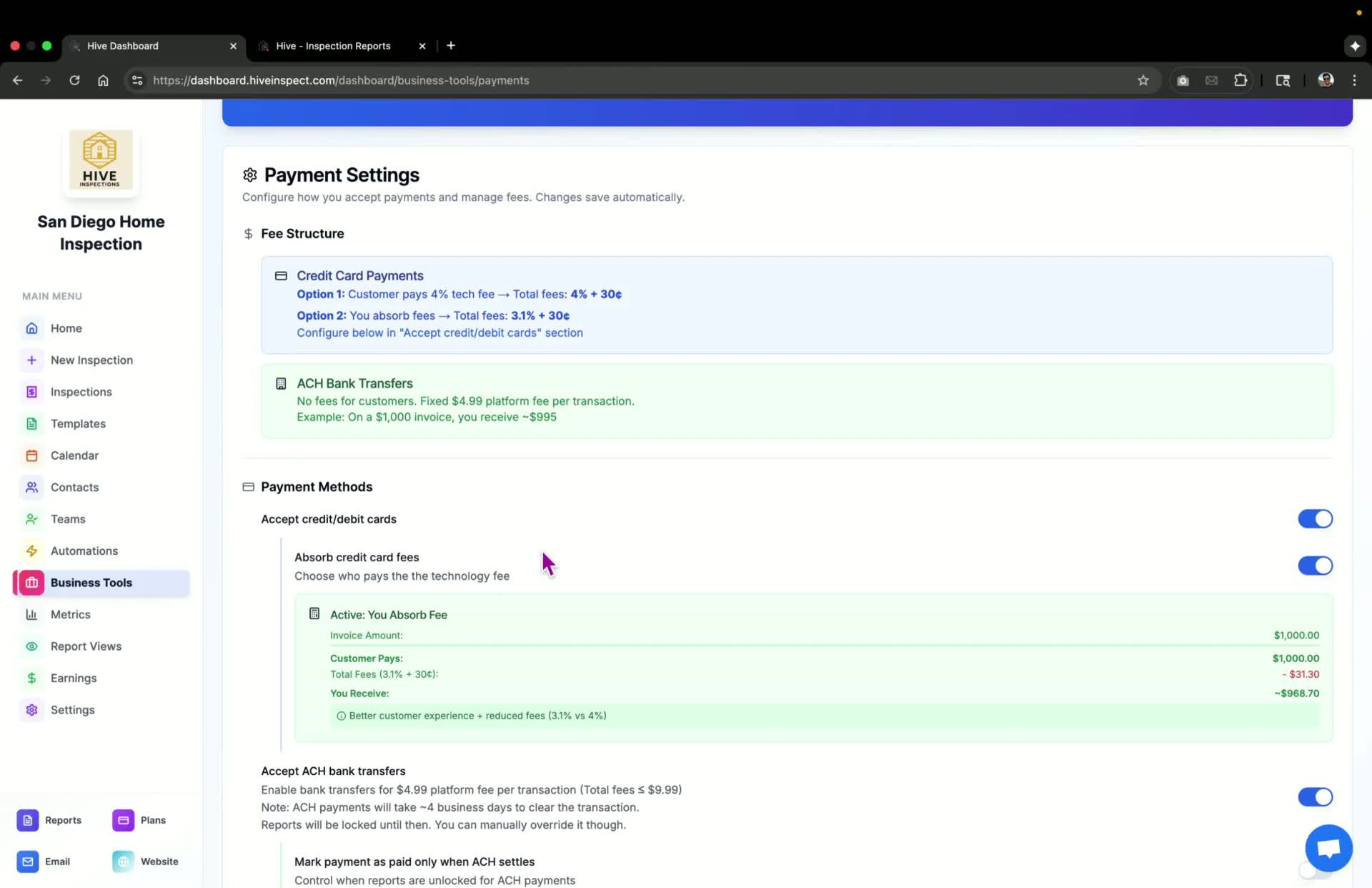 * Toggle the option for **ACH payments** on or off
* If enabled, payments will be marked as paid when initiated, but reports will be locked until settled (up to 5 business days)
* Toggle the option for **ACH payments** on or off
* If enabled, payments will be marked as paid when initiated, but reports will be locked until settled (up to 5 business days)
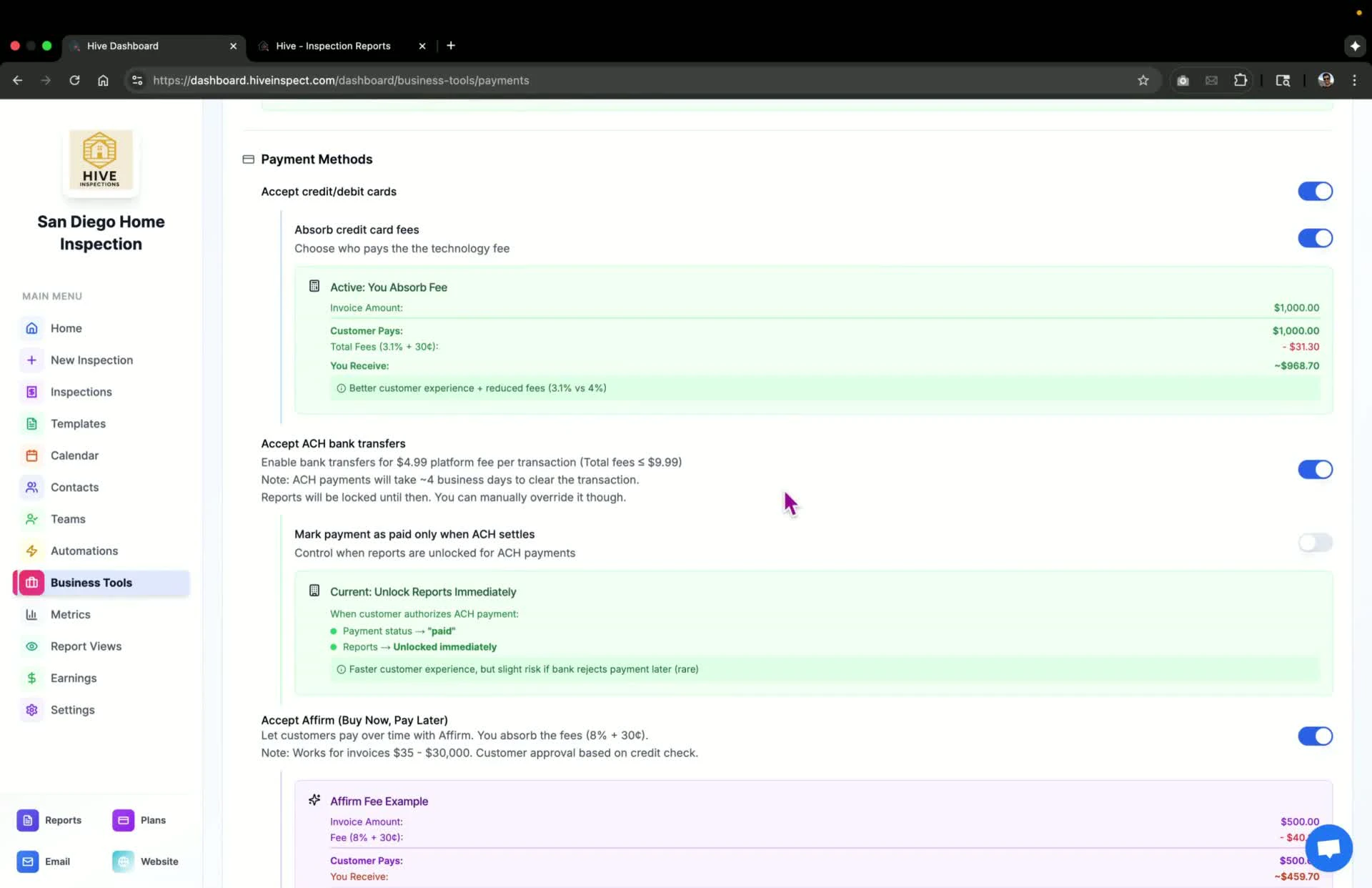 * Toggle the **Buy Now Pay Later** option on or off
* Note that you must absorb the fee of **8% + \$0.30** as passing it on would classify you as a lender
* Toggle the **Buy Now Pay Later** option on or off
* Note that you must absorb the fee of **8% + \$0.30** as passing it on would classify you as a lender
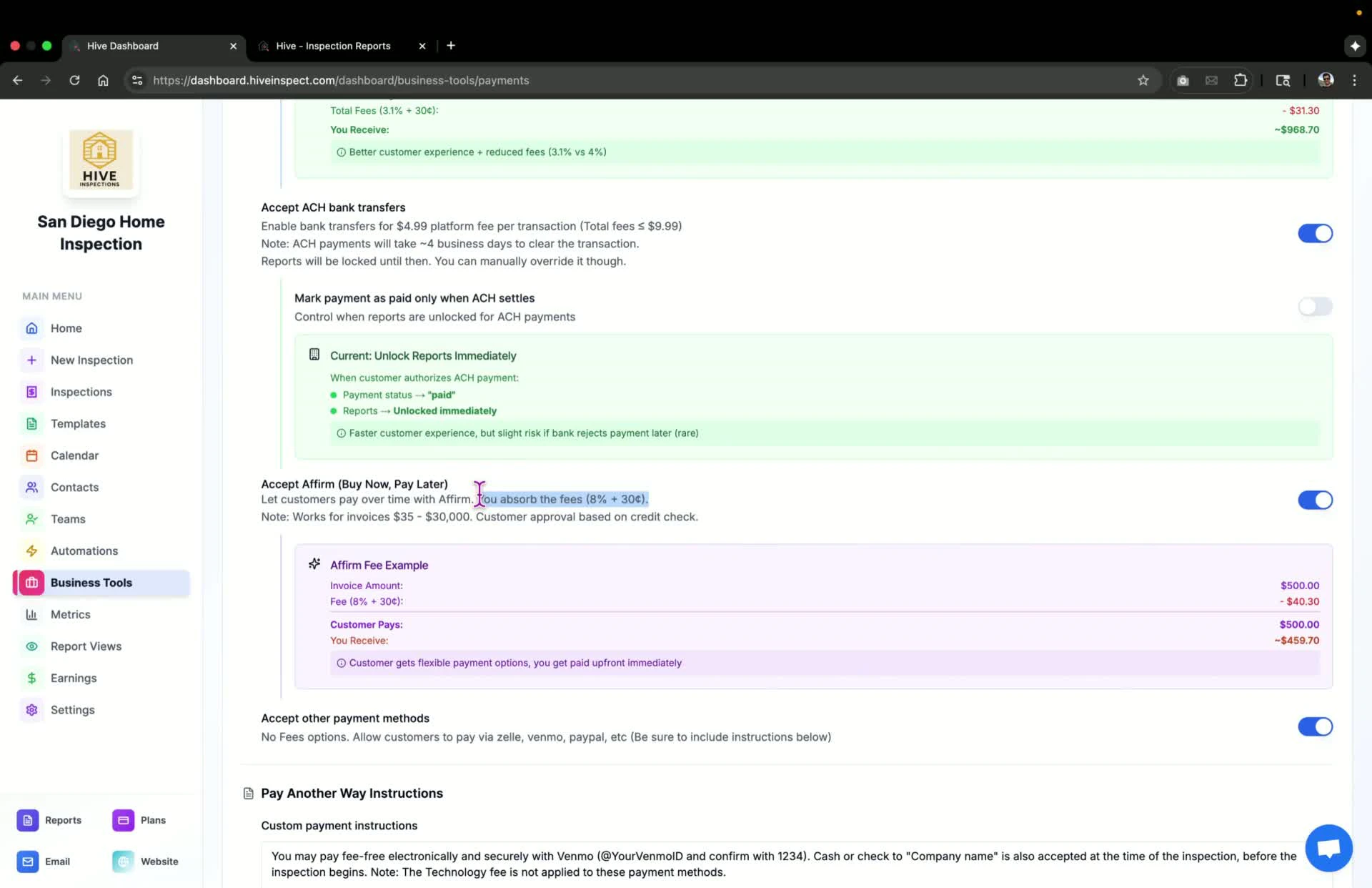 * Toggle the **Other Payment Methods** option on or off
* This method is less preferred due to tracking issues; manual payment marking is required
* Toggle the **Other Payment Methods** option on or off
* This method is less preferred due to tracking issues; manual payment marking is required
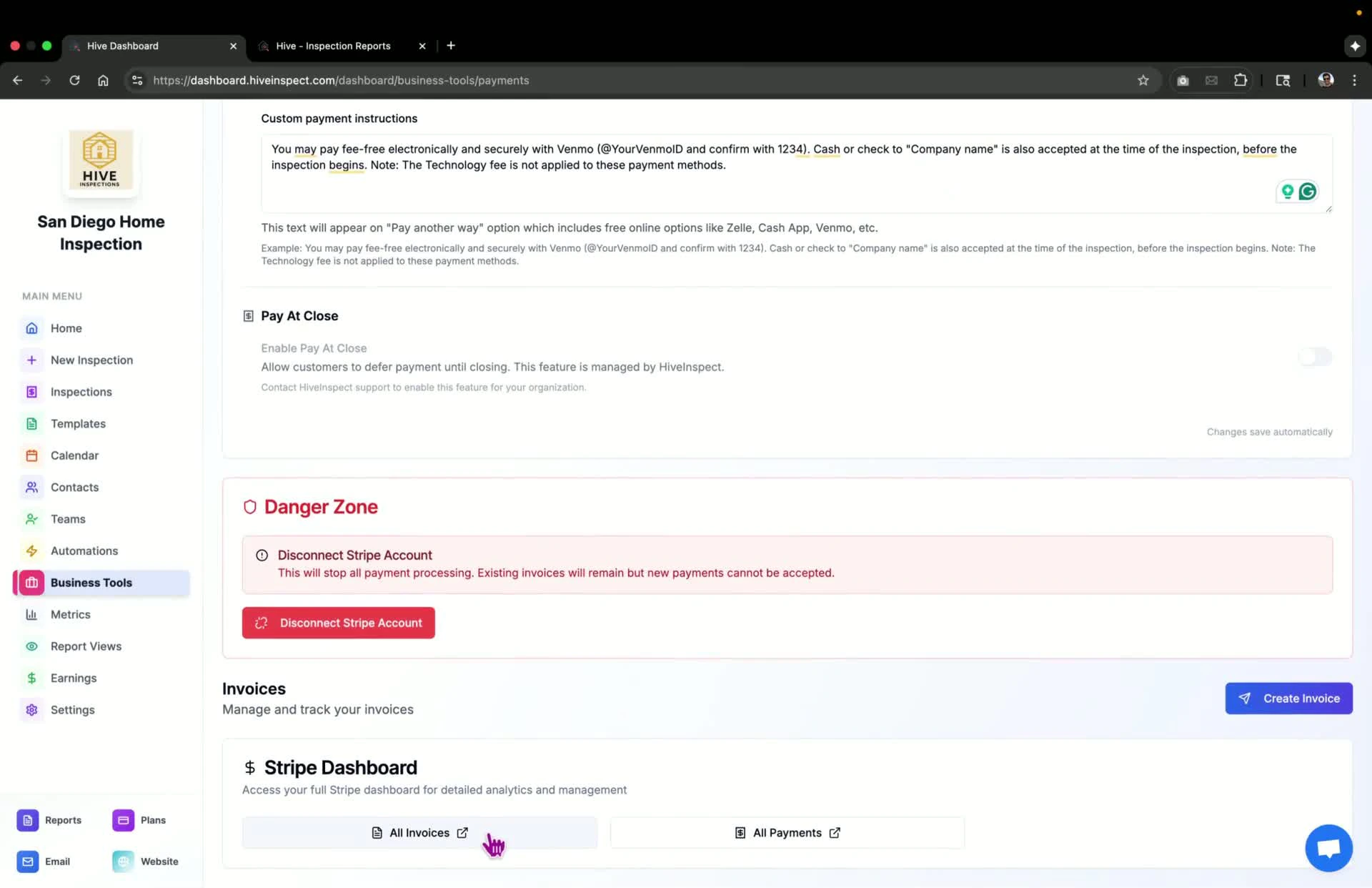
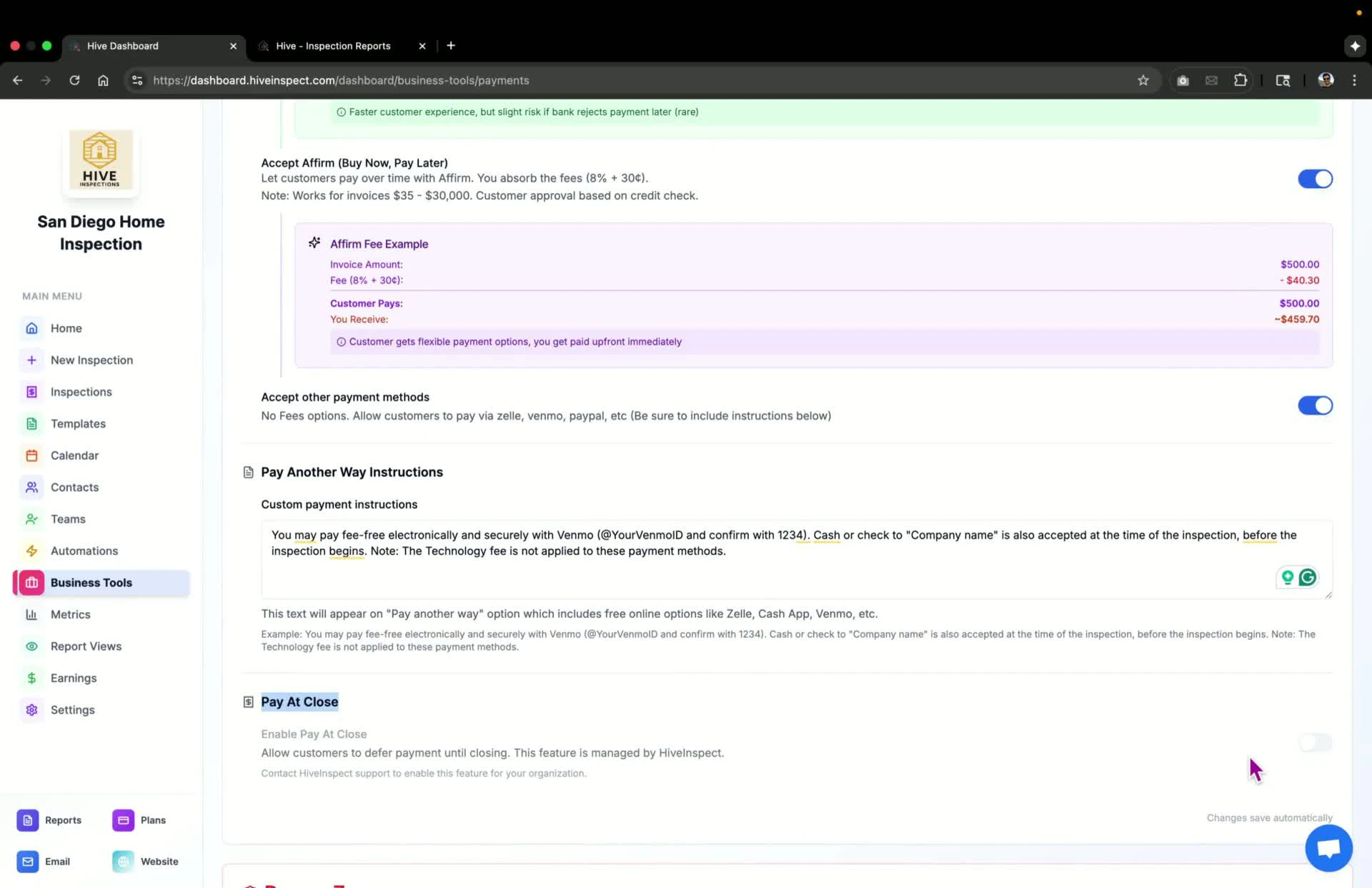
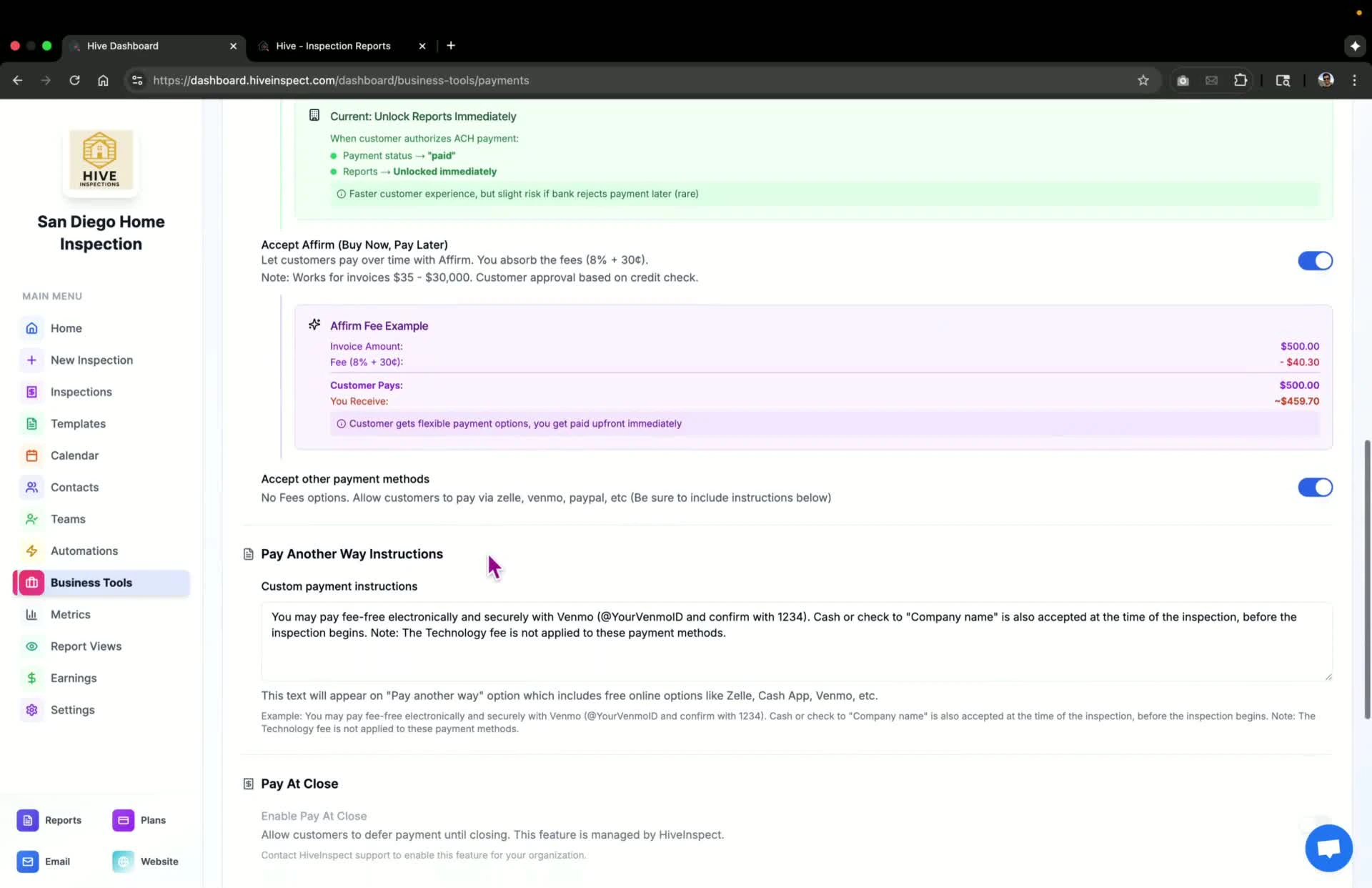 * If enabling other payment methods, include payment instructions (e.g., Venmo ID, Zelle details) for customers
 * This feature can only be enabled by the service provider
* Contact support to request this feature if needed
* This feature can only be enabled by the service provider
* Contact support to request this feature if needed
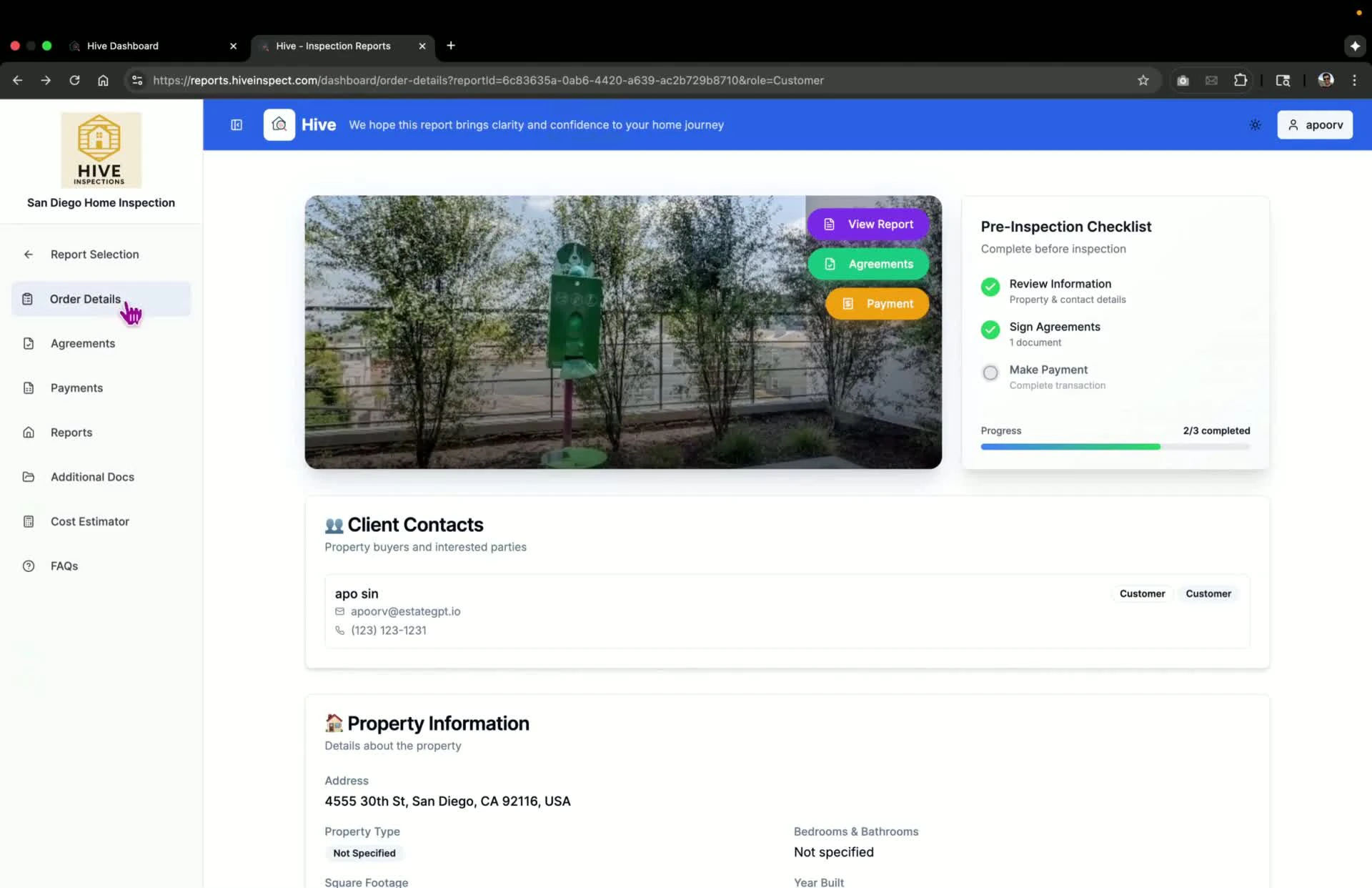
 * Customers can view payment options in the reports portal under **Payments**
* They can choose to pay by card, ACH, buy now pay later, or other methods
* Customers can view payment options in the reports portal under **Payments**
* They can choose to pay by card, ACH, buy now pay later, or other methods
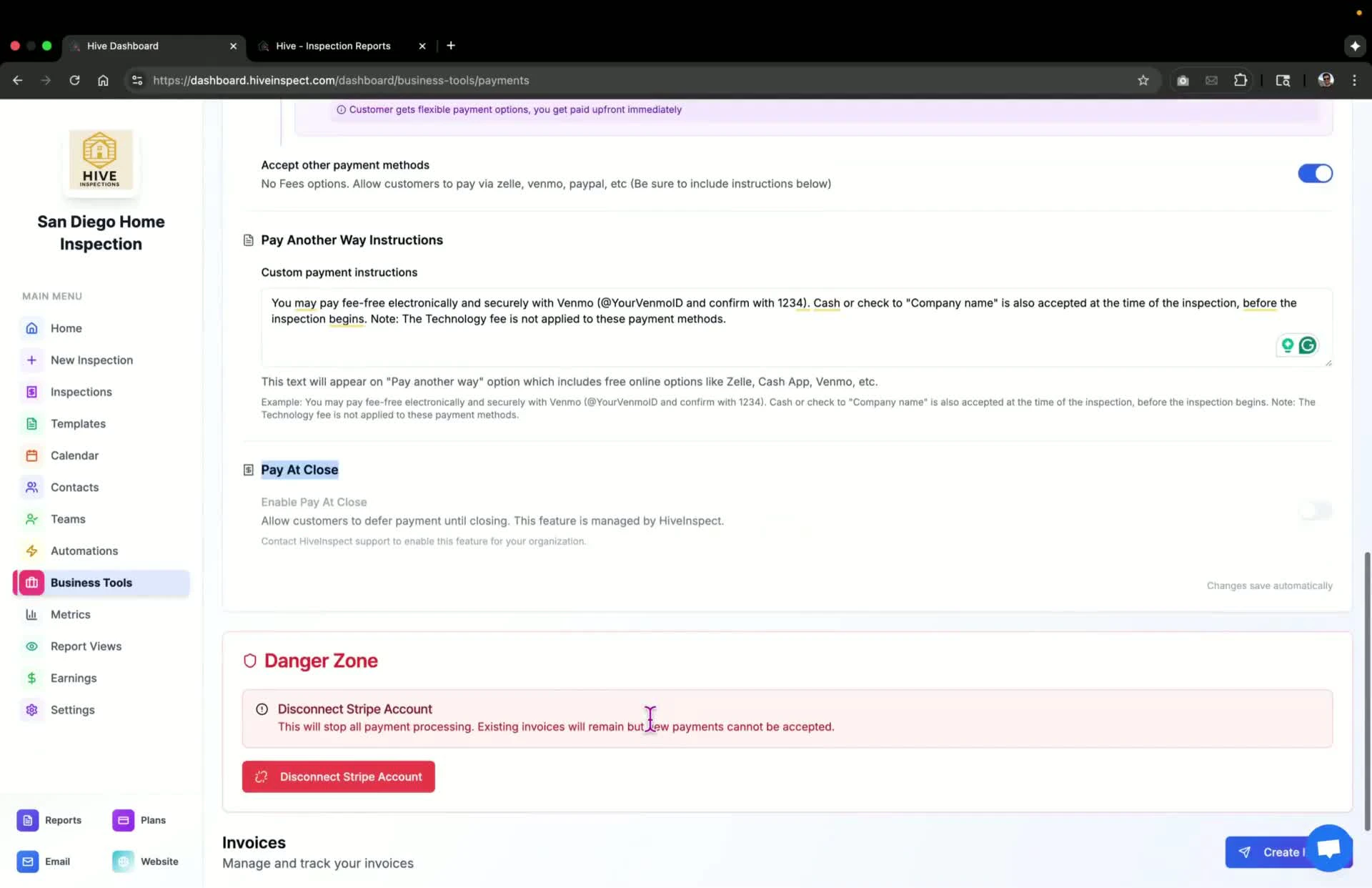
 * To create a custom invoice, click **Create Invoice**
* This will generate a Stripe invoice and send it directly to the customer
* To create a custom invoice, click **Create Invoice**
* This will generate a Stripe invoice and send it directly to the customer
 * Click on **All Invoices** to see all invoices created through Stripe