> ## Documentation Index
> Fetch the complete documentation index at: https://docs.hiveinspect.com/llms.txt
> Use this file to discover all available pages before exploring further.
# Import Contacts
> Import and manage your contacts in Hive
⏱️ **Estimated time:** \~5 minutes
## Video Tutorial
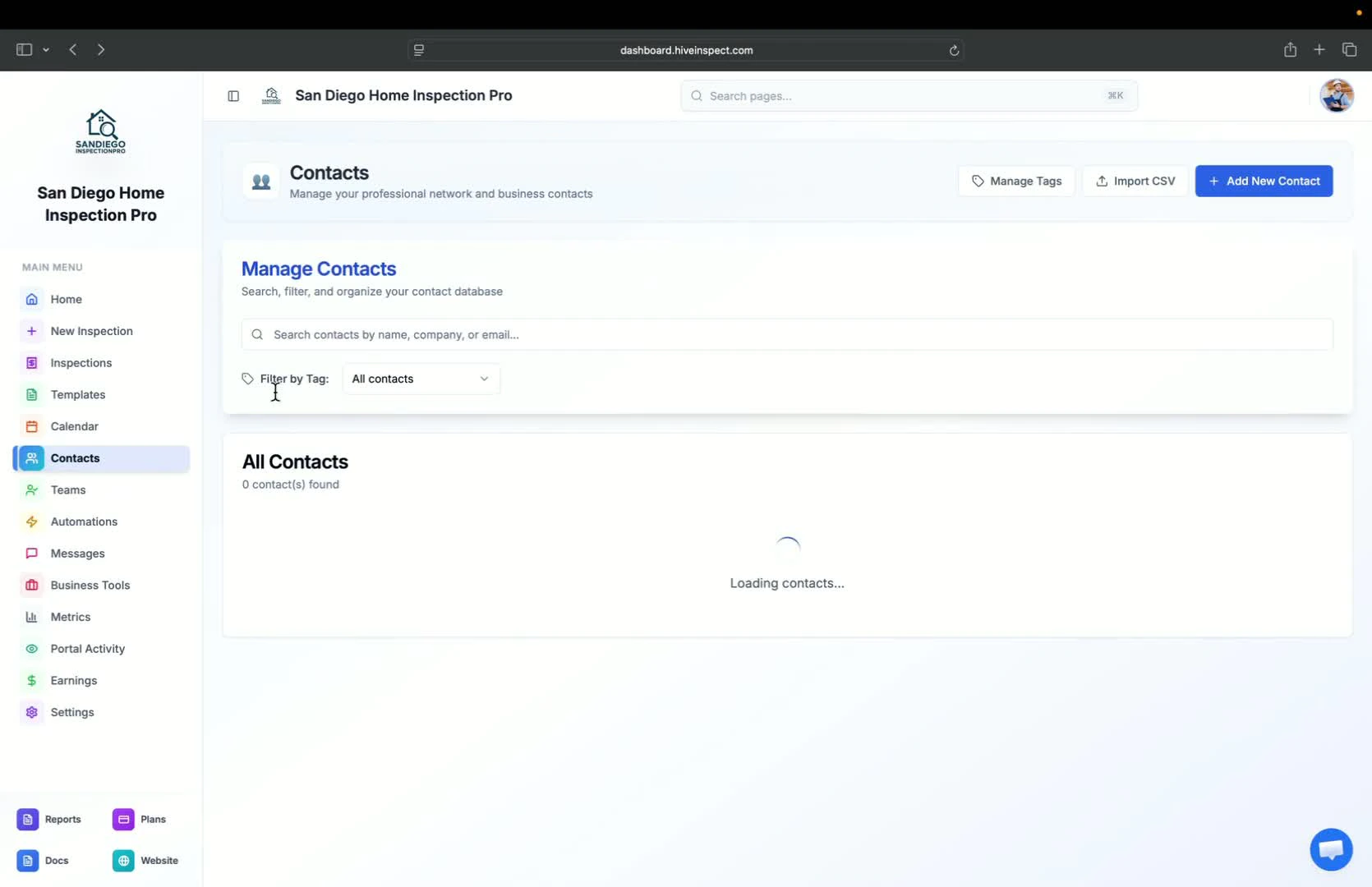
* Go to the **Contacts** section from the sidebar
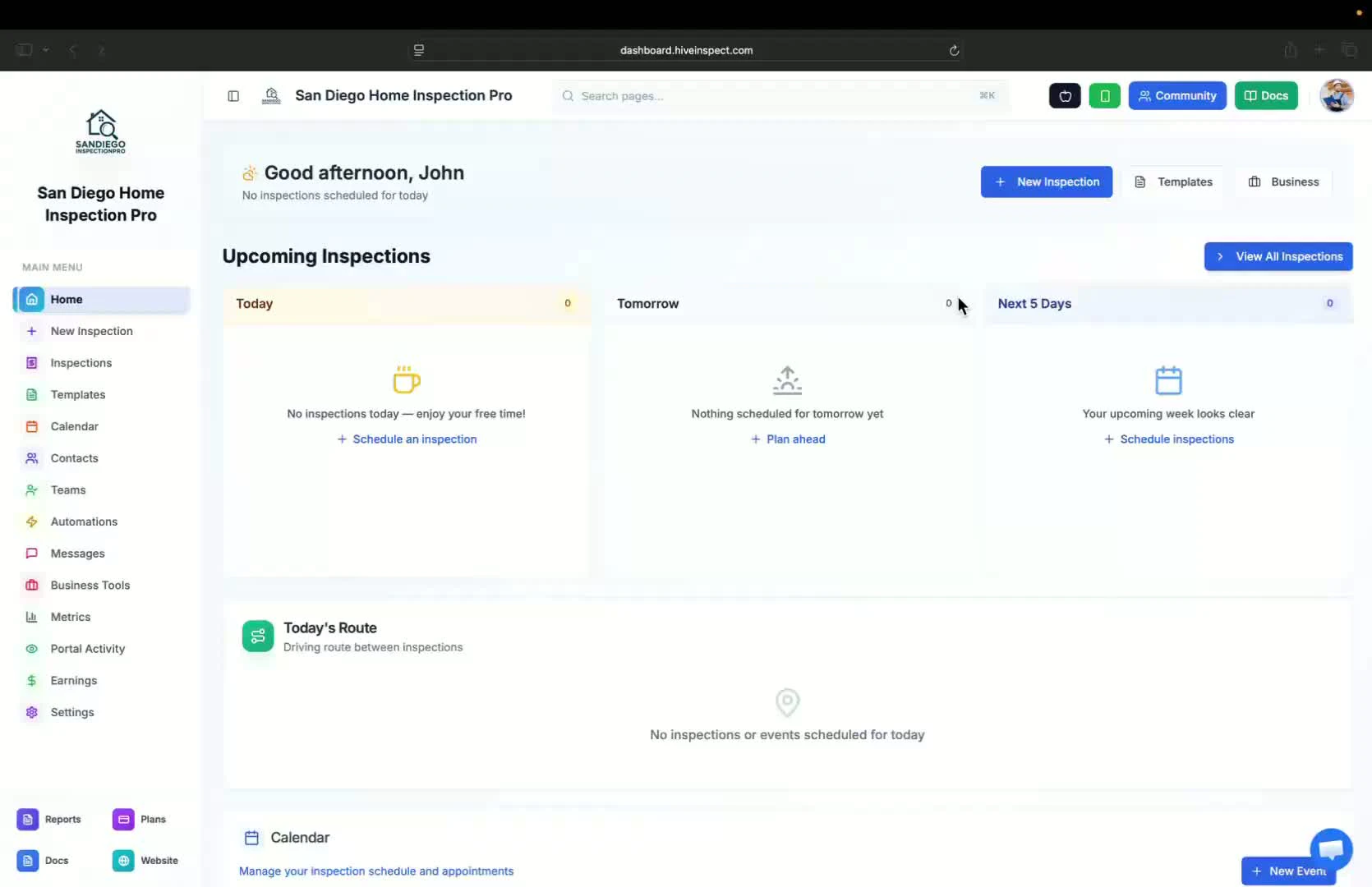
* Click on **Manage Tags** to create new tags
* Example tags: "Realtor", "Agent", "Client"
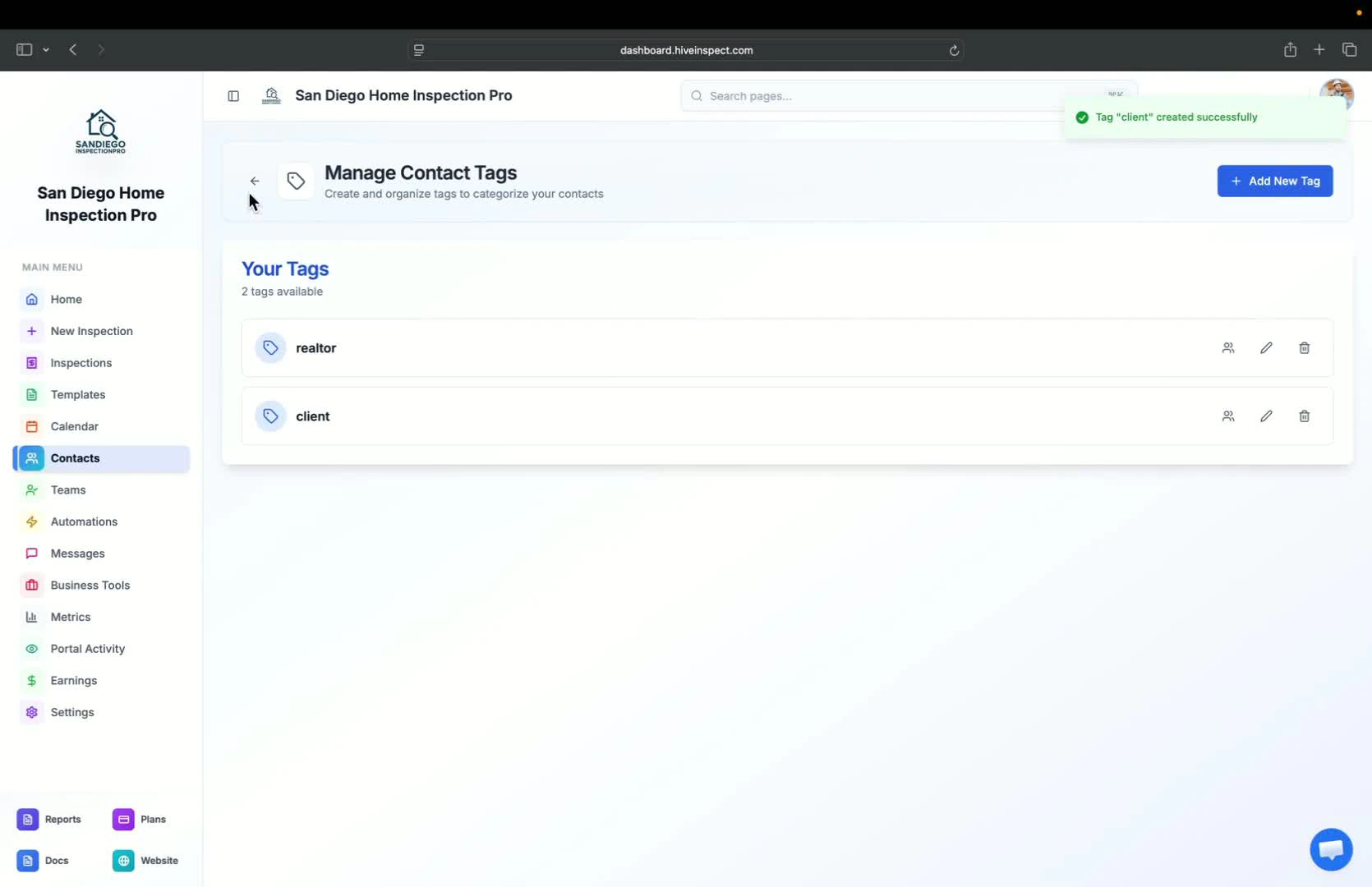
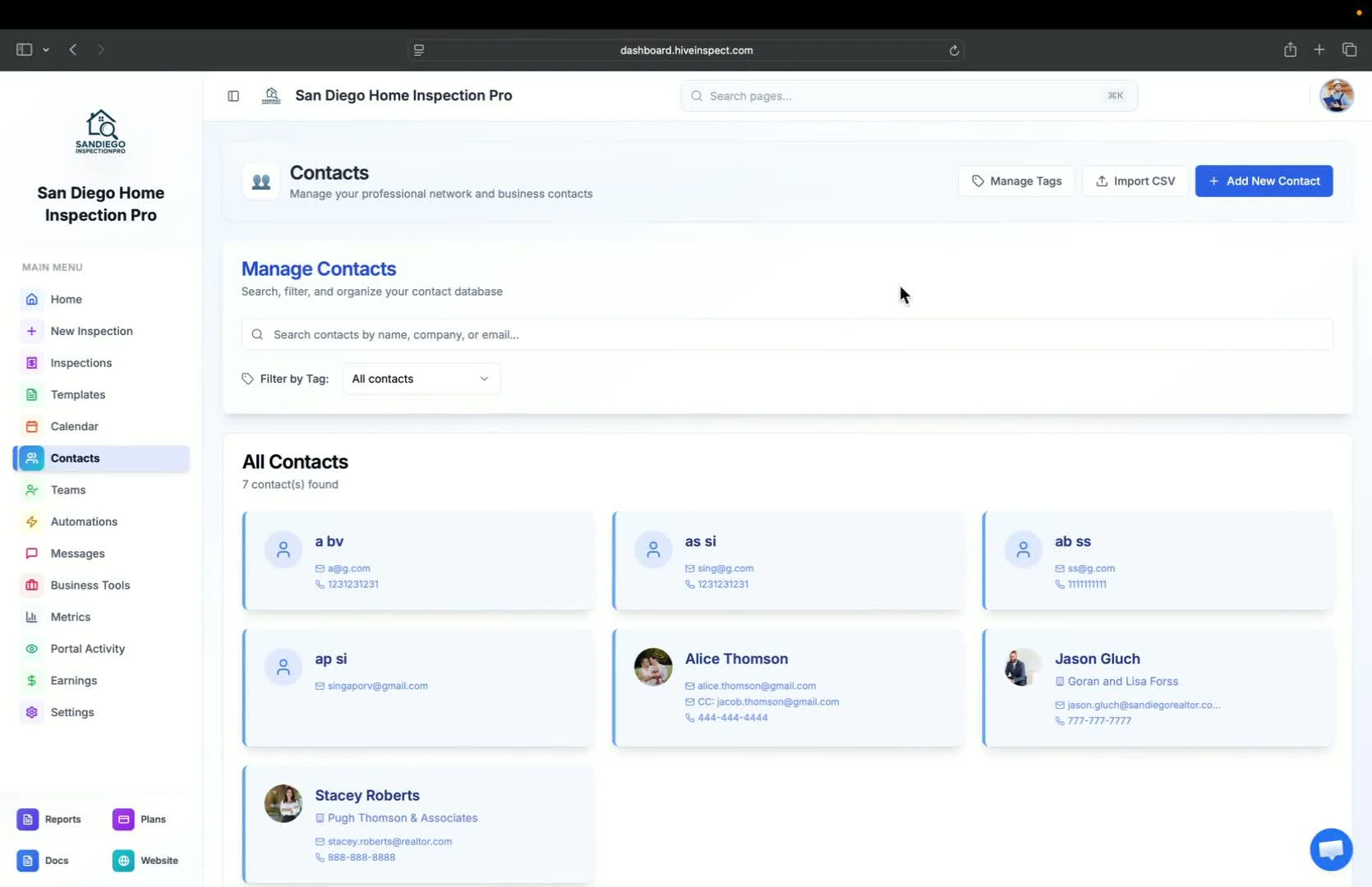
 * Click on **Import CSV**
* If importing from Spectora, select **Client**
* Drop the client CSV file into the designated area
* Note: This process may take a few minutes as images are downloaded and uploaded
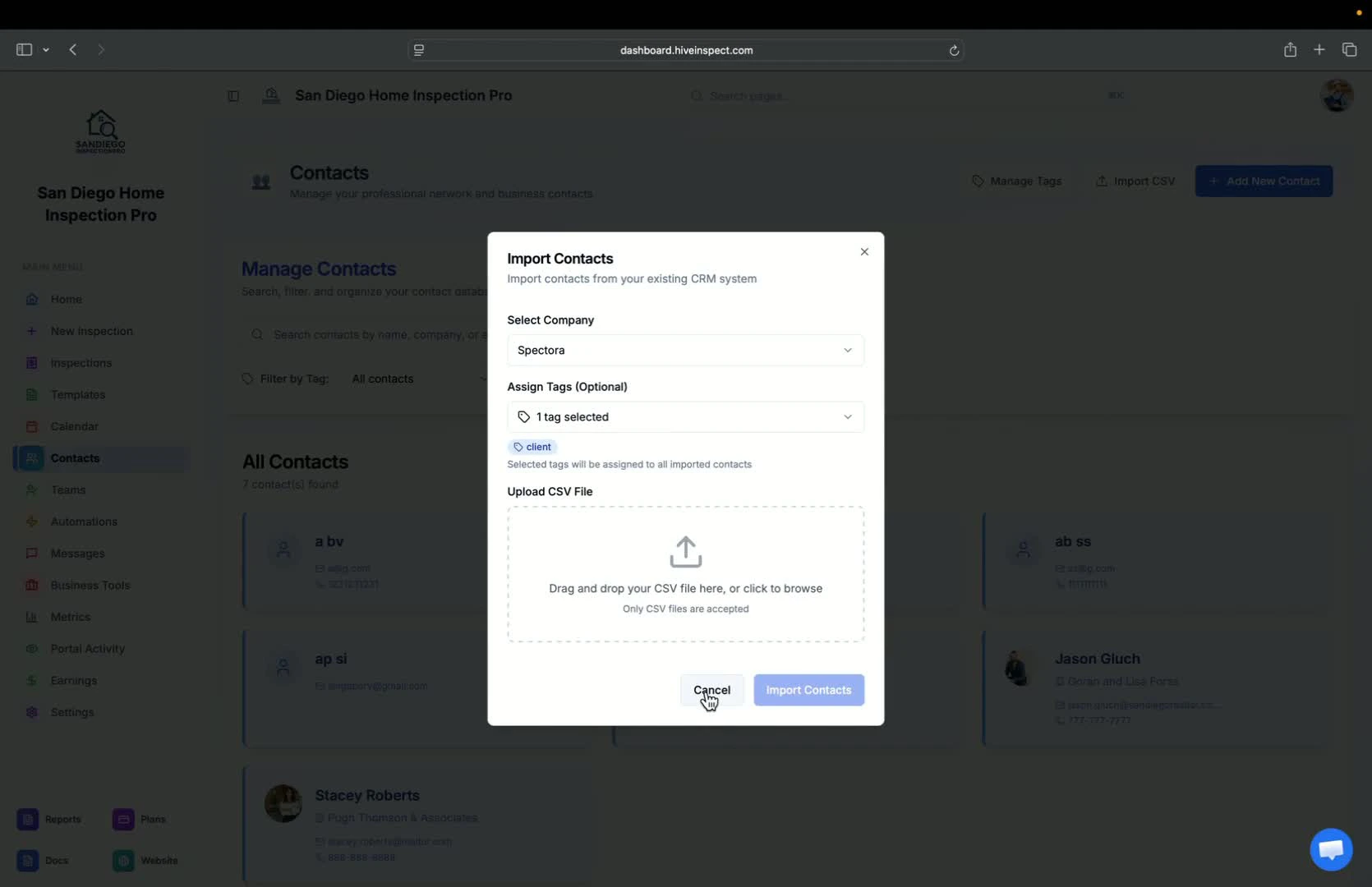
* Click on **Import CSV**
* If importing from Spectora, select **Client**
* Drop the client CSV file into the designated area
* Note: This process may take a few minutes as images are downloaded and uploaded
 * After importing clients, you can cancel your previous subscription
* Repeat the import process for Realtors:
* Select **Realtor** and drop the corresponding CSV file
* After importing clients, you can cancel your previous subscription
* Repeat the import process for Realtors:
* Select **Realtor** and drop the corresponding CSV file
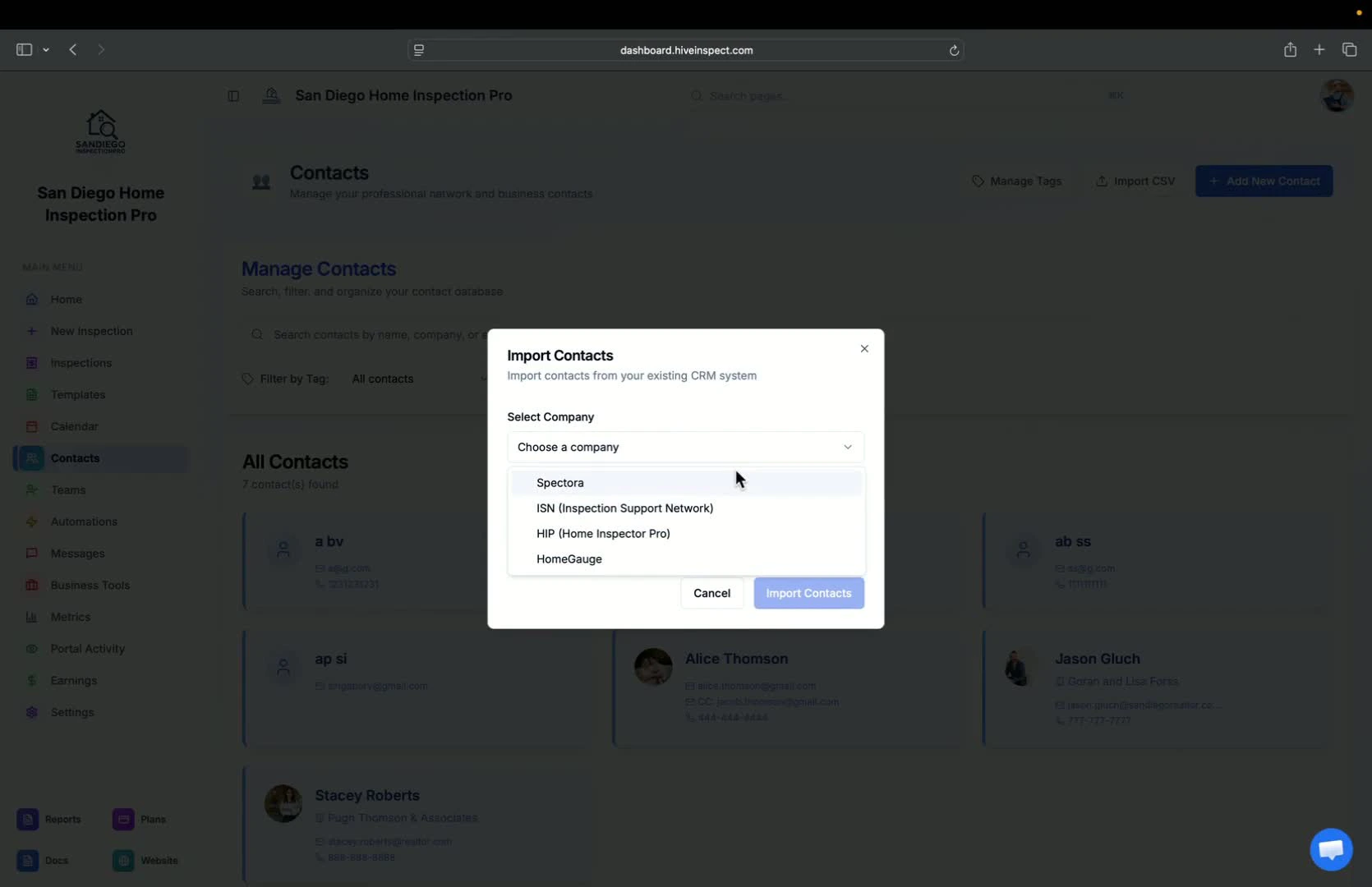
 * You can import contacts from other software like ISN, HIP, and Homegauge
* If your software isn't listed, contact support via the chat bubble and send your CSV file
* You can import contacts from other software like ISN, HIP, and Homegauge
* If your software isn't listed, contact support via the chat bubble and send your CSV file
 * You can create multiple tags for different Realtors:
* Examples: "First-time Realtor", "Regular Realtor", "Tiered Realtors"
* You can create multiple tags for different Realtors:
* Examples: "First-time Realtor", "Regular Realtor", "Tiered Realtors"
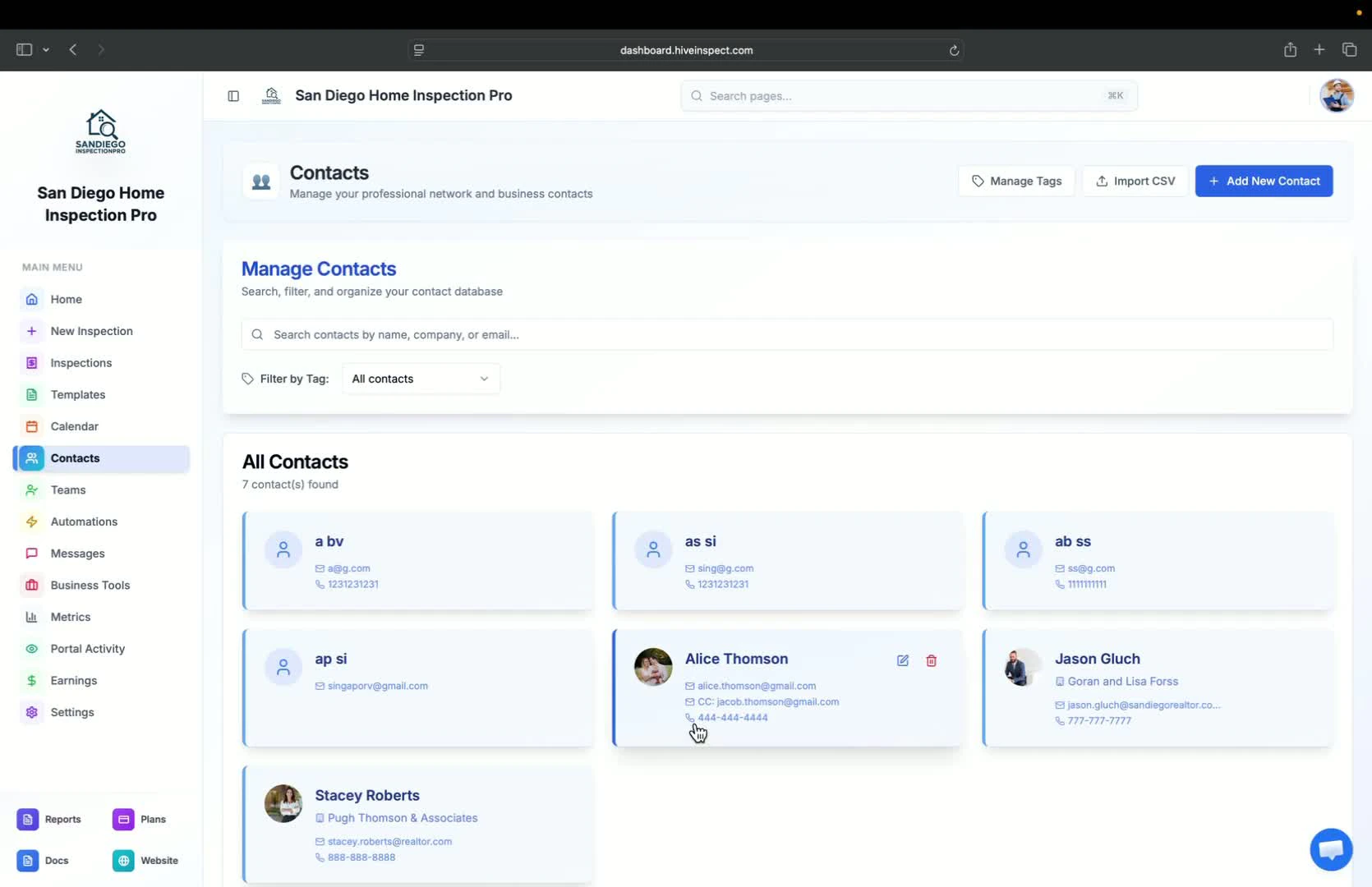
 * Go to an existing contact to update their information
* Assign tags to the contact by selecting the appropriate tag
* Optionally, add a profile photo for the contact
* Go to an existing contact to update their information
* Assign tags to the contact by selecting the appropriate tag
* Optionally, add a profile photo for the contact
 * Including Realtor photos in reports is a good marketing strategy
* Ensure to add photos whenever possible
* Including Realtor photos in reports is a good marketing strategy
* Ensure to add photos whenever possible