In the dashboard: Automations → open an automation → Advanced Settings
 The blue badge (for example **1 set**) counts how many advanced settings are in use. If an automation behaves in a way you don't expect, check for this badge first: something is set inside.
After you change anything, click **Save** in the bar at the bottom of the page.
## Which settings you see depends on the event type
Most settings are shown for every automation. A few only appear for certain [event types](/how-tos/automation-settings#event-type), because they only make sense there. If you don't see a setting below, check the event type.
| Setting | Shown for |
| - | - |
| [Services](#services) | Every event type |
| [Contact Tag Filter](#contact-tag-filter) | Every event type, once your account has at least one contact tag |
| [Sleep Hours](#sleep-hours) | Every event type |
| [Report Name Filter](#report-name-filter) | **Additional Report Added** only |
| [Add-on Name Filter](#add-on-name-filter) | **Add-ons Upsell** only |
| [Service or Add-on Name Filter](#service-or-add-on-name-filter) | **Inspection Scheduled**, **Event Scheduled**, **Inspection Rescheduled**, **Inspection Cancelled**, **Add-ons Updated** |
| [Send Conditions](#send-conditions) | Every event type |
| [Custom Field Filters](#custom-field-filters) | Every event type, once your account has at least one [custom field](/how-tos/custom-inspection-fields) |
| [Late-Added Contacts](#late-added-contacts) | Every event type |
| [Only Trigger Once](#only-trigger-once) | **Inspection Rescheduled**, **Inspection Cancelled**, **Add-ons Updated**, **Report Published**, **Event Scheduled** |
The same list, by event type:
| Event type | Extra settings that appear |
| - | - |
| **Inspection Scheduled** | Service or Add-on Name Filter |
| **Event Scheduled** | Service or Add-on Name Filter, Only Trigger Once |
| **Inspection Rescheduled** | Service or Add-on Name Filter, Only Trigger Once |
| **Inspection Cancelled** | Service or Add-on Name Filter, Only Trigger Once |
| **Add-ons Updated** | Service or Add-on Name Filter, Only Trigger Once |
| **Report Published** | Only Trigger Once |
| **Additional Report Added** | Report Name Filter |
| **Add-ons Upsell** | Add-on Name Filter |
| Every other event type | None. Only the settings shown for every event type. |
The blue badge (for example **1 set**) counts how many advanced settings are in use. If an automation behaves in a way you don't expect, check for this badge first: something is set inside.
After you change anything, click **Save** in the bar at the bottom of the page.
## Which settings you see depends on the event type
Most settings are shown for every automation. A few only appear for certain [event types](/how-tos/automation-settings#event-type), because they only make sense there. If you don't see a setting below, check the event type.
| Setting | Shown for |
| - | - |
| [Services](#services) | Every event type |
| [Contact Tag Filter](#contact-tag-filter) | Every event type, once your account has at least one contact tag |
| [Sleep Hours](#sleep-hours) | Every event type |
| [Report Name Filter](#report-name-filter) | **Additional Report Added** only |
| [Add-on Name Filter](#add-on-name-filter) | **Add-ons Upsell** only |
| [Service or Add-on Name Filter](#service-or-add-on-name-filter) | **Inspection Scheduled**, **Event Scheduled**, **Inspection Rescheduled**, **Inspection Cancelled**, **Add-ons Updated** |
| [Send Conditions](#send-conditions) | Every event type |
| [Custom Field Filters](#custom-field-filters) | Every event type, once your account has at least one [custom field](/how-tos/custom-inspection-fields) |
| [Late-Added Contacts](#late-added-contacts) | Every event type |
| [Only Trigger Once](#only-trigger-once) | **Inspection Rescheduled**, **Inspection Cancelled**, **Add-ons Updated**, **Report Published**, **Event Scheduled** |
The same list, by event type:
| Event type | Extra settings that appear |
| - | - |
| **Inspection Scheduled** | Service or Add-on Name Filter |
| **Event Scheduled** | Service or Add-on Name Filter, Only Trigger Once |
| **Inspection Rescheduled** | Service or Add-on Name Filter, Only Trigger Once |
| **Inspection Cancelled** | Service or Add-on Name Filter, Only Trigger Once |
| **Add-ons Updated** | Service or Add-on Name Filter, Only Trigger Once |
| **Report Published** | Only Trigger Once |
| **Additional Report Added** | Report Name Filter |
| **Add-ons Upsell** | Add-on Name Filter |
| Every other event type | None. Only the settings shown for every event type. |
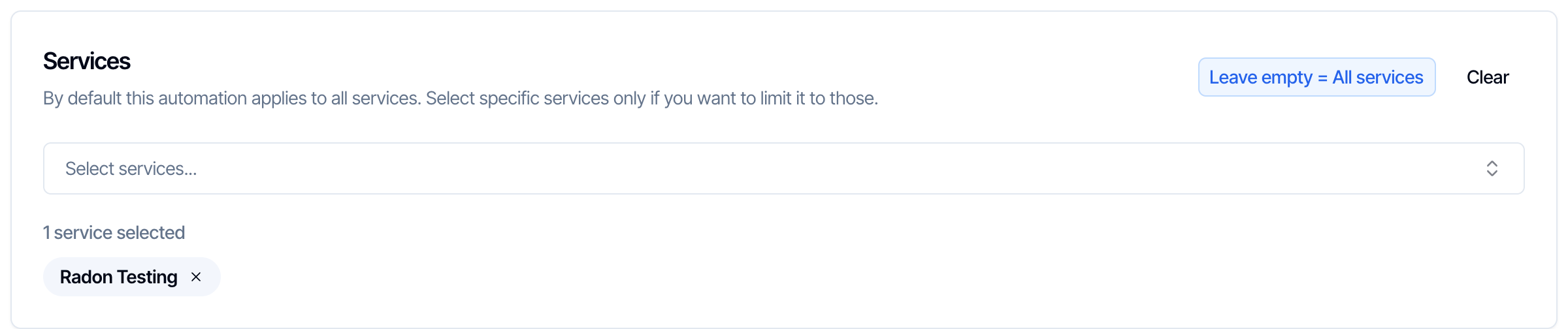 Limits the automation to inspections booked with the services you pick.
* **Leave it empty** (the default) and it runs for **all services**, including services you add later. This is right for almost every automation: confirmations, reminders, report emails, payment reminders.
* **Pick services** only when the message is about one kind of inspection, for example "How to prepare for your radon test" for **Radon Testing**, or new-construction warranty tips.
* The automation runs when the inspection's service is one of those you picked. **Add-ons don't count here.** To target an add-on, use the [Service or Add-on Name Filter](#service-or-add-on-name-filter).
* **Clear** removes every service, so the automation applies to all services again.
Limits the automation to inspections booked with the services you pick.
* **Leave it empty** (the default) and it runs for **all services**, including services you add later. This is right for almost every automation: confirmations, reminders, report emails, payment reminders.
* **Pick services** only when the message is about one kind of inspection, for example "How to prepare for your radon test" for **Radon Testing**, or new-construction warranty tips.
* The automation runs when the inspection's service is one of those you picked. **Add-ons don't count here.** To target an add-on, use the [Service or Add-on Name Filter](#service-or-add-on-name-filter).
* **Clear** removes every service, so the automation applies to all services again.
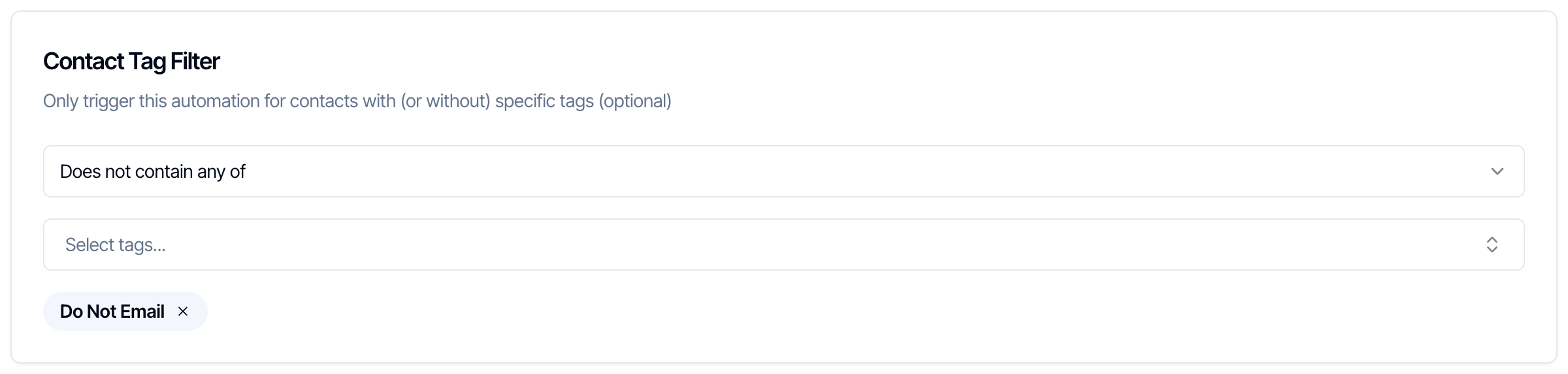 Sends only to contacts who have, or don't have, certain [tags](/how-tos/auto-tagging-contacts). This box only appears once your account has at least one contact tag.
* **Contains any of:** send only to contacts with **at least one** of the tags you pick.
* **Does not contain any of:** send to everyone **except** contacts with any of the tags you pick.
* **No filter:** the default. Tags are ignored.
**Whose tags?** The tags of **the person receiving the message**. On an automation to the buyer's agent, the agent's tags are checked, not the client's.
Examples:
* A special thank-you to your best agents: **Buyer Agent**, **Contains any of** `VIP Agent`.
* Skip agents who asked not to get your emails: **Does not contain any of** `Do Not Email`.
* A "welcome back" message for repeat clients: **Customer**, **Contains any of** `Past Client`.
Good to know:
* The filter is checked when the event happens and again just before sending. A tag added or removed in between counts.
* It doesn't apply to inspectors or to a [specific email address or phone number](/how-tos/automation-settings#specific-email-address-or-specific-phone-number). Those always get the message.
***
## Sleep Hours
Sends only to contacts who have, or don't have, certain [tags](/how-tos/auto-tagging-contacts). This box only appears once your account has at least one contact tag.
* **Contains any of:** send only to contacts with **at least one** of the tags you pick.
* **Does not contain any of:** send to everyone **except** contacts with any of the tags you pick.
* **No filter:** the default. Tags are ignored.
**Whose tags?** The tags of **the person receiving the message**. On an automation to the buyer's agent, the agent's tags are checked, not the client's.
Examples:
* A special thank-you to your best agents: **Buyer Agent**, **Contains any of** `VIP Agent`.
* Skip agents who asked not to get your emails: **Does not contain any of** `Do Not Email`.
* A "welcome back" message for repeat clients: **Customer**, **Contains any of** `Past Client`.
Good to know:
* The filter is checked when the event happens and again just before sending. A tag added or removed in between counts.
* It doesn't apply to inspectors or to a [specific email address or phone number](/how-tos/automation-settings#specific-email-address-or-specific-phone-number). Those always get the message.
***
## Sleep Hours
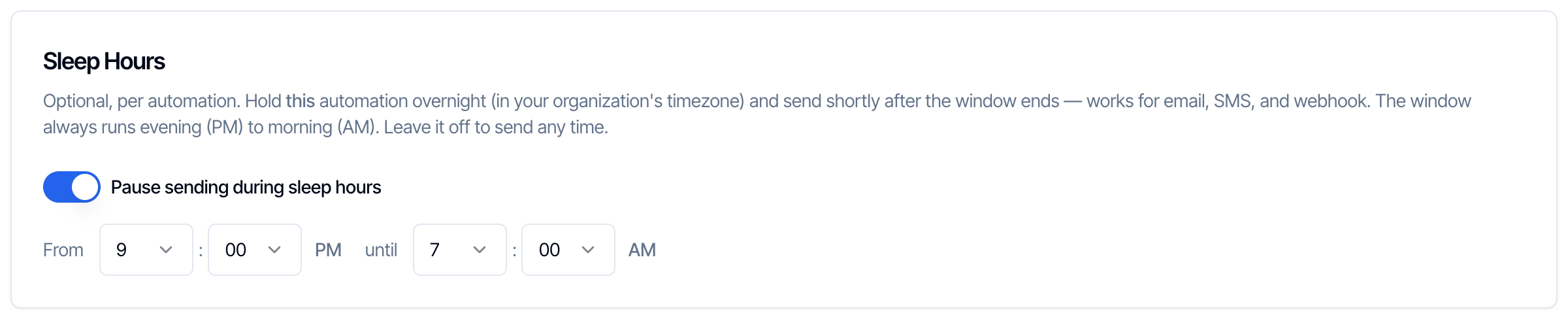 Stops this automation from sending overnight. A message that would go out during sleep hours is held, then sent shortly after they end.
1. Turn on **Pause sending during sleep hours**. It starts at 9:00 PM to 7:00 AM.
2. Change the times if you like. The start is always PM and the end is always AM, so the window always runs overnight.
How it works:
* Times are in your organization's time zone (**Org Settings → Scheduling**).
* A held message goes out within about 30 minutes after the window ends. They're spread out a little, so they don't all arrive at the same moment.
* Sleep hours belong to **this automation only**. There's no account-wide setting, so set them on each automation that needs them. Texts are the most important.
* **Send Now** on an inspection also waits until the window ends, and tells you when the message will go out.
Stops this automation from sending overnight. A message that would go out during sleep hours is held, then sent shortly after they end.
1. Turn on **Pause sending during sleep hours**. It starts at 9:00 PM to 7:00 AM.
2. Change the times if you like. The start is always PM and the end is always AM, so the window always runs overnight.
How it works:
* Times are in your organization's time zone (**Org Settings → Scheduling**).
* A held message goes out within about 30 minutes after the window ends. They're spread out a little, so they don't all arrive at the same moment.
* Sleep hours belong to **this automation only**. There's no account-wide setting, so set them on each automation that needs them. Texts are the most important.
* **Send Now** on an inspection also waits until the window ends, and tells you when the message will go out.
 Sends only when the name of the additional report you upload contains this text. Capital letters don't matter: `radon` matches "Radon Results".
Use it to send a different email for each kind of outside report, for example:
* `Radon` sends "Your radon results are in, here's how to read them".
* `Sewer` sends "Your sewer scope video is ready".
* `WDO` or `Termite` sends the termite report email.
If a report is uploaded and its name doesn't match, the message keeps **Waiting**. It sends if a matching report is uploaded later on the same inspection. Leave the box empty to send for every additional report.
***
## Add-on Name Filter
**Shown for:** Add-ons Upsell.
Sends only when the name of the additional report you upload contains this text. Capital letters don't matter: `radon` matches "Radon Results".
Use it to send a different email for each kind of outside report, for example:
* `Radon` sends "Your radon results are in, here's how to read them".
* `Sewer` sends "Your sewer scope video is ready".
* `WDO` or `Termite` sends the termite report email.
If a report is uploaded and its name doesn't match, the message keeps **Waiting**. It sends if a matching report is uploaded later on the same inspection. Leave the box empty to send for every additional report.
***
## Add-on Name Filter
**Shown for:** Add-ons Upsell.
 Sends the upsell only when the client could still add an add-on whose name contains this text. "Remaining add-ons" are the add-ons on the inspection's service that have **Allow Upselling** turned on and that the client hasn't added yet. Add-ons without **Allow Upselling** are never offered, the same as on the client's portal.
* A client who already booked termite never gets the termite pitch.
* It's checked just before sending, so it uses the add-ons as they are on the day.
* Pair it with the `{{{remaining_add_ons_services}}}` placeholder to list what's still available. In an **Add-ons Upsell** email it lists the same add-ons the filter checks.
To send one upsell per add-on (termite, septic, radon...), make one automation for each. See [Send add-on upsell emails](/how-tos/add-on-upsell-emails) for the full setup.
***
## Service or Add-on Name Filter
**Shown for:** Inspection Scheduled, Event Scheduled, Inspection Rescheduled, Inspection Cancelled, Add-ons Updated.
Sends the upsell only when the client could still add an add-on whose name contains this text. "Remaining add-ons" are the add-ons on the inspection's service that have **Allow Upselling** turned on and that the client hasn't added yet. Add-ons without **Allow Upselling** are never offered, the same as on the client's portal.
* A client who already booked termite never gets the termite pitch.
* It's checked just before sending, so it uses the add-ons as they are on the day.
* Pair it with the `{{{remaining_add_ons_services}}}` placeholder to list what's still available. In an **Add-ons Upsell** email it lists the same add-ons the filter checks.
To send one upsell per add-on (termite, septic, radon...), make one automation for each. See [Send add-on upsell emails](/how-tos/add-on-upsell-emails) for the full setup.
***
## Service or Add-on Name Filter
**Shown for:** Inspection Scheduled, Event Scheduled, Inspection Rescheduled, Inspection Cancelled, Add-ons Updated.
 Sends only when the inspection's **main service** or one of its **selected add-ons** has this text in its name. Capital letters don't matter.
This is the easiest way to send a message about an **add-on**, because the [Services](#services) setting only looks at the main service. Examples:
* `Pool` on **Inspection Scheduled** sends pool-prep instructions when someone books with a pool add-on.
* `Radon` on **Inspection Scheduled** sends radon-test instructions, whether radon was booked as a service or as an add-on.
* `Sewer` on **Add-ons Updated** tells your sewer scope subcontractor when the client adds a sewer scope later.
Good to know:
* It is checked when the event happens. If the name doesn't match, the message is cancelled.
* Only the main service and its selected add-ons are checked: the same names that `{{{service_name}}}` and `{{{addon_services}}}` show.
* Type part of the name you see under **Business Tools → Services & Fees**. Typing `Radon` matches "Radon Testing" and "Radon Test - 48 hr".
* For add-ons ordered when booking, use **Inspection Scheduled**. For add-ons added after booking, add a copy with **Add-ons Updated**.
***
## Send Conditions
Sends only when the inspection's **main service** or one of its **selected add-ons** has this text in its name. Capital letters don't matter.
This is the easiest way to send a message about an **add-on**, because the [Services](#services) setting only looks at the main service. Examples:
* `Pool` on **Inspection Scheduled** sends pool-prep instructions when someone books with a pool add-on.
* `Radon` on **Inspection Scheduled** sends radon-test instructions, whether radon was booked as a service or as an add-on.
* `Sewer` on **Add-ons Updated** tells your sewer scope subcontractor when the client adds a sewer scope later.
Good to know:
* It is checked when the event happens. If the name doesn't match, the message is cancelled.
* Only the main service and its selected add-ons are checked: the same names that `{{{service_name}}}` and `{{{addon_services}}}` show.
* Type part of the name you see under **Business Tools → Services & Fees**. Typing `Radon` matches "Radon Testing" and "Radon Test - 48 hr".
* For add-ons ordered when booking, use **Inspection Scheduled**. For add-ons added after booking, add a copy with **Add-ons Updated**.
***
## Send Conditions
 Sends only if the agreement or payment status matches, **at the moment the message is due**. If it doesn't match then, the message is cancelled.
| Setting | Choices |
| - | - |
| **Agreement status** | **No condition** (default) · **Only send when all agreements are signed** · **Only send when agreements are NOT all signed** |
| **Payment status** | **No condition** (default) · **Only send when payment is complete** · **Only send when payment is still outstanding** |
Sends only if the agreement or payment status matches, **at the moment the message is due**. If it doesn't match then, the message is cancelled.
| Setting | Choices |
| - | - |
| **Agreement status** | **No condition** (default) · **Only send when all agreements are signed** · **Only send when agreements are NOT all signed** |
| **Payment status** | **No condition** (default) · **Only send when payment is complete** · **Only send when payment is still outstanding** |
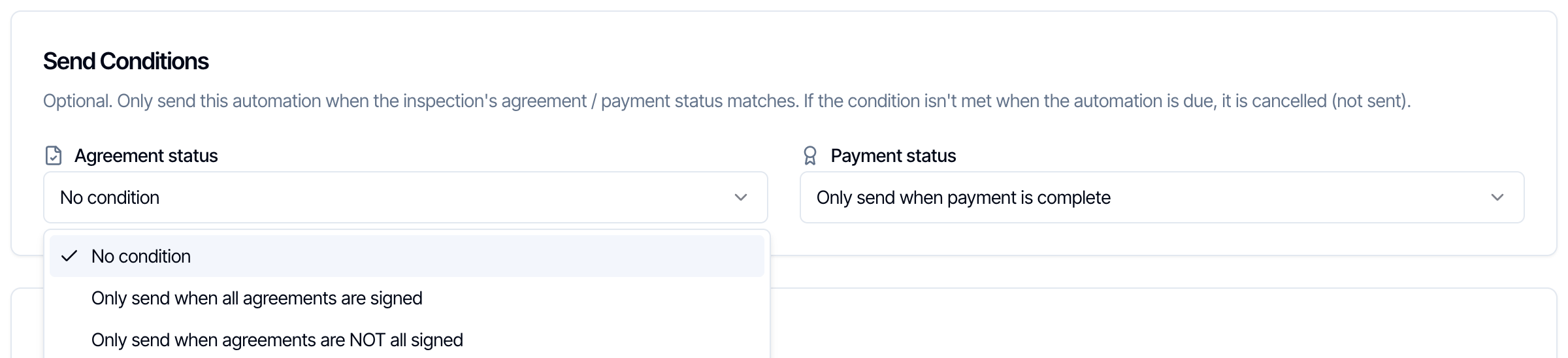 What counts:
* **All agreements signed:** every agreement on the inspection is signed. An inspection with **no agreements** counts as signed.
* **Payment complete:** the inspection is paid in full, or nothing is owed. A \$0 inspection counts as paid.
* **Bank transfers (ACH):** if **Mark payment as paid only when ACH settles** is on in your [payment settings](/how-tos/payment-settings), a bank payment counts as complete only once it clears.
When both are set, both must match.
**Examples**
* **Review request only from clients who paid:** **Post-Inspection Follow-up**, Payment status **Only send when payment is complete**.
* **Two versions of the day-before reminder:** one with **Only send when all agreements are signed** ("You're all set, see you tomorrow"), and one with **Only send when agreements are NOT all signed** ("Please sign before we arrive"). Each client gets exactly one.
* **Report email to the agent only once the client paid:** **Report Published**, **Buyer Agent**, Payment status **Only send when payment is complete**.
What counts:
* **All agreements signed:** every agreement on the inspection is signed. An inspection with **no agreements** counts as signed.
* **Payment complete:** the inspection is paid in full, or nothing is owed. A \$0 inspection counts as paid.
* **Bank transfers (ACH):** if **Mark payment as paid only when ACH settles** is on in your [payment settings](/how-tos/payment-settings), a bank payment counts as complete only once it clears.
When both are set, both must match.
**Examples**
* **Review request only from clients who paid:** **Post-Inspection Follow-up**, Payment status **Only send when payment is complete**.
* **Two versions of the day-before reminder:** one with **Only send when all agreements are signed** ("You're all set, see you tomorrow"), and one with **Only send when agreements are NOT all signed** ("Please sign before we arrive"). Each client gets exactly one.
* **Report email to the agent only once the client paid:** **Report Published**, **Buyer Agent**, Payment status **Only send when payment is complete**.
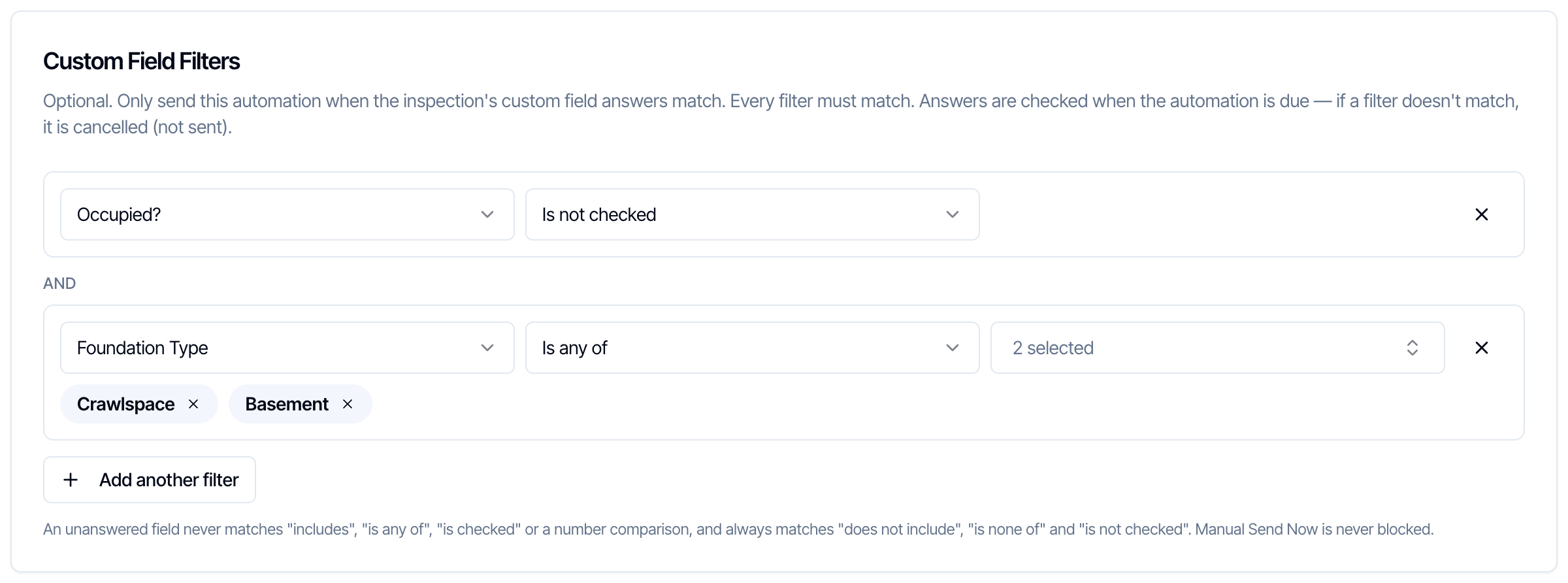 Sends only when the inspection's [custom field](/how-tos/custom-inspection-fields) answers match. This box only appears once your account has at least one custom field.
1. Click **Add filter**.
2. Pick the field in **Which custom field?**
3. Pick a **Condition**, and type or pick the value.
4. Click **Add another filter** for more. You can add up to 20.
**Every filter must match** (they are joined with AND). To send when *either* of two answers is true, make two automations, or use **Is any of** on a dropdown field.
**Conditions by field type**
| Field type | Conditions |
| - | - |
| Text | **Includes**, **Does not include**, **Is exactly**, **Is not exactly**, **Is empty**, **Is not empty** |
| Number | **Equal to**, **Not equal to**, **Greater than**, **Greater than or equal to**, **Less than**, **Less than or equal to**, **Between** (includes both ends), **Is empty**, **Is not empty** |
| Checkbox | **Is checked**, **Is not checked** |
| Dropdown | **Is any of**, **Is none of**, **Includes text**, **Does not include text**, **Is empty**, **Is not empty** |
Capital letters don't matter. Numbers can include a dollar sign and commas, such as \$2,500.
**Unanswered fields.** A field nobody filled in never matches "positive" conditions: **Includes**, **Is any of**, **Is checked** or a number comparison. It always matches "negative" ones: **Does not include**, **Is none of** and **Is not checked**. Keep this in mind: "Occupied? **Is not checked**" also sends when the question was never answered.
**When it's checked.** Just before sending, using the answers as they are then. A client who answers after booking still counts.
**Examples**
* **Vacant-home utilities reminder:** **Pre-Inspection Reminder** 48 hours before, with "Occupied? **Is not checked**".
* **Crawlspace access note:** "Foundation Type **Is any of** Crawlspace".
* **Large-home heads-up to the inspector:** **Inspector** recipient, "Square Footage **Greater than** 4000".
If you delete a custom field that a filter uses, the filter can no longer match. The next time you save the automation, Hive asks you to remove that filter.
***
## Late-Added Contacts
Sends only when the inspection's [custom field](/how-tos/custom-inspection-fields) answers match. This box only appears once your account has at least one custom field.
1. Click **Add filter**.
2. Pick the field in **Which custom field?**
3. Pick a **Condition**, and type or pick the value.
4. Click **Add another filter** for more. You can add up to 20.
**Every filter must match** (they are joined with AND). To send when *either* of two answers is true, make two automations, or use **Is any of** on a dropdown field.
**Conditions by field type**
| Field type | Conditions |
| - | - |
| Text | **Includes**, **Does not include**, **Is exactly**, **Is not exactly**, **Is empty**, **Is not empty** |
| Number | **Equal to**, **Not equal to**, **Greater than**, **Greater than or equal to**, **Less than**, **Less than or equal to**, **Between** (includes both ends), **Is empty**, **Is not empty** |
| Checkbox | **Is checked**, **Is not checked** |
| Dropdown | **Is any of**, **Is none of**, **Includes text**, **Does not include text**, **Is empty**, **Is not empty** |
Capital letters don't matter. Numbers can include a dollar sign and commas, such as \$2,500.
**Unanswered fields.** A field nobody filled in never matches "positive" conditions: **Includes**, **Is any of**, **Is checked** or a number comparison. It always matches "negative" ones: **Does not include**, **Is none of** and **Is not checked**. Keep this in mind: "Occupied? **Is not checked**" also sends when the question was never answered.
**When it's checked.** Just before sending, using the answers as they are then. A client who answers after booking still counts.
**Examples**
* **Vacant-home utilities reminder:** **Pre-Inspection Reminder** 48 hours before, with "Occupied? **Is not checked**".
* **Crawlspace access note:** "Foundation Type **Is any of** Crawlspace".
* **Large-home heads-up to the inspector:** **Inspector** recipient, "Square Footage **Greater than** 4000".
If you delete a custom field that a filter uses, the filter can no longer match. The next time you save the automation, Hive asks you to remove that filter.
***
## Late-Added Contacts
 Decides what happens when you add someone to an inspection **after** the automation's event already happened. For example, you add the buyer's agent after the inspection is over: should the agent still get the "Inspection Scheduled" email?
Messages that can catch up like this are those for **Inspection Scheduled**, **Send Inspection Quote**, **Payment Received**, **Agreement Signed** and **Report Published**. The same applies to inspectors assigned late.
| Choice | What a late-added person gets |
| - | - |
| **Smart (recommended)** | Catches up, **except** the booking confirmation, payment thank-you and agreement-signed messages once the inspection's start time has passed. Report emails and quotes still catch up. |
| **Always send** | Always catches up, whenever they're added. |
| **Only while inspection is upcoming** | Catches up only before the start time. After that, nothing, including report emails. |
| **Never** | Never catches up. Only people on the inspection when the event happened get it. |
Leave it on **Smart** unless you have a reason. With Smart, an agent you add after the inspection still gets the report email, but not a confirmation for an inspection that already happened.
When a catch-up is held back, the message usually shows as **Cancelled** on the inspection's **Automations** page, and you can send it with **Send Now** if you want to.
***
## Only Trigger Once
**Shown for:** Inspection Rescheduled, Inspection Cancelled, Add-ons Updated, Report Published, Event Scheduled.
Decides what happens when you add someone to an inspection **after** the automation's event already happened. For example, you add the buyer's agent after the inspection is over: should the agent still get the "Inspection Scheduled" email?
Messages that can catch up like this are those for **Inspection Scheduled**, **Send Inspection Quote**, **Payment Received**, **Agreement Signed** and **Report Published**. The same applies to inspectors assigned late.
| Choice | What a late-added person gets |
| - | - |
| **Smart (recommended)** | Catches up, **except** the booking confirmation, payment thank-you and agreement-signed messages once the inspection's start time has passed. Report emails and quotes still catch up. |
| **Always send** | Always catches up, whenever they're added. |
| **Only while inspection is upcoming** | Catches up only before the start time. After that, nothing, including report emails. |
| **Never** | Never catches up. Only people on the inspection when the event happened get it. |
Leave it on **Smart** unless you have a reason. With Smart, an agent you add after the inspection still gets the report email, but not a confirmation for an inspection that already happened.
When a catch-up is held back, the message usually shows as **Cancelled** on the inspection's **Automations** page, and you can send it with **Send Now** if you want to.
***
## Only Trigger Once
**Shown for:** Inspection Rescheduled, Inspection Cancelled, Add-ons Updated, Report Published, Event Scheduled.
 These five events can happen more than once on the same inspection: you reschedule twice, publish a second report, change add-ons again. Normally the automation sends every time. Turn on **Send at most once per inspection** and each person gets it **only the first time**.
Use it for:
* **Report Published**, when you publish several reports (home, radon, sewer) and want the "your report is ready" email only once.
* **Inspection Rescheduled**, if you move times around a lot and only want one "your time has changed" message.
* **Add-ons Updated**, so the client gets one confirmation even if add-ons change several times.
Good to know:
* It's **per person, per inspection**. A buyer's agent added later still gets their first copy.
* For **Event Scheduled**, it means one message per inspection, not one per event.
* A message **you cancelled** on the inspection counts as "already done", so it isn't sent again. Messages Hive cancelled itself, or that failed, don't count.
* **Send Now** is never blocked, and doesn't count toward the limit.
***
## Things Hive stops by itself
You don't need any setting for these. Hive cancels the message when the time comes if:
| Message | Stopped when |
| - | - |
| **Agreement Not Signed Reminder** | Every agreement is signed, or the inspection has no agreements |
| **Payment Not Received** (before or after) | The client has paid, or nothing is owed |
| **Add-ons Upsell** | There are no add-ons with **Allow Upselling** left to offer |
| **Send Inspection Quote** | The client accepted the quote, or it's no longer in review |
| Any message for the inspection | The inspection is cancelled or rejected (restored if you reopen it) |
| Any message except quotes and cancellations | The inspection isn't **Confirmed** when the message is due |
| **Event Scheduled** and **Pre-Event Reminder** | The event was deleted |
| Any message for the inspection | The inspection is deleted |
| Any message to an inspector | The inspector was removed from the inspection or deactivated |
| Any email | The contact unsubscribed |
When an inspection is **rescheduled**, reminders before and after it move to the new time. Any that would now be more than 15 minutes late are cancelled. A **Pre-Event Reminder** follows its own event instead, so it moves only when that event moves.
***
## Ready-made combinations
| Goal | Event type | Advanced settings |
| - | - | - |
| Radon instructions only for radon bookings | Inspection Scheduled | Service or Add-on Name Filter: `Radon` |
| No texts at night | Any SMS automation | Sleep Hours: 9:00 PM to 7:00 AM |
| One "report ready" email even with several reports | Report Published | Only Trigger Once: on |
| Review request only from paying clients | Post-Inspection Follow-up | Send Conditions: payment complete |
| "You're all set" reminder only when everything is done | Pre-Inspection Reminder | Send Conditions: agreements signed **and** payment complete |
| Thank-you to top agents | Report Published, to Buyer Agent | Contact Tag Filter: Contains any of `VIP Agent` |
| Tell the sewer subcontractor about late add-ons | Add-ons Updated, to Sub Contractor | Service or Add-on Name Filter: `Sewer` |
| Utilities reminder for vacant homes | Pre-Inspection Reminder | Custom Field Filters: Occupied? Is not checked |
***
## Common questions
These five events can happen more than once on the same inspection: you reschedule twice, publish a second report, change add-ons again. Normally the automation sends every time. Turn on **Send at most once per inspection** and each person gets it **only the first time**.
Use it for:
* **Report Published**, when you publish several reports (home, radon, sewer) and want the "your report is ready" email only once.
* **Inspection Rescheduled**, if you move times around a lot and only want one "your time has changed" message.
* **Add-ons Updated**, so the client gets one confirmation even if add-ons change several times.
Good to know:
* It's **per person, per inspection**. A buyer's agent added later still gets their first copy.
* For **Event Scheduled**, it means one message per inspection, not one per event.
* A message **you cancelled** on the inspection counts as "already done", so it isn't sent again. Messages Hive cancelled itself, or that failed, don't count.
* **Send Now** is never blocked, and doesn't count toward the limit.
***
## Things Hive stops by itself
You don't need any setting for these. Hive cancels the message when the time comes if:
| Message | Stopped when |
| - | - |
| **Agreement Not Signed Reminder** | Every agreement is signed, or the inspection has no agreements |
| **Payment Not Received** (before or after) | The client has paid, or nothing is owed |
| **Add-ons Upsell** | There are no add-ons with **Allow Upselling** left to offer |
| **Send Inspection Quote** | The client accepted the quote, or it's no longer in review |
| Any message for the inspection | The inspection is cancelled or rejected (restored if you reopen it) |
| Any message except quotes and cancellations | The inspection isn't **Confirmed** when the message is due |
| **Event Scheduled** and **Pre-Event Reminder** | The event was deleted |
| Any message for the inspection | The inspection is deleted |
| Any message to an inspector | The inspector was removed from the inspection or deactivated |
| Any email | The contact unsubscribed |
When an inspection is **rescheduled**, reminders before and after it move to the new time. Any that would now be more than 15 minutes late are cancelled. A **Pre-Event Reminder** follows its own event instead, so it moves only when that event moves.
***
## Ready-made combinations
| Goal | Event type | Advanced settings |
| - | - | - |
| Radon instructions only for radon bookings | Inspection Scheduled | Service or Add-on Name Filter: `Radon` |
| No texts at night | Any SMS automation | Sleep Hours: 9:00 PM to 7:00 AM |
| One "report ready" email even with several reports | Report Published | Only Trigger Once: on |
| Review request only from paying clients | Post-Inspection Follow-up | Send Conditions: payment complete |
| "You're all set" reminder only when everything is done | Pre-Inspection Reminder | Send Conditions: agreements signed **and** payment complete |
| Thank-you to top agents | Report Published, to Buyer Agent | Contact Tag Filter: Contains any of `VIP Agent` |
| Tell the sewer subcontractor about late add-ons | Add-ons Updated, to Sub Contractor | Service or Add-on Name Filter: `Sewer` |
| Utilities reminder for vacant homes | Pre-Inspection Reminder | Custom Field Filters: Occupied? Is not checked |
***
## Common questions