In the dashboard: Automations → Create, or click an automation → Edit
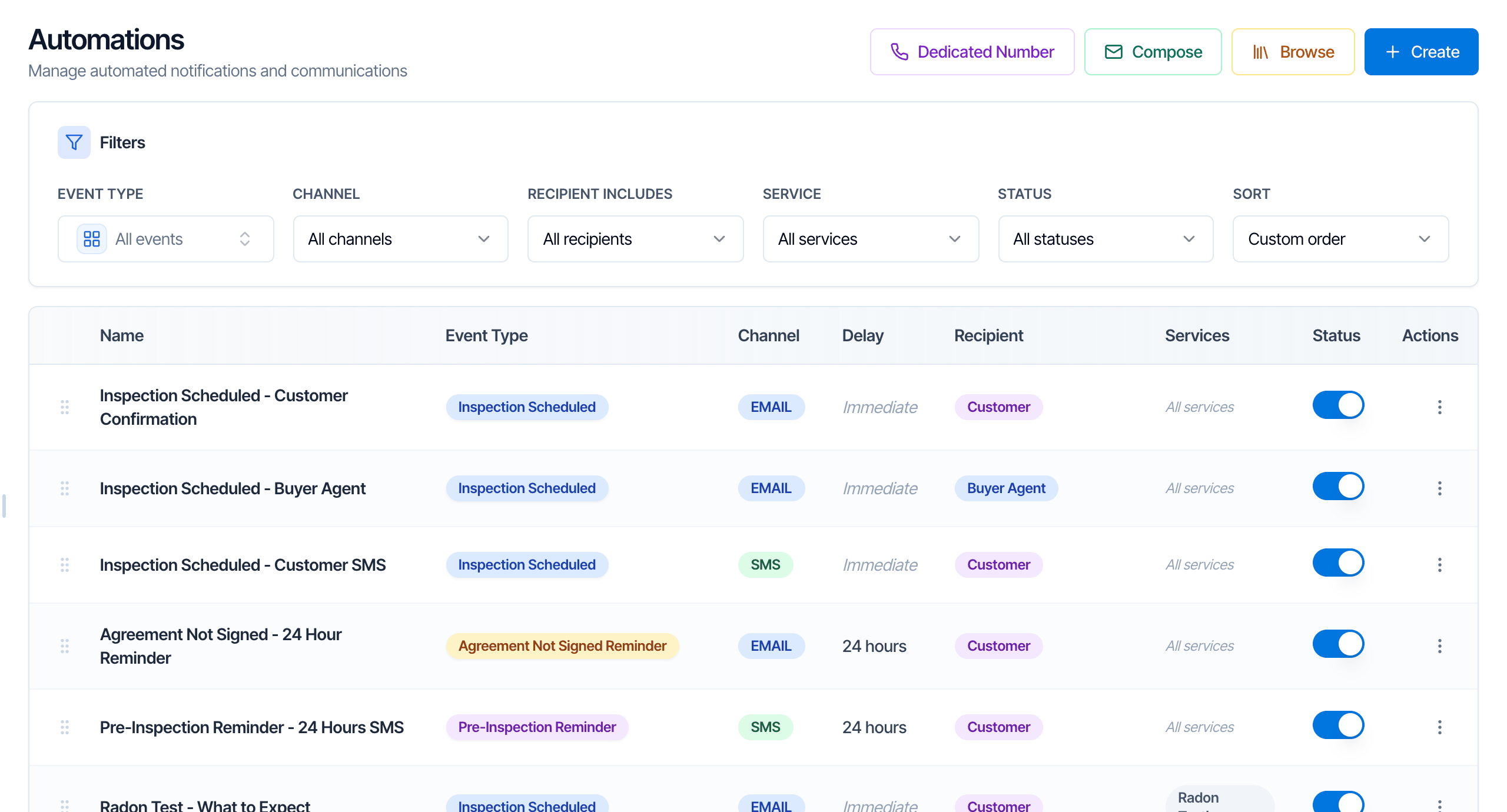 **The buttons at the top**
* **Dedicated Number:** get your own phone number for texts. See [Your own text number](/how-tos/dedicated-phone-number).
* **Compose:** send a one-off email by hand. It is not an automation.
* **Browse:** import ready-made automations from the Automation Template Hub.
* **Create:** build a new automation from a blank form.
**The columns**
| Column | What it shows |
| - | - |
| **Name** | The name you gave it. Only your team sees it. |
| **Event Type** | What makes it send. |
| **Channel** | **EMAIL**, **SMS** or **WEBHOOK**. |
| **Delay** | How long after (or before) the event it sends. **Immediate** means no delay. |
| **Recipient** | Who gets it. A green badge with an email address or phone number means one specific address. **No recipient** means it never sends on its own. |
| **Services** | **All services**, or the services it is limited to. |
| **Status** | The on/off switch. Off means it stops sending. See [Active](#active). |
**The filters** narrow the list. **Recipient Includes** has a **Custom Email** choice that shows automations sent to one specific address. **Sort** sets the order: **Custom order** lets you drag rows by the handle on the left; the other choices sort by date created or put active automations first.
### Edit, duplicate or delete an automation
Click the **⋮** button at the end of a row.
**The buttons at the top**
* **Dedicated Number:** get your own phone number for texts. See [Your own text number](/how-tos/dedicated-phone-number).
* **Compose:** send a one-off email by hand. It is not an automation.
* **Browse:** import ready-made automations from the Automation Template Hub.
* **Create:** build a new automation from a blank form.
**The columns**
| Column | What it shows |
| - | - |
| **Name** | The name you gave it. Only your team sees it. |
| **Event Type** | What makes it send. |
| **Channel** | **EMAIL**, **SMS** or **WEBHOOK**. |
| **Delay** | How long after (or before) the event it sends. **Immediate** means no delay. |
| **Recipient** | Who gets it. A green badge with an email address or phone number means one specific address. **No recipient** means it never sends on its own. |
| **Services** | **All services**, or the services it is limited to. |
| **Status** | The on/off switch. Off means it stops sending. See [Active](#active). |
**The filters** narrow the list. **Recipient Includes** has a **Custom Email** choice that shows automations sent to one specific address. **Sort** sets the order: **Custom order** lets you drag rows by the handle on the left; the other choices sort by date created or put active automations first.
### Edit, duplicate or delete an automation
Click the **⋮** button at the end of a row.
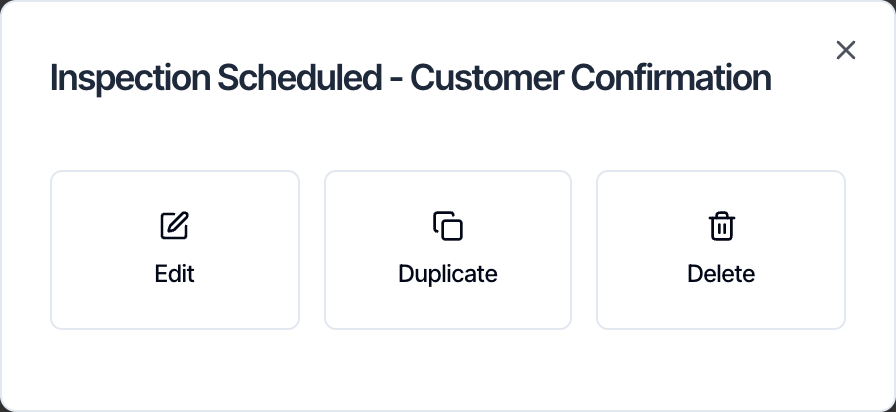 * **Edit** opens the automation so you can change it.
* **Duplicate** makes a copy named "... - Copy" with every setting. The copy starts **switched off**, so clients don't get two emails while you change it. Switch it on when it's ready.
* **Delete** removes the automation for good. It also removes its history from every inspection's **Automations** page, so you can no longer see what it sent.
* **Edit** opens the automation so you can change it.
* **Duplicate** makes a copy named "... - Copy" with every setting. The copy starts **switched off**, so clients don't get two emails while you change it. Switch it on when it's ready.
* **Delete** removes the automation for good. It also removes its history from every inspection's **Automations** page, so you can no longer see what it sent.
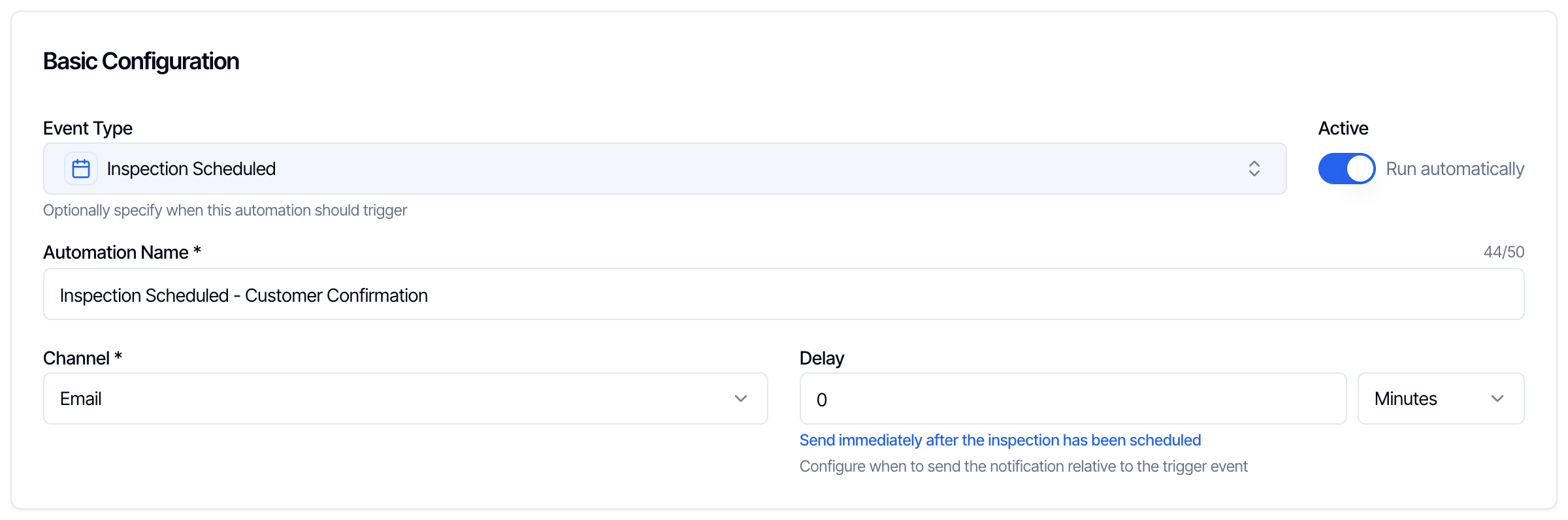 ### Event Type
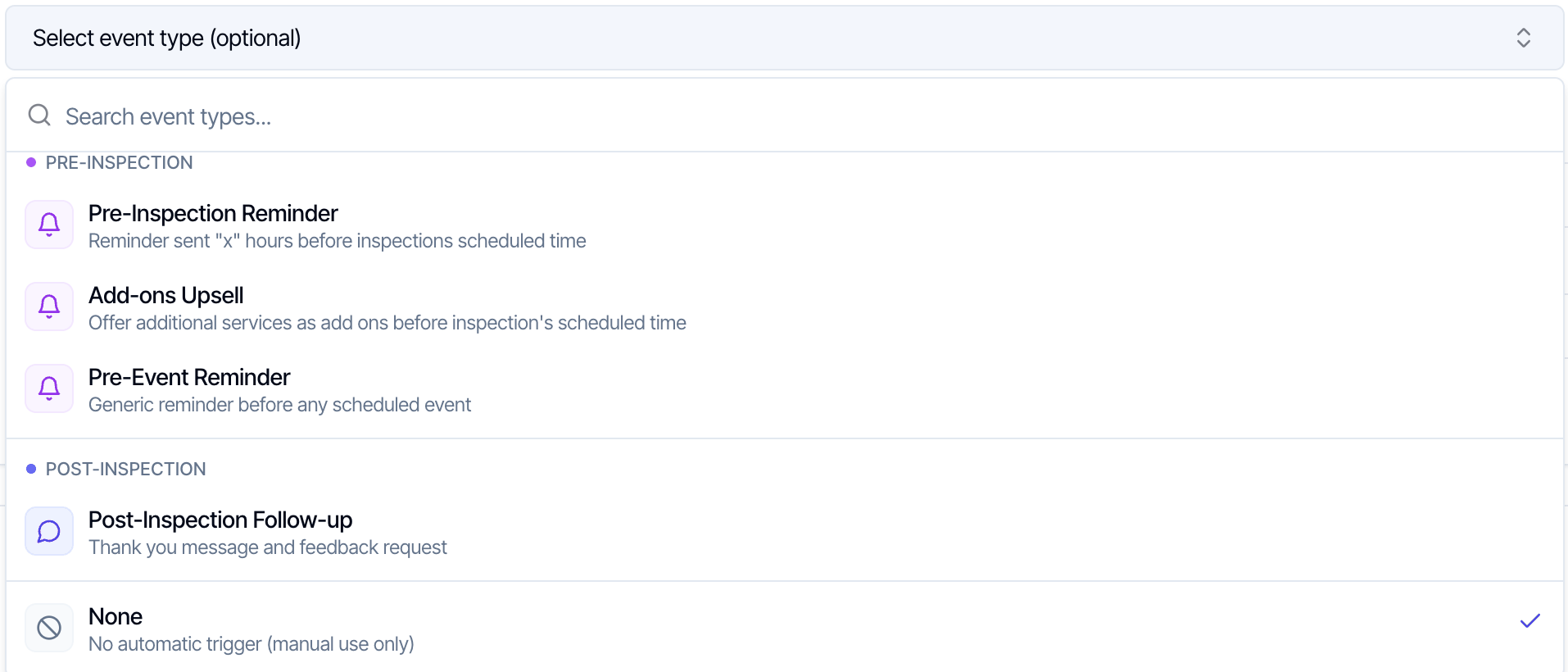
The event type is the moment that starts the automation. Click the box to see the list, grouped by kind. Each one has a short description underneath. Type in **Search event types...** to find one quickly.
### Event Type
The event type is the moment that starts the automation. Click the box to see the list, grouped by kind. Each one has a short description underneath. Type in **Search event types...** to find one quickly.
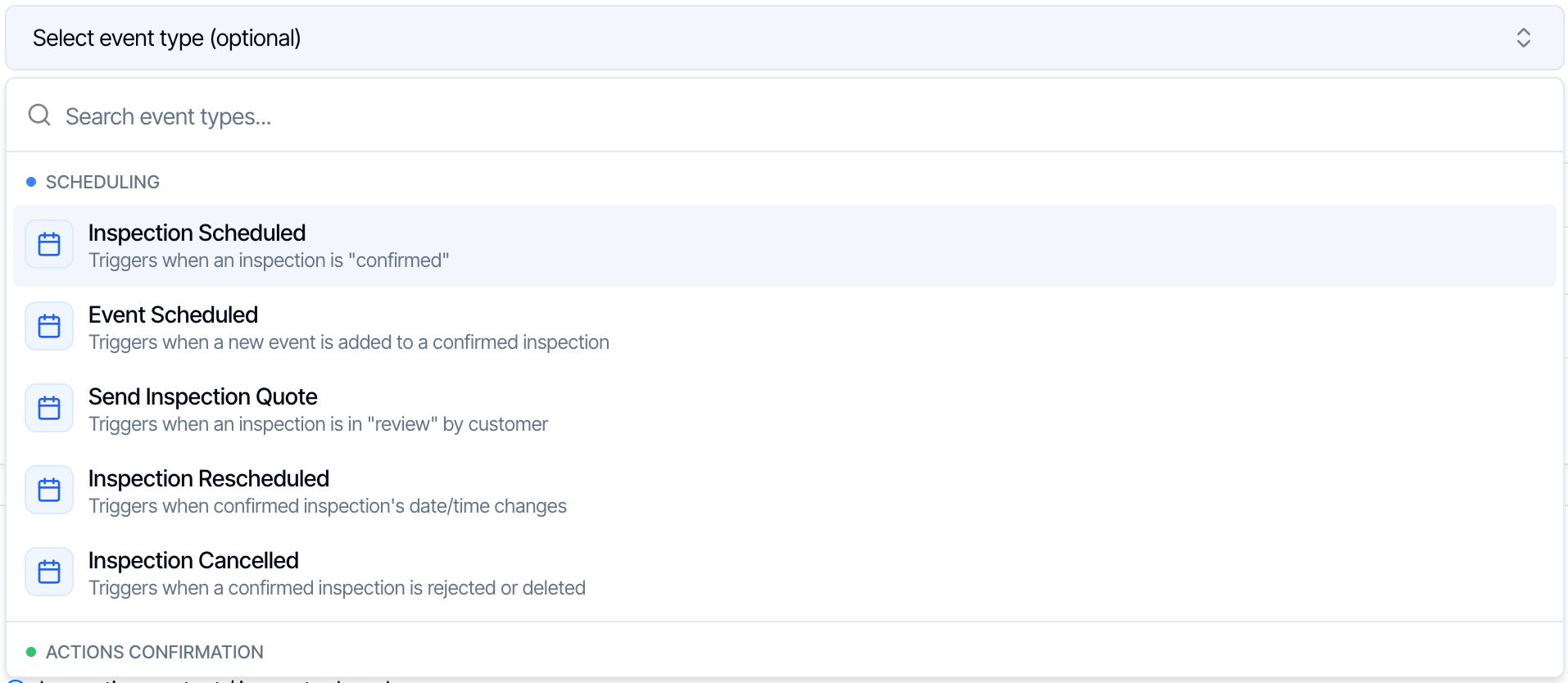 Here is exactly when each one sends. "Start time" means the inspection's scheduled date and time.
**Scheduling**
| Event type | Sends when | Can send more than once per inspection? |
| - | - | - |
| **Inspection Scheduled** | The inspection becomes **Confirmed**. That is when you book it as confirmed, or when you confirm a draft, a waiting booking or an accepted quote. | No |
| **Event Scheduled** | A new [inspection event](/faq/scheduling#add-inspection-events-calendar) (for example a radon pickup) is added to a confirmed inspection. Events added before the inspection was confirmed send when it is confirmed. The delay counts from when the event was **added**, not from the event's own time. | Yes, once per new event |
| **Send Inspection Quote** | The inspection is put in **Review**, which means a quote is waiting for the client to accept. If the client accepts (or you move it out of review) before the message goes out, it is not sent. | No |
| **Inspection Rescheduled** | The date or time of the inspection changes. | Yes, every reschedule |
| **Inspection Cancelled** | The inspection is cancelled or rejected. This includes bookings that were never confirmed. Deleting an inspection does **not** send it. | Yes, if it is reopened and cancelled again |
**Actions Confirmation** (something the client or you just did)
| Event type | Sends when | Can send more than once per inspection? |
| - | - | - |
| **Agreement Signed** | The **last** unsigned agreement is signed, so every agreement is now signed. | No |
| **Payment Received** | The inspection is **paid in full**. | No |
| **Add-ons Updated** | The add-ons on the inspection change, whether the client or you change them. | Yes, every change |
| **Report Published** | **Any** report on the inspection is published. It always waits at least **5 minutes**, so the PDF is ready when the client clicks. Reports published within that wait are sent together in one message. | Yes, every publish |
| **Additional Report Added** | You upload an additional report, such as a lab result or a third-party PDF. | No |
| **Inspection Complete** | Everything is done: the inspection's end time has passed, it is paid in full, every agreement is signed, and every report is published. If the work is finished early, it waits for the end time. | No |
**Actions Pending** (reminders that stop by themselves when they're no longer needed)
| Event type | Sends | Skipped automatically when |
| - | - | - |
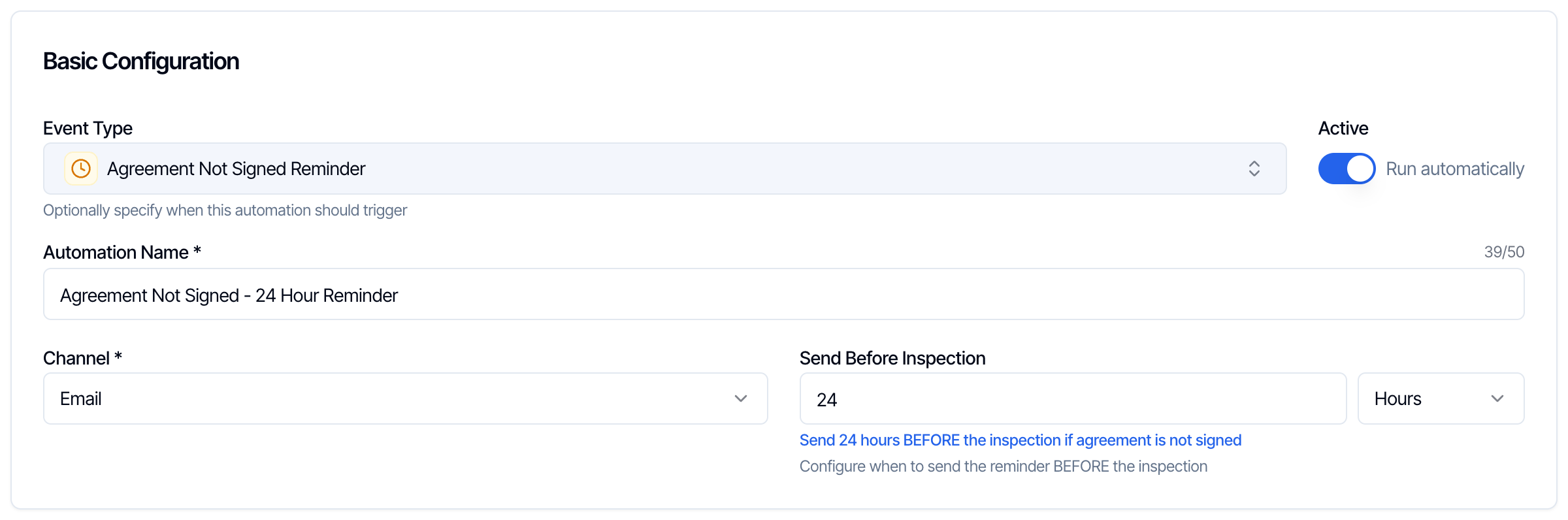
| **Agreement Not Signed Reminder** | The delay you set **before** the start time | Every agreement is signed, or the inspection has no agreements |
| **Payment Not Received (Pre-Inspection)** | The delay you set **before** the start time | The client has paid, or nothing is owed |
| **Payment Not Received (Post-Inspection)** | The delay you set **after** the start time | The client has paid, or nothing is owed |
**Pre-Inspection**
| Event type | Sends | Notes |
| - | - | - |
| **Pre-Inspection Reminder** | The delay you set **before** the start time | A plain reminder, for example "See you tomorrow at 9 AM". |
| **Add-ons Upsell** | The delay you set **before** the start time | Only offers add-ons with **Allow Upselling** turned on. Skipped when there are none left to offer. See [Send add-on upsell emails](/how-tos/add-on-upsell-emails). |
| **Pre-Event Reminder** | The delay you set **before** an inspection event's start time | For events such as a radon pickup. Each event gets its own reminder. If the event moves, its reminder moves with it. If the event is deleted, its reminder is cancelled. |
**Post-Inspection**
| Event type | Sends | Notes |
| - | - | - |
| **Post-Inspection Follow-up** | The delay you set **after** the start time | Counts from the **start** time, not the end. A 24-hour follow-up for a 9 AM inspection goes out at 9 AM the next day, even if the report isn't published yet. For anything that should wait for the report, use **Report Published** or **Inspection Complete** instead. |
**None** is at the very bottom of the list. An automation with no event type never sends by itself. It sits on each inspection's **Automations** page as **Waiting**, and you send it by hand with **Send Now**. Use it for messages you only send sometimes.
Here is exactly when each one sends. "Start time" means the inspection's scheduled date and time.
**Scheduling**
| Event type | Sends when | Can send more than once per inspection? |
| - | - | - |
| **Inspection Scheduled** | The inspection becomes **Confirmed**. That is when you book it as confirmed, or when you confirm a draft, a waiting booking or an accepted quote. | No |
| **Event Scheduled** | A new [inspection event](/faq/scheduling#add-inspection-events-calendar) (for example a radon pickup) is added to a confirmed inspection. Events added before the inspection was confirmed send when it is confirmed. The delay counts from when the event was **added**, not from the event's own time. | Yes, once per new event |
| **Send Inspection Quote** | The inspection is put in **Review**, which means a quote is waiting for the client to accept. If the client accepts (or you move it out of review) before the message goes out, it is not sent. | No |
| **Inspection Rescheduled** | The date or time of the inspection changes. | Yes, every reschedule |
| **Inspection Cancelled** | The inspection is cancelled or rejected. This includes bookings that were never confirmed. Deleting an inspection does **not** send it. | Yes, if it is reopened and cancelled again |
**Actions Confirmation** (something the client or you just did)
| Event type | Sends when | Can send more than once per inspection? |
| - | - | - |
| **Agreement Signed** | The **last** unsigned agreement is signed, so every agreement is now signed. | No |
| **Payment Received** | The inspection is **paid in full**. | No |
| **Add-ons Updated** | The add-ons on the inspection change, whether the client or you change them. | Yes, every change |
| **Report Published** | **Any** report on the inspection is published. It always waits at least **5 minutes**, so the PDF is ready when the client clicks. Reports published within that wait are sent together in one message. | Yes, every publish |
| **Additional Report Added** | You upload an additional report, such as a lab result or a third-party PDF. | No |
| **Inspection Complete** | Everything is done: the inspection's end time has passed, it is paid in full, every agreement is signed, and every report is published. If the work is finished early, it waits for the end time. | No |
**Actions Pending** (reminders that stop by themselves when they're no longer needed)
| Event type | Sends | Skipped automatically when |
| - | - | - |
| **Agreement Not Signed Reminder** | The delay you set **before** the start time | Every agreement is signed, or the inspection has no agreements |
| **Payment Not Received (Pre-Inspection)** | The delay you set **before** the start time | The client has paid, or nothing is owed |
| **Payment Not Received (Post-Inspection)** | The delay you set **after** the start time | The client has paid, or nothing is owed |
**Pre-Inspection**
| Event type | Sends | Notes |
| - | - | - |
| **Pre-Inspection Reminder** | The delay you set **before** the start time | A plain reminder, for example "See you tomorrow at 9 AM". |
| **Add-ons Upsell** | The delay you set **before** the start time | Only offers add-ons with **Allow Upselling** turned on. Skipped when there are none left to offer. See [Send add-on upsell emails](/how-tos/add-on-upsell-emails). |
| **Pre-Event Reminder** | The delay you set **before** an inspection event's start time | For events such as a radon pickup. Each event gets its own reminder. If the event moves, its reminder moves with it. If the event is deleted, its reminder is cancelled. |
**Post-Inspection**
| Event type | Sends | Notes |
| - | - | - |
| **Post-Inspection Follow-up** | The delay you set **after** the start time | Counts from the **start** time, not the end. A 24-hour follow-up for a 9 AM inspection goes out at 9 AM the next day, even if the report isn't published yet. For anything that should wait for the report, use **Report Published** or **Inspection Complete** instead. |
**None** is at the very bottom of the list. An automation with no event type never sends by itself. It sits on each inspection's **Automations** page as **Waiting**, and you send it by hand with **Send Now**. Use it for messages you only send sometimes.
 **Good to know about timing**
* **Booked too late for a reminder?** If a "before" reminder's send time has already passed when the inspection is confirmed, it is skipped. A 24-hour reminder on an inspection booked for 2 hours from now never sends. Hive only sends a late message if it is less than 15 minutes late.
* **Rescheduled inspections.** Reminders before and after the inspection move with the new time automatically. Messages that already sent are not sent again (except **Inspection Rescheduled** itself).
* **Report Published** always waits at least 5 minutes, even if you set 0.
* **Sleep hours** can hold a message overnight. See [Sleep Hours](/how-tos/automation-advanced-settings#sleep-hours).
* **Times use your organization's time zone**, set in **Org Settings → Scheduling**.
***
## Recipient
The second box sets **who** gets the message. Webhook automations don't have this box.
**Good to know about timing**
* **Booked too late for a reminder?** If a "before" reminder's send time has already passed when the inspection is confirmed, it is skipped. A 24-hour reminder on an inspection booked for 2 hours from now never sends. Hive only sends a late message if it is less than 15 minutes late.
* **Rescheduled inspections.** Reminders before and after the inspection move with the new time automatically. Messages that already sent are not sent again (except **Inspection Rescheduled** itself).
* **Report Published** always waits at least 5 minutes, even if you set 0.
* **Sleep hours** can hold a message overnight. See [Sleep Hours](/how-tos/automation-advanced-settings#sleep-hours).
* **Times use your organization's time zone**, set in **Org Settings → Scheduling**.
***
## Recipient
The second box sets **who** gets the message. Webhook automations don't have this box.
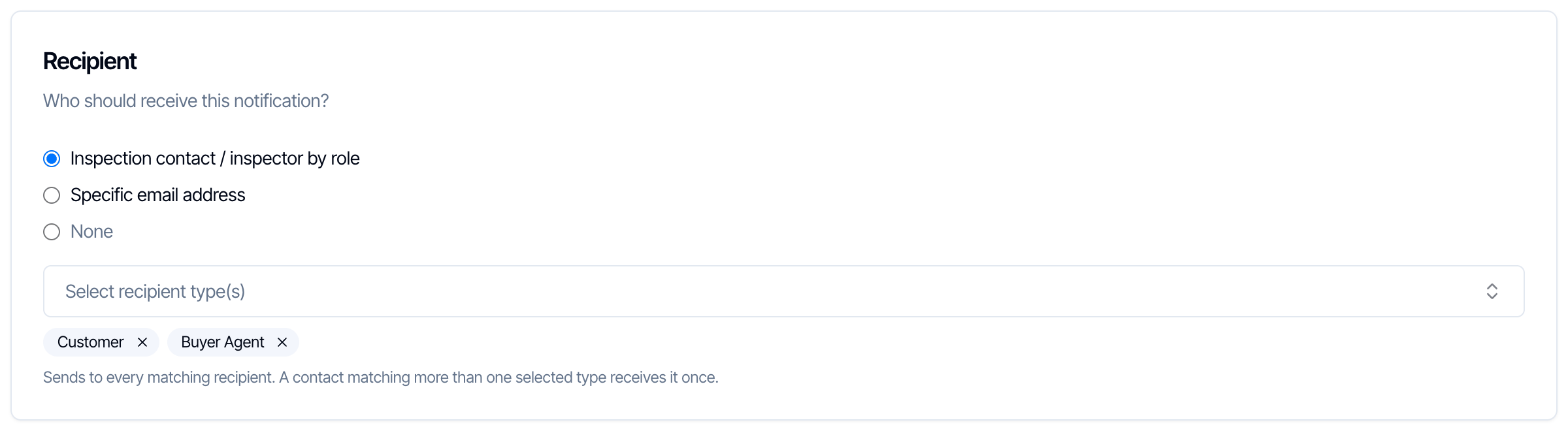 You have three choices.
### By role
Choose **Inspection contact / inspector by role**. This is what you want almost every time. Pick one or more roles. For each inspection, Hive sends the message to **everyone on that inspection with that role**.
| Role | Who gets it |
| - | - |
| **Customer** | Every client on the inspection. If there are two buyers, both get it. |
| **Buyer Agent** | The buyer's agent on the inspection. |
| **Listing Agent** | The listing (seller's) agent. |
| **Insurance Agent** | The insurance agent. |
| **Sub Contractor** | The subcontractor added to the inspection. See [Automate subcontractor emails](/how-tos/subcontractor-emails). |
| **Lender**, **Builder**, **Transaction Coordinator**, **Attorney**, **Title Company**, **Other** | The contact added to the inspection with that role. |
| **Inspector** | Every team member assigned to the inspection. Team members assigned only to an inspection event do not get it. |
* **No one with that role?** Nothing is sent and nothing goes wrong. An automation to the buyer's agent simply doesn't send for an inspection with no buyer's agent.
* **Several roles picked?** Each person gets one copy. Someone who matches two of the roles you picked still gets it only once.
* **Contact has no email (or no mobile number for a text)?** The message shows as **Failed** on the inspection with "No email address" or "No phone number". Add the details to the contact, then use **Send Now**.
* **Contact unsubscribed** from your emails? The email is cancelled for them.
* **Contact details changed after booking?** Hive uses the contact's details as they are when the message goes out.
You have three choices.
### By role
Choose **Inspection contact / inspector by role**. This is what you want almost every time. Pick one or more roles. For each inspection, Hive sends the message to **everyone on that inspection with that role**.
| Role | Who gets it |
| - | - |
| **Customer** | Every client on the inspection. If there are two buyers, both get it. |
| **Buyer Agent** | The buyer's agent on the inspection. |
| **Listing Agent** | The listing (seller's) agent. |
| **Insurance Agent** | The insurance agent. |
| **Sub Contractor** | The subcontractor added to the inspection. See [Automate subcontractor emails](/how-tos/subcontractor-emails). |
| **Lender**, **Builder**, **Transaction Coordinator**, **Attorney**, **Title Company**, **Other** | The contact added to the inspection with that role. |
| **Inspector** | Every team member assigned to the inspection. Team members assigned only to an inspection event do not get it. |
* **No one with that role?** Nothing is sent and nothing goes wrong. An automation to the buyer's agent simply doesn't send for an inspection with no buyer's agent.
* **Several roles picked?** Each person gets one copy. Someone who matches two of the roles you picked still gets it only once.
* **Contact has no email (or no mobile number for a text)?** The message shows as **Failed** on the inspection with "No email address" or "No phone number". Add the details to the contact, then use **Send Now**.
* **Contact unsubscribed** from your emails? The email is cancelled for them.
* **Contact details changed after booking?** Hive uses the contact's details as they are when the message goes out.
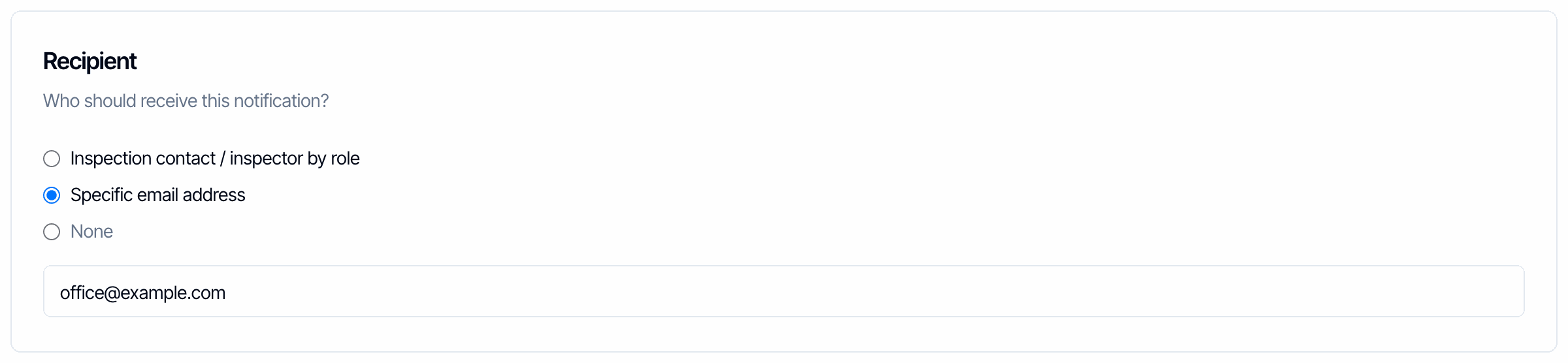 Use it for internal alerts, for example a copy of every new booking to your scheduler.
* Placeholders still fill in with the inspection's details. `{{{client_first_name}}}` shows the **client's** name, even though the client isn't the one receiving it.
* [Contact Tag Filters](/how-tos/automation-advanced-settings#contact-tag-filter) don't apply, because there's no contact to check.
* No unsubscribe link is added.
### None
The automation has no one to send to, so it never sends, not even with **Send Now**. Use **None** only while you're still setting an automation up.
***
## Message Content
The third box is the message itself.
### Email
Use it for internal alerts, for example a copy of every new booking to your scheduler.
* Placeholders still fill in with the inspection's details. `{{{client_first_name}}}` shows the **client's** name, even though the client isn't the one receiving it.
* [Contact Tag Filters](/how-tos/automation-advanced-settings#contact-tag-filter) don't apply, because there's no contact to check.
* No unsubscribe link is added.
### None
The automation has no one to send to, so it never sends, not even with **Send Now**. Use **None** only while you're still setting an automation up.
***
## Message Content
The third box is the message itself.
### Email
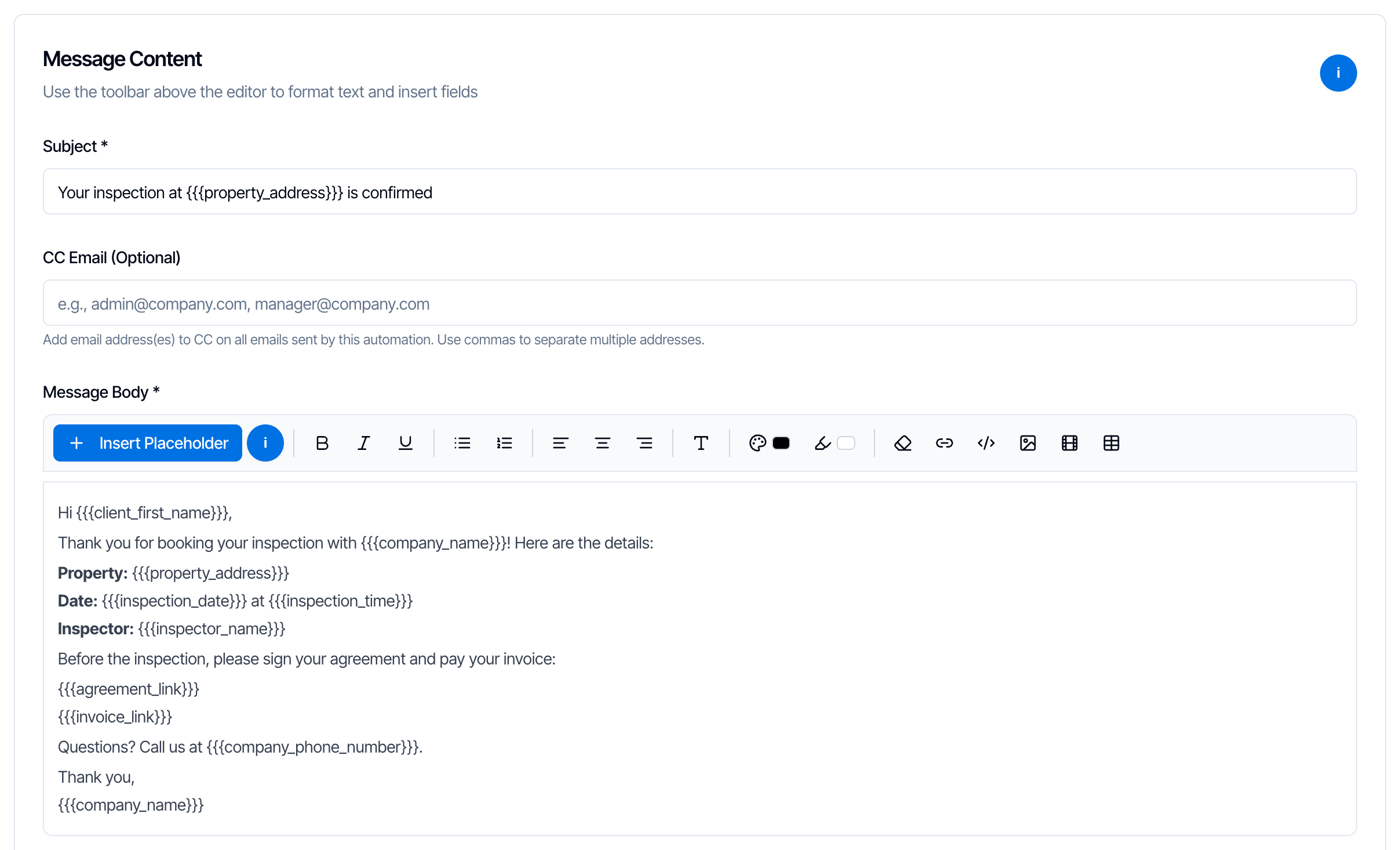 * **Subject** (required): the email subject line. Placeholders work here too.
* **CC Email (Optional):** addresses that get a copy of **every** email this automation sends. Separate several with commas. If the contact has their own CC addresses saved, they're added as well, and nobody gets it twice. A typo is caught when you save.
* **Message Body** (required): write the email. The toolbar formats text, adds links, images (up to 10 MB each), videos and tables.
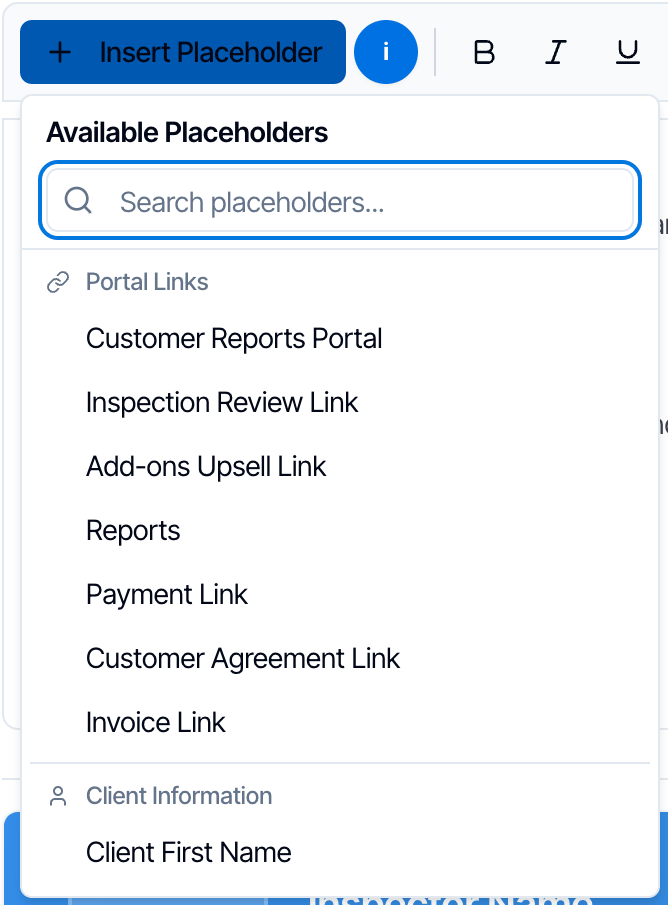
**Insert Placeholder** adds a detail that fills in for each inspection, such as the client's name, the address, the date, or a link to sign the agreement or pay. Click where you want it in the message, click **Insert Placeholder**, and search or pick from the list. The blue **i** button next to it explains how placeholders work.
* **Subject** (required): the email subject line. Placeholders work here too.
* **CC Email (Optional):** addresses that get a copy of **every** email this automation sends. Separate several with commas. If the contact has their own CC addresses saved, they're added as well, and nobody gets it twice. A typo is caught when you save.
* **Message Body** (required): write the email. The toolbar formats text, adds links, images (up to 10 MB each), videos and tables.
**Insert Placeholder** adds a detail that fills in for each inspection, such as the client's name, the address, the date, or a link to sign the agreement or pay. Click where you want it in the message, click **Insert Placeholder**, and search or pick from the list. The blue **i** button next to it explains how placeholders work.
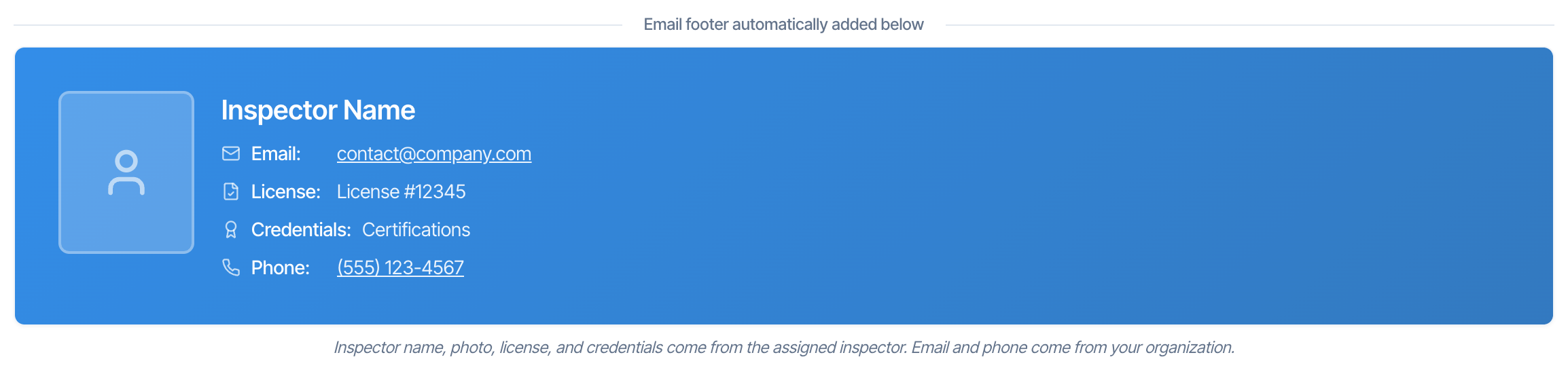 * The card shows the name, photo, license number and credentials of the **first inspector assigned** to the inspection. Rows with nothing in them are left out. If no inspector is assigned, the card is left out.
* The email and phone on the card are your company's. To show each inspector's own email and phone instead, turn on **Show the inspector's own phone and email** under **Org Settings → Business Management → Inspector Contact Info**.
* Below the card, a short line says the email was sent on behalf of your company and that replies go to your company email. Emails to contacts also get an **Unsubscribe** link.
### Text message (SMS)
* The card shows the name, photo, license number and credentials of the **first inspector assigned** to the inspection. Rows with nothing in them are left out. If no inspector is assigned, the card is left out.
* The email and phone on the card are your company's. To show each inspector's own email and phone instead, turn on **Show the inspector's own phone and email** under **Org Settings → Business Management → Inspector Contact Info**.
* Below the card, a short line says the email was sent on behalf of your company and that replies go to your company email. Emails to contacts also get an **Unsubscribe** link.
### Text message (SMS)
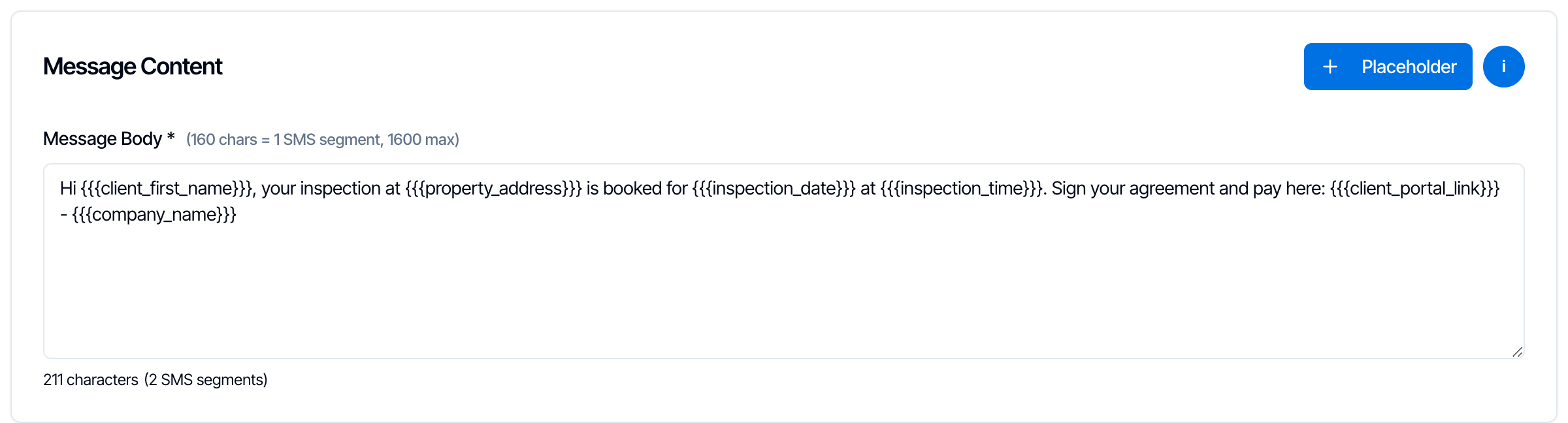 * Write plain text. Use **Placeholder** (top right) to add details.
* Each 160 characters is one text "segment". Longer messages are sent as several segments joined together. Keep texts short.
* A text can be at most **1,600 characters**. Hive won't save a longer one.
* The counter counts what you typed, **including the placeholder names**. The real text is a different length once the placeholders fill in. A long address or link makes it longer.
* Emoji make a segment much shorter (70 characters), so use them sparingly.
* Nothing is added to the end of your text. If you want a sign-off such as your company name, type it or use `{{{company_name}}}`.
* Texts come from your [dedicated number](/how-tos/dedicated-phone-number) once it's approved, or from Hive's shared number until then. Replies to the shared number don't reach you.
### Webhook
A webhook sends the inspection's details to a web address instead of to a person. You enter the **Webhook URL** (it must start with `https://`), choose which **Payload** sections to include (**Payments** carries the payment status, the amounts paid and due, and each payment and refund), and copy the **Signing secret** into the receiving app so it can check that the data came from Hive. See [Webhooks](/api/webhooks) and [Verify webhook signatures](/api/webhook-signatures) for the details.
***
## Test before you rely on it
Test buttons are at the top right of the **Edit Automation** page: **Test Email**, **Test SMS** or **Test Webhook**, depending on the channel. They aren't on the **Create Automation** page, so create the automation first.
* Write plain text. Use **Placeholder** (top right) to add details.
* Each 160 characters is one text "segment". Longer messages are sent as several segments joined together. Keep texts short.
* A text can be at most **1,600 characters**. Hive won't save a longer one.
* The counter counts what you typed, **including the placeholder names**. The real text is a different length once the placeholders fill in. A long address or link makes it longer.
* Emoji make a segment much shorter (70 characters), so use them sparingly.
* Nothing is added to the end of your text. If you want a sign-off such as your company name, type it or use `{{{company_name}}}`.
* Texts come from your [dedicated number](/how-tos/dedicated-phone-number) once it's approved, or from Hive's shared number until then. Replies to the shared number don't reach you.
### Webhook
A webhook sends the inspection's details to a web address instead of to a person. You enter the **Webhook URL** (it must start with `https://`), choose which **Payload** sections to include (**Payments** carries the payment status, the amounts paid and due, and each payment and refund), and copy the **Signing secret** into the receiving app so it can check that the data came from Hive. See [Webhooks](/api/webhooks) and [Verify webhook signatures](/api/webhook-signatures) for the details.
***
## Test before you rely on it
Test buttons are at the top right of the **Edit Automation** page: **Test Email**, **Test SMS** or **Test Webhook**, depending on the channel. They aren't on the **Create Automation** page, so create the automation first.
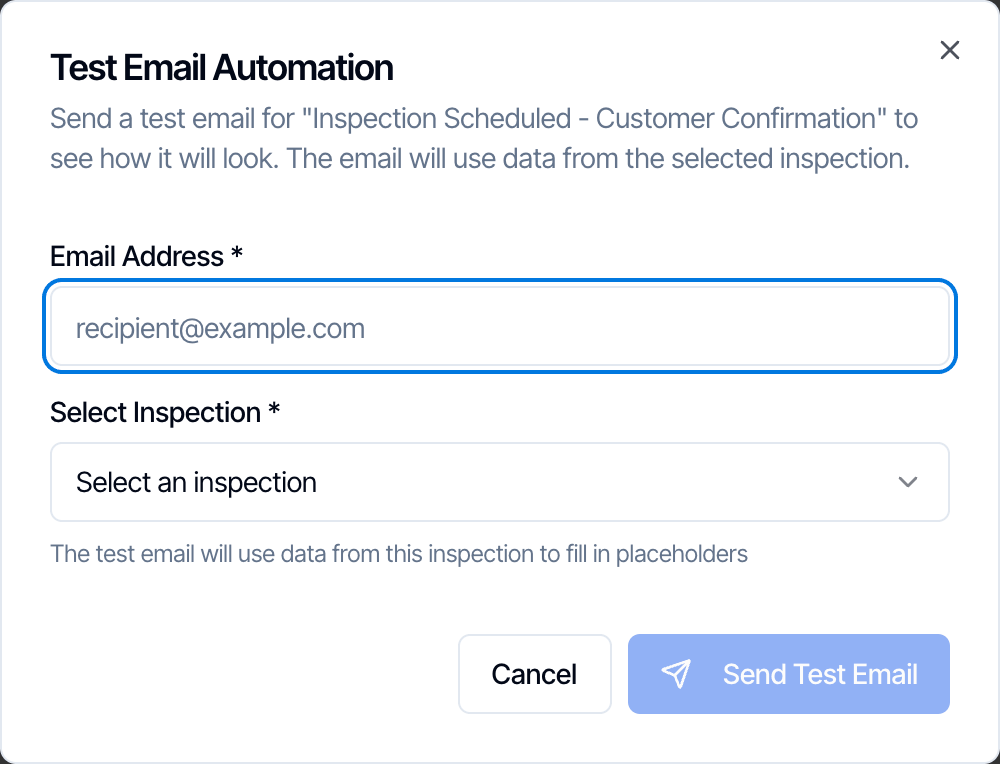 1. Type the email address (or mobile number) to send the test to. Use your own.
2. Pick an inspection from **Select Inspection**. Its details fill the placeholders, so pick one that has a client, an agent and a price.
3. Click **Send Test Email** (or **Send Test SMS**).
Good to know:
* **The test uses the last saved version.** Save your changes first, or you'll test the old wording.
* Filters and send conditions are not checked, CC addresses don't get a copy, and nothing is recorded on the inspection. The test only shows you what the message looks like.
***
## Save your changes
**On the Create Automation page,** click **Create Automation** at the bottom. If you have inspections booked already, Hive then asks how to apply it:
* **New inspections only:** it starts with inspections booked from now on.
* **Include existing future inspections:** it is also added to inspections already on your calendar that haven't started yet. Reminders get their send times right away. Event-based messages (such as **Payment Received**) send the next time that event happens on those inspections. They don't send for things that already happened.
**On the Edit Automation page,** a bar appears at the bottom as soon as you change something. Click **Save** in it. If you try to leave with unsaved changes, your browser warns you.
1. Type the email address (or mobile number) to send the test to. Use your own.
2. Pick an inspection from **Select Inspection**. Its details fill the placeholders, so pick one that has a client, an agent and a price.
3. Click **Send Test Email** (or **Send Test SMS**).
Good to know:
* **The test uses the last saved version.** Save your changes first, or you'll test the old wording.
* Filters and send conditions are not checked, CC addresses don't get a copy, and nothing is recorded on the inspection. The test only shows you what the message looks like.
***
## Save your changes
**On the Create Automation page,** click **Create Automation** at the bottom. If you have inspections booked already, Hive then asks how to apply it:
* **New inspections only:** it starts with inspections booked from now on.
* **Include existing future inspections:** it is also added to inspections already on your calendar that haven't started yet. Reminders get their send times right away. Event-based messages (such as **Payment Received**) send the next time that event happens on those inspections. They don't send for things that already happened.
**On the Edit Automation page,** a bar appears at the bottom as soon as you change something. Click **Save** in it. If you try to leave with unsaved changes, your browser warns you.
 ### What changes when you edit an automation
| You change | Messages already waiting or scheduled | Messages already sent |
| - | - | - |
| Subject, message or CC | Use the new wording | Unchanged |
| Delay | Reminders already scheduled keep their time. New inspections use the new delay. | Unchanged |
| Recipient roles | Messages already set up for existing inspections keep their recipients. New inspections use the new roles. | Unchanged |
| Switch off | Scheduled ones are cancelled when they come due | Unchanged |
| Send Conditions, Custom Field Filters, Contact Tag Filter | Checked again just before each message goes out, so the new settings apply | Unchanged |
***
## See what was sent for an inspection
Open the inspection and click **Automations** under **Quick Actions**. Every automation for that inspection is listed with its status:
| Status | Meaning |
| - | - |
| **Waiting** | Waiting for its event. For example, **Report Published** stays Waiting until you publish. |
| **Scheduled** | Has a set send time and will go out then. |
| **Sent** | Sent. |
| **Failed** | Couldn't be sent, for example because the contact has no email address. |
| **Cancelled** | Won't be sent. Either someone cancelled it, or Hive stopped it because it was no longer needed (the agreement was signed, the client paid, a filter didn't match, the inspection was cancelled and so on). The reason is shown under the message. |
| **Bounced** / **Spam** | The email was sent, but the receiving server rejected it or the person marked it as spam. |
From there you can:
* **Send Now:** send a copy of a waiting, scheduled or cancelled message straight away. It skips filters and send conditions, but still respects [Sleep Hours](/how-tos/automation-advanced-settings#sleep-hours). During sleep hours it tells you when the message will go out. The original stays and still sends at its own time, so cancel it if you only want one.
* **Send Again:** send a message that already went out once more. It uses the automation's **current** wording, so changes you made since the first send are included.
* **Cancel:** stop a message that hasn't gone out yet.
See [Automation History for an inspection](/how-tos/automation-history) for every status, button and cancel reason.
***
## Common questions
### What changes when you edit an automation
| You change | Messages already waiting or scheduled | Messages already sent |
| - | - | - |
| Subject, message or CC | Use the new wording | Unchanged |
| Delay | Reminders already scheduled keep their time. New inspections use the new delay. | Unchanged |
| Recipient roles | Messages already set up for existing inspections keep their recipients. New inspections use the new roles. | Unchanged |
| Switch off | Scheduled ones are cancelled when they come due | Unchanged |
| Send Conditions, Custom Field Filters, Contact Tag Filter | Checked again just before each message goes out, so the new settings apply | Unchanged |
***
## See what was sent for an inspection
Open the inspection and click **Automations** under **Quick Actions**. Every automation for that inspection is listed with its status:
| Status | Meaning |
| - | - |
| **Waiting** | Waiting for its event. For example, **Report Published** stays Waiting until you publish. |
| **Scheduled** | Has a set send time and will go out then. |
| **Sent** | Sent. |
| **Failed** | Couldn't be sent, for example because the contact has no email address. |
| **Cancelled** | Won't be sent. Either someone cancelled it, or Hive stopped it because it was no longer needed (the agreement was signed, the client paid, a filter didn't match, the inspection was cancelled and so on). The reason is shown under the message. |
| **Bounced** / **Spam** | The email was sent, but the receiving server rejected it or the person marked it as spam. |
From there you can:
* **Send Now:** send a copy of a waiting, scheduled or cancelled message straight away. It skips filters and send conditions, but still respects [Sleep Hours](/how-tos/automation-advanced-settings#sleep-hours). During sleep hours it tells you when the message will go out. The original stays and still sends at its own time, so cancel it if you only want one.
* **Send Again:** send a message that already went out once more. It uses the automation's **current** wording, so changes you made since the first send are included.
* **Cancel:** stop a message that hasn't gone out yet.
See [Automation History for an inspection](/how-tos/automation-history) for every status, button and cancel reason.
***
## Common questions