> ## Documentation Index
> Fetch the complete documentation index at: https://docs.hiveinspect.com/llms.txt
> Use this file to discover all available pages before exploring further.
# Automation Starter Pack: Emails and Texts New Inspectors Need
> The ready-made Hive Inspect automations every new inspection business should add first, picked from what the busiest inspectors send, and why each one matters.
In the dashboard: Automations → Browse
12 min read
Hive Inspect sends **nothing** to your clients or agents until you add automations. No booking confirmation, no agreement link, no "your report is ready" email. This page tells you which ones to add first, and why.
Every automation on this page is ready-made in the **Automation Template Hub**. You import it with a few clicks and edit the wording if you like. Nothing has to be written from scratch.
**How we picked them:** we looked at what the busiest inspection companies on Hive (30 or more inspections in the last six months) actually send. The percentages below show how many of those companies send each kind of message, from the ready-made template or their own version of it. Nearly all of them send the first few.
## The starter pack at a glance
Start with **Step 1** on day one. Add the rest when you're ready.
| Step | Automation | Goes to | When it sends | Busy companies sending it |
| - | - | - | - | - |
| **1. Must-haves** | [Inspection Scheduled - Customer Confirmation](#inspection-scheduled-customer-confirmation) | Client | When the inspection is confirmed | 95% |
| | [All Reports Published - Customer](#all-reports-published-customer) | Client | When a report is published | 93% |
| | [All Reports Published - Buyer Agent](#all-reports-published-buyer-agent) | Buyer's agent | When a report is published | 86% |
| | [Inspection Scheduled - Buyer Agent](#inspection-scheduled-buyer-agent) | Buyer's agent | When the inspection is confirmed | 84% |
| | [Inspection Rescheduled - Customer](#inspection-rescheduled-customer) | Client | When the date or time changes | 66% |
| | [Inspection Rescheduled - Buyer Agent](#inspection-rescheduled-buyer-agent) | Buyer's agent | When the date or time changes | 56% |
| | [Agreement Not Signed - 24 Hour Reminder](#agreement-not-signed-24-hour-reminder) | Client | 24 hours before, if unsigned | 62% send a reminder |
| | [Payment Received - Thank You](#payment-received-thank-you) | Client | When payment is complete | 62% |
| | [Post-Inspection Follow-up - Customer](#post-inspection-follow-up-customer) | Client | 24 hours after the start time | 69% send a follow-up |
| | [Inspection Cancelled - Customer](#inspection-cancelled-customer) | Client | When the inspection is cancelled | 50% |
| | [Inspection Cancelled - Buyer Agent](#inspection-cancelled-buyer-agent) | Buyer's agent | When the inspection is cancelled | 41% |
| **2. Texts** | [Inspection Scheduled - Customer SMS](#inspection-scheduled-customer-sms) | Client | When the inspection is confirmed | 60% |
| | [All Reports Published - Customer SMS](#all-reports-published-customer-sms) | Client | When a report is published | 53% |
| | [All Reports Published - Buyer Agent SMS](#all-reports-published-buyer-agent-sms) | Buyer's agent | When a report is published | 45% |
| | [Inspection Scheduled - Buyer Agent SMS](#inspection-scheduled-buyer-agent-sms) | Buyer's agent | When the inspection is confirmed | 44% |
| | [Agreement Not Signed - SMS Reminder](#agreement-not-signed-sms-reminder) | Client | 12 hours before, if unsigned | 38% |
| | [Pre-Inspection Reminder - 24 Hours SMS](#pre-inspection-reminder-24-hours-sms) | Client | 24 hours before | 30% |
| **3. Reminders and updates** | [Inspection Scheduled - Listing Agent](#inspection-scheduled-listing-agent) | Listing agent | When the inspection is confirmed | 49% |
| | [Pre-Inspection Reminder - Buyer Agent](#pre-inspection-reminder-buyer-agent) | Buyer's agent | 24 hours before | 39% |
| | [Agreement Signed - Confirmation](#agreement-signed-confirmation) | Client | When every agreement is signed | 38% |
| | [Add-ons Updated - Confirmation](#add-ons-updated-confirmation) | Client | When add-ons change | 35% |
| | [Pre-Inspection Reminder - 48 Hours](#pre-inspection-reminder-48-hours) | Client | 48 hours before | 34% |
| | [Agreement Not Signed - 48 Hour Reminder](#agreement-not-signed-48-hour-reminder) | Client | 48 hours before, if unsigned | 22% |
| | [Additional Report Added - Customer](#additional-report-added-customer) | Client | When you add another report | 30% |
| | [Pre-Inspection Reminder - Listing Agent](#pre-inspection-reminder-listing-agent) | Listing agent | 24 hours before | 23% |
| | [Payment Not Received - Pre-Inspection Email](#payment-not-received-pre-inspection-email) | Client | 48 hours before, if unpaid | 22% |
| | [Payment Overdue - 24 Hours Post-Inspection](#payment-overdue-24-hours-post-inspection) | Client | 24 hours after, if unpaid | 20% |
| **4. Grow your business** | [Post-Inspection Follow-up - Buyer Agent](#post-inspection-follow-up-buyer-agent) | Buyer's agent | 24 hours after the start time | 30% send a follow-up |
| | [Agent Referral Thank You](#agent-referral-thank-you) | Buyer's agent | 48 hours after the start time | 13% |
| | [Add-ons Upsell - Pre-Inspection](#add-ons-upsell-pre-inspection) | Client | 72 hours before | 30% |
| | [Report Explanation Follow-up](#report-explanation-follow-up) | Client | 72 hours after the start time | 9% |
| | [Review Request - 3 Days](#review-request-3-days) and [SMS](#review-request-sms) | Client | 2 to 3 days after the start time | 18% |
| | [Referral Request](#referral-request) | Client | 7 days after the start time | 8% |
Teams, subcontractors and other situations are covered [further down](#if-you-have-a-team-or-subcontractors).
***
## Before you import
Imported automations fill in your details from your account, so set these up first:
* **Your company details.** Name, phone number and email fill the `{{{company_name}}}`, `{{{company_phone_number}}}` and `{{{company_email}}}` placeholders in almost every message. Check them under **Company Information** in **Profile Settings**.
* **Your services.** Each automation can be limited to certain services. If you have none yet, the import window says **No services found. Please create services first.**
* **Agreements and payments.** The agreement and payment links in your emails only work once you have an agreement attached to your services and [payments set up](/how-tos/payment-settings).
* **Your sending domain (recommended).** Emails go out as "Your Company via HiveInspect" until you verify your own domain. A verified domain helps them land in the inbox. See [Why are my emails going to spam](/faq/automations-and-emails#emails-going-to-spam-own-domain).
* **A dedicated phone number (optional).** Without one, texts come from a shared Hive number and replies do not reach you. See [Your own text number](/how-tos/dedicated-phone-number).
## How to import an automation
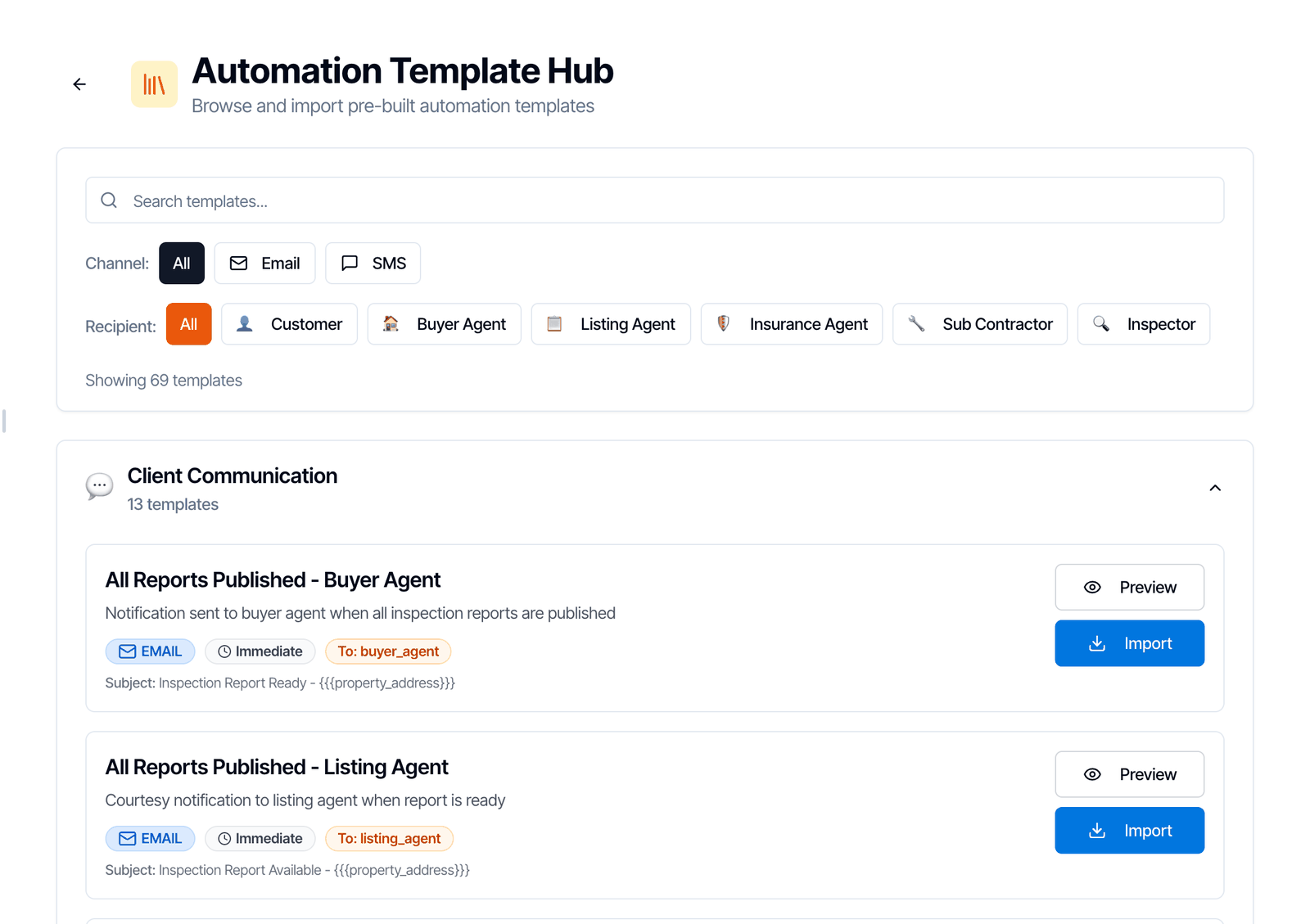
Go to [Automations](https://dashboard.hiveinspect.com/dashboard/automations) and click **Browse**.
 Type its name in **Search templates...**, or narrow the list with the **Channel** buttons (**Email**, **SMS**) and the **Recipient** buttons (**Customer**, **Buyer Agent** and so on). Templates are grouped by category, such as **Client Communication** and **Scheduling**. Each card shows the channel, the timing and who it goes to.
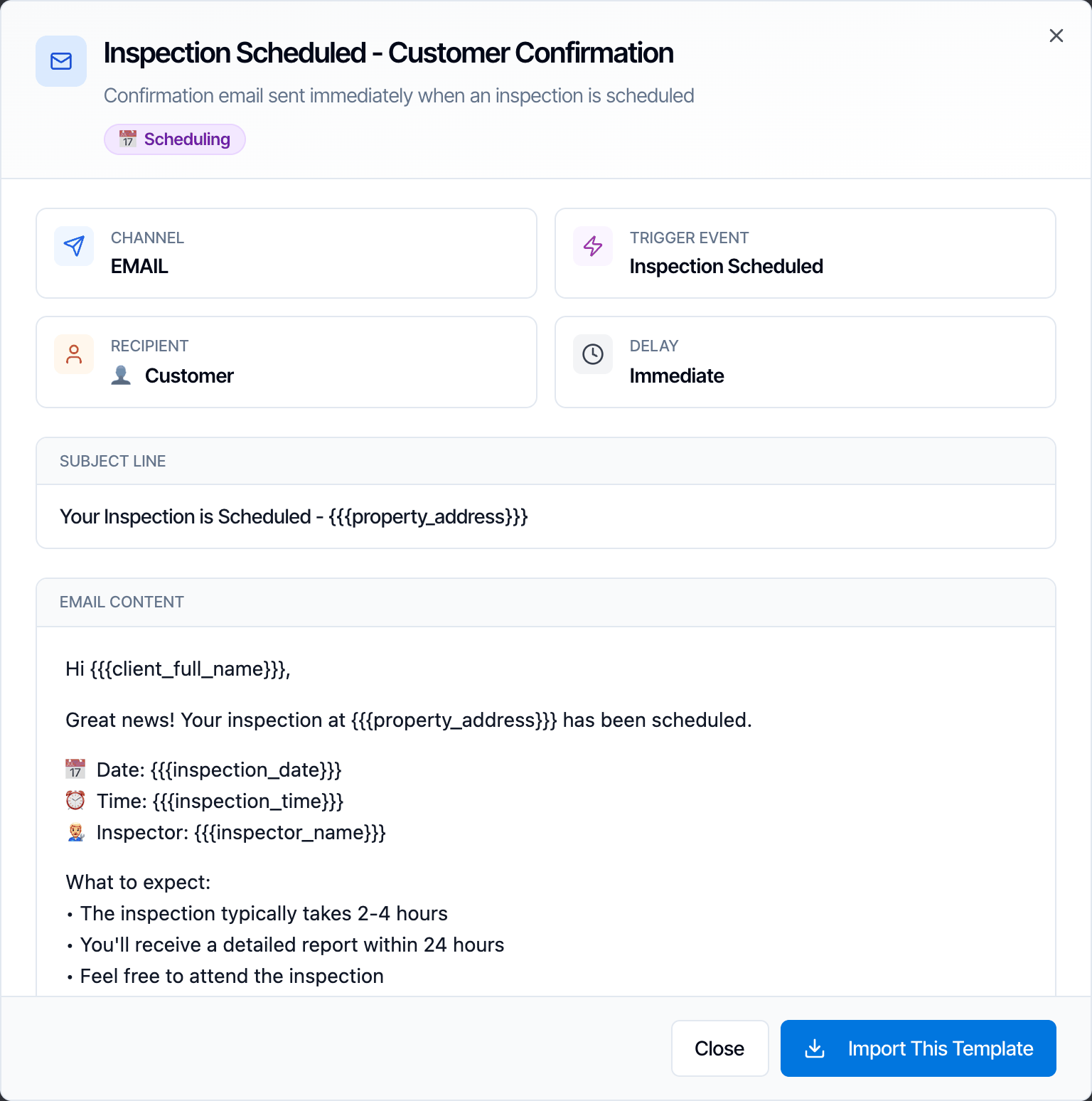
 Click **Preview** to see the channel, trigger, recipient and delay, and to read the subject and message. Click **Import This Template** from there, or close the preview.
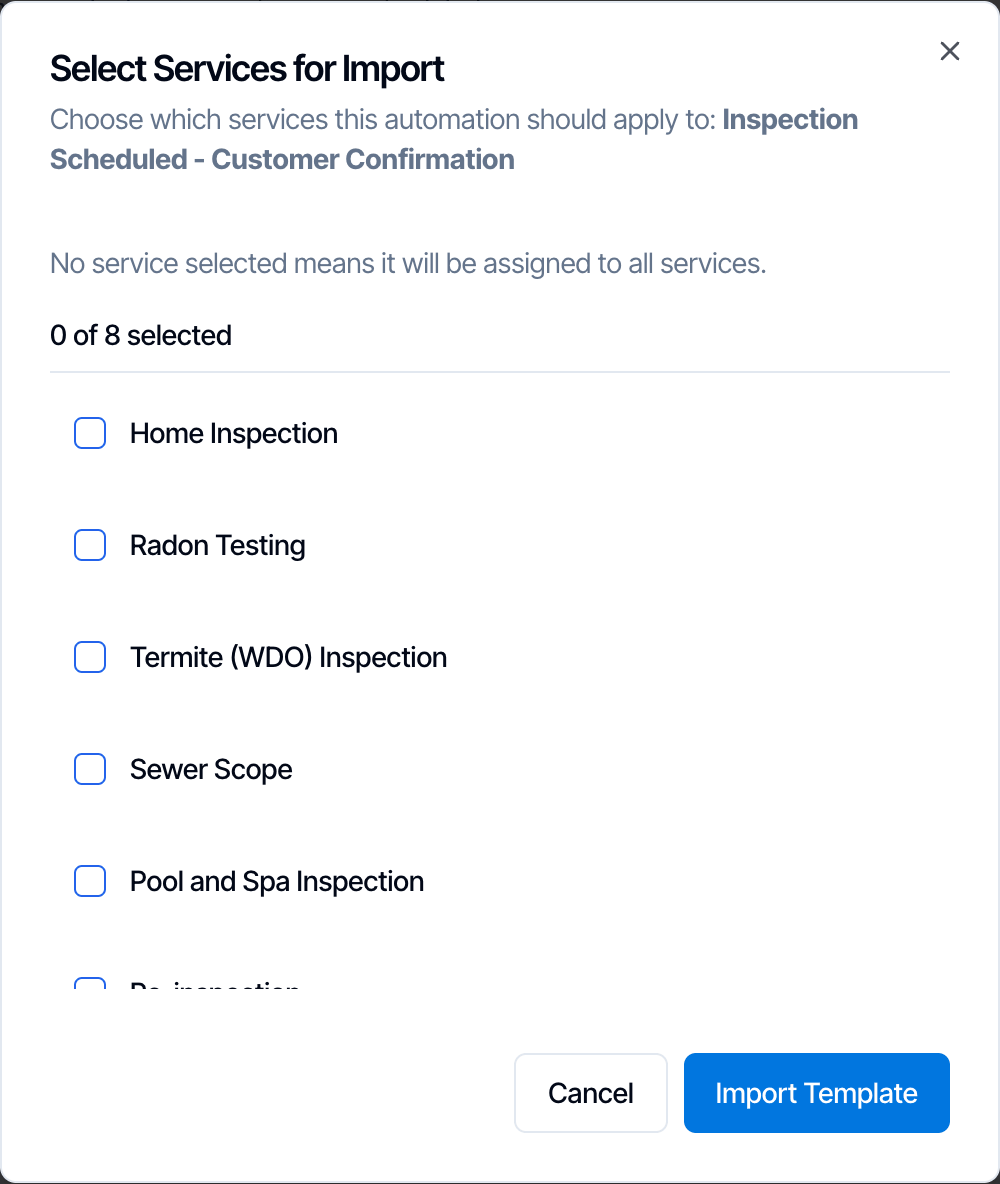
 **Select Services for Import** opens. For almost every automation on this page, **leave every service unticked**. No service selected means it applies to **all** services, including ones you add later. Click **Import Template**.
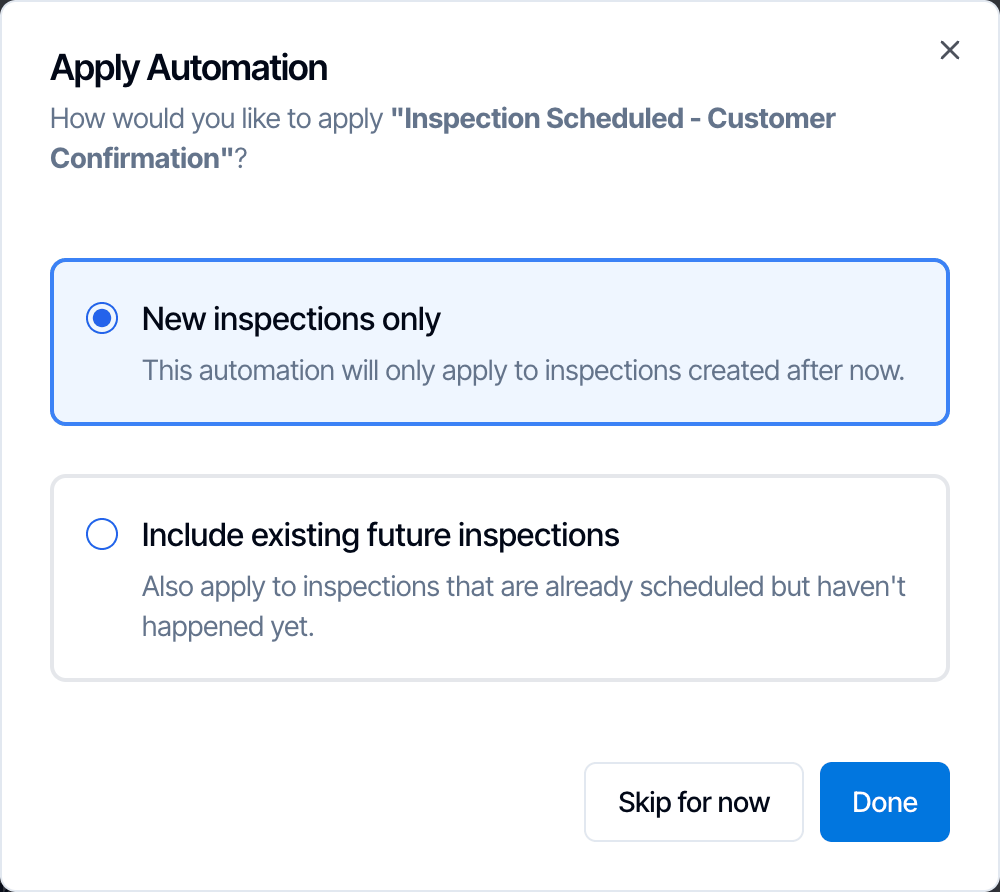
 **Apply Automation** asks how to apply it:
* **New inspections only:** for inspections created from now on. Pick this on a brand-new account.
* **Include existing future inspections:** also adds it to inspections already booked that haven't happened yet. Pick this if you already have inspections on the calendar.
**Apply Automation** asks how to apply it:
* **New inspections only:** for inspections created from now on. Pick this on a brand-new account.
* **Include existing future inspections:** also adds it to inspections already booked that haven't happened yet. Pick this if you already have inspections on the calendar.
 The automation is **on** as soon as it's imported. It appears in your list on the **Automations** page, where you can edit it, switch it off, duplicate it or delete it.
Agent automations only send when the inspection has that agent on it. If an inspection has no buyer's agent, the buyer agent emails simply don't go out. You can import them all without worrying about inspections that have no agent.
***
## Step 1: The must-haves
Import these on day one, before you book your first real inspection.
### Inspection Scheduled - Customer Confirmation
**Sends:** as soon as the inspection is confirmed · **To:** client · **Email**
This is the first thing your client gets from you. It confirms the address, date, time and inspector, and carries the **agreement link** and **payment link**, so the client can sign and pay right away. Without it, clients have no way to reach their agreement or payment page.
### All Reports Published - Customer
**Sends:** a few minutes after a report is published · **To:** client · **Email**
This is how your client gets the report. The email links to their reports page, where they read the report and download the PDF. Hive waits at least 5 minutes after publishing so the PDF is ready when they click.
### All Reports Published - Buyer Agent
**Sends:** a few minutes after a report is published · **To:** buyer's agent · **Email**
Agents are where most of your repeat business comes from, and they need the report fast to negotiate repairs. This email gives the buyer's agent their own link to the report, so they don't have to ask you or the client for it.
### Inspection Scheduled - Buyer Agent
**Sends:** as soon as the inspection is confirmed · **To:** buyer's agent · **Email**
Tells the agent the inspection is booked, with the date, time and inspector. Agents juggle many deals, and a clear confirmation from you looks professional and saves you a "did they book?" phone call.
### Inspection Rescheduled - Customer
**Sends:** every time the date or time of a confirmed inspection changes · **To:** client · **Email**
When the time changes, your client needs to know the new one in writing. It repeats the agreement and payment links, so nothing is lost if the first email got buried.
### Inspection Rescheduled - Buyer Agent
**Sends:** every time the date or time of a confirmed inspection changes · **To:** buyer's agent · **Email**
Agents often have to be at the property or arrange access. This keeps them on the new time without you having to call them.
### Agreement Not Signed - 24 Hour Reminder
**Sends:** 24 hours before the inspection, only if an agreement is still unsigned · **To:** client · **Email**
An unsigned agreement on inspection day leaves you inspecting without signed terms, or waiting at the door. This is the firm, last reminder by email, and it goes out only when something is left to sign. If every agreement is already signed, or the inspection has no agreement, it's cancelled automatically.
### Payment Received - Thank You
**Sends:** as soon as the full payment is received · **To:** client · **Email**
A receipt with the amount, order number and inspection details. Clients expect one, and it stops "did my payment go through?" calls and texts.
### Post-Inspection Follow-up - Customer
**Sends:** 24 hours after the inspection start time · **To:** client · **Email**
A thank-you note with a link to the report and an offer to answer questions about it. It's the easiest way to leave a good last impression, and 69% of busy companies send at least one follow-up email after the inspection.
The ready-made message lists radon testing, mold inspection, termite inspection and re-inspections as extra services. Edit that list to match what you actually offer.
Follow-ups are timed from the inspection **start time**, not from when you publish the report. If you sometimes take more than a day to publish, raise the delay (for example to 48 hours) so the email doesn't arrive before the report.
### Inspection Cancelled - Customer
**Sends:** when a confirmed inspection is cancelled · **To:** client · **Email**
Confirms the cancellation in writing and gives your contact details to book again. It also closes the loop, so clients don't wonder whether you're still coming.
### Inspection Cancelled - Buyer Agent
**Sends:** when a confirmed inspection is cancelled · **To:** buyer's agent · **Email**
Agents track inspection deadlines in the contract. Telling them about a cancellation right away protects that relationship, even when the deal falls through.
***
## Step 2: Texts clients actually read
Many clients read a text within minutes but may not open an email for hours. Busy companies often send the same key messages by text **and** email.
Without a [dedicated phone number](/how-tos/dedicated-phone-number), texts come from a shared Hive number and replies don't reach you. The ready-made texts include your company phone number so clients can call you back. To keep texts from arriving at night, set **Sleep Hours** under **Advanced Settings** on each text automation.
### Inspection Scheduled - Customer SMS
**Sends:** as soon as the inspection is confirmed · **To:** client · **Text**
A short confirmation with the date, time, inspector and the agreement link. Clients who miss the email still sign before inspection day.
### All Reports Published - Customer SMS
**Sends:** when a report is published · **To:** client · **Text**
"Your report is ready", with the link. Clients are waiting on it to make a decision, and a text gets it in front of them fastest.
### All Reports Published - Buyer Agent SMS
**Sends:** when a report is published · **To:** buyer's agent · **Text**
Agents live on their phones. A text with the report link lets them start on the repair request the moment the report is out.
### Inspection Scheduled - Buyer Agent SMS
**Sends:** as soon as the inspection is confirmed · **To:** buyer's agent · **Text**
A quick heads-up with the client name, address, date and time. Useful for agents who prefer texts to email.
### Agreement Not Signed - SMS Reminder
**Sends:** 12 hours before the inspection, only if an agreement is still unsigned · **To:** client · **Text**
The last nudge before inspection day, with the signing link. Like the email reminder, it cancels itself when everything is signed.
### Pre-Inspection Reminder - 24 Hours SMS
**Sends:** 24 hours before the inspection · **To:** client · **Text**
Reminds the client of tomorrow's time and inspector, with the agreement and payment links. Fewer forgotten appointments, and a last chance to sign and pay.
***
## Step 3: Reminders and updates
These cover the moments between booking and the report: access, reminders, changes and money.
### Inspection Scheduled - Listing Agent
**Sends:** as soon as the inspection is confirmed · **To:** listing agent · **Email**
The listing agent usually controls access, lockboxes and the sellers' schedule. Telling them the date and time up front means fewer locked doors and surprised sellers. It doesn't include any report link.
### Pre-Inspection Reminder - Listing Agent
**Sends:** 24 hours before the inspection · **To:** listing agent · **Email**
A reminder the day before, so utilities are on and the home is accessible.
### Pre-Inspection Reminder - Buyer Agent
**Sends:** 24 hours before the inspection · **To:** buyer's agent · **Email**
Reminds the buyer's agent of tomorrow's inspection, so they can attend or let the client know.
### Pre-Inspection Reminder - 48 Hours
**Sends:** 48 hours before the inspection · **To:** client · **Email**
An email version of the reminder, with the time, inspector, agreement link and payment link. Good if you prefer email to texts, or want both.
### Agreement Not Signed - 48 Hour Reminder
**Sends:** 48 hours before the inspection, only if an agreement is still unsigned · **To:** client · **Email**
A friendly first nudge, two days ahead. Paired with the [24 Hour Reminder](#agreement-not-signed-24-hour-reminder), which is firmer and marked **Action Required**, the client gets two chances to sign before inspection day.
### Agreement Signed - Confirmation
**Sends:** when the client has signed every agreement · **To:** client · **Email**
Confirms they're all set and includes the payment link. It gives clients a clear "next step: pay" and reassures them the signature went through.
### Add-ons Updated - Confirmation
**Sends:** every time the add-ons on an inspection change · **To:** client · **Email**
When a client adds radon or a sewer scope, the price changes. This email shows the new add-ons and total, with the agreement and payment links, so there are no surprises on the invoice.
### Additional Report Added - Customer
**Sends:** when you upload an additional report to the inspection · **To:** client · **Email**
If you add outside reports (for example a lab result or a partner's sewer scope PDF), this lets the client know it's on their reports page. Without it, they may never see it. There's also a buyer agent version, listed under [Add these when they fit your business](#add-these-when-they-fit-your-business).
### Payment Not Received - Pre-Inspection Email
**Sends:** 48 hours before the inspection, only if payment is still due · **To:** client · **Email**
Collects payment before you arrive, so you don't chase it afterwards. It's cancelled automatically once the client pays, the balance is \$0, or the client chooses [Pay at Close](/how-tos/pay-at-close).
### Payment Overdue - 24 Hours Post-Inspection
**Sends:** 24 hours after the inspection start time, only if payment is still due · **To:** client · **Email**
A polite reminder with the payment link. Reports stay locked until the client pays, so this also helps clients who are wondering why they can't open theirs.
***
## Step 4: Grow your business
These don't keep the job running, but they bring in the next one.
### Post-Inspection Follow-up - Buyer Agent
**Sends:** 24 hours after the inspection start time · **To:** buyer's agent · **Email**
Thanks the agent for the referral and links to the report. Agents notice inspectors who follow up, and that's how you stay on their shortlist.
### Agent Referral Thank You
**Sends:** 48 hours after the inspection start time · **To:** buyer's agent · **Email**
A short, personal thank-you for trusting you with their client. Use it **instead of** the follow-up above, or rewrite one of them, so agents don't get two thank-you emails.
### Add-ons Upsell - Pre-Inspection
**Sends:** 72 hours before the inspection · **To:** client · **Email**
Offers your add-on services, such as radon, termite or sewer scope, with a link to add them. It only sends when there are add-ons the client hasn't booked yet. It's one of the simplest ways to raise your average job. See [Send add-on upsell emails](/how-tos/add-on-upsell-emails) to send one email per add-on.
### Report Explanation Follow-up
**Sends:** 72 hours after the inspection start time · **To:** client · **Email**
Offers to walk the client through the findings. Clients who understand the report are happier, and less likely to blame you for something they missed.
### Review Request - 3 Days
**Sends:** 3 days after the inspection start time · **To:** client · **Email**
Asks happy clients for a review. Reviews are what new clients read before they book you.
The ready-made message has **no review link**. Right after you import it, open it and add your Google review link, or clients have nowhere to click.
### Review Request - SMS
**Sends:** 48 hours after the inspection start time · **To:** client · **Text**
The text version of the review request. It has no review link either, so add yours right after you import it.
If you use the [Review Engine](/how-tos/review-engine), don't import these two. The Review Engine already asks every client for a rating, and clients would be asked twice.
### Referral Request
**Sends:** 7 days after the inspection start time · **To:** client · **Email**
Asks the client to pass your name on to friends and family who are buying. Past clients are a free source of new ones.
***
## If you have a team or subcontractors
"Inspector" automations go to the inspector assigned to the inspection. If you inspect alone, you're that inspector and can skip these.
| Automation | Sends | Why |
| - | - | - |
| **Inspection Scheduled - Inspector Assignment** (email) and **Inspector SMS** | When the inspection is confirmed | Gives the assigned inspector the address, client, phone, services and property details as soon as a job lands on their calendar. |
| **Pre-Inspection Reminder - Inspector** (email) | 12 hours before | The night-before rundown, with the client, agents and property details. |
| **Pre-Inspection - Inspector Morning SMS** | 2 hours before | The address, time and client phone on the inspector's phone right before they leave. |
| **Inspection Rescheduled - Inspector** (email and SMS) | When the time changes | Keeps each inspector on the right schedule. |
| **Inspection Cancelled - Inspector** (email and SMS) | When the inspection is cancelled | Stops an inspector from driving to a cancelled job. |
| **Inspection Scheduled - Sub-Contractor** and **Inspection Cancelled - Sub-Contractor** | When confirmed / cancelled | For outside partners, such as a sewer scope or pool company. See [Send emails to subcontractors](/how-tos/subcontractor-emails). |
## Add these when they fit your business
| Automation | Add it if |
| - | - |
| **Inspection Quote - Accept & Schedule** | You send quotes before booking. It sends the client their price with a link to accept and schedule. |
| **Quote Reminder - 24 Hours** and **Quote Reminder - SMS** | You send quotes. They nudge clients who haven't accepted after 24 and 48 hours, and are cancelled automatically once the client accepts or the inspection is cancelled. |
| **Additional Report Added - Buyer Agent** | You add outside reports and want the agent to see them too. |
| **All Reports Published - Insurance Agent** | You do 4-point or wind mitigation inspections. It tells the insurance agent the report is ready. |
| **Inspection Rescheduled - Listing Agent** and **Inspection Cancelled - Listing Agent** | You already send the listing agent the booking email. These keep them up to date. |
| **Payment Overdue - 7 Days Final Notice** and **48 Hours Post-Inspection SMS** | Clients often pay late. These are firmer follow-ups to the 24-hour reminder. |
| **Payment Not Received - Pre-Inspection SMS** | You want payment before the inspection and your clients respond better to texts. |
| **Pre-Inspection Reminder - 2 Hours** (SMS) | Clients attend and you want them on time. |
| **Post-Inspection Follow-up - SMS** | You want a short text thank-you as well as, or instead of, the email. |
| Text versions of other messages: **Payment Received - SMS**, **Agreement Signed - SMS Confirmation**, **Add-ons Updated - SMS**, **Add-ons Upsell - SMS**, **Inspection Rescheduled - Customer SMS**, **Inspection Cancelled - Customer SMS**, **Additional Report Added - SMS** | Your clients prefer texts. Each one matches the email of the same name. |
| **Home Warranty Information** | You want to explain home warranties to buyers. It says you don't sell them, so edit it if you work with a warranty company. |
| **Re-inspection Offer - 30 Days** | You offer re-inspections after repairs. |
| **11 Month Warranty Service** | You inspect new construction. It reaches clients just before their one-year builder warranty ends. |
## Automations you can skip for now
* **All Reports Published - Listing Agent.** It tells the seller's agent that the buyer's report is done. Most inspectors share nothing about a buyer's report with the seller's side without the client's permission. Few busy companies use it.
* **Payment Overdue - Agent Copy.** It tells the buyer's agent the client hasn't paid. It can embarrass the client and strain your relationship with the agent.
* **Insurance Inspections Upsell - Buyer Agent.** Only useful if you sell 4-point and wind mitigation inspections to agents.
***
## After you import
* **Send yourself a test.** Open the automation and click **Test Email** or **Test SMS** to see exactly what clients get.
* **Make it sound like you.** Edit the subject and message, then click **Save**. Use **Insert Placeholder** to add details such as the inspection date or agreement link. Never type prices into messages; placeholders fill in the real amount. See [How do I add agreement links, payment links or the inspection date](/faq/automations-and-emails#add-links-dates-placeholders).
* **Publishing more than one report per inspection?** The report published emails go out each time a report is published. To send them only once per inspection, open **Advanced Settings** and turn on **Only Trigger Once**.
* **Set Sleep Hours on texts.** Under **Advanced Settings**, so nothing arrives late at night. See [control timing and stop texts at night](/faq/automations-and-emails#control-timing-sleep-hours).
* **Check what was sent.** Every inspection shows its automations and whether they were sent. See [How do I see which emails and texts were sent](/faq/automations-and-emails#see-sent-emails-for-inspection).
## Common mistakes
**Importing the same message twice.** Two copies of the same automation means clients get two identical emails. If you imported one twice, delete the extra one on the **Automations** page.
**Ticking services when you don't need to.** An automation limited to certain services doesn't send for services you add later. Leave every service unticked unless the message really is for one service only, such as a radon pickup note.
**Asking for reviews twice.** Review request automations plus the [Review Engine](/how-tos/review-engine) means two requests per client. Use one or the other.
**Adding automations after booking.** Choosing **New inspections only** skips inspections already on your calendar. If you have bookings, choose **Include existing future inspections** when you import.
## Where to go next
* [Automation Settings: Basics](/how-tos/automation-settings): what each event type, delay, recipient and message setting does.
* [Automation Settings: Advanced](/how-tos/automation-advanced-settings): services, filters, sleep hours, send conditions and Only Trigger Once.
* [Send add-on upsell emails](/how-tos/add-on-upsell-emails): one email per add-on, only to clients who haven't booked it.
* [Automated review requests](/how-tos/review-engine): ask every client for a review and catch low ratings privately.
* [Auto-tag your contacts](/how-tos/auto-tagging-contacts): target automations at top agents or repeat clients.
* [Automations FAQ](/faq/automations-and-emails): why an automation didn't send, resending, spam and texts.
This documentation is built and hosted on [Mintlify](https://mintlify.com), a developer documentation platform.
The automation is **on** as soon as it's imported. It appears in your list on the **Automations** page, where you can edit it, switch it off, duplicate it or delete it.
Agent automations only send when the inspection has that agent on it. If an inspection has no buyer's agent, the buyer agent emails simply don't go out. You can import them all without worrying about inspections that have no agent.
***
## Step 1: The must-haves
Import these on day one, before you book your first real inspection.
### Inspection Scheduled - Customer Confirmation
**Sends:** as soon as the inspection is confirmed · **To:** client · **Email**
This is the first thing your client gets from you. It confirms the address, date, time and inspector, and carries the **agreement link** and **payment link**, so the client can sign and pay right away. Without it, clients have no way to reach their agreement or payment page.
### All Reports Published - Customer
**Sends:** a few minutes after a report is published · **To:** client · **Email**
This is how your client gets the report. The email links to their reports page, where they read the report and download the PDF. Hive waits at least 5 minutes after publishing so the PDF is ready when they click.
### All Reports Published - Buyer Agent
**Sends:** a few minutes after a report is published · **To:** buyer's agent · **Email**
Agents are where most of your repeat business comes from, and they need the report fast to negotiate repairs. This email gives the buyer's agent their own link to the report, so they don't have to ask you or the client for it.
### Inspection Scheduled - Buyer Agent
**Sends:** as soon as the inspection is confirmed · **To:** buyer's agent · **Email**
Tells the agent the inspection is booked, with the date, time and inspector. Agents juggle many deals, and a clear confirmation from you looks professional and saves you a "did they book?" phone call.
### Inspection Rescheduled - Customer
**Sends:** every time the date or time of a confirmed inspection changes · **To:** client · **Email**
When the time changes, your client needs to know the new one in writing. It repeats the agreement and payment links, so nothing is lost if the first email got buried.
### Inspection Rescheduled - Buyer Agent
**Sends:** every time the date or time of a confirmed inspection changes · **To:** buyer's agent · **Email**
Agents often have to be at the property or arrange access. This keeps them on the new time without you having to call them.
### Agreement Not Signed - 24 Hour Reminder
**Sends:** 24 hours before the inspection, only if an agreement is still unsigned · **To:** client · **Email**
An unsigned agreement on inspection day leaves you inspecting without signed terms, or waiting at the door. This is the firm, last reminder by email, and it goes out only when something is left to sign. If every agreement is already signed, or the inspection has no agreement, it's cancelled automatically.
### Payment Received - Thank You
**Sends:** as soon as the full payment is received · **To:** client · **Email**
A receipt with the amount, order number and inspection details. Clients expect one, and it stops "did my payment go through?" calls and texts.
### Post-Inspection Follow-up - Customer
**Sends:** 24 hours after the inspection start time · **To:** client · **Email**
A thank-you note with a link to the report and an offer to answer questions about it. It's the easiest way to leave a good last impression, and 69% of busy companies send at least one follow-up email after the inspection.
The ready-made message lists radon testing, mold inspection, termite inspection and re-inspections as extra services. Edit that list to match what you actually offer.
Follow-ups are timed from the inspection **start time**, not from when you publish the report. If you sometimes take more than a day to publish, raise the delay (for example to 48 hours) so the email doesn't arrive before the report.
### Inspection Cancelled - Customer
**Sends:** when a confirmed inspection is cancelled · **To:** client · **Email**
Confirms the cancellation in writing and gives your contact details to book again. It also closes the loop, so clients don't wonder whether you're still coming.
### Inspection Cancelled - Buyer Agent
**Sends:** when a confirmed inspection is cancelled · **To:** buyer's agent · **Email**
Agents track inspection deadlines in the contract. Telling them about a cancellation right away protects that relationship, even when the deal falls through.
***
## Step 2: Texts clients actually read
Many clients read a text within minutes but may not open an email for hours. Busy companies often send the same key messages by text **and** email.
Without a [dedicated phone number](/how-tos/dedicated-phone-number), texts come from a shared Hive number and replies don't reach you. The ready-made texts include your company phone number so clients can call you back. To keep texts from arriving at night, set **Sleep Hours** under **Advanced Settings** on each text automation.
### Inspection Scheduled - Customer SMS
**Sends:** as soon as the inspection is confirmed · **To:** client · **Text**
A short confirmation with the date, time, inspector and the agreement link. Clients who miss the email still sign before inspection day.
### All Reports Published - Customer SMS
**Sends:** when a report is published · **To:** client · **Text**
"Your report is ready", with the link. Clients are waiting on it to make a decision, and a text gets it in front of them fastest.
### All Reports Published - Buyer Agent SMS
**Sends:** when a report is published · **To:** buyer's agent · **Text**
Agents live on their phones. A text with the report link lets them start on the repair request the moment the report is out.
### Inspection Scheduled - Buyer Agent SMS
**Sends:** as soon as the inspection is confirmed · **To:** buyer's agent · **Text**
A quick heads-up with the client name, address, date and time. Useful for agents who prefer texts to email.
### Agreement Not Signed - SMS Reminder
**Sends:** 12 hours before the inspection, only if an agreement is still unsigned · **To:** client · **Text**
The last nudge before inspection day, with the signing link. Like the email reminder, it cancels itself when everything is signed.
### Pre-Inspection Reminder - 24 Hours SMS
**Sends:** 24 hours before the inspection · **To:** client · **Text**
Reminds the client of tomorrow's time and inspector, with the agreement and payment links. Fewer forgotten appointments, and a last chance to sign and pay.
***
## Step 3: Reminders and updates
These cover the moments between booking and the report: access, reminders, changes and money.
### Inspection Scheduled - Listing Agent
**Sends:** as soon as the inspection is confirmed · **To:** listing agent · **Email**
The listing agent usually controls access, lockboxes and the sellers' schedule. Telling them the date and time up front means fewer locked doors and surprised sellers. It doesn't include any report link.
### Pre-Inspection Reminder - Listing Agent
**Sends:** 24 hours before the inspection · **To:** listing agent · **Email**
A reminder the day before, so utilities are on and the home is accessible.
### Pre-Inspection Reminder - Buyer Agent
**Sends:** 24 hours before the inspection · **To:** buyer's agent · **Email**
Reminds the buyer's agent of tomorrow's inspection, so they can attend or let the client know.
### Pre-Inspection Reminder - 48 Hours
**Sends:** 48 hours before the inspection · **To:** client · **Email**
An email version of the reminder, with the time, inspector, agreement link and payment link. Good if you prefer email to texts, or want both.
### Agreement Not Signed - 48 Hour Reminder
**Sends:** 48 hours before the inspection, only if an agreement is still unsigned · **To:** client · **Email**
A friendly first nudge, two days ahead. Paired with the [24 Hour Reminder](#agreement-not-signed-24-hour-reminder), which is firmer and marked **Action Required**, the client gets two chances to sign before inspection day.
### Agreement Signed - Confirmation
**Sends:** when the client has signed every agreement · **To:** client · **Email**
Confirms they're all set and includes the payment link. It gives clients a clear "next step: pay" and reassures them the signature went through.
### Add-ons Updated - Confirmation
**Sends:** every time the add-ons on an inspection change · **To:** client · **Email**
When a client adds radon or a sewer scope, the price changes. This email shows the new add-ons and total, with the agreement and payment links, so there are no surprises on the invoice.
### Additional Report Added - Customer
**Sends:** when you upload an additional report to the inspection · **To:** client · **Email**
If you add outside reports (for example a lab result or a partner's sewer scope PDF), this lets the client know it's on their reports page. Without it, they may never see it. There's also a buyer agent version, listed under [Add these when they fit your business](#add-these-when-they-fit-your-business).
### Payment Not Received - Pre-Inspection Email
**Sends:** 48 hours before the inspection, only if payment is still due · **To:** client · **Email**
Collects payment before you arrive, so you don't chase it afterwards. It's cancelled automatically once the client pays, the balance is \$0, or the client chooses [Pay at Close](/how-tos/pay-at-close).
### Payment Overdue - 24 Hours Post-Inspection
**Sends:** 24 hours after the inspection start time, only if payment is still due · **To:** client · **Email**
A polite reminder with the payment link. Reports stay locked until the client pays, so this also helps clients who are wondering why they can't open theirs.
***
## Step 4: Grow your business
These don't keep the job running, but they bring in the next one.
### Post-Inspection Follow-up - Buyer Agent
**Sends:** 24 hours after the inspection start time · **To:** buyer's agent · **Email**
Thanks the agent for the referral and links to the report. Agents notice inspectors who follow up, and that's how you stay on their shortlist.
### Agent Referral Thank You
**Sends:** 48 hours after the inspection start time · **To:** buyer's agent · **Email**
A short, personal thank-you for trusting you with their client. Use it **instead of** the follow-up above, or rewrite one of them, so agents don't get two thank-you emails.
### Add-ons Upsell - Pre-Inspection
**Sends:** 72 hours before the inspection · **To:** client · **Email**
Offers your add-on services, such as radon, termite or sewer scope, with a link to add them. It only sends when there are add-ons the client hasn't booked yet. It's one of the simplest ways to raise your average job. See [Send add-on upsell emails](/how-tos/add-on-upsell-emails) to send one email per add-on.
### Report Explanation Follow-up
**Sends:** 72 hours after the inspection start time · **To:** client · **Email**
Offers to walk the client through the findings. Clients who understand the report are happier, and less likely to blame you for something they missed.
### Review Request - 3 Days
**Sends:** 3 days after the inspection start time · **To:** client · **Email**
Asks happy clients for a review. Reviews are what new clients read before they book you.
The ready-made message has **no review link**. Right after you import it, open it and add your Google review link, or clients have nowhere to click.
### Review Request - SMS
**Sends:** 48 hours after the inspection start time · **To:** client · **Text**
The text version of the review request. It has no review link either, so add yours right after you import it.
If you use the [Review Engine](/how-tos/review-engine), don't import these two. The Review Engine already asks every client for a rating, and clients would be asked twice.
### Referral Request
**Sends:** 7 days after the inspection start time · **To:** client · **Email**
Asks the client to pass your name on to friends and family who are buying. Past clients are a free source of new ones.
***
## If you have a team or subcontractors
"Inspector" automations go to the inspector assigned to the inspection. If you inspect alone, you're that inspector and can skip these.
| Automation | Sends | Why |
| - | - | - |
| **Inspection Scheduled - Inspector Assignment** (email) and **Inspector SMS** | When the inspection is confirmed | Gives the assigned inspector the address, client, phone, services and property details as soon as a job lands on their calendar. |
| **Pre-Inspection Reminder - Inspector** (email) | 12 hours before | The night-before rundown, with the client, agents and property details. |
| **Pre-Inspection - Inspector Morning SMS** | 2 hours before | The address, time and client phone on the inspector's phone right before they leave. |
| **Inspection Rescheduled - Inspector** (email and SMS) | When the time changes | Keeps each inspector on the right schedule. |
| **Inspection Cancelled - Inspector** (email and SMS) | When the inspection is cancelled | Stops an inspector from driving to a cancelled job. |
| **Inspection Scheduled - Sub-Contractor** and **Inspection Cancelled - Sub-Contractor** | When confirmed / cancelled | For outside partners, such as a sewer scope or pool company. See [Send emails to subcontractors](/how-tos/subcontractor-emails). |
## Add these when they fit your business
| Automation | Add it if |
| - | - |
| **Inspection Quote - Accept & Schedule** | You send quotes before booking. It sends the client their price with a link to accept and schedule. |
| **Quote Reminder - 24 Hours** and **Quote Reminder - SMS** | You send quotes. They nudge clients who haven't accepted after 24 and 48 hours, and are cancelled automatically once the client accepts or the inspection is cancelled. |
| **Additional Report Added - Buyer Agent** | You add outside reports and want the agent to see them too. |
| **All Reports Published - Insurance Agent** | You do 4-point or wind mitigation inspections. It tells the insurance agent the report is ready. |
| **Inspection Rescheduled - Listing Agent** and **Inspection Cancelled - Listing Agent** | You already send the listing agent the booking email. These keep them up to date. |
| **Payment Overdue - 7 Days Final Notice** and **48 Hours Post-Inspection SMS** | Clients often pay late. These are firmer follow-ups to the 24-hour reminder. |
| **Payment Not Received - Pre-Inspection SMS** | You want payment before the inspection and your clients respond better to texts. |
| **Pre-Inspection Reminder - 2 Hours** (SMS) | Clients attend and you want them on time. |
| **Post-Inspection Follow-up - SMS** | You want a short text thank-you as well as, or instead of, the email. |
| Text versions of other messages: **Payment Received - SMS**, **Agreement Signed - SMS Confirmation**, **Add-ons Updated - SMS**, **Add-ons Upsell - SMS**, **Inspection Rescheduled - Customer SMS**, **Inspection Cancelled - Customer SMS**, **Additional Report Added - SMS** | Your clients prefer texts. Each one matches the email of the same name. |
| **Home Warranty Information** | You want to explain home warranties to buyers. It says you don't sell them, so edit it if you work with a warranty company. |
| **Re-inspection Offer - 30 Days** | You offer re-inspections after repairs. |
| **11 Month Warranty Service** | You inspect new construction. It reaches clients just before their one-year builder warranty ends. |
## Automations you can skip for now
* **All Reports Published - Listing Agent.** It tells the seller's agent that the buyer's report is done. Most inspectors share nothing about a buyer's report with the seller's side without the client's permission. Few busy companies use it.
* **Payment Overdue - Agent Copy.** It tells the buyer's agent the client hasn't paid. It can embarrass the client and strain your relationship with the agent.
* **Insurance Inspections Upsell - Buyer Agent.** Only useful if you sell 4-point and wind mitigation inspections to agents.
***
## After you import
* **Send yourself a test.** Open the automation and click **Test Email** or **Test SMS** to see exactly what clients get.
* **Make it sound like you.** Edit the subject and message, then click **Save**. Use **Insert Placeholder** to add details such as the inspection date or agreement link. Never type prices into messages; placeholders fill in the real amount. See [How do I add agreement links, payment links or the inspection date](/faq/automations-and-emails#add-links-dates-placeholders).
* **Publishing more than one report per inspection?** The report published emails go out each time a report is published. To send them only once per inspection, open **Advanced Settings** and turn on **Only Trigger Once**.
* **Set Sleep Hours on texts.** Under **Advanced Settings**, so nothing arrives late at night. See [control timing and stop texts at night](/faq/automations-and-emails#control-timing-sleep-hours).
* **Check what was sent.** Every inspection shows its automations and whether they were sent. See [How do I see which emails and texts were sent](/faq/automations-and-emails#see-sent-emails-for-inspection).
## Common mistakes
**Importing the same message twice.** Two copies of the same automation means clients get two identical emails. If you imported one twice, delete the extra one on the **Automations** page.
**Ticking services when you don't need to.** An automation limited to certain services doesn't send for services you add later. Leave every service unticked unless the message really is for one service only, such as a radon pickup note.
**Asking for reviews twice.** Review request automations plus the [Review Engine](/how-tos/review-engine) means two requests per client. Use one or the other.
**Adding automations after booking.** Choosing **New inspections only** skips inspections already on your calendar. If you have bookings, choose **Include existing future inspections** when you import.
## Where to go next
* [Automation Settings: Basics](/how-tos/automation-settings): what each event type, delay, recipient and message setting does.
* [Automation Settings: Advanced](/how-tos/automation-advanced-settings): services, filters, sleep hours, send conditions and Only Trigger Once.
* [Send add-on upsell emails](/how-tos/add-on-upsell-emails): one email per add-on, only to clients who haven't booked it.
* [Automated review requests](/how-tos/review-engine): ask every client for a review and catch low ratings privately.
* [Auto-tag your contacts](/how-tos/auto-tagging-contacts): target automations at top agents or repeat clients.
* [Automations FAQ](/faq/automations-and-emails): why an automation didn't send, resending, spam and texts.
This documentation is built and hosted on [Mintlify](https://mintlify.com), a developer documentation platform.