> ## Documentation Index
> Fetch the complete documentation index at: https://docs.hiveinspect.com/llms.txt
> Use this file to discover all available pages before exploring further.
# Delete an Inspection in Hive, or Cancel It Instead
> Delete an inspection in Hive Inspect from Quick Actions, see exactly what deleting removes, and when to cancel it instead so the client is told and the record is kept.
In the dashboard: Inspections → ⋮ → Quick Actions → Delete
Delete an inspection when it should never have existed: a test, a duplicate or one created by mistake. Deleting removes it from Hive and tells no one.
If the job was real and just isn't going ahead, [cancel it](#delete-or-cancel) instead. Canceling keeps the record and can let the client and agent know.
## Delete an inspection
On the **Inspections** page, find the inspection and click the round blue **⋮** button at the end of its row. On a phone-sized screen, it's the **⋮** at the bottom right of the card.
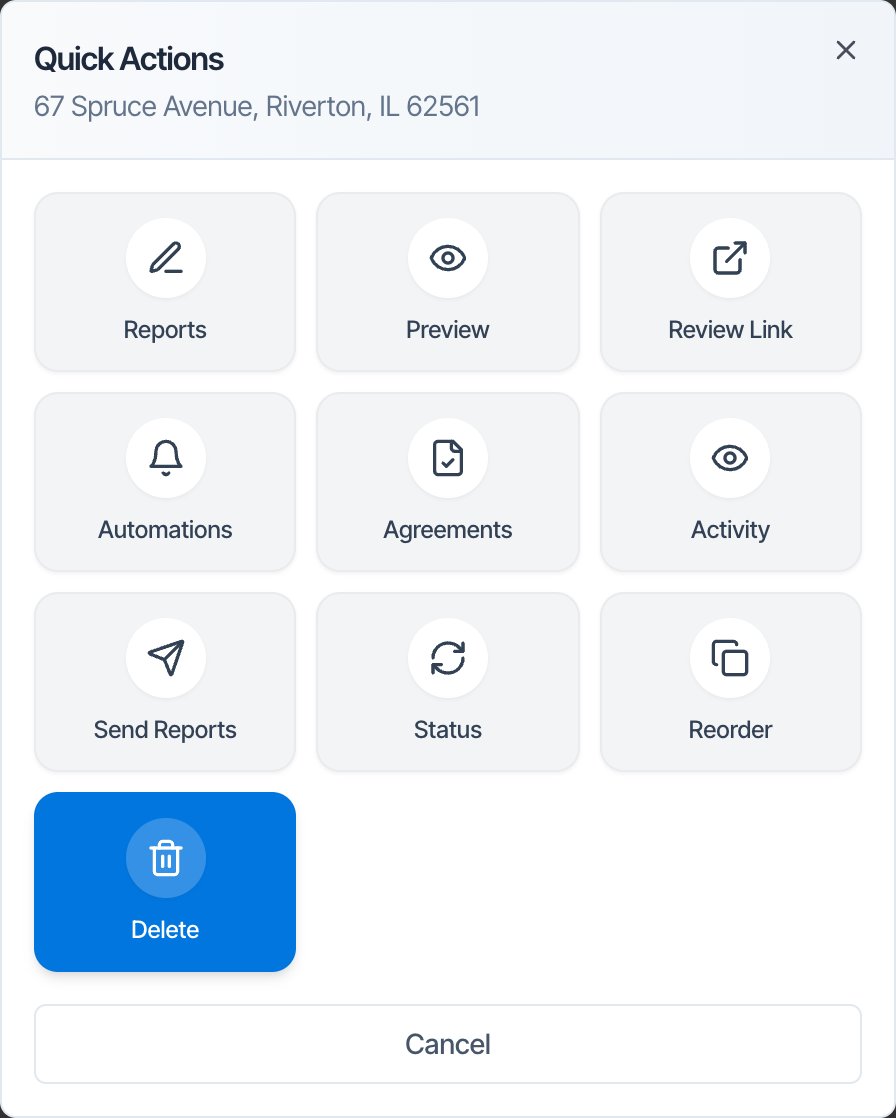
In **Quick Actions**, click **Delete**, the last tile.
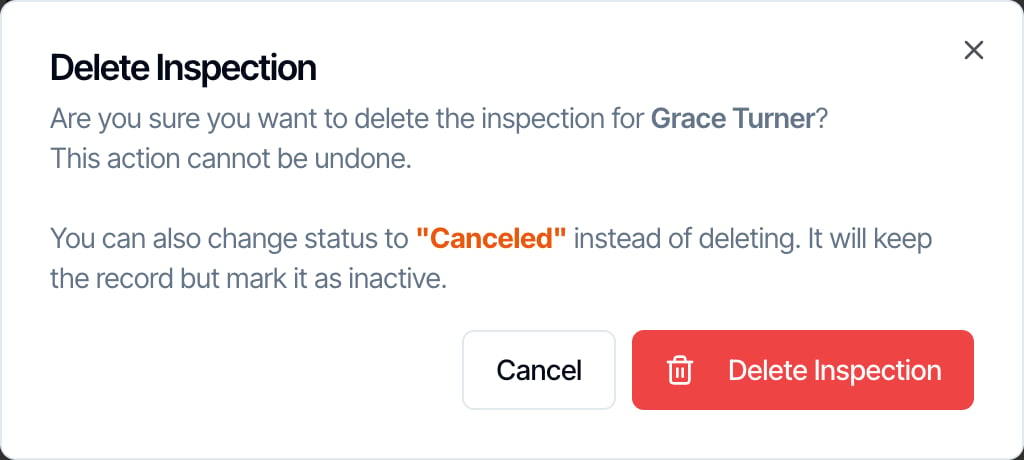
 The **Delete Inspection** window asks: "Are you sure you want to delete the inspection for \[client]? This action cannot be undone." It also reminds you that you can change the status to **Canceled** instead. Click **Delete Inspection**.
 A **Success** message appears and the inspection disappears from the list.
You can also delete from the **⋮** on an inspection card in the **Inspections Waiting for You** box and on the dashboard home. That window asks "Are you sure you want to delete the inspection at \[address]?" and the button reads **Delete**.
You can't delete an inspection from its own page or from the mobile app. Use **Quick Actions** on the **Inspections** page in the web dashboard.
**Delete Report** in the mobile app removes one report from an inspection, not the inspection itself.
## Before you delete
* **Refund first.** Deleting doesn't refund the client. The **Refund Payment** button is on the inspection's page, under **Fees and Payments**, and you can't open that page once the inspection is deleted.
* **Tell the client yourself, or cancel instead.** Deleting sends nothing. If the client or agent already has a confirmation, cancel the inspection so your **Inspection Cancelled** automation tells them.
* **Download anything you need.** Reports, photos, agreements and the invoice can't be opened from your dashboard after you delete, and your client can't open them either.
## What deleting does
| | After you delete |
| - | - |
| **Your lists** | Gone from the **Inspections** page, calendars, search, the mobile app and contacts' inspection counts. |
| **Google Calendar** | The event is removed from each assigned inspector's Google Calendar, along with events for its inspection events such as a radon pickup. |
| **Automated emails and texts** | Every message still waiting to send is stopped. No new message is sent, not even your cancellation message. |
| **The client and agent** | Not told. Every link they already have (report portal, payment page, agreement, invoice, PDF and review link) shows "This inspection is no longer available. Please contact your inspector." They can't sign or pay. |
| **Payments** | Nothing is refunded. Any payment already taken stays in your payment account. |
| **Order ID (OID)** | Not reused. The next inspection gets the next number, so you'll see a gap. |
| **Contacts** | The client and agent stay in **Contacts**. |
| **Report credits** | If the inspection used a report credit on your plan and no report was published, the credit is returned. |
| **Metrics** | Removed from metrics for a date range. The all-time **Total Inspections** count still includes it. |
Hive doesn't erase the data straight away; it hides it. There's no undo button or trash. If you deleted the wrong inspection, contact support from the chat in your dashboard as soon as possible, with the address and roughly when you deleted it.
## Delete or cancel?
| | Delete | Cancel (change status to Canceled) |
| - | - | - |
| Use it for | Tests, duplicates and mistakes | Real jobs that aren't going ahead |
| Stays on the **Inspections** page | No | Yes, with a red **Canceled** badge |
| Client and agent told | No | Yes, if you have an **Inspection Cancelled** automation turned on |
| Reminders and other waiting messages | Stopped | Stopped |
| Google Calendar event | Removed | Removed |
| Payment refunded | No | No |
| Report credit on plans with a report allowance | Returned, if no report was published | Returned, if no report was published. Taken again if you reopen it. |
| Reports, invoice and payments still on its page | No, the page can't be opened | Yes. You can still refund from **Fees and Payments**. |
| Client's links | Show "This inspection is no longer available" and can't be used to sign or pay | Stay open. The review link shows "Inspection Canceled", with your phone and email |
| Can be undone | Only by support | Yes. Change it back to **Confirmed**, and its reminders turn back on. |
| Possible from the mobile app | No | Yes, with the **Status** tile |
To cancel, click the status badge on the **Inspections** page, or use **⋮ → Quick Actions → Status**, pick **Canceled** and confirm. See [Inspection statuses](/how-tos/inspection-statuses#to-canceled).
When in doubt, cancel. A canceled inspection keeps your history and its money trail, and you can reopen it. You can always delete it later.
## Who can delete
* A team member with the **Schedule Management** permission can delete any inspection.
* Anyone else can only delete inspections they're assigned to. Otherwise they see "You don't have permission to delete this inspection. You are not assigned to it."
## Common questions
**Can I get a deleted inspection back?** Not yourself. Contact support with the address and roughly when it was deleted.
**I deleted an inspection but it's still in Google Calendar.** Hive removes the event only from the calendars of inspectors who were assigned and have Google connected. Delete any leftover event in Google Calendar by hand.
**Does deleting tell the client?** No. Nothing is sent. Cancel instead if you want your cancellation automation to tell them.
**The client already paid. What should I do?** Refund the payment from **Fees and Payments** on the inspection's page first, then cancel or delete it.
**Can I delete several inspections at once?** No. Delete them one at a time.
**I deleted a report, not the inspection.** In the mobile app, **Delete Report** removes one report. The inspection stays. Contact support if you need a removed report back.
**Why does my all-time inspection count still include deleted ones?** The all-time **Total Inspections** count records every inspection ever created. Date-range metrics leave deleted inspections out.
## Where to go next
* [Inspection statuses](/how-tos/inspection-statuses): cancel, reopen and every other status change.
* [Filter, search and sort your inspections](/how-tos/inspection-list-filters): find canceled inspections with the **Status** filter.
* [Reschedule an inspection](/how-tos/rescheduled-inspections): move the date instead of canceling.
This documentation is built and hosted on [Mintlify](https://mintlify.com), a developer documentation platform.
A **Success** message appears and the inspection disappears from the list.
You can also delete from the **⋮** on an inspection card in the **Inspections Waiting for You** box and on the dashboard home. That window asks "Are you sure you want to delete the inspection at \[address]?" and the button reads **Delete**.
You can't delete an inspection from its own page or from the mobile app. Use **Quick Actions** on the **Inspections** page in the web dashboard.
**Delete Report** in the mobile app removes one report from an inspection, not the inspection itself.
## Before you delete
* **Refund first.** Deleting doesn't refund the client. The **Refund Payment** button is on the inspection's page, under **Fees and Payments**, and you can't open that page once the inspection is deleted.
* **Tell the client yourself, or cancel instead.** Deleting sends nothing. If the client or agent already has a confirmation, cancel the inspection so your **Inspection Cancelled** automation tells them.
* **Download anything you need.** Reports, photos, agreements and the invoice can't be opened from your dashboard after you delete, and your client can't open them either.
## What deleting does
| | After you delete |
| - | - |
| **Your lists** | Gone from the **Inspections** page, calendars, search, the mobile app and contacts' inspection counts. |
| **Google Calendar** | The event is removed from each assigned inspector's Google Calendar, along with events for its inspection events such as a radon pickup. |
| **Automated emails and texts** | Every message still waiting to send is stopped. No new message is sent, not even your cancellation message. |
| **The client and agent** | Not told. Every link they already have (report portal, payment page, agreement, invoice, PDF and review link) shows "This inspection is no longer available. Please contact your inspector." They can't sign or pay. |
| **Payments** | Nothing is refunded. Any payment already taken stays in your payment account. |
| **Order ID (OID)** | Not reused. The next inspection gets the next number, so you'll see a gap. |
| **Contacts** | The client and agent stay in **Contacts**. |
| **Report credits** | If the inspection used a report credit on your plan and no report was published, the credit is returned. |
| **Metrics** | Removed from metrics for a date range. The all-time **Total Inspections** count still includes it. |
Hive doesn't erase the data straight away; it hides it. There's no undo button or trash. If you deleted the wrong inspection, contact support from the chat in your dashboard as soon as possible, with the address and roughly when you deleted it.
## Delete or cancel?
| | Delete | Cancel (change status to Canceled) |
| - | - | - |
| Use it for | Tests, duplicates and mistakes | Real jobs that aren't going ahead |
| Stays on the **Inspections** page | No | Yes, with a red **Canceled** badge |
| Client and agent told | No | Yes, if you have an **Inspection Cancelled** automation turned on |
| Reminders and other waiting messages | Stopped | Stopped |
| Google Calendar event | Removed | Removed |
| Payment refunded | No | No |
| Report credit on plans with a report allowance | Returned, if no report was published | Returned, if no report was published. Taken again if you reopen it. |
| Reports, invoice and payments still on its page | No, the page can't be opened | Yes. You can still refund from **Fees and Payments**. |
| Client's links | Show "This inspection is no longer available" and can't be used to sign or pay | Stay open. The review link shows "Inspection Canceled", with your phone and email |
| Can be undone | Only by support | Yes. Change it back to **Confirmed**, and its reminders turn back on. |
| Possible from the mobile app | No | Yes, with the **Status** tile |
To cancel, click the status badge on the **Inspections** page, or use **⋮ → Quick Actions → Status**, pick **Canceled** and confirm. See [Inspection statuses](/how-tos/inspection-statuses#to-canceled).
When in doubt, cancel. A canceled inspection keeps your history and its money trail, and you can reopen it. You can always delete it later.
## Who can delete
* A team member with the **Schedule Management** permission can delete any inspection.
* Anyone else can only delete inspections they're assigned to. Otherwise they see "You don't have permission to delete this inspection. You are not assigned to it."
## Common questions
**Can I get a deleted inspection back?** Not yourself. Contact support with the address and roughly when it was deleted.
**I deleted an inspection but it's still in Google Calendar.** Hive removes the event only from the calendars of inspectors who were assigned and have Google connected. Delete any leftover event in Google Calendar by hand.
**Does deleting tell the client?** No. Nothing is sent. Cancel instead if you want your cancellation automation to tell them.
**The client already paid. What should I do?** Refund the payment from **Fees and Payments** on the inspection's page first, then cancel or delete it.
**Can I delete several inspections at once?** No. Delete them one at a time.
**I deleted a report, not the inspection.** In the mobile app, **Delete Report** removes one report. The inspection stays. Contact support if you need a removed report back.
**Why does my all-time inspection count still include deleted ones?** The all-time **Total Inspections** count records every inspection ever created. Date-range metrics leave deleted inspections out.
## Where to go next
* [Inspection statuses](/how-tos/inspection-statuses): cancel, reopen and every other status change.
* [Filter, search and sort your inspections](/how-tos/inspection-list-filters): find canceled inspections with the **Status** filter.
* [Reschedule an inspection](/how-tos/rescheduled-inspections): move the date instead of canceling.
This documentation is built and hosted on [Mintlify](https://mintlify.com), a developer documentation platform.