> ## Documentation Index
> Fetch the complete documentation index at: https://docs.hiveinspect.com/llms.txt
> Use this file to discover all available pages before exploring further.
# Discount Codes: Create, Limit and Apply Discounts
> Create fixed-amount or percentage discount codes in Hive Inspect, limit them to certain services and add-ons, let clients enter them when they book online, apply them yourself on an inspection, and edit or delete them.
In the dashboard: Business Tools → Discount Codes.
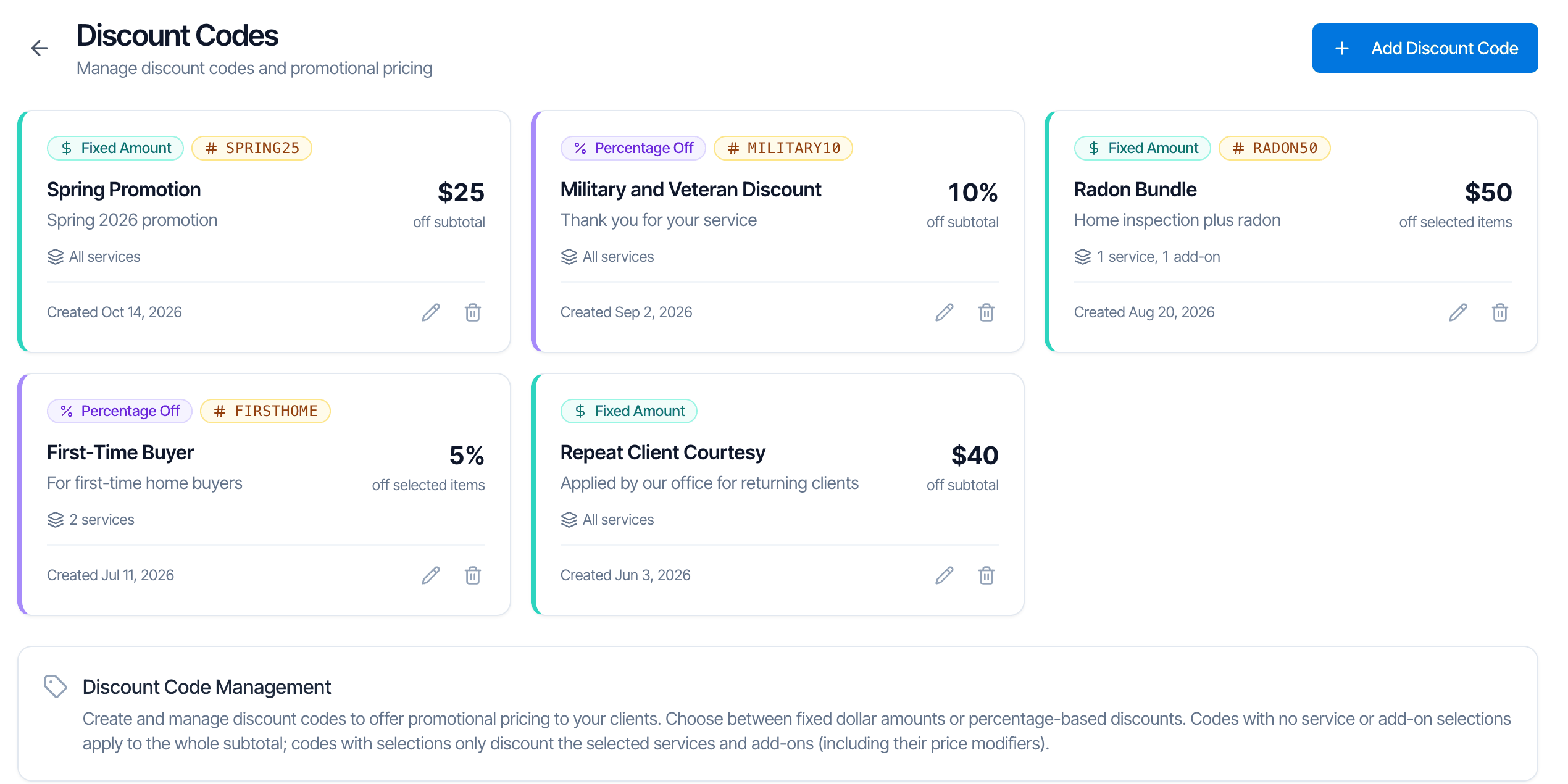
A discount code takes money off an inspection: a fixed amount, such as \$25 off, or a percentage, such as 10% off. Use them for promotions, military and veteran discounts, first-time buyers, agent referrals or repeat clients.
Every discount can be used in two ways:
* **By your clients**, who type its code in **Have a discount code?** when they book on your [scheduling widget](/how-tos/scheduling-widget) or ask for a price on your [quote widget](/how-tos/quote-widget).
* **By your team**, who pick it under **Discount Codes** on the inspection's page. A discount without a code can only be used this way.
 ## Create a discount code
Go to **Business Tools** in the left menu and click the **Discount Codes** card. Click **Add Discount Code** at the top right (or **Create Your First Discount Code** if you have none yet).
## Create a discount code
Go to **Business Tools** in the left menu and click the **Discount Codes** card. Click **Add Discount Code** at the top right (or **Create Your First Discount Code** if you have none yet).
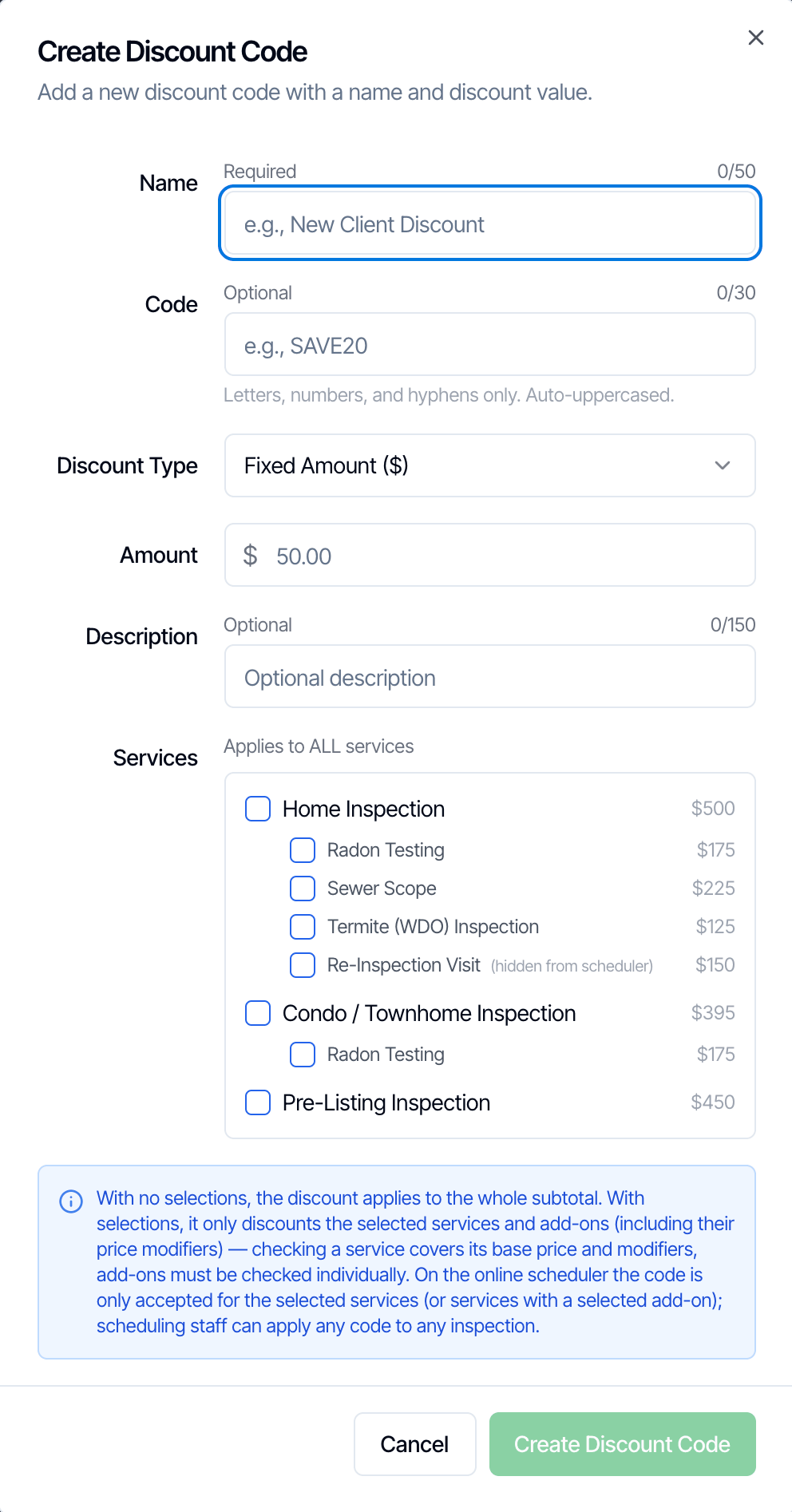 **Name** is required, up to 50 characters, and must be different from your other discounts. It's what your client sees on the price breakdown and invoice, as **Discount: Name**, so write it for them, for example **Military and Veteran Discount**.
**Code** is what clients type when they book online, for example `MILITARY10`. Up to 30 characters, using only letters, numbers and hyphens. No spaces or symbols. Hive turns it into capitals for you, and clients can type it in any case.
Two discounts can't share a code. Leave **Code** empty for a discount only your team should apply, such as a courtesy for repeat clients.
**Name** is required, up to 50 characters, and must be different from your other discounts. It's what your client sees on the price breakdown and invoice, as **Discount: Name**, so write it for them, for example **Military and Veteran Discount**.
**Code** is what clients type when they book online, for example `MILITARY10`. Up to 30 characters, using only letters, numbers and hyphens. No spaces or symbols. Hive turns it into capitals for you, and clients can type it in any case.
Two discounts can't share a code. Leave **Code** empty for a discount only your team should apply, such as a courtesy for repeat clients.
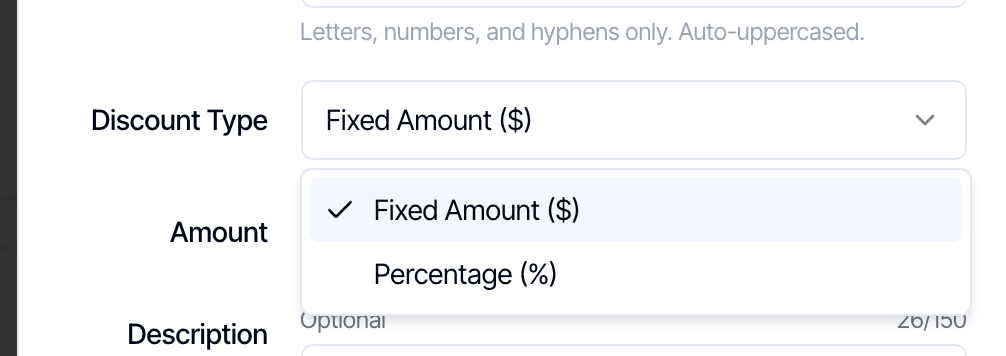 * **Fixed Amount (\$)**: type the dollar amount in **Amount**, for example **25** for \$25 off.
* **Percentage (%)**: type the percentage in **Percentage**, from 0.01 to 100, for example **10** for 10% off.
**Description** (up to 150 characters) is a short note, for example "Thank you for your service". It shows on the discount's card here, and it's printed under the discount line on the client's invoice.
Leave every box under **Services** unticked and the code takes money off **the whole order**. The list then says **Applies to ALL services**.
Tick services or add-ons to limit it. See [Limit a code to some services or add-ons](#limit-a-code-to-some-services-or-add-ons).
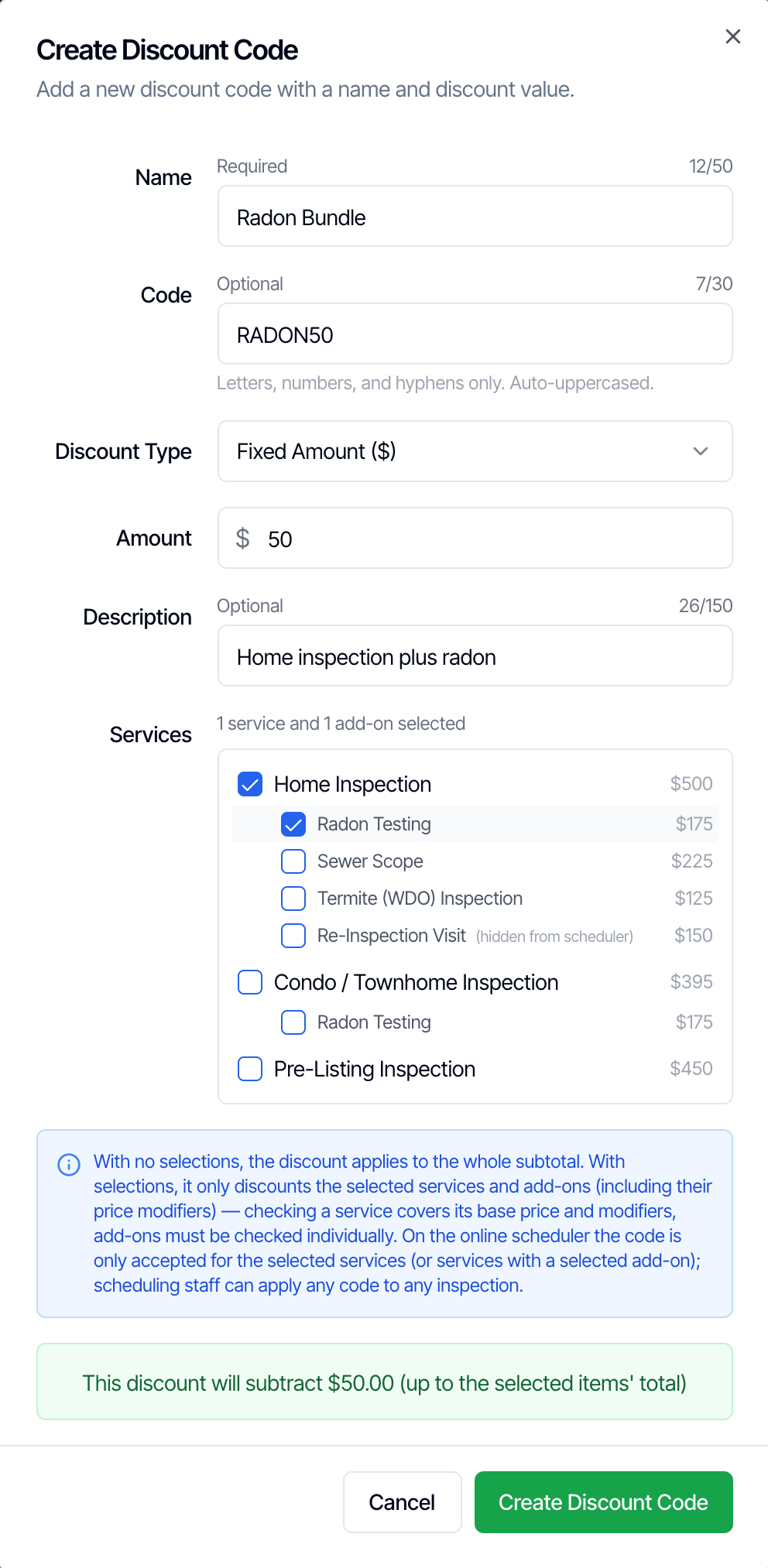
Once the amount is filled in, a green line sums up what the discount will do, for example "This discount will subtract \$50.00 (up to the selected items' total)". Click **Create Discount Code**.
* **Fixed Amount (\$)**: type the dollar amount in **Amount**, for example **25** for \$25 off.
* **Percentage (%)**: type the percentage in **Percentage**, from 0.01 to 100, for example **10** for 10% off.
**Description** (up to 150 characters) is a short note, for example "Thank you for your service". It shows on the discount's card here, and it's printed under the discount line on the client's invoice.
Leave every box under **Services** unticked and the code takes money off **the whole order**. The list then says **Applies to ALL services**.
Tick services or add-ons to limit it. See [Limit a code to some services or add-ons](#limit-a-code-to-some-services-or-add-ons).
Once the amount is filled in, a green line sums up what the discount will do, for example "This discount will subtract \$50.00 (up to the selected items' total)". Click **Create Discount Code**.
 The code works straight away, on your widgets and on every inspection.
If you see **Failed to create discount code**, the name or code is already used by another discount, or the code has a space or a character other than letters, numbers and hyphens. Change it and try again.
## Limit a code to some services or add-ons
The **Services** list shows each of your services with its add-ons underneath. Add-ons hidden from your scheduler are marked **(hidden from scheduler)**.
The code works straight away, on your widgets and on every inspection.
If you see **Failed to create discount code**, the name or code is already used by another discount, or the code has a space or a character other than letters, numbers and hyphens. Change it and try again.
## Limit a code to some services or add-ons
The **Services** list shows each of your services with its add-ons underneath. Add-ons hidden from your scheduler are marked **(hidden from scheduler)**.
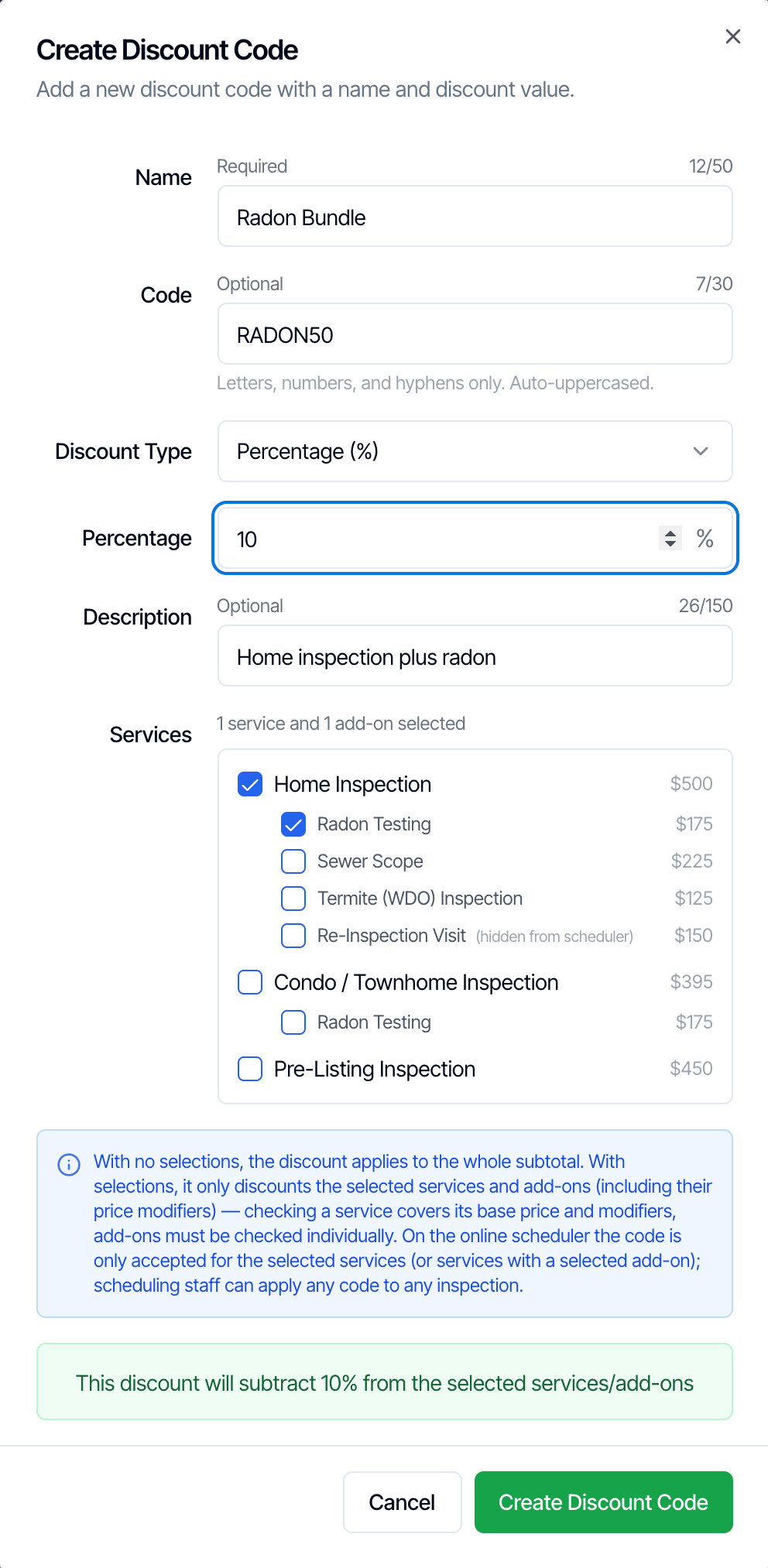 How the boxes work:
* **Ticking a service** discounts that service's price and its price modifiers (for example square footage or age of home). It does **not** tick its add-ons.
* **Add-ons are ticked one by one.** To discount a service and its radon add-on, tick both.
* **An add-on on its own** is fine, for example a code for **Radon Testing** only. Its service then shows a dash in its box.
* The line above the list counts what you picked, such as **1 service and 1 add-on selected**.
What a limited code does:
| | Code with nothing ticked | Code limited to some services or add-ons |
| - | - | - |
| **Percentage** | Comes off the whole order. | Comes off the ticked services (with their modifiers) and ticked add-ons only. |
| **Fixed amount** | Comes off the whole order. | Comes off the ticked items, but never more than they cost. A \$50 code on a \$40 add-on takes \$40 off. |
| **On your scheduling and quote widgets** | Accepted for every service. | Accepted only when the client picks a ticked service, or a service with a ticked add-on. Otherwise they see "This code is not applicable to the selected service". |
| **On an inspection in the dashboard** | Your team can apply it. | Your team can still apply it to any inspection. If nothing on the inspection is ticked in the code, it takes \$0 off. |
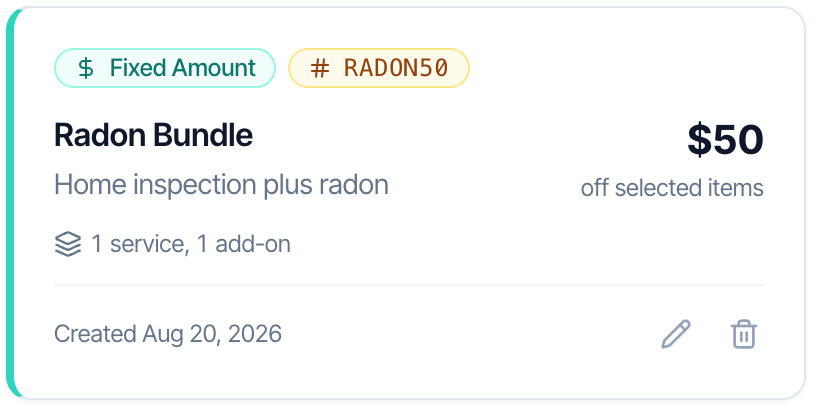
The card for a limited code says **off selected items** and counts what it covers, for example **1 service, 1 add-on**. A code with nothing ticked says **off subtotal** and **All services**.
How the boxes work:
* **Ticking a service** discounts that service's price and its price modifiers (for example square footage or age of home). It does **not** tick its add-ons.
* **Add-ons are ticked one by one.** To discount a service and its radon add-on, tick both.
* **An add-on on its own** is fine, for example a code for **Radon Testing** only. Its service then shows a dash in its box.
* The line above the list counts what you picked, such as **1 service and 1 add-on selected**.
What a limited code does:
| | Code with nothing ticked | Code limited to some services or add-ons |
| - | - | - |
| **Percentage** | Comes off the whole order. | Comes off the ticked services (with their modifiers) and ticked add-ons only. |
| **Fixed amount** | Comes off the whole order. | Comes off the ticked items, but never more than they cost. A \$50 code on a \$40 add-on takes \$40 off. |
| **On your scheduling and quote widgets** | Accepted for every service. | Accepted only when the client picks a ticked service, or a service with a ticked add-on. Otherwise they see "This code is not applicable to the selected service". |
| **On an inspection in the dashboard** | Your team can apply it. | Your team can still apply it to any inspection. If nothing on the inspection is ticked in the code, it takes \$0 off. |
The card for a limited code says **off selected items** and counts what it covers, for example **1 service, 1 add-on**. A code with nothing ticked says **off subtotal** and **All services**.
 ## How the discount is worked out
* **Discounts come off before tax.** Tax is charged on what's left. See [Discount codes and tax](/how-tos/taxes#discount-codes-and-tax).
* **The urgent surcharge** is worked out after the discount.
* **Your own custom line items** aren't discounted by a percentage code.
* **One code per online booking.** A client can enter one code on the widget. Your team can add more than one on an inspection.
* **No limits or end dates.** A code works for every client, as many times as they like, until you delete it.
## Where clients enter a code
On your [scheduling widget](/how-tos/scheduling-widget) and [quote widget](/how-tos/quote-widget), clients see **Have a discount code?** after they pick their add-ons. They type the code and click **Apply**.
## How the discount is worked out
* **Discounts come off before tax.** Tax is charged on what's left. See [Discount codes and tax](/how-tos/taxes#discount-codes-and-tax).
* **The urgent surcharge** is worked out after the discount.
* **Your own custom line items** aren't discounted by a percentage code.
* **One code per online booking.** A client can enter one code on the widget. Your team can add more than one on an inspection.
* **No limits or end dates.** A code works for every client, as many times as they like, until you delete it.
## Where clients enter a code
On your [scheduling widget](/how-tos/scheduling-widget) and [quote widget](/how-tos/quote-widget), clients see **Have a discount code?** after they pick their add-ons. They type the code and click **Apply**.
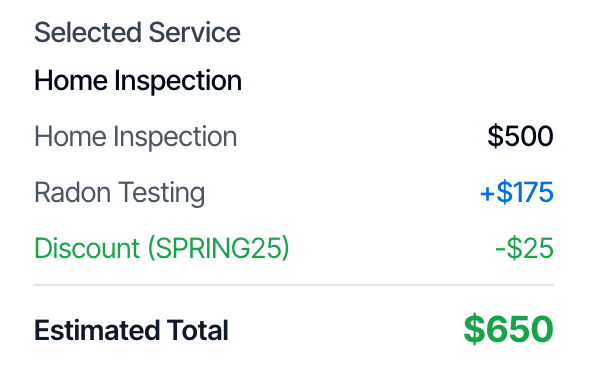
 The summary on the right then shows the discount and the new **Estimated Total**:
 A code that doesn't exist shows **Invalid discount code**:
 Good to know:
* The box only shows when at least one of your codes could apply to the service the client picked. It's hidden if all your discounts are team-only (no code), or if you hide prices on your scheduler.
* If the client changes their service, the code is removed and they enter it again.
* A code entered on the quote widget carries over when the client clicks **Ready to Schedule?**.
* The mobile app doesn't apply discount codes. Use the dashboard.
## Apply a discount on an inspection
On the inspection's page, under the services, click **Add Discount** and pick the discount. Every discount you've created is listed, with or without a code. It's added as its own **Discount** line, and the price and invoice update.
See [Apply a discount code](/how-tos/inspection-services#apply-a-discount-code) for the details, including what happens if you change prices afterwards.
## Edit or delete a discount code
Click the pencil on a card, or its name, to open **Edit Discount Code**. Change anything and click **Update Discount Code**. To turn a code into a team-only discount, clear **Code**.
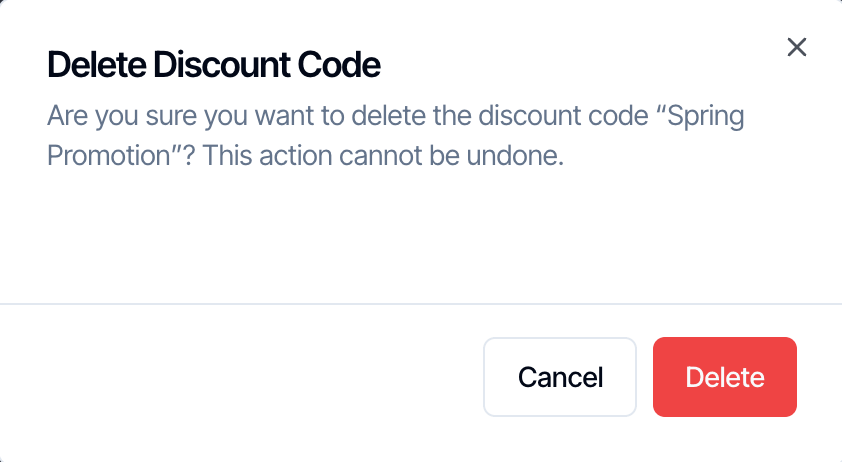
Click the bin to delete a code, then **Delete**. This can't be undone.
Good to know:
* The box only shows when at least one of your codes could apply to the service the client picked. It's hidden if all your discounts are team-only (no code), or if you hide prices on your scheduler.
* If the client changes their service, the code is removed and they enter it again.
* A code entered on the quote widget carries over when the client clicks **Ready to Schedule?**.
* The mobile app doesn't apply discount codes. Use the dashboard.
## Apply a discount on an inspection
On the inspection's page, under the services, click **Add Discount** and pick the discount. Every discount you've created is listed, with or without a code. It's added as its own **Discount** line, and the price and invoice update.
See [Apply a discount code](/how-tos/inspection-services#apply-a-discount-code) for the details, including what happens if you change prices afterwards.
## Edit or delete a discount code
Click the pencil on a card, or its name, to open **Edit Discount Code**. Change anything and click **Update Discount Code**. To turn a code into a team-only discount, clear **Code**.
Click the bin to delete a code, then **Delete**. This can't be undone.
 What happens to inspections that already have the discount:
* **Deleting** a discount stops new clients from using it. Inspections that already have it keep their discount line.
* **Editing** a code's amount or services is for new uses. Inspections that already have the discount keep their amount, but if the order changes later (for example your client adds an add-on from their review page), the discount can be worked out again with the code's new settings.
* **Renaming** doesn't rename the discount line on inspections that already have it. Invoices made after you change the **Description** print the new one.
To end a promotion, delete the code, or clear its **Code** so clients can't enter it while your team still can.
## Who can manage discount codes
Anyone who can open **Business Tools** can create, edit and delete discount codes: the **Inspector** and **Admin** roles, and other team members unless their **Business Tools** permission is switched off. See [Team permissions](/business-tools/team-permissions).
## Common questions
Click **Add Discount Code**, name it **Military and Veteran Discount**, give it a code such as `MILITARY10`, choose **Percentage (%)** and type **10**. Leave the services unticked so it applies to the whole order. Tell clients the code, or apply it yourself on their inspection.
No. Codes have no end date or usage limit. Delete the code (or clear its **Code**) when the promotion ends.
* **Invalid discount code**: check the spelling against **Code** on the card. Case doesn't matter, but spaces and characters do.
* **This code is not applicable to the selected service**: the code is limited to other services. Edit it and tick the client's service, or apply it yourself on their inspection.
* **No Have a discount code? box**: none of your codes with a **Code** applies to that service, or prices are hidden on your scheduler.
The code is limited to services or add-ons that aren't on this inspection. Edit the code to tick them, or use another discount.
A line named **Discount:** followed by the discount's **Name** (and the percentage for percentage codes), as a negative amount. The discount's **Description** is printed under it. A percentage code with no description shows what it was worked out on instead, for example "10% off \$400.00". The code itself isn't printed.
Yes. On the inspection's page, use **Edit Price or Duration**, or add a custom line with a negative amount. See [Services and prices on an inspection](/how-tos/inspection-services).
## Where to go next
* [Services and prices on an inspection](/how-tos/inspection-services)
* [Sales tax](/how-tos/taxes)
* [Scheduling widget](/how-tos/scheduling-widget)
* [Quote widget](/how-tos/quote-widget)
* [Mileage Tracker](/how-tos/mileage-tracker)
* [Hourly Time Tracker](/how-tos/hourly-time-tracker)
This documentation is built and hosted on [Mintlify](https://mintlify.com), a developer documentation platform.
What happens to inspections that already have the discount:
* **Deleting** a discount stops new clients from using it. Inspections that already have it keep their discount line.
* **Editing** a code's amount or services is for new uses. Inspections that already have the discount keep their amount, but if the order changes later (for example your client adds an add-on from their review page), the discount can be worked out again with the code's new settings.
* **Renaming** doesn't rename the discount line on inspections that already have it. Invoices made after you change the **Description** print the new one.
To end a promotion, delete the code, or clear its **Code** so clients can't enter it while your team still can.
## Who can manage discount codes
Anyone who can open **Business Tools** can create, edit and delete discount codes: the **Inspector** and **Admin** roles, and other team members unless their **Business Tools** permission is switched off. See [Team permissions](/business-tools/team-permissions).
## Common questions
Click **Add Discount Code**, name it **Military and Veteran Discount**, give it a code such as `MILITARY10`, choose **Percentage (%)** and type **10**. Leave the services unticked so it applies to the whole order. Tell clients the code, or apply it yourself on their inspection.
No. Codes have no end date or usage limit. Delete the code (or clear its **Code**) when the promotion ends.
* **Invalid discount code**: check the spelling against **Code** on the card. Case doesn't matter, but spaces and characters do.
* **This code is not applicable to the selected service**: the code is limited to other services. Edit it and tick the client's service, or apply it yourself on their inspection.
* **No Have a discount code? box**: none of your codes with a **Code** applies to that service, or prices are hidden on your scheduler.
The code is limited to services or add-ons that aren't on this inspection. Edit the code to tick them, or use another discount.
A line named **Discount:** followed by the discount's **Name** (and the percentage for percentage codes), as a negative amount. The discount's **Description** is printed under it. A percentage code with no description shows what it was worked out on instead, for example "10% off \$400.00". The code itself isn't printed.
Yes. On the inspection's page, use **Edit Price or Duration**, or add a custom line with a negative amount. See [Services and prices on an inspection](/how-tos/inspection-services).
## Where to go next
* [Services and prices on an inspection](/how-tos/inspection-services)
* [Sales tax](/how-tos/taxes)
* [Scheduling widget](/how-tos/scheduling-widget)
* [Quote widget](/how-tos/quote-widget)
* [Mileage Tracker](/how-tos/mileage-tracker)
* [Hourly Time Tracker](/how-tos/hourly-time-tracker)
This documentation is built and hosted on [Mintlify](https://mintlify.com), a developer documentation platform.