> ## Documentation Index
> Fetch the complete documentation index at: https://docs.hiveinspect.com/llms.txt
> Use this file to discover all available pages before exploring further.
# Import a Template: From Your Old Software or the Template Hub
> Get a report template into Hive Inspect: upload it from Spectora, HIP, HomeGauge or Horizon, or import a ready-made one from the Template Hub, including official state forms.
In the dashboard: Templates
## Two ways to get a template
A **template** is the reusable layout of your report: its sections, subsections and comment library. Every report you write starts as a copy of a template. See [Template structure](/how-tos/template-structure).
You don't have to build a template from scratch. There are two ways to get one:
| | **Upload** from your old software | **Template Hub** |
| - | - | - |
| What you get | Your own template, converted from an export file | A ready-made template shared by working inspectors, or an official state form |
| Best for | Keeping the comments you already use | Starting fresh, adding a new inspection type, or any official form |
| Where | **Templates → Upload** | **Templates → Template Hub** |
| Cost | Free | Free |
Both buttons are at the top of the **Templates** page. The third button, **Create**, makes an empty template. See [Create an empty template](/how-tos/editing-templates#create-an-empty-template).
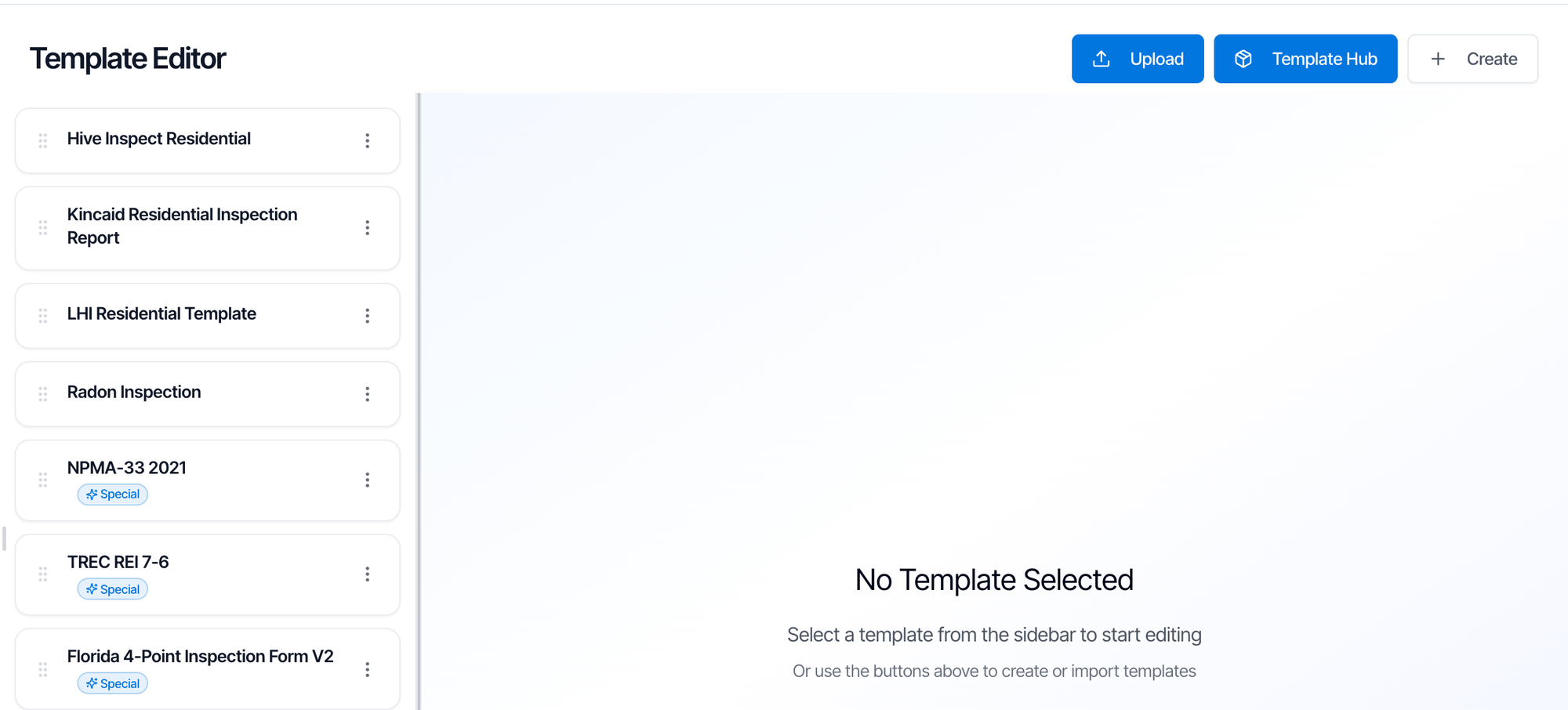 The Templates page is open to inspectors and to team members who have the **Edit Templates** permission. Others see an **Access Denied** page.
## Option 1: Upload a template from your old software
You can import a template yourself from these programs:
| Software | File to upload | How to get it |
| - | - | - |
| **Spectora** | The Excel file (`.xls` or `.xlsx`) | Spectora's template export. Export it with HTML so your formatting comes through. |
| **HIP (Home Inspector Pro)** | The `.tpz` export (a `.zip` also works) | HIP's template export |
| **HomeGauge** | The `.ht5` export | HomeGauge's template export |
| **Horizon (Carson Dunlop)** | Two files: `horizon.json` and your `company_*.json` | Both come from the same Horizon export |
Files can be up to 100 MB.
On the **Templates** page, click **Upload**. The **Import Template** dialog opens.
The Templates page is open to inspectors and to team members who have the **Edit Templates** permission. Others see an **Access Denied** page.
## Option 1: Upload a template from your old software
You can import a template yourself from these programs:
| Software | File to upload | How to get it |
| - | - | - |
| **Spectora** | The Excel file (`.xls` or `.xlsx`) | Spectora's template export. Export it with HTML so your formatting comes through. |
| **HIP (Home Inspector Pro)** | The `.tpz` export (a `.zip` also works) | HIP's template export |
| **HomeGauge** | The `.ht5` export | HomeGauge's template export |
| **Horizon (Carson Dunlop)** | Two files: `horizon.json` and your `company_*.json` | Both come from the same Horizon export |
Files can be up to 100 MB.
On the **Templates** page, click **Upload**. The **Import Template** dialog opens.
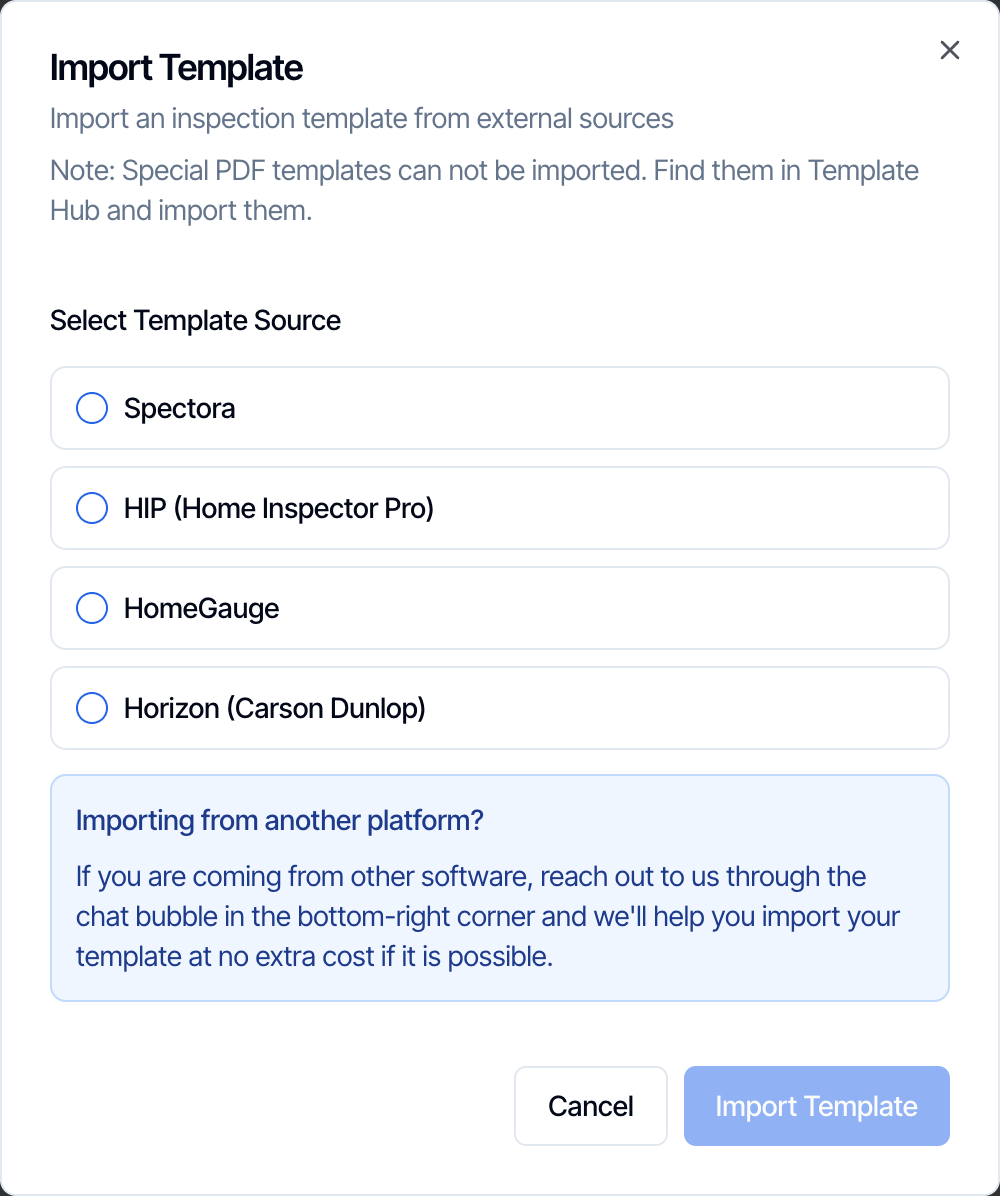 Under **Select Template Source**, pick the program the template comes from. An upload box appears and tells you which file it takes.
Drag the file into the box, or click **Select File**. A file of the wrong type is rejected with a message that says which file is needed.
Under **Select Template Source**, pick the program the template comes from. An upload box appears and tells you which file it takes.
Drag the file into the box, or click **Select File**. A file of the wrong type is rejected with a message that says which file is needed.
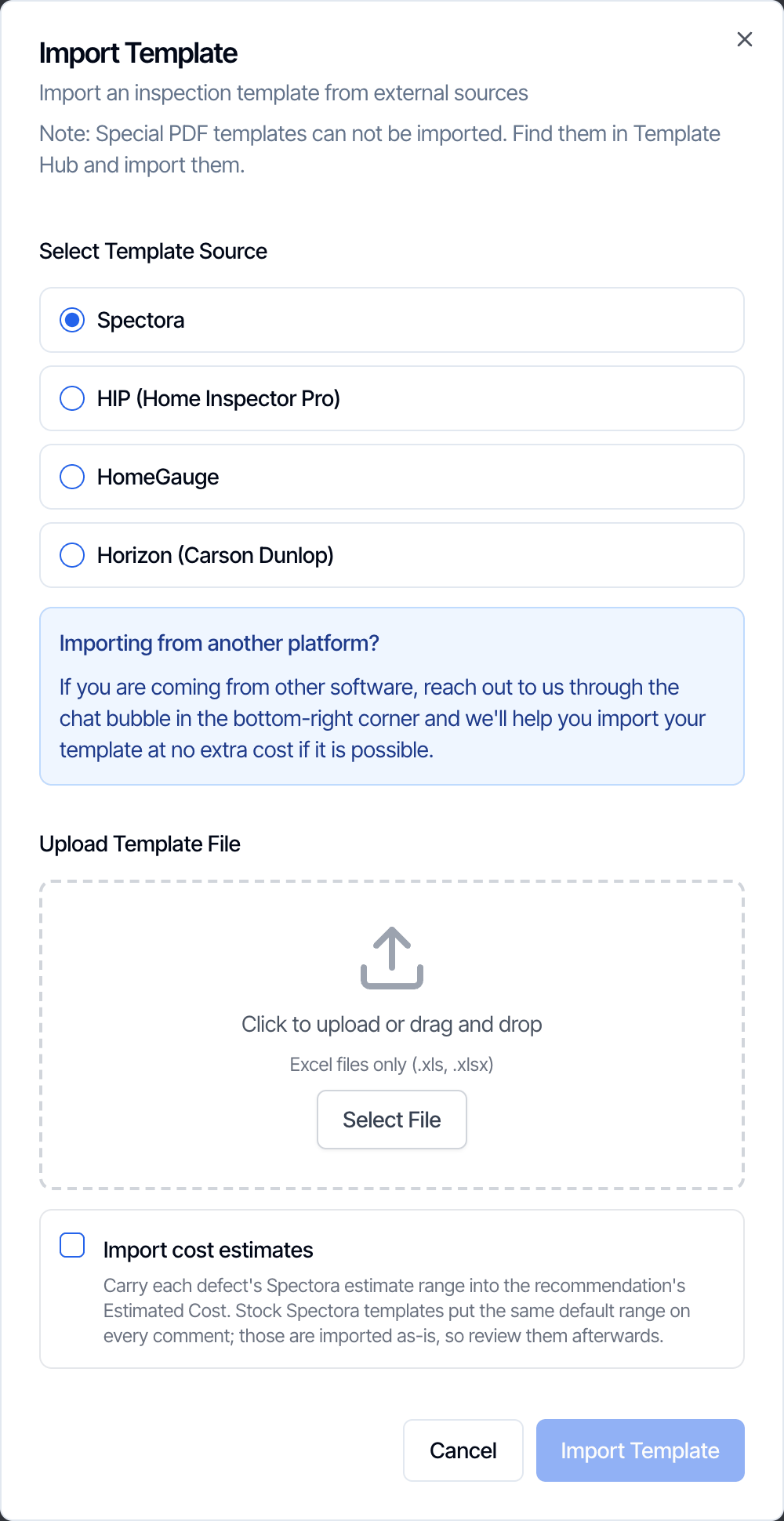 Spectora templates have one extra option, **Import cost estimates**. It is off by default. Tick it to copy each defect's Spectora estimate range into the comment's **Estimated Cost**. Stock Spectora templates put the same default range on every comment. Those ranges are imported as they are, so check them afterwards.
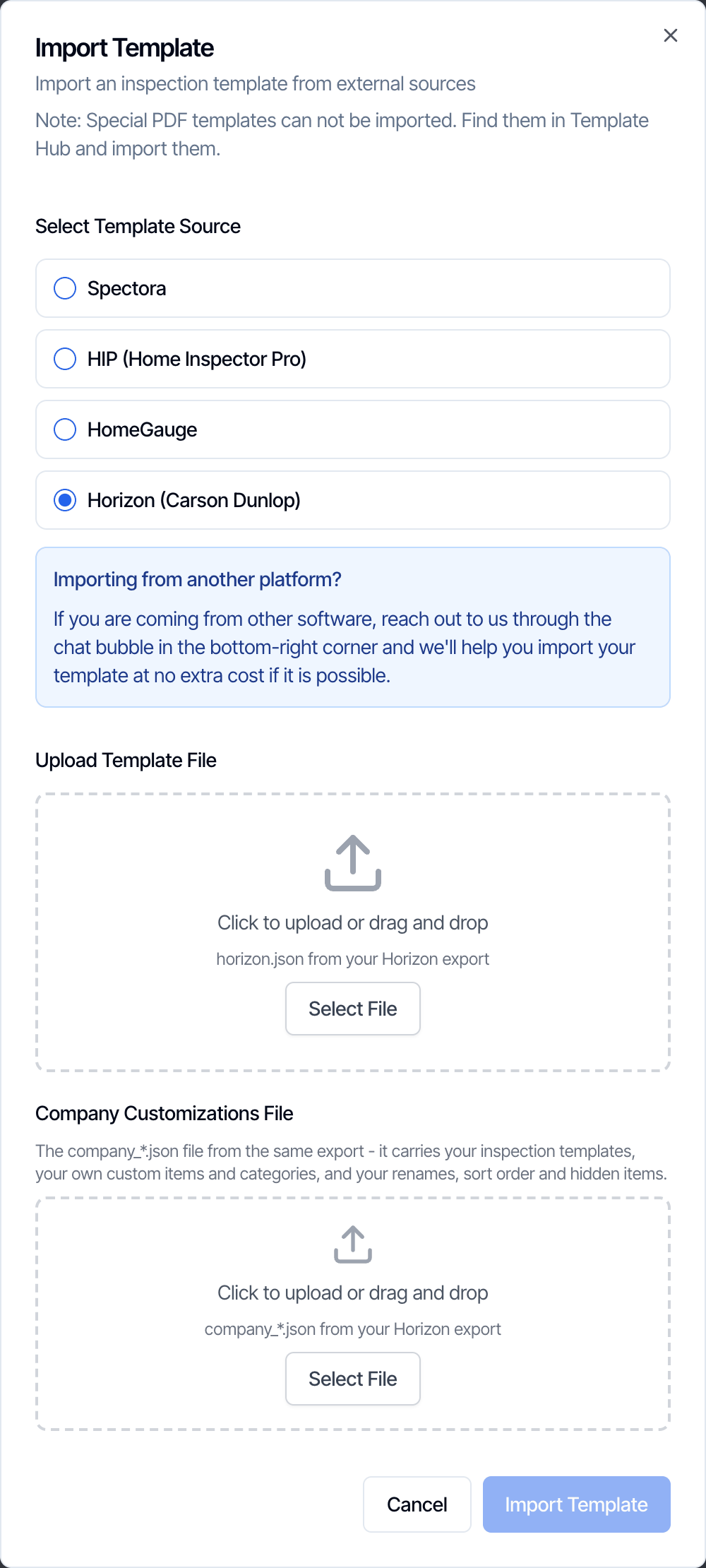 Horizon needs both files from the same export:
* `horizon.json` in the first box
* `company_*.json` in **Company Customizations File**. It carries your inspection templates, your own items and categories, and your renames, sort order and hidden items.
**Import Template** stays greyed out until both files are added. One Horizon export can create **several templates**, one for each inspection template in it.
Click **Import Template** and stay on the page. The dialog shows **Processing Your Template** while Hive converts your sections, items and comments. For Spectora, it also copies your comment photos to Hive. It takes up to 5 minutes, or up to 10 minutes for Horizon.
When it's done, a message says **Template Imported** (or how many templates were imported, for Horizon), and the new template appears at the top of your list.
Open the new template and look through it before your first inspection. Every program organizes templates a little differently, so expect some clean-up:
* **Rename it** if needed. The name comes from the file. See [Template Overview settings](/how-tos/template-overview).
* **Turn on Ratings** if you use them. Imported templates start with ratings off.
* **Hide rarely used sections and subsections.** Spectora's "optional" setting doesn't carry over. See [Hidden sections and subsections](/how-tos/template-structure#hidden-sections-and-subsections).
* **Check comments are in the right group.** Hive sorts every comment into Information, Limitations or Defects/ Deficiencies. Move any that landed in the wrong one. See [Move a comment](/how-tos/editing-templates#move-comments).
Uploading the same file again creates a **second copy**. It doesn't replace or update the first one. Delete the copy you don't want.
### Other software
For any other program, such as **Inspector Toolbelt**, **PalmTech**, **Tap Inspect** or **Binsr**, send your template export to our team through the chat bubble in the bottom-right corner of your dashboard. We import it at no extra cost when the file can be read. See [Templates from other software](/faq/switching-and-integrations#import-template-from-other-software).
### Official forms can't be uploaded
Don't upload another program's version of an official form, such as TREC, NPMA-33 or a Florida insurance form. An uploaded template always prints as a regular Hive report. Import the form from the Template Hub instead, as described below.
## Option 2: Import from the Template Hub
The **Template Hub** is a library of ready-made templates. Most were shared by working inspectors and come with their full comment library. It also has every official form Hive prints, such as TREC, NPMA-33 and the Florida insurance forms.
On the **Templates** page, click **Template Hub**.
Horizon needs both files from the same export:
* `horizon.json` in the first box
* `company_*.json` in **Company Customizations File**. It carries your inspection templates, your own items and categories, and your renames, sort order and hidden items.
**Import Template** stays greyed out until both files are added. One Horizon export can create **several templates**, one for each inspection template in it.
Click **Import Template** and stay on the page. The dialog shows **Processing Your Template** while Hive converts your sections, items and comments. For Spectora, it also copies your comment photos to Hive. It takes up to 5 minutes, or up to 10 minutes for Horizon.
When it's done, a message says **Template Imported** (or how many templates were imported, for Horizon), and the new template appears at the top of your list.
Open the new template and look through it before your first inspection. Every program organizes templates a little differently, so expect some clean-up:
* **Rename it** if needed. The name comes from the file. See [Template Overview settings](/how-tos/template-overview).
* **Turn on Ratings** if you use them. Imported templates start with ratings off.
* **Hide rarely used sections and subsections.** Spectora's "optional" setting doesn't carry over. See [Hidden sections and subsections](/how-tos/template-structure#hidden-sections-and-subsections).
* **Check comments are in the right group.** Hive sorts every comment into Information, Limitations or Defects/ Deficiencies. Move any that landed in the wrong one. See [Move a comment](/how-tos/editing-templates#move-comments).
Uploading the same file again creates a **second copy**. It doesn't replace or update the first one. Delete the copy you don't want.
### Other software
For any other program, such as **Inspector Toolbelt**, **PalmTech**, **Tap Inspect** or **Binsr**, send your template export to our team through the chat bubble in the bottom-right corner of your dashboard. We import it at no extra cost when the file can be read. See [Templates from other software](/faq/switching-and-integrations#import-template-from-other-software).
### Official forms can't be uploaded
Don't upload another program's version of an official form, such as TREC, NPMA-33 or a Florida insurance form. An uploaded template always prints as a regular Hive report. Import the form from the Template Hub instead, as described below.
## Option 2: Import from the Template Hub
The **Template Hub** is a library of ready-made templates. Most were shared by working inspectors and come with their full comment library. It also has every official form Hive prints, such as TREC, NPMA-33 and the Florida insurance forms.
On the **Templates** page, click **Template Hub**.
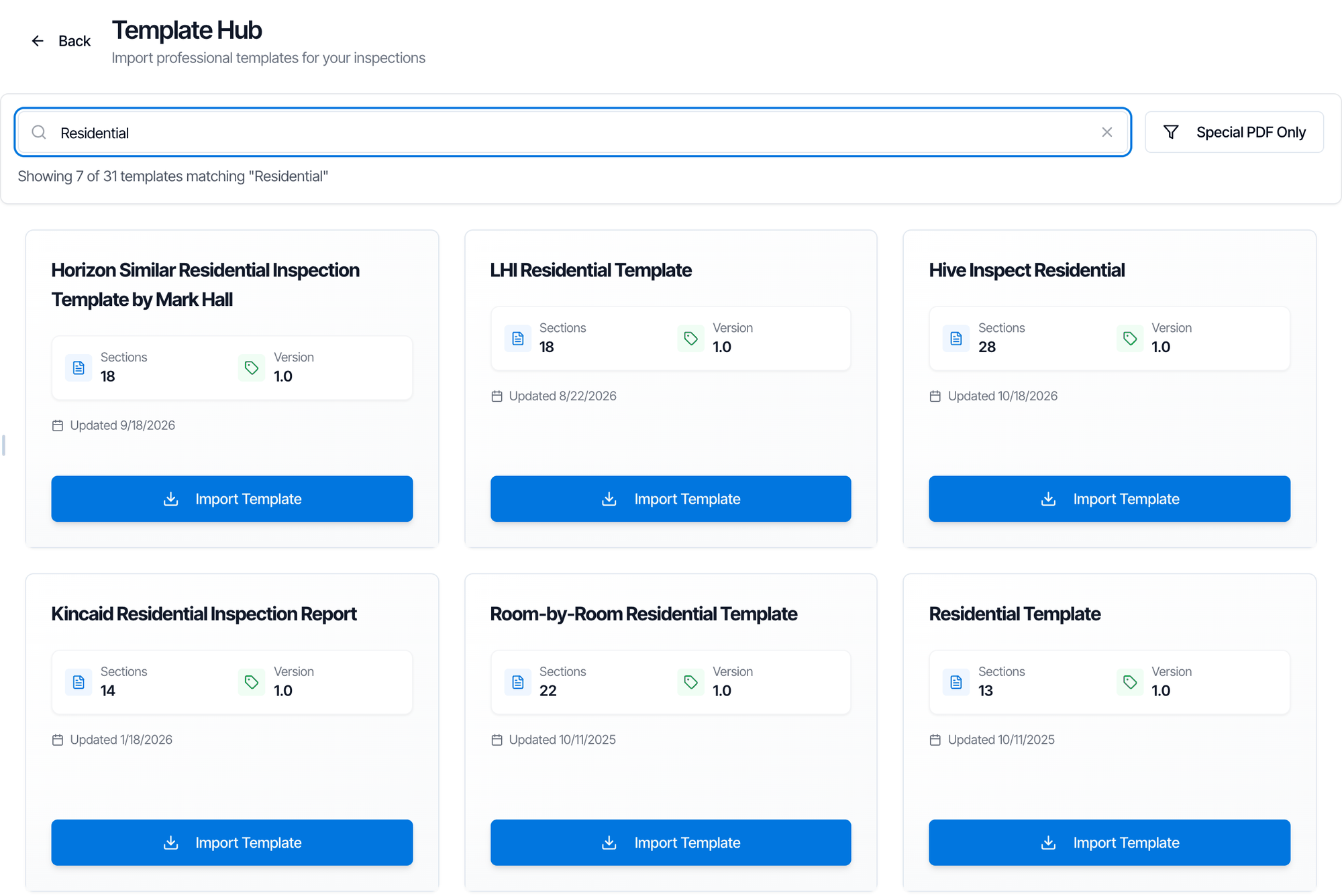 * Type in **Search templates by name** to filter the cards.
* Click **Special PDF Only** to show only the official forms. Click it again to show everything.
Each card shows the template's number of **Sections**, its **Version** and when it was last **Updated**. Official forms carry a **Special** tag.
Click **Import Template** on the card. When **Template Imported Successfully!** appears, click **View Template** to go back to your templates, or **Stay in Hub** to import another.
The template is added at the top of your list under the same name as in the Hub.
The imported template is your own copy. Edit it as much as you like: later changes in the Hub never change your copy, and your changes never change the Hub.
The Hub copies sections, subsections and comments. It doesn't copy the template's settings, so set your **Customer Viewing Name**, **Report Introduction Text** and **Ratings** on the [Overview](/how-tos/template-overview). The one exception is **TREC REI 7-6**, which comes with the standard TREC ratings turned on.
You can import as many Hub templates as you like. Importing the same one twice gives you two separate copies.
### Popular templates to start from
If you're starting fresh, these general home inspection templates are the most used. All three are full residential templates with Information, Limitations and defect comments already written. Import one or two, compare them, and keep the one closest to how you inspect.
The most imported template in the Hub and the most detailed: 28 sections, about 300 subsections and around 6,000 defect comments, some with reference photos. It covers the whole house plus wells, irrigation, docks, raised and manufactured-home foundations, environmental items, a final checklist and post-inspection advice. It includes items used on Florida inspections, such as 4-point water heater details. Rarely needed sections, such as **Well equipment**, **Irrigation system** and **Dock**, are hidden by default and can be shown on site when needed.
The second most imported template. A classic, system-by-system layout in 14 sections: Inspection Details, Exterior, Interior, Heating, Fireplace(s)/Wood Stove(s), Cooling, Electrical, Plumbing, Basement / Crawlspace, Detached Garage, Attached Garage, Structure, Attic, Insulation & Ventilation, and Roof. It has about 100 subsections and around 2,000 defect comments.
A leaner template in 18 sections with about 900 defect comments, for inspectors who prefer a shorter comment library. It starts with Inspection Detail and splits the house into Roof; Chimney, Fireplace, or Stove; Exterior; Carport; Foundation, Crawlspace & Structure; Heating; Cooling; Plumbing; Electrical; Attic, Insulation & Ventilation; Bathrooms; Doors, Windows & Interior; Laundry; Detached Garage; Attached Garage; and Kitchen, and ends with a Summary section.
The Hub also has templates for other inspection types, such as **New Construction**, **Pre-Drywall**, **Commercial**, **Condo Room By Room**, **Pool Spa**, **Sewer Lateral**, **Radon**, **Mold**, **Well**, **Irrigation**, **Construction Draw** and **Rental Minimum Standards**. Search the Hub by name to find them.
## Special PDF templates
A **special PDF** template prints its report on an official form, laid out exactly like the paper version, instead of Hive's regular report. You fill it in like any other report, and Hive puts each answer in the right spot on the form.
* Type in **Search templates by name** to filter the cards.
* Click **Special PDF Only** to show only the official forms. Click it again to show everything.
Each card shows the template's number of **Sections**, its **Version** and when it was last **Updated**. Official forms carry a **Special** tag.
Click **Import Template** on the card. When **Template Imported Successfully!** appears, click **View Template** to go back to your templates, or **Stay in Hub** to import another.
The template is added at the top of your list under the same name as in the Hub.
The imported template is your own copy. Edit it as much as you like: later changes in the Hub never change your copy, and your changes never change the Hub.
The Hub copies sections, subsections and comments. It doesn't copy the template's settings, so set your **Customer Viewing Name**, **Report Introduction Text** and **Ratings** on the [Overview](/how-tos/template-overview). The one exception is **TREC REI 7-6**, which comes with the standard TREC ratings turned on.
You can import as many Hub templates as you like. Importing the same one twice gives you two separate copies.
### Popular templates to start from
If you're starting fresh, these general home inspection templates are the most used. All three are full residential templates with Information, Limitations and defect comments already written. Import one or two, compare them, and keep the one closest to how you inspect.
The most imported template in the Hub and the most detailed: 28 sections, about 300 subsections and around 6,000 defect comments, some with reference photos. It covers the whole house plus wells, irrigation, docks, raised and manufactured-home foundations, environmental items, a final checklist and post-inspection advice. It includes items used on Florida inspections, such as 4-point water heater details. Rarely needed sections, such as **Well equipment**, **Irrigation system** and **Dock**, are hidden by default and can be shown on site when needed.
The second most imported template. A classic, system-by-system layout in 14 sections: Inspection Details, Exterior, Interior, Heating, Fireplace(s)/Wood Stove(s), Cooling, Electrical, Plumbing, Basement / Crawlspace, Detached Garage, Attached Garage, Structure, Attic, Insulation & Ventilation, and Roof. It has about 100 subsections and around 2,000 defect comments.
A leaner template in 18 sections with about 900 defect comments, for inspectors who prefer a shorter comment library. It starts with Inspection Detail and splits the house into Roof; Chimney, Fireplace, or Stove; Exterior; Carport; Foundation, Crawlspace & Structure; Heating; Cooling; Plumbing; Electrical; Attic, Insulation & Ventilation; Bathrooms; Doors, Windows & Interior; Laundry; Detached Garage; Attached Garage; and Kitchen, and ends with a Summary section.
The Hub also has templates for other inspection types, such as **New Construction**, **Pre-Drywall**, **Commercial**, **Condo Room By Room**, **Pool Spa**, **Sewer Lateral**, **Radon**, **Mold**, **Well**, **Irrigation**, **Construction Draw** and **Rental Minimum Standards**. Search the Hub by name to find them.
## Special PDF templates
A **special PDF** template prints its report on an official form, laid out exactly like the paper version, instead of Hive's regular report. You fill it in like any other report, and Hive puts each answer in the right spot on the form.
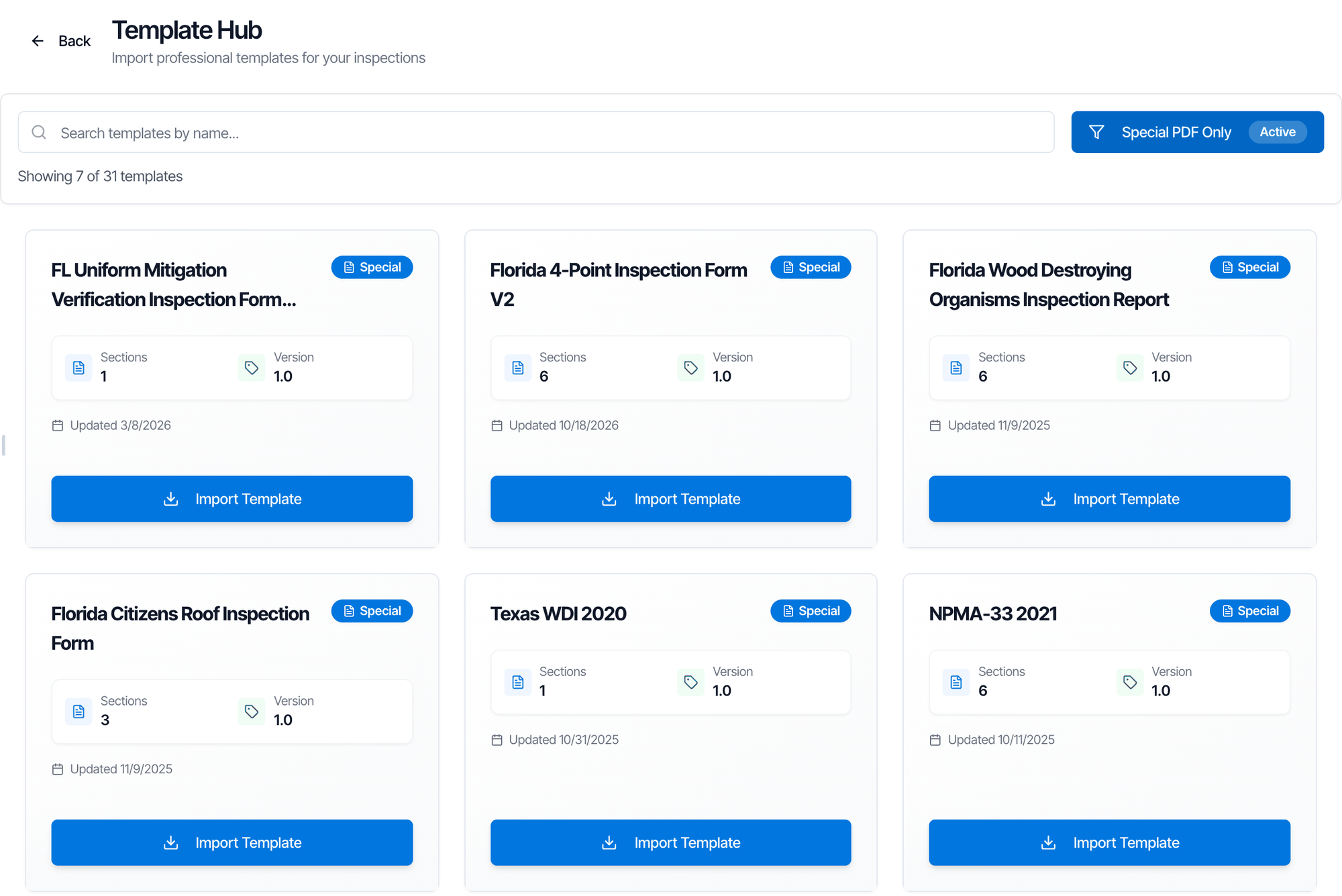 The Template Hub has these special PDF templates:
| Template | What it prints |
| - | - |
| **TREC REI 7-6** | The Texas Real Estate Commission Property Inspection Report form (REI 7-6), required for Texas real estate inspections. Comes with the standard TREC ratings turned on. |
| **Texas WDI 2020** | The Texas Official Wood Destroying Insect Report (Rev. 9/1/2020), used for Texas real estate transactions. |
| **NPMA-33 2021** | The NPMA-33 Wood Destroying Insect Inspection Report, the standard termite and WDI form used in many states. |
| **Florida Wood Destroying Organisms Inspection Report** | Florida's official WDO form (FDACS-13645). |
| **Florida 4-Point Inspection Form V2** | The insurance 4-point form that covers roof, electrical, plumbing and HVAC on older Florida homes. |
| **FL Uniform Mitigation Verification Inspection Form (2026)** | Florida's wind mitigation form (OIR-B1-1802, Rev. 04/26), used for windstorm insurance discounts. |
| **Florida Citizens Roof Inspection Form** | The roof condition form Citizens and other Florida insurers ask for. |
Things to know about special PDF templates:
* **They must come from the Template Hub.** Special PDF templates can't be uploaded from other software. An uploaded or hand-built copy of the form prints as a regular report.
* **They carry a Special tag** in your template list and in the Hub.
* **Don't add, remove or duplicate sections, subsections or comments in them.** Each item maps to a spot on the official form, so structural changes can stop the form from printing correctly. Editing the wording of a comment is fine.
* **Check the PDF before you publish.** Generate the PDF from the Web Editor to see the filled-in form.
* **If a form stops printing correctly** after edits, delete the template, import it again from the Hub and add the new copy to your service.
* **Duplicating** a special PDF template from your list keeps it a special PDF template.
See [Import certified templates](/templates/certified-templates) for a video walkthrough.
## Next steps
* **Add the template to a service**, so it's added to every inspection of that service. In **Business Tools → Services & Fees**, edit the service and pick the template under **Templates**. An add-on can bring its own template too. See [Add-on templates and agreements](/how-tos/add-on-services#templates-and-agreements).
* **Set up the template's settings.** See [Template Overview settings](/how-tos/template-overview).
* **Learn how a template is organized.** See [Template structure](/how-tos/template-structure).
* **Change it to fit how you inspect.** See [Editing templates](/how-tos/editing-templates).
This documentation is built and hosted on [Mintlify](https://mintlify.com), a developer documentation platform.
The Template Hub has these special PDF templates:
| Template | What it prints |
| - | - |
| **TREC REI 7-6** | The Texas Real Estate Commission Property Inspection Report form (REI 7-6), required for Texas real estate inspections. Comes with the standard TREC ratings turned on. |
| **Texas WDI 2020** | The Texas Official Wood Destroying Insect Report (Rev. 9/1/2020), used for Texas real estate transactions. |
| **NPMA-33 2021** | The NPMA-33 Wood Destroying Insect Inspection Report, the standard termite and WDI form used in many states. |
| **Florida Wood Destroying Organisms Inspection Report** | Florida's official WDO form (FDACS-13645). |
| **Florida 4-Point Inspection Form V2** | The insurance 4-point form that covers roof, electrical, plumbing and HVAC on older Florida homes. |
| **FL Uniform Mitigation Verification Inspection Form (2026)** | Florida's wind mitigation form (OIR-B1-1802, Rev. 04/26), used for windstorm insurance discounts. |
| **Florida Citizens Roof Inspection Form** | The roof condition form Citizens and other Florida insurers ask for. |
Things to know about special PDF templates:
* **They must come from the Template Hub.** Special PDF templates can't be uploaded from other software. An uploaded or hand-built copy of the form prints as a regular report.
* **They carry a Special tag** in your template list and in the Hub.
* **Don't add, remove or duplicate sections, subsections or comments in them.** Each item maps to a spot on the official form, so structural changes can stop the form from printing correctly. Editing the wording of a comment is fine.
* **Check the PDF before you publish.** Generate the PDF from the Web Editor to see the filled-in form.
* **If a form stops printing correctly** after edits, delete the template, import it again from the Hub and add the new copy to your service.
* **Duplicating** a special PDF template from your list keeps it a special PDF template.
See [Import certified templates](/templates/certified-templates) for a video walkthrough.
## Next steps
* **Add the template to a service**, so it's added to every inspection of that service. In **Business Tools → Services & Fees**, edit the service and pick the template under **Templates**. An add-on can bring its own template too. See [Add-on templates and agreements](/how-tos/add-on-services#templates-and-agreements).
* **Set up the template's settings.** See [Template Overview settings](/how-tos/template-overview).
* **Learn how a template is organized.** See [Template structure](/how-tos/template-structure).
* **Change it to fit how you inspect.** See [Editing templates](/how-tos/editing-templates).
This documentation is built and hosted on [Mintlify](https://mintlify.com), a developer documentation platform.