In the dashboard: Inspections (left menu). In the mobile app: the Inspections tab.
The **Inspections** page lists every inspection you can see, newest scheduled date first. Use the filters above the list to narrow it down, the search bar at the top of the dashboard to find a client or address, and the sort menu to change the order. This page explains every filter and option, exactly what each one matches, and how to filter the list in the mobile app. ## The Inspections page at a glance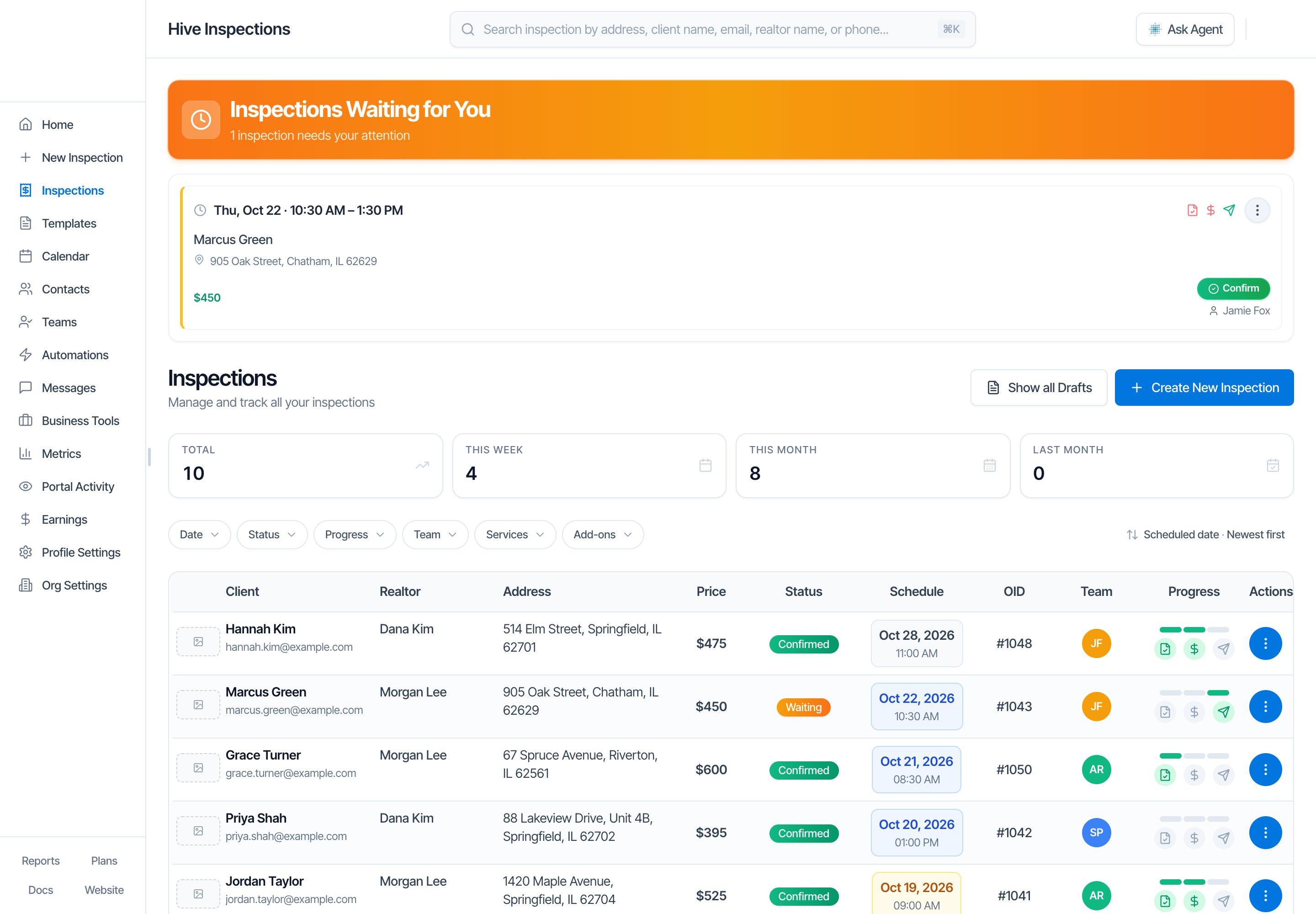 From top to bottom:
| Part | What it does |
| - | - |
| **Search bar** (top of every dashboard page) | Finds inspections by address, client or agent name, email or phone. See [Search for an inspection](#search-for-an-inspection). |
| **Inspections Waiting for You** | Online bookings and client requests that need you to confirm them. It shows only when you have **Waiting** inspections, and the filters below don't change it. See [Inspection statuses](/how-tos/inspection-statuses). |
| **Show all Drafts** | One click to list only drafts. It sets **Date** to all dates and **Status** to **Draft**. Other filters you've set stay on. |
| **Create New Inspection** | Opens a new inspection order. |
| **Total, This Week, This Month, Last Month** | Counts of the inspections that match your current filters. See [The four count tiles](#the-four-count-tiles). |
| **Filter row** | **Date**, **Status**, **Progress**, **Team**, **Services** and **Add-ons**, plus the sort menu on the right. |
| **Table** | One row per inspection, 50 per page. Click a row to open the inspection order. |
From top to bottom:
| Part | What it does |
| - | - |
| **Search bar** (top of every dashboard page) | Finds inspections by address, client or agent name, email or phone. See [Search for an inspection](#search-for-an-inspection). |
| **Inspections Waiting for You** | Online bookings and client requests that need you to confirm them. It shows only when you have **Waiting** inspections, and the filters below don't change it. See [Inspection statuses](/how-tos/inspection-statuses). |
| **Show all Drafts** | One click to list only drafts. It sets **Date** to all dates and **Status** to **Draft**. Other filters you've set stay on. |
| **Create New Inspection** | Opens a new inspection order. |
| **Total, This Week, This Month, Last Month** | Counts of the inspections that match your current filters. See [The four count tiles](#the-four-count-tiles). |
| **Filter row** | **Date**, **Status**, **Progress**, **Team**, **Services** and **Add-ons**, plus the sort menu on the right. |
| **Table** | One row per inspection, 50 per page. Click a row to open the inspection order. |
 * Click a filter to open its list, then pick an option. The list updates straight away.
* A filter in use turns blue and shows what you picked, for example **Date: Today**. Click the **×** on it to turn just that filter off.
* **Status**, **Services** and **Add-ons** let you tick several options. The chip shows the first one and a count, for example **Status: Confirmed +1**.
* Different filters combine. **Status: Confirmed** and **Progress: Unpaid** together show confirmed inspections that aren't paid.
* Several options inside one filter widen it. **Status: Confirmed** and **Waiting** shows inspections that are either one.
* **Clear Filters** (the black button) appears as soon as any filter or search is on. It turns all of them off at once. It doesn't change the sort.
* Hive remembers your filters and sort in this browser. When you come back to the page, the same filters are still on. Another computer or browser starts with no filters. The search box is not remembered.
* Click a filter to open its list, then pick an option. The list updates straight away.
* A filter in use turns blue and shows what you picked, for example **Date: Today**. Click the **×** on it to turn just that filter off.
* **Status**, **Services** and **Add-ons** let you tick several options. The chip shows the first one and a count, for example **Status: Confirmed +1**.
* Different filters combine. **Status: Confirmed** and **Progress: Unpaid** together show confirmed inspections that aren't paid.
* Several options inside one filter widen it. **Status: Confirmed** and **Waiting** shows inspections that are either one.
* **Clear Filters** (the black button) appears as soon as any filter or search is on. It turns all of them off at once. It doesn't change the sort.
* Hive remembers your filters and sort in this browser. When you come back to the page, the same filters are still on. Another computer or browser starts with no filters. The search box is not remembered.
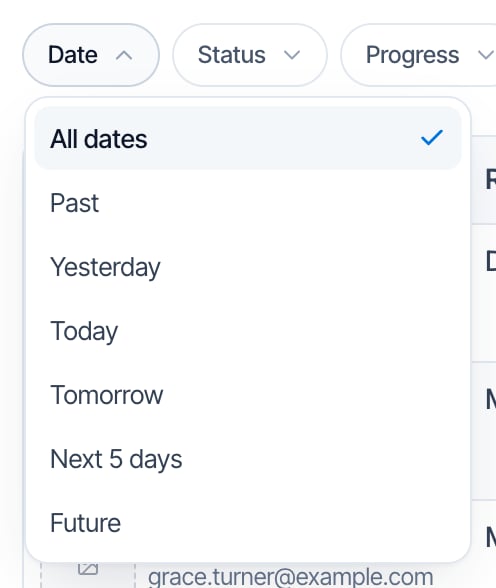 Filters by the date the inspection is scheduled for, in your company's time zone (set in **Profile Settings**).
| Option | Shows inspections scheduled for |
| - | - |
| **All dates** | Any date, and inspections with no date yet. This is the default. |
| **Past** | Any day before today. Today isn't included. |
| **Yesterday** | Yesterday only. |
| **Today** | Today only. |
| **Tomorrow** | Tomorrow only. |
| **Next 5 days** | Today and the next five days, so six days in total. |
| **Future** | Tomorrow onwards. Today isn't included. |
Any option other than **All dates** hides inspections that have no date. Most drafts, quotes and online bookings that haven't picked a time have no date. To see them, set **Date** back to **All dates**.
You can pick one date option at a time. There's no custom date range.
### Status
Filters by the date the inspection is scheduled for, in your company's time zone (set in **Profile Settings**).
| Option | Shows inspections scheduled for |
| - | - |
| **All dates** | Any date, and inspections with no date yet. This is the default. |
| **Past** | Any day before today. Today isn't included. |
| **Yesterday** | Yesterday only. |
| **Today** | Today only. |
| **Tomorrow** | Tomorrow only. |
| **Next 5 days** | Today and the next five days, so six days in total. |
| **Future** | Tomorrow onwards. Today isn't included. |
Any option other than **All dates** hides inspections that have no date. Most drafts, quotes and online bookings that haven't picked a time have no date. To see them, set **Date** back to **All dates**.
You can pick one date option at a time. There's no custom date range.
### Status
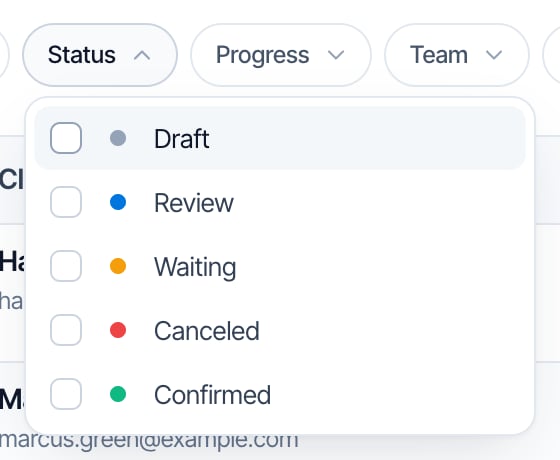 Tick one or more statuses. With none ticked, the list shows every status.
| Option | Shows |
| - | - |
| **Draft** | Inspections not yet sent or confirmed, including online bookings where the client hasn't picked a time. |
| **Review** | Quotes sent to the client to review and accept. |
| **Waiting** | Bookings waiting for you to confirm them. |
| **Canceled** | Canceled inspections. They stay in the list until you delete them. |
| **Confirmed** | Booked inspections. Most of your list. |
See [Inspection statuses](/how-tos/inspection-statuses) for what each status means and how to change it. Deleted inspections never appear under any status.
### Progress
Tick one or more statuses. With none ticked, the list shows every status.
| Option | Shows |
| - | - |
| **Draft** | Inspections not yet sent or confirmed, including online bookings where the client hasn't picked a time. |
| **Review** | Quotes sent to the client to review and accept. |
| **Waiting** | Bookings waiting for you to confirm them. |
| **Canceled** | Canceled inspections. They stay in the list until you delete them. |
| **Confirmed** | Booked inspections. Most of your list. |
See [Inspection statuses](/how-tos/inspection-statuses) for what each status means and how to change it. Deleted inspections never appear under any status.
### Progress
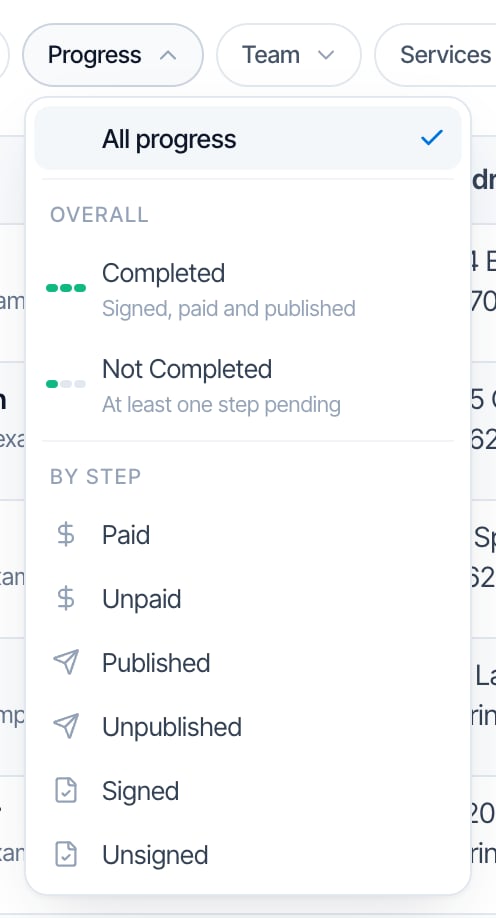 Filters by the three steps shown in the **Progress** column: agreement signed, inspection paid and reports published. Pick one option at a time.
| Option | Shows inspections where |
| - | - |
| **All progress** | No progress filter. The default. |
| **Completed** | All three steps are done: signed, paid and published. |
| **Not Completed** | At least one of the three steps isn't done. |
| **Paid** | Payment is done. |
| **Unpaid** | Payment isn't done. |
| **Published** | Every report is published. |
| **Unpublished** | At least one report isn't published. |
| **Signed** | Every agreement is signed. |
| **Unsigned** | At least one agreement isn't signed. |
How each step is decided:
* **Paid** means the payment status is **Paid**, or the price is \$0 so there's nothing to collect. A partial payment, an open invoice, a payment still processing or a refund all count as **Unpaid**.
* **Published** means every report on the inspection is published. An inspection with no reports counts as **Published**.
* **Signed** means every agreement on the inspection is signed. An inspection with no agreements counts as **Signed**. Backup copies kept from an earlier signing are ignored.
Because of those last two rules, a draft with no reports, no agreements and a \$0 price counts as **Completed**. Add a **Status** filter if you only want booked inspections, for example **Status: Confirmed** with **Progress: Unpaid** for jobs you still need to collect on.
### Team
Filters by the three steps shown in the **Progress** column: agreement signed, inspection paid and reports published. Pick one option at a time.
| Option | Shows inspections where |
| - | - |
| **All progress** | No progress filter. The default. |
| **Completed** | All three steps are done: signed, paid and published. |
| **Not Completed** | At least one of the three steps isn't done. |
| **Paid** | Payment is done. |
| **Unpaid** | Payment isn't done. |
| **Published** | Every report is published. |
| **Unpublished** | At least one report isn't published. |
| **Signed** | Every agreement is signed. |
| **Unsigned** | At least one agreement isn't signed. |
How each step is decided:
* **Paid** means the payment status is **Paid**, or the price is \$0 so there's nothing to collect. A partial payment, an open invoice, a payment still processing or a refund all count as **Unpaid**.
* **Published** means every report on the inspection is published. An inspection with no reports counts as **Published**.
* **Signed** means every agreement on the inspection is signed. An inspection with no agreements counts as **Signed**. Backup copies kept from an earlier signing are ignored.
Because of those last two rules, a draft with no reports, no agreements and a \$0 price counts as **Completed**. Add a **Status** filter if you only want booked inspections, for example **Status: Confirmed** with **Progress: Unpaid** for jobs you still need to collect on.
### Team
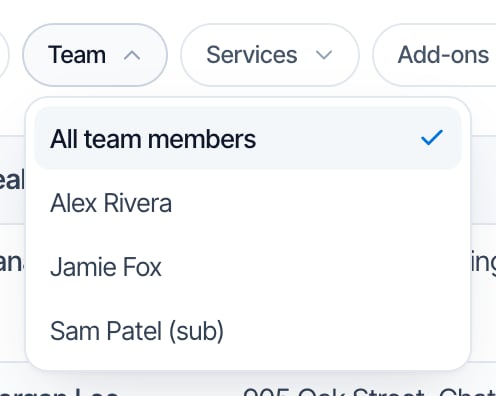 Shows the inspections assigned to one team member. Pick **All team members** to turn it off.
* The list has your inspectors and sub-inspectors. Sub-inspectors show **(sub)** after their name. Support staff aren't listed because they aren't assigned to inspections.
* Deactivated team members stay in the list with **(deactivated)** after their name, so you can still find their past inspections.
* An inspection appears if the person is one of its assigned inspectors, as lead or not.
* The **Team** filter only appears when your company has more than one inspector or sub-inspector.
### Services
Shows the inspections assigned to one team member. Pick **All team members** to turn it off.
* The list has your inspectors and sub-inspectors. Sub-inspectors show **(sub)** after their name. Support staff aren't listed because they aren't assigned to inspections.
* Deactivated team members stay in the list with **(deactivated)** after their name, so you can still find their past inspections.
* An inspection appears if the person is one of its assigned inspectors, as lead or not.
* The **Team** filter only appears when your company has more than one inspector or sub-inspector.
### Services
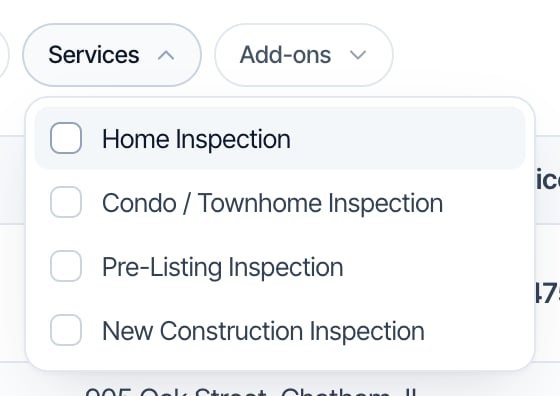 Tick one or more of your services to show inspections that include any of them. The list comes from **Business Tools → Services & Fees**. The filter appears once you have at least one service.
### Add-ons
Tick one or more of your services to show inspections that include any of them. The list comes from **Business Tools → Services & Fees**. The filter appears once you have at least one service.
### Add-ons
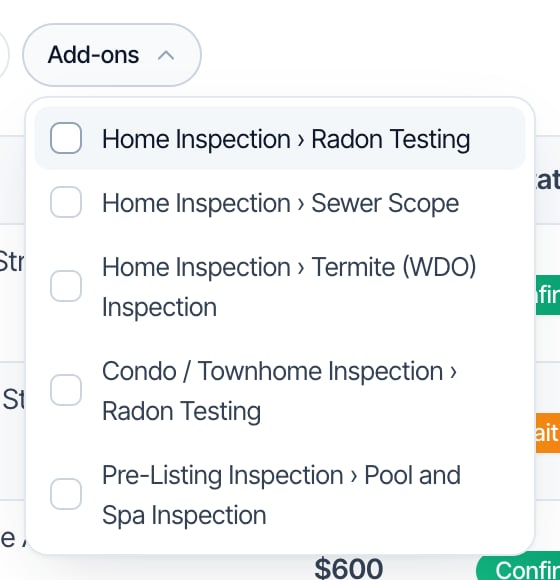 Tick one or more add-ons to show inspections that include any of them. Each add-on is listed after its service, as **Service › Add-on**, because the same add-on name can belong to several services. To find every radon test, tick **Radon Testing** under each service.
When a filter has more than eight options, a search box appears at the top of its list. Type part of a name to find it.
### Sort
Tick one or more add-ons to show inspections that include any of them. Each add-on is listed after its service, as **Service › Add-on**, because the same add-on name can belong to several services. To find every radon test, tick **Radon Testing** under each service.
When a filter has more than eight options, a search box appears at the top of its list. Type part of a name to find it.
### Sort
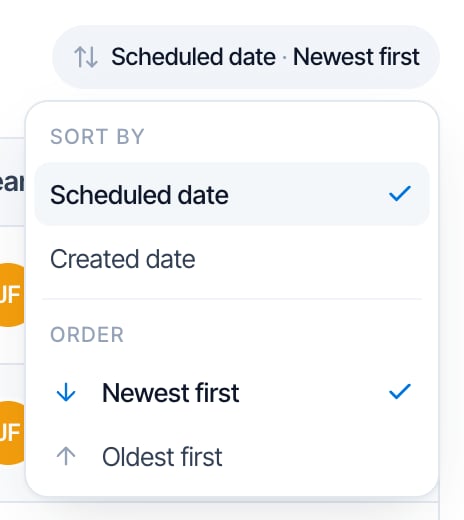 The button on the right of the filter row sets the order of the list.
| Sort by | Order |
| - | - |
| **Scheduled date**: the inspection date. The default. | **Newest first** puts the latest date at the top, so future inspections come first. The default. |
| **Created date**: when the inspection was created. | **Oldest first** reverses it. |
With **Scheduled date**, inspections with no date go to the bottom in **Newest first** and to the top in **Oldest first**. To see the inspections booked most recently, choose **Created date** and **Newest first**.
## Search for an inspection
The button on the right of the filter row sets the order of the list.
| Sort by | Order |
| - | - |
| **Scheduled date**: the inspection date. The default. | **Newest first** puts the latest date at the top, so future inspections come first. The default. |
| **Created date**: when the inspection was created. | **Oldest first** reverses it. |
With **Scheduled date**, inspections with no date go to the bottom in **Newest first** and to the top in **Oldest first**. To see the inspections booked most recently, choose **Created date** and **Newest first**.
## Search for an inspection
 The search bar at the top of every dashboard page searches your inspections. Type at least two letters or numbers. If you're on another page, Hive opens the **Inspections** page and shows the matches there.
It matches:
* the property address;
* the first name, last name, email, phone or business name of anyone on the inspection: clients, agents and other contacts.
The search bar at the top of every dashboard page searches your inspections. Type at least two letters or numbers. If you're on another page, Hive opens the **Inspections** page and shows the matches there.
It matches:
* the property address;
* the first name, last name, email, phone or business name of anyone on the inspection: clients, agents and other contacts.
 While you search, a blue **Search** chip shows in the filter row. Clear the search with the **×** in the search bar or on the chip, or press **Esc** in the search bar. Press **⌘K** on a Mac or **Ctrl+K** on Windows to jump to the search bar from anywhere in the dashboard.
Search tips:
* **Type more words to narrow it down.** Every word must match something on the inspection. `Jordan Taylor` finds the client Jordan Taylor, and `Taylor Maple` finds Taylor's inspection on Maple Avenue. An inspection where one person is called Jordan and another Taylor also shows.
* **Phone numbers must match how they're saved.** If the contact's number is saved as `(555) 014-2290`, the last four digits, `2290`, always work.
* Your filters still apply while you search. If you can't find something, click **Clear Filters** and search again.
* Report numbers and order IDs (**OID**) can't be searched.
## Read the list
While you search, a blue **Search** chip shows in the filter row. Clear the search with the **×** in the search bar or on the chip, or press **Esc** in the search bar. Press **⌘K** on a Mac or **Ctrl+K** on Windows to jump to the search bar from anywhere in the dashboard.
Search tips:
* **Type more words to narrow it down.** Every word must match something on the inspection. `Jordan Taylor` finds the client Jordan Taylor, and `Taylor Maple` finds Taylor's inspection on Maple Avenue. An inspection where one person is called Jordan and another Taylor also shows.
* **Phone numbers must match how they're saved.** If the contact's number is saved as `(555) 014-2290`, the last four digits, `2290`, always work.
* Your filters still apply while you search. If you can't find something, click **Clear Filters** and search again.
* Report numbers and order IDs (**OID**) can't be searched.
## Read the list
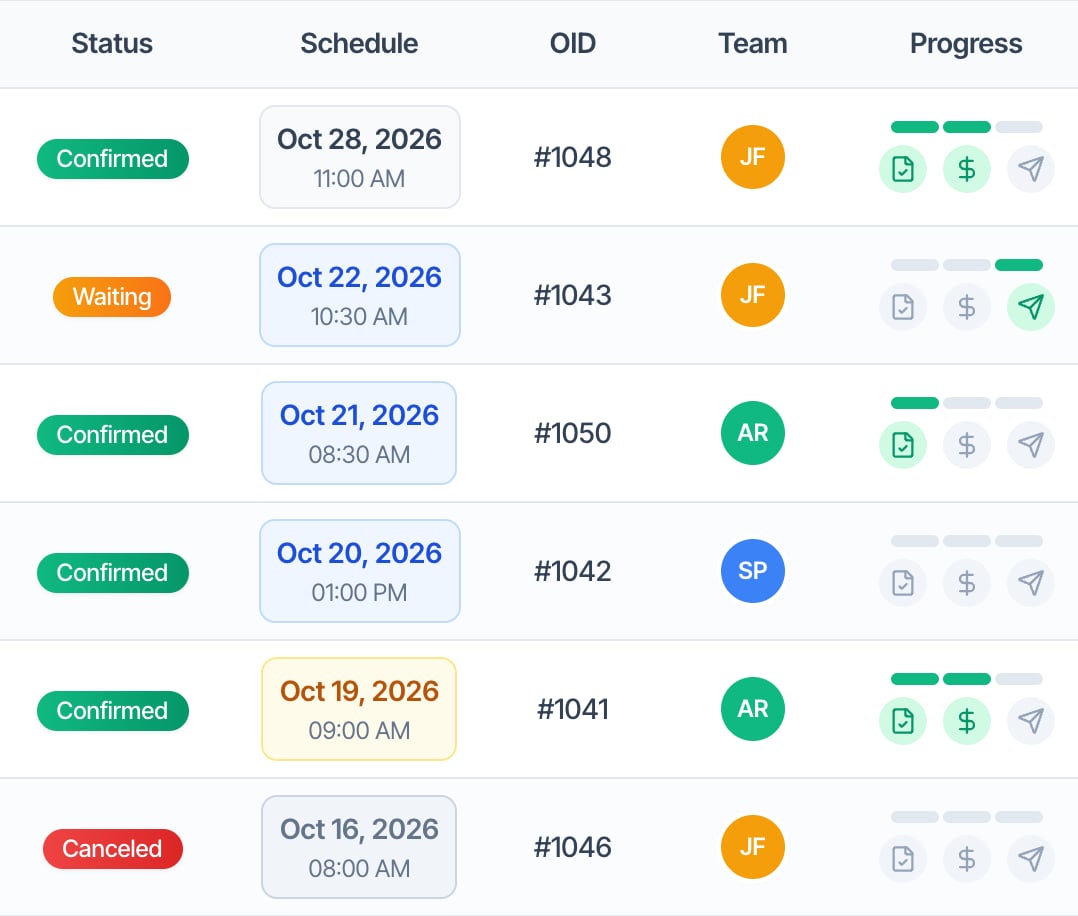 | Column | What it shows | Click it to |
| - | - | - |
| **Client** | The first client's name and email, and **+1 more** if there are more clients. | Open the inspection order. |
| **Realtor** | The buyer's agent. | |
| **Address** | The property address. | Open the inspection order. |
| **Price** | The inspection total. | |
| **Status** | Draft, Review, Waiting, Canceled or Confirmed. | Change the status. See [Inspection statuses](/how-tos/inspection-statuses). |
| **Schedule** | The date and time. A yellow box is today, a blue box is within the next seven days and a grey box is in the past. A quote with no date shows **Quote expires** and the expiry date. | |
| **OID** | The order ID from the inspection's invoice. A dash means no invoice yet. | |
| **Team** | The assigned inspectors' initials in their calendar colors. | Assign or remove inspectors. |
| **Progress** | Three steps: agreement signed, paid and reports published. Green is done, grey is not done. | |
| **Actions** | The round **⋮** button. | Open **Quick Actions**: reports, preview, review link, automations, agreements, activity, send reports, status, reorder and delete. |
On a narrow screen, the table becomes a list of cards with the same information.
### The four count tiles
The tiles count the inspections that match your filters and search:
* **Total**: every matching inspection, with or without a date.
* **This Week**: matching inspections scheduled from Sunday to Saturday of this week.
* **This Month** and **Last Month**: matching inspections scheduled in this calendar month and the last one.
The week and month use your company's time zone. Inspections with no date count only in **Total**.
| Column | What it shows | Click it to |
| - | - | - |
| **Client** | The first client's name and email, and **+1 more** if there are more clients. | Open the inspection order. |
| **Realtor** | The buyer's agent. | |
| **Address** | The property address. | Open the inspection order. |
| **Price** | The inspection total. | |
| **Status** | Draft, Review, Waiting, Canceled or Confirmed. | Change the status. See [Inspection statuses](/how-tos/inspection-statuses). |
| **Schedule** | The date and time. A yellow box is today, a blue box is within the next seven days and a grey box is in the past. A quote with no date shows **Quote expires** and the expiry date. | |
| **OID** | The order ID from the inspection's invoice. A dash means no invoice yet. | |
| **Team** | The assigned inspectors' initials in their calendar colors. | Assign or remove inspectors. |
| **Progress** | Three steps: agreement signed, paid and reports published. Green is done, grey is not done. | |
| **Actions** | The round **⋮** button. | Open **Quick Actions**: reports, preview, review link, automations, agreements, activity, send reports, status, reorder and delete. |
On a narrow screen, the table becomes a list of cards with the same information.
### The four count tiles
The tiles count the inspections that match your filters and search:
* **Total**: every matching inspection, with or without a date.
* **This Week**: matching inspections scheduled from Sunday to Saturday of this week.
* **This Month** and **Last Month**: matching inspections scheduled in this calendar month and the last one.
The week and month use your company's time zone. Inspections with no date count only in **Total**.
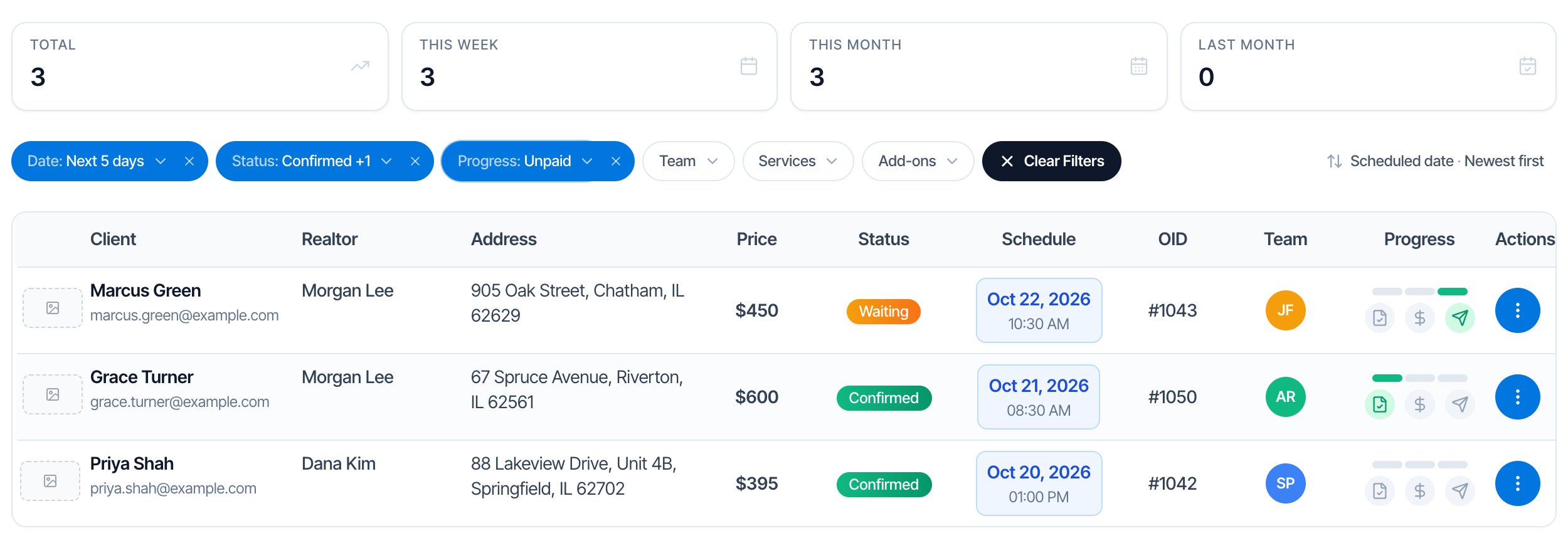 In this example, **Next 5 days**, **Confirmed** or **Waiting**, and **Unpaid** together leave three inspections to collect payment on this week.
## Useful filter combinations
| To find | Set |
| - | - |
| Today's jobs | **Date: Today**, **Status: Confirmed** |
| Jobs still to be paid | **Status: Confirmed**, **Progress: Unpaid** |
| Agreements still to be signed before upcoming jobs | **Date: Next 5 days**, **Progress: Unsigned** |
| Past jobs with reports not yet published | **Date: Past**, **Status: Confirmed**, **Progress: Unpublished** |
| Fully finished jobs | **Status: Confirmed**, **Progress: Completed** |
| One inspector's schedule | **Team**: the inspector, **Date: Future** |
| Every radon test | **Add-ons**: each **› Radon Testing** option |
| Quotes clients haven't accepted | **Status: Review** |
| Online bookings with no time picked | **Show all Drafts** |
| Canceled jobs | **Status: Canceled** |
## Filter the list in the mobile app
The mobile app's **Inspections** tab has its own search and status filter. It shows only **Confirmed** inspections until you change the filter.
### Show other statuses
In this example, **Next 5 days**, **Confirmed** or **Waiting**, and **Unpaid** together leave three inspections to collect payment on this week.
## Useful filter combinations
| To find | Set |
| - | - |
| Today's jobs | **Date: Today**, **Status: Confirmed** |
| Jobs still to be paid | **Status: Confirmed**, **Progress: Unpaid** |
| Agreements still to be signed before upcoming jobs | **Date: Next 5 days**, **Progress: Unsigned** |
| Past jobs with reports not yet published | **Date: Past**, **Status: Confirmed**, **Progress: Unpublished** |
| Fully finished jobs | **Status: Confirmed**, **Progress: Completed** |
| One inspector's schedule | **Team**: the inspector, **Date: Future** |
| Every radon test | **Add-ons**: each **› Radon Testing** option |
| Quotes clients haven't accepted | **Status: Review** |
| Online bookings with no time picked | **Show all Drafts** |
| Canceled jobs | **Status: Canceled** |
## Filter the list in the mobile app
The mobile app's **Inspections** tab has its own search and status filter. It shows only **Confirmed** inspections until you change the filter.
### Show other statuses