In the dashboard: open the inspection and use the Quick Actions card. From the Inspections list: the round blue ⋮ button at the end of a row.
**Quick Actions** are shortcuts to everything you do with an inspection after it's booked: open its reports, preview what the client sees, check the emails that went out, look at agreements and portal visits, send the reports, change the status, book it again and more. They're in two places: * **The inspection's own page** (the **Inspection Order Page**), in the **Quick Actions** card near the top. * **The Inspections list**, behind the round blue **⋮** button at the end of each row. Quick Actions are in the web dashboard. The mobile app has its own tiles on the inspection's summary screen. ## Quick Actions on the inspection's page Open the inspection from the **Inspections** page. The **Quick Actions** card sits under the inspection's address and progress line, above **Fees and Payments**.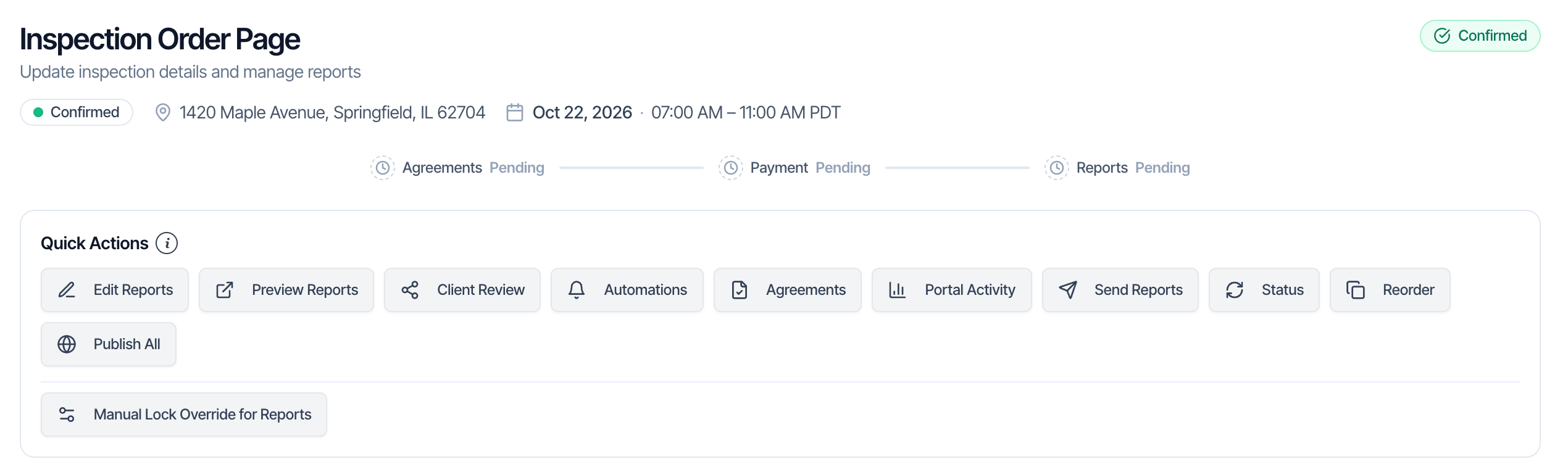
 Click the **i** next to the **Quick Actions** heading for a one-line reminder of what each button does.
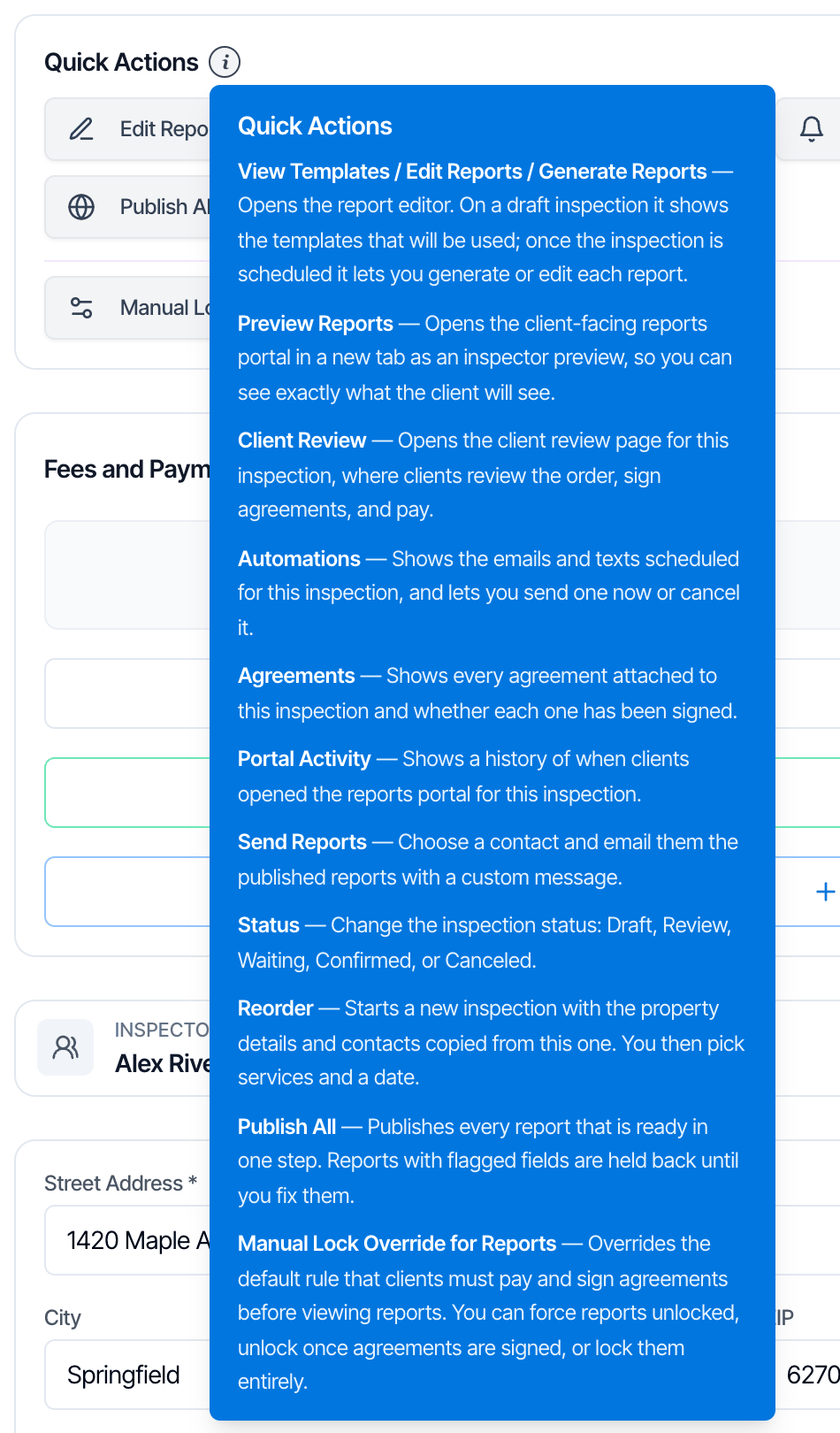 ## Quick Actions from the Inspections list
You don't have to open the inspection. On the **Inspections** page, click the round blue **⋮** button in the **Actions** column at the end of the row.
## Quick Actions from the Inspections list
You don't have to open the inspection. On the **Inspections** page, click the round blue **⋮** button in the **Actions** column at the end of the row.
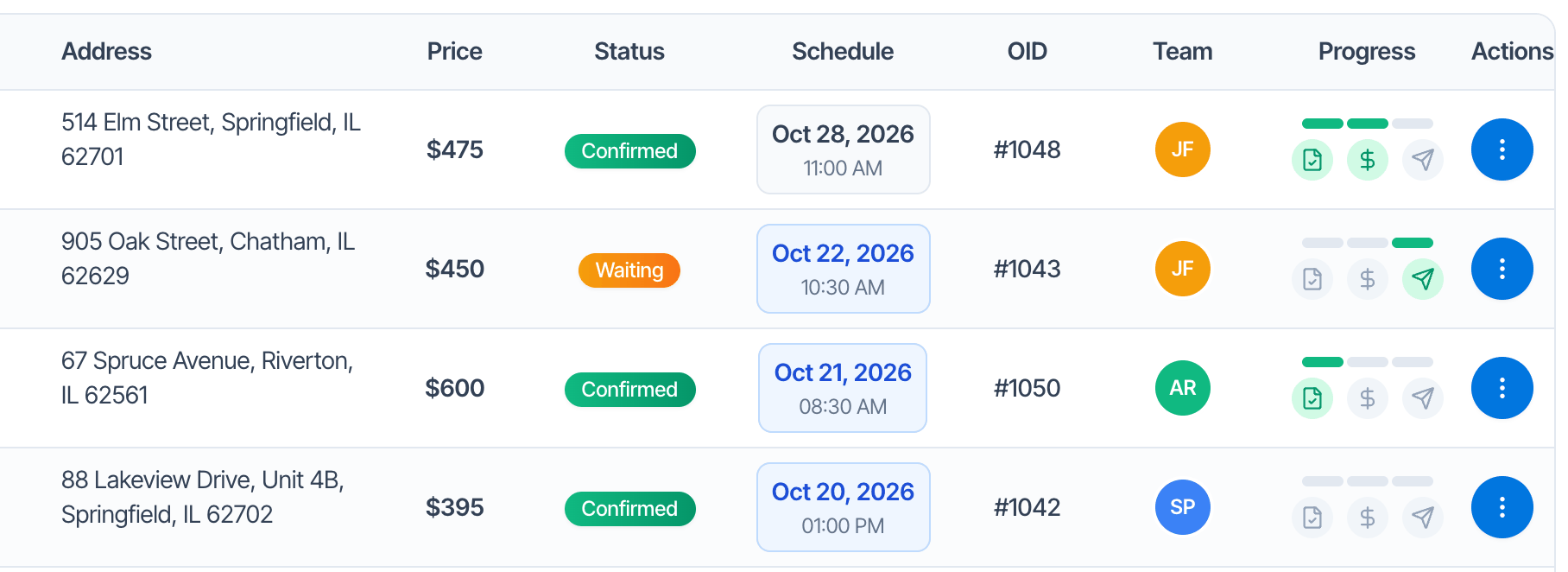 On a phone, the **⋮** button is on each inspection card, next to its progress icons.
The **Quick Actions** window opens, with the inspection's address at the top:
On a phone, the **⋮** button is on each inspection card, next to its progress icons.
The **Quick Actions** window opens, with the inspection's address at the top:
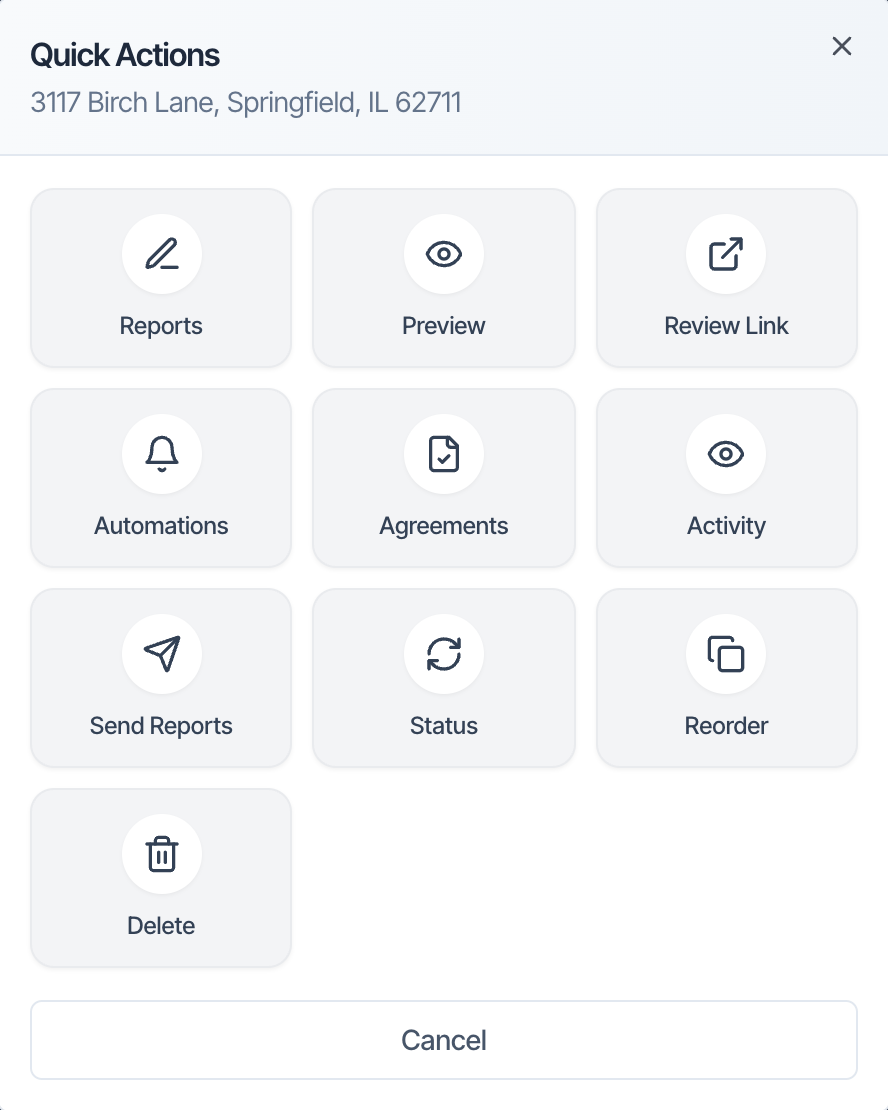 The tiles have shorter names but do the same thing as the buttons on the inspection's page:
| Inspections list (⋮) | Inspection's page | What it does |
| - | - | - |
| **Reports** (or **Templates** on a Draft) | **Edit Reports**, **Generate Reports** or **View Templates** | [Open the inspection's reports](#edit-reports-generate-reports-view-templates) |
| **Preview** | **Preview Reports** | [See the reports as your client will](#preview-reports) |
| **Review Link** | **Client Review** | [Open the client's review page](#client-review) |
| **Automations** | **Automations** | [See every email and text for the inspection](#automations) |
| **Agreements** | **Agreements** | [See and download agreements](#agreements) |
| **Activity** | **Portal Activity** | [See who opened the portal and reports](#portal-activity) |
| **Send Reports** | **Send Reports** | [Email or text the report links to one contact](#send-reports) |
| **Status** | **Status** | [Change the inspection's status](#status) |
| **Reorder** | **Reorder** | [Book a new inspection with the same property and contacts](#reorder) |
| **Delete** | Not on the page | [Delete the inspection](#delete) |
| Not in the list | **Publish All** | [Publish every ready report at once](#publish-all) |
| Not in the list | **Manual Lock Override for Reports** | [Unlock or lock the reports by hand](#manual-lock-override-for-reports) |
The **Reports** tile isn't shown for a Canceled inspection.
***
## Edit Reports, Generate Reports, View Templates
The button's name changes with the inspection:
* **View Templates** on a **Draft** inspection: shows the reports (templates) the inspection will use.
* **Edit Reports** on every other status. It reads **Generate Reports** if no template is on the inspection yet.
All three open the **Select Report** window, with one card per report on the inspection.
The tiles have shorter names but do the same thing as the buttons on the inspection's page:
| Inspections list (⋮) | Inspection's page | What it does |
| - | - | - |
| **Reports** (or **Templates** on a Draft) | **Edit Reports**, **Generate Reports** or **View Templates** | [Open the inspection's reports](#edit-reports-generate-reports-view-templates) |
| **Preview** | **Preview Reports** | [See the reports as your client will](#preview-reports) |
| **Review Link** | **Client Review** | [Open the client's review page](#client-review) |
| **Automations** | **Automations** | [See every email and text for the inspection](#automations) |
| **Agreements** | **Agreements** | [See and download agreements](#agreements) |
| **Activity** | **Portal Activity** | [See who opened the portal and reports](#portal-activity) |
| **Send Reports** | **Send Reports** | [Email or text the report links to one contact](#send-reports) |
| **Status** | **Status** | [Change the inspection's status](#status) |
| **Reorder** | **Reorder** | [Book a new inspection with the same property and contacts](#reorder) |
| **Delete** | Not on the page | [Delete the inspection](#delete) |
| Not in the list | **Publish All** | [Publish every ready report at once](#publish-all) |
| Not in the list | **Manual Lock Override for Reports** | [Unlock or lock the reports by hand](#manual-lock-override-for-reports) |
The **Reports** tile isn't shown for a Canceled inspection.
***
## Edit Reports, Generate Reports, View Templates
The button's name changes with the inspection:
* **View Templates** on a **Draft** inspection: shows the reports (templates) the inspection will use.
* **Edit Reports** on every other status. It reads **Generate Reports** if no template is on the inspection yet.
All three open the **Select Report** window, with one card per report on the inspection.
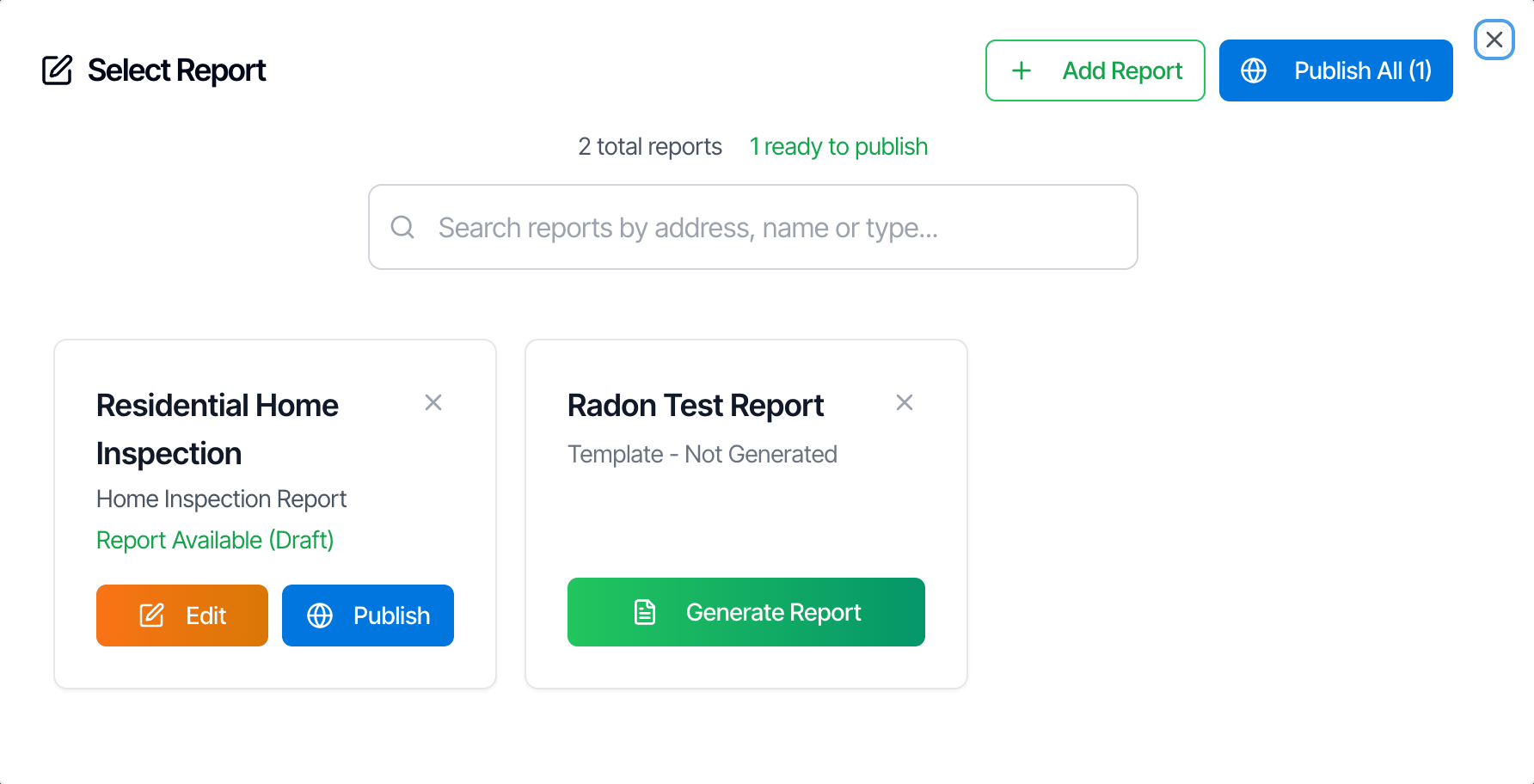 * **Generate Report** creates the report from its template. It then opens like any other report.
* **Edit** opens the report in the web report editor.
* **Publish** publishes the report to the client's portal, and **Unpublish** takes it down. Publishing is blocked while the report has flagged comments (and, if your company requires it, incomplete sections).
* **Add Report** adds another template to the inspection, for example a second unit or an extra service.
* The **×** on a card removes that report from the inspection. If the report was already started, its photos and comments are removed with it, and this can't be undone.
* **Publish All** publishes every started report that isn't published yet. See [Publish All](#publish-all).
See [Edit reports on the web](/inspections-and-reports/web-editor) and [Review before publishing](/inspections-and-reports/review-before-publishing).
## Preview Reports
Opens your client's reports portal in a new tab, in an inspector preview. It shows everything your client will see once they can open the reports, **whether or not they've paid or signed**.
Use it to check the reports before you publish or send them. Don't send the preview link to clients. Send them their own portal link (`{{{customer_reports_portal_link}}}`) or use [Send Reports](#send-reports).
## Client Review
Opens the inspection's client review page (the **Review Link** in the list) in a new tab. This is the page your client uses to look over the order, add or remove add-ons, sign agreements and pay.
* Copy the address from your browser's address bar to send it to a client.
* In emails, the same link is the `{{{customer_inspection_link}}}` placeholder (**Inspection Review Link**).
* Anything you change on that page is a real change to the inspection, so look but don't click through on a client's behalf.
See [Send a quote](/how-tos/send-a-quote#what-the-client-sees) for what the client sees.
## Automations
Opens the inspection's **Automation History**: every email and text Hive has sent, scheduled or stopped for this inspection, with opens, bounces and the reason any message was cancelled. From there you can **Send Now**, **Send Again**, **Preview**, **Cancel** and **Compose Email**.
* **Generate Report** creates the report from its template. It then opens like any other report.
* **Edit** opens the report in the web report editor.
* **Publish** publishes the report to the client's portal, and **Unpublish** takes it down. Publishing is blocked while the report has flagged comments (and, if your company requires it, incomplete sections).
* **Add Report** adds another template to the inspection, for example a second unit or an extra service.
* The **×** on a card removes that report from the inspection. If the report was already started, its photos and comments are removed with it, and this can't be undone.
* **Publish All** publishes every started report that isn't published yet. See [Publish All](#publish-all).
See [Edit reports on the web](/inspections-and-reports/web-editor) and [Review before publishing](/inspections-and-reports/review-before-publishing).
## Preview Reports
Opens your client's reports portal in a new tab, in an inspector preview. It shows everything your client will see once they can open the reports, **whether or not they've paid or signed**.
Use it to check the reports before you publish or send them. Don't send the preview link to clients. Send them their own portal link (`{{{customer_reports_portal_link}}}`) or use [Send Reports](#send-reports).
## Client Review
Opens the inspection's client review page (the **Review Link** in the list) in a new tab. This is the page your client uses to look over the order, add or remove add-ons, sign agreements and pay.
* Copy the address from your browser's address bar to send it to a client.
* In emails, the same link is the `{{{customer_inspection_link}}}` placeholder (**Inspection Review Link**).
* Anything you change on that page is a real change to the inspection, so look but don't click through on a client's behalf.
See [Send a quote](/how-tos/send-a-quote#what-the-client-sees) for what the client sees.
## Automations
Opens the inspection's **Automation History**: every email and text Hive has sent, scheduled or stopped for this inspection, with opens, bounces and the reason any message was cancelled. From there you can **Send Now**, **Send Again**, **Preview**, **Cancel** and **Compose Email**.
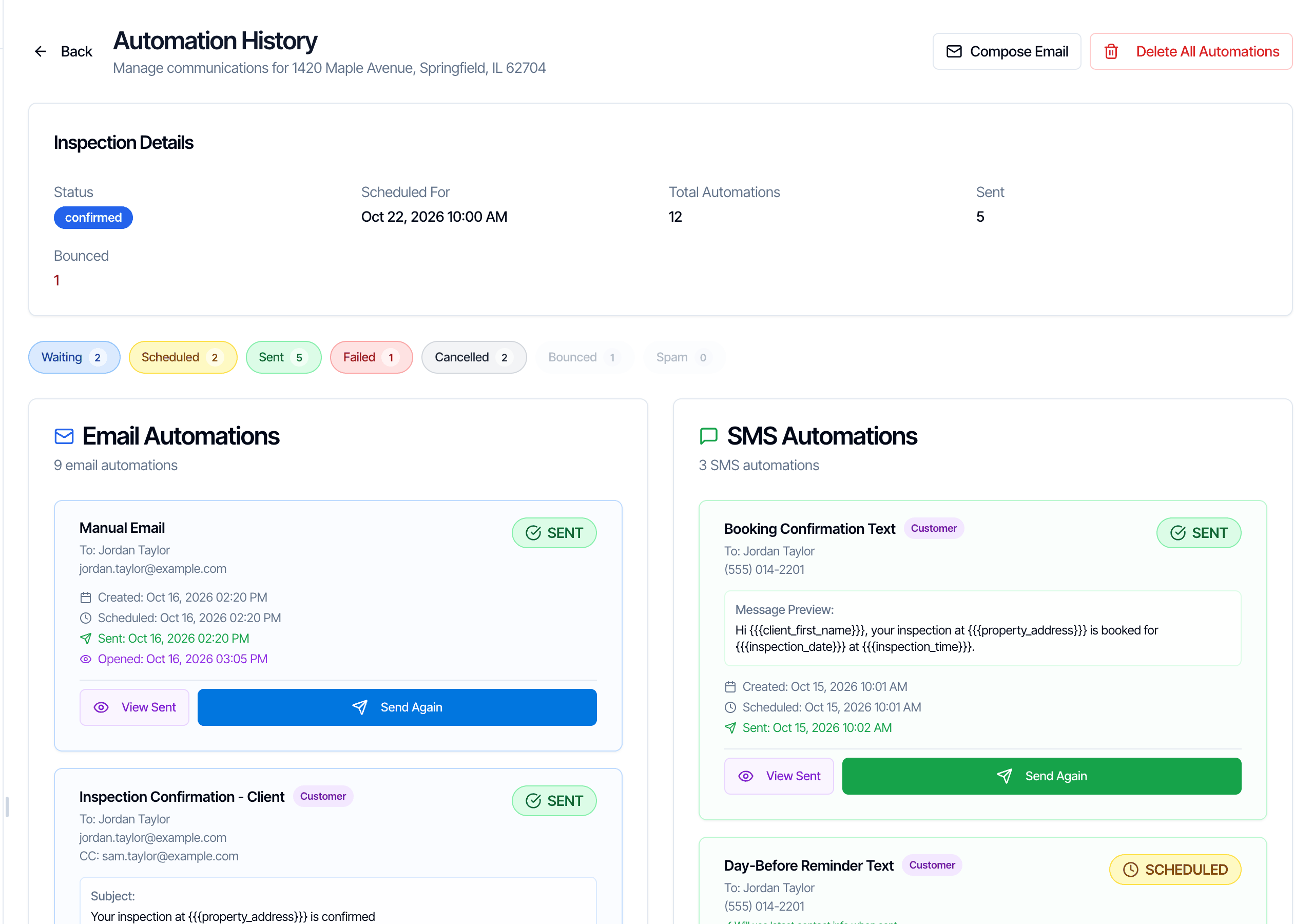 See [Automation History for an inspection](/how-tos/automation-history) and [Send an email by hand with Compose Email](/how-tos/compose-email).
## Agreements
Opens the **Inspection Agreements** window: every agreement on the inspection and whether it's signed.
See [Automation History for an inspection](/how-tos/automation-history) and [Send an email by hand with Compose Email](/how-tos/compose-email).
## Agreements
Opens the **Inspection Agreements** window: every agreement on the inspection and whether it's signed.
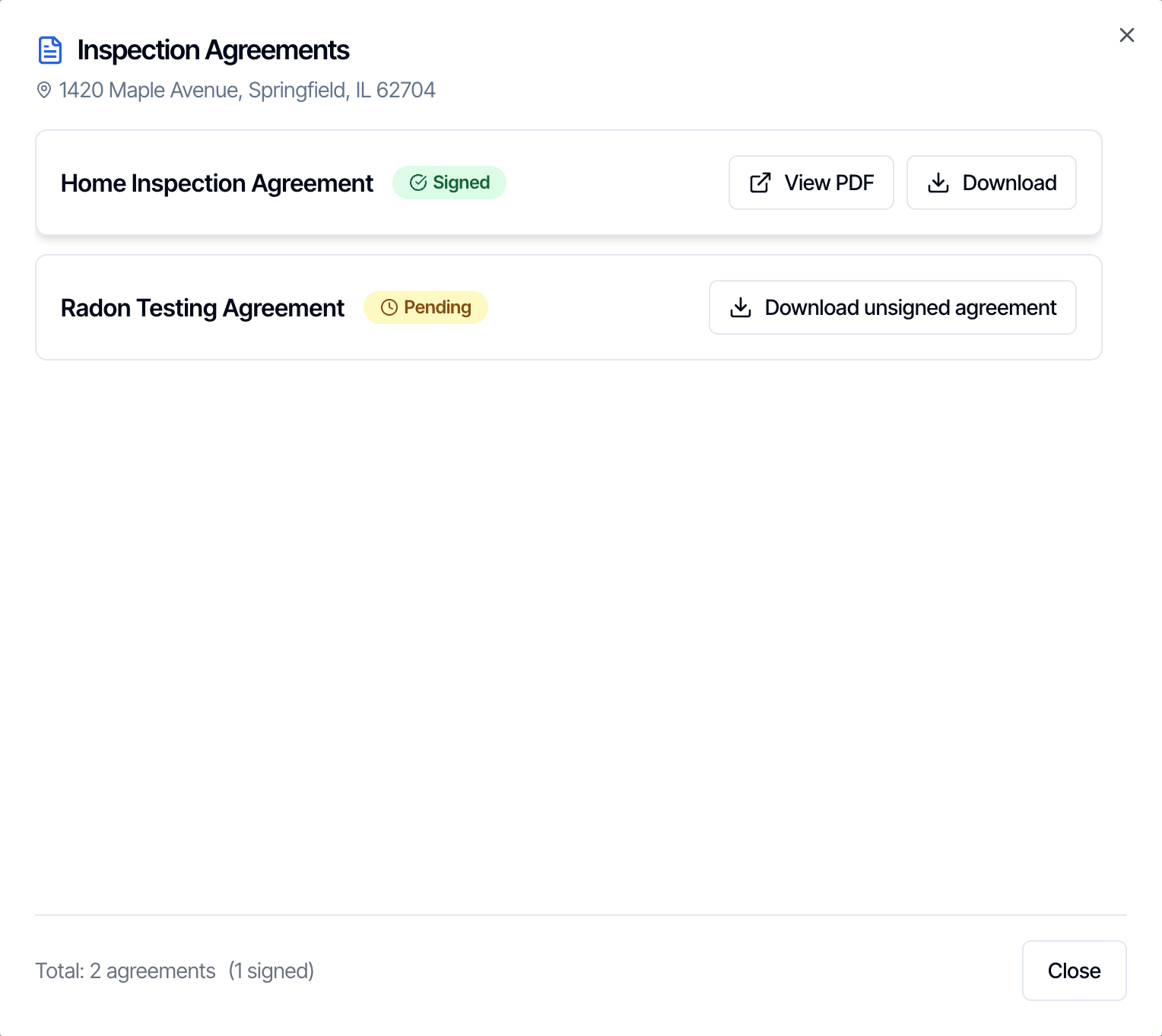 * **Signed:** **View PDF** opens the signed copy in a new tab, and **Download** saves it.
* **Pending:** **Download unsigned agreement** gives you a PDF with the inspection's details filled in, for example to sign on paper. You can't mark a Hive agreement as signed by hand.
* **Archived:** an earlier signed copy, kept when the agreement was changed and sent for signing again. It shows the date it was signed and doesn't count towards the total.
## Portal Activity
Opens **Portal Activity History**: when your client and their agent opened the reports portal and the reports for this inspection.
* **Signed:** **View PDF** opens the signed copy in a new tab, and **Download** saves it.
* **Pending:** **Download unsigned agreement** gives you a PDF with the inspection's details filled in, for example to sign on paper. You can't mark a Hive agreement as signed by hand.
* **Archived:** an earlier signed copy, kept when the agreement was changed and sent for signing again. It shows the date it was signed and doesn't count towards the total.
## Portal Activity
Opens **Portal Activity History**: when your client and their agent opened the reports portal and the reports for this inspection.
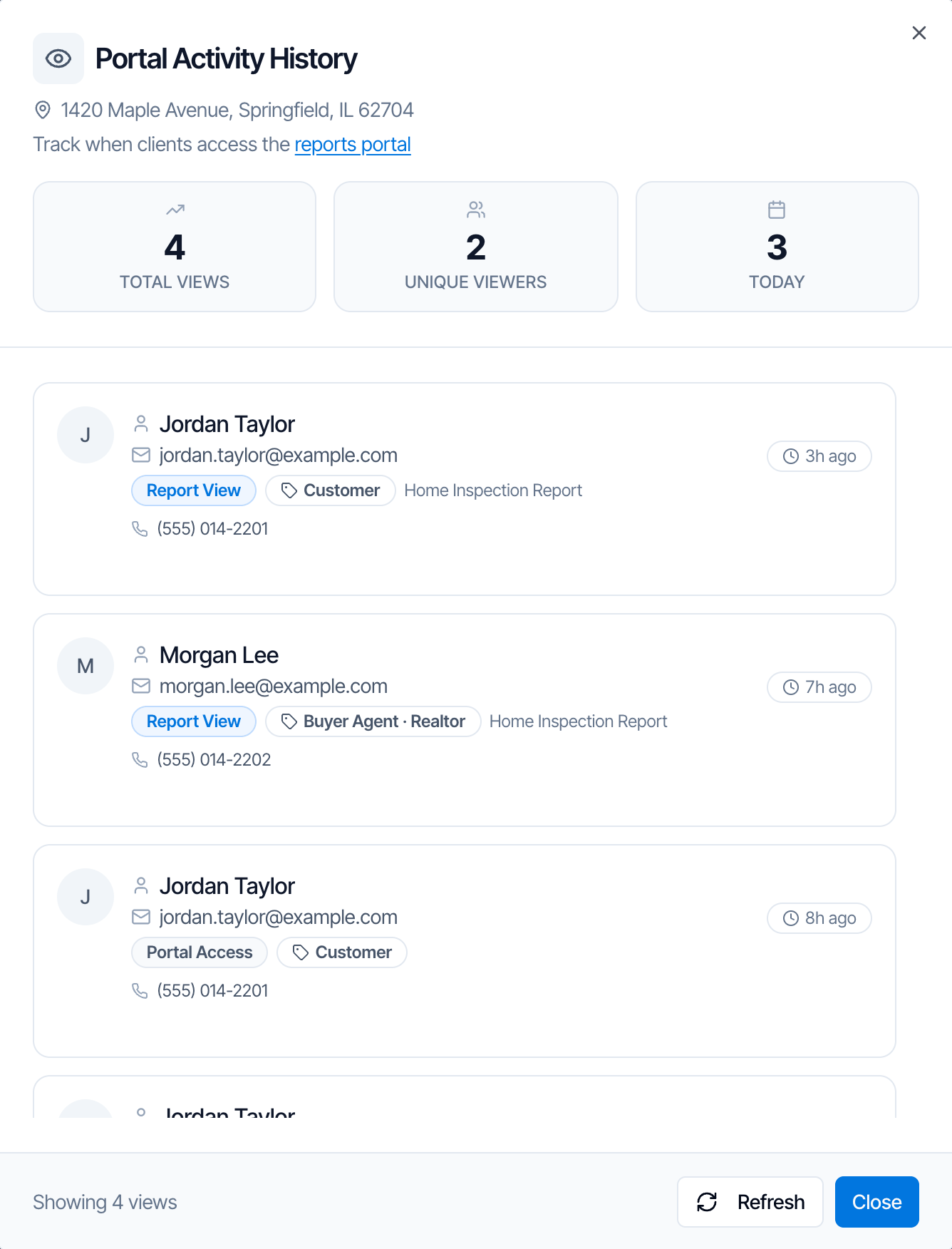 * The counts at the top show the total views, how many different people viewed and how many views were today.
* Each visit shows the person, their email and role, **Report View** (they opened a report, named next to it) or **Portal Access** (they opened the portal), and how long ago.
* Click **Refresh** to load new visits.
Visits appear only once someone opens the portal. The **Portal Activity** page in the left menu shows visits across all your inspections.
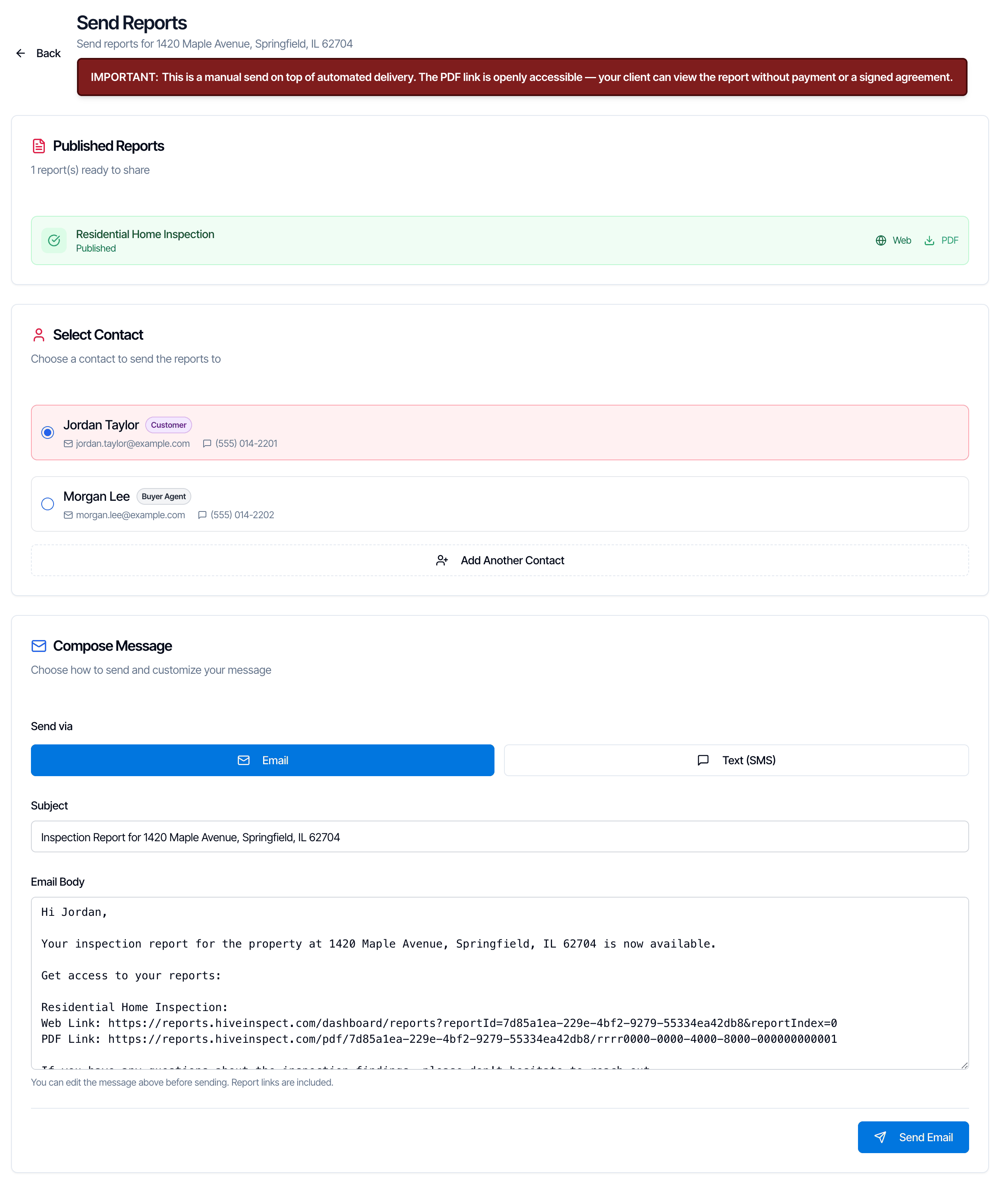
## Send Reports
Opens the **Send Reports** page. It emails or texts the links to the published reports to one contact, with a message you can edit.
* The counts at the top show the total views, how many different people viewed and how many views were today.
* Each visit shows the person, their email and role, **Report View** (they opened a report, named next to it) or **Portal Access** (they opened the portal), and how long ago.
* Click **Refresh** to load new visits.
Visits appear only once someone opens the portal. The **Portal Activity** page in the left menu shows visits across all your inspections.
## Send Reports
Opens the **Send Reports** page. It emails or texts the links to the published reports to one contact, with a message you can edit.
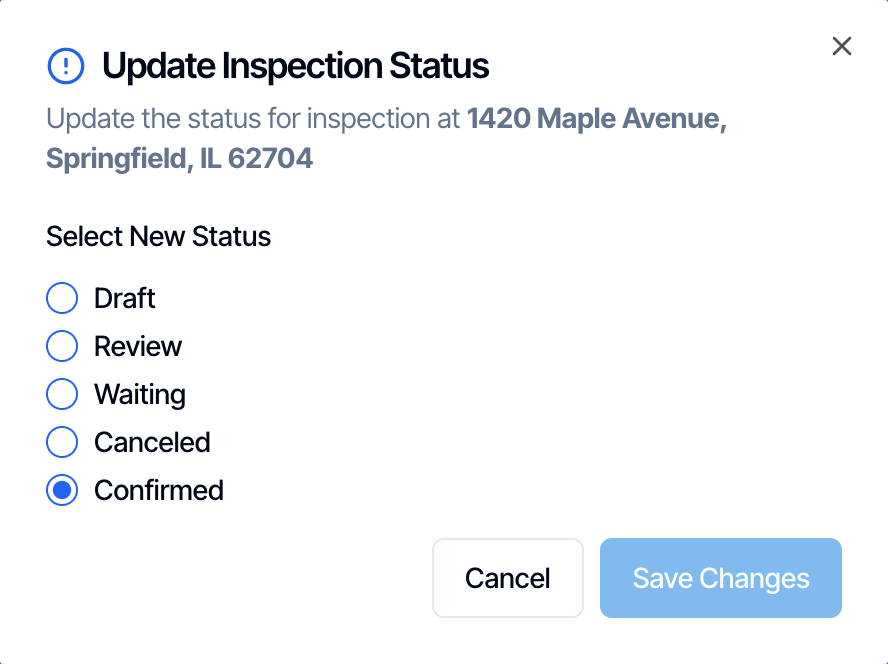 Changing the status can send messages, for example **Canceled** sends your **Inspection Cancelled** automations and **Review** sends the quote email. See [Inspection statuses](/how-tos/inspection-statuses) before you change it.
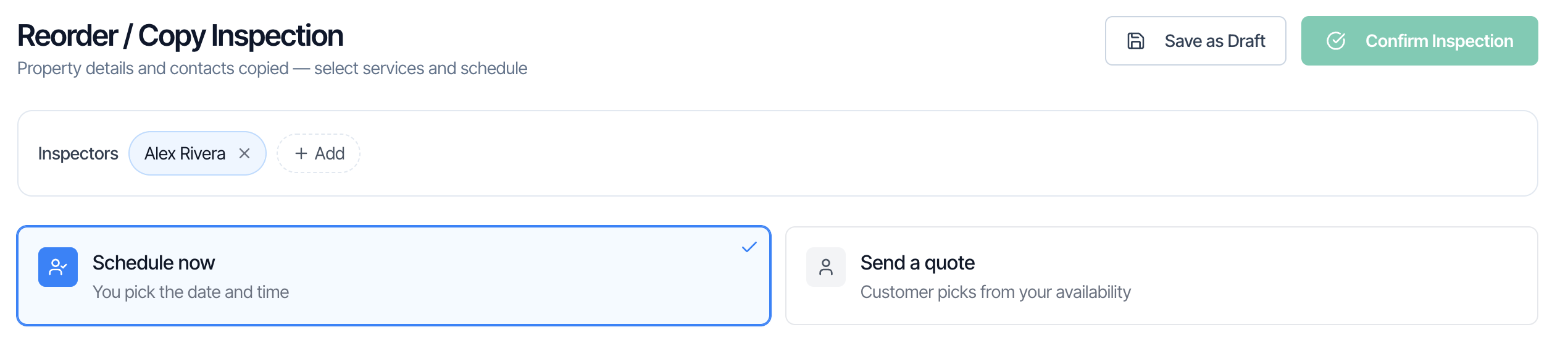
## Reorder
Starts a **new** inspection with the property and the people copied from this one. Use it for a repeat client, a re-inspection booked as its own job, or a second inspection at the same address.
Changing the status can send messages, for example **Canceled** sends your **Inspection Cancelled** automations and **Review** sends the quote email. See [Inspection statuses](/how-tos/inspection-statuses) before you change it.
## Reorder
Starts a **new** inspection with the property and the people copied from this one. Use it for a repeat client, a re-inspection booked as its own job, or a second inspection at the same address.
 | Copied to the new inspection | Not copied (you choose again) |
| - | - |
| Address, property details (type, size, year built, bedrooms, bathrooms, foundation, occupancy) and banner photo | Services and add-ons |
| Notes | Templates and agreements (they come with the services you pick) |
| Clients, buyer's and listing agents, subcontractors and other contacts | Price |
| Inspectors | Date and time |
| Custom field answers and referral source | Urgent request |
Pick the services, choose a date (or send a quote), then **Confirm Inspection** or **Save as Draft**. Nothing is saved until you do. The original inspection doesn't change.
## Publish All
Publishes every report on the inspection that's been started but isn't published yet, in one step. It's on the inspection's page and in the **Select Report** window.
| Copied to the new inspection | Not copied (you choose again) |
| - | - |
| Address, property details (type, size, year built, bedrooms, bathrooms, foundation, occupancy) and banner photo | Services and add-ons |
| Notes | Templates and agreements (they come with the services you pick) |
| Clients, buyer's and listing agents, subcontractors and other contacts | Price |
| Inspectors | Date and time |
| Custom field answers and referral source | Urgent request |
Pick the services, choose a date (or send a quote), then **Confirm Inspection** or **Save as Draft**. Nothing is saved until you do. The original inspection doesn't change.
## Publish All
Publishes every report on the inspection that's been started but isn't published yet, in one step. It's on the inspection's page and in the **Select Report** window.
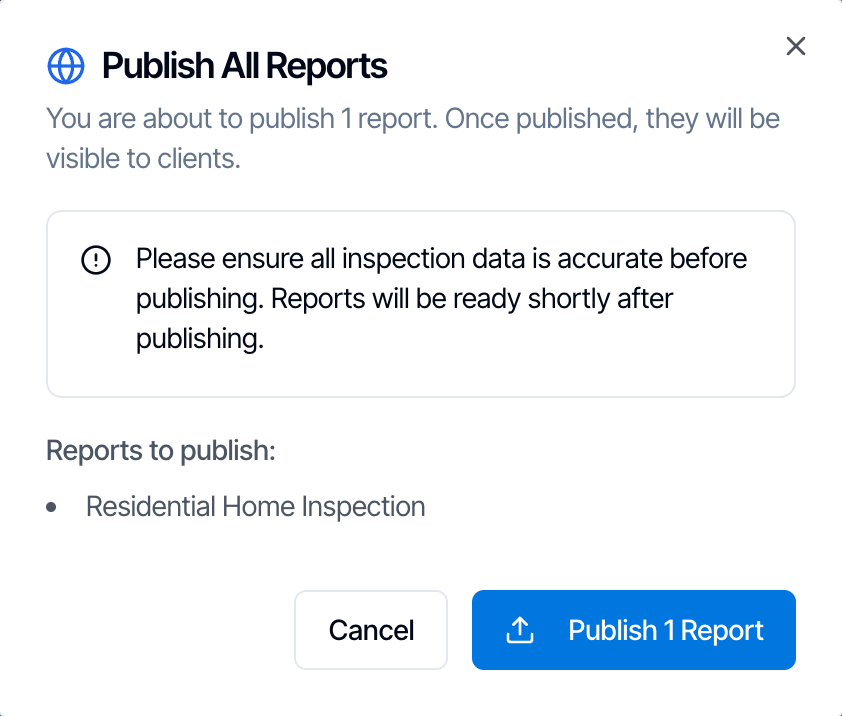 * Before the window opens, Hive checks each report. Reports with flagged comments, or with incomplete sections when your company requires every section to be complete, are listed as **will NOT be published**. Fix them in the report editor first.
* Reports that haven't been started are skipped.
* Click **Publish** to confirm. The reports publish in the background, and the PDFs are ready shortly after.
* Publishing starts your **Report Published** automations, just like publishing one report at a time.
If every report is already published, or none has been started, Hive says there's nothing to publish.
## Manual Lock Override for Reports
By default, your client can open the reports once they've paid and signed every agreement. **Manual Lock Override for Reports** changes that rule for this one inspection.
* Before the window opens, Hive checks each report. Reports with flagged comments, or with incomplete sections when your company requires every section to be complete, are listed as **will NOT be published**. Fix them in the report editor first.
* Reports that haven't been started are skipped.
* Click **Publish** to confirm. The reports publish in the background, and the PDFs are ready shortly after.
* Publishing starts your **Report Published** automations, just like publishing one report at a time.
If every report is already published, or none has been started, Hive says there's nothing to publish.
## Manual Lock Override for Reports
By default, your client can open the reports once they've paid and signed every agreement. **Manual Lock Override for Reports** changes that rule for this one inspection.
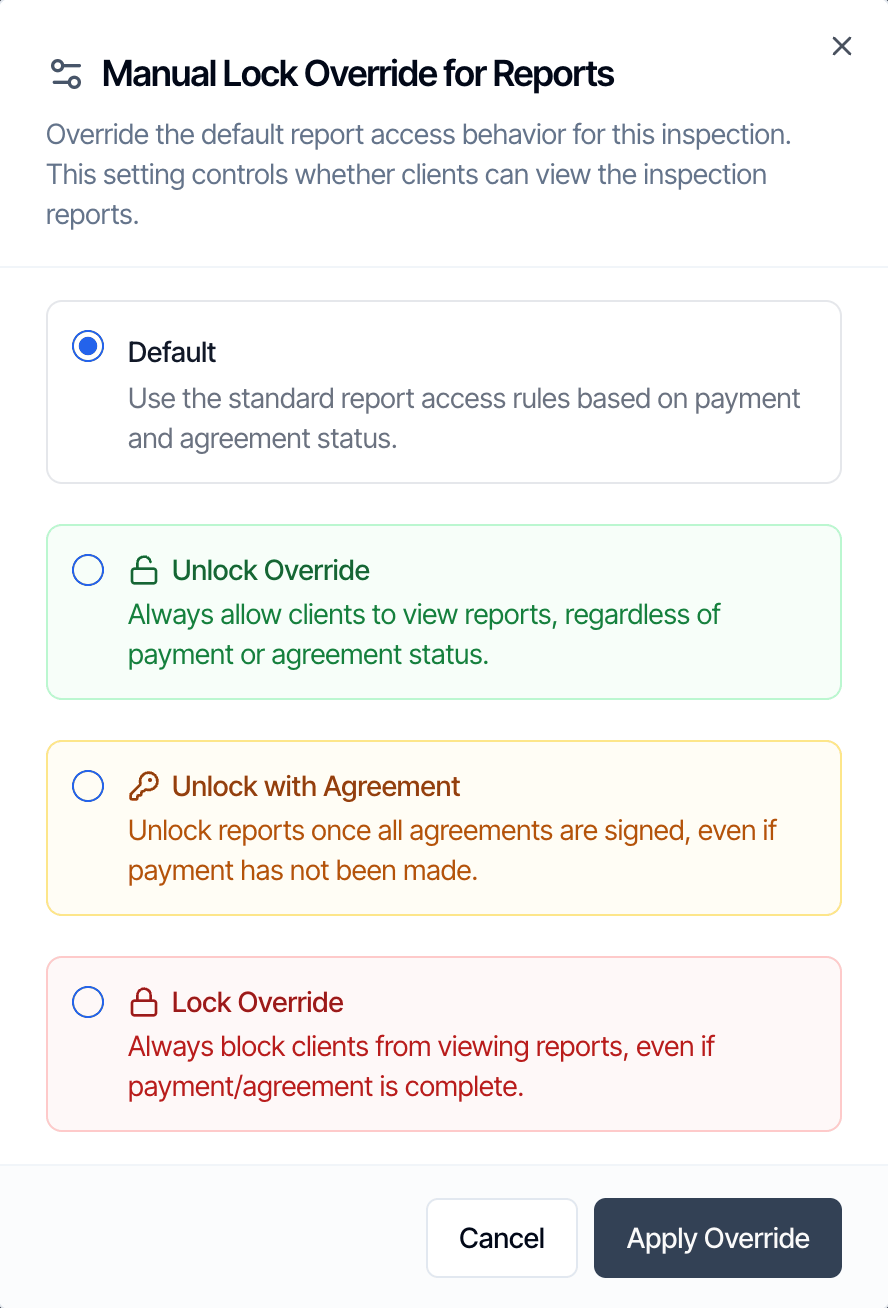 | Option | What it does | Badge next to the button |
| - | - | - |
| **Default** | The normal rule: paid and signed. | None |
| **Unlock Override** | Reports are open, paid or not, signed or not. | **Unlocked** |
| **Unlock with Agreement** | Reports open once every agreement is signed, even if it isn't paid. | **Agreement Unlock** |
| **Lock Override** | Reports stay locked, even after payment and signatures. | **Locked** |
Pick an option and click **Apply Override**. It takes effect straight away.
Use an override rather than recording a payment you haven't received, for example when a bank transfer is still settling or a client pays at closing. See [When clients can see the report](/how-tos/payment-settings#when-clients-can-see-the-report).
## Delete
Only in the **Inspections** list. It deletes the inspection after you confirm. Deleting sends nothing to anyone and can't be undone. For a real job, cancel it with **Status** instead. See [Delete an inspection, or cancel it instead](/how-tos/delete-inspection).
***
## Common questions
| Option | What it does | Badge next to the button |
| - | - | - |
| **Default** | The normal rule: paid and signed. | None |
| **Unlock Override** | Reports are open, paid or not, signed or not. | **Unlocked** |
| **Unlock with Agreement** | Reports open once every agreement is signed, even if it isn't paid. | **Agreement Unlock** |
| **Lock Override** | Reports stay locked, even after payment and signatures. | **Locked** |
Pick an option and click **Apply Override**. It takes effect straight away.
Use an override rather than recording a payment you haven't received, for example when a bank transfer is still settling or a client pays at closing. See [When clients can see the report](/how-tos/payment-settings#when-clients-can-see-the-report).
## Delete
Only in the **Inspections** list. It deletes the inspection after you confirm. Deleting sends nothing to anyone and can't be undone. For a real job, cancel it with **Status** instead. See [Delete an inspection, or cancel it instead](/how-tos/delete-inspection).
***
## Common questions