> ## Documentation Index
> Fetch the complete documentation index at: https://docs.hiveinspect.com/llms.txt
> Use this file to discover all available pages before exploring further.
# Inspection Statuses in Hive and How to Change Them
> What Draft, Review, Waiting, Canceled and Confirmed mean in Hive Inspect, what each one sends or blocks, and how to change an inspection's status on the web or mobile app.
In the dashboard: click the status badge on Inspections, or Quick Actions → Status. In the mobile app: the Status tile on an inspection.
Every inspection has one of five statuses: **Draft**, **Review**, **Waiting**, **Canceled** or **Confirmed**. The status decides whether automated emails and texts go out, whether the inspection is on your calendar and blocks time, and what the client sees on their link.
This page explains each status, what it switches on or off, and every way to change it.
## The five statuses
| Status | Badge | What it means | How an inspection usually gets there |
| - | - | - | - |
| **Draft** | Grey | Not booked yet. Being prepared, or waiting for the client to pick a time. | You click **Save as Draft**. A client fills in the [scheduling widget](/how-tos/scheduling-widget), or accepts a quote, but hasn't picked a time yet. |
| **Review** | Blue | A quote sent to the client to accept. | You click **Send for Review** on the web, or **Send to Client** in the mobile app. See [Send a quote](/how-tos/send-a-quote). |
| **Waiting** | Orange | The client picked a time, and you need to confirm it. | A client books online, or accepts a quote and picks a time. |
| **Confirmed** | Green | Booked. This is the normal status for a real job. | You click **Confirm Inspection**, or confirm a waiting booking. A client accepts a quote you already gave a date. |
| **Canceled** | Red | Not happening. The record is kept. | You cancel it. |
A typical job moves like this:
* **You book it for the client:** Confirmed straight away.
* **You send a quote:** Review, then the client accepts: Draft until they pick a time, then Waiting, then you confirm it: Confirmed. If you set the date before sending the quote, the client's accept makes it Confirmed straight away.
* **The client books online:** Draft, then the client picks a time: Waiting, then you confirm it: Confirmed.
Deleted inspections have no status. They disappear from every list. See [Delete an inspection](/how-tos/delete-inspection).
## What each status switches on or off
| Status | Automated emails and texts | Google Calendar event, and blocks the time for online booking |
| - | - | - |
| **Draft** | None | Only if turned on in settings |
| **Review** | Quote messages only | No |
| **Waiting** | None | Only if turned on in settings |
| **Confirmed** | **All of them**: confirmations, reminders, follow-ups | **Yes** |
| **Canceled** | Cancellation messages only | No. The event is removed and the time is free. |
| Status | Hive calendar | Mobile app's default list and the 5 PM daily schedule email | What the client sees on the review link |
| - | - | - | - |
| **Draft** | Yes, if it has a date | No | "Inspection Not Available Yet" |
| **Review** | Yes, marked **Review:** | No | The quote, with **Accept and Pick a Date** |
| **Waiting** | Yes | No | "Awaiting Confirmation" |
| **Confirmed** | Yes | **Yes** | The inspection details |
| **Canceled** | No | No | "Inspection Canceled" |
Notes on the tables:
* **Automations.** Only **Confirmed** inspections get your confirmation, reminder and follow-up messages. The exceptions are automations with the **Send Inspection Quote** trigger, which send when an inspection moves to Review, and **Inspection Cancelled**, which sends when it's canceled. See [Automated emails and texts](/contacts-and-automation/automations).
* **"Only if turned on in settings"** means the **Create calendar event for draft status inspections** and **Create calendar event for waiting status inspections** switches in **Org Settings → Scheduling**. Both are off by default. See [Scheduling widget settings](/how-tos/scheduling-widget#google-calendar-events-for-waiting-inspections).
* Every calendar event also needs a date, an assigned inspector and **Block calendar** turned on for the inspection.
* **Invoice.** An inspection gets its invoice and order ID (**OID**) the first time it's confirmed. Canceling or moving it out of Confirmed doesn't delete the invoice.
## Change the status on the web
### From the Inspections list: click the badge
On the **Inspections** page, click the colored badge in the **Status** column. The badge is a button, even though it doesn't look like one.
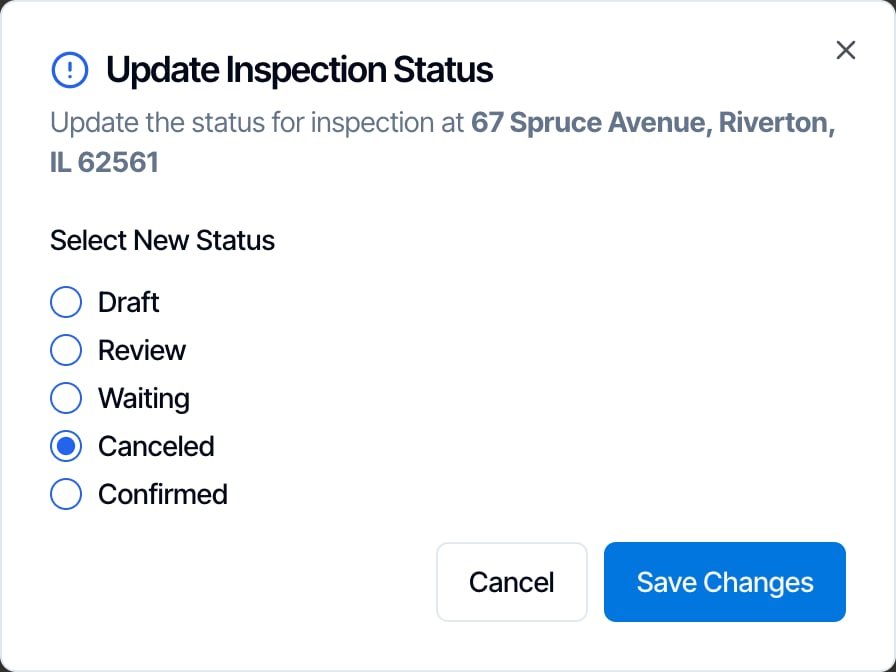
 The **Update Inspection Status** window opens with the address. Under **Select New Status**, pick **Draft**, **Review**, **Waiting**, **Canceled** or **Confirmed**, then click **Save Changes**.
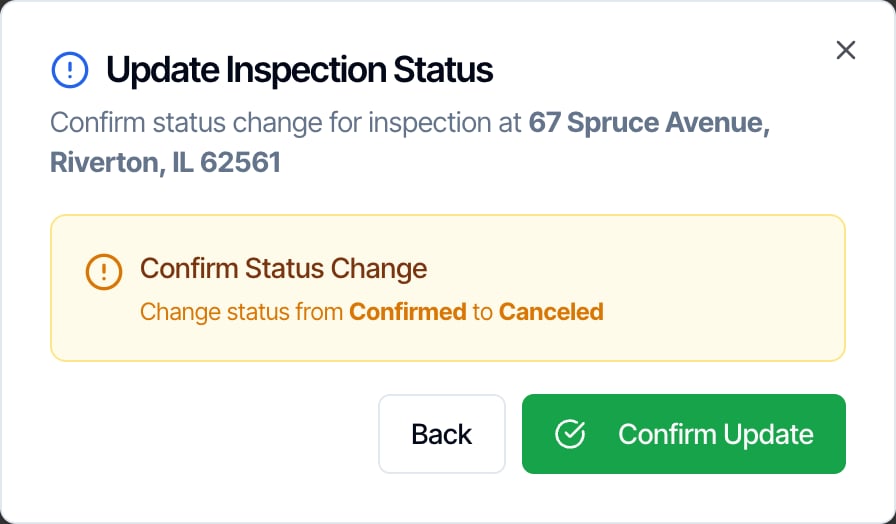
 Hive shows **Confirm Status Change** with the old and new status, for example "Change status from Confirmed to Canceled". Click **Confirm Update**, or **Back** to choose again.
 A **Status Updated** message appears, and the badge changes. Emails, texts and calendar changes for the new status happen straight away. See [What happens when you change the status](#what-happens-when-you-change-the-status).
### From Quick Actions → Status
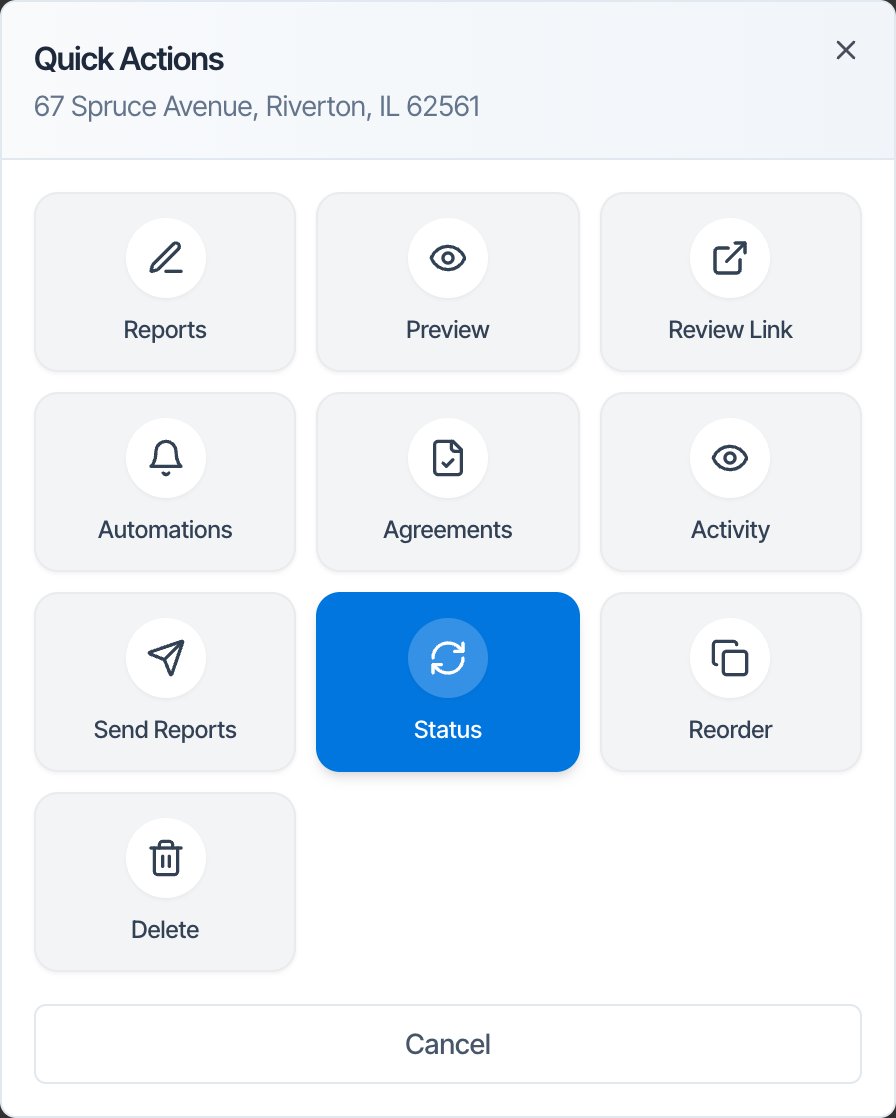
On the **Inspections** page, click the round blue **⋮** button at the end of the row. In **Quick Actions**, click **Status**. The same **Update Inspection Status** window opens.
A **Status Updated** message appears, and the badge changes. Emails, texts and calendar changes for the new status happen straight away. See [What happens when you change the status](#what-happens-when-you-change-the-status).
### From Quick Actions → Status
On the **Inspections** page, click the round blue **⋮** button at the end of the row. In **Quick Actions**, click **Status**. The same **Update Inspection Status** window opens.
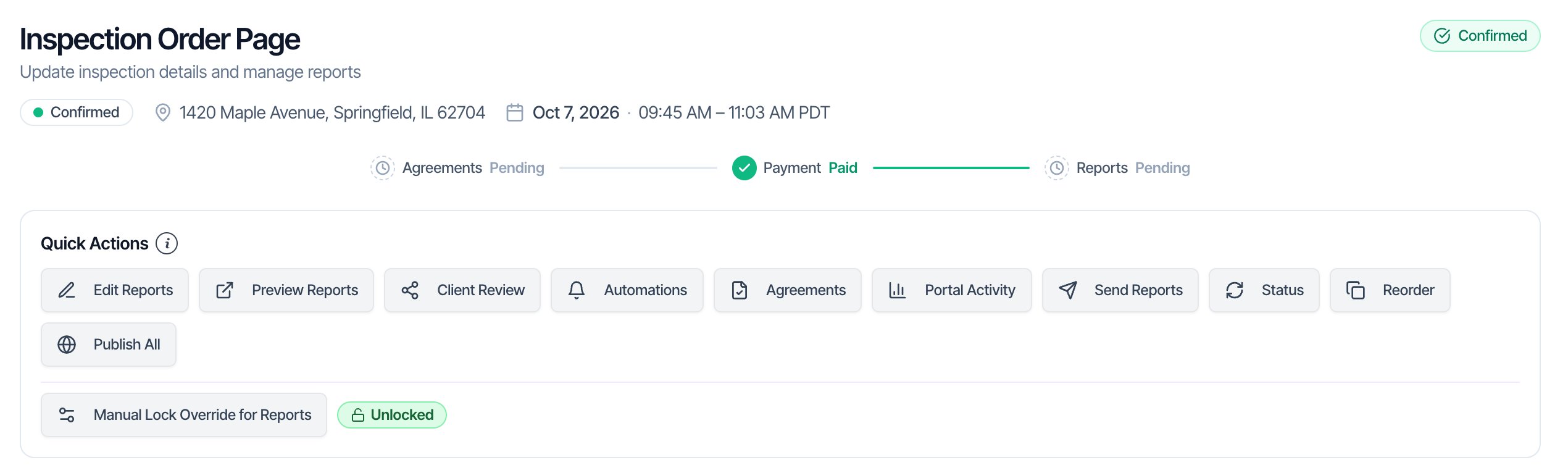
 The inspection's own page has the same button. Open the inspection, and in the **Quick Actions** card click **Status**.
 ### With the buttons at the top of the inspection
When an inspection isn't confirmed, its page has buttons at the top right that move it on. They work straight away, with no confirm step.
### With the buttons at the top of the inspection
When an inspection isn't confirmed, its page has buttons at the top right that move it on. They work straight away, with no confirm step.
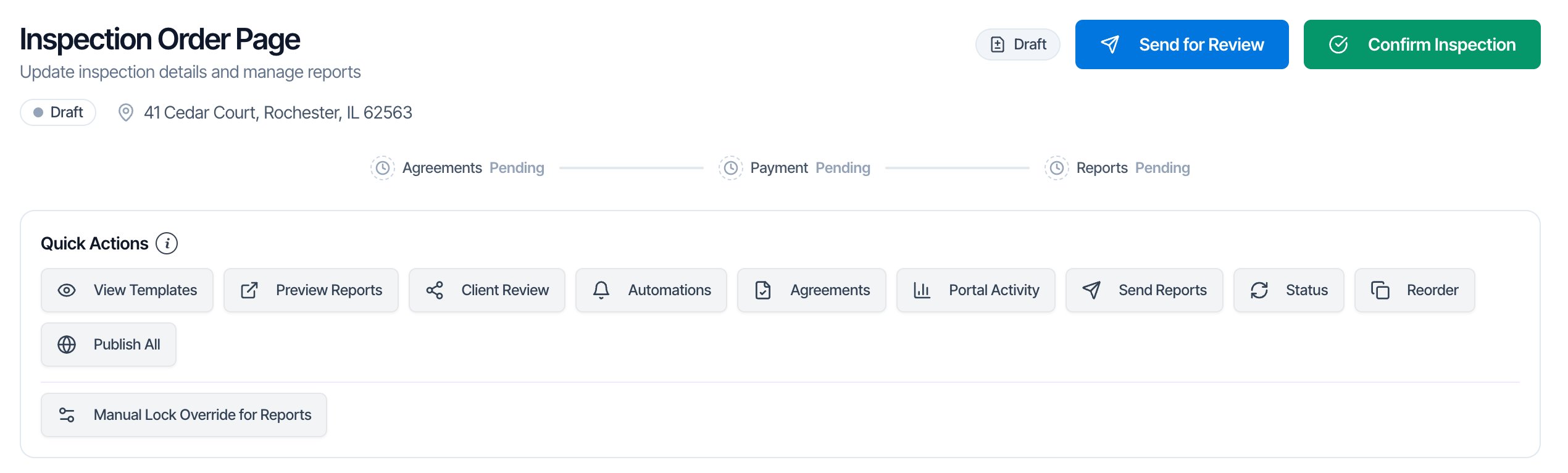 | Status now | Button | Moves it to |
| - | - | - |
| Draft | **Send for Review** | Review, and sends your quote automations |
| Draft or Review | **Confirm Inspection** | Confirmed. If you're picking the date yourself, set it first: the button reads **Select Date & Time First** until you do. |
| Waiting | **Confirm Inspection** | Confirmed |
| Waiting | **Cancel Inspection** | Canceled. This one sends your cancellation automations with no "are you sure" step. |
| Canceled | **Confirm Inspection** | Confirmed, and turns its messages back on. See [Reopen a canceled inspection](#reopen-a-canceled-inspection). |
| Confirmed | None | Use **Quick Actions → Status** to change a confirmed inspection. |
### Confirm waiting bookings in one click
When you have Waiting inspections, an orange **Inspections Waiting for You** box shows at the top of the **Inspections** page and the dashboard home. Each booking has a green **Confirm** button. Click it to make the inspection Confirmed straight away.
To turn a waiting booking down, use **⋮ → Status → Canceled** instead. There's no decline button in that box.
## Change the status in the mobile app
On the **Inspections** tab, tap the inspection. If it isn't Confirmed, it may not be in the list yet: tap the filter button next to the search bar and tick its status. See [Filter the list in the mobile app](/how-tos/inspection-list-filters#filter-the-list-in-the-mobile-app).
In the row of tiles on the inspection's summary screen, tap **Status**, the tile with a flag icon. It shows the current status in its color. It sits between **Fees & Payments** and **Reschedule**.
The **Update Status** sheet lists **Confirmed**, **Waiting**, **Review**, **Draft** and **Canceled**. The current one is marked **Current**. Tap the new one, then **Save Changes**.
**Confirm Status Change** shows the old and new status and the line "Automations, calendar events, and invoicing tied to this status will run automatically." Tap **Confirm Update**, or **Back**.
The app changes the status in exactly the same way as the web, with the same emails, texts and calendar changes.
* **It needs an internet connection.** Offline, the change isn't saved for later. You see **Error Updating Inspection**. Try again when you're back online.
* **Send to Client.** A Draft has a **Send to Client** button on its summary screen. It asks "This will send the inspection proposal to the client for review. Are you sure?" Tap **Send** to move it to Review and send your quote automations.
* **Report Editor** only shows on Confirmed inspections. To start inspecting a Draft or Waiting job, confirm it first.
## What happens when you change the status
### To Confirmed
* Your **Inspection Scheduled** automations send (confirmation emails and texts), and reminders are set up for the inspection date.
* The inspection gets its invoice and order ID if it doesn't have them yet.
* Google Calendar events are created for each assigned inspector, as long as it has a date and **Block calendar** is on.
* It shows in the mobile app's default list and in the next day's 5 PM schedule email.
You can confirm an inspection that has no date. It becomes Confirmed and the confirmation automations send, but there's no calendar event and no timed reminders. Set the date first.
### To Review
* Your **Send Inspection Quote** automations send to the client with the quote link.
* Any Google Calendar event is removed. The time no longer blocks online booking.
This happens from any status. Moving a Confirmed inspection back to Review can email the client your quote, if you have a quote automation and they haven't had it for this inspection yet. Each client gets the quote email only once per inspection.
### To Draft or Waiting
* Google Calendar events are removed, unless the matching **Create calendar event for draft (or waiting) status inspections** switch is on.
* No message is sent at the moment you change it.
Moving a job out of Confirmed for a while has a lasting effect. While it's Draft, Review or Waiting, any reminder that comes due is canceled, and confirming it again doesn't bring those back. Only use these statuses on a confirmed job if you really mean to un-book it.
### To Canceled
* Your **Inspection Cancelled** automations send, for example a cancellation email to the client and agent.
* Every other message still waiting to send is stopped: reminders, follow-ups and payment requests.
* Google Calendar events are removed, including those for its inspection events such as a radon pickup. The time is free for new bookings.
* It disappears from the Hive calendar and the mobile app's default list. It stays on the **Inspections** page with a red badge.
* **Nothing is refunded.** If the client paid, refund them with **Refund Payment** under **Fees and Payments** on the inspection's page.
The inspection, its invoice, reports and agreements are kept. To remove it completely, [delete it](/how-tos/delete-inspection) instead.
### Reopen a canceled inspection
Move it from **Canceled** straight to **Confirmed**, with **Confirm Inspection** at the top of its page or **Quick Actions → Status**.
* Messages that canceling stopped are turned back on and re-timed to the inspection date. Messages that already went out aren't sent again, so the client doesn't get a second confirmation.
* Messages you canceled by hand stay canceled.
* Google Calendar events are created again.
Reopen to **Confirmed** (or **Waiting**). Moving a canceled inspection to **Draft** or **Review** doesn't turn its stopped messages back on.
## Who can change a status
* A team member with the **Schedule Management** permission can change the status of any inspection.
* Anyone else can only change inspections they're assigned to. Otherwise they see "You don't have permission to update this inspection. You are not assigned to it."
See [Team permissions](/business-tools/team-permissions).
## Find inspections by status
* **Web:** on the **Inspections** page, use the **Status** filter. **Show all Drafts** lists drafts in one click. With no Status filter, every status shows, including Canceled.
* **Mobile app:** the list shows only **Confirmed** until you tap the filter button and tick other statuses.
See [Filter, search and sort your inspections](/how-tos/inspection-list-filters).
## Common questions
**A client booked online but I can't see it in the mobile app.** It's **Waiting**, and the app shows Confirmed only by default. Confirm it on the web or in the app, or tick **Waiting** in the app's status filter.
**I confirmed an inspection but the client got no email.** Check that you have an automation with the **Inspection Scheduled** trigger turned on, and that it applies to this service. See [Automation settings](/how-tos/automation-settings).
**I canceled by mistake.** Change it straight back to **Confirmed**. Stopped reminders are turned back on. A cancellation email that already went out can't be unsent.
**Can I cancel without telling the client?** Yes. Before canceling, turn off your **Inspection Cancelled** automation on the **Automations** page, cancel, then turn it back on. Turning an automation off affects every inspection, so turn it back on straight away. Or [delete the inspection](/how-tos/delete-inspection), which sends nothing.
**Why is a Waiting inspection not blocking its time?** Waiting bookings don't block time unless **Create calendar event for waiting status inspections** is on in **Org Settings → Scheduling**.
**Is there a Completed status?** No. A finished job stays **Confirmed**. Use the **Progress** filter to find jobs that are signed, paid and published.
**Can a client change the status?** Only by accepting a quote. **Accept and Pick a Date** moves it on. Clients can't decline or cancel from their link, and once it's Waiting or Confirmed they can't change it.
## Where to go next
* [Filter, search and sort your inspections](/how-tos/inspection-list-filters)
* [Delete an inspection, or cancel it instead](/how-tos/delete-inspection)
* [Reschedule an inspection](/how-tos/rescheduled-inspections)
* [Automated emails and texts](/contacts-and-automation/automations)
This documentation is built and hosted on [Mintlify](https://mintlify.com), a developer documentation platform.
| Status now | Button | Moves it to |
| - | - | - |
| Draft | **Send for Review** | Review, and sends your quote automations |
| Draft or Review | **Confirm Inspection** | Confirmed. If you're picking the date yourself, set it first: the button reads **Select Date & Time First** until you do. |
| Waiting | **Confirm Inspection** | Confirmed |
| Waiting | **Cancel Inspection** | Canceled. This one sends your cancellation automations with no "are you sure" step. |
| Canceled | **Confirm Inspection** | Confirmed, and turns its messages back on. See [Reopen a canceled inspection](#reopen-a-canceled-inspection). |
| Confirmed | None | Use **Quick Actions → Status** to change a confirmed inspection. |
### Confirm waiting bookings in one click
When you have Waiting inspections, an orange **Inspections Waiting for You** box shows at the top of the **Inspections** page and the dashboard home. Each booking has a green **Confirm** button. Click it to make the inspection Confirmed straight away.
To turn a waiting booking down, use **⋮ → Status → Canceled** instead. There's no decline button in that box.
## Change the status in the mobile app
On the **Inspections** tab, tap the inspection. If it isn't Confirmed, it may not be in the list yet: tap the filter button next to the search bar and tick its status. See [Filter the list in the mobile app](/how-tos/inspection-list-filters#filter-the-list-in-the-mobile-app).
In the row of tiles on the inspection's summary screen, tap **Status**, the tile with a flag icon. It shows the current status in its color. It sits between **Fees & Payments** and **Reschedule**.
The **Update Status** sheet lists **Confirmed**, **Waiting**, **Review**, **Draft** and **Canceled**. The current one is marked **Current**. Tap the new one, then **Save Changes**.
**Confirm Status Change** shows the old and new status and the line "Automations, calendar events, and invoicing tied to this status will run automatically." Tap **Confirm Update**, or **Back**.
The app changes the status in exactly the same way as the web, with the same emails, texts and calendar changes.
* **It needs an internet connection.** Offline, the change isn't saved for later. You see **Error Updating Inspection**. Try again when you're back online.
* **Send to Client.** A Draft has a **Send to Client** button on its summary screen. It asks "This will send the inspection proposal to the client for review. Are you sure?" Tap **Send** to move it to Review and send your quote automations.
* **Report Editor** only shows on Confirmed inspections. To start inspecting a Draft or Waiting job, confirm it first.
## What happens when you change the status
### To Confirmed
* Your **Inspection Scheduled** automations send (confirmation emails and texts), and reminders are set up for the inspection date.
* The inspection gets its invoice and order ID if it doesn't have them yet.
* Google Calendar events are created for each assigned inspector, as long as it has a date and **Block calendar** is on.
* It shows in the mobile app's default list and in the next day's 5 PM schedule email.
You can confirm an inspection that has no date. It becomes Confirmed and the confirmation automations send, but there's no calendar event and no timed reminders. Set the date first.
### To Review
* Your **Send Inspection Quote** automations send to the client with the quote link.
* Any Google Calendar event is removed. The time no longer blocks online booking.
This happens from any status. Moving a Confirmed inspection back to Review can email the client your quote, if you have a quote automation and they haven't had it for this inspection yet. Each client gets the quote email only once per inspection.
### To Draft or Waiting
* Google Calendar events are removed, unless the matching **Create calendar event for draft (or waiting) status inspections** switch is on.
* No message is sent at the moment you change it.
Moving a job out of Confirmed for a while has a lasting effect. While it's Draft, Review or Waiting, any reminder that comes due is canceled, and confirming it again doesn't bring those back. Only use these statuses on a confirmed job if you really mean to un-book it.
### To Canceled
* Your **Inspection Cancelled** automations send, for example a cancellation email to the client and agent.
* Every other message still waiting to send is stopped: reminders, follow-ups and payment requests.
* Google Calendar events are removed, including those for its inspection events such as a radon pickup. The time is free for new bookings.
* It disappears from the Hive calendar and the mobile app's default list. It stays on the **Inspections** page with a red badge.
* **Nothing is refunded.** If the client paid, refund them with **Refund Payment** under **Fees and Payments** on the inspection's page.
The inspection, its invoice, reports and agreements are kept. To remove it completely, [delete it](/how-tos/delete-inspection) instead.
### Reopen a canceled inspection
Move it from **Canceled** straight to **Confirmed**, with **Confirm Inspection** at the top of its page or **Quick Actions → Status**.
* Messages that canceling stopped are turned back on and re-timed to the inspection date. Messages that already went out aren't sent again, so the client doesn't get a second confirmation.
* Messages you canceled by hand stay canceled.
* Google Calendar events are created again.
Reopen to **Confirmed** (or **Waiting**). Moving a canceled inspection to **Draft** or **Review** doesn't turn its stopped messages back on.
## Who can change a status
* A team member with the **Schedule Management** permission can change the status of any inspection.
* Anyone else can only change inspections they're assigned to. Otherwise they see "You don't have permission to update this inspection. You are not assigned to it."
See [Team permissions](/business-tools/team-permissions).
## Find inspections by status
* **Web:** on the **Inspections** page, use the **Status** filter. **Show all Drafts** lists drafts in one click. With no Status filter, every status shows, including Canceled.
* **Mobile app:** the list shows only **Confirmed** until you tap the filter button and tick other statuses.
See [Filter, search and sort your inspections](/how-tos/inspection-list-filters).
## Common questions
**A client booked online but I can't see it in the mobile app.** It's **Waiting**, and the app shows Confirmed only by default. Confirm it on the web or in the app, or tick **Waiting** in the app's status filter.
**I confirmed an inspection but the client got no email.** Check that you have an automation with the **Inspection Scheduled** trigger turned on, and that it applies to this service. See [Automation settings](/how-tos/automation-settings).
**I canceled by mistake.** Change it straight back to **Confirmed**. Stopped reminders are turned back on. A cancellation email that already went out can't be unsent.
**Can I cancel without telling the client?** Yes. Before canceling, turn off your **Inspection Cancelled** automation on the **Automations** page, cancel, then turn it back on. Turning an automation off affects every inspection, so turn it back on straight away. Or [delete the inspection](/how-tos/delete-inspection), which sends nothing.
**Why is a Waiting inspection not blocking its time?** Waiting bookings don't block time unless **Create calendar event for waiting status inspections** is on in **Org Settings → Scheduling**.
**Is there a Completed status?** No. A finished job stays **Confirmed**. Use the **Progress** filter to find jobs that are signed, paid and published.
**Can a client change the status?** Only by accepting a quote. **Accept and Pick a Date** moves it on. Clients can't decline or cancel from their link, and once it's Waiting or Confirmed they can't change it.
## Where to go next
* [Filter, search and sort your inspections](/how-tos/inspection-list-filters)
* [Delete an inspection, or cancel it instead](/how-tos/delete-inspection)
* [Reschedule an inspection](/how-tos/rescheduled-inspections)
* [Automated emails and texts](/contacts-and-automation/automations)
This documentation is built and hosted on [Mintlify](https://mintlify.com), a developer documentation platform.