> ## Documentation Index
> Fetch the complete documentation index at: https://docs.hiveinspect.com/llms.txt
> Use this file to discover all available pages before exploring further.
# Mileage Tracker: Inspector Driving Miles by Day
> See how many miles each inspector drove to their inspections in Hive Inspect, day by day and leg by leg, how Hive works the miles out from your schedule each week, and export a mileage log to Excel.
In the dashboard: Business Tools → Mileage Tracker.
The **Mileage Tracker** shows how far each inspector drove for work: every day, from home to each inspection and back. Hive works the miles out for you from your schedule, so nobody has to log trips. Use it for mileage reimbursement, tax records or to see who's driving the most.
 ## How Hive works out the miles
For each inspector and each day they had work, Hive builds a route and measures it with Google Maps driving directions:
**Home → first stop → second stop → … → Home**
* **Stops** are the inspector's **Confirmed** inspections that day, in order of their start time, plus inspection events on their inspections, such as a radon pickup. An event counts on its own day, at its inspection's address.
* **Home** is the inspector's own address. See [Set each inspector's home address](#set-the-home-address-for-each-inspector).
* **Days** follow your company's time zone.
* **Distances** are driving distances, the way Google Maps would route the trip. It's an estimate from the addresses, not a GPS record of where the car went.
What isn't counted:
* Inspections that are Draft, Review, Waiting or Canceled.
* Inspections with no address.
* Team members who aren't **Inspectors** or **Sub-Inspectors**.
* Personal driving, detours and extra trips between stops.
If two inspectors are on the same inspection, each gets their own route from their own home.
**The miles are added once a week.** Early every Sunday morning, Hive works out the previous week, Sunday to Saturday. This week's trips appear after the weekend. If you change an inspection after its week has been worked out (for example you reschedule it or change the address), the mileage isn't updated by itself. Ask us in the chat bubble to recalculate that week.
## Set the home address for each inspector
Hive starts and ends each day at the inspector's **Inspector Local Address**, the same address used for travel limits and distance-based pricing.
1. Go to **Profile Settings** and click **Team Settings** at the top right. (Team members who manage only themselves see **Availability Settings**.)
2. Click the inspector to open their settings.
3. Fill in **Inspector Local Address** ("Your home/office address for calculating travel distance to inspection sites"). Use a full street address with a ZIP code, or at least a city and state.
4. If they start from somewhere else on certain days, click the map pin on that day in their weekly schedule (**Set a different address for Mondays**, for example) and enter that address.
If an inspector has no address of their own, Hive uses your **company address** instead. That's fine for a single office, but it gives remote inspectors the wrong miles. Add every inspector's address before you rely on the numbers.
A change of address applies from the next weekly update. It doesn't recalculate weeks already worked out.
## See the whole company
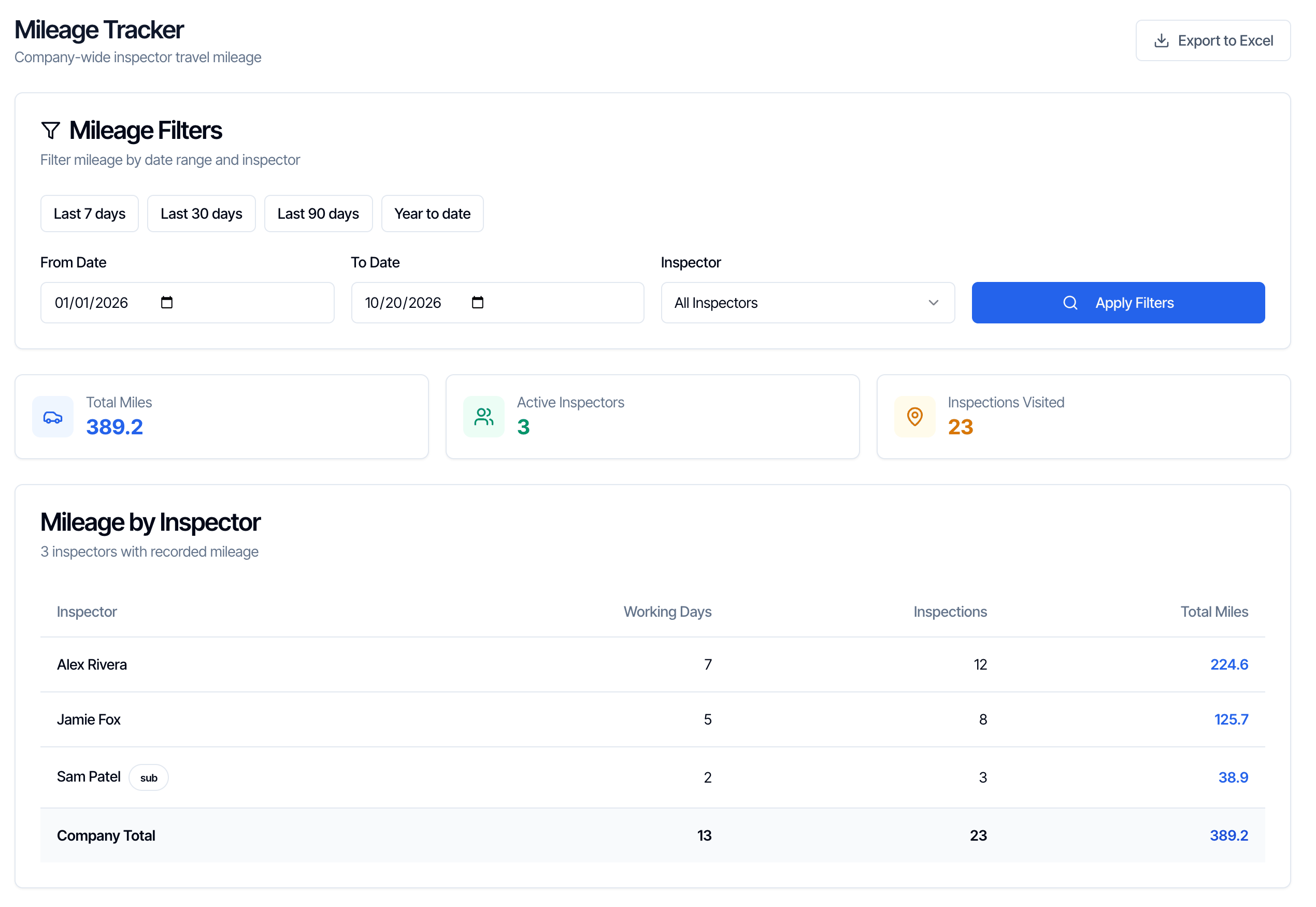
Open **Business Tools** in the left menu and click the **Mileage Tracker** card. The page opens on **All Inspectors** for this year so far.
* **Total Miles**: everyone's miles added up.
* **Active Inspectors**: how many inspectors have mileage in the dates you picked.
* **Inspections Visited**: how many stops they made (inspections and events).
The **Mileage by Inspector** table has one row per inspector, highest miles first:
| Column | What it shows |
| - | - |
| **Working Days** | Days the inspector had at least one stop |
| **Inspections** | Their stops in the date range |
| **Total Miles** | Their driving miles |
| **Company Total** | Everyone together. **Working Days** here counts each date once, however many inspectors worked that day. |
Sub-inspectors are marked **sub**.
## Pick dates and an inspector
## How Hive works out the miles
For each inspector and each day they had work, Hive builds a route and measures it with Google Maps driving directions:
**Home → first stop → second stop → … → Home**
* **Stops** are the inspector's **Confirmed** inspections that day, in order of their start time, plus inspection events on their inspections, such as a radon pickup. An event counts on its own day, at its inspection's address.
* **Home** is the inspector's own address. See [Set each inspector's home address](#set-the-home-address-for-each-inspector).
* **Days** follow your company's time zone.
* **Distances** are driving distances, the way Google Maps would route the trip. It's an estimate from the addresses, not a GPS record of where the car went.
What isn't counted:
* Inspections that are Draft, Review, Waiting or Canceled.
* Inspections with no address.
* Team members who aren't **Inspectors** or **Sub-Inspectors**.
* Personal driving, detours and extra trips between stops.
If two inspectors are on the same inspection, each gets their own route from their own home.
**The miles are added once a week.** Early every Sunday morning, Hive works out the previous week, Sunday to Saturday. This week's trips appear after the weekend. If you change an inspection after its week has been worked out (for example you reschedule it or change the address), the mileage isn't updated by itself. Ask us in the chat bubble to recalculate that week.
## Set the home address for each inspector
Hive starts and ends each day at the inspector's **Inspector Local Address**, the same address used for travel limits and distance-based pricing.
1. Go to **Profile Settings** and click **Team Settings** at the top right. (Team members who manage only themselves see **Availability Settings**.)
2. Click the inspector to open their settings.
3. Fill in **Inspector Local Address** ("Your home/office address for calculating travel distance to inspection sites"). Use a full street address with a ZIP code, or at least a city and state.
4. If they start from somewhere else on certain days, click the map pin on that day in their weekly schedule (**Set a different address for Mondays**, for example) and enter that address.
If an inspector has no address of their own, Hive uses your **company address** instead. That's fine for a single office, but it gives remote inspectors the wrong miles. Add every inspector's address before you rely on the numbers.
A change of address applies from the next weekly update. It doesn't recalculate weeks already worked out.
## See the whole company
Open **Business Tools** in the left menu and click the **Mileage Tracker** card. The page opens on **All Inspectors** for this year so far.
* **Total Miles**: everyone's miles added up.
* **Active Inspectors**: how many inspectors have mileage in the dates you picked.
* **Inspections Visited**: how many stops they made (inspections and events).
The **Mileage by Inspector** table has one row per inspector, highest miles first:
| Column | What it shows |
| - | - |
| **Working Days** | Days the inspector had at least one stop |
| **Inspections** | Their stops in the date range |
| **Total Miles** | Their driving miles |
| **Company Total** | Everyone together. **Working Days** here counts each date once, however many inspectors worked that day. |
Sub-inspectors are marked **sub**.
## Pick dates and an inspector
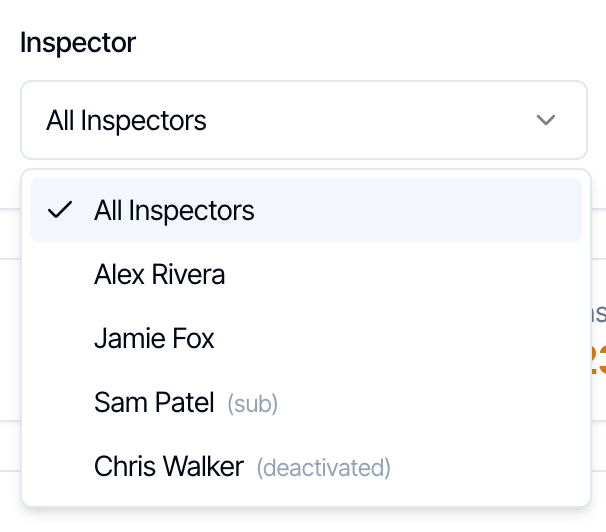 * **Dates:** click **Last 7 days**, **Last 30 days**, **Last 90 days** or **Year to date**, or type a **From Date** and **To Date**. Then click **Apply Filters**. The figures don't change until you do.
* **Inspector:** pick a name to see just their mileage. This changes straight away. **All Inspectors** goes back to the company view.
Deactivated inspectors stay in the list, marked **(deactivated)**, so their past mileage is still there.
## See one inspector day by day
Pick the inspector under **Inspector**, or click their row in the company table. **Daily Mileage** lists each working day with its stops and miles. Click a day to see each leg of the route:
* **Dates:** click **Last 7 days**, **Last 30 days**, **Last 90 days** or **Year to date**, or type a **From Date** and **To Date**. Then click **Apply Filters**. The figures don't change until you do.
* **Inspector:** pick a name to see just their mileage. This changes straight away. **All Inspectors** goes back to the company view.
Deactivated inspectors stay in the list, marked **(deactivated)**, so their past mileage is still there.
## See one inspector day by day
Pick the inspector under **Inspector**, or click their row in the company table. **Daily Mileage** lists each working day with its stops and miles. Click a day to see each leg of the route:
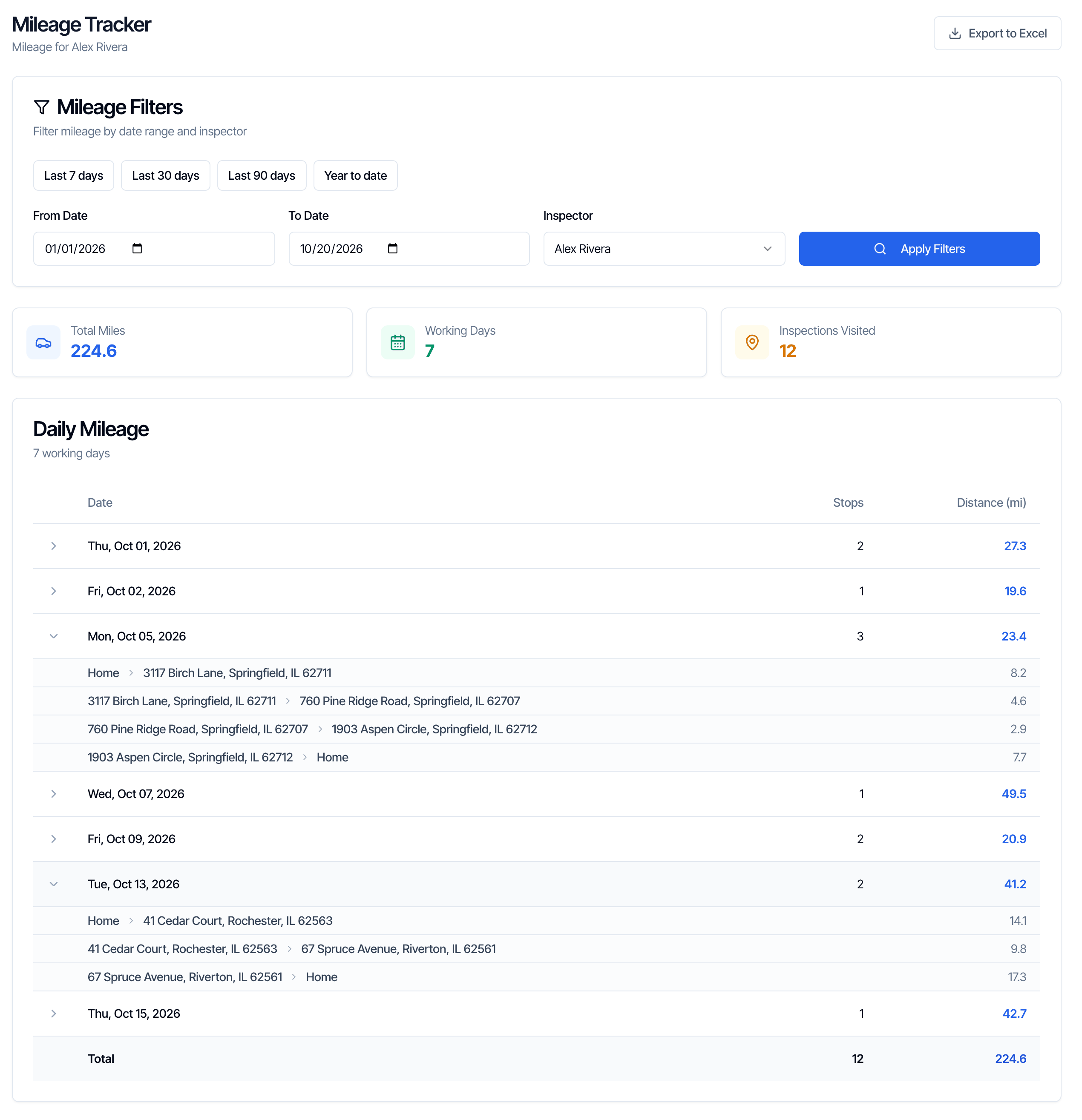 Each leg shows where it started, where it ended and its miles. **Home** is the inspector's home address for that day.
## Export to Excel
Click **Export to Excel** at the top right. Hive downloads a spreadsheet of what's on screen:
* **All Inspectors:** a **Company Mileage** sheet (each inspector's working days, stops and total miles, plus a **Company Total**), then one sheet per inspector.
* **One inspector:** just their sheet.
Each inspector's sheet lists every day with its total, the legs of that day's route (**Day**, **From**, **To**, **Distance**) and a **Total** at the bottom. That's the format most accountants ask for as a mileage log.
The button is greyed out when there's nothing in the date range.
## Show kilometers instead of miles
Go to **Org Settings → Business Management → Measurement Units** and choose **Metric (Canada & others)**.
Each leg shows where it started, where it ended and its miles. **Home** is the inspector's home address for that day.
## Export to Excel
Click **Export to Excel** at the top right. Hive downloads a spreadsheet of what's on screen:
* **All Inspectors:** a **Company Mileage** sheet (each inspector's working days, stops and total miles, plus a **Company Total**), then one sheet per inspector.
* **One inspector:** just their sheet.
Each inspector's sheet lists every day with its total, the legs of that day's route (**Day**, **From**, **To**, **Distance**) and a **Total** at the bottom. That's the format most accountants ask for as a mileage log.
The button is greyed out when there's nothing in the date range.
## Show kilometers instead of miles
Go to **Org Settings → Business Management → Measurement Units** and choose **Metric (Canada & others)**.
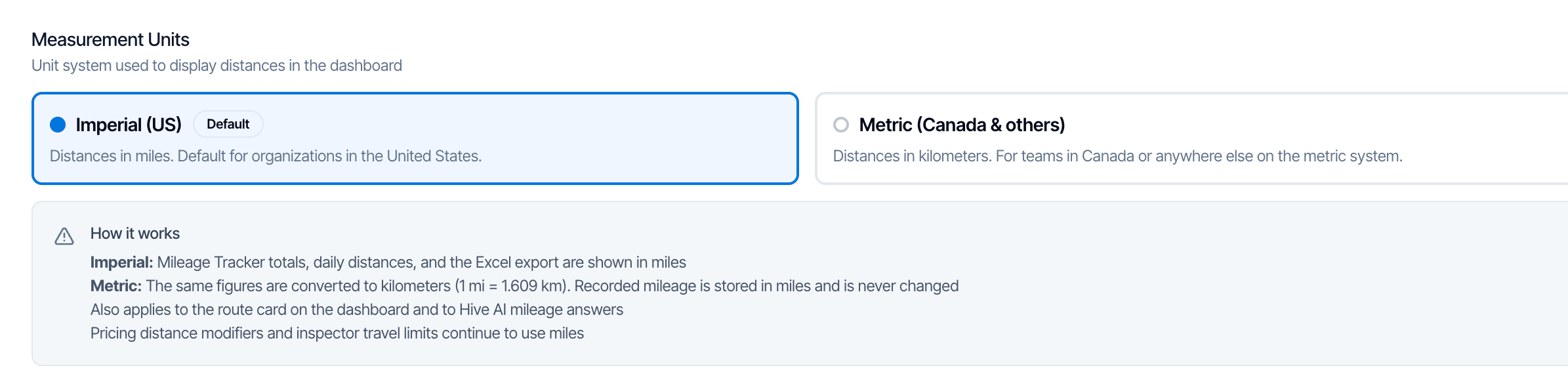 The Mileage Tracker, its export and the route card on your dashboard then show kilometers. Nothing is recalculated: Hive converts the same distances.
## Who can see the Mileage Tracker
Team members with the **Inspector** or **Admin** role, and anyone with the **Business Metrics** permission. Everyone else sees **Access Denied**. Everyone who can open it sees every inspector's mileage. See [Team permissions](/business-tools/team-permissions).
## Common questions
Hive adds each week early on the following Sunday. Trips from Sunday to Saturday appear after the weekend.
Usually Hive is starting their day from the company address because they haven't set their own. Add their **Inspector Local Address** under **Profile Settings → Team Settings**, then ask us in the chat bubble to recalculate the weeks you need.
It wasn't **Confirmed** when that week was worked out, it had no address, the inspector wasn't assigned to it, or it was changed after the weekly update. Ask us in the chat bubble to recalculate that week.
No. Mileage comes only from your schedule. Fix the inspection (status, address, inspector or time), then ask us to recalculate the week.
It's a dated log of business trips with start and end points and distances, which is what a mileage log usually needs. It's worked out from addresses, not tracked by GPS, so check with your accountant.
No. The Mileage Tracker is in the web dashboard. The mobile app's **Time Clock** records working hours, which you see in the [Hourly Time Tracker](/how-tos/hourly-time-tracker).
## Where to go next
* [Hourly Time Tracker](/how-tos/hourly-time-tracker)
* [Discount Codes](/how-tos/discount-codes)
* [Team permissions](/business-tools/team-permissions)
* [Change the inspector](/how-tos/change-inspector)
This documentation is built and hosted on [Mintlify](https://mintlify.com), a developer documentation platform.
The Mileage Tracker, its export and the route card on your dashboard then show kilometers. Nothing is recalculated: Hive converts the same distances.
## Who can see the Mileage Tracker
Team members with the **Inspector** or **Admin** role, and anyone with the **Business Metrics** permission. Everyone else sees **Access Denied**. Everyone who can open it sees every inspector's mileage. See [Team permissions](/business-tools/team-permissions).
## Common questions
Hive adds each week early on the following Sunday. Trips from Sunday to Saturday appear after the weekend.
Usually Hive is starting their day from the company address because they haven't set their own. Add their **Inspector Local Address** under **Profile Settings → Team Settings**, then ask us in the chat bubble to recalculate the weeks you need.
It wasn't **Confirmed** when that week was worked out, it had no address, the inspector wasn't assigned to it, or it was changed after the weekly update. Ask us in the chat bubble to recalculate that week.
No. Mileage comes only from your schedule. Fix the inspection (status, address, inspector or time), then ask us to recalculate the week.
It's a dated log of business trips with start and end points and distances, which is what a mileage log usually needs. It's worked out from addresses, not tracked by GPS, so check with your accountant.
No. The Mileage Tracker is in the web dashboard. The mobile app's **Time Clock** records working hours, which you see in the [Hourly Time Tracker](/how-tos/hourly-time-tracker).
## Where to go next
* [Hourly Time Tracker](/how-tos/hourly-time-tracker)
* [Discount Codes](/how-tos/discount-codes)
* [Team permissions](/business-tools/team-permissions)
* [Change the inspector](/how-tos/change-inspector)
This documentation is built and hosted on [Mintlify](https://mintlify.com), a developer documentation platform.