> ## Documentation Index
> Fetch the complete documentation index at: https://docs.hiveinspect.com/llms.txt
> Use this file to discover all available pages before exploring further.
# Add the Online Scheduling Widget to Your Website
> Get your Hive Inspect scheduling link, embed code or QR code, add online booking to your website, see what clients see, and set it up in Org Settings → Scheduling.
In the dashboard: Business Tools → Widget Integration → Scheduling Widget, and Org Settings → Scheduling
The scheduling widget lets clients and agents book an inspection on their own, from your website or from a link you share. They fill in a short form, pick a date and time, and the booking appears in your **Inspections** list for you to confirm.
This page shows you how to get your link and embed code, what your clients see at each step, what happens after someone books, and every setting that changes the widget.
Want clients to see a price before they book? Use the [quote widget](/how-tos/quote-widget). It works out a price first, then sends the client into this scheduling widget with everything already filled in.
## How online booking works
1. The client fills in the widget: their details, the agent, the property, the service and any add-ons.
2. They click **Next: Pick Date & Time**. Hive creates the inspection as a **Draft** with no date and opens the date and time page.
3. They pick a time and click **Confirm Inspection**. The inspection becomes **Waiting** and you get an email and a text.
4. You review it and confirm it. Only then does it become **Confirmed**, and your confirmation emails and texts go out to the client.
Online bookings are never confirmed automatically. See [What happens after a client books](#what-happens-after-a-client-books).
## Get your scheduling link or embed code
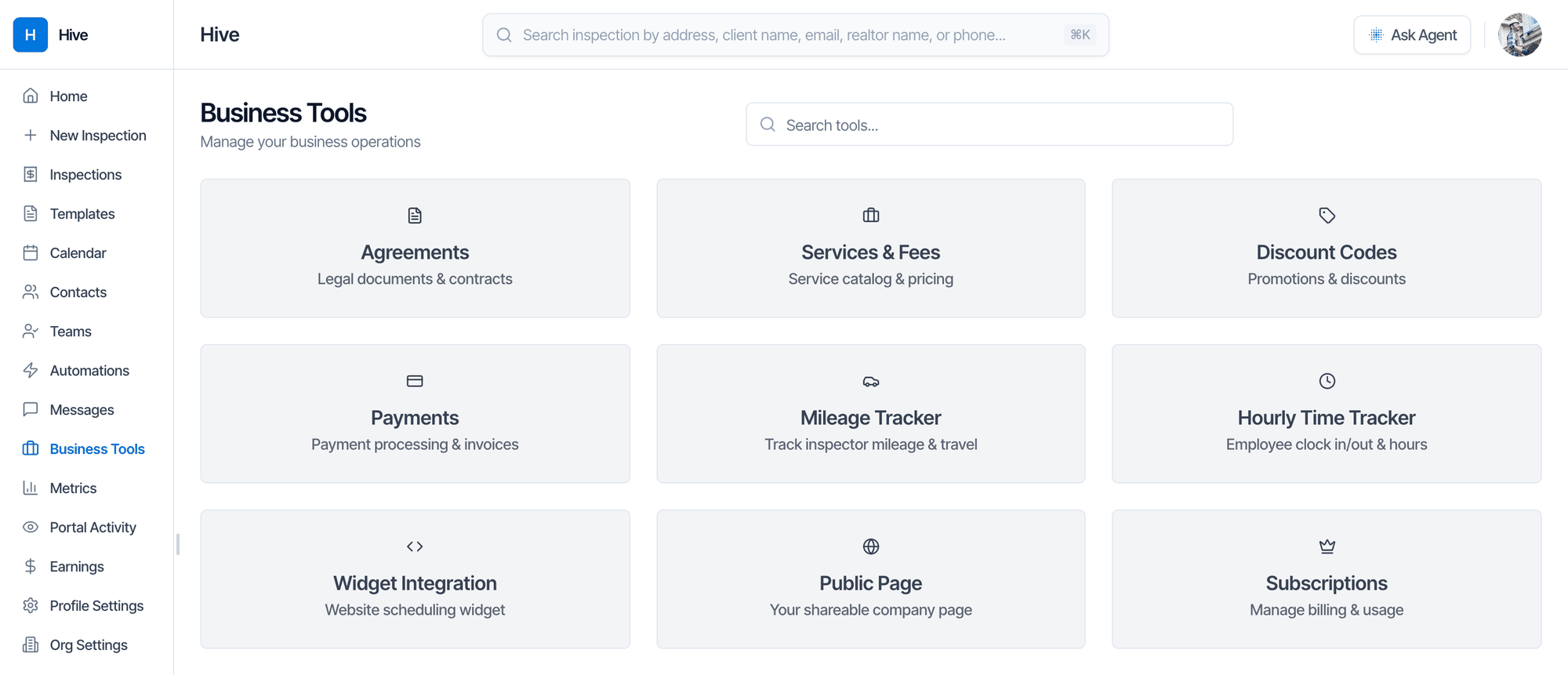
Click **Business Tools** in the left menu, then the **Widget Integration** card.
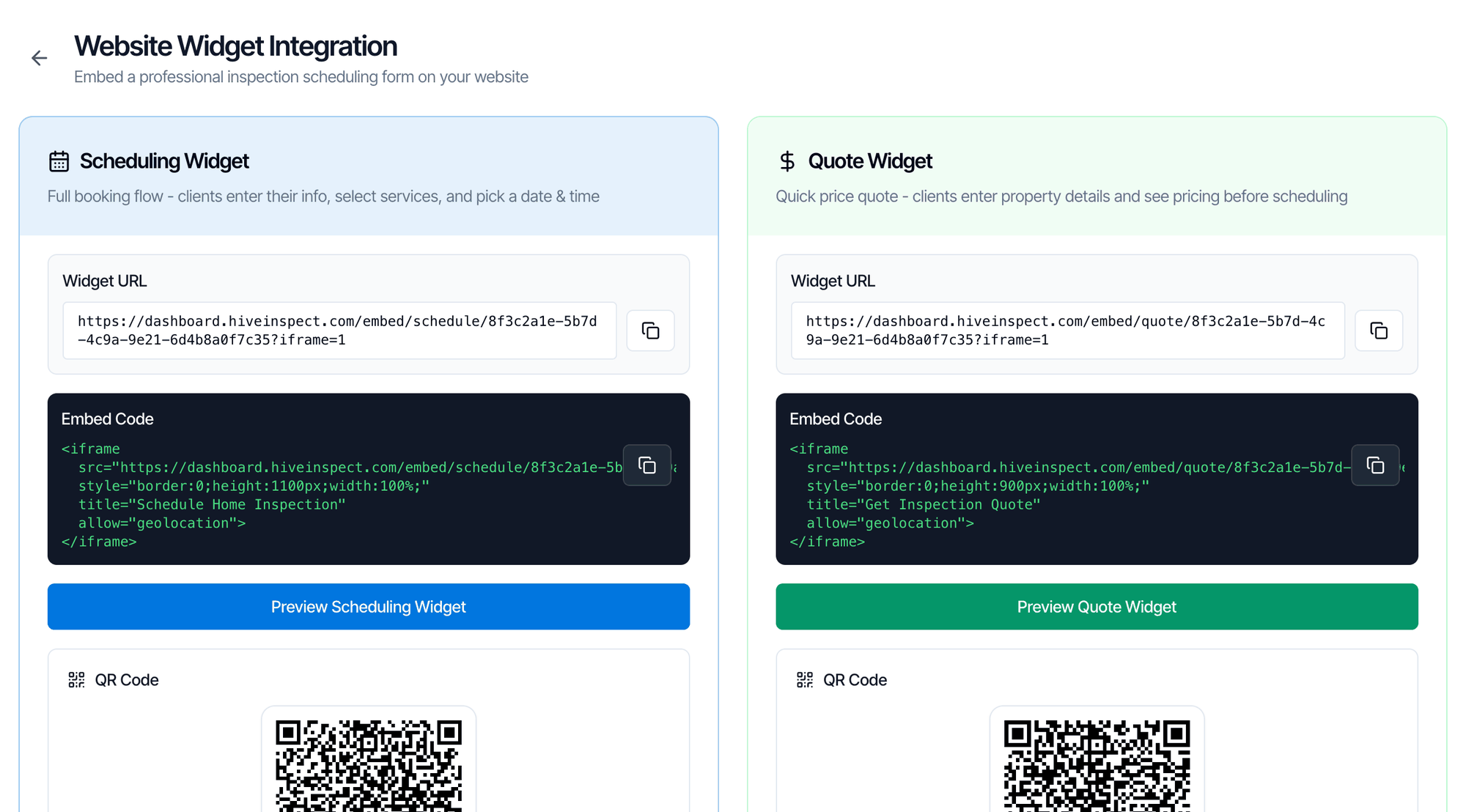
 The **Website Widget Integration** page has two cards side by side: **Scheduling Widget** on the left and **Quote Widget** on the right.
 | What you want | Use | Notes |
| - | - | - |
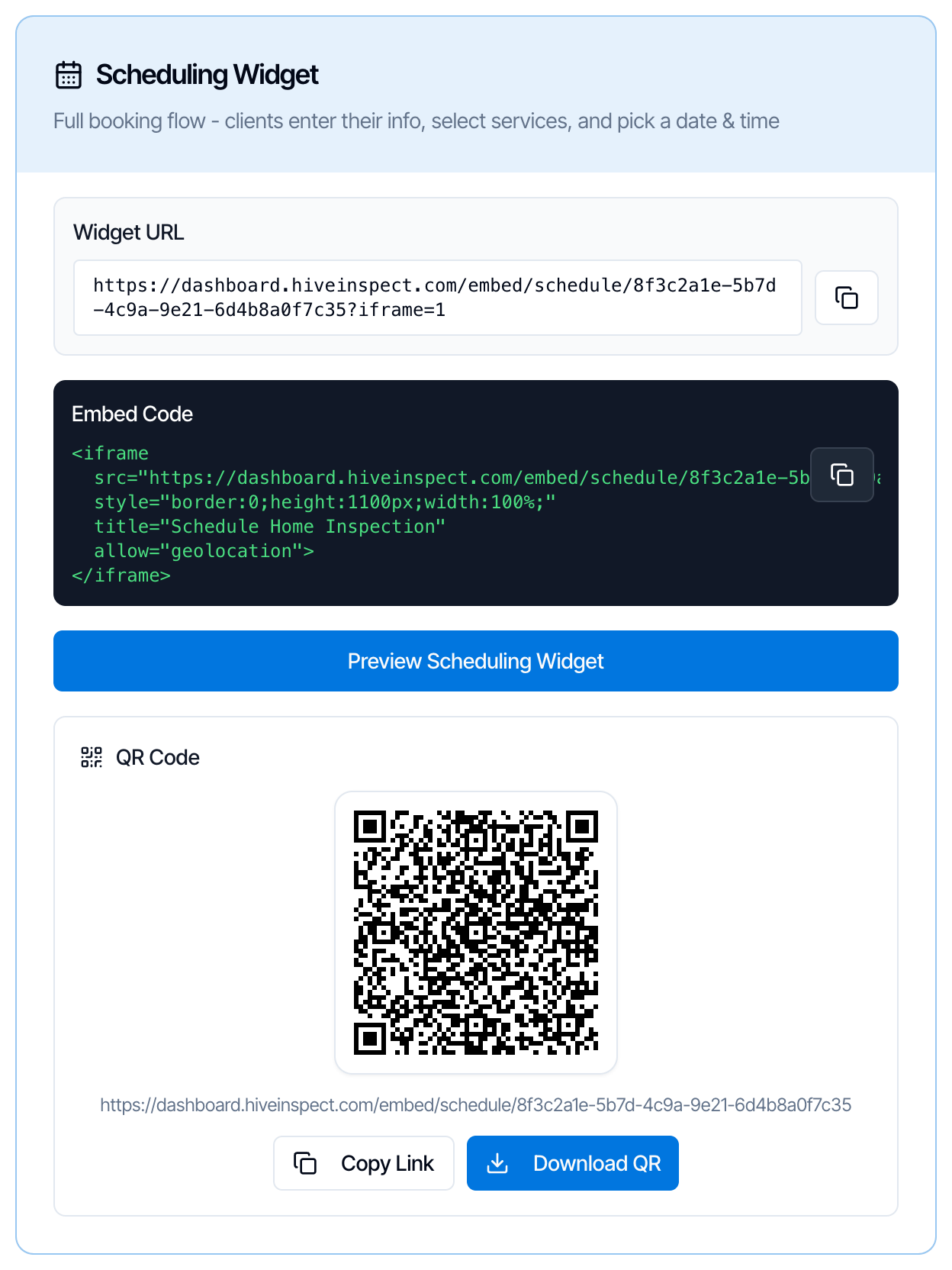
| A link for emails, texts, social media, your email signature or a **Book Now** button | **Copy Link** under the QR code | The plain link. It opens the widget as a full page. |
| The booking form inside a page of your website | The copy button on **Embed Code** | Paste it where the form should appear. See [Add the widget to your website](#add-the-widget-to-your-website). |
| A website builder that asks for a URL to embed | The copy button next to **Widget URL** | The same link with `?iframe=1` on the end. It works as a normal link too. |
| Flyers, yard signs, business cards or a truck wrap | **Download QR** | Saves a 1024 × 1024 PNG. Scanning it opens the plain link. |
Your link looks like `https://dashboard.hiveinspect.com/embed/schedule/` followed by your organization ID. It never changes. When you edit your services, prices or settings, the widget shows the changes straight away, so you never need to copy a new link or code.
Click **Preview Scheduling Widget** to open it in a new tab, exactly as clients see it.
The preview is your live widget. If you go all the way through and pick a time, you create a real booking and get the booking emails and texts. Stop before **Next: Pick Date & Time**, or delete the test inspection afterwards.
## Add the widget to your website
Paste the **Embed Code** into an HTML, embed or custom code block on the page where you want the booking form. For example, a **Custom HTML** block in WordPress, **Embed HTML** in Wix, or a **Code** block in Squarespace. A normal text block shows the code as text instead of the form. If someone else manages your website, send them the code.
```html theme={"theme":{"light":"github-light","dark":"vesper"}}
```
Things to know about the embedded widget:
* **The height is fixed at 1100 pixels.** The frame doesn't grow or shrink with the form. If the bottom is cut off, or there's too much empty space, change `height:1100px` to another number.
* **The whole booking happens inside the frame**, including the date and time page. Clients stay on your website.
* **You don't need a website built by Hive.** The code works on any website that allows embedded content.
* **If your website won't take the embed code,** add a button or link that opens your plain link from **Copy Link** instead.
If the form doesn't show on your site, see [The booking widget isn't showing on my website](/faq/fix-a-problem#booking-widget-not-on-website).
## What your clients see
The widget shows your company name, logo, phone and website on the right, with a summary that fills in as the client goes. On a phone the summary moves behind a **View Summary** button. Each step has **Previous** and **Next** buttons above and below the form.
The **Check Availability** button at the top opens your team's open times in a new tab, so a client can check before filling in the form.
| What you want | Use | Notes |
| - | - | - |
| A link for emails, texts, social media, your email signature or a **Book Now** button | **Copy Link** under the QR code | The plain link. It opens the widget as a full page. |
| The booking form inside a page of your website | The copy button on **Embed Code** | Paste it where the form should appear. See [Add the widget to your website](#add-the-widget-to-your-website). |
| A website builder that asks for a URL to embed | The copy button next to **Widget URL** | The same link with `?iframe=1` on the end. It works as a normal link too. |
| Flyers, yard signs, business cards or a truck wrap | **Download QR** | Saves a 1024 × 1024 PNG. Scanning it opens the plain link. |
Your link looks like `https://dashboard.hiveinspect.com/embed/schedule/` followed by your organization ID. It never changes. When you edit your services, prices or settings, the widget shows the changes straight away, so you never need to copy a new link or code.
Click **Preview Scheduling Widget** to open it in a new tab, exactly as clients see it.
The preview is your live widget. If you go all the way through and pick a time, you create a real booking and get the booking emails and texts. Stop before **Next: Pick Date & Time**, or delete the test inspection afterwards.
## Add the widget to your website
Paste the **Embed Code** into an HTML, embed or custom code block on the page where you want the booking form. For example, a **Custom HTML** block in WordPress, **Embed HTML** in Wix, or a **Code** block in Squarespace. A normal text block shows the code as text instead of the form. If someone else manages your website, send them the code.
```html theme={"theme":{"light":"github-light","dark":"vesper"}}
```
Things to know about the embedded widget:
* **The height is fixed at 1100 pixels.** The frame doesn't grow or shrink with the form. If the bottom is cut off, or there's too much empty space, change `height:1100px` to another number.
* **The whole booking happens inside the frame**, including the date and time page. Clients stay on your website.
* **You don't need a website built by Hive.** The code works on any website that allows embedded content.
* **If your website won't take the embed code,** add a button or link that opens your plain link from **Copy Link** instead.
If the form doesn't show on your site, see [The booking widget isn't showing on my website](/faq/fix-a-problem#booking-widget-not-on-website).
## What your clients see
The widget shows your company name, logo, phone and website on the right, with a summary that fills in as the client goes. On a phone the summary moves behind a **View Summary** button. Each step has **Previous** and **Next** buttons above and below the form.
The **Check Availability** button at the top opens your team's open times in a new tab, so a client can check before filling in the form.
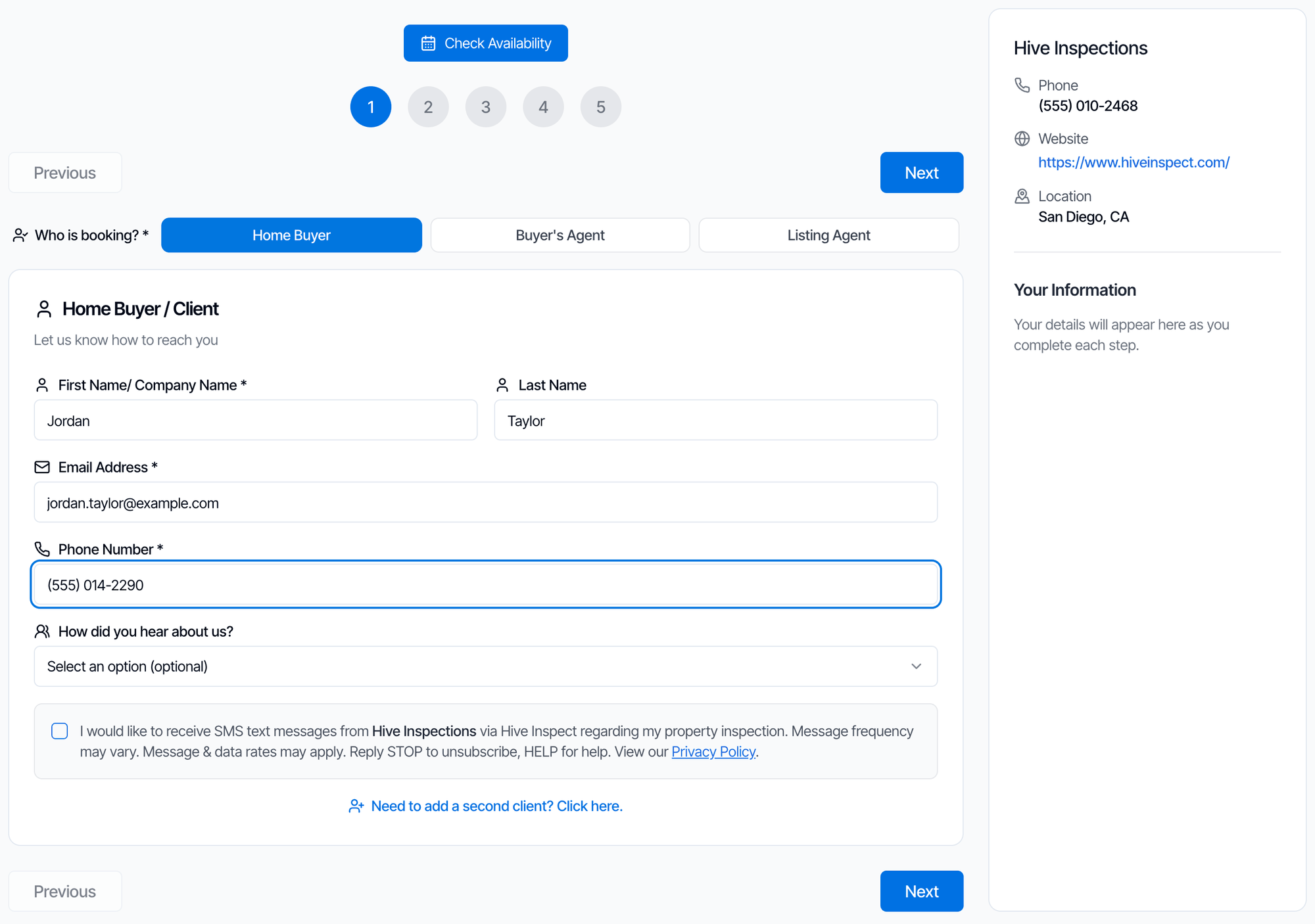 * **Who is booking?** The client chooses **Home Buyer**, **Buyer's Agent** or **Listing Agent**. Your booking emails tell you who booked.
* **First Name/ Company Name**, **Email Address** and **Phone Number** are required. **Last Name** is optional.
* **How did you hear about us?** shows your referral sources from **Business Tools → Referral Sources**, if you've added any. It's optional for the client.
* The client can tick the box to receive text messages from your company. It's off unless they tick it.
* **Need to add a second client? Click here.** adds a second client with their own name, email and phone. Both are saved as clients on the inspection.
* **Who is booking?** The client chooses **Home Buyer**, **Buyer's Agent** or **Listing Agent**. Your booking emails tell you who booked.
* **First Name/ Company Name**, **Email Address** and **Phone Number** are required. **Last Name** is optional.
* **How did you hear about us?** shows your referral sources from **Business Tools → Referral Sources**, if you've added any. It's optional for the client.
* The client can tick the box to receive text messages from your company. It's off unless they tick it.
* **Need to add a second client? Click here.** adds a second client with their own name, email and phone. Both are saved as clients on the inspection.
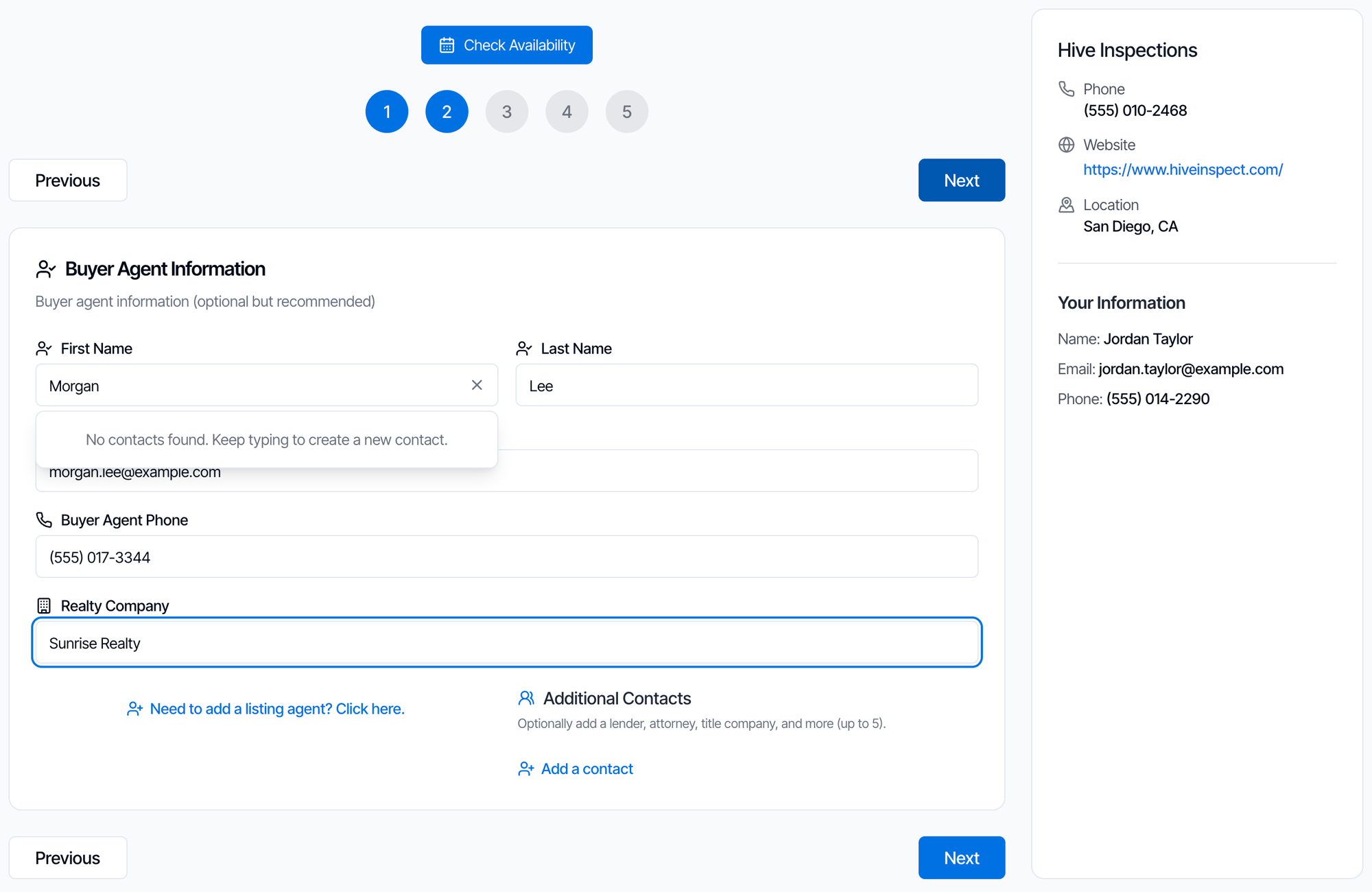 * The buyer's agent is optional. Once the client fills in any agent field, the agent's email becomes required.
* **Need to add a listing agent? Click here.** adds the listing agent the same way.
* **Additional Contacts** adds up to 5 more people: insurance agent, lender, builder, transaction coordinator, attorney, title company or other. A contact without an email isn't saved.
* Agent and contact name fields search your existing contacts as the client types, so returning agents can pick themselves.
* The buyer's agent is optional. Once the client fills in any agent field, the agent's email becomes required.
* **Need to add a listing agent? Click here.** adds the listing agent the same way.
* **Additional Contacts** adds up to 5 more people: insurance agent, lender, builder, transaction coordinator, attorney, title company or other. A contact without an email isn't saved.
* Agent and contact name fields search your existing contacts as the client types, so returning agents can pick themselves.
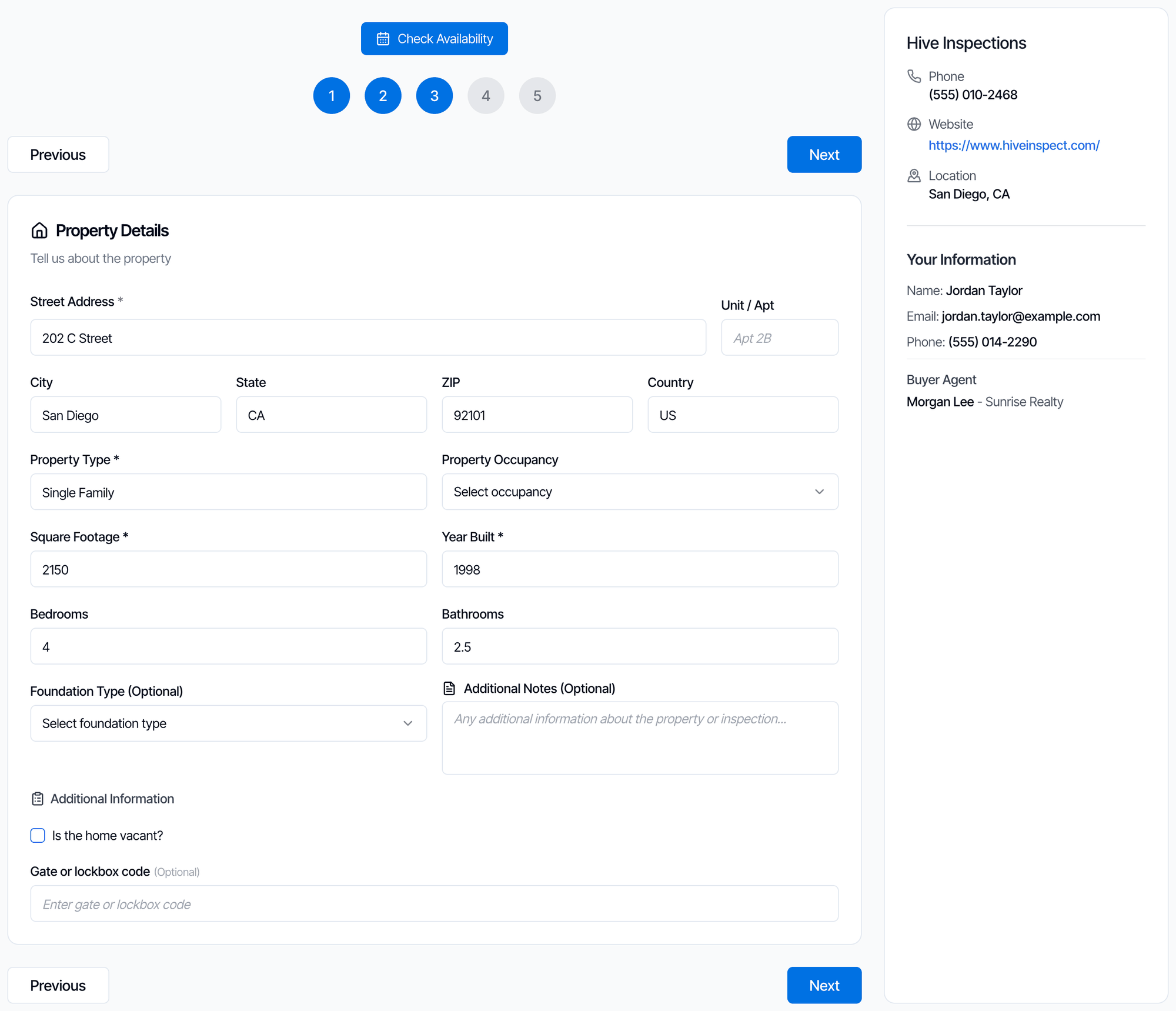 * The client starts typing the address and picks it from the suggestions. **Can't find your address? Enter it manually** lets them type it in full.
* When they pick a suggested address, Hive fills in the property type, square footage, year built, bedrooms and bathrooms from public records. The client can change any of them. This needs [Auto-fetch Property Info](#auto-fetch-property-info) on.
* **Property Type**, **Square Footage** and **Year Built** are required. They drive any [price modifiers](/how-tos/price-modifiers) on your services.
* **Additional Information** shows your [custom fields](/how-tos/custom-inspection-fields) that have **Show on online scheduler** turned on. Fields with **Required answer on online scheduler** must be answered.
* Hive checks that one of your inspectors covers the address. If none does, the client can't continue and is asked to contact you:
* The client starts typing the address and picks it from the suggestions. **Can't find your address? Enter it manually** lets them type it in full.
* When they pick a suggested address, Hive fills in the property type, square footage, year built, bedrooms and bathrooms from public records. The client can change any of them. This needs [Auto-fetch Property Info](#auto-fetch-property-info) on.
* **Property Type**, **Square Footage** and **Year Built** are required. They drive any [price modifiers](/how-tos/price-modifiers) on your services.
* **Additional Information** shows your [custom fields](/how-tos/custom-inspection-fields) that have **Show on online scheduler** turned on. Fields with **Required answer on online scheduler** must be answered.
* Hive checks that one of your inspectors covers the address. If none does, the client can't continue and is asked to contact you:
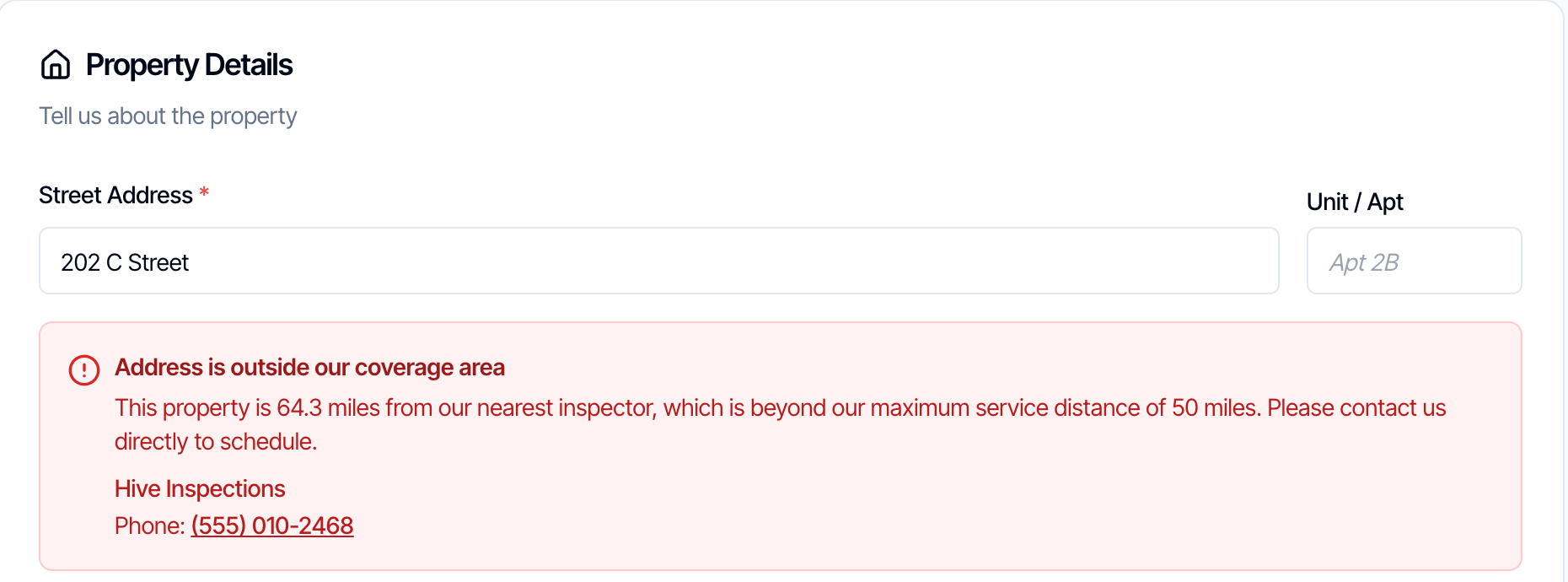 Coverage comes from each inspector's **Maximum Travel Distance (miles)**. See [Set inspector service areas](/how-tos/smart-scheduling).
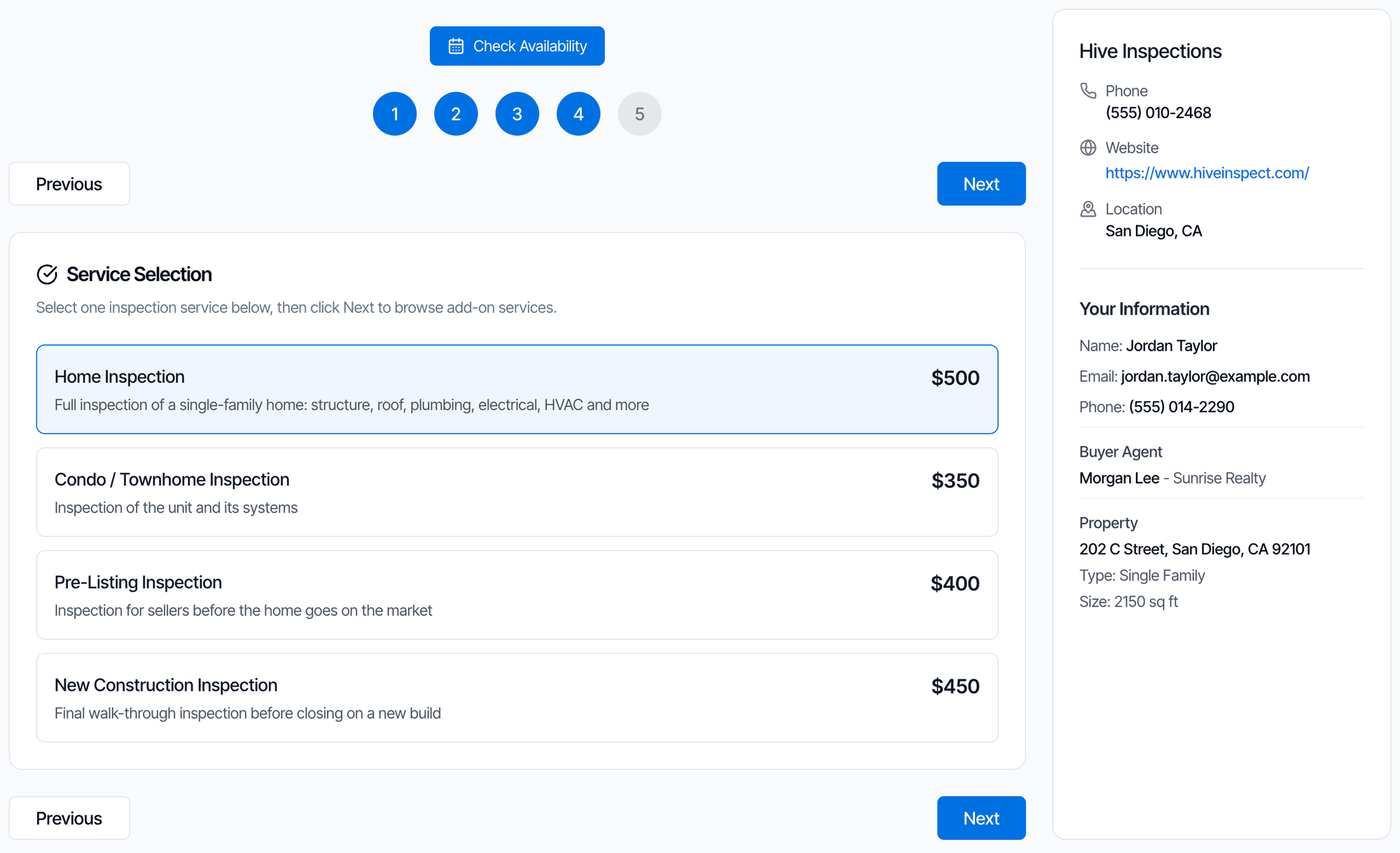 * The client picks **one** service. Services with **Hidden on scheduler** turned on aren't listed.
* Each price already includes your price modifiers for this property. In the example, the base price is \$425 and a square footage modifier adds \$75 for a 2,150 sq ft home.
* If the chosen service has no add-ons to offer, this is the last step.
* The client picks **one** service. Services with **Hidden on scheduler** turned on aren't listed.
* Each price already includes your price modifiers for this property. In the example, the base price is \$425 and a square footage modifier adds \$75 for a 2,150 sq ft home.
* If the chosen service has no add-ons to offer, this is the last step.
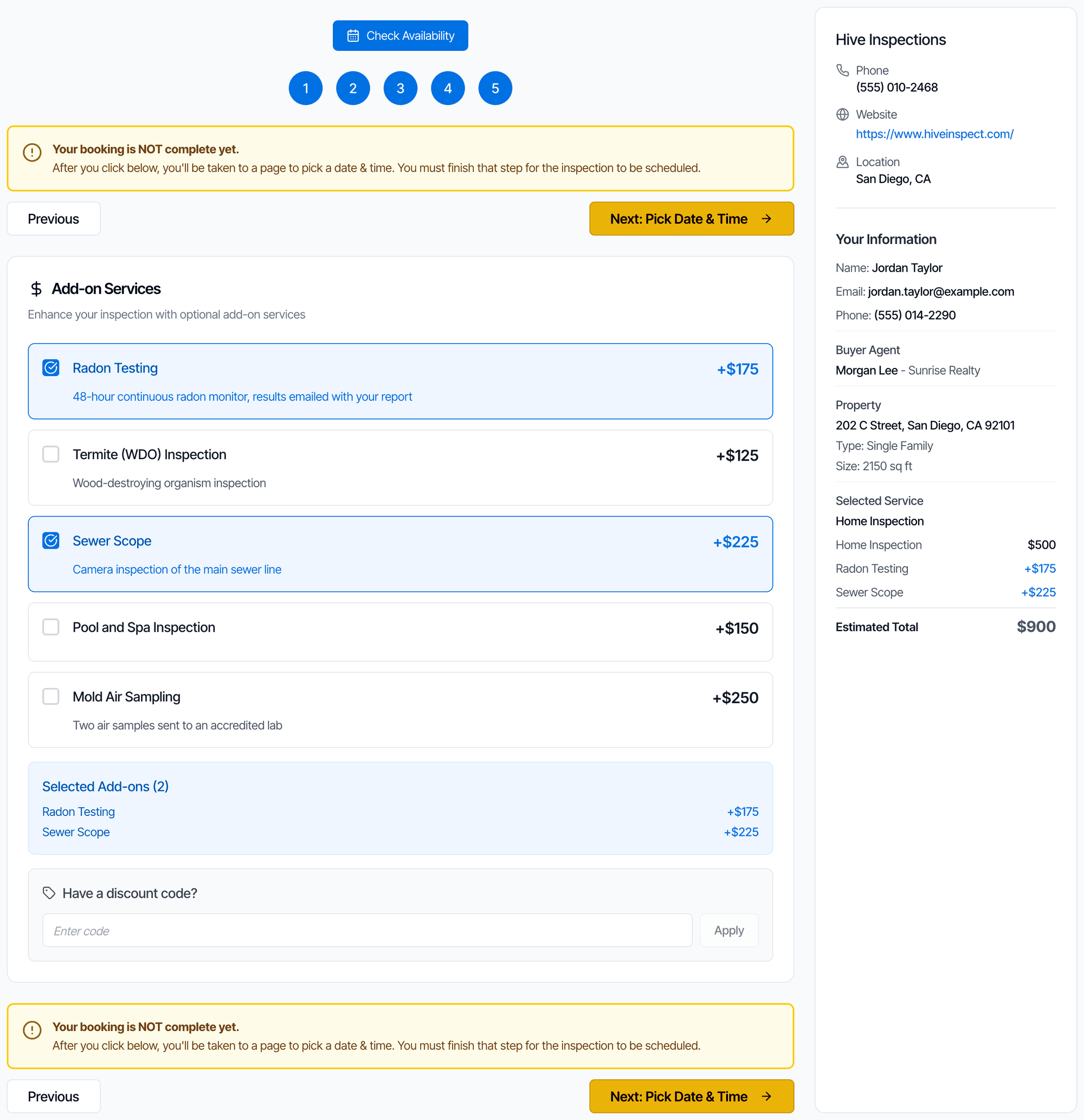 * The client ticks any add-ons they want. Add-ons with **Hide from Scheduler** turned on aren't listed. See [Add-on services](/how-tos/add-on-services).
* **Have a discount code?** appears when you have a [discount code](/business-tools/discount-codes) that could apply to the chosen service and prices are shown.
* The yellow notice reminds the client that the booking isn't finished. They click **Next: Pick Date & Time** (on a phone, **Next: Pick Time**).
* The **Estimated Total** doesn't include sales tax. Hive works out the final price when the booking is saved, including taxes. See [Why the booked price can differ from the estimate](#why-the-booked-price-can-differ-from-the-estimate).
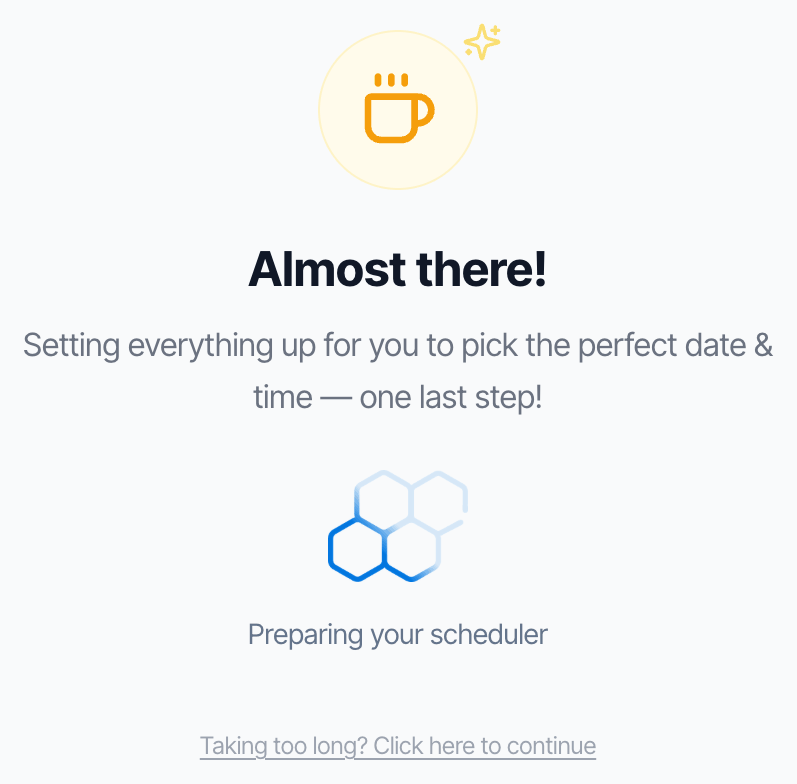
Hive then shows **Almost there!** for a moment while it saves the booking and opens the date and time page.
* The client ticks any add-ons they want. Add-ons with **Hide from Scheduler** turned on aren't listed. See [Add-on services](/how-tos/add-on-services).
* **Have a discount code?** appears when you have a [discount code](/business-tools/discount-codes) that could apply to the chosen service and prices are shown.
* The yellow notice reminds the client that the booking isn't finished. They click **Next: Pick Date & Time** (on a phone, **Next: Pick Time**).
* The **Estimated Total** doesn't include sales tax. Hive works out the final price when the booking is saved, including taxes. See [Why the booked price can differ from the estimate](#why-the-booked-price-can-differ-from-the-estimate).
Hive then shows **Almost there!** for a moment while it saves the booking and opens the date and time page.
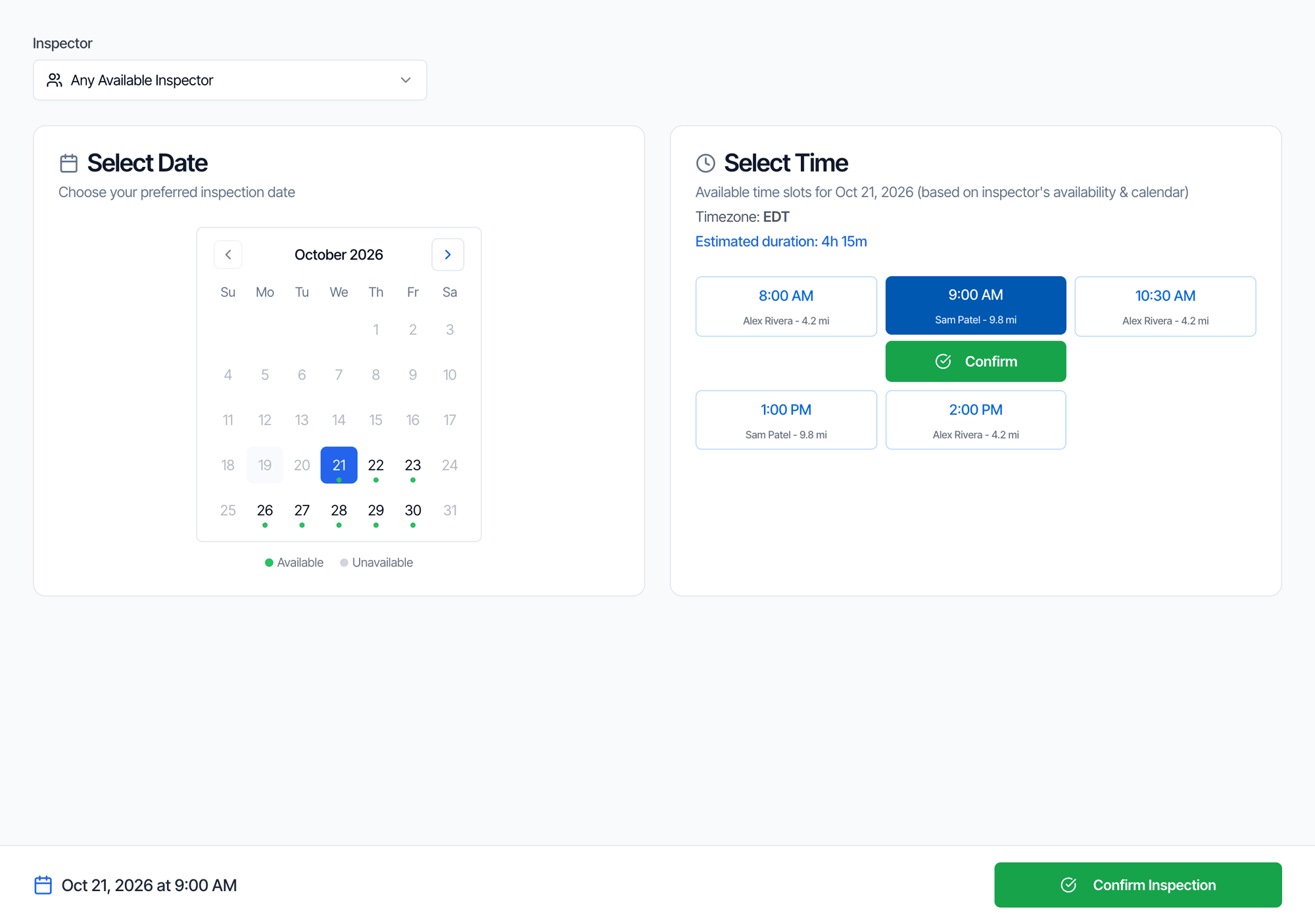 * **Inspector:** **Any Available Inspector** shows every inspector's open times. Each time shows who would get the job and how far they are. Hive assigns the closest inspector who is free. The client can also pick a specific inspector.
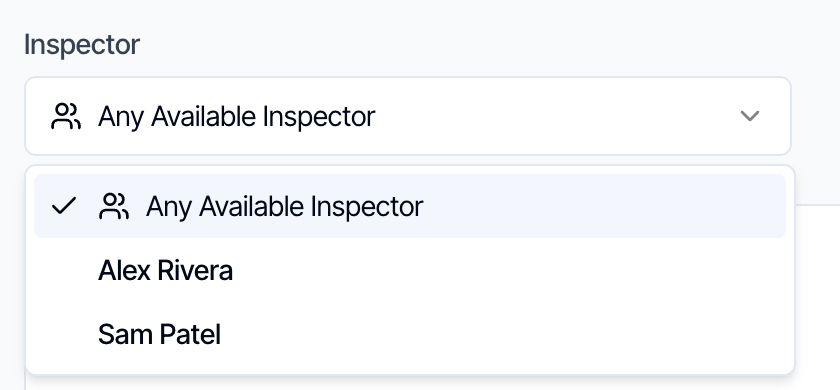 * **Select Date:** days with a green dot have open times. The calendar opens on the first open day.
* **Select Time:** times are shown in your company's time zone, labelled with it (for example **EDT**). **Estimated duration** is the length of the service plus add-ons.
* The client clicks a time, then **Confirm** under it or **Confirm Inspection** at the bottom.
Which days and times appear depends on your team's availability and the settings in [Settings that change the widget](#settings-that-change-the-widget).
* **Select Date:** days with a green dot have open times. The calendar opens on the first open day.
* **Select Time:** times are shown in your company's time zone, labelled with it (for example **EDT**). **Estimated duration** is the length of the service plus add-ons.
* The client clicks a time, then **Confirm** under it or **Confirm Inspection** at the bottom.
Which days and times appear depends on your team's availability and the settings in [Settings that change the widget](#settings-that-change-the-widget).
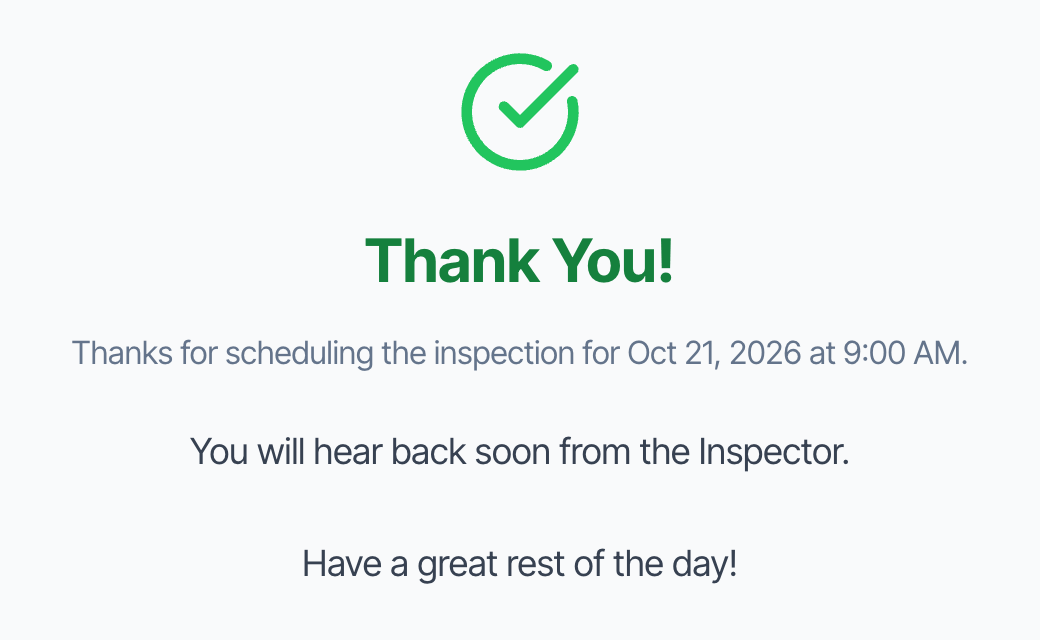 The first line is automatic. The text under it is your [Scheduler Confirmation Message](#scheduler-confirmation-message).
## What happens after a client books
| When | What Hive does | Who is told |
| - | - | - |
| The client clicks **Next** on **Property Details** | Nothing is saved yet. | You get a **New Booking Started** email and text with the address, so you can follow up if they stop. It's sent again each time they go past that step. |
| The client clicks **Next: Pick Date & Time** | Creates the inspection as a **Draft** with no date. Adds the clients, agents and contacts. Assigns an inspector for now. Adds the reports and agreements for the service and add-ons. | No one. |
| The client confirms a time | Sets the date and time and changes the status to **Waiting**. Assigns the inspector for that time. Creates the invoice. | You get an **Action Required: Inspection Awaiting Approval** email and text. |
| You confirm the inspection | Status becomes **Confirmed**. | Your [automations](/how-tos/automation-starter-pack) start: confirmation emails and texts, agreement and payment reminders, and so on. |
The booking emails and texts go to your company email and phone number, not to the inspector.
**The client gets no email from Hive until you confirm.** To confirm, open the inspection and click **Confirm Inspection**. On the **Inspections** page you can also click the three dots, choose **Status** and pick **Confirmed**.
**If the email matches an existing contact,** Hive uses that contact and updates their name and phone number to what was typed in the widget.
**If a client never picks a time,** the inspection stays a **Draft** with no date. Contact them, then set the date and confirm it from the dashboard, or delete it.
**Waiting bookings don't hold their time slot by default.** Until you confirm a booking, another client can book the same time. To stop this, turn on [Create calendar event for waiting status inspections](#google-calendar-events-for-waiting-inspections). Then waiting bookings block their time like confirmed ones. Otherwise, confirm new bookings quickly.
### Why the booked price can differ from the estimate
The **Estimated Total** in the widget leaves out a few things that Hive adds when it saves the booking:
* **Sales tax** on your services. See [Sales tax](/how-tos/taxes).
* **Modifiers that depend on the date or time**, like weekend or after-hours fees. They're added once the client picks a time.
The client's final price is on their invoice. You can change the price before you confirm.
## Settings that change the widget
Most widget settings are in **Org Settings → Scheduling**. Some come from your services, custom fields and team availability. See [Other places that change the widget](#other-places-that-change-the-widget).
### Open the Scheduling settings
Click **Org Settings** in the left menu, then click **Scheduling** to open it.
The first line is automatic. The text under it is your [Scheduler Confirmation Message](#scheduler-confirmation-message).
## What happens after a client books
| When | What Hive does | Who is told |
| - | - | - |
| The client clicks **Next** on **Property Details** | Nothing is saved yet. | You get a **New Booking Started** email and text with the address, so you can follow up if they stop. It's sent again each time they go past that step. |
| The client clicks **Next: Pick Date & Time** | Creates the inspection as a **Draft** with no date. Adds the clients, agents and contacts. Assigns an inspector for now. Adds the reports and agreements for the service and add-ons. | No one. |
| The client confirms a time | Sets the date and time and changes the status to **Waiting**. Assigns the inspector for that time. Creates the invoice. | You get an **Action Required: Inspection Awaiting Approval** email and text. |
| You confirm the inspection | Status becomes **Confirmed**. | Your [automations](/how-tos/automation-starter-pack) start: confirmation emails and texts, agreement and payment reminders, and so on. |
The booking emails and texts go to your company email and phone number, not to the inspector.
**The client gets no email from Hive until you confirm.** To confirm, open the inspection and click **Confirm Inspection**. On the **Inspections** page you can also click the three dots, choose **Status** and pick **Confirmed**.
**If the email matches an existing contact,** Hive uses that contact and updates their name and phone number to what was typed in the widget.
**If a client never picks a time,** the inspection stays a **Draft** with no date. Contact them, then set the date and confirm it from the dashboard, or delete it.
**Waiting bookings don't hold their time slot by default.** Until you confirm a booking, another client can book the same time. To stop this, turn on [Create calendar event for waiting status inspections](#google-calendar-events-for-waiting-inspections). Then waiting bookings block their time like confirmed ones. Otherwise, confirm new bookings quickly.
### Why the booked price can differ from the estimate
The **Estimated Total** in the widget leaves out a few things that Hive adds when it saves the booking:
* **Sales tax** on your services. See [Sales tax](/how-tos/taxes).
* **Modifiers that depend on the date or time**, like weekend or after-hours fees. They're added once the client picks a time.
The client's final price is on their invoice. You can change the price before you confirm.
## Settings that change the widget
Most widget settings are in **Org Settings → Scheduling**. Some come from your services, custom fields and team availability. See [Other places that change the widget](#other-places-that-change-the-widget).
### Open the Scheduling settings
Click **Org Settings** in the left menu, then click **Scheduling** to open it.
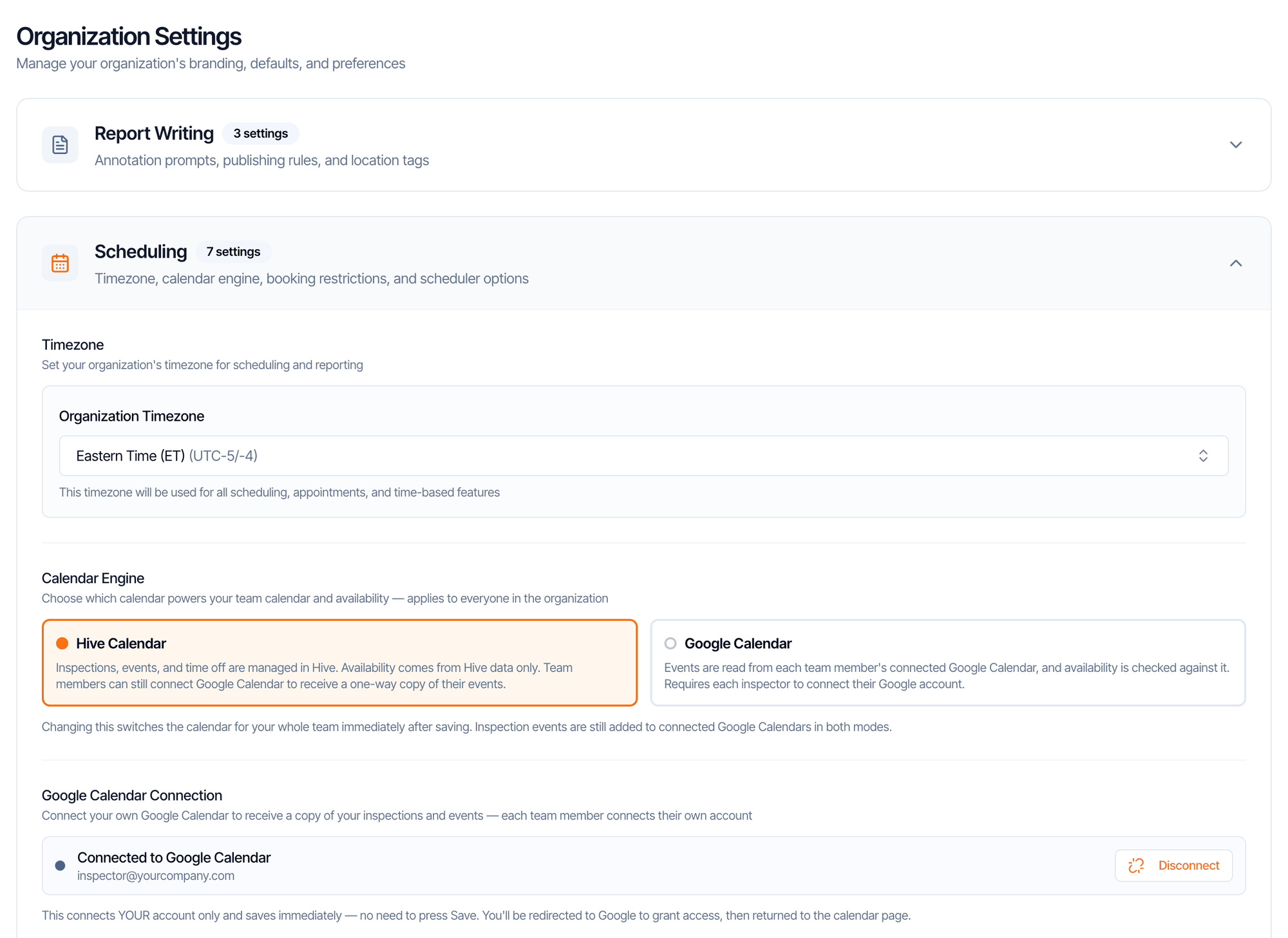 Changes aren't saved until you click **Save**. As soon as you change something, a bar appears at the bottom of the screen:
 Click **Save** before you leave the page. Connecting or disconnecting Google Calendar is the only change that saves on its own.
Anyone on your team who can open **Org Settings** can change these settings, and they apply to your whole company.
### Timezone
Click **Save** before you leave the page. Connecting or disconnecting Google Calendar is the only change that saves on its own.
Anyone on your team who can open **Org Settings** can change these settings, and they apply to your whole company.
### Timezone
 Clients see times in this time zone, labelled with it, wherever they are. A client in another time zone sees your local times. It's also used for your emails, reminders and reports. See [My times are off by an hour](/faq/scheduling#change-time-zone).
### Calendar Engine
Clients see times in this time zone, labelled with it, wherever they are. A client in another time zone sees your local times. It's also used for your emails, reminders and reports. See [My times are off by an hour](/faq/scheduling#change-time-zone).
### Calendar Engine
 This decides where the widget looks for busy time:
* **Hive Calendar:** confirmed inspections, and events and time off in Hive that block the calendar. Events you add only in Google don't block anything.
* **Google Calendar:** each inspector's connected Google Calendar. **An inspector who hasn't connected Google looks free all day** and can be booked over their real appointments.
The **Google Calendar Connection** below it is personal: it connects the account of whoever is signed in. See [Connect Google Calendar](/onboarding/google-calendar).
### Scheduling Restriction
This decides where the widget looks for busy time:
* **Hive Calendar:** confirmed inspections, and events and time off in Hive that block the calendar. Events you add only in Google don't block anything.
* **Google Calendar:** each inspector's connected Google Calendar. **An inspector who hasn't connected Google looks free all day** and can be booked over their real appointments.
The **Google Calendar Connection** below it is personal: it connects the account of whoever is signed in. See [Connect Google Calendar](/onboarding/google-calendar).
### Scheduling Restriction
 **Don't allow scheduling within** is the minimum notice, counted in hours from the moment the client is booking. With 24, a client booking at 3 PM Monday can't pick anything before 3 PM Tuesday. Set it to **0** to let clients book later the same day: today's remaining times show on the calendar. Clients who pick a day with nothing left see **Bookings must be made at least 24 hours in advance**.
It only applies to the online scheduler. You can still book any time from the dashboard or the app.
### Buffer Between Inspections
**Don't allow scheduling within** is the minimum notice, counted in hours from the moment the client is booking. With 24, a client booking at 3 PM Monday can't pick anything before 3 PM Tuesday. Set it to **0** to let clients book later the same day: today's remaining times show on the calendar. Clients who pick a day with nothing left see **Bookings must be made at least 24 hours in advance**.
It only applies to the online scheduler. You can still book any time from the dashboard or the app.
### Buffer Between Inspections
 **Buffer time after each inspection** keeps free time after each booking, for driving or writing up. It's added after inspections and after blocking events and time off. It isn't added before them. Use steps of 0.25 hours (15 minutes).
### Show Pricing on Online Scheduler
**Buffer time after each inspection** keeps free time after each booking, for driving or writing up. It's added after inspections and after blocking events and time off. It isn't added before them. Use steps of 0.25 hours (15 minutes).
### Show Pricing on Online Scheduler
 On by default. When you turn it off, the scheduling widget hides service and add-on prices, the **Estimated Total** and the **Have a discount code?** box:
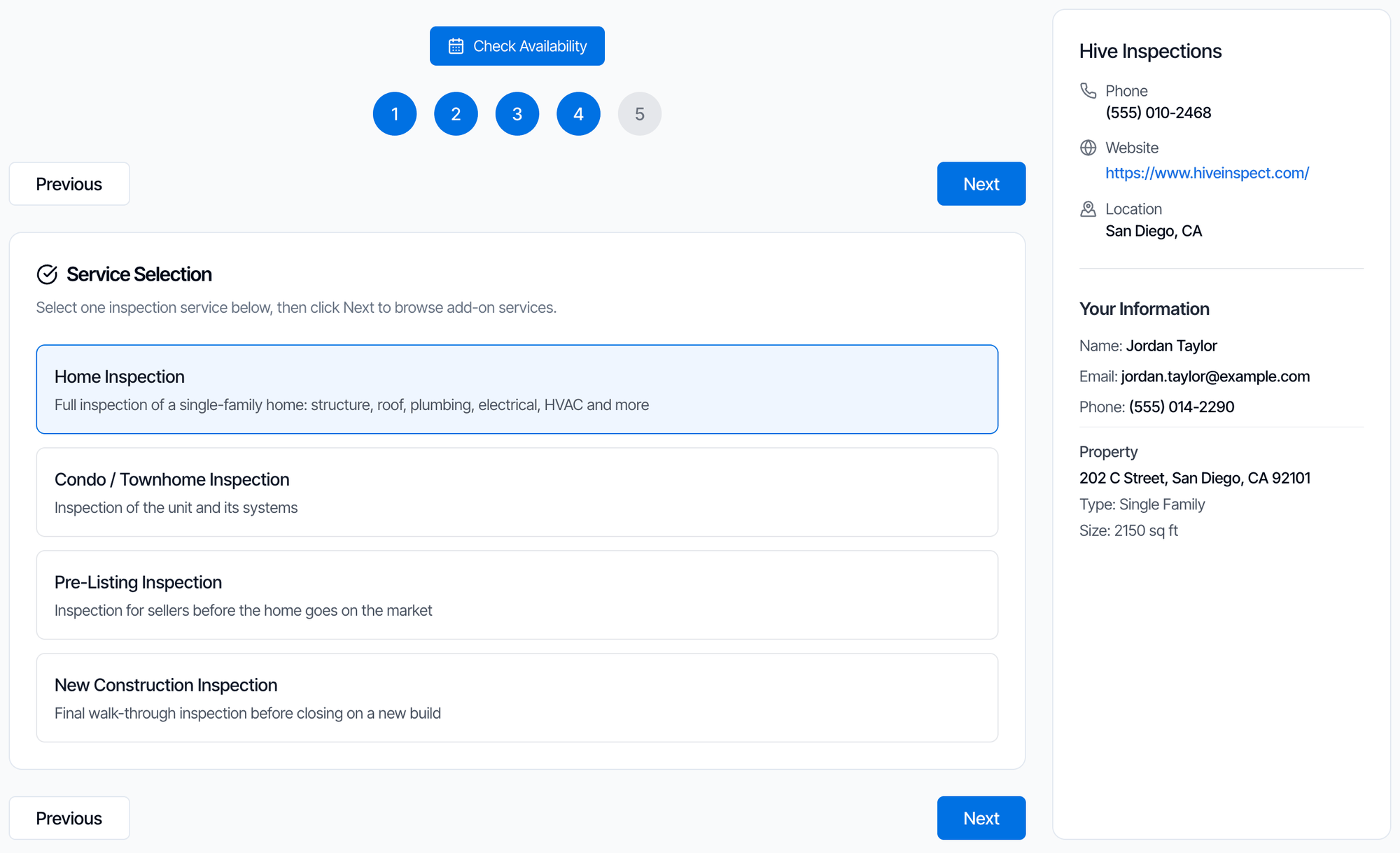 It also hides prices on your public page (**Business Tools → Public Page**). The [quote widget](/how-tos/quote-widget) always shows prices.
### Let Clients Look Themselves Up on Online Scheduler
It also hides prices on your public page (**Business Tools → Public Page**). The [quote widget](/how-tos/quote-widget) always shows prices.
### Let Clients Look Themselves Up on Online Scheduler
 Off by default. When on, the client's name box in step 1 gets a search button. A returning client types their name, taps search and picks themselves to fill in their details.
 Agent and additional contact name fields always search your contacts, whatever this is set to.
### Auto-fetch Property Info
Agent and additional contact name fields always search your contacts, whatever this is set to.
### Auto-fetch Property Info
 On by default. When a client picks a suggested address, Hive fills in property type, square footage, year built, bedrooms and bathrooms. Turn it off and the client types them in. It works the same in the quote widget and when you create an inspection in the dashboard.
### Google Calendar Events for Waiting Inspections
On by default. When a client picks a suggested address, Hive fills in property type, square footage, year built, bedrooms and bathrooms. Turn it off and the client types them in. It works the same in the quote widget and when you create an inspection in the dashboard.
### Google Calendar Events for Waiting Inspections
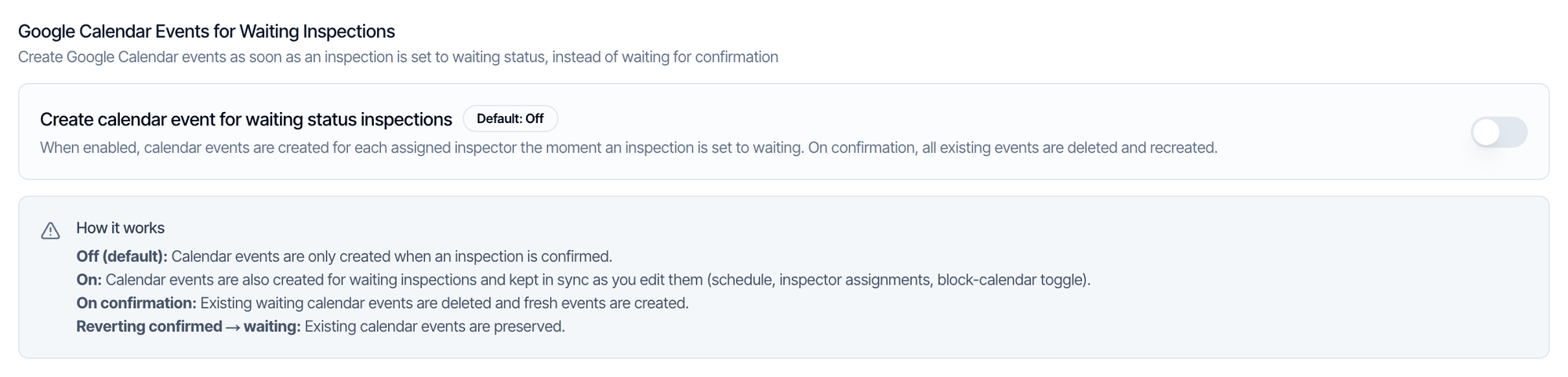 **This is the most important setting for online booking.** Online bookings arrive as **Waiting**. With **Create calendar event for waiting status inspections** off, the default, a waiting booking:
* isn't added to the inspector's calendar, and
* **doesn't block its time**, so a second client can book the same slot until you confirm the first.
Turn it on so every online booking holds its time and shows on the calendar straight away. In the Google Calendar engine, the event goes on the inspector's Google Calendar, so the inspector needs Google connected.
**Google Calendar Events for Draft Inspections**, just above it, has no effect on online bookings, because a draft from the widget has no date yet. It matters for drafts your team creates with a date.
### Scheduler Confirmation Message
**This is the most important setting for online booking.** Online bookings arrive as **Waiting**. With **Create calendar event for waiting status inspections** off, the default, a waiting booking:
* isn't added to the inspector's calendar, and
* **doesn't block its time**, so a second client can book the same slot until you confirm the first.
Turn it on so every online booking holds its time and shows on the calendar straight away. In the Google Calendar engine, the event goes on the inspector's Google Calendar, so the inspector needs Google connected.
**Google Calendar Events for Draft Inspections**, just above it, has no effect on online bookings, because a draft from the widget has no date yet. It matters for drafts your team creates with a date.
### Scheduler Confirmation Message
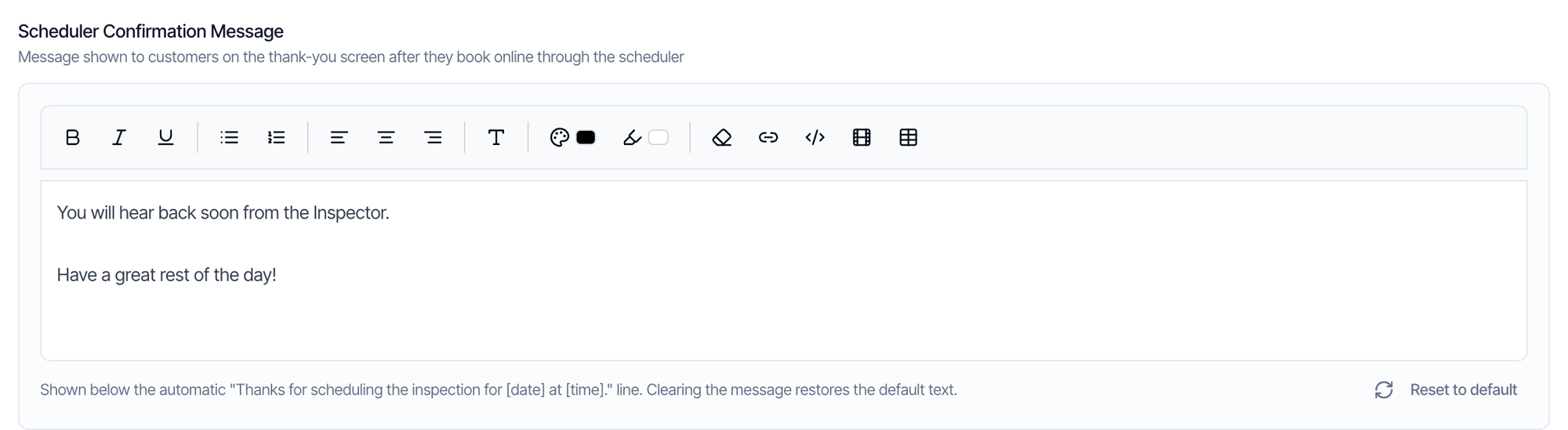 This text shows on the **Thank You!** page under the automatic "Thanks for scheduling the inspection for \[date] at \[time]." line. Use it to set expectations, for example: "We'll confirm your inspection within 2 business hours. Watch for an email to sign your agreement."
You can use bold, lists, links and colors. Images aren't supported. **Reset to default** puts back "You will hear back soon from the Inspector. Have a great rest of the day!" The message isn't sent by email.
### Other places that change the widget
| What | Where | Effect on the widget |
| - | - | - |
| Services, prices and lengths | **Business Tools → Services & Fees** | Services, prices, add-ons and the estimated duration. **Hidden on scheduler** hides a service. **Hide from Scheduler** hides an add-on. See [Services and pricing](/business-tools/services-and-fees). |
| Price modifiers | Each service in **Services & Fees** | Change the price by square footage, year built, distance, foundation or custom field answers. See [Price modifiers](/how-tos/price-modifiers). |
| Custom fields | **Business Tools → Custom Fields** | **Show on online scheduler** asks the question in step 3. **Required answer on online scheduler** makes it required. See [Custom inspection fields](/how-tos/custom-inspection-fields). |
| How did you hear about us? | **Business Tools → Referral Sources** | The choices in step 1. The question only shows if you've added at least one. |
| Discount codes | **Business Tools → Discount Codes** | The **Have a discount code?** box. See [Discount codes](/business-tools/discount-codes). |
| Open times | **Profile Settings → Team Settings** | Each inspector's **Weekly Availability Schedule** and **General Business Hours** set the times offered. See [Set team availability](/onboarding/team-availability). |
| Service area | **Profile Settings → Team Settings** | **Maximum Travel Distance (miles)** and the inspector's local address decide who covers an address. See [Set inspector service areas](/how-tos/smart-scheduling). |
| Blocked time | **Calendar** | Events with **Block calendar time** on, and time off, remove those times. See [Block off a day or vacation](/faq/scheduling#block-off-day-vacation). |
| Company name, logo, phone and website | **Profile Settings** | Shown at the top right of the widget. The widget's colors can't be changed. See [Business setup](/onboarding/business-setup). |
## Common questions
**A client says there were no times to pick.** Check that:
* the inspector has a **Weekly Availability Schedule** for that day;
* the **Scheduling Restriction** isn't hiding the days they wanted;
* the job fits before the end of the inspector's **General Business Hours** (long services with many add-ons may not);
* the address is inside an inspector's **Maximum Travel Distance**;
* in the Google Calendar engine, all-day events in Google aren't blocking the day.
**Two clients booked the same time.** The first booking was still **Waiting**. Turn on [Create calendar event for waiting status inspections](#google-calendar-events-for-waiting-inspections).
**A booking is stuck in Draft with no date.** The client filled in the form but didn't pick a time. Contact them, then set the date and confirm it.
**The client didn't get a confirmation email.** Hive emails the client only after you confirm the inspection. Confirm it, and check your confirmation [automations](/how-tos/automation-settings) are on.
**The widget says "Online Scheduling Temporarily Unavailable".** Your account can't take new inspections right now, usually because the free trial reports are used up or the subscription has ended. See [I used up my free trial reports](/faq/getting-started#more-free-trial-reports).
**Can I change the widget's colors or wording?** No. The widget uses Hive's standard colors and wording. You control your company details, services, questions and the thank-you message.
**Can a client skip the agent step?** Yes. Agent details are optional. Clicking **Next** without filling them in moves on.
## Where to go next
* [Add the instant quote widget](/how-tos/quote-widget): show a price first, then continue to book.
* [How clients book online](/how-tos/booking-online-inspection): a video of the booking from the client's side.
* [Set inspector service areas](/how-tos/smart-scheduling): control who is offered for each address.
* [Scheduling FAQ](/faq/scheduling): calendar sync, blocking time and rescheduling.
This documentation is built and hosted on [Mintlify](https://mintlify.com), a developer documentation platform.
This text shows on the **Thank You!** page under the automatic "Thanks for scheduling the inspection for \[date] at \[time]." line. Use it to set expectations, for example: "We'll confirm your inspection within 2 business hours. Watch for an email to sign your agreement."
You can use bold, lists, links and colors. Images aren't supported. **Reset to default** puts back "You will hear back soon from the Inspector. Have a great rest of the day!" The message isn't sent by email.
### Other places that change the widget
| What | Where | Effect on the widget |
| - | - | - |
| Services, prices and lengths | **Business Tools → Services & Fees** | Services, prices, add-ons and the estimated duration. **Hidden on scheduler** hides a service. **Hide from Scheduler** hides an add-on. See [Services and pricing](/business-tools/services-and-fees). |
| Price modifiers | Each service in **Services & Fees** | Change the price by square footage, year built, distance, foundation or custom field answers. See [Price modifiers](/how-tos/price-modifiers). |
| Custom fields | **Business Tools → Custom Fields** | **Show on online scheduler** asks the question in step 3. **Required answer on online scheduler** makes it required. See [Custom inspection fields](/how-tos/custom-inspection-fields). |
| How did you hear about us? | **Business Tools → Referral Sources** | The choices in step 1. The question only shows if you've added at least one. |
| Discount codes | **Business Tools → Discount Codes** | The **Have a discount code?** box. See [Discount codes](/business-tools/discount-codes). |
| Open times | **Profile Settings → Team Settings** | Each inspector's **Weekly Availability Schedule** and **General Business Hours** set the times offered. See [Set team availability](/onboarding/team-availability). |
| Service area | **Profile Settings → Team Settings** | **Maximum Travel Distance (miles)** and the inspector's local address decide who covers an address. See [Set inspector service areas](/how-tos/smart-scheduling). |
| Blocked time | **Calendar** | Events with **Block calendar time** on, and time off, remove those times. See [Block off a day or vacation](/faq/scheduling#block-off-day-vacation). |
| Company name, logo, phone and website | **Profile Settings** | Shown at the top right of the widget. The widget's colors can't be changed. See [Business setup](/onboarding/business-setup). |
## Common questions
**A client says there were no times to pick.** Check that:
* the inspector has a **Weekly Availability Schedule** for that day;
* the **Scheduling Restriction** isn't hiding the days they wanted;
* the job fits before the end of the inspector's **General Business Hours** (long services with many add-ons may not);
* the address is inside an inspector's **Maximum Travel Distance**;
* in the Google Calendar engine, all-day events in Google aren't blocking the day.
**Two clients booked the same time.** The first booking was still **Waiting**. Turn on [Create calendar event for waiting status inspections](#google-calendar-events-for-waiting-inspections).
**A booking is stuck in Draft with no date.** The client filled in the form but didn't pick a time. Contact them, then set the date and confirm it.
**The client didn't get a confirmation email.** Hive emails the client only after you confirm the inspection. Confirm it, and check your confirmation [automations](/how-tos/automation-settings) are on.
**The widget says "Online Scheduling Temporarily Unavailable".** Your account can't take new inspections right now, usually because the free trial reports are used up or the subscription has ended. See [I used up my free trial reports](/faq/getting-started#more-free-trial-reports).
**Can I change the widget's colors or wording?** No. The widget uses Hive's standard colors and wording. You control your company details, services, questions and the thank-you message.
**Can a client skip the agent step?** Yes. Agent details are optional. Clicking **Next** without filling them in moves on.
## Where to go next
* [Add the instant quote widget](/how-tos/quote-widget): show a price first, then continue to book.
* [How clients book online](/how-tos/booking-online-inspection): a video of the booking from the client's side.
* [Set inspector service areas](/how-tos/smart-scheduling): control who is offered for each address.
* [Scheduling FAQ](/faq/scheduling): calendar sync, blocking time and rescheduling.
This documentation is built and hosted on [Mintlify](https://mintlify.com), a developer documentation platform.