In the dashboard: Templates → open a template → Overview
## Open the Overview On the **Templates** page, click a template in the list. It opens on its **Overview**, the first item in the left column above the sections. To come back to it from a section, click **Overview** again. The top of the Overview shows the template's name, a **Template Tools** button and three counts: * **Sections:** the main parts of the report, such as Roof or Plumbing.
* **Subsections:** the parts inside each section, such as Gutters / Downspouts.
* **Fields:** the comments in the whole template.
See [Template structure](/how-tos/template-structure) for how these fit together.
Below the counts are three cards: **Template Settings**, **Customer's Info** and **Template Documents**.
## Template Settings
* **Sections:** the main parts of the report, such as Roof or Plumbing.
* **Subsections:** the parts inside each section, such as Gutters / Downspouts.
* **Fields:** the comments in the whole template.
See [Template structure](/how-tos/template-structure) for how these fit together.
Below the counts are three cards: **Template Settings**, **Customer's Info** and **Template Documents**.
## Template Settings
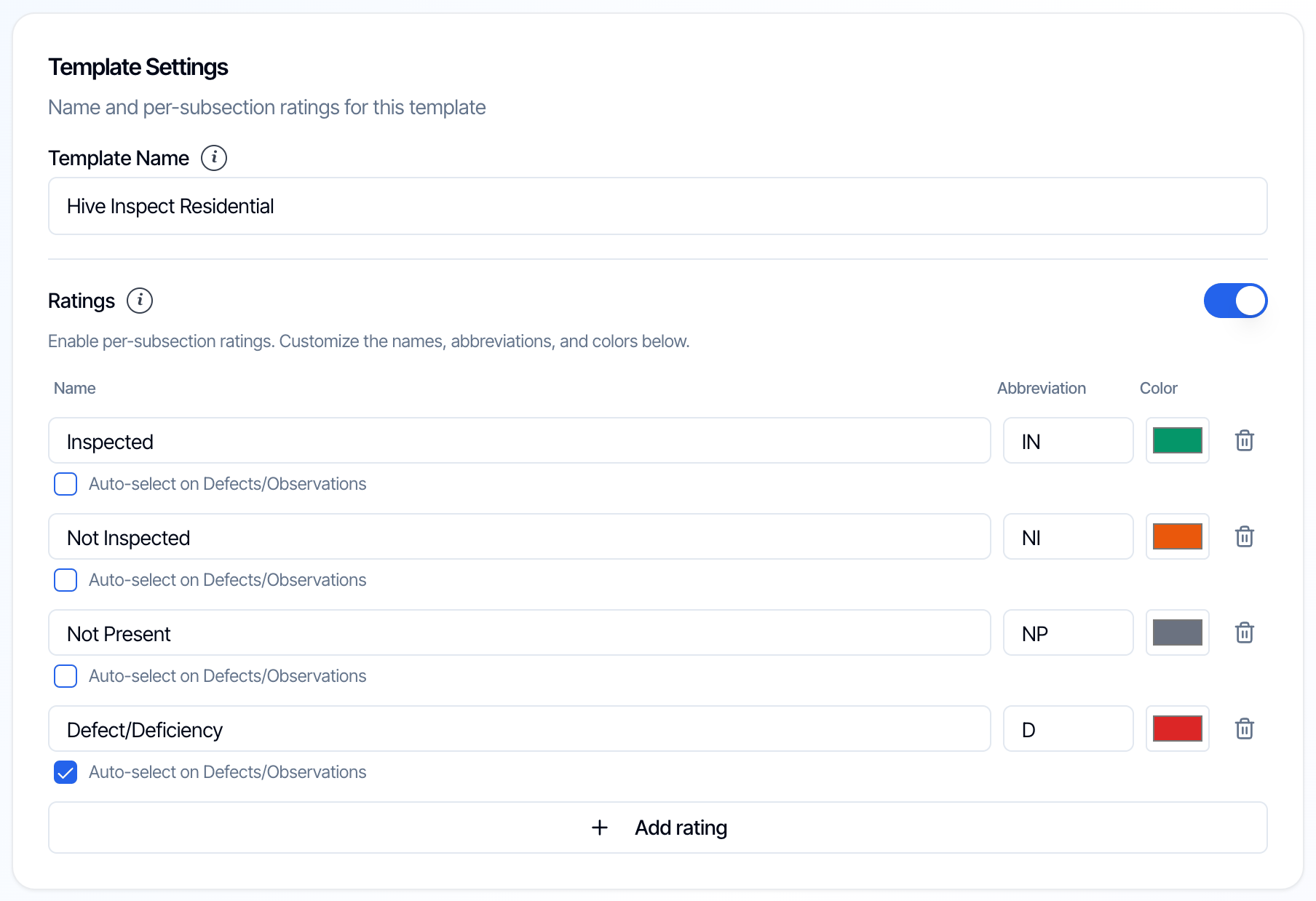 ### Template Name
The name you and your team see in the template list and when you add a template to a service or an inspection. **Clients never see it.** The title clients see is the [Customer Viewing Name](#customer-viewing-name).
### Ratings
Ratings let the inspector give every subsection a status, such as **IN** (Inspected) or **NP** (Not Present). Ratings show in the Web Editor, the mobile app and the report, both digital and PDF. Switch **Ratings** on to use them, or off to hide them.
When you switch ratings on the first time, the template starts with the standard set:
| Name | Abbreviation | Color |
| - | - | - |
| Inspected | IN | Green |
| Not Inspected | NI | Orange |
| Not Present | NP | Grey |
| Defect/Deficiency | D | Red |
You can change the set to match how you report:
* **Rename** a rating, or change its **Abbreviation** (up to 4 characters) or **Color**.
* **Add rating** adds a row. A template can have up to 8 ratings.
* The trash icon deletes a rating.
* **Auto-select on Defects/Observations:** tick it on one rating, usually Defect/Deficiency, and that rating is selected on its own whenever the inspector turns on a defect comment in that subsection.
Every rating needs a name, an abbreviation and a color. Two ratings can't share the same abbreviation. If a row breaks these rules, a red message under the list says what to fix.
Switching ratings off keeps your list, so switching them back on brings it back.
### Template Name
The name you and your team see in the template list and when you add a template to a service or an inspection. **Clients never see it.** The title clients see is the [Customer Viewing Name](#customer-viewing-name).
### Ratings
Ratings let the inspector give every subsection a status, such as **IN** (Inspected) or **NP** (Not Present). Ratings show in the Web Editor, the mobile app and the report, both digital and PDF. Switch **Ratings** on to use them, or off to hide them.
When you switch ratings on the first time, the template starts with the standard set:
| Name | Abbreviation | Color |
| - | - | - |
| Inspected | IN | Green |
| Not Inspected | NI | Orange |
| Not Present | NP | Grey |
| Defect/Deficiency | D | Red |
You can change the set to match how you report:
* **Rename** a rating, or change its **Abbreviation** (up to 4 characters) or **Color**.
* **Add rating** adds a row. A template can have up to 8 ratings.
* The trash icon deletes a rating.
* **Auto-select on Defects/Observations:** tick it on one rating, usually Defect/Deficiency, and that rating is selected on its own whenever the inspector turns on a defect comment in that subsection.
Every rating needs a name, an abbreviation and a color. Two ratings can't share the same abbreviation. If a row breaks these rules, a red message under the list says what to fix.
Switching ratings off keeps your list, so switching them back on brings it back.
 ### Customer Viewing Name
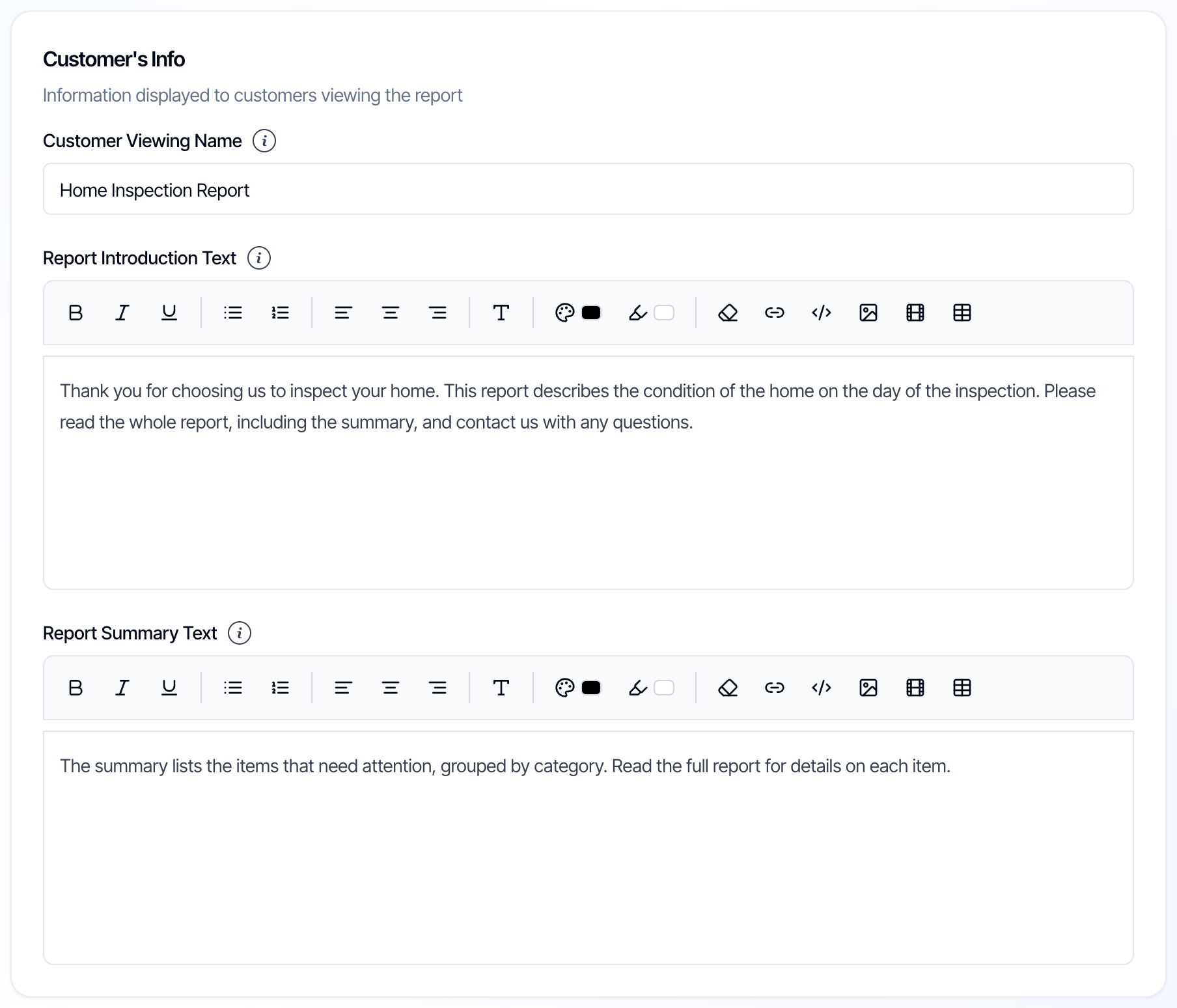
The title of the report that clients see in the report viewer, in the PDF and on the cover page, for example **Home Inspection Report**. Keep it client-friendly. If you leave it blank, the report is titled **Inspection Report**.
### Report Introduction Text
Shown at the beginning of the main report, before the first section. Use it for a welcome note, the scope of the inspection, or how to read the report.
### Report Summary Text
Shown at the beginning of the summary report, above the list of flagged items. Use it to explain how the summary is organized or what the defect categories mean.
Both text boxes have a formatting toolbar for bold, italics, lists, alignment, text color, links and tables. To add an image, drag it into the box or paste it.
## Template Documents
Attach documents your clients should have with every report from this template, such as a radon fact sheet, a maintenance guide or your standards of practice.
### Customer Viewing Name
The title of the report that clients see in the report viewer, in the PDF and on the cover page, for example **Home Inspection Report**. Keep it client-friendly. If you leave it blank, the report is titled **Inspection Report**.
### Report Introduction Text
Shown at the beginning of the main report, before the first section. Use it for a welcome note, the scope of the inspection, or how to read the report.
### Report Summary Text
Shown at the beginning of the summary report, above the list of flagged items. Use it to explain how the summary is organized or what the defect categories mean.
Both text boxes have a formatting toolbar for bold, italics, lists, alignment, text color, links and tables. To add an image, drag it into the box or paste it.
## Template Documents
Attach documents your clients should have with every report from this template, such as a radon fact sheet, a maintenance guide or your standards of practice.
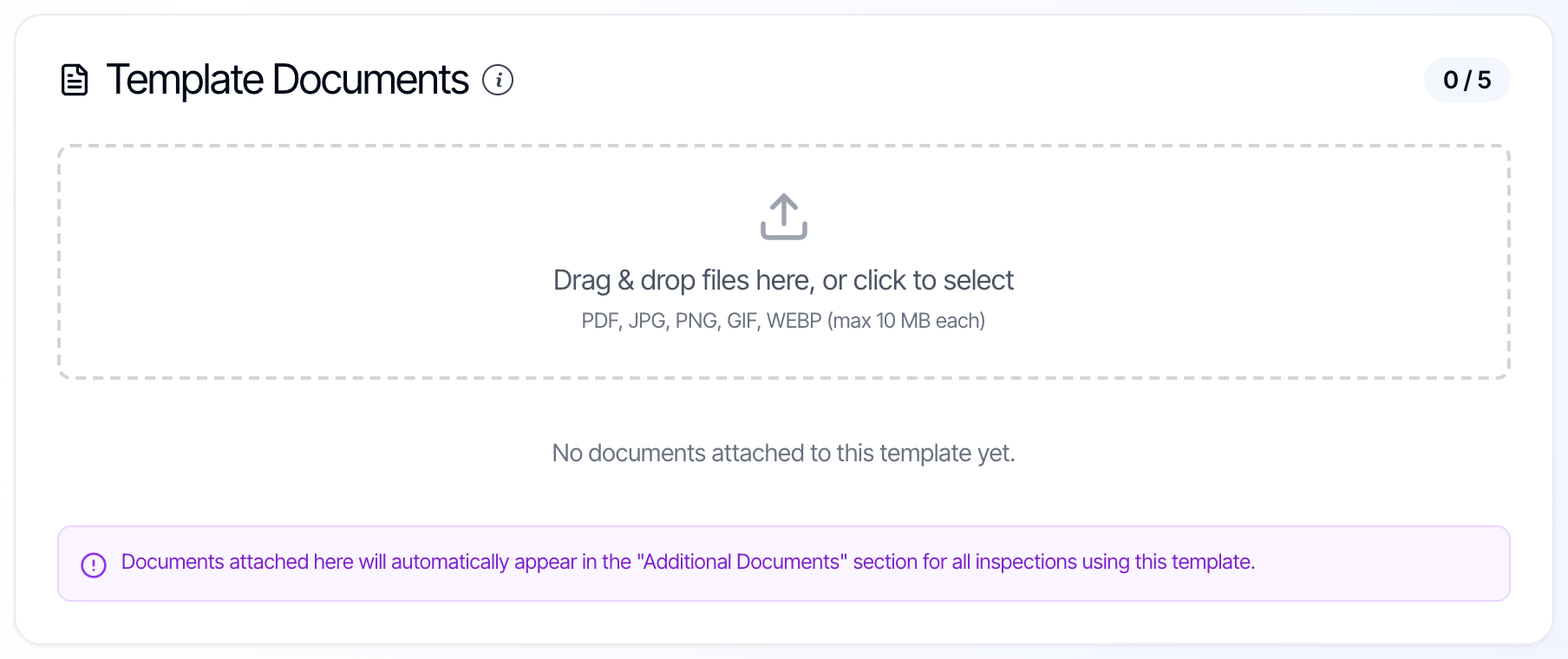 * Drag files into the box, or click it to pick them.
* Up to **5 documents** per template. PDF, JPG, PNG, GIF or WEBP, up to **10 MB** each.
* Documents show to your client under **Additional Docs** in the report viewer's sidebar, next to the report. They aren't inserted into the report itself. To put content inside the report, add it to the template as text instead.
* To remove a document, click the delete icon on it.
## Save your changes
Changes to **Template Settings** and **Customer's Info** aren't saved until you click **Save Changes** in the bar at the bottom of the screen. It appears as soon as you change something.
* Drag files into the box, or click it to pick them.
* Up to **5 documents** per template. PDF, JPG, PNG, GIF or WEBP, up to **10 MB** each.
* Documents show to your client under **Additional Docs** in the report viewer's sidebar, next to the report. They aren't inserted into the report itself. To put content inside the report, add it to the template as text instead.
* To remove a document, click the delete icon on it.
## Save your changes
Changes to **Template Settings** and **Customer's Info** aren't saved until you click **Save Changes** in the bar at the bottom of the screen. It appears as soon as you change something.
 **Template Documents** are different: each document is uploaded or deleted right away, without **Save Changes**.
If you try to leave a template with unsaved changes, Hive asks whether to **Save Changes**, **Discard Changes** or **Cancel**.
**Template Documents** are different: each document is uploaded or deleted right away, without **Save Changes**.
If you try to leave a template with unsaved changes, Hive asks whether to **Save Changes**, **Discard Changes** or **Cancel**.
 | Action | What it does |
| - | - |
| **Template Tools** | Opens [Template Tools](/how-tos/template-and-report-tools) for this template. |
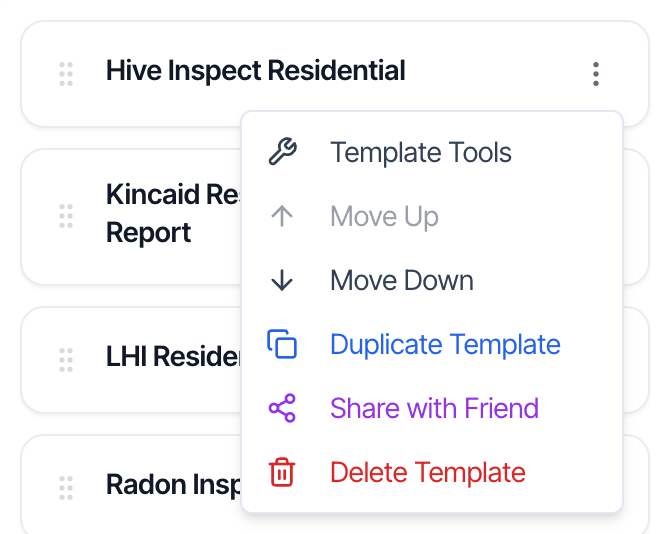
| **Move Up** / **Move Down** | Moves the template one place in your list. You can also drag a template by the handle on its left. |
| **Duplicate Template** | Makes a full copy named "*Name* - Copy", added at the top of your list: all sections, subsections and comments, the Overview settings and every Template Tools setting. [Template Documents](#template-documents) aren't copied, so attach them to the copy again. Use it to try changes without touching the template you use every day. A copy of a special PDF template is a special PDF template too. |
| **Share with Friend** | Sends a copy of the template, with all its comments and settings but not its Template Documents, to another Hive Inspect company. Enter the email of an inspector who is an organization admin there. The copy is added at the top of their list as "*Name* (Shared)". They can change it freely; your template doesn't change. |
| **Delete Template** | Removes the template from your list. Type **DELETE** to confirm. Reports already created from it keep their content. If a service uses the template, add a different template to that service. |
This documentation is built and hosted on [Mintlify](https://mintlify.com), a developer documentation platform.
| Action | What it does |
| - | - |
| **Template Tools** | Opens [Template Tools](/how-tos/template-and-report-tools) for this template. |
| **Move Up** / **Move Down** | Moves the template one place in your list. You can also drag a template by the handle on its left. |
| **Duplicate Template** | Makes a full copy named "*Name* - Copy", added at the top of your list: all sections, subsections and comments, the Overview settings and every Template Tools setting. [Template Documents](#template-documents) aren't copied, so attach them to the copy again. Use it to try changes without touching the template you use every day. A copy of a special PDF template is a special PDF template too. |
| **Share with Friend** | Sends a copy of the template, with all its comments and settings but not its Template Documents, to another Hive Inspect company. Enter the email of an inspector who is an organization admin there. The copy is added at the top of their list as "*Name* (Shared)". They can change it freely; your template doesn't change. |
| **Delete Template** | Removes the template from your list. Type **DELETE** to confirm. Reports already created from it keep their content. If a service uses the template, add a different template to that service. |
This documentation is built and hosted on [Mintlify](https://mintlify.com), a developer documentation platform.