> ## Documentation Index
> Fetch the complete documentation index at: https://docs.hiveinspect.com/llms.txt
> Use this file to discover all available pages before exploring further.

# Client Portal

> Give clients access to their inspection reports through the Hive client portal

⏱️ **Estimated time:** \~5 minutes

## Video Tutorial

<Card title="Client Portal Walkthrough" icon="circle-play">
  <iframe width="100%" height="450" src="https://www.loom.com/embed/0008b36b5ec241a8b47f72ae4dc4e05f" frameborder="0" allowfullscreen />
</Card>

<Steps>
  <Step title="Logging into the Client Portal — 0:01">
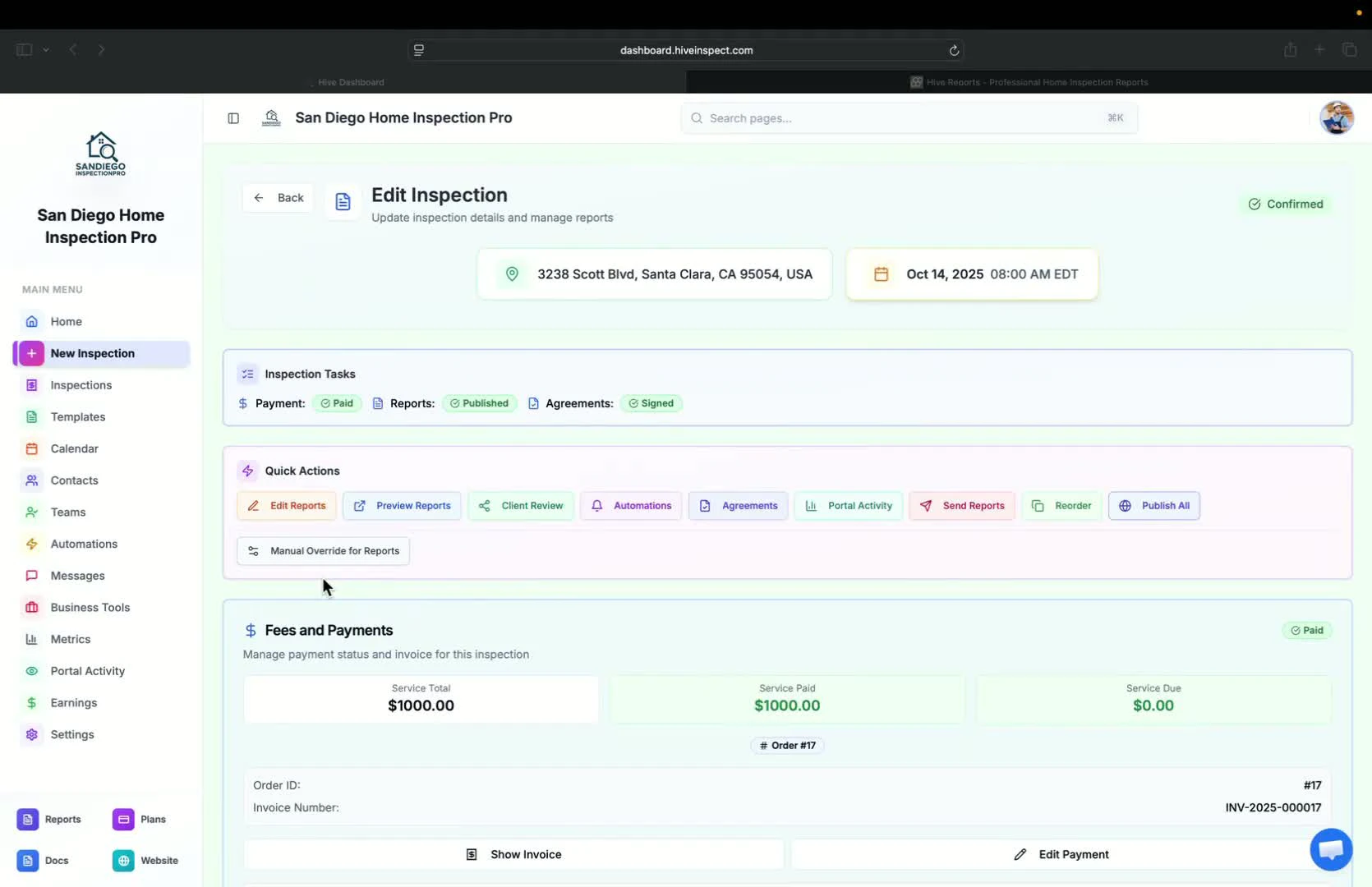
    * Copy the client's email to log in
    * Click on the convenient link to access the client portal
    <img src="https://mintcdn.com/hiveinspect-43c85ed1/xYKGp_3A44kyTeKP/images/Client-Portal-1.jpg?fit=max&auto=format&n=xYKGp_3A44kyTeKP&q=85&s=03951f2f586f7ccf95e1a6fa08fbf457" alt="Logging into the client portal" width="1670" height="1080" data-path="images/Client-Portal-1.jpg" />
  </Step>

  <Step title="Overview of Client Dashboard — 0:14">
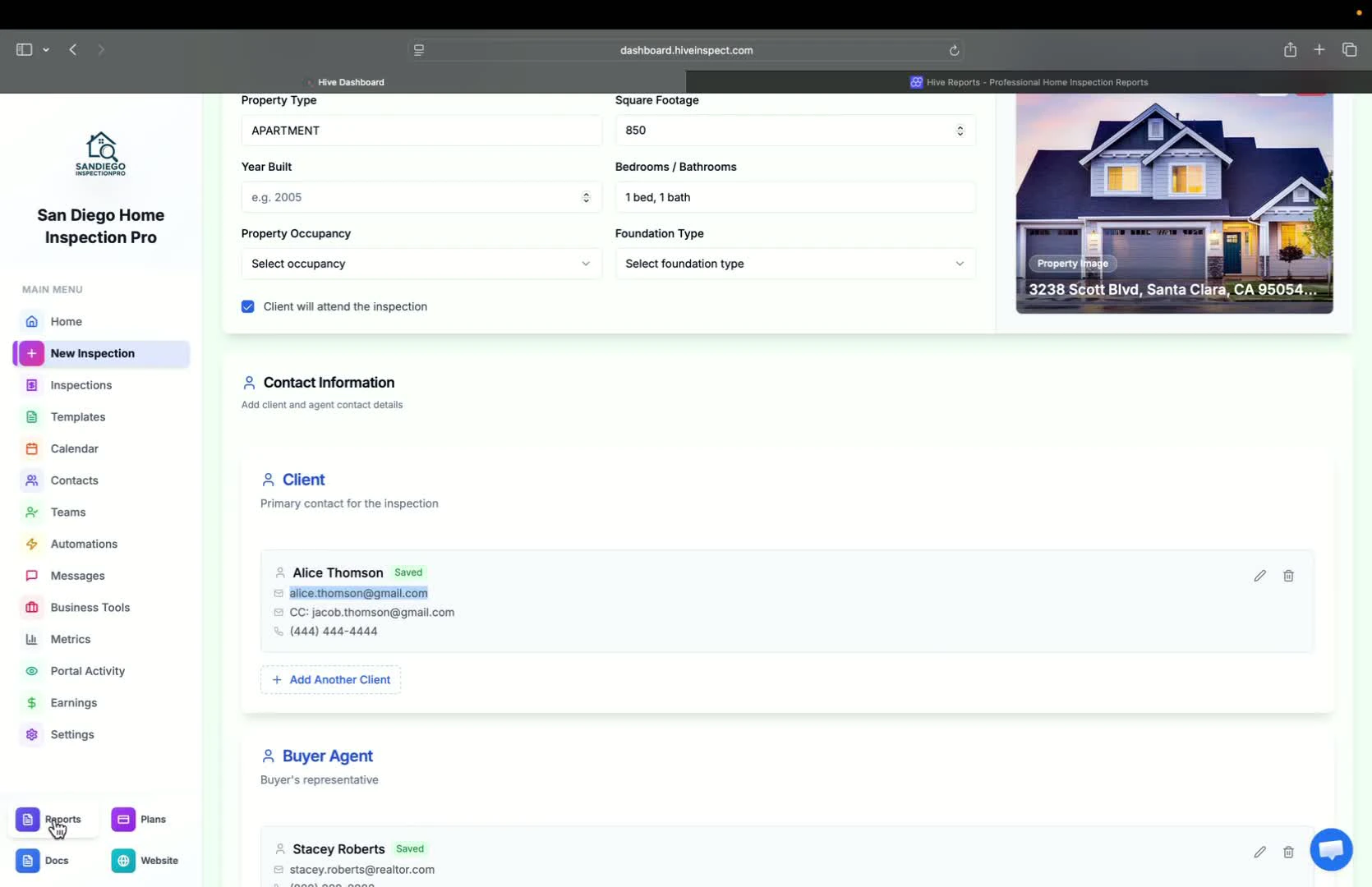
    * The client sees a list of all inspections completed
    * Clients can search for inspections by property address
    <img src="https://mintcdn.com/hiveinspect-43c85ed1/xYKGp_3A44kyTeKP/images/Client-Portal-2.jpg?fit=max&auto=format&n=xYKGp_3A44kyTeKP&q=85&s=fe977cfe3cafda6113fc3a736b742261" alt="Overview of client dashboard" width="1670" height="1080" data-path="images/Client-Portal-2.jpg" />
  </Step>

  <Step title="Accessing Order Details — 0:28">
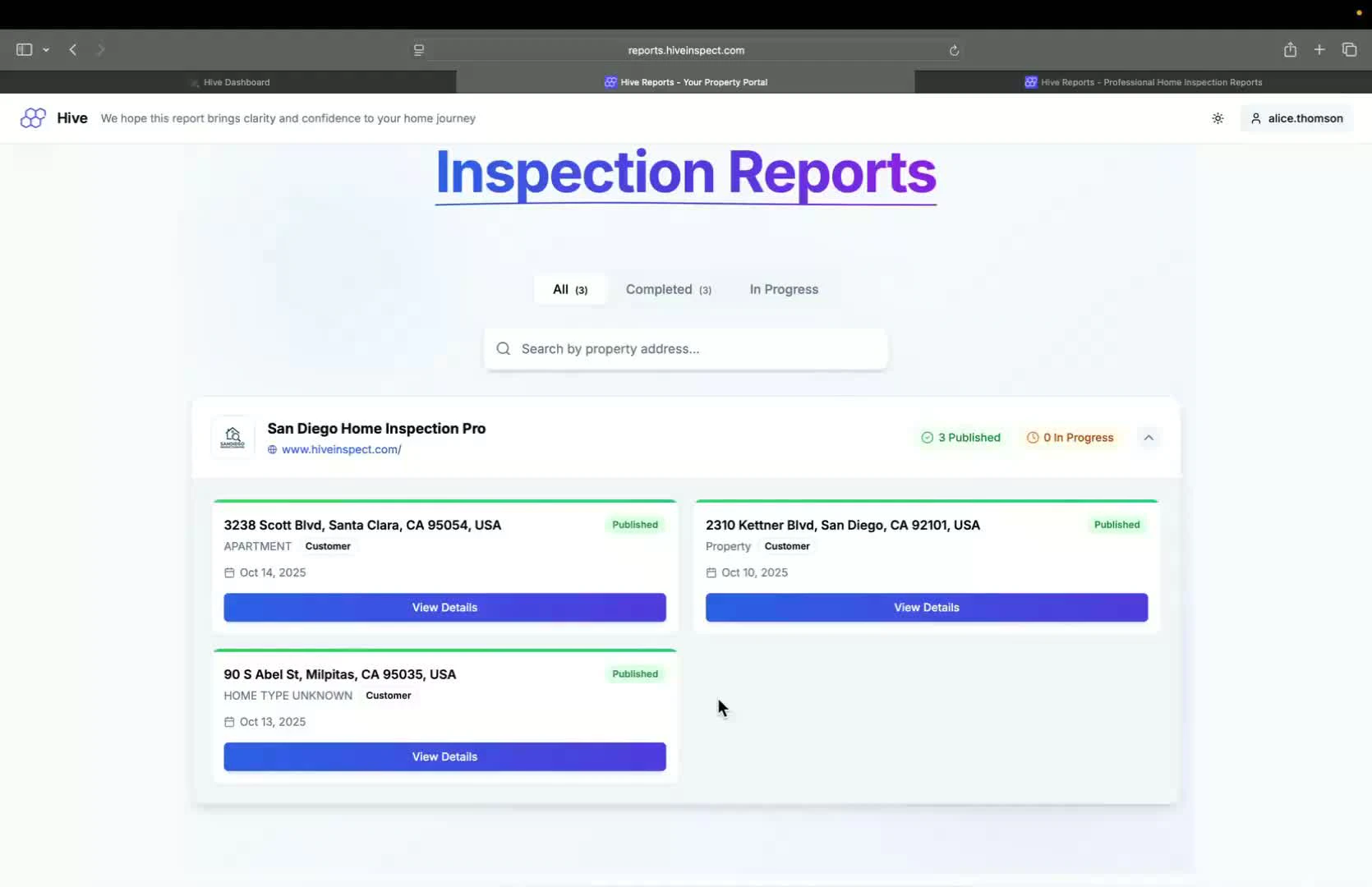
    * Select an inspection to view the main order details page
    * Summary of inspection details is displayed
    <img src="https://mintcdn.com/hiveinspect-43c85ed1/xYKGp_3A44kyTeKP/images/Client-Portal-3.jpg?fit=max&auto=format&n=xYKGp_3A44kyTeKP&q=85&s=7121f077332e3ece146249fc67cb494e" alt="Accessing order details" width="1670" height="1080" data-path="images/Client-Portal-3.jpg" />
  </Step>

  <Step title="Payment and Agreement Status — 0:44">
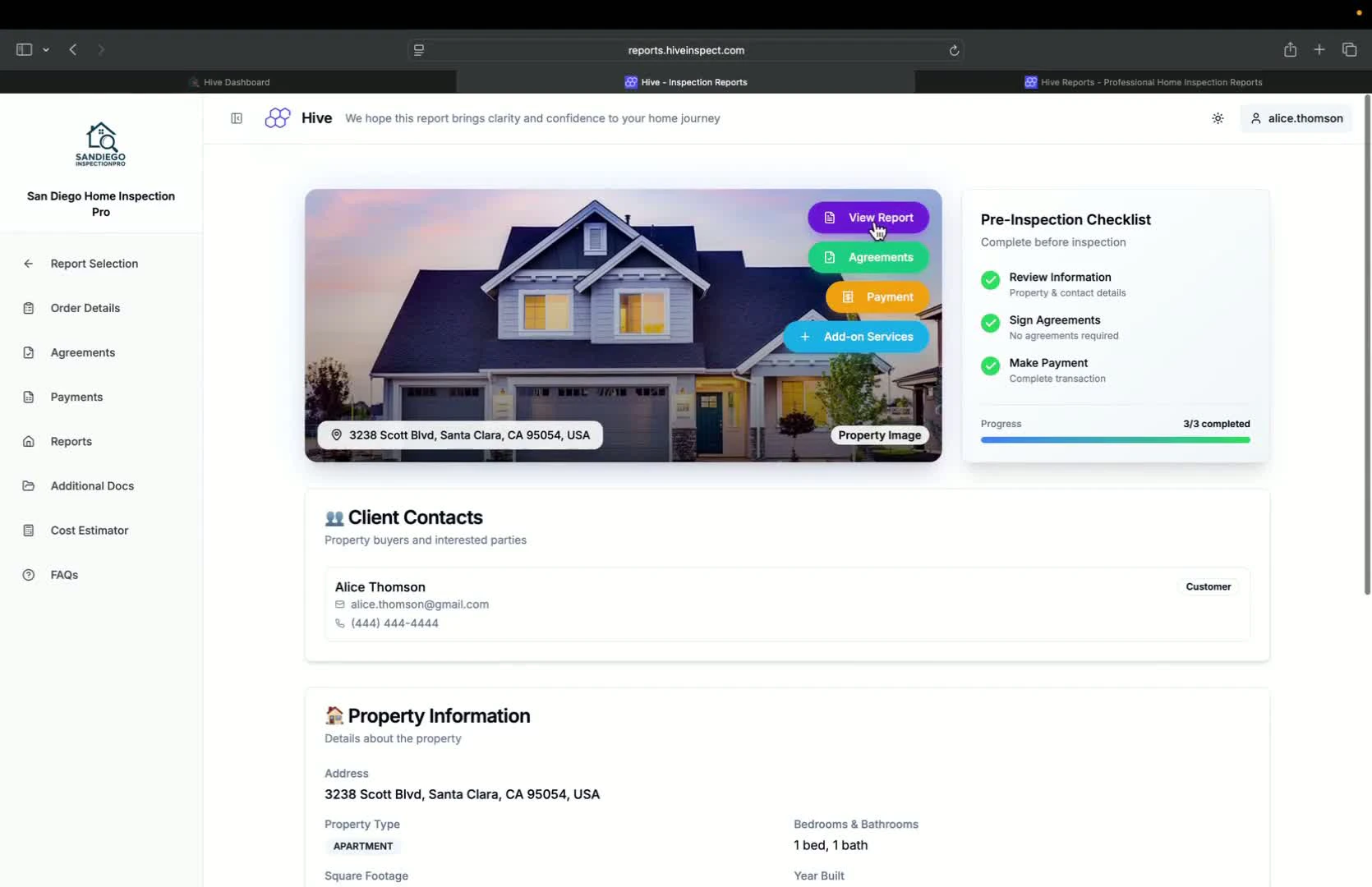
    * If payment or agreement is pending, clear buttons will indicate this at the top of the page
    <img src="https://mintcdn.com/hiveinspect-43c85ed1/xYKGp_3A44kyTeKP/images/Client-Portal-4.jpg?fit=max&auto=format&n=xYKGp_3A44kyTeKP&q=85&s=272f94b0830a3d629d44daa6bf062f93" alt="Payment and agreement status" width="1670" height="1080" data-path="images/Client-Portal-4.jpg" />
  </Step>

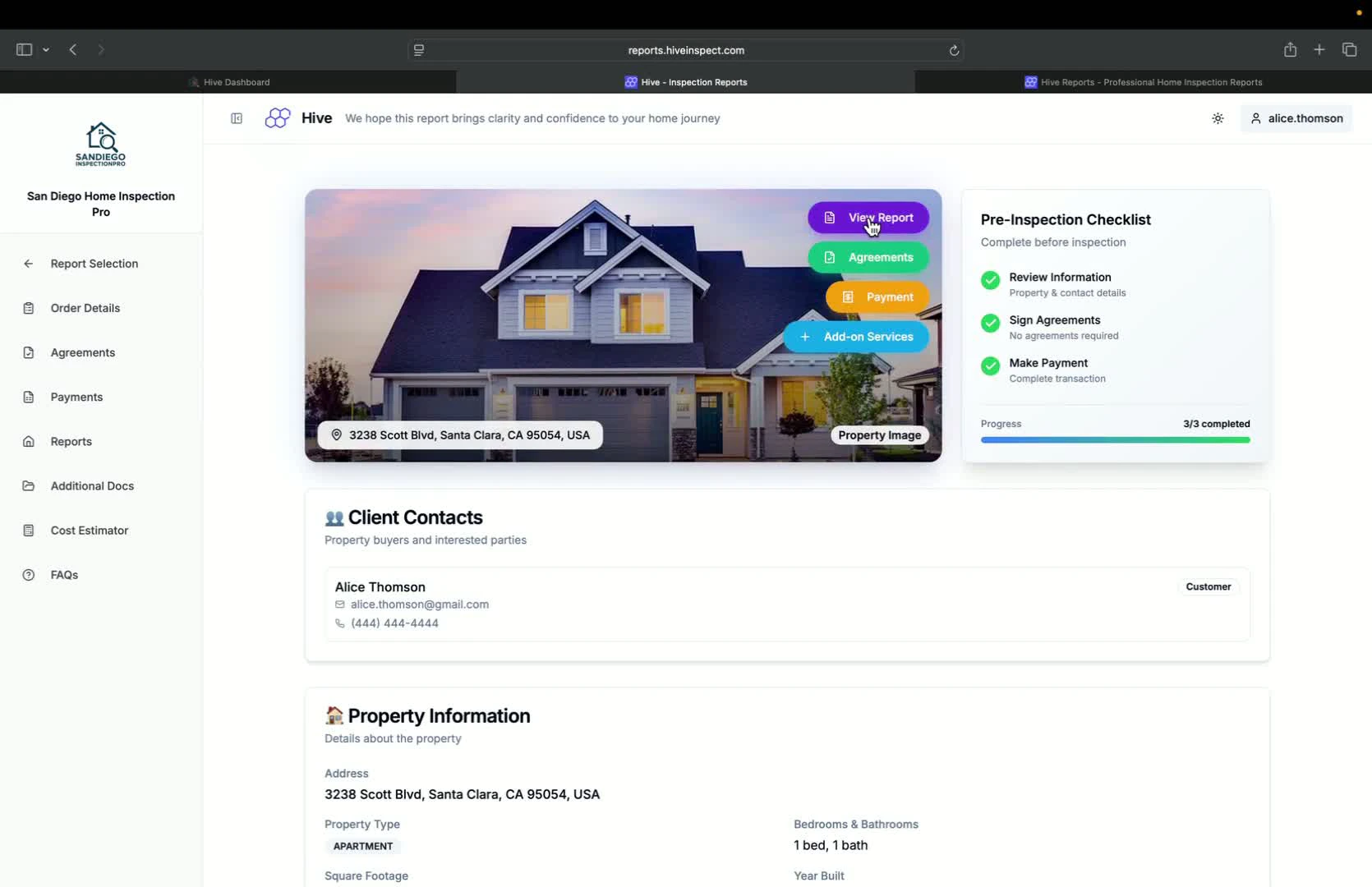
  <Step title="Viewing Inspection Reports — 1:02">
    * Click on **View Report** to access the inspection report
    * Reports include defect counts and photos
    <img src="https://mintcdn.com/hiveinspect-43c85ed1/xYKGp_3A44kyTeKP/images/Client-Portal-5.jpg?fit=max&auto=format&n=xYKGp_3A44kyTeKP&q=85&s=624c18aeb7456707fc9e7e375b98a64a" alt="Viewing inspection reports" width="1670" height="1080" data-path="images/Client-Portal-5.jpg" />
  </Step>

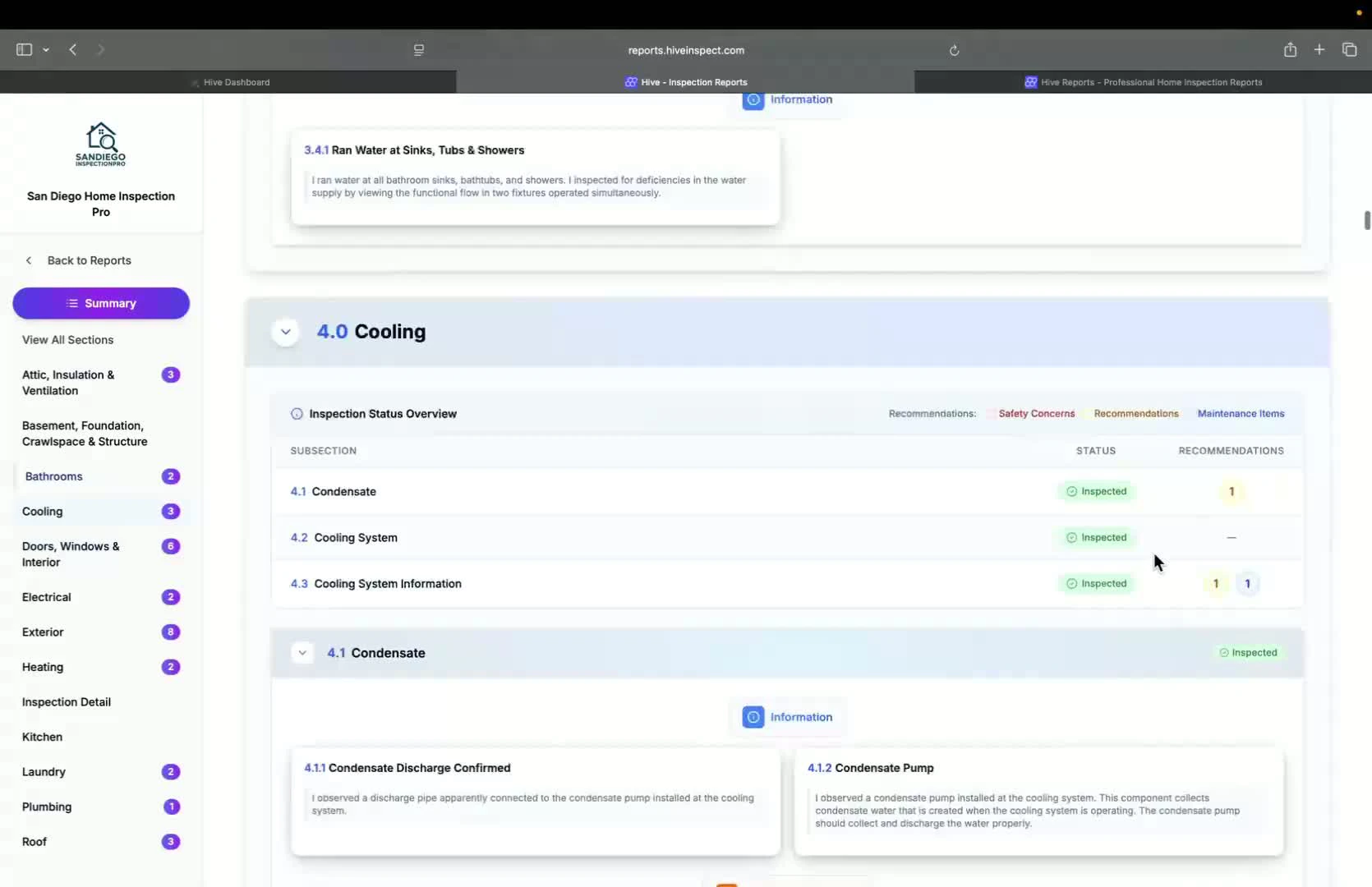
  <Step title="Summary View of Defects — 1:24">
    * Clients can switch to a summary view showing only defects
    <img src="https://mintcdn.com/hiveinspect-43c85ed1/xYKGp_3A44kyTeKP/images/Client-Portal-6.jpg?fit=max&auto=format&n=xYKGp_3A44kyTeKP&q=85&s=4988c4fcb110c74166c0604ac8a24434" alt="Summary view of defects" width="1670" height="1080" data-path="images/Client-Portal-6.jpg" />
  </Step>

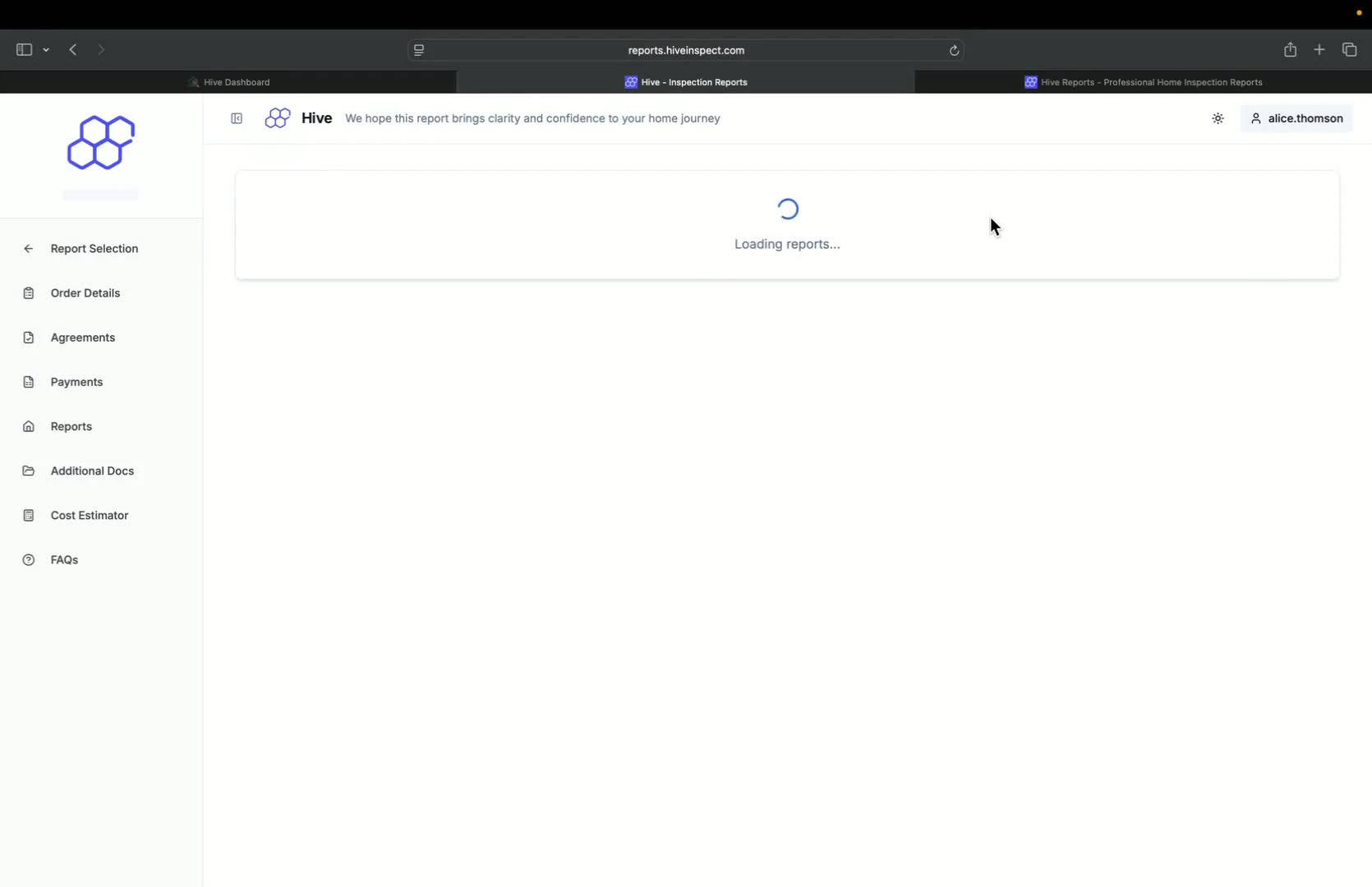
  <Step title="Creating Repair and Random Section — 1:32">
    * Clients can create a Repair and Random section for the report
    <img src="https://mintcdn.com/hiveinspect-43c85ed1/xYKGp_3A44kyTeKP/images/Client-Portal-7.jpg?fit=max&auto=format&n=xYKGp_3A44kyTeKP&q=85&s=7f9b246b16fe58fe4016e6e9139d66c7" alt="Creating repair and random section" width="1670" height="1080" data-path="images/Client-Portal-7.jpg" />
  </Step>

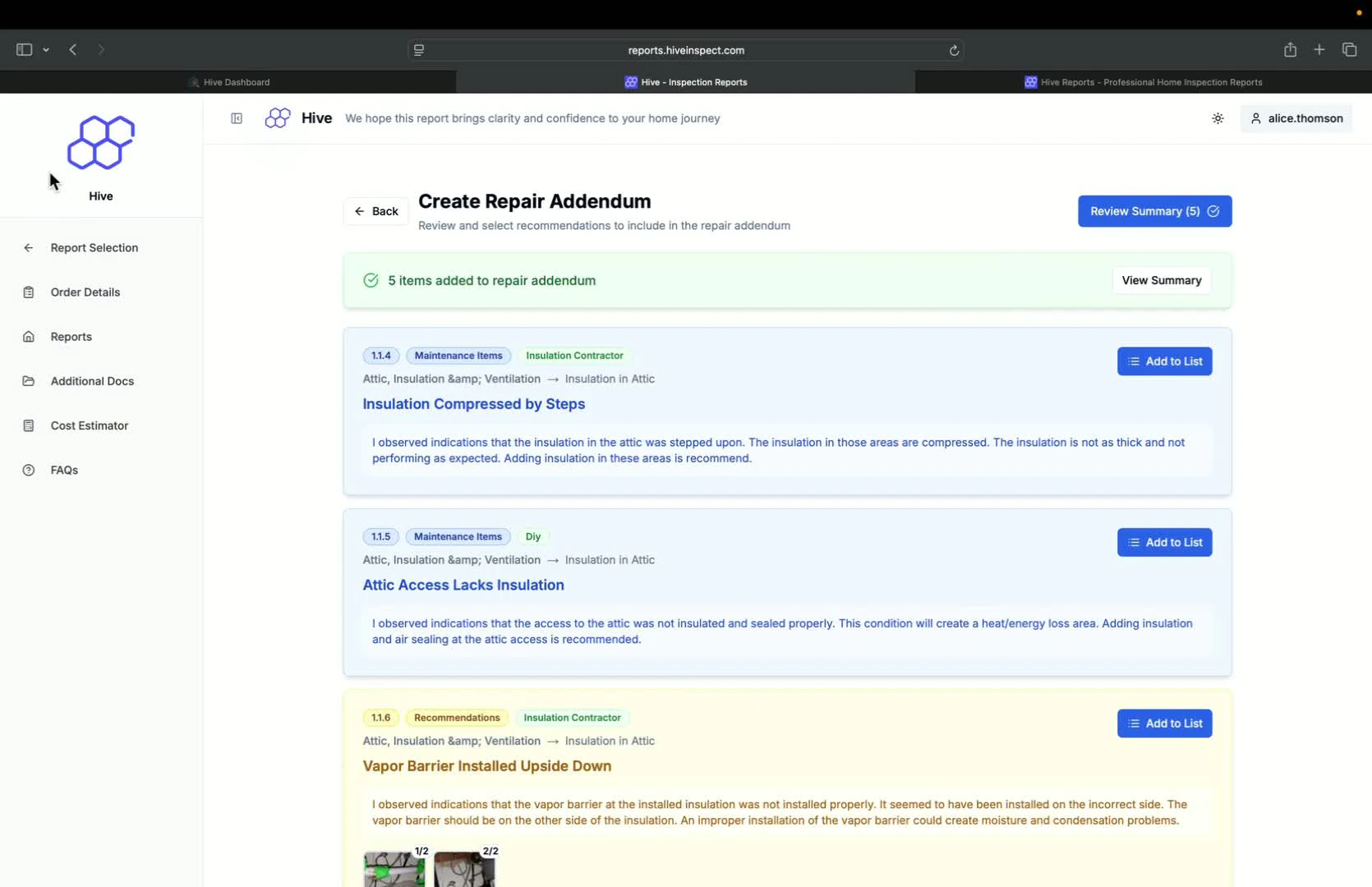
  <Step title="Branding with Logo — 1:45">
    * If a logo is set up, it will appear on the report for branding
    <img src="https://mintcdn.com/hiveinspect-43c85ed1/xYKGp_3A44kyTeKP/images/Client-Portal-8.jpg?fit=max&auto=format&n=xYKGp_3A44kyTeKP&q=85&s=161881ada35d03aac40bd3dbefcab513" alt="Branding with logo" width="1670" height="1080" data-path="images/Client-Portal-8.jpg" />
  </Step>

  <Step title="Signing the Agreement — 1:57">
    * Clients can sign the agreement directly from the portal
    * If no agreement exists, they will see an option to sign
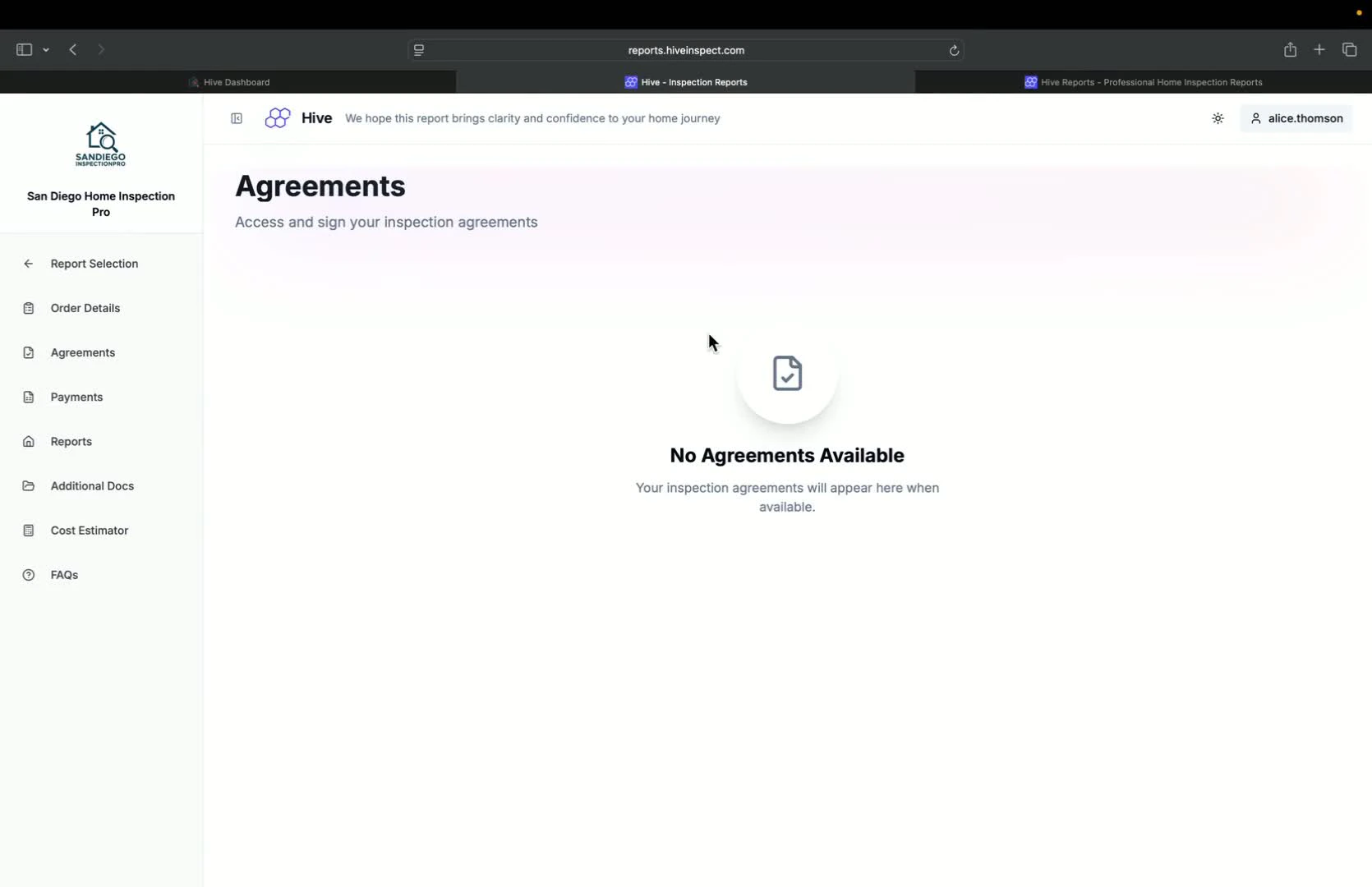
    <img src="https://mintcdn.com/hiveinspect-43c85ed1/xYKGp_3A44kyTeKP/images/Client-Portal-9.jpg?fit=max&auto=format&n=xYKGp_3A44kyTeKP&q=85&s=4128f6e0ab93f674318ef0322df7fada" alt="Signing the agreement" width="1670" height="1080" data-path="images/Client-Portal-9.jpg" />
  </Step>

  <Step title="Making Payments — 2:05">
    * Integrated payment options (e.g., Stripe) allow clients to pay easily
    * Invoice will be generated after payment
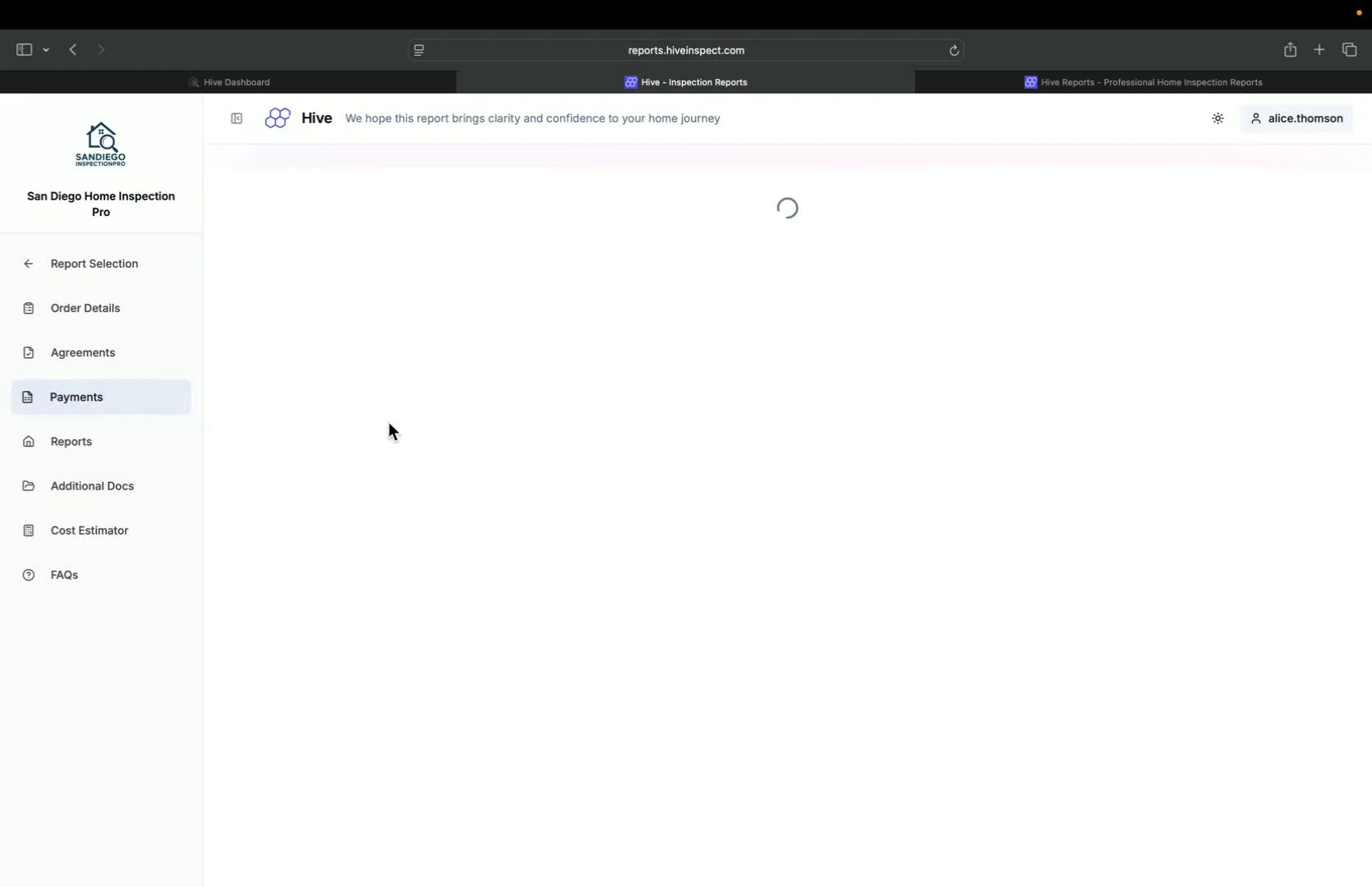
    <img src="https://mintcdn.com/hiveinspect-43c85ed1/xYKGp_3A44kyTeKP/images/Client-Portal-10.jpg?fit=max&auto=format&n=xYKGp_3A44kyTeKP&q=85&s=ff1cfa9be78fe3e29a37c16aa14c24f8" alt="Making payments" width="1670" height="1080" data-path="images/Client-Portal-10.jpg" />
  </Step>

  <Step title="Accessing Additional Documents — 2:20">
    * Any extra documents added to the template will be available here
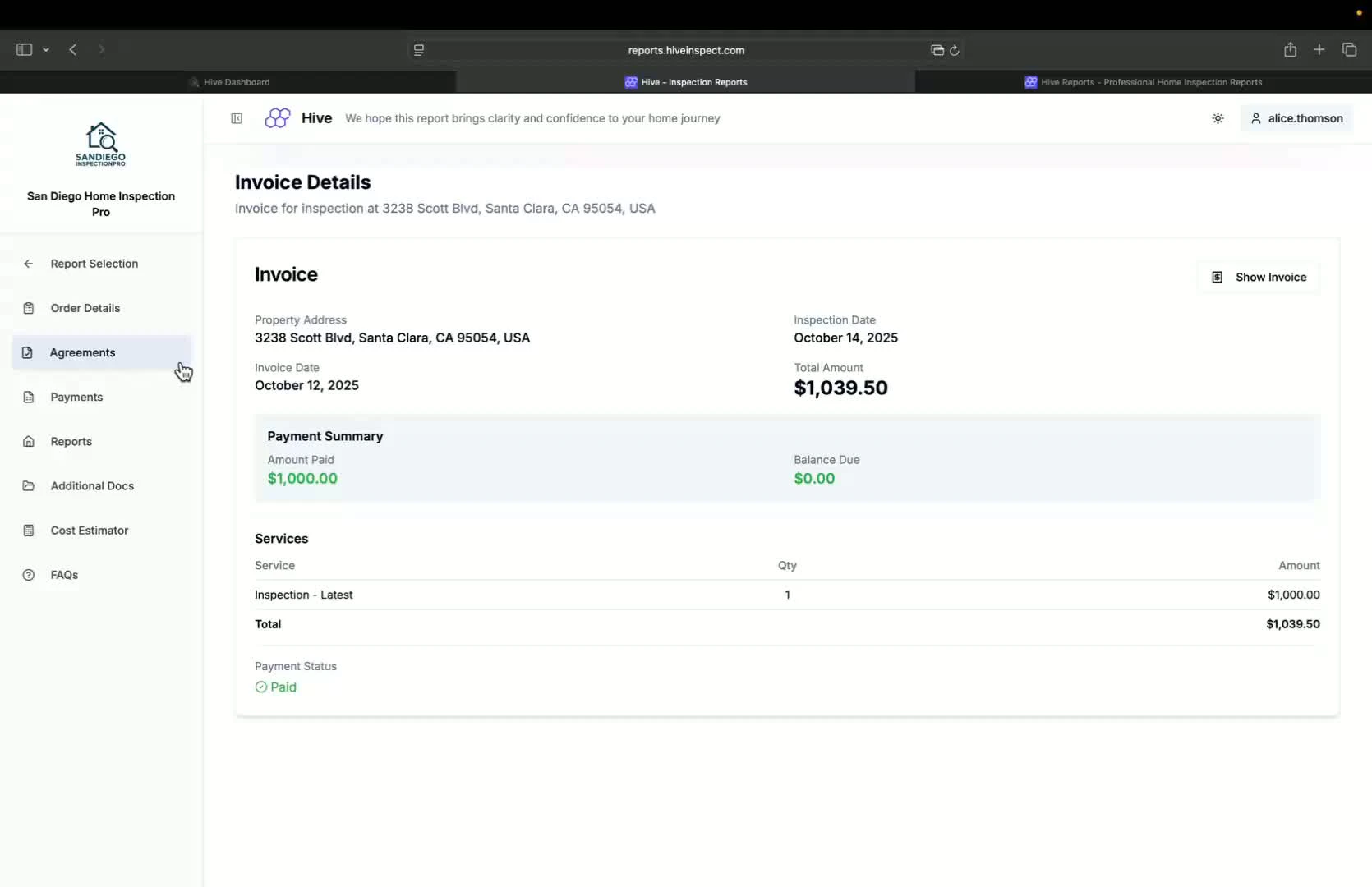
    <img src="https://mintcdn.com/hiveinspect-43c85ed1/xYKGp_3A44kyTeKP/images/Client-Portal-11.jpg?fit=max&auto=format&n=xYKGp_3A44kyTeKP&q=85&s=4bbc03a50db3c948ec97b11ccddaaed0" alt="Accessing additional documents" width="1670" height="1080" data-path="images/Client-Portal-11.jpg" />
  </Step>

  <Step title="Adding Third-Party Reports — 2:30">
    * Clients can view additional reports from third-party inspections
    * Reports can be uploaded with a name and description
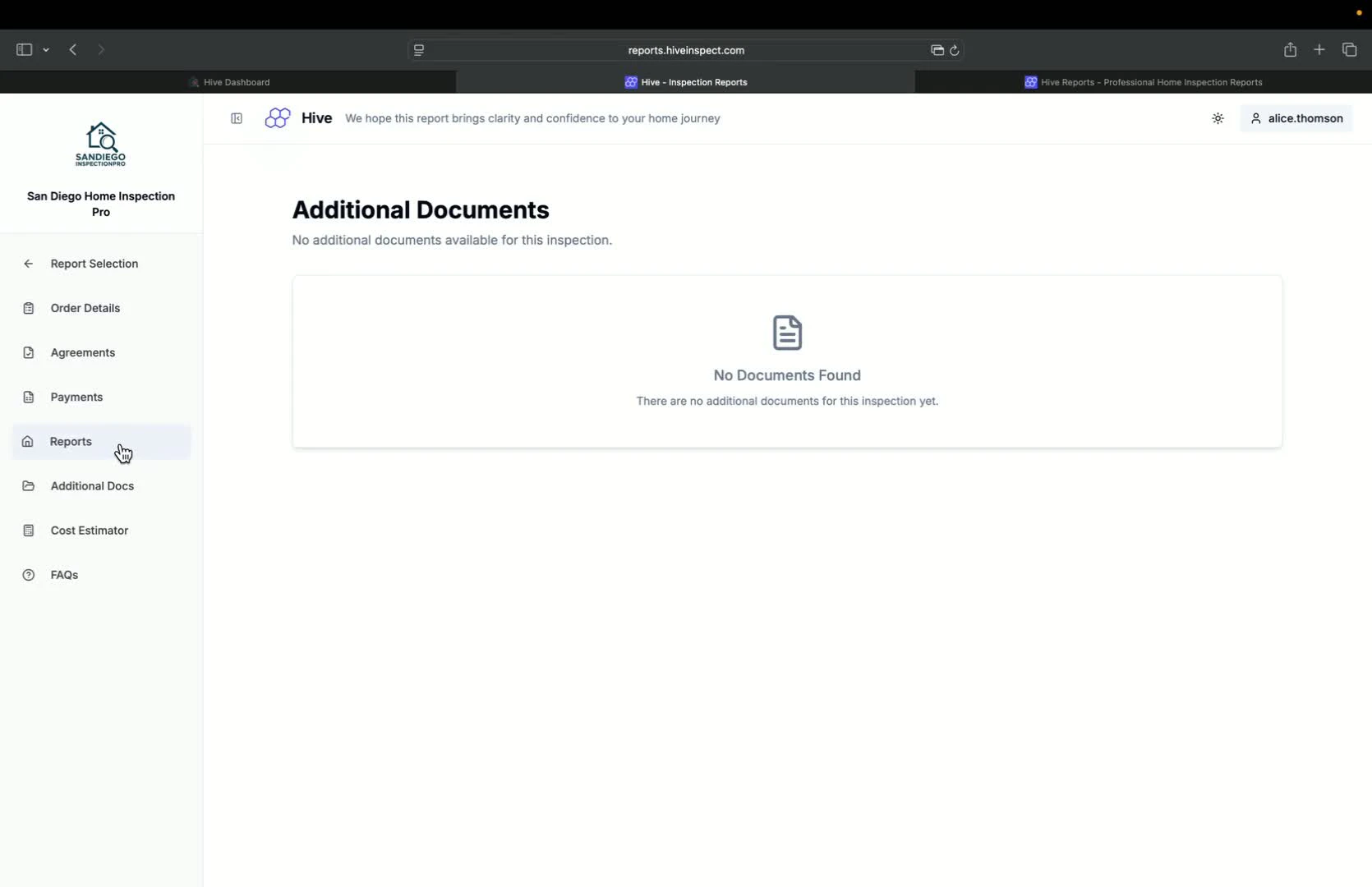
    <img src="https://mintcdn.com/hiveinspect-43c85ed1/xYKGp_3A44kyTeKP/images/Client-Portal-12.jpg?fit=max&auto=format&n=xYKGp_3A44kyTeKP&q=85&s=676b9dc3a3c9030268ddc63212a58576" alt="Adding third-party reports" width="1670" height="1080" data-path="images/Client-Portal-12.jpg" />
  </Step>

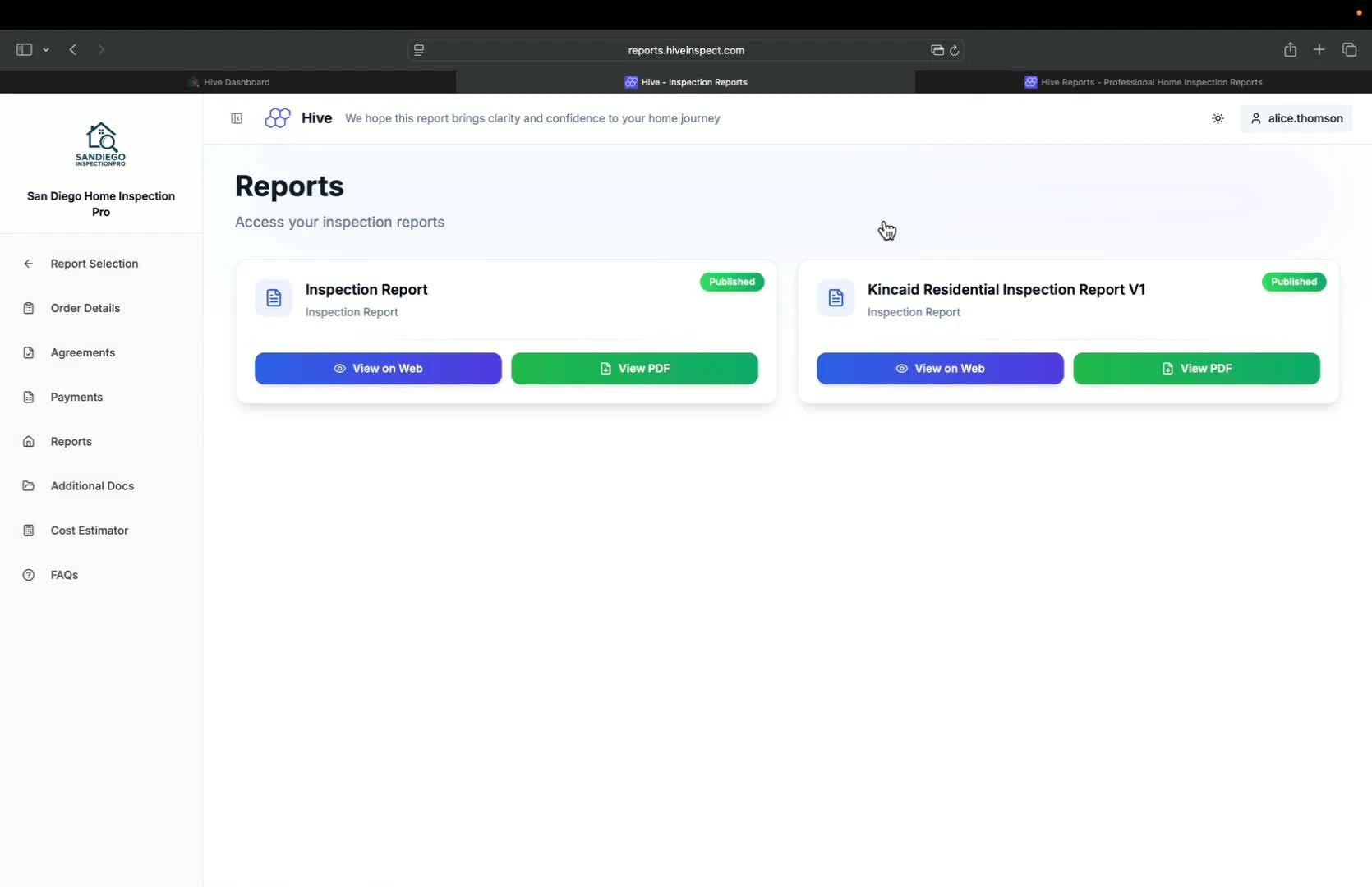
  <Step title="Locked Features for Pending Actions — 3:06">
    * If the agreement is not signed or payment is pending, buttons will be locked
    * Clients will see options to make payment or sign the agreement
    <img src="https://mintcdn.com/hiveinspect-43c85ed1/xYKGp_3A44kyTeKP/images/Client-Portal-13.jpg?fit=max&auto=format&n=xYKGp_3A44kyTeKP&q=85&s=aa295cc4f6083e9cb1e2d1d09cf22300" alt="Locked features for pending actions" width="1670" height="1080" data-path="images/Client-Portal-13.jpg" />
  </Step>

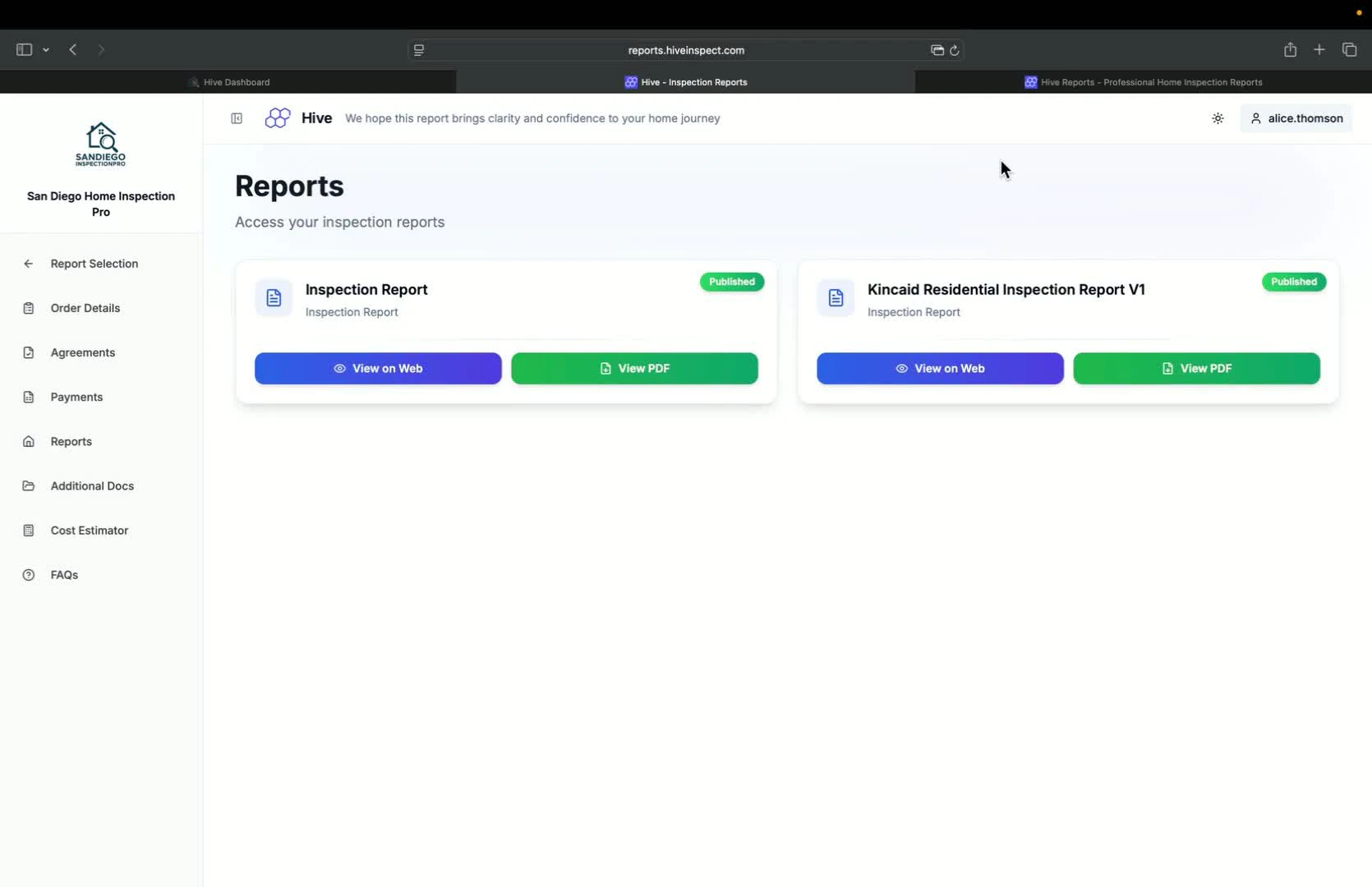
  <Step title="Completing the Process — 3:19">
    * Clients can complete the payment and agreement process to access the report
    <img src="https://mintcdn.com/hiveinspect-43c85ed1/xYKGp_3A44kyTeKP/images/Client-Portal-14.jpg?fit=max&auto=format&n=xYKGp_3A44kyTeKP&q=85&s=d3657e371dc9efabbe83eb260ca90d53" alt="Completing the process" width="1670" height="1080" data-path="images/Client-Portal-14.jpg" />
  </Step>
</Steps>
