> ## Documentation Index
> Fetch the complete documentation index at: https://docs.hiveinspect.com/llms.txt
> Use this file to discover all available pages before exploring further.
# Inspection Functions
> Master all inspection management functions including report previews, client links, automation tracking, agreements, and manual override options
⏱️ **Estimated time:** \~15 minutes
## Video Tutorial
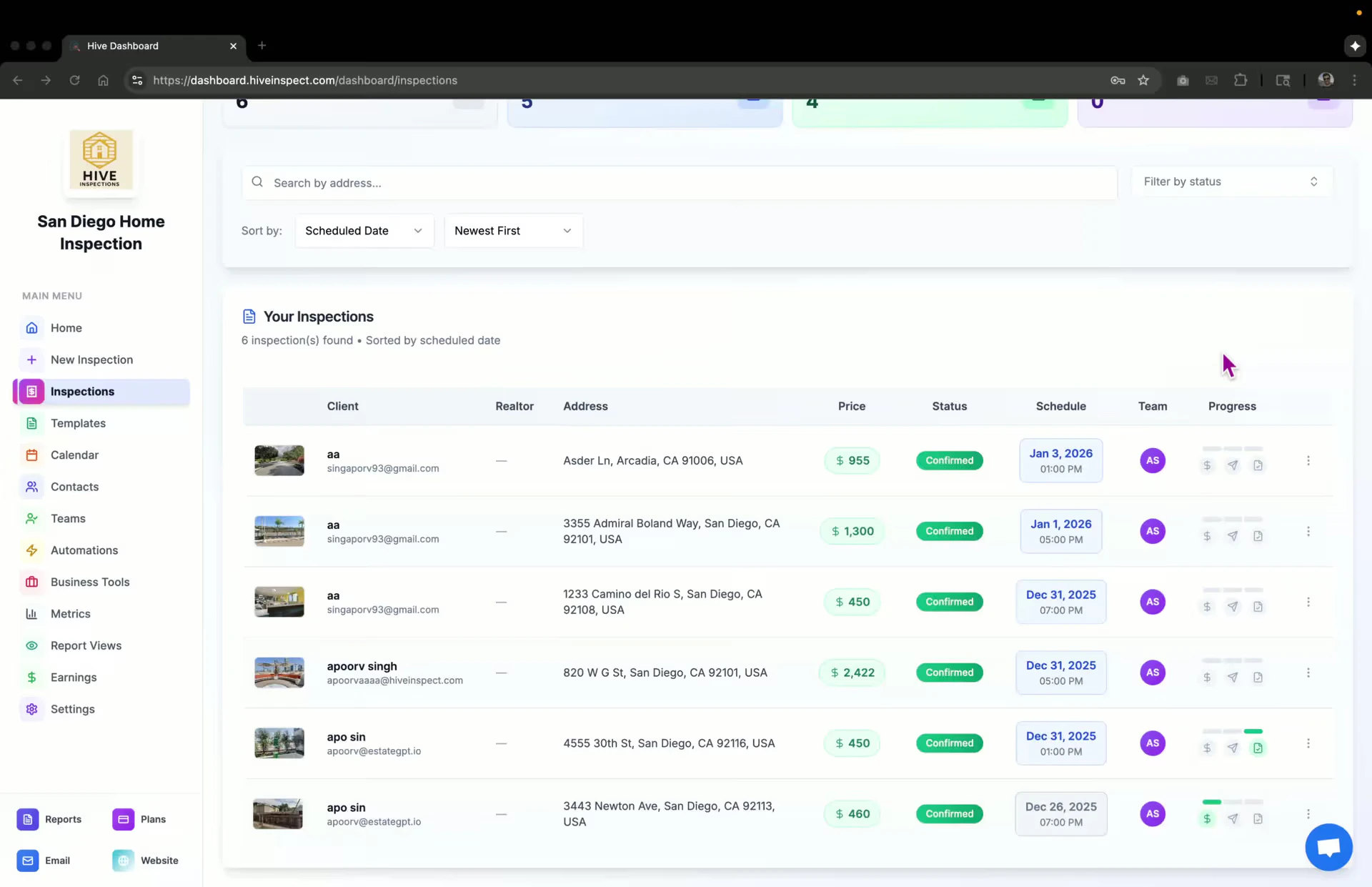
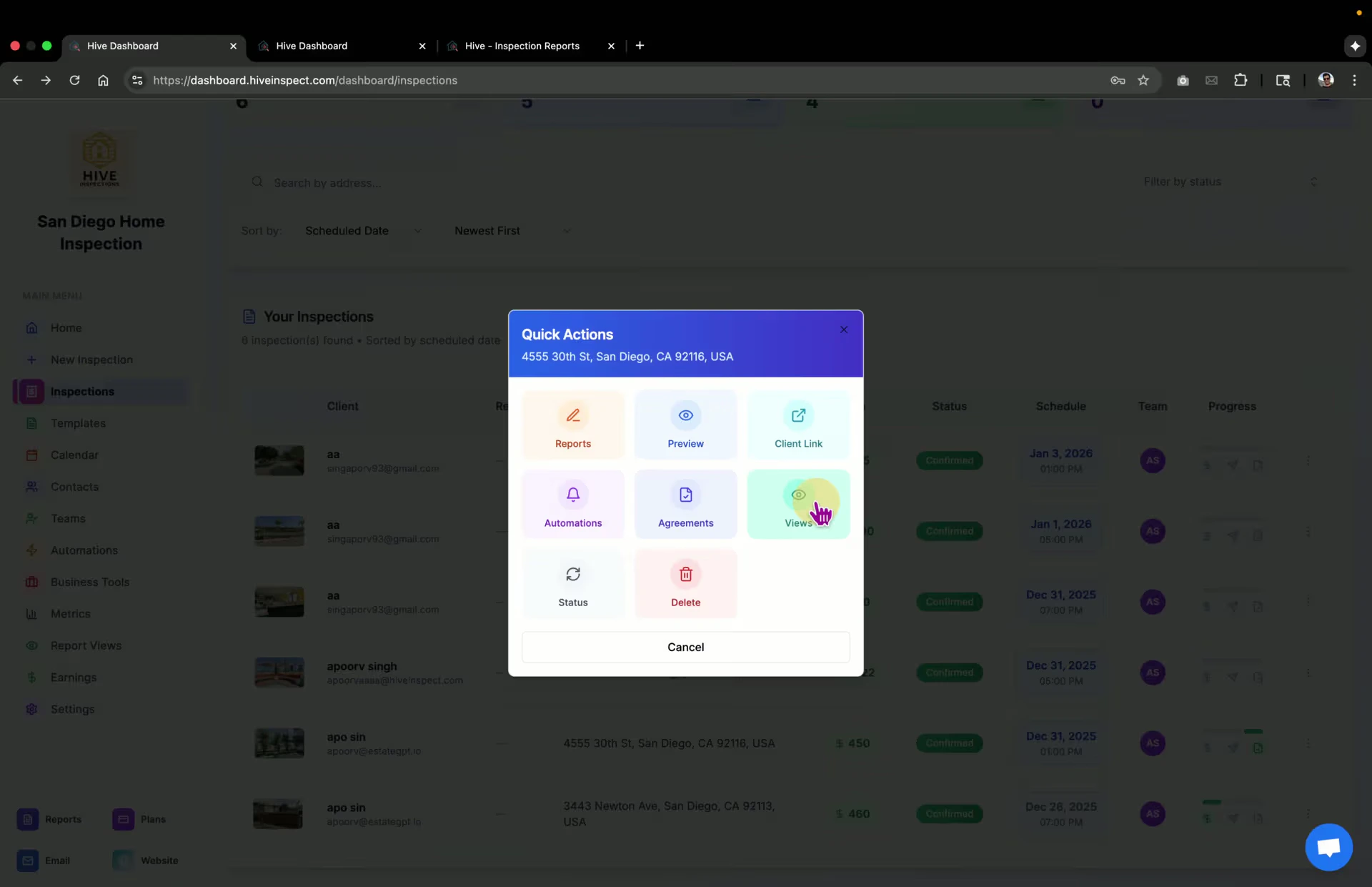
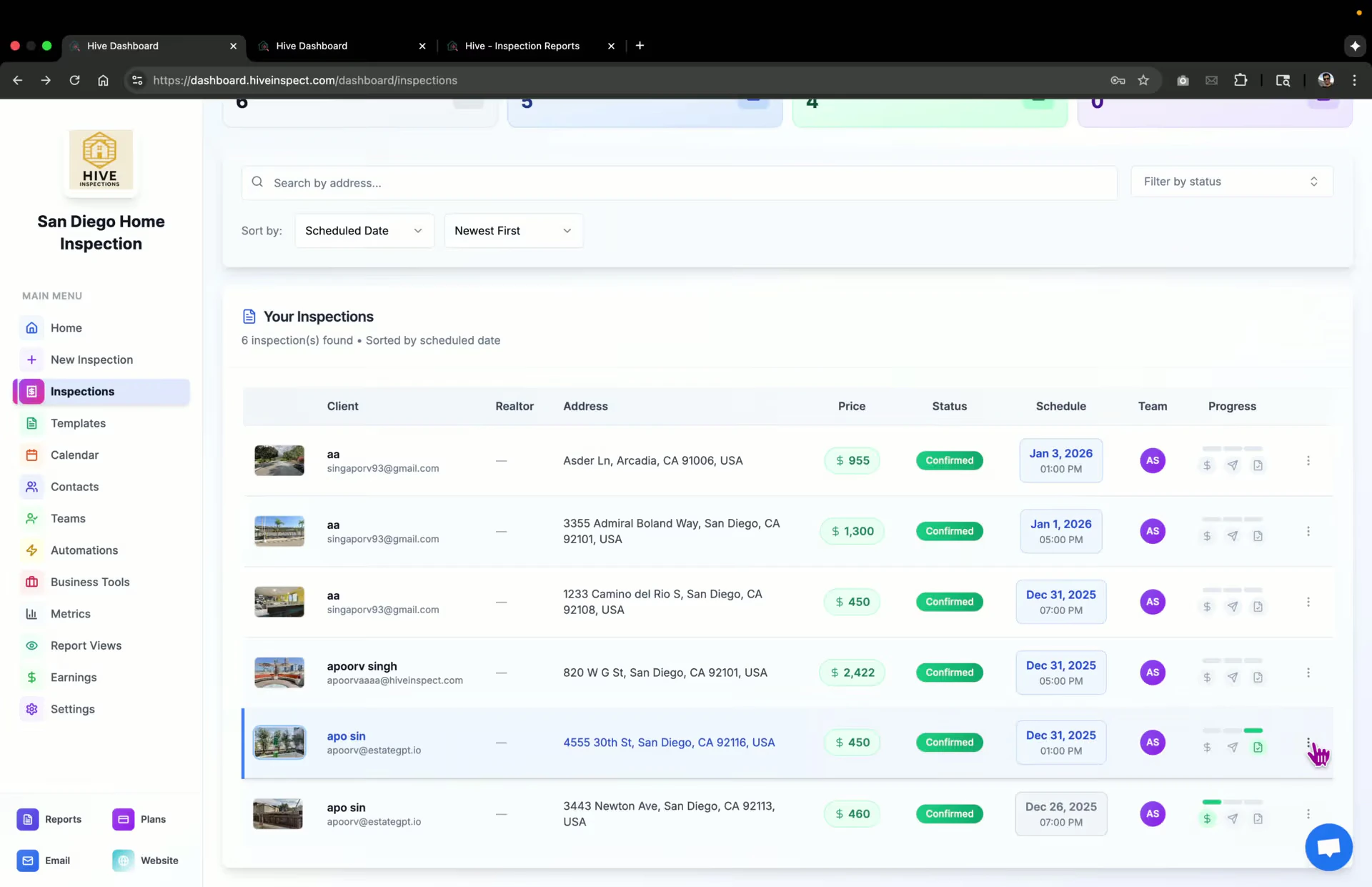
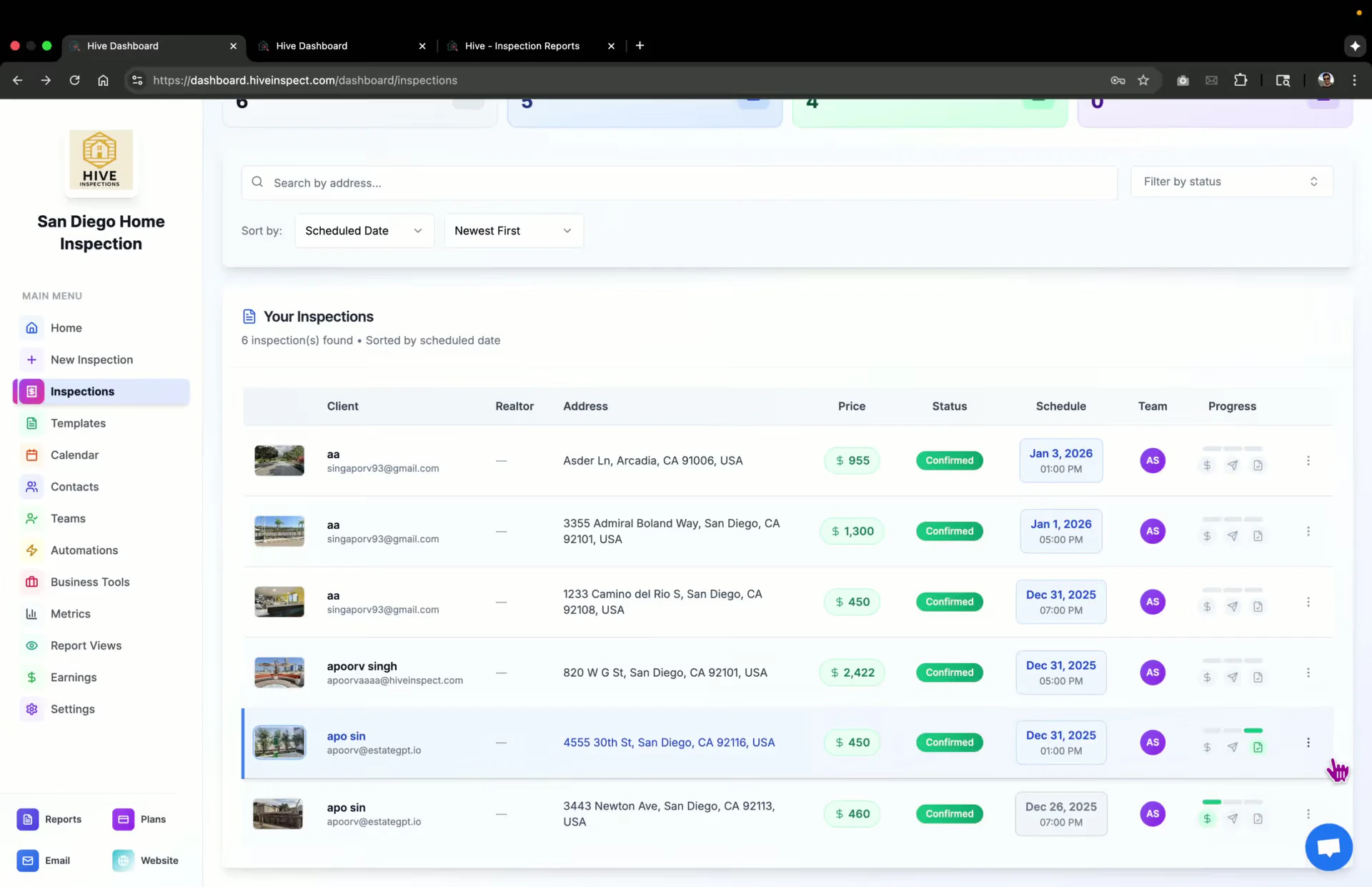
* Locate the three dots for the inspection
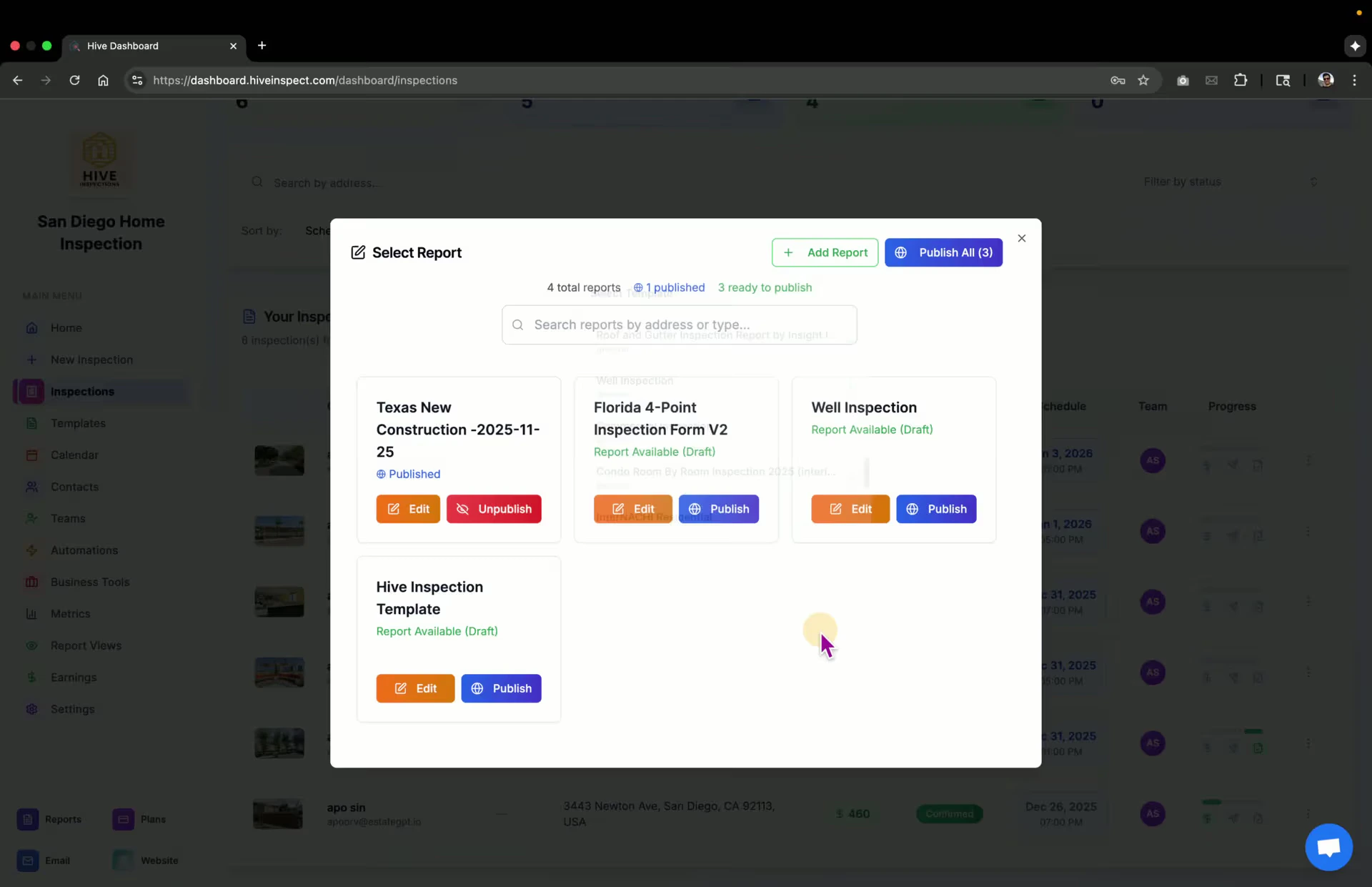
* Click to reveal miscellaneous functions related to the inspection
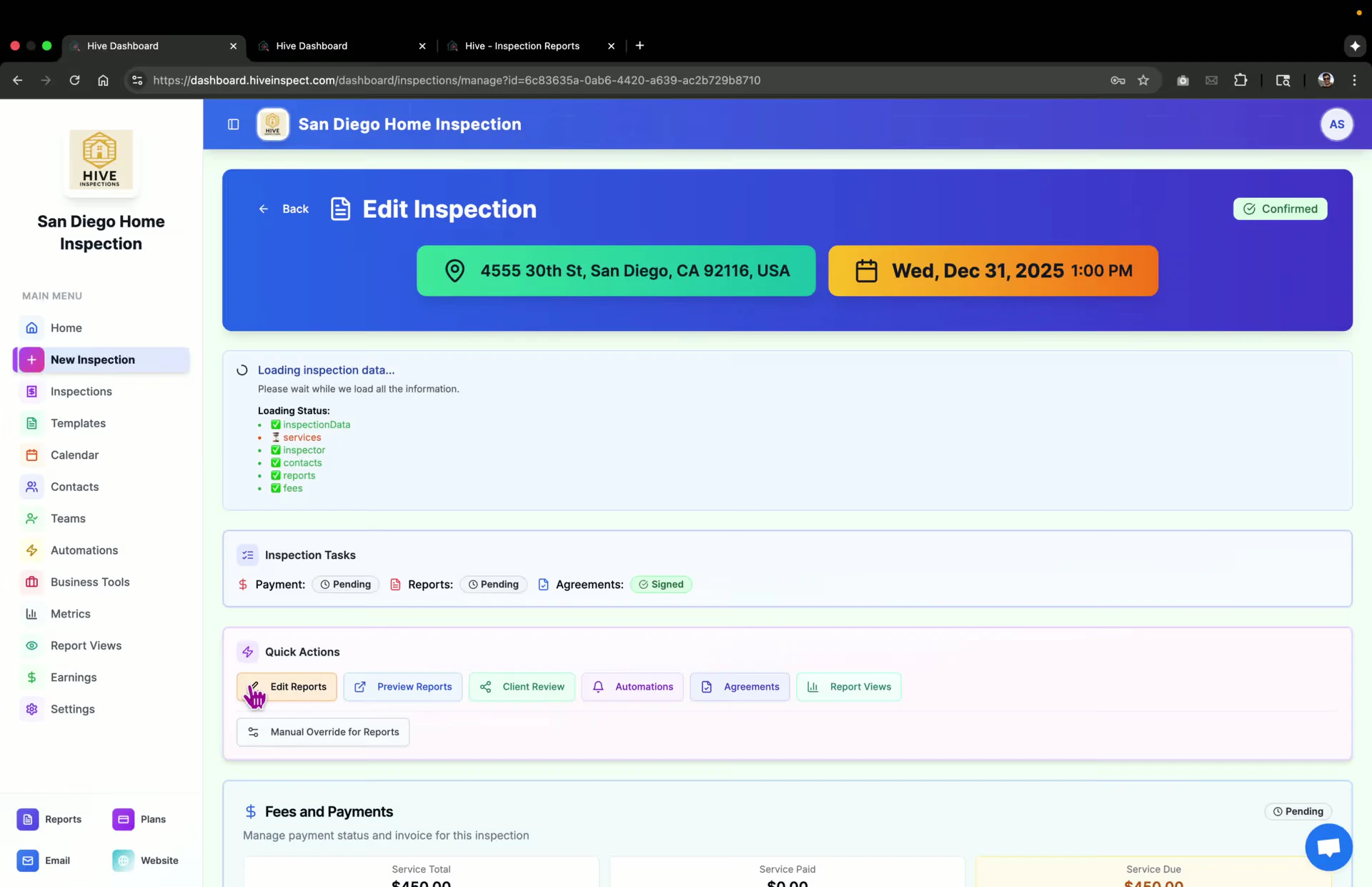
 * Click on the report editing option
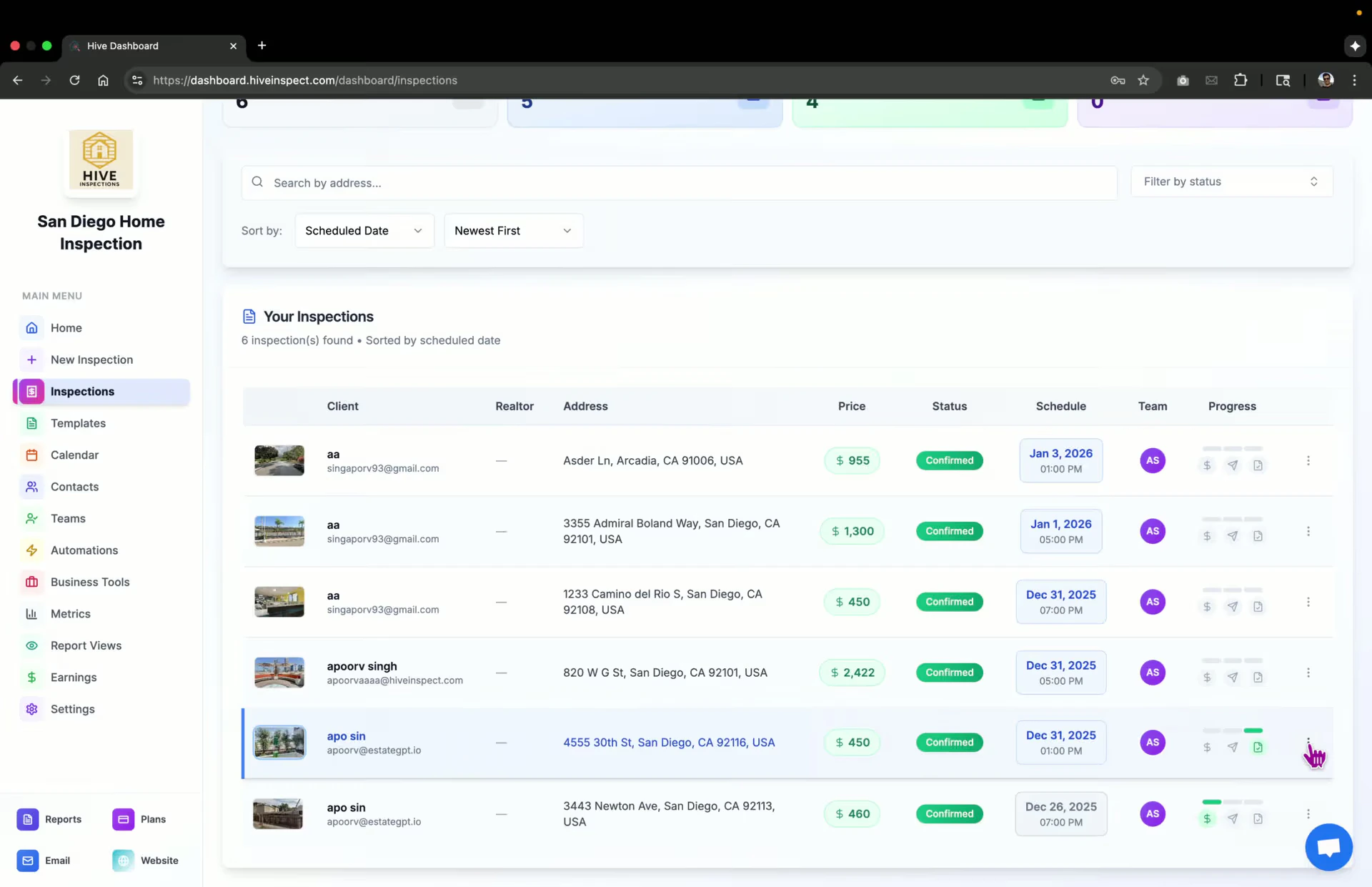
* View all templates associated with the inspection
* Options available:
* Publish or edit reports directly from the screen
* Add more reports from the template list
* Publish all reports at once
* Click on the report editing option
* View all templates associated with the inspection
* Options available:
* Publish or edit reports directly from the screen
* Add more reports from the template list
* Publish all reports at once
 * Click on the **Preview** button to access the report preview screen
* View everything the client will see in the future, regardless of payment or agreement status
* Check the status of the report (e.g., in progress) and any additional reports
* Click on the **Preview** button to access the report preview screen
* View everything the client will see in the future, regardless of payment or agreement status
* Check the status of the report (e.g., in progress) and any additional reports
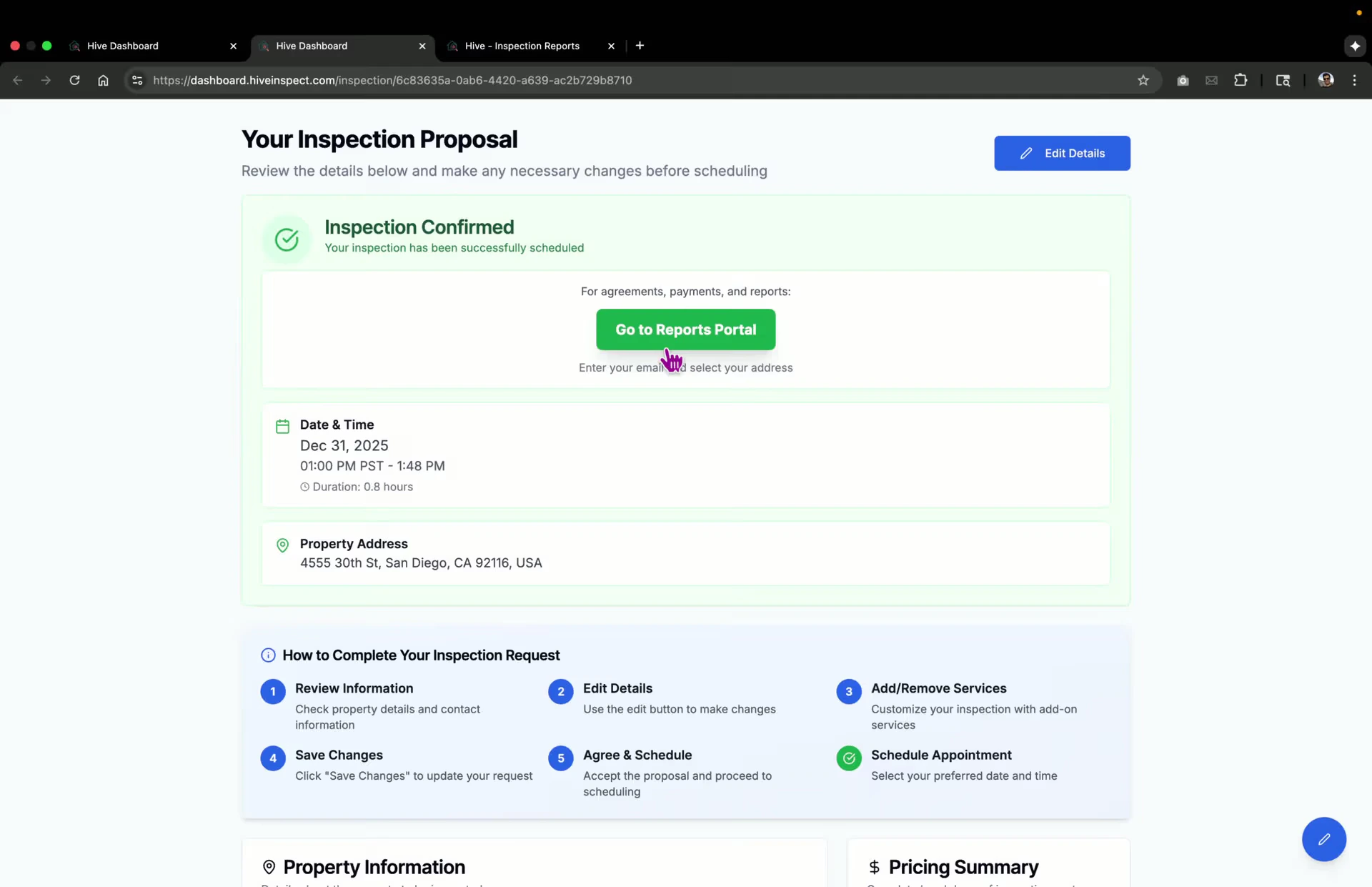
 * Click on the client link to access the inspection review link
* Use this link in upsell placeholders for clients to review add-on services
* Clients can edit and add services, updating the invoice price
* Click on the client link to access the inspection review link
* Use this link in upsell placeholders for clients to review add-on services
* Clients can edit and add services, updating the invoice price
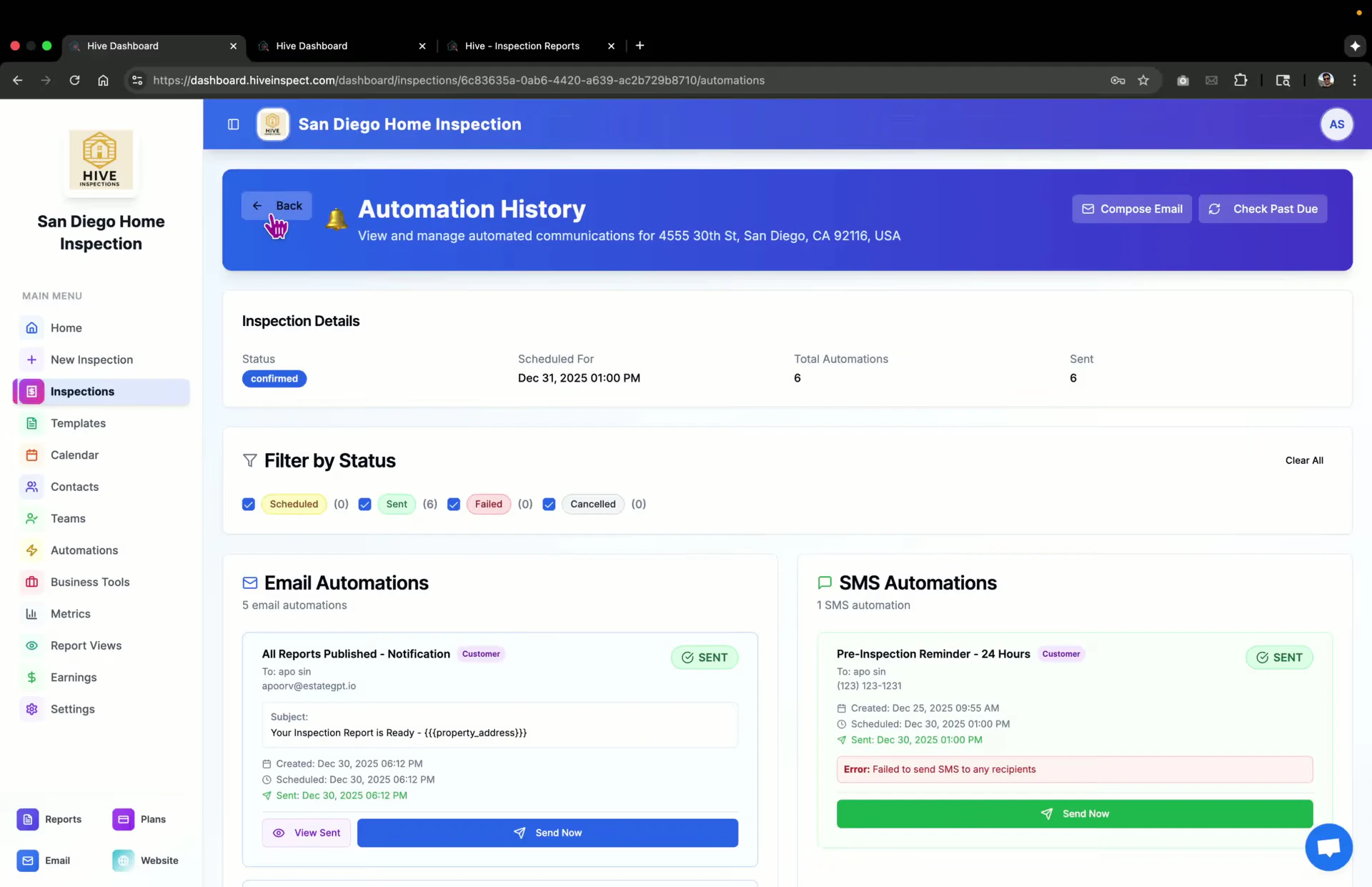
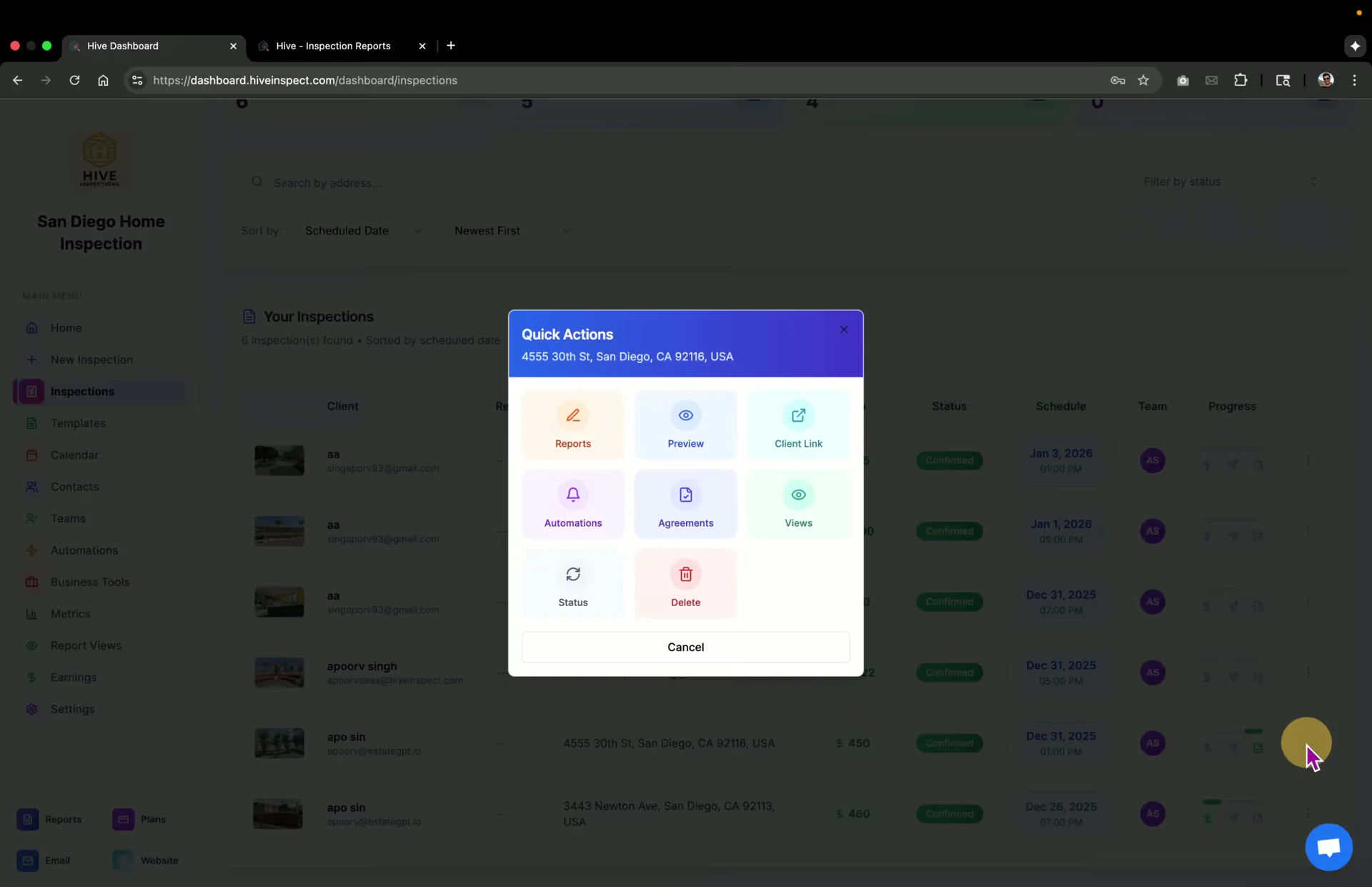 * Click on the automation option to track sent messages
* View whether automation was successful or failed
* Option to resend automation messages
* Click on the automation option to track sent messages
* View whether automation was successful or failed
* Option to resend automation messages
 * Access signed agreements by clicking on the agreements option
* View or download signed agreements
* Access signed agreements by clicking on the agreements option
* View or download signed agreements
 * Check report views to see who has logged into the reports portal for this inspection
* For a comprehensive view, visit the reports portal sidebar
* Check report views to see who has logged into the reports portal for this inspection
* For a comprehensive view, visit the reports portal sidebar
 * Use the status option to update the inspection status without deleting it
* Options include:
* Review mode
* Draft mode
* Cancel inspection
* Confirm the status change
* Use the status option to update the inspection status without deleting it
* Options include:
* Review mode
* Draft mode
* Cancel inspection
* Confirm the status change
 * Click delete to prompt cancellation
* Confirm deletion if necessary
* Note: Canceled automation will trigger in both cancellation and deletion cases
* Click delete to prompt cancellation
* Confirm deletion if necessary
* Note: Canceled automation will trigger in both cancellation and deletion cases
 * Understand the process to unlock reports (payment and agreement required)
* Option to manually unlock or lock reports for clients
* Useful for cases where ACH payments are involved and reports need to be unlocked before payment settles
* Understand the process to unlock reports (payment and agreement required)
* Option to manually unlock or lock reports for clients
* Useful for cases where ACH payments are involved and reports need to be unlocked before payment settles
 **Congratulations!** You've completed the Hive onboarding! You now have all the tools and knowledge to:
* Manage your business settings and calendar
* Create and customize inspection templates
* Configure services, pricing, and payments
* Automate client communications
* Schedule and conduct inspections
* Write and publish professional reports
* Understand the client experience
You're ready to streamline your inspection business with Hive. If you need help, refer back to these guides or contact support.
Understand what your clients see and can do in their inspection portal, including viewing reports, signing agreements, and making payments
Step-by-step guide for homebuyers to schedule an inspection
**Congratulations!** You've completed the Hive onboarding! You now have all the tools and knowledge to:
* Manage your business settings and calendar
* Create and customize inspection templates
* Configure services, pricing, and payments
* Automate client communications
* Schedule and conduct inspections
* Write and publish professional reports
* Understand the client experience
You're ready to streamline your inspection business with Hive. If you need help, refer back to these guides or contact support.
Understand what your clients see and can do in their inspection portal, including viewing reports, signing agreements, and making payments
Step-by-step guide for homebuyers to schedule an inspection