> ## Documentation Index
> Fetch the complete documentation index at: https://docs.hiveinspect.com/llms.txt
> Use this file to discover all available pages before exploring further.
# Mobile Reports
> Generate and review inspection reports from the Hive mobile app
⏱️ **Estimated time:** \~5 minutes
## Video Tutorial
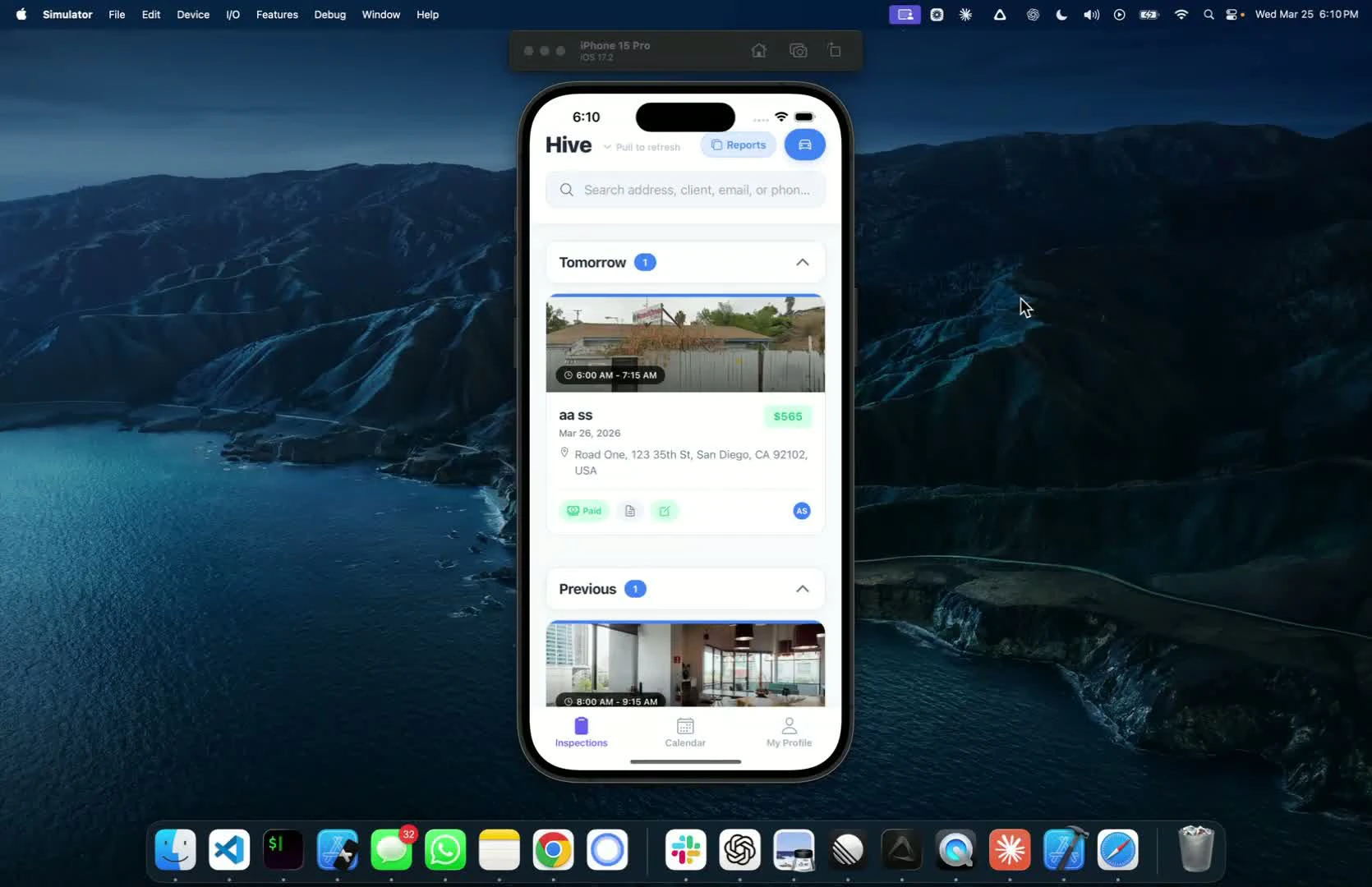
* Open the mobile app and select the inspection
* Click on the report editor and choose the report you want to work on
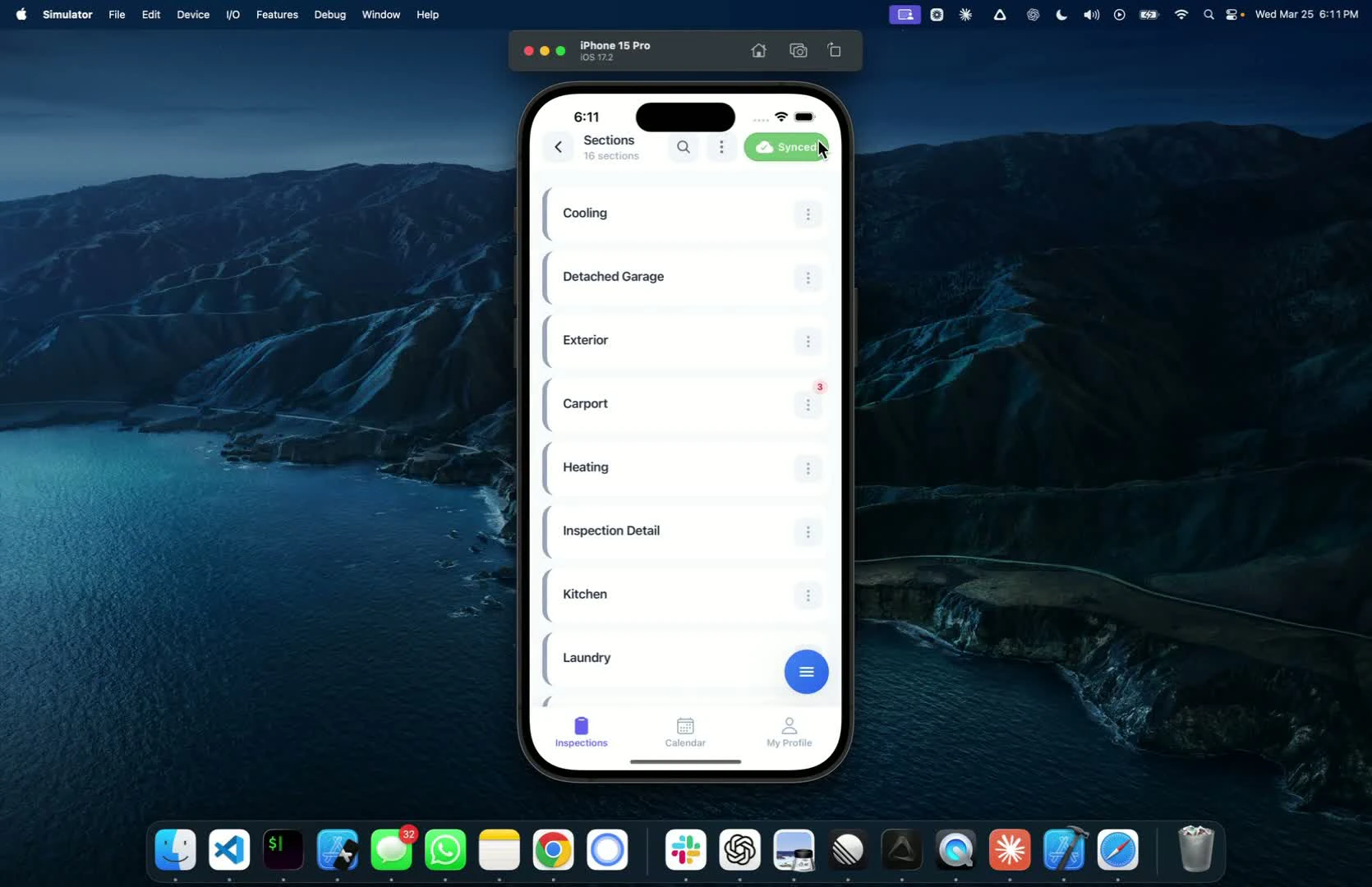
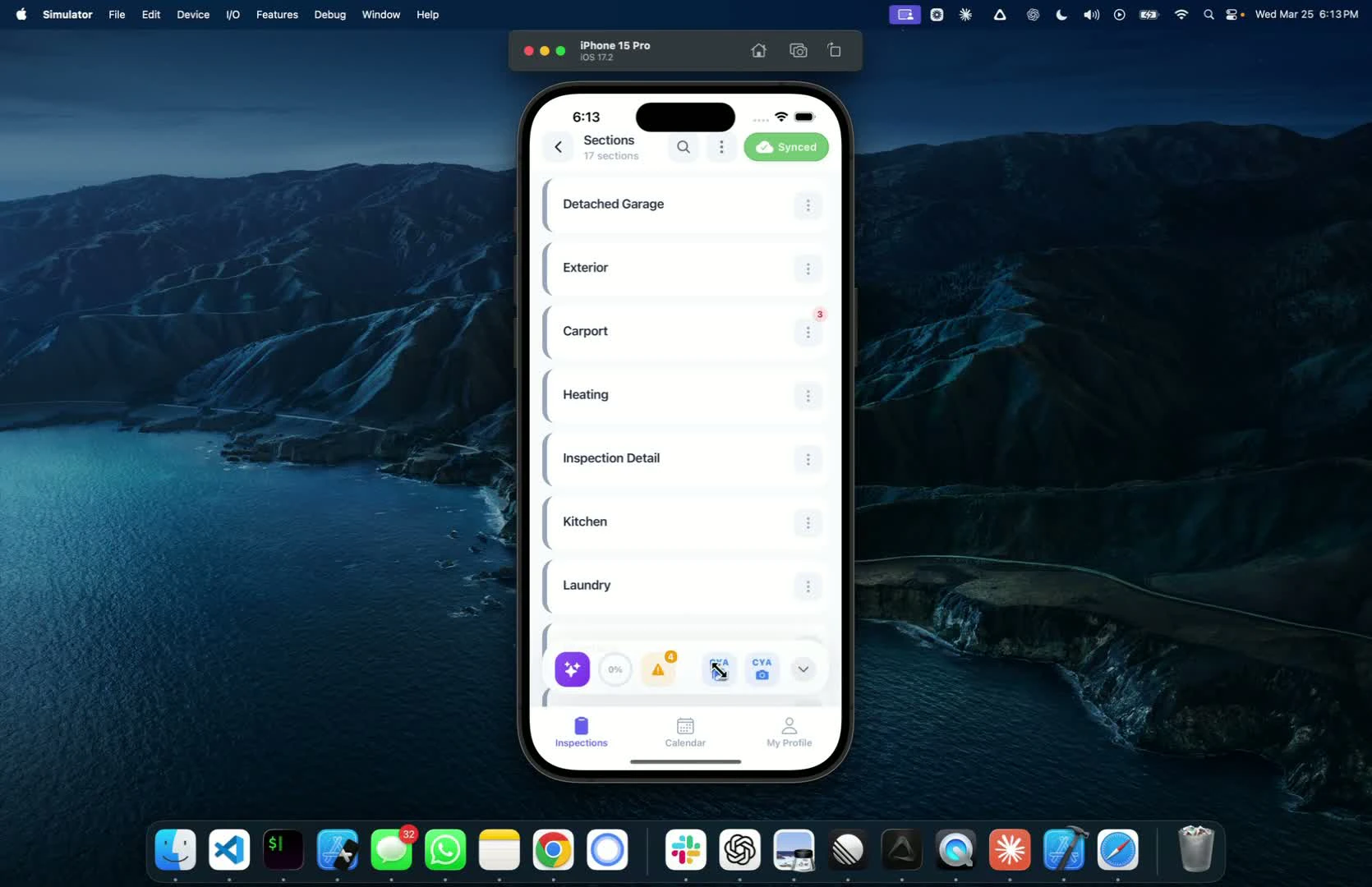
 * Look for the green button indicating all changes have been synced
* If the button is green, there is nothing left to sync
* Look for the green button indicating all changes have been synced
* If the button is green, there is nothing left to sync
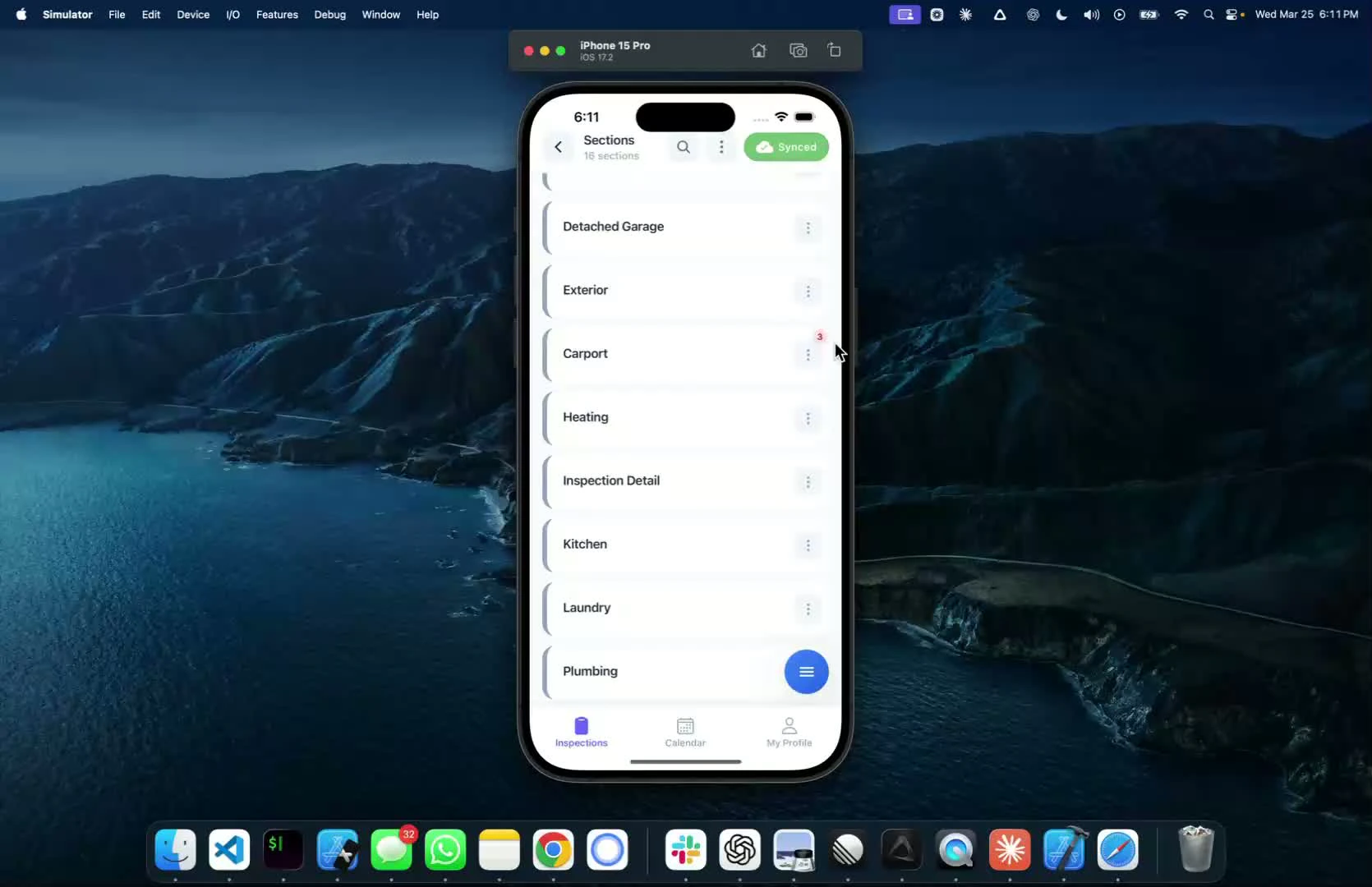
 * Notice the three-colored button that shows the number of defects checked off in the section
* Click on the button to see details about the defects
* Notice the three-colored button that shows the number of defects checked off in the section
* Click on the button to see details about the defects
 * Use the three-dot button to:
* Edit the name of the section
* Duplicate the section if needed
* Delete the section (can be restored later)
* Use the three-dot button to:
* Edit the name of the section
* Duplicate the section if needed
* Delete the section (can be restored later)
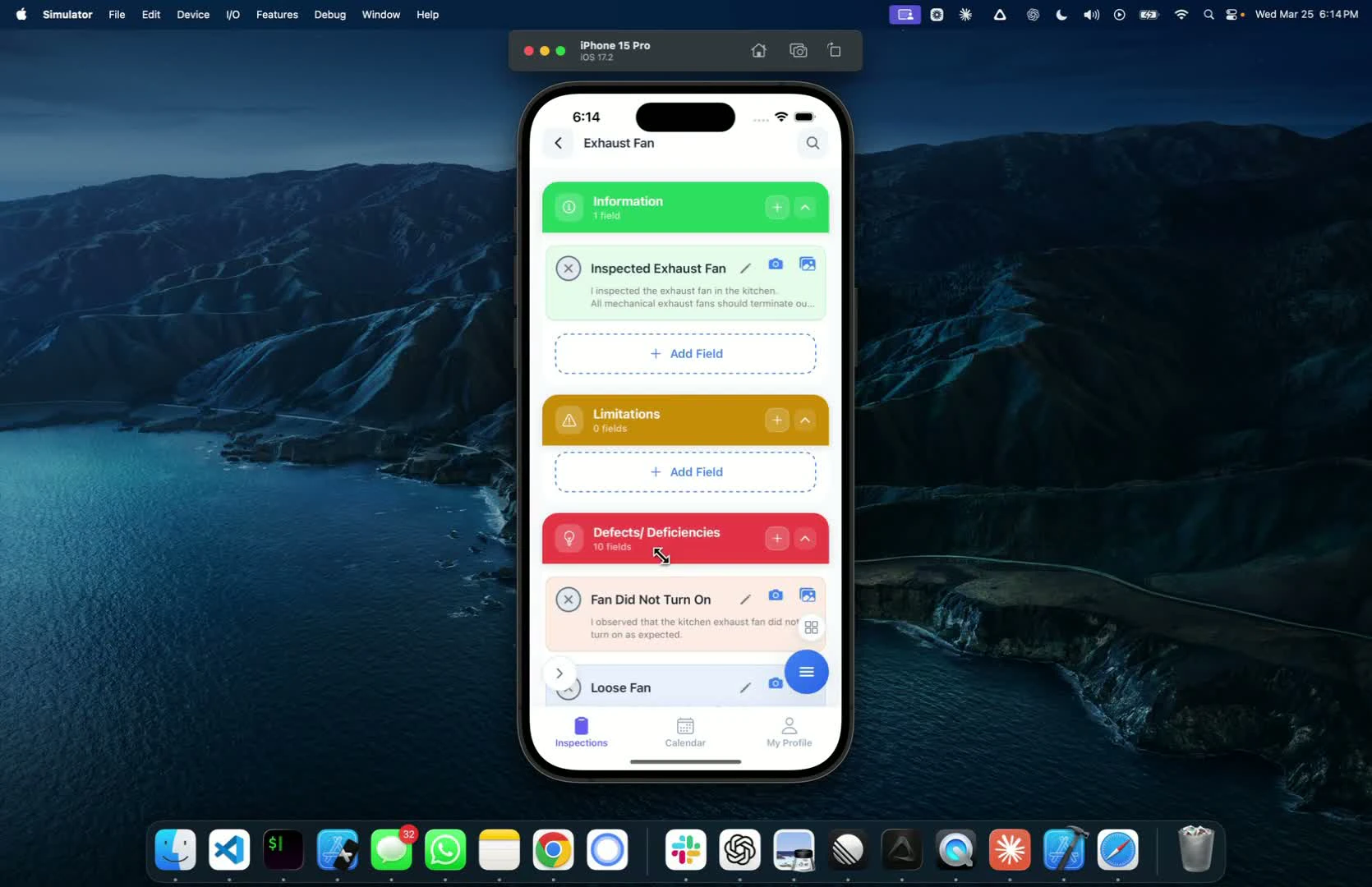
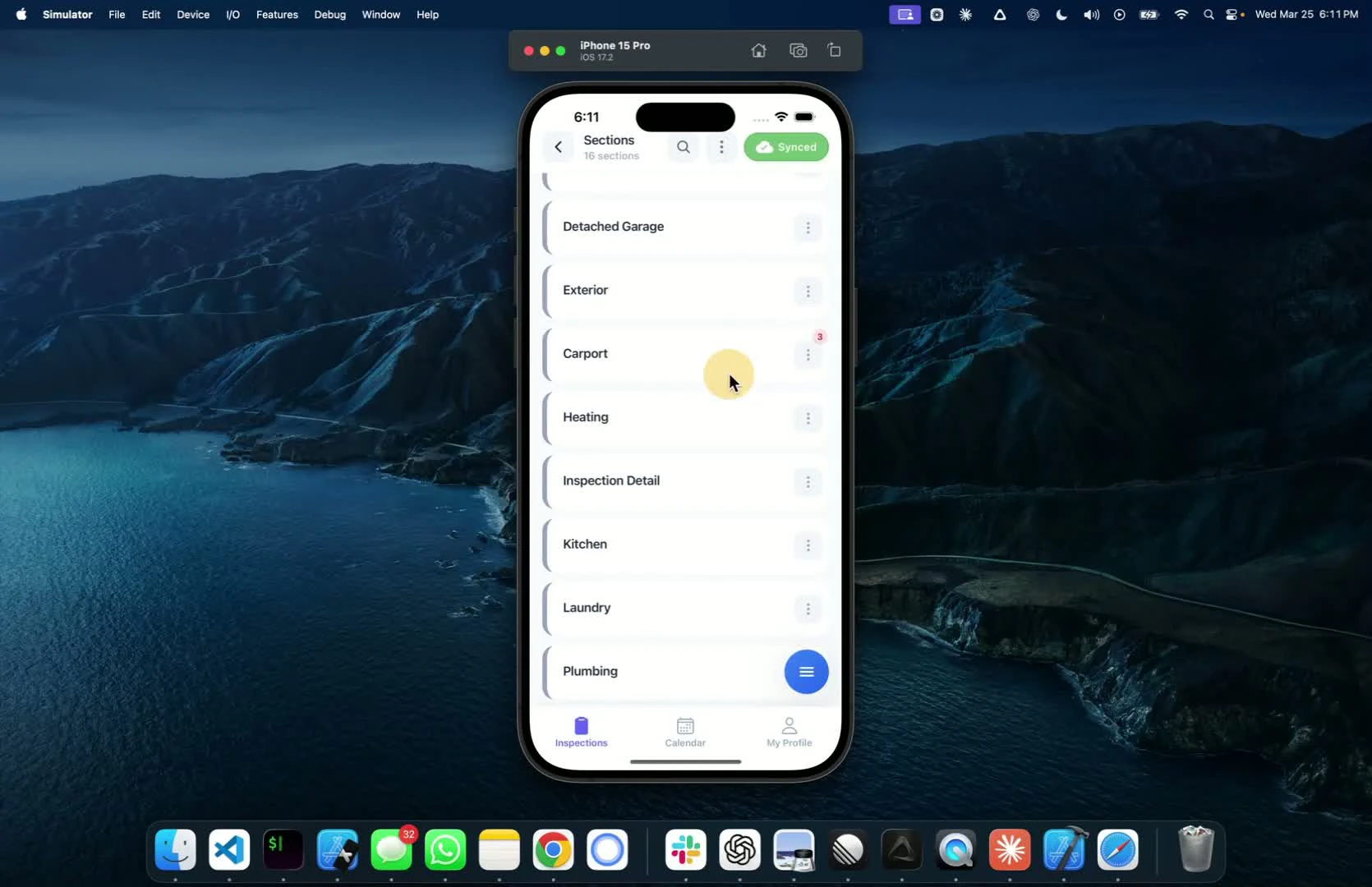 * If you find a missing defect, delete it and restore it later if needed
* To add a new defect, click the **Add** button and enter the details
* If you find a missing defect, delete it and restore it later if needed
* To add a new defect, click the **Add** button and enter the details
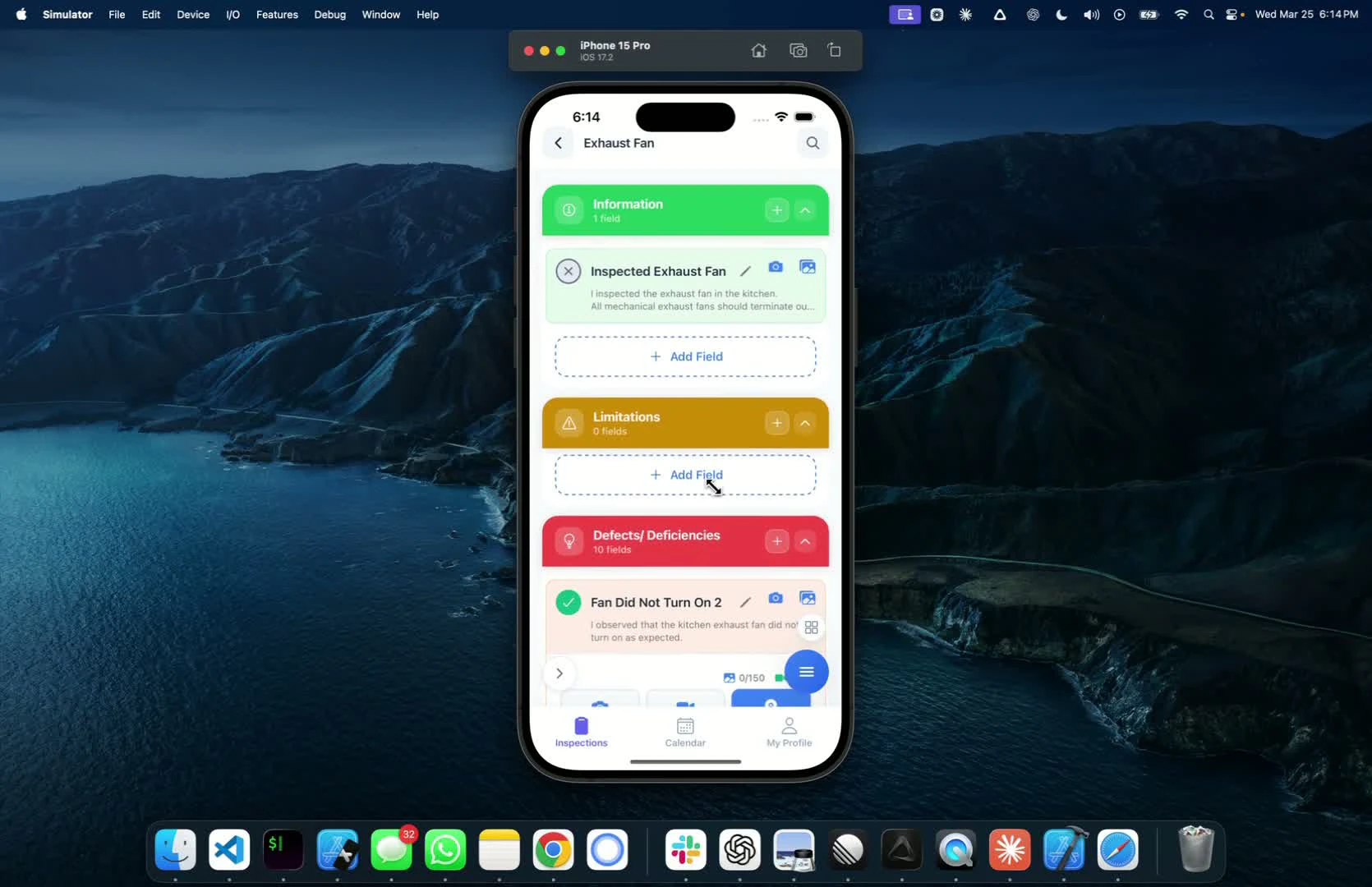
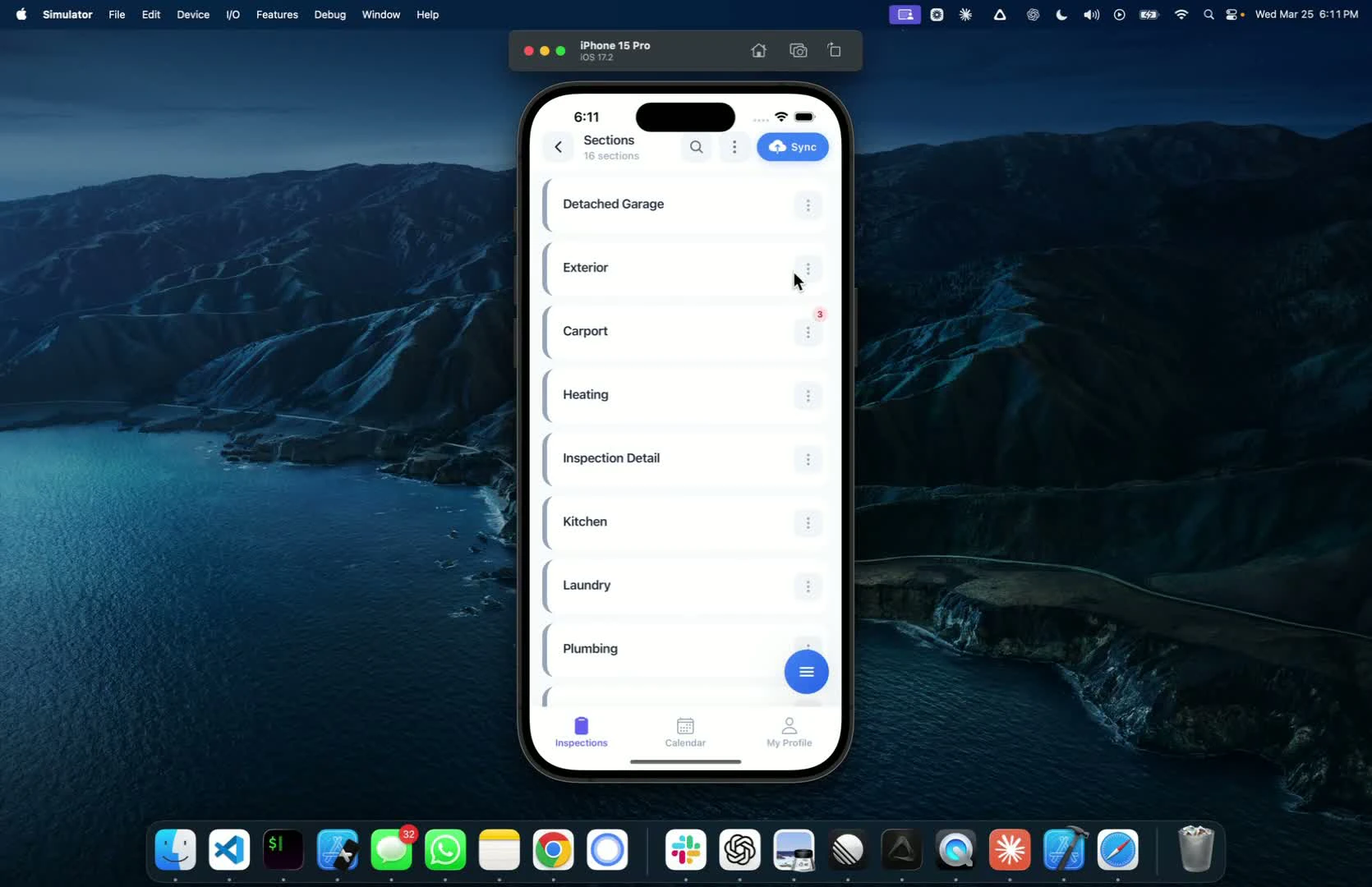 * Click on a section to view all subsections
* Check off defects as inspected, not inspected, or tagged
* Click on a section to view all subsections
* Check off defects as inspected, not inspected, or tagged
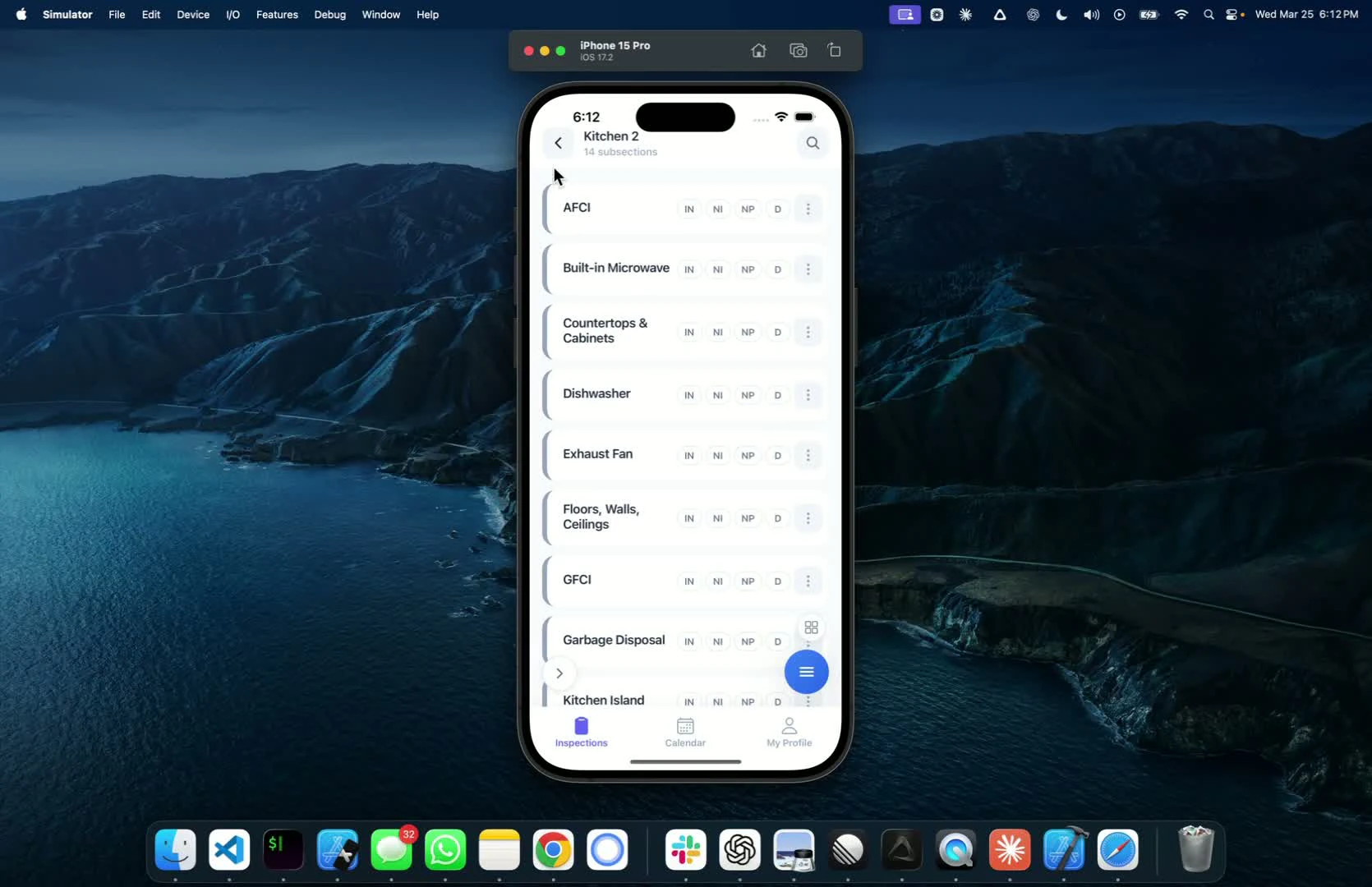 * For experienced inspectors, use the search button to find defects quickly
* Edit defects directly from the search results
* For experienced inspectors, use the search button to find defects quickly
* Edit defects directly from the search results
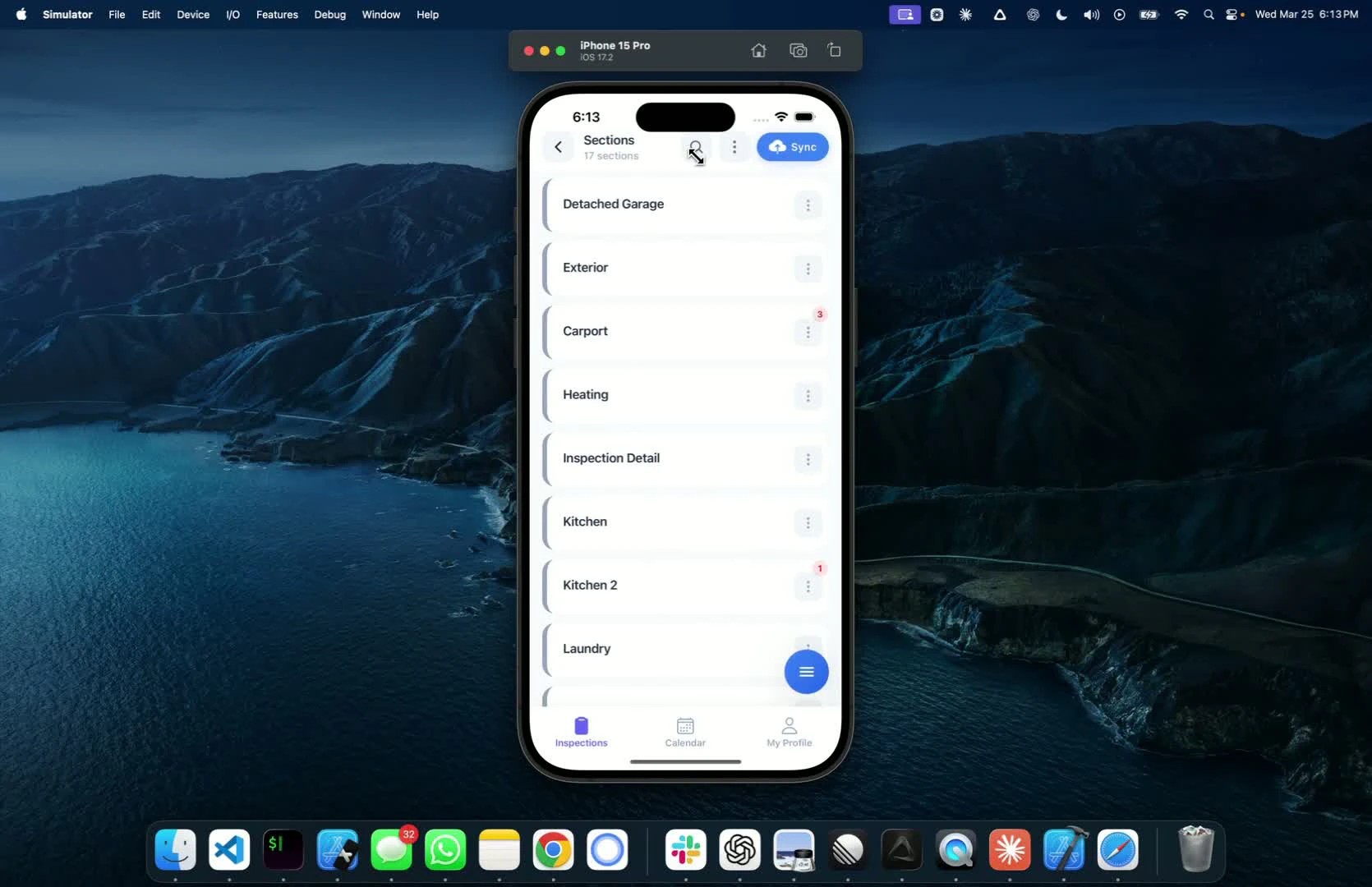 * Click the options button to:
* Add CYA cameras
* View all images associated with the report
* See all selected defects in the inspection
* Click the options button to:
* Add CYA cameras
* View all images associated with the report
* See all selected defects in the inspection
 * If changes are made in the field, update the report accordingly
* Add location tags as needed
* If changes are made in the field, update the report accordingly
* Add location tags as needed
 * Before exiting, ensure to click the sync button to save all data
* The app works offline; sync when you have internet access
* Before exiting, ensure to click the sync button to save all data
* The app works offline; sync when you have internet access