> ## Documentation Index
> Fetch the complete documentation index at: https://docs.hiveinspect.com/llms.txt
> Use this file to discover all available pages before exploring further.

# Schedule Inspections

> Learn how to schedule and manage inspections in Hive

⏱️ **Estimated time:** \~5 minutes

## Video Tutorial

<Card title="Creating a New Inspection" icon="circle-play">
  <iframe width="100%" height="450" src="https://www.loom.com/embed/d353980dfc1049a49e9d0ec9a7cba6c0" frameborder="0" allowfullscreen />
</Card>

<Steps>
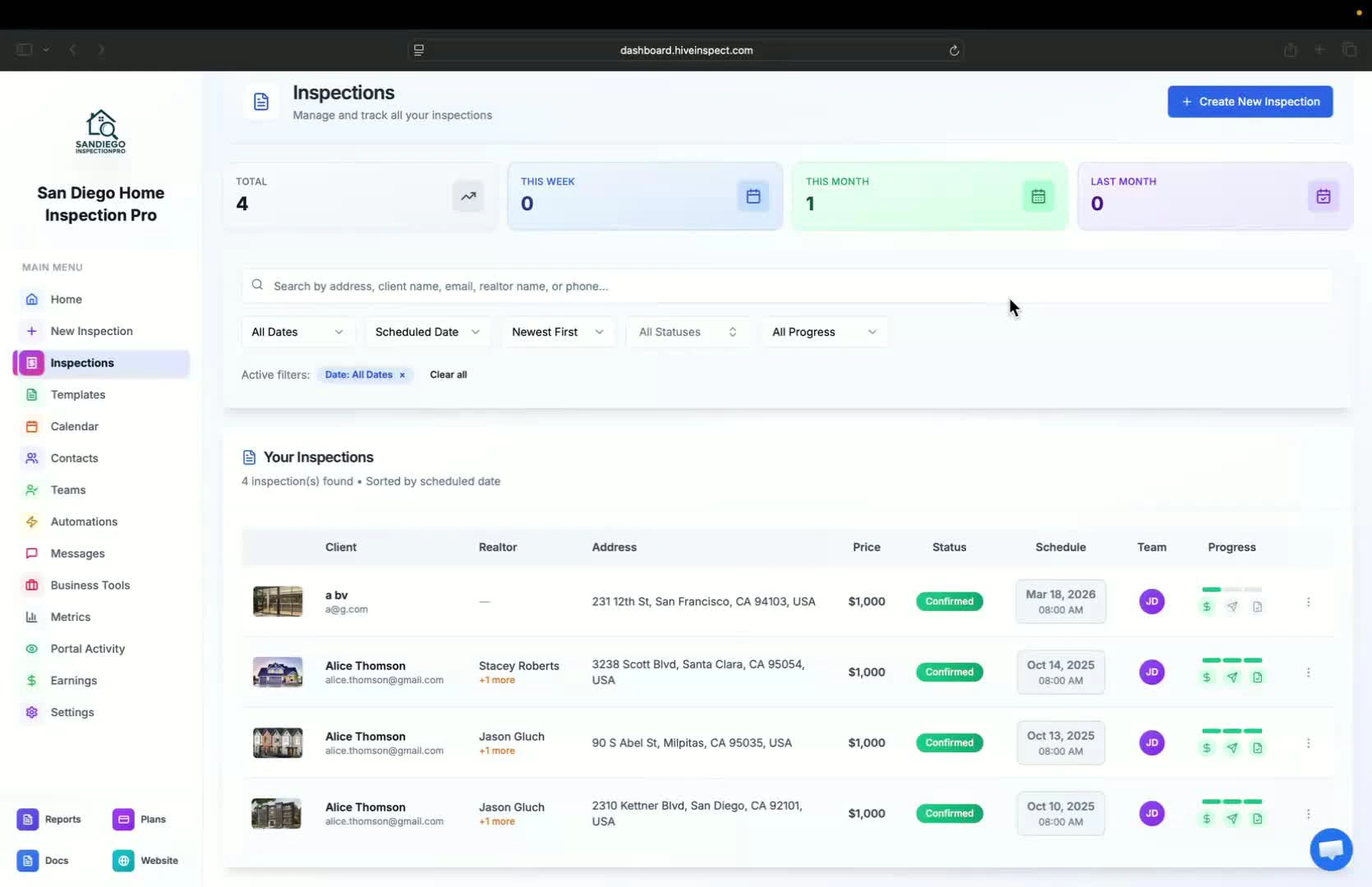
  <Step title="Overview of Inspections — 0:01">
    * Inspections are displayed in a list format, showing 50 inspections per page
    * Filters are available to sort inspections by status (e.g., paid, published, agreement signed)
    * Options available include editing, previewing reports, client review links, and report activity
    <img src="https://mintcdn.com/hiveinspect-43c85ed1/Ish45kXj50EQHADF/images/Schedule-Inspection-1.jpg?fit=max&auto=format&n=Ish45kXj50EQHADF&q=85&s=82e5e5cfcc3c5015158e4bbebbce4500" alt="Overview of inspections" width="1670" height="1080" data-path="images/Schedule-Inspection-1.jpg" />
  </Step>

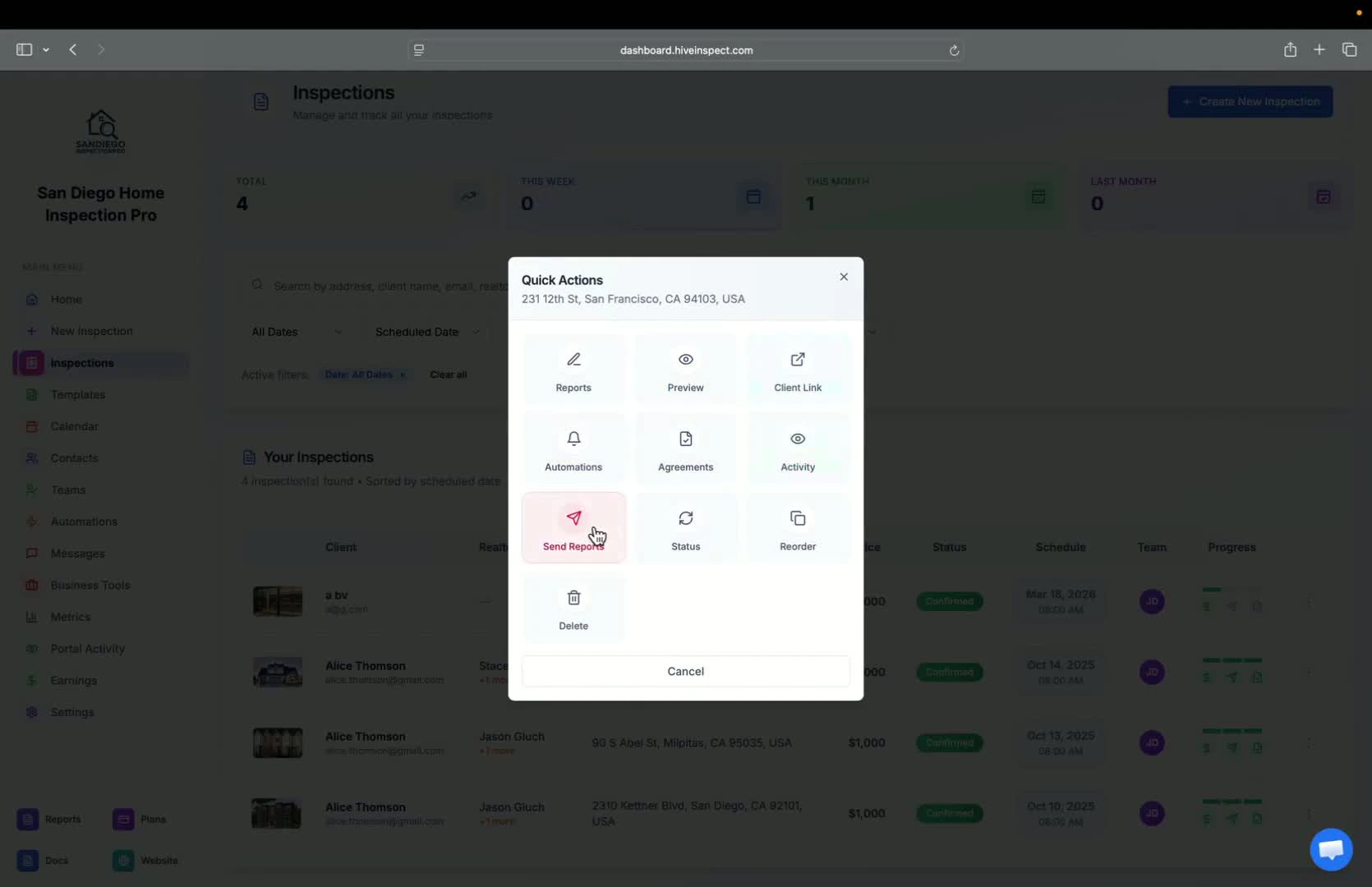
  <Step title="Manual Report Sending — 0:47">
    * A manual override button allows you to send reports directly to clients if they haven't received them
    <img src="https://mintcdn.com/hiveinspect-43c85ed1/Ish45kXj50EQHADF/images/Schedule-Inspection-2.jpg?fit=max&auto=format&n=Ish45kXj50EQHADF&q=85&s=adf4ec1cc1ea6809605dcce0f8cf1156" alt="Manual report sending" width="1670" height="1080" data-path="images/Schedule-Inspection-2.jpg" />
  </Step>

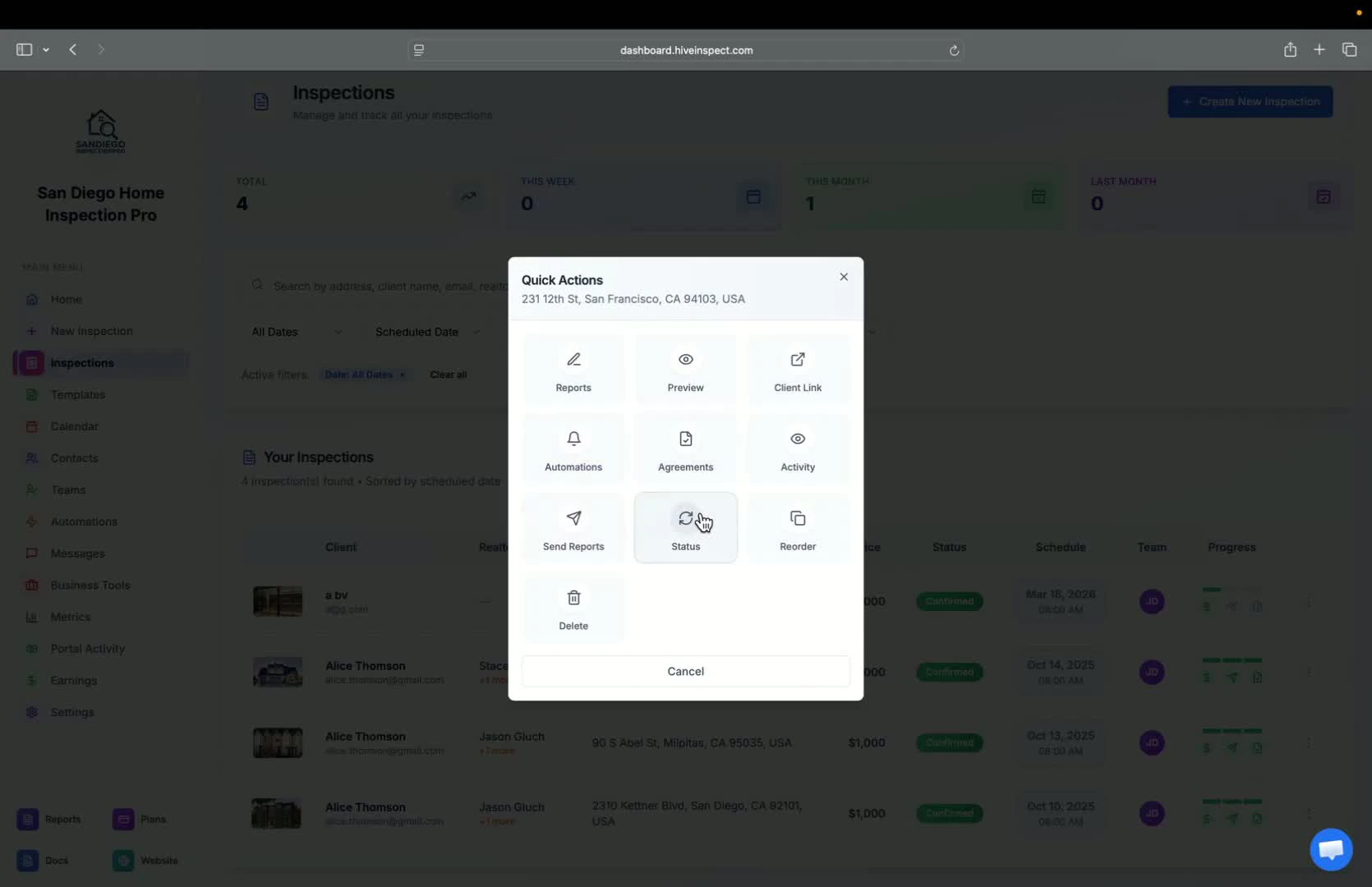
  <Step title="Changing Inspection Status — 1:04">
    * You can change the inspection status or delete an inspection using the provided buttons
    <img src="https://mintcdn.com/hiveinspect-43c85ed1/Ish45kXj50EQHADF/images/Schedule-Inspection-3.jpg?fit=max&auto=format&n=Ish45kXj50EQHADF&q=85&s=8607572ebb11e1f25447468b475fa76d" alt="Changing inspection status" width="1670" height="1080" data-path="images/Schedule-Inspection-3.jpg" />
  </Step>

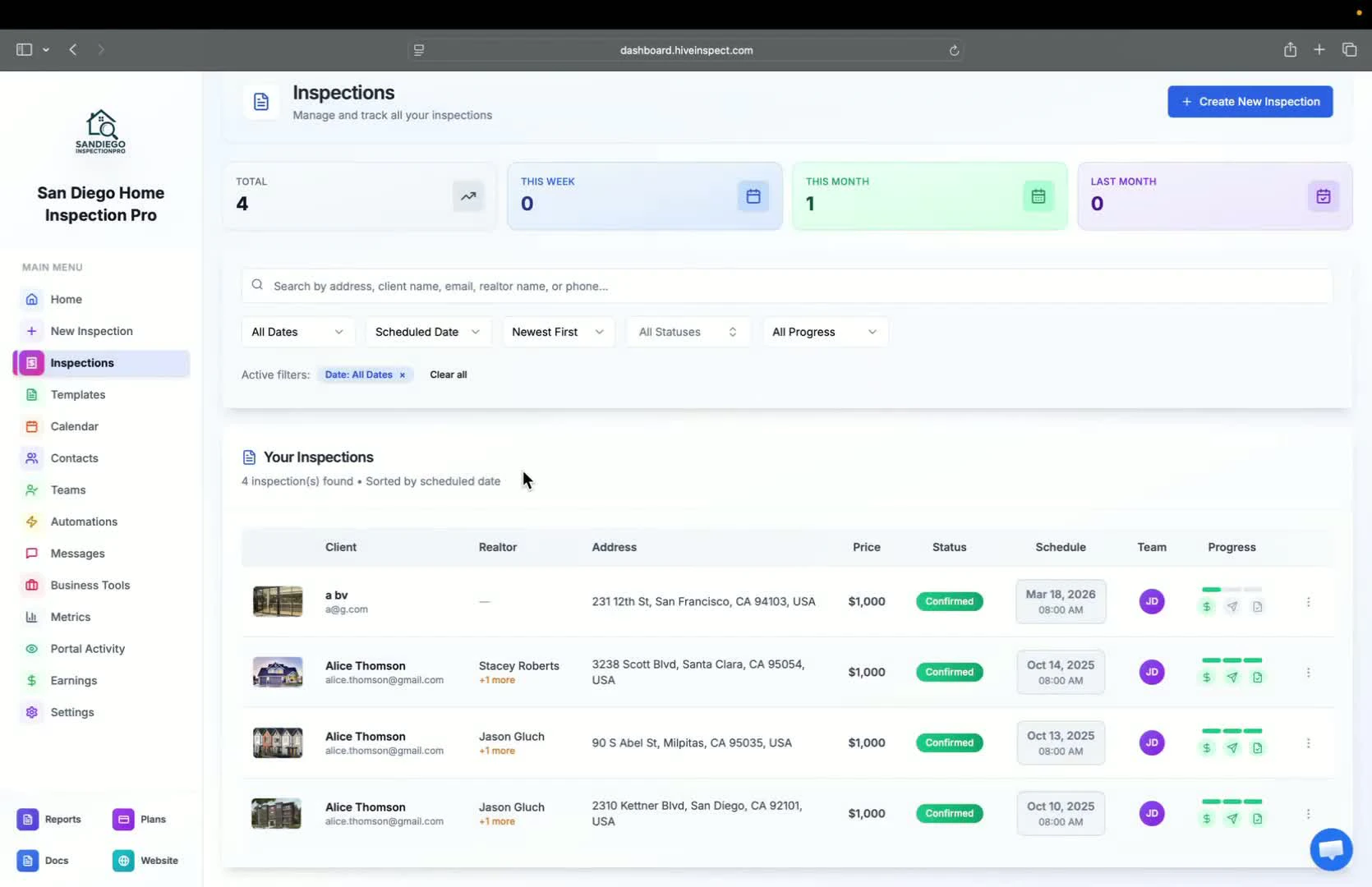
  <Step title="Creating a New Inspection — 1:20">
    * Click the **New Inspection** button to start creating a new inspection
    * You can select the default inspector or add multiple inspectors
    <img src="https://mintcdn.com/hiveinspect-43c85ed1/Ish45kXj50EQHADF/images/Schedule-Inspection-4.jpg?fit=max&auto=format&n=Ish45kXj50EQHADF&q=85&s=2472c449c890f23b7bf1a4d2813a9c29" alt="Creating a new inspection" width="1670" height="1080" data-path="images/Schedule-Inspection-4.jpg" />
  </Step>

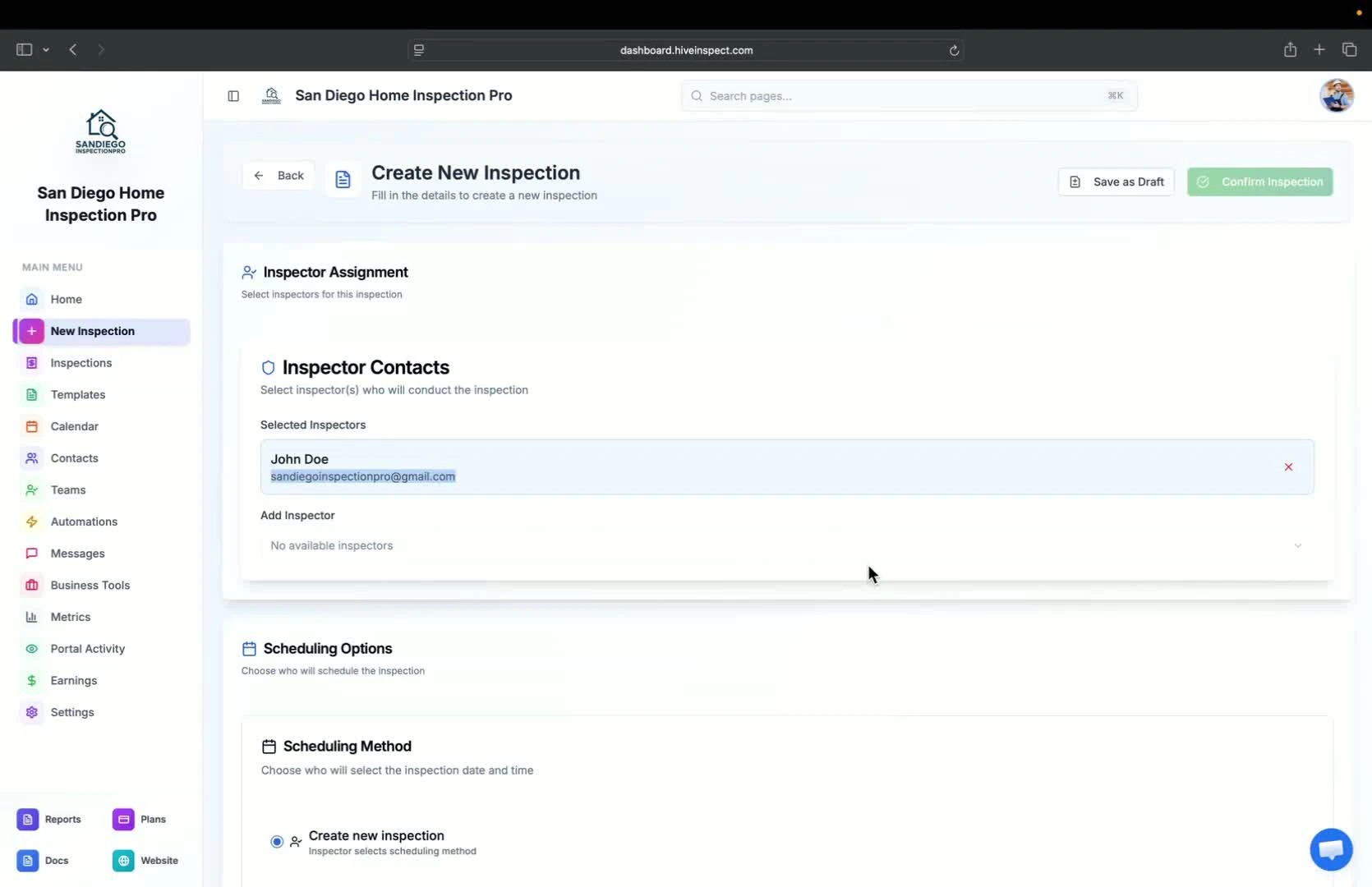
  <Step title="Scheduling the Inspection — 1:34">
    * Choose the scheduling method (default is creating a new inspection)
    * Option to generate a code if automation is set up
    <img src="https://mintcdn.com/hiveinspect-43c85ed1/Ish45kXj50EQHADF/images/Schedule-Inspection-5.jpg?fit=max&auto=format&n=Ish45kXj50EQHADF&q=85&s=4833f99cb0355a67d32ad21df560ce7a" alt="Scheduling the inspection" width="1670" height="1080" data-path="images/Schedule-Inspection-5.jpg" />
  </Step>

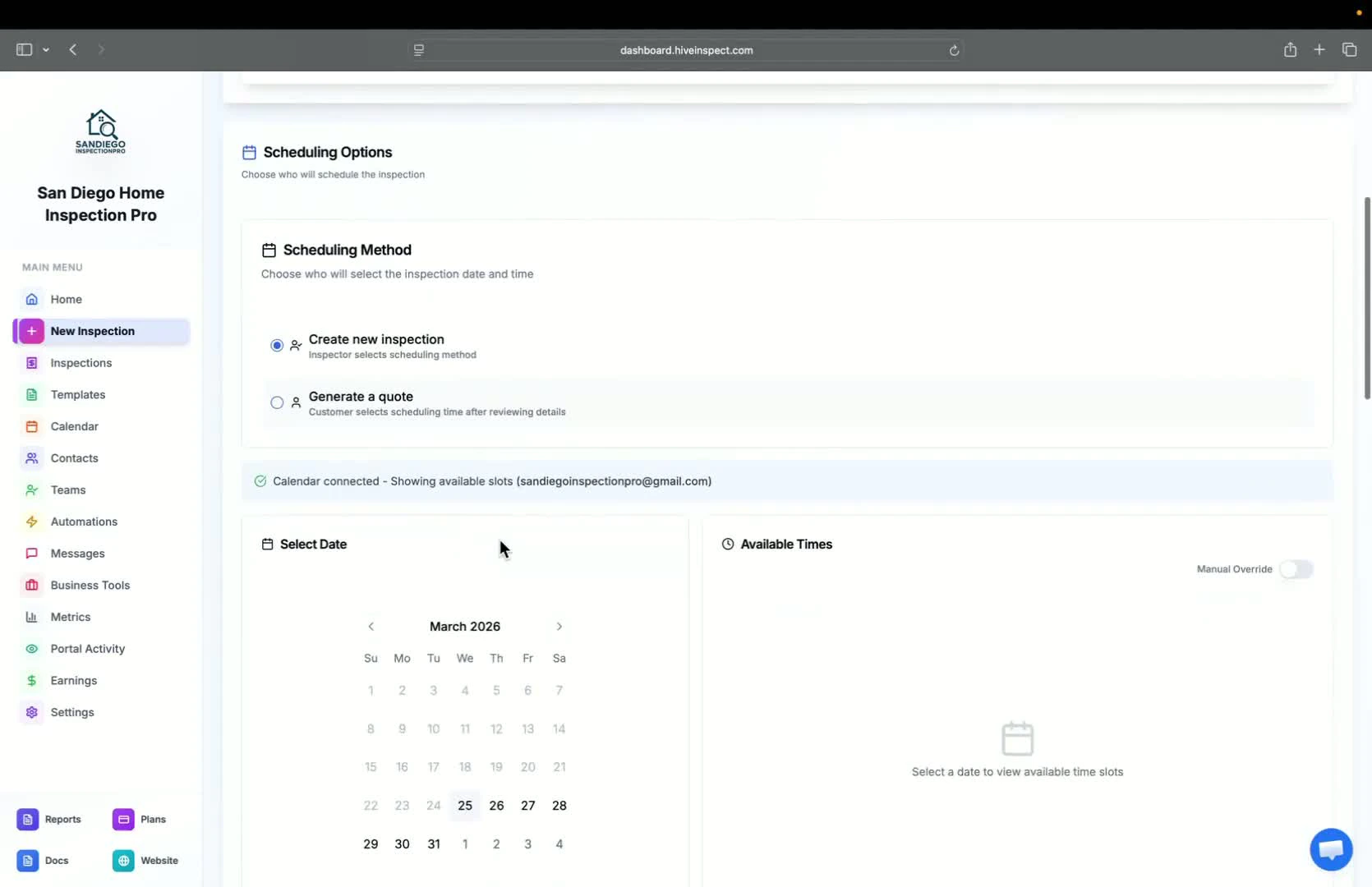
  <Step title="Selecting Date and Address — 1:56">
    * Select the date and time for the inspection
    * Enter the property address; Zillow will pull up relevant information
    <img src="https://mintcdn.com/hiveinspect-43c85ed1/Ish45kXj50EQHADF/images/Schedule-Inspection-6.jpg?fit=max&auto=format&n=Ish45kXj50EQHADF&q=85&s=100c42be13c05ef4b8ac17e68ad9a155" alt="Selecting date and address" width="1670" height="1080" data-path="images/Schedule-Inspection-6.jpg" />
  </Step>

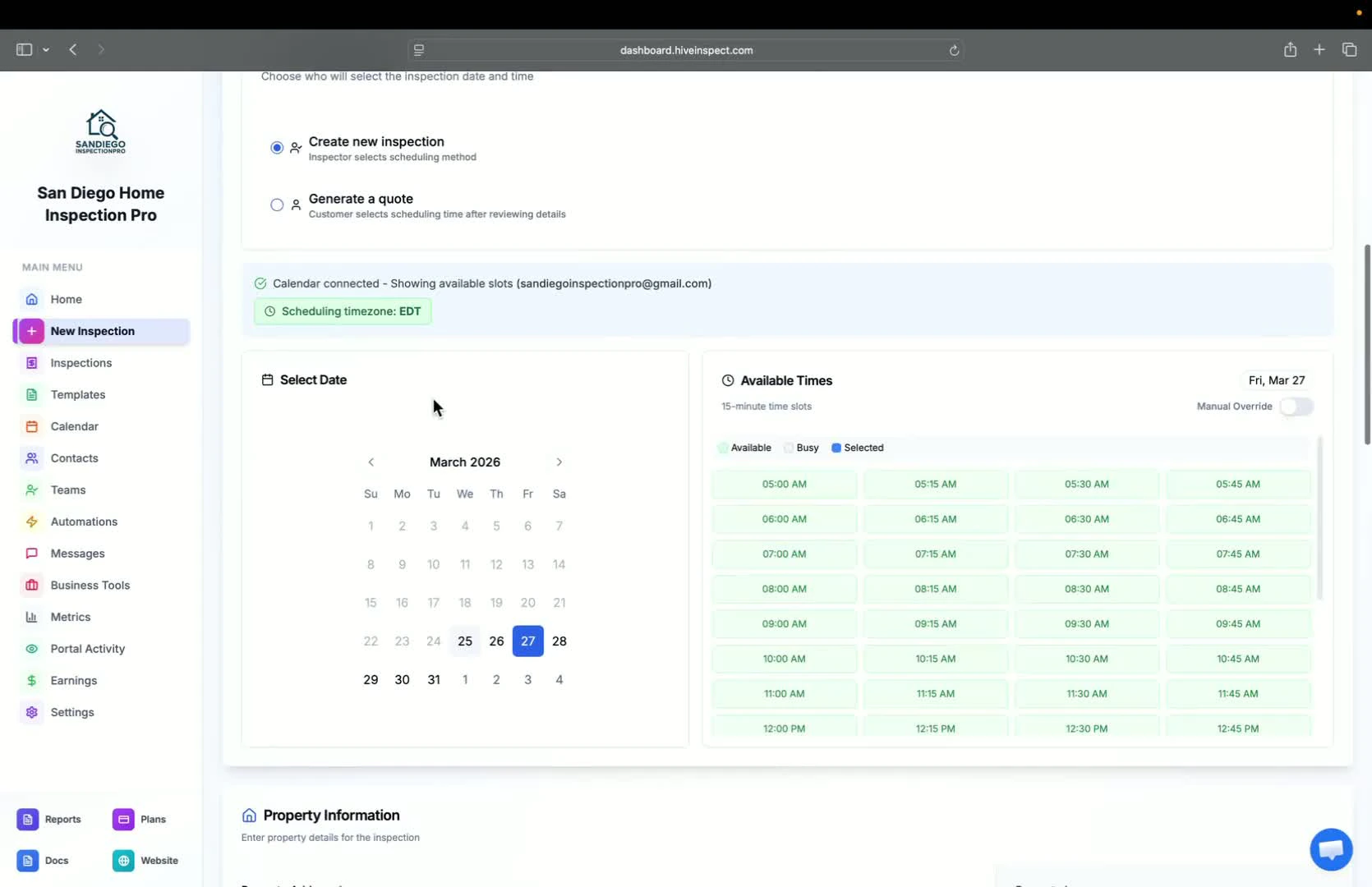
  <Step title="Entering Property Details — 2:11">
    * Fill in property details such as occupancy, foundation type, number of bedrooms, etc.
    <img src="https://mintcdn.com/hiveinspect-43c85ed1/Ish45kXj50EQHADF/images/Schedule-Inspection-7.jpg?fit=max&auto=format&n=Ish45kXj50EQHADF&q=85&s=ee6831af7b7c9a1ca452a566de8a95d3" alt="Entering property details" width="1670" height="1080" data-path="images/Schedule-Inspection-7.jpg" />
  </Step>

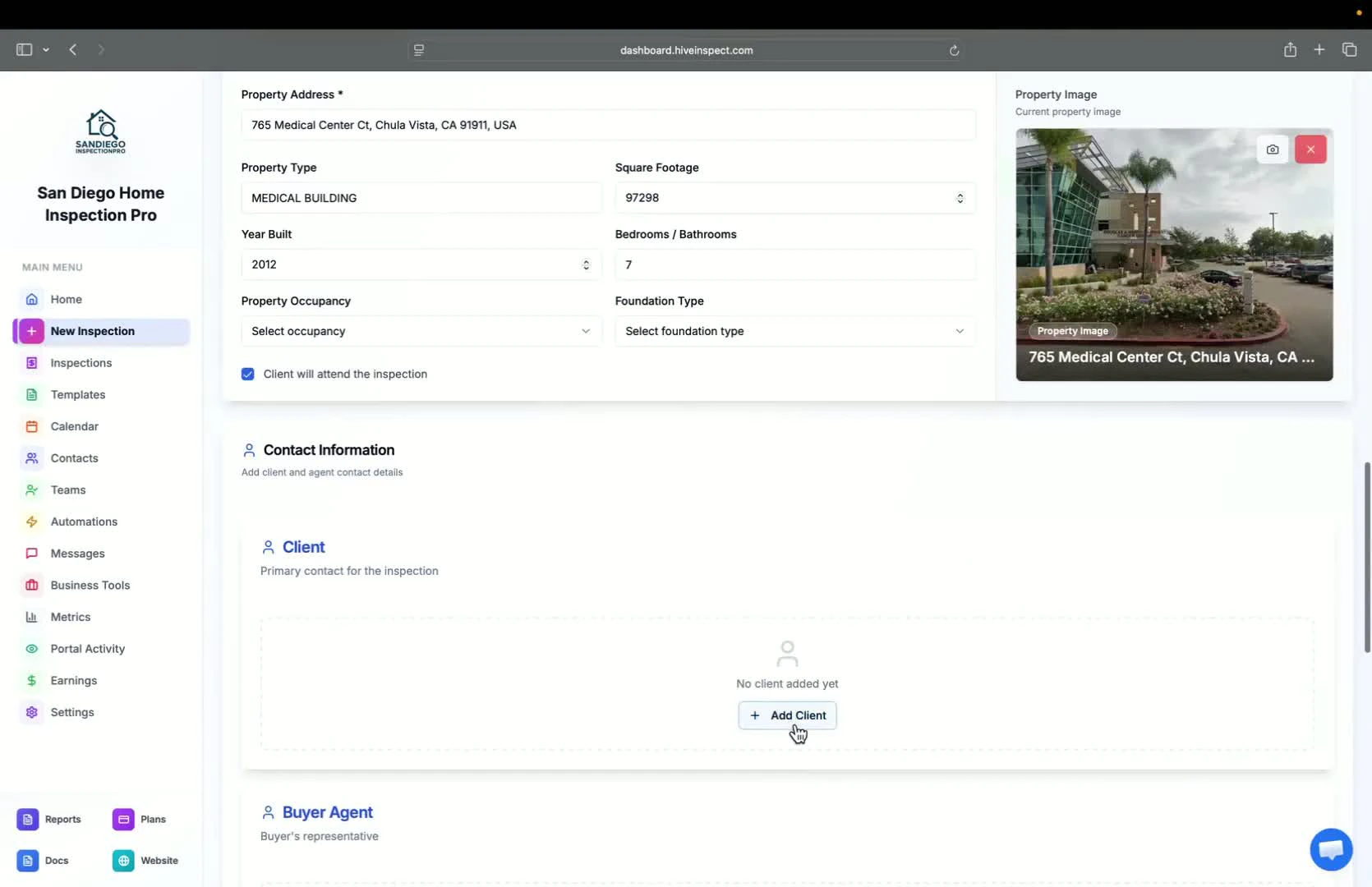
  <Step title="Adding Contacts — 2:29">
    * Add client contact information (email is mandatory)
    * Option to add CC emails, phone numbers, and tags
    <img src="https://mintcdn.com/hiveinspect-43c85ed1/Ish45kXj50EQHADF/images/Schedule-Inspection-8.jpg?fit=max&auto=format&n=Ish45kXj50EQHADF&q=85&s=0c67e8c0236ff44e2d4488de1da926de" alt="Adding contacts" width="1670" height="1080" data-path="images/Schedule-Inspection-8.jpg" />
  </Step>

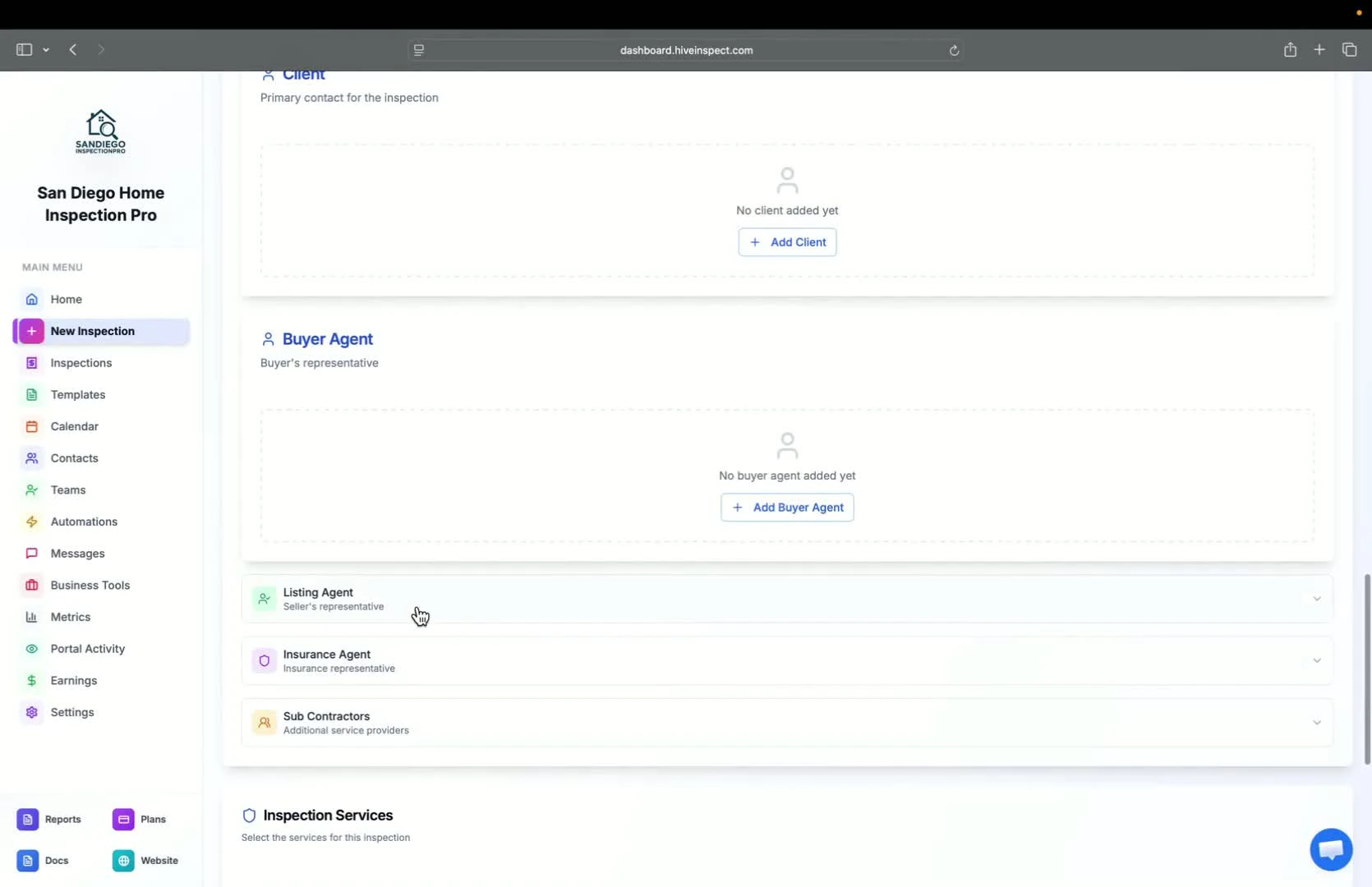
  <Step title="Adding Agents and Contractors — 3:00">
    * Option to add buyer's agent, listing agent, insurance agent, or contractors
    <img src="https://mintcdn.com/hiveinspect-43c85ed1/Ish45kXj50EQHADF/images/Schedule-Inspection-9.jpg?fit=max&auto=format&n=Ish45kXj50EQHADF&q=85&s=f8b656af75c4686b15036e85cae2d4a5" alt="Adding agents and contractors" width="1670" height="1080" data-path="images/Schedule-Inspection-9.jpg" />
  </Step>

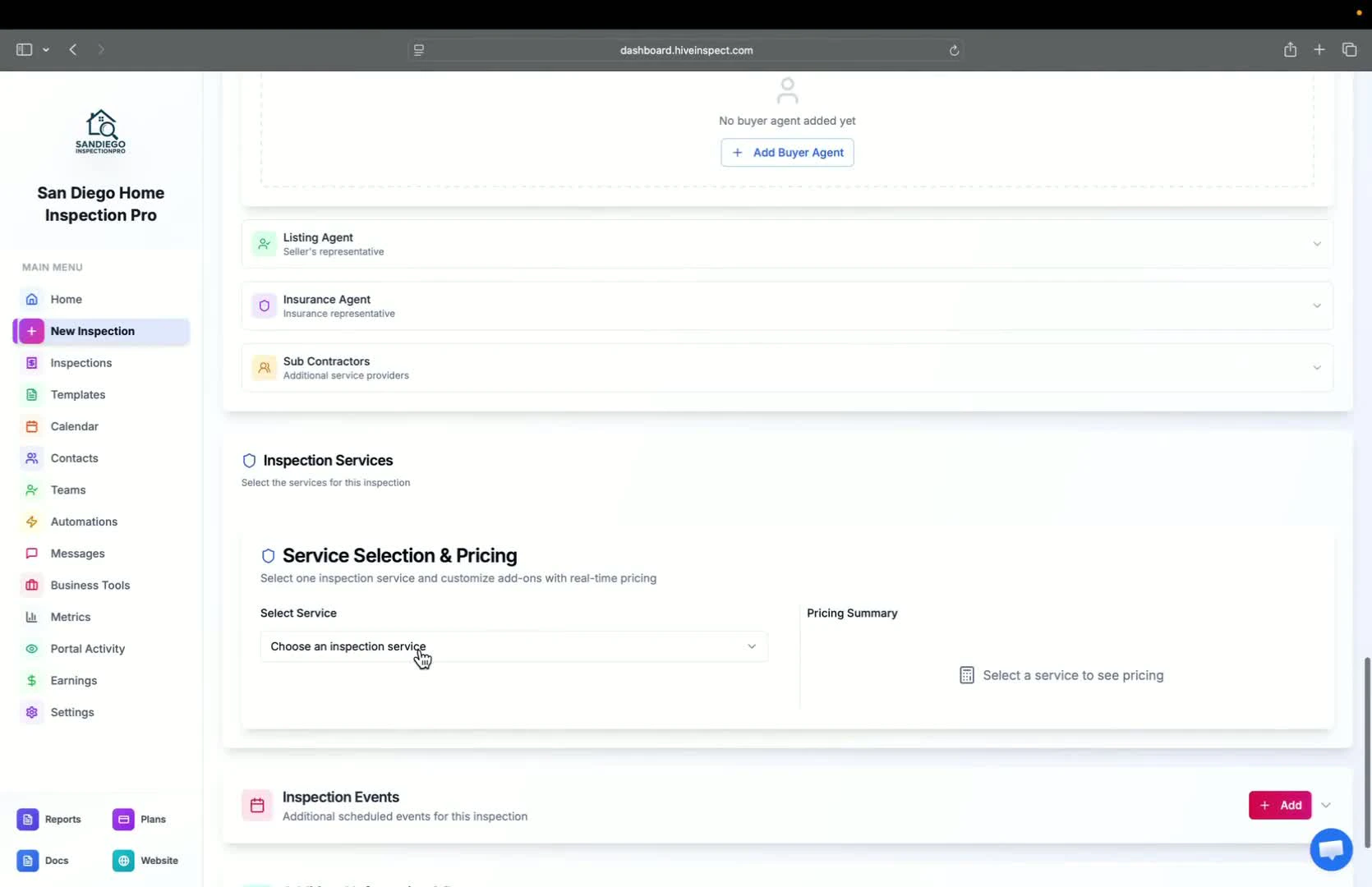
  <Step title="Selecting Services and Modifiers — 3:09">
    * Choose the service for the inspection; modifiers will be added based on property details
    <img src="https://mintcdn.com/hiveinspect-43c85ed1/Ish45kXj50EQHADF/images/Schedule-Inspection-10.jpg?fit=max&auto=format&n=Ish45kXj50EQHADF&q=85&s=7ea9a8b4fc84d8028065599b9e78ea1d" alt="Selecting services and modifiers" width="1670" height="1080" data-path="images/Schedule-Inspection-10.jpg" />
  </Step>

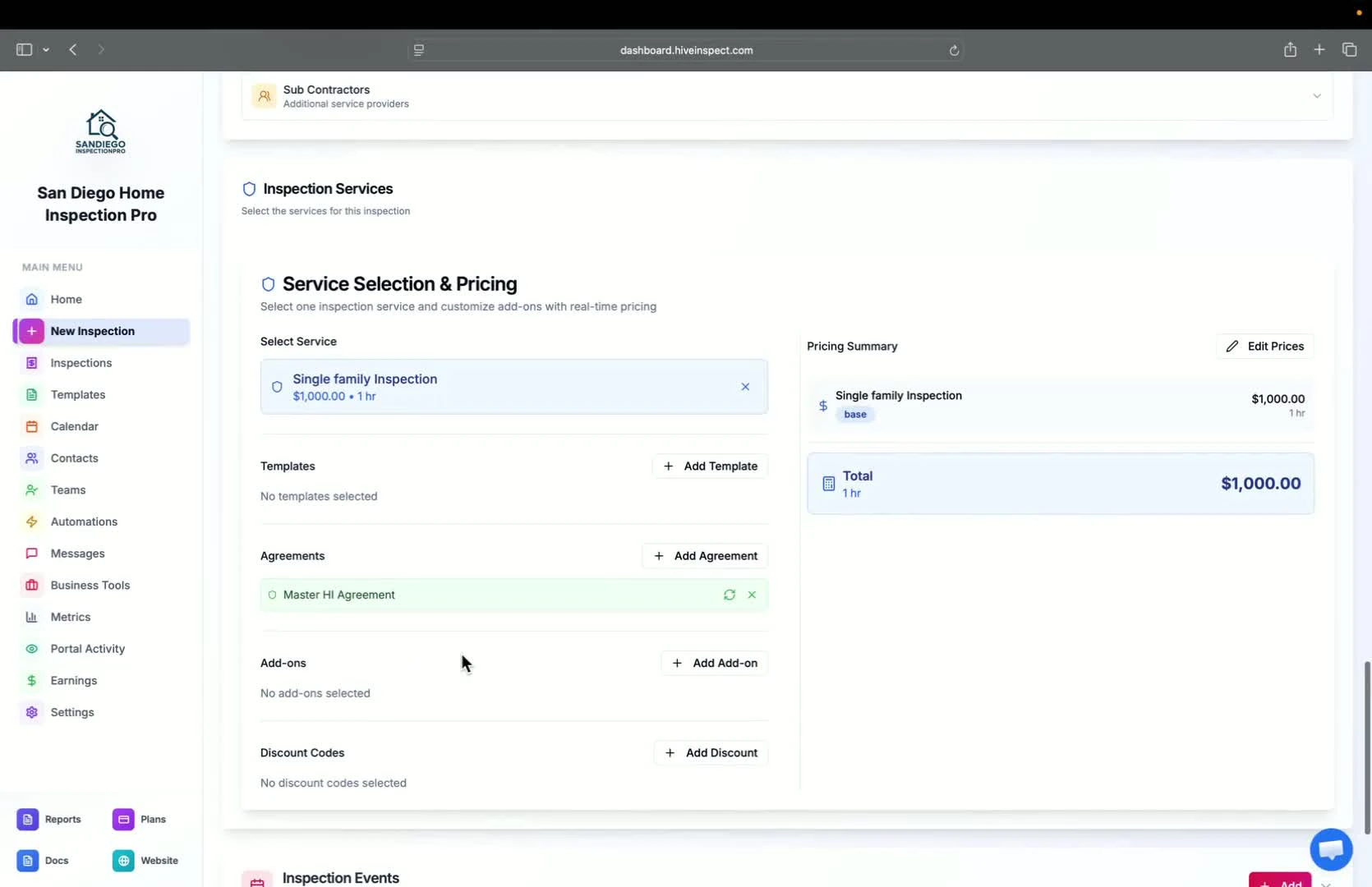
  <Step title="Adding Templates and Agreements — 3:19">
    * You can add templates, agreements, add-ons, and discount codes
    <img src="https://mintcdn.com/hiveinspect-43c85ed1/Ish45kXj50EQHADF/images/Schedule-Inspection-11.jpg?fit=max&auto=format&n=Ish45kXj50EQHADF&q=85&s=bd067f6ff80ad09612217596a5868c2e" alt="Adding templates and agreements" width="1670" height="1080" data-path="images/Schedule-Inspection-11.jpg" />
  </Step>

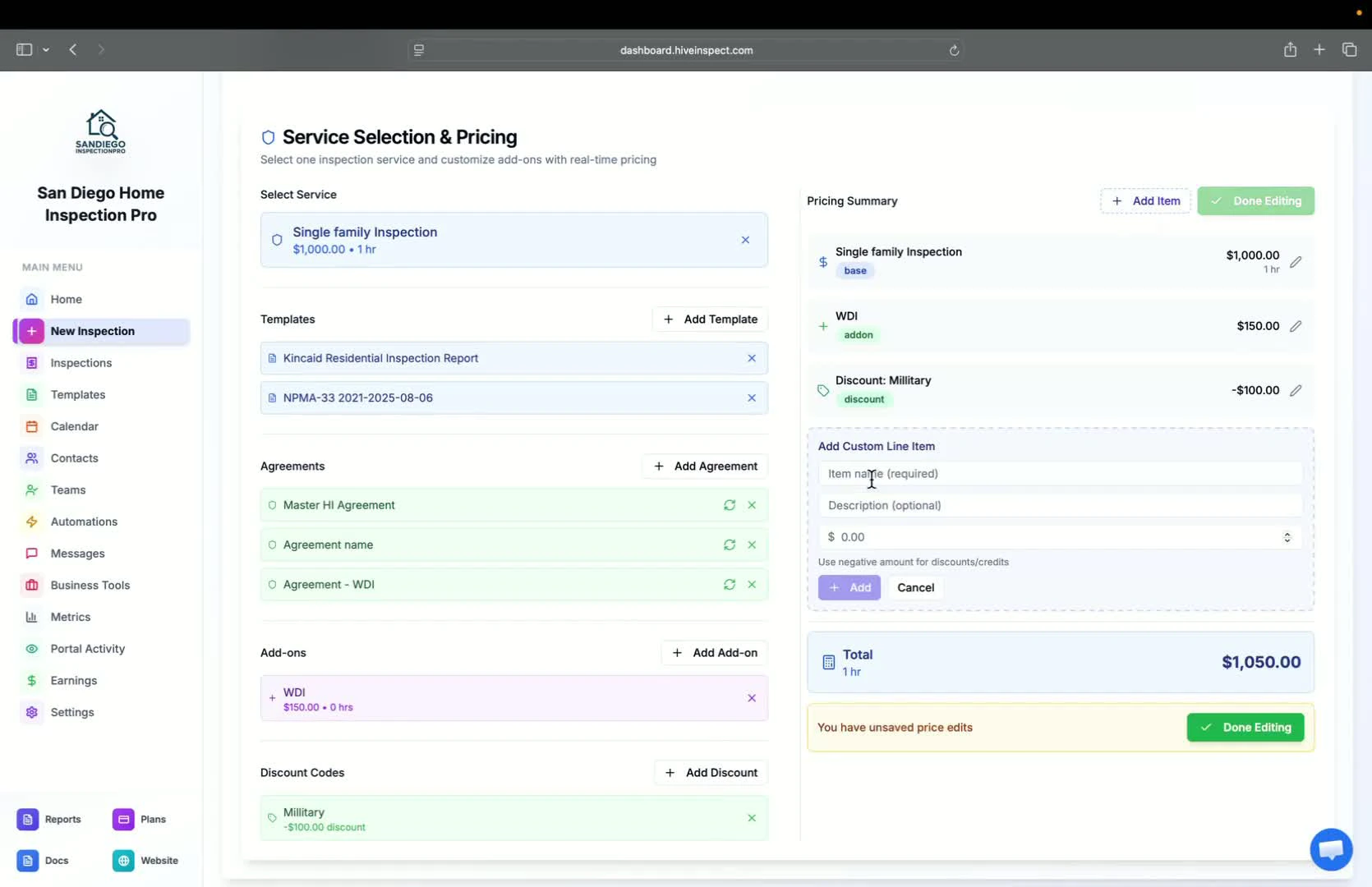
  <Step title="Custom Line Items — 3:38">
    * Option to create custom line items (e.g., adding radon as an add-on)
    <img src="https://mintcdn.com/hiveinspect-43c85ed1/Ish45kXj50EQHADF/images/Schedule-Inspection-12.jpg?fit=max&auto=format&n=Ish45kXj50EQHADF&q=85&s=f683073261be339ce3e9794e5dc3e096" alt="Custom line items" width="1670" height="1080" data-path="images/Schedule-Inspection-12.jpg" />
  </Step>

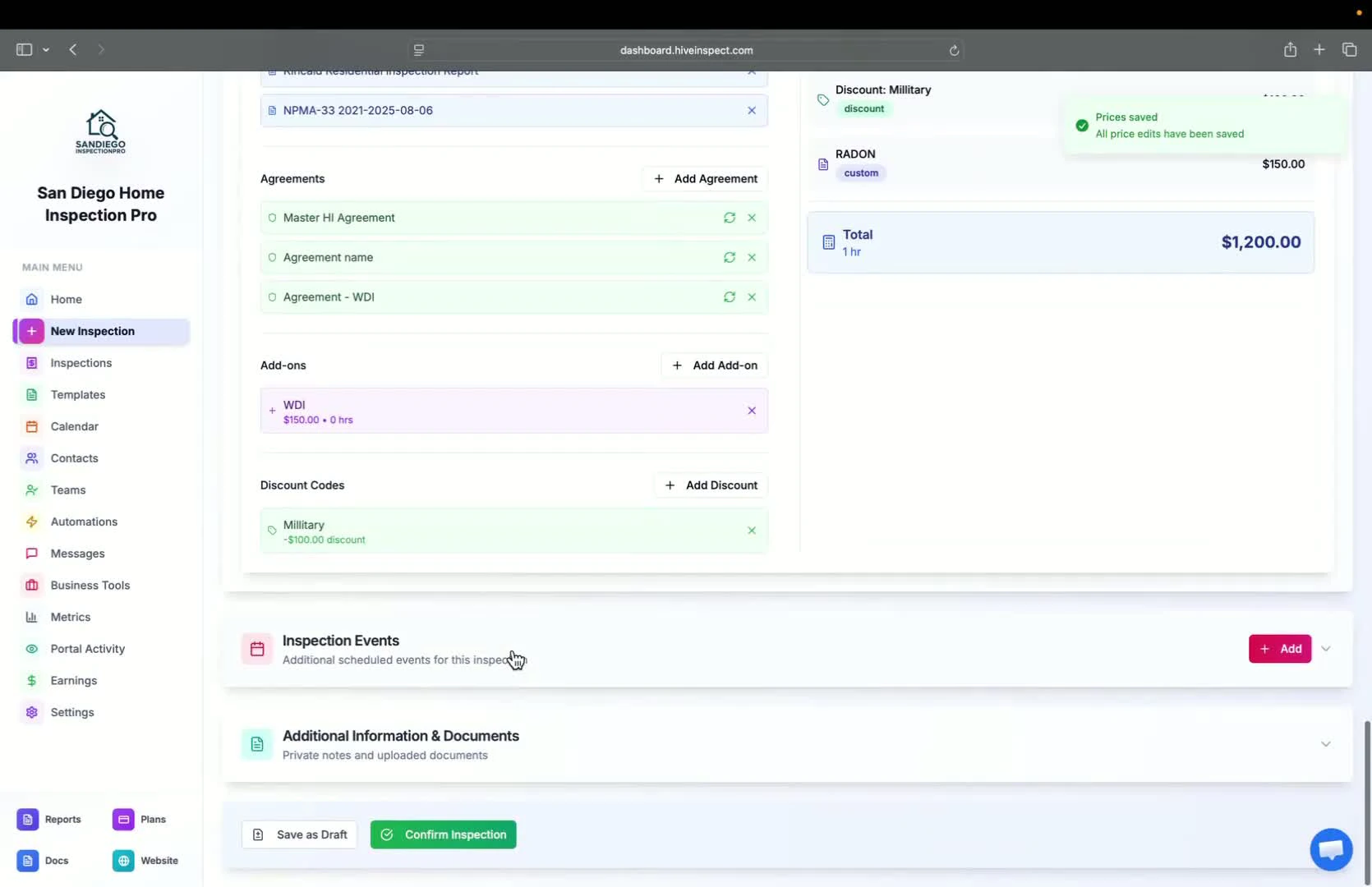
  <Step title="Adding Inspection Events — 3:56">
    * You can add inspection events (e.g., radon pickup/drop off)
    <img src="https://mintcdn.com/hiveinspect-43c85ed1/Ish45kXj50EQHADF/images/Schedule-Inspection-13.jpg?fit=max&auto=format&n=Ish45kXj50EQHADF&q=85&s=ba894625d0d64b18c882269f5e6b935a" alt="Adding inspection events" width="1670" height="1080" data-path="images/Schedule-Inspection-13.jpg" />
  </Step>

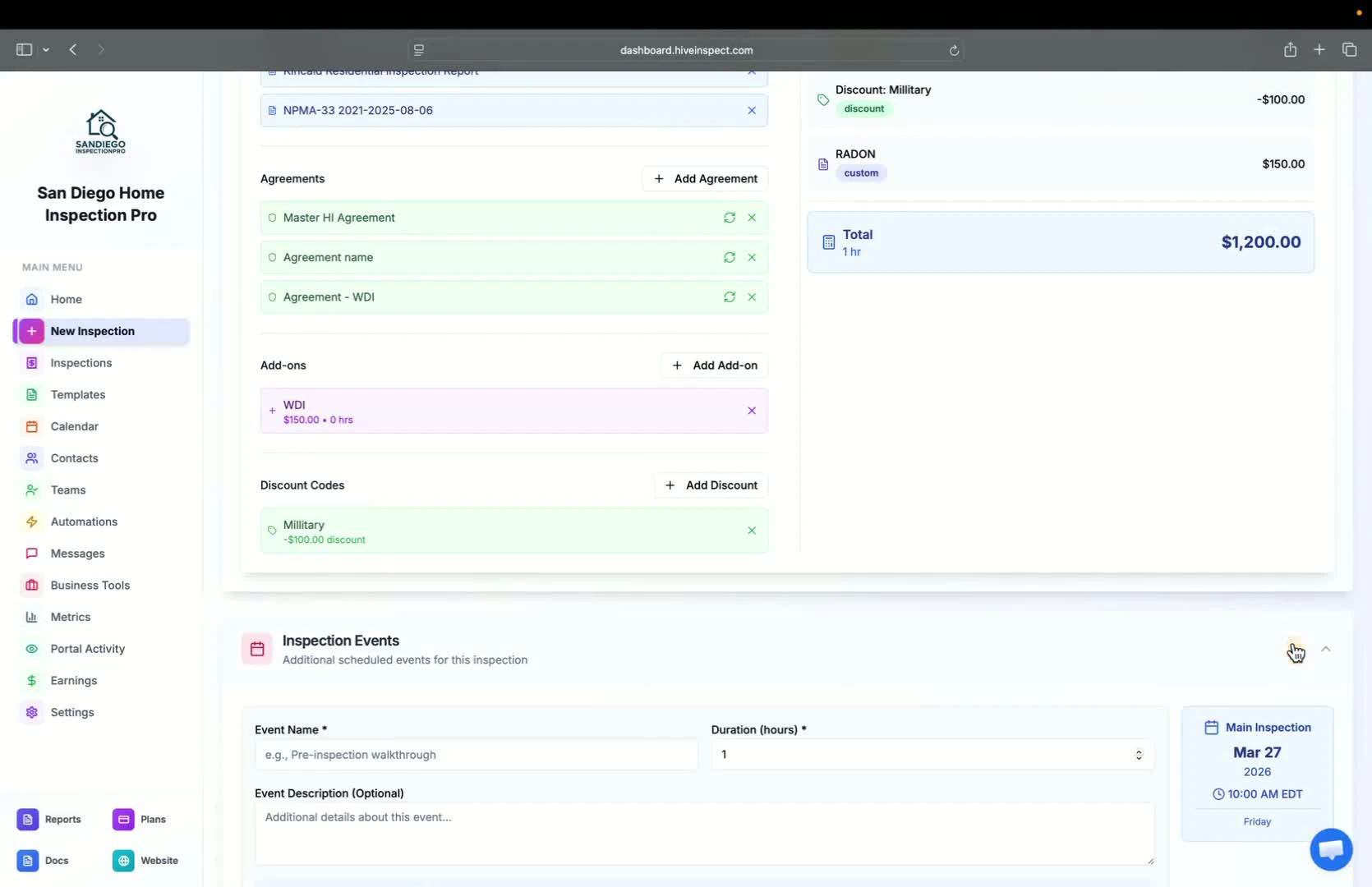
  <Step title="Adding Notes and Documents — 4:02">
    * Add private notes or documents for internal use
    * Upload public documents available on the customer portal
    <img src="https://mintcdn.com/hiveinspect-43c85ed1/Ish45kXj50EQHADF/images/Schedule-Inspection-14.jpg?fit=max&auto=format&n=Ish45kXj50EQHADF&q=85&s=d9411ea7ea382b14e087db24129f5d49" alt="Adding notes and documents" width="1670" height="1080" data-path="images/Schedule-Inspection-14.jpg" />
  </Step>

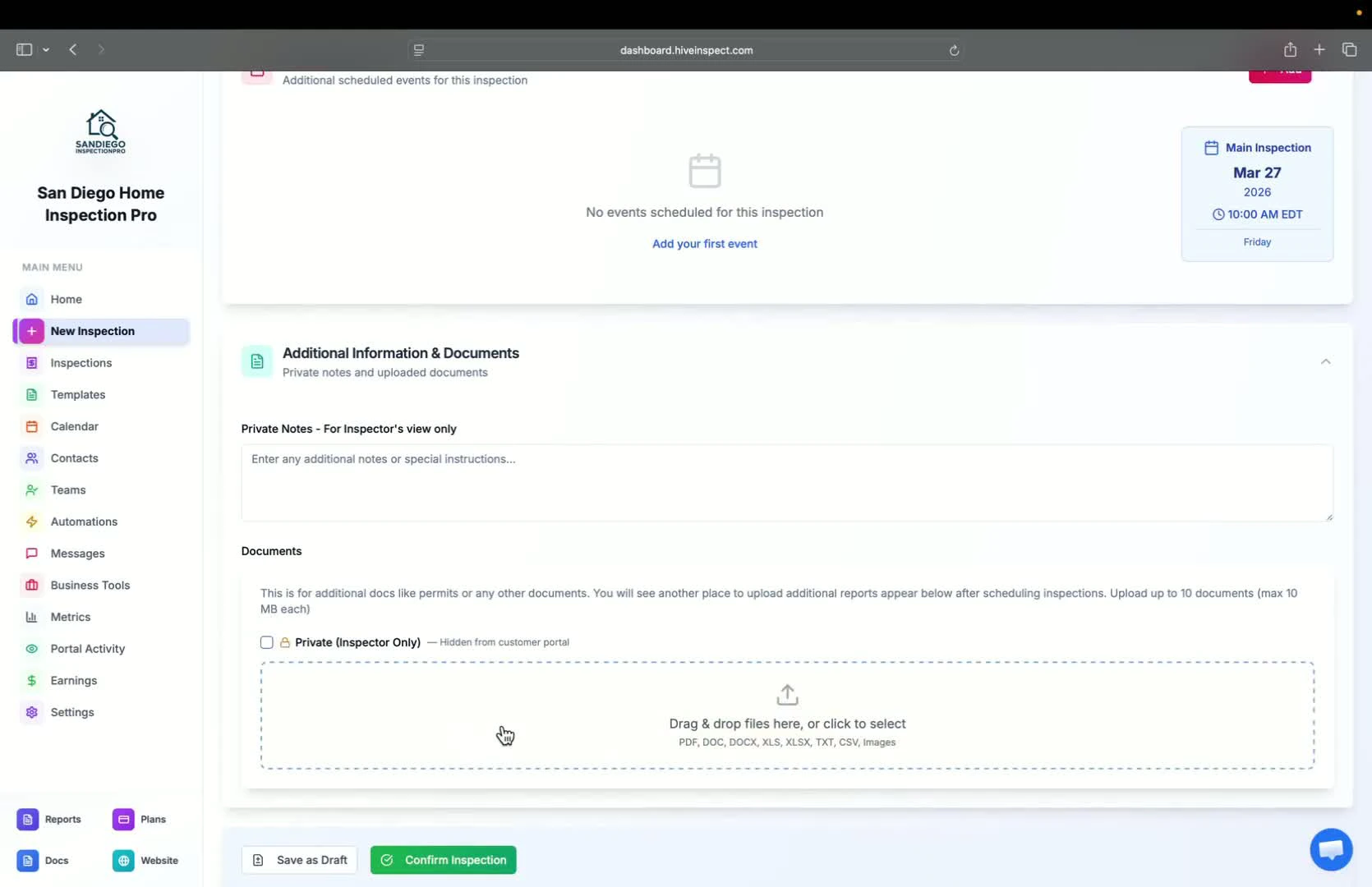
  <Step title="Saving or Confirming the Inspection — 4:28">
    * Save the inspection as a draft or confirm to trigger automations
    <img src="https://mintcdn.com/hiveinspect-43c85ed1/Ish45kXj50EQHADF/images/Schedule-Inspection-15.jpg?fit=max&auto=format&n=Ish45kXj50EQHADF&q=85&s=5920c2573524d39b7b029e929e3d0bee" alt="Saving or confirming the inspection" width="1670" height="1080" data-path="images/Schedule-Inspection-15.jpg" />
  </Step>

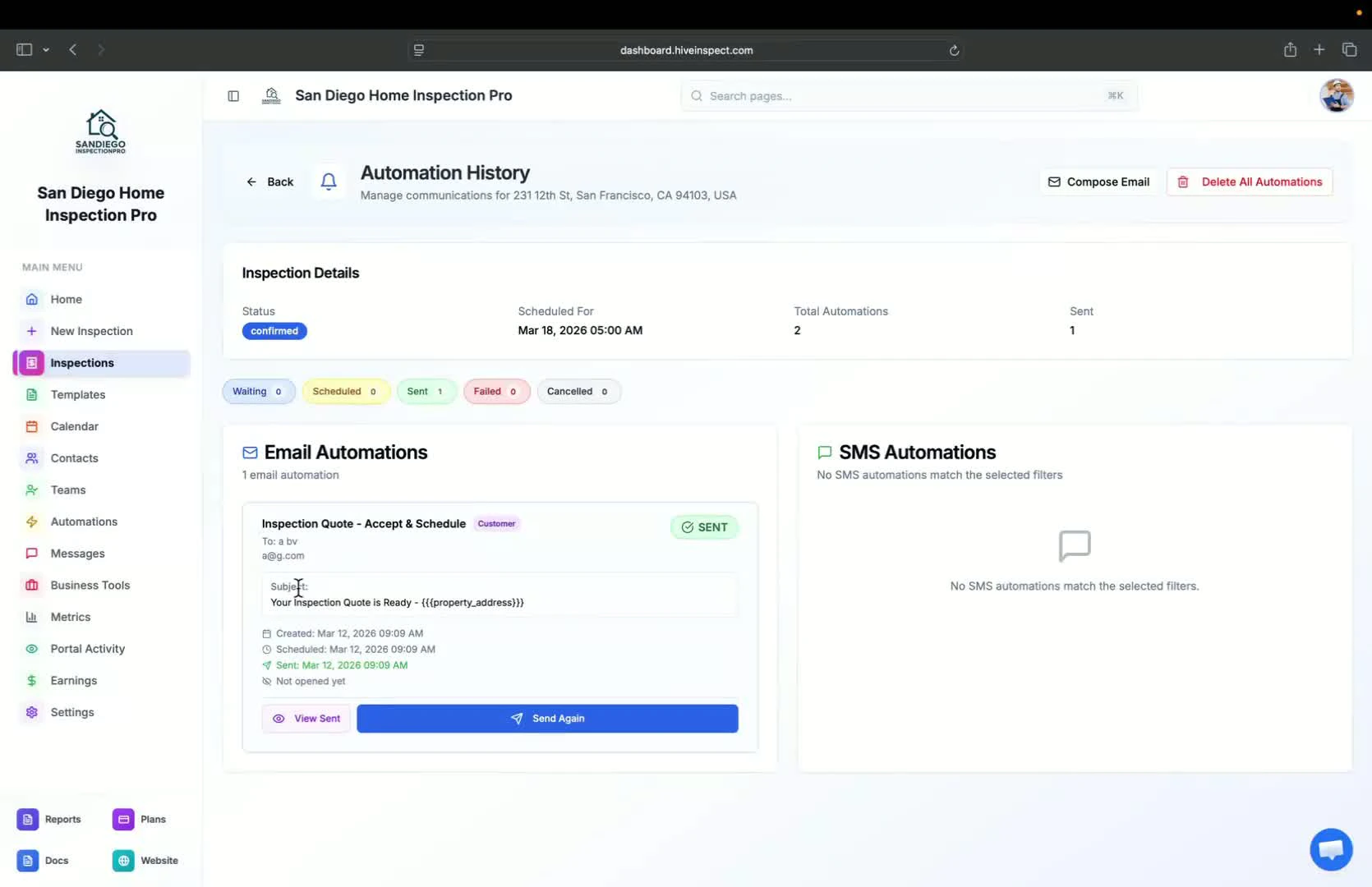
  <Step title="Reviewing Automations — 5:07">
    * Check the automation status to see if emails were sent and opened
    <img src="https://mintcdn.com/hiveinspect-43c85ed1/Ish45kXj50EQHADF/images/Schedule-Inspection-16.jpg?fit=max&auto=format&n=Ish45kXj50EQHADF&q=85&s=4ba9da8b36d49529d5f285f2d1e43a70" alt="Reviewing automations" width="1670" height="1080" data-path="images/Schedule-Inspection-16.jpg" />
  </Step>

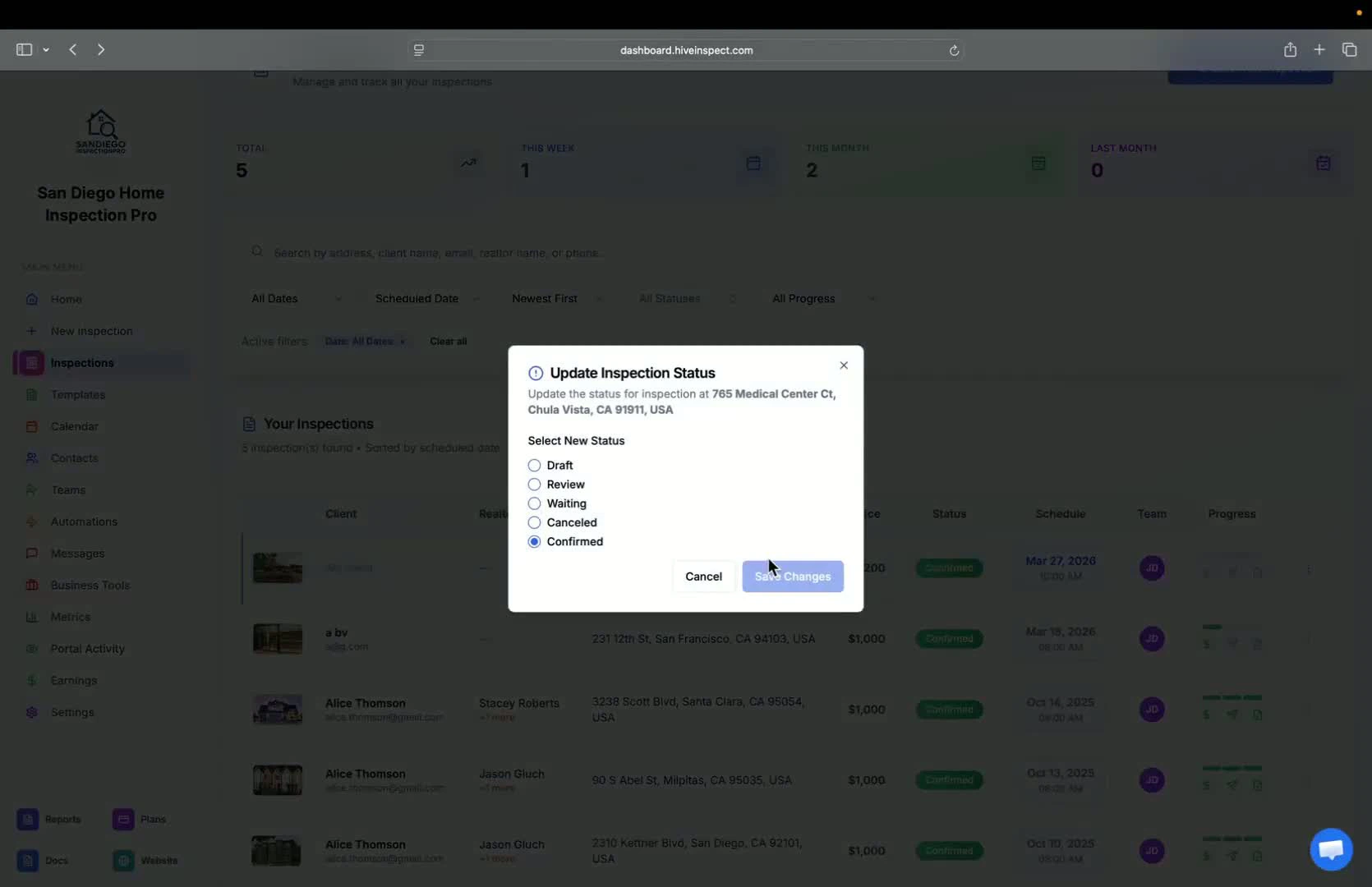
  <Step title="Changing Inspection Status Again — 5:17">
    * You can change the inspection status back to draft if needed
    <img src="https://mintcdn.com/hiveinspect-43c85ed1/Ish45kXj50EQHADF/images/Schedule-Inspection-17.jpg?fit=max&auto=format&n=Ish45kXj50EQHADF&q=85&s=6a4f12dbde3ca67bcf26a30c199adf2e" alt="Changing inspection status again" width="1670" height="1080" data-path="images/Schedule-Inspection-17.jpg" />
  </Step>

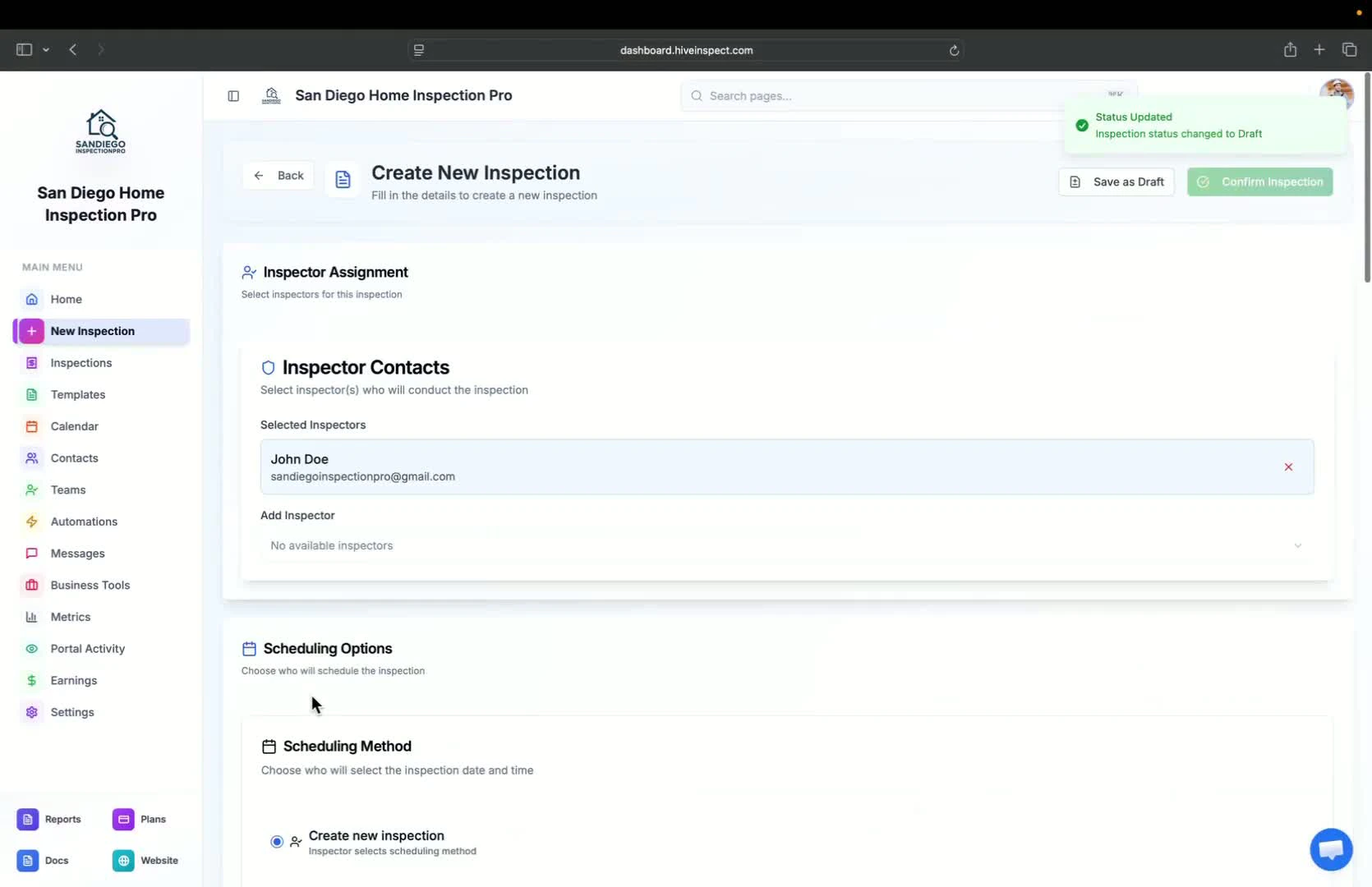
  <Step title="Generating a Code — 5:27">
    * For generating a code, fill in the information and click **Send for Review**
    <img src="https://mintcdn.com/hiveinspect-43c85ed1/Ish45kXj50EQHADF/images/Schedule-Inspection-18.jpg?fit=max&auto=format&n=Ish45kXj50EQHADF&q=85&s=bf83b476a773a988b54dca2b39d68704" alt="Generating a code" width="1670" height="1080" data-path="images/Schedule-Inspection-18.jpg" />
  </Step>
</Steps>
