> ## Documentation Index
> Fetch the complete documentation index at: https://docs.hiveinspect.com/llms.txt
> Use this file to discover all available pages before exploring further.
# Business Setup
> Configure your company details and business hours for dynamic placeholders in agreements, invoices, and reports
⏱️ **Estimated time:** \~5 minutes
## Video Tutorial
* Sign up and confirm your email
* You will be redirected to the dashboard or access it directly by typing `dashboard.hiveinspect.com`
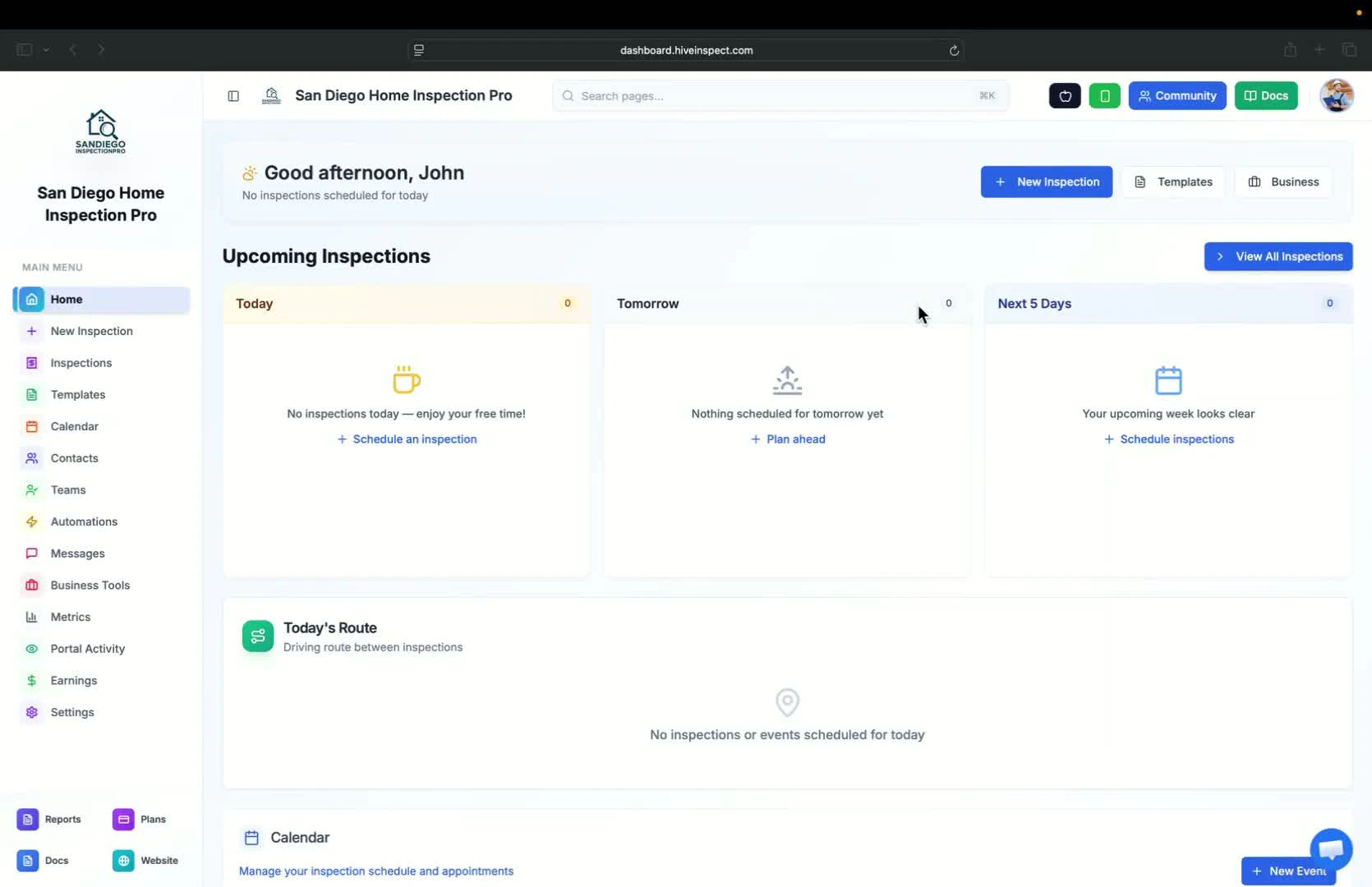 * On the home screen, connect your calendar
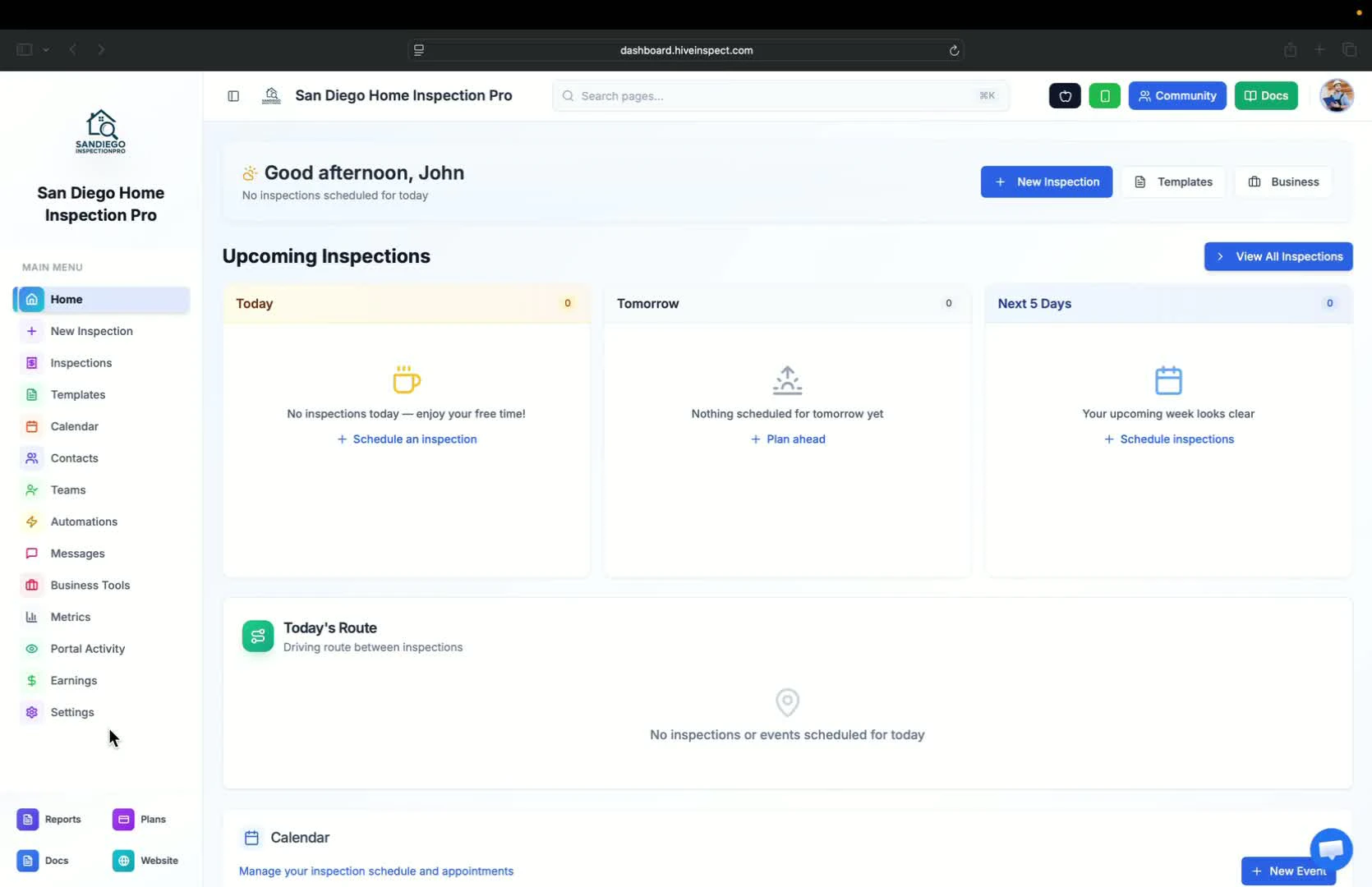 * Go to the settings page
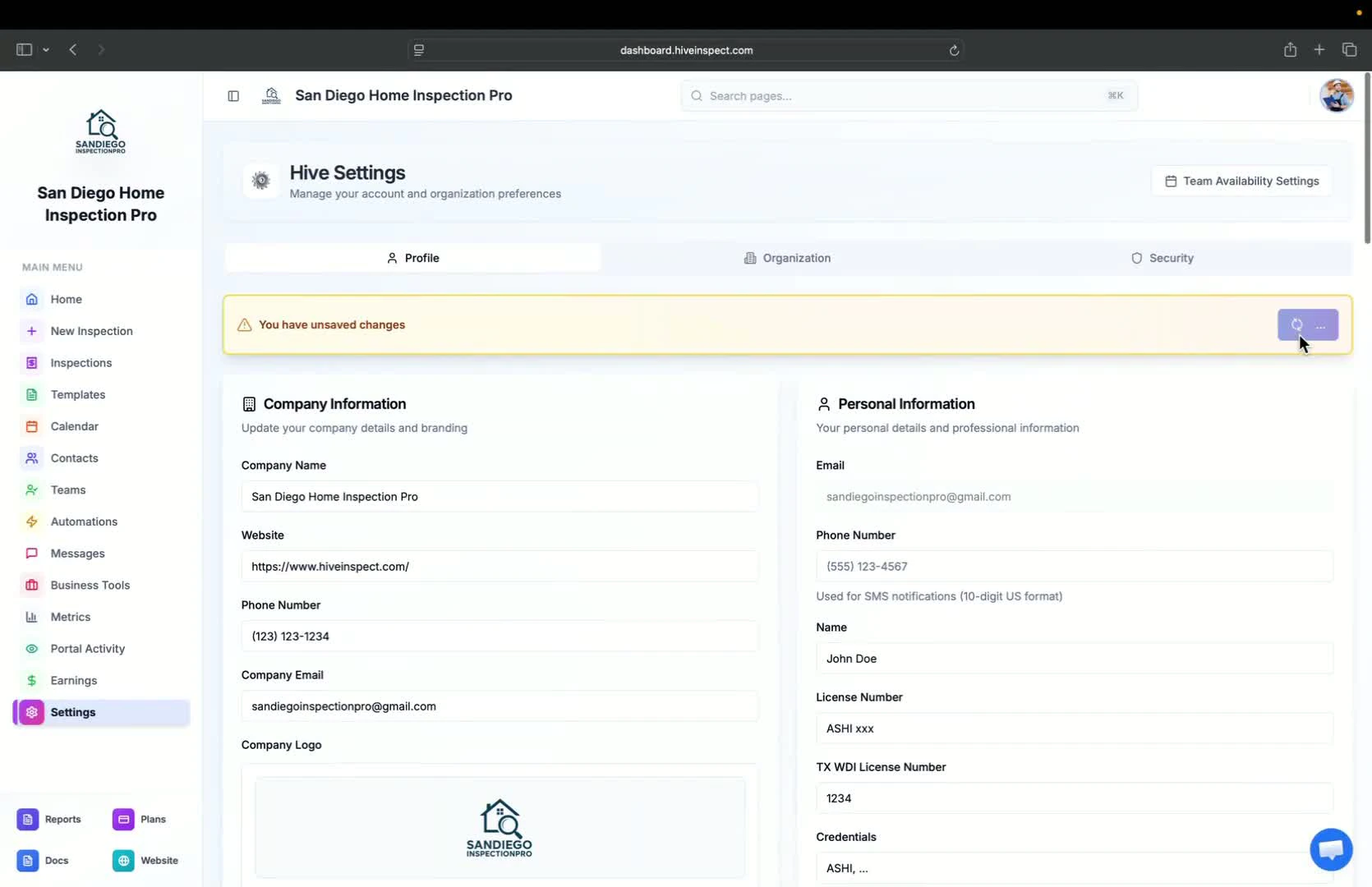
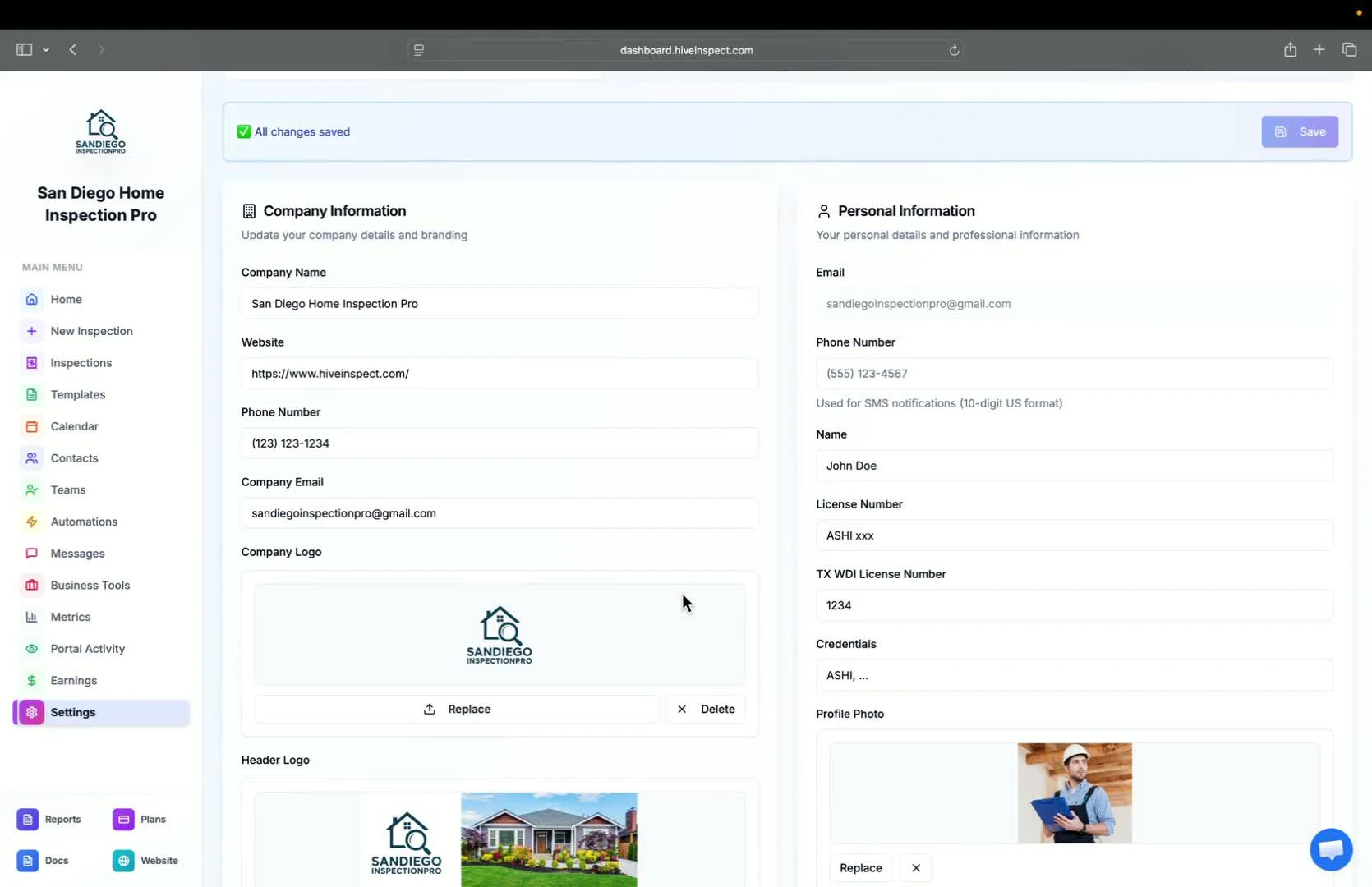
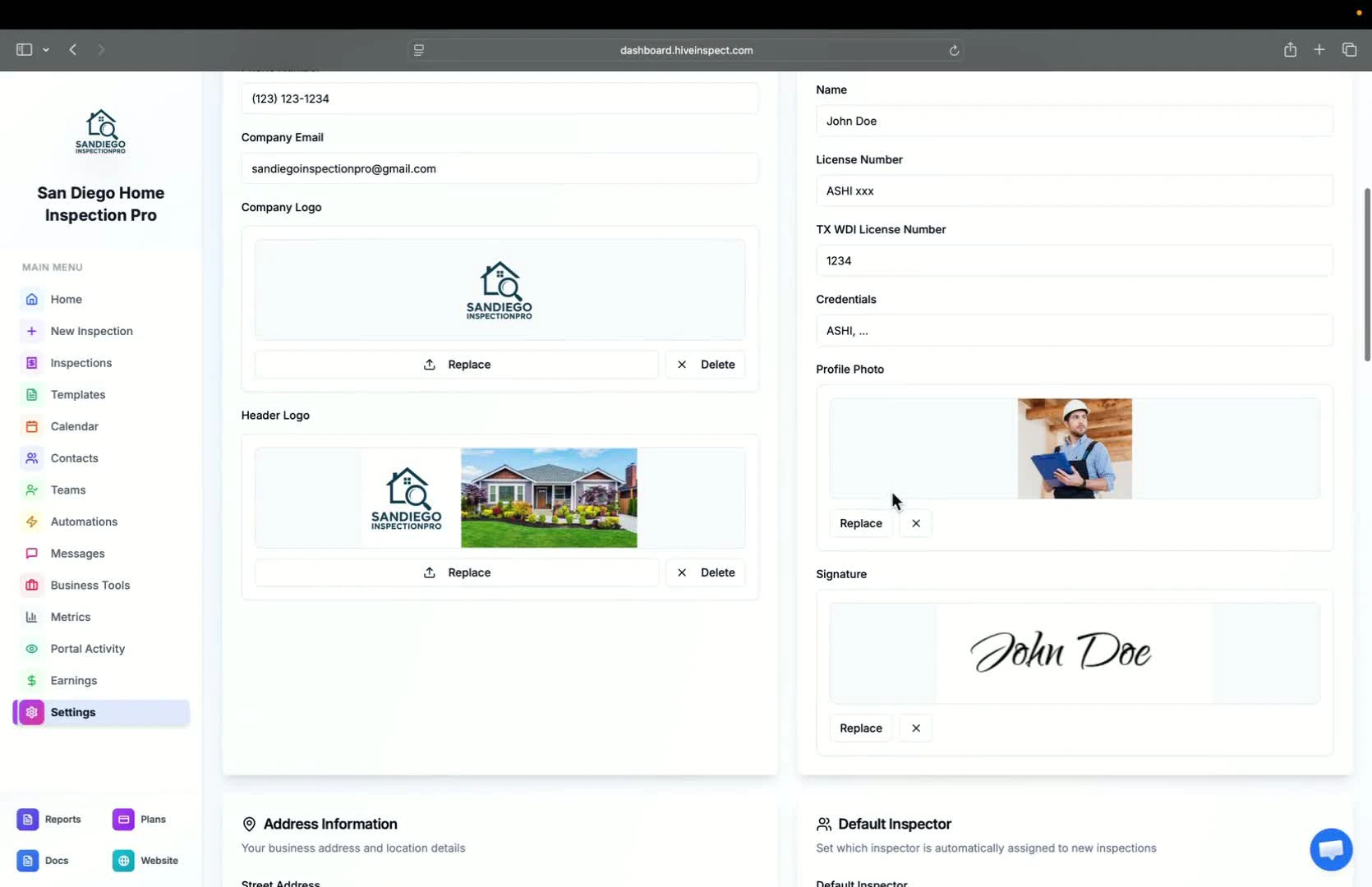
* Enter the following information:
* Company name
* Business website
* Phone number
* Company email (for replies)
* Your name
* License number (e.g., Texas WDA license number)
* Logos, profile photo, and signature
* Go to the settings page
* Enter the following information:
* Company name
* Business website
* Phone number
* Company email (for replies)
* Your name
* License number (e.g., Texas WDA license number)
* Logos, profile photo, and signature
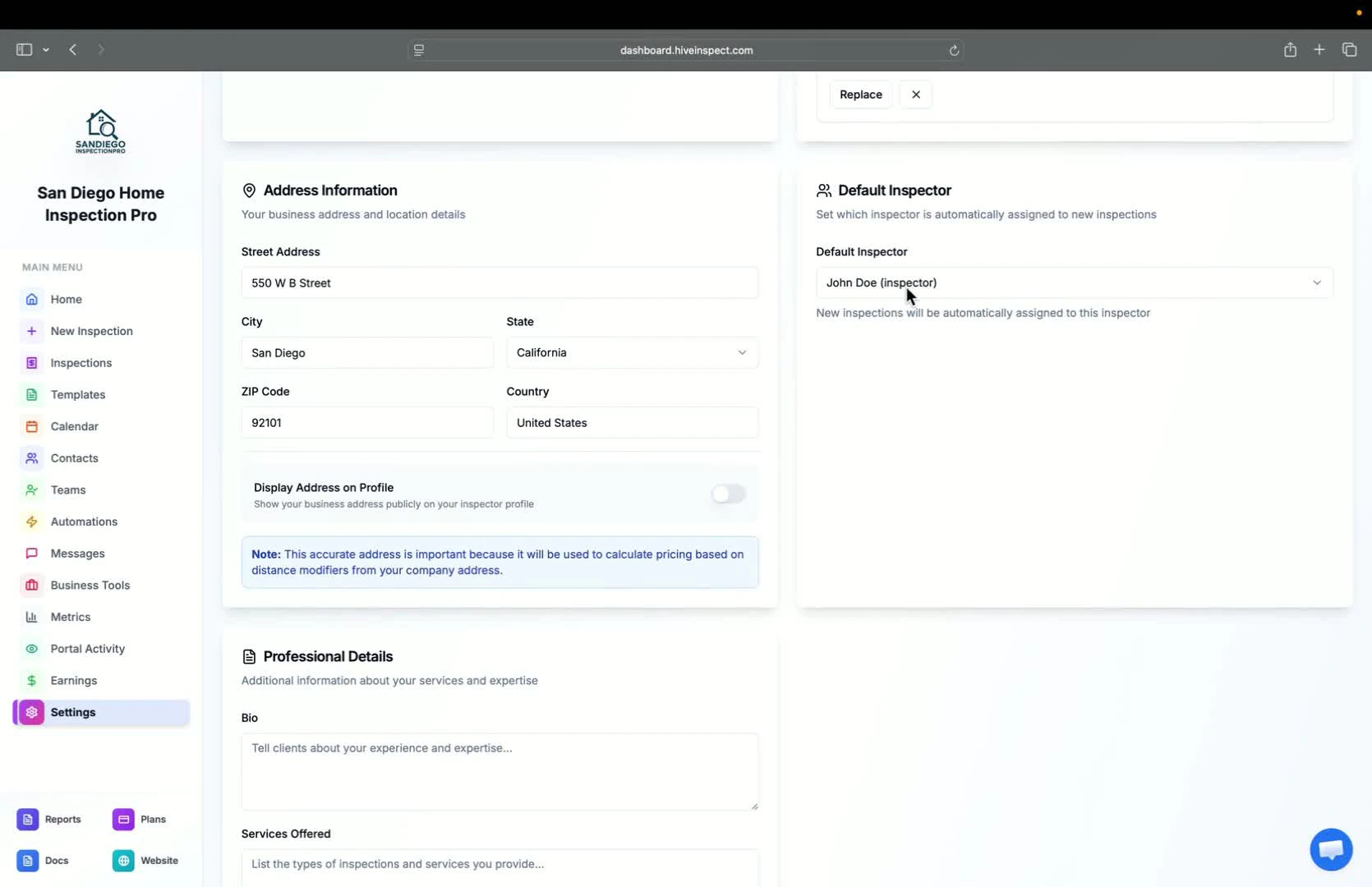
 * Enter your address information (required for location-based modifiers)
* Decide whether to display your information publicly by toggling the display flag
* Enter your address information (required for location-based modifiers)
* Decide whether to display your information publicly by toggling the display flag
 * If you are a solo inspector, you will see one default inspector
* If you have multiple inspectors, select the default inspector
* If you are a solo inspector, you will see one default inspector
* If you have multiple inspectors, select the default inspector
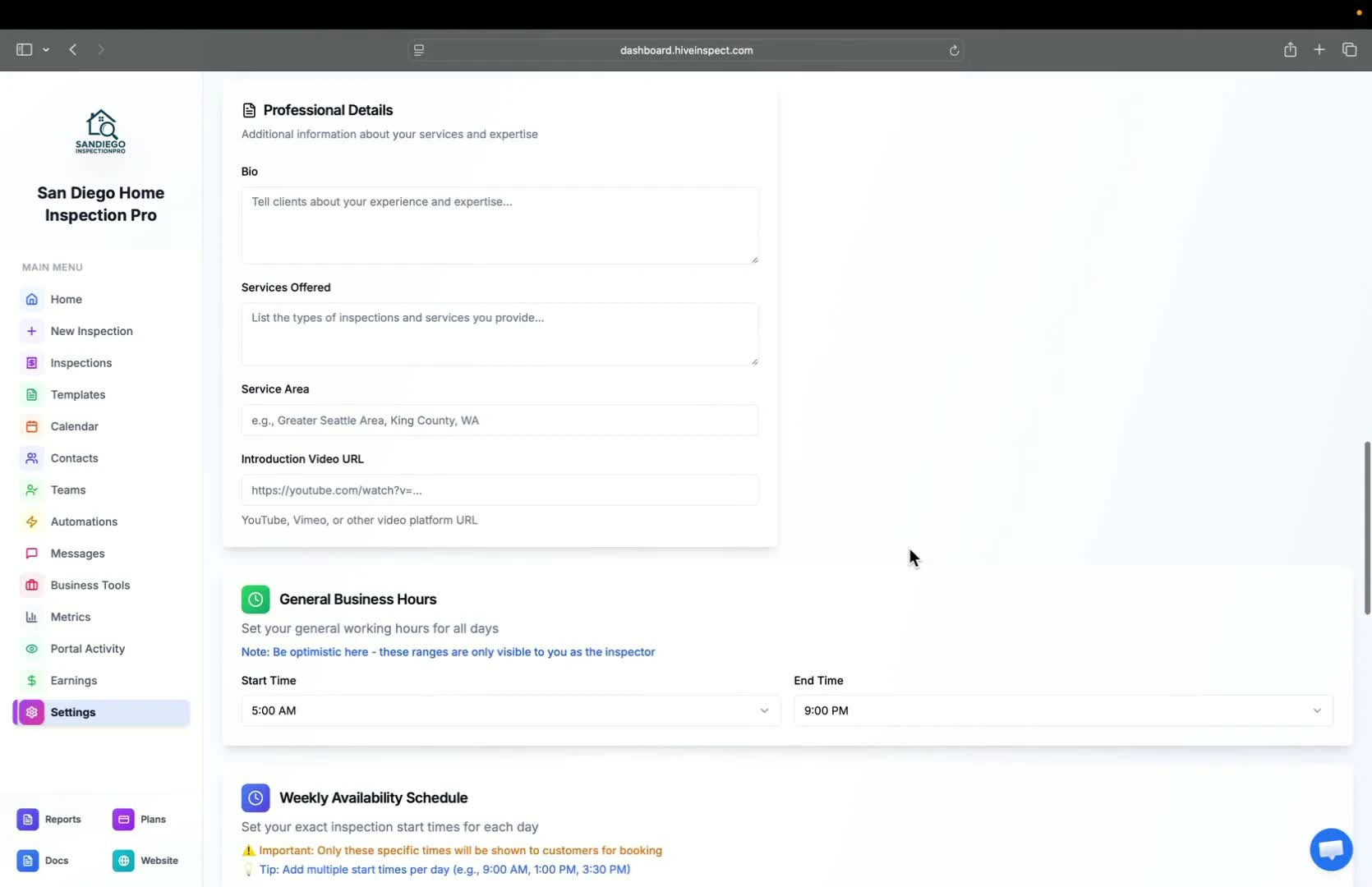
 * Set two sets of business hours:
* **Internal Use:** Set hours from 5 a.m. to 9 p.m. (for your scheduling flexibility)
* **Customer Booking:** Select start times for your online scheduler widget
* Set two sets of business hours:
* **Internal Use:** Set hours from 5 a.m. to 9 p.m. (for your scheduling flexibility)
* **Customer Booking:** Select start times for your online scheduler widget
 * After entering all information and setting up your hours, click **Save Changes**
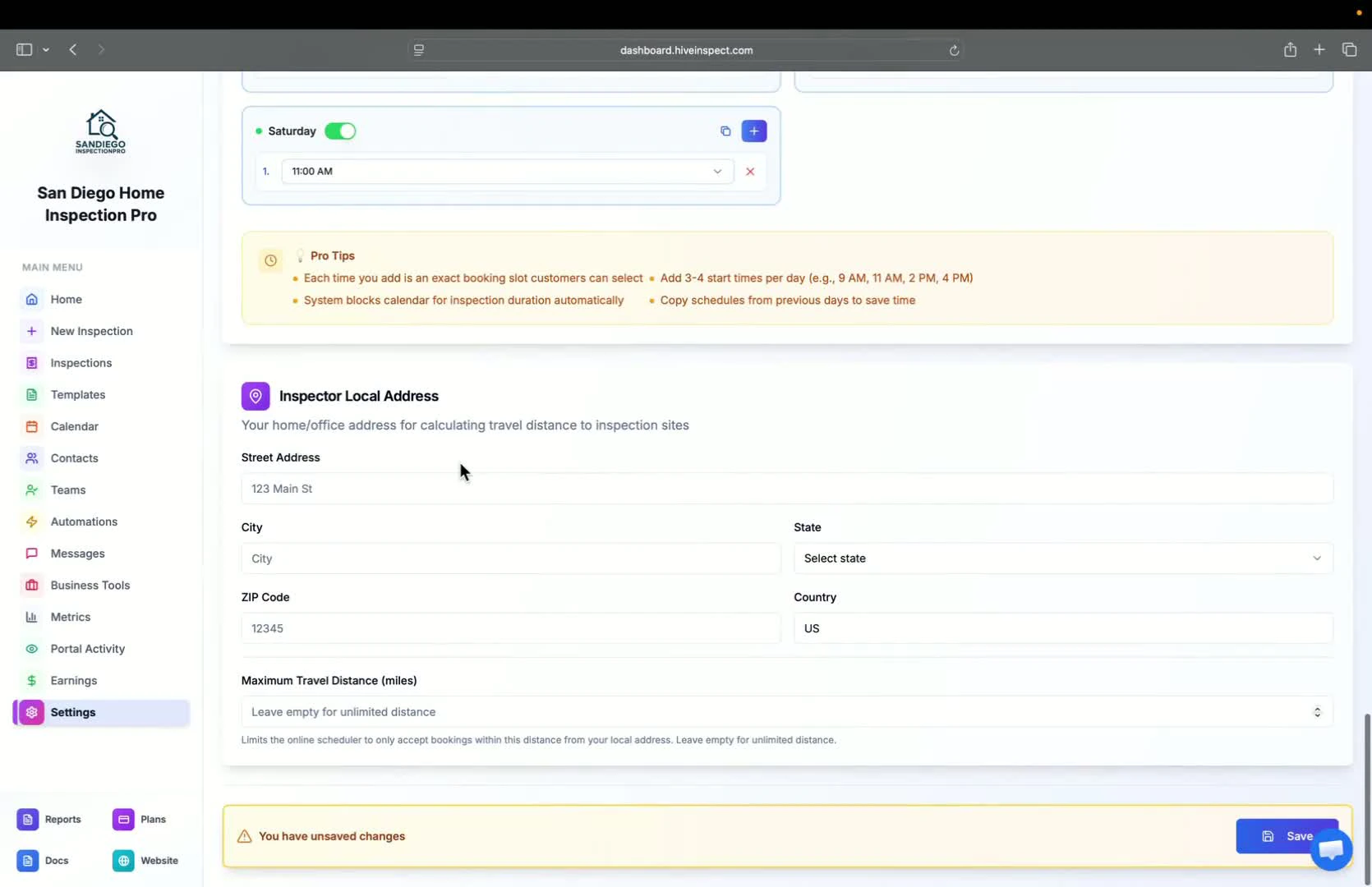 * You have successfully set up your Hive Inspect account!