> ## Documentation Index
> Fetch the complete documentation index at: https://docs.hiveinspect.com/llms.txt
> Use this file to discover all available pages before exploring further.
# Google Calendar
> Connect your Google Calendar to automatically sync inspection scheduling and availability
⏱️ **Estimated time:** \~5 minutes
## Video Tutorial
* Connecting your Google Calendar to Hive is essential for:
* Scheduling inspections
* Automatically adding events to your Google Calendar for a quick overview
* Checking your availability for inspections
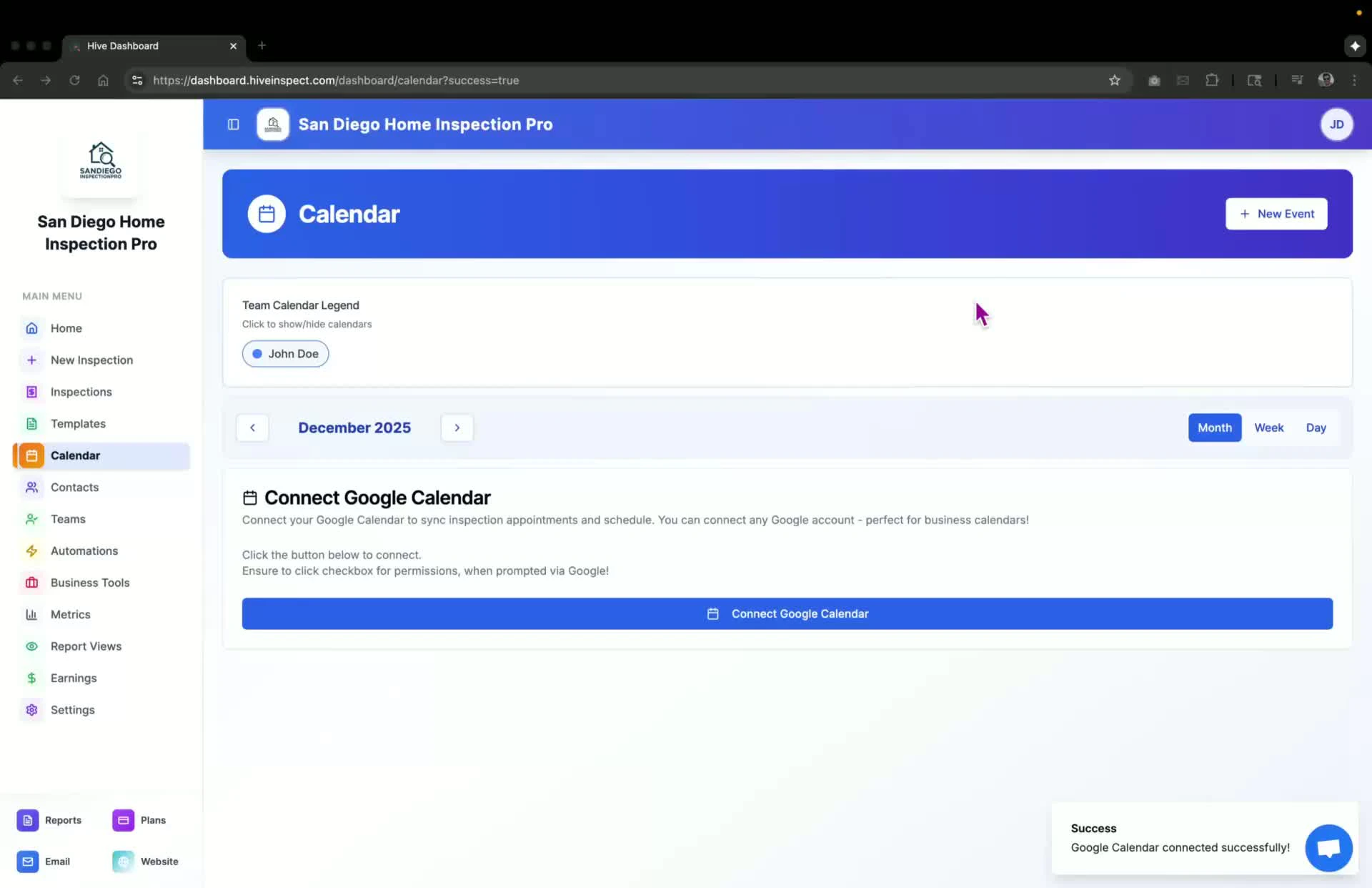 * After signing up, you will be directed to the homepage
* Look for the button labeled **Connect Google Calendar** at the bottom of the page
* Alternatively, you can access the **Calendar sidebar**, which has a dedicated page for your calendar
* After signing up, you will be directed to the homepage
* Look for the button labeled **Connect Google Calendar** at the bottom of the page
* Alternatively, you can access the **Calendar sidebar**, which has a dedicated page for your calendar
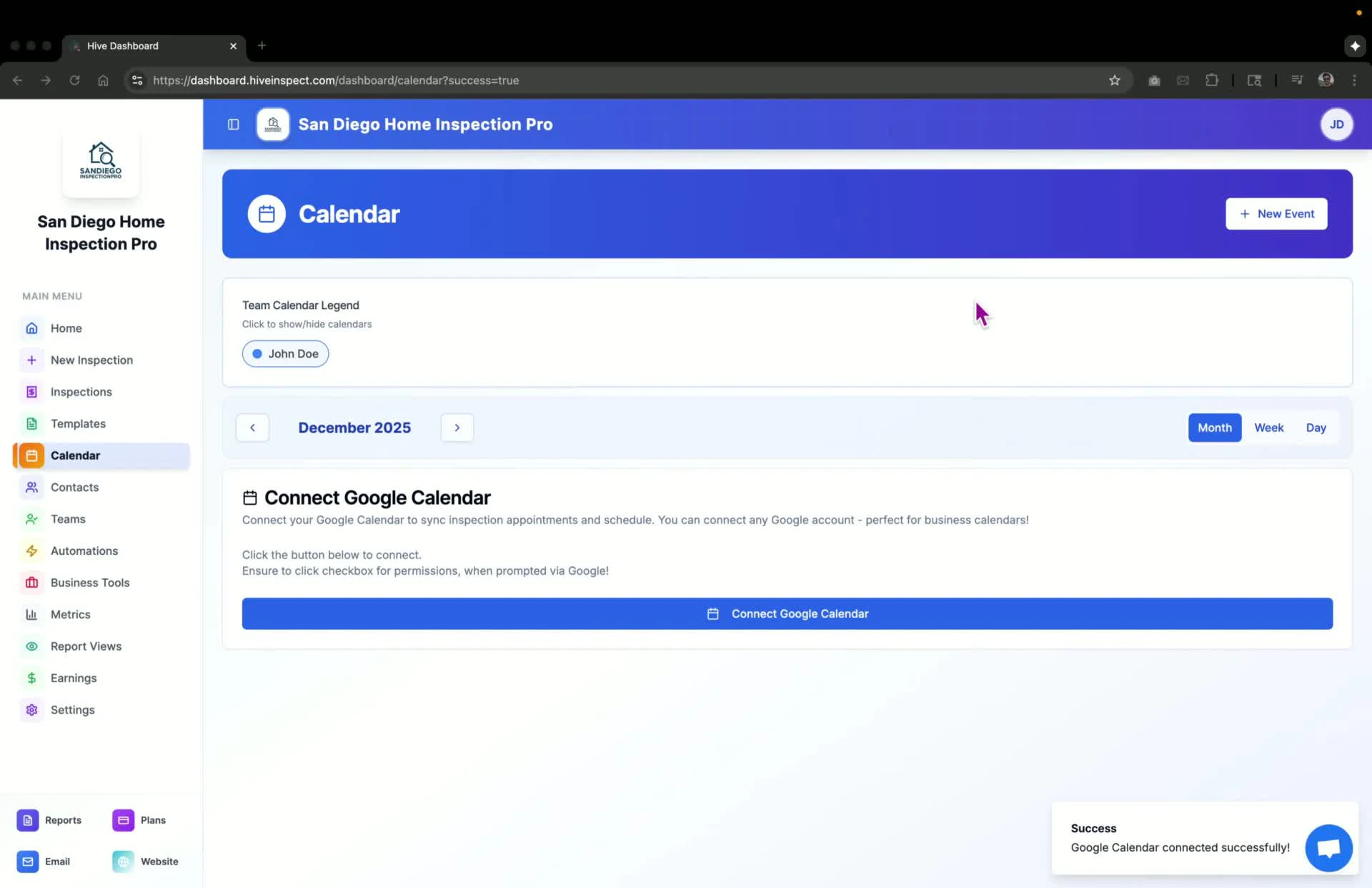 * Click the **Connect Google Calendar** button
* Choose the Gmail account you wish to connect:
* This can be the same account you used to sign up or a different one
* Click the **Connect Google Calendar** button
* Choose the Gmail account you wish to connect:
* This can be the same account you used to sign up or a different one
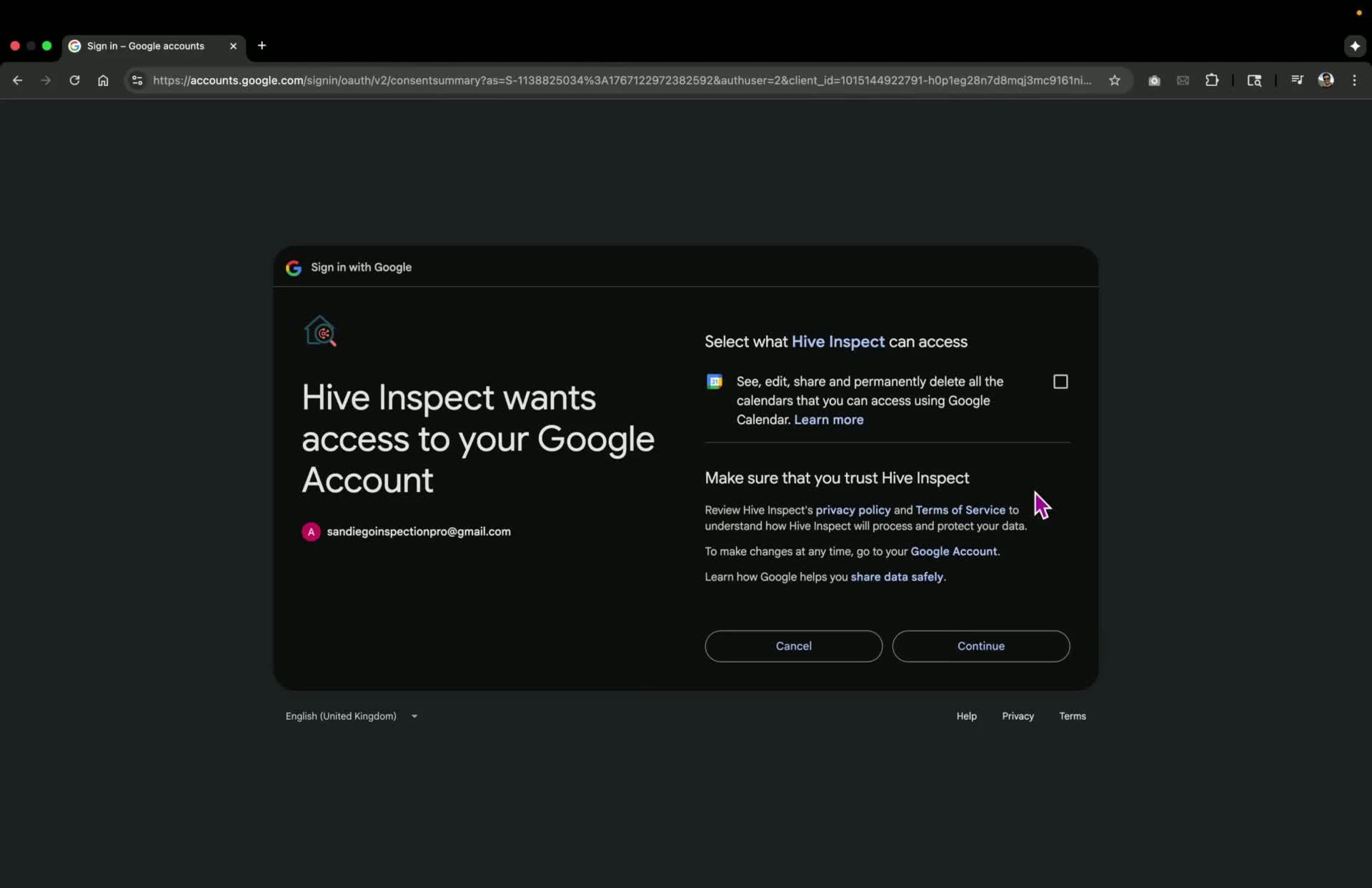
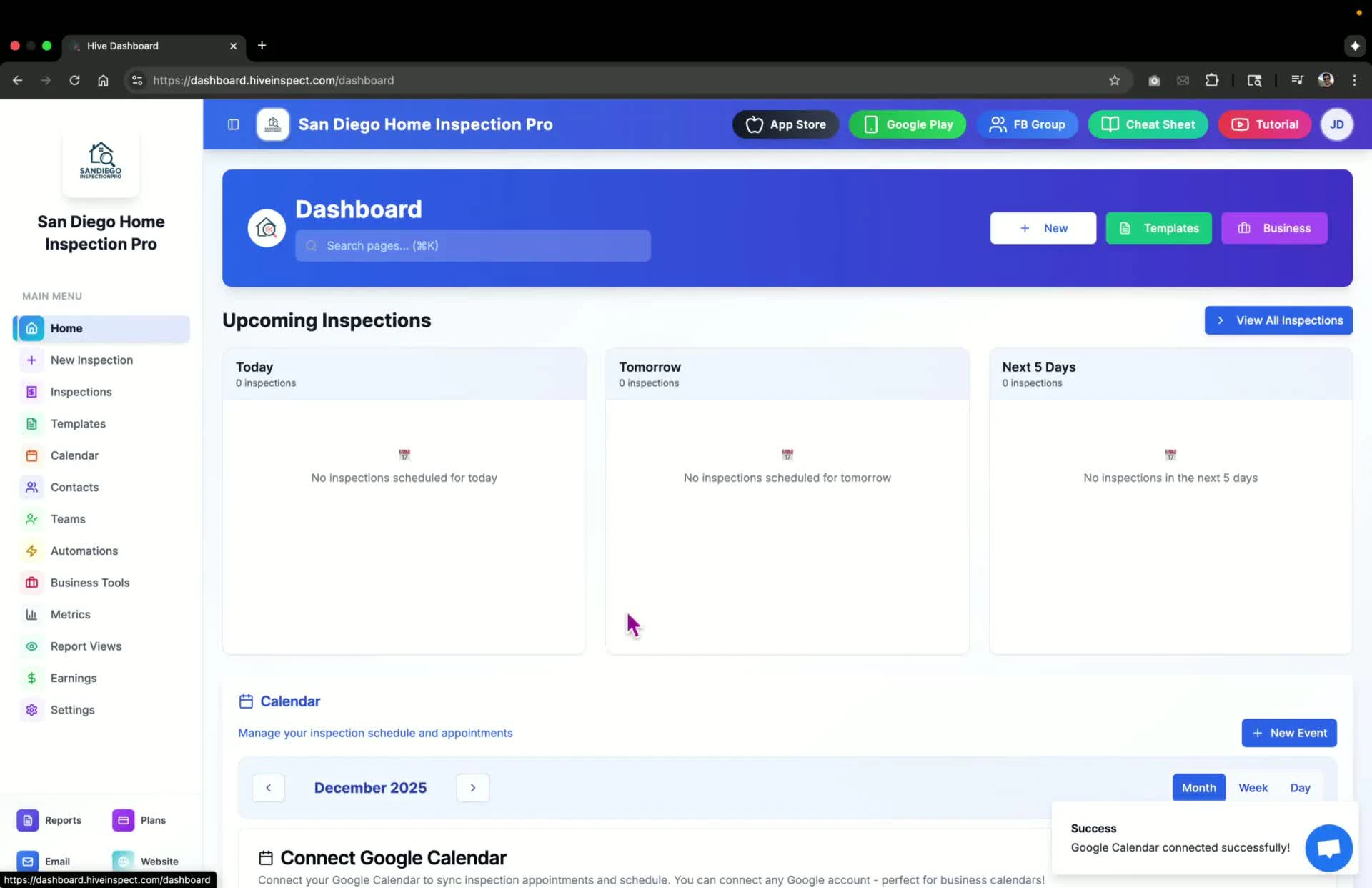 * Click **Continue**
* IMPORTANT: Check the box to grant permission for Hive to schedule events on your behalf
* Click **Continue**
* IMPORTANT: Check the box to grant permission for Hive to schedule events on your behalf
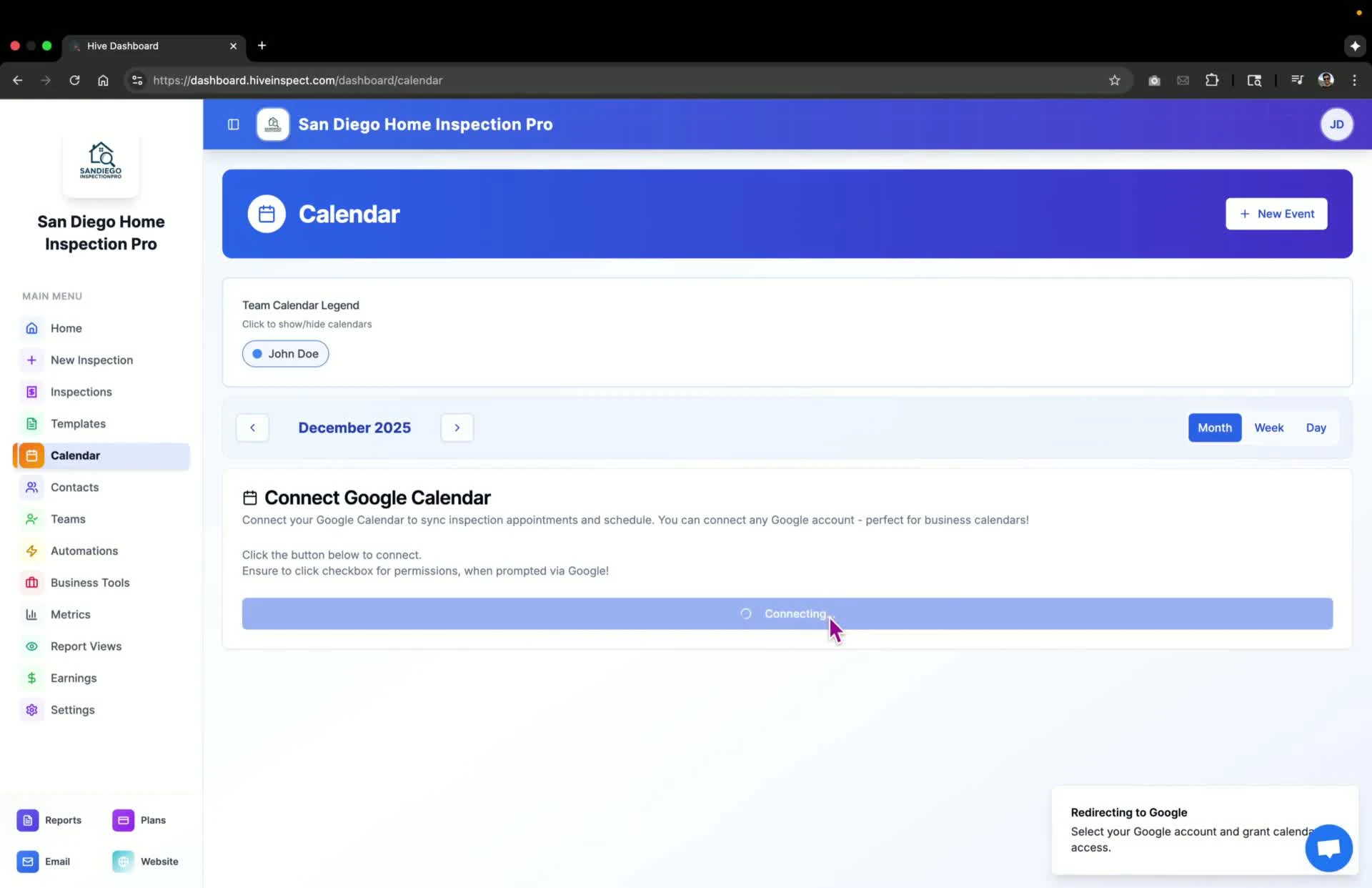 * Click **Continue** again to complete the connection
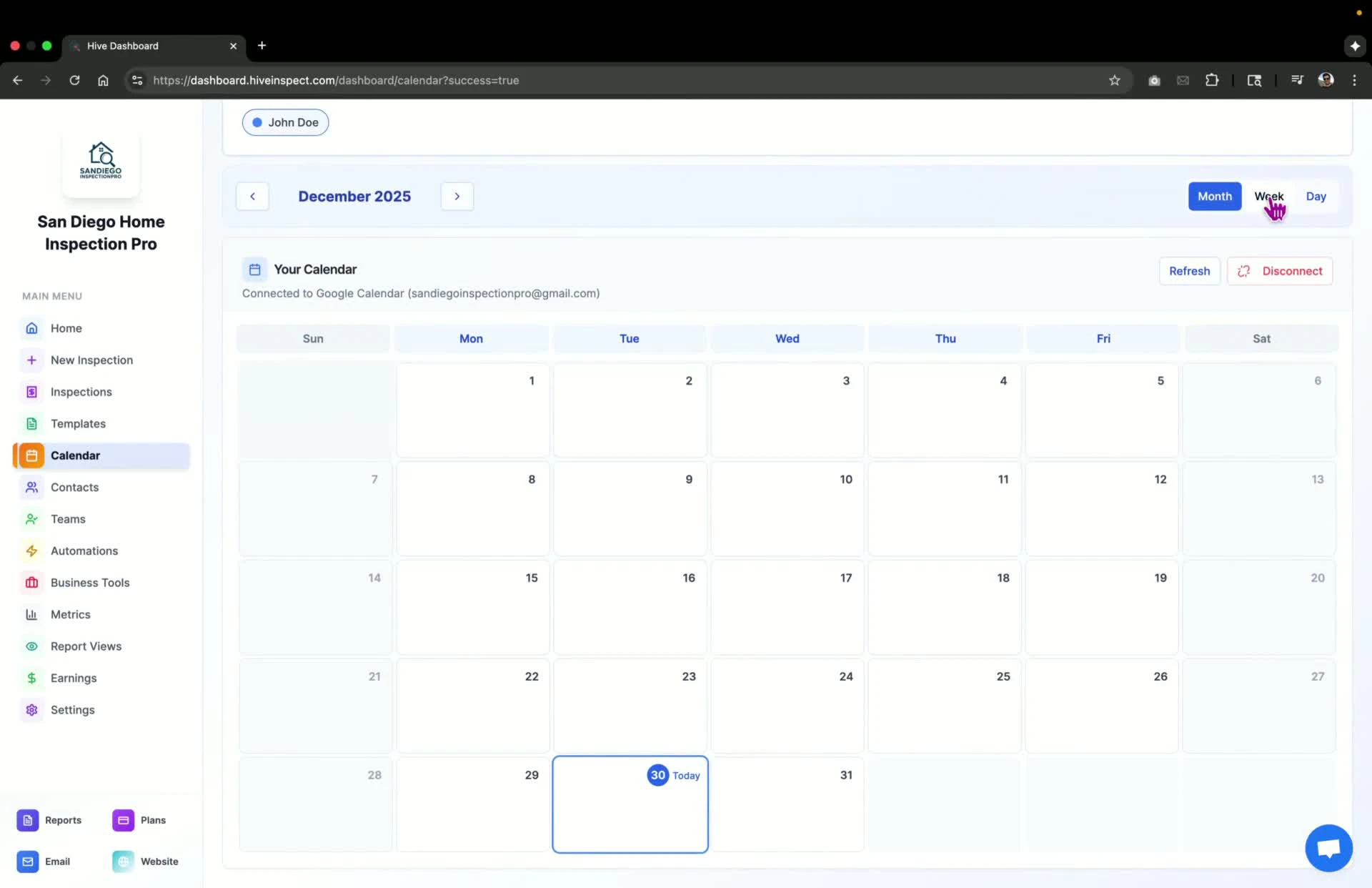
* Your Google Calendar will now be connected, and you will see:
* Your calendar with any past events (if applicable)
* Multiple views (week and day) for your calendar
* Click **Continue** again to complete the connection
* Your Google Calendar will now be connected, and you will see:
* Your calendar with any past events (if applicable)
* Multiple views (week and day) for your calendar
 * All future inspections will appear in your connected Google Calendar
* If you are part of a team with multiple inspectors, you will also see a team calendar
* All future inspections will appear in your connected Google Calendar
* If you are part of a team with multiple inspectors, you will also see a team calendar
 For multi-inspector businesses, each inspector should connect their own Google Calendar for proper calendar synchronization across your team.
## Next Step →
With your calendar connected, your availability is now synced. Next, configure your business information for dynamic placeholders in reports and agreements.
Continue to: **Setting Up Your Business Information**
For multi-inspector businesses, each inspector should connect their own Google Calendar for proper calendar synchronization across your team.
## Next Step →
With your calendar connected, your availability is now synced. Next, configure your business information for dynamic placeholders in reports and agreements.
Continue to: **Setting Up Your Business Information**