> ## Documentation Index
> Fetch the complete documentation index at: https://docs.hiveinspect.com/llms.txt
> Use this file to discover all available pages before exploring further.
# Team Availability
> Set up team availability and report writing features in Hive
⏱️ **Estimated time:** \~5 minutes
## Video Tutorial
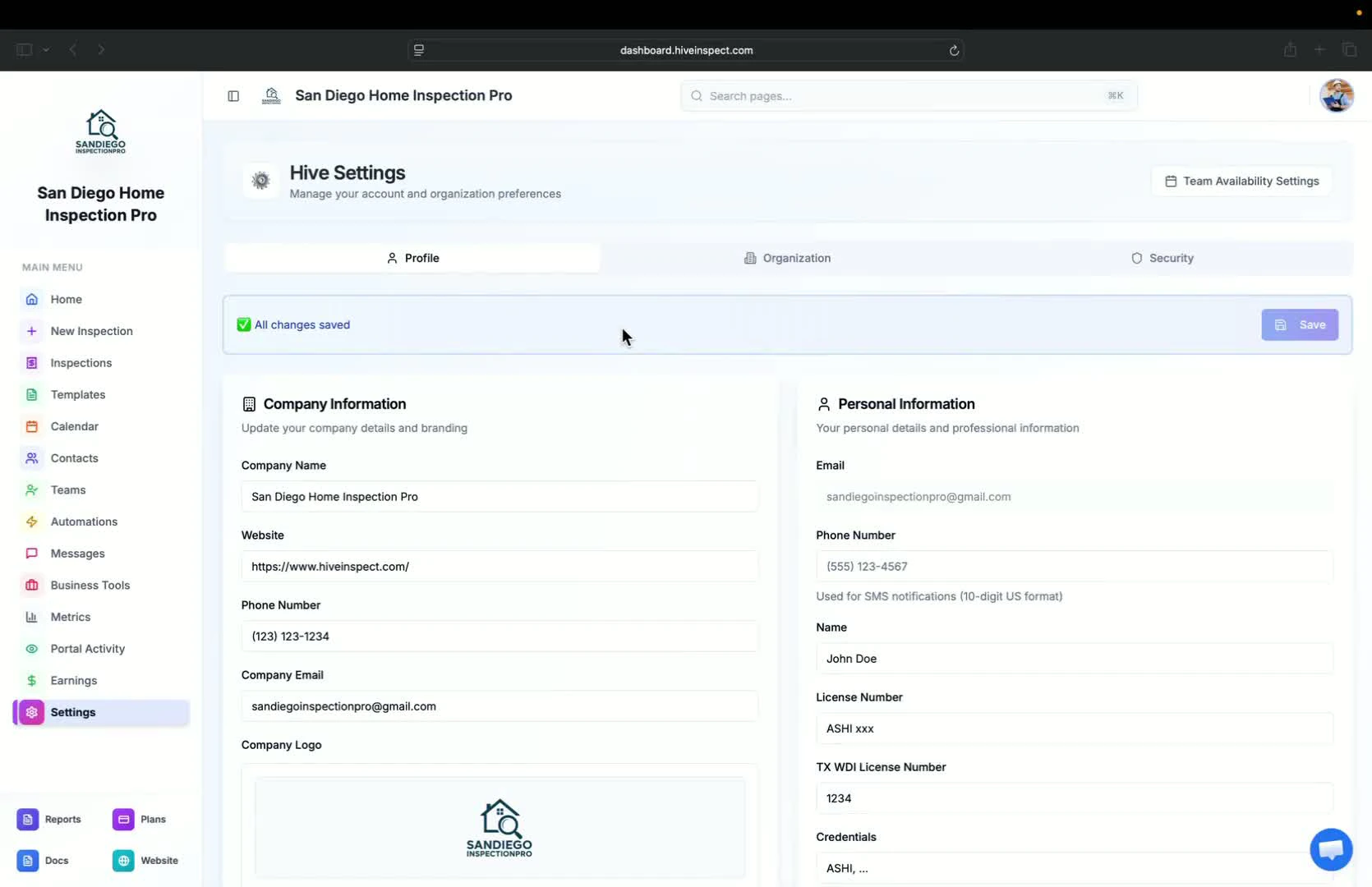
* After setting up your profile, navigate to team availability settings
* This is applicable only for multi-inspector firms
* If you have multiple inspectors, you can update their information as an admin
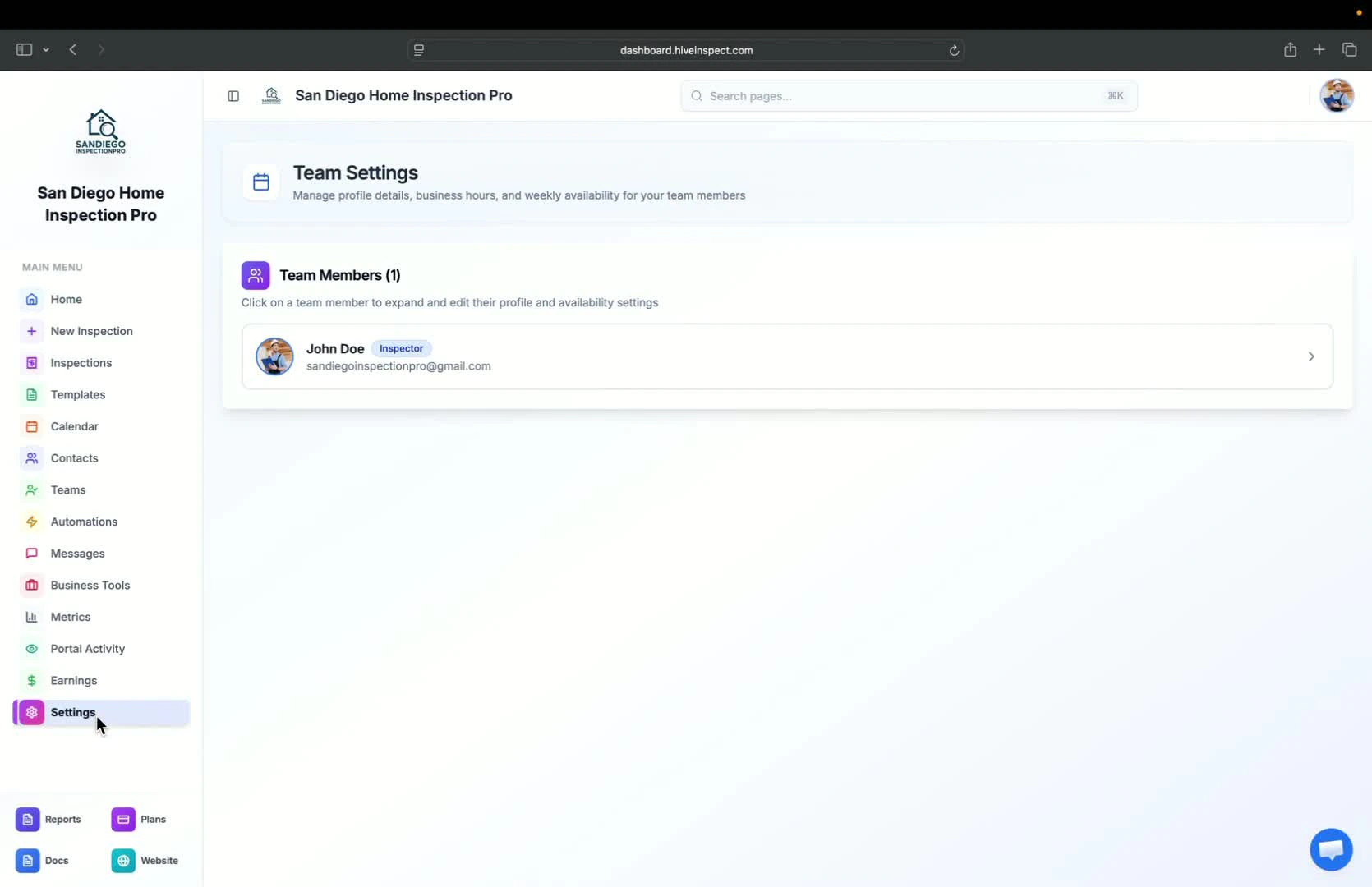
 * Go to organization settings for account-level configurations
* Key areas include:
* Report Writing
* Viewing Reports
* Scheduling
* Business Management
* AI Features
* Go to organization settings for account-level configurations
* Key areas include:
* Report Writing
* Viewing Reports
* Scheduling
* Business Management
* AI Features
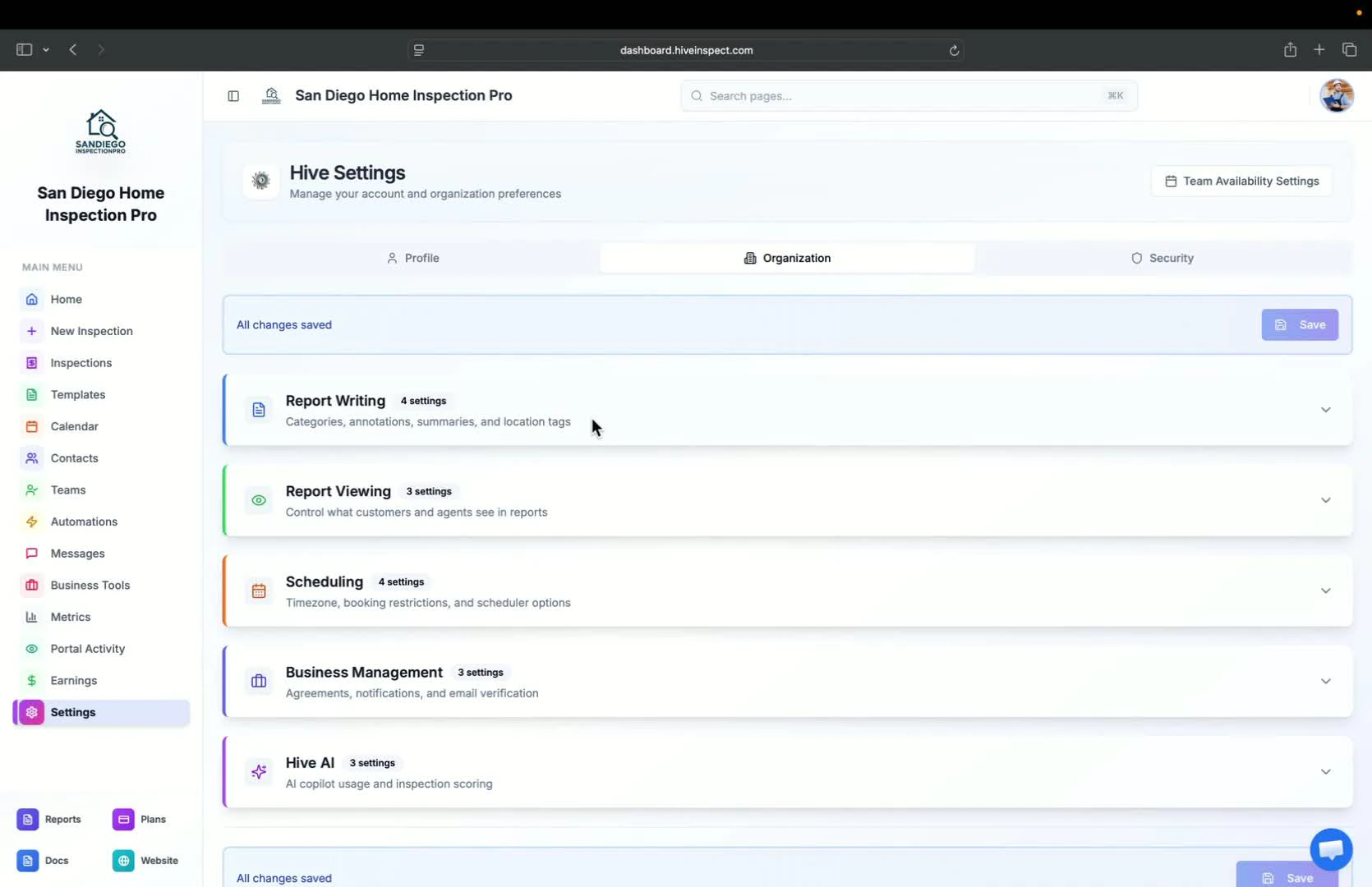
 * Define defect category names (default: maintenance items, recommendations, safety concerns)
* Set annotation prompts for mobile app during inspections
* Enable summary feature for reports (digital and PDF)
* Configure location tags for easy photo tagging
* Define defect category names (default: maintenance items, recommendations, safety concerns)
* Set annotation prompts for mobile app during inspections
* Enable summary feature for reports (digital and PDF)
* Configure location tags for easy photo tagging
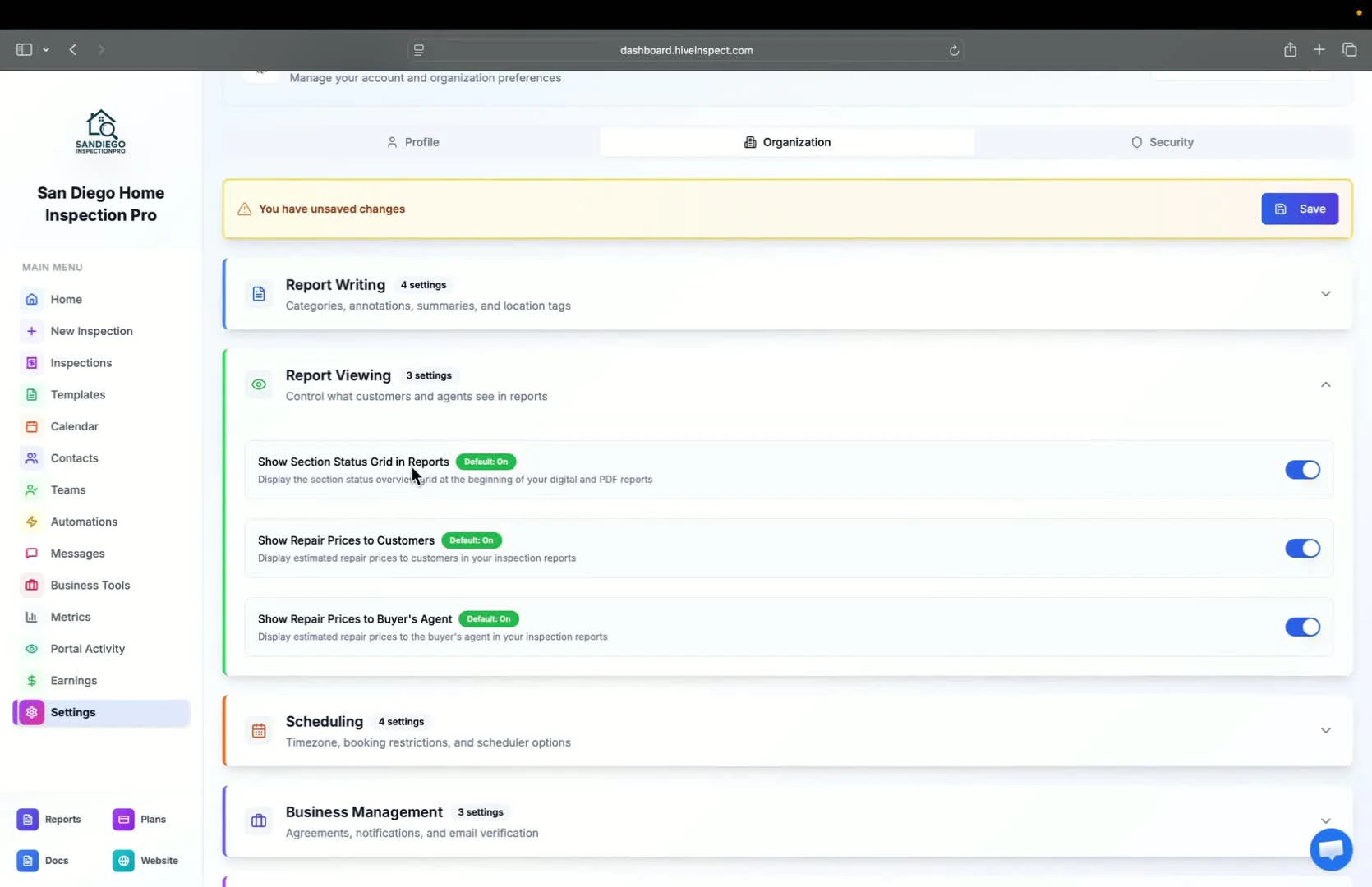
 * Choose to display multiple table of content sections in reports
* Decide whether to show repair prices to customers (default is on)
* Control visibility of pricing for buyer's region
* Choose to display multiple table of content sections in reports
* Decide whether to show repair prices to customers (default is on)
* Control visibility of pricing for buyer's region
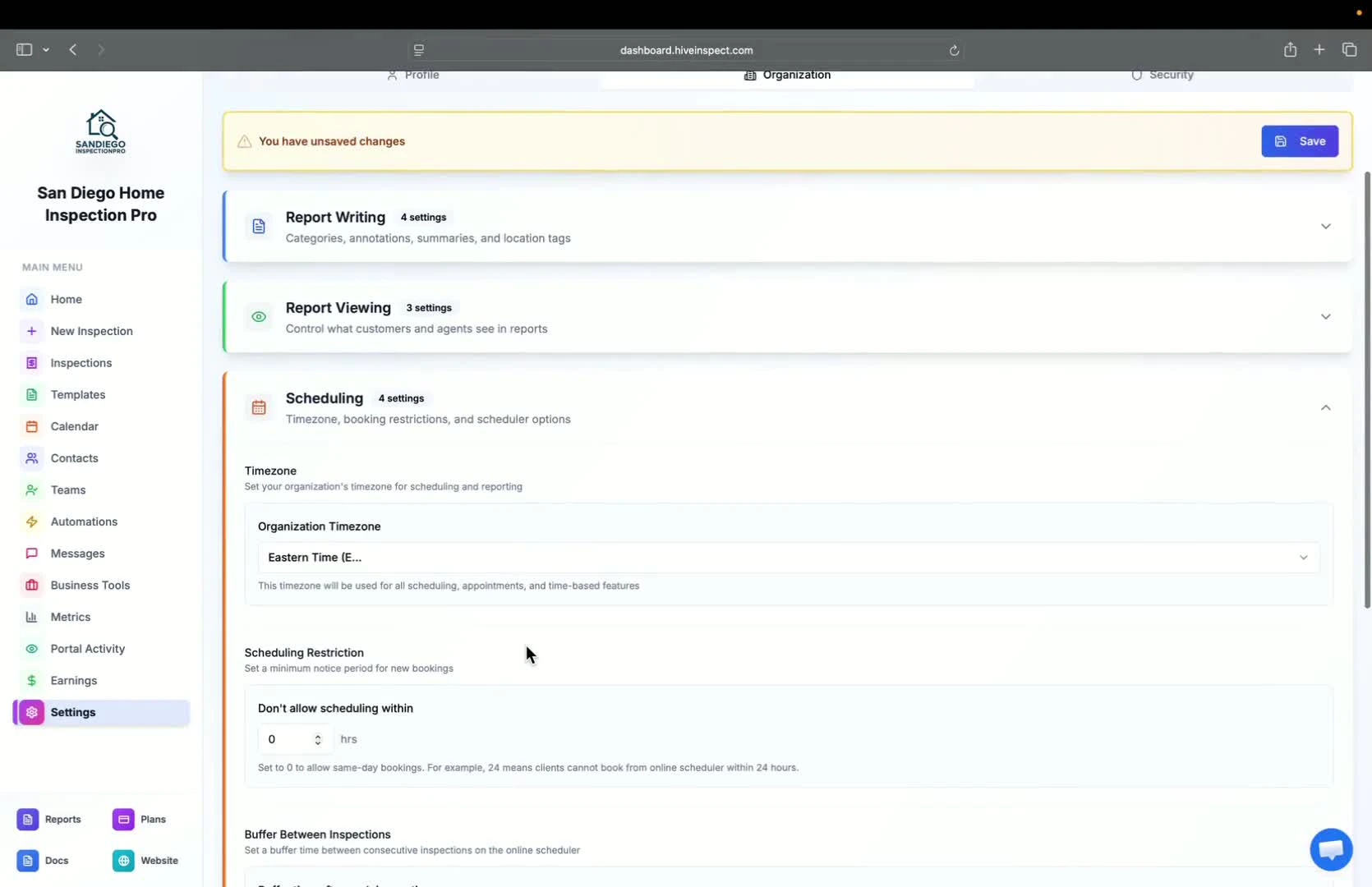
 * Select organization time zone
* Set scheduling restrictions for booking inspections (latest time and buffer time)
* Decide if pricing for services should be shown on the online scheduler
* Select organization time zone
* Set scheduling restrictions for booking inspections (latest time and buffer time)
* Decide if pricing for services should be shown on the online scheduler
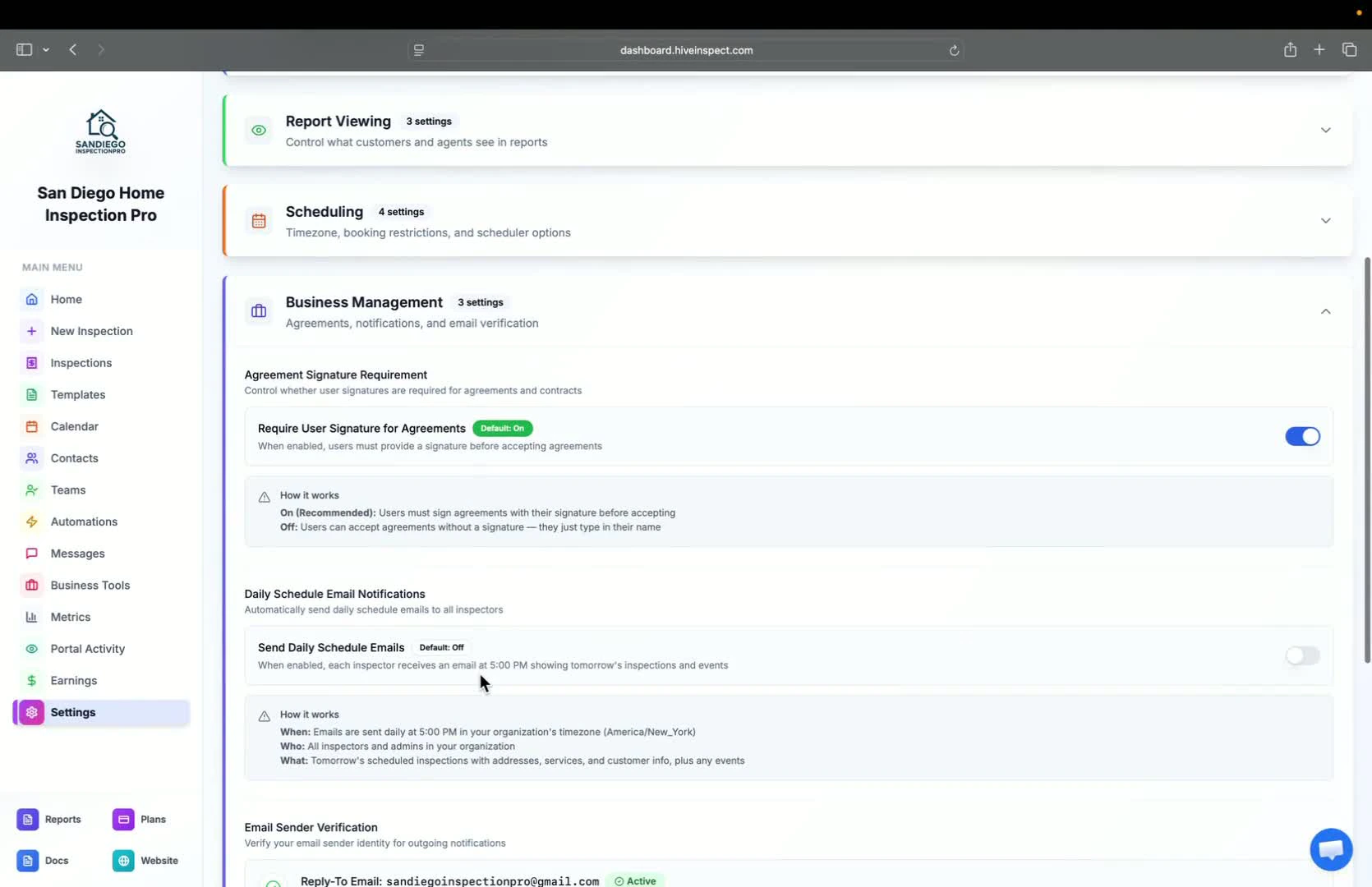
 * Choose between customer agreement signing or checkbox confirmation
* Enable daily schedule reminders for inspectors (includes inspections and events)
* Choose between customer agreement signing or checkbox confirmation
* Enable daily schedule reminders for inspectors (includes inspections and events)
 * Review existing AI features and anticipate upcoming additions