> ## Documentation Index
> Fetch the complete documentation index at: https://docs.hiveinspect.com/llms.txt
> Use this file to discover all available pages before exploring further.
# Auto Tagging Contacts: Tag Agents and Clients Automatically
> Tag agents and clients automatically by inspection count, revenue or how recently they booked, then use those tags to target your automated emails.
6 min read
## What is Auto Tagging?
Auto Tagging puts tags on your contacts **for you**, based on rules you set once.
For example:
* Agents who sent you **more than 10 inspections this year** get the tag **top producer**
* Agents who **haven't booked in 6 months** get the tag **inactive**
* Clients who **booked more than once** get the tag **repeat client**
Every night, Hive checks your agents and clients against your rules and updates the tags. You never have to tag those contacts by hand again.
***
## How it works
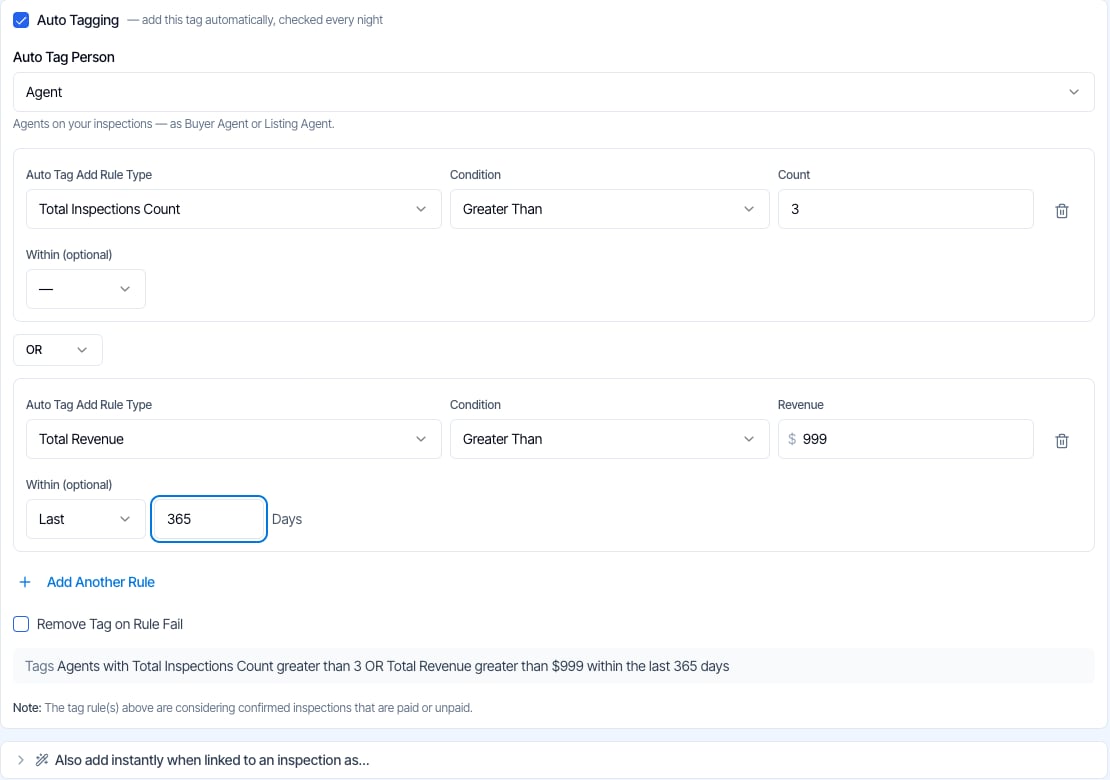
1. **You give a tag a rule**, like "more than 10 inspections in the last 365 days".
2. **Every night, Hive checks each agent (or client)** against that rule.
3. **Contacts who match get the tag.** Contacts who don't: nothing changes, unless **Remove Tag on Rule Fail** is on, in which case the tag comes off.
Each rule is one simple question about a contact's inspection history.
***
## Set up an auto tag
1. Go to **Contacts** and click **Manage Tags**.
2. Click **Add New Tag**, or click the ✏️ pencil on an existing tag.
3. Give the tag a name, like **top producer**.
4. Turn on **Auto Tagging**.
5. Under **Auto Tag Person**, choose **Agent** or **Client**.
6. Fill in the rule: a **Rule Type**, a **Condition** and a number.
7. Click **Save Tag** (or **Save Changes** when editing).
8. A preview shows who will get the tag. Click **Apply now**, or **Wait for tonight**.
 To check a tag again later without changing it, click its ▶ **Preview & apply** button on the tags list.
***
## Popular auto tags to copy
Start with one of these and adjust the numbers to your business.
| Tag | Auto Tag Person | Rule | Remove Tag on Rule Fail |
| - | - | - | - |
| **top producer** | Agent | Total Revenue · Greater Than · \$10,000 · Within Last 365 Days | Off |
| **heating up** | Agent | Total Inspections Count · Greater Than · 5 · Within Last 90 Days | On |
| **inactive** | Agent | Last Inspection · Greater Than · 180 (days ago) | On |
| **new agent** | Agent | First Inspection · Less Than · 30 (days ago) | On |
| **buyer side regular** | Agent | Buyer Agent Inspection Count · Greater Than · 10 | Off |
| **busy next month** | Agent | Total Inspections Count · Greater Than · 2 · Within Next 30 Days | On |
| **repeat client** | Client | Total Inspections Count · Greater Than · 1 | Off |
Turn **Remove Tag on Rule Fail** on for tags that describe a *current* state (**inactive**, **heating up**, **new agent**), so the tag comes off when the contact no longer fits. Leave it off for tags people should keep (**top producer**, **repeat client**). More on this [below](#remove-tag-on-rule-fail).
***
## Choosing your rules
Every rule has the same parts, in the same order as on screen:
> **Rule Type** · **Condition** · **Number** · **Within** (optional)
For example: **Total Inspections Count** · **Greater Than** · **10** · **Within Last 365 Days** means "more than 10 inspections in the last 365 days".
### Auto Tag Person: who gets tagged
Pick the kind of contact the tag is for. Hive checks each of those contacts against their **own** inspection history.
| Option | Who it covers |
| - | - |
| **Agent** | Contacts on your inspections as a **Buyer Agent** or **Listing Agent** |
| **Client** | Contacts on your inspections as the **Client** |
A contact is only checked once they're on at least one **confirmed** inspection as that type. Someone in your contacts who has never been on an inspection is never auto-tagged.
### Rule Type: what gets measured
| Rule Type | What it means | You enter |
| - | - | - |
| **Total Inspections Count** | How many inspections they've been on | A count |
| **Total Revenue** | The total price of those inspections, added up | A dollar amount |
| **First Inspection** | How many days ago their **first** inspection was | Days ago |
| **Last Inspection** | How many days ago their **most recent** inspection was | Days ago |
**Agents only:** each rule type also comes in a **Buyer Agent** and a **Listing Agent** version, like **Buyer Agent Inspection Count** or **Listing Agent Revenue**. Use these when only one side of the deal matters to you.
### Condition
| Condition | Example | Matches |
| - | - | - |
| **Greater Than** | Count · Greater Than · 10 | 11 or more |
| **Less Than** | Count · Less Than · 3 | 2 or fewer |
| **Equal To** | Count · Equal To · 5 | Exactly 5 |
### Within (optional)
For **Inspections Count** and **Revenue** rules, you can limit the rule to a time frame:
| Within | Counts inspections scheduled… |
| - | - |
| **—** (left blank) | Any time, including upcoming ones |
| **Last** 90 Days | In the 90 calendar days ending today |
| **Next** 30 Days | Later today or in the next 30 days |
**First Inspection** and **Last Inspection** rules don't have a time frame. The number you enter is already in days.
***
## Combining rules: AND / OR
Click **Add Another Rule** to add more. Between each pair of rules, choose **AND** or **OR**:
* **AND**: the contact must match **both** rules.
* **OR**: the contact must match **either** rule.
| Rules | Who gets tagged |
| - | - |
| Count · Greater Than · 10 **AND** Revenue · Greater Than · \$5,000 | Agents with lots of inspections **and** high revenue |
| Count · Greater Than · 10 **OR** Revenue · Greater Than · \$5,000 | Agents with lots of inspections **or** high revenue |
Just below your rules, Hive shows a plain-English sentence describing exactly who will be tagged. Read it before you save. If you mix AND and OR, the rules joined by AND are checked together first.
***
## Preview before anything changes
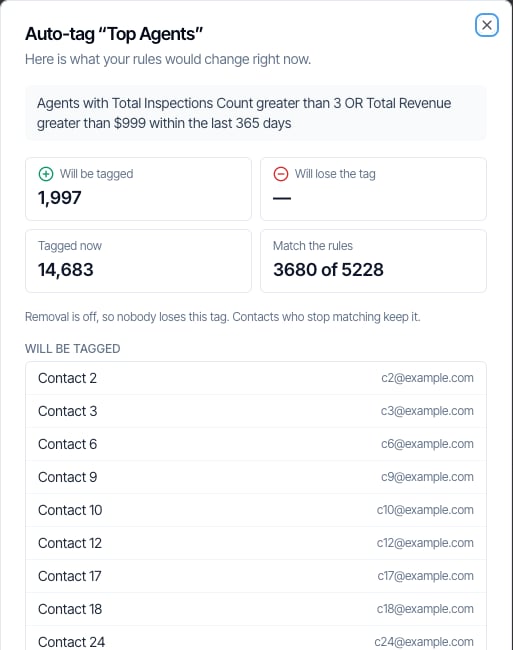
Whenever you save new or changed rules with Auto Tagging on, Hive shows a preview **before** touching any contact:
* **Will be tagged:** contacts who match and don't have the tag yet
* **Will lose the tag:** only when **Remove Tag on Rule Fail** is on
* **Tagged now:** everyone who has the tag today
* **Match the rules:** how many of your agents or clients match
Then choose **Apply now**, or **Wait for tonight** and let the nightly check do it.
To check a tag again later without changing it, click its ▶ **Preview & apply** button on the tags list.
***
## Popular auto tags to copy
Start with one of these and adjust the numbers to your business.
| Tag | Auto Tag Person | Rule | Remove Tag on Rule Fail |
| - | - | - | - |
| **top producer** | Agent | Total Revenue · Greater Than · \$10,000 · Within Last 365 Days | Off |
| **heating up** | Agent | Total Inspections Count · Greater Than · 5 · Within Last 90 Days | On |
| **inactive** | Agent | Last Inspection · Greater Than · 180 (days ago) | On |
| **new agent** | Agent | First Inspection · Less Than · 30 (days ago) | On |
| **buyer side regular** | Agent | Buyer Agent Inspection Count · Greater Than · 10 | Off |
| **busy next month** | Agent | Total Inspections Count · Greater Than · 2 · Within Next 30 Days | On |
| **repeat client** | Client | Total Inspections Count · Greater Than · 1 | Off |
Turn **Remove Tag on Rule Fail** on for tags that describe a *current* state (**inactive**, **heating up**, **new agent**), so the tag comes off when the contact no longer fits. Leave it off for tags people should keep (**top producer**, **repeat client**). More on this [below](#remove-tag-on-rule-fail).
***
## Choosing your rules
Every rule has the same parts, in the same order as on screen:
> **Rule Type** · **Condition** · **Number** · **Within** (optional)
For example: **Total Inspections Count** · **Greater Than** · **10** · **Within Last 365 Days** means "more than 10 inspections in the last 365 days".
### Auto Tag Person: who gets tagged
Pick the kind of contact the tag is for. Hive checks each of those contacts against their **own** inspection history.
| Option | Who it covers |
| - | - |
| **Agent** | Contacts on your inspections as a **Buyer Agent** or **Listing Agent** |
| **Client** | Contacts on your inspections as the **Client** |
A contact is only checked once they're on at least one **confirmed** inspection as that type. Someone in your contacts who has never been on an inspection is never auto-tagged.
### Rule Type: what gets measured
| Rule Type | What it means | You enter |
| - | - | - |
| **Total Inspections Count** | How many inspections they've been on | A count |
| **Total Revenue** | The total price of those inspections, added up | A dollar amount |
| **First Inspection** | How many days ago their **first** inspection was | Days ago |
| **Last Inspection** | How many days ago their **most recent** inspection was | Days ago |
**Agents only:** each rule type also comes in a **Buyer Agent** and a **Listing Agent** version, like **Buyer Agent Inspection Count** or **Listing Agent Revenue**. Use these when only one side of the deal matters to you.
### Condition
| Condition | Example | Matches |
| - | - | - |
| **Greater Than** | Count · Greater Than · 10 | 11 or more |
| **Less Than** | Count · Less Than · 3 | 2 or fewer |
| **Equal To** | Count · Equal To · 5 | Exactly 5 |
### Within (optional)
For **Inspections Count** and **Revenue** rules, you can limit the rule to a time frame:
| Within | Counts inspections scheduled… |
| - | - |
| **—** (left blank) | Any time, including upcoming ones |
| **Last** 90 Days | In the 90 calendar days ending today |
| **Next** 30 Days | Later today or in the next 30 days |
**First Inspection** and **Last Inspection** rules don't have a time frame. The number you enter is already in days.
***
## Combining rules: AND / OR
Click **Add Another Rule** to add more. Between each pair of rules, choose **AND** or **OR**:
* **AND**: the contact must match **both** rules.
* **OR**: the contact must match **either** rule.
| Rules | Who gets tagged |
| - | - |
| Count · Greater Than · 10 **AND** Revenue · Greater Than · \$5,000 | Agents with lots of inspections **and** high revenue |
| Count · Greater Than · 10 **OR** Revenue · Greater Than · \$5,000 | Agents with lots of inspections **or** high revenue |
Just below your rules, Hive shows a plain-English sentence describing exactly who will be tagged. Read it before you save. If you mix AND and OR, the rules joined by AND are checked together first.
***
## Preview before anything changes
Whenever you save new or changed rules with Auto Tagging on, Hive shows a preview **before** touching any contact:
* **Will be tagged:** contacts who match and don't have the tag yet
* **Will lose the tag:** only when **Remove Tag on Rule Fail** is on
* **Tagged now:** everyone who has the tag today
* **Match the rules:** how many of your agents or clients match
Then choose **Apply now**, or **Wait for tonight** and let the nightly check do it.
 ### Changed your mind? Undo it
Click **Undo** right after applying. Or, on the tags list, click the tag's 🕘 history button and **Undo** the latest run. Every contact goes back exactly the way they were.
Undo reverses one run. The rule itself stays on, so it runs again that night. To stop it, turn **Auto Tagging** off or change the rule. To delete the rules from a tag entirely, turn **Auto Tagging** off and click **Clear saved rules**.
***
## Remove Tag on Rule Fail
By default, Auto Tagging only **adds** tags. Once a contact has the tag, they keep it.
Turn on **Remove Tag on Rule Fail** when the tag should always reflect the rule *right now*. For example, **inactive** or **heating up** should come off when the contact no longer fits.
With this on, **anyone** who has the tag but doesn't match the rule loses it, including contacts you tagged by hand. The preview always lists who would lose the tag first.
**Built-in safety net:** if one night's check would remove the tag from more than half of the contacts who have it (and more than 100 contacts), Hive holds those removals and marks the tag **Removals held — review**. Click the tag's ▶ **Preview & apply** button to see the list and apply it yourself.
***
## Use auto tags in your automations
Tags added by Auto Tagging work like any other tag. When you set up an automated email or text, use the **Contact Tag Filter**:
* **Contains any of:** send only to contacts who **have** one of the tags
* **Does not contain any of:** send only to contacts who **don't have** any of the tags
For example:
* Send a thank-you email to agents tagged **top producer**
* Leave agents tagged **inactive** out of your agent emails
* Send clients tagged **repeat client** a "welcome back" email instead of your first-time client email
**Timing matters.** Automations check tags when a message is first scheduled (for example, when the inspection is booked), and again right before it sends.
* A tag **removed** before the send stops a message that hasn't gone out yet.
* A tag **added** after the message was scheduled won't bring back a message that was already skipped.
Auto tags are updated every night, so they're ready for inspections booked the next day.
***
## Auto Tagging vs. "Also add instantly"
Below Auto Tagging, each tag has a second, simpler option called **Also add instantly when linked to an inspection as…** The two do different jobs:
| | **Auto Tagging** | **Also add instantly** |
| - | - | - |
| **When** | Every night (or **Apply now**) | The moment the contact is added to an inspection |
| **Based on** | Your rules (count, revenue, days) | Only the contact type (Client, Buyer Agent, Lender…) |
| **Who** | Agents or Clients | Any contact type |
| **Removes tags** | Only if **Remove Tag on Rule Fail** is on | Never |
| **Good for** | "top producer", "inactive", "repeat client" | "Every lender gets the lender tag" |
You can use one, the other, or both on the same tag.
If you use both on one tag, leave **Remove Tag on Rule Fail** off. Otherwise the nightly check removes the tag from anyone the instant option added who doesn't match your rules.
***
## Good to know
* **Only confirmed inspections count**, paid or unpaid. Cancelled, deleted and sample inspections are ignored.
* **Revenue** is the total price of the counted inspections.
* **Days are counted in your organization's time zone** (the one in **Org Settings**). "Last 90 Days" means the 90 calendar days ending today, and "days ago" means calendar days, not 24-hour periods.
* **Each inspection counts once per contact**, even if they're on it twice (for example as both Buyer Agent and Listing Agent).
* **"Equal To 0" with no time frame never tags anyone,** because a contact is only checked once they have at least one confirmed inspection. With a time frame it works: **Total Inspections Count · Equal To · 0 · Within Last 90 Days** finds agents who booked before but not in the last 90 days.
* **Tag names keep your capitalization.** "VIP Agent" stays "VIP Agent".
* **The tags list shows each tag's last run** and what changed (for example "Last run Sep 30 · +12 / −3").
***
## Frequently asked questions
Every night. Each tag with **Auto Tagging** turned on is checked once overnight, using each contact's inspections at that moment. If you don't want to wait, click **Apply now** in the preview after you save the tag.
Check these in order:
* Is **Auto Tagging** turned on for the tag?
* Has the nightly run happened yet? Use the **Preview & apply** button (▶) on the tag to apply it now.
* Does anyone actually match? The preview shows **Match the rules: X of Y**. If X is 0, loosen the rule.
* Are you using **Equal To 0** with no time frame? A contact only counts once they have at least one confirmed inspection, so "equal to 0" over all time never matches anyone. Add a time frame (for example **Last 90 Days**) to find contacts who have gone quiet.
Only **confirmed** inspections, paid or unpaid. Cancelled, deleted and sample inspections are ignored. If a contact is on the same inspection twice (for example as both Buyer Agent and Listing Agent), it counts once.
Revenue is the total price of each counted inspection, added up.
Only if you turn on **Remove Tag on Rule Fail**. With it on, anyone who has the tag but doesn't match the rules loses it, including contacts you tagged yourself. The preview always shows who would lose the tag before anything changes.
Yes. Click **Undo** right after applying, or open the tag's history (🕘) and click **Undo** on the latest run. Everyone goes back exactly the way they were. Remember to change or turn off the rule too, or it will run again that night.
Not yet. **Auto Tag Person** covers Agents (Buyer Agent and Listing Agent) and Clients. For other contact types, use **Also add instantly when linked to an inspection as…** on the same tag. It adds the tag the moment that contact is added to an inspection.
Hive keeps tag names exactly as you type them. Tag names are still unique regardless of case, so you can't have both "VIP Agent" and "vip agent".
No. A tag on its own never sends anything. It only changes which automated messages a contact receives, if you use the **Contact Tag Filter** on an automation.
### Changed your mind? Undo it
Click **Undo** right after applying. Or, on the tags list, click the tag's 🕘 history button and **Undo** the latest run. Every contact goes back exactly the way they were.
Undo reverses one run. The rule itself stays on, so it runs again that night. To stop it, turn **Auto Tagging** off or change the rule. To delete the rules from a tag entirely, turn **Auto Tagging** off and click **Clear saved rules**.
***
## Remove Tag on Rule Fail
By default, Auto Tagging only **adds** tags. Once a contact has the tag, they keep it.
Turn on **Remove Tag on Rule Fail** when the tag should always reflect the rule *right now*. For example, **inactive** or **heating up** should come off when the contact no longer fits.
With this on, **anyone** who has the tag but doesn't match the rule loses it, including contacts you tagged by hand. The preview always lists who would lose the tag first.
**Built-in safety net:** if one night's check would remove the tag from more than half of the contacts who have it (and more than 100 contacts), Hive holds those removals and marks the tag **Removals held — review**. Click the tag's ▶ **Preview & apply** button to see the list and apply it yourself.
***
## Use auto tags in your automations
Tags added by Auto Tagging work like any other tag. When you set up an automated email or text, use the **Contact Tag Filter**:
* **Contains any of:** send only to contacts who **have** one of the tags
* **Does not contain any of:** send only to contacts who **don't have** any of the tags
For example:
* Send a thank-you email to agents tagged **top producer**
* Leave agents tagged **inactive** out of your agent emails
* Send clients tagged **repeat client** a "welcome back" email instead of your first-time client email
**Timing matters.** Automations check tags when a message is first scheduled (for example, when the inspection is booked), and again right before it sends.
* A tag **removed** before the send stops a message that hasn't gone out yet.
* A tag **added** after the message was scheduled won't bring back a message that was already skipped.
Auto tags are updated every night, so they're ready for inspections booked the next day.
***
## Auto Tagging vs. "Also add instantly"
Below Auto Tagging, each tag has a second, simpler option called **Also add instantly when linked to an inspection as…** The two do different jobs:
| | **Auto Tagging** | **Also add instantly** |
| - | - | - |
| **When** | Every night (or **Apply now**) | The moment the contact is added to an inspection |
| **Based on** | Your rules (count, revenue, days) | Only the contact type (Client, Buyer Agent, Lender…) |
| **Who** | Agents or Clients | Any contact type |
| **Removes tags** | Only if **Remove Tag on Rule Fail** is on | Never |
| **Good for** | "top producer", "inactive", "repeat client" | "Every lender gets the lender tag" |
You can use one, the other, or both on the same tag.
If you use both on one tag, leave **Remove Tag on Rule Fail** off. Otherwise the nightly check removes the tag from anyone the instant option added who doesn't match your rules.
***
## Good to know
* **Only confirmed inspections count**, paid or unpaid. Cancelled, deleted and sample inspections are ignored.
* **Revenue** is the total price of the counted inspections.
* **Days are counted in your organization's time zone** (the one in **Org Settings**). "Last 90 Days" means the 90 calendar days ending today, and "days ago" means calendar days, not 24-hour periods.
* **Each inspection counts once per contact**, even if they're on it twice (for example as both Buyer Agent and Listing Agent).
* **"Equal To 0" with no time frame never tags anyone,** because a contact is only checked once they have at least one confirmed inspection. With a time frame it works: **Total Inspections Count · Equal To · 0 · Within Last 90 Days** finds agents who booked before but not in the last 90 days.
* **Tag names keep your capitalization.** "VIP Agent" stays "VIP Agent".
* **The tags list shows each tag's last run** and what changed (for example "Last run Sep 30 · +12 / −3").
***
## Frequently asked questions
Every night. Each tag with **Auto Tagging** turned on is checked once overnight, using each contact's inspections at that moment. If you don't want to wait, click **Apply now** in the preview after you save the tag.
Check these in order:
* Is **Auto Tagging** turned on for the tag?
* Has the nightly run happened yet? Use the **Preview & apply** button (▶) on the tag to apply it now.
* Does anyone actually match? The preview shows **Match the rules: X of Y**. If X is 0, loosen the rule.
* Are you using **Equal To 0** with no time frame? A contact only counts once they have at least one confirmed inspection, so "equal to 0" over all time never matches anyone. Add a time frame (for example **Last 90 Days**) to find contacts who have gone quiet.
Only **confirmed** inspections, paid or unpaid. Cancelled, deleted and sample inspections are ignored. If a contact is on the same inspection twice (for example as both Buyer Agent and Listing Agent), it counts once.
Revenue is the total price of each counted inspection, added up.
Only if you turn on **Remove Tag on Rule Fail**. With it on, anyone who has the tag but doesn't match the rules loses it, including contacts you tagged yourself. The preview always shows who would lose the tag before anything changes.
Yes. Click **Undo** right after applying, or open the tag's history (🕘) and click **Undo** on the latest run. Everyone goes back exactly the way they were. Remember to change or turn off the rule too, or it will run again that night.
Not yet. **Auto Tag Person** covers Agents (Buyer Agent and Listing Agent) and Clients. For other contact types, use **Also add instantly when linked to an inspection as…** on the same tag. It adds the tag the moment that contact is added to an inspection.
Hive keeps tag names exactly as you type them. Tag names are still unique regardless of case, so you can't have both "VIP Agent" and "vip agent".
No. A tag on its own never sends anything. It only changes which automated messages a contact receives, if you use the **Contact Tag Filter** on an automation.
Next step
Related
This documentation is built and hosted on [Mintlify](https://mintlify.com), a developer documentation platform.