

Setting up automations for inspections
Set up automations before scheduling inspections
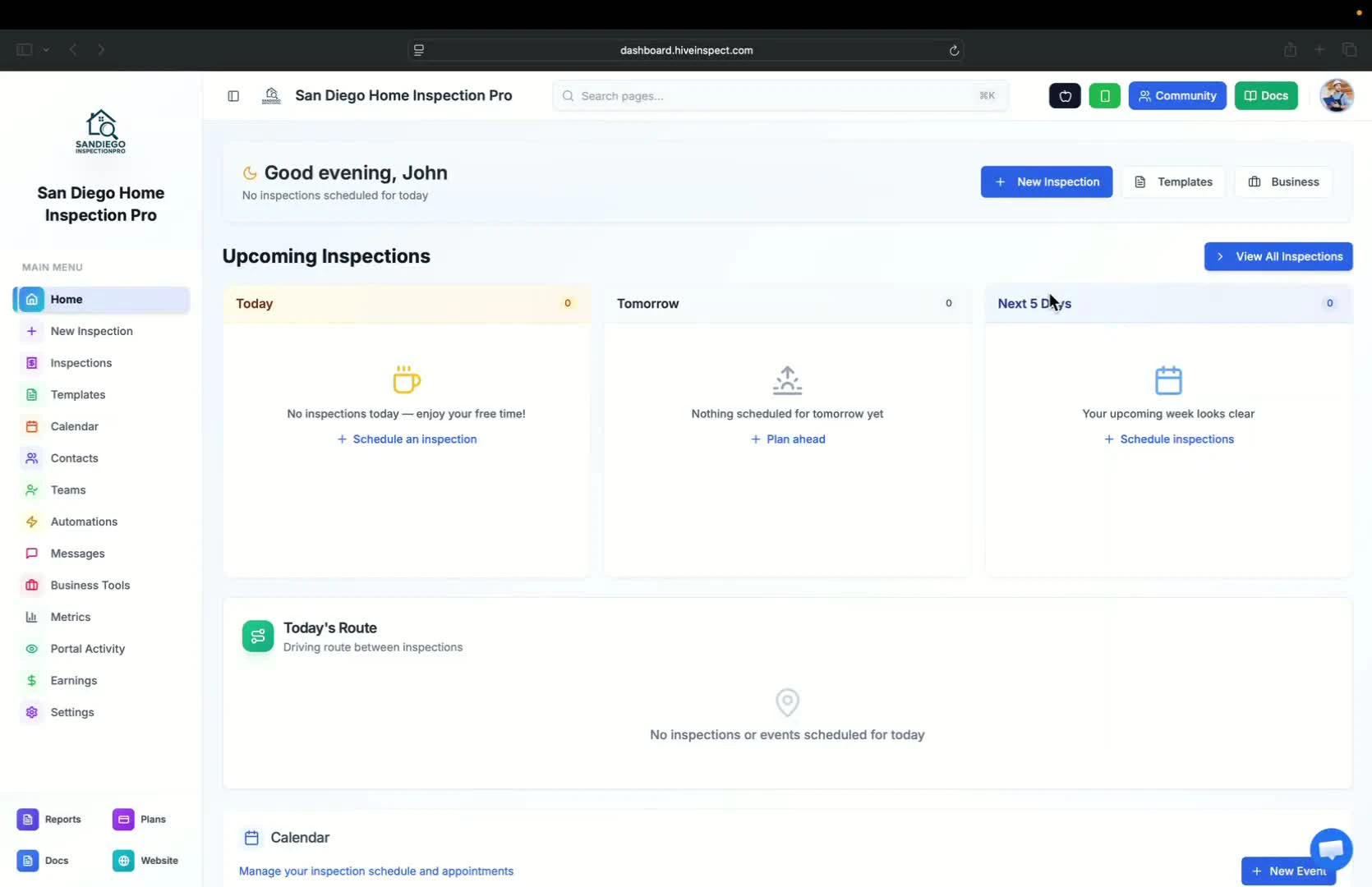
Choose types of communications
0:31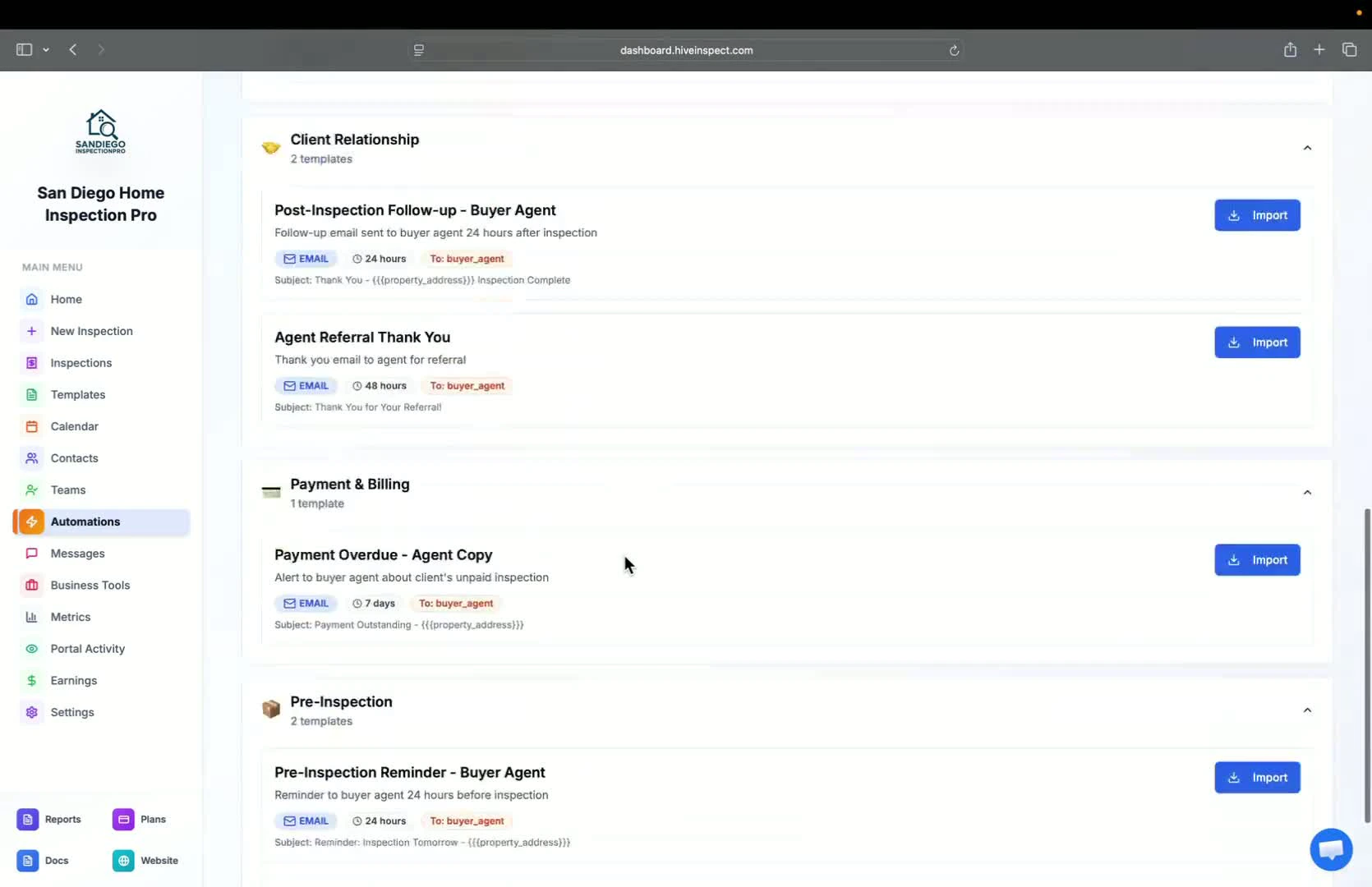
- Select the type of communication you want to send (e.g., email, SMS)
- Understand the trigger points for scheduling communications
Import automation settings
0:53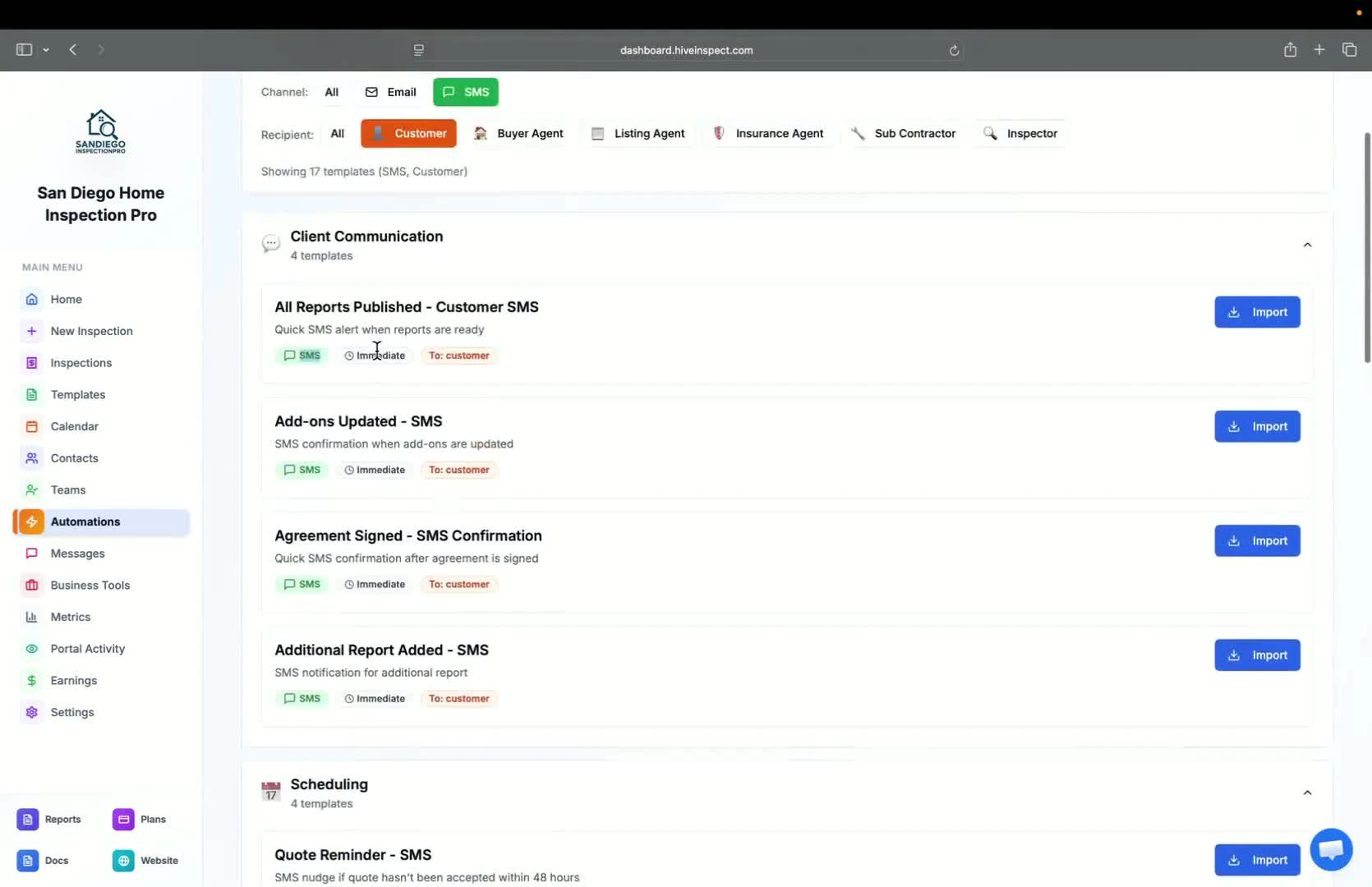
- Click Import to select services for the automation
- Note: If no service is selected, the automation applies to all services
Select specific services (Optional)
1:05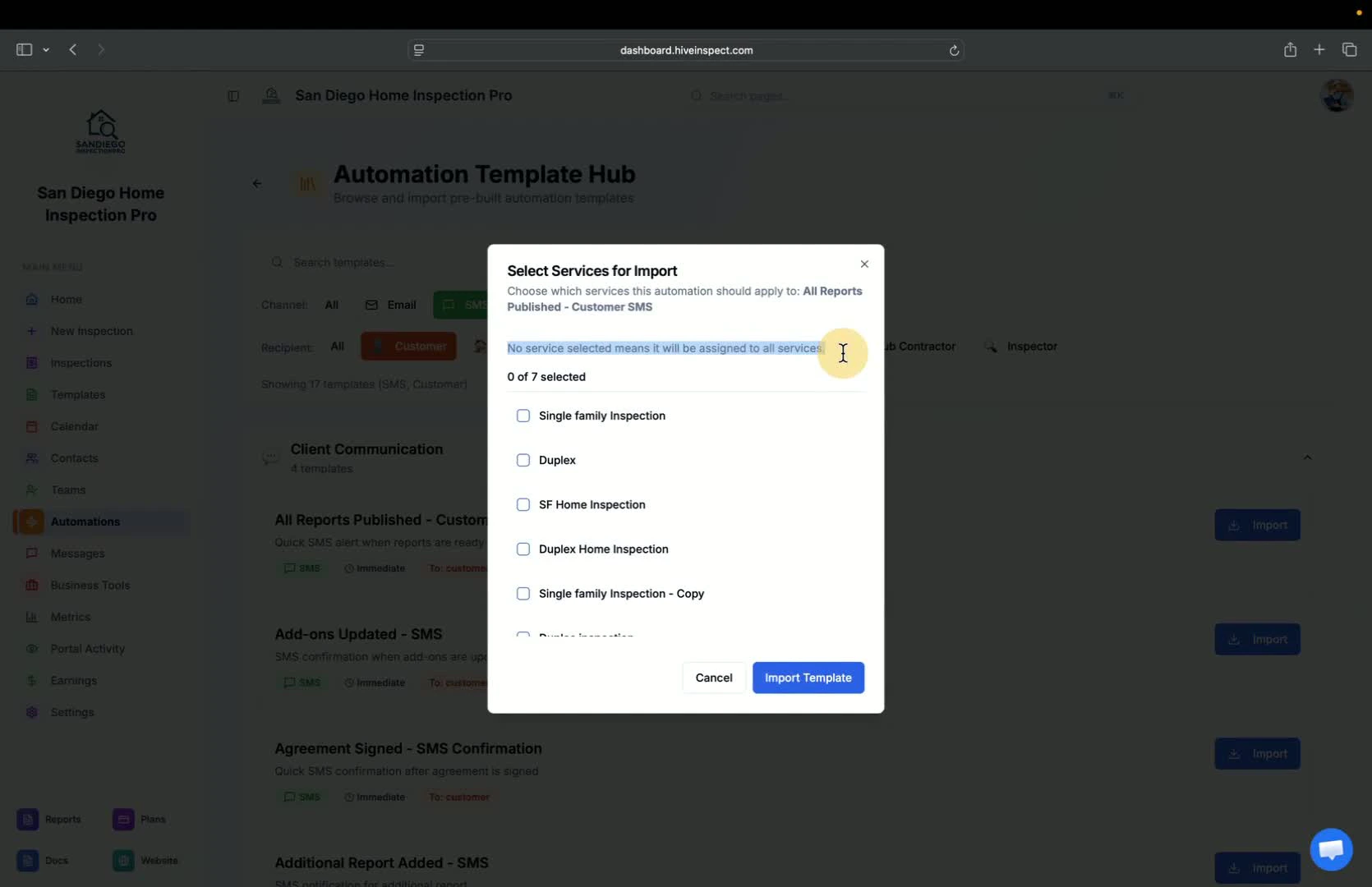
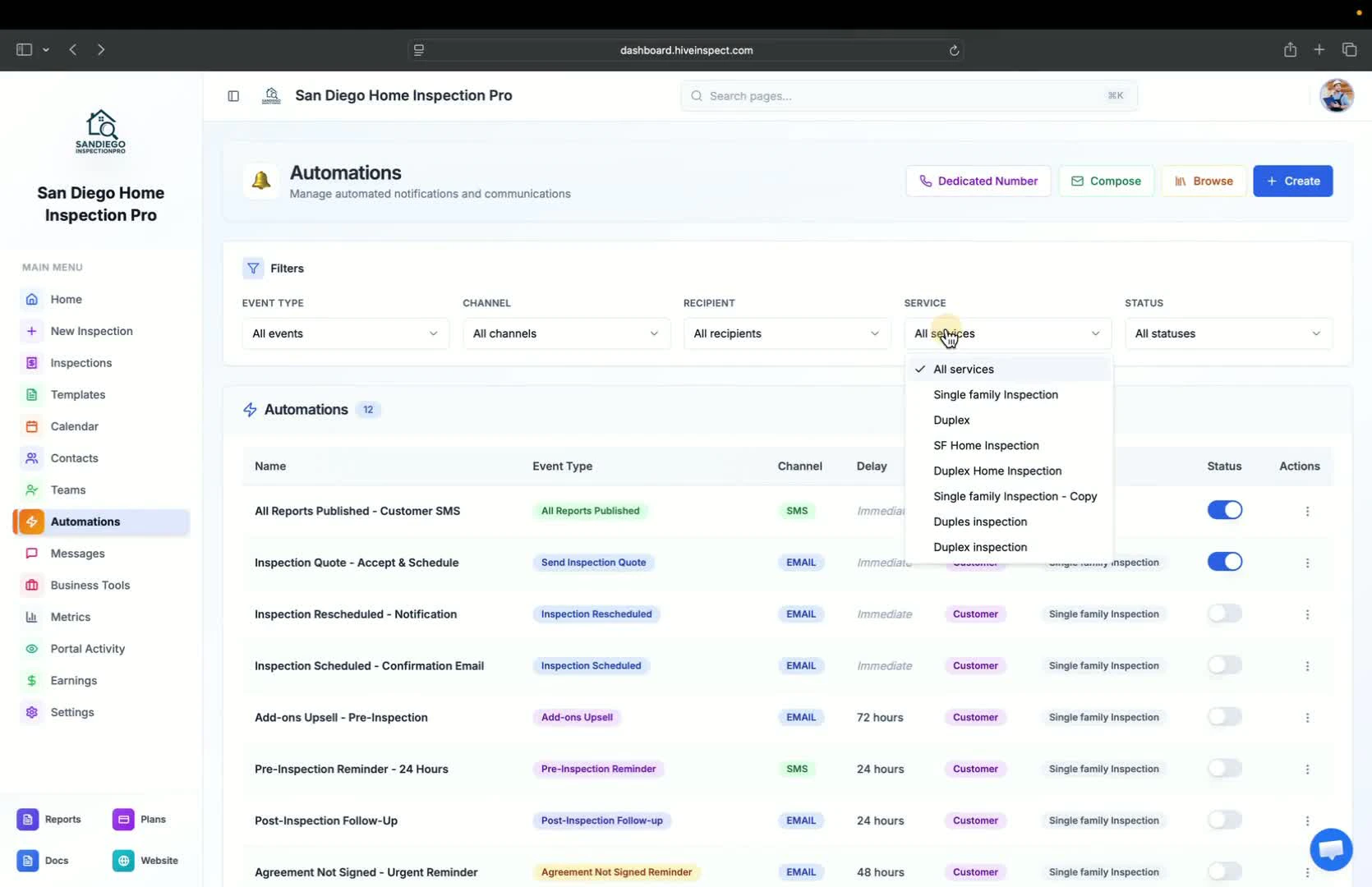
- If needed, select specific services for the automation
- Avoid selecting services unless necessary to ensure future inspections are included
Edit automation details
1:25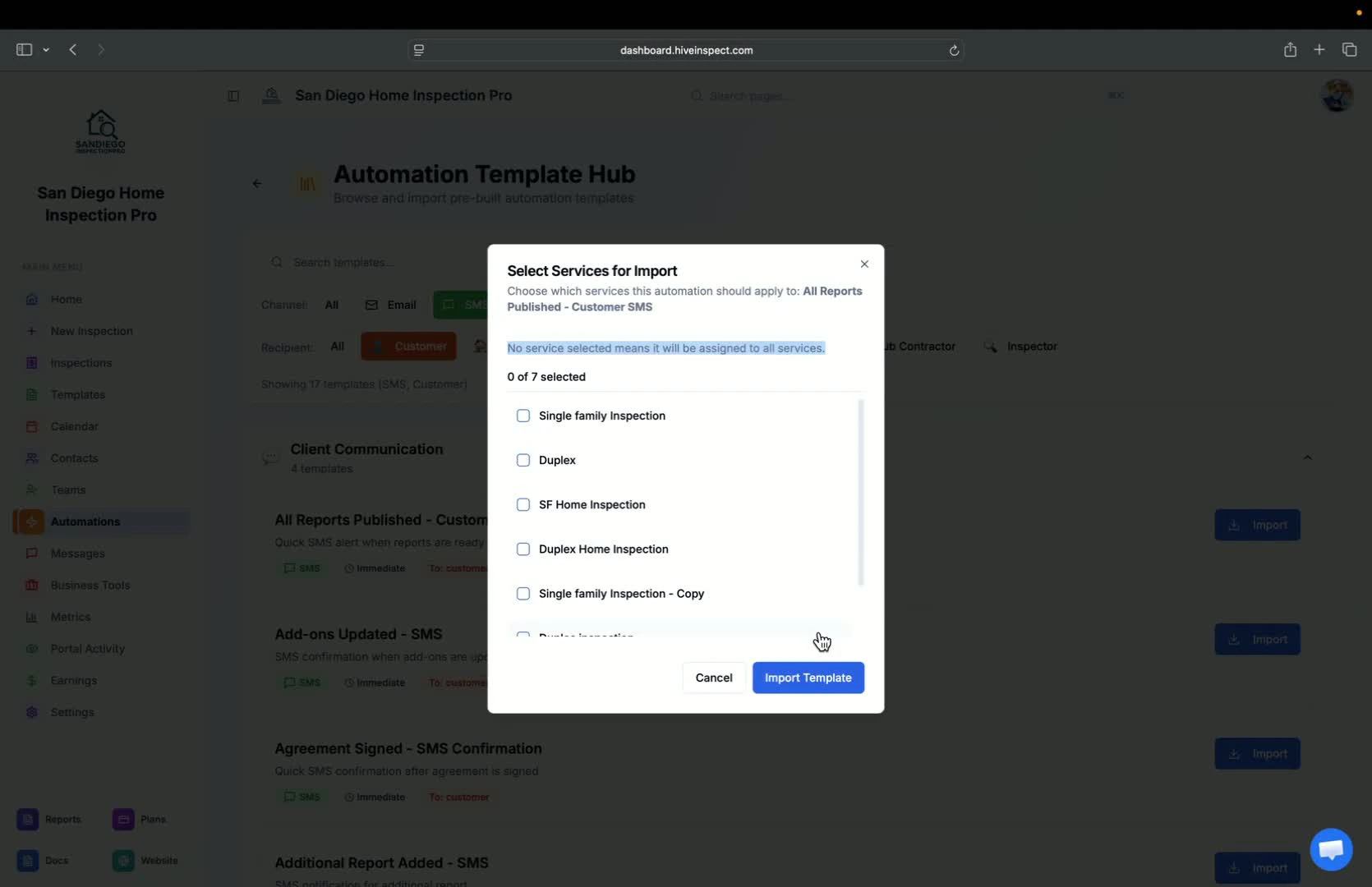
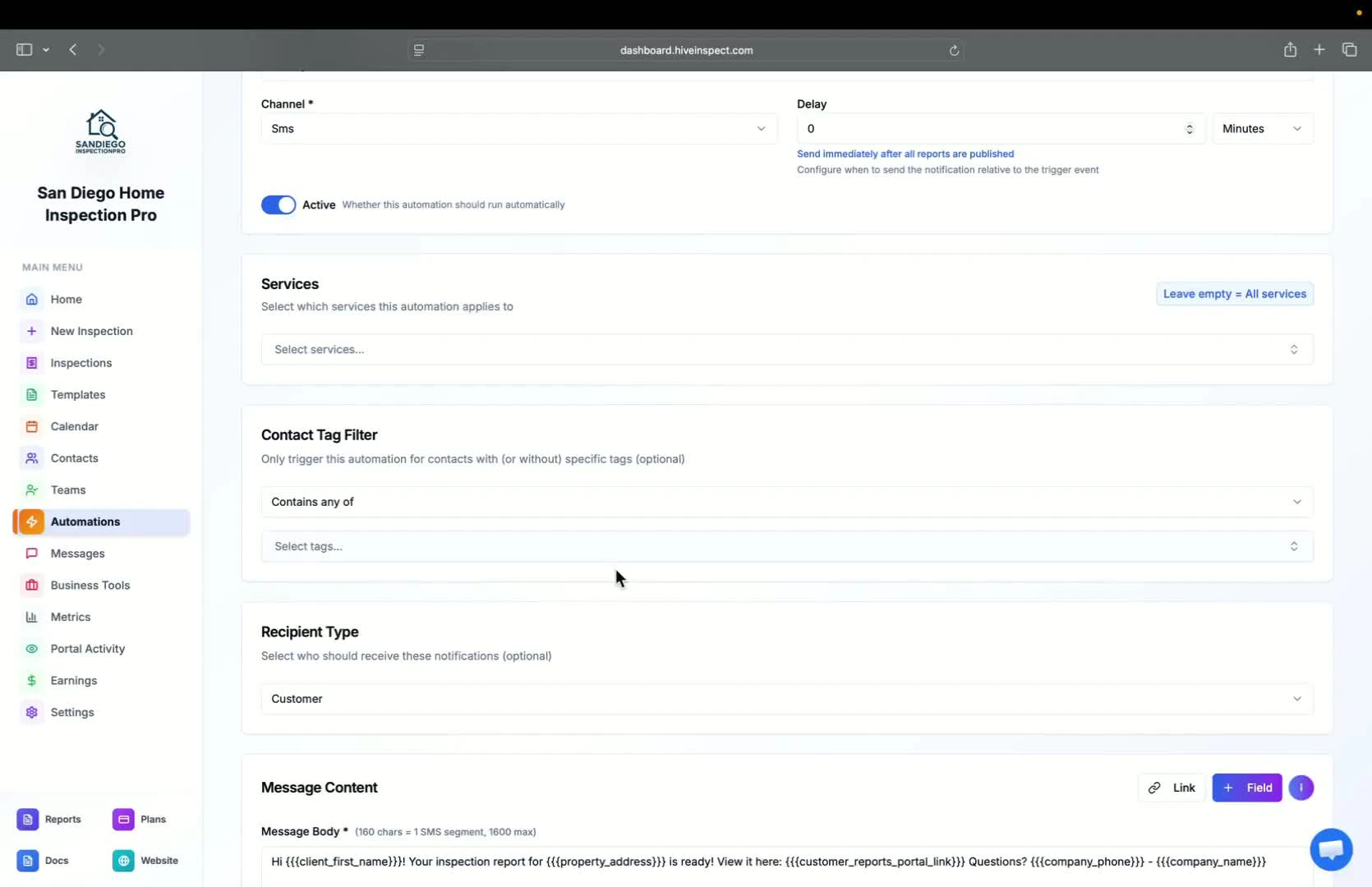
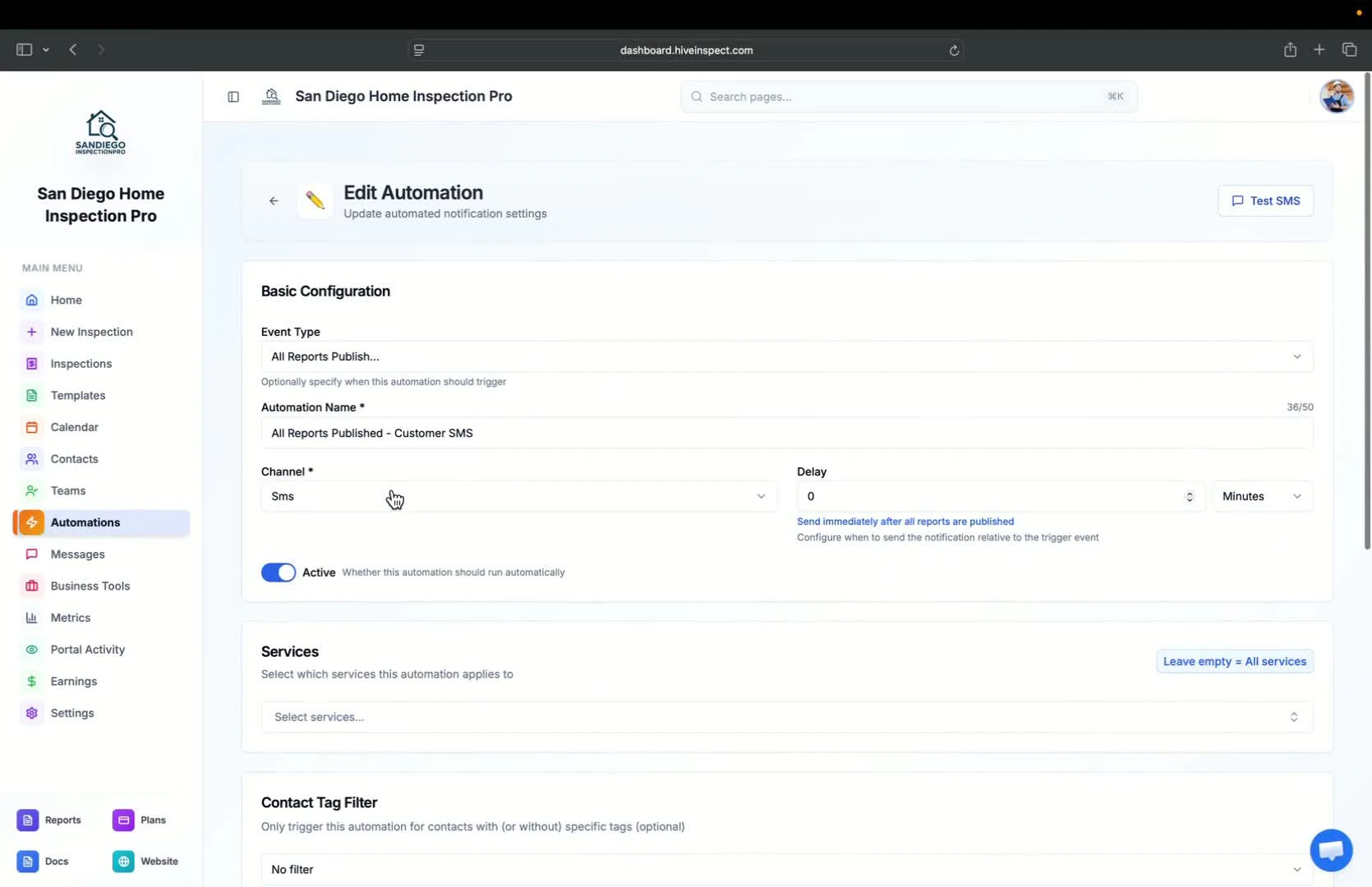
- Click Edit to modify the automation settings
- Review trigger types, reference names, channels, and delays
Set filters for specific contacts
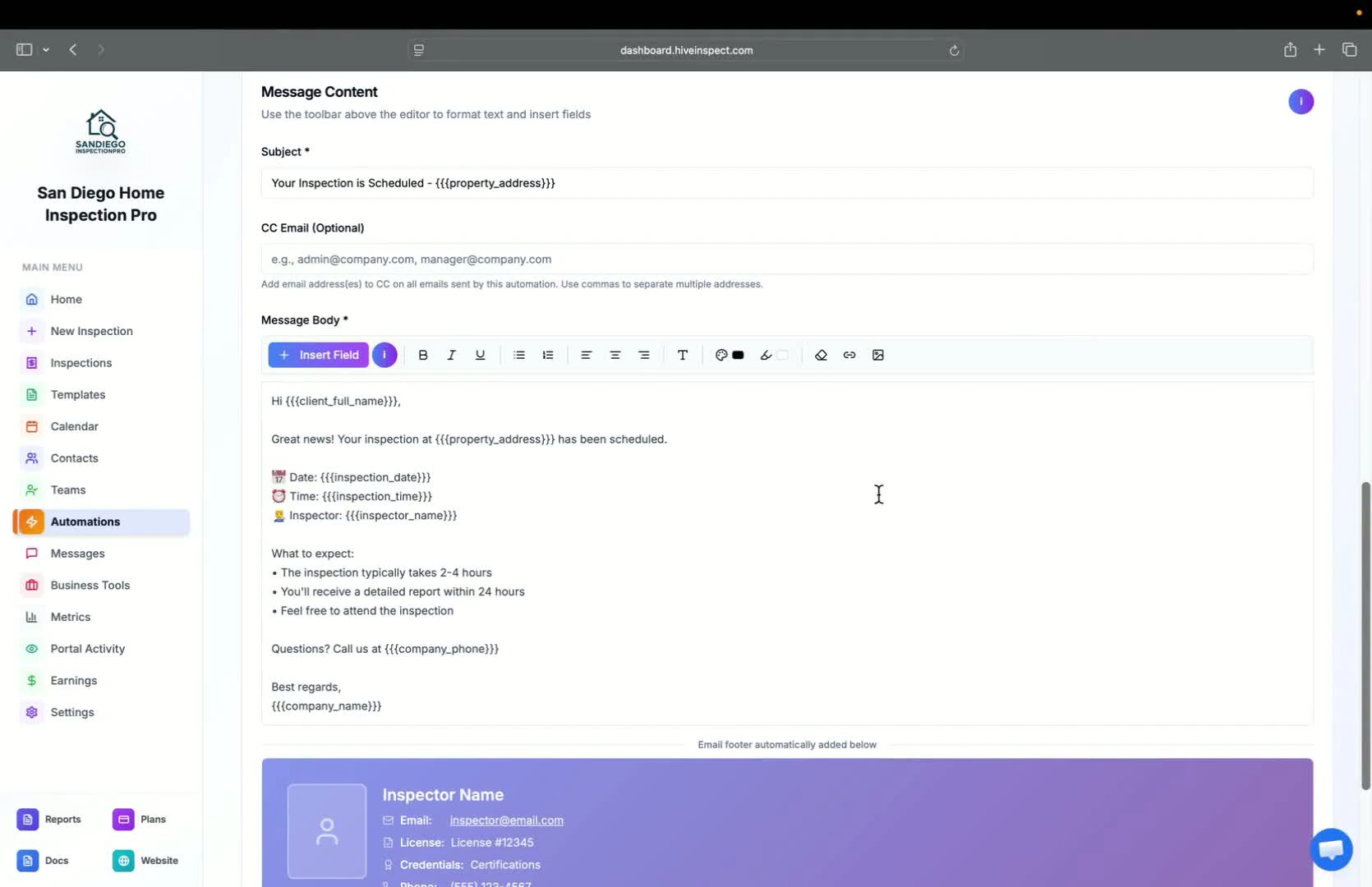
Customize message body
Test SMS and email messages
2:44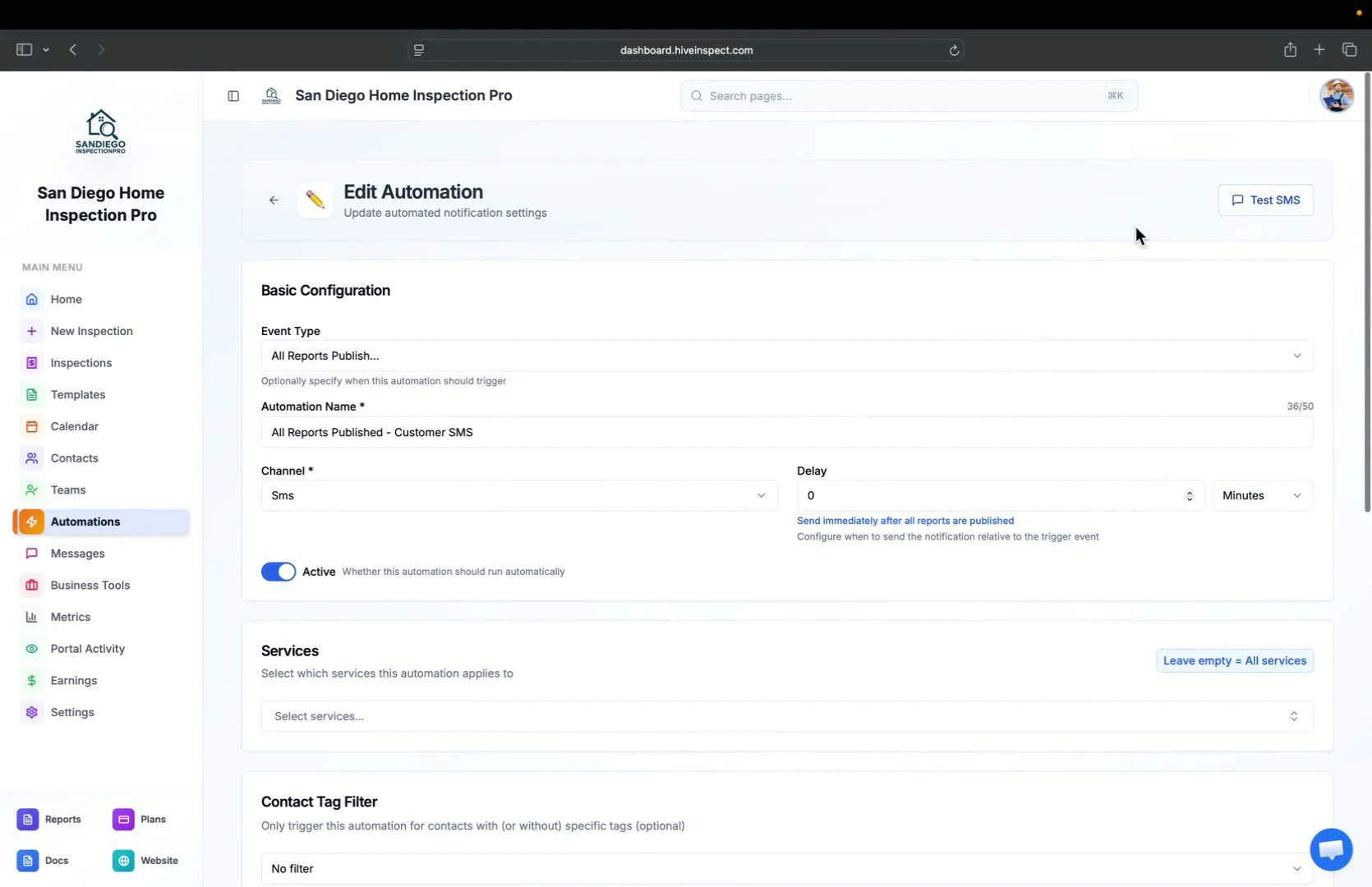
- Use the Test SMS feature to see how messages will appear to customers
- Send a test email to yourself to review the customer experience
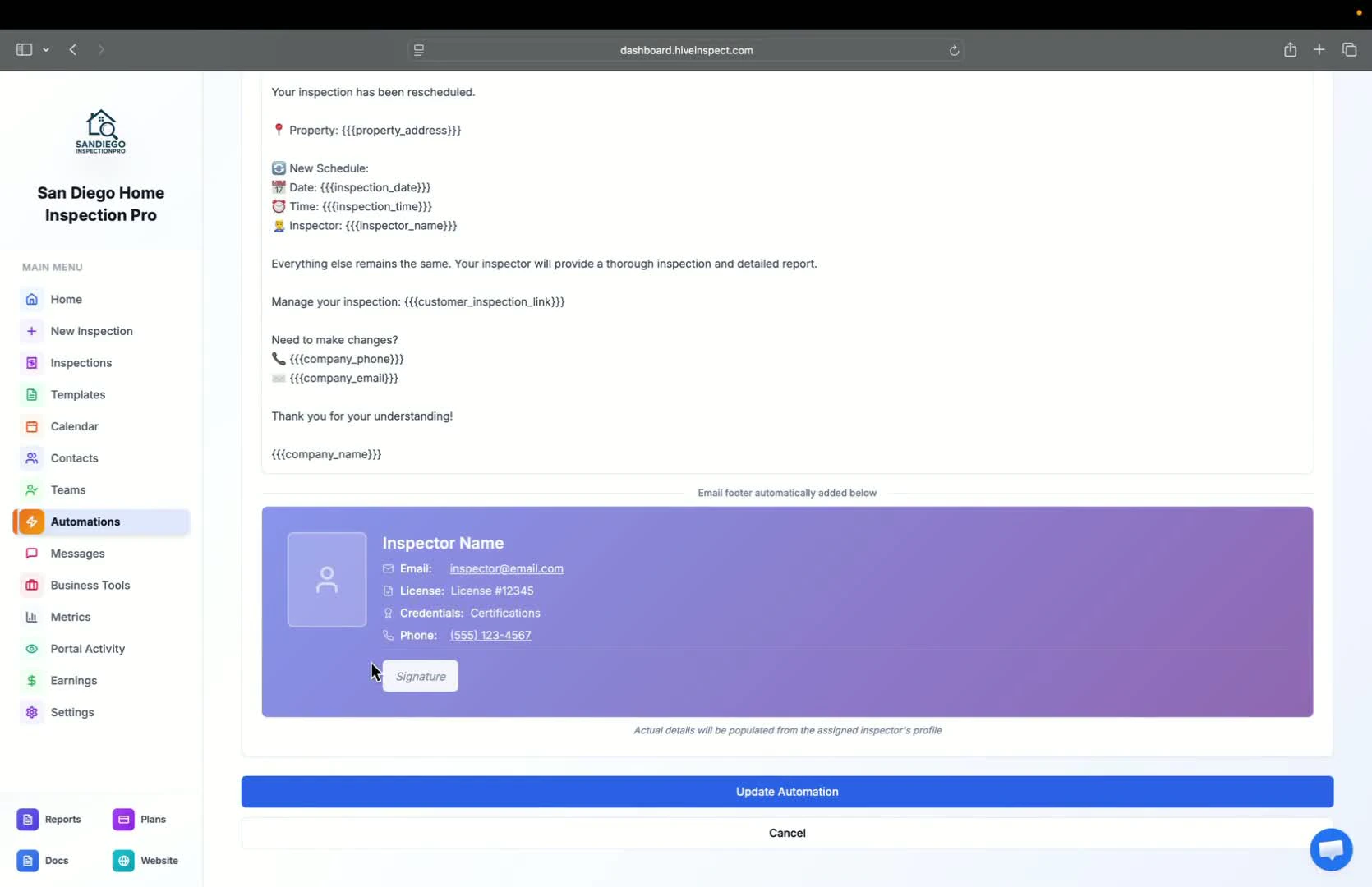
Automatic inclusion of footer information
Duplicate inspections and view filters
Access customer reports portal
3:58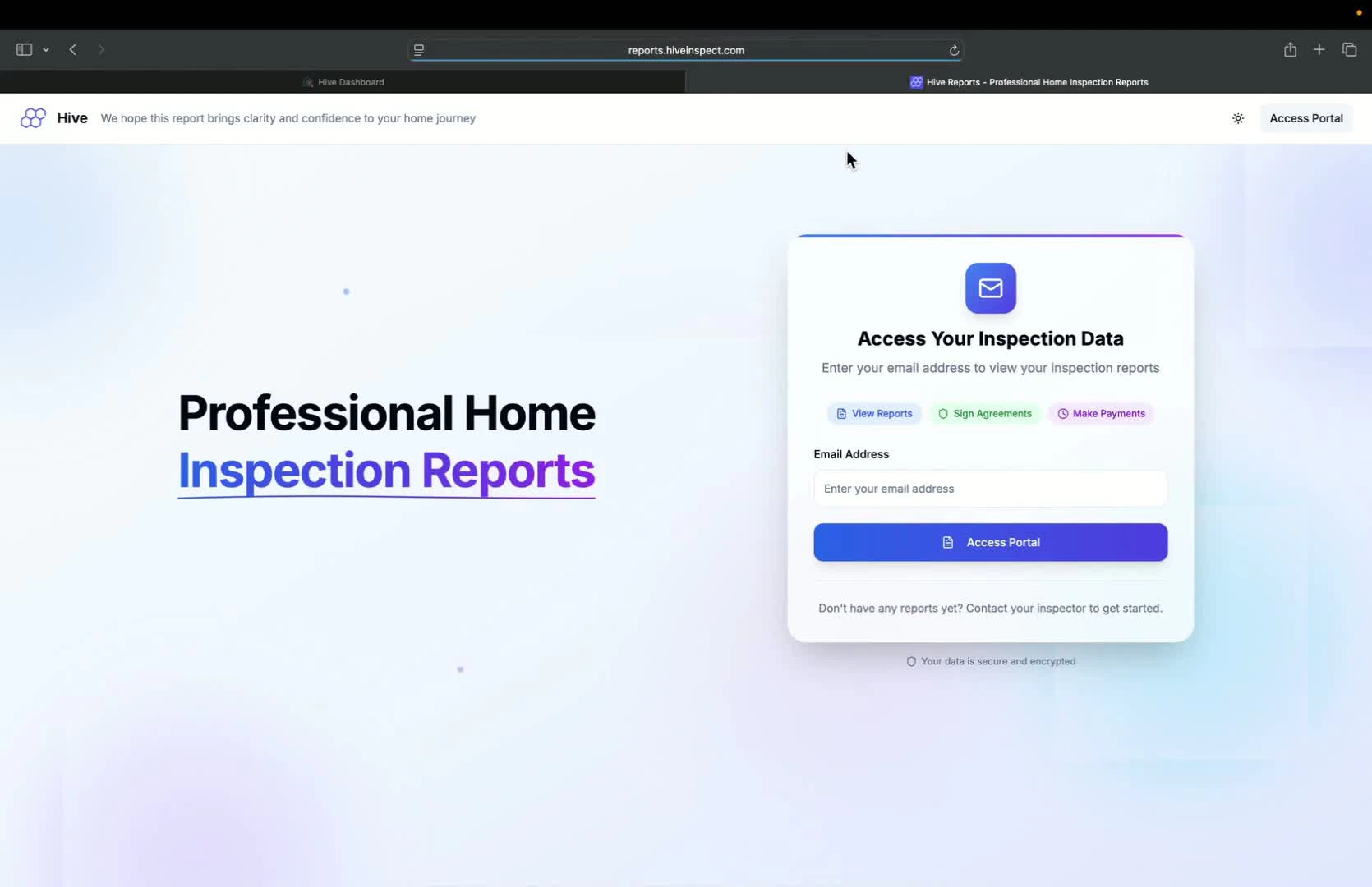
- Use the reports button to access the customer portal
- Customers can enter their email to access reports
Embed report links in automated emails
Next step
Related
Automation Starter PackWhich ready-made automations to import first, and whyAutomation Settings: BasicsWhat each event type, delay, recipient and message setting doesAutomation Settings: AdvancedFilters, sleep hours, send conditions and Only Trigger OnceYour own text numberA business number for texting clients from inside HiveReschedule an inspectionMove the date and keep the client, agent and team in the loopAutomated review requestsAsk every client for a Google review at the right moment