> ## Documentation Index
> Fetch the complete documentation index at: https://docs.hiveinspect.com/llms.txt
> Use this file to discover all available pages before exploring further.

# Automate Subcontractor Emails for Inspection Add-Ons

> Email your termite, septic or radon subcontractor automatically whenever an inspection carrying their add-on is scheduled, rescheduled or cancelled.

export const VideoEmbed = ({id, title}) => {
  const [playing, setPlaying] = useState(false);
  const [thumb, setThumb] = useState(`https://i.ytimg.com/vi/${id}/maxresdefault.jpg`);
  const label = `${title} - Hive Inspect`;
  return <figure className="my-6 not-prose">
      <div className="relative w-full overflow-hidden rounded-xl bg-zinc-950 shadow-sm ring-1 ring-zinc-950/10 dark:ring-white/10" style={{
    aspectRatio: "16 / 9"
  }}>
        {playing ? <iframe src={`https://www.youtube-nocookie.com/embed/${id}?autoplay=1&rel=0&playsinline=1`} title={label} loading="lazy" allow="accelerometer; autoplay; clipboard-write; encrypted-media; gyroscope; picture-in-picture" allowFullScreen className="absolute inset-0 h-full w-full" style={{
    border: 0
  }} /> : <button type="button" onClick={() => setPlaying(true)} aria-label={`Play video: ${title}`} className="group absolute inset-0 h-full w-full cursor-pointer">
            <img src={thumb} alt="" loading="lazy" onError={() => {
    if (!thumb.includes("hqdefault")) setThumb(`https://i.ytimg.com/vi/${id}/hqdefault.jpg`);
  }} className="absolute inset-0 h-full w-full object-cover transition-transform duration-300 group-hover:scale-[1.02]" />
            <span className="absolute inset-0 bg-black/10 transition-colors group-hover:bg-black/20" />
            <span className="absolute left-1/2 top-1/2 flex -translate-x-1/2 -translate-y-1/2 items-center justify-center shadow-lg transition-all group-hover:scale-105" style={{
    width: 96,
    height: 68,
    borderRadius: 20,
    backgroundColor: "#ff0000"
  }}>
              <svg viewBox="0 0 24 24" className="ml-1 h-10 w-10 fill-white" aria-hidden="true">
                <path d="M8 5.5v13l11-6.5z" />
              </svg>
            </span>
          </button>}
      </div>
    </figure>;
};

<p className="hive-locator">In the dashboard: <strong>Business Tools → Services & Fees</strong>, then <strong>Automations</strong></p>

If you send work to a subcontractor for termite, septic, radon or any other add-on, Hive Inspect can email them the moment an inspection carrying that add-on is booked. Set it up once per subcontractor and you never have to forward another job by hand. The same automation can tell them when a job moves or gets cancelled.

## Automating subcontractor emails

<VideoEmbed id="VSgrPyMfxDo" title="Automate Subcontractor Emails for Inspections" />

## How the matching works

The automation does not look at which subcontractor you picked. It looks at the **text of the service or add-on name** on the inspection. So the name you give the add-on is what connects the job to the right subcontractor, and it has to contain something unique to that company.

Give one subcontractor's add-on a name like "XYZ Termite Inspection" and another's "ABC Termite Inspection", then build one automation per company that fires on that company's text.

## Set it up

<Steps titleSize="h3">
  <Step title="Name your subcontractor add-ons">
    <a className="hive-ts" href="https://youtu.be/VSgrPyMfxDo?t=23" target="_blank" rel="noopener" data-seek="23" data-video="VSgrPyMfxDo" aria-label="Jump to 0:23 in the video">0:23</a>

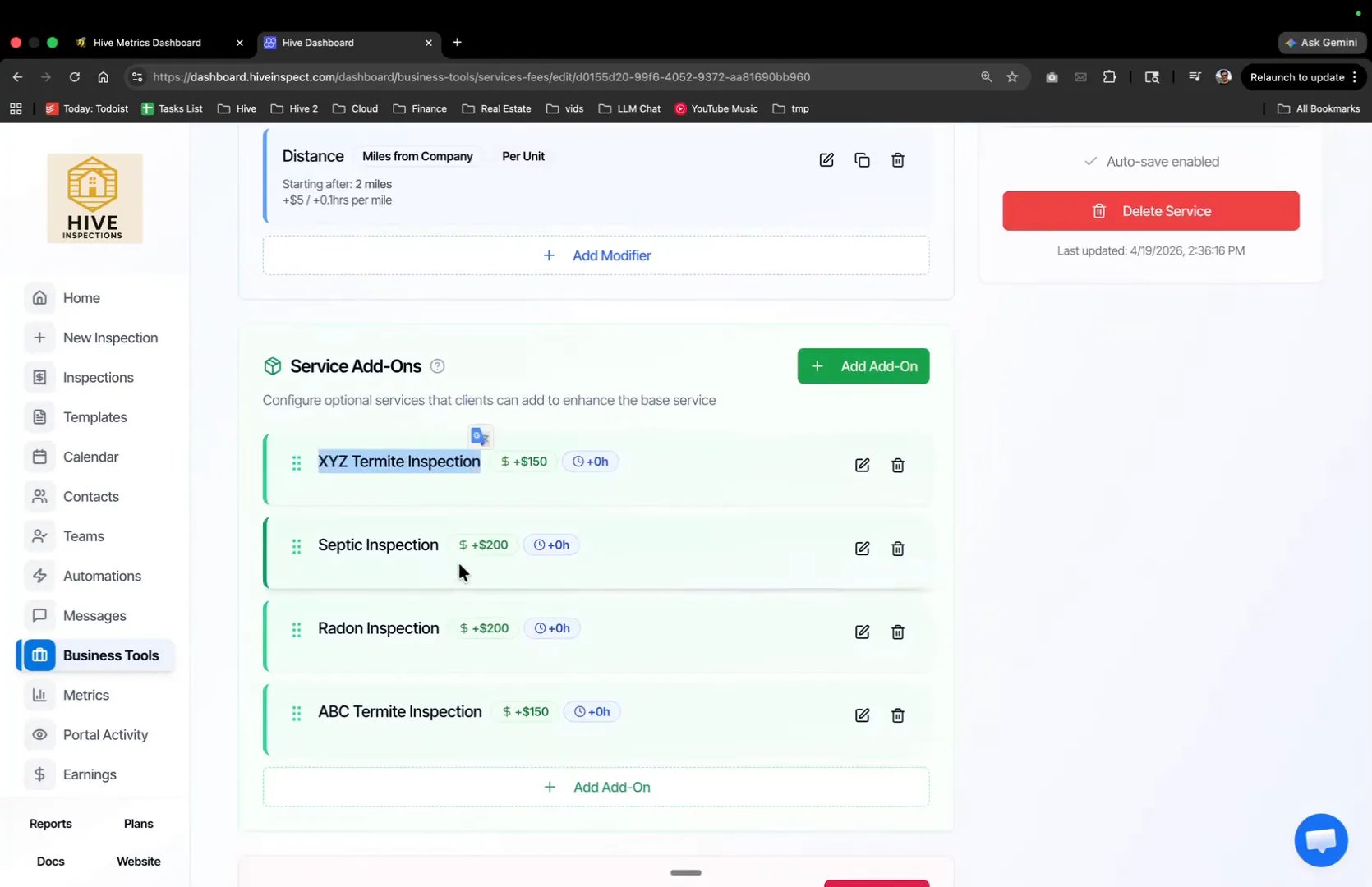
    * Go to **Business Tools → Services & Fees** and click **Edit** on the service you want, for example Duplex
    * Under **Service Add-Ons**, name each subcontractor's add-on so it contains that company's name
    * Two subcontractors covering the same work get two separate add-ons, such as **XYZ Termite Inspection** and **ABC Termite Inspection**

    <img src="https://mintcdn.com/hiveinspect-43c85ed1/oATKZWPPBO5hSgXj/images/Subcontractor-Emails-1.webp?fit=max&auto=format&n=oATKZWPPBO5hSgXj&q=85&s=edfd851c71e7ae045e64a2e341bf2ede" alt="Service Add-Ons list showing XYZ Termite Inspection and ABC Termite Inspection" width="1670" height="1080" data-path="images/Subcontractor-Emails-1.webp" />
  </Step>

  <Step title="Start the automation and set the trigger">
    <a className="hive-ts" href="https://youtu.be/VSgrPyMfxDo?t=57" target="_blank" rel="noopener" data-seek="57" data-video="VSgrPyMfxDo" aria-label="Jump to 0:57 in the video">0:57</a>

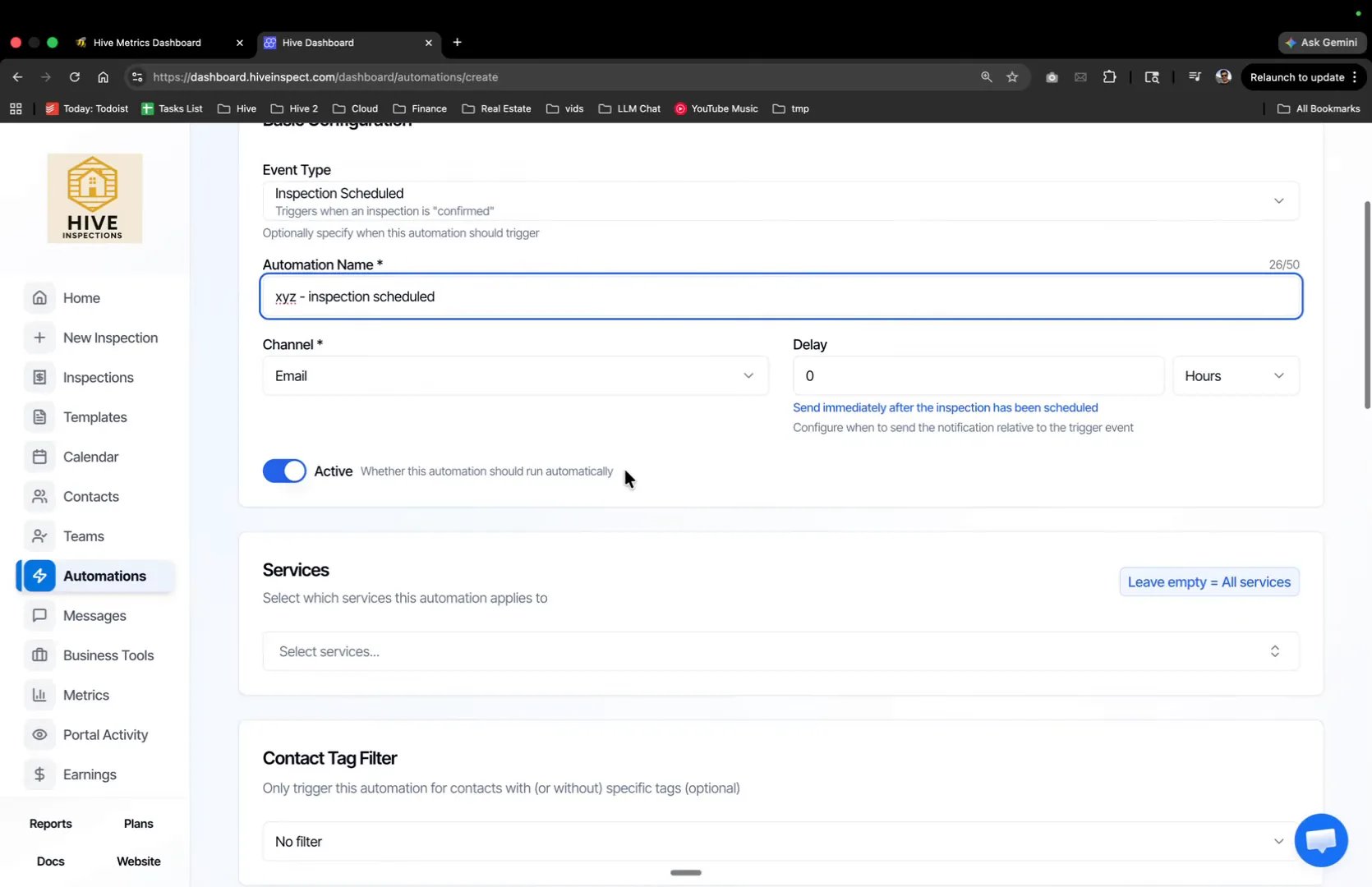
    * Go to **Automations** and click **Create**
    * Set **Event Type** to **Inspection Scheduled**
    * Give it a name you will recognise later, such as "xyz - inspection scheduled"
    * Set **Channel** to **Email** and **Delay** to **0 hours** so it sends as soon as the inspection is confirmed
    * Leave **Services** empty, which applies the automation to every service that carries the add-on, and leave **Contact Tag Filter** on **No filter**

    <img src="https://mintcdn.com/hiveinspect-43c85ed1/oATKZWPPBO5hSgXj/images/Subcontractor-Emails-2.webp?fit=max&auto=format&n=oATKZWPPBO5hSgXj&q=85&s=2f612968a5c75b2aaeb85d99492b5968" alt="Create Automation form with the trigger, channel and delay set" width="1670" height="1080" data-path="images/Subcontractor-Emails-2.webp" />
  </Step>

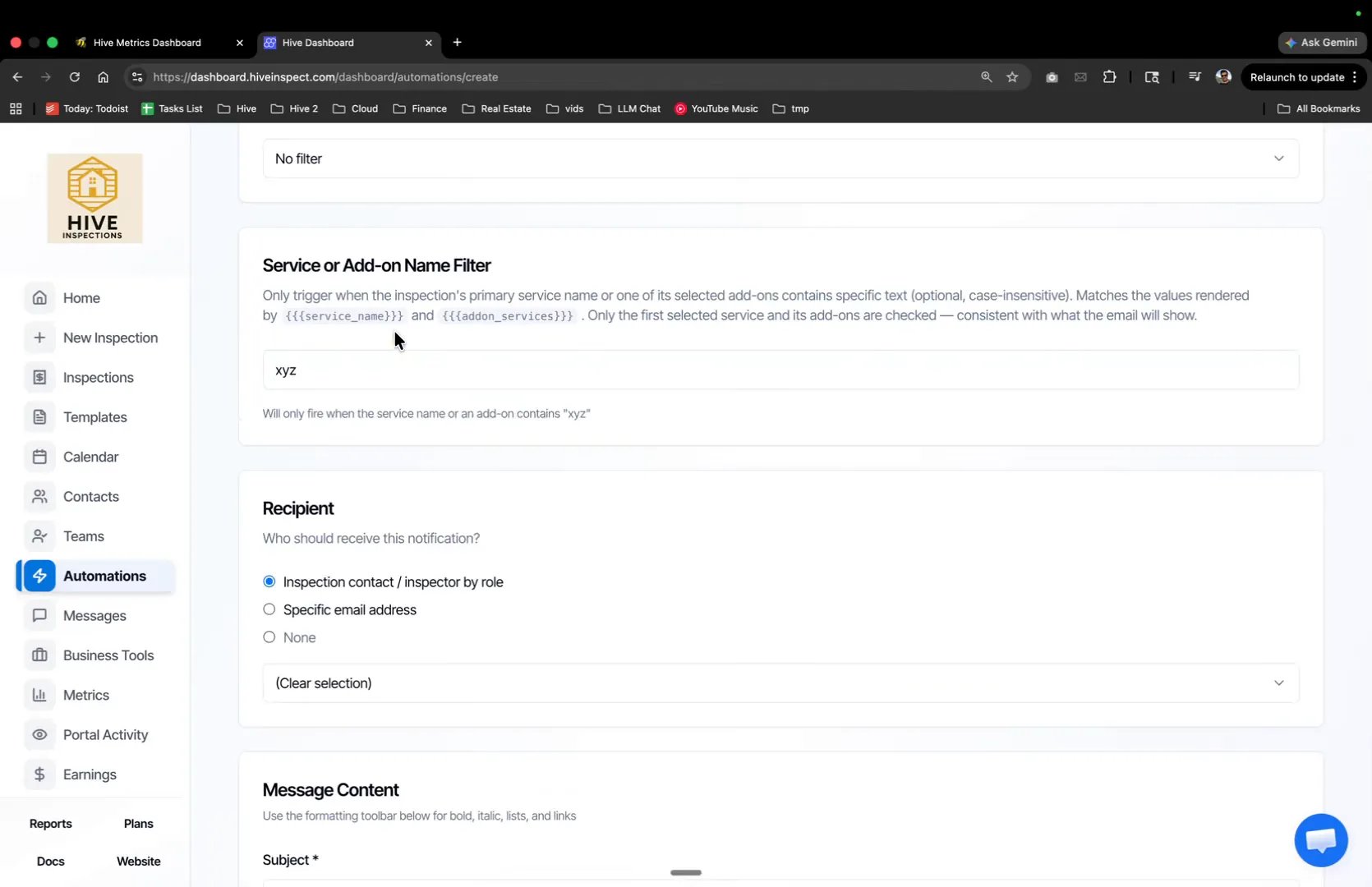
  <Step title="Filter on the add-on name">
    <a className="hive-ts" href="https://youtu.be/VSgrPyMfxDo?t=93" target="_blank" rel="noopener" data-seek="93" data-video="VSgrPyMfxDo" aria-label="Jump to 1:33 in the video">1:33</a>

    * In **Service or Add-on Name Filter**, type the text that identifies this subcontractor, for example `xyz`
    * The match is case-insensitive and checks both the main service name and its add-ons
    * Add more text entries here if several of your services carry that company's name

    <img src="https://mintcdn.com/hiveinspect-43c85ed1/oATKZWPPBO5hSgXj/images/Subcontractor-Emails-3.webp?fit=max&auto=format&n=oATKZWPPBO5hSgXj&q=85&s=e4475ae360366a56ed0e45e73b54ee2d" alt="Service or Add-on Name Filter containing the text xyz" width="1670" height="1080" data-path="images/Subcontractor-Emails-3.webp" />
  </Step>

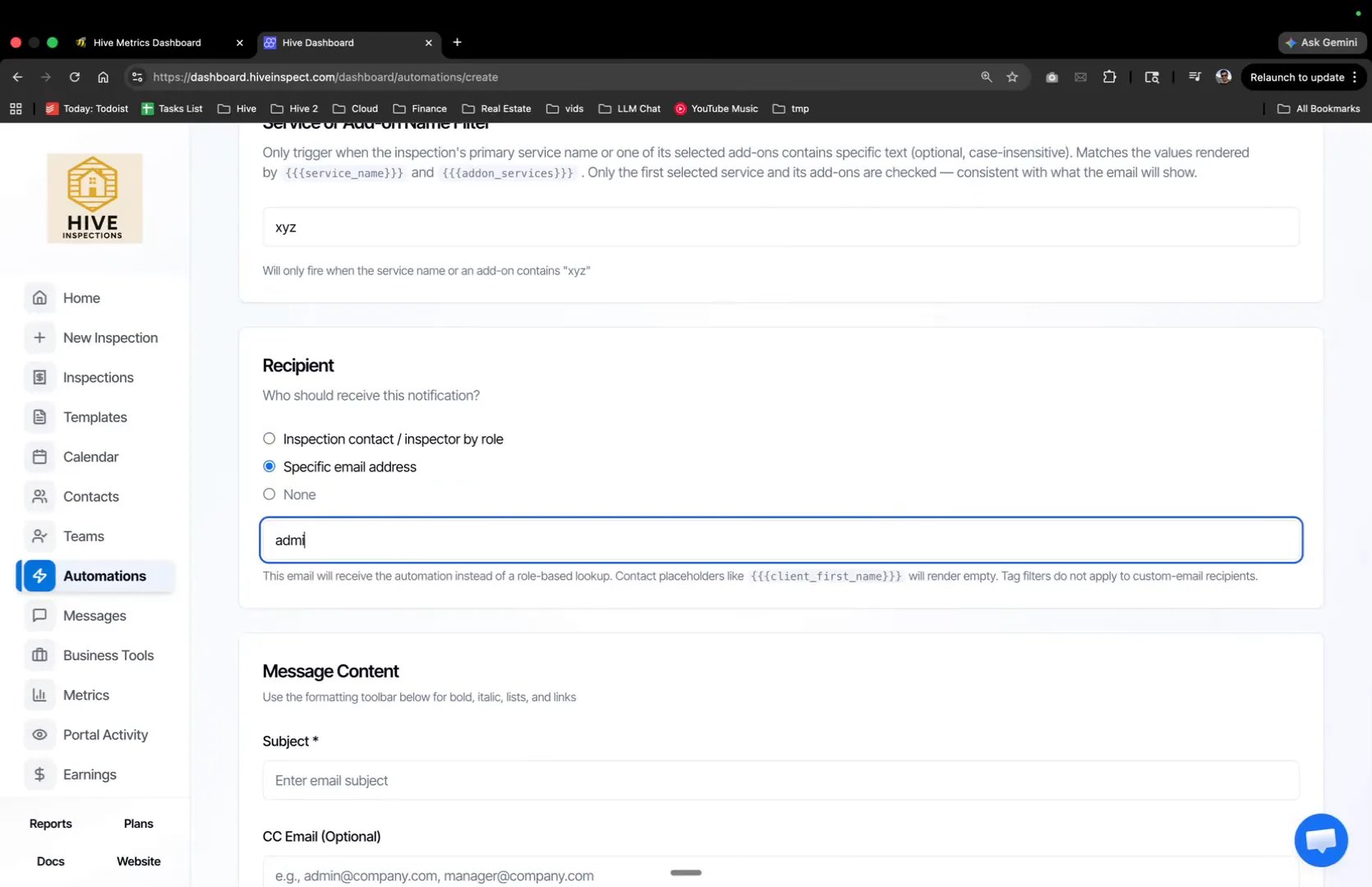
  <Step title="Choose who receives it">
    <a className="hive-ts" href="https://youtu.be/VSgrPyMfxDo?t=120" target="_blank" rel="noopener" data-seek="120" data-video="VSgrPyMfxDo" aria-label="Jump to 2:00 in the video">2:00</a>

    * Under **Recipient**, select **Specific email address**
    * Enter your subcontractor's address, for example `admin@xyz.com`

    <img src="https://mintcdn.com/hiveinspect-43c85ed1/oATKZWPPBO5hSgXj/images/Subcontractor-Emails-4.webp?fit=max&auto=format&n=oATKZWPPBO5hSgXj&q=85&s=a8d12d94531f36dde9bb607ef8a0dbbe" alt="Recipient set to a specific email address" width="1670" height="1080" data-path="images/Subcontractor-Emails-4.webp" />
  </Step>

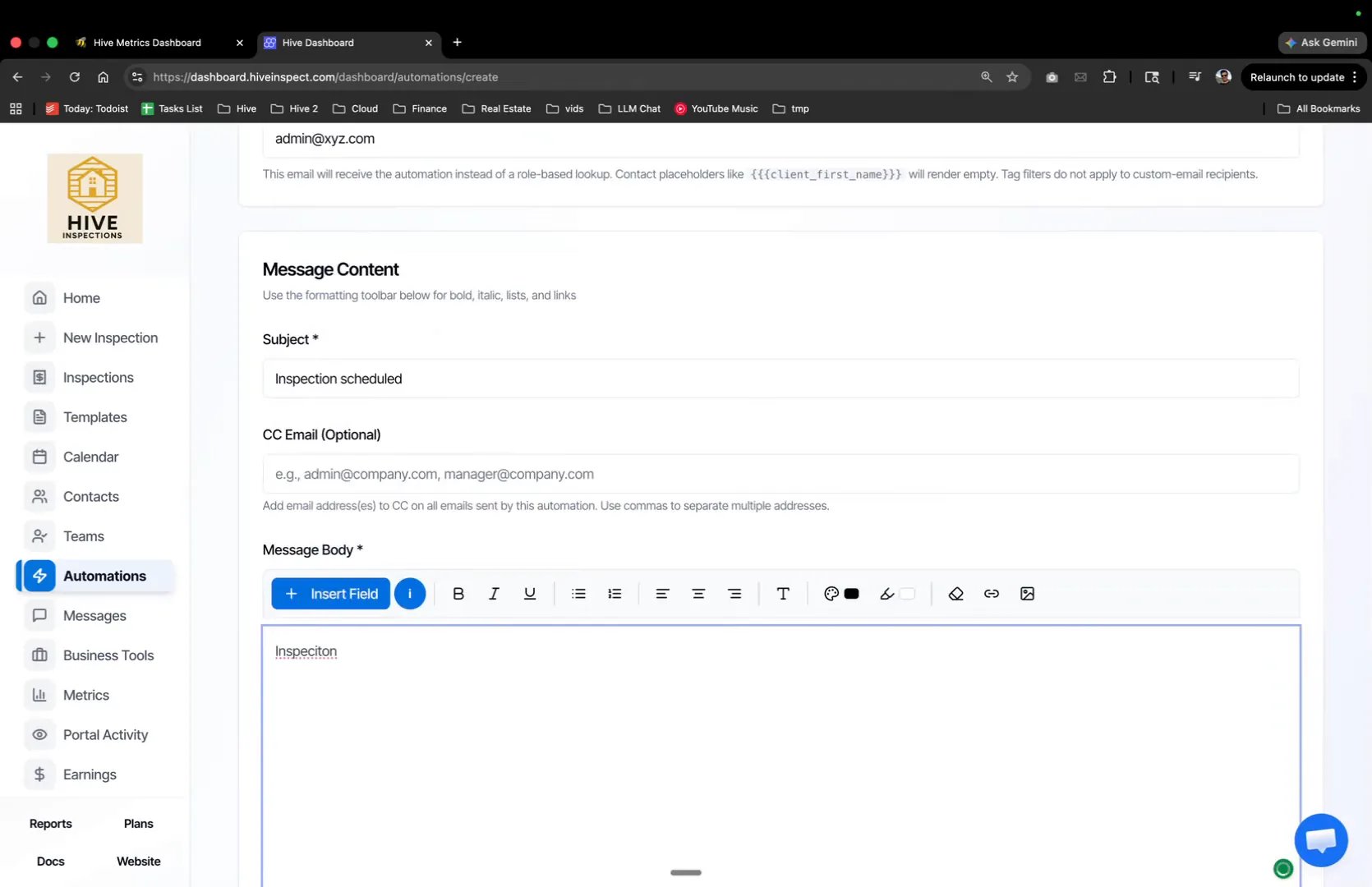
  <Step title="Write the message">
    <a className="hive-ts" href="https://youtu.be/VSgrPyMfxDo?t=131" target="_blank" rel="noopener" data-seek="131" data-video="VSgrPyMfxDo" aria-label="Jump to 2:11 in the video">2:11</a>

    * Fill in the **Subject** and **Message Body** with whatever the subcontractor needs to see
    * Click **Create automation**

    <img src="https://mintcdn.com/hiveinspect-43c85ed1/oATKZWPPBO5hSgXj/images/Subcontractor-Emails-5.webp?fit=max&auto=format&n=oATKZWPPBO5hSgXj&q=85&s=3add7be3aa60b2dbc0a656c96e0b07a4" alt="Message Content with a subject and body" width="1670" height="1080" data-path="images/Subcontractor-Emails-5.webp" />
  </Step>

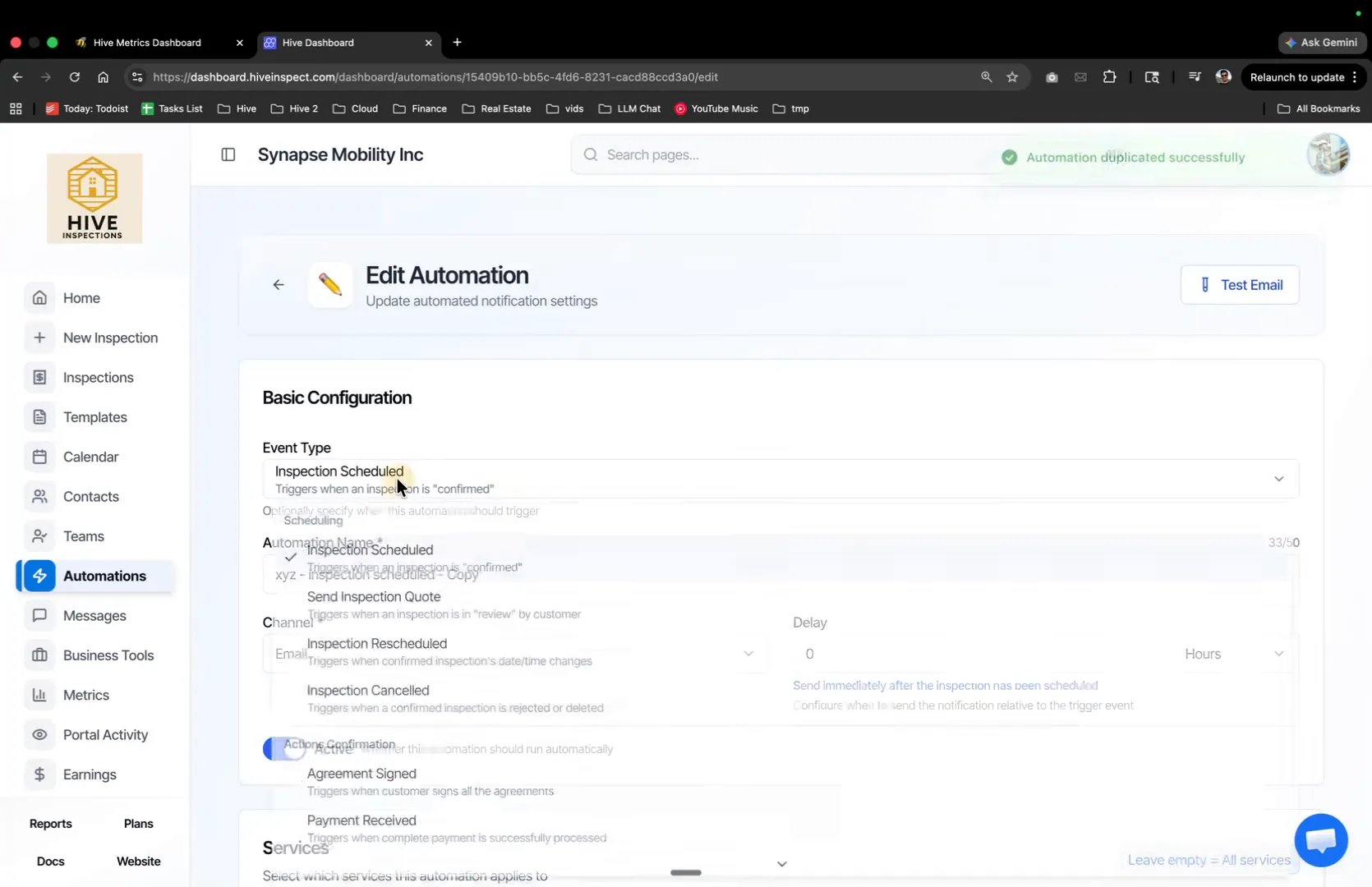
  <Step title="Duplicate it for rescheduled and cancelled">
    <a className="hive-ts" href="https://youtu.be/VSgrPyMfxDo?t=174" target="_blank" rel="noopener" data-seek="174" data-video="VSgrPyMfxDo" aria-label="Jump to 2:54 in the video">2:54</a>

    * On the automation you just made, click **Duplicate**
    * Change **Event Type** to **Inspection Rescheduled**, update the message body, and re-select the recipient email address
    * Repeat once more for **Inspection Cancelled**

    <img src="https://mintcdn.com/hiveinspect-43c85ed1/oATKZWPPBO5hSgXj/images/Subcontractor-Emails-6.webp?fit=max&auto=format&n=oATKZWPPBO5hSgXj&q=85&s=f8e847c9a9d0081078586417273ed800" alt="Duplicated automation with the Event Type dropdown open" width="1670" height="1080" data-path="images/Subcontractor-Emails-6.webp" />
  </Step>
</Steps>

<Tip>
  Re-select the recipient address after duplicating. Duplicating carries over the trigger and the message, but the specific email address needs setting again.
</Tip>

Once all three automations exist, nothing else is required. Every inspection that carries that add-on emails the right subcontractor as it is booked, moved or cancelled.
<p className="hive-label">Next step</p>

<div className="hive-rows">
  <a className="hive-row" href="/contacts-and-automation/automations">
    <span className="hive-row-main">
      <span className="hive-row-title">Automated emails and texts</span>
      <span className="hive-row-line">Confirmations, reminders and report delivery, sent for you</span>
    </span>

    <span className="hive-row-meta"><span className="hive-runtime">4:24</span></span>
  </a>
</div>

<p className="hive-label">Related</p>

<div className="hive-rows hive-rows-sm">
  <a className="hive-row" href="/business-tools/services-and-fees">
    <span className="hive-row-main">
      <span className="hive-row-title">Services and pricing</span>
      <span className="hive-row-line">Define what you sell, what it costs and which templates it uses</span>
    </span>

    <span className="hive-row-meta"><span className="hive-runtime">2:28</span></span>
  </a>

  <a className="hive-row" href="/troubleshooting/messages">
    <span className="hive-row-main">
      <span className="hive-row-title">An email or text did not send</span>
      <span className="hive-row-line">Why an automation stayed quiet and how to check it</span>
    </span>
  </a>
</div>