

In the dashboard: Business Tools → Services & Fees
Setting up services for inspections
Create templates and agreements
0:00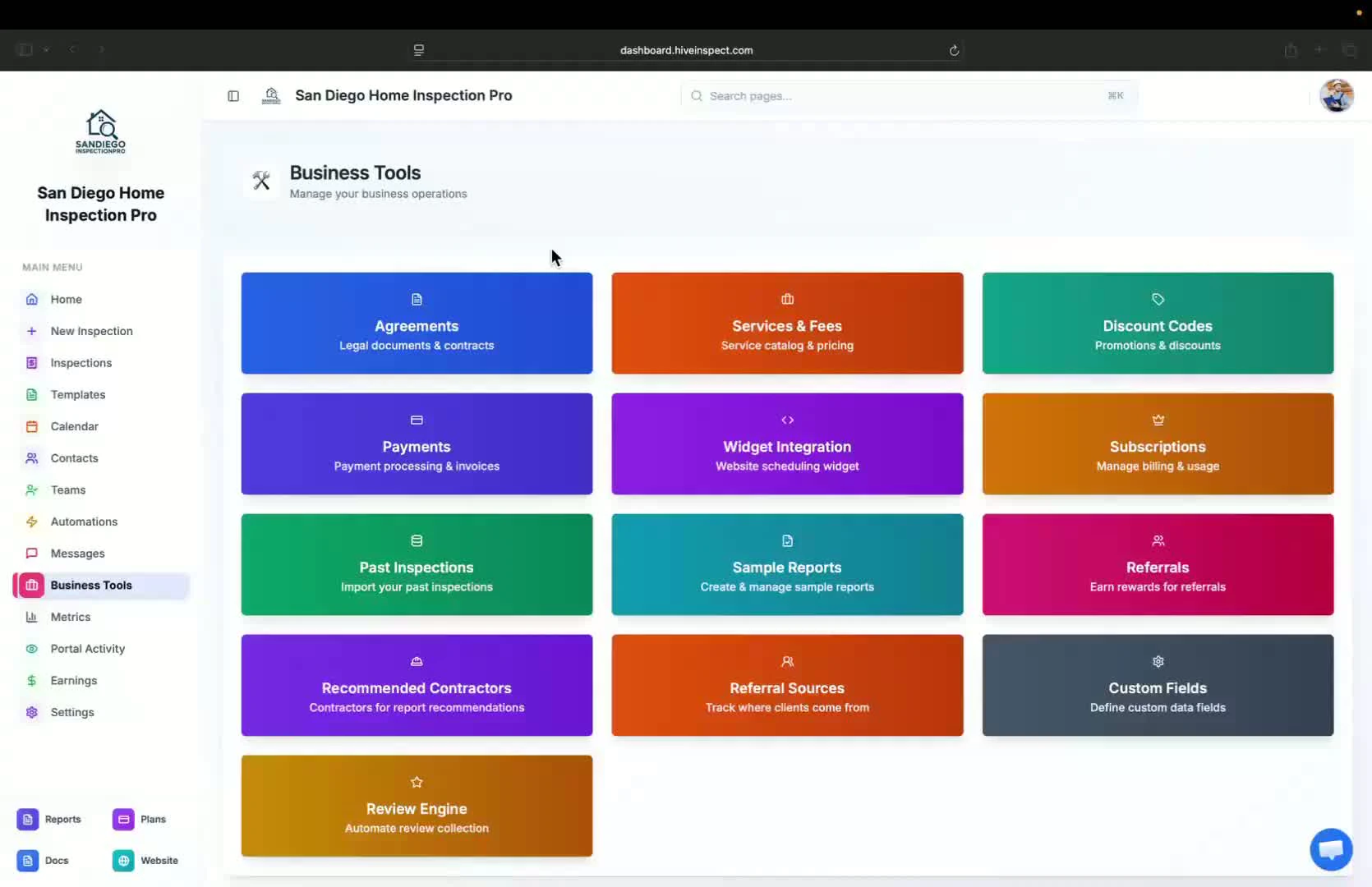
- Before setting up services, ensure you have created your templates and agreements
- These will be used in the service setup
Access service setup
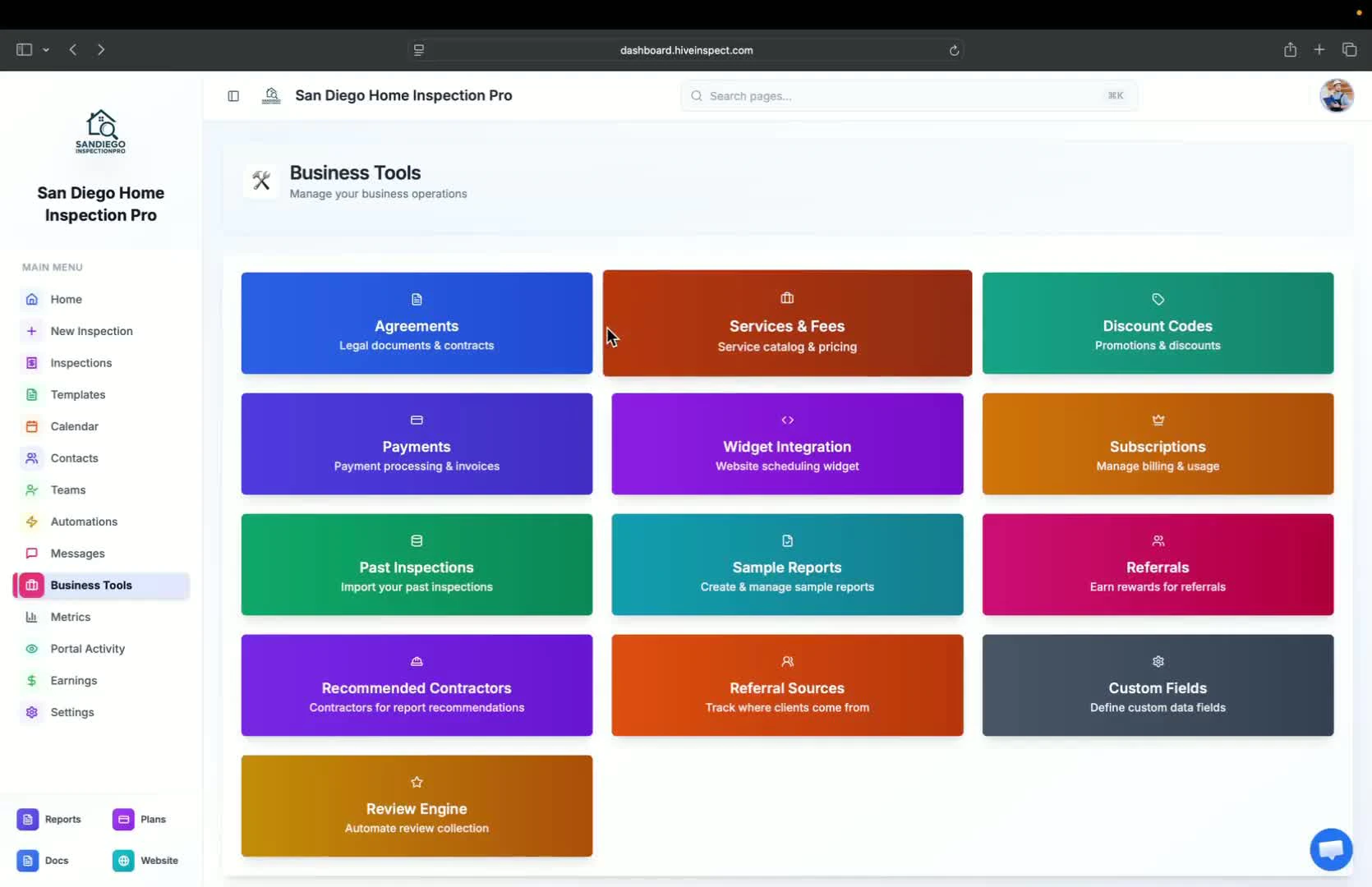
Add new service
0:17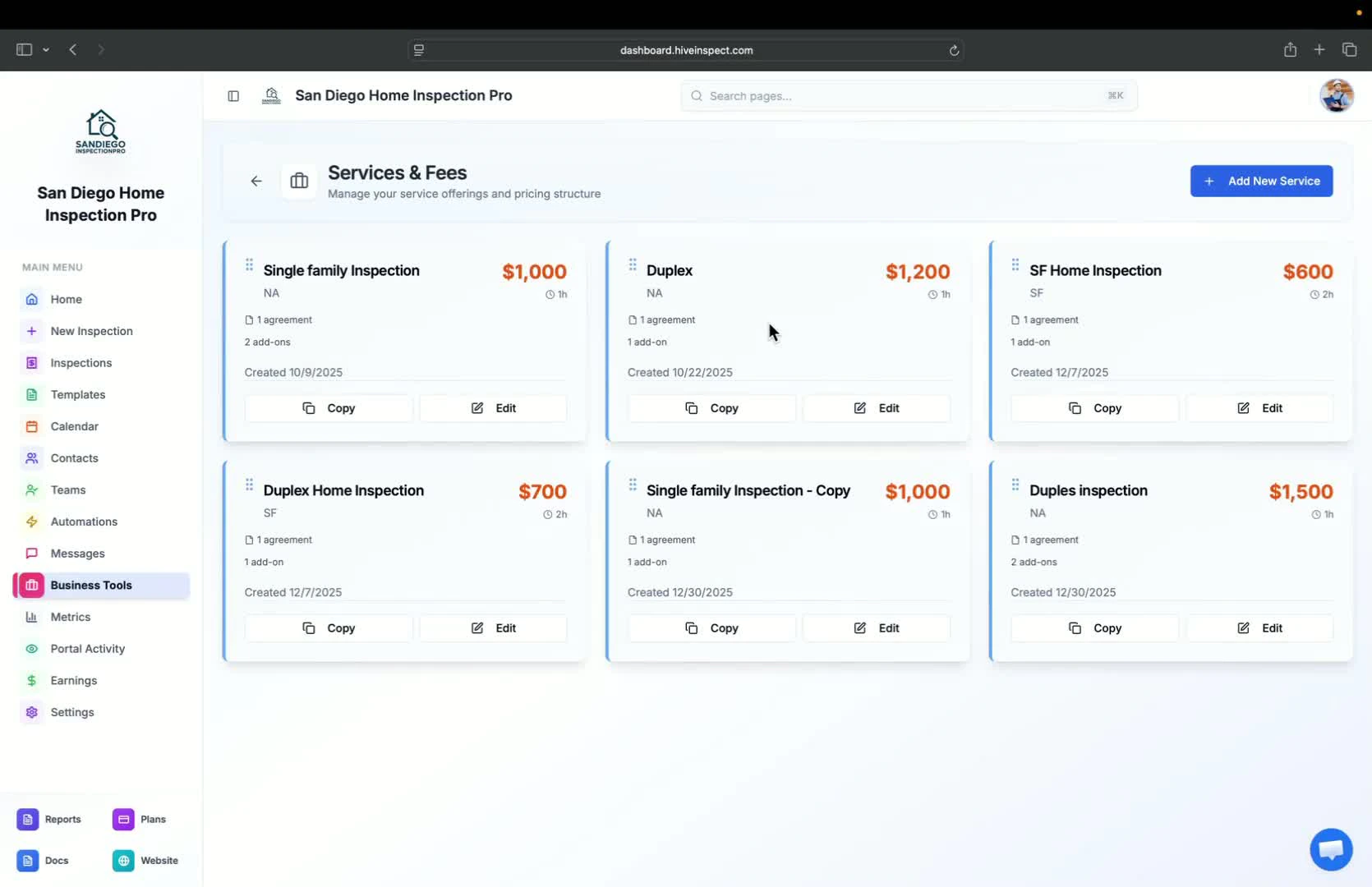
- If no services exist, click Add New Service
- Fill in the following details:
- Name of the service
- Description
- Base price
- Duration
- This information is for your reference
Select templates and agreements
0:25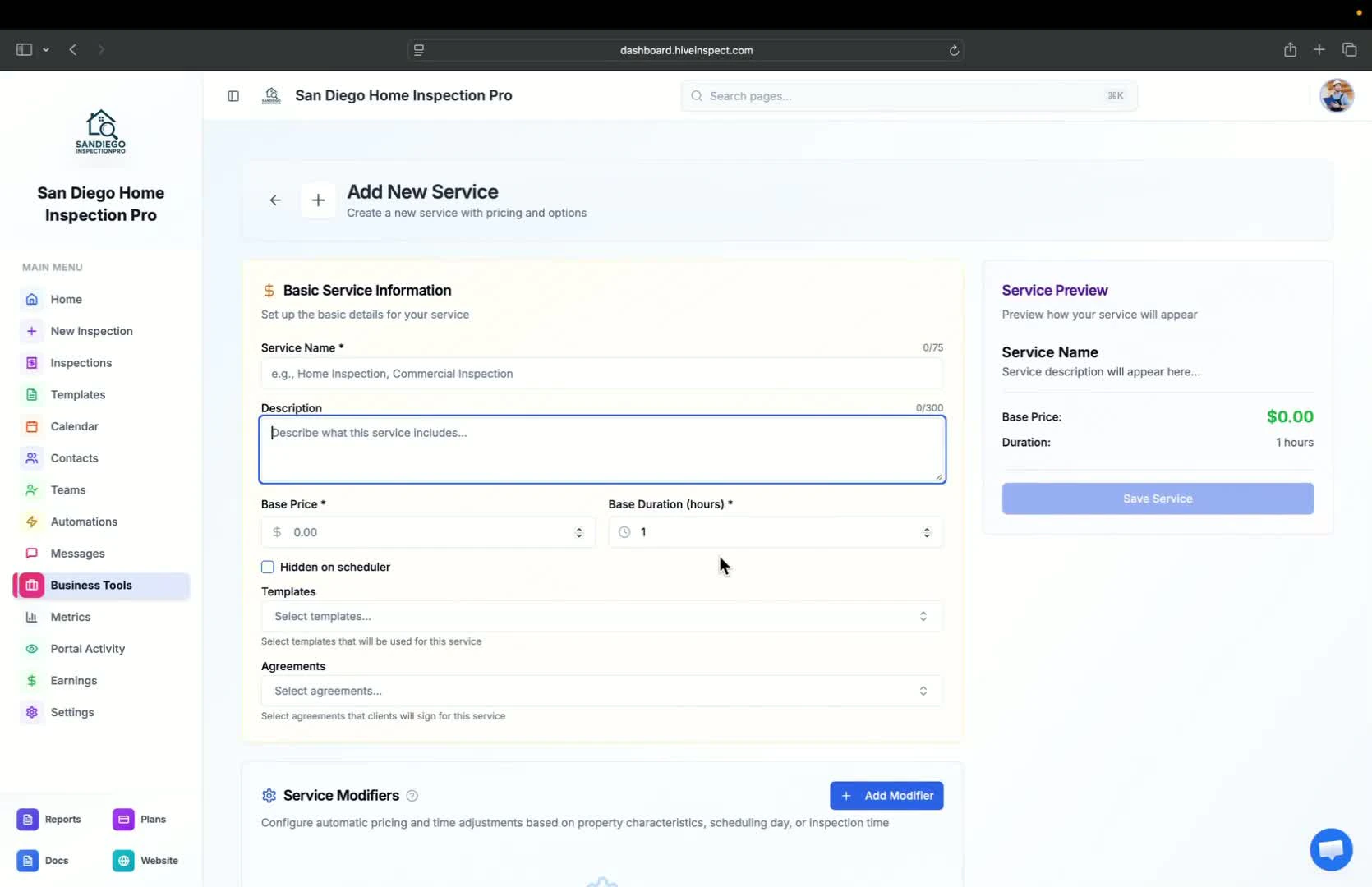
- Choose the relevant templates and agreements for the service
- You can multi-select them to include in the service
Automatic addition of templates and agreements
0:33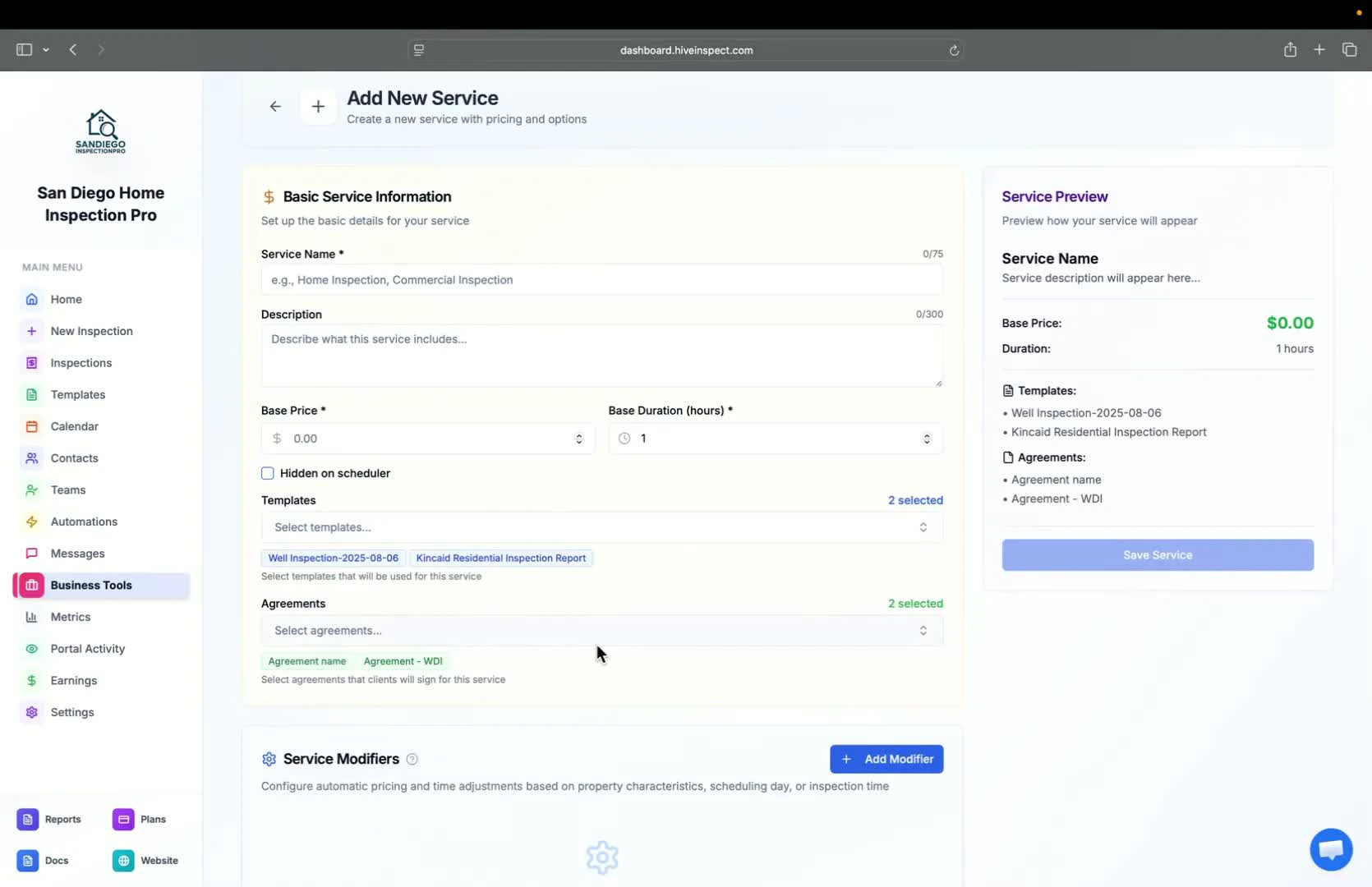
- When you add this service to an inspection, the selected templates and agreements will be automatically included
Add service modifiers and add-ons
0:50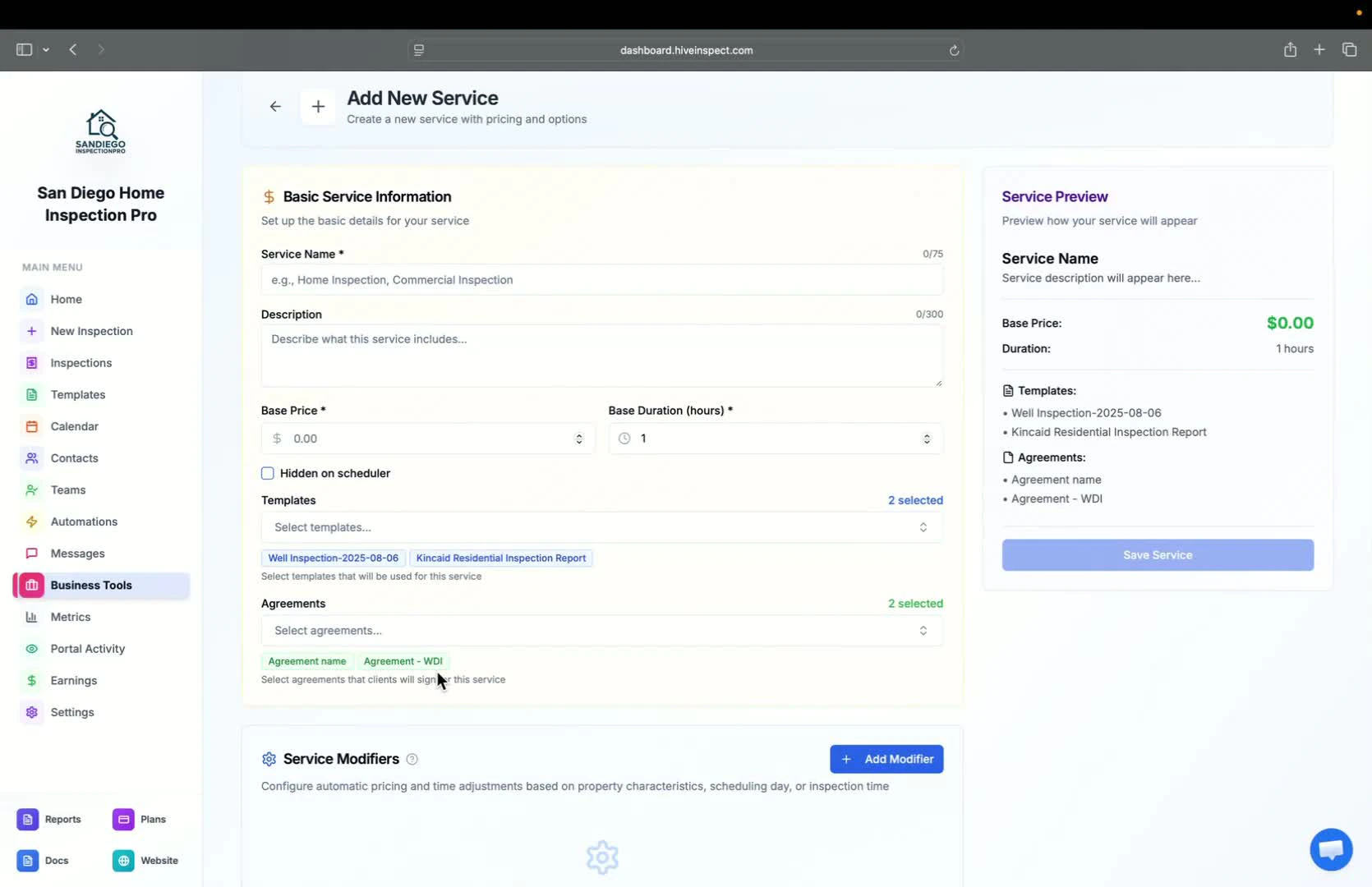
- You can add:
- Service modifiers (e.g., square footage, age of house, distance)
- Miles from Company Address prices the drive from your company address to the property.
- Miles from Inspector’s Address prices the drive from the assigned inspector’s address (set under Availability → Inspector Local Address, including any per-day location). Before an inspector is assigned, quotes use your default inspector’s address, or the company address if none is set, and the price is recalculated when the inspection is scheduled.
- Kilometers from Company Address and Kilometers from Inspector’s Address are the same two rules with thresholds and per-kilometer rates entered in kilometers. The drive is measured once; each rule prices in its own unit, so a service can carry both a miles rule and a kilometers rule.
- Service add-ons
- Taxes (if applicable)
- Service modifiers (e.g., square footage, age of house, distance)
- Every modifier type is explained, with screenshots, in Price modifiers. To charge by number of units or any other answer, see Custom field modifiers.
- Add-ons are explained in Add-on services, and taxes in Sales tax. Each inspection has one main service; see Main services vs add-on services.
- Ensure to save your changes before exiting
Edit existing services
1:03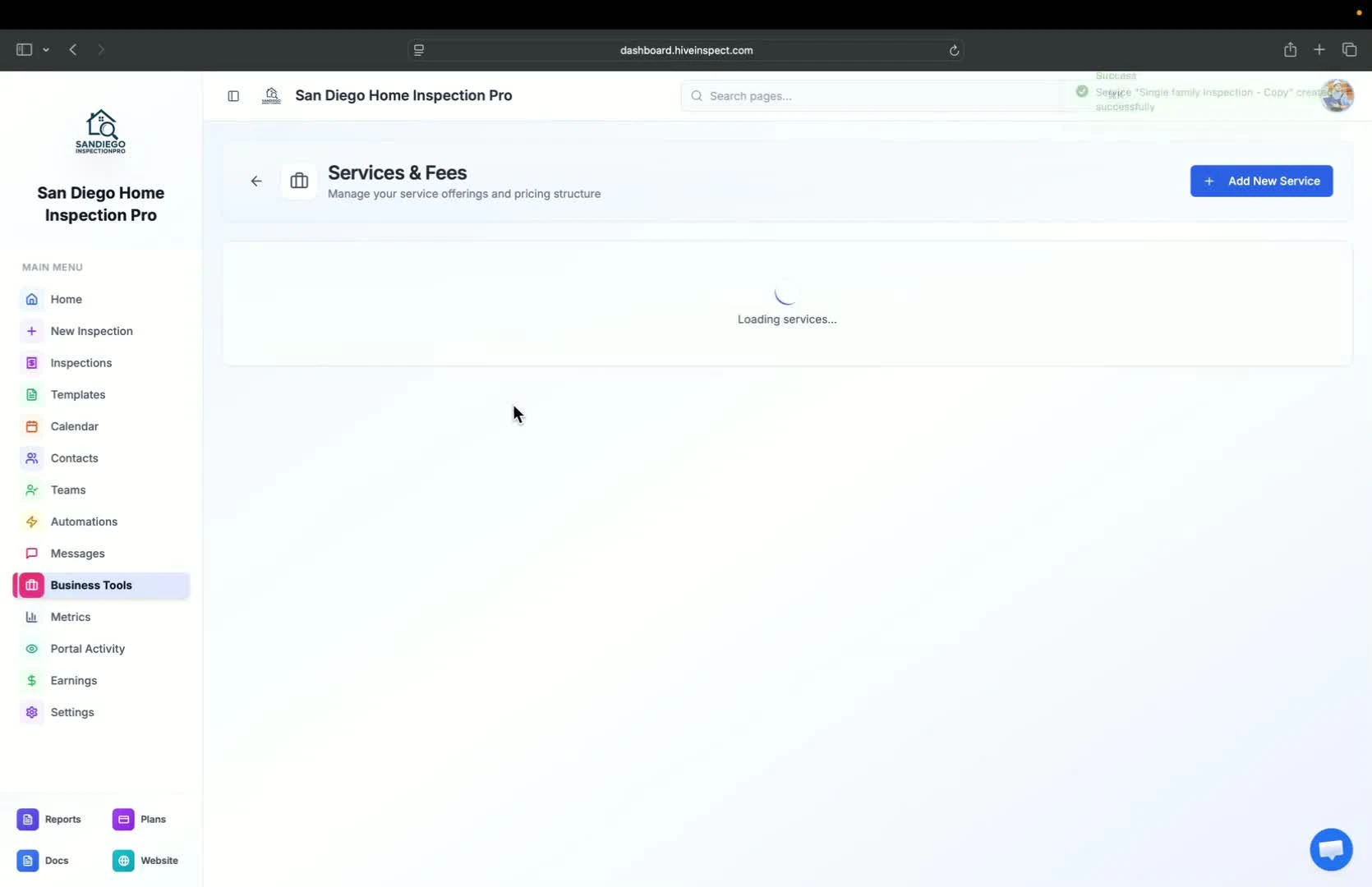
- To modify an existing service, click Edit
- You can also copy an existing service to create a new one
Configure add-ons and fees
1:11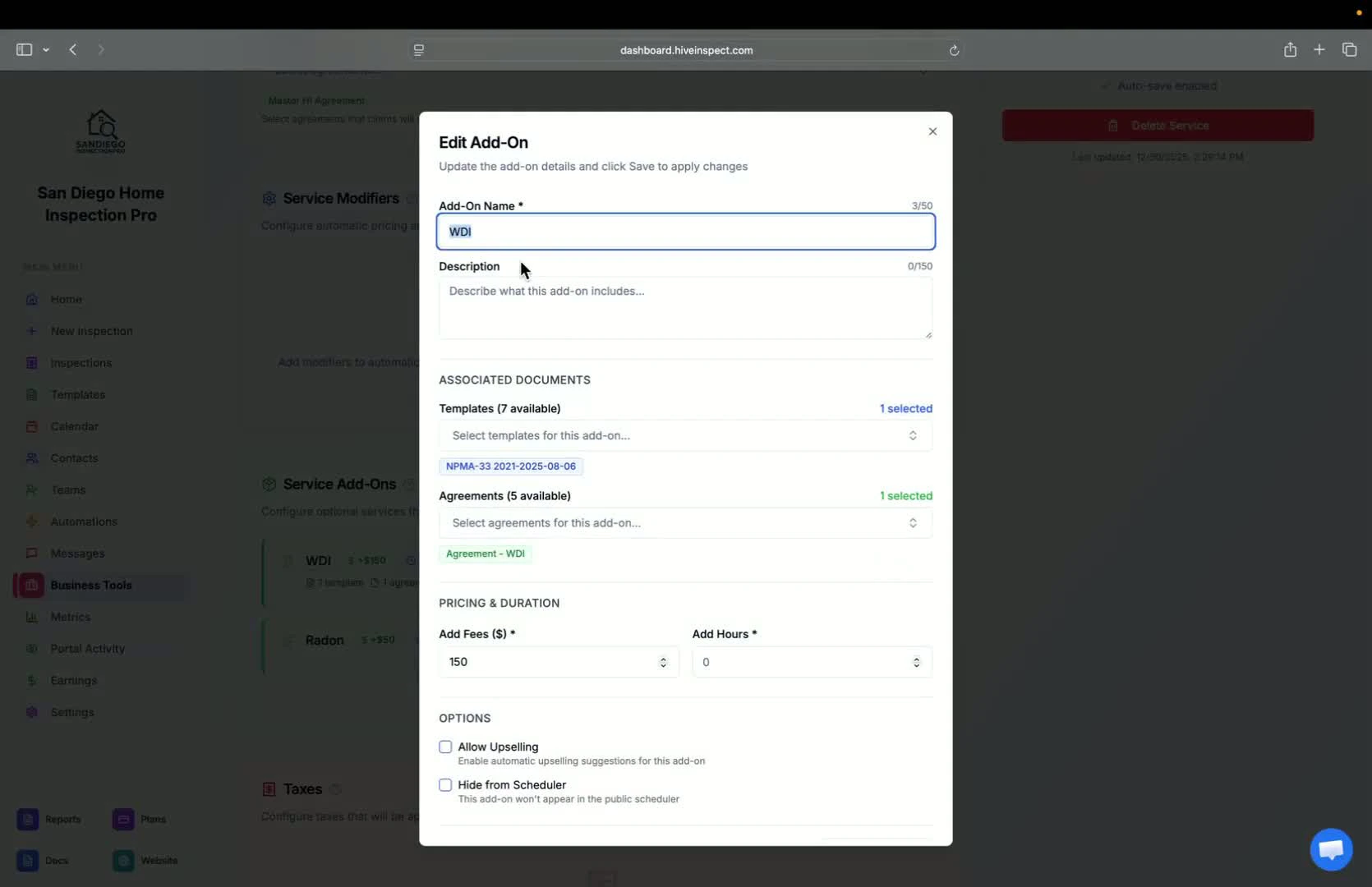
- Each service can have specific add-ons with their own fees and hours
- Options include:
- Hide from scheduler
- Specific day charges (e.g., weekends, off-hours)
Next step
Related