> ## Documentation Index
> Fetch the complete documentation index at: https://docs.hiveinspect.com/llms.txt
> Use this file to discover all available pages before exploring further.
# Customize Your Reports: Branding, Layout and PDF Options
> Use Report Customization to set the branding, summary, layout, charts, banner, cover page and PDF options for every report your company sends clients.
In the dashboard: Business Tools → Report Customization
## What Report Customization does
Report Customization is where you decide how **every** report from your company looks to clients: the digital report they open in a browser and the PDF they download. One change here applies to all of your inspectors and all of your templates.
 The settings are split into three tabs, by where they apply:
| Tab | Applies to | Settings |
| - | - | - |
| **Both Formats** | The digital report and the PDF | [Theme color](#report-theme-color), [category names](#category-names), the [defects heading](#defects-heading), the [defects summary](#defects-summary), the [status table](#show-section-status-grid-in-reports), [comment grouping](#section-level-field-grouping), the [Repair Addendum button](#repair-addendum) and the [annotation color](#use-a-default-annotation-color) |
| **Digital Report** | Only the report clients open in a browser | [Banner design](#digital-report-banner-design), [charts](#charts) and [comment layout](#field-layout) |
| **PDF Report** | Only the PDF | [Cover page](#cover-page-design), [table of contents](#table-of-contents-page), [section tabs](#clickable-section-tabs), [Compact PDF](#compact-pdf), [photos per row](#photos-per-row-in-the-pdf) and the [logo watermark](#logo-watermark) |
Some settings can also be changed for a single template or a single report. Those are in **Template Tools** and **Report Tools**. See [Template Tools and Report Tools](/how-tos/template-and-report-tools).
## Open the page and save your changes
The settings are split into three tabs, by where they apply:
| Tab | Applies to | Settings |
| - | - | - |
| **Both Formats** | The digital report and the PDF | [Theme color](#report-theme-color), [category names](#category-names), the [defects heading](#defects-heading), the [defects summary](#defects-summary), the [status table](#show-section-status-grid-in-reports), [comment grouping](#section-level-field-grouping), the [Repair Addendum button](#repair-addendum) and the [annotation color](#use-a-default-annotation-color) |
| **Digital Report** | Only the report clients open in a browser | [Banner design](#digital-report-banner-design), [charts](#charts) and [comment layout](#field-layout) |
| **PDF Report** | Only the PDF | [Cover page](#cover-page-design), [table of contents](#table-of-contents-page), [section tabs](#clickable-section-tabs), [Compact PDF](#compact-pdf), [photos per row](#photos-per-row-in-the-pdf) and the [logo watermark](#logo-watermark) |
Some settings can also be changed for a single template or a single report. Those are in **Template Tools** and **Report Tools**. See [Template Tools and Report Tools](/how-tos/template-and-report-tools).
## Open the page and save your changes
 * Click **Business Tools** in the sidebar.
* Click **Report Customization**. You can also type "report" in the **Search tools** box.
* Pick a tab: **Both Formats**, **Digital Report** or **PDF Report**.
* Change as many settings as you like, on any tab. Some settings appear only after you turn on the setting above them.
* Click **Business Tools** in the sidebar.
* Click **Report Customization**. You can also type "report" in the **Search tools** box.
* Pick a tab: **Both Formats**, **Digital Report** or **PDF Report**.
* Change as many settings as you like, on any tab. Some settings appear only after you turn on the setting above them.
 * A bar with **Save** appears at the bottom of the page as soon as you change something. One click saves every tab.
* Changed your mind? Click **Discard changes** at the top right to go back to your last saved settings.
Leaving the page without clicking **Save** loses your changes. The page doesn't warn you first.
Team members can open Report Customization if they have the **Business Tools** permission. Account owners and admins always can. You set permissions in **Teams**.
## When your changes show up
The next time anyone opens a report, it uses your new settings. This includes reports you already published, so a client who refreshes sees the change.
Two exceptions:
* **Category names** are copied onto each report when it is created, so a change shows on new reports only. See [Category names](#category-names).
* **Default annotation color** only sets the starting color of new photo annotations.
A PDF uses the settings that were in place when it was built. Changing a setting here doesn't rebuild PDFs that already exist.
New PDFs use your new settings. To refresh the PDF of a report you already published:
* **In the Web Editor:** open the report, click **PDF** in the toolbar, then click **Regenerate**.
* **In the mobile app:** open the inspection, tap the three dots on the report, then tap **Regenerate PDF**.
* Or publish the report again.
* A bar with **Save** appears at the bottom of the page as soon as you change something. One click saves every tab.
* Changed your mind? Click **Discard changes** at the top right to go back to your last saved settings.
Leaving the page without clicking **Save** loses your changes. The page doesn't warn you first.
Team members can open Report Customization if they have the **Business Tools** permission. Account owners and admins always can. You set permissions in **Teams**.
## When your changes show up
The next time anyone opens a report, it uses your new settings. This includes reports you already published, so a client who refreshes sees the change.
Two exceptions:
* **Category names** are copied onto each report when it is created, so a change shows on new reports only. See [Category names](#category-names).
* **Default annotation color** only sets the starting color of new photo annotations.
A PDF uses the settings that were in place when it was built. Changing a setting here doesn't rebuild PDFs that already exist.
New PDFs use your new settings. To refresh the PDF of a report you already published:
* **In the Web Editor:** open the report, click **PDF** in the toolbar, then click **Regenerate**.
* **In the mobile app:** open the inspection, tap the three dots on the report, then tap **Regenerate PDF**.
* Or publish the report again.
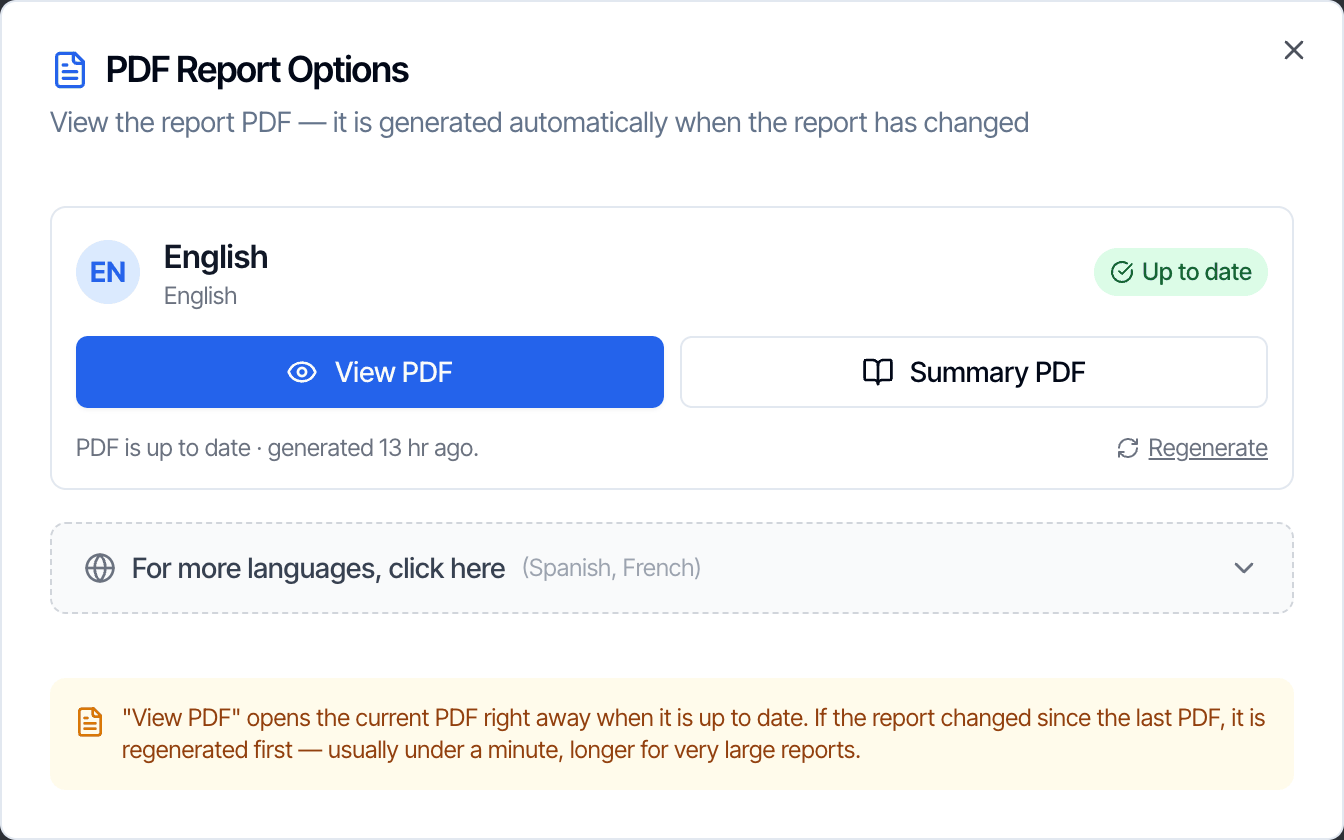 **View PDF** only rebuilds the PDF when the report itself changed. After changing settings here, use **Regenerate**.
## Both Formats tab
These settings change the digital report and the PDF.
### Report Theme Color
**View PDF** only rebuilds the PDF when the report itself changed. After changing settings here, use **Regenerate**.
## Both Formats tab
These settings change the digital report and the PDF.
### Report Theme Color
 The accent color of your PDF. Pick it with the color picker, or type a 6-digit hex code like `#0176DF`. **Reset to default** brings back Hive blue.
Today the color is used in the PDF only:
* the accents on the cover page, such as the contact details on the Classic cover, the initials circles and the Modern cover's title underline
* the current section's tab when [Clickable Section Tabs](#clickable-section-tabs) is on
* the Cost to Cure table and the extra contacts page
PDF section headings and the digital report keep Hive's standard blue.
The accent color of your PDF. Pick it with the color picker, or type a 6-digit hex code like `#0176DF`. **Reset to default** brings back Hive blue.
Today the color is used in the PDF only:
* the accents on the cover page, such as the contact details on the Classic cover, the initials circles and the Modern cover's title underline
* the current section's tab when [Clickable Section Tabs](#clickable-section-tabs) is on
* the Cost to Cure table and the extra contacts page
PDF section headings and the digital report keep Hive's standard blue.
 ### Category names
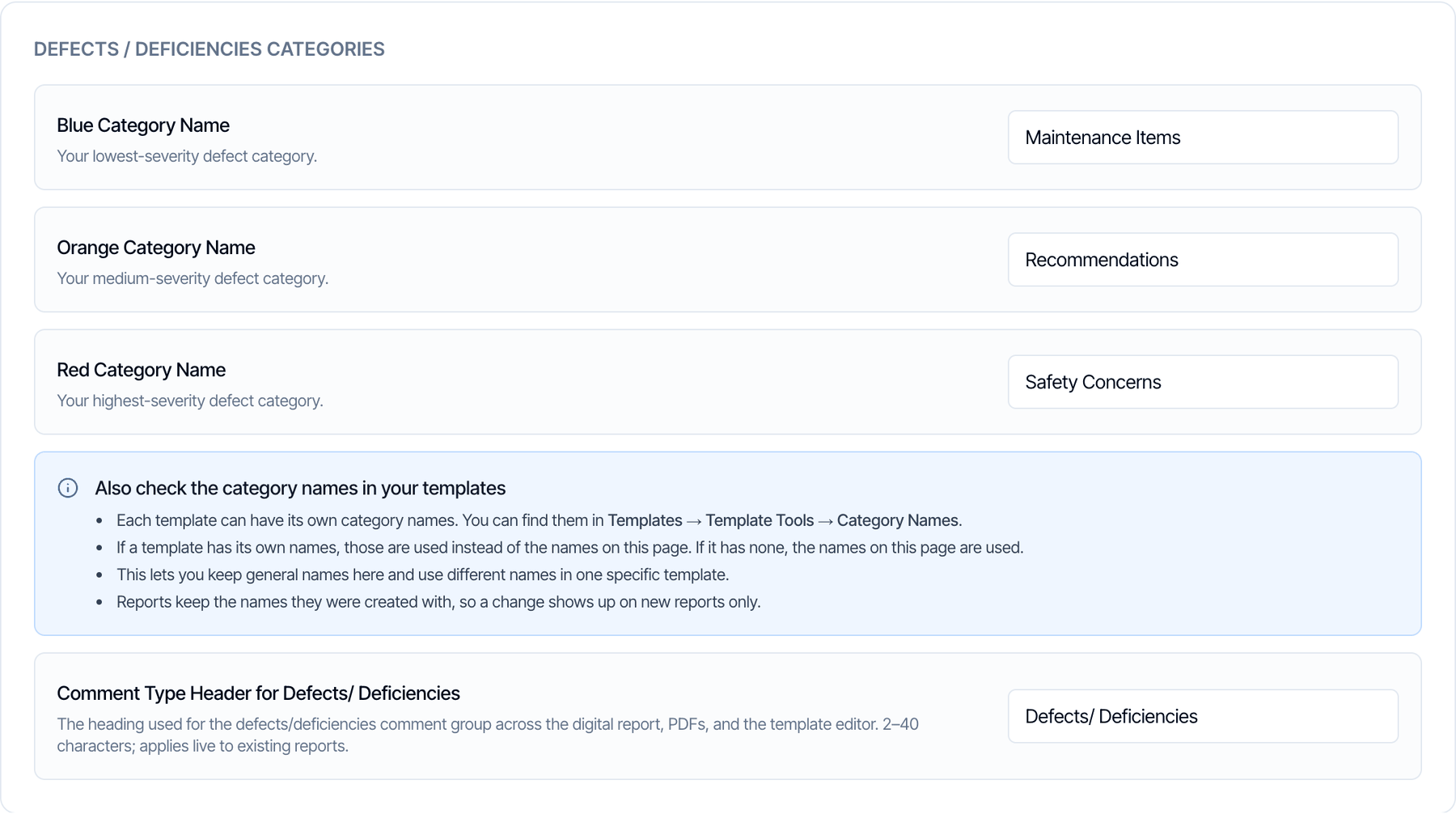 Your three defect categories, from lowest to highest severity:
| Setting | Default | Color |
| - | - | - |
| **Blue Category Name** | Maintenance Items | Blue |
| **Orange Category Name** | Recommendations | Orange |
| **Red Category Name** | Safety Concerns | Red |
Names can be up to 60 characters and can't be empty. They show everywhere a client sees a category: on each defect, in the legends, in the summary and in the PDF.
How these names reach your reports:
* **Each template has its own names.** A new template starts with the names on this page. After that, it keeps its own copy.
* **Each report has its own names.** A report copies its template's names when it is created and keeps them.
* So a change on this page shows up in templates you create from now on, and in reports made from them.
To rename the categories in a template you already have, use **Templates → Template Tools → Category Names**. To rename them in one report, use **Report Tools → Category Names**. See [Template Tools and Report Tools](/how-tos/template-and-report-tools#category-names).
The mobile app always shows the standard category names while you write. Your custom names are what your clients see.
### Defects heading
**Comment Type Header for Defects/ Deficiencies** is the heading for the defects group in every section. The default is **Defects/ Deficiencies**. Some inspectors use **Observations** or **Deficiencies** instead.
* 2 to 40 characters.
* It also renames the heading in the defects summary, the status table column, the chart titles and the Summary view.
* It changes existing reports too: the digital report the next time it's opened, and the PDF the next time it's built.
* It also shows in the template editor. The Web Editor and the mobile app keep showing **Defects/ Deficiencies** while you write.
### Defects summary
Your three defect categories, from lowest to highest severity:
| Setting | Default | Color |
| - | - | - |
| **Blue Category Name** | Maintenance Items | Blue |
| **Orange Category Name** | Recommendations | Orange |
| **Red Category Name** | Safety Concerns | Red |
Names can be up to 60 characters and can't be empty. They show everywhere a client sees a category: on each defect, in the legends, in the summary and in the PDF.
How these names reach your reports:
* **Each template has its own names.** A new template starts with the names on this page. After that, it keeps its own copy.
* **Each report has its own names.** A report copies its template's names when it is created and keeps them.
* So a change on this page shows up in templates you create from now on, and in reports made from them.
To rename the categories in a template you already have, use **Templates → Template Tools → Category Names**. To rename them in one report, use **Report Tools → Category Names**. See [Template Tools and Report Tools](/how-tos/template-and-report-tools#category-names).
The mobile app always shows the standard category names while you write. Your custom names are what your clients see.
### Defects heading
**Comment Type Header for Defects/ Deficiencies** is the heading for the defects group in every section. The default is **Defects/ Deficiencies**. Some inspectors use **Observations** or **Deficiencies** instead.
* 2 to 40 characters.
* It also renames the heading in the defects summary, the status table column, the chart titles and the Summary view.
* It changes existing reports too: the digital report the next time it's opened, and the PDF the next time it's built.
* It also shows in the template editor. The Web Editor and the mobile app keep showing **Defects/ Deficiencies** while you write.
### Defects summary
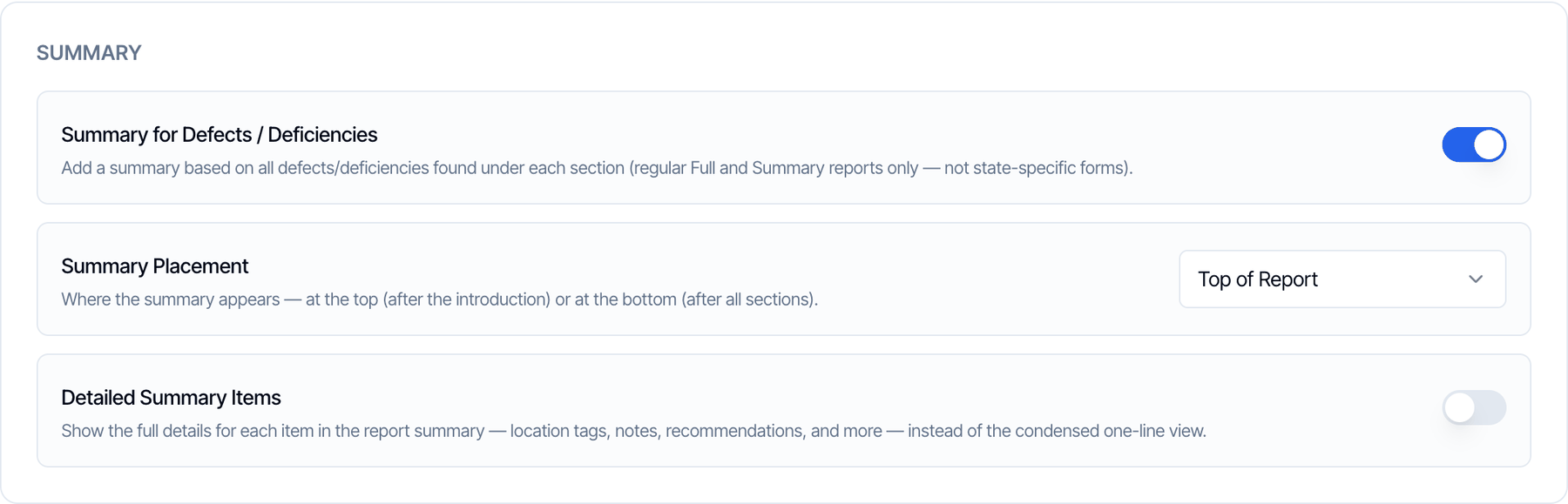 Turn on **Summary for Defects / Deficiencies** to add a summary that lists every defect in the report, grouped by section. Default: off.
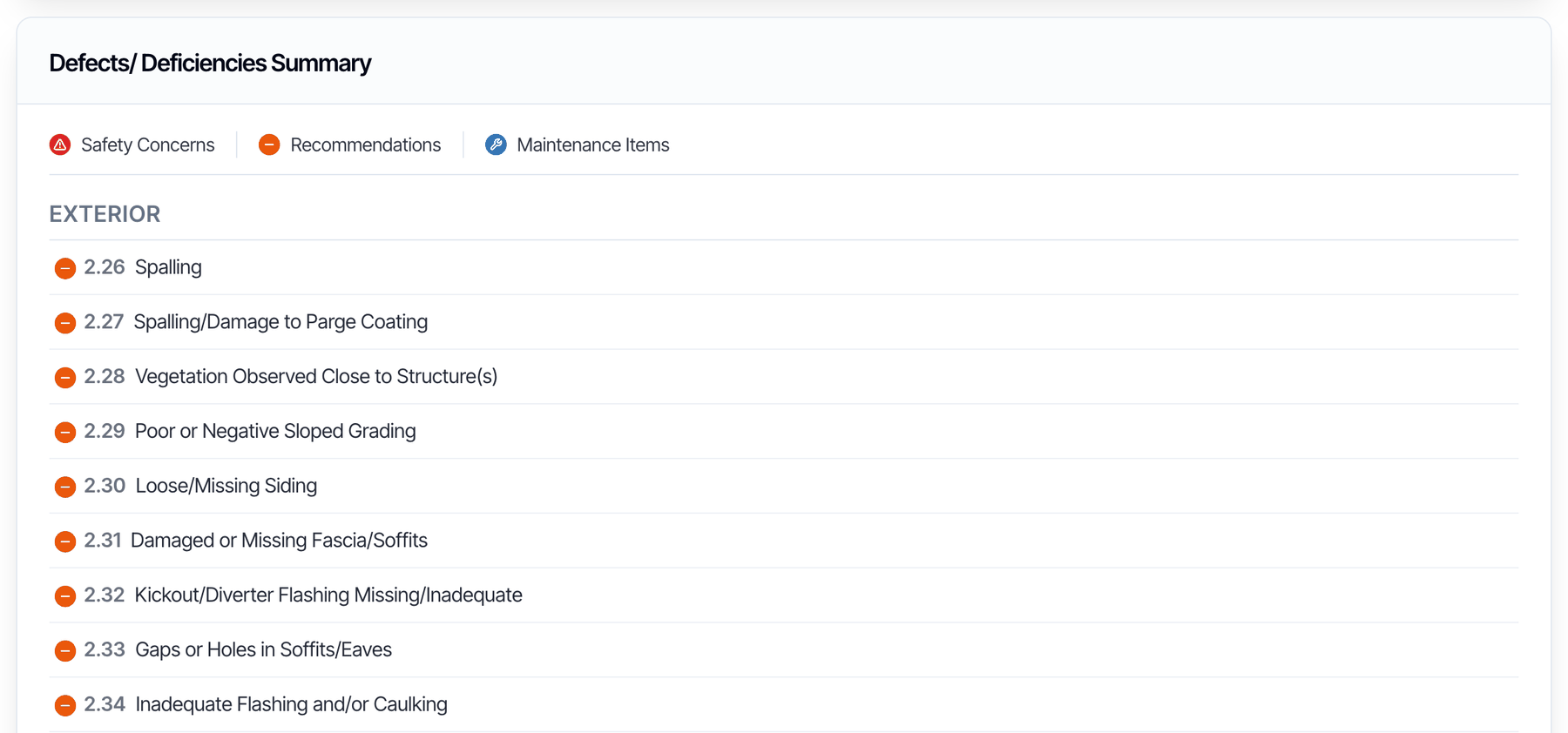
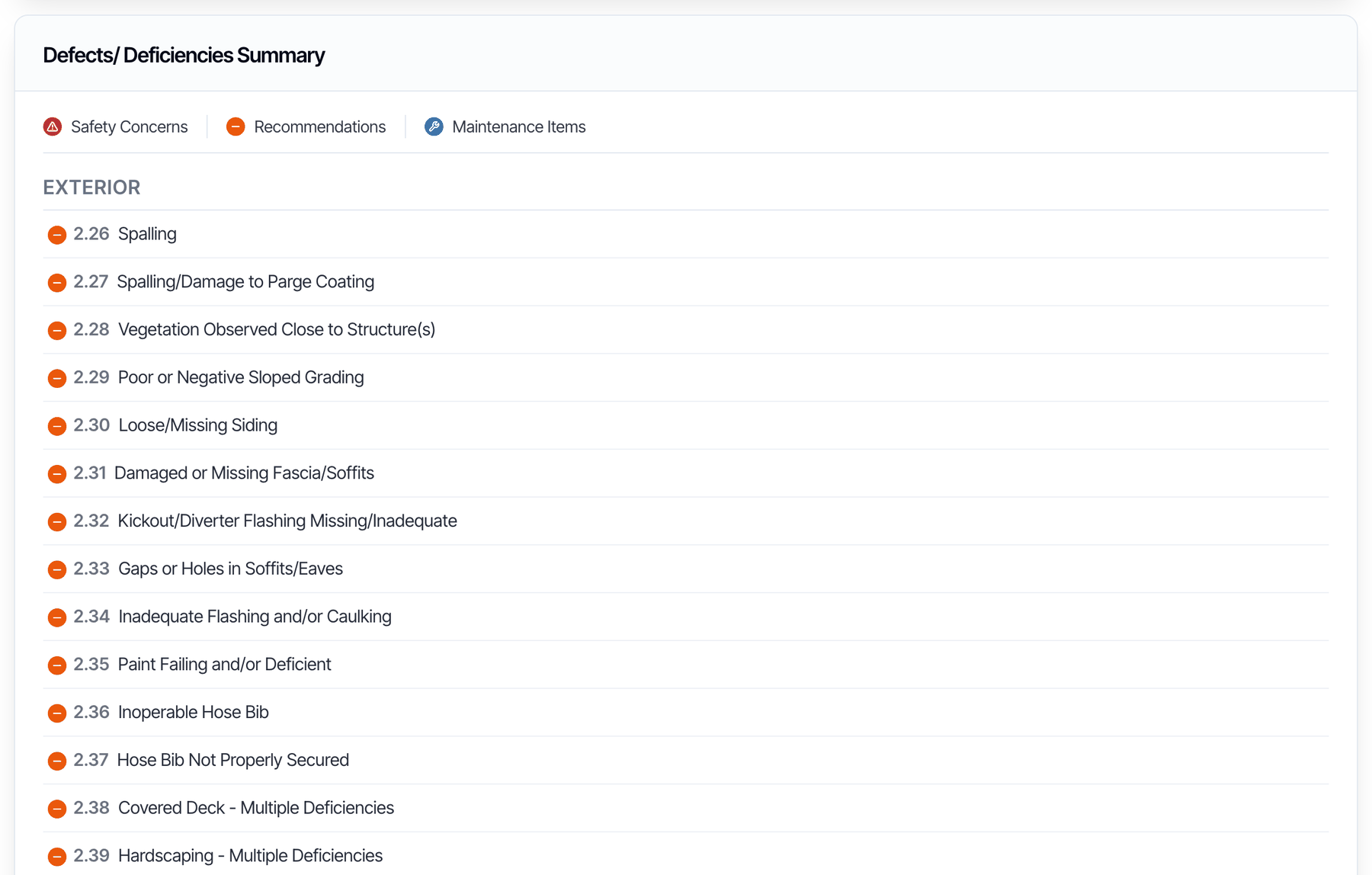 * Each line shows the defect's number, its category icon and its name. Clicking a line jumps to that defect.
* It is in the full report and the Summary view, in the digital report and in both PDFs.
* Use **Show Defect categories in the summary** in Template Tools or Report Tools to leave a category out. See [Template Tools and Report Tools](/how-tos/template-and-report-tools#show-defect-categories-in-the-summary).
* Reinspection reports don't show it.
**Summary Placement** appears once the summary is on:
| Option | Where the summary goes |
| - | - |
| **Top of Report** (default) | After the introduction, before the first section. If the Cost to Cure table is on, it comes first. |
| **Bottom of Report** | After the last section. In the PDF it starts on a new page. |
### Detailed Summary Items
Show the full details of each defect in the summary instead of one line. Default: off.
* Each line shows the defect's number, its category icon and its name. Clicking a line jumps to that defect.
* It is in the full report and the Summary view, in the digital report and in both PDFs.
* Use **Show Defect categories in the summary** in Template Tools or Report Tools to leave a category out. See [Template Tools and Report Tools](/how-tos/template-and-report-tools#show-defect-categories-in-the-summary).
* Reinspection reports don't show it.
**Summary Placement** appears once the summary is on:
| Option | Where the summary goes |
| - | - |
| **Top of Report** (default) | After the introduction, before the first section. If the Cost to Cure table is on, it comes first. |
| **Bottom of Report** | After the last section. In the PDF it starts on a new page. |
### Detailed Summary Items
Show the full details of each defect in the summary instead of one line. Default: off.
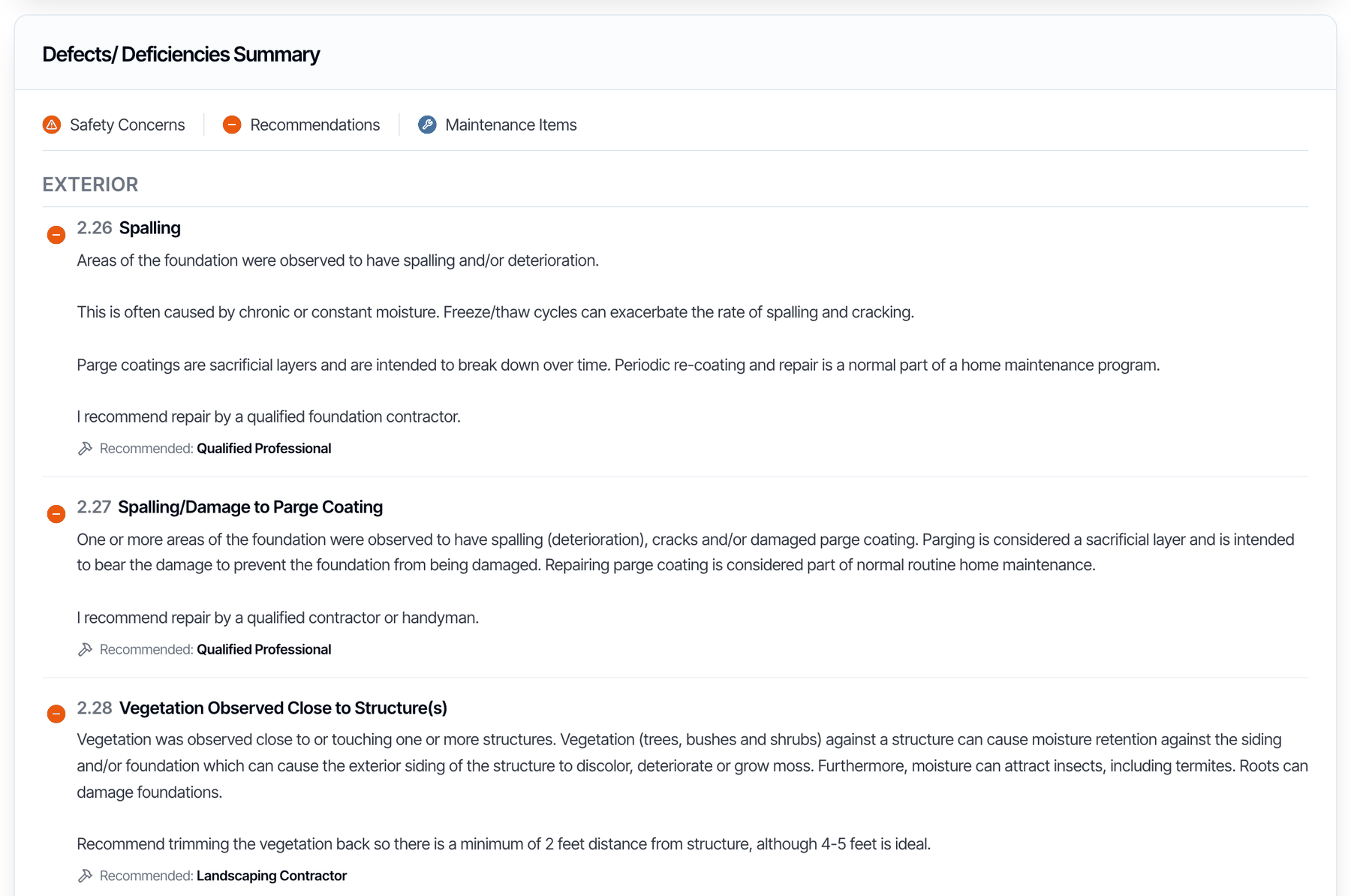 With details on, each defect shows its location, its full description, the recommended service, and the estimated cost and timeline if you entered them.
This setting only changes the defects summary above, so turn on **Summary for Defects / Deficiencies** too.
### Show Section Status Grid in Reports
With details on, each defect shows its location, its full description, the recommended service, and the estimated cost and timeline if you entered them.
This setting only changes the defects summary above, so turn on **Summary for Defects / Deficiencies** too.
### Show Section Status Grid in Reports
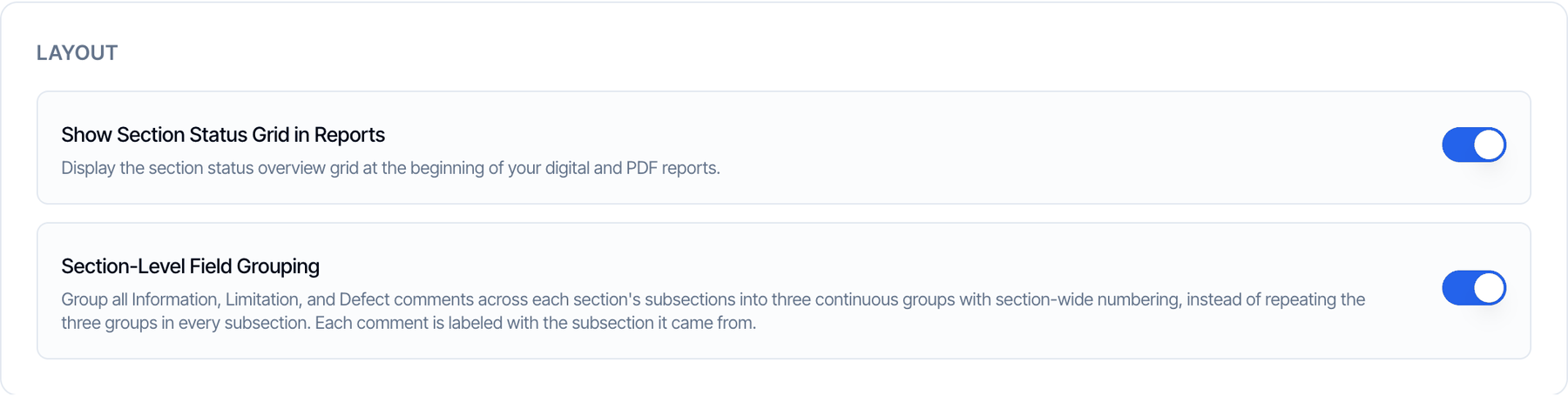 A **Status Overview** table at the top of every section. It lists each subsection with the number of defects in it, colored by category. If your template uses ratings, they get a column too. Default: on.
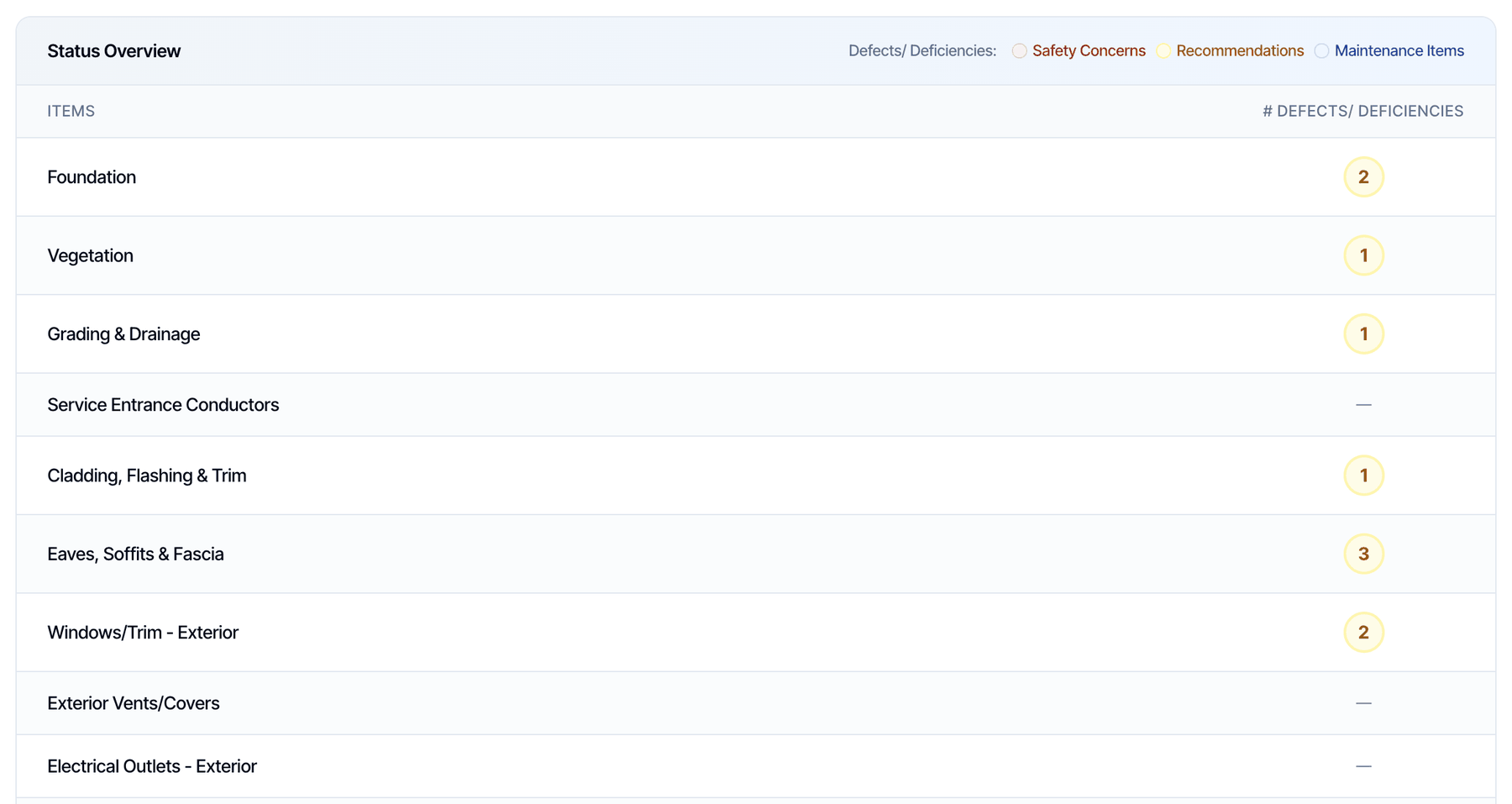 Turning it off removes the table from every section, in the digital report and the PDF.
With the table off, subsections that have only a rating and no comments are left out of the report, and the subsections after them are numbered one lower.
### Section-Level Field Grouping
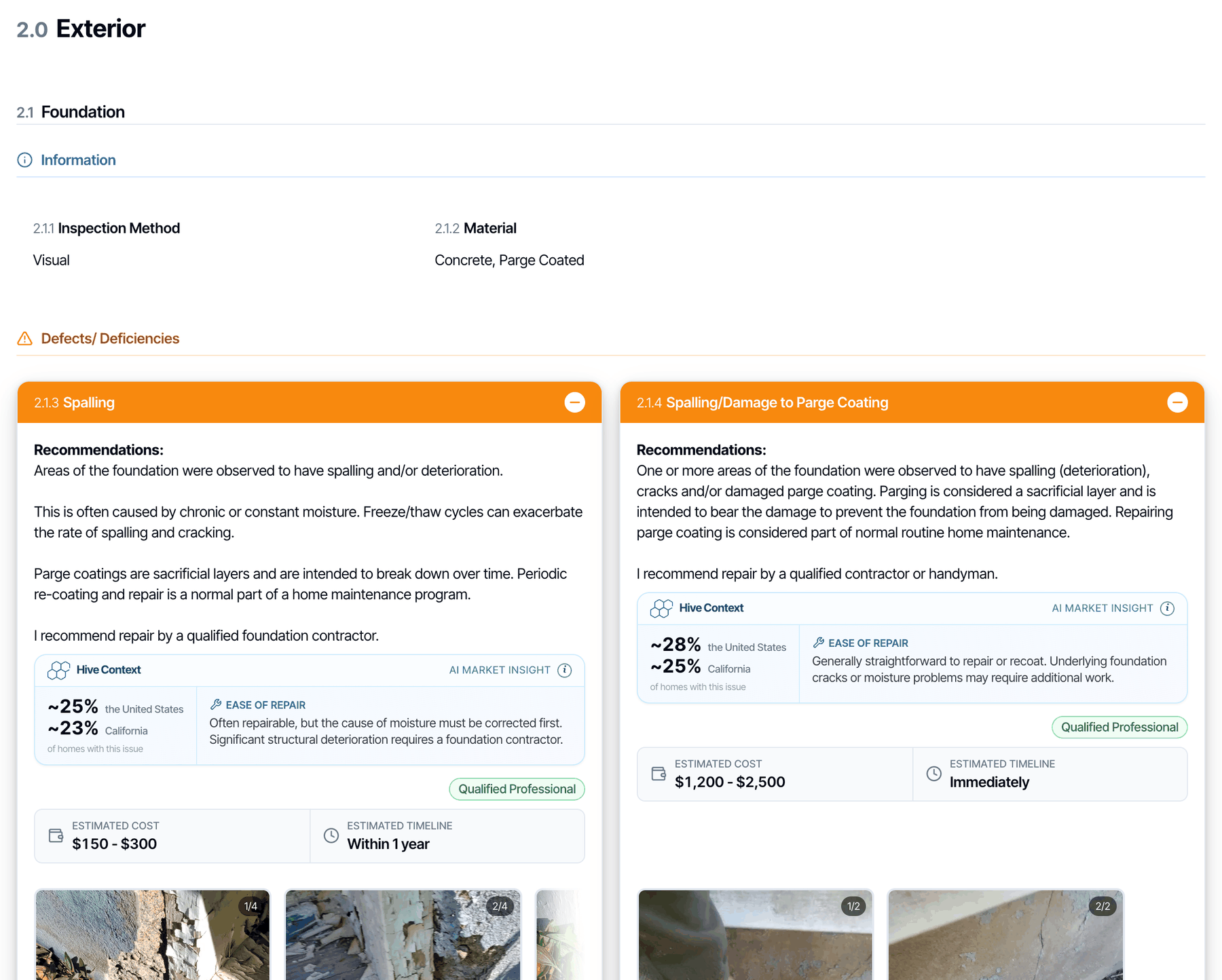
How comments are grouped inside each section. Default: on.
Turning it off removes the table from every section, in the digital report and the PDF.
With the table off, subsections that have only a rating and no comments are left out of the report, and the subsections after them are numbered one lower.
### Section-Level Field Grouping
How comments are grouped inside each section. Default: on.
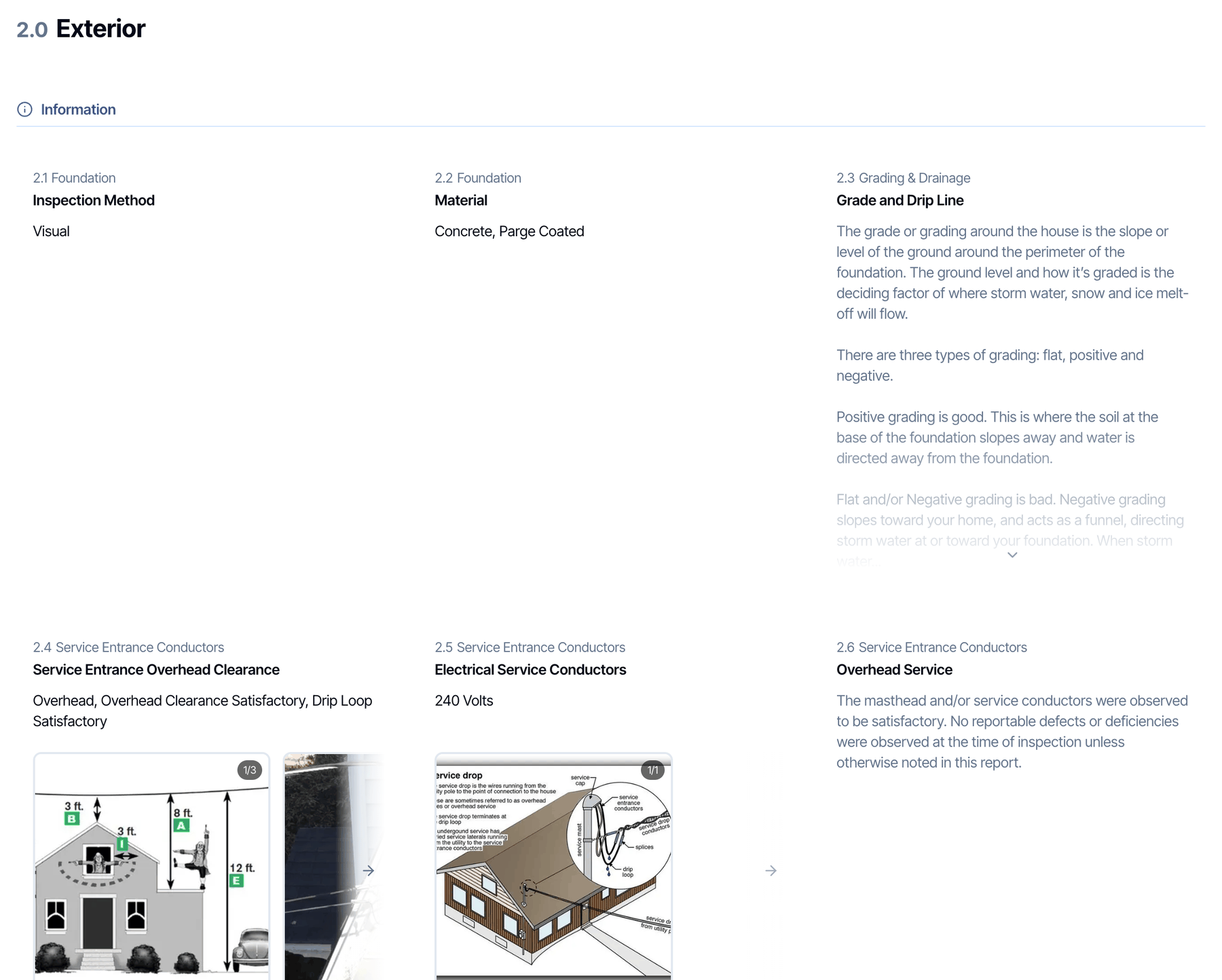
 * **On:** each section shows its Information, Limitation and defect comments as three groups, numbered 2.1, 2.2, 2.3 and so on through the section. Each comment is labeled with the subsection it came from.
* **Off:** each subsection has its own three groups, numbered 2.1.1, 2.1.2 and so on.
The numbers in the defects summary and the Cost to Cure table follow the same scheme. Reinspection PDFs always group by subsection.
### Repair Addendum
* **On:** each section shows its Information, Limitation and defect comments as three groups, numbered 2.1, 2.2, 2.3 and so on through the section. Each comment is labeled with the subsection it came from.
* **Off:** each subsection has its own three groups, numbered 2.1.1, 2.1.2 and so on.
The numbers in the defects summary and the Cost to Cure table follow the same scheme. Reinspection PDFs always group by subsection.
### Repair Addendum
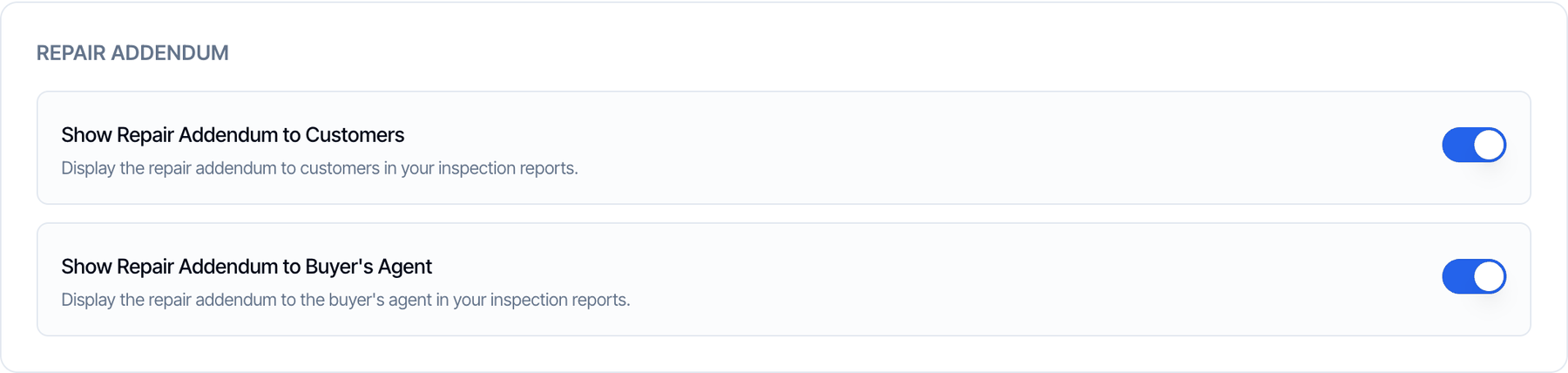 Choose who sees the **Repair Addendum** button in the digital report. Both are on by default.
| Setting | Hides the button from |
| - | - |
| **Show Repair Addendum to Customers** | Your client |
| **Show Repair Addendum to Buyer's Agent** | The buyer's agent and the transaction coordinator |
Listing agents always see the button. These settings only hide the button: they don't change the PDF. See [Repair addendum](/how-tos/repair-addendum).
### Use a Default Annotation Color
Choose who sees the **Repair Addendum** button in the digital report. Both are on by default.
| Setting | Hides the button from |
| - | - |
| **Show Repair Addendum to Customers** | Your client |
| **Show Repair Addendum to Buyer's Agent** | The buyer's agent and the transaction coordinator |
Listing agents always see the button. These settings only hide the button: they don't change the PDF. See [Repair addendum](/how-tos/repair-addendum).
### Use a Default Annotation Color
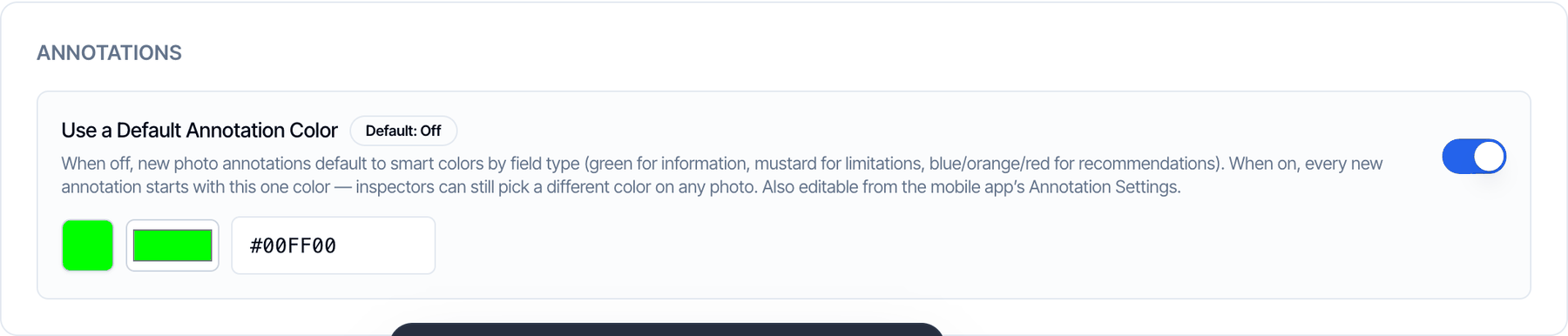 The color a new photo annotation starts with. Default: off.
* **Off:** new annotations pick a color by comment type: green for Information, mustard for Limitations, and blue, orange or red for each defect category.
* **On:** every new annotation starts with the color you choose here.
Either way, you can still pick any color on a photo. Existing annotations keep their colors. This is one setting for your whole company, and it is also in the mobile app under **Profile → Annotation Settings**.
## Digital Report tab
These settings change the report clients open in a browser. The PDF ignores them.
### Digital Report Banner Design
The color a new photo annotation starts with. Default: off.
* **Off:** new annotations pick a color by comment type: green for Information, mustard for Limitations, and blue, orange or red for each defect category.
* **On:** every new annotation starts with the color you choose here.
Either way, you can still pick any color on a photo. Existing annotations keep their colors. This is one setting for your whole company, and it is also in the mobile app under **Profile → Annotation Settings**.
## Digital Report tab
These settings change the report clients open in a browser. The PDF ignores them.
### Digital Report Banner Design
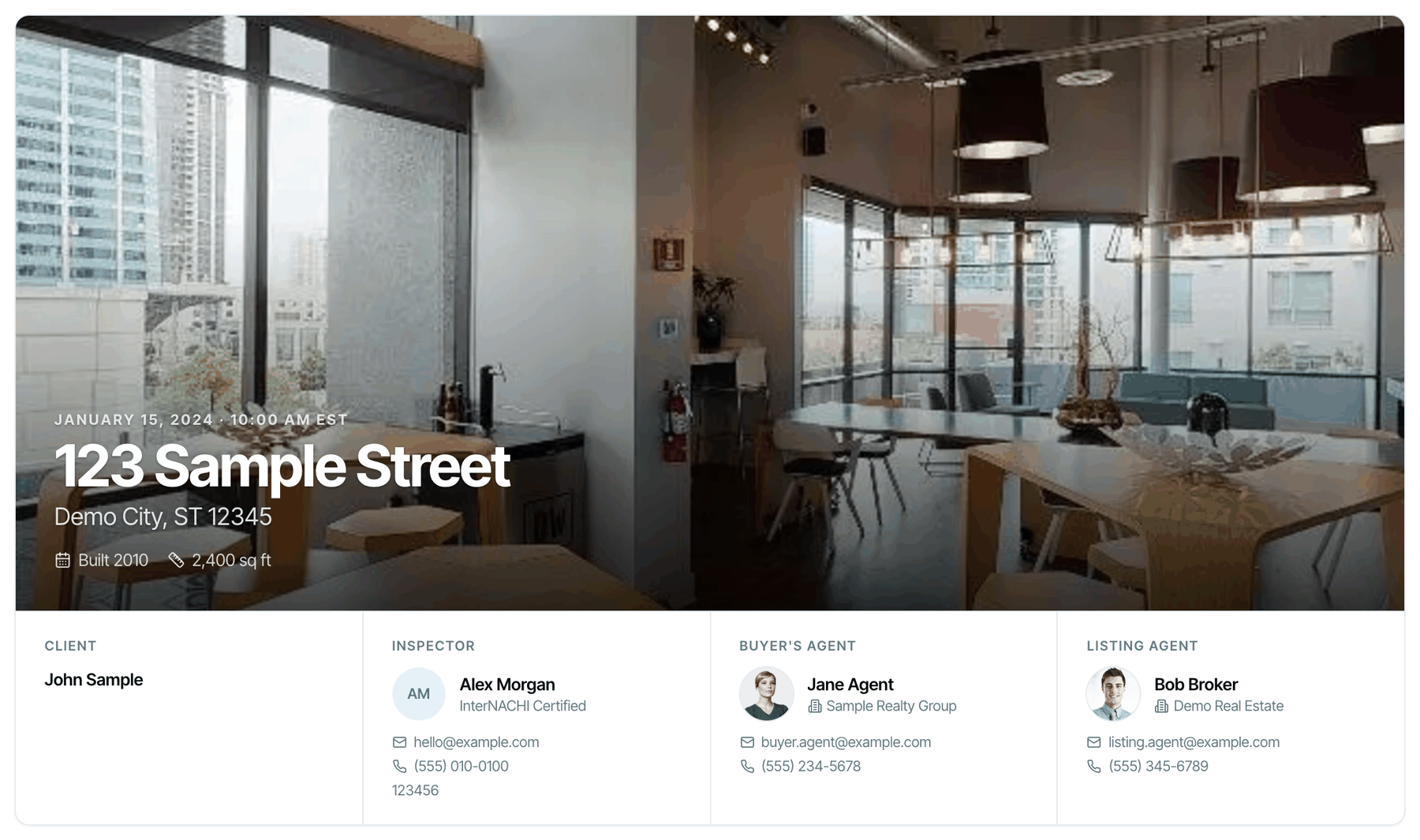
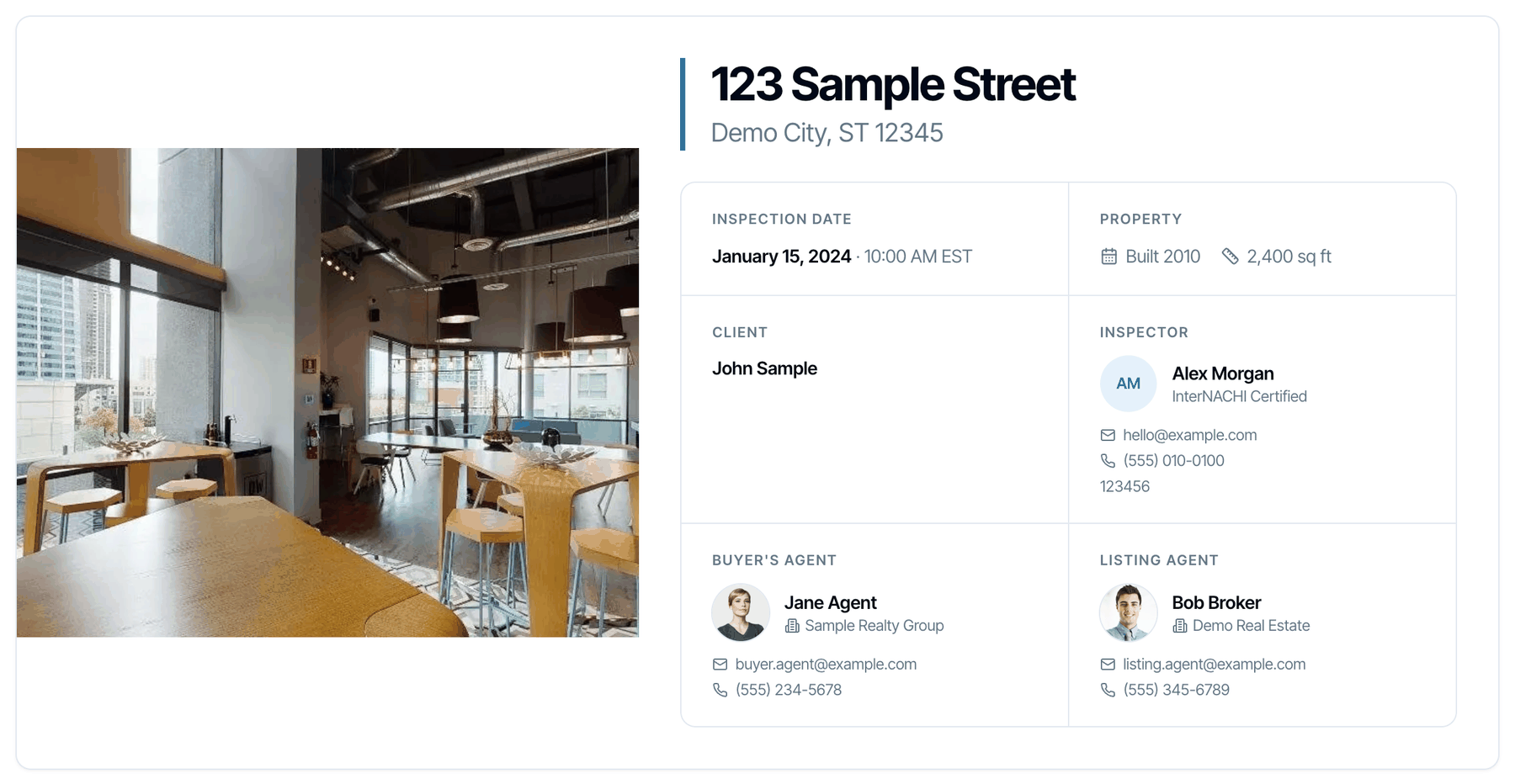
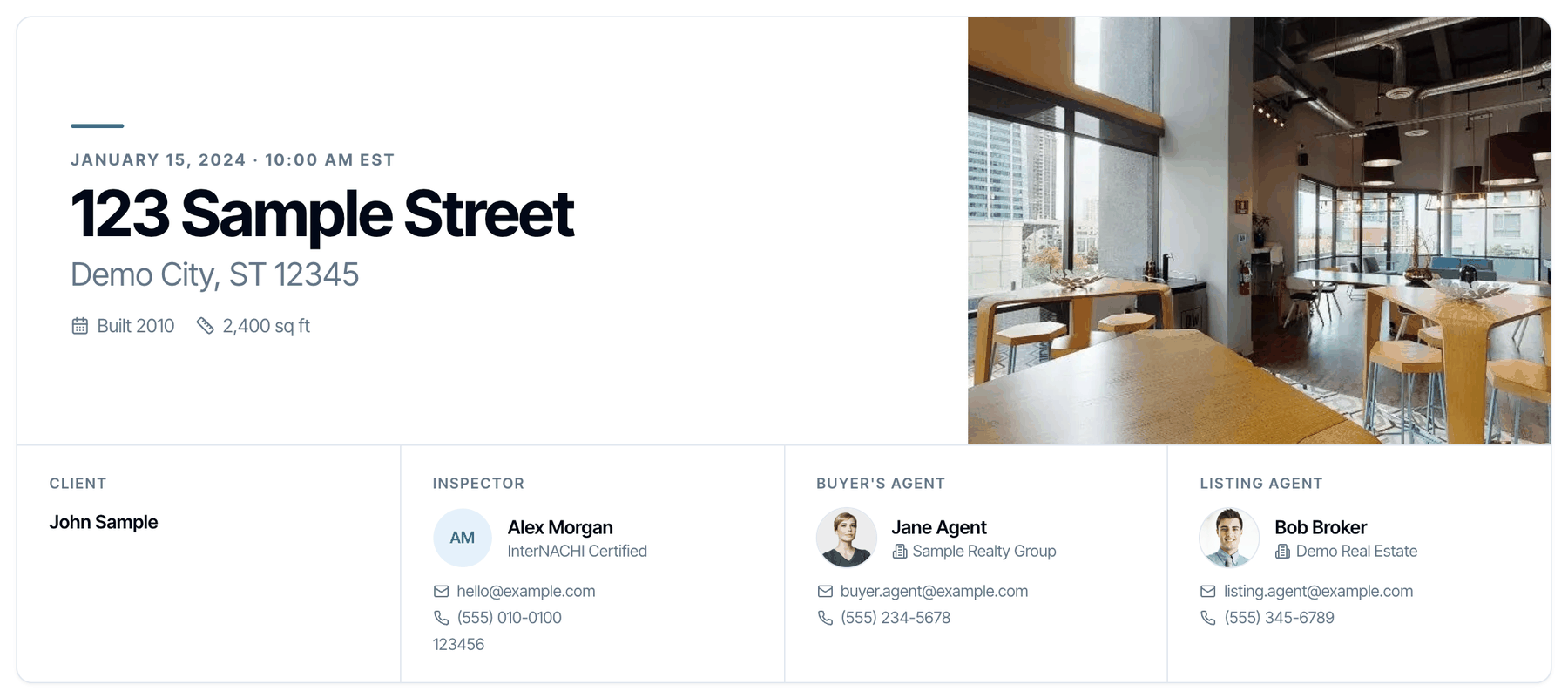
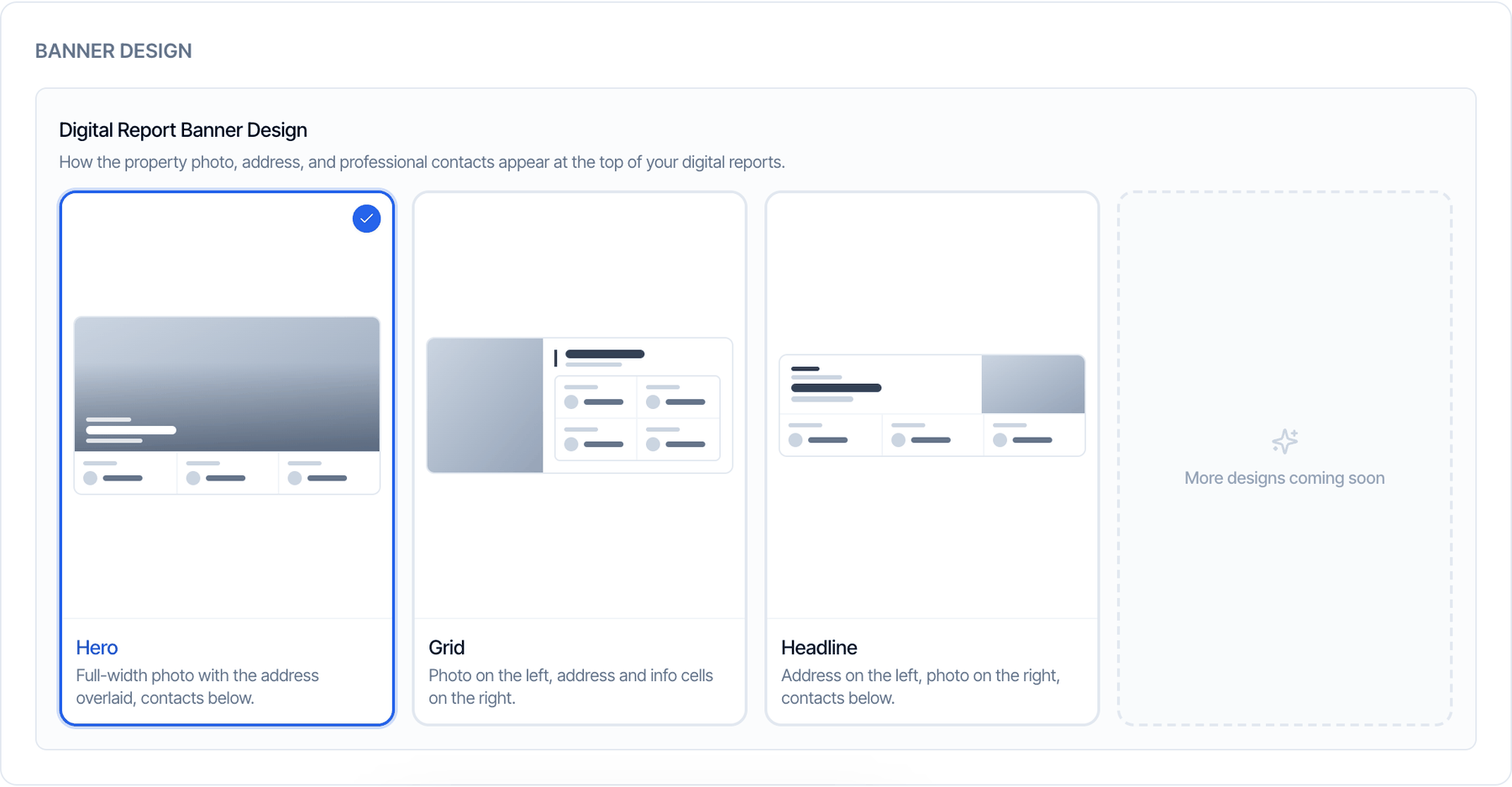 How the property photo, the address and the contacts appear at the top of the report. Click a design to select it. Default: **Hero**.
A full-width photo with the date and address over it, and the contacts in a row below.
How the property photo, the address and the contacts appear at the top of the report. Click a design to select it. Default: **Hero**.
A full-width photo with the date and address over it, and the contacts in a row below.
 The photo on the left. The address, date, property details and contacts in a grid on the right.
 The address on the left, the photo on the right, and the contacts in a row below.
 The banner needs a cover photo on the report. Without one, no banner shows, whichever design you pick.
### Charts
The banner needs a cover photo on the report. Without one, no banner shows, whichever design you pick.
### Charts
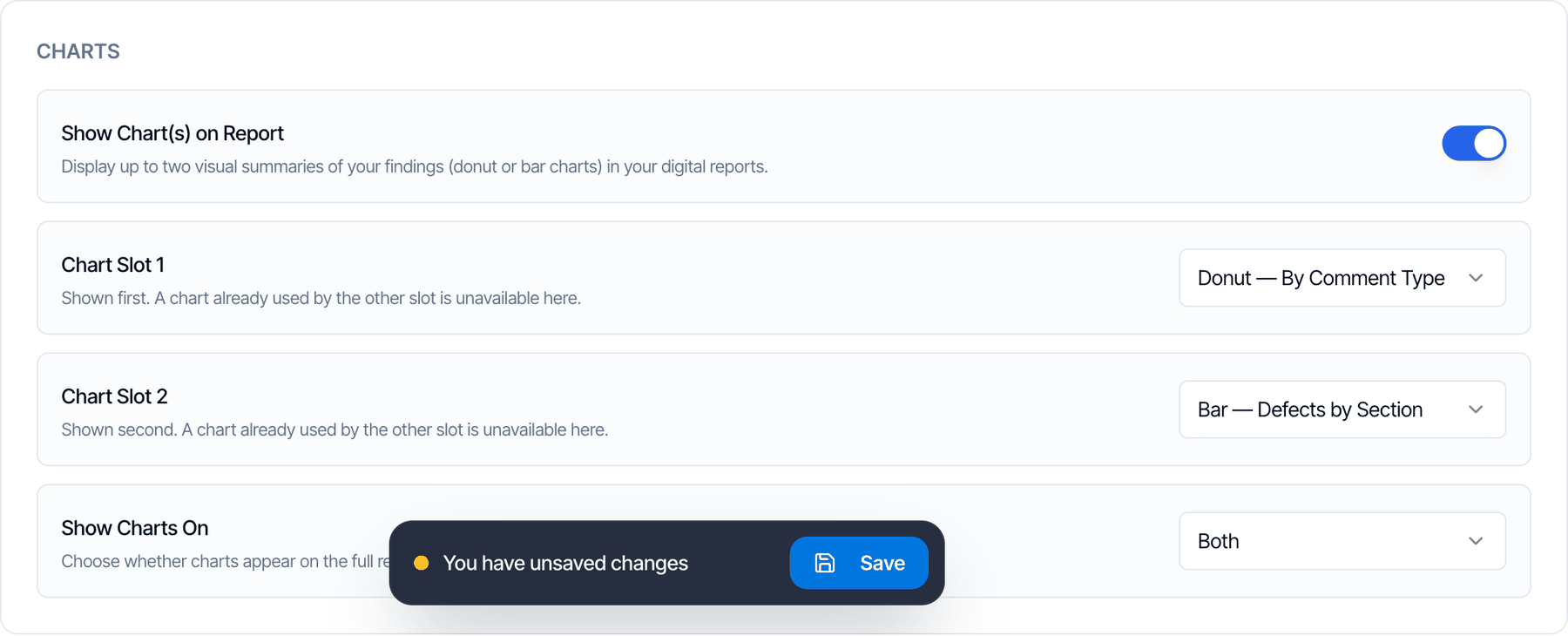 Add up to two charts that summarize the findings. Default: off.
1. Turn on **Show Chart(s) on Report**.
2. Pick a chart for **Chart Slot 1** and **Chart Slot 2**. The two slots can't hold the same chart.
3. Under **Show Charts On**, choose **Full Report**, **Summary** or **Both**.
| Chart | What it shows |
| - | - |
| **Donut: By Comment Type** | How many Information, Limitation and defect comments the report has |
| **Donut: By Defect Categories** | The share of defects in each category |
| **Bar: Defects by Section** | Which sections have the most defects |
| **Bar: Count by Defect Categories** | The number of defects in each category |
Add up to two charts that summarize the findings. Default: off.
1. Turn on **Show Chart(s) on Report**.
2. Pick a chart for **Chart Slot 1** and **Chart Slot 2**. The two slots can't hold the same chart.
3. Under **Show Charts On**, choose **Full Report**, **Summary** or **Both**.
| Chart | What it shows |
| - | - |
| **Donut: By Comment Type** | How many Information, Limitation and defect comments the report has |
| **Donut: By Defect Categories** | The share of defects in each category |
| **Bar: Defects by Section** | Which sections have the most defects |
| **Bar: Count by Defect Categories** | The number of defects in each category |
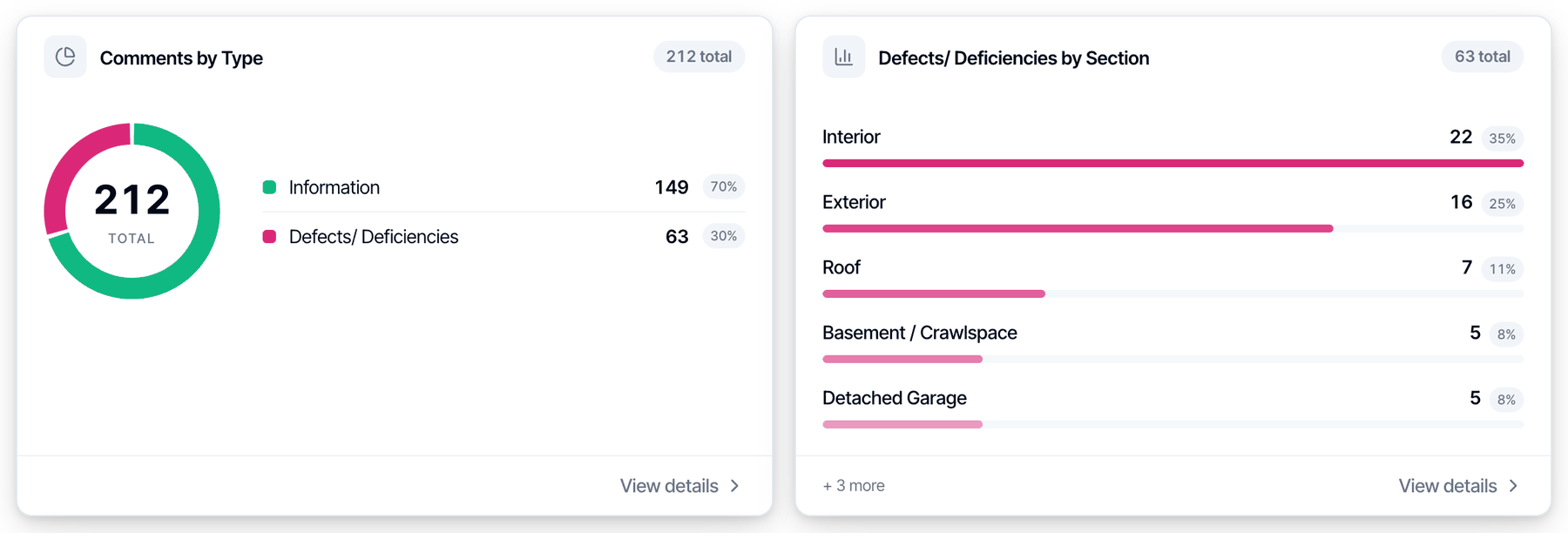
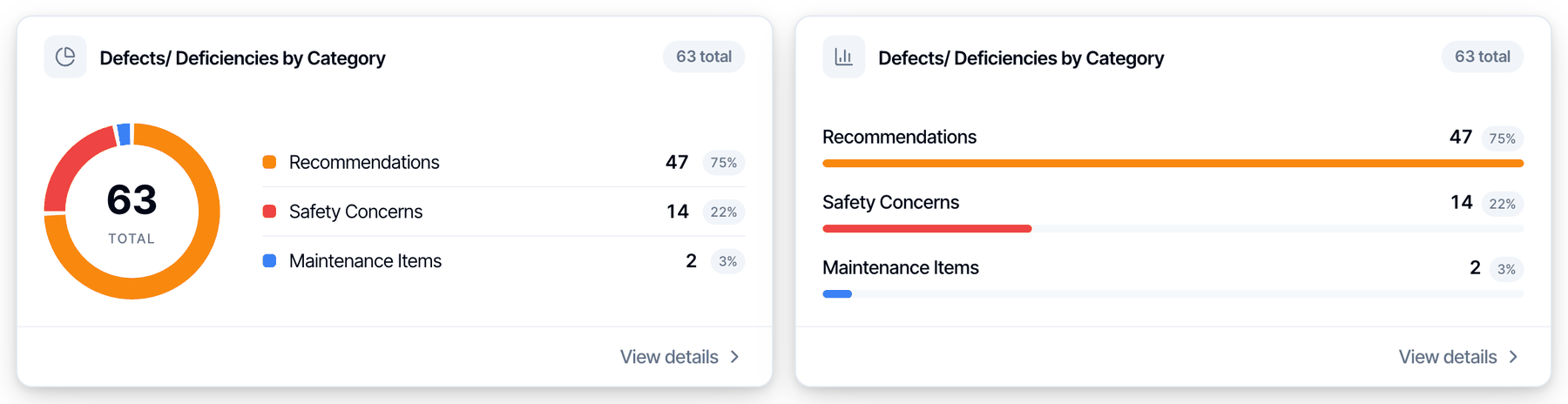 * The charts sit just below the contacts in the full report, and below the summary text in the Summary view.
* **View details** on a chart lists the comments behind it, with links to each one.
* If a report has no data for a chart, the chart is skipped.
* The two category charts are hidden on reports that hide category names.
### Field layout
How comment cards are arranged on a wide screen. On a phone, comments are always in one column.
**Single-Column Field Layout (Desktop).** Default: off.
* The charts sit just below the contacts in the full report, and below the summary text in the Summary view.
* **View details** on a chart lists the comments behind it, with links to each one.
* If a report has no data for a chart, the chart is skipped.
* The two category charts are hidden on reports that hide category names.
### Field layout
How comment cards are arranged on a wide screen. On a phone, comments are always in one column.
**Single-Column Field Layout (Desktop).** Default: off.
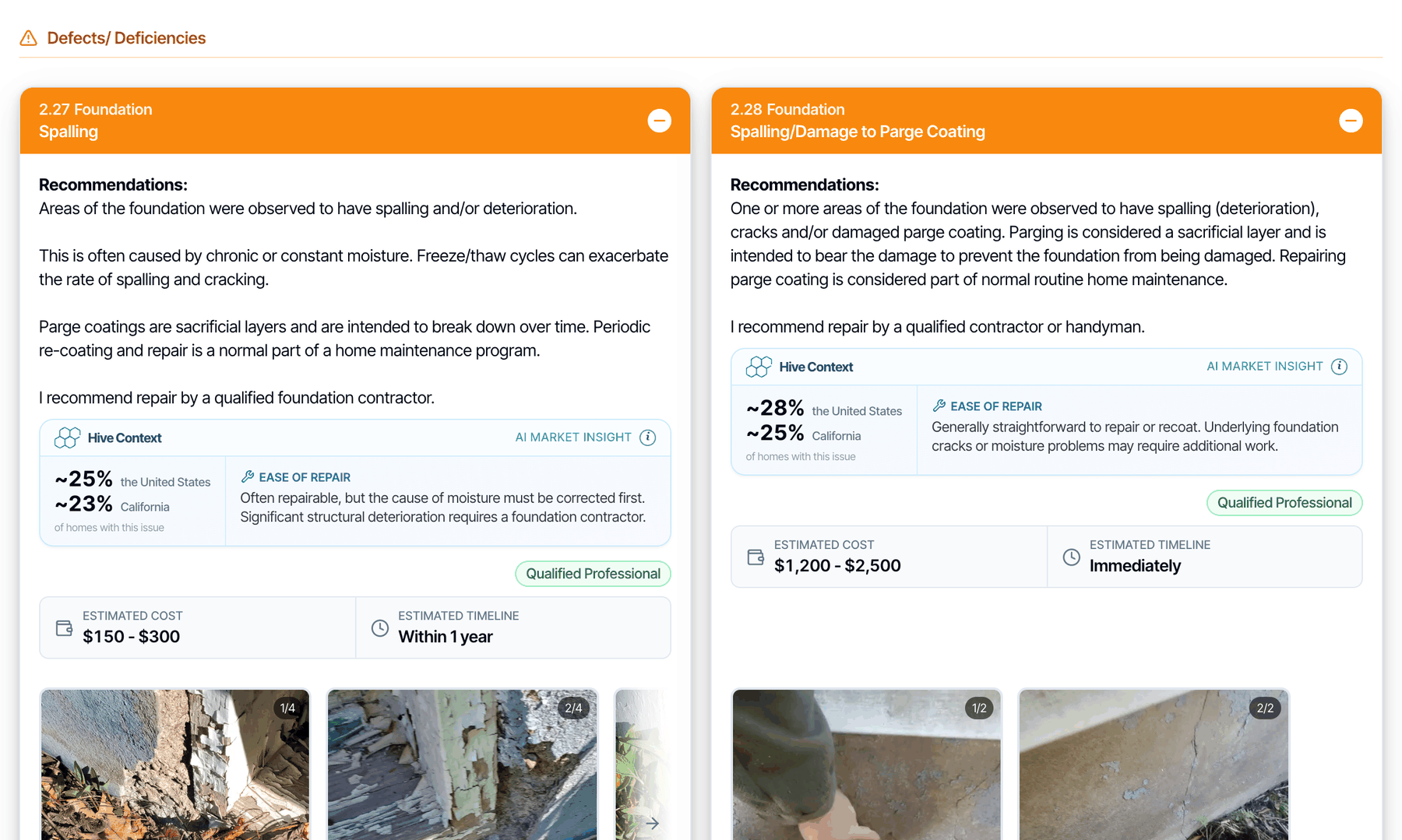
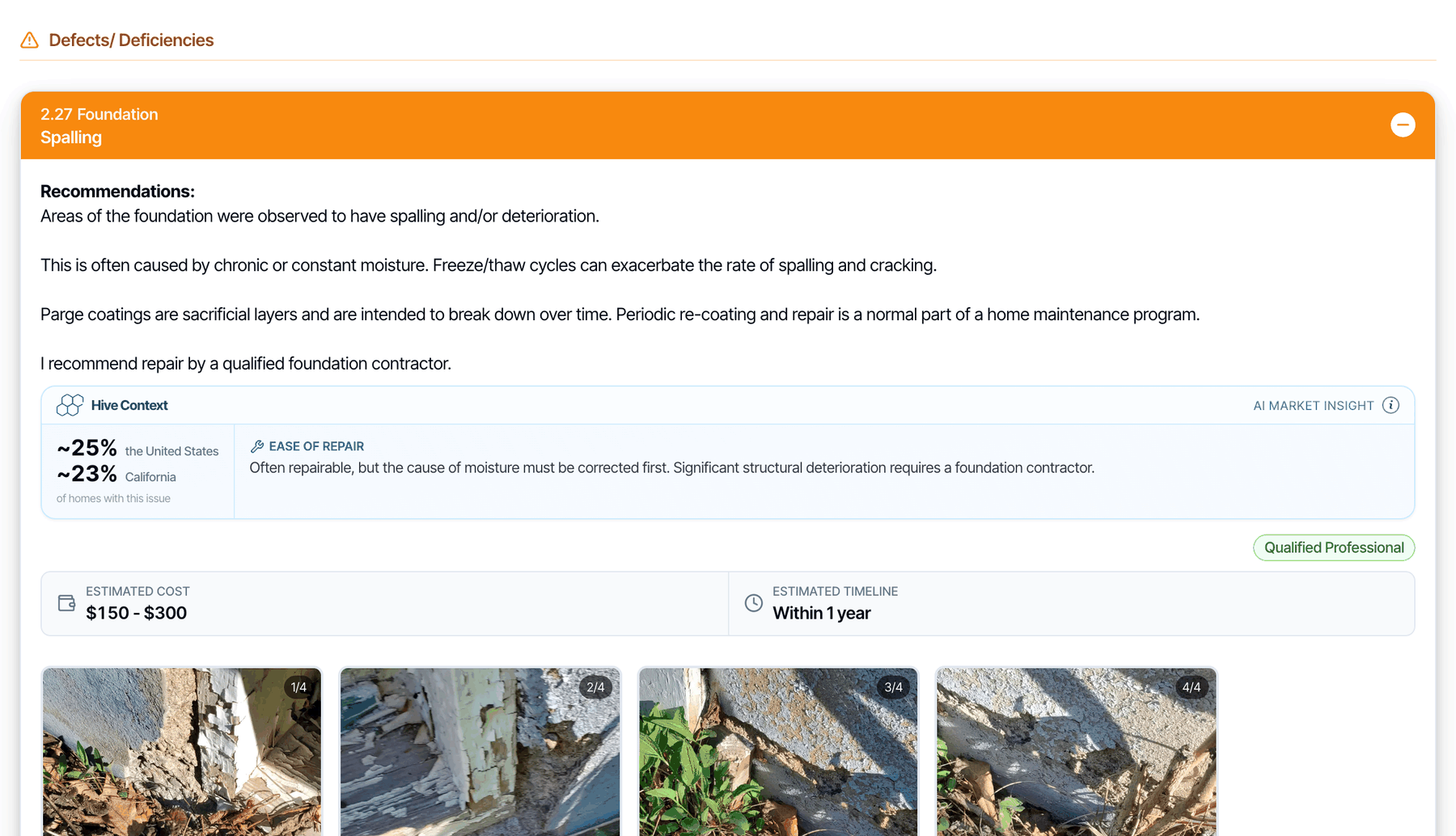 With it off, defects sit two across and Information and Limitation comments three across. With it on, every comment uses the full width.
**Adaptive Layout for Information & Limitations.** Default: off. This setting is hidden while Single-Column is on, because every comment is already full width.
With it off, defects sit two across and Information and Limitation comments three across. With it on, every comment uses the full width.
**Adaptive Layout for Information & Limitations.** Default: off. This setting is hidden while Single-Column is on, because every comment is already full width.
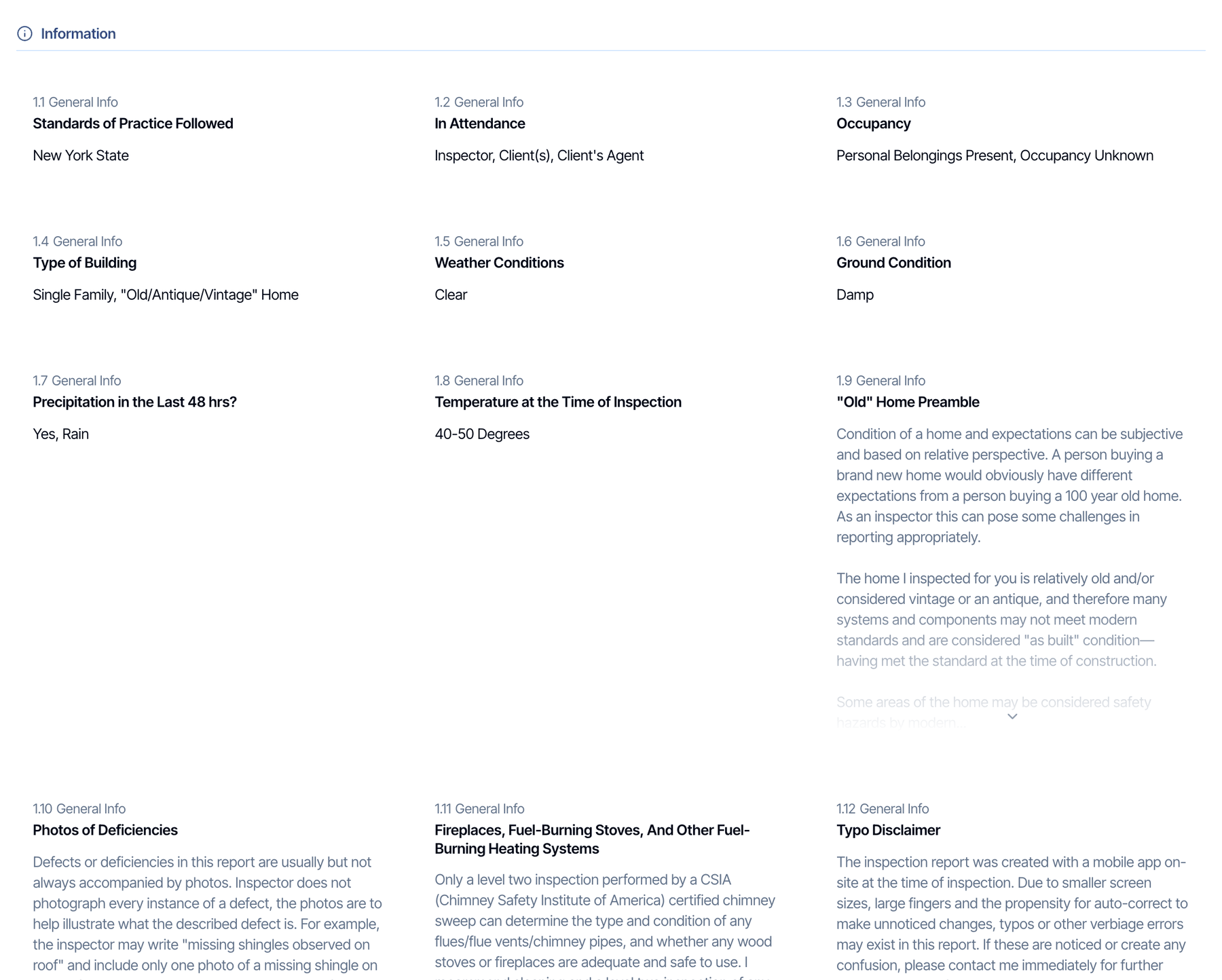
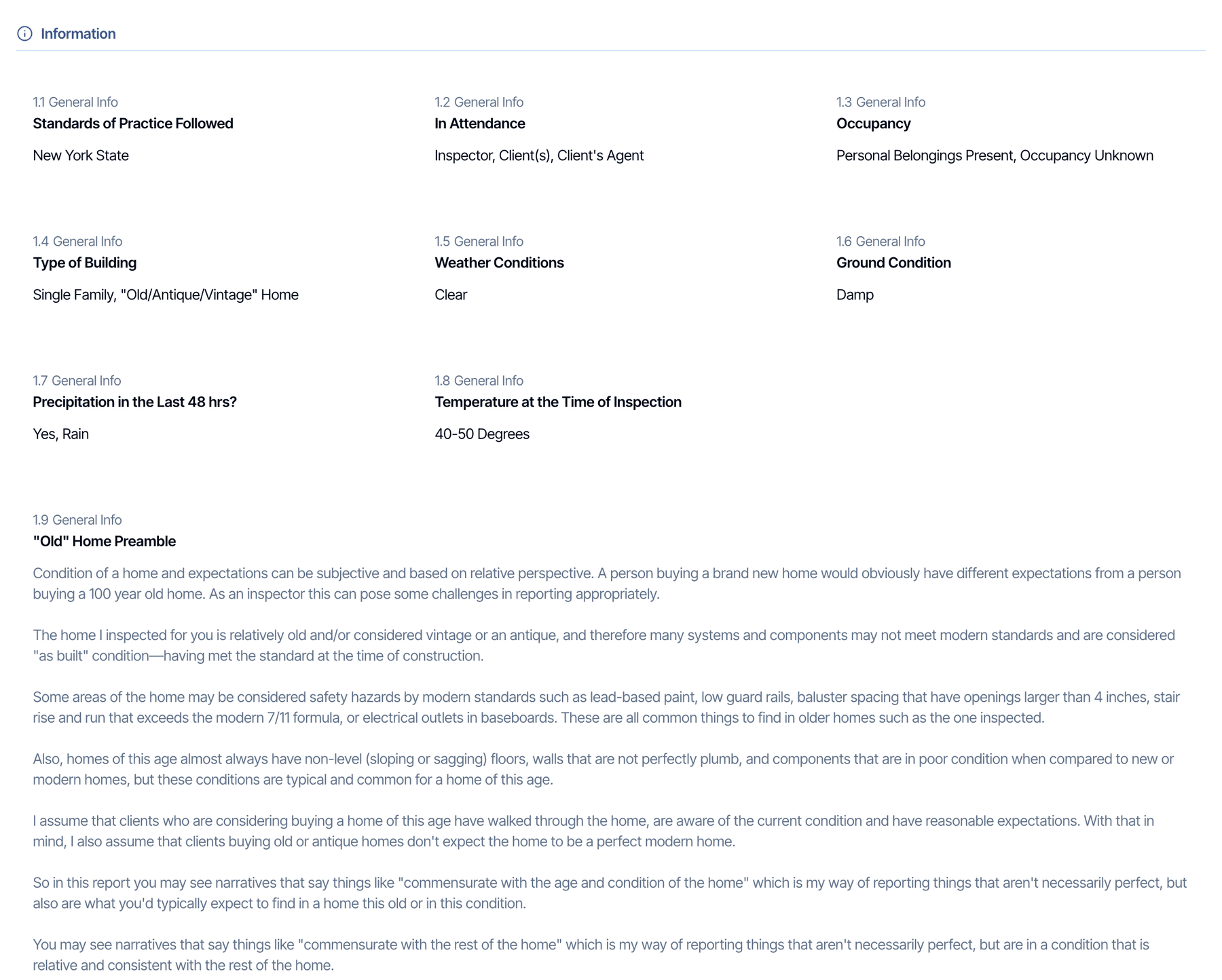 With it on, comments with photos, videos or long text use the full row, with all their photos shown. Short comments still sit three across.
**Subtle Color Background for Information and Limitation Comments.** Default: off. Turn it on to put each subsection's Information comments in a pale green card and its Limitation comments in a pale yellow card.
With it on, comments with photos, videos or long text use the full row, with all their photos shown. Short comments still sit three across.
**Subtle Color Background for Information and Limitation Comments.** Default: off. Turn it on to put each subsection's Information comments in a pale green card and its Limitation comments in a pale yellow card.
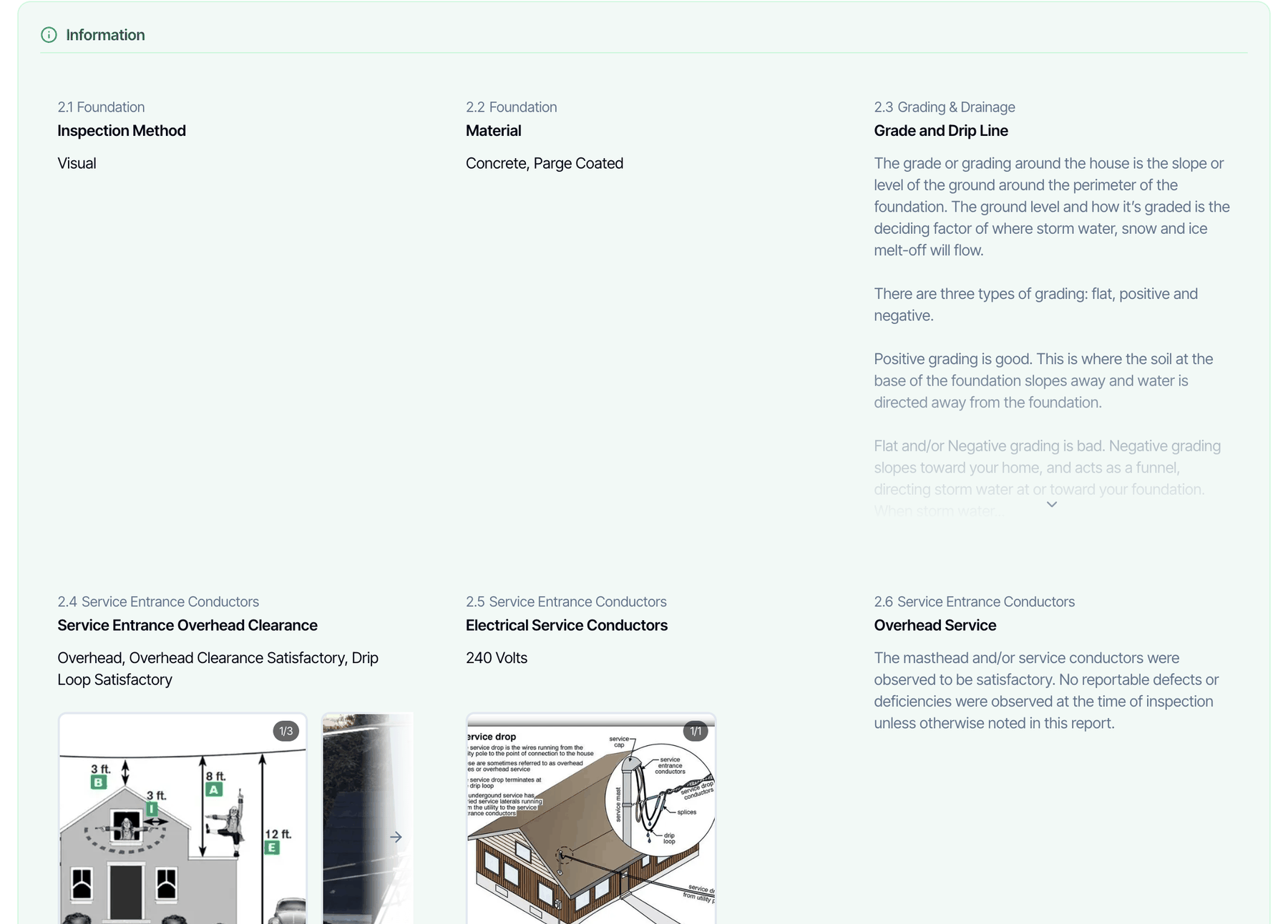 To show Information and Limitation comments in tabs instead, use **Show Information and Limitation comments in tabs** in Template Tools or Report Tools. See [Template Tools and Report Tools](/how-tos/template-and-report-tools#show-information-and-limitation-comments-in-tabs).
## PDF Report tab
These settings change the PDF only. They apply to the full report PDF and the summary PDF. Remember to [regenerate](#when-your-changes-show-up) a report's PDF to see a change.
State-specific forms, such as the TREC form itself, keep their own fixed layout. A form's summary PDF does follow these settings, and the cover page design also applies to most form covers.
### Cover Page Design
To show Information and Limitation comments in tabs instead, use **Show Information and Limitation comments in tabs** in Template Tools or Report Tools. See [Template Tools and Report Tools](/how-tos/template-and-report-tools#show-information-and-limitation-comments-in-tabs).
## PDF Report tab
These settings change the PDF only. They apply to the full report PDF and the summary PDF. Remember to [regenerate](#when-your-changes-show-up) a report's PDF to see a change.
State-specific forms, such as the TREC form itself, keep their own fixed layout. A form's summary PDF does follow these settings, and the cover page design also applies to most form covers.
### Cover Page Design
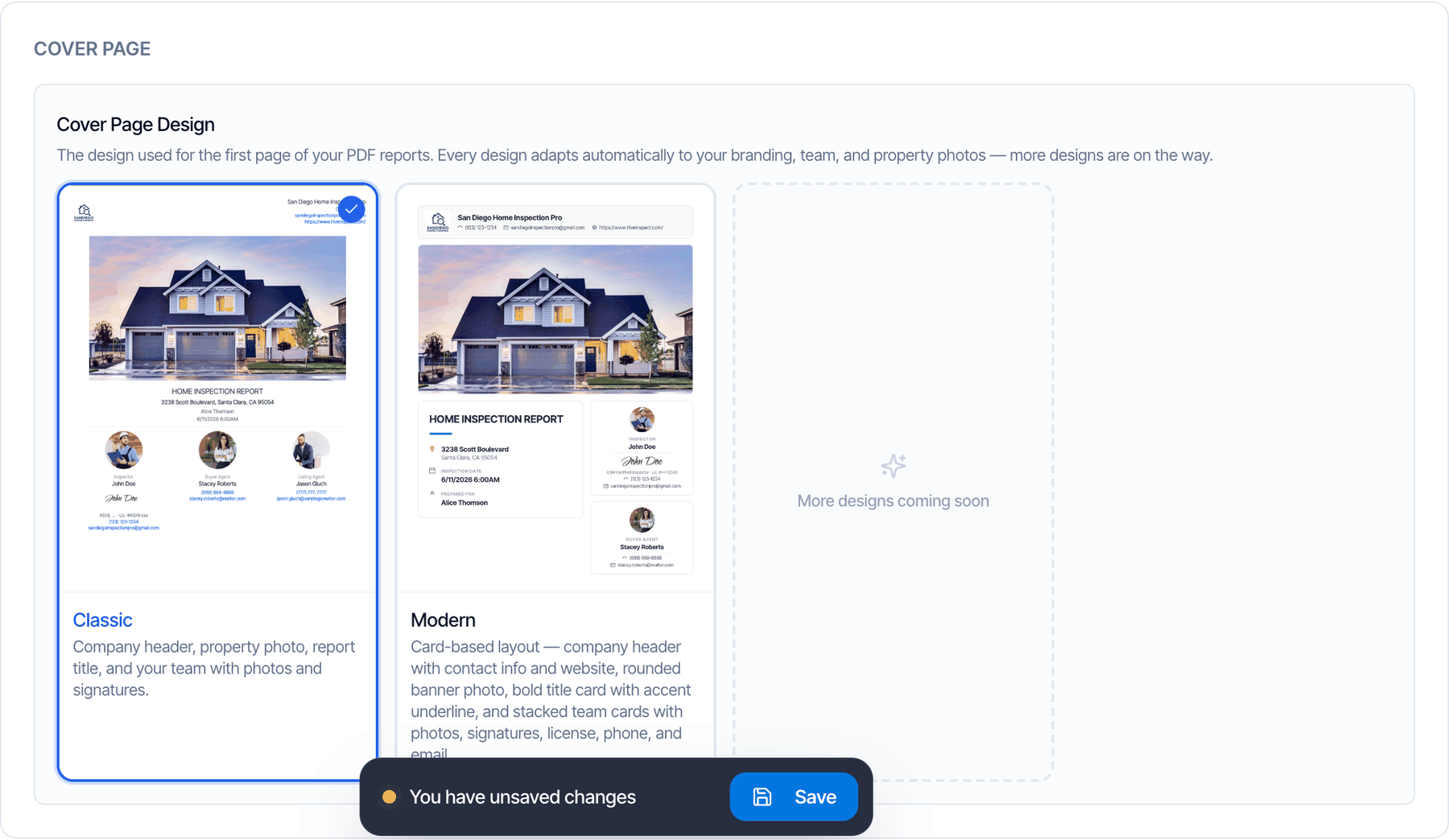 The design of the PDF's first page. Default: **Classic**.
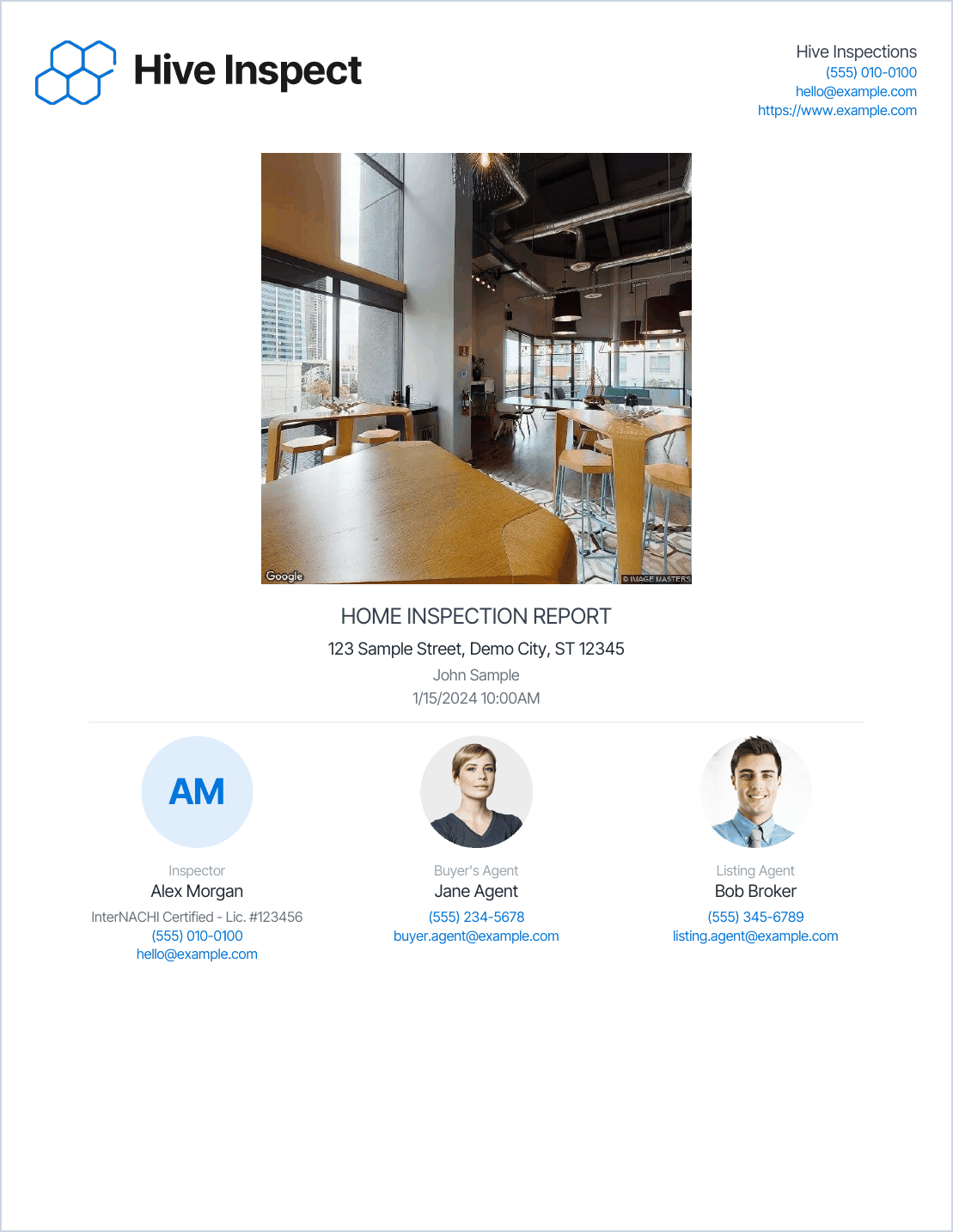
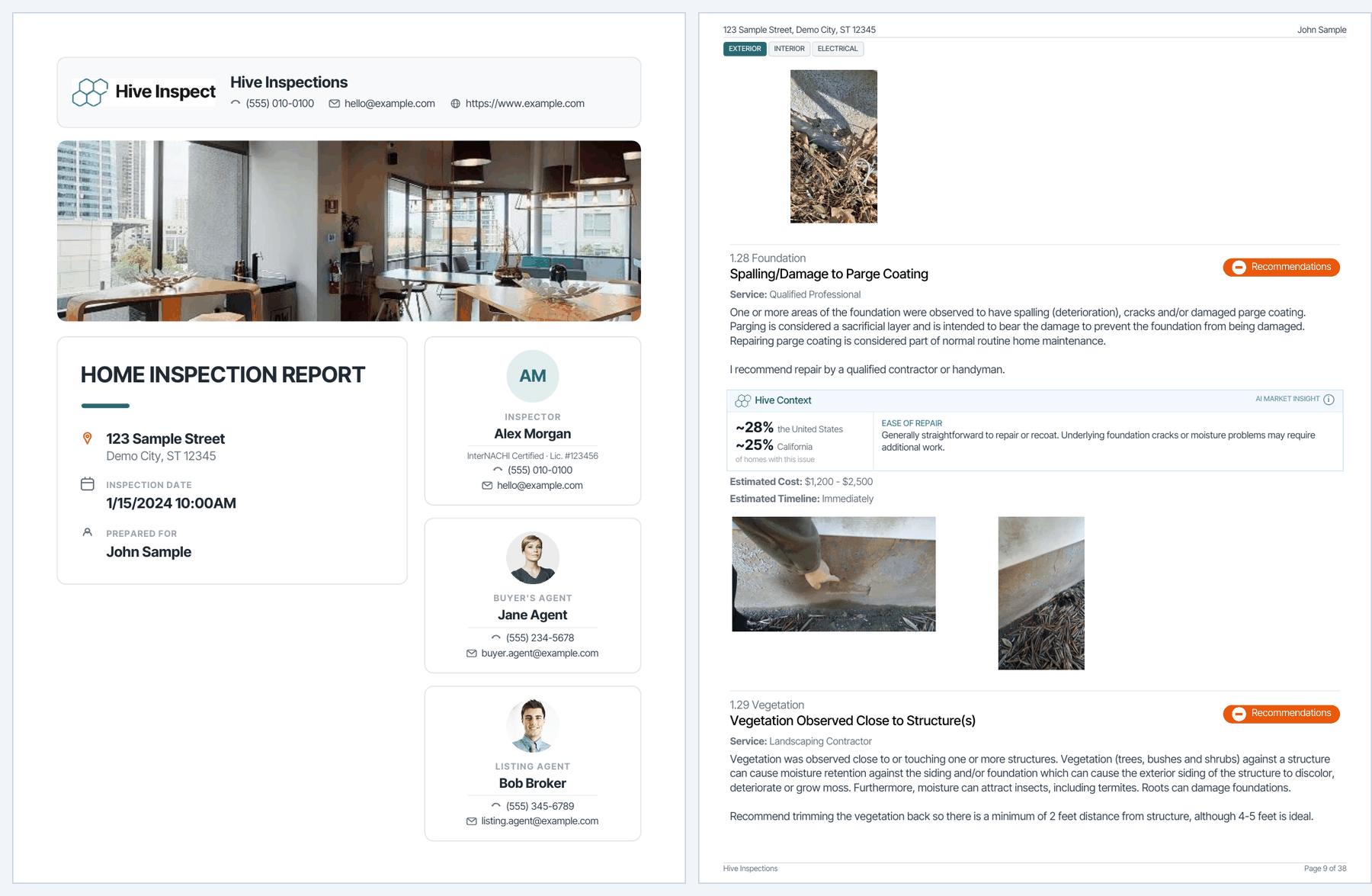
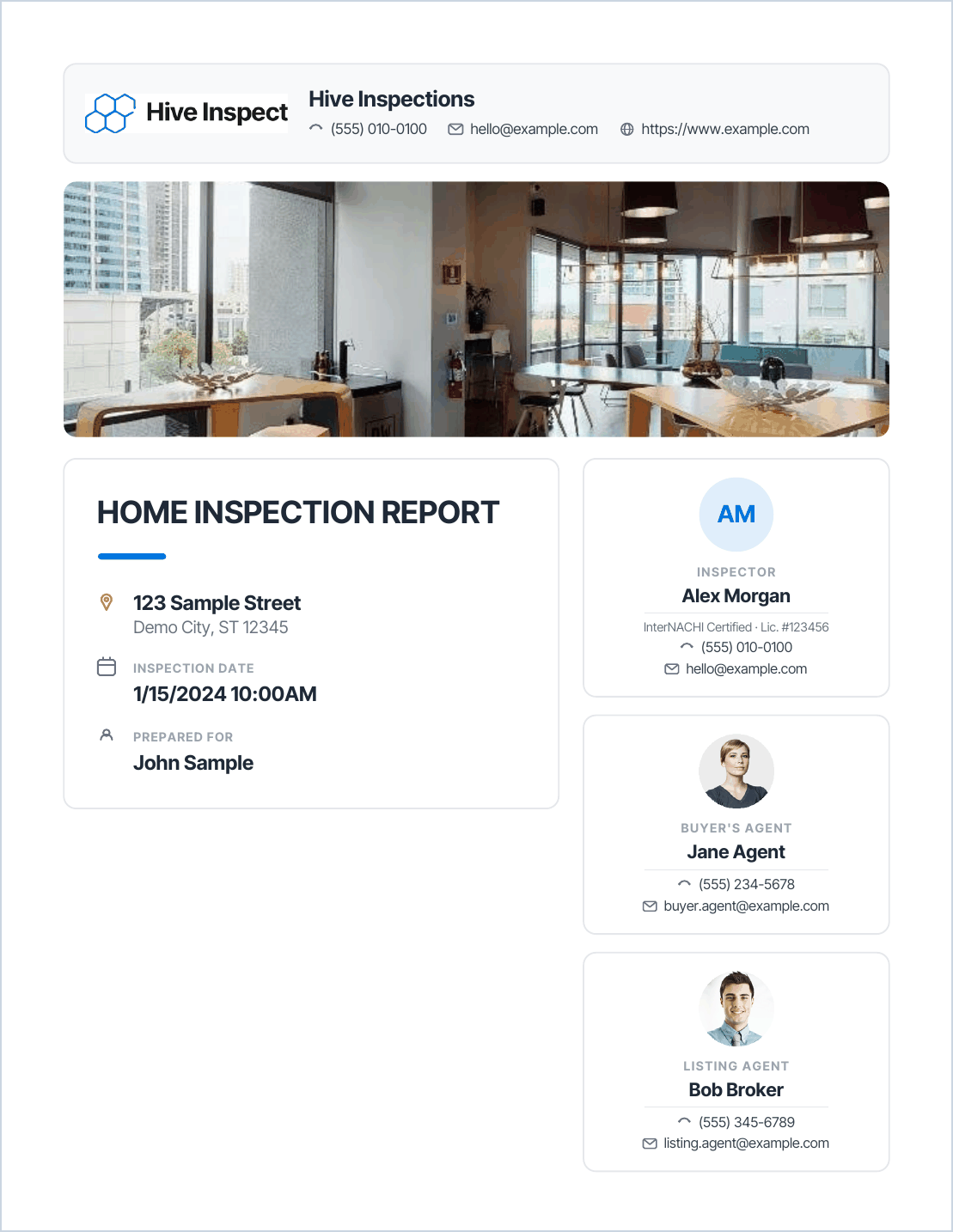 Both designs use your logo, your company details, the report's cover photo and the people on the inspection. With more than three people, the rest go on an **Additional Contacts** page after the cover.
### Table of Contents Page
A page after the cover that lists every section with a link to it. Default: on.
Both designs use your logo, your company details, the report's cover photo and the people on the inspection. With more than three people, the rest go on an **Additional Contacts** page after the cover.
### Table of Contents Page
A page after the cover that lists every section with a link to it. Default: on.
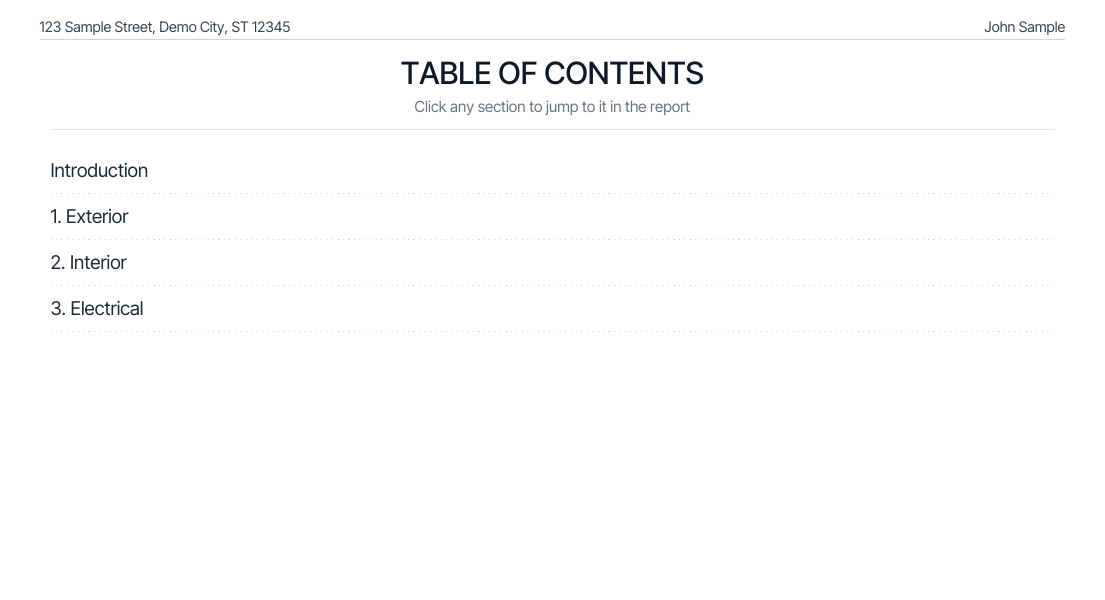 Turn it off to start the report right after the cover. Links inside the report keep working.
### Clickable Section Tabs
A row of tabs at the top of every PDF page, one per section. Readers tap a tab to jump to that section. Default: off.
Turn it off to start the report right after the cover. Links inside the report keep working.
### Clickable Section Tabs
A row of tabs at the top of every PDF page, one per section. Readers tap a tab to jump to that section. Default: off.
 * Every page except the cover gets the tabs. A **SUMMARY** tab comes first when the PDF has summary text or a defects summary.
* The current section's tab is filled with your [theme color](#report-theme-color).
* Long tab rows wrap onto up to three lines.
### Compact PDF
A denser PDF with about 20% fewer pages. Default: off.
* Every page except the cover gets the tabs. A **SUMMARY** tab comes first when the PDF has summary text or a defects summary.
* The current section's tab is filled with your [theme color](#report-theme-color).
* Long tab rows wrap onto up to three lines.
### Compact PDF
A denser PDF with about 20% fewer pages. Default: off.
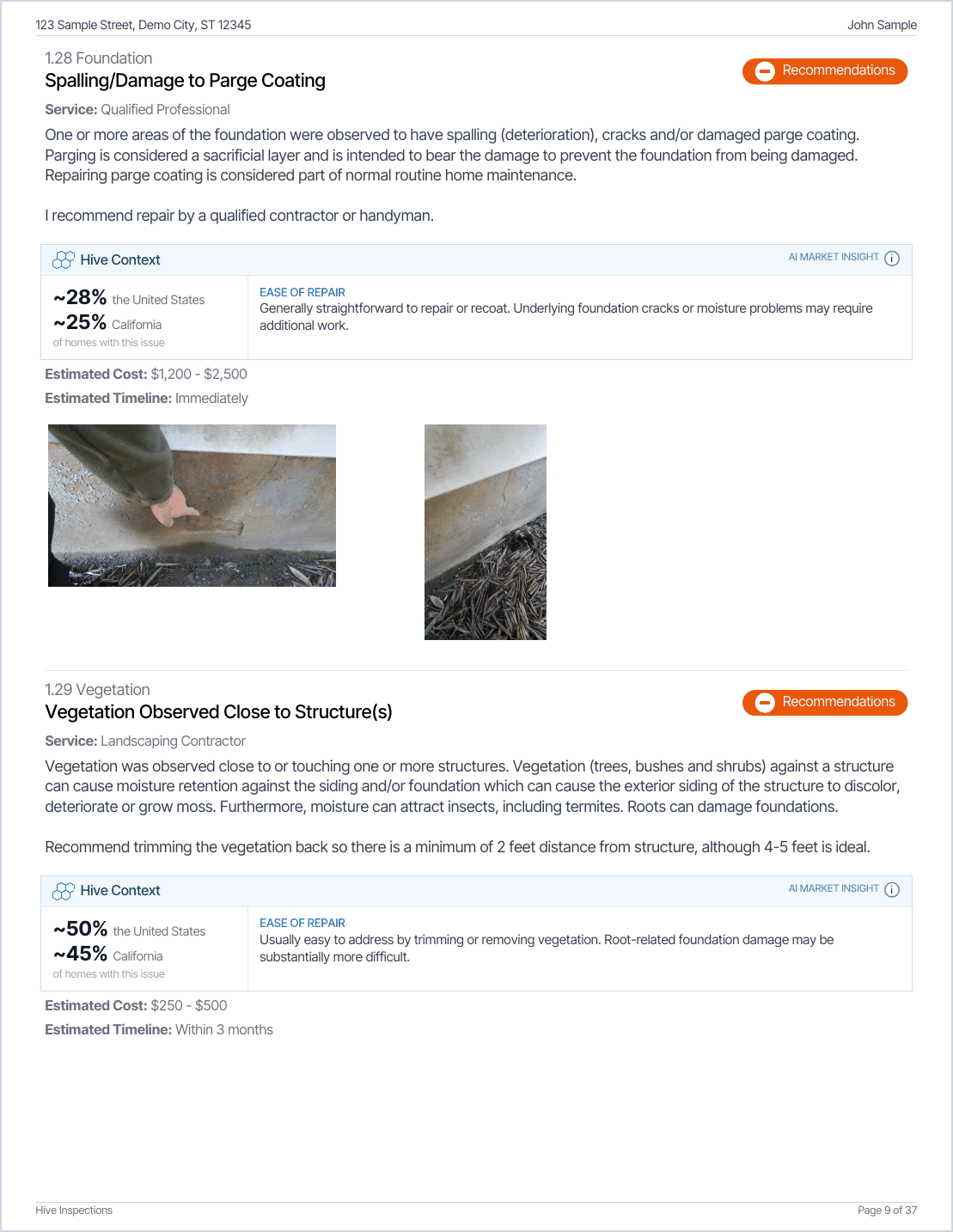
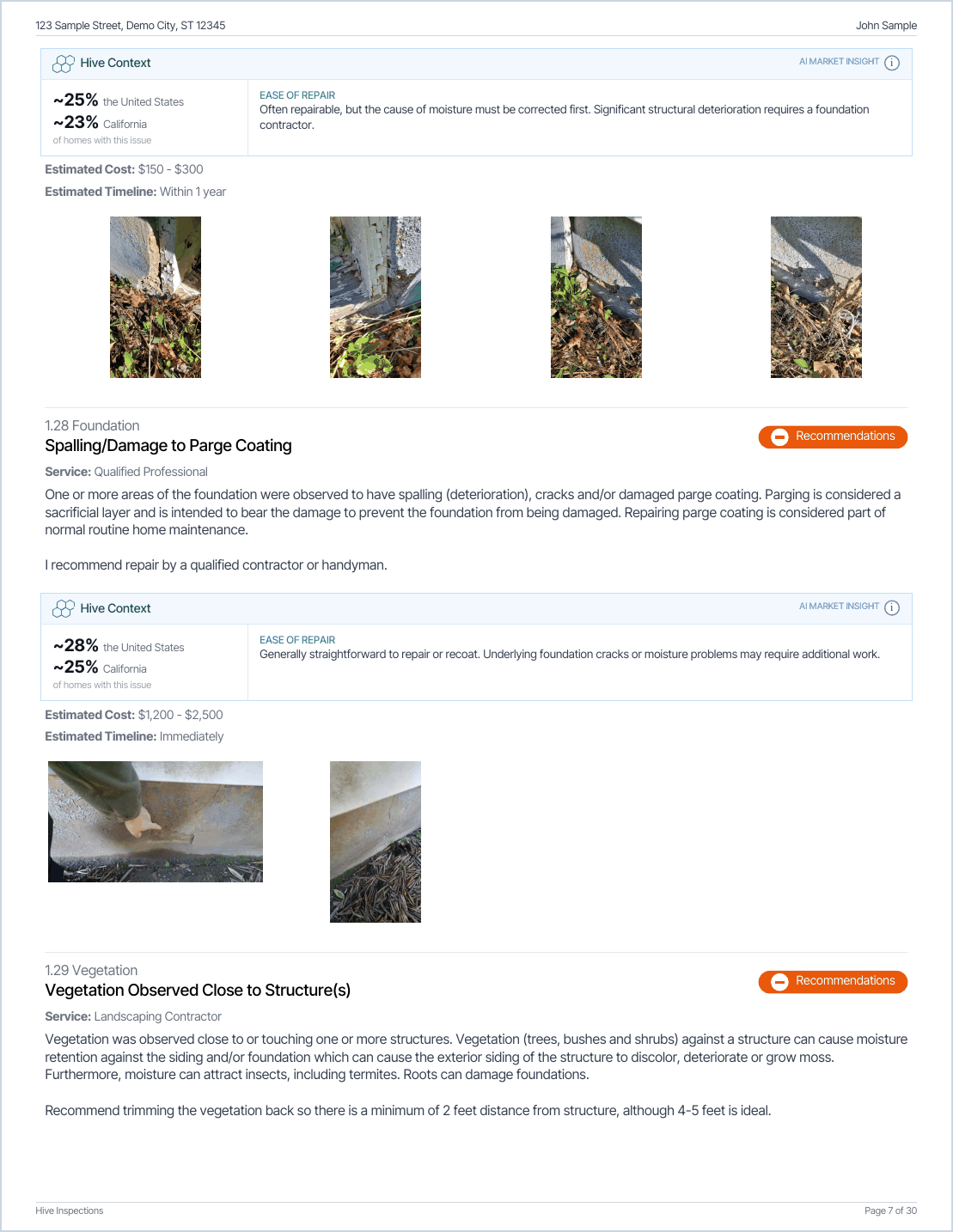 * Sections follow each other without starting a new page.
* Photos sit four across instead of three, unless you choose 2 or 1 per row below.
* Text is about one to two points smaller.
### Photos per row in the PDF
How many photos sit side by side in the PDF.
* Sections follow each other without starting a new page.
* Photos sit four across instead of three, unless you choose 2 or 1 per row below.
* Text is about one to two points smaller.
### Photos per row in the PDF
How many photos sit side by side in the PDF.
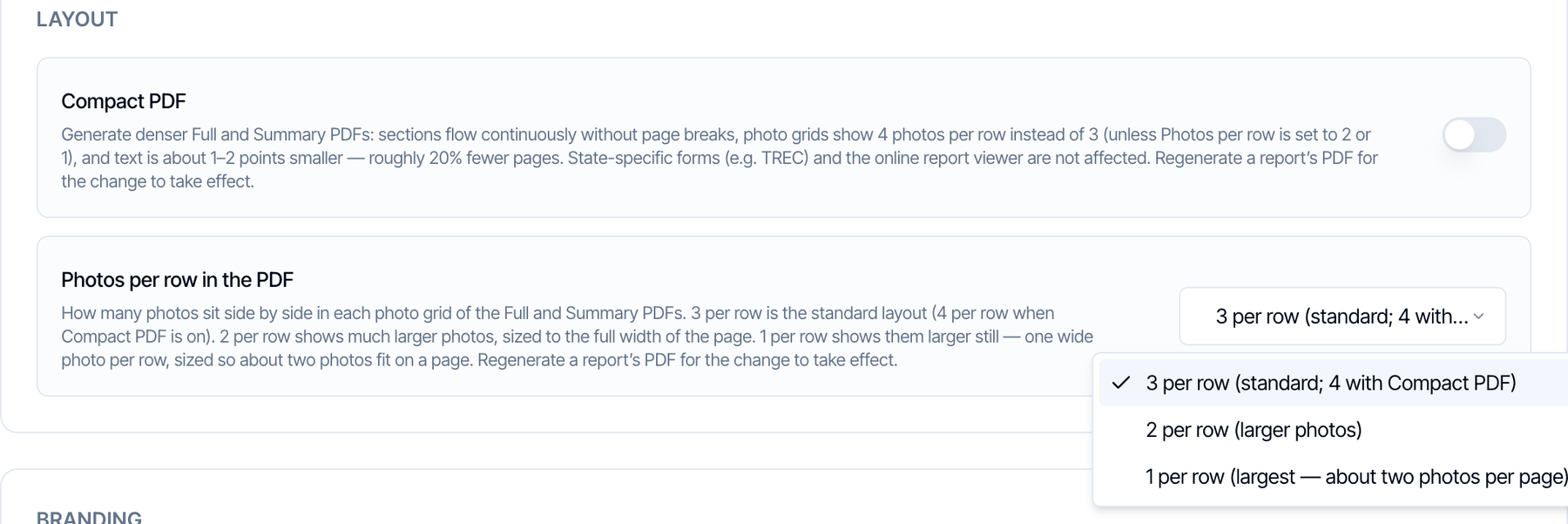
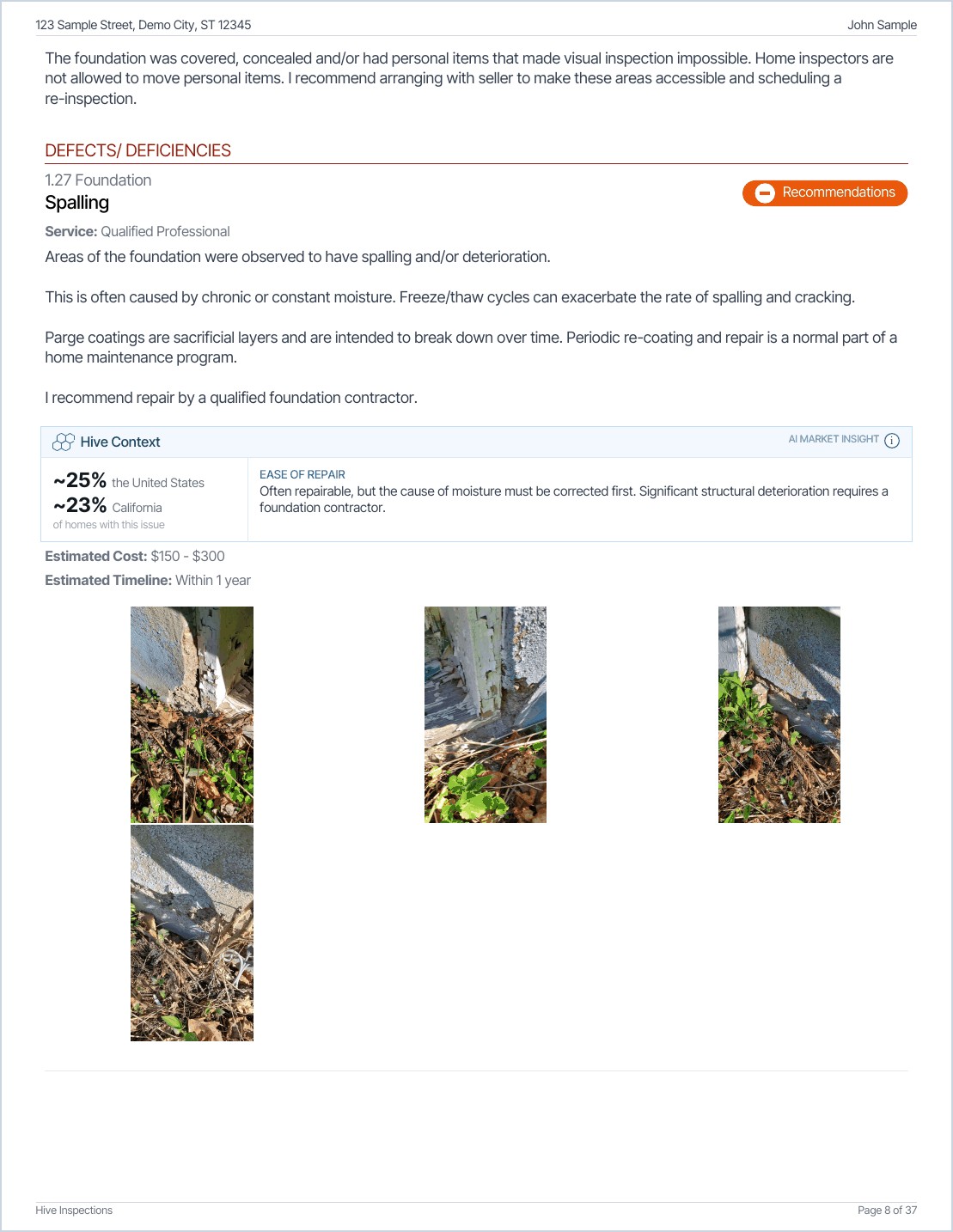
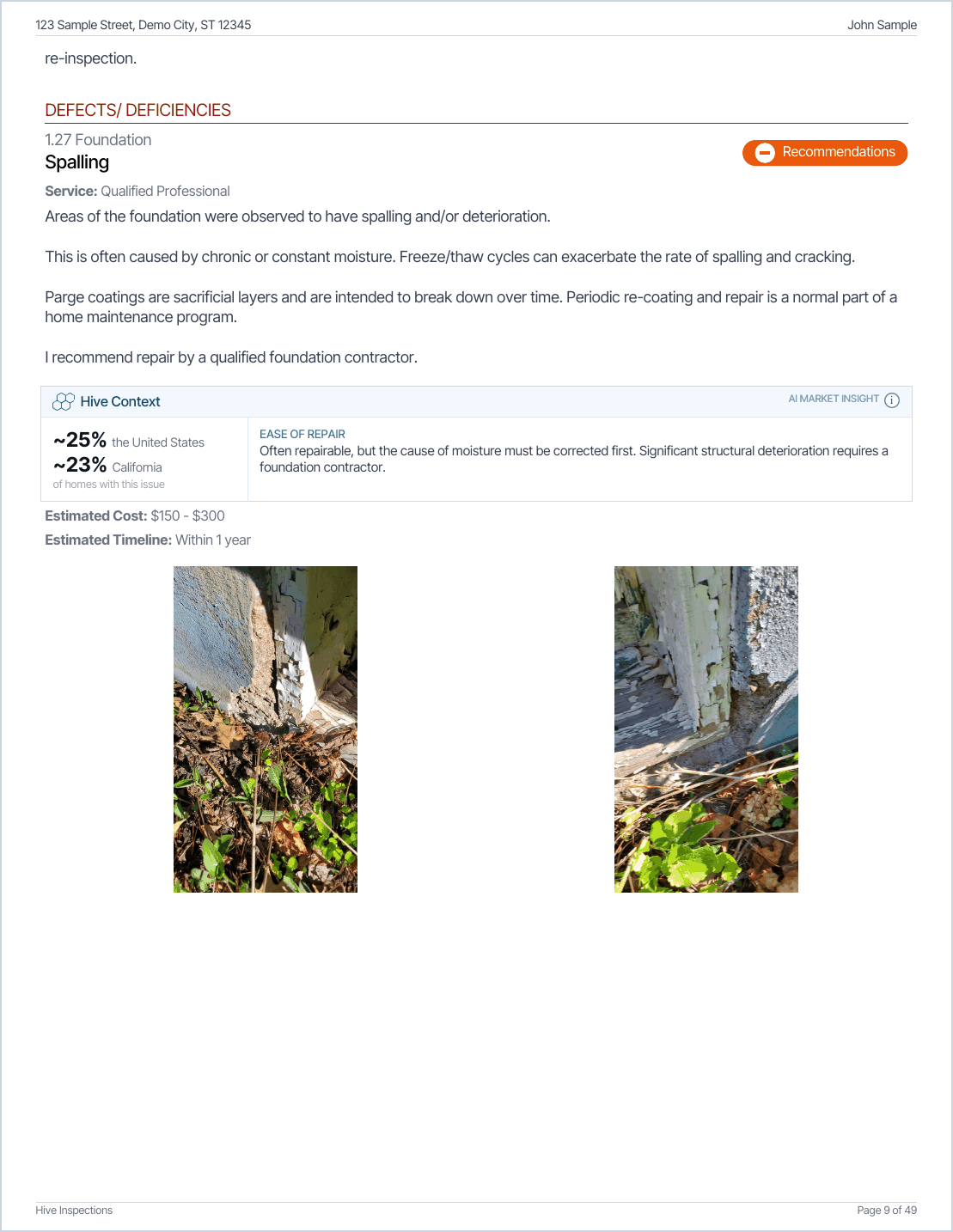
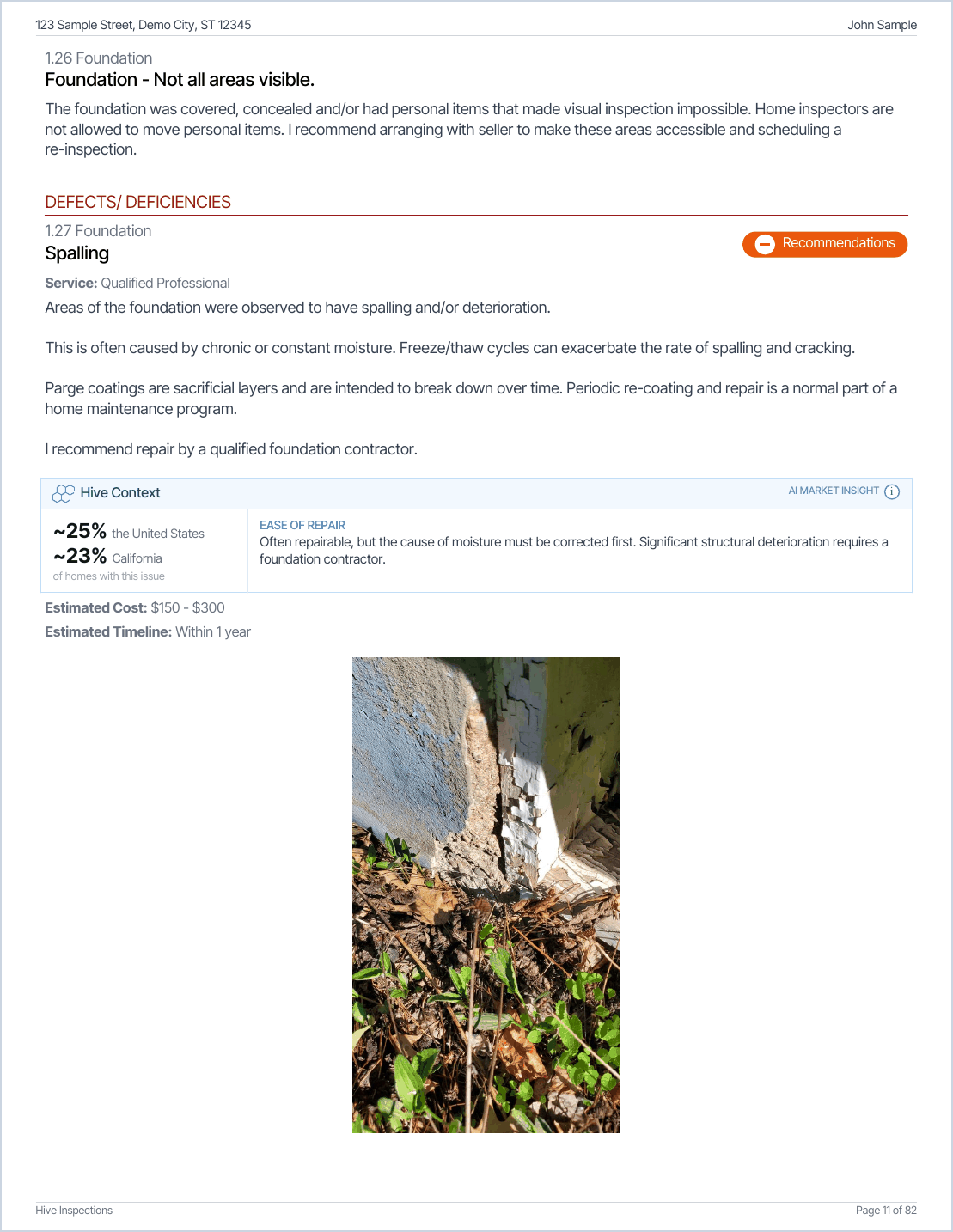 **2** or **1** per row wins over Compact PDF's four across. Compact PDF still makes the text smaller and removes the page breaks.
### Logo watermark
Draw your company logo, faded, behind every page of the PDF except the cover. Default: off.
* **Logo Watermark on Main Report** adds it to the full report PDF.
* **Logo Watermark on Summary Report** adds it to the summary PDF.
**2** or **1** per row wins over Compact PDF's four across. Compact PDF still makes the text smaller and removes the page breaks.
### Logo watermark
Draw your company logo, faded, behind every page of the PDF except the cover. Default: off.
* **Logo Watermark on Main Report** adds it to the full report PDF.
* **Logo Watermark on Summary Report** adds it to the summary PDF.
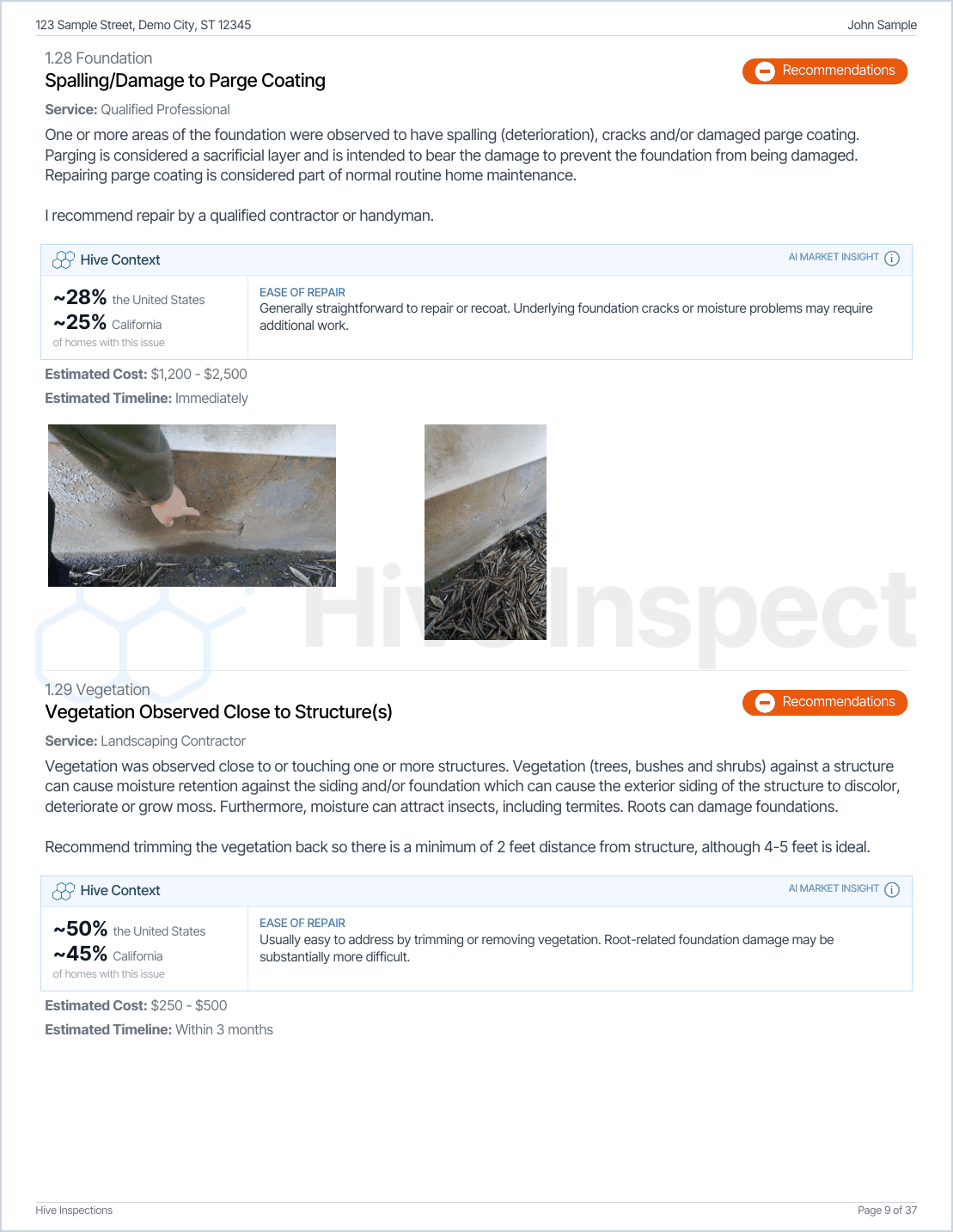 * The logo is drawn at 8% opacity, centered, and as wide as the page allows.
* It uses your **Company Logo**. Upload it under **Profile Settings → Profile → Company Information → Company Logo**. A wide logo on a transparent background works best.
* If you haven't uploaded a logo, no watermark is drawn.
## All settings at a glance
| Setting | Tab | Default | Also in Template Tools or Report Tools |
| - | - | - | - |
| Report Theme Color | Both Formats | `#0176DF` | No |
| Blue, Orange, Red Category Name | Both Formats | Maintenance Items, Recommendations, Safety Concerns | Yes: Category Names |
| Comment Type Header for Defects/ Deficiencies | Both Formats | Defects/ Deficiencies | No |
| Summary for Defects / Deficiencies | Both Formats | Off | Categories in it: yes |
| Summary Placement | Both Formats | Top of Report | No |
| Detailed Summary Items | Both Formats | Off | No |
| Show Section Status Grid in Reports | Both Formats | On | No |
| Section-Level Field Grouping | Both Formats | On | No |
| Show Repair Addendum to Customers / Buyer's Agent | Both Formats | On | No |
| Use a Default Annotation Color | Both Formats | Off | Mobile app: Annotation Settings |
| Digital Report Banner Design | Digital Report | Hero | No |
| Show Chart(s) on Report, Chart Slots, Show Charts On | Digital Report | Off, None, Both | No |
| Single-Column Field Layout (Desktop) | Digital Report | Off | No |
| Adaptive Layout for Information & Limitations | Digital Report | Off | No |
| Subtle Color Background for Information and Limitation Comments | Digital Report | Off | Tabs instead: yes |
| Cover Page Design | PDF Report | Classic | No |
| Table of Contents Page | PDF Report | On | No |
| Clickable Section Tabs | PDF Report | Off | No |
| Compact PDF | PDF Report | Off | No |
| Photos per row in the PDF | PDF Report | 3 per row | No |
| Logo Watermark on Main / Summary Report | PDF Report | Off | No |
## Frequently asked questions
Existing PDFs aren't rebuilt when you change a setting. Open the report in the Web Editor, click **PDF**, then **Regenerate**. In the mobile app, tap the three dots on the report and choose **Regenerate PDF**.
Each template keeps its own category names, and each report keeps the names it was created with. Rename them in **Template Tools → Category Names** for new reports, or in **Report Tools → Category Names** for one report.
Some, yes. Category names, hidden category names, hidden services, the categories in the summary, the defects count card, Information and Limitation tabs and the Cost to Cure table can be set per template or per report. Everything else on this page applies to your whole company. See [Template Tools and Report Tools](/how-tos/template-and-report-tools).
The form pages keep their fixed layout. A form's summary PDF follows the PDF settings, and the cover page design applies to the covers of most forms. The online report follows the Both Formats and Digital Report settings.
Your logo is your **Company Logo** under **Profile Settings → Profile → Company Information**. It's used on the cover page and for the logo watermark.
* The logo is drawn at 8% opacity, centered, and as wide as the page allows.
* It uses your **Company Logo**. Upload it under **Profile Settings → Profile → Company Information → Company Logo**. A wide logo on a transparent background works best.
* If you haven't uploaded a logo, no watermark is drawn.
## All settings at a glance
| Setting | Tab | Default | Also in Template Tools or Report Tools |
| - | - | - | - |
| Report Theme Color | Both Formats | `#0176DF` | No |
| Blue, Orange, Red Category Name | Both Formats | Maintenance Items, Recommendations, Safety Concerns | Yes: Category Names |
| Comment Type Header for Defects/ Deficiencies | Both Formats | Defects/ Deficiencies | No |
| Summary for Defects / Deficiencies | Both Formats | Off | Categories in it: yes |
| Summary Placement | Both Formats | Top of Report | No |
| Detailed Summary Items | Both Formats | Off | No |
| Show Section Status Grid in Reports | Both Formats | On | No |
| Section-Level Field Grouping | Both Formats | On | No |
| Show Repair Addendum to Customers / Buyer's Agent | Both Formats | On | No |
| Use a Default Annotation Color | Both Formats | Off | Mobile app: Annotation Settings |
| Digital Report Banner Design | Digital Report | Hero | No |
| Show Chart(s) on Report, Chart Slots, Show Charts On | Digital Report | Off, None, Both | No |
| Single-Column Field Layout (Desktop) | Digital Report | Off | No |
| Adaptive Layout for Information & Limitations | Digital Report | Off | No |
| Subtle Color Background for Information and Limitation Comments | Digital Report | Off | Tabs instead: yes |
| Cover Page Design | PDF Report | Classic | No |
| Table of Contents Page | PDF Report | On | No |
| Clickable Section Tabs | PDF Report | Off | No |
| Compact PDF | PDF Report | Off | No |
| Photos per row in the PDF | PDF Report | 3 per row | No |
| Logo Watermark on Main / Summary Report | PDF Report | Off | No |
## Frequently asked questions
Existing PDFs aren't rebuilt when you change a setting. Open the report in the Web Editor, click **PDF**, then **Regenerate**. In the mobile app, tap the three dots on the report and choose **Regenerate PDF**.
Each template keeps its own category names, and each report keeps the names it was created with. Rename them in **Template Tools → Category Names** for new reports, or in **Report Tools → Category Names** for one report.
Some, yes. Category names, hidden category names, hidden services, the categories in the summary, the defects count card, Information and Limitation tabs and the Cost to Cure table can be set per template or per report. Everything else on this page applies to your whole company. See [Template Tools and Report Tools](/how-tos/template-and-report-tools).
The form pages keep their fixed layout. A form's summary PDF follows the PDF settings, and the cover page design applies to the covers of most forms. The online report follows the Both Formats and Digital Report settings.
Your logo is your **Company Logo** under **Profile Settings → Profile → Company Information**. It's used on the cover page and for the logo watermark.
Related
This documentation is built and hosted on [Mintlify](https://mintlify.com), a developer documentation platform.