

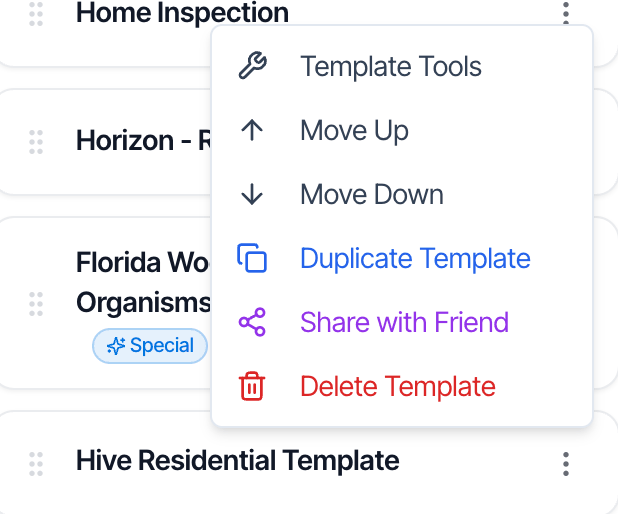
In the dashboard: Templates → open a template → Template Tools, or in a report: Web Editor → ⋮ (Report Tools)
Three places to change how reports look
Hive has three levels of report settings. The level you pick decides how many reports change.
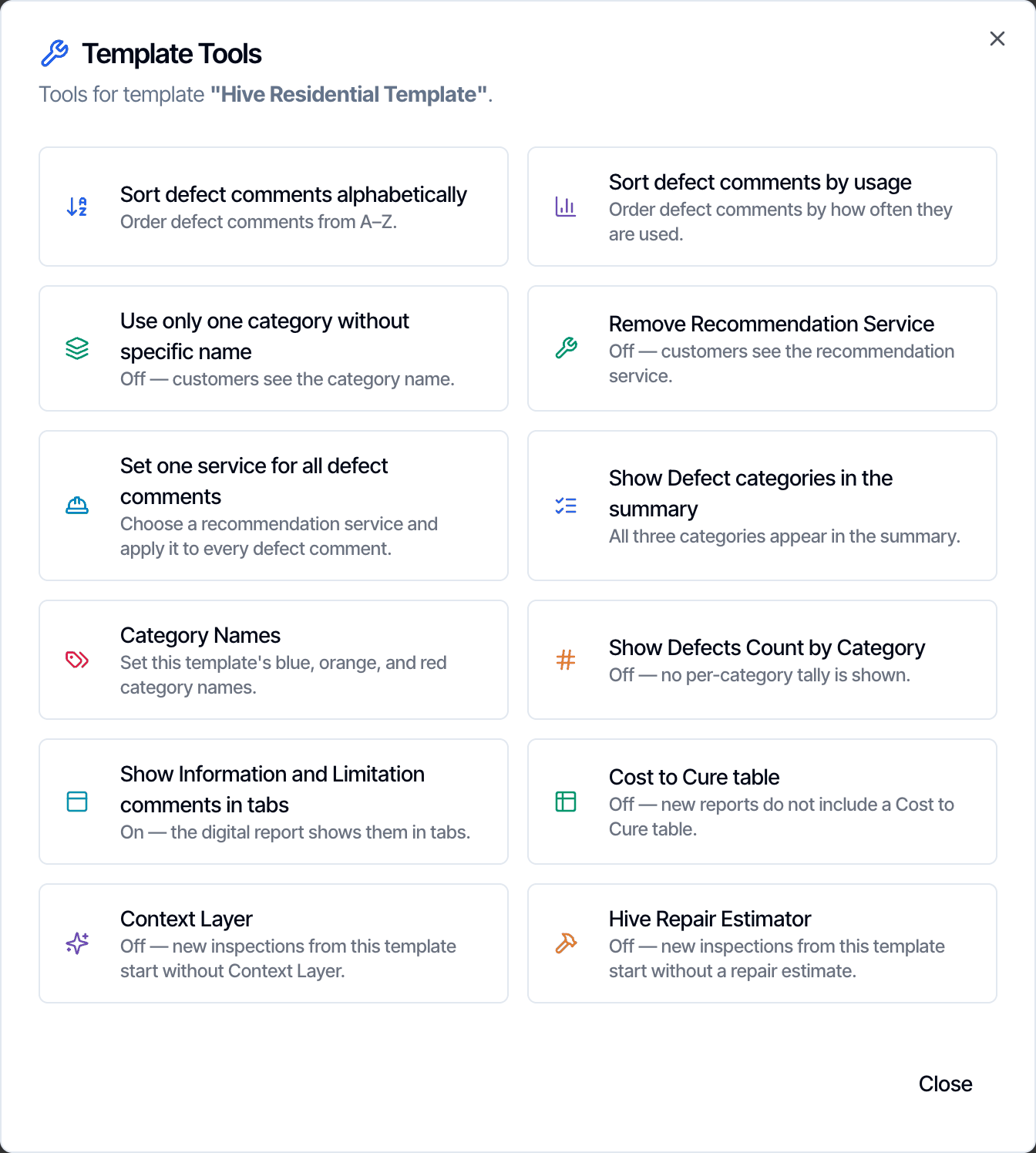
Template Tools and Report Tools share most of their settings. Turn a setting on in Template Tools and every new report from that template starts with it on. Change it in Report Tools to make an exception for one report.
The report always wins. A report copies the template’s settings when it is first created. After that, Template Tools changes never reach it. To change a report that already exists, use Report Tools.
Open Template Tools
You can open Template Tools from the template’s Overview, or from the template list.From the template's Overview

- Click Templates in the sidebar and open the template.
- On the Overview screen, click Template Tools at the top right.
- If the template has unsaved changes, save or discard them first. Template Tools waits until you do.
Open Report Tools
Report Tools is in the Web Editor, on the web only. The mobile app does not have it.Open the report in the Web Editor
- Open the inspection and click Edit Reports, then pick the report. See Web Editor.

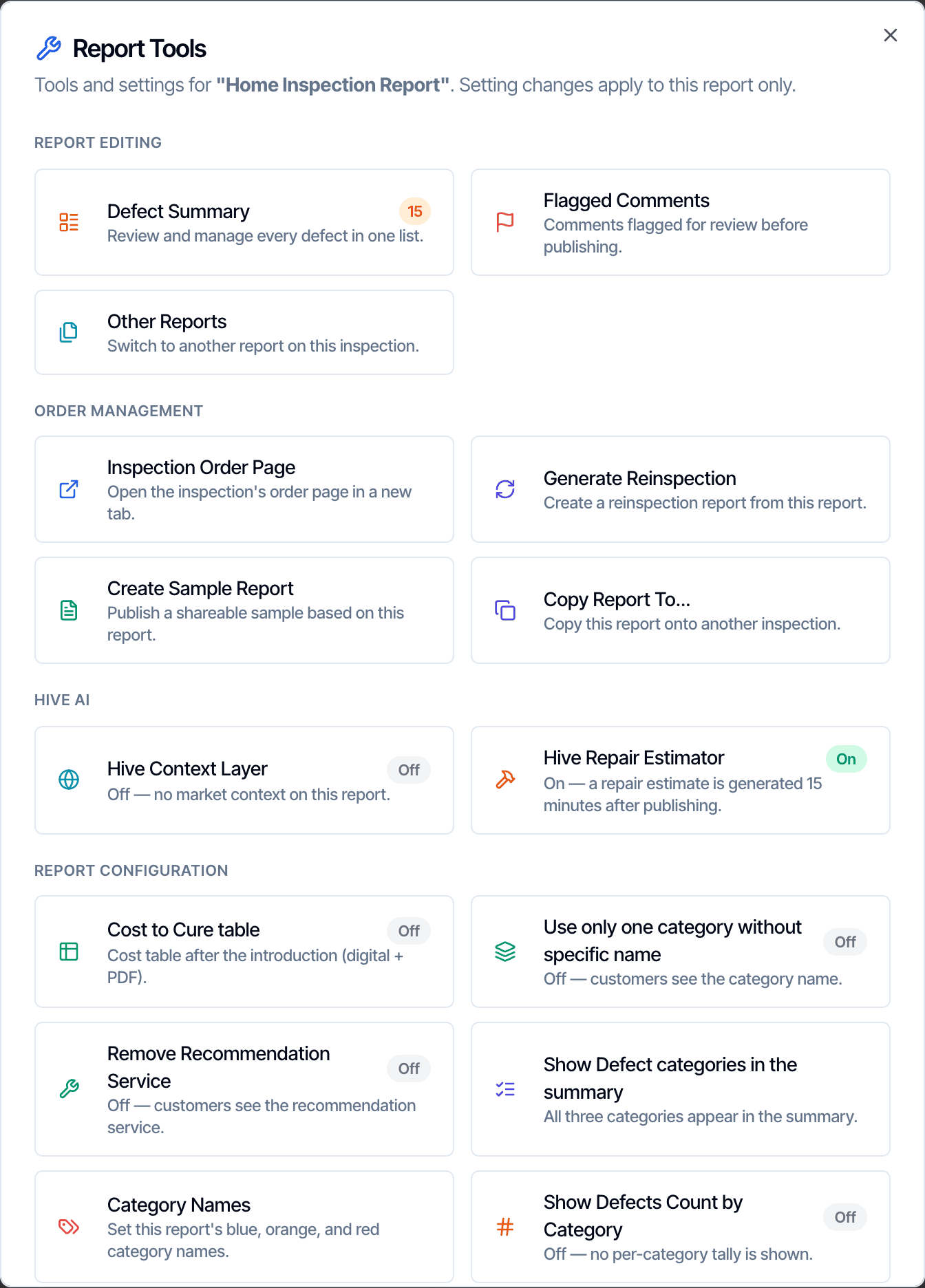
Report Tools changes save with the report, just like an edit. The Web Editor saves on its own a few seconds later, or you can click Save.
Settings you can change in both places
Each setting below is in Template Tools and in Report Tools, with the same name.- In Template Tools, it becomes the starting value for new reports from that template.
- In Report Tools, it changes only the report you have open.
Use only one category without specific name
Hide the category name (for example Safety Concerns) from your client. Your client sees each defect, but not which category it belongs to.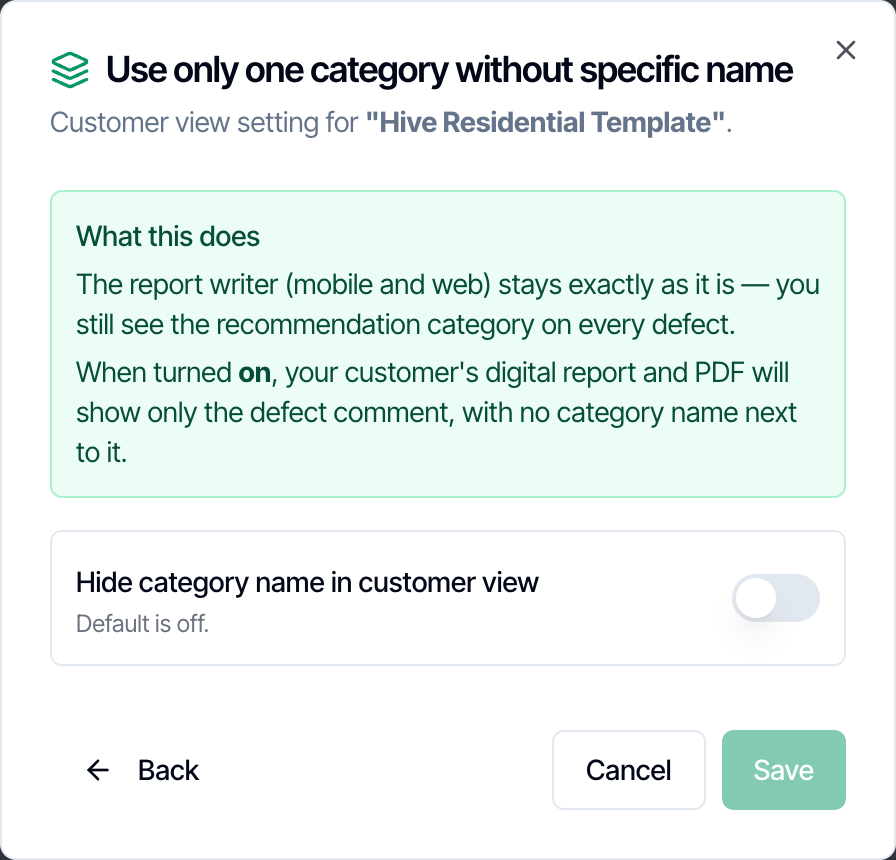
- Turn on Hide category name in customer view and click Save.
- You still see and pick categories as you write, on the web and in the mobile app. Only the client’s view changes.
- Off (default)
- On
Remove Recommendation Service
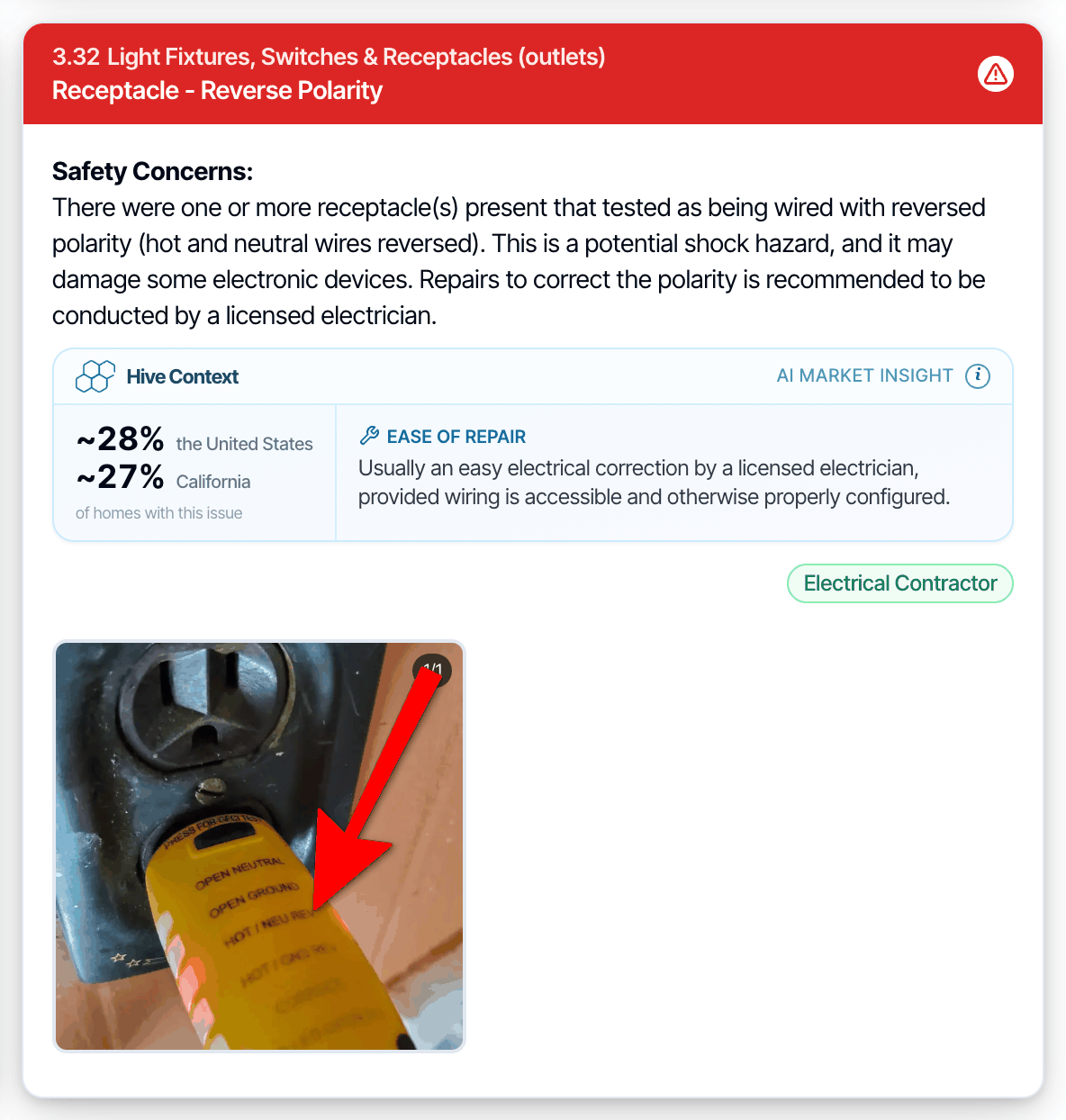
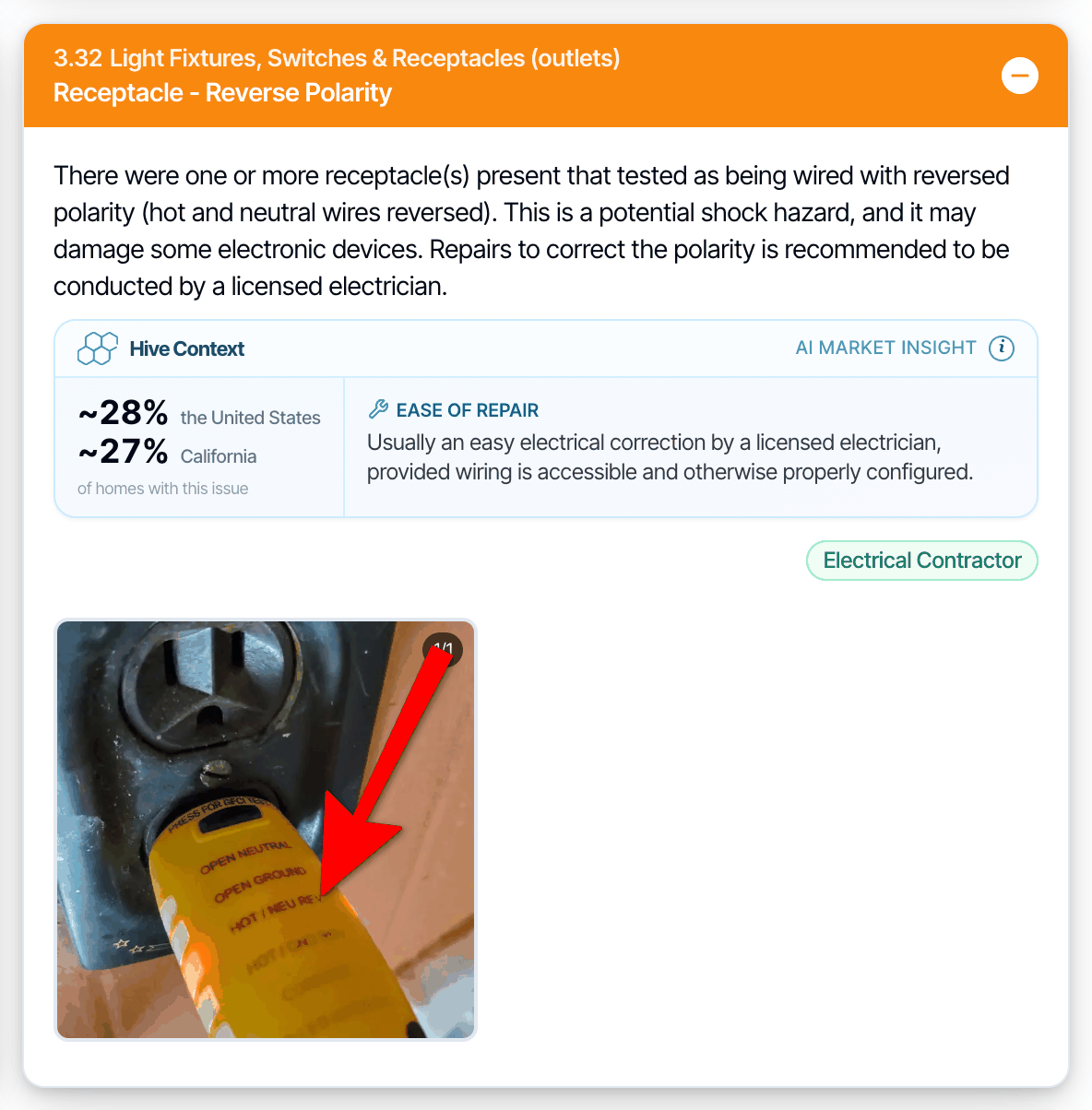
Hide the recommended service (for example Electrical Contractor) from your client.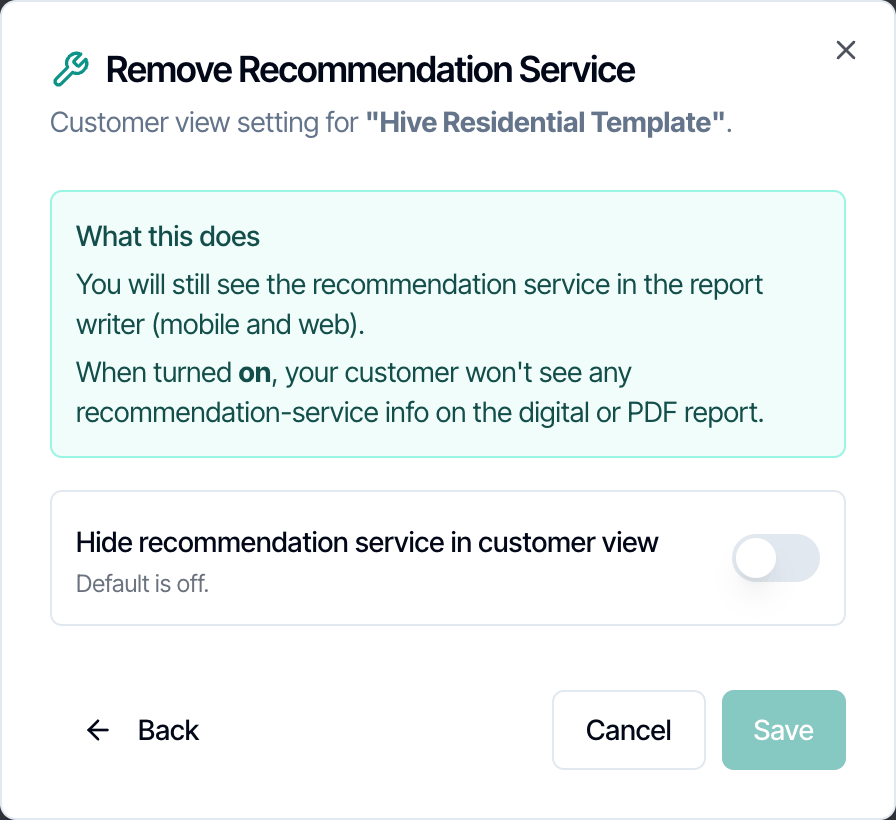
- Turn on Hide recommendation service in customer view and click Save.
- The green service badge on each defect disappears from the digital report and the PDF. The service is also left out of the defects summary.
- You still see the service while you write.
Turning this on also hides the one-click repair quotes at the end of the digital report, because quotes are matched to your recommended contractors by service. See One-click repair quotes.
Show Defect categories in the summary
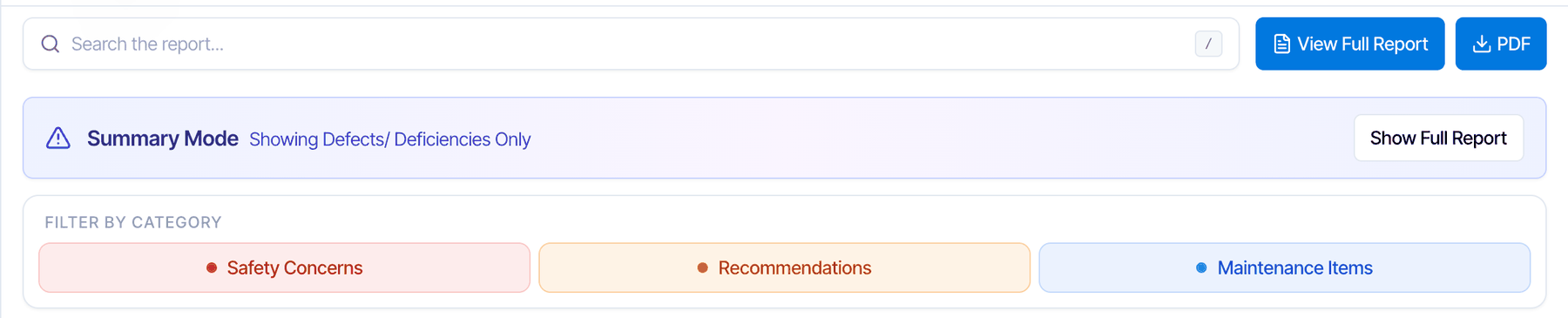
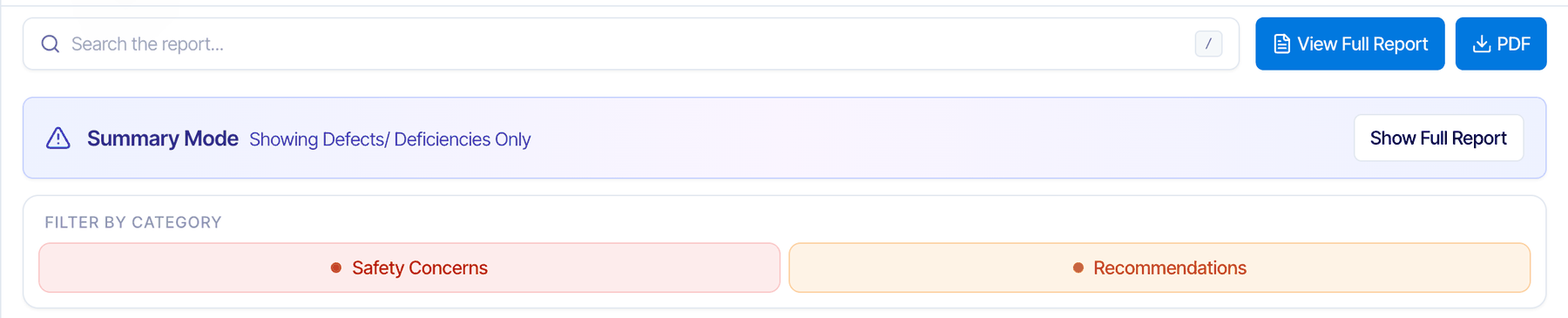
Choose which categories appear in the report’s summary. For example, leave maintenance items out of the summary, so your client’s summary focuses on the bigger issues.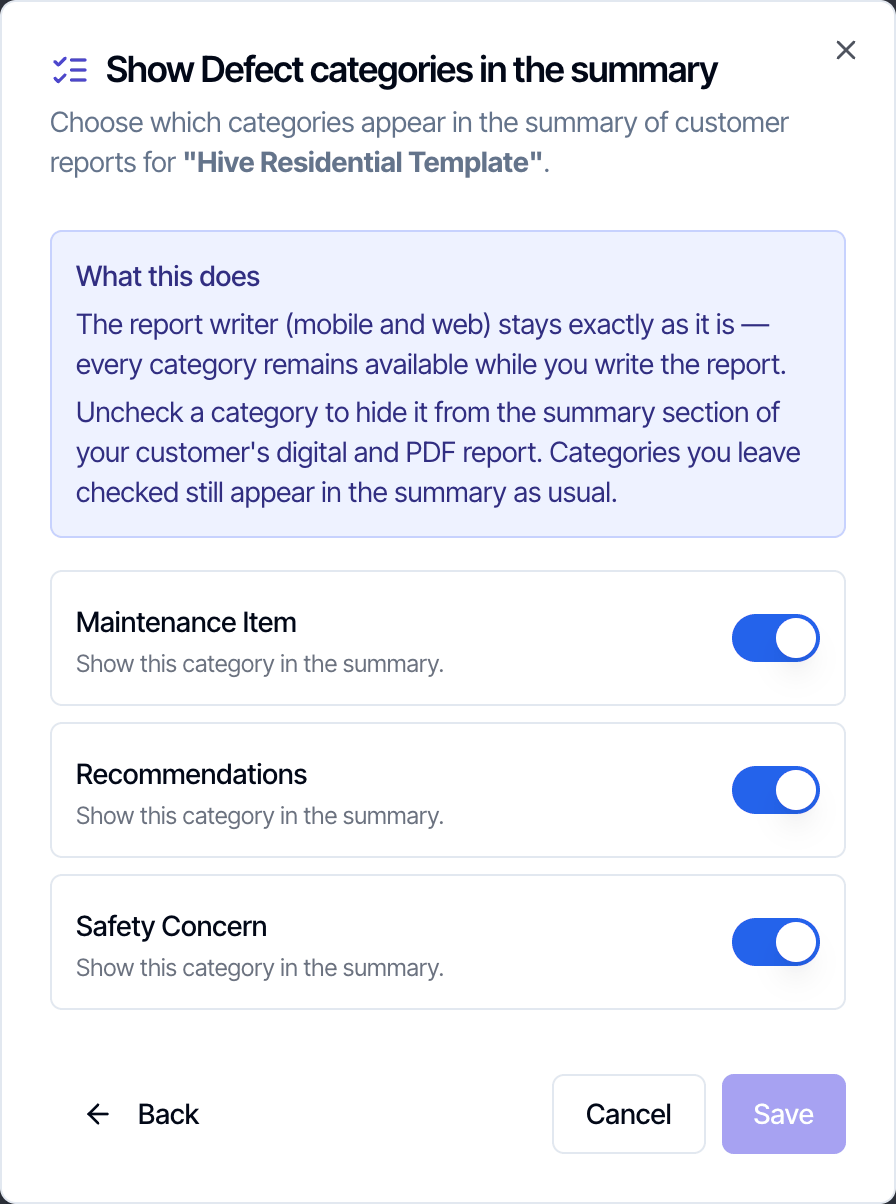
- Each category has its own switch, labeled with its name. Turn off the ones to leave out and click Save.
- At least one category has to stay on.
- the Summary view of the digital report: its items, its filter button and its counts
- the Summary PDF
- the defects summary in the full report, when you use one (see Defects summary)
- All three categories
- Maintenance Items turned off
Category Names
Name your three defect categories: blue (lowest severity), orange and red (highest severity).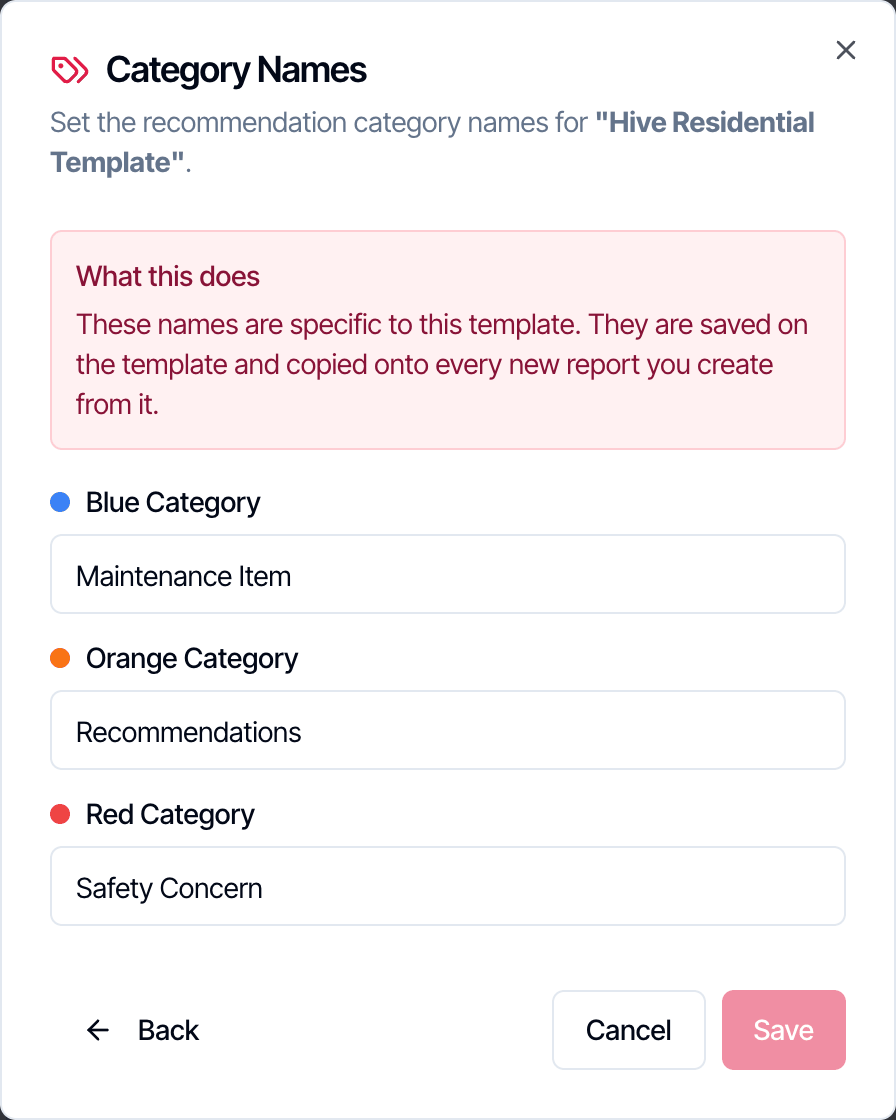
- Type the names and click Save.
- The names appear everywhere your client sees a category: on each defect, in the legends, in the summary and in the PDF.
- Report Tools names, if you set them for that report.
- Otherwise, the template’s names at the moment the report was created.
- If the template has none, your company names in Report Customization.
Show Defects Count by Category
Add a card near the top of the digital report that counts the defects in each category.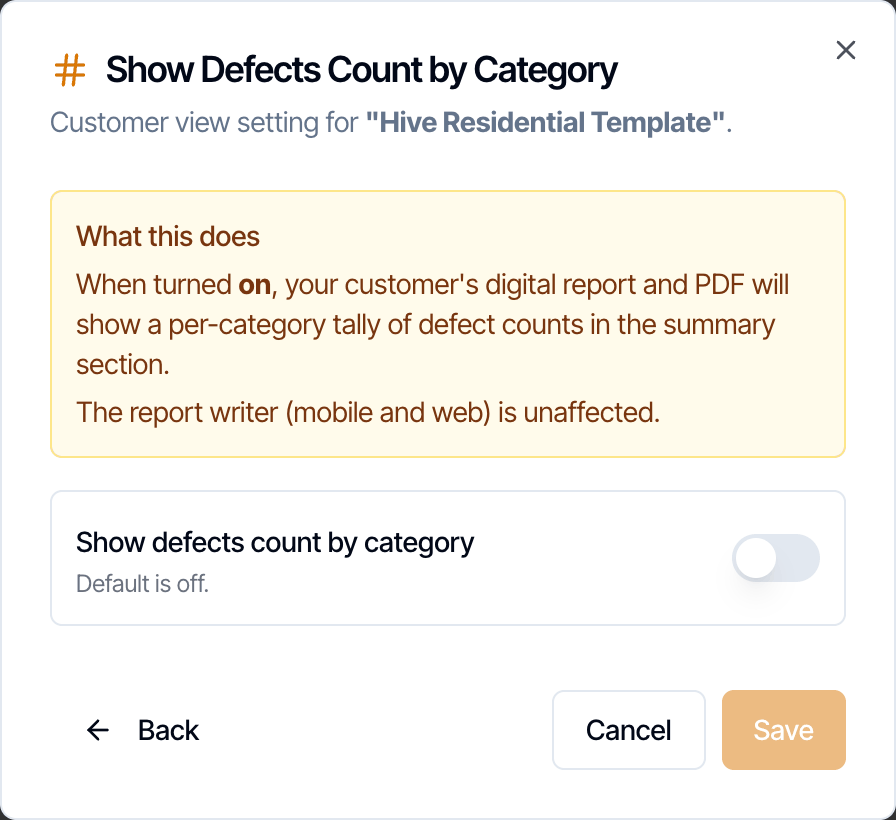
- Turn on Show defects count by category and click Save.

- In the full report, the card sits above the introduction.
- In the Summary view, the counts appear on the category filter buttons.
- This setting is for the digital report only. The PDF does not show the count card.
Show Information and Limitation comments in tabs
Put each subsection’s Information and Limitation comments into two tabs, so the client sees the defects sooner.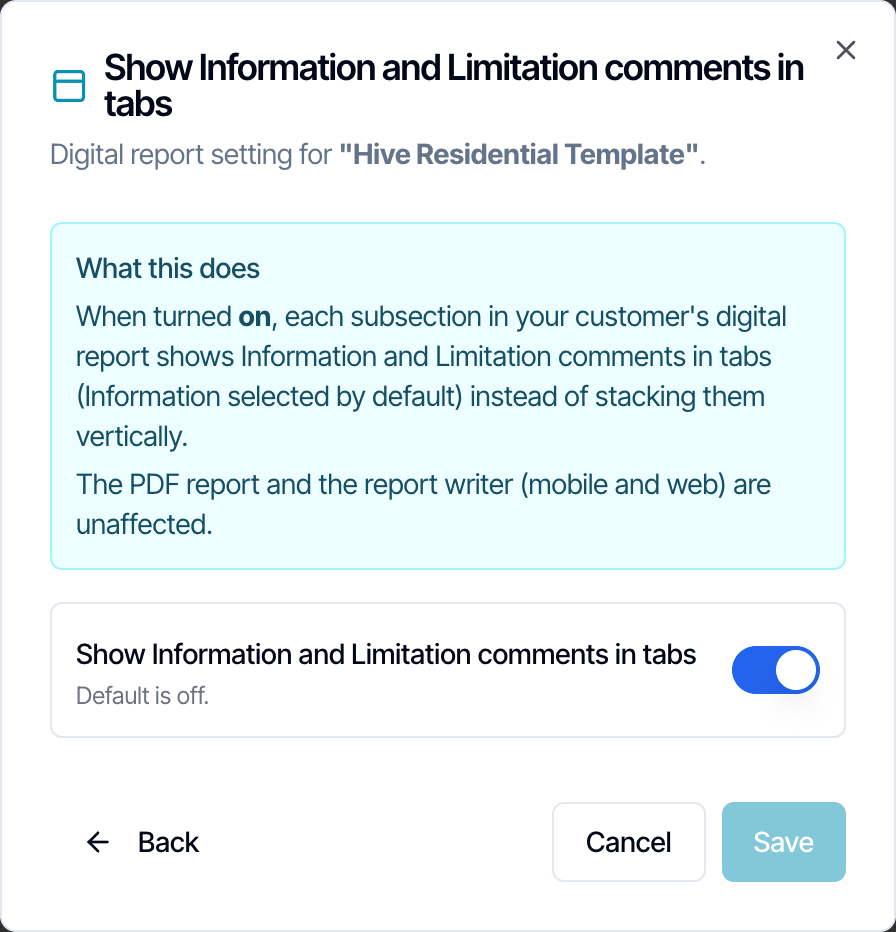
- Turn on Show Information and Limitation comments in tabs and click Save.
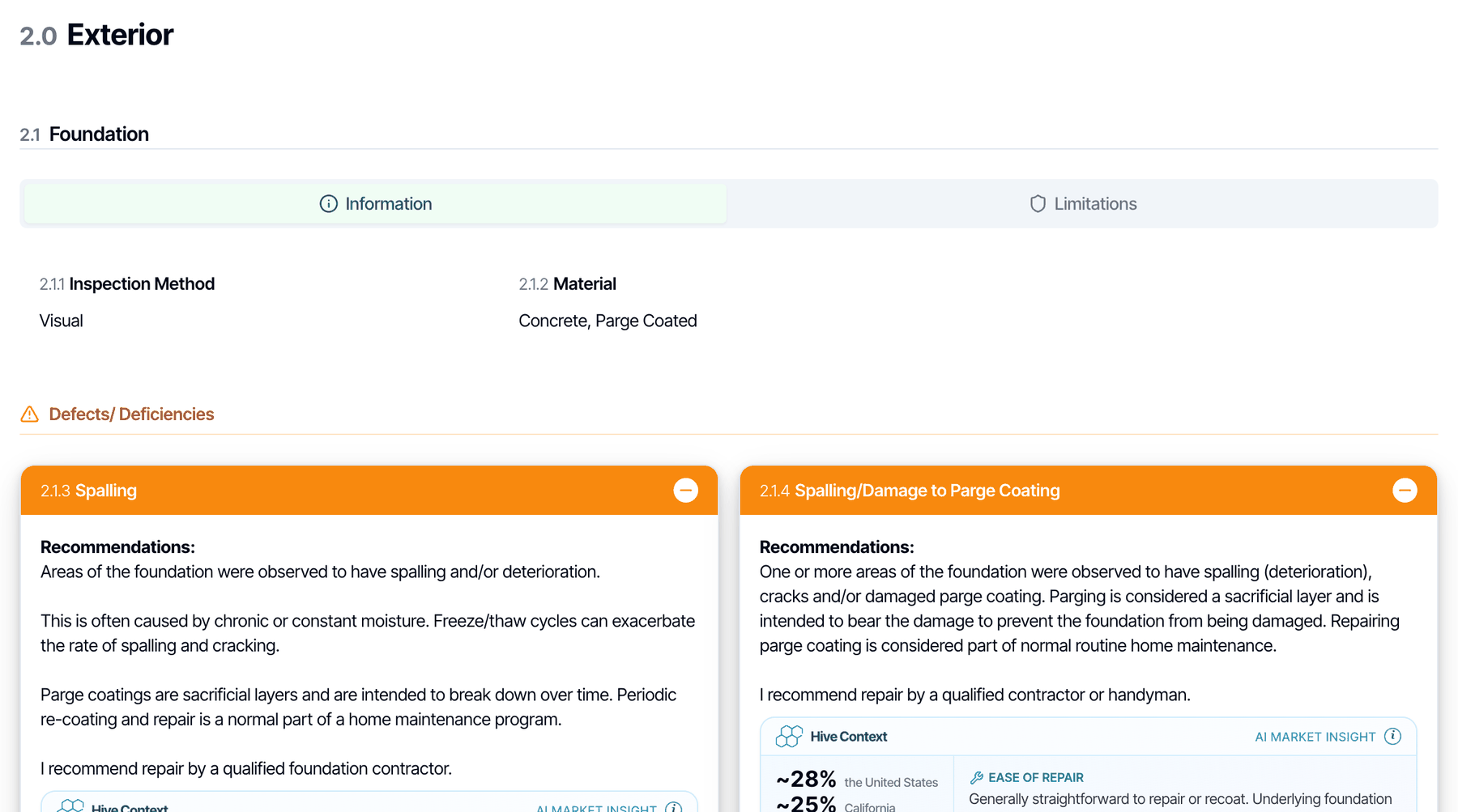
- Information is open by default. Your client clicks Limitations to see those comments.
- Tabs appear only in a subsection that has both kinds of comment.
- This changes the digital full report only. The PDF and the Summary view are unaffected.
Cost to Cure table
List every defect you priced in a table right after the introduction, in the digital report and the PDF.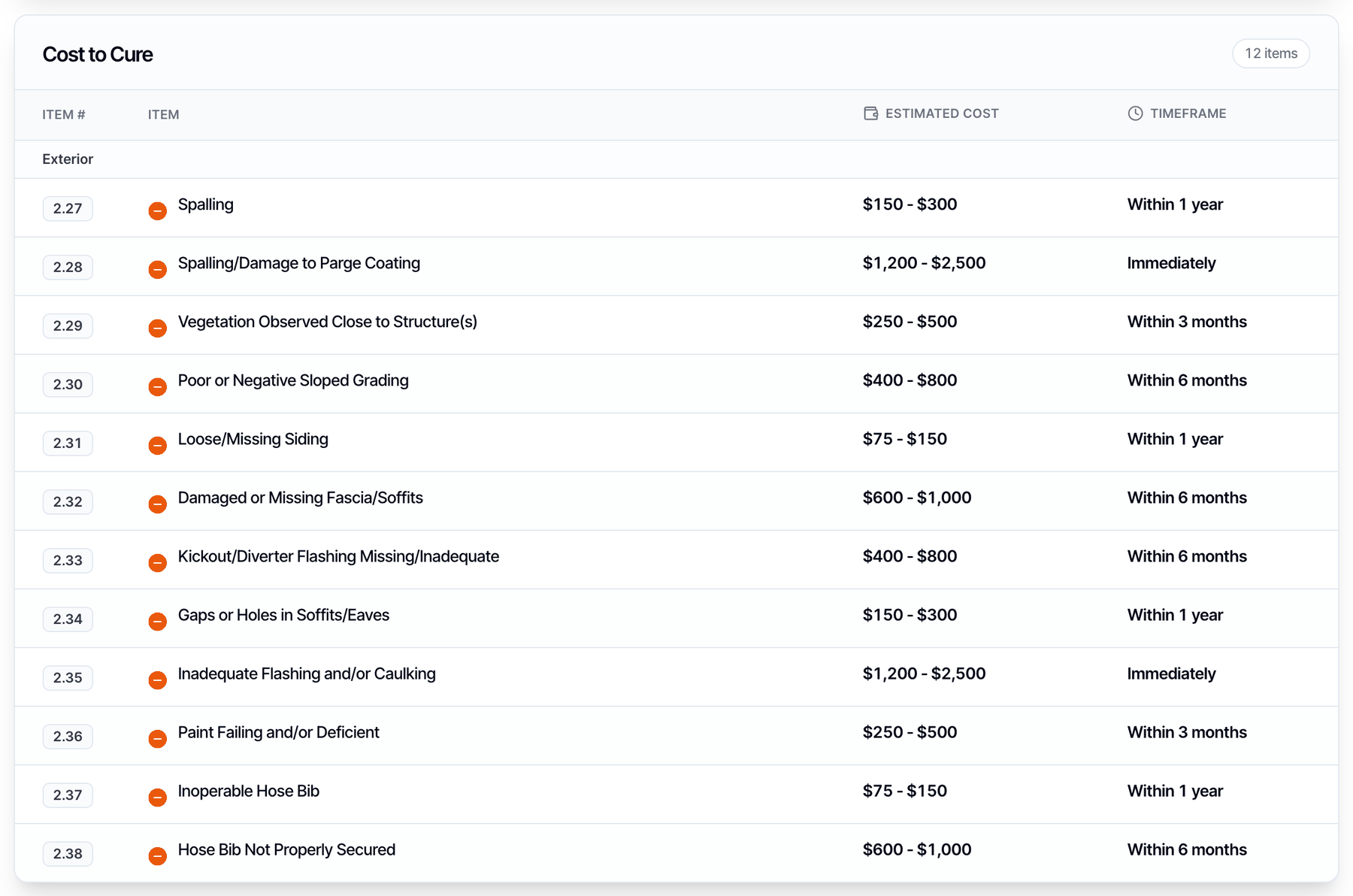
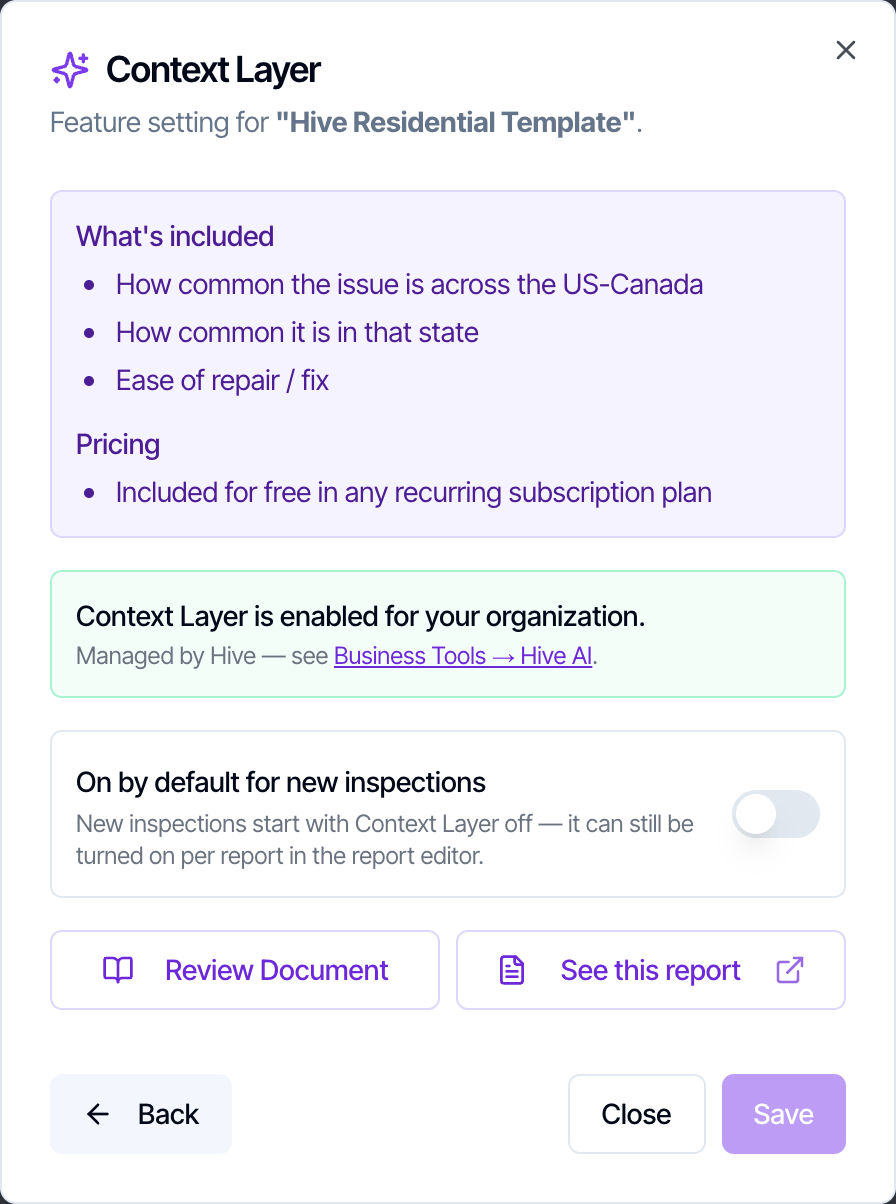
Hive Context Layer
Add AI market context to each defect: how common the issue is nationally and in the property’s state, and how easy it is to fix.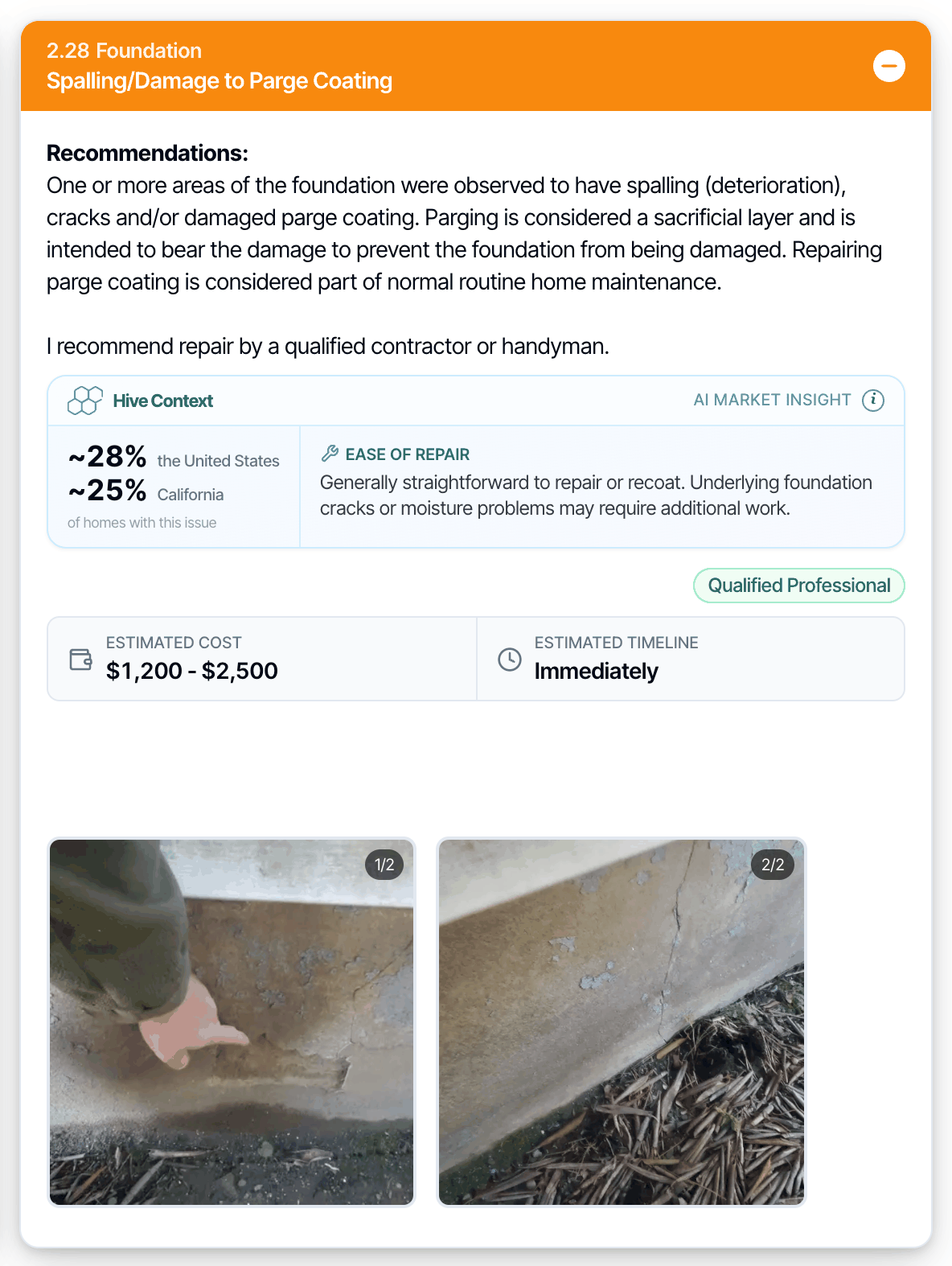
- In Template Tools, open Context Layer and turn on On by default for new inspections.
- In Report Tools, open Hive Context Layer and turn on Show Context Layer on this report.
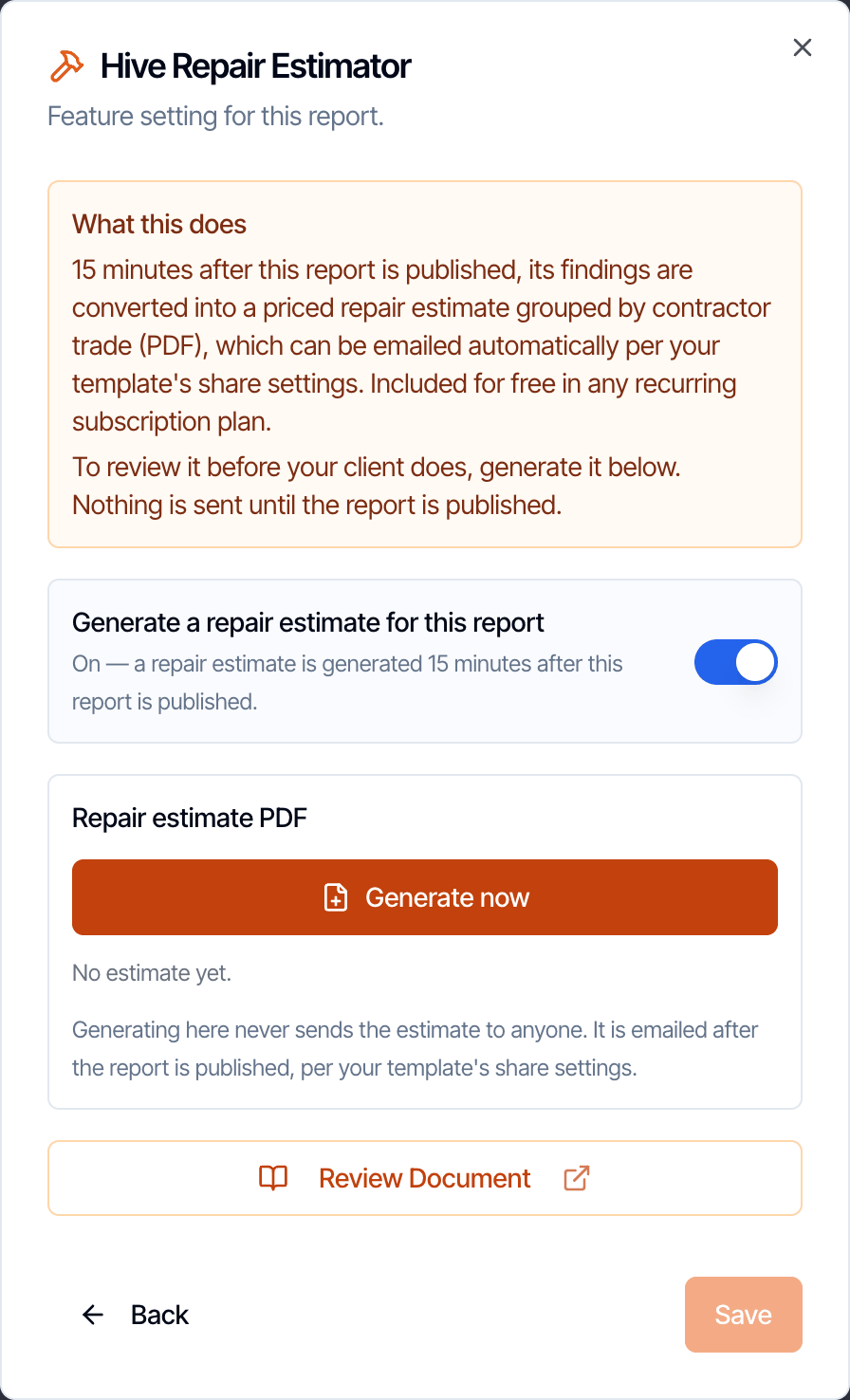
Hive Repair Estimator
Price every defect by contractor trade in a separate PDF, emailed 15 minutes after you publish.- In Template Tools, turn on Generate automatically for new inspections and choose who gets the email under Share the estimate.
- In Report Tools, turn the estimate on or off for one report. You can also preview it with Generate now. Previewing never emails anyone.
One-click template actions
These three tools are in Template Tools only. They rewrite the template’s defect comments right away.Sort defect comments alphabetically
Put the defect comments in each component in A to Z order.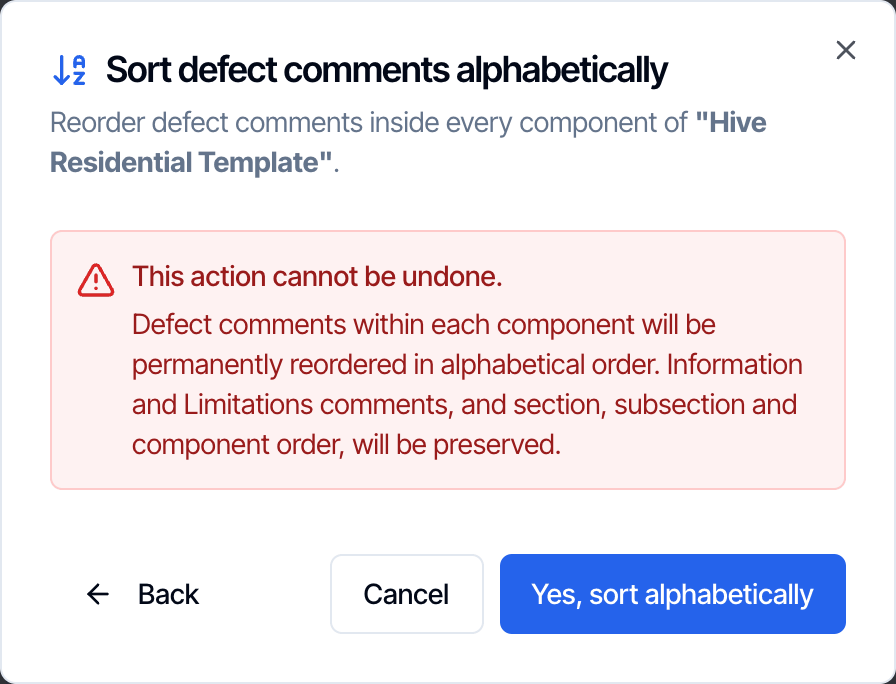
- Only defect comments move. Information and Limitation comments stay where they are, and so do sections, subsections and components.
- Click Yes, sort alphabetically to confirm.
Sort defect comments by usage
Put the comments you use most at the top, so you find them faster in the field.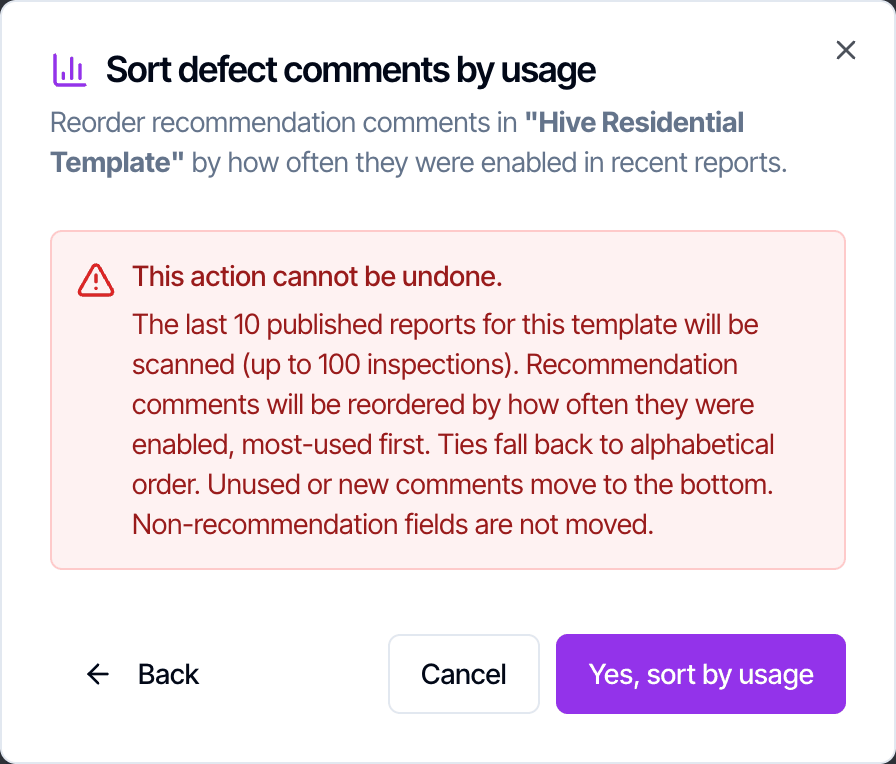
- Hive looks at the last 10 published reports from this template. It checks up to your 100 most recent inspections.
- Within each component, the comments you turned on most often move to the top. Ties are sorted A to Z. Comments you never used go to the bottom.
- Only defect comments move.
- Click Yes, sort by usage to confirm.
If the template has no published reports yet, Hive has no usage to go on, so it sorts the defect comments A to Z instead.
Set one service for all defect comments
Give every defect comment in the template the same recommended service, for example Qualified Professional.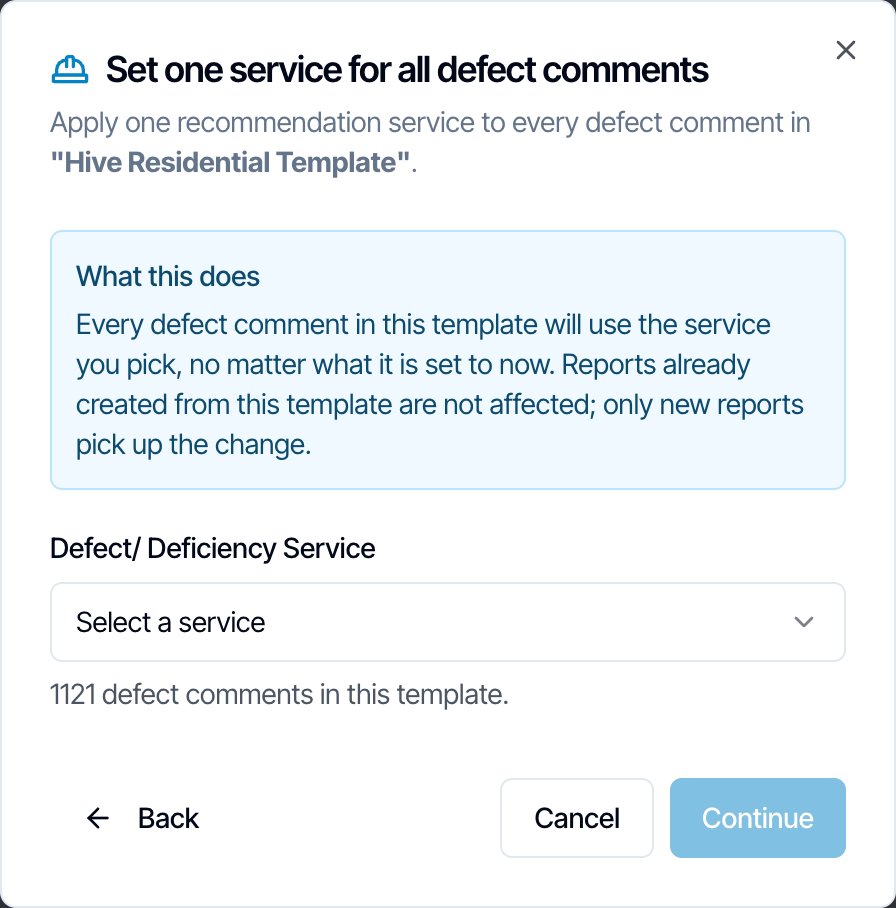
- Pick a service from Defect/ Deficiency Service. The list comes from your recommendation services.
- When you open Template Tools from the Overview, Hive shows how many comments will change.
- Click Continue, check the summary, then click Yes, apply to all.
Other template settings
A few template settings live on the template’s Overview screen instead of in Template Tools. Like the settings above, they are copied onto each new report.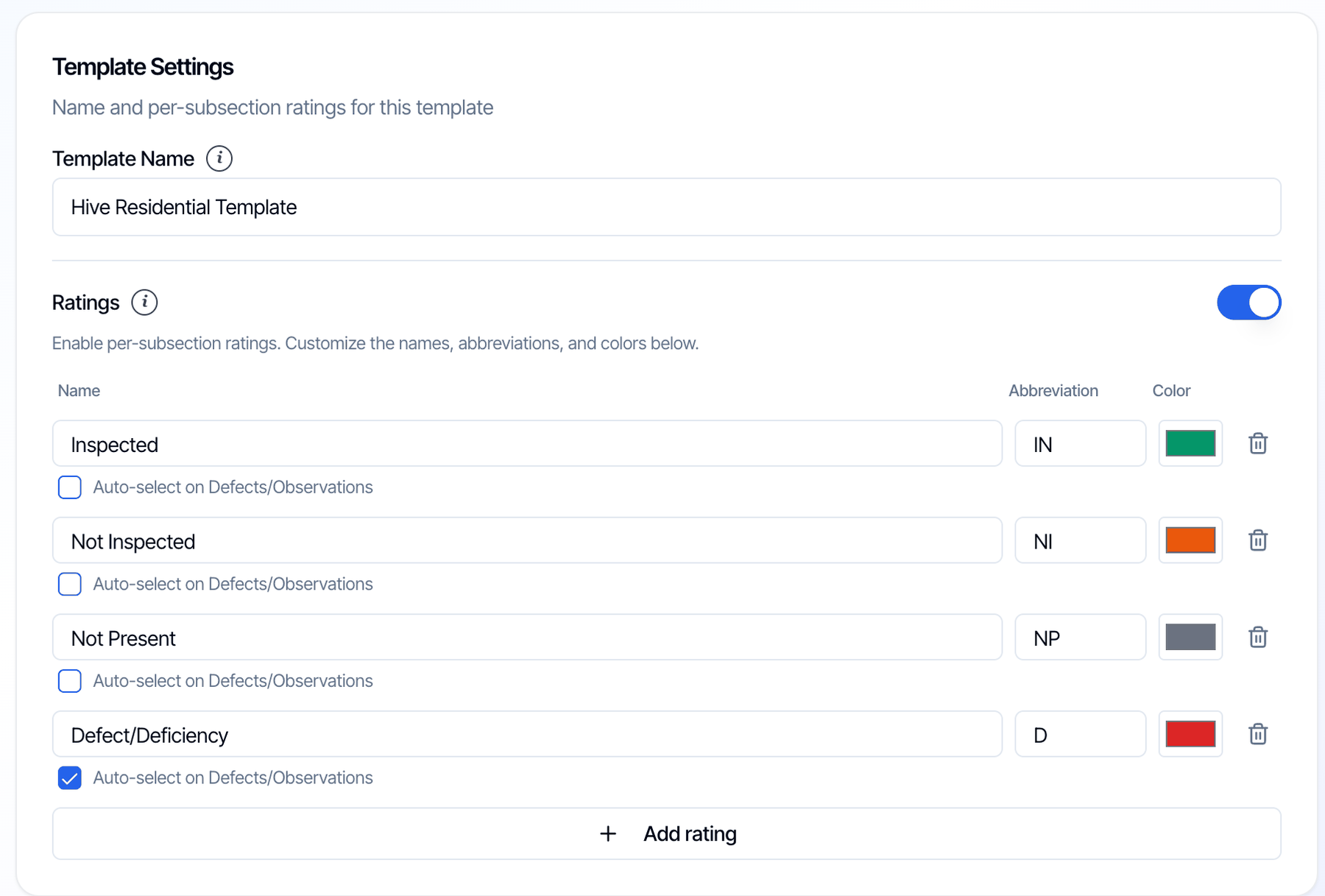
- Ratings. Turn per-subsection ratings on or off, and name and color them. See Disable ratings.
- Customer’s Info. The report name your client sees, and the introduction and summary text.
When your changes show up
Copies and reinspections
- Copy Report To… copies the whole report, including all its Report Tools settings.
- Generate Reinspection keeps the hidden category name, the hidden service, the Cost to Cure table and the category names. Every other setting starts at its default.
- Duplicate Template and Share with Friend copy every Template Tools setting along with the template.
Frequently asked questions
I changed a setting in Template Tools. Why didn't my report change?
I changed a setting in Template Tools. Why didn't my report change?
Template Tools sets the starting point for new reports. A report copies the template’s settings when it is created and keeps them. To change a report that already exists, open it in the Web Editor and use Report Tools.
I renamed the categories in Report Customization. Why didn't anything change?
I renamed the categories in Report Customization. Why didn't anything change?
Each template keeps its own category names, and each report keeps the names it was created with. Change the names in Template Tools → Category Names for new reports from that template, or in Report Tools → Category Names for one report.
Can I use Report Tools in the mobile app?
Can I use Report Tools in the mobile app?
No. Report Tools is in the Web Editor only. A report you start in the mobile app still gets the template’s settings, and you can change them later from the Web Editor.
Do these settings change what I see while I write the report?
Do these settings change what I see while I write the report?
No. Hiding the category name or the service, the summary categories, the count card and the tabs only change what your client sees. You keep seeing everything while you write.
Do the Hive AI tools cost extra?
Do the Hive AI tools cost extra?
No. Context Layer and the Repair Estimator are included in every recurring subscription plan. They are on by default for every company.
Related