> ## Documentation Index
> Fetch the complete documentation index at: https://docs.hiveinspect.com/llms.txt
> Use this file to discover all available pages before exploring further.
# Smart Add: Find or Write Inspection Comments With AI
> Describe a finding in plain language in the Hive Inspect mobile app. Smart Add matches it to comments in your report or drafts a new one in the right section.
export const VideoEmbed = ({id, title}) => {
const [playing, setPlaying] = useState(false);
const [thumb, setThumb] = useState(`https://i.ytimg.com/vi/${id}/maxresdefault.jpg`);
const label = `${title} - Hive Inspect`;
return
{playing ? : }
;
};
## How Smart Add works
Smart Add lives in the mobile report editor. Describe what you found in a sentence, and Hive searches every comment in the report and shows the closest matches with a match score. If nothing fits, it drafts a new comment with Hive Comment Assist and files it under the right section and subsection, so you never have to leave the screen you are on. Beta testers told us it saves them at least 15 minutes per inspection.
Smart Add is part of Hive AI and uses Hive Comment Assist to write new comments. Both are listed under **Business Tools → Hive AI** in the web dashboard.
## How to add a comment with Smart Add
0:28
* In the Hive Inspect mobile app, open an inspection and go to the **Report Editor**.
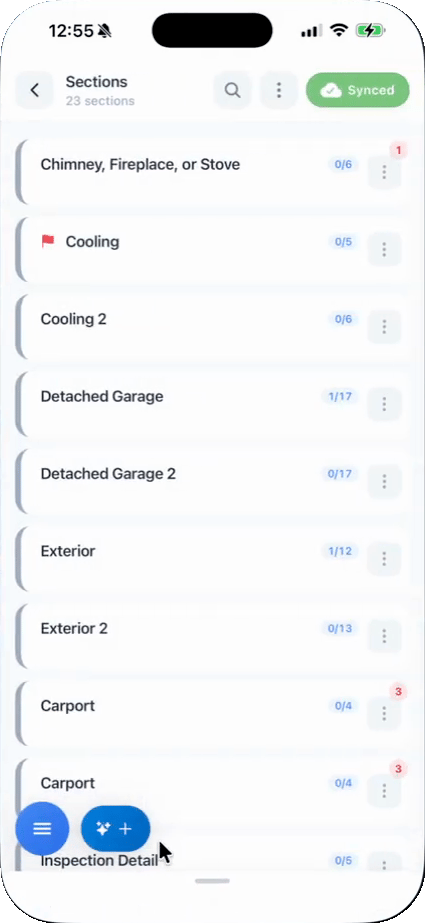
* Select the report. The **Smart Add** button (a sparkle and a plus sign) sits at the bottom of the screen, next to the blue microphone button.
* It is available on the sections list, inside a section and inside a subsection, so you can use it from wherever you are in the report.
0:38
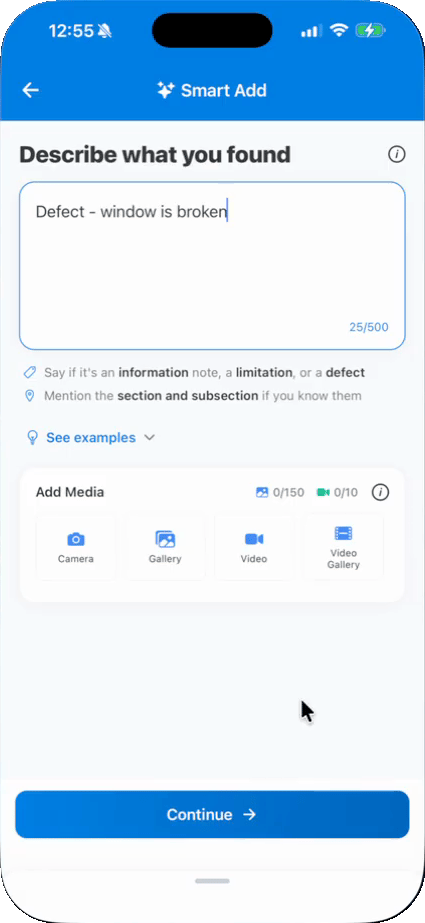
* Type your observation in a sentence or two, for example "Defect - window is broken".
* Say whether it is an information note, a limitation or a defect. Mention the section or subsection if you know it.
* Tap **See examples** for sample phrasing.
0:48
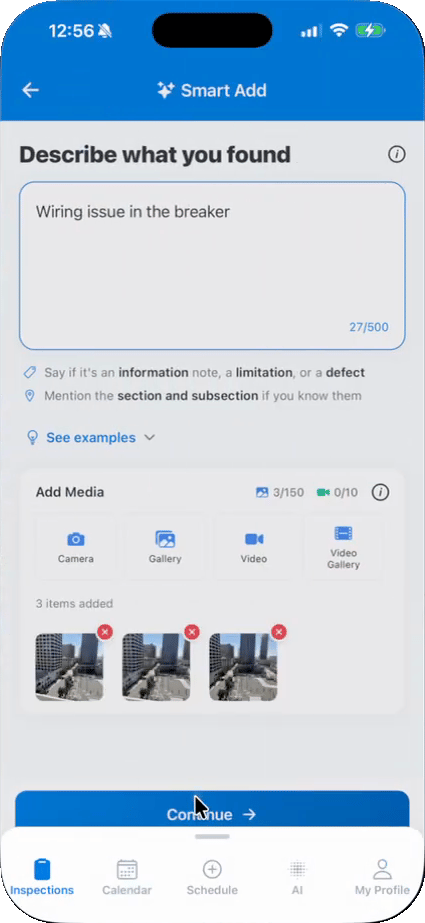
* Under **Add Media**, take a photo or video, or pick from your gallery.
* Annotate the photos if you like, or skip annotation.
* Tap **Continue**. The media travels with your observation, and you choose which comment it lands on in the next step.
0:52
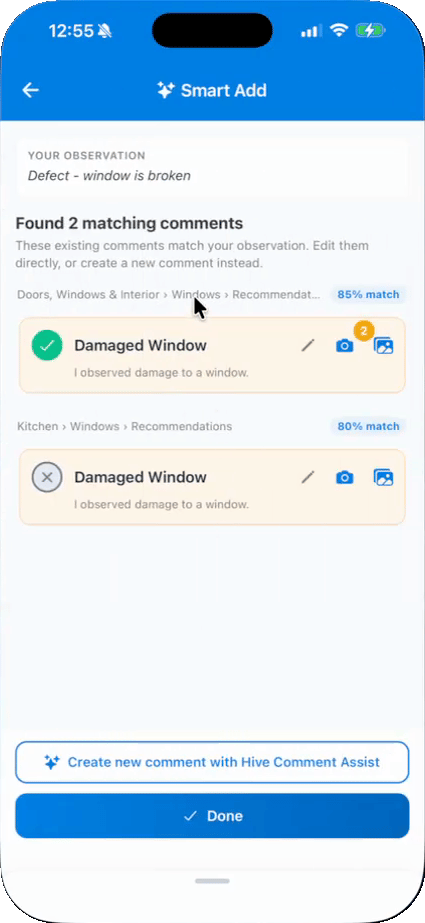
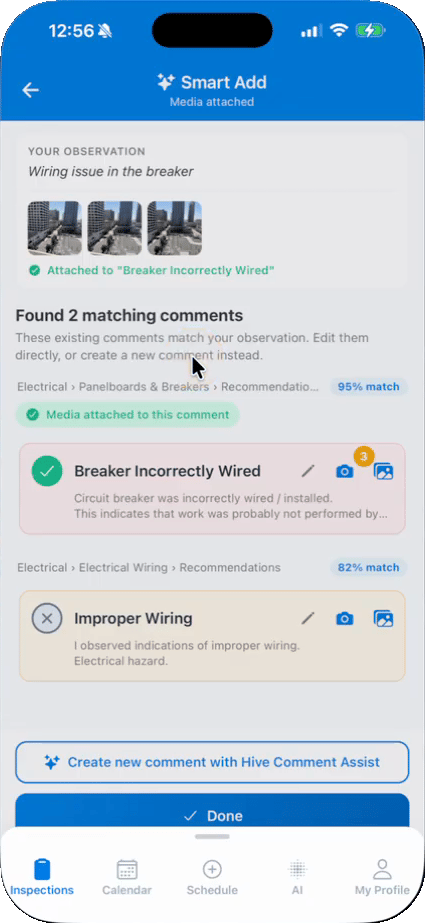
* Smart Add searches every comment in the report and shows up to three matches, each with a match score such as 85%.
* Each card shows the section and subsection the comment lives in.
* Tap the pencil icon on a card to edit that comment directly, or add a photo to it with the camera icon.
1:36
* Tap **Attach photos here** on the comment you want. The card turns green and shows the media as attached.
* The comment is selected in the report right away, with your photos on it.
* Tap **Done** to go back to where you were.
1:44
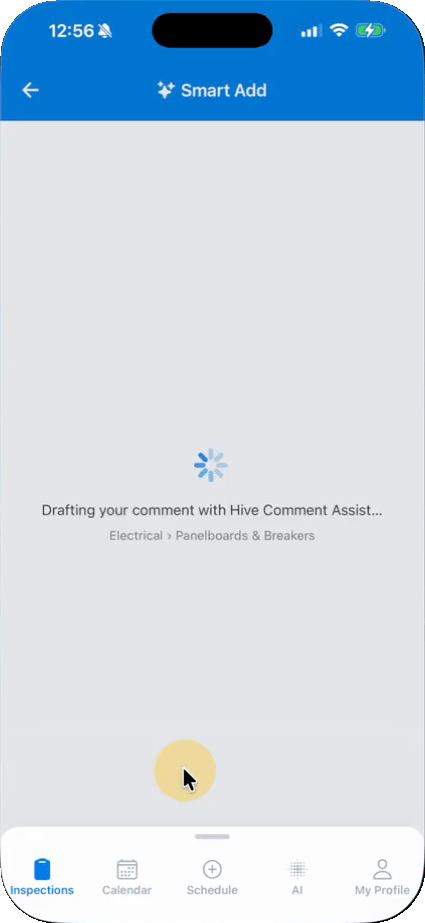
* Tap **Create new comment with Hive Comment Assist**.
* Hive drafts the comment name and description from your observation, the same way Comment Assist does elsewhere in Hive.
* It also picks the section and subsection, for example Electrical › Panelboards & Breakers, from the ones already in your template.
1:52
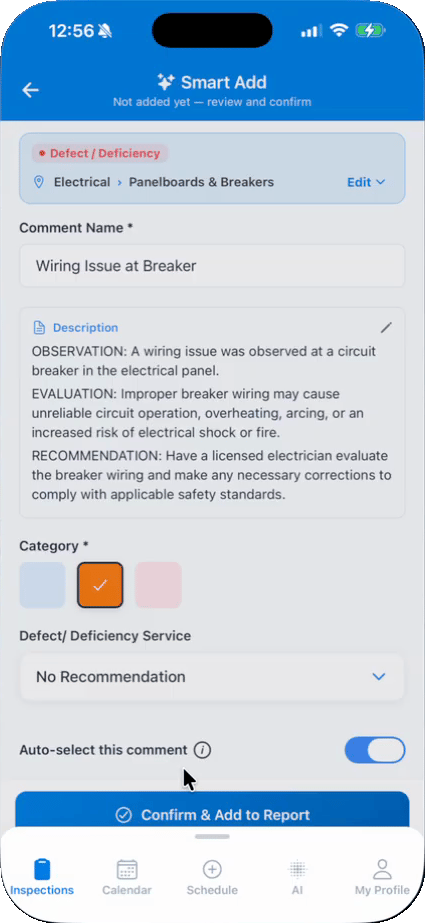
* Check the comment name, description, category and service. Edit anything you like.
* The bar at the top shows the section and subsection. Tap **Edit** to choose different ones.
* Your photos are already attached to the new comment.
2:06
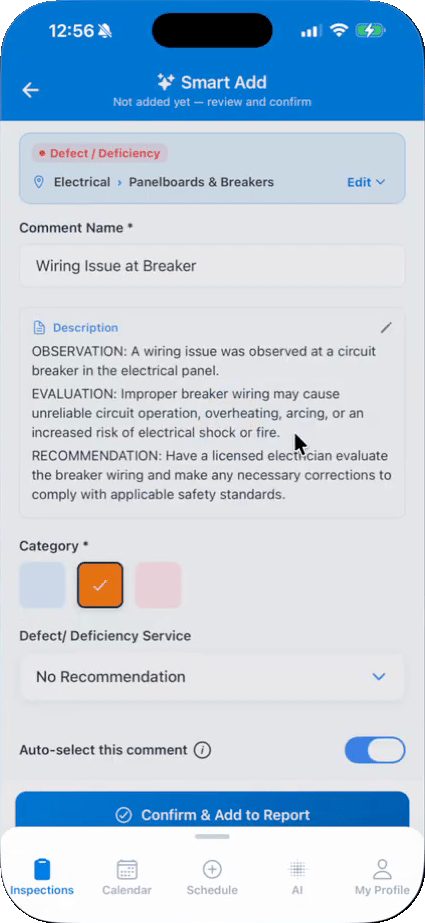
* Tap **Confirm & Add to Report**.
* The comment is added under the section and subsection shown, even if you were working somewhere else in the report.
* You return to the screen you were on, so there is no need to jump between sections.
***
**Tip:** Write the observation the way you would say it out loud, and name the area or system. "Defect in the detached garage, cracked concrete floor" gives Smart Add more to match on than "crack". New comments follow your organization's Comment Copilot prompt, so they read in your company's voice, and you can tap **Save to Template** before confirming to keep one for future inspections. Smart Add needs an internet connection and is not shown on re-inspection reports.
 * In the Hive Inspect mobile app, open an inspection and go to the **Report Editor**.
* Select the report. The **Smart Add** button (a sparkle and a plus sign) sits at the bottom of the screen, next to the blue microphone button.
* It is available on the sections list, inside a section and inside a subsection, so you can use it from wherever you are in the report.
* In the Hive Inspect mobile app, open an inspection and go to the **Report Editor**.
* Select the report. The **Smart Add** button (a sparkle and a plus sign) sits at the bottom of the screen, next to the blue microphone button.
* It is available on the sections list, inside a section and inside a subsection, so you can use it from wherever you are in the report.
 * Type your observation in a sentence or two, for example "Defect - window is broken".
* Say whether it is an information note, a limitation or a defect. Mention the section or subsection if you know it.
* Tap **See examples** for sample phrasing.
* Type your observation in a sentence or two, for example "Defect - window is broken".
* Say whether it is an information note, a limitation or a defect. Mention the section or subsection if you know it.
* Tap **See examples** for sample phrasing.
 * Under **Add Media**, take a photo or video, or pick from your gallery.
* Annotate the photos if you like, or skip annotation.
* Tap **Continue**. The media travels with your observation, and you choose which comment it lands on in the next step.
* Under **Add Media**, take a photo or video, or pick from your gallery.
* Annotate the photos if you like, or skip annotation.
* Tap **Continue**. The media travels with your observation, and you choose which comment it lands on in the next step.
 * Smart Add searches every comment in the report and shows up to three matches, each with a match score such as 85%.
* Each card shows the section and subsection the comment lives in.
* Tap the pencil icon on a card to edit that comment directly, or add a photo to it with the camera icon.
* Smart Add searches every comment in the report and shows up to three matches, each with a match score such as 85%.
* Each card shows the section and subsection the comment lives in.
* Tap the pencil icon on a card to edit that comment directly, or add a photo to it with the camera icon.
 * Tap **Attach photos here** on the comment you want. The card turns green and shows the media as attached.
* The comment is selected in the report right away, with your photos on it.
* Tap **Done** to go back to where you were.
* Tap **Attach photos here** on the comment you want. The card turns green and shows the media as attached.
* The comment is selected in the report right away, with your photos on it.
* Tap **Done** to go back to where you were.
 * Tap **Create new comment with Hive Comment Assist**.
* Hive drafts the comment name and description from your observation, the same way Comment Assist does elsewhere in Hive.
* It also picks the section and subsection, for example Electrical › Panelboards & Breakers, from the ones already in your template.
* Tap **Create new comment with Hive Comment Assist**.
* Hive drafts the comment name and description from your observation, the same way Comment Assist does elsewhere in Hive.
* It also picks the section and subsection, for example Electrical › Panelboards & Breakers, from the ones already in your template.
 * Check the comment name, description, category and service. Edit anything you like.
* The bar at the top shows the section and subsection. Tap **Edit** to choose different ones.
* Your photos are already attached to the new comment.
* Check the comment name, description, category and service. Edit anything you like.
* The bar at the top shows the section and subsection. Tap **Edit** to choose different ones.
* Your photos are already attached to the new comment.
 * Tap **Confirm & Add to Report**.
* The comment is added under the section and subsection shown, even if you were working somewhere else in the report.
* You return to the screen you were on, so there is no need to jump between sections.
***
* Tap **Confirm & Add to Report**.
* The comment is added under the section and subsection shown, even if you were working somewhere else in the report.
* You return to the screen you were on, so there is no need to jump between sections.
***