

Guide to writing reports in the mobile app
Access the report editor
0:01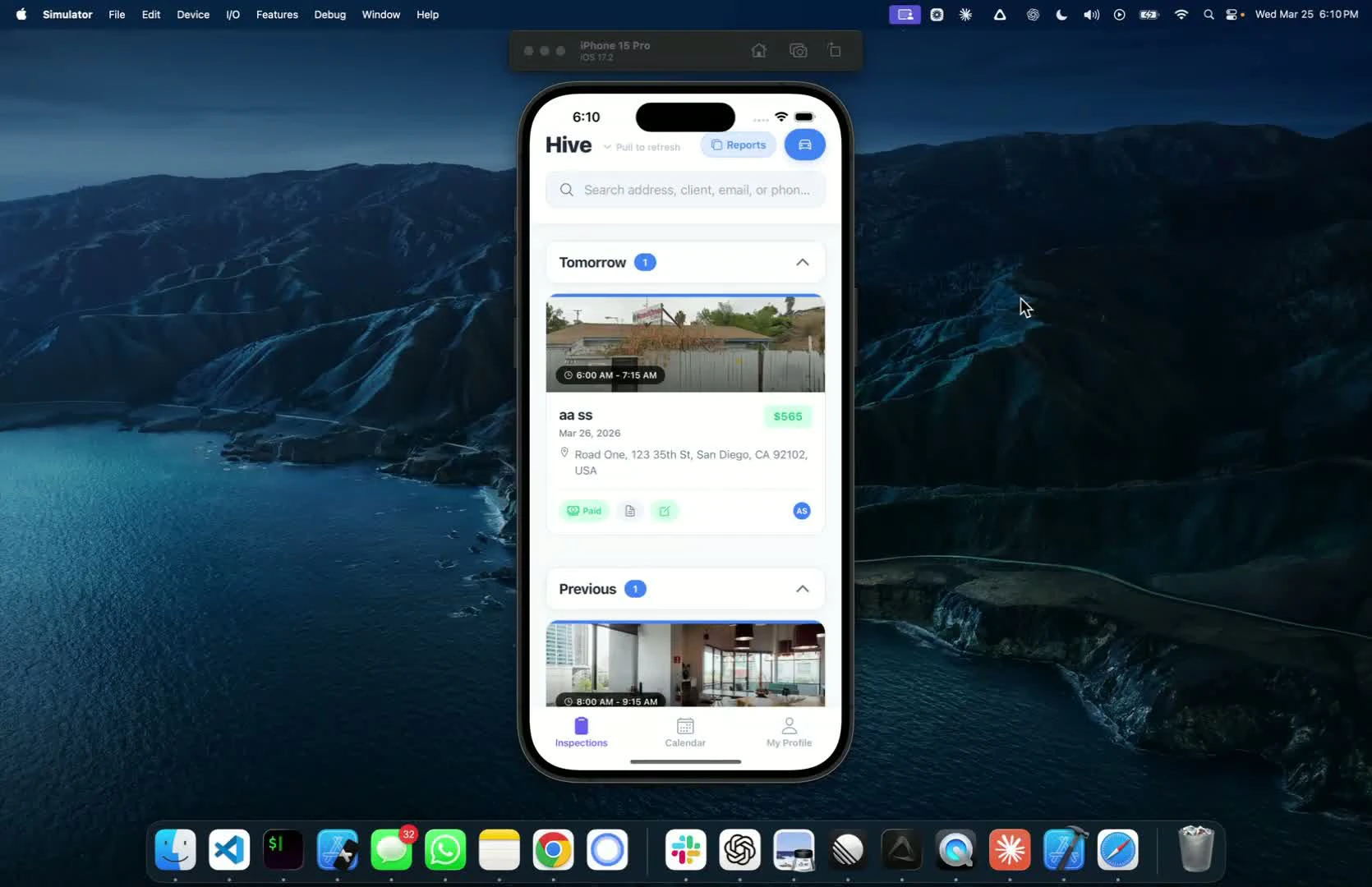
- Open the mobile app and select the inspection
- Click on the report editor and choose the report you want to work on
Check sync status
0:17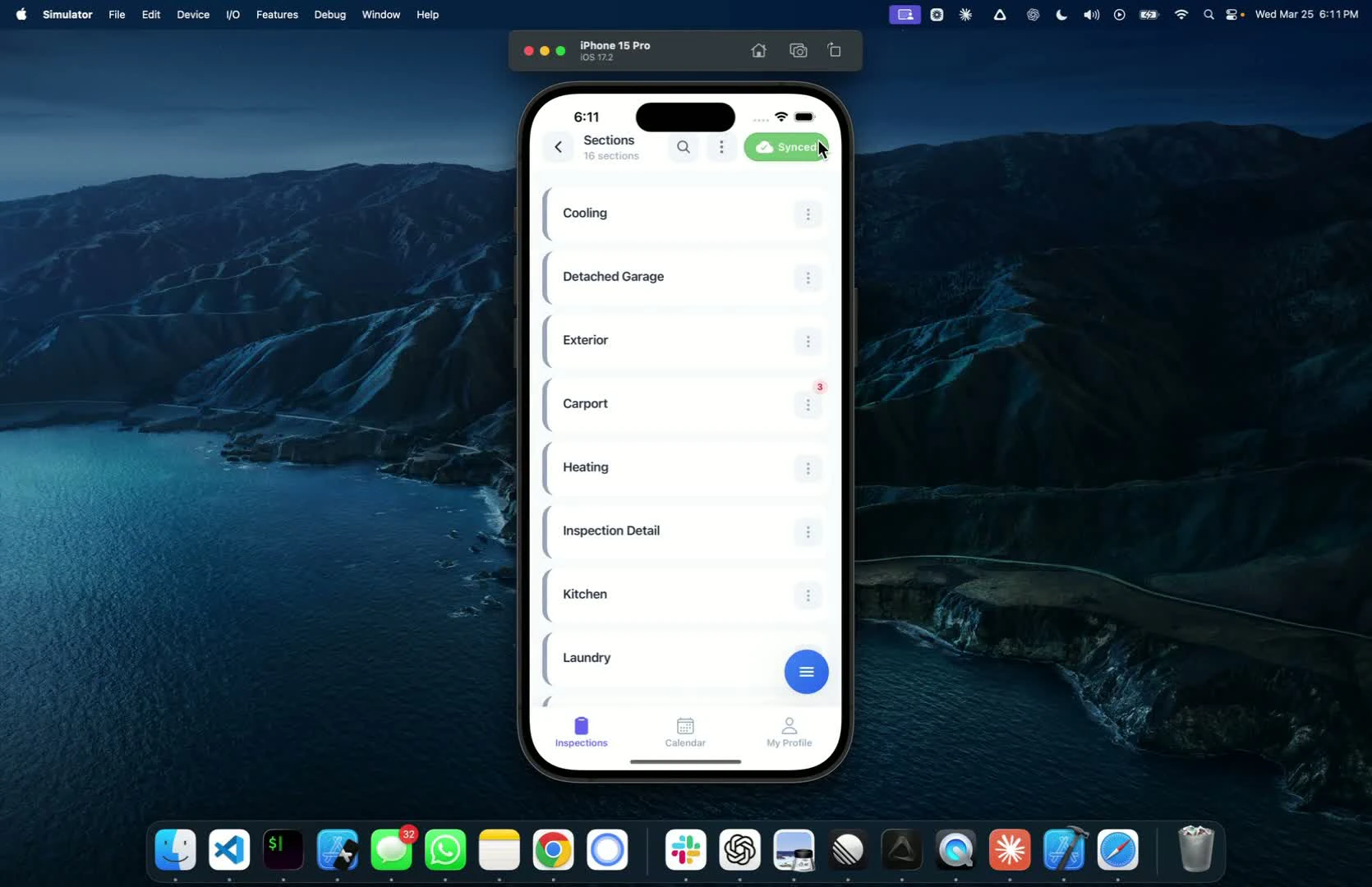
- Look for the green button indicating all changes have been synced
- If the button is green, there is nothing left to sync
Identify defects
0:28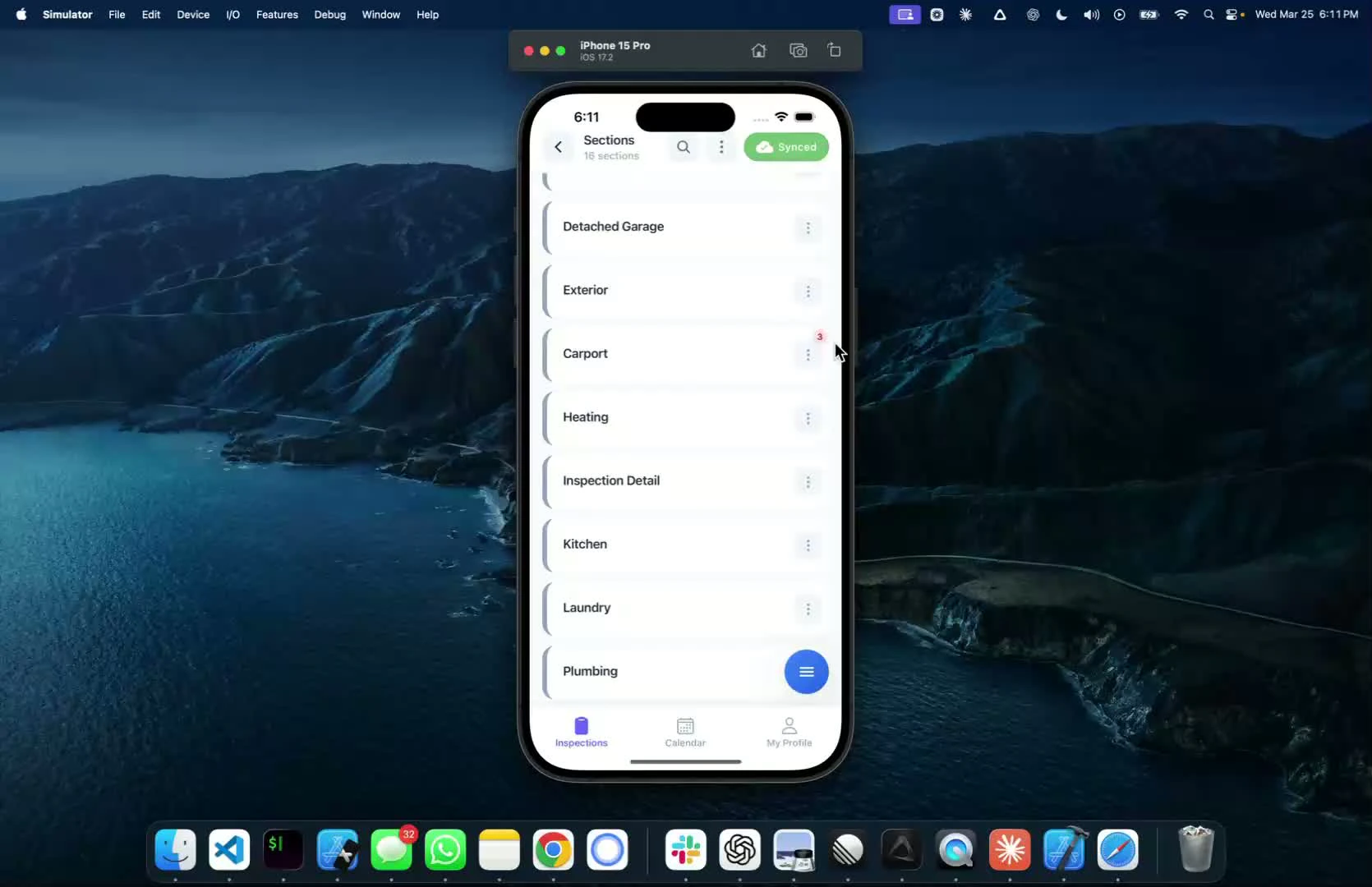
- Notice the three-colored button that shows the number of defects checked off in the section
- Click on the button to see details about the defects
Edit sections
0:44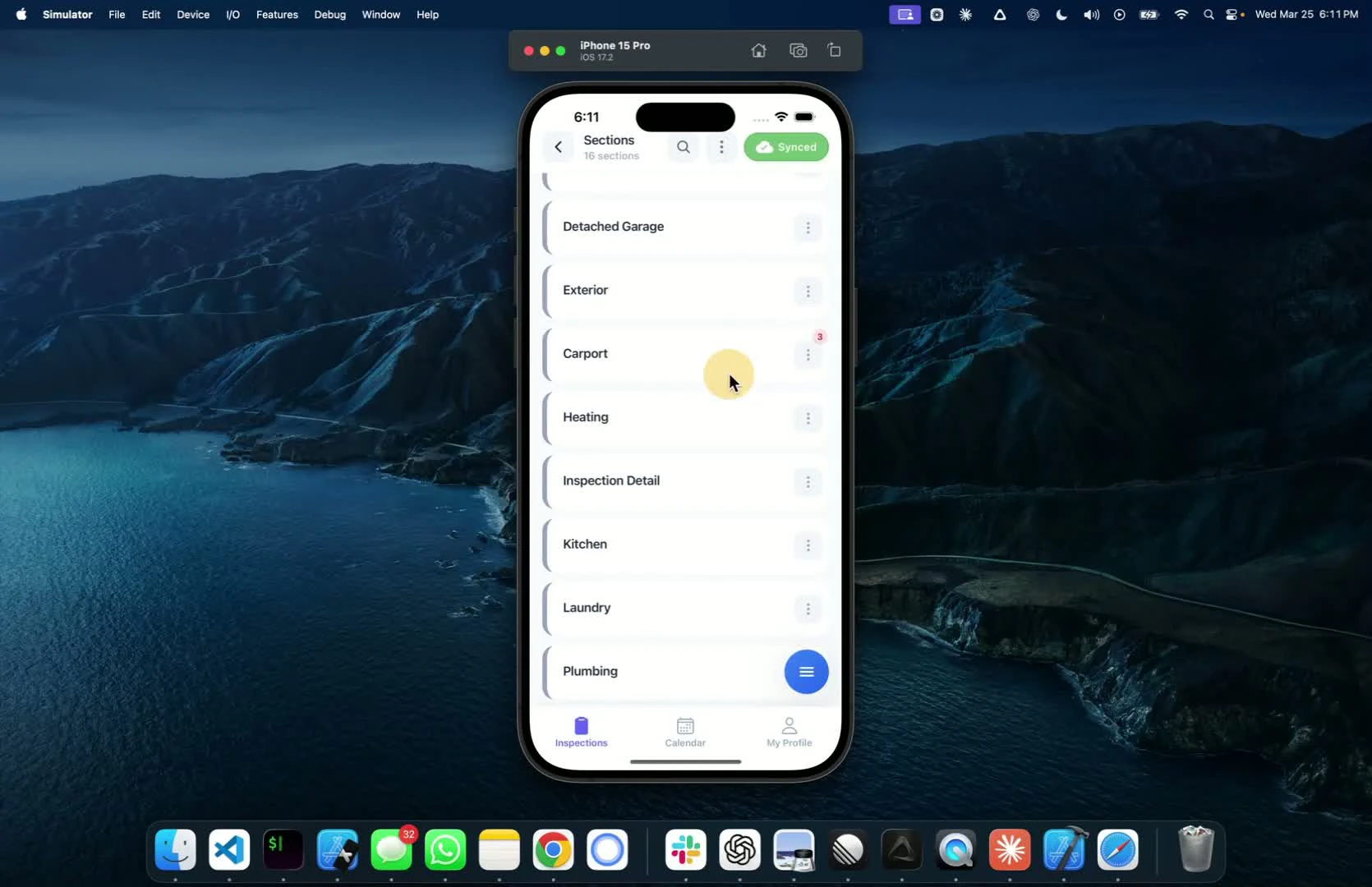
- Use the three-dot button to:
- Edit the name of the section
- Duplicate the section if needed
- Delete the section (can be restored later)
Manage defects
1:13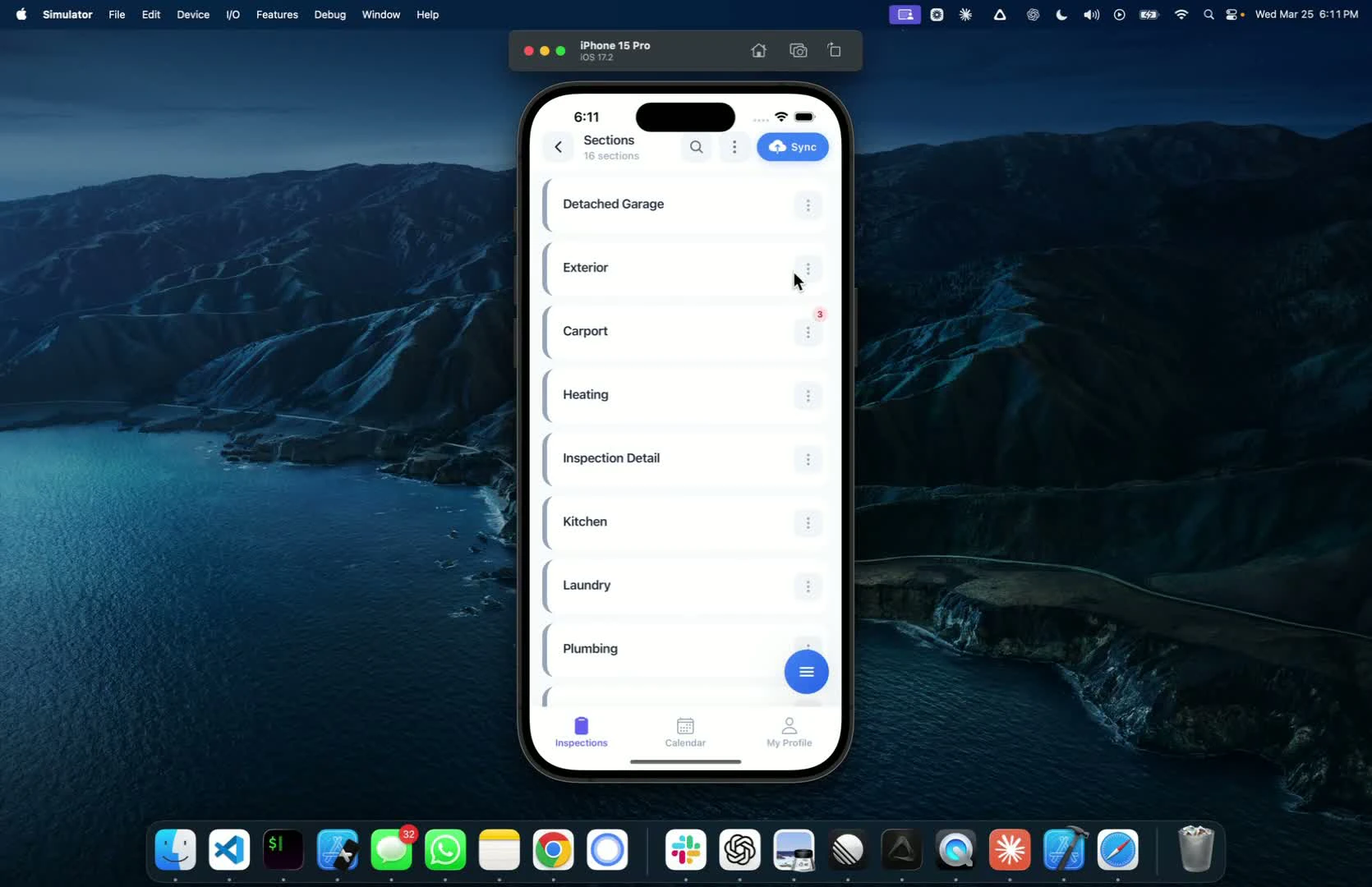
- If you find a missing defect, delete it and restore it later if needed
- To add a new defect, click the Add button and enter the details
Navigate subsections
1:21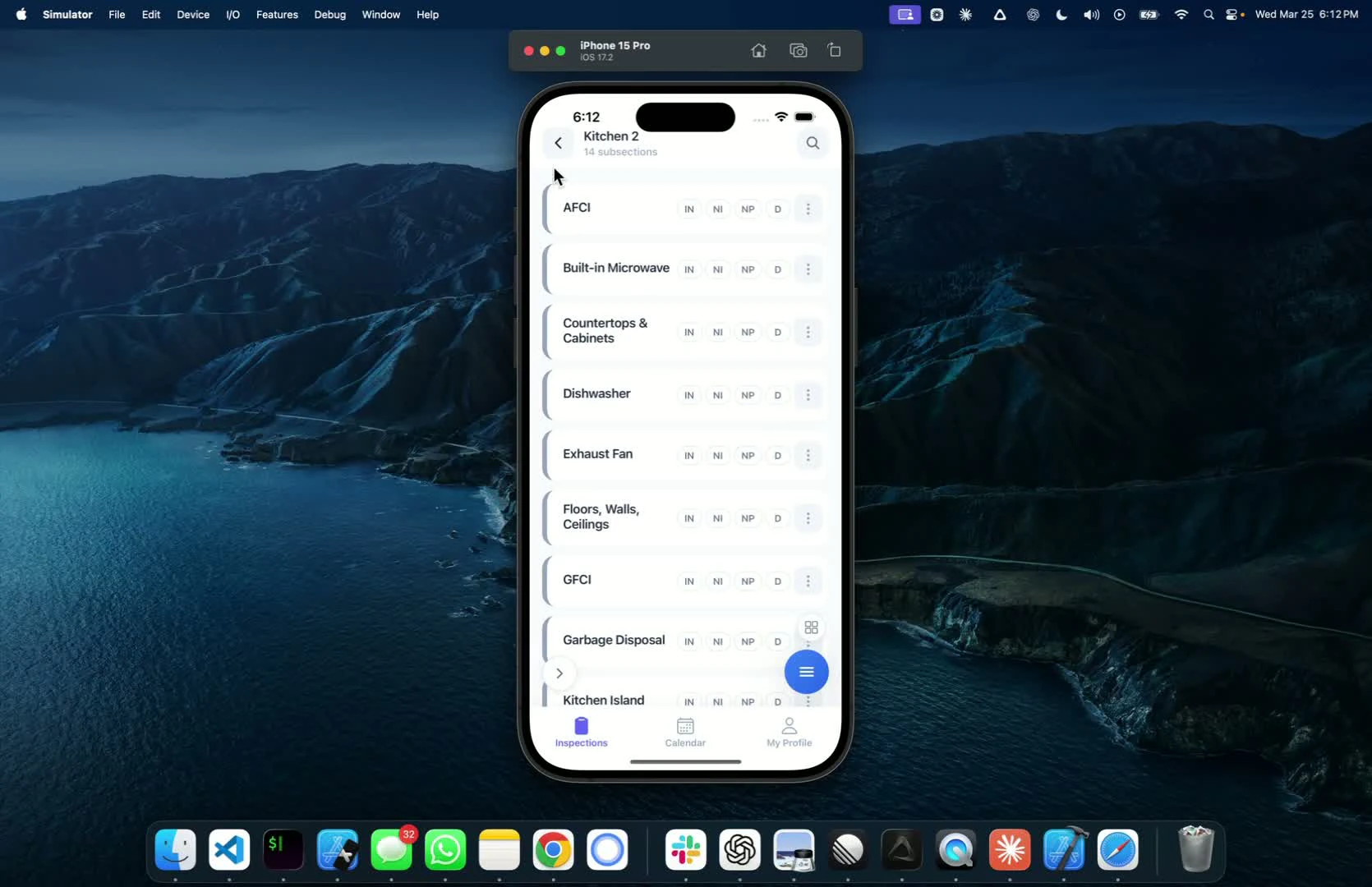
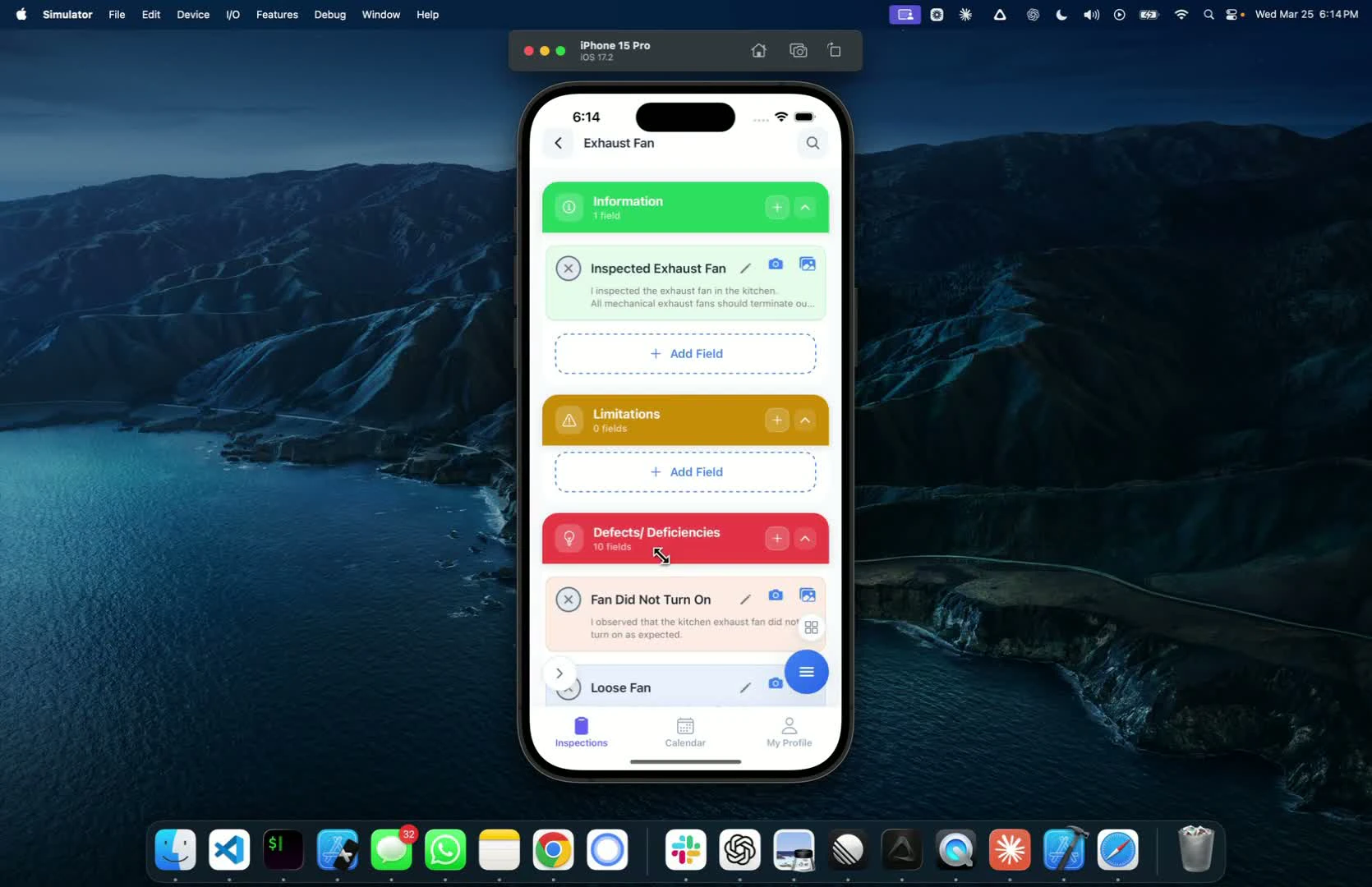
- Click on a section to view all subsections
- Check off defects as inspected, not inspected, or tagged
Use search functionality
2:44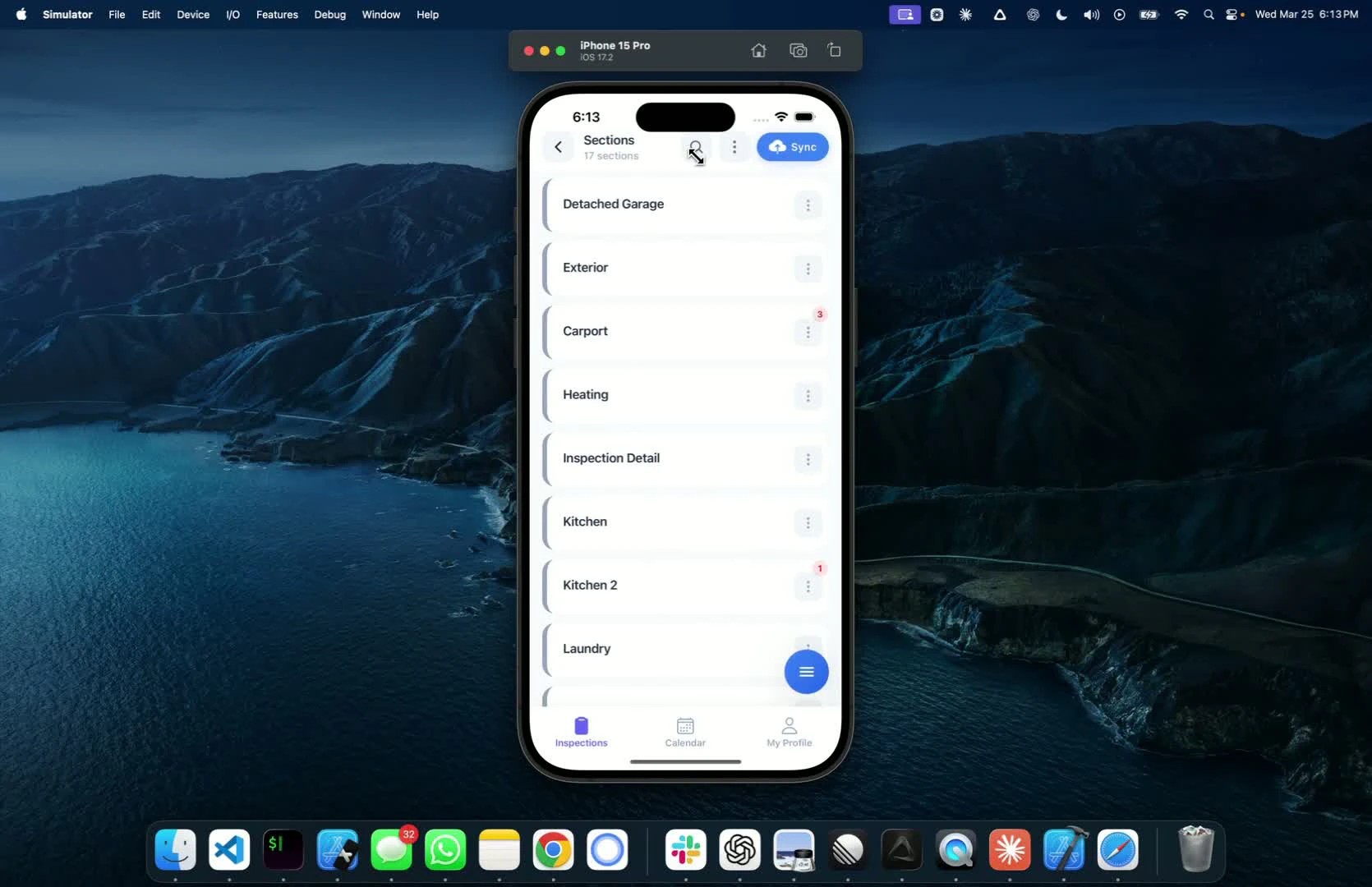
- For experienced inspectors, use the search button to find defects quickly
- Edit defects directly from the search results
Access additional options
3:08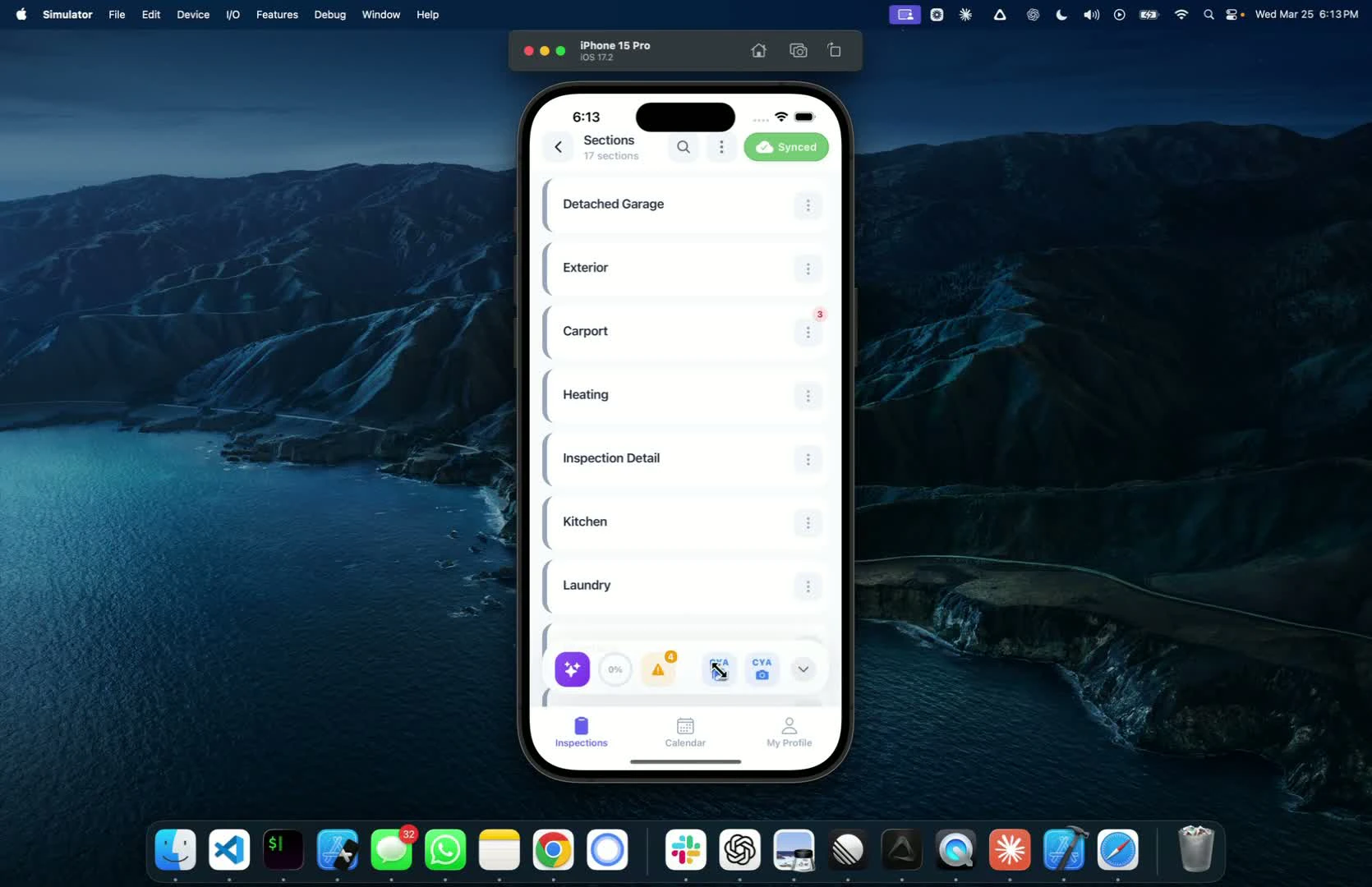
- Click the options button to:
- Add CYA cameras
- View all images associated with the report
- See all selected defects in the inspection
Update report details
Sync your report
4:09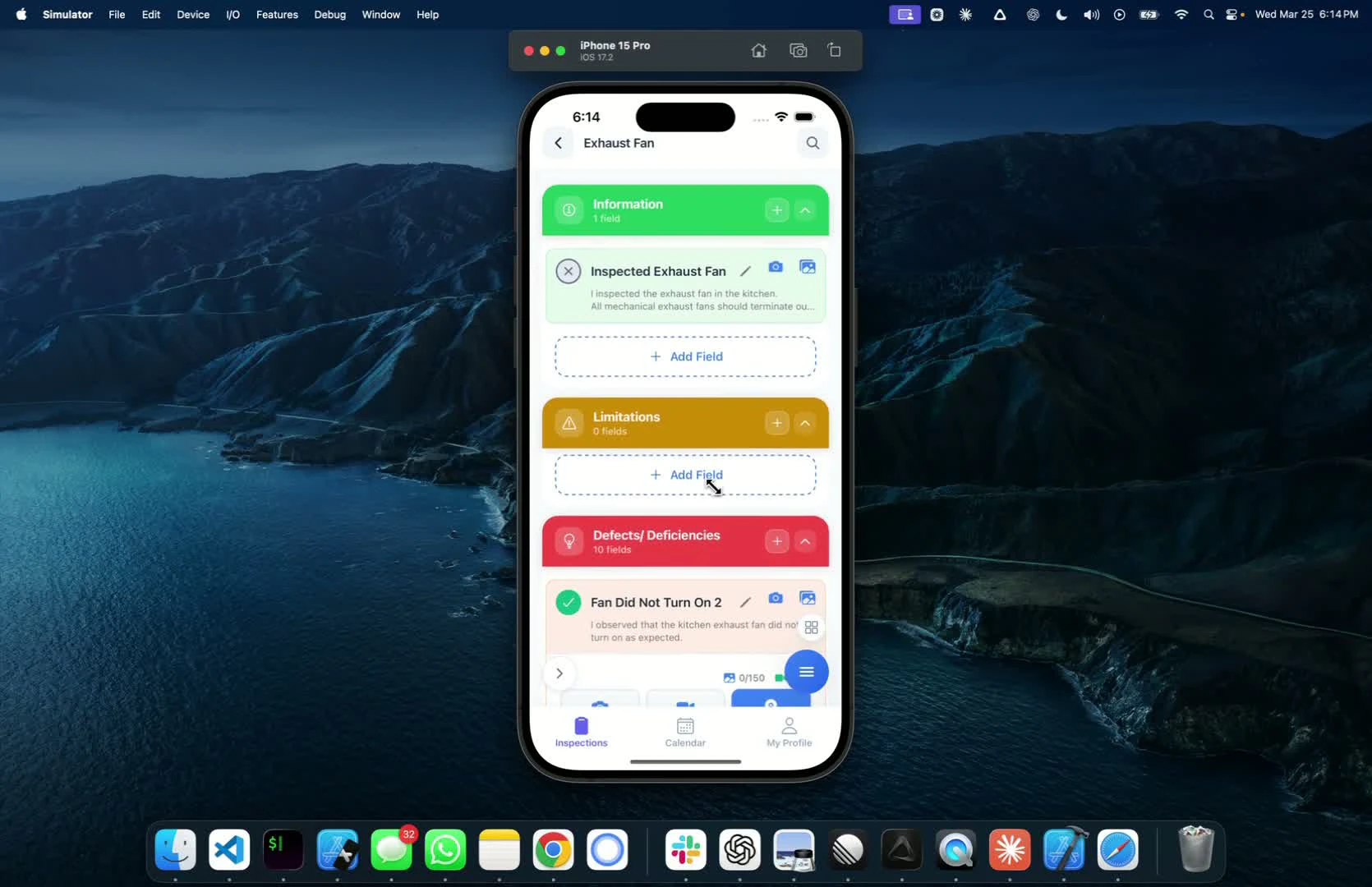
- Before exiting, ensure to click the sync button to save all data
- The app works offline; sync when you have internet access
Next step
Related
Save a comment to a templateReuse a comment you wrote on site on every future reportSmart AddDescribe a finding and let AI find the comment or write a new oneMobile app basicsLog in, see confirmed inspections, check payment and signature statusWhat Hive AI adds to each defectContext Layer shows how common a defect is and how hard it is to fix