

Saving comments to your inspection report Template
Saving comments to a template in inspection reports
Introduction to saving comments
0:02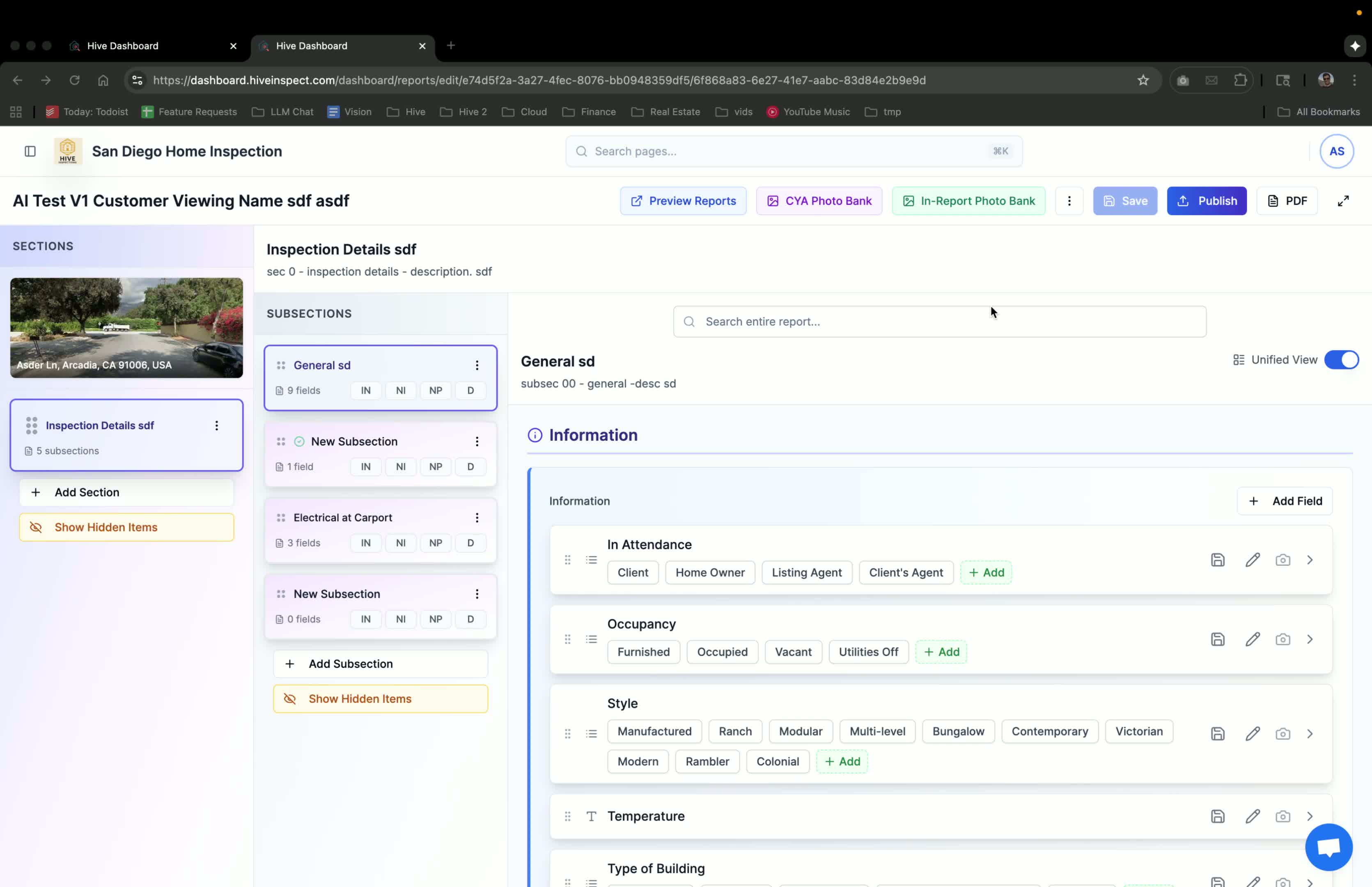
- Overview of the video purpose:
- Demonstrating how to save comments while creating an inspection report.
- Importance of saving comments for future inspections.
Identifying useful comments
0:13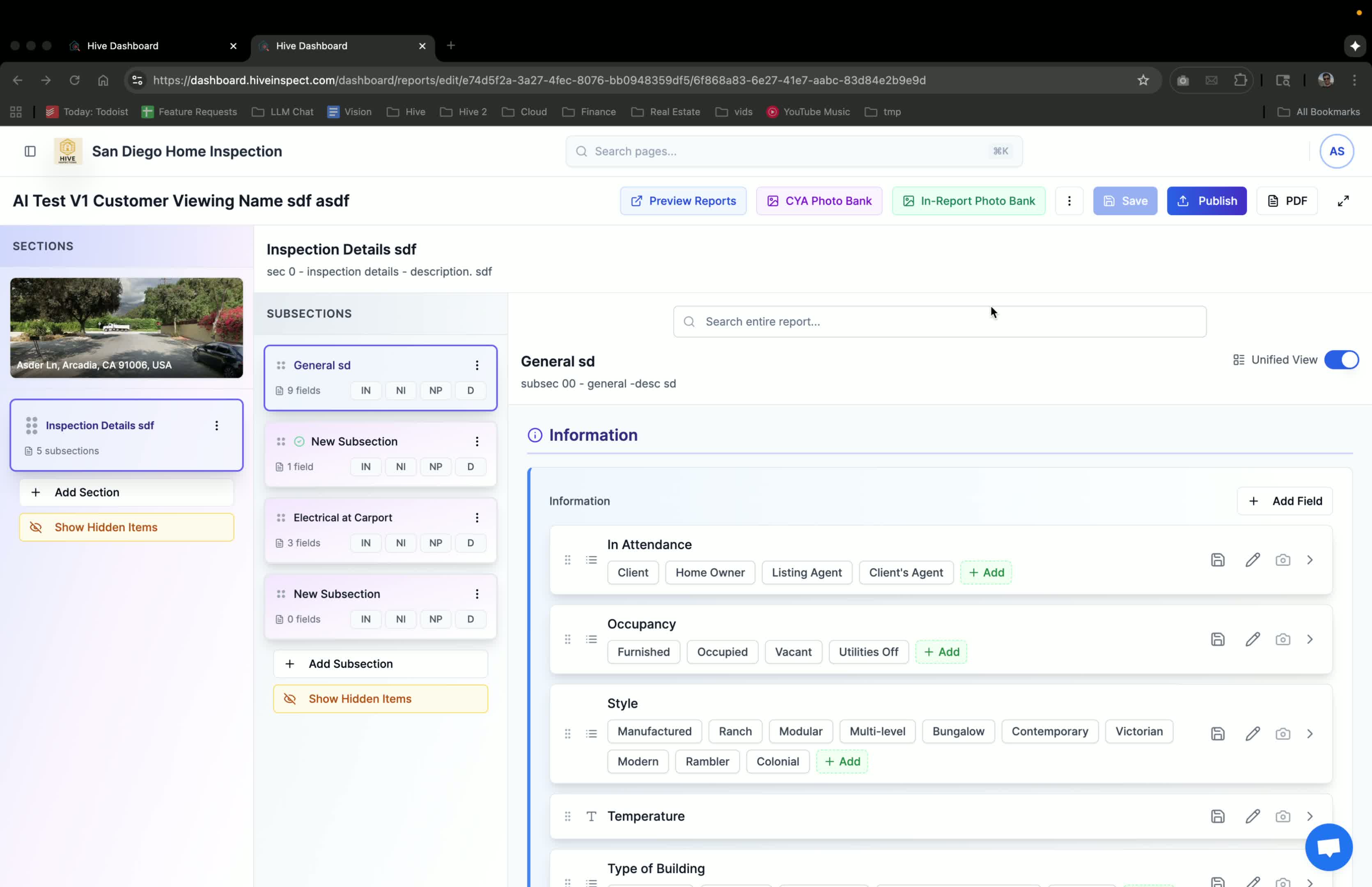
- Recognizing when to save a comment:
- When a new defect or limitation is found during an inspection.
- When changes in versions or categories are identified.
Saving comments to the template
0:31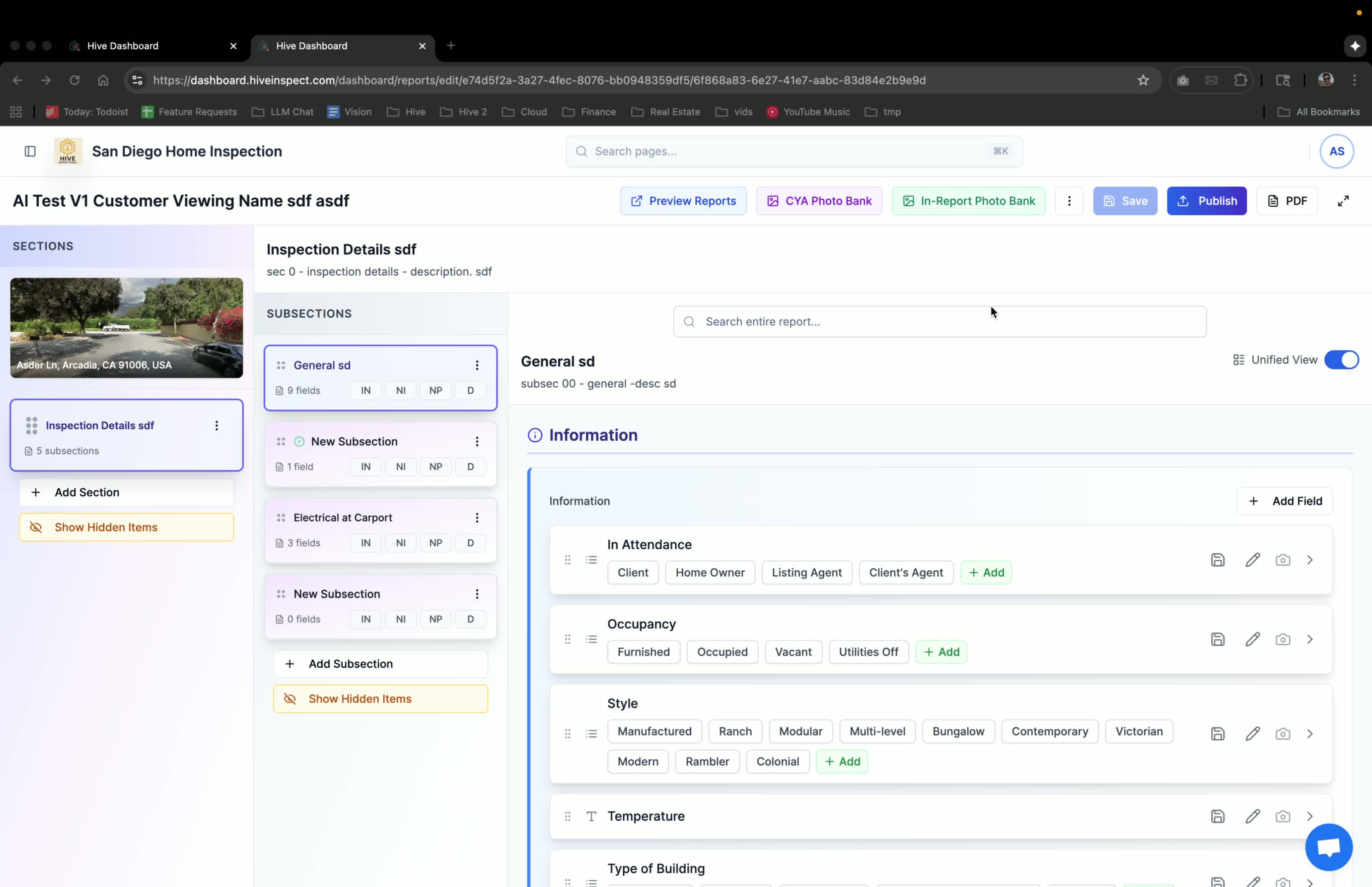
- How to save comments:
- Click the ‘Save to Template’ button.
- This action saves changes or new comments to the template for future use.
Using the Web Editor
0:39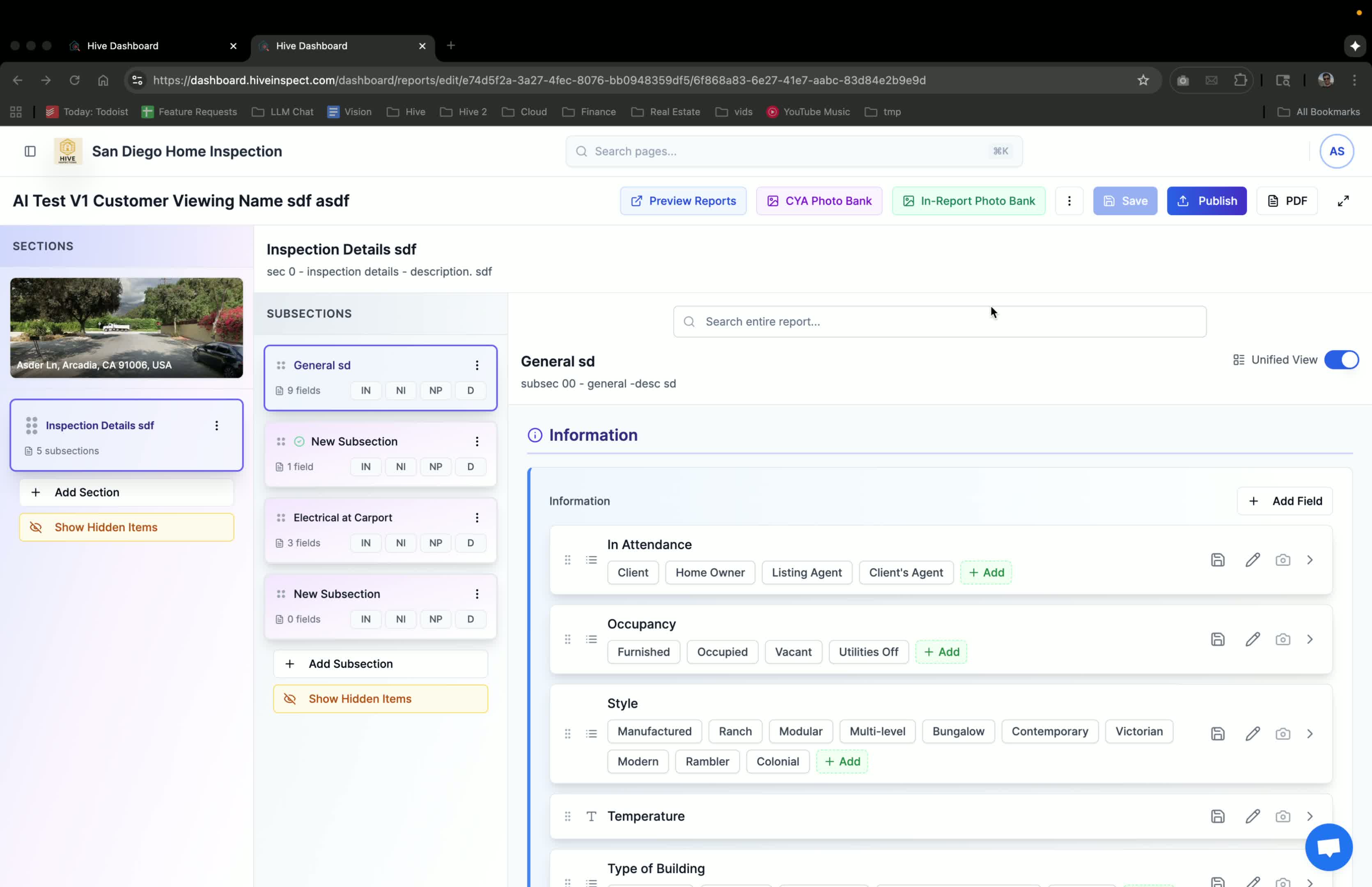
- Demonstration in the web report editor:
- Hover over the button to see ‘Save to Template’.
- Make changes or add a new category, then save.
Creating new fields
1:32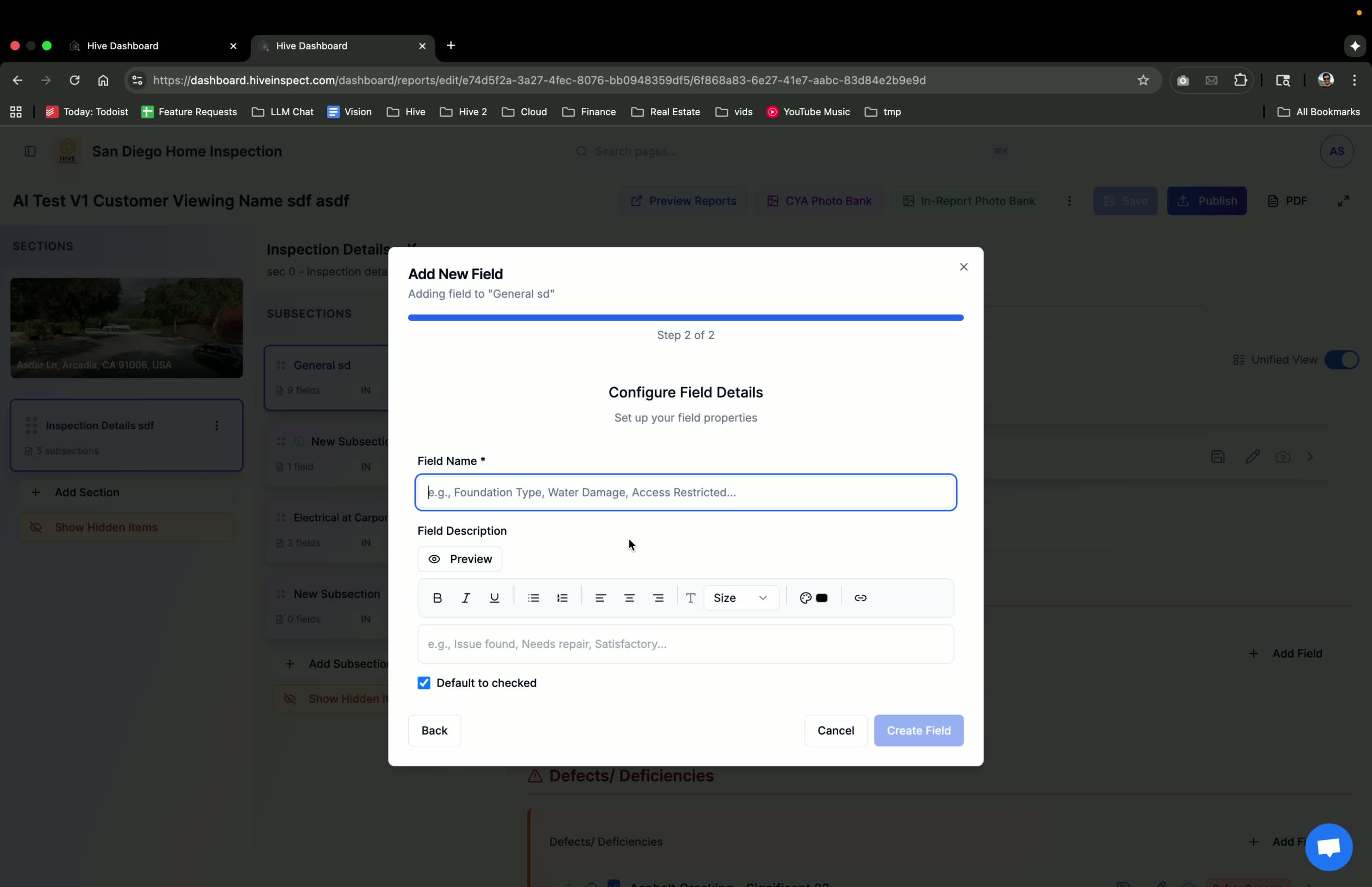
- Instructions for creating new fields:
- Create a new field in the template.
- Click the save button to add this new comment to the template.
Using the mobile reporter
1:44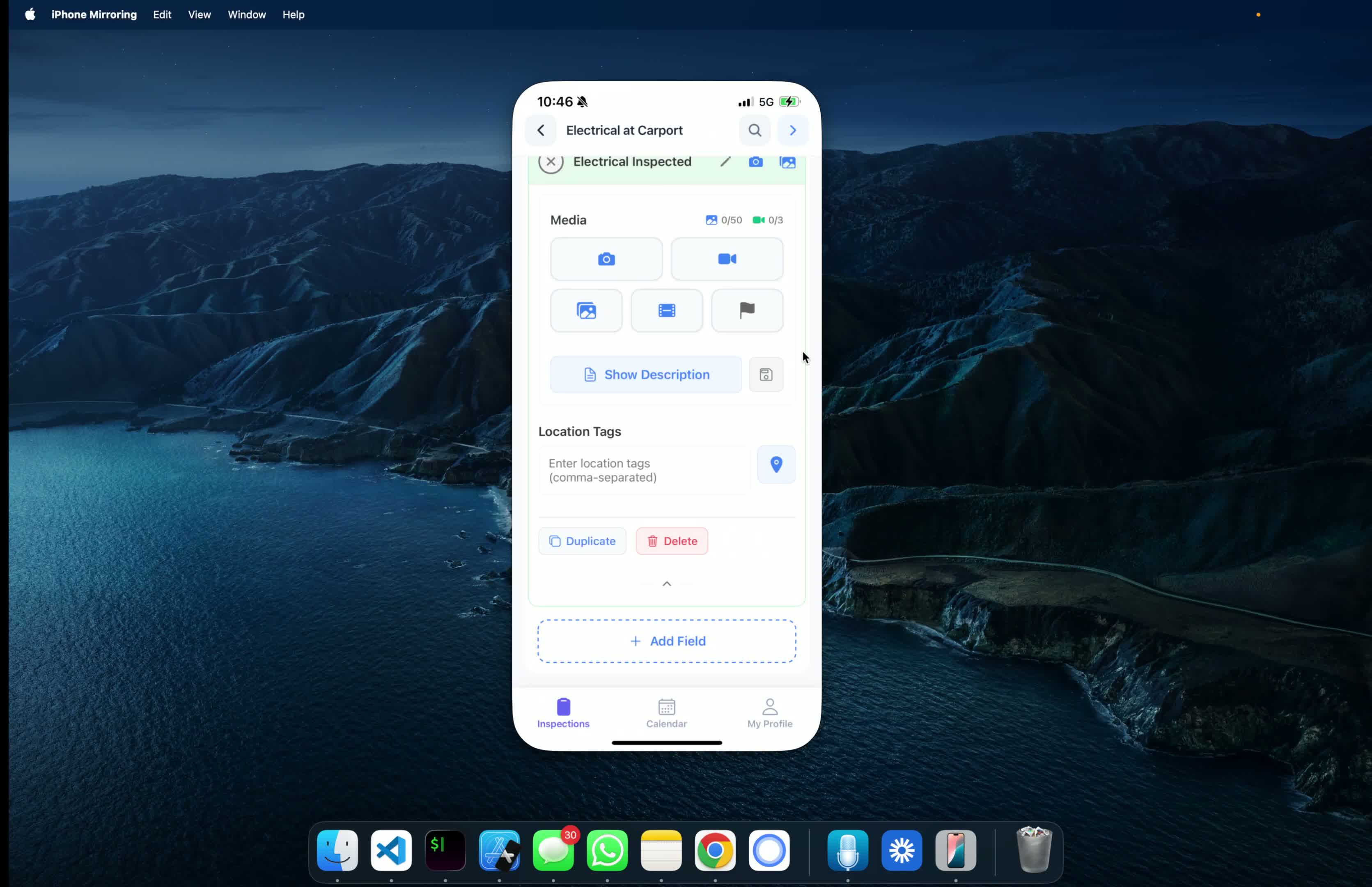
- Similar functionality in the mobile reporter:
- Navigate to a subsection and find the save button.
- Enable the save option and sync data to update the template.
Finalizing new comments
2:12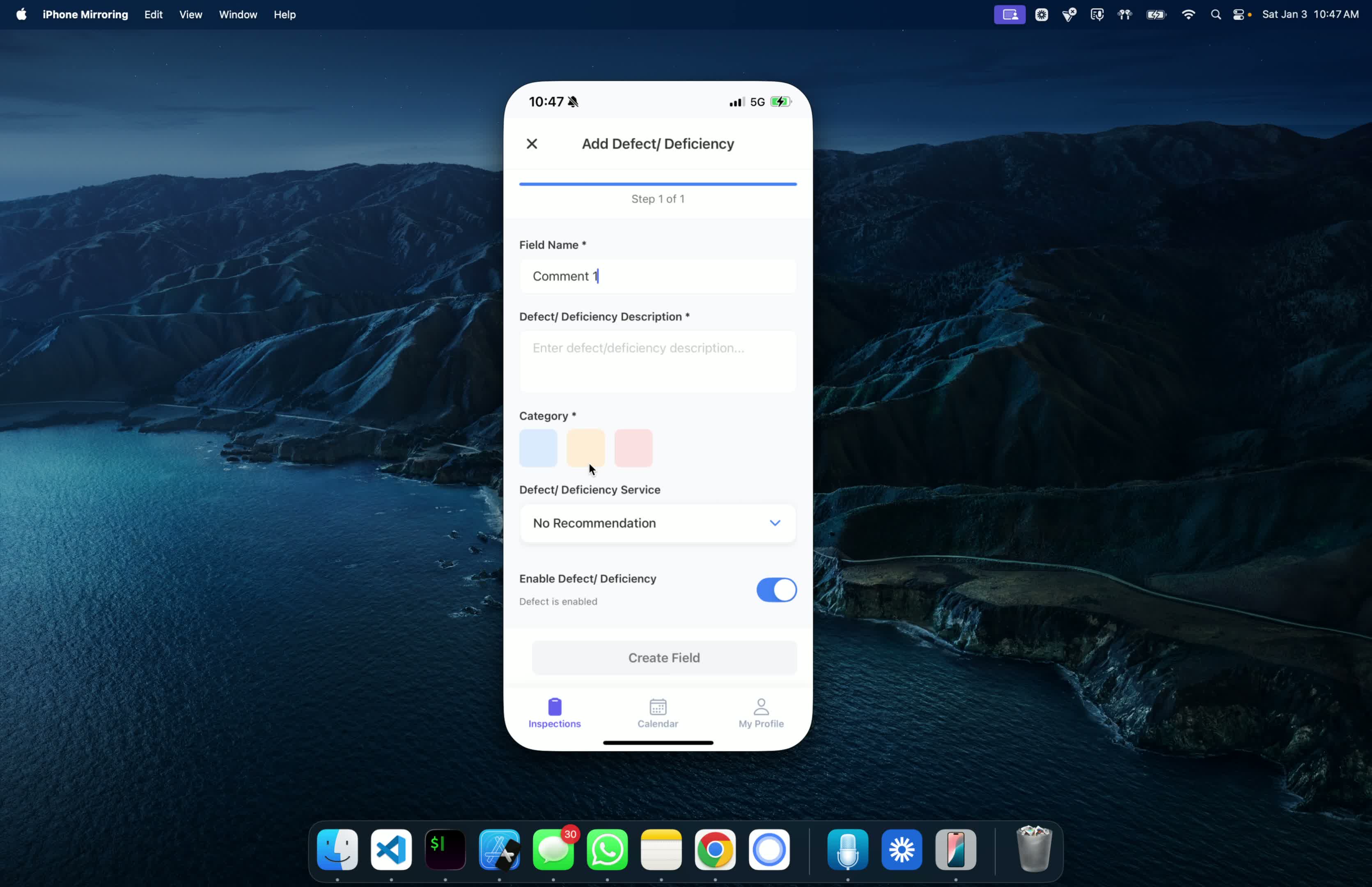
- Steps for creating and saving new comments in mobile:
- Assign a category to the new comment.
- Enable the save option and sync to save the comment to the original template.
Conclusion
2:29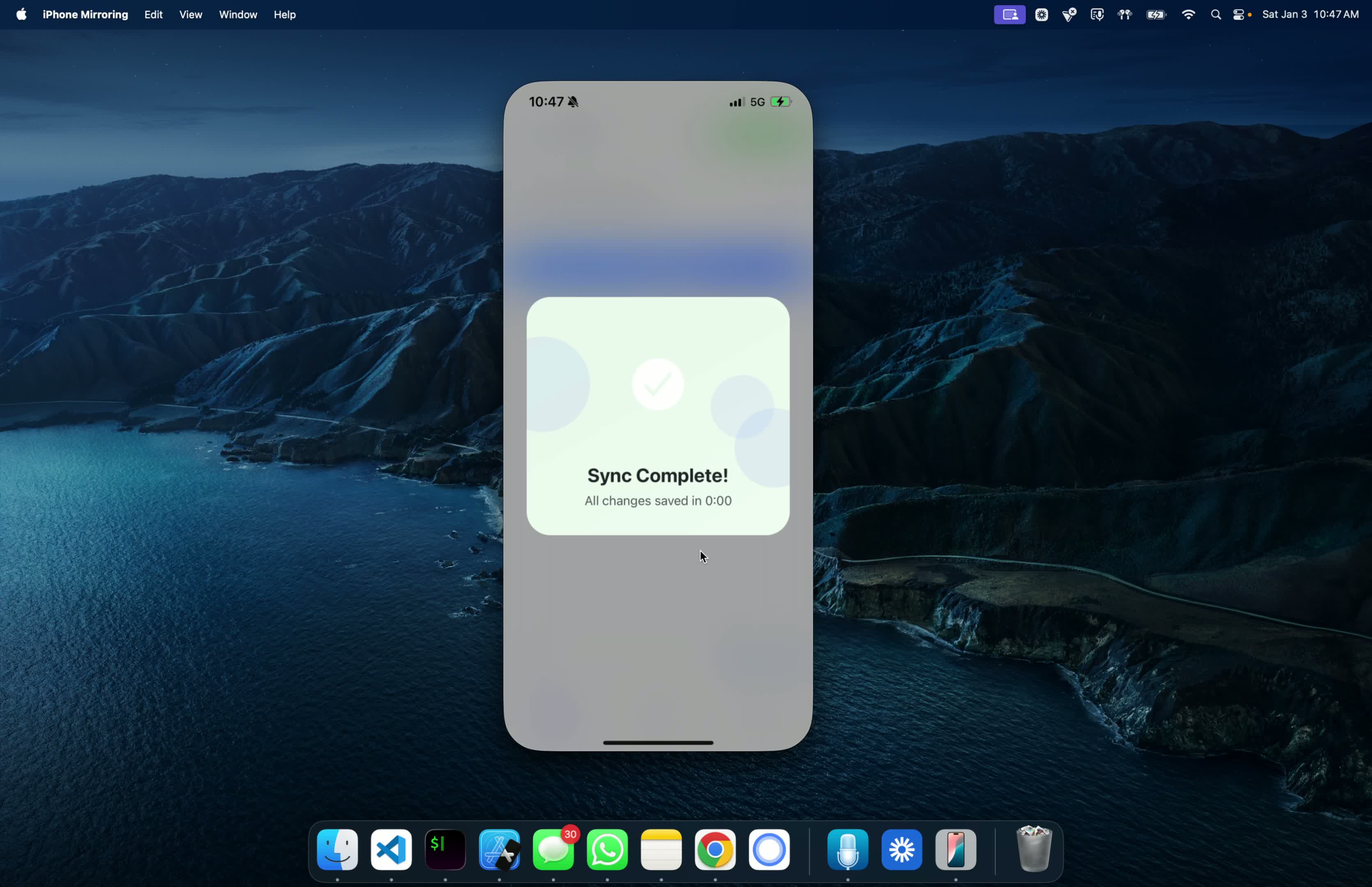
- Recap of the process:
- Saving comments enhances efficiency for future inspections.
- Thank you for watching.
Next step
Related