

Using Web Editor for inspection reports
Introduction to the Web Editor
0:00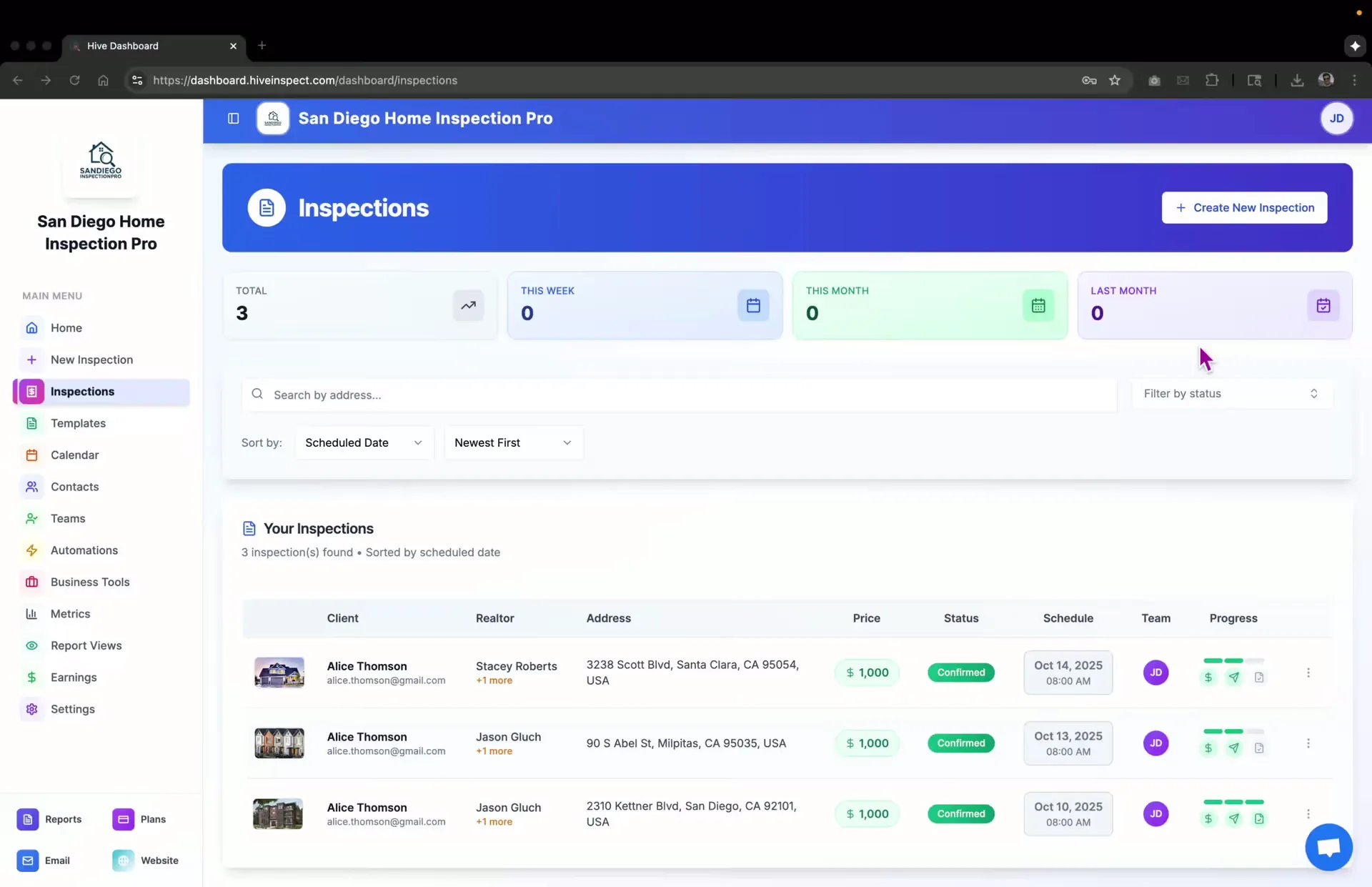
- Overview of using Web Editor to add or update information
- Assumes prior inspection was completed using a mobile app
Accessing inspections
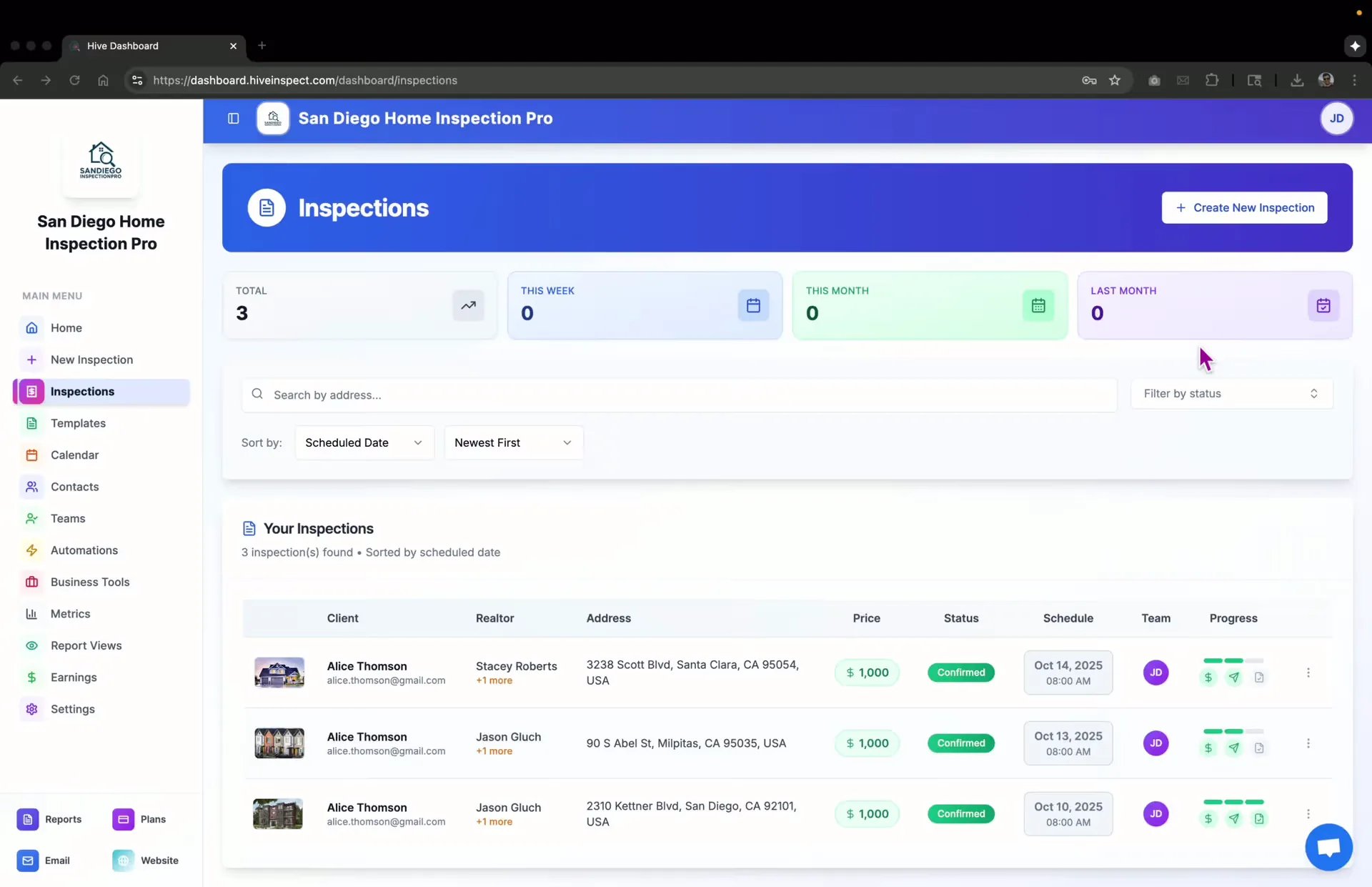
Editing reports
0:24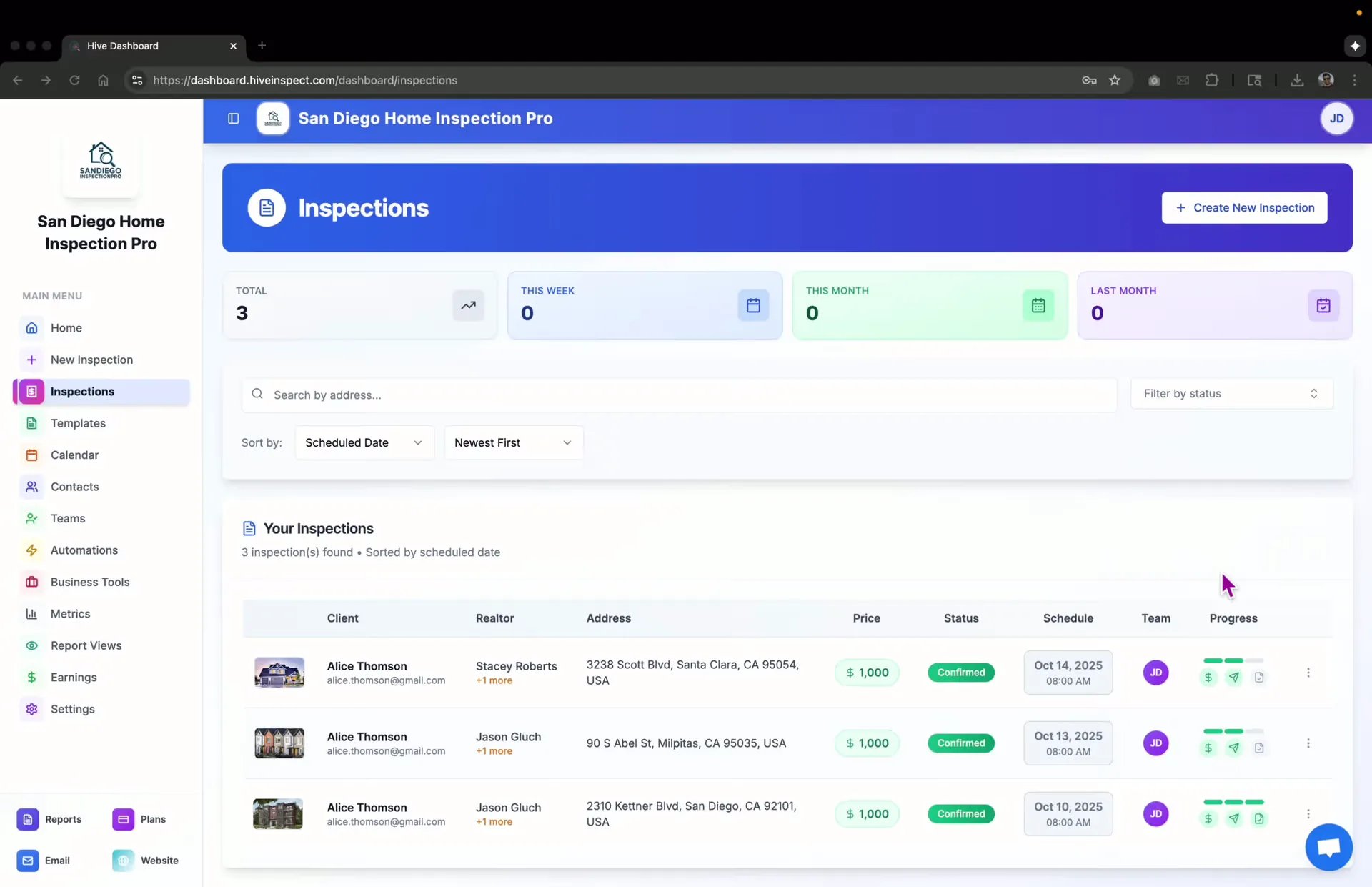
- Click on the three dots next to the inspection
- Select Reports
- Alternatively, click Edit Reports from the inspection management page
Adding or updating reports
0:36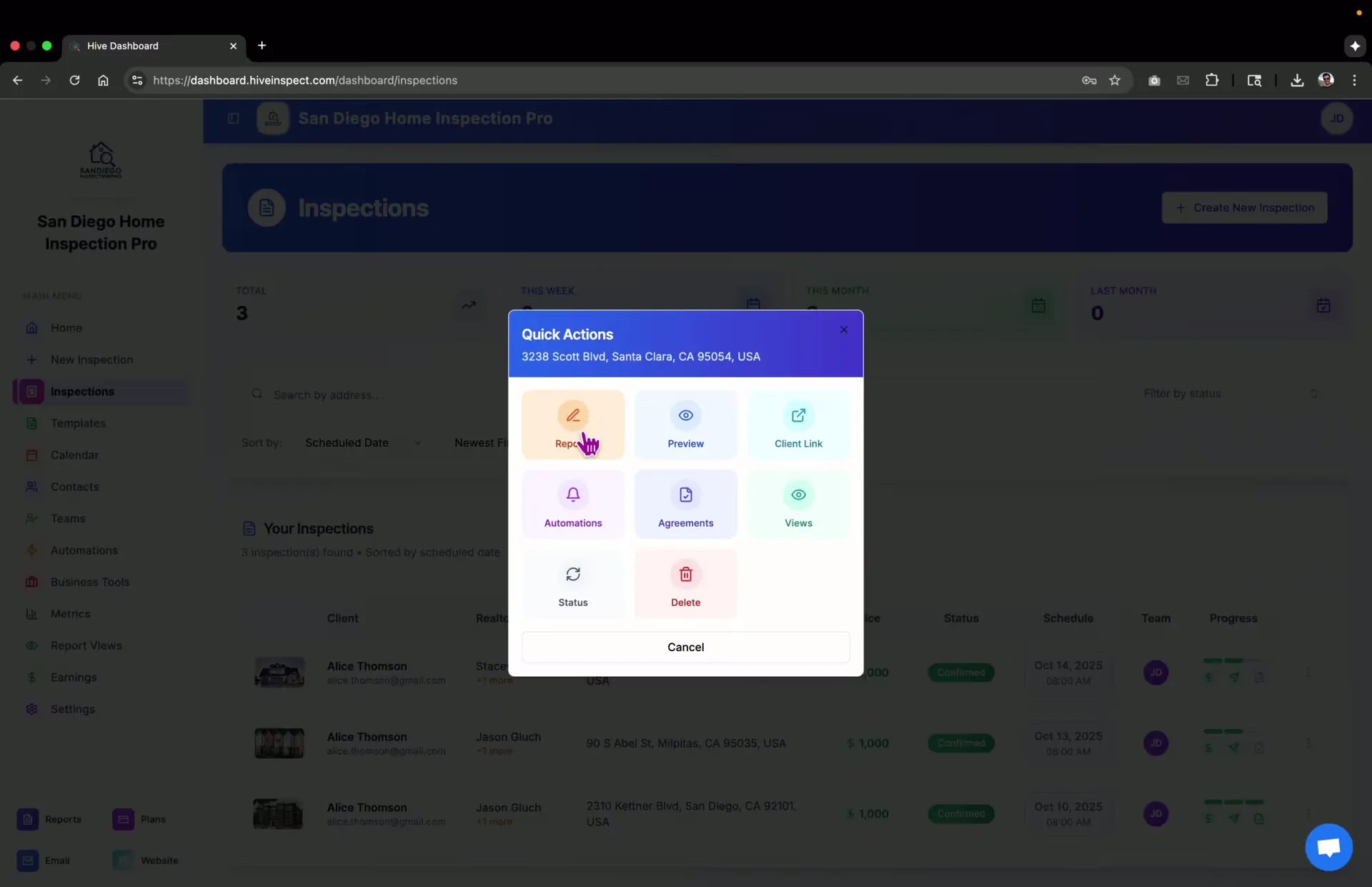
- View the list of templates/reports for the selected inspection
- To add a new report, click Add Report
- To edit an existing report, click Edit
Navigating the Web Editor
1:09
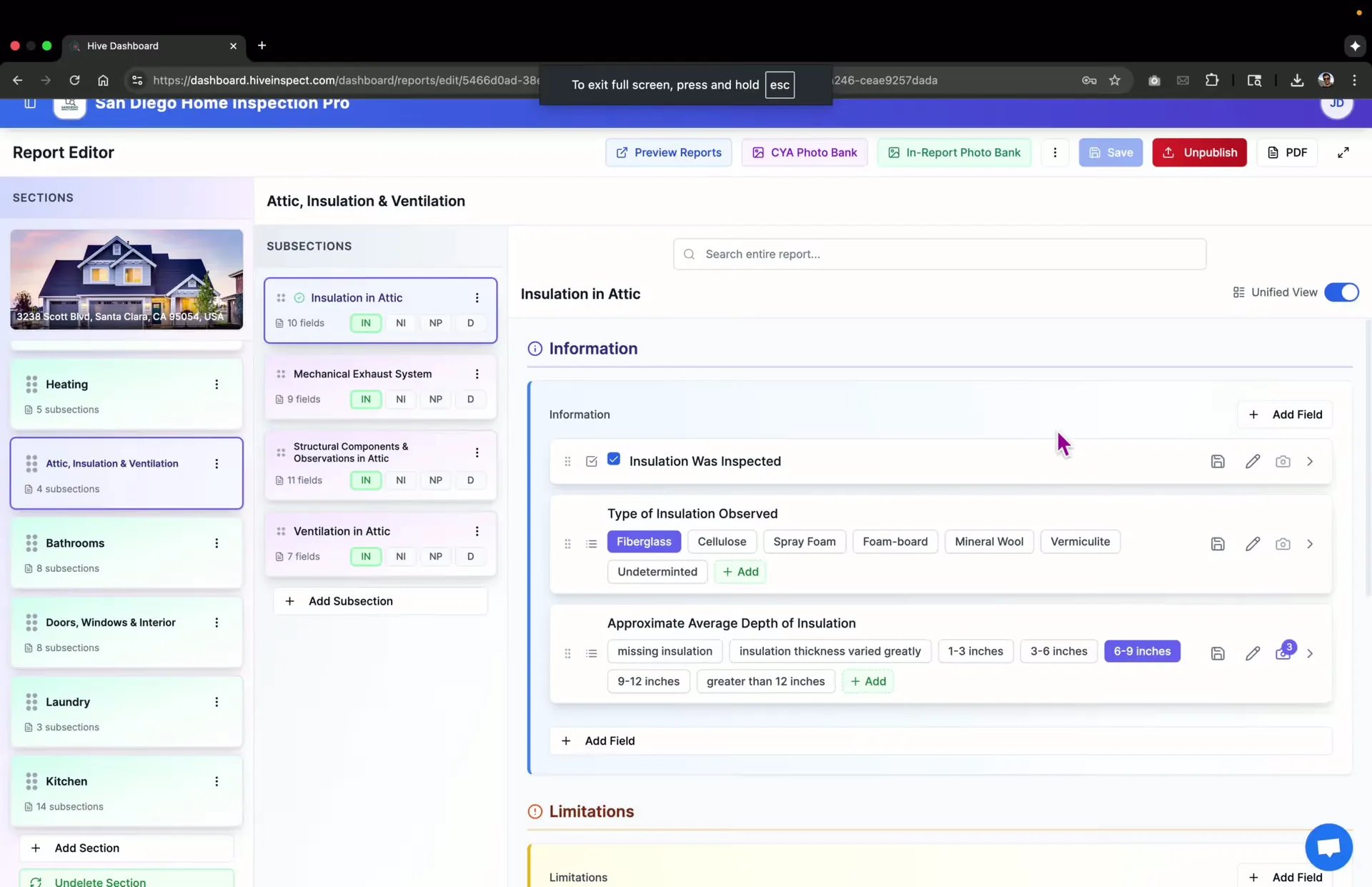
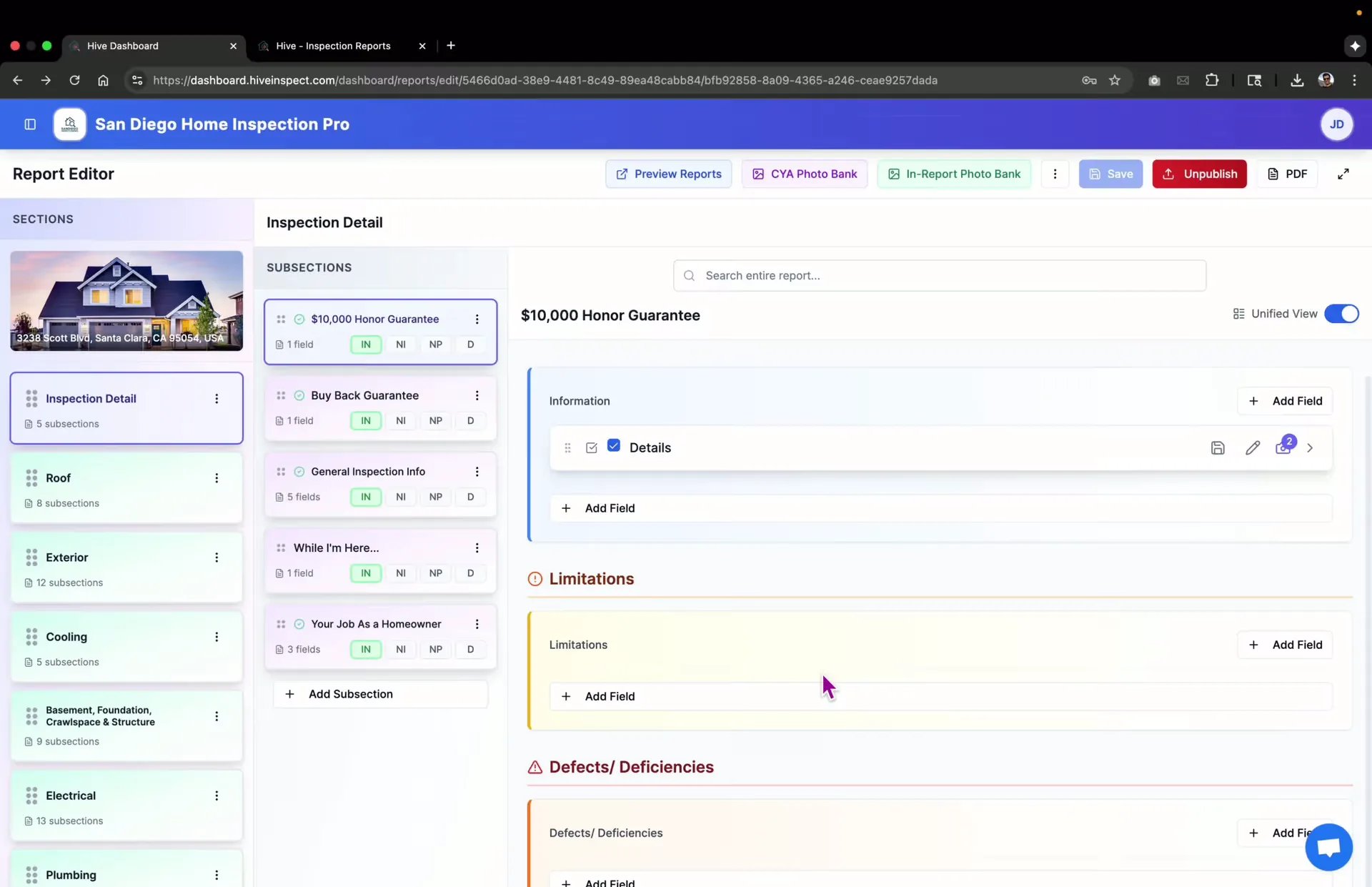
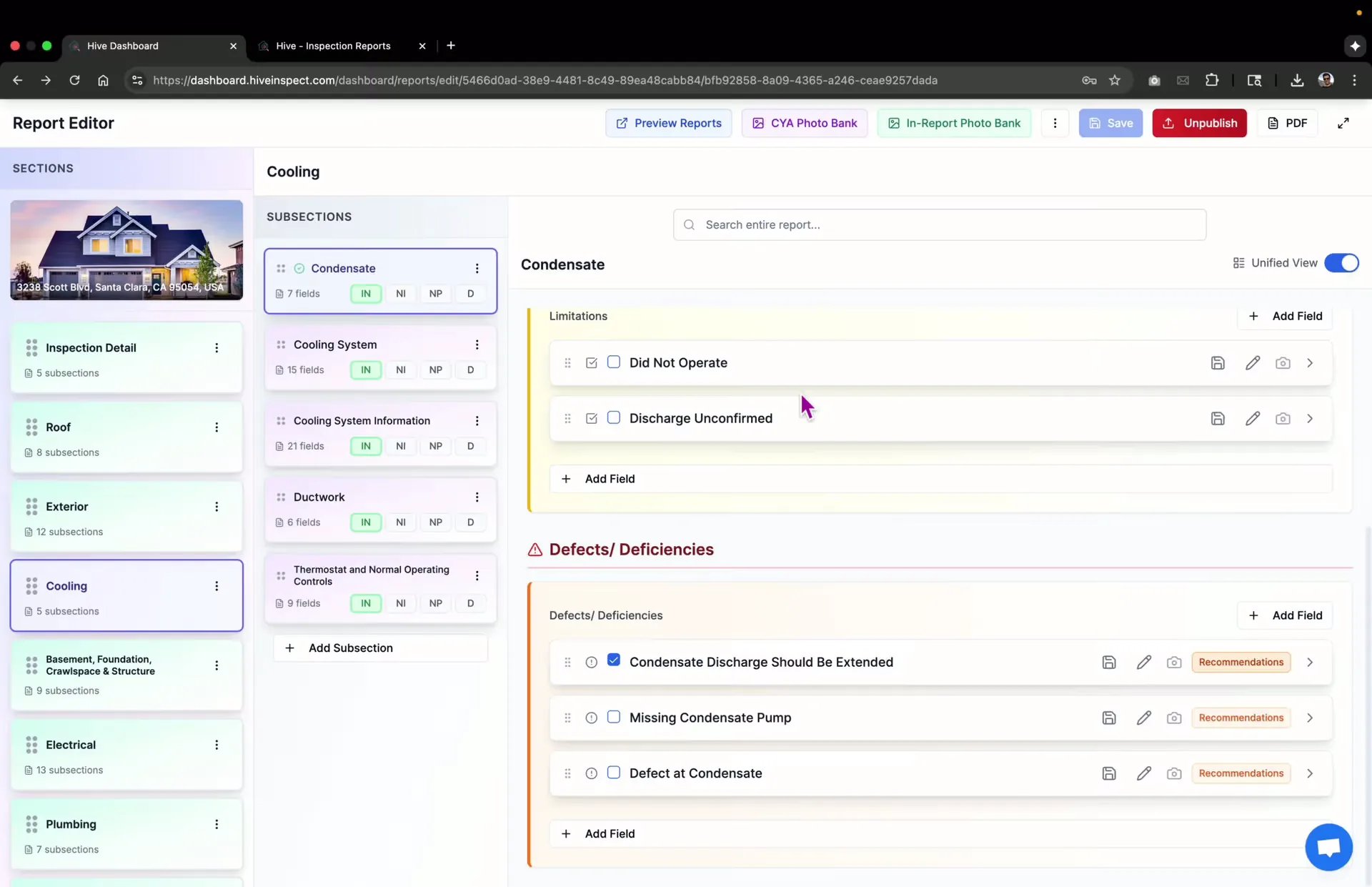
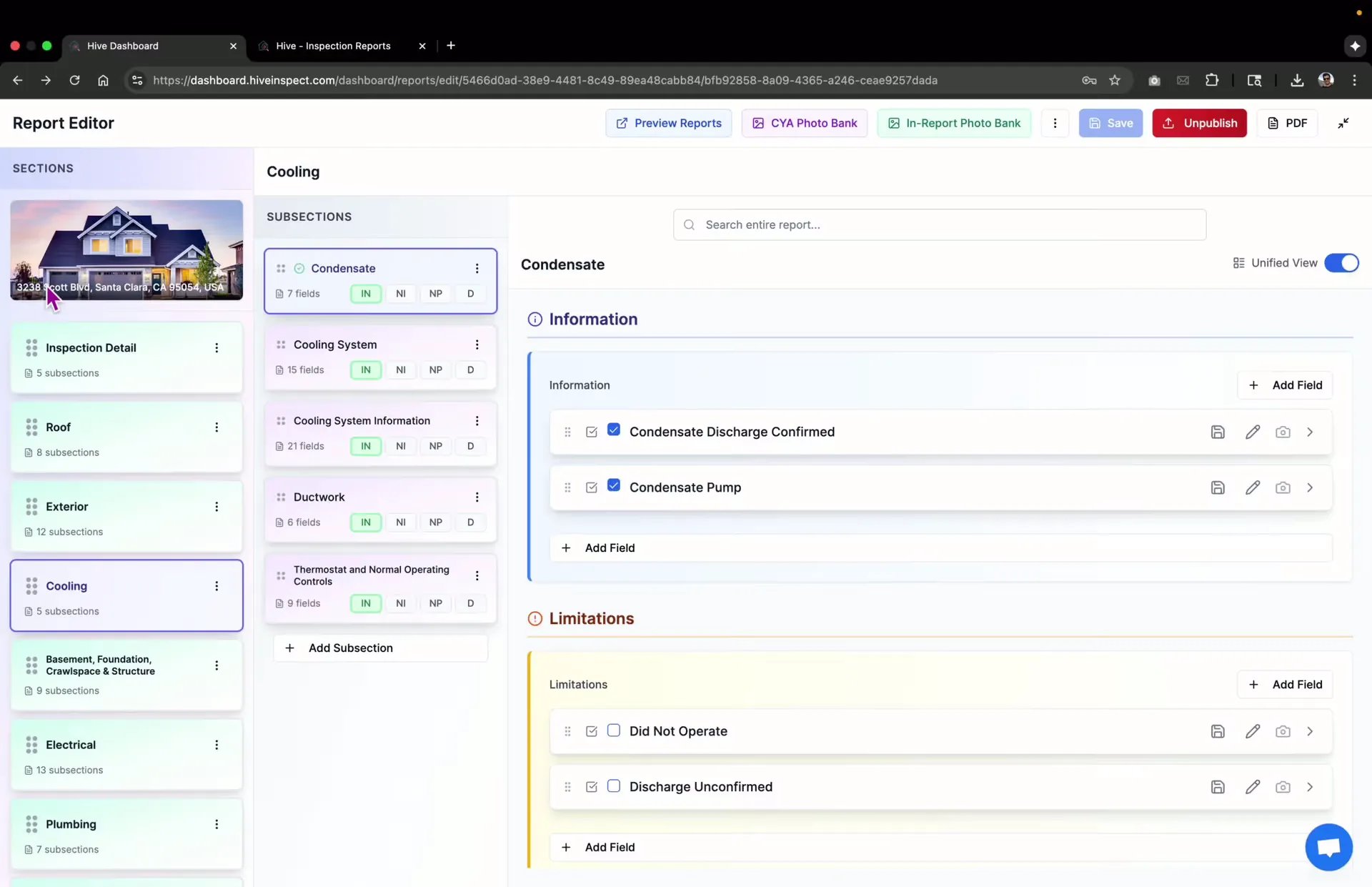
- Sections and subsections are displayed on the left
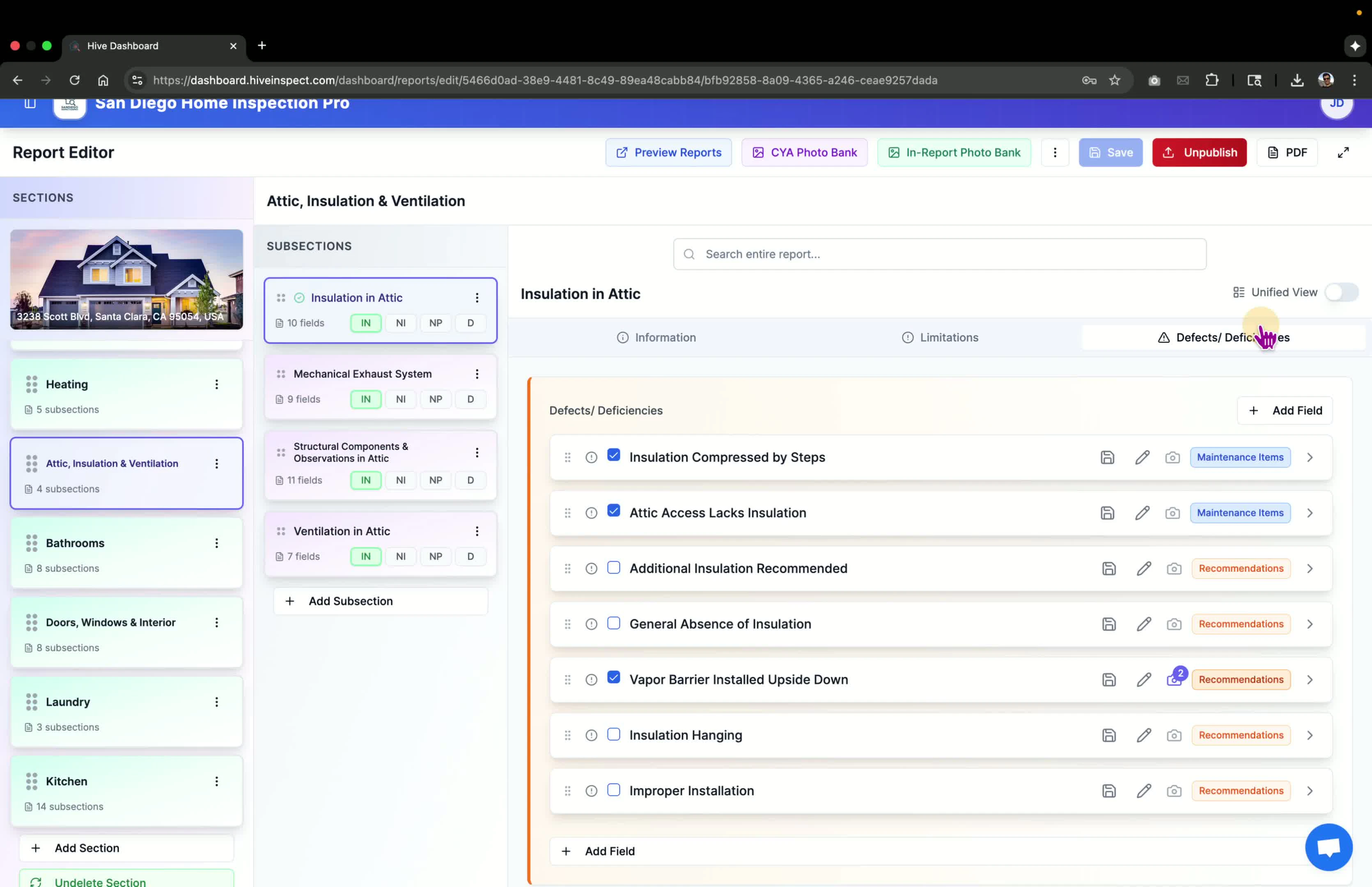
- Various fields are available for input, including checkbox items
Adding images
1:29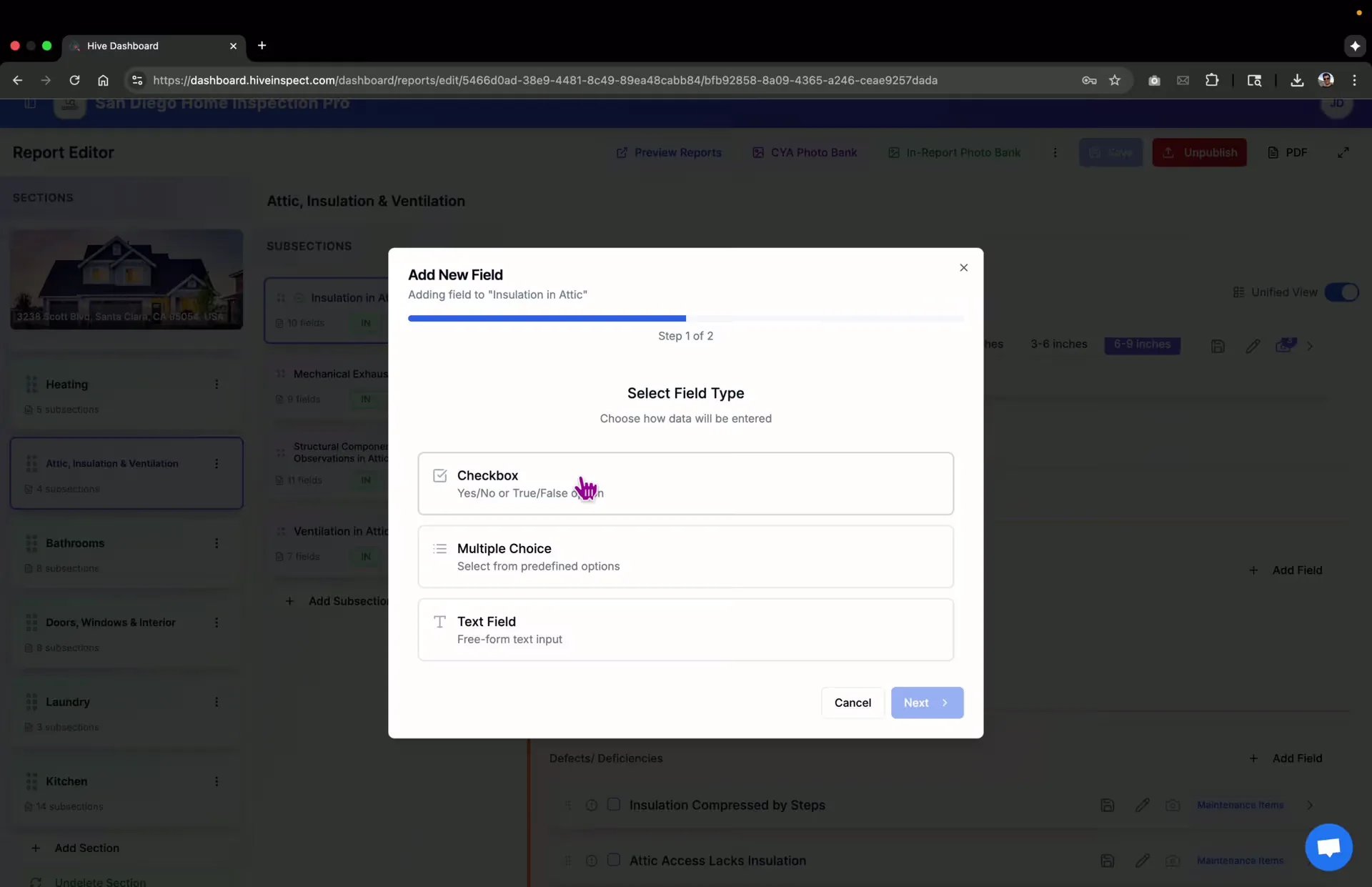
- Upload images captured (e.g., from a drone) by multi-selecting files from your laptop
- Uploaded images will update the count and check relevant fields automatically
Viewing report components
Using ratings
Accessing photobank
2:28
- Click in-report photobank to view images added to the inspection
- Use CYA photobank for additional images
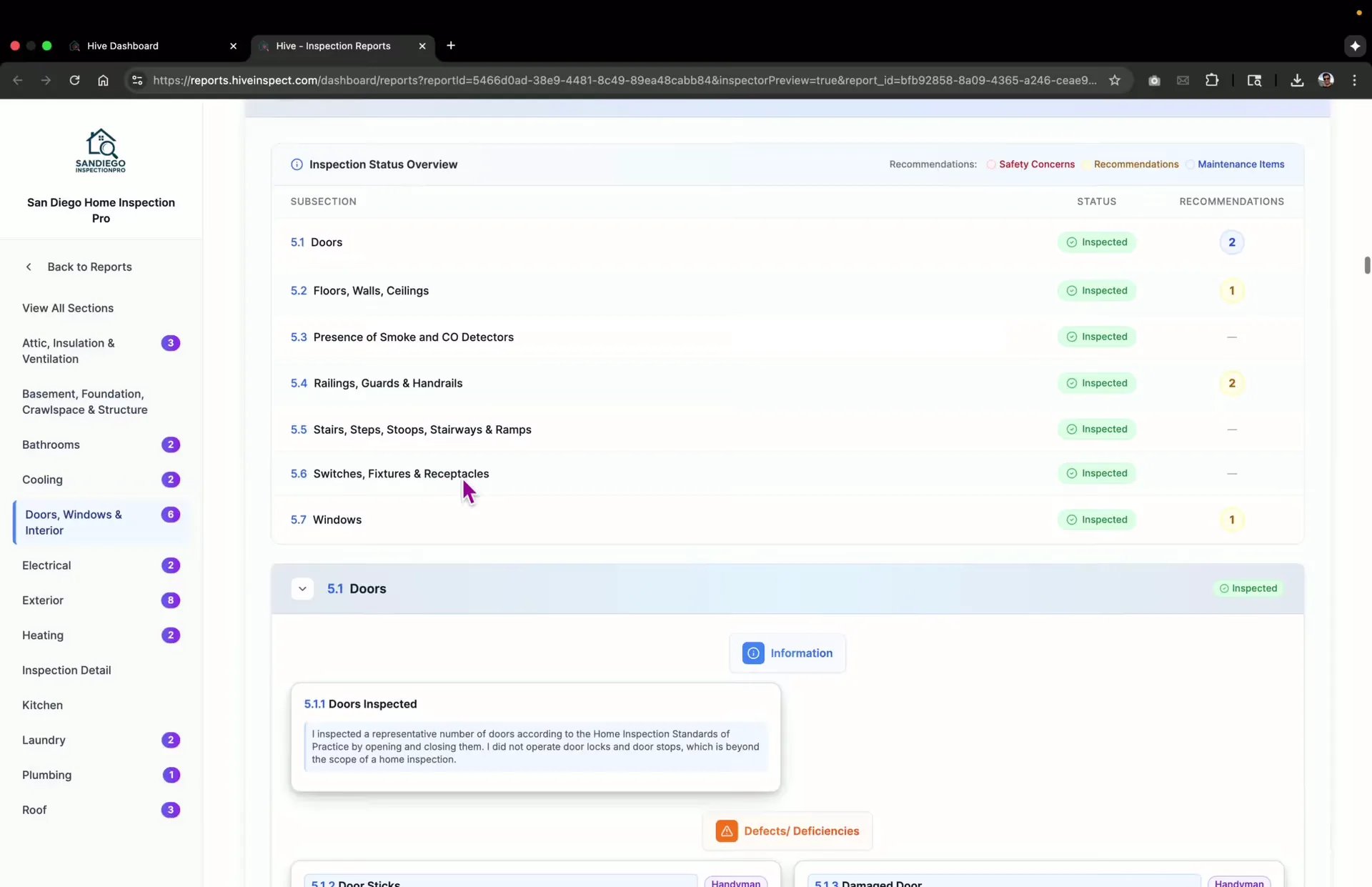
Previewing the report
2:39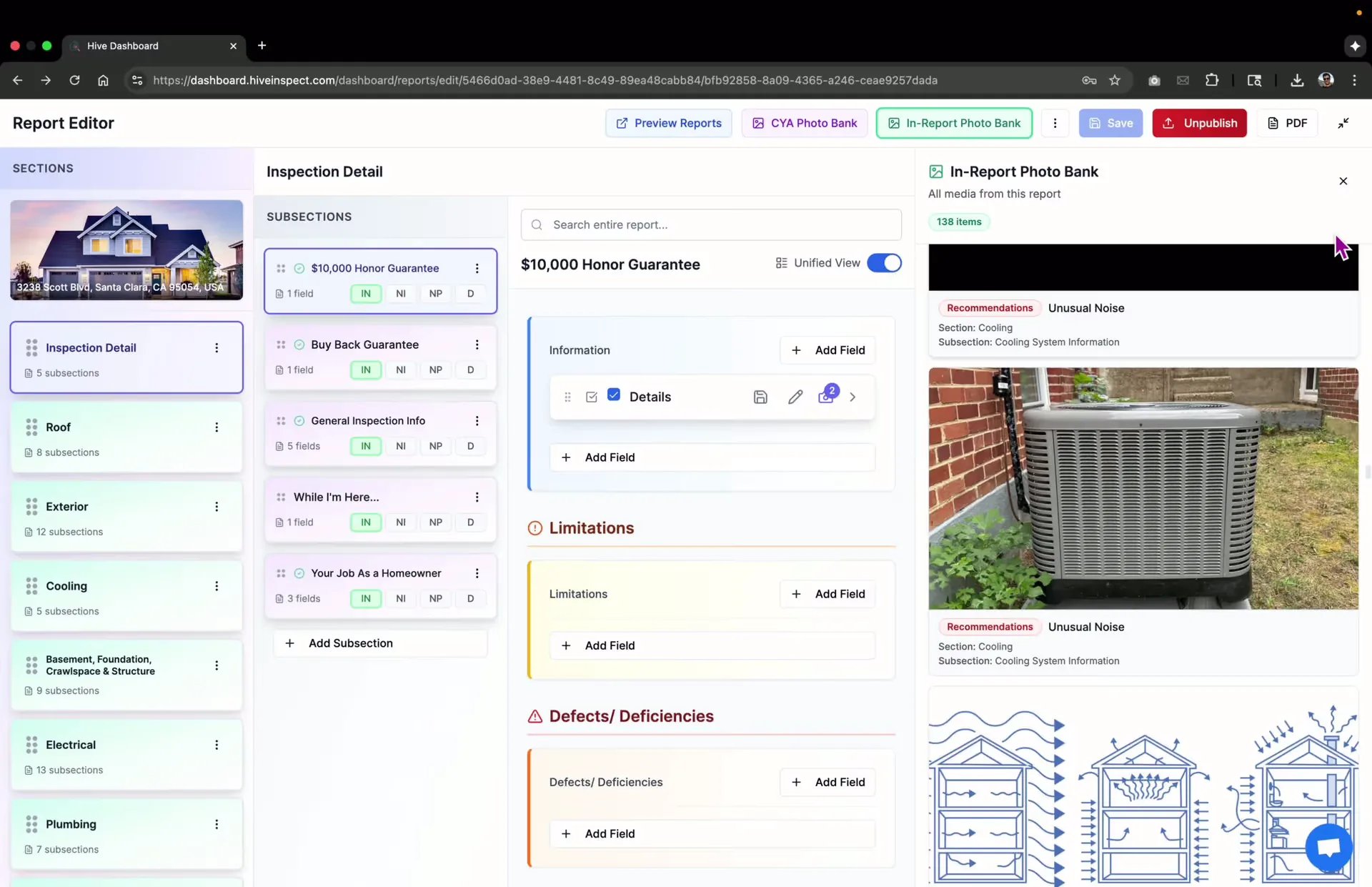
- Click Preview Report to see how it will appear to customers
- Note that the report is locked until published
Final edits and publishing
Saving changes to the template
Flagging issues
3:49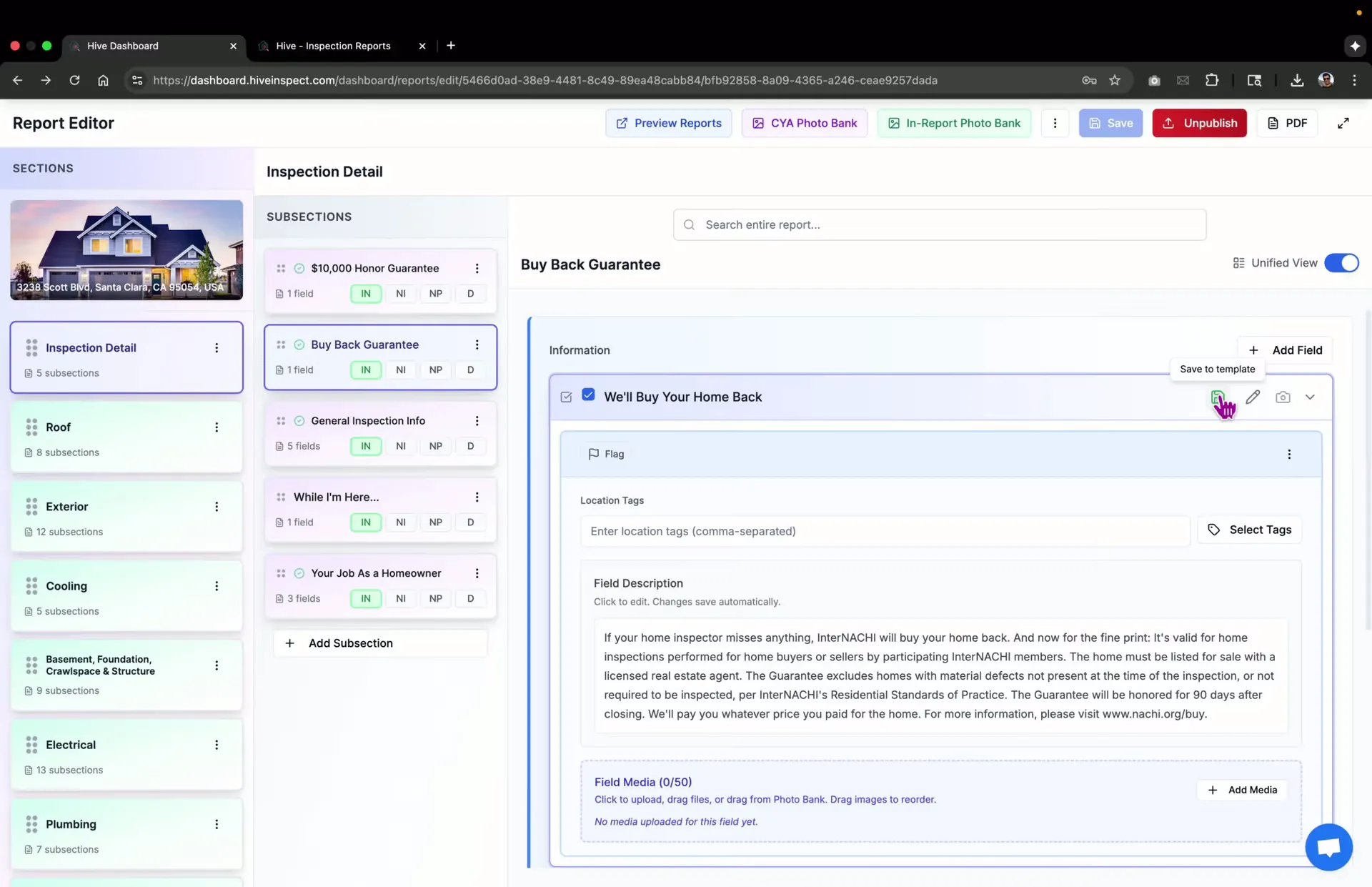
- Flag any fields that require further research before publishing
- Remove flags once issues are resolved
Updating cover photo
Conclusion
Next step
Related