> ## Documentation Index
> Fetch the complete documentation index at: https://docs.hiveinspect.com/llms.txt
> Use this file to discover all available pages before exploring further.
# Add Photos and Videos to Inspection Reports From Your Phone
> Take photos and videos in the Hive Inspect mobile app or add them from your gallery, mark them up, and keep working offline until the report syncs.
## Before you leave for the job
Open the inspection list in the Hive Inspect mobile app and tap the download button at the top right. Hive downloads the reports for all of today's inspections, so they're ready to work on at a site with no signal.
The app keeps working offline. You can take photos, write and edit the report with no signal, and the report syncs when you're back online.
## How to add photos and videos to a comment
* In the mobile app, open the inspection, tap **Report Editor** and pick the report.
* Tap a section to see its subsections, then open the subsection you're working in.
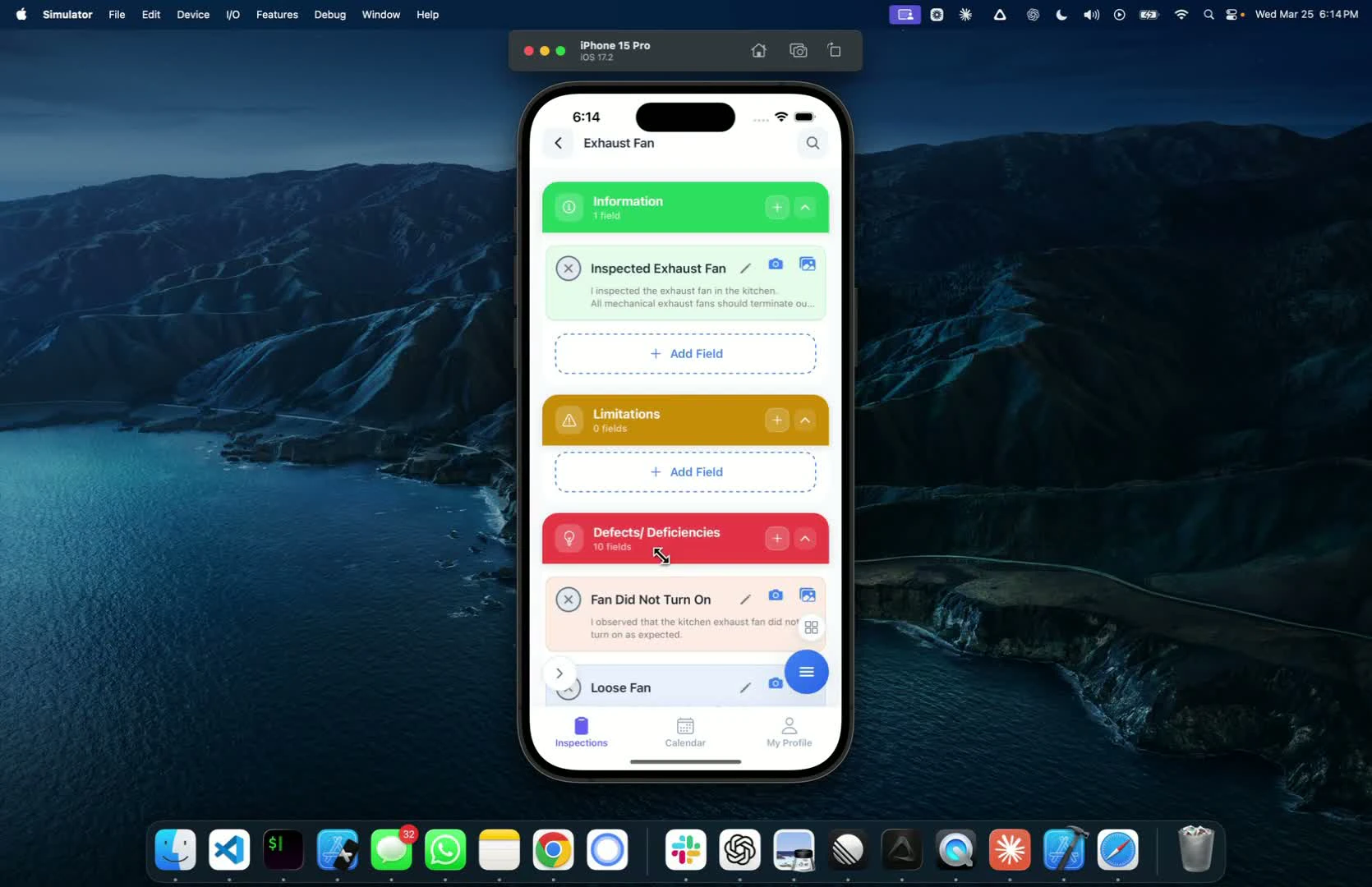 * Tap the camera icon on the comment.
* Take as many photos as you need in a row. They all land on that comment at once.
* Press your phone's volume up or down button to take a photo, on iPhone and Android.
* Zoom goes up to 10x on supported devices.
* Every photo gets a time-stamp showing when it was taken.
* Tap the gallery icon on the comment to add photos you took with your phone's own camera.
* You can pick many photos at once.
* Tap the camera icon on the comment.
* Take as many photos as you need in a row. They all land on that comment at once.
* Press your phone's volume up or down button to take a photo, on iPhone and Android.
* Zoom goes up to 10x on supported devices.
* Every photo gets a time-stamp showing when it was taken.
* Tap the gallery icon on the comment to add photos you took with your phone's own camera.
* You can pick many photos at once.
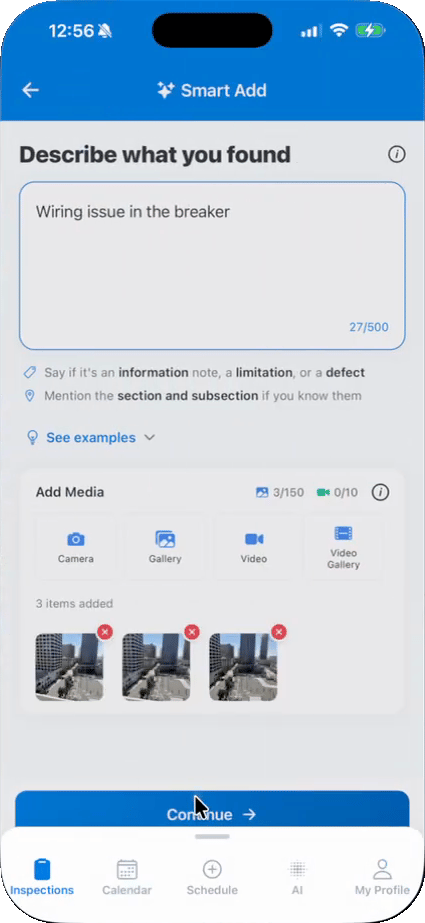 * Tap **Smart Add** and describe what you found. Under **Add Media**, tap **Video** to record one or **Video Gallery** to pick one from your phone.
* Tap **Continue**, then attach the media to the matching comment or let Hive write a new one. See [Smart Add](/how-tos/smart-add) for every step.
* To show a video that's already online, paste the YouTube or Vimeo link into the comment. The player shows inside the report instead of a plain link.
* Annotate the photo to point at the problem, or skip annotation.
* The annotation tools include arrows, circles, rectangles, lines and text in any color, plus rotate, crop and a magnifier loupe for fine detail.
* Pick a default annotation color once and it syncs between the app and the web dashboard. Set a default shape under **My Profile → Annotation Settings → Default Shape**.
* You can edit an annotation later on your phone or on the web, wherever you first drew it.
* Give a photo a caption so one comment can show the issue in several places.
* Tag the photo with where you found it, such as "master bedroom", from the location tags your company sets up under **Settings → Organization** in the web dashboard.
* Captions, annotations and location tags show on the photo thumbnails in the digital report, so clients see them without opening the photo.
* Reorder the photos on a comment right in the app.
* Tap **Smart Add** and describe what you found. Under **Add Media**, tap **Video** to record one or **Video Gallery** to pick one from your phone.
* Tap **Continue**, then attach the media to the matching comment or let Hive write a new one. See [Smart Add](/how-tos/smart-add) for every step.
* To show a video that's already online, paste the YouTube or Vimeo link into the comment. The player shows inside the report instead of a plain link.
* Annotate the photo to point at the problem, or skip annotation.
* The annotation tools include arrows, circles, rectangles, lines and text in any color, plus rotate, crop and a magnifier loupe for fine detail.
* Pick a default annotation color once and it syncs between the app and the web dashboard. Set a default shape under **My Profile → Annotation Settings → Default Shape**.
* You can edit an annotation later on your phone or on the web, wherever you first drew it.
* Give a photo a caption so one comment can show the issue in several places.
* Tag the photo with where you found it, such as "master bedroom", from the location tags your company sets up under **Settings → Organization** in the web dashboard.
* Captions, annotations and location tags show on the photo thumbnails in the digital report, so clients see them without opening the photo.
* Reorder the photos on a comment right in the app.
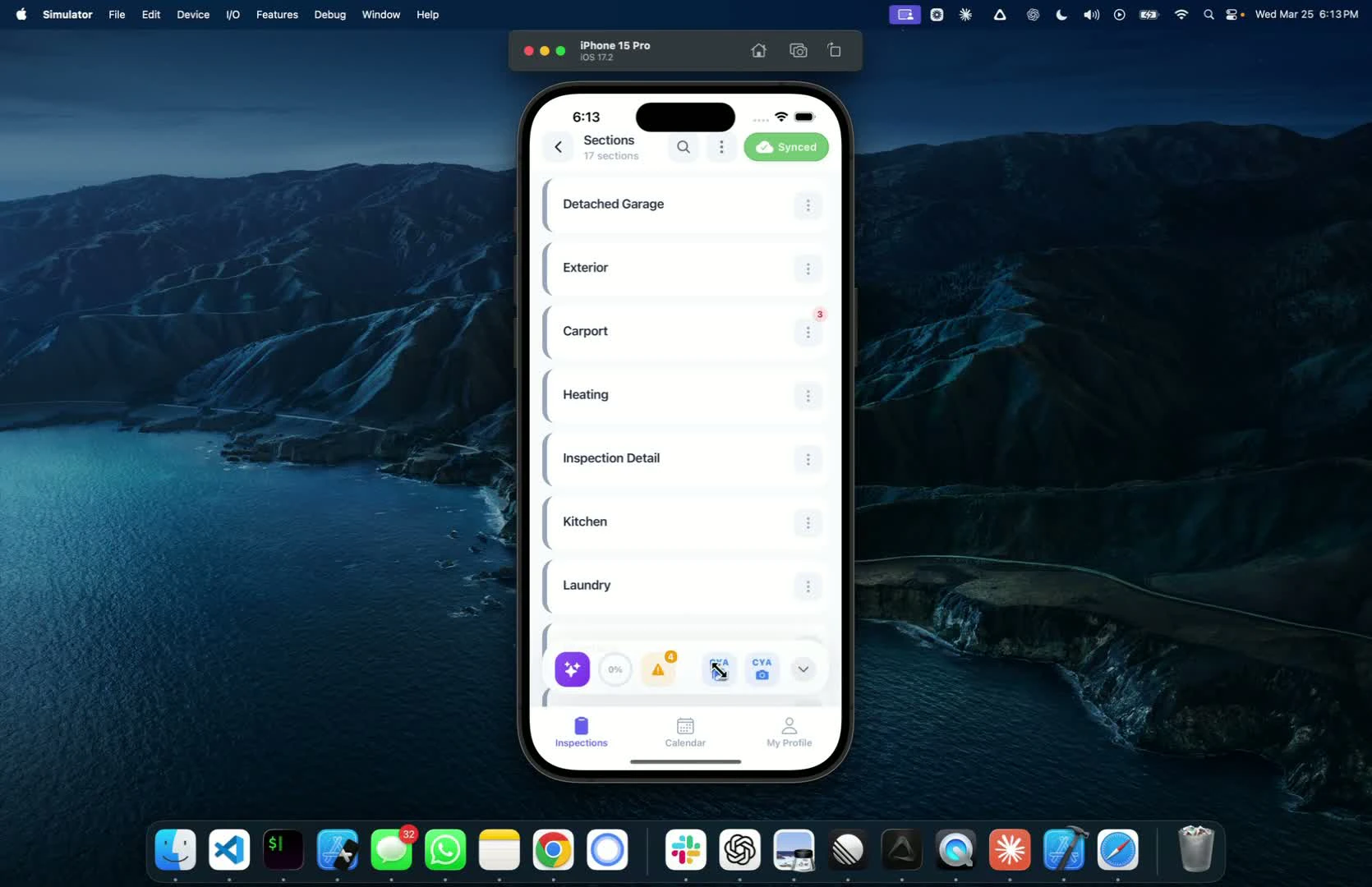 * Use the CYA camera for photos you want to keep for yourself. CYA photos are not put in the report.
* You can annotate, caption and location-tag CYA photos too.
* The options button also opens a view of every image in the report.
* Use the CYA camera for photos you want to keep for yourself. CYA photos are not put in the report.
* You can annotate, caption and location-tag CYA photos too.
* The options button also opens a view of every image in the report.
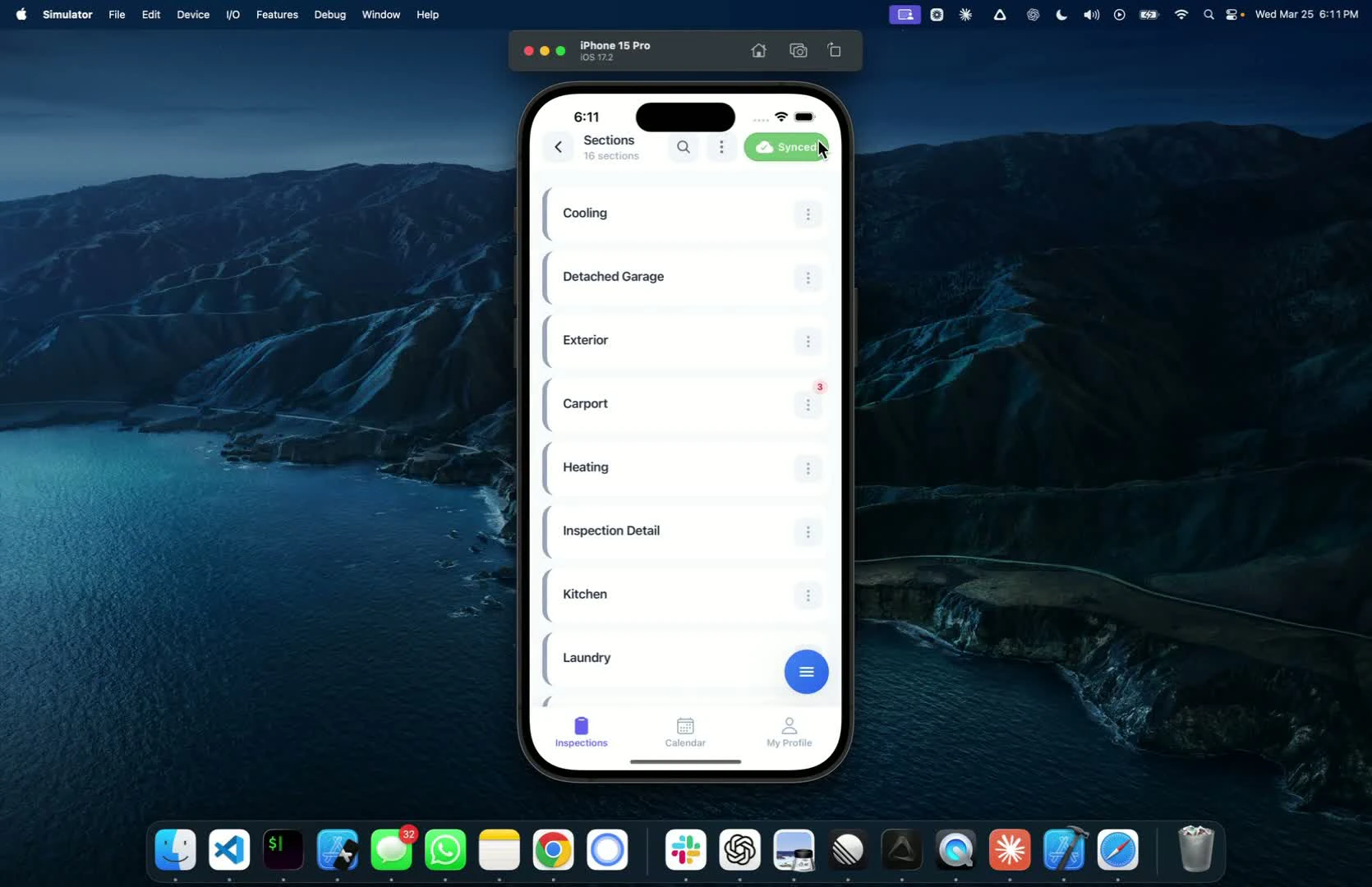 * The app sends your changes to the web a few seconds after each entry and keeps retrying while you're offline. It warns you if something hasn't reached the web.
* When the button at the top right is green and reads **Synced**, there's nothing left to sync.
* Tap the sync button before you leave the report.
**Tip:** Phone on a stand, or hands full? Turn on **Voice Shutter** under **My Profile → Camera Settings → Voice Shutter** and say a keyword to take a photo. You can also lock the in-app camera to landscape or portrait so turning the phone never flips your photos.
## Worth knowing
* **Unlimited media.** Every plan includes unlimited HD photos, high-resolution videos and media storage.
* **Your photos stay on your phone too.** Photos you take in the app are saved to your phone's gallery, in a folder for each inspection. You can choose to save the annotated version.
* **Working in tandem.** If two inspectors edit the same comment on their own devices and each add photos, everyone's photos are kept on that comment.
* **AI tools need signal.** Smart Add, Comment Assist and Comment Merge need an internet connection. Taking photos, writing and editing work offline.
## FAQ
Yes. Download today's reports before you leave, then take photos and write the report offline. The report syncs when you're back online. Smart Add, Comment Assist and Comment Merge need an internet connection.
No. Every plan includes unlimited HD photos, high-resolution videos and media storage.
Yes, from your computer. In the [Web Editor](/inspections-and-reports/web-editor), multi-select the files to upload them. Hive updates the photo count and checks the related fields for you.
Yes. Turn on **Business Tools → Report Customizations → PDF → Larger Photos in the PDF** to show 2 photos per row instead of 3. The PDF gets longer.
Check that the sync button reads **Synced**. If photos are still missing, ask in the chat bubble in your [dashboard](https://dashboard.hiveinspect.com) and we will help.
* The app sends your changes to the web a few seconds after each entry and keeps retrying while you're offline. It warns you if something hasn't reached the web.
* When the button at the top right is green and reads **Synced**, there's nothing left to sync.
* Tap the sync button before you leave the report.
**Tip:** Phone on a stand, or hands full? Turn on **Voice Shutter** under **My Profile → Camera Settings → Voice Shutter** and say a keyword to take a photo. You can also lock the in-app camera to landscape or portrait so turning the phone never flips your photos.
## Worth knowing
* **Unlimited media.** Every plan includes unlimited HD photos, high-resolution videos and media storage.
* **Your photos stay on your phone too.** Photos you take in the app are saved to your phone's gallery, in a folder for each inspection. You can choose to save the annotated version.
* **Working in tandem.** If two inspectors edit the same comment on their own devices and each add photos, everyone's photos are kept on that comment.
* **AI tools need signal.** Smart Add, Comment Assist and Comment Merge need an internet connection. Taking photos, writing and editing work offline.
## FAQ
Yes. Download today's reports before you leave, then take photos and write the report offline. The report syncs when you're back online. Smart Add, Comment Assist and Comment Merge need an internet connection.
No. Every plan includes unlimited HD photos, high-resolution videos and media storage.
Yes, from your computer. In the [Web Editor](/inspections-and-reports/web-editor), multi-select the files to upload them. Hive updates the photo count and checks the related fields for you.
Yes. Turn on **Business Tools → Report Customizations → PDF → Larger Photos in the PDF** to show 2 photos per row instead of 3. The PDF gets longer.
Check that the sync button reads **Synced**. If photos are still missing, ask in the chat bubble in your [dashboard](https://dashboard.hiveinspect.com) and we will help.
Next step
Related
This documentation is built and hosted on [Mintlify](https://mintlify.com), a developer documentation platform.