

In the mobile app: the report editor → the Smart Add button (sparkle and plus) at the bottom.
How Smart Add works
Smart Add lives in the mobile report editor. Describe what you found in a sentence, and Hive searches every comment in the report and shows the closest matches with a match score. Turn one on, attach your photos to it, and you’re done, without paging through sections. If nothing fits, Smart Add drafts a new comment with Hive Comment Assist, in the section and subsection it belongs in, for you to check and add. Smart Add is part of Hive AI and uses Hive Comment Assist to write new comments. Both are listed under Business Tools → Hive AI in the web dashboard. It needs an internet connection.How to add a comment with Smart Add
Open the report and tap Smart Add
0:28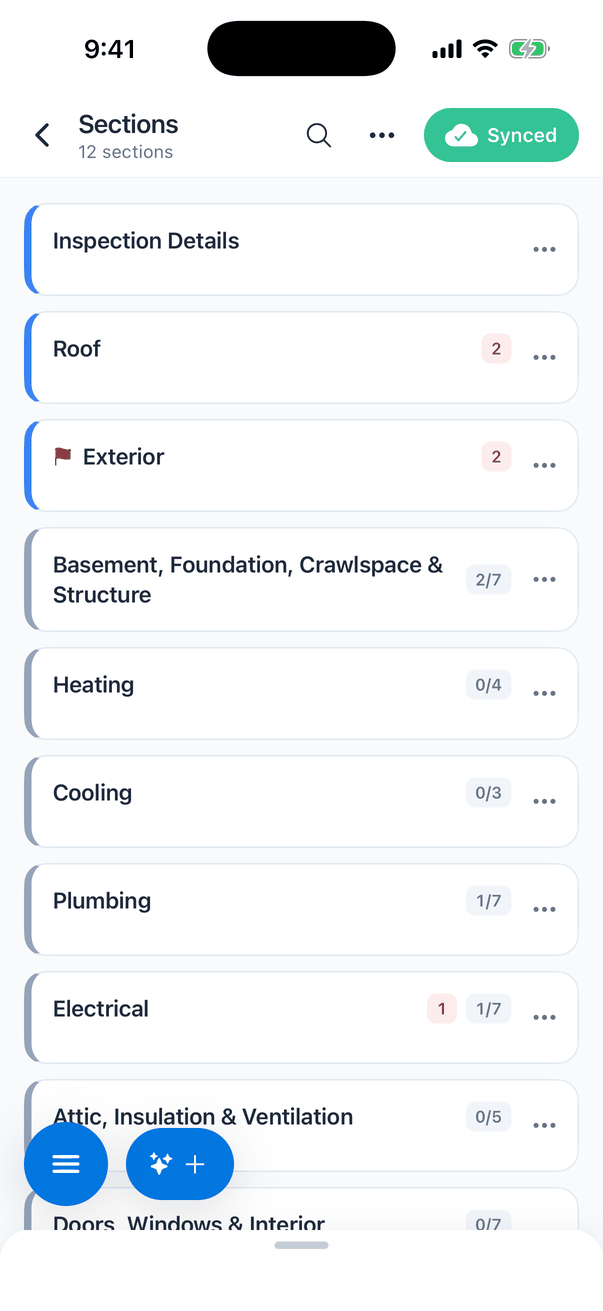
- In the Hive Inspect mobile app, open an inspection, tap Report Editor and pick the report.
- The Smart Add button (a sparkle and a plus sign) sits at the bottom of the screen, next to the blue menu button.
- It’s on the Sections screen, inside a section and inside a subsection, so you can use it from wherever you are in the report.
Describe what you found
0:38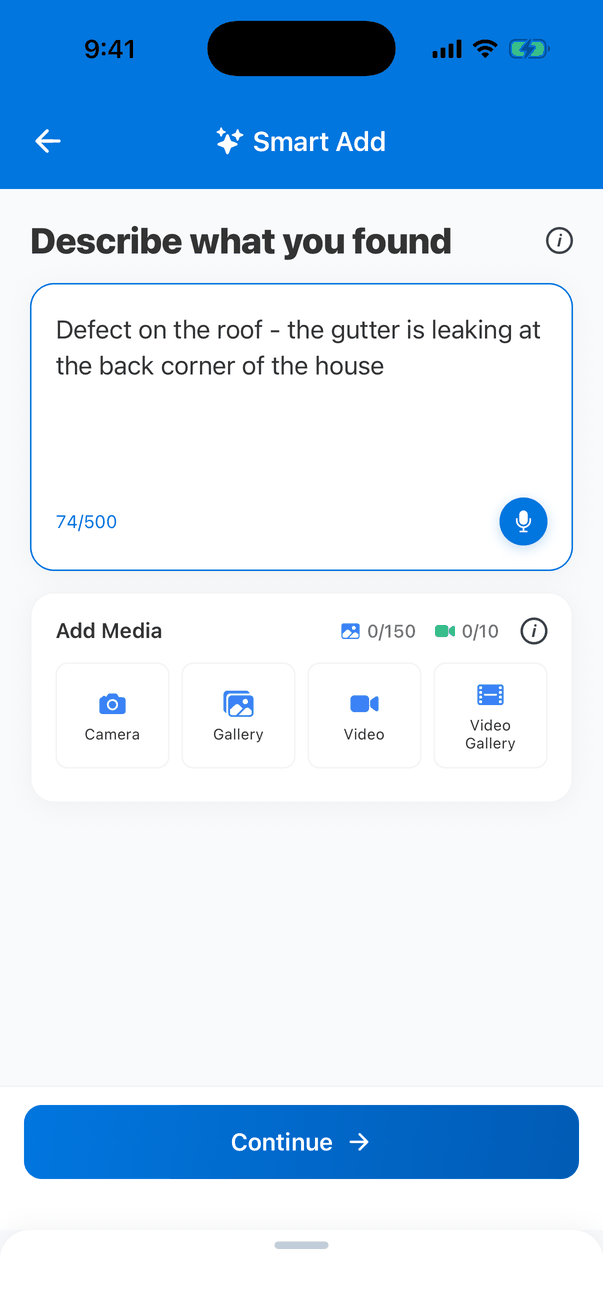
- Type your observation in a sentence or two, for example “Defect on the roof - the gutter is leaking at the back corner of the house”. Between 10 and 500 characters.
- Or tap the microphone and say it.
- Say whether it’s an information note, a limitation or a defect, and name the section or subsection if you know it.
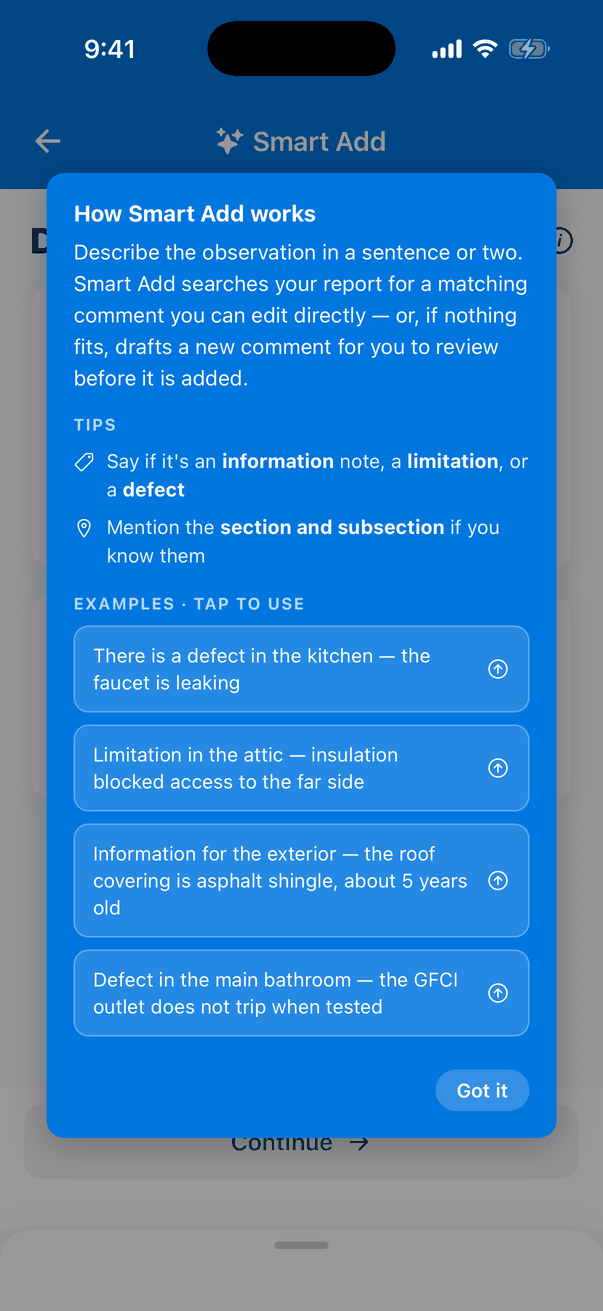
- Tap the i for How Smart Add works, with tips and four examples. Tap an example to use it.
Add photos or video (optional)
0:48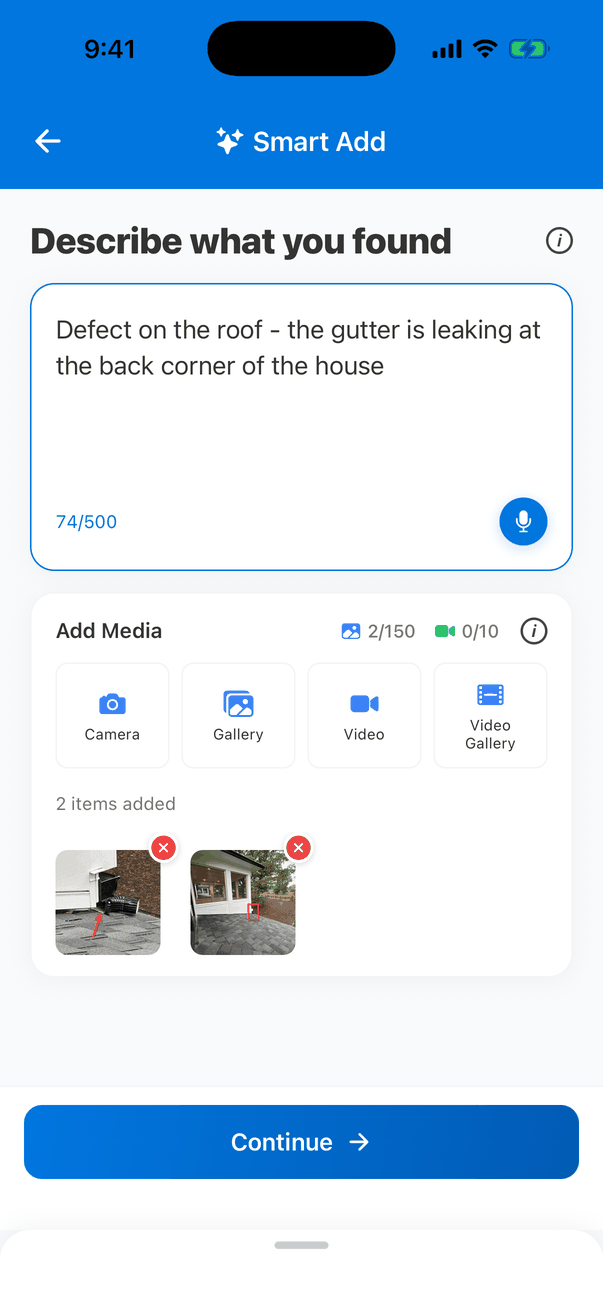
- Under Add Media, take photos or video with Camera and Video, or pick them with Gallery and Video Gallery.
- Annotate the photos if you like, or skip annotation.
- Tap Continue. The app shows Finding matches… (“Analyzing your report — this takes a few seconds”). Your media travels with your observation, and you choose which comment it goes on in the next step.
Review the top matches
0:52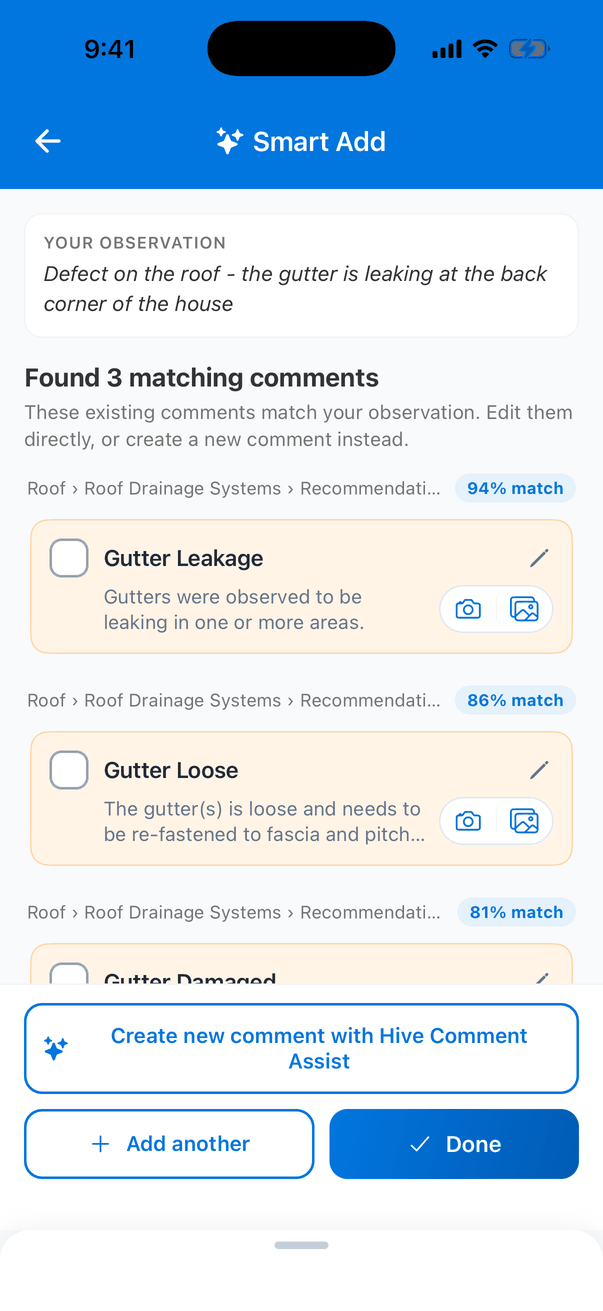
- Smart Add shows up to three matches, each with a match score such as 94% match.
- Each card shows where the comment is (Section › Subsection › card). Comments in hidden sections are marked Section hidden or Subsection hidden.
- The cards are the real comments. Tick one to turn it on, tap its name to open it, or use its camera button. If it’s in a hidden section or subsection, turning it on shows that section again.
Attach your media to a match and tap Done
1:36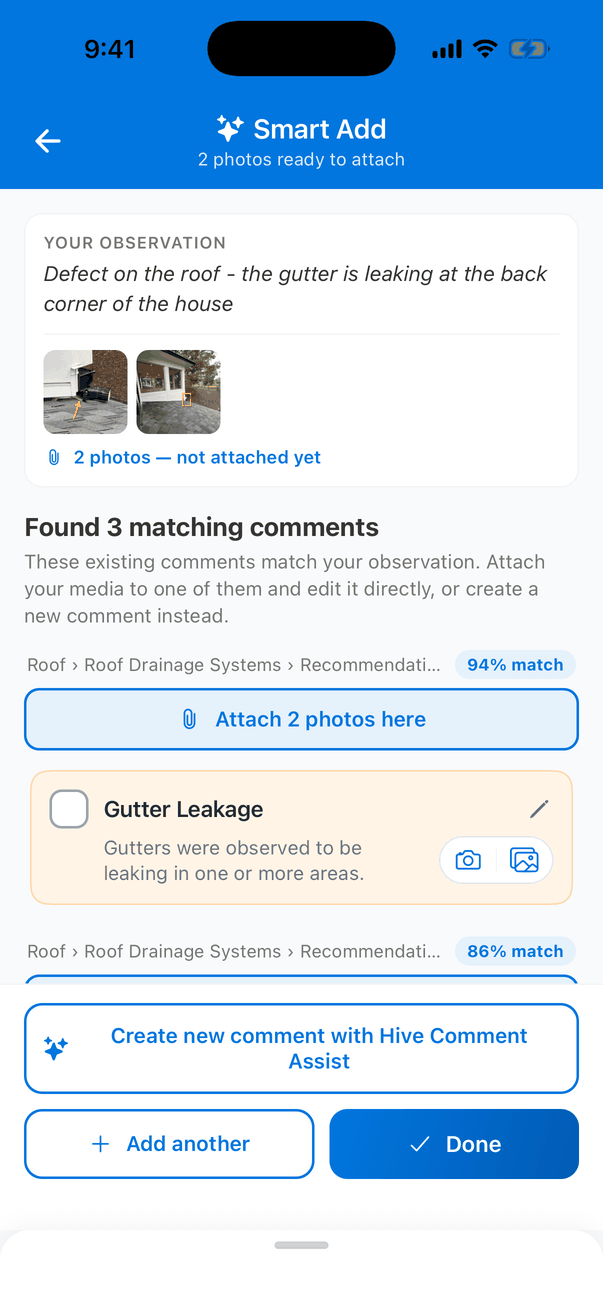
- Tap Attach 2 photos here (or however many) above the comment you want. The card shows “Media attached to this comment” and the comment is turned on, with your photos on it.
- Tap Done to go back to where you were, or Add another for your next finding.
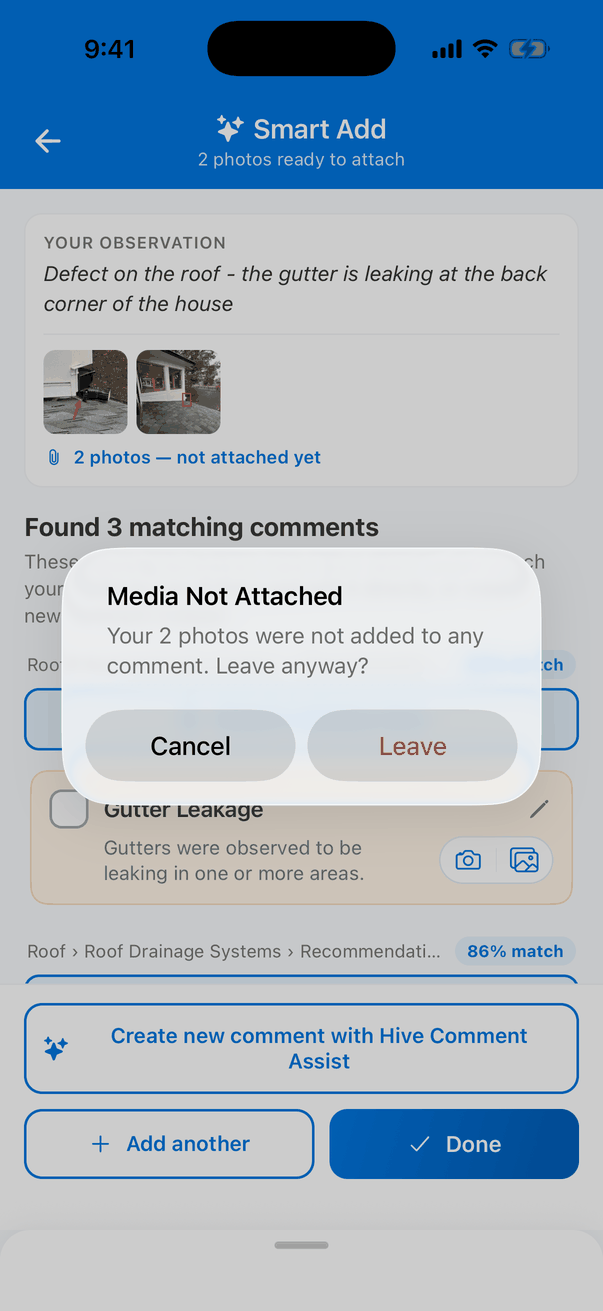
- If you leave without attaching your photos, the app warns you: “Media Not Attached: Your 2 photos were not added to any comment. Leave anyway?“
No good match? Create a new comment
1:44
- Tap Create new comment with Hive Comment Assist. When nothing matches at all, Smart Add starts this for you.
- Hive drafts the comment name and description from your observation (“Drafting your comment with Hive Comment Assist…”), the same way Comment Assist does elsewhere in Hive.
- It also picks the section and subsection, for example Roof › Roof Drainage Systems, from the ones in your report.
Review the draft and where it goes
1:52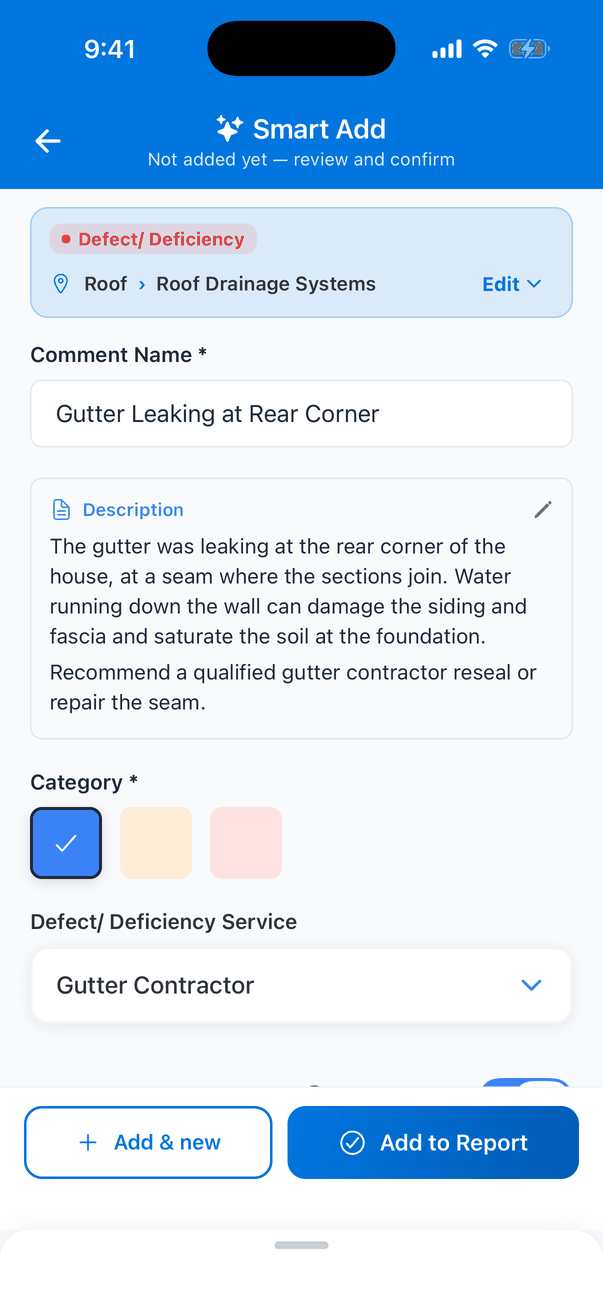
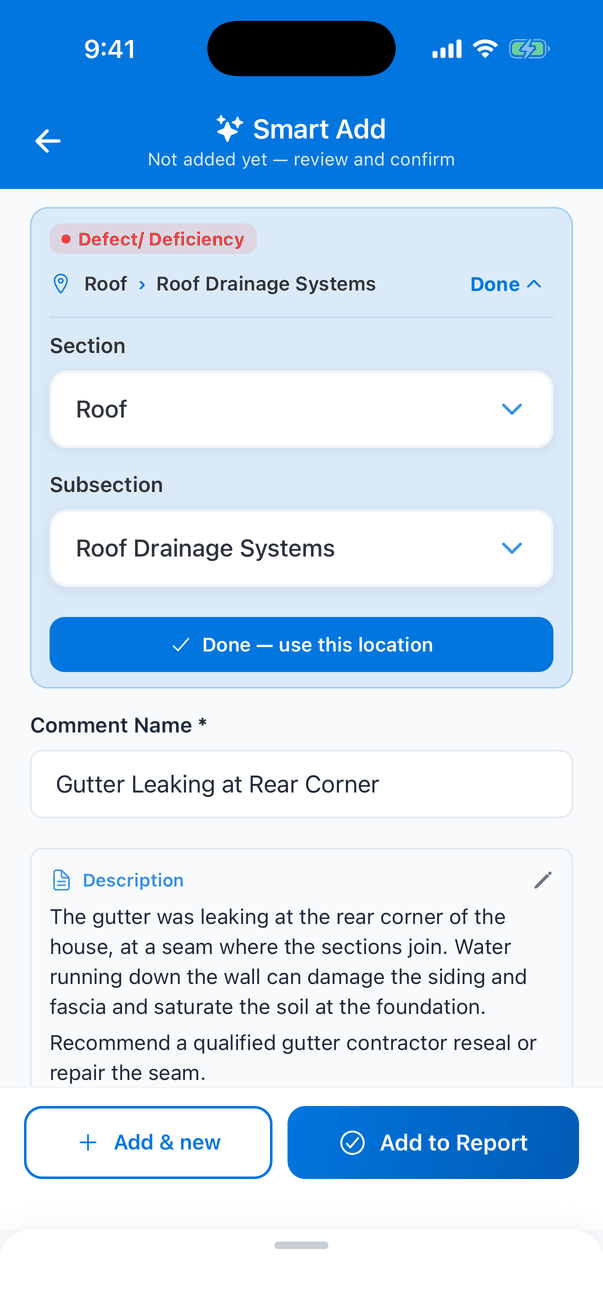
- Check the comment name, description, category and service. Change anything you like.
- The bar at the top shows the section and subsection. Tap Edit to choose different ones, then Done — use this location.
- Your photos are already on the new comment.
- Turn on Save to Template to keep the comment for future reports.
Add it and keep inspecting
2:06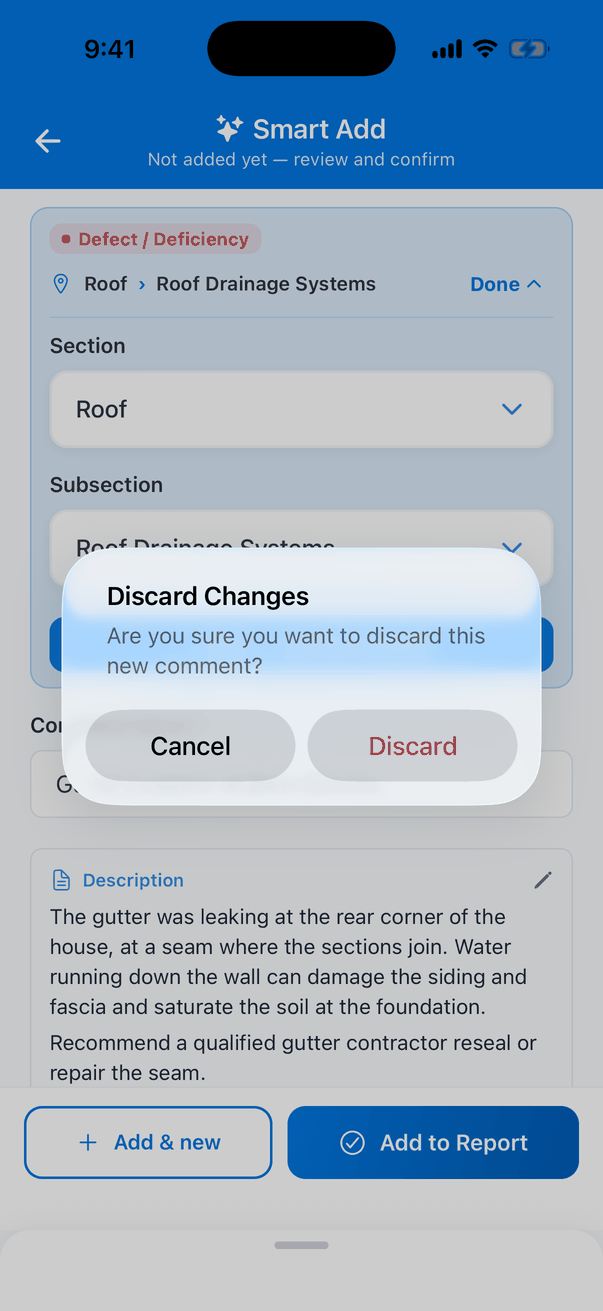
- Tap Add to Report to add the comment and go back, or Add & new to add it and describe your next finding.
- The comment is added under the section and subsection shown, even if you were working somewhere else in the report. If that section was hidden, it’s shown again.
- To throw the draft away, tap back. The app asks “Discard Changes: Are you sure you want to discard this new comment?”
Worth knowing
- Needs signal. Smart Add and Comment Assist need an internet connection. Offline, the app says No Internet. Everything else in the report editor works offline.
- Not on re-inspections. The Smart Add button doesn’t show on re-inspection reports.
- Turned off? If Hive AI isn’t on for your company, Smart Add shows NOT ACTIVE. Check Business Tools → Hive AI in the dashboard.
- Photos you don’t attach aren’t added. Attach them to a match or a new comment before you leave Smart Add.
FAQ
The matches are wrong
The matches are wrong
Say more: whether it’s a defect, a limitation or information, and the area, for example “Defect in the main bathroom — the GFCI outlet does not trip”. Or tap Create new comment with Hive Comment Assist.
Does Smart Add change my template?
Does Smart Add change my template?
No. Matches are comments already in the report. A new comment only goes into your template if you turn on Save to Template before you add it.
Can I use my voice?
Can I use my voice?
Yes. Tap the microphone in the description box and say what you found. It needs an internet connection on most phones.
Next step
Related