> ## Documentation Index
> Fetch the complete documentation index at: https://docs.hiveinspect.com/llms.txt
> Use this file to discover all available pages before exploring further.
# Price Modifiers: Adjust Inspection Prices by Size, Age, Distance, Day and Time
> Add price modifiers to a service in Hive Inspect so the price and length of an inspection adjust on their own for square footage, home age, distance, foundation, day of the week and time of day.
In the dashboard: Business Tools → Services & Fees → Edit a service → Service Modifiers
## What price modifiers do
A **modifier** is a rule on a service that adds money and time to an inspection when a condition is met. For example: "add \$75 and 30 minutes when the home is 2,001 to 3,000 sq ft", or "add \$1.50 for every mile past 30 miles".
Once modifiers are set up, you never work out a price by hand. Hive adds the right amounts on its own:
* when you or your team schedule an inspection in the dashboard
* when a client books on your online scheduler
* when a client gets a price from your quote widget
Each modifier has two amounts:
* **Add Fees (\$)**: the money added to the price. A negative amount, such as **-50**, takes money off.
* **Add Hours**: the time added to the inspection. It makes the inspection longer on the calendar.
A service can have as many modifiers as you need. **Every modifier whose condition is met is added**, so a large, old home far away can get a size charge, an age charge and a travel charge on the same inspection.
To charge by something Hive doesn't track on its own, such as the number of units, bedrooms, the county or the property type, create a custom field first and then add a modifier on it. See [Custom field modifiers](/how-tos/custom-field-modifiers).
## The modifier types at a glance
| Modifier (the "When" list) | Types you can pick | What Hive checks | Example |
| - | - | - | - |
| [Square Feet](#square-feet) | Range, Per 100 sq ft | The square footage on the inspection | \$75 for 2,001 to 3,000 sq ft |
| [Age of House](#age-of-house) | Range, Per Year | The home's age in years: this year minus the year built | \$50 for homes 51 years or older |
| [Miles or Kilometers from Company Address](#distance) | Range, Per Mile (or Per Km) | The driving distance from your company address to the property | \$1.50 a mile past 30 miles |
| [Miles or Kilometers from Inspector's Address](#distance) | Range, Per Mile (or Per Km) | The driving distance from the assigned inspector's address | \$50 for 26 to 50 miles |
| [Foundation](#foundation) | Select Foundation Type | The foundation picked on the inspection: Basement, Slab or Crawlspace | \$50 for a crawlspace |
| [Specific Day](#specific-day) | Select Day | The day of the week the inspection is scheduled | \$75 on Saturdays |
| [After Working Hours](#after-and-before-working-hours) | Time Threshold | The start time is at or after a time you pick | \$50 if it starts at 5:00 PM or later |
| [Before Working Hours](#after-and-before-working-hours) | Time Threshold | The start time is at or before a time you pick | \$50 if it starts at 7:00 AM or earlier |
| [Custom fields](/how-tos/custom-field-modifiers) | Range, Per Unit, Per Unit Over, Equals To | An answer to one of your custom fields | \$150 for each unit after the first |
## Add a modifier to a service
Click **Business Tools** in the sidebar, then **Services & Fees**. Each service card shows how many modifiers and add-ons it has.
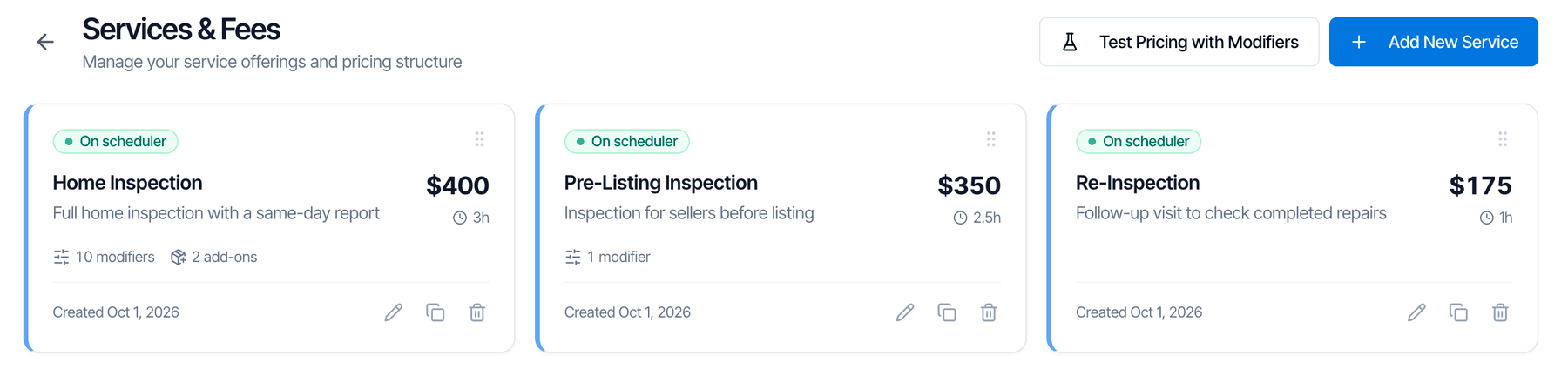 Click the pencil icon on a service to edit it, or **Add New Service** to make a new one.
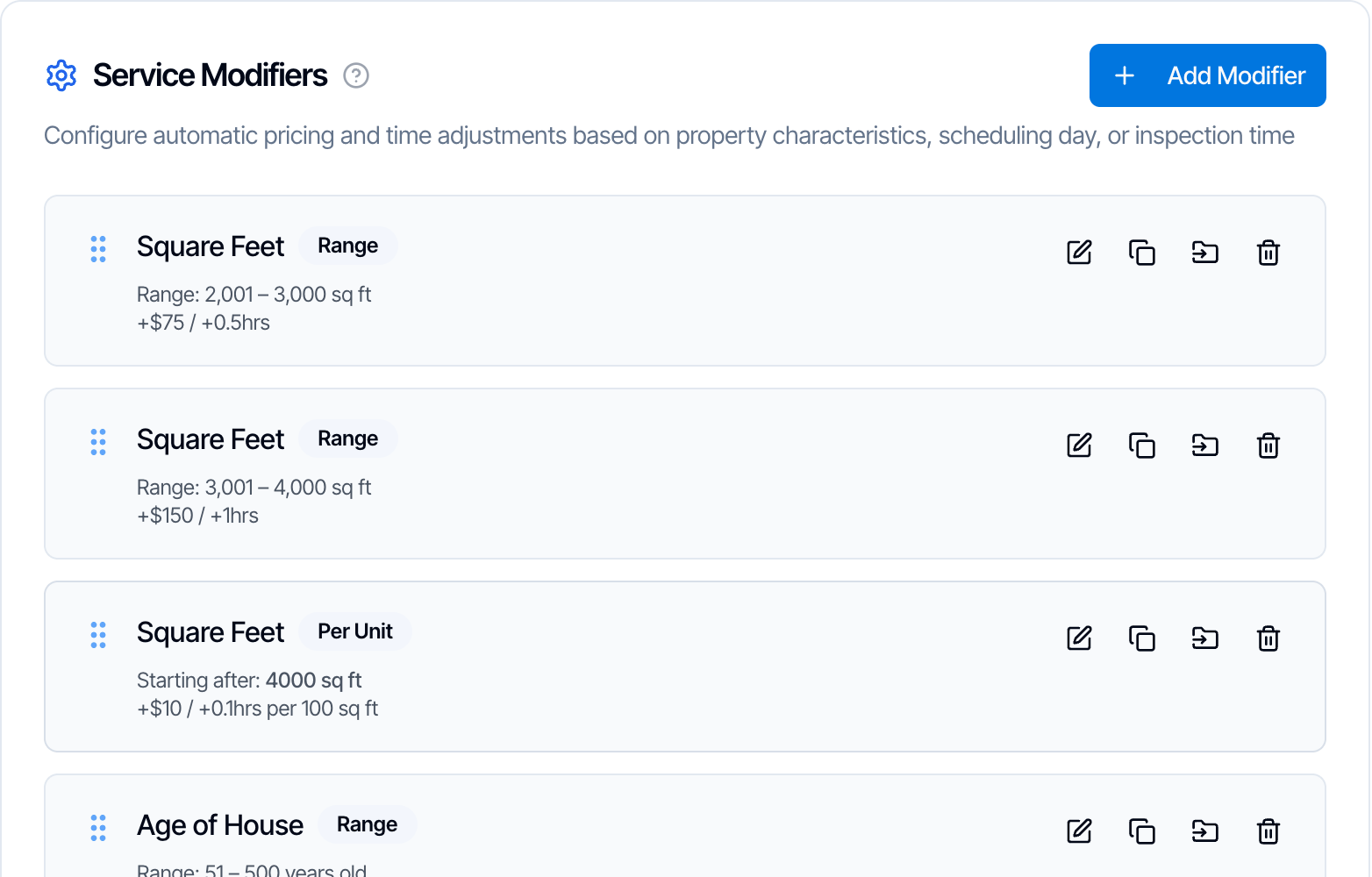
Scroll to **Service Modifiers** and click **Add Modifier**. The modifiers the service already has are listed here.
Click the pencil icon on a service to edit it, or **Add New Service** to make a new one.
Scroll to **Service Modifiers** and click **Add Modifier**. The modifiers the service already has are listed here.
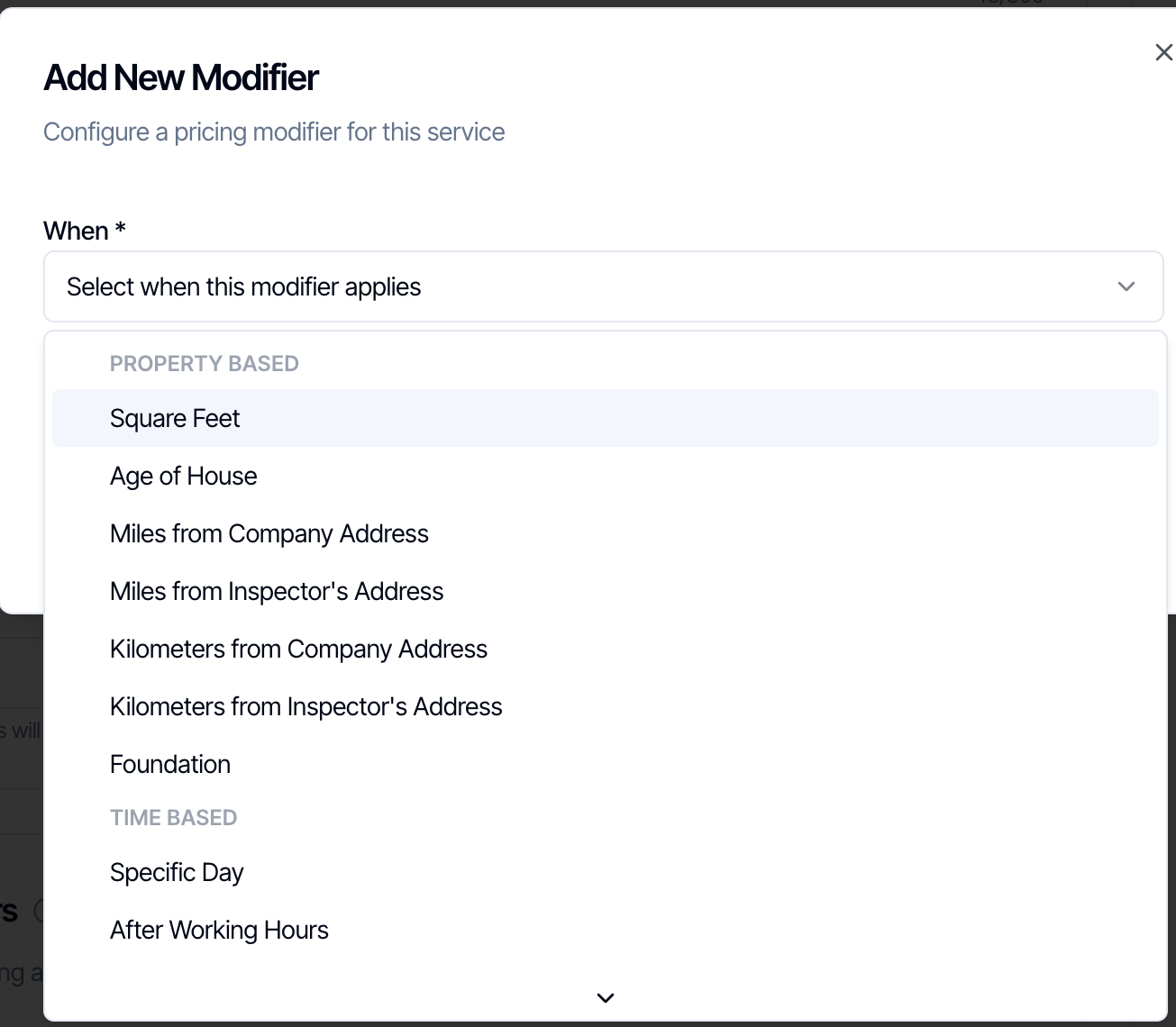
 Open the **When** list and pick what the price depends on. The list has three groups: **Property Based**, **Time Based** and **Custom Fields**. The **Custom Fields** group only appears once you have a custom field that can drive a price.
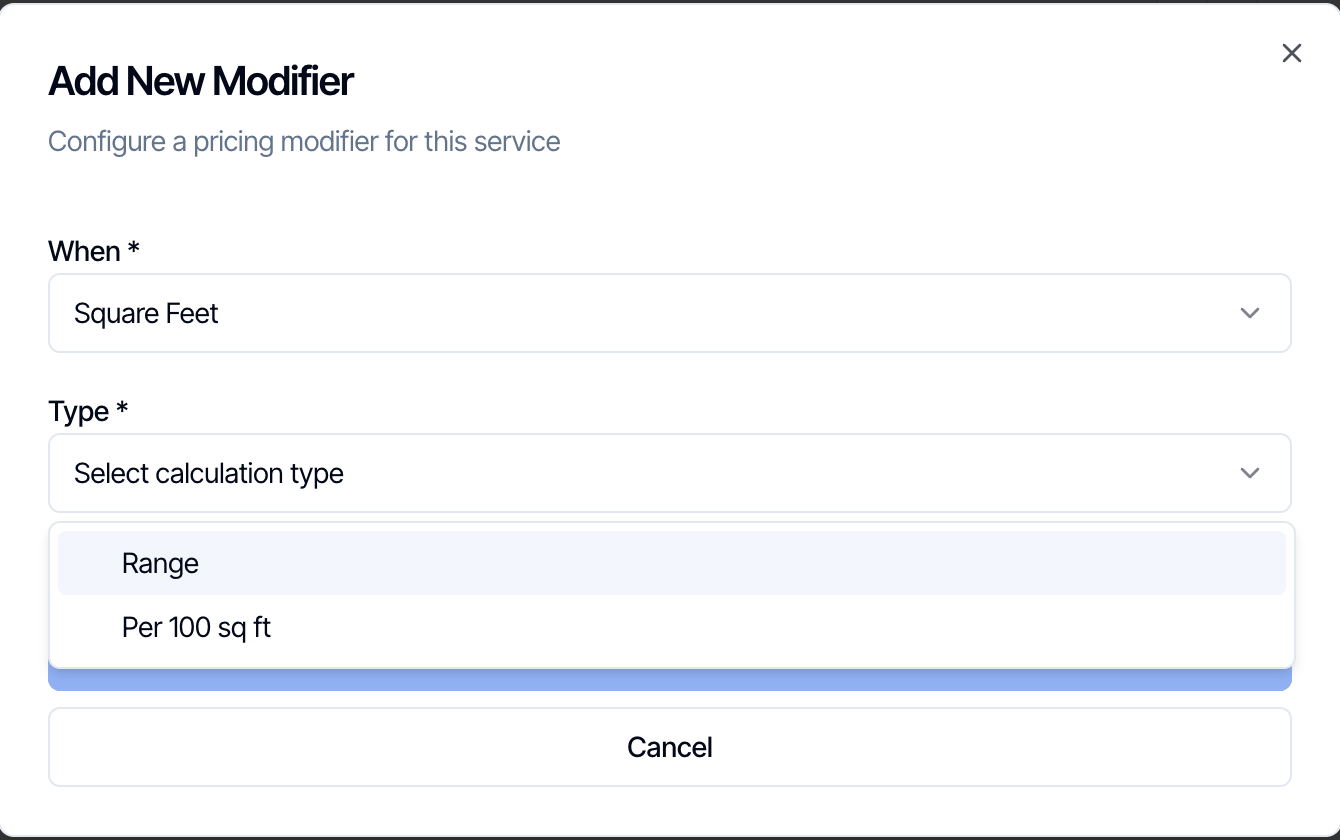
 The **Type** list shows only the types that fit what you picked. For **Square Feet** you get **Range** and **Per 100 sq ft**. Foundation, Specific Day and the working-hours modifiers have only one type, so Hive picks it for you.
 Enter the numbers for the rule, then **Add Fees (\$)** and **Add Hours**. Each type is explained in its own section below.
The modifier is added to the list.
* **Editing an existing service:** changes save on their own. The top of the page shows **Saving...** and then **Saved**.
* **Creating a new service:** nothing is saved until you click **Save Service** at the bottom of the page.
You don't name modifiers. Hive names each one from its rule, such as **Square Feet**, **Distance**, **Crawlspace Foundation**, **Saturday Inspection** or **After Hours**. That name is the label on the price line your team sees.
## How ranges work
Many modifiers use a **Range**: the charge applies only when the value falls inside the range. You usually add several ranges, one per price band, such as one for 2,001 to 3,000 sq ft and another for 3,001 to 4,000 sq ft. Hive lists the ranges you already have at the top of the form, and a new range starts where your highest one ends.
Enter the numbers for the rule, then **Add Fees (\$)** and **Add Hours**. Each type is explained in its own section below.
The modifier is added to the list.
* **Editing an existing service:** changes save on their own. The top of the page shows **Saving...** and then **Saved**.
* **Creating a new service:** nothing is saved until you click **Save Service** at the bottom of the page.
You don't name modifiers. Hive names each one from its rule, such as **Square Feet**, **Distance**, **Crawlspace Foundation**, **Saturday Inspection** or **After Hours**. That name is the label on the price line your team sees.
## How ranges work
Many modifiers use a **Range**: the charge applies only when the value falls inside the range. You usually add several ranges, one per price band, such as one for 2,001 to 3,000 sq ft and another for 3,001 to 4,000 sq ft. Hive lists the ranges you already have at the top of the form, and a new range starts where your highest one ends.
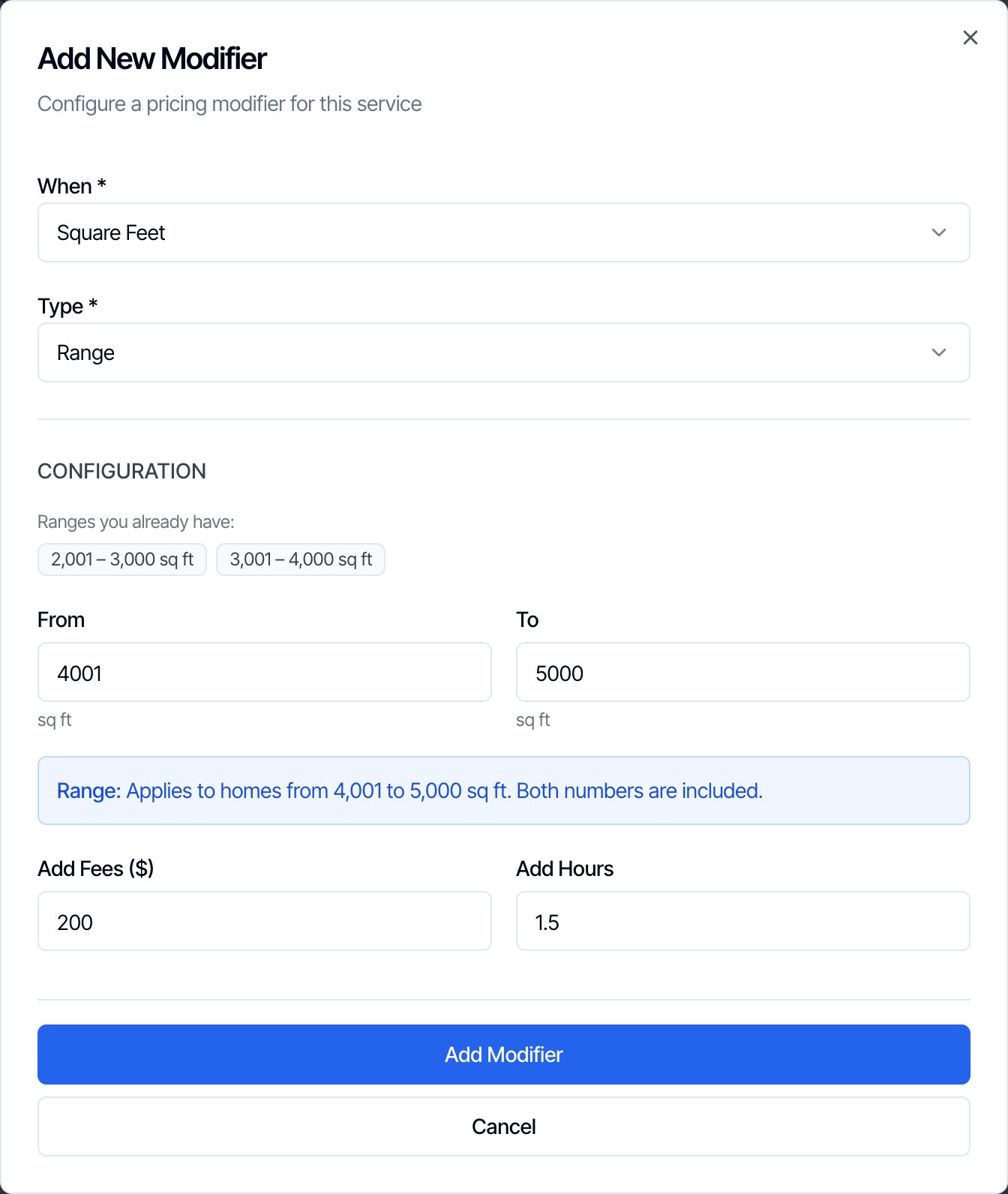 Ranges are typed in one of two ways:
| Modifier | You type | Which values count | Example |
| - | - | - | - |
| **Square Feet**, **Age of House** | **From** and **To** | Both numbers are included | From 2,001 To 3,000 covers 2,001 through 3,000 sq ft. Start the next range at 3,001. |
| **Distance**, **custom number fields** | **More than** and **Up to** | The first number is not included, the second is | More than 10, Up to 20 covers anything over 10, up to and including 20 miles. Start the next range at 20. |
The blue **Range** box under the numbers says in plain words which values the range covers. Read it before you save.
### Gaps and overlaps
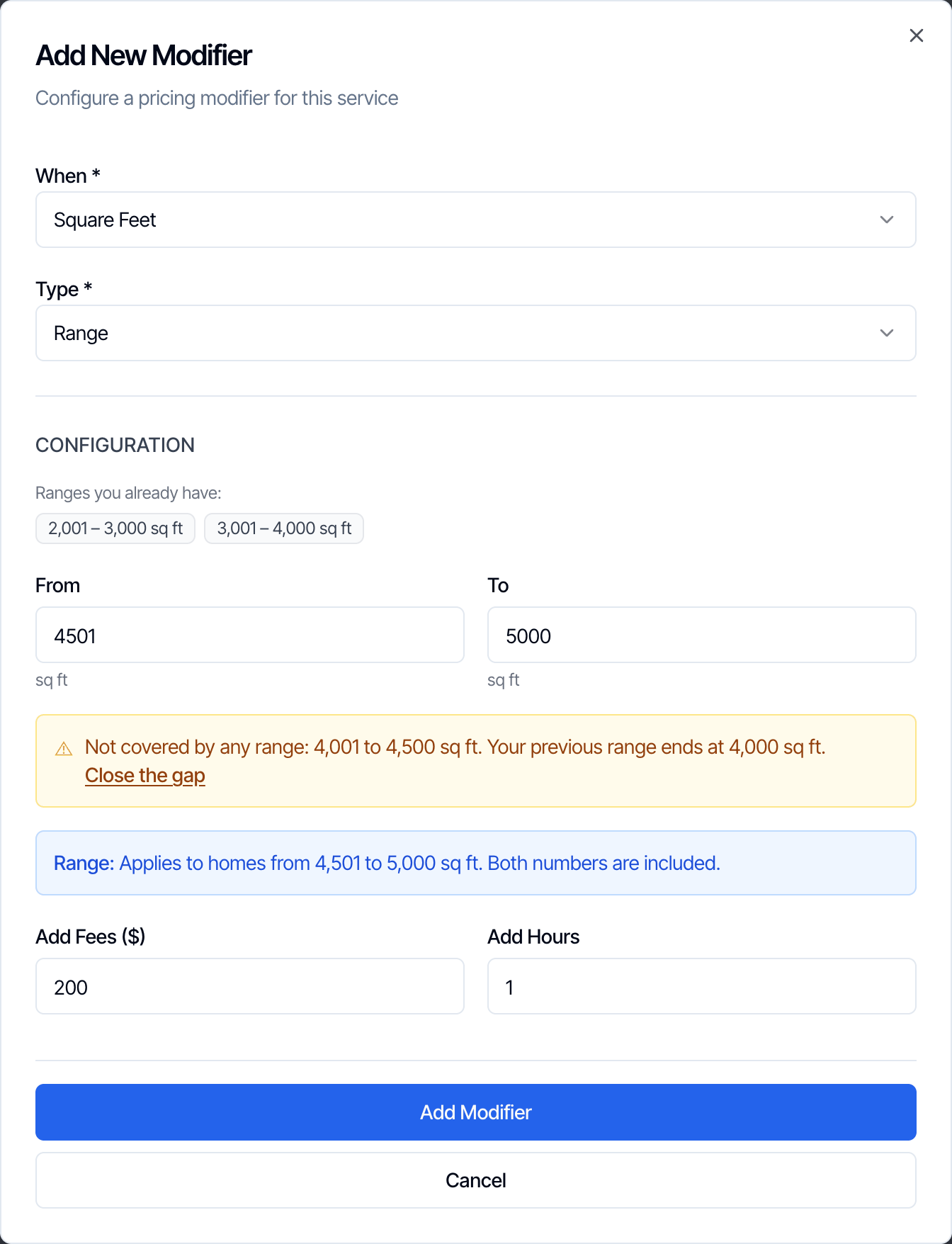
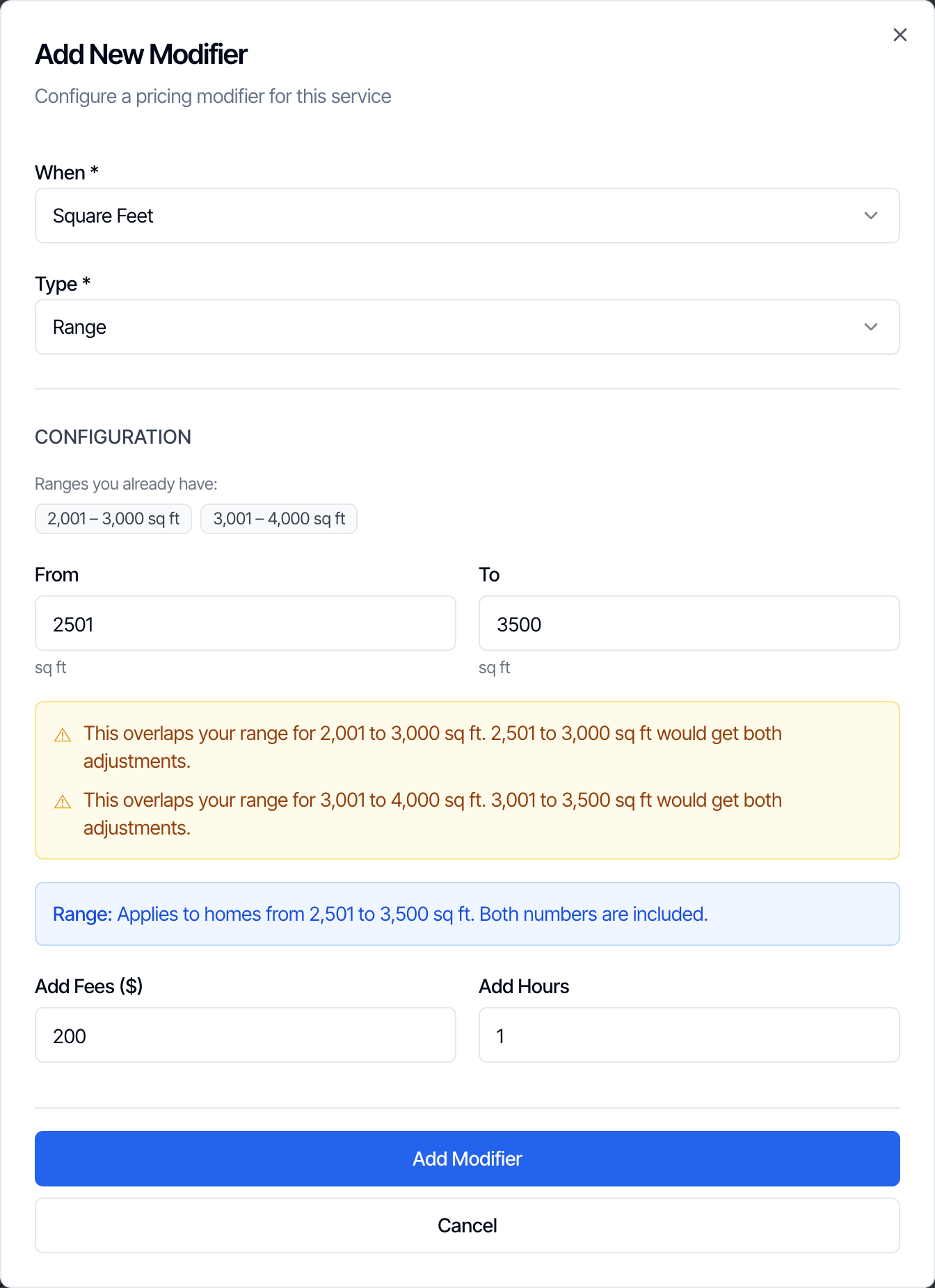
Hive checks a new range against the others on the same modifier and warns you. It never blocks the save, because sometimes a gap or overlap is what you want.
A value that no range covers gets **no** charge. Click **Close the gap** to move the range so it starts right after the one before it.
Ranges are typed in one of two ways:
| Modifier | You type | Which values count | Example |
| - | - | - | - |
| **Square Feet**, **Age of House** | **From** and **To** | Both numbers are included | From 2,001 To 3,000 covers 2,001 through 3,000 sq ft. Start the next range at 3,001. |
| **Distance**, **custom number fields** | **More than** and **Up to** | The first number is not included, the second is | More than 10, Up to 20 covers anything over 10, up to and including 20 miles. Start the next range at 20. |
The blue **Range** box under the numbers says in plain words which values the range covers. Read it before you save.
### Gaps and overlaps
Hive checks a new range against the others on the same modifier and warns you. It never blocks the save, because sometimes a gap or overlap is what you want.
A value that no range covers gets **no** charge. Click **Close the gap** to move the range so it starts right after the one before it.
 A value covered by two ranges gets **both** charges. Change the numbers unless you really mean to charge twice.
 Homes smaller than your first range get no extra charge, so you don't need a "\$0" range for them. For the largest homes, either add a last range with a high **To** number, or use **Per 100 sq ft** above your last range (see the example below).
## Square Feet
Square Feet uses the square footage on the inspection. You type it when you schedule, or the client types it on your online scheduler. If **Auto-fetch Property Info** is on in your organization settings, Hive fills it in from a property lookup when you pick the address.
Homes smaller than your first range get no extra charge, so you don't need a "\$0" range for them. For the largest homes, either add a last range with a high **To** number, or use **Per 100 sq ft** above your last range (see the example below).
## Square Feet
Square Feet uses the square footage on the inspection. You type it when you schedule, or the client types it on your online scheduler. If **Auto-fetch Property Info** is on in your organization settings, Hive fills it in from a property lookup when you pick the address.
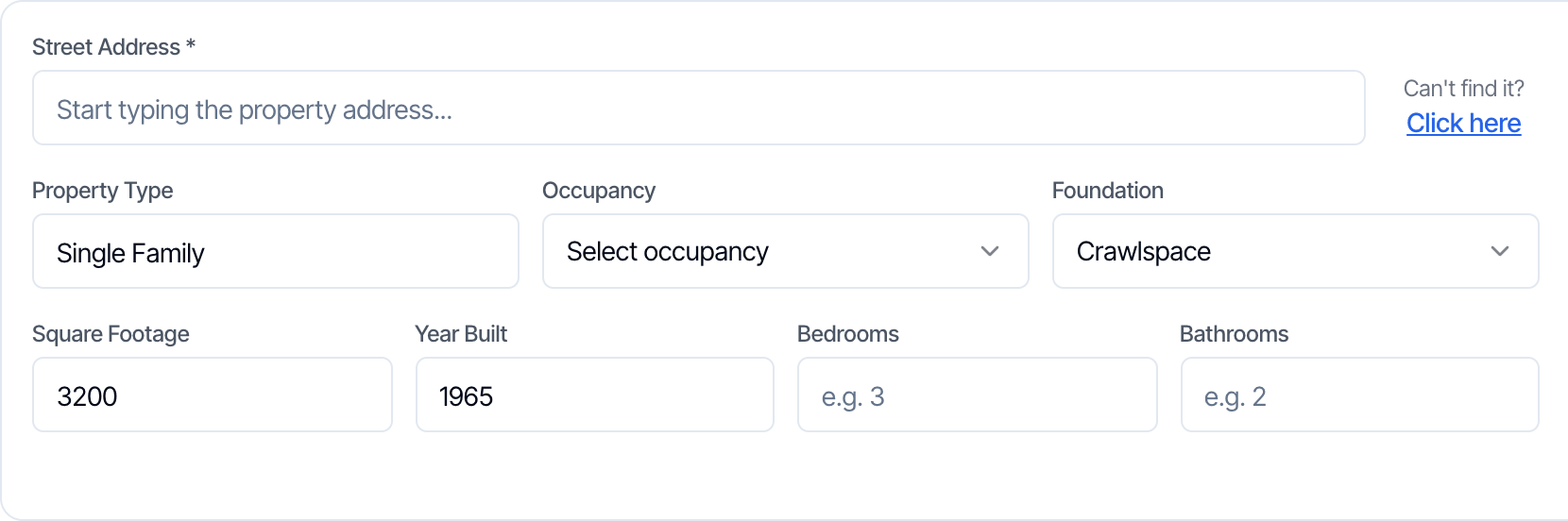 The **Year Built** and **Foundation** boxes next to it feed the Age of House and Foundation modifiers.
A flat amount for homes in a size band. Fill in **From** and **To** (both included), then the fee and hours.
The **Year Built** and **Foundation** boxes next to it feed the Age of House and Foundation modifiers.
A flat amount for homes in a size band. Fill in **From** and **To** (both included), then the fee and hours.
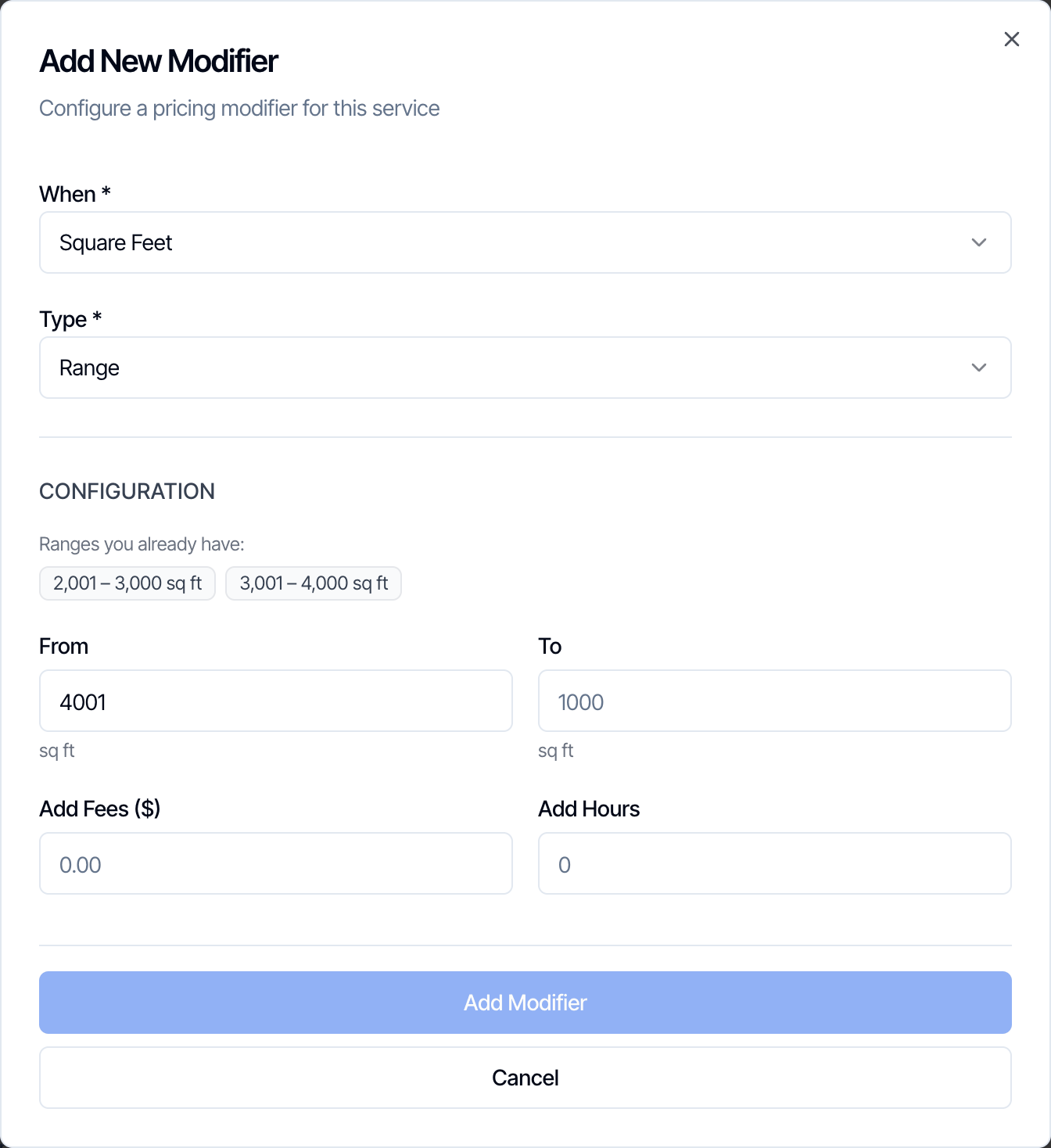 An amount for every 100 sq ft above the **Starting After** size. A part of 100 counts as a full 100.
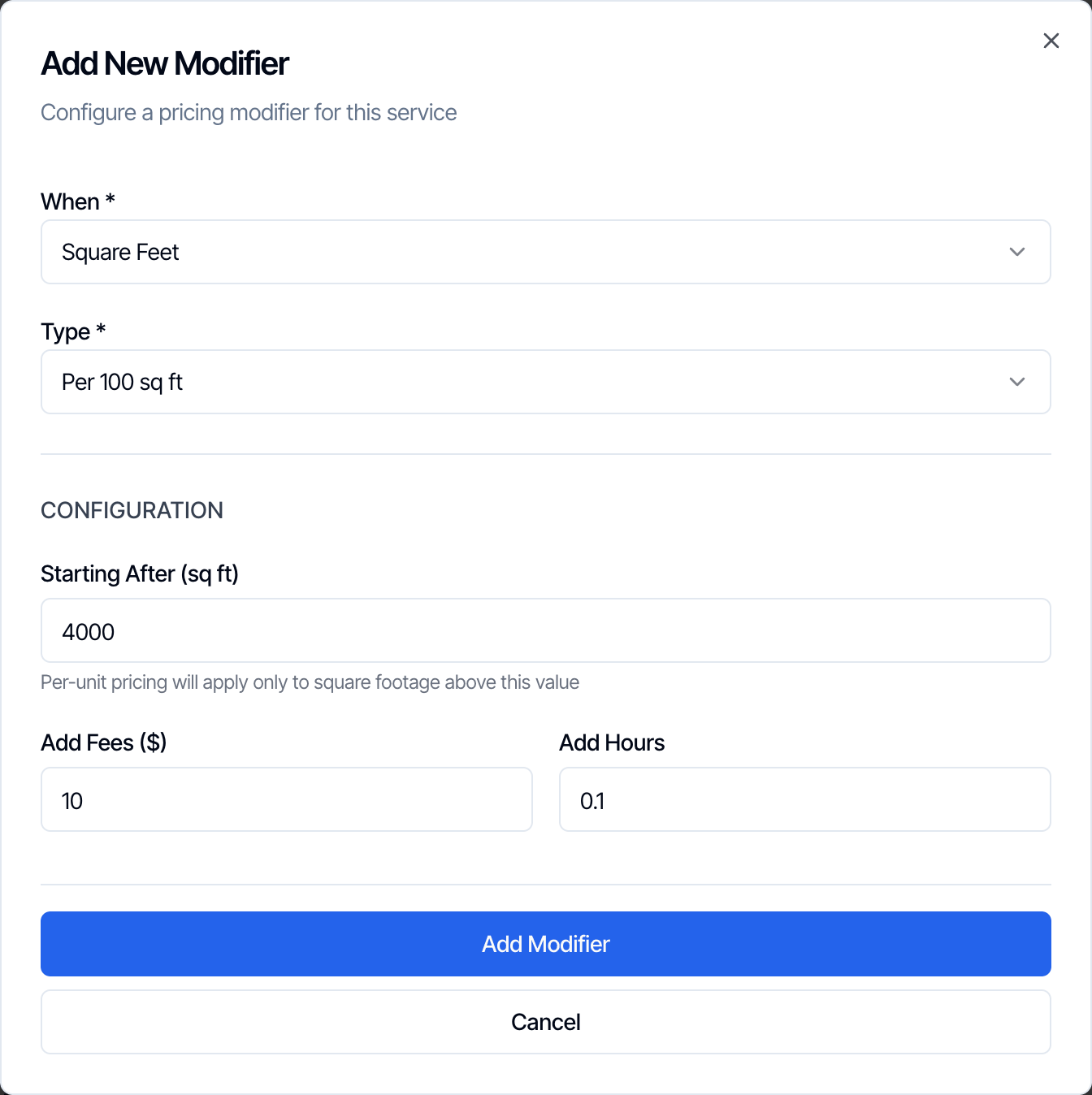 With **Starting After** 4,000 and **Add Fees** \$10:
* 4,000 sq ft: no charge
* 4,050 sq ft: 50 sq ft over, counted as one 100, so \$10
* 4,550 sq ft: 550 sq ft over, counted as six 100s, so \$60
**Add Hours** works the same way: 0.1 hours for each 100.
Leave **Starting After** at 0 to charge for every 100 sq ft of the home.
**Example that combines both types.** Many inspectors price normal homes in ranges and very large homes per 100 sq ft:
* Range 2,001 to 3,000 sq ft: +\$75
* Range 3,001 to 4,000 sq ft: +\$150
* Per 100 sq ft, Starting After 4,000: +\$10 for each 100
A 4,550 sq ft home gets \$60 from the per-100 rule and nothing from the two ranges.
## Age of House
Age of House uses the home's age in years: **the current year minus the year built**. A home built in 1965 is 61 years old in 2026. A home built this year is 0 years old. The age goes up on January 1.
A flat amount for homes in an age band. Type the band in **years old**, not as years built. To charge for homes older than 50, use **From** 51 and a high **To**, such as 500.
With **Starting After** 4,000 and **Add Fees** \$10:
* 4,000 sq ft: no charge
* 4,050 sq ft: 50 sq ft over, counted as one 100, so \$10
* 4,550 sq ft: 550 sq ft over, counted as six 100s, so \$60
**Add Hours** works the same way: 0.1 hours for each 100.
Leave **Starting After** at 0 to charge for every 100 sq ft of the home.
**Example that combines both types.** Many inspectors price normal homes in ranges and very large homes per 100 sq ft:
* Range 2,001 to 3,000 sq ft: +\$75
* Range 3,001 to 4,000 sq ft: +\$150
* Per 100 sq ft, Starting After 4,000: +\$10 for each 100
A 4,550 sq ft home gets \$60 from the per-100 rule and nothing from the two ranges.
## Age of House
Age of House uses the home's age in years: **the current year minus the year built**. A home built in 1965 is 61 years old in 2026. A home built this year is 0 years old. The age goes up on January 1.
A flat amount for homes in an age band. Type the band in **years old**, not as years built. To charge for homes older than 50, use **From** 51 and a high **To**, such as 500.
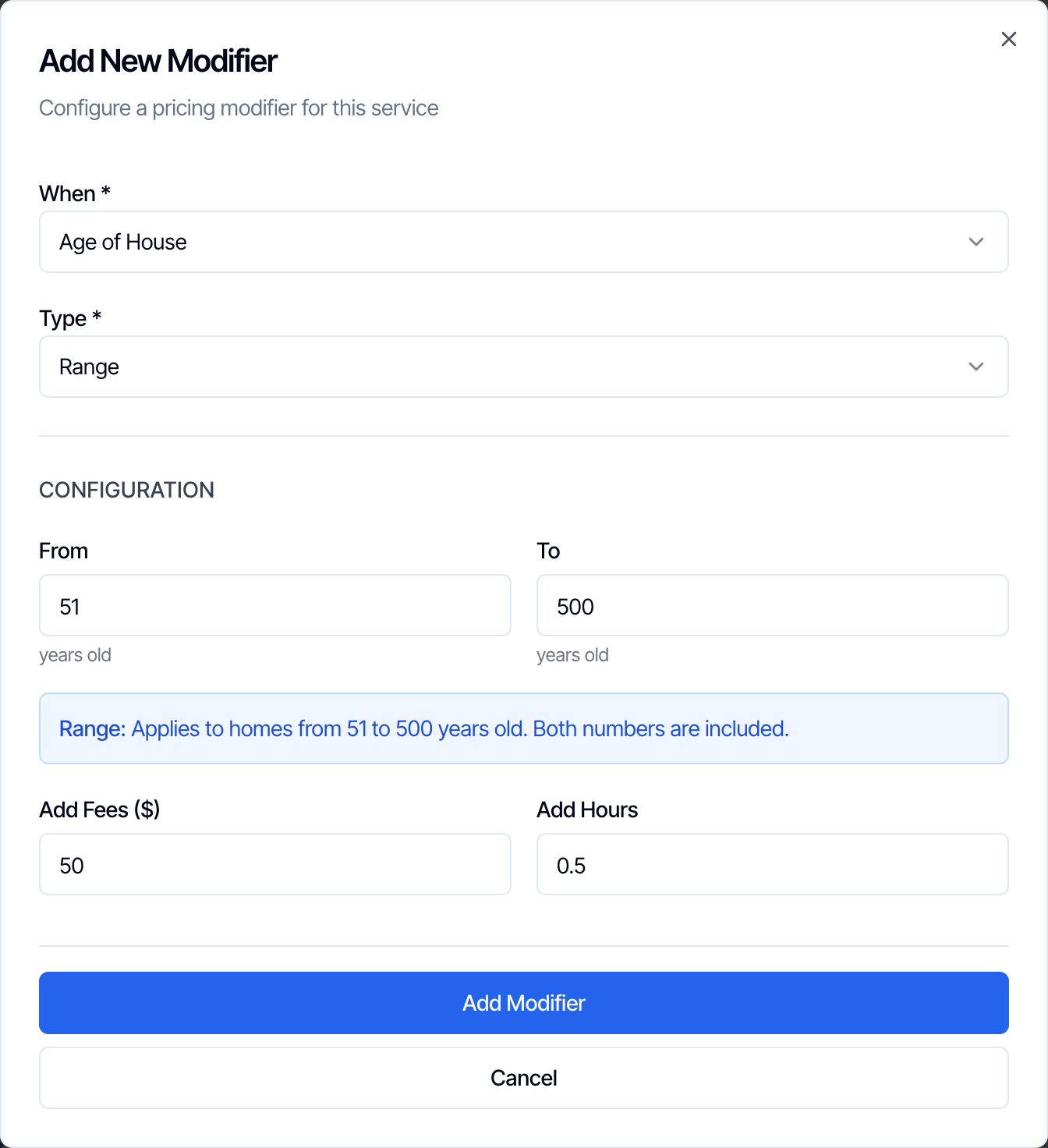 An amount for every year of age above **Starting After**. With **Starting After** 30 and **Add Fees** \$2, a 61-year-old home is 31 years over, so \$62.
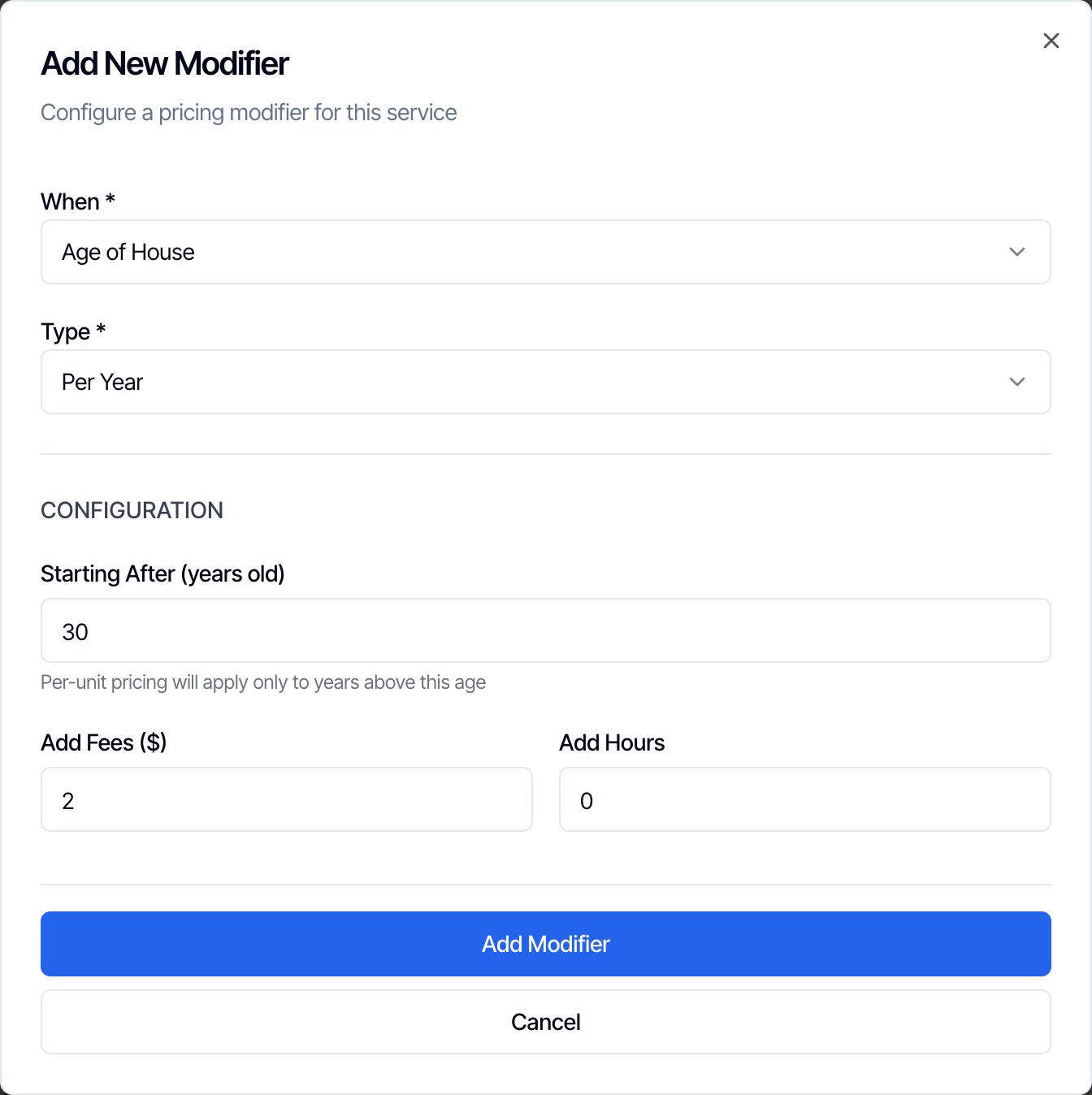 If the year built is empty, Age of House modifiers don't apply.
## Distance
Distance modifiers charge for travel. Hive measures the **driving distance** to the property with Google Maps. There are four choices in the **When** list:
| Choice | Measured from | Numbers typed in |
| - | - | - |
| **Miles from Company Address** | Your company address, under **Profile Settings → Address Information** | Miles |
| **Kilometers from Company Address** | Your company address | Kilometers |
| **Miles from Inspector's Address** | The assigned inspector's **Inspector Local Address**, under **Availability** in their Profile Settings | Miles |
| **Kilometers from Inspector's Address** | The assigned inspector's **Inspector Local Address** | Kilometers |
An amount for every mile (or km) past **Starting After**. The extra distance is rounded to the nearest whole mile: 12.3 extra miles counts as 12, 12.5 counts as 13.
If the year built is empty, Age of House modifiers don't apply.
## Distance
Distance modifiers charge for travel. Hive measures the **driving distance** to the property with Google Maps. There are four choices in the **When** list:
| Choice | Measured from | Numbers typed in |
| - | - | - |
| **Miles from Company Address** | Your company address, under **Profile Settings → Address Information** | Miles |
| **Kilometers from Company Address** | Your company address | Kilometers |
| **Miles from Inspector's Address** | The assigned inspector's **Inspector Local Address**, under **Availability** in their Profile Settings | Miles |
| **Kilometers from Inspector's Address** | The assigned inspector's **Inspector Local Address** | Kilometers |
An amount for every mile (or km) past **Starting After**. The extra distance is rounded to the nearest whole mile: 12.3 extra miles counts as 12, 12.5 counts as 13.
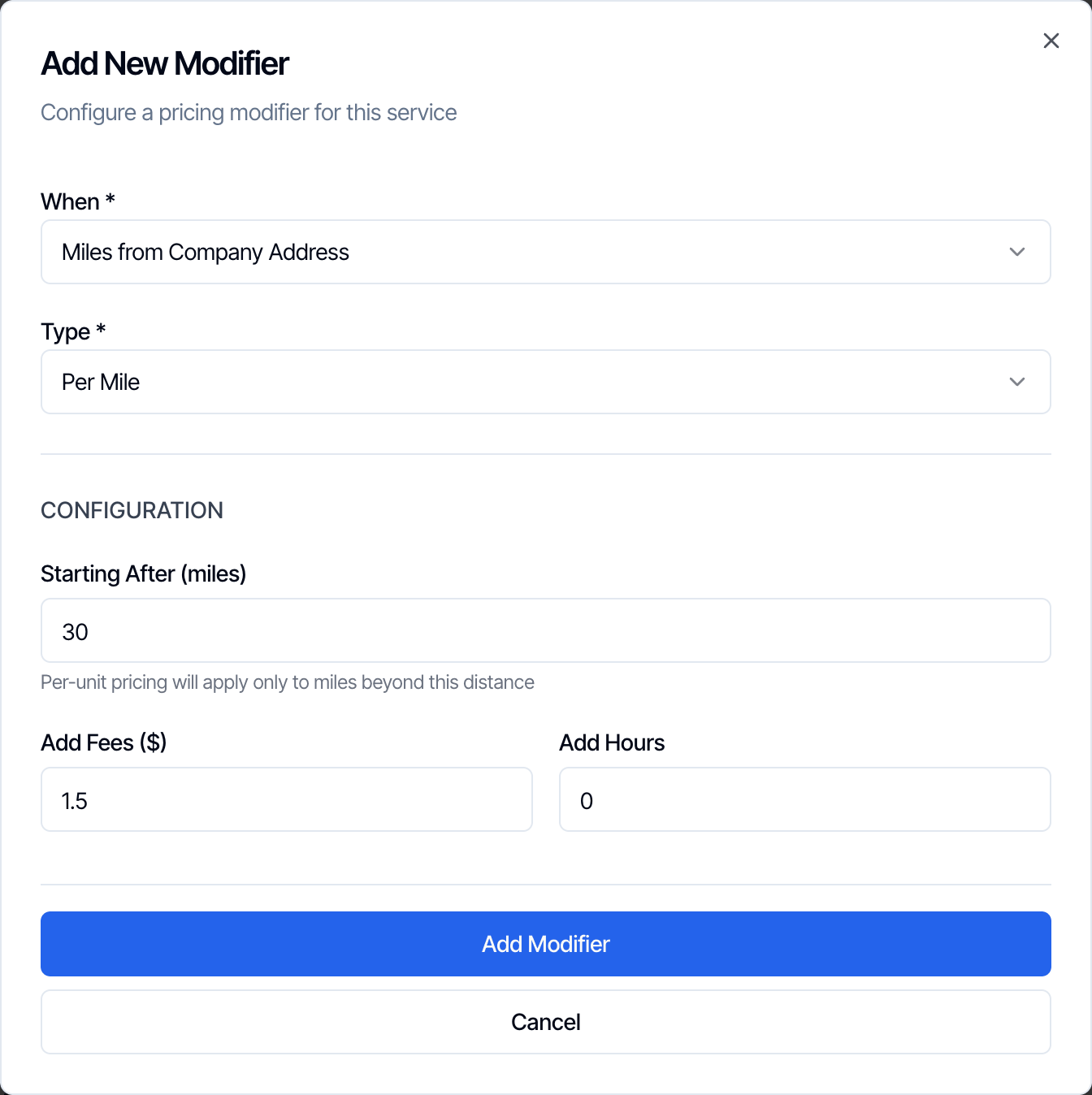 With **Starting After** 30 and **Add Fees** \$1.50, a property 42.3 miles away is 12.3 miles past 30, counted as 12 miles, so \$18.
A flat amount for a distance band, typed as **More than** and **Up to**. The first number isn't included, the second is. Start each range at the number the last one ends on, such as 0 to 25, then 25 to 50.
With **Starting After** 30 and **Add Fees** \$1.50, a property 42.3 miles away is 12.3 miles past 30, counted as 12 miles, so \$18.
A flat amount for a distance band, typed as **More than** and **Up to**. The first number isn't included, the second is. Start each range at the number the last one ends on, such as 0 to 25, then 25 to 50.
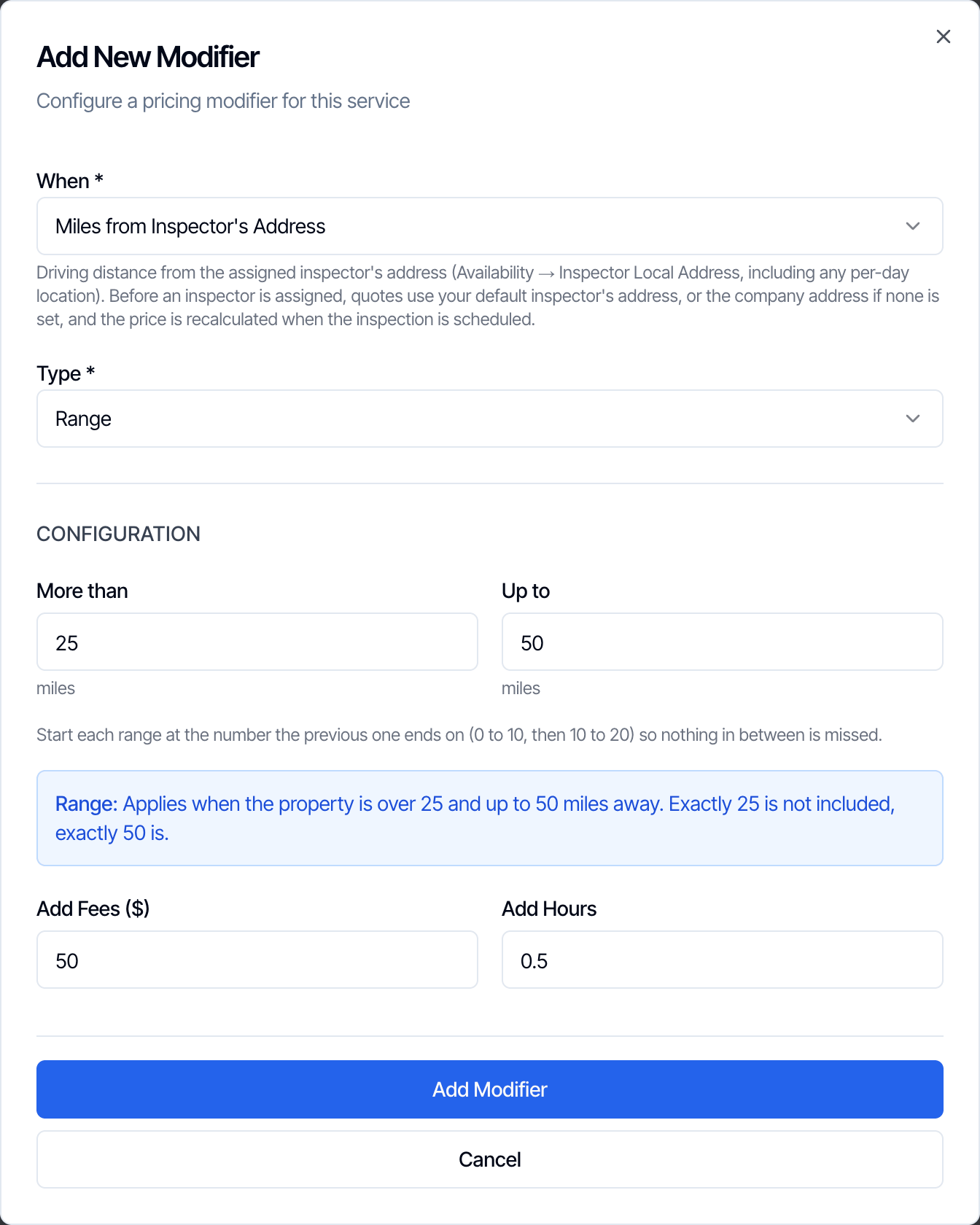 How the inspector's address is chosen:
* Hive uses the address of the inspector assigned to the inspection, including a different address for a specific day if the inspector set one.
* Before an inspector is assigned, such as when a client books online, Hive measures from your **Default Inspector** (set in **Profile Settings**). If you have none, it uses your company address.
* When an inspection is rescheduled with a different inspector, the inspector-distance charge is measured again from the new inspector.
Things to know:
* Hive measures the distance once, in miles. A kilometer modifier converts that same drive to kilometers. A service can have both a miles modifier and a kilometers modifier.
* The distance is only measured when the property address is picked from the address suggestions. A typed address that isn't picked from the list gets no distance charge.
* In a range, Hive warns you about numbers that look wrong, such as more than 500 miles (800 km).
## Foundation
A flat amount for one foundation type: **Basement**, **Slab** or **Crawlspace**. To charge for two types, add two Foundation modifiers.
How the inspector's address is chosen:
* Hive uses the address of the inspector assigned to the inspection, including a different address for a specific day if the inspector set one.
* Before an inspector is assigned, such as when a client books online, Hive measures from your **Default Inspector** (set in **Profile Settings**). If you have none, it uses your company address.
* When an inspection is rescheduled with a different inspector, the inspector-distance charge is measured again from the new inspector.
Things to know:
* Hive measures the distance once, in miles. A kilometer modifier converts that same drive to kilometers. A service can have both a miles modifier and a kilometers modifier.
* The distance is only measured when the property address is picked from the address suggestions. A typed address that isn't picked from the list gets no distance charge.
* In a range, Hive warns you about numbers that look wrong, such as more than 500 miles (800 km).
## Foundation
A flat amount for one foundation type: **Basement**, **Slab** or **Crawlspace**. To charge for two types, add two Foundation modifiers.
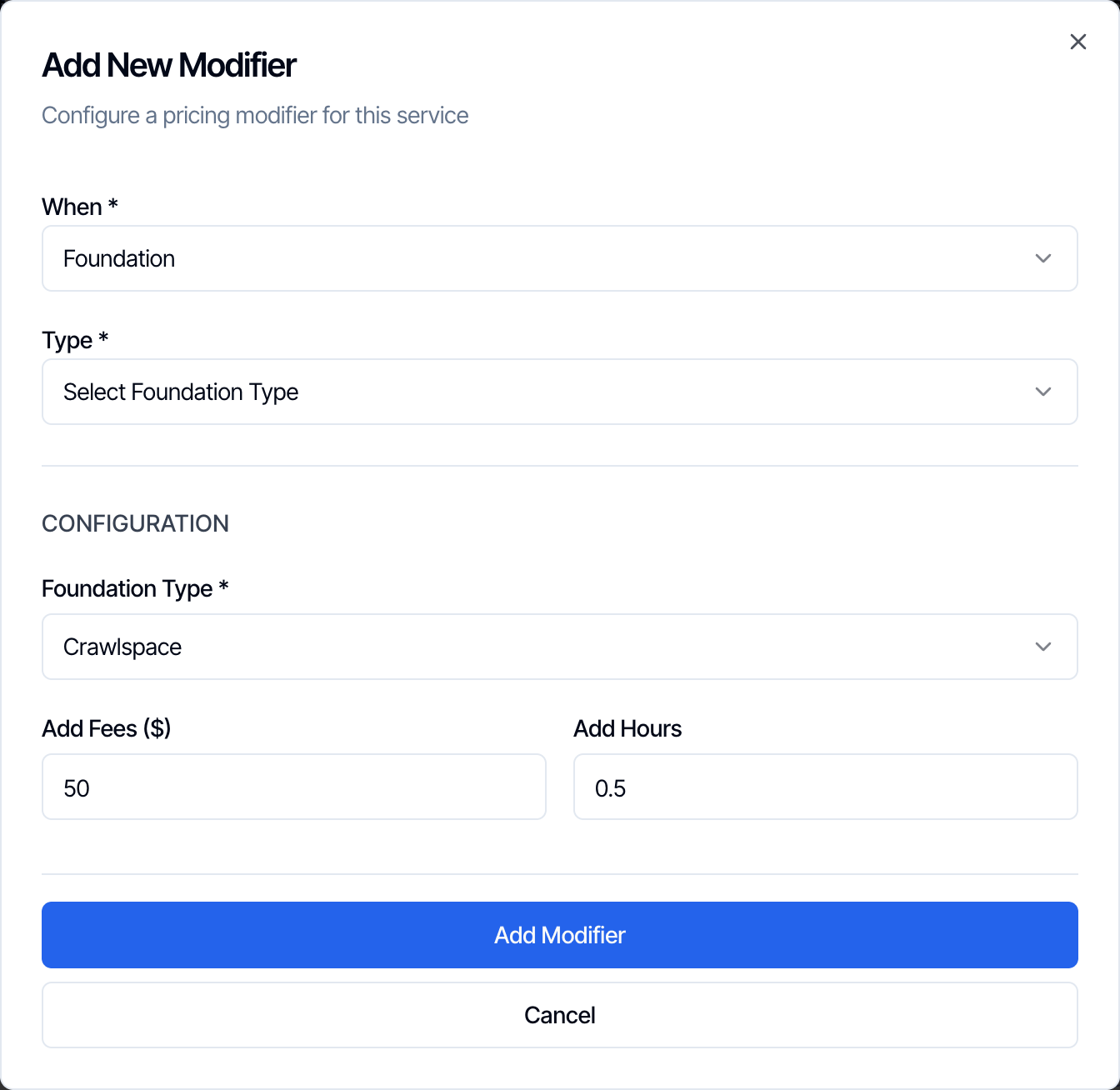 The foundation is picked in the **Foundation** list when you schedule, or in **Foundation Type (Optional)** on your online scheduler. It is never filled in from the property lookup, so the modifier only applies when someone picks a foundation.
## Specific Day
A flat amount when the inspection is on one day of the week, such as a weekend surcharge. Add one modifier for each day you charge extra.
The foundation is picked in the **Foundation** list when you schedule, or in **Foundation Type (Optional)** on your online scheduler. It is never filled in from the property lookup, so the modifier only applies when someone picks a foundation.
## Specific Day
A flat amount when the inspection is on one day of the week, such as a weekend surcharge. Add one modifier for each day you charge extra.
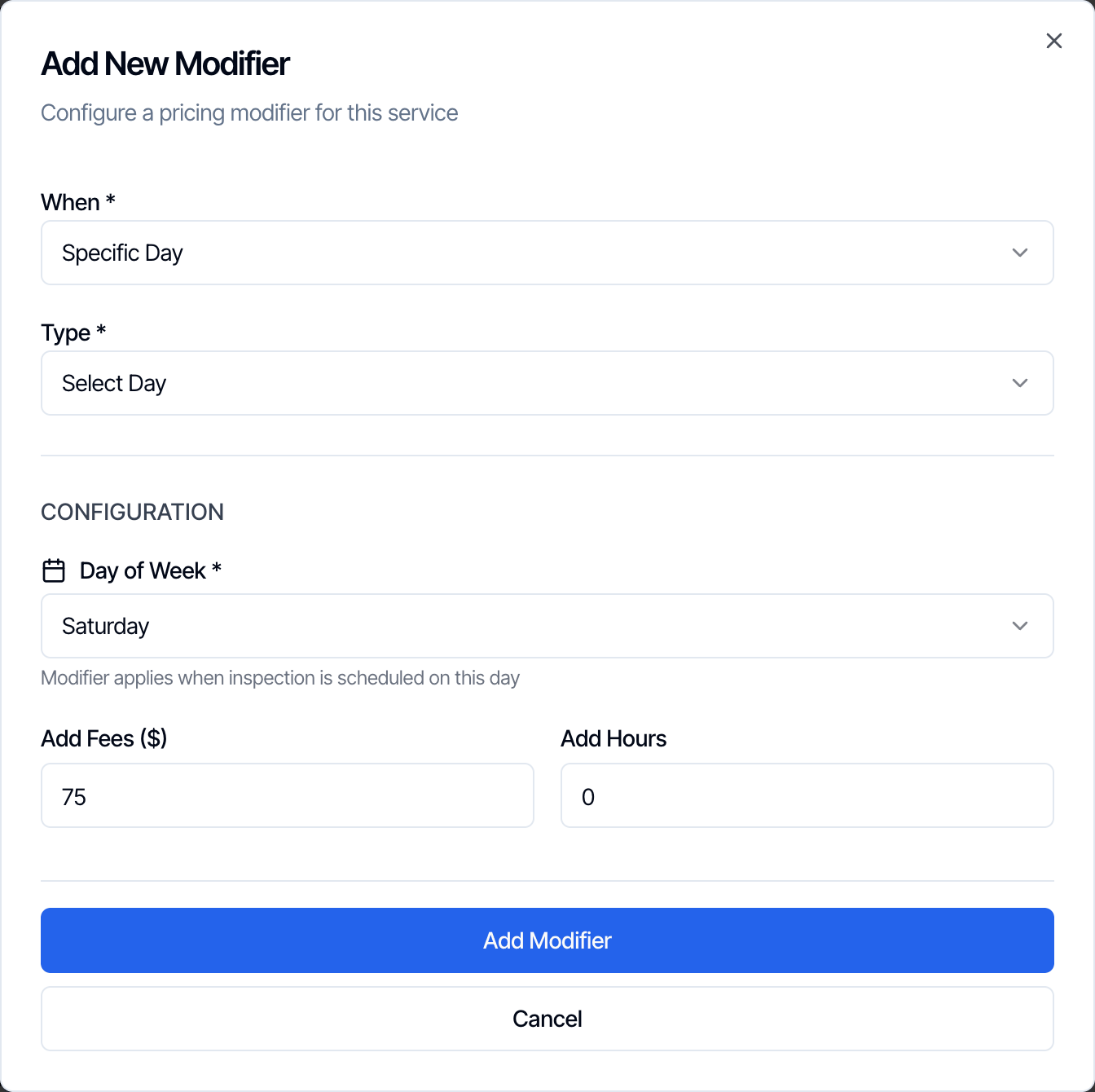 The day is worked out in your company's time zone, set under **Org Settings → Scheduling → Organization Timezone**.
## After and Before Working Hours
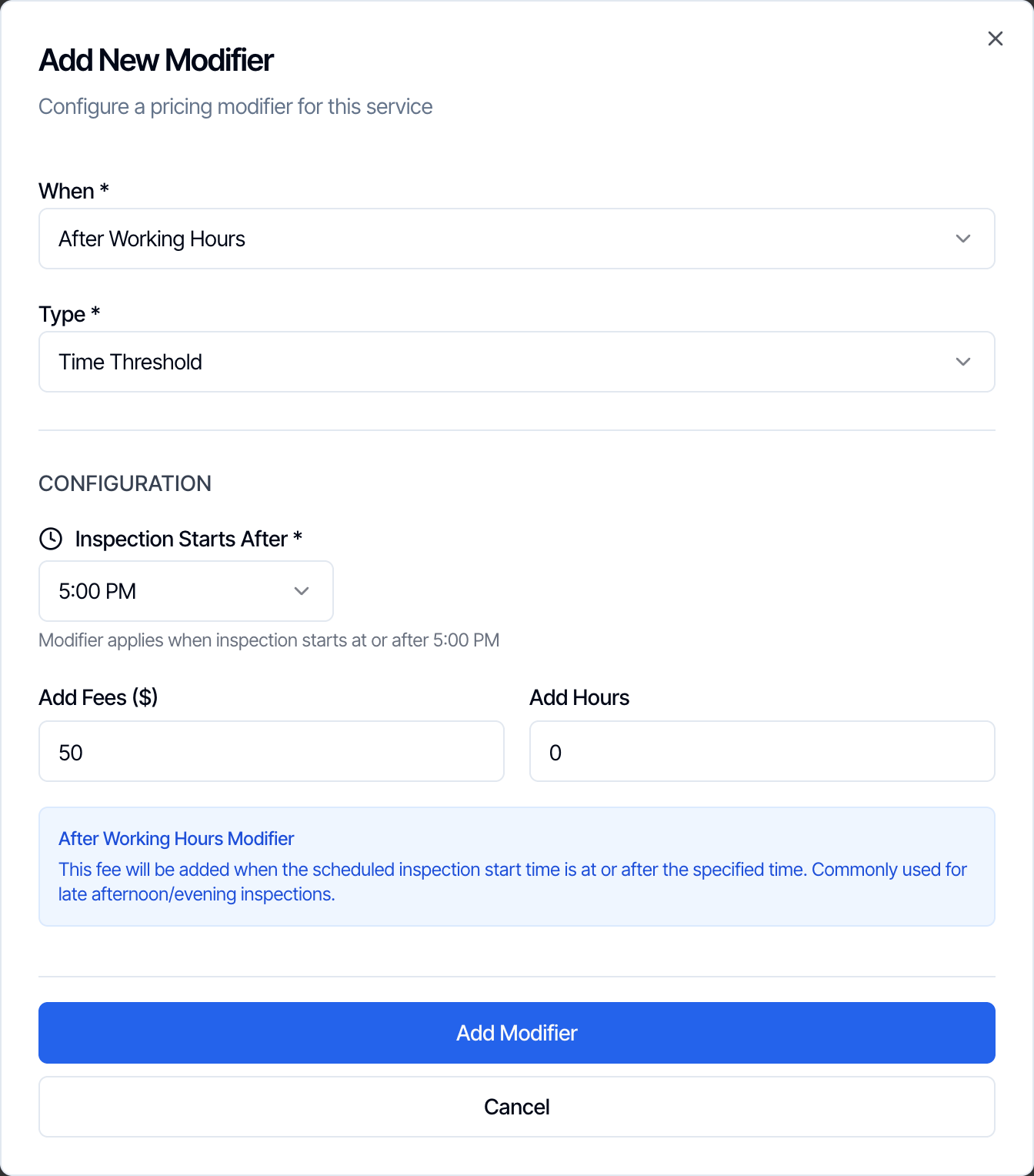
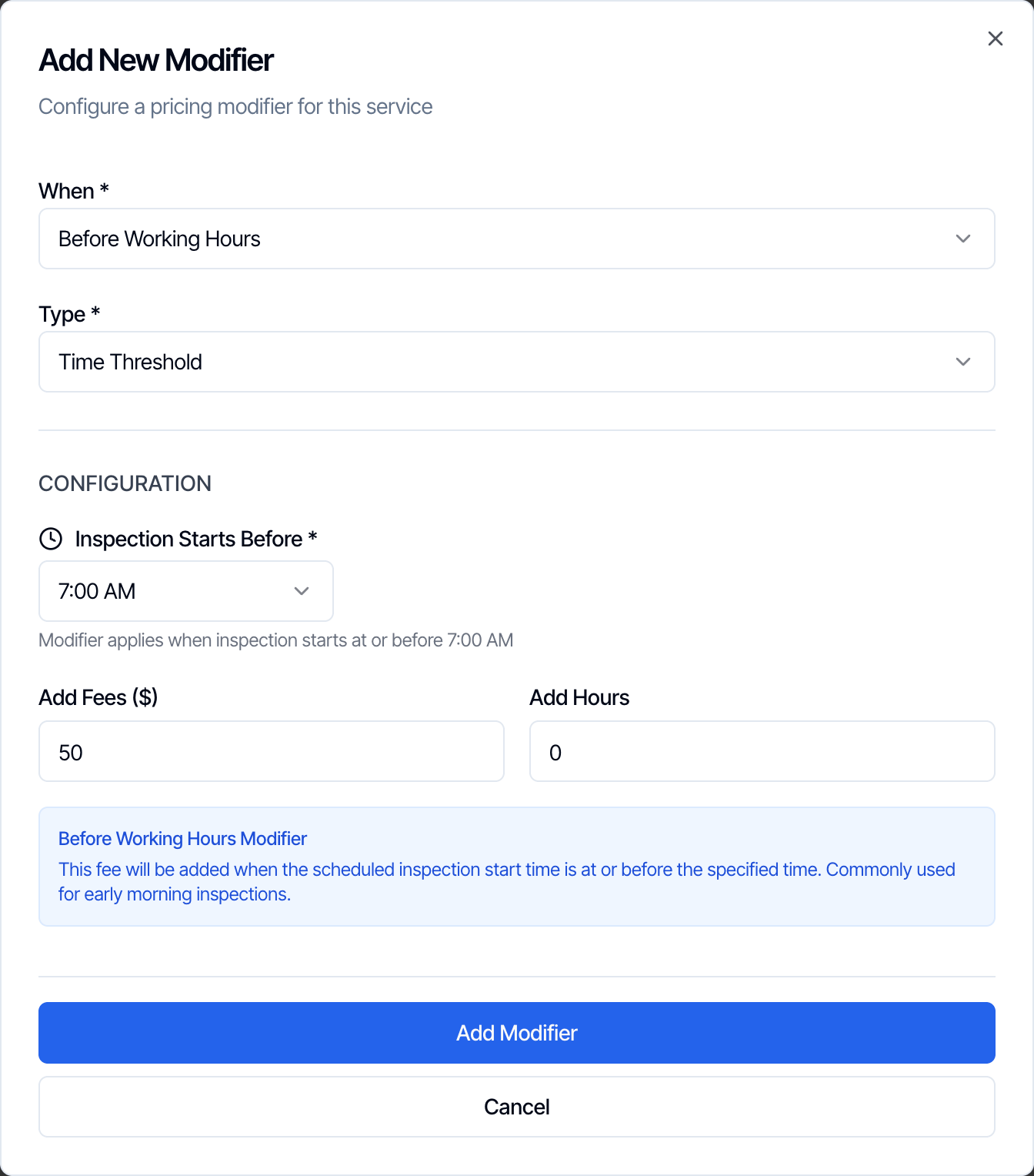
A flat amount for early or late inspections. Pick a time from 5:00 AM to 10:00 PM, on the hour.
Applies when the inspection **starts at or after** the time. With 5:00 PM, an inspection that starts at 5:00 PM or 5:30 PM gets the charge, and one that starts at 4:30 PM doesn't.
The day is worked out in your company's time zone, set under **Org Settings → Scheduling → Organization Timezone**.
## After and Before Working Hours
A flat amount for early or late inspections. Pick a time from 5:00 AM to 10:00 PM, on the hour.
Applies when the inspection **starts at or after** the time. With 5:00 PM, an inspection that starts at 5:00 PM or 5:30 PM gets the charge, and one that starts at 4:30 PM doesn't.
 Applies when the inspection **starts at or before** the time. With 7:00 AM, an inspection that starts at 7:00 AM or 6:30 AM gets the charge.
 Only the **start** time counts, in your company's time zone. An inspection that starts at 3:00 PM and runs past 5:00 PM doesn't get an After Working Hours charge.
### When day and time charges are added
Specific Day, After Working Hours and Before Working Hours depend on when the inspection is scheduled, so:
* **Online booking:** the price a client sees on your online scheduler or quote widget doesn't include them yet. They are added when the inspection is booked for its date and time, so the booked price can be higher than the estimate.
* **Rescheduling:** when an inspection moves to a new date or time, Hive checks these modifiers again. A charge that now applies is added, and one that no longer applies is removed. Everything else keeps the price it was booked at.
## Manage your modifiers
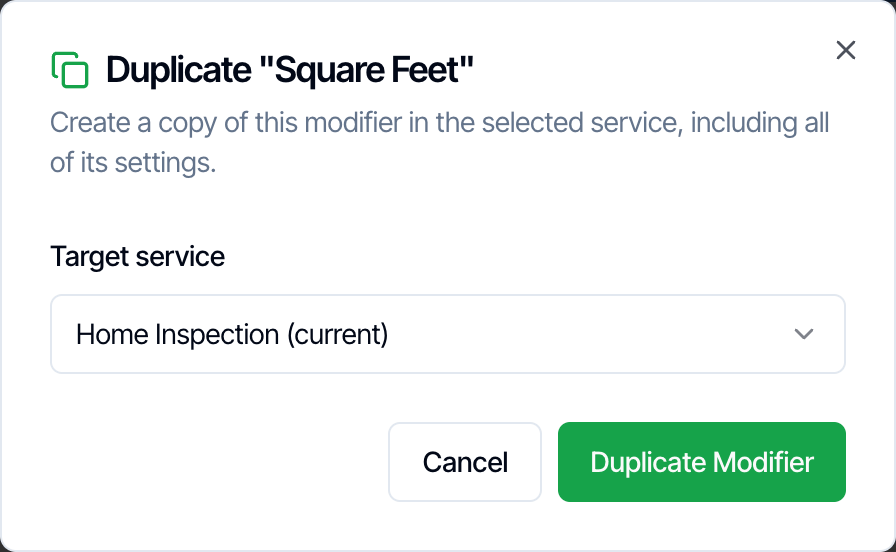
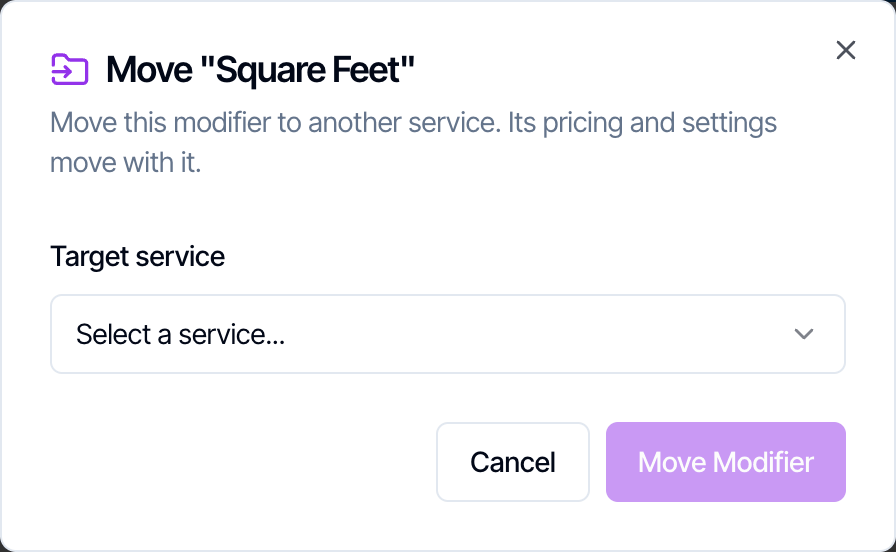
Each modifier shows its rule and its amounts. The icons on the right are **Edit**, **Duplicate**, **Move to another service** and **Delete**.
Only the **start** time counts, in your company's time zone. An inspection that starts at 3:00 PM and runs past 5:00 PM doesn't get an After Working Hours charge.
### When day and time charges are added
Specific Day, After Working Hours and Before Working Hours depend on when the inspection is scheduled, so:
* **Online booking:** the price a client sees on your online scheduler or quote widget doesn't include them yet. They are added when the inspection is booked for its date and time, so the booked price can be higher than the estimate.
* **Rescheduling:** when an inspection moves to a new date or time, Hive checks these modifiers again. A charge that now applies is added, and one that no longer applies is removed. Everything else keeps the price it was booked at.
## Manage your modifiers
Each modifier shows its rule and its amounts. The icons on the right are **Edit**, **Duplicate**, **Move to another service** and **Delete**.
 * **Edit:** opens the same form. If you change **When** to something else, Hive renames the modifier to match the new rule.
* **Duplicate:** copies the modifier to this service or to another one. Pick the service under **Target service**. Use it to give several services the same travel fee.
* **Move to another service:** moves the modifier. It is removed from this service once the copy is made on the other one.
* **Delete:** asks "Are you sure you want to delete this modifier?" first.
* **Reorder:** drag the dots on the left. The order only changes how the list looks. It doesn't change the price.
* **Edit:** opens the same form. If you change **When** to something else, Hive renames the modifier to match the new rule.
* **Duplicate:** copies the modifier to this service or to another one. Pick the service under **Target service**. Use it to give several services the same travel fee.
* **Move to another service:** moves the modifier. It is removed from this service once the copy is made on the other one.
* **Delete:** asks "Are you sure you want to delete this modifier?" first.
* **Reorder:** drag the dots on the left. The order only changes how the list looks. It doesn't change the price.
 The **Service Preview** on the right of the page sums up every modifier in one line each, including the modifiers on each add-on.
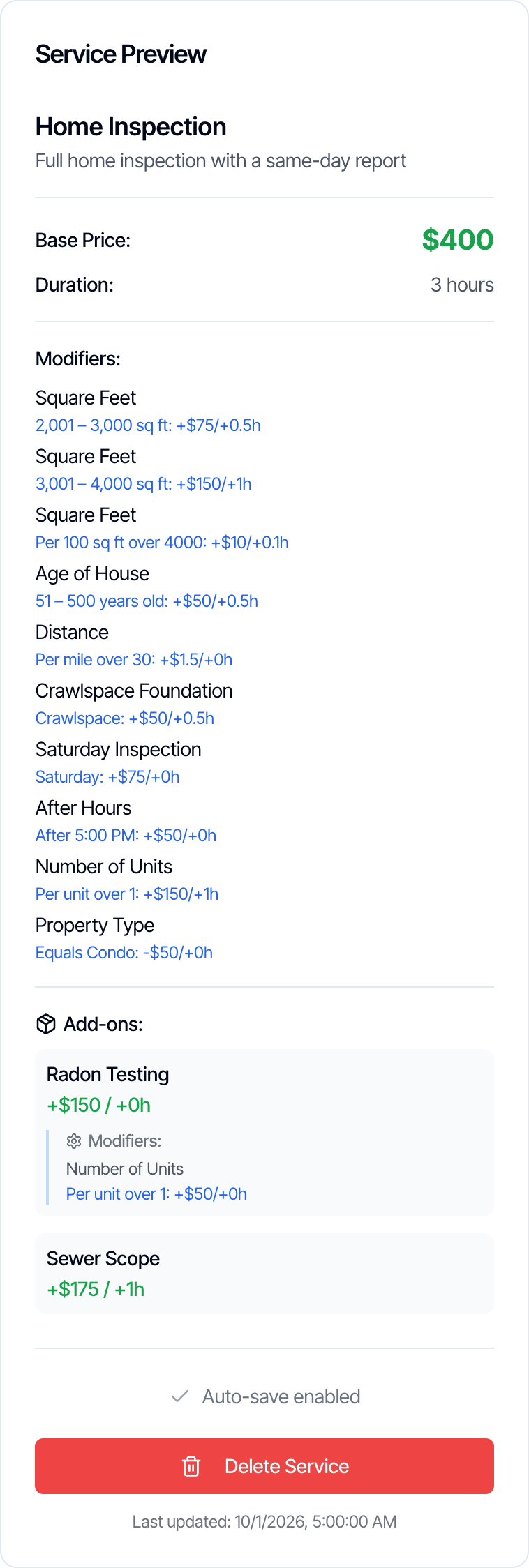 ## Modifiers on add-ons
Add-ons can have their own modifiers, such as a radon test that costs more for each extra unit. Open the add-on with its pencil icon under **Service Add-Ons**, then use **Add Modifier** in the **Add-On Modifiers** section. The form is the same as for services.
## Modifiers on add-ons
Add-ons can have their own modifiers, such as a radon test that costs more for each extra unit. Open the add-on with its pencil icon under **Service Add-Ons**, then use **Add Modifier** in the **Add-On Modifiers** section. The form is the same as for services.
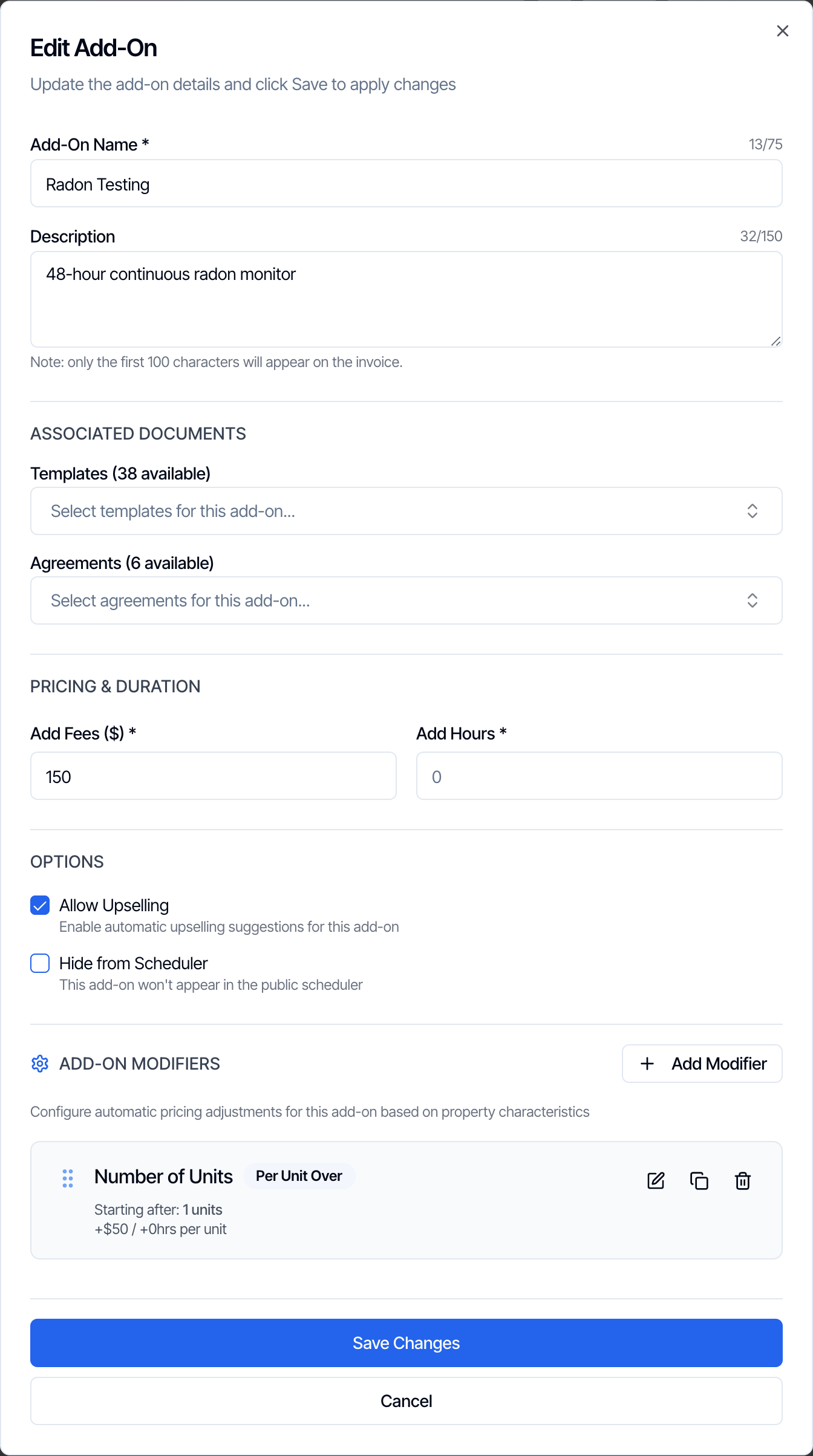 * An add-on modifier only applies when that add-on is on the inspection.
* If the add-on is added more than once, its modifiers are charged once for each.
* Click **Save Changes** in the add-on to keep its modifiers.
* Add-on modifiers can be duplicated within the add-on, but not moved to another service.
Everything else about add-ons, from creating them to letting clients add them after booking, is in [Add-on services](/how-tos/add-on-services).
## Test your pricing before clients see it
**Test Pricing with Modifiers**, at the top of the **Services & Fees** page, shows exactly what a service would cost for a property you describe. It never creates an inspection.
Fill in any of the property details: square footage, year built, foundation, distance, date and time, and your custom fields. Everything is optional. Then click **See service prices**.
* An add-on modifier only applies when that add-on is on the inspection.
* If the add-on is added more than once, its modifiers are charged once for each.
* Click **Save Changes** in the add-on to keep its modifiers.
* Add-on modifiers can be duplicated within the add-on, but not moved to another service.
Everything else about add-ons, from creating them to letting clients add them after booking, is in [Add-on services](/how-tos/add-on-services).
## Test your pricing before clients see it
**Test Pricing with Modifiers**, at the top of the **Services & Fees** page, shows exactly what a service would cost for a property you describe. It never creates an inspection.
Fill in any of the property details: square footage, year built, foundation, distance, date and time, and your custom fields. Everything is optional. Then click **See service prices**.
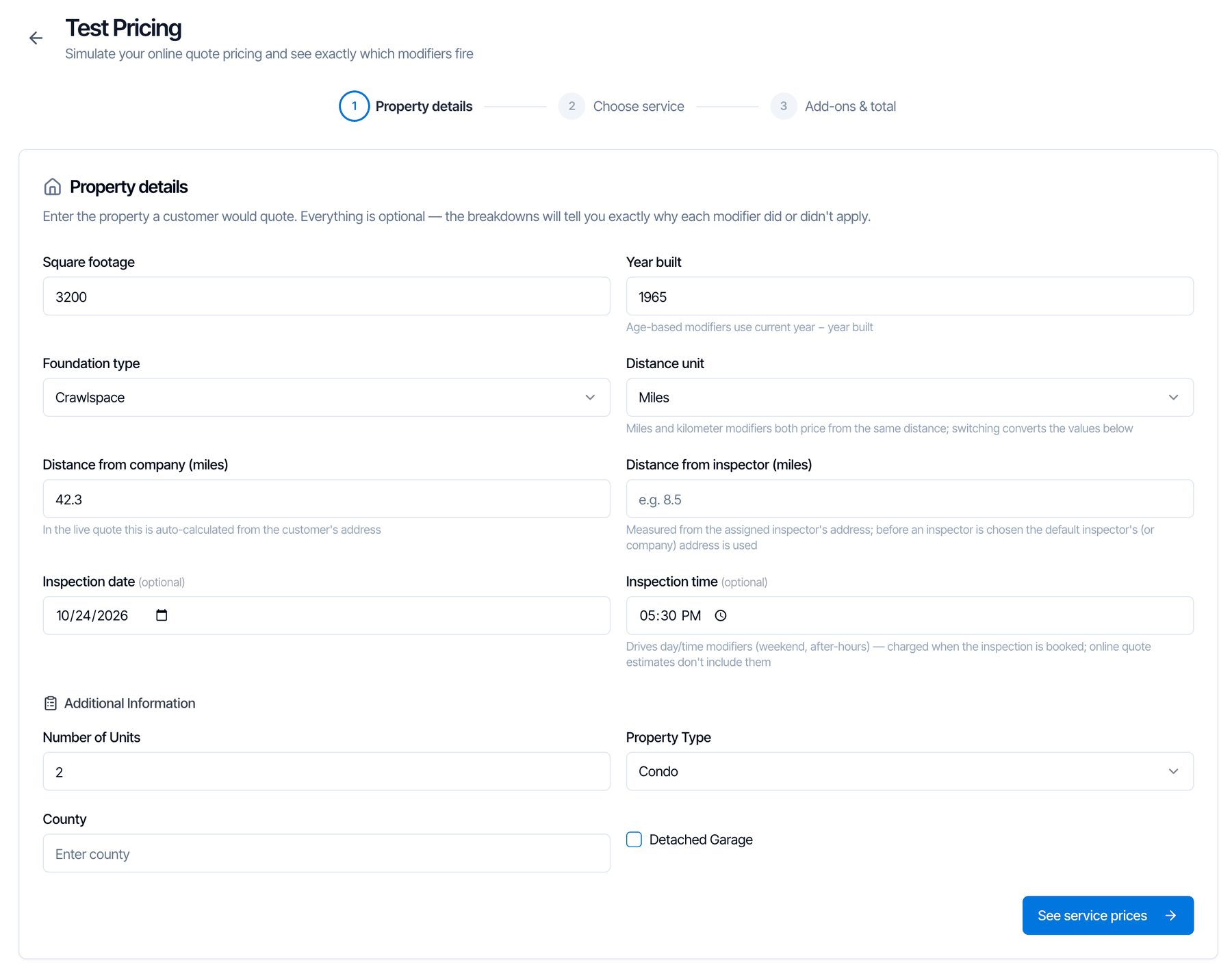 Each service shows its price and how many modifiers applied. Open the list to see every modifier with the reason it did or didn't apply.
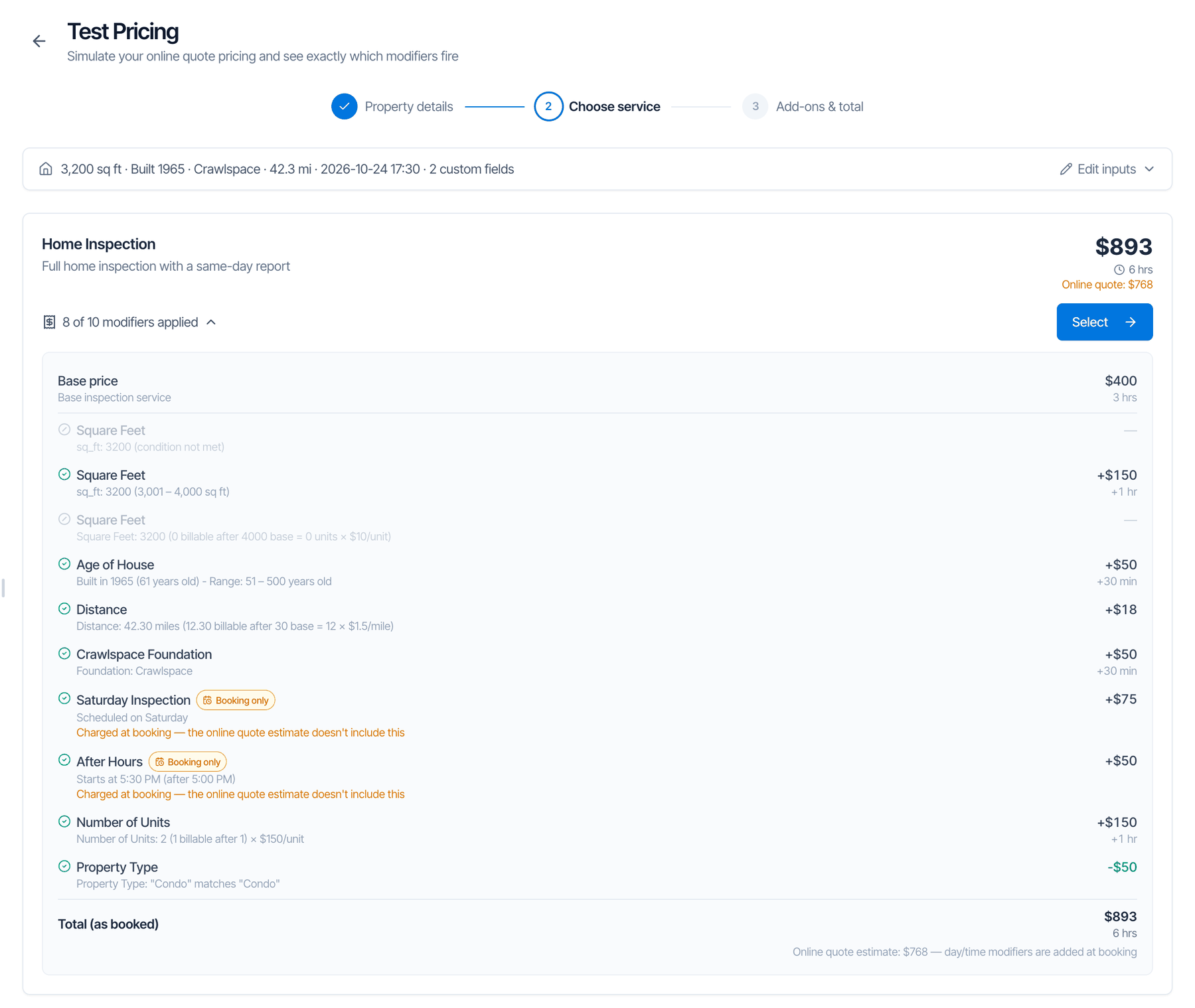 Lines marked **Booking only** are the day and time charges. They are in the booked price but not in the online estimate.
Click **Select** on a service to pick add-ons and see the quote summary.
Lines marked **Booking only** are the day and time charges. They are in the booked price but not in the online estimate.
Click **Select** on a service to pick add-ons and see the quote summary.
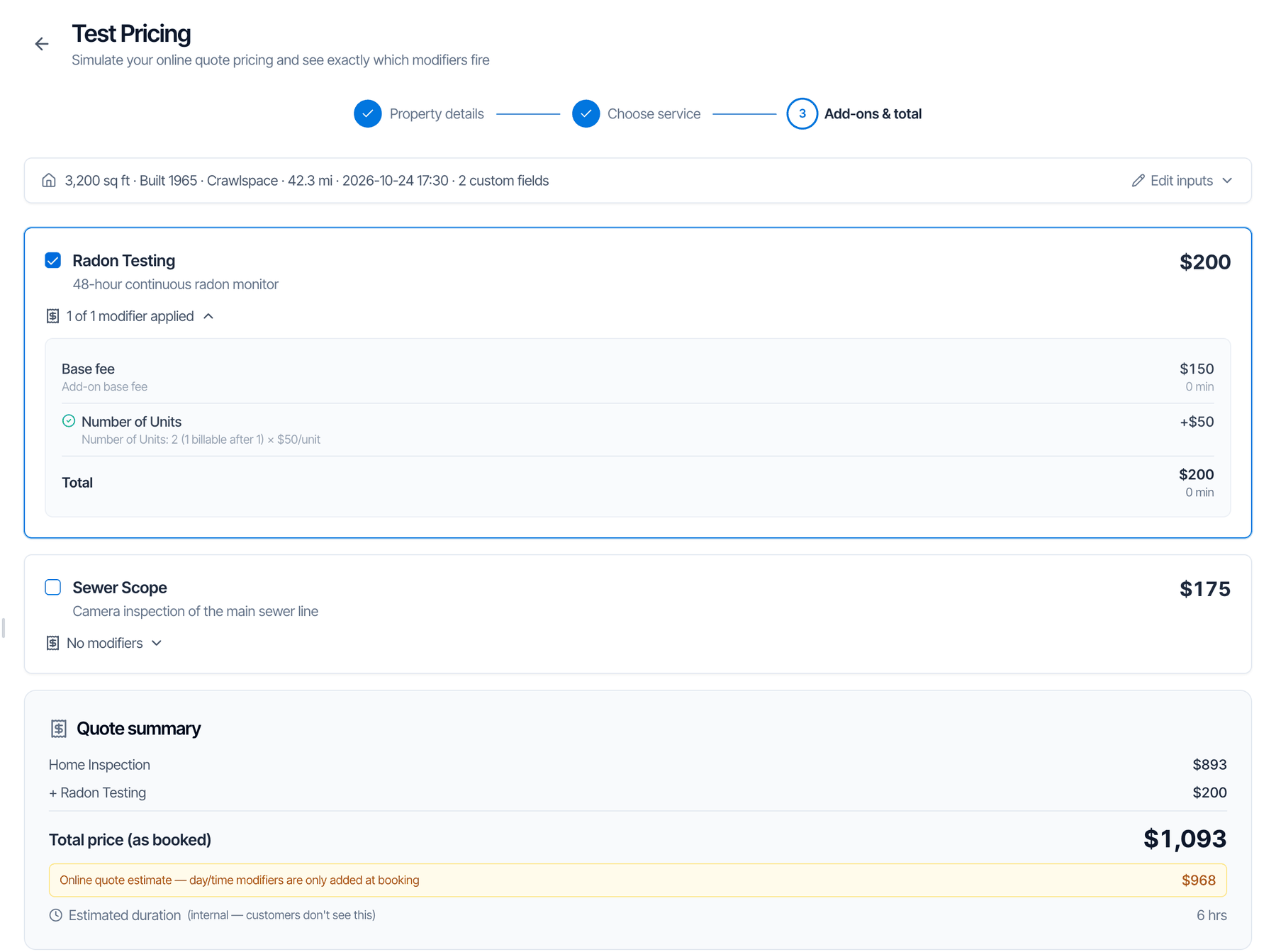 **The example above, worked out:**
| Line | Why | Price | Time |
| - | - | - | - |
| Home Inspection | Base price | \$400 | 3 h |
| Square Feet | 3,200 sq ft is in the 3,001 to 4,000 range | +\$150 | +1 h |
| Age of House | Built 1965, 61 years old, in the 51 to 500 range | +\$50 | +0.5 h |
| Distance | 42.3 miles is 12.3 past 30, counted as 12 × \$1.50 | +\$18 | 0 |
| Crawlspace Foundation | Crawlspace picked | +\$50 | +0.5 h |
| Saturday Inspection | Saturday, added at booking | +\$75 | 0 |
| After Hours | Starts at 5:30 PM, after 5:00 PM, added at booking | +\$50 | 0 |
| Number of Units | 2 units, 1 past the first, × \$150 | +\$150 | +1 h |
| Property Type | Condo, a \$50 discount | -\$50 | 0 |
| **Total** | | **\$893** | **6 h** |
The online estimate is \$768: the same total without the Saturday and After Hours charges.
## Where modifier charges show up
When you schedule or edit an inspection in the dashboard, the **Pricing Summary** lists each modifier on its own line, marked **modifier**, with its price and time.
**The example above, worked out:**
| Line | Why | Price | Time |
| - | - | - | - |
| Home Inspection | Base price | \$400 | 3 h |
| Square Feet | 3,200 sq ft is in the 3,001 to 4,000 range | +\$150 | +1 h |
| Age of House | Built 1965, 61 years old, in the 51 to 500 range | +\$50 | +0.5 h |
| Distance | 42.3 miles is 12.3 past 30, counted as 12 × \$1.50 | +\$18 | 0 |
| Crawlspace Foundation | Crawlspace picked | +\$50 | +0.5 h |
| Saturday Inspection | Saturday, added at booking | +\$75 | 0 |
| After Hours | Starts at 5:30 PM, after 5:00 PM, added at booking | +\$50 | 0 |
| Number of Units | 2 units, 1 past the first, × \$150 | +\$150 | +1 h |
| Property Type | Condo, a \$50 discount | -\$50 | 0 |
| **Total** | | **\$893** | **6 h** |
The online estimate is \$768: the same total without the Saturday and After Hours charges.
## Where modifier charges show up
When you schedule or edit an inspection in the dashboard, the **Pricing Summary** lists each modifier on its own line, marked **modifier**, with its price and time.
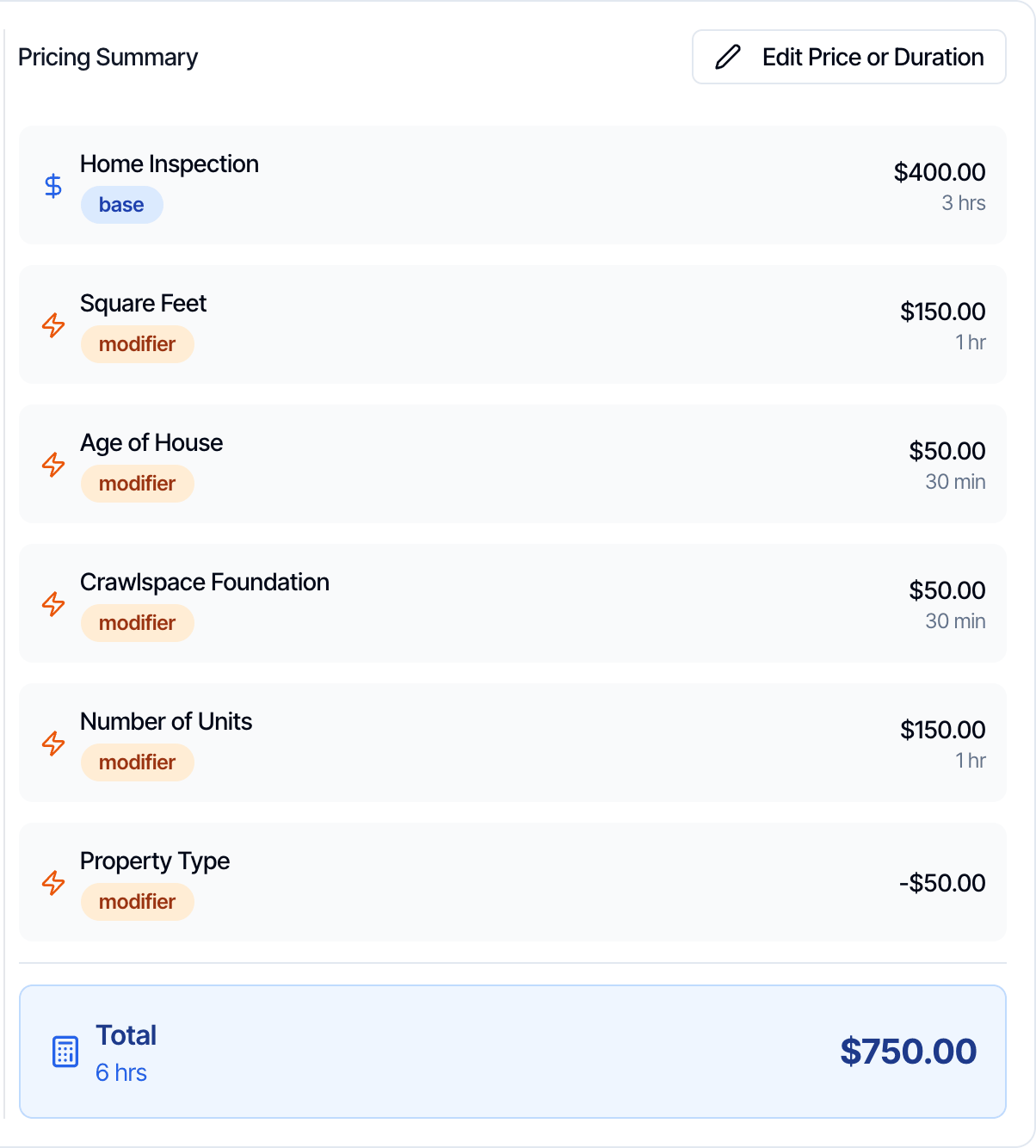 Click **Edit Price or Duration** to change any line's name, price or hours, or click the red X to remove a line. Click **Done Editing** to keep your changes.
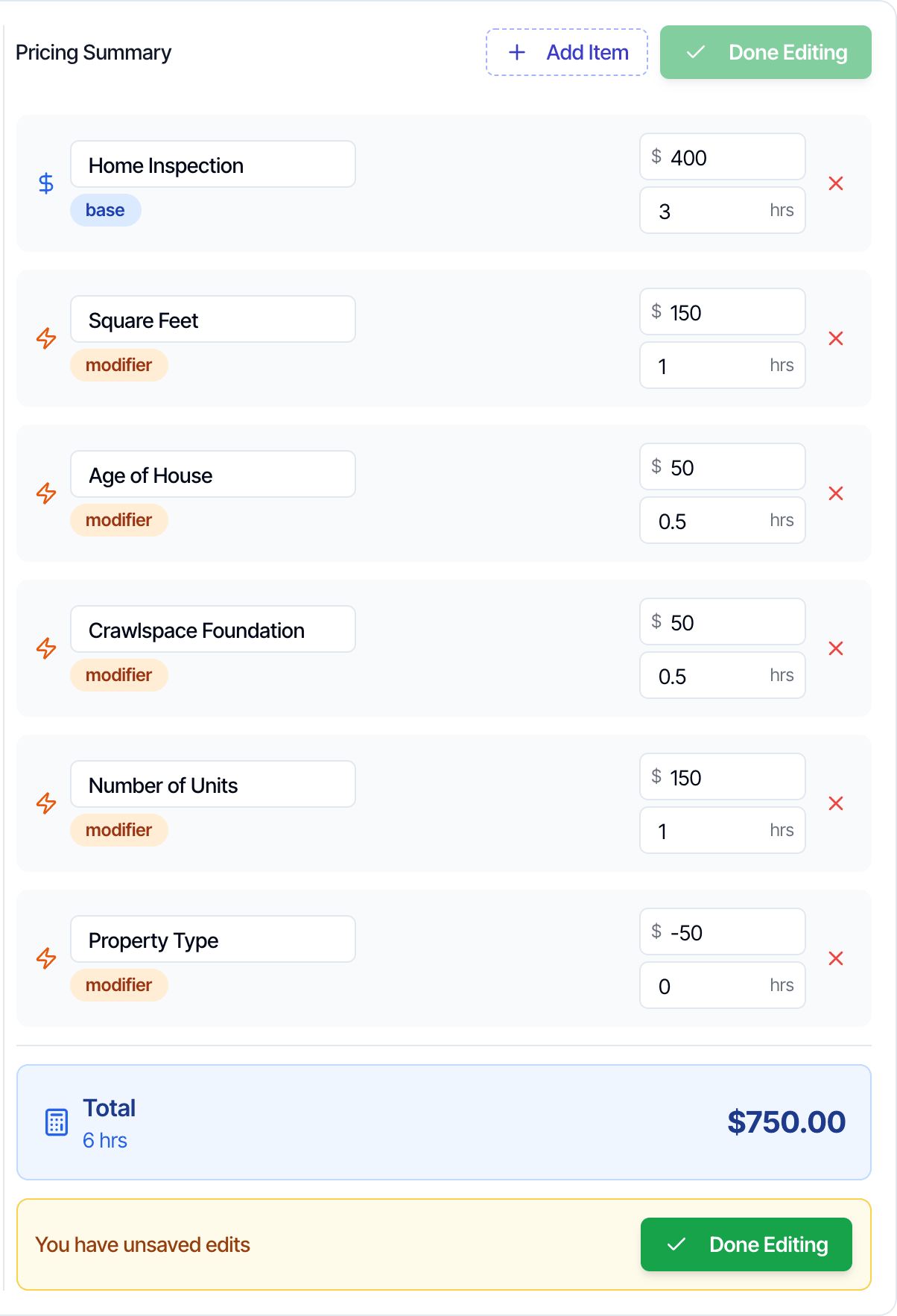 Removing a line only takes it off the price and the invoice. It doesn't change the services or add-ons on the inspection.
Clients see one price per service, with the modifiers already included:
* **Online scheduler and quote widget:** each service and add-on price already includes the size, age, distance, foundation and custom field charges. Prices are rounded to whole dollars. Day and time charges and tax are not in the estimate. If **Show Pricing on Online Scheduler** is off in your organization settings, clients don't see prices at all.
* **Invoice and client portal:** a modifier's amount is included in the line of the service or add-on it belongs to. Modifiers don't get lines of their own.
* **Your public company page:** prices show as "Starting at" the base price. If a service has a modifier with a negative amount, it shows "From" instead.
Taxes on a service are worked out on the total, modifiers included. A discount code limited to a service also applies to that service's modifiers.
## What happens to inspections you already booked
* **Changing modifiers in Services & Fees never changes inspections that are already booked.** New prices apply to inspections you book from then on.
* **Rescheduling** checks the day and time modifiers again, and the inspector distance if the inspector changes. See [When day and time charges are added](#when-day-and-time-charges-are-added).
* **Changing the property details on a confirmed inspection**, such as the square footage, year built or a custom field answer, never changes its price. The modifier lines stay as they were booked. To change the price, use **Edit Price or Duration**. An add-on you add later is priced from the current details.
* **Before the inspection is confirmed** (a draft, or waiting for the client), changing the property details in the dashboard updates the **Pricing Summary**: modifiers that now apply are added, ones that no longer do are removed, and lines that count units, such as per 100 sq ft, per year or per unit, are worked out again. A line you changed with **Edit Price or Duration** keeps your price.
## Frequently asked questions
The most common reasons:
* The value is missing. With no square footage, year built, foundation or distance, those modifiers don't apply.
* The value is just outside the range. Square Feet and Age of House ranges include both numbers. Distance and custom number ranges don't include the first number.
* The distance couldn't be measured, because the address wasn't picked from the suggestions.
* It is a day or time modifier, and the inspection has no date yet, or this is an online estimate.
To find out, enter the same details in **Test Pricing with Modifiers**. It shows the reason next to every modifier.
Yes. Type a negative amount in **Add Fees**, such as **-50**. The line shows as a discount in the Pricing Summary. For discounts that clients type in, use [discount codes](/business-tools/discount-codes) instead.
Yes, when you fill in **Add Hours**. The inspection's length is the service's base duration plus the hours of its add-ons and modifiers. That length is used on the calendar. For online bookings, the hours of day and time modifiers are added when the inspection is booked.
Yes. Add a **Specific Day** modifier for Saturday and another for Sunday, each with its own amount.
Use the company address if everyone starts from one office. Use the inspector's address if your inspectors start from their own homes or from different areas. Each inspector sets their **Inspector Local Address** under **Availability** in their Profile Settings.
No. Every modifier whose condition is met is added, whatever its place in the list. Dragging only changes how the list looks.
Set it up once, then use the **Duplicate** icon on the modifier and pick another service under **Target service**. Repeat for each service.
Not as separate lines. Clients see one price for each service and add-on, with the modifiers already included. Your team sees each modifier on its own line in the dashboard.
Removing a line only takes it off the price and the invoice. It doesn't change the services or add-ons on the inspection.
Clients see one price per service, with the modifiers already included:
* **Online scheduler and quote widget:** each service and add-on price already includes the size, age, distance, foundation and custom field charges. Prices are rounded to whole dollars. Day and time charges and tax are not in the estimate. If **Show Pricing on Online Scheduler** is off in your organization settings, clients don't see prices at all.
* **Invoice and client portal:** a modifier's amount is included in the line of the service or add-on it belongs to. Modifiers don't get lines of their own.
* **Your public company page:** prices show as "Starting at" the base price. If a service has a modifier with a negative amount, it shows "From" instead.
Taxes on a service are worked out on the total, modifiers included. A discount code limited to a service also applies to that service's modifiers.
## What happens to inspections you already booked
* **Changing modifiers in Services & Fees never changes inspections that are already booked.** New prices apply to inspections you book from then on.
* **Rescheduling** checks the day and time modifiers again, and the inspector distance if the inspector changes. See [When day and time charges are added](#when-day-and-time-charges-are-added).
* **Changing the property details on a confirmed inspection**, such as the square footage, year built or a custom field answer, never changes its price. The modifier lines stay as they were booked. To change the price, use **Edit Price or Duration**. An add-on you add later is priced from the current details.
* **Before the inspection is confirmed** (a draft, or waiting for the client), changing the property details in the dashboard updates the **Pricing Summary**: modifiers that now apply are added, ones that no longer do are removed, and lines that count units, such as per 100 sq ft, per year or per unit, are worked out again. A line you changed with **Edit Price or Duration** keeps your price.
## Frequently asked questions
The most common reasons:
* The value is missing. With no square footage, year built, foundation or distance, those modifiers don't apply.
* The value is just outside the range. Square Feet and Age of House ranges include both numbers. Distance and custom number ranges don't include the first number.
* The distance couldn't be measured, because the address wasn't picked from the suggestions.
* It is a day or time modifier, and the inspection has no date yet, or this is an online estimate.
To find out, enter the same details in **Test Pricing with Modifiers**. It shows the reason next to every modifier.
Yes. Type a negative amount in **Add Fees**, such as **-50**. The line shows as a discount in the Pricing Summary. For discounts that clients type in, use [discount codes](/business-tools/discount-codes) instead.
Yes, when you fill in **Add Hours**. The inspection's length is the service's base duration plus the hours of its add-ons and modifiers. That length is used on the calendar. For online bookings, the hours of day and time modifiers are added when the inspection is booked.
Yes. Add a **Specific Day** modifier for Saturday and another for Sunday, each with its own amount.
Use the company address if everyone starts from one office. Use the inspector's address if your inspectors start from their own homes or from different areas. Each inspector sets their **Inspector Local Address** under **Availability** in their Profile Settings.
No. Every modifier whose condition is met is added, whatever its place in the list. Dragging only changes how the list looks.
Set it up once, then use the **Duplicate** icon on the modifier and pick another service under **Target service**. Repeat for each service.
Not as separate lines. Clients see one price for each service and add-on, with the modifiers already included. Your team sees each modifier on its own line in the dashboard.
Next step
Related
This documentation is built and hosted on [Mintlify](https://mintlify.com), a developer documentation platform.