

In the dashboard: Business Tools → Custom Fields, then Business Tools → Services & Fees → Edit a service → Add Modifier
What custom field modifiers do
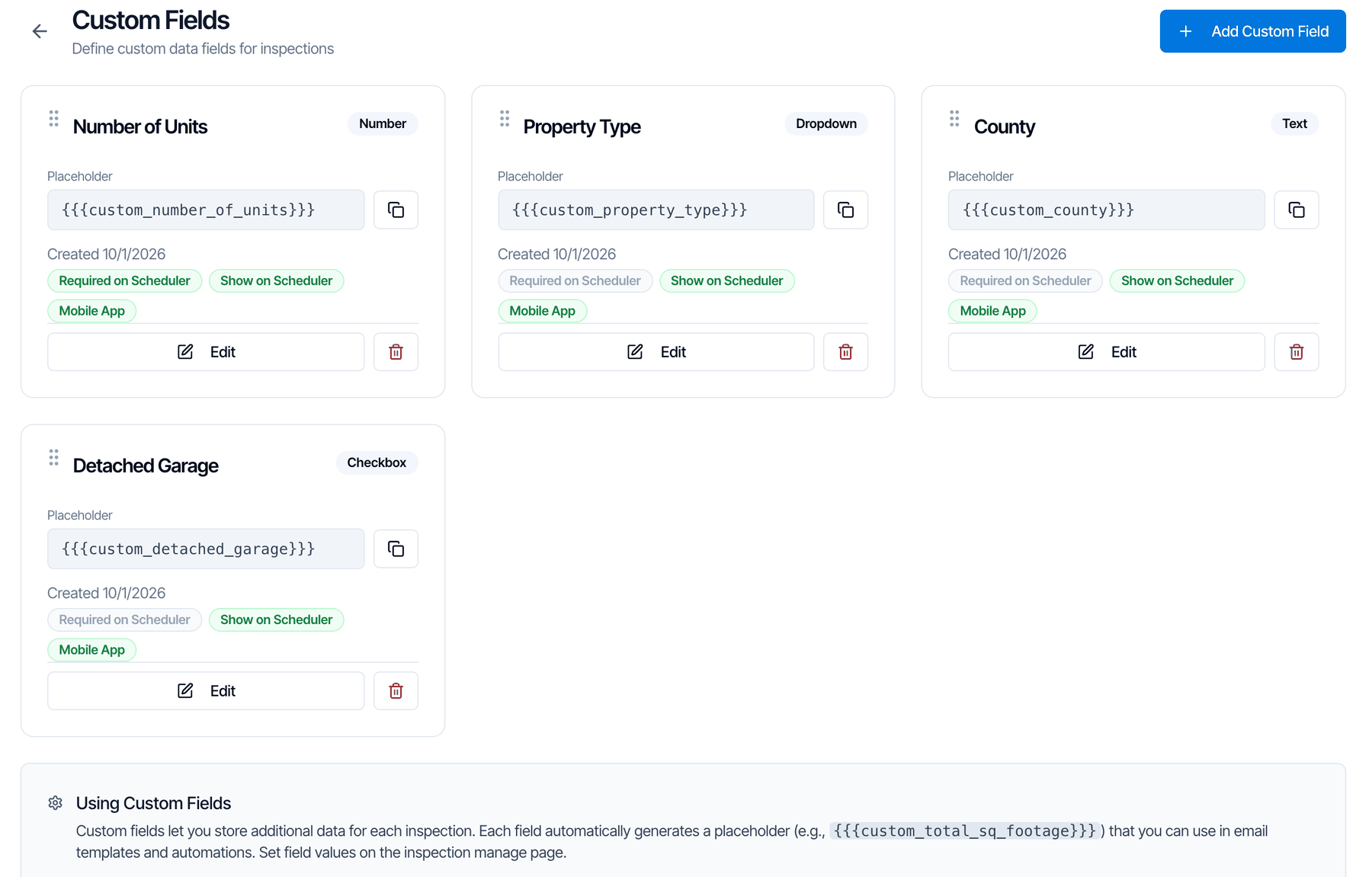
Hive can price on its own by square footage, age, distance, foundation, day and time. See Price modifiers. For anything else, you make your own: ask a question with a custom field, then add a modifier that charges based on the answer. For example:- Number of Units: $150 for each unit after the first, so a duplex costs $150 more and a fourplex $450 more.
- Property Type: $50 off for condos, $100 more for mobile homes.
- Number of Bedrooms: $50 more for 5 or more bedrooms.
- County: a $25 travel fee for one county.
- Create the custom field in Business Tools → Custom Fields.
- Add a modifier on that field to a service in Business Tools → Services & Fees.
Which field types can set a price
Step 1: Create the custom field
Name the field
Type the question as your team and clients should see it, such as Number of Units. Names can be up to 50 characters.Hive makes a placeholder from the name, such as
{{{custom_number_of_units}}}. The modifier is tied to that placeholder. The placeholder stays the same if you rename the field later, so its modifiers keep working. See Renaming or deleting a field.Pick the Field Type
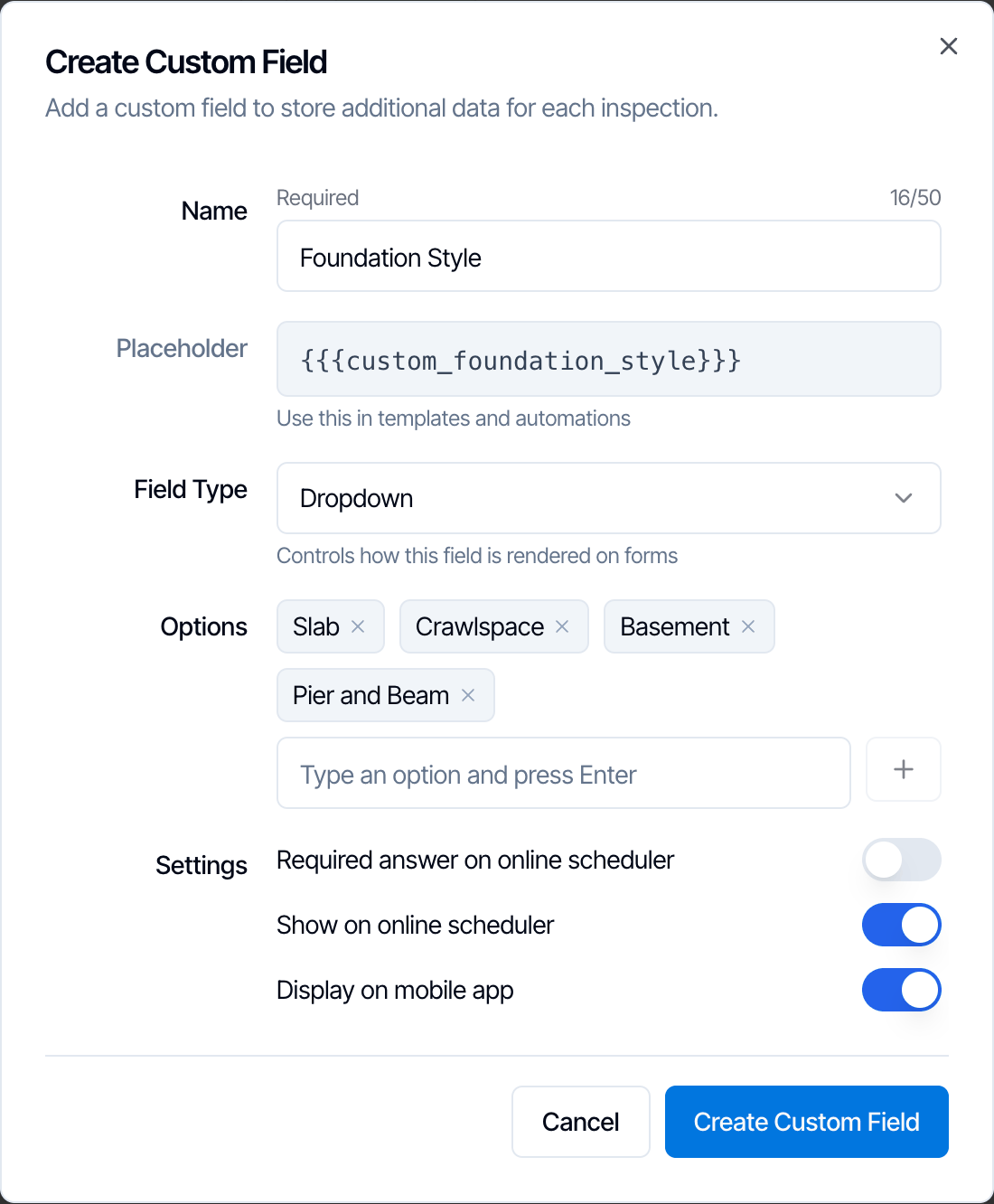
Pick Number for counts, or Dropdown for a list of choices. Text also works. Checkbox can’t set a price.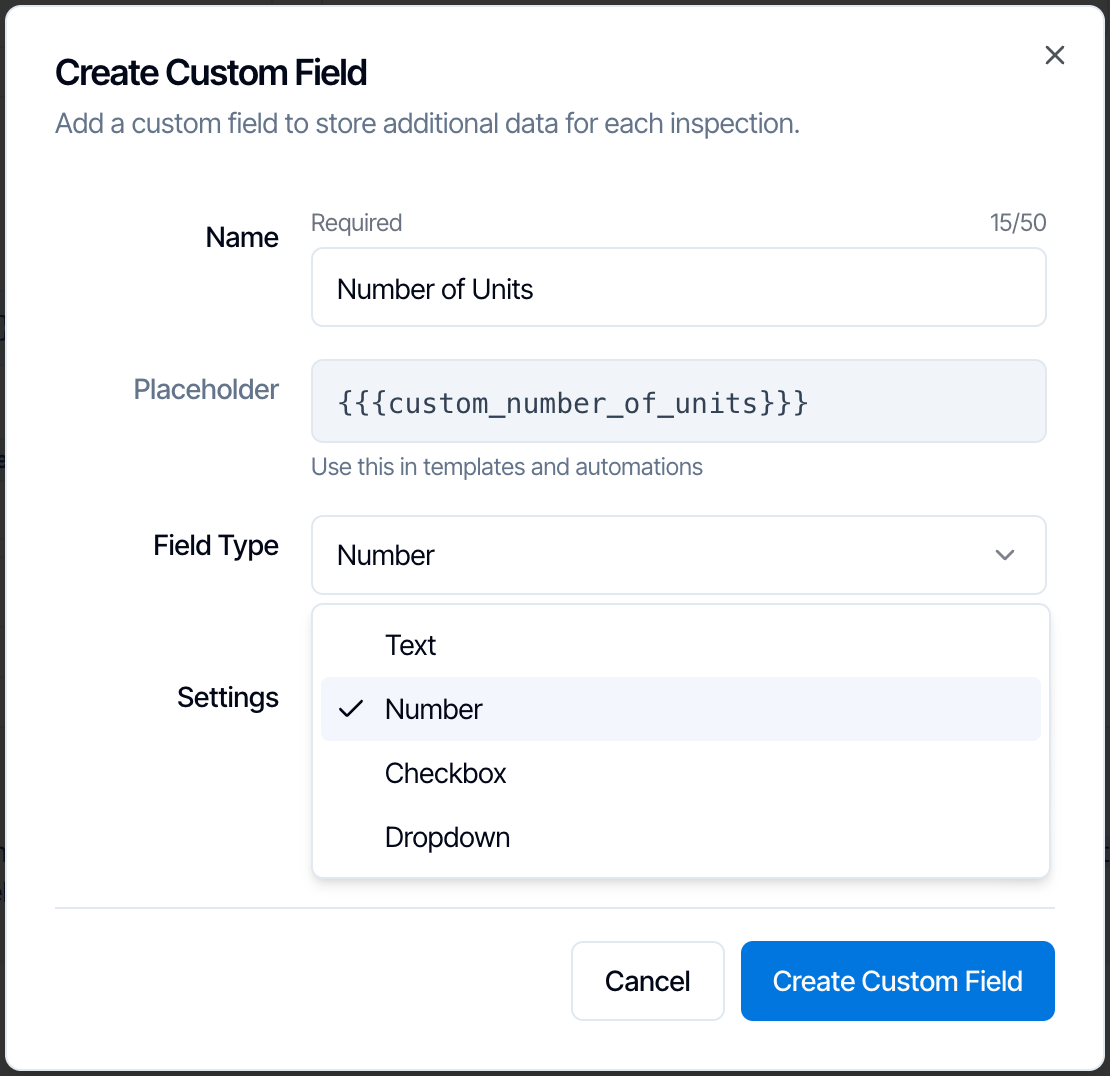
Choose where the field appears
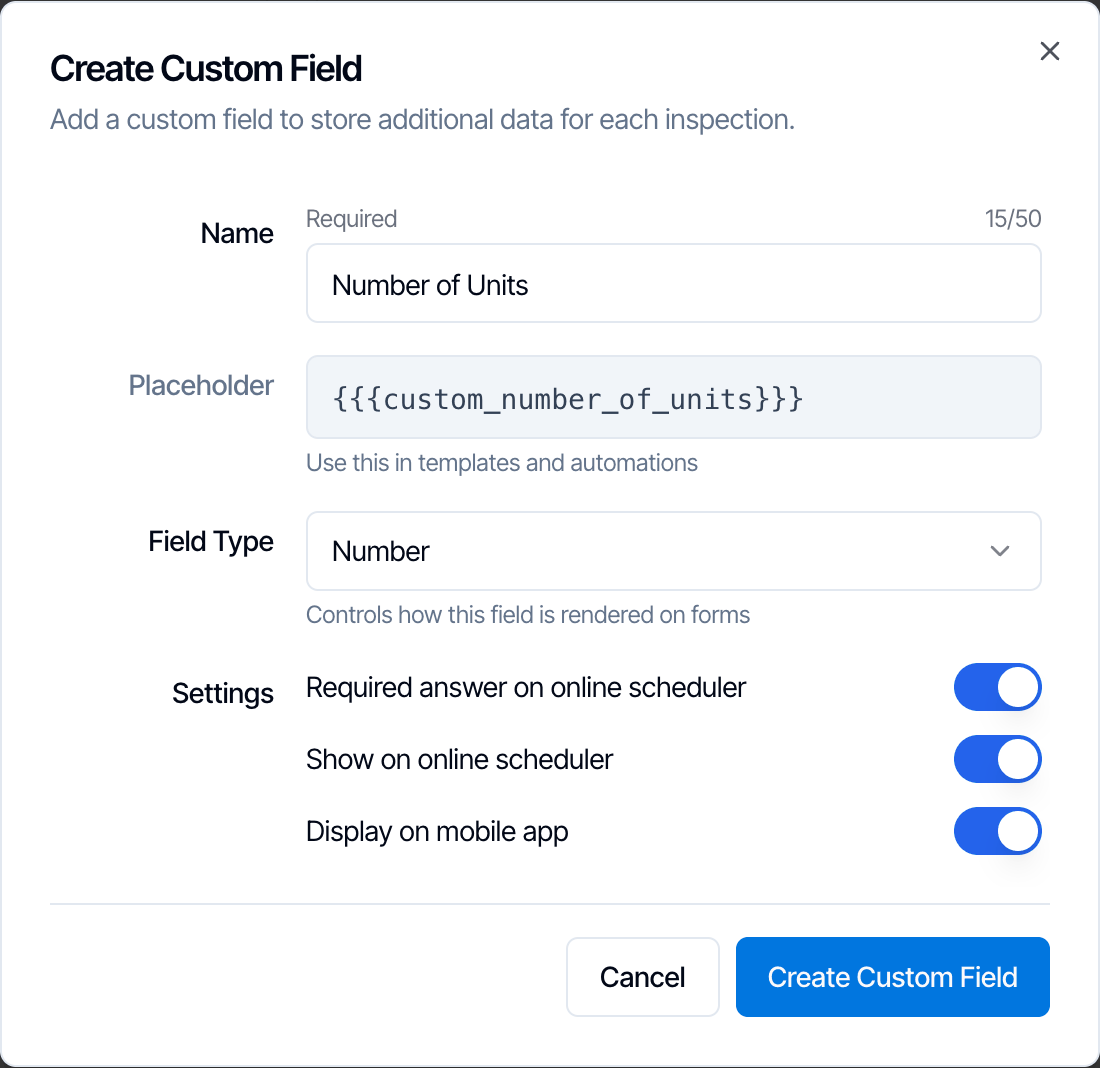
Turn on the settings you need:
Your team always sees every custom field when scheduling in the dashboard, whatever these settings are.
Step 2: Add a modifier on the field
Open the service
Go to Business Tools → Services & Fees and click the pencil icon on the service. Under Service Modifiers, click Add Modifier.To price an add-on instead, open the add-on and use Add Modifier under Add-On Modifiers.
Pick your field in the When list
Your fields are at the bottom of the list, under Custom Fields. Checkbox fields aren’t listed.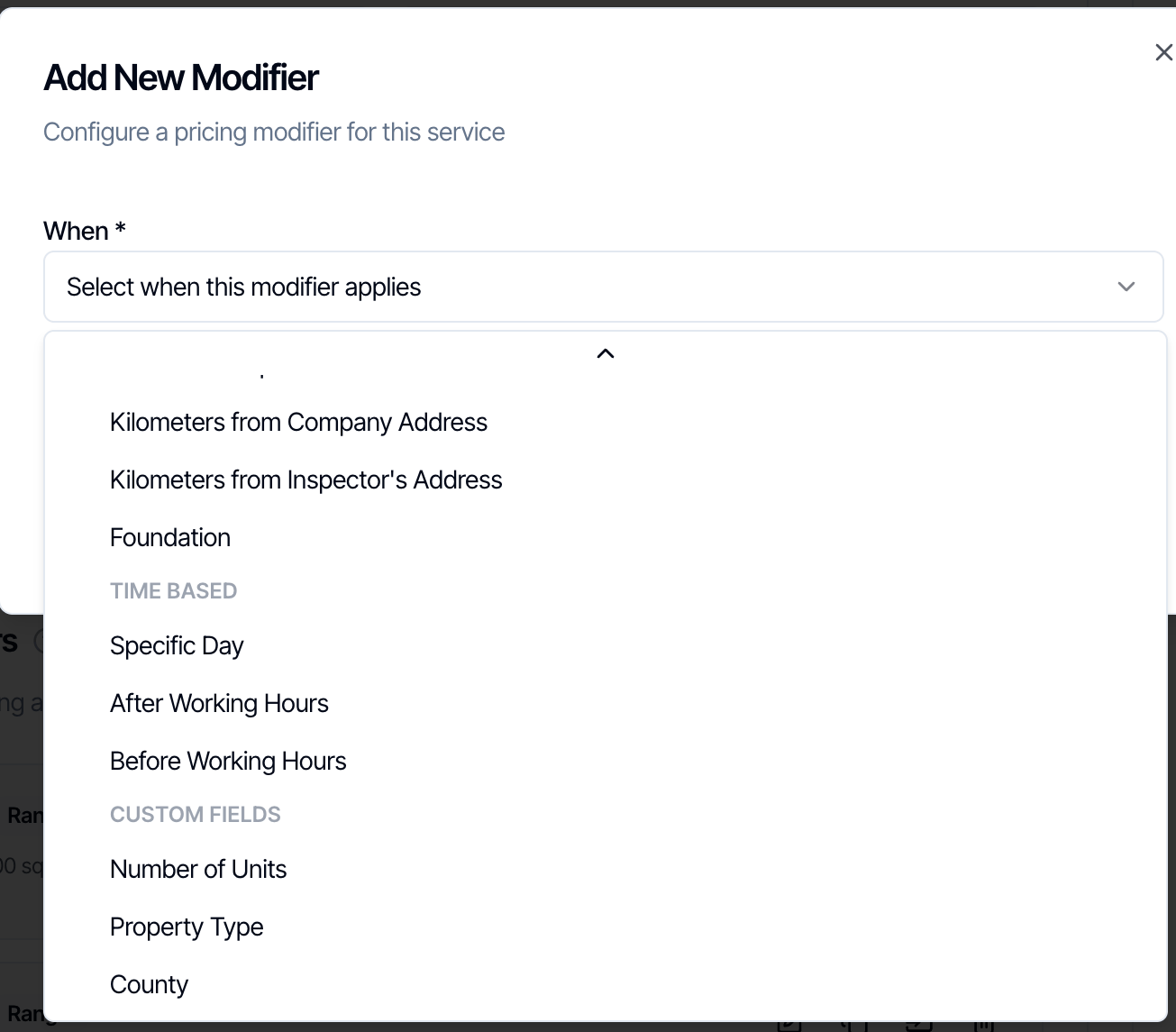
Pick the Type and fill it in
A Number field offers Range, Per Unit and Per Unit Over. A Dropdown or Text field has only Equals To, which Hive picks for you. Each type is explained below.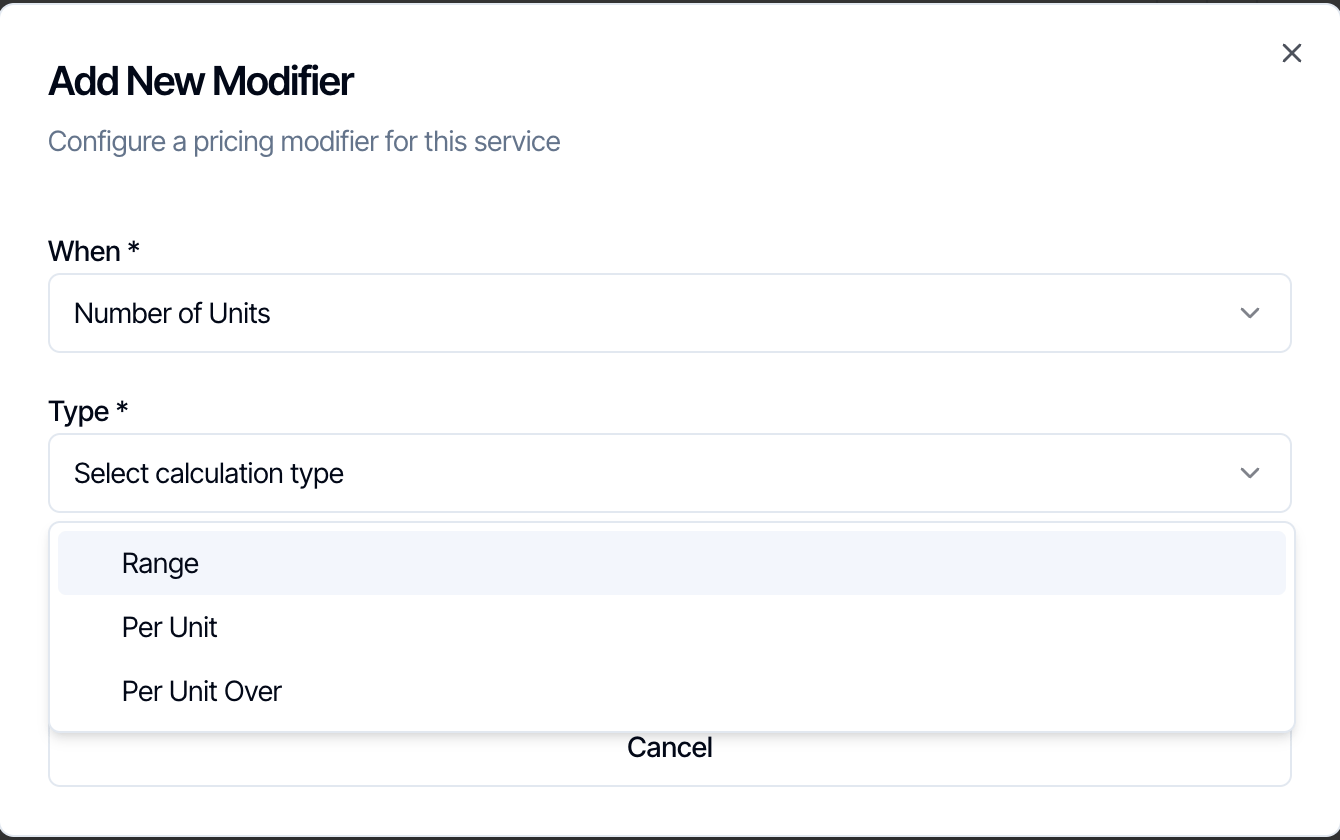
Number fields
Per Unit Over
Charges for every unit above a starting number. This is the usual choice for multi-unit buildings, where the base price already covers the first unit.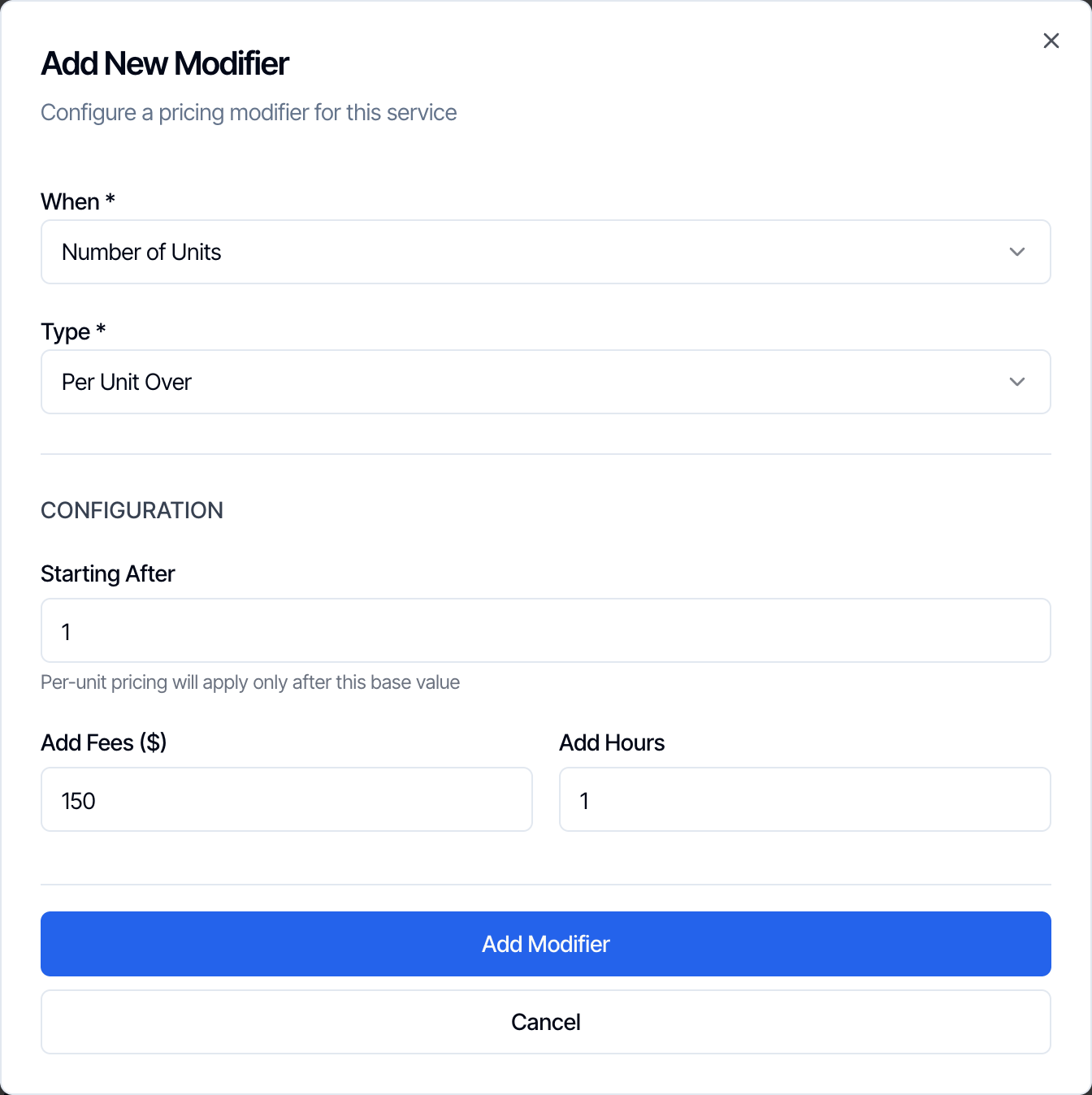
Per Unit
Charges for every unit in the answer: the answer × Add Fees. There is no starting number.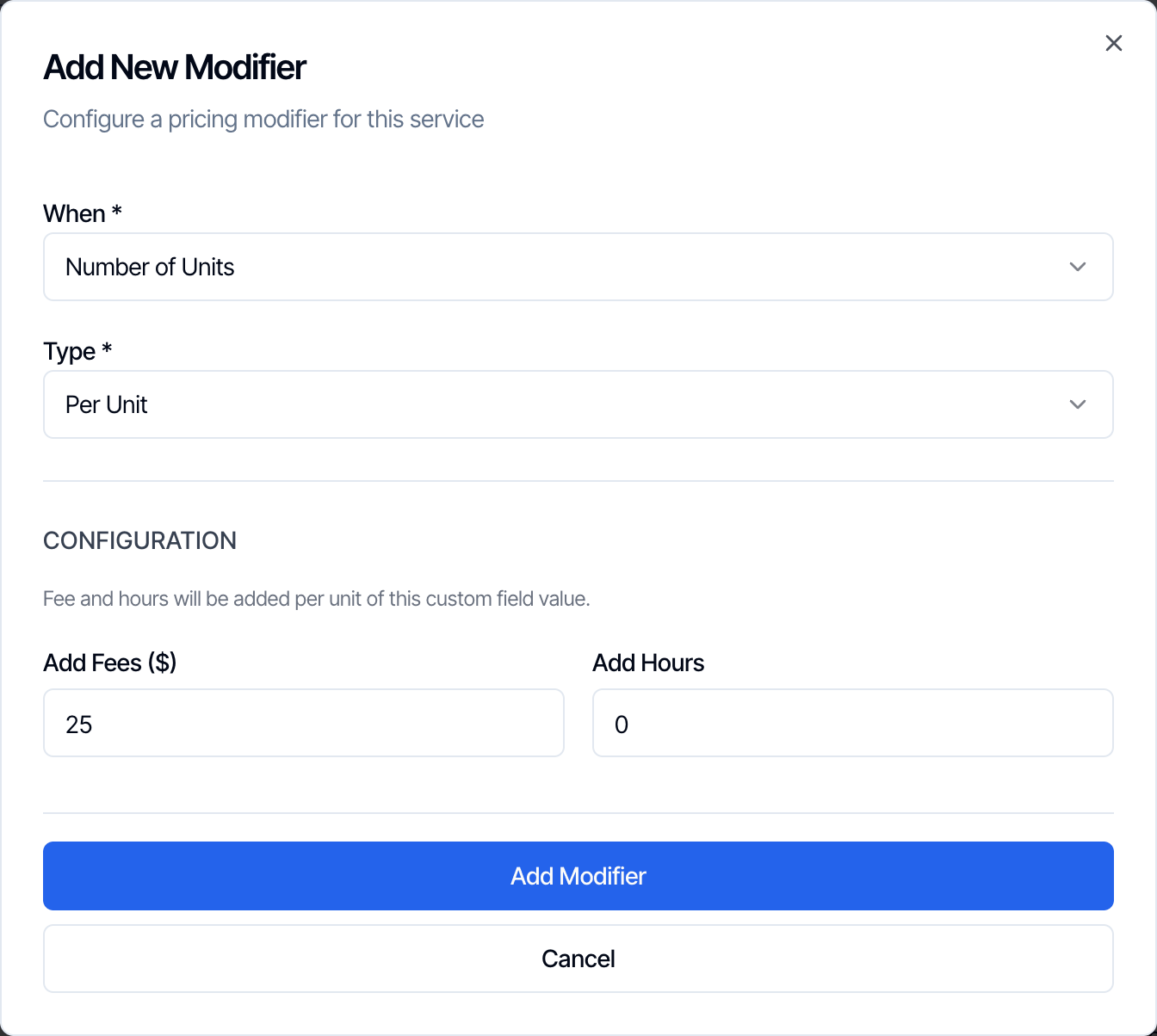
Per Unit and Per Unit Over compared
With Add Fees $150, and Starting After 1 for Per Unit Over:
Answers aren’t rounded. An answer of 2.5 with Per Unit at $10 adds $25. If the answer is 0 or empty, nothing is added.
Range
A flat amount when the answer is in a band. Ranges on custom fields are typed as More than and Up to: the first number is not included, the second is.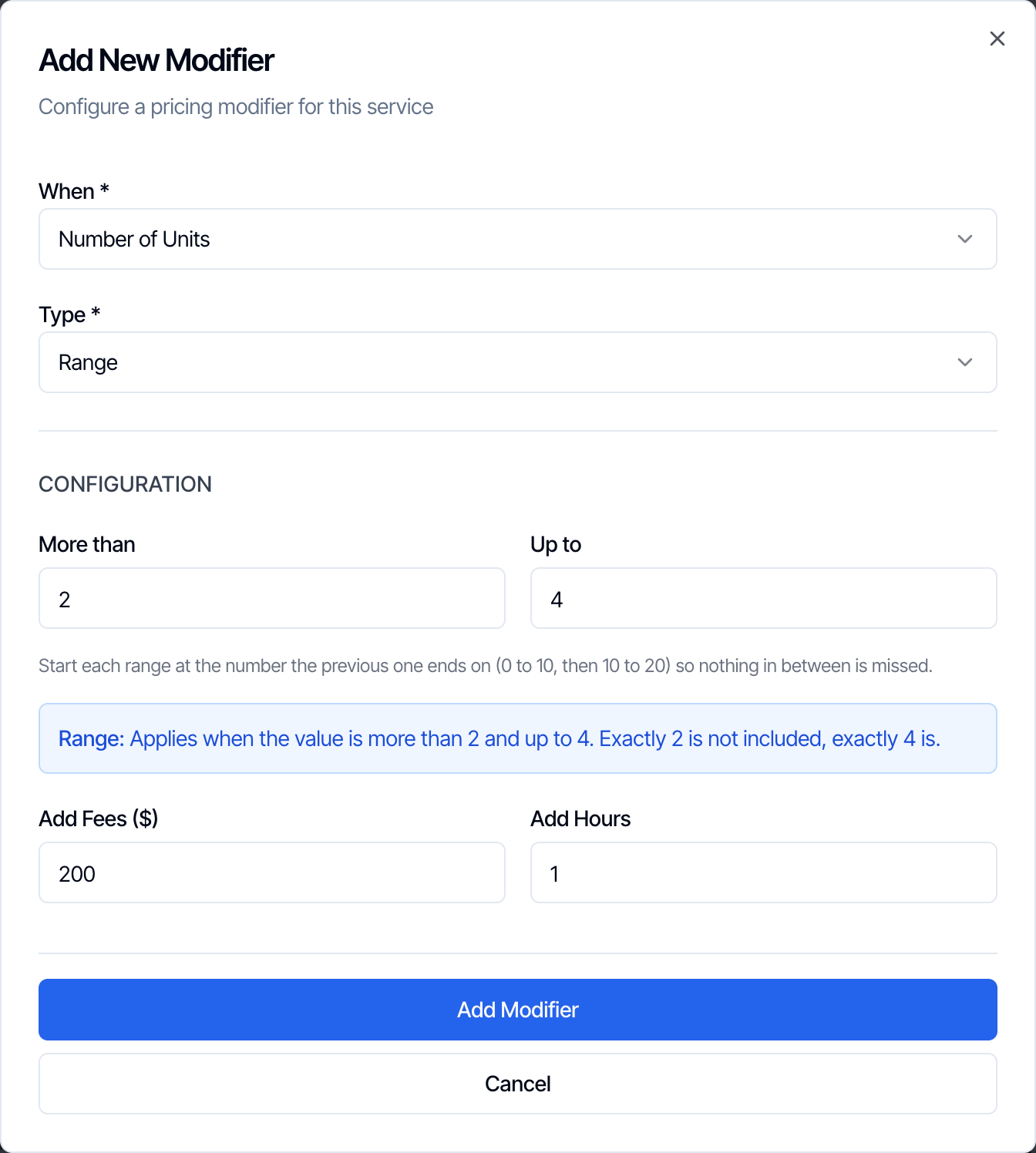
- More than 2, Up to 4 covers 3 and 4.
- To charge for exactly 5, use More than 4, Up to 5.
- For 5 or more, use More than 4 and a high Up to, such as 100.
Dropdown and Text fields: Equals To
Equals To adds a flat amount when the answer matches the value you set.- Dropdown field
- Text field
Pick the option from the Expected Value list. This example takes $50 off for condos.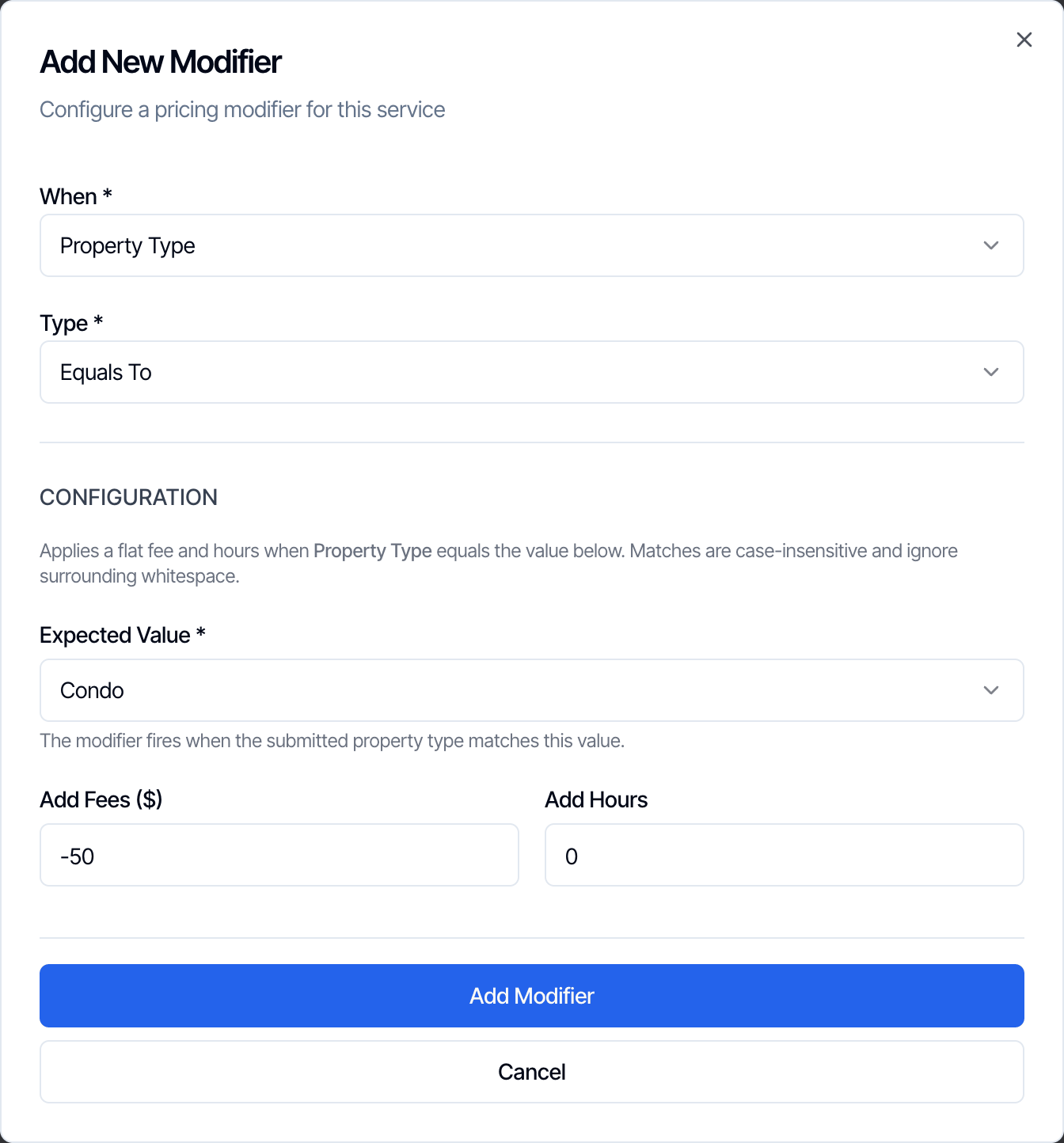
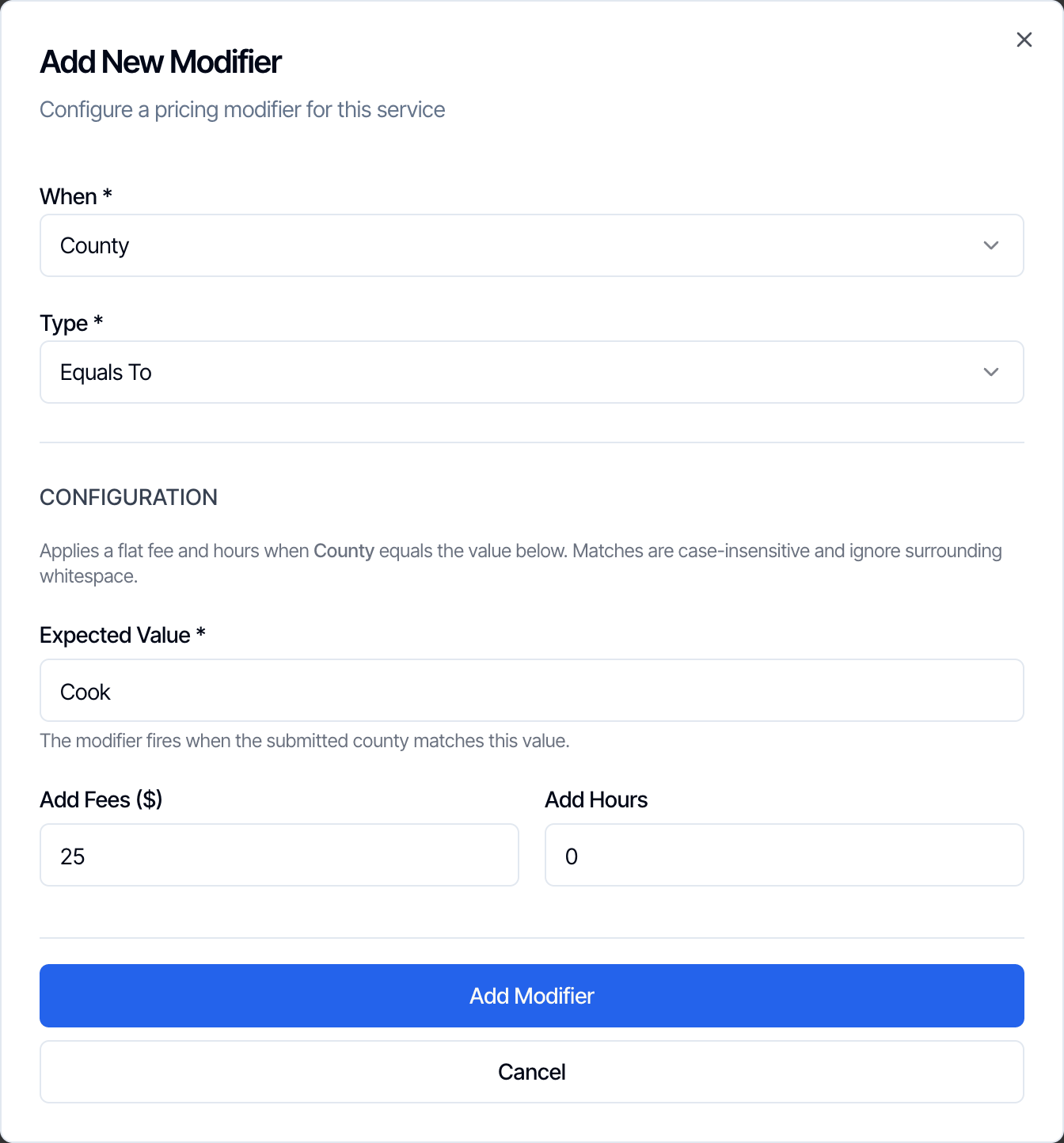
- One value per modifier. To price several choices, add one modifier for each, such as one for Condo and one for Mobile Home.
- Negative amounts are discounts. Type -50 in Add Fees to take $50 off.
- Yes-or-no questions: create a Dropdown with Yes and No, then add an Equals To modifier for Yes.
Where the answers come from
A custom field modifier applies when the field has an answer on the inspection.- Dashboard
- Online scheduler
- Mobile app
When you schedule in the dashboard, every custom field is in the Custom Fields card on the New Inspection page, whatever its settings. The Pricing Summary below it shows the modifier as soon as the service is picked.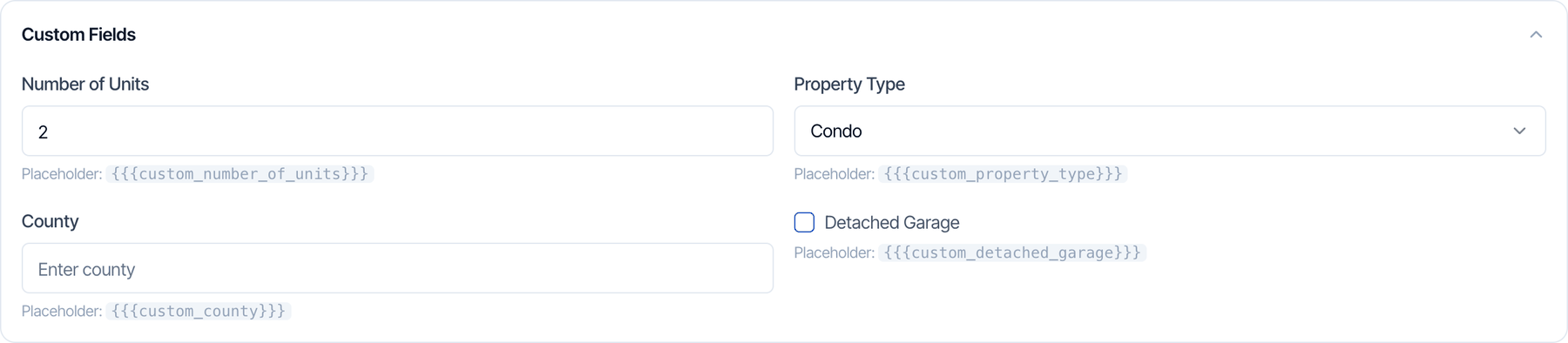
Once an inspection is confirmed, changing an answer never changes its price, in the dashboard or the mobile app. To change the price, use Edit Price or Duration in the dashboard.
Test the modifier
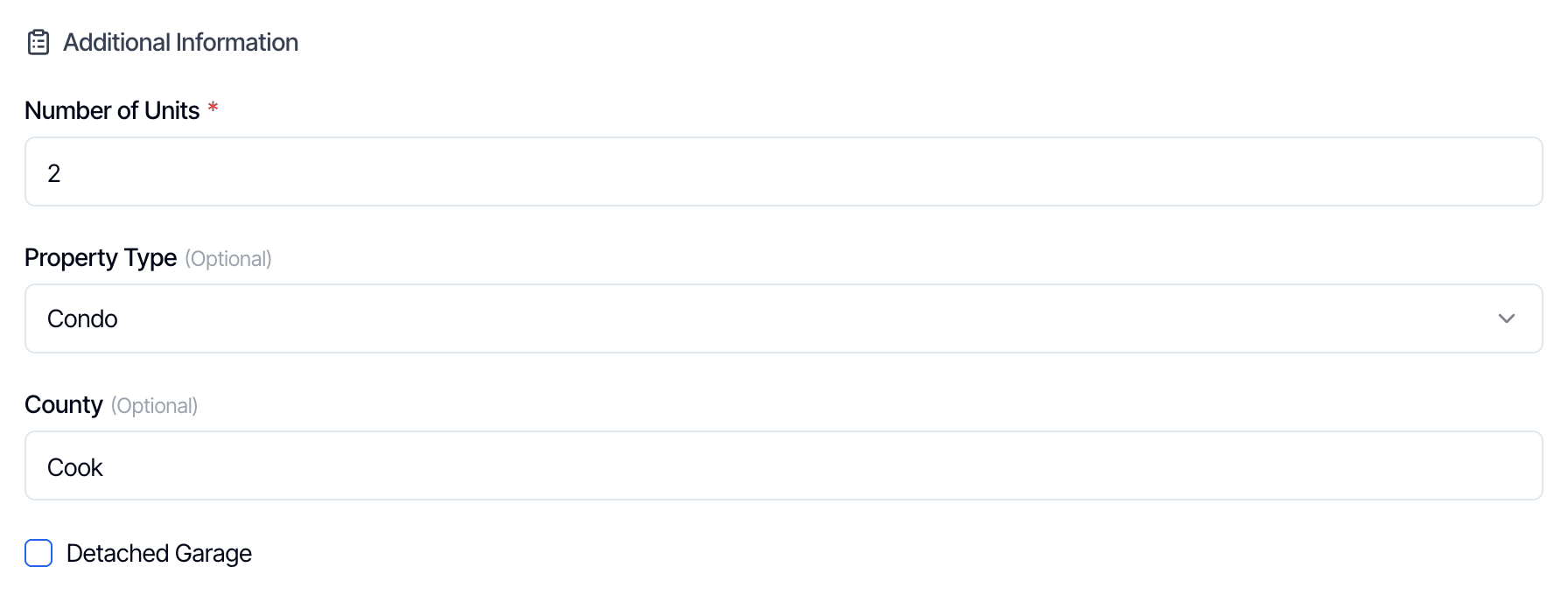
Go to Business Tools → Services & Fees and click Test Pricing with Modifiers. Your custom fields are under Additional Information. Type an answer, click See service prices, and open the modifier list to see what each modifier added and why.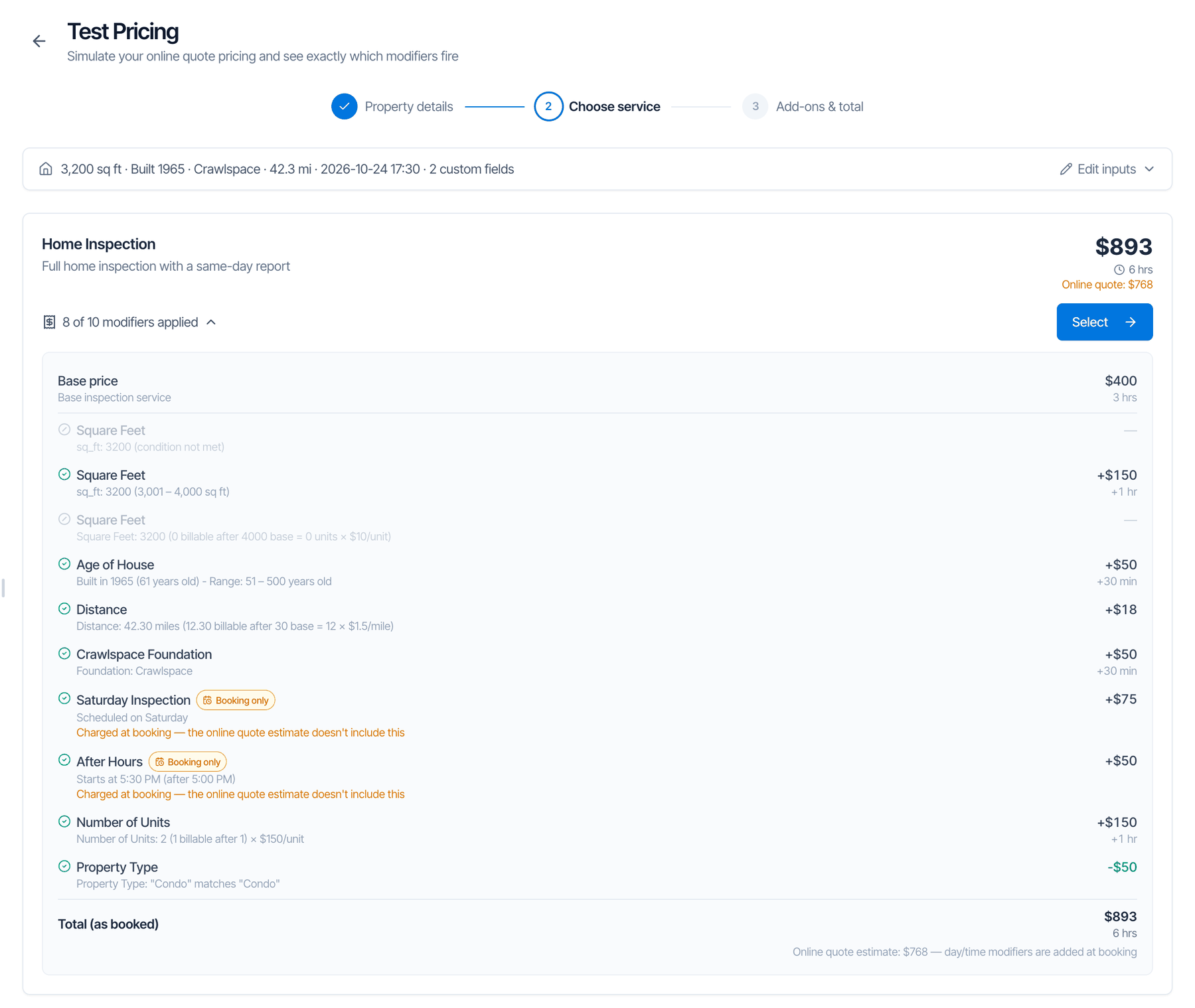
Renaming or deleting a field
A modifier is tied to the field’s placeholder, such as{{{custom_number_of_units}}}.
Renaming a field
Renaming keeps the placeholder, so nothing stops working: the field’s modifiers, the answers already saved on inspections, and the placeholder in your emails, agreements and templates. Modifiers named after the field take the new name in your modifier list. Two fields can’t have the same name.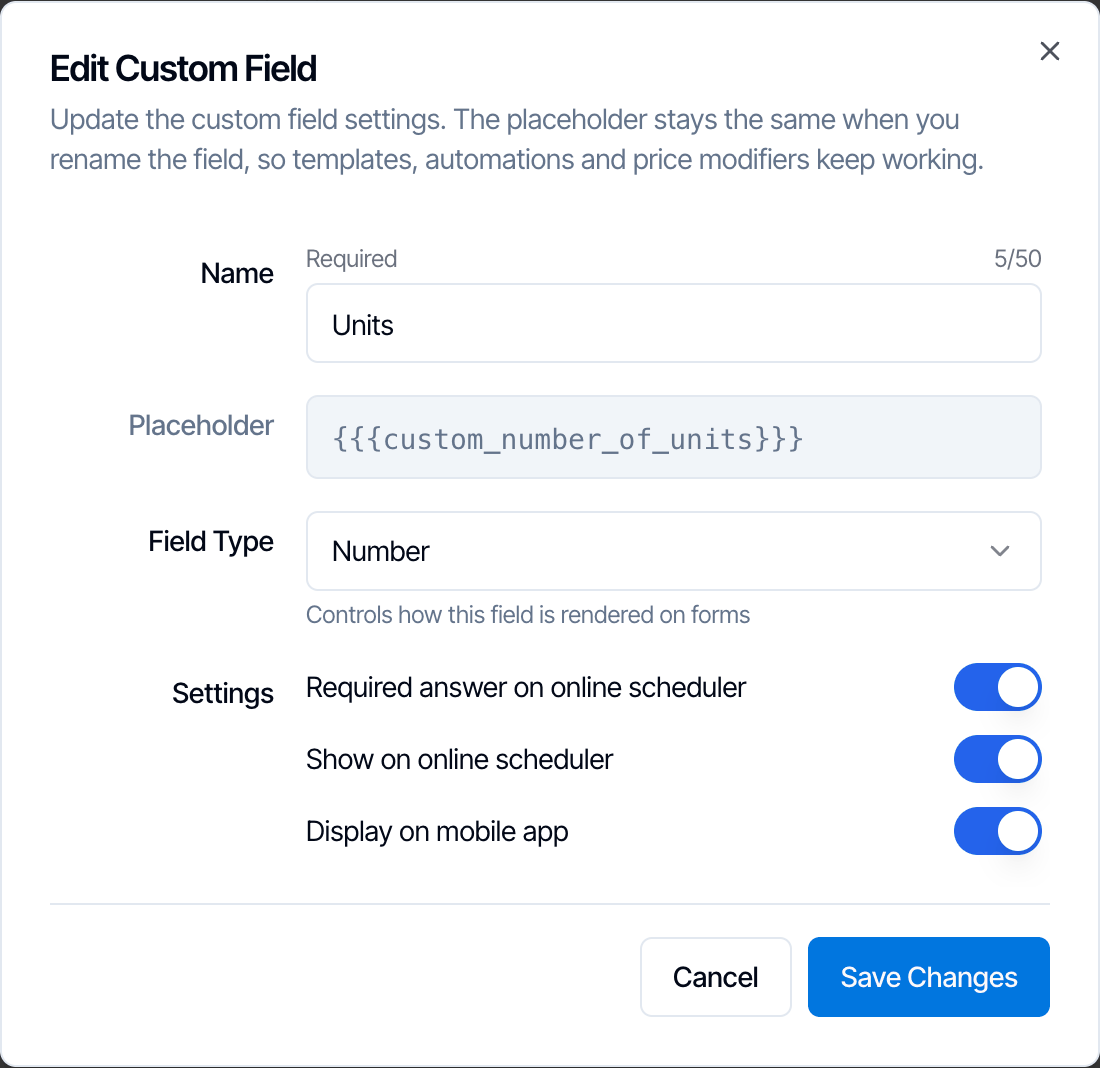
Deleting a field
The delete dialog lists every service and add-on with a modifier that uses the field. After you delete it, those modifiers never apply again.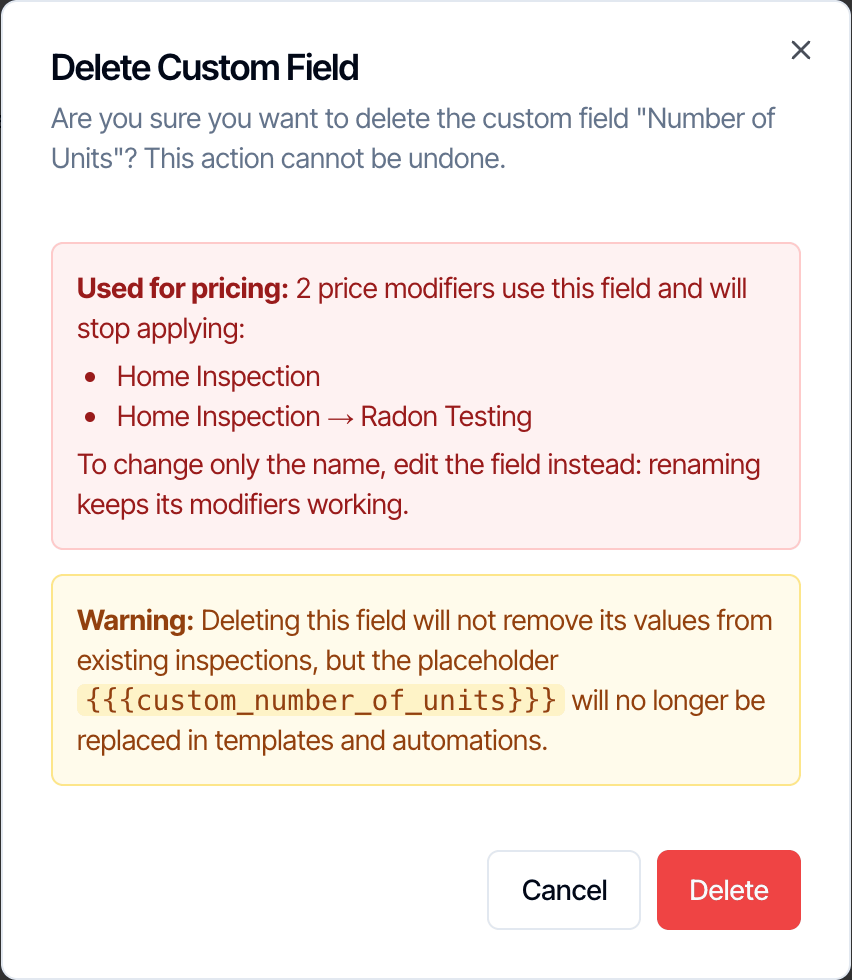

Ready-made examples
Number of units: a fee for each unit after the first
Number of units: a fee for each unit after the first
- Custom field: Number of Units, Number, with Show on online scheduler and Required answer on online scheduler turned on.
- Modifier: When Number of Units, Type Per Unit Over, Starting After 1, Add Fees 150, Add Hours 1.
Bedrooms: a fee for 5 or more
Bedrooms: a fee for 5 or more
- Custom field: Number of Bedrooms, Number.
- Modifier: When Number of Bedrooms, Type Range, More than 4, Up to 100, Add Fees 50.
Property type: a condo discount and a mobile home fee
Property type: a condo discount and a mobile home fee
- Custom field: Property Type, Dropdown, with the options Single Family, Condo, Townhouse and Mobile Home.
- Modifier: When Property Type, Expected Value Condo, Add Fees -50.
- A second modifier: When Property Type, Expected Value Mobile Home, Add Fees 100.
A pool or a detached garage: a flat fee when the answer is Yes
A pool or a detached garage: a flat fee when the answer is Yes
- Custom field: Pool, Dropdown, with the options Yes and No. Don’t use a Checkbox, because checkboxes can’t set a price.
- Modifier: When Pool, Expected Value Yes, Add Fees 75, Add Hours 0.5.
A travel fee for some counties
A travel fee for some counties
- Custom field: County, Dropdown, with every county you serve as an option.
- One Equals To modifier for each county that costs extra, such as Expected Value Cook, Add Fees 25.
Frequently asked questions
Why isn't my custom field in the When list?
Why isn't my custom field in the When list?
Checkbox fields can’t set a price, so they aren’t listed. Also, the list is loaded when the service page opens. If you created the field after opening the service, reload the page.
My custom field modifier works in the dashboard but not on online bookings. Why?
My custom field modifier works in the dashboard but not on online bookings. Why?
The field probably has Show on online scheduler turned off, so clients never answer it. Turn it on in Business Tools → Custom Fields → Edit. If clients must answer, also turn on Required answer on online scheduler.
What's the difference between Per Unit and Per Unit Over?
What's the difference between Per Unit and Per Unit Over?
Per Unit charges for every unit in the answer. Per Unit Over charges only for the units above Starting After. Use Per Unit Over when the base price already covers the first unit, or the first few.
Can one field have several modifiers?
Can one field have several modifiers?
Yes. You can add several ranges on one number field, or one Equals To modifier for each dropdown option. Every modifier whose condition is met is added.
Can I use a custom field modifier on an add-on?
Can I use a custom field modifier on an add-on?
Yes. Open the add-on under Service Add-Ons and use Add Modifier in Add-On Modifiers. It applies only when the add-on is on the inspection.
Do clients see the custom field charge as its own line?
Do clients see the custom field charge as its own line?
No. Clients see one price for the service, with the charge included. Your team sees it as its own line, named after the field, in the dashboard’s Pricing Summary.
Related