> ## Documentation Index
> Fetch the complete documentation index at: https://docs.hiveinspect.com/llms.txt
> Use this file to discover all available pages before exploring further.
# Send an AI Repair Cost Estimate With Your Inspection Report
> Turn on the Hive Repair Estimator to price every defect by contractor trade, preview the PDF before you publish, and choose who is emailed the estimate.
In the dashboard: Templates → Template Tools → Hive Repair Estimator, or in a report: Report Tools → Hive Repair Estimator
## What the Repair Estimator does
The Hive Repair Estimator turns the defects in a report into a priced repair estimate. Your report tells the client what is wrong. The estimate tells them roughly what it costs to fix, so they can ask for repairs or credits with real numbers.
It is a separate, Hive-branded PDF with:
* **Defects grouped by contractor trade.** Each finding sits under the professional who would do the work, such as a roofer, plumber or electrician, with a subtotal per trade and a total for the home.
* **Projected costs for the local market.** Prices are based on the property's city, state and ZIP code. Related items are bundled the way a contractor would quote them, and small items are listed as under \$200.
* **Further-evaluation flags.** Items that can't be priced responsibly without a specialist, such as water intrusion or structural movement, are flagged instead of guessed at.
* **A disclaimer.** Prices are AI-generated projections for planning and negotiation. They are not quotes.
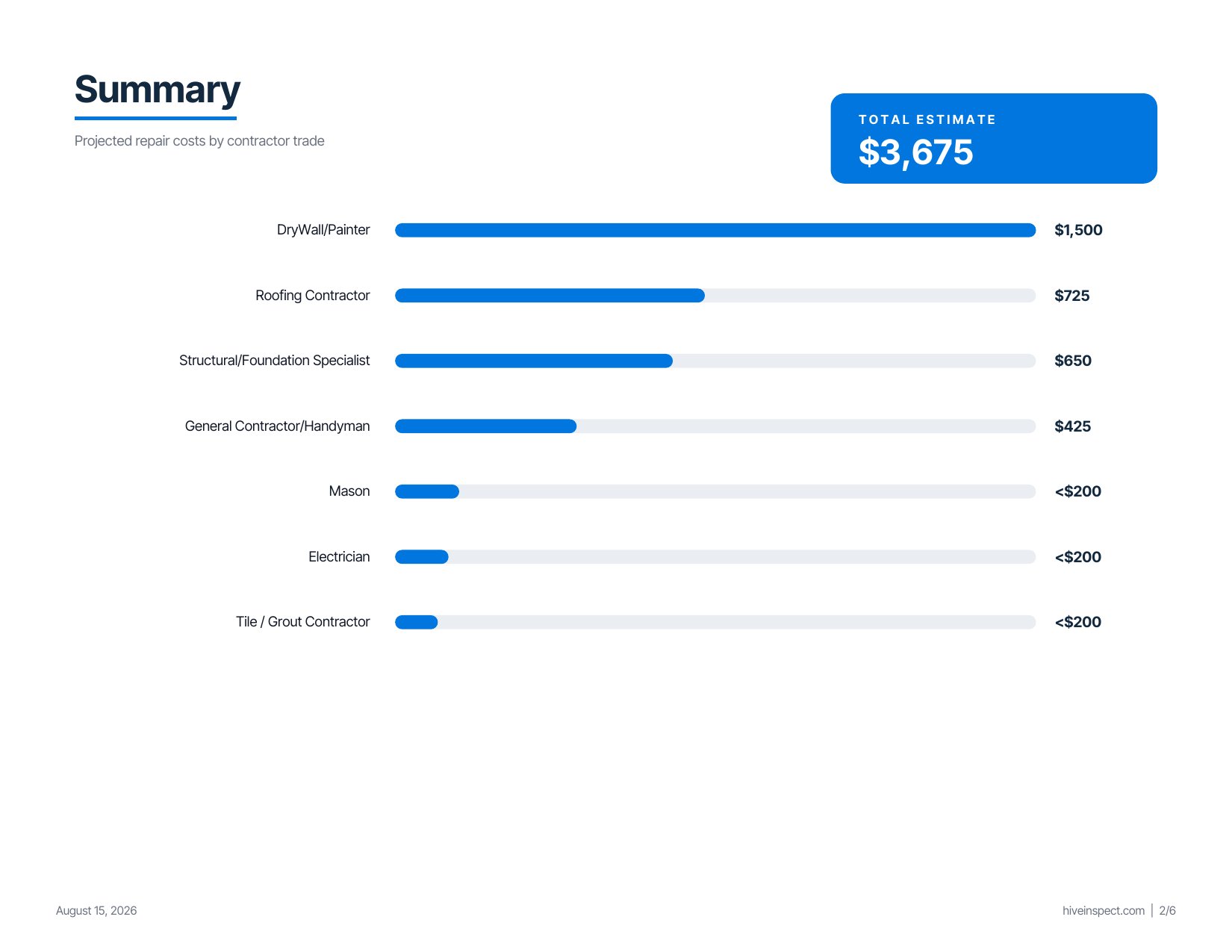 The estimate is built from every defect comment in the report. Information and limitation comments are not priced.
## How the three switches fit together
| Where | What it controls | Who sets it |
| - | - | - |
| **Business Tools → Hive AI** | Whether your company can use the Repair Estimator at all | Hive. It is on for every company. |
| **Template Tools** | Whether new inspections from a template start with the estimate on, and who is emailed | You, once per template |
| **Report Tools** | Whether one report gets an estimate | You, per report |
New inspections start with the estimate **off** until you turn it on for the template. Nothing is priced or emailed for a report while its switch is off.
## Turn it on for a template
Do this once for each template you want estimates for. Every new inspection from that template then gets an estimate without any extra steps.
The estimate is built from every defect comment in the report. Information and limitation comments are not priced.
## How the three switches fit together
| Where | What it controls | Who sets it |
| - | - | - |
| **Business Tools → Hive AI** | Whether your company can use the Repair Estimator at all | Hive. It is on for every company. |
| **Template Tools** | Whether new inspections from a template start with the estimate on, and who is emailed | You, once per template |
| **Report Tools** | Whether one report gets an estimate | You, per report |
New inspections start with the estimate **off** until you turn it on for the template. Nothing is priced or emailed for a report while its switch is off.
## Turn it on for a template
Do this once for each template you want estimates for. Every new inspection from that template then gets an estimate without any extra steps.
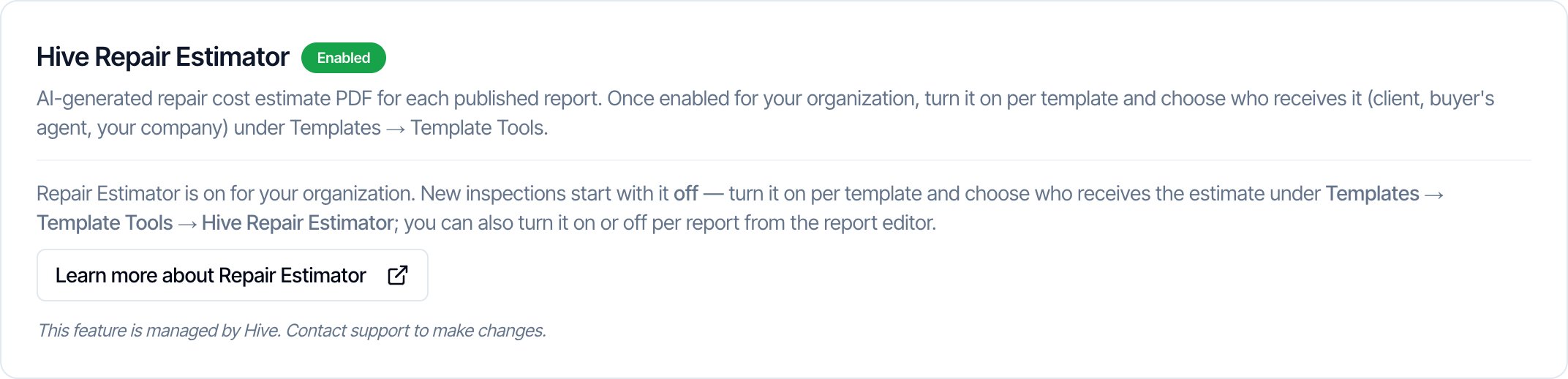 * Go to **Business Tools → Hive AI**.
* The **Hive Repair Estimator** card shows **Enabled**. It is included for free with any recurring subscription plan.
* If the card shows **Not Available**, message support through the chat bubble.
* Go to **Business Tools → Hive AI**.
* The **Hive Repair Estimator** card shows **Enabled**. It is included for free with any recurring subscription plan.
* If the card shows **Not Available**, message support through the chat bubble.
 * Click **Templates** in the sidebar and open the template.
* On the **Overview** screen, click **Template Tools** at the top right.
* If you have unsaved changes in the template, Template Tools asks you to save or discard them first.
* Click **Templates** in the sidebar and open the template.
* On the **Overview** screen, click **Template Tools** at the top right.
* If you have unsaved changes in the template, Template Tools asks you to save or discard them first.
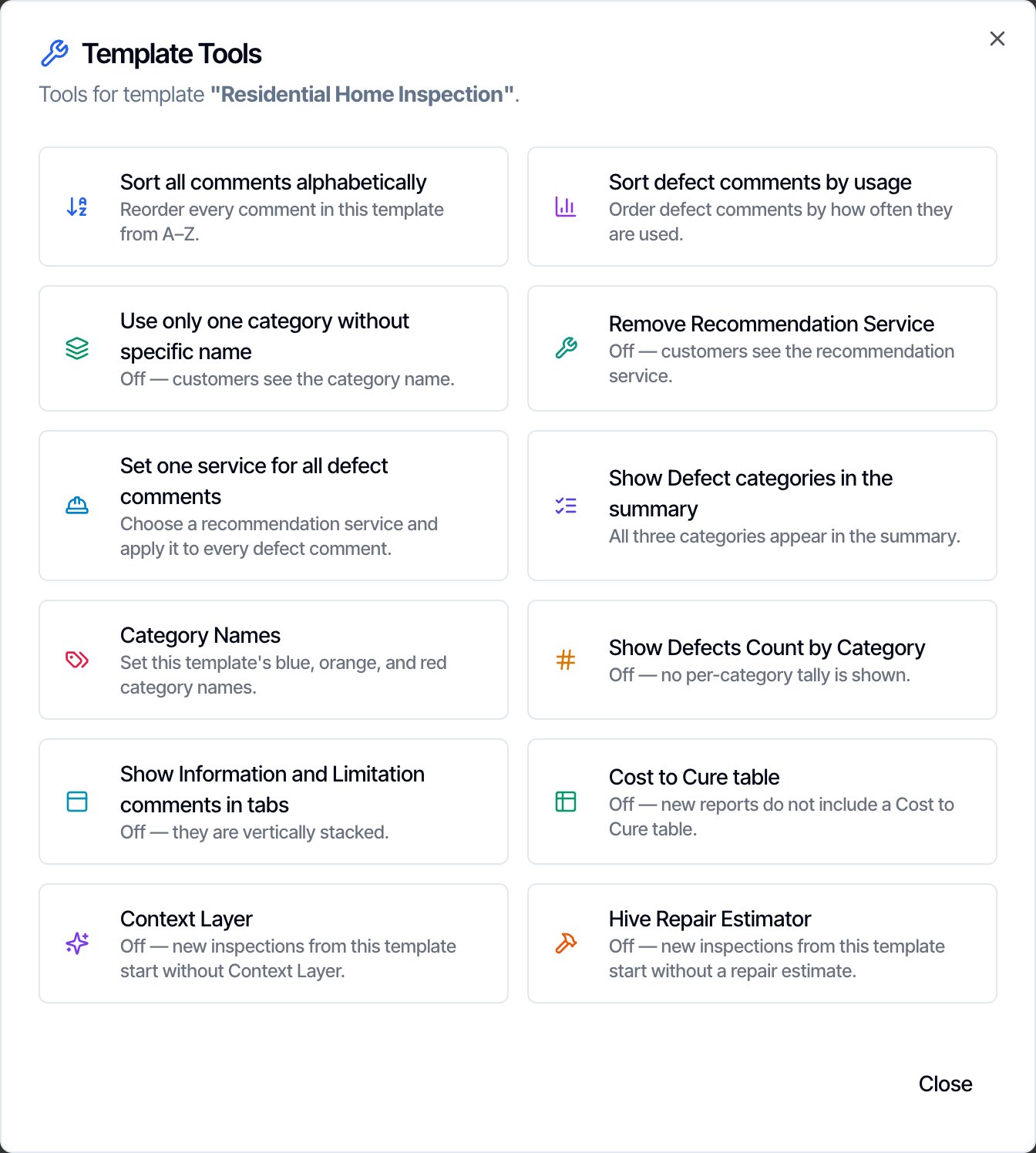 * **Hive Repair Estimator** is the last tool in the list.
* The line under it shows whether new inspections from this template start with an estimate.
* **Hive Repair Estimator** is the last tool in the list.
* The line under it shows whether new inspections from this template start with an estimate.
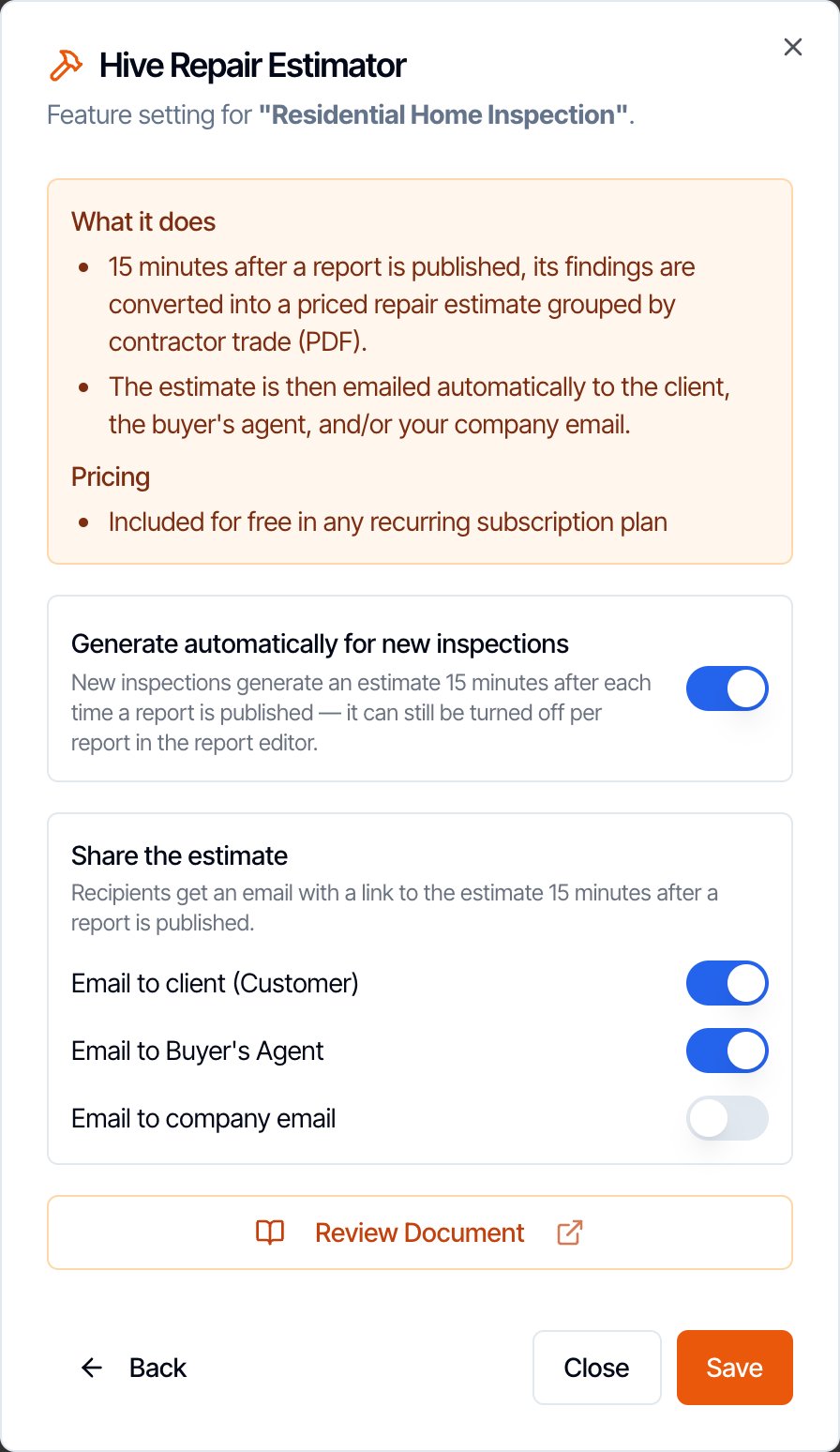 * Turn on **Generate automatically for new inspections**.
* Under **Share the estimate**, turn on each recipient who should be emailed. See [who gets the estimate](#choose-who-gets-the-estimate) below.
* Click **Save**.
***
The template switch sets the starting point for **new** inspections. Reports that already exist keep the setting they had. Change those one at a time in [Report Tools](#turn-it-on-or-off-for-one-report).
## Choose who gets the estimate
The three switches under **Share the estimate** decide who is emailed. They are set per template and are all off to start, so turn on at least one if you want the estimate sent.
| Switch | Who is emailed |
| - | - |
| **Email to client (Customer)** | Every contact on the inspection with the Customer role |
| **Email to Buyer's Agent** | Every contact on the inspection with the Buyer Agent role |
| **Email to company email** | Your company email, so your team has a copy of every estimate that goes out |
* Each recipient gets an email titled **Repair Estimate for** followed by the property address, with a **View the Repair Estimate** link.
* If a contact has CC email addresses, they are copied on the email.
* Contacts who unsubscribed from your emails are skipped.
* With all three switches off, the estimate is still created. Nobody is emailed, and you can open it yourself from Report Tools.
* Hive reads these switches at the moment it sends. If you change them, the change applies to every report from that template that is published afterwards.
## Turn it on or off for one report
Use this for a report that already existed when you changed the template, or to skip the estimate on a single job.
* Turn on **Generate automatically for new inspections**.
* Under **Share the estimate**, turn on each recipient who should be emailed. See [who gets the estimate](#choose-who-gets-the-estimate) below.
* Click **Save**.
***
The template switch sets the starting point for **new** inspections. Reports that already exist keep the setting they had. Change those one at a time in [Report Tools](#turn-it-on-or-off-for-one-report).
## Choose who gets the estimate
The three switches under **Share the estimate** decide who is emailed. They are set per template and are all off to start, so turn on at least one if you want the estimate sent.
| Switch | Who is emailed |
| - | - |
| **Email to client (Customer)** | Every contact on the inspection with the Customer role |
| **Email to Buyer's Agent** | Every contact on the inspection with the Buyer Agent role |
| **Email to company email** | Your company email, so your team has a copy of every estimate that goes out |
* Each recipient gets an email titled **Repair Estimate for** followed by the property address, with a **View the Repair Estimate** link.
* If a contact has CC email addresses, they are copied on the email.
* Contacts who unsubscribed from your emails are skipped.
* With all three switches off, the estimate is still created. Nobody is emailed, and you can open it yourself from Report Tools.
* Hive reads these switches at the moment it sends. If you change them, the change applies to every report from that template that is published afterwards.
## Turn it on or off for one report
Use this for a report that already existed when you changed the template, or to skip the estimate on a single job.
 * Open the report in the [Web Editor](/inspections-and-reports/web-editor).
* Click the three dots in the toolbar, between **In-Report Photo Bank** and **Save**.
* Open the report in the [Web Editor](/inspections-and-reports/web-editor).
* Click the three dots in the toolbar, between **In-Report Photo Bank** and **Save**.
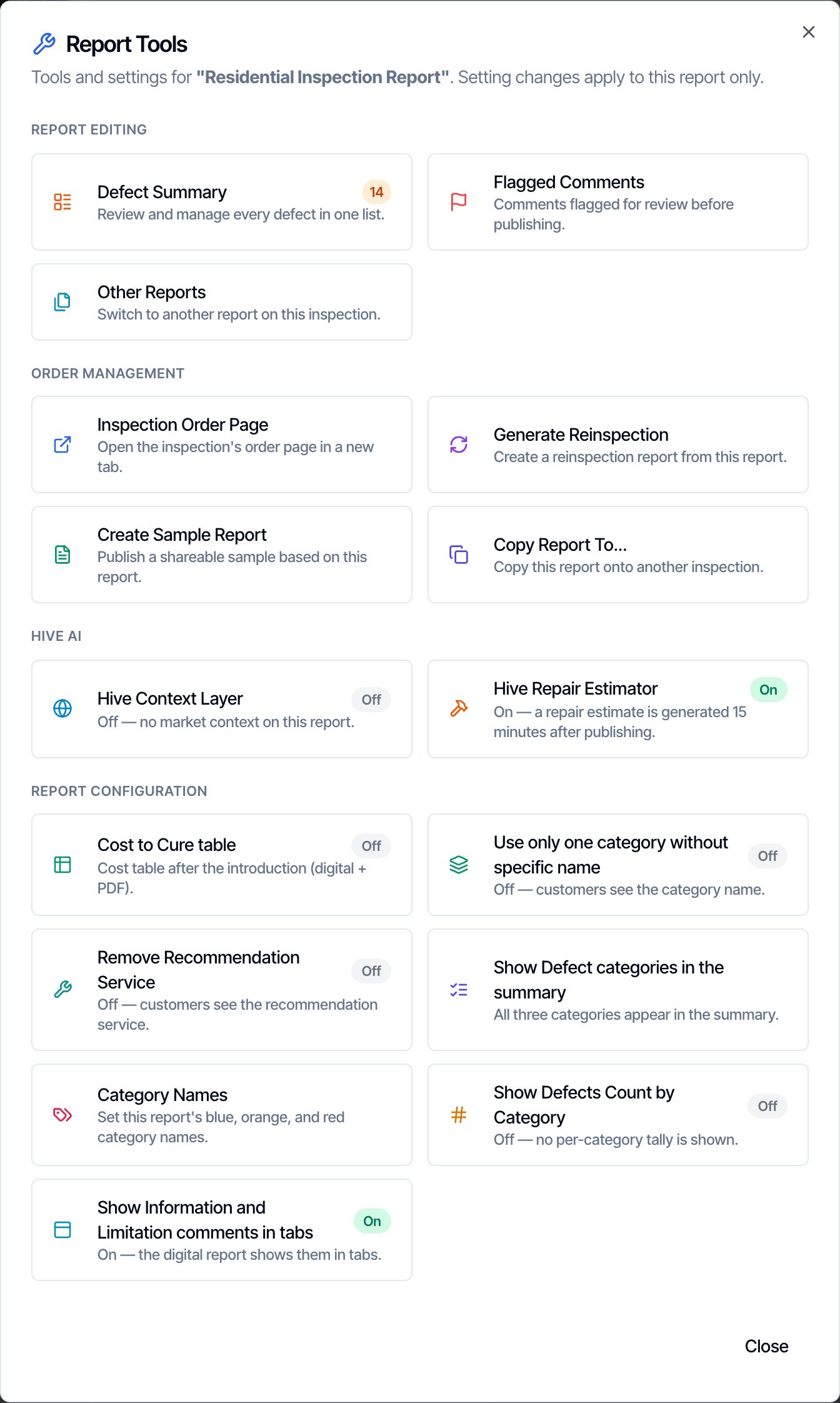 * It is under **Hive AI**. The badge shows **On** or **Off** for this report.
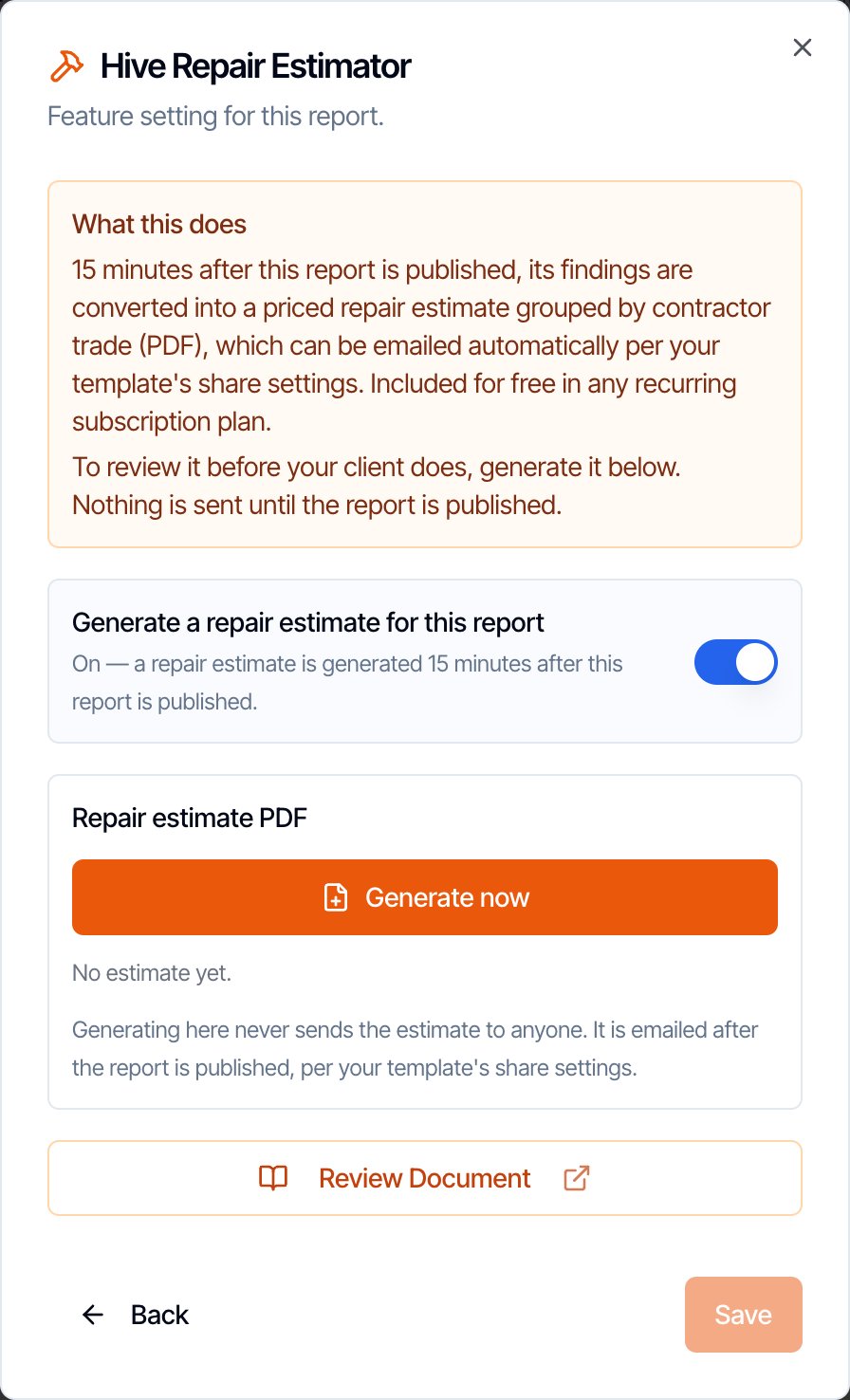 * Turn **Generate a repair estimate for this report** on or off.
* Click **Save**. You return to the Report Tools list and the report saves the change.
* The change applies to this report only. The template and your other reports are not touched.
## Preview the estimate before you publish
You don't have to wait for publishing to see the numbers. Generate the estimate from Report Tools, read it, fix anything in the report, and publish when you are happy. **Generating a preview never emails anyone.**
* Turn **Generate a repair estimate for this report** on or off.
* Click **Save**. You return to the Report Tools list and the report saves the change.
* The change applies to this report only. The template and your other reports are not touched.
## Preview the estimate before you publish
You don't have to wait for publishing to see the numbers. Generate the estimate from Report Tools, read it, fix anything in the report, and publish when you are happy. **Generating a preview never emails anyone.**
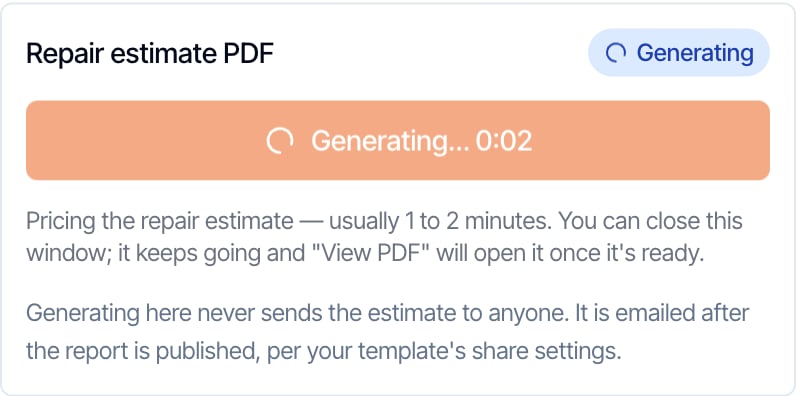 * Open **Report Tools → Hive Repair Estimator** in the report.
* In the **Repair estimate PDF** box, click **Generate now**.
* It usually takes under two minutes. You can close the window and keep working. The estimate keeps building.
* The button is greyed out until the switch above it is on and saved.
* Open **Report Tools → Hive Repair Estimator** in the report.
* In the **Repair estimate PDF** box, click **Generate now**.
* It usually takes under two minutes. You can close the window and keep working. The estimate keeps building.
* The button is greyed out until the switch above it is on and saved.
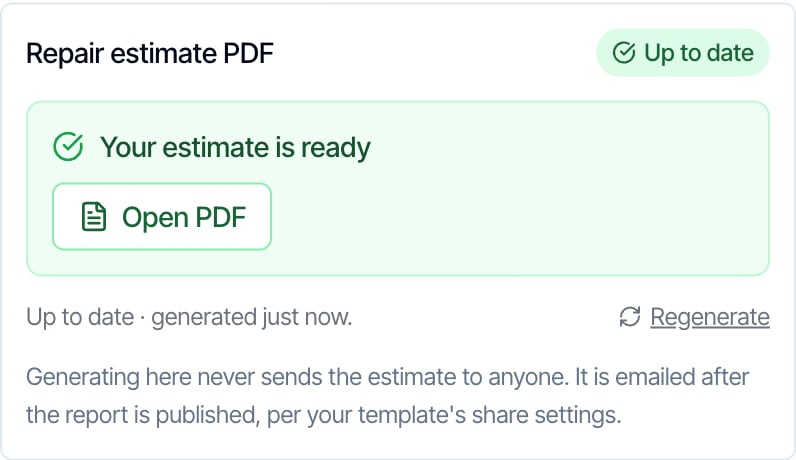 * When it finishes, click **Open PDF**.
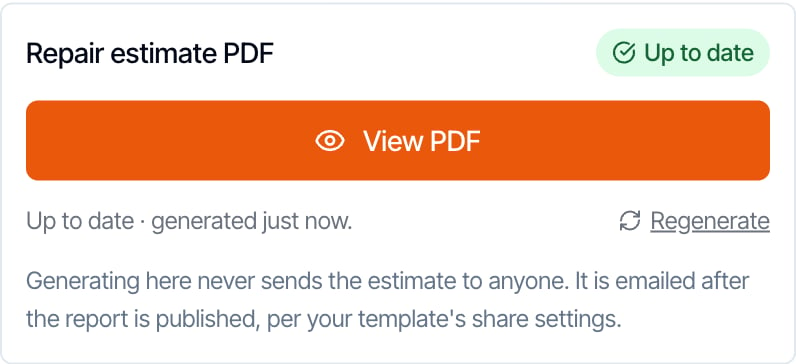
* Next time you open Report Tools the button reads **View PDF** and the box shows **Up to date** with when it was generated.
* When it finishes, click **Open PDF**.
* Next time you open Report Tools the button reads **View PDF** and the box shows **Up to date** with when it was generated.
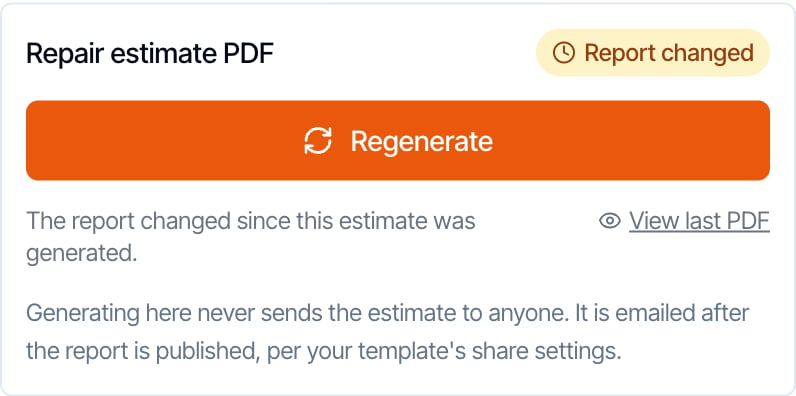 * If you add, remove or edit a defect, the box shows **Report changed** and the button becomes **Regenerate**.
* Click **Regenerate** to price the report again. Click **View last PDF** to open the earlier version.
* If only item numbers or the property address changed, **Regenerate** refreshes them and keeps the same prices.
* Changes that don't touch the defects or their numbering, such as the cover photo or other Report Tools settings, leave the estimate **Up to date**.
***
**Tip:** Prices are produced by AI, so pricing the same report twice can give slightly different amounts. If you are happy with an estimate, leave it. The small **Regenerate** link next to an up-to-date estimate prices it again from scratch.
## What happens when you publish
Publish the report as usual, from the Web Editor or the mobile app. The estimate follows by itself.
| When | What happens |
| - | - |
| You publish | The report email goes out as normal. A 15-minute timer starts for the estimate. |
| 15 minutes later | Hive prepares the estimate and emails the recipients you chose for the template. |
| You publish again within the 15 minutes | The timer restarts. One estimate is sent, 15 minutes after the last publish. |
| You unpublish within the 15 minutes | The estimate is cancelled. Nothing is sent. |
| You turn the report's switch off within the 15 minutes | The estimate is skipped. Nothing is sent. |
| You publish again later | The estimate is sent again to the same recipients. |
The 15-minute gap is there so the estimate email arrives after the report email, not before it.
**If you previewed the estimate first:** when the defects have not changed since your preview, Hive sends that same estimate with the same prices. If you edited a defect after the preview, Hive prices the report again before sending.
**If you edit a published report:** the estimate does not change by itself. Open **Report Tools → Hive Repair Estimator** and click **Regenerate** to update it without emailing anyone, or publish the report again to update it and send it again.
On a published report, **Regenerate** replaces the estimate your client's emailed link opens. Hive asks you to confirm first. No new email is sent.
## What your client sees
* The email comes from your company, titled **Repair Estimate for** and the property address. It has one link: **View the Repair Estimate**.
* The link opens the estimate PDF. It follows the same rules as the report: the report must be published, the invoice paid and all agreements signed, unless you set a manual override. A client who has not paid is sent to the payment page.
* A preview you generated is not visible to the client. They can open the estimate only after Hive has sent it following a publish.
## Worth knowing
* **Included for free** with any recurring subscription plan.
* **Web only for the settings.** Template Tools and Report Tools are in the web dashboard. Publishing from the mobile app still sends the estimate.
* **Needs at least one defect.** A report with no defect comments has nothing to price, so no estimate is created.
* **Prices follow the property address.** If you correct the city, state or ZIP code after generating, the box shows **Report changed** so you can regenerate.
* **A fair-use limit applies.** You can generate the estimate for one report up to 10 times a day.
* **Do your own review.** Read a few estimates before you turn on client emails for a template, and decide whether the estimate fits how you work.
## FAQ
From an AI model Hive built for repair pricing. It prices each repair for the property's local market and assumes all work for one trade is done in a single visit, the way a contractor would quote it.
About 15 minutes after you publish the report, to the recipients you turned on for the template. Publishing again inside those 15 minutes restarts the timer.
No. **Generate now** and **Regenerate** in Report Tools never send anything. Emails only go out after you publish.
Yes, as long as you did not change a defect after the preview. If you did, Hive prices the report again before sending, so check the estimate again in Report Tools before you publish.
Yes. Open the report in the Web Editor, click the three dots for **Report Tools**, open **Hive Repair Estimator**, turn the switch off and click **Save**.
No. The estimate link opens only when the report itself would: published, paid and all agreements signed, or with your manual override.
Check three things. The report's switch must be on in Report Tools. At least one switch under **Share the estimate** must be on in Template Tools. And the inspection must have a contact with that role and an email address. Emails go out 15 minutes after publishing, not straight away.
The estimate is a separate, Hive-branded document. It states that prices are AI-generated projections for planning and negotiation, not quotes, and that actual costs may vary. Items that can't be priced responsibly are flagged for specialist evaluation. We still recommend reading a few estimates yourself before you send them to clients.
* If you add, remove or edit a defect, the box shows **Report changed** and the button becomes **Regenerate**.
* Click **Regenerate** to price the report again. Click **View last PDF** to open the earlier version.
* If only item numbers or the property address changed, **Regenerate** refreshes them and keeps the same prices.
* Changes that don't touch the defects or their numbering, such as the cover photo or other Report Tools settings, leave the estimate **Up to date**.
***
**Tip:** Prices are produced by AI, so pricing the same report twice can give slightly different amounts. If you are happy with an estimate, leave it. The small **Regenerate** link next to an up-to-date estimate prices it again from scratch.
## What happens when you publish
Publish the report as usual, from the Web Editor or the mobile app. The estimate follows by itself.
| When | What happens |
| - | - |
| You publish | The report email goes out as normal. A 15-minute timer starts for the estimate. |
| 15 minutes later | Hive prepares the estimate and emails the recipients you chose for the template. |
| You publish again within the 15 minutes | The timer restarts. One estimate is sent, 15 minutes after the last publish. |
| You unpublish within the 15 minutes | The estimate is cancelled. Nothing is sent. |
| You turn the report's switch off within the 15 minutes | The estimate is skipped. Nothing is sent. |
| You publish again later | The estimate is sent again to the same recipients. |
The 15-minute gap is there so the estimate email arrives after the report email, not before it.
**If you previewed the estimate first:** when the defects have not changed since your preview, Hive sends that same estimate with the same prices. If you edited a defect after the preview, Hive prices the report again before sending.
**If you edit a published report:** the estimate does not change by itself. Open **Report Tools → Hive Repair Estimator** and click **Regenerate** to update it without emailing anyone, or publish the report again to update it and send it again.
On a published report, **Regenerate** replaces the estimate your client's emailed link opens. Hive asks you to confirm first. No new email is sent.
## What your client sees
* The email comes from your company, titled **Repair Estimate for** and the property address. It has one link: **View the Repair Estimate**.
* The link opens the estimate PDF. It follows the same rules as the report: the report must be published, the invoice paid and all agreements signed, unless you set a manual override. A client who has not paid is sent to the payment page.
* A preview you generated is not visible to the client. They can open the estimate only after Hive has sent it following a publish.
## Worth knowing
* **Included for free** with any recurring subscription plan.
* **Web only for the settings.** Template Tools and Report Tools are in the web dashboard. Publishing from the mobile app still sends the estimate.
* **Needs at least one defect.** A report with no defect comments has nothing to price, so no estimate is created.
* **Prices follow the property address.** If you correct the city, state or ZIP code after generating, the box shows **Report changed** so you can regenerate.
* **A fair-use limit applies.** You can generate the estimate for one report up to 10 times a day.
* **Do your own review.** Read a few estimates before you turn on client emails for a template, and decide whether the estimate fits how you work.
## FAQ
From an AI model Hive built for repair pricing. It prices each repair for the property's local market and assumes all work for one trade is done in a single visit, the way a contractor would quote it.
About 15 minutes after you publish the report, to the recipients you turned on for the template. Publishing again inside those 15 minutes restarts the timer.
No. **Generate now** and **Regenerate** in Report Tools never send anything. Emails only go out after you publish.
Yes, as long as you did not change a defect after the preview. If you did, Hive prices the report again before sending, so check the estimate again in Report Tools before you publish.
Yes. Open the report in the Web Editor, click the three dots for **Report Tools**, open **Hive Repair Estimator**, turn the switch off and click **Save**.
No. The estimate link opens only when the report itself would: published, paid and all agreements signed, or with your manual override.
Check three things. The report's switch must be on in Report Tools. At least one switch under **Share the estimate** must be on in Template Tools. And the inspection must have a contact with that role and an email address. Emails go out 15 minutes after publishing, not straight away.
The estimate is a separate, Hive-branded document. It states that prices are AI-generated projections for planning and negotiation, not quotes, and that actual costs may vary. Items that can't be priced responsibly are flagged for specialist evaluation. We still recommend reading a few estimates yourself before you send them to clients.
Related
This documentation is built and hosted on [Mintlify](https://mintlify.com), a developer documentation platform.