> ## Documentation Index
> Fetch the complete documentation index at: https://docs.hiveinspect.com/llms.txt
> Use this file to discover all available pages before exploring further.
# Add-On Services: Sell Radon, Sewer Scope, Termite and Other Extras With an Inspection
> Create add-on services in Hive Inspect, such as radon, sewer scope or termite, so you and your clients can add them to an inspection. Covers price, time, templates, agreements, upselling, the online scheduler, quantity and what clients see.
In the dashboard: Business Tools → Services & Fees → Edit a service → Service Add-Ons
## What an add-on is
An **add-on** is an extra service that is sold together with a main service, such as **Radon Testing**, **Sewer Scope** or **WDO / Termite Inspection** on top of a **Home Inspection**.
* Every add-on belongs to **one main service**. It is offered only when that main service is on the inspection.
* An inspection has one main service. Everything else on the same inspection is an add-on of that service. See [Main services vs add-on services](/how-tos/services-vs-add-ons).
* An add-on has its own price and time, and can bring its own templates, agreements and price modifiers.
Once add-ons are set up, they can be added to an inspection:
* by your team, when scheduling in the dashboard
* by the client, when booking on your online scheduler or getting a price from your quote widget
* by the client after booking, from the inspection review link or the client portal, if you allow it
## Add an add-on to a service
Click **Business Tools** in the sidebar, then **Services & Fees**. Click the pencil icon on the main service the add-on belongs to, or **Add New Service** to make a new one.
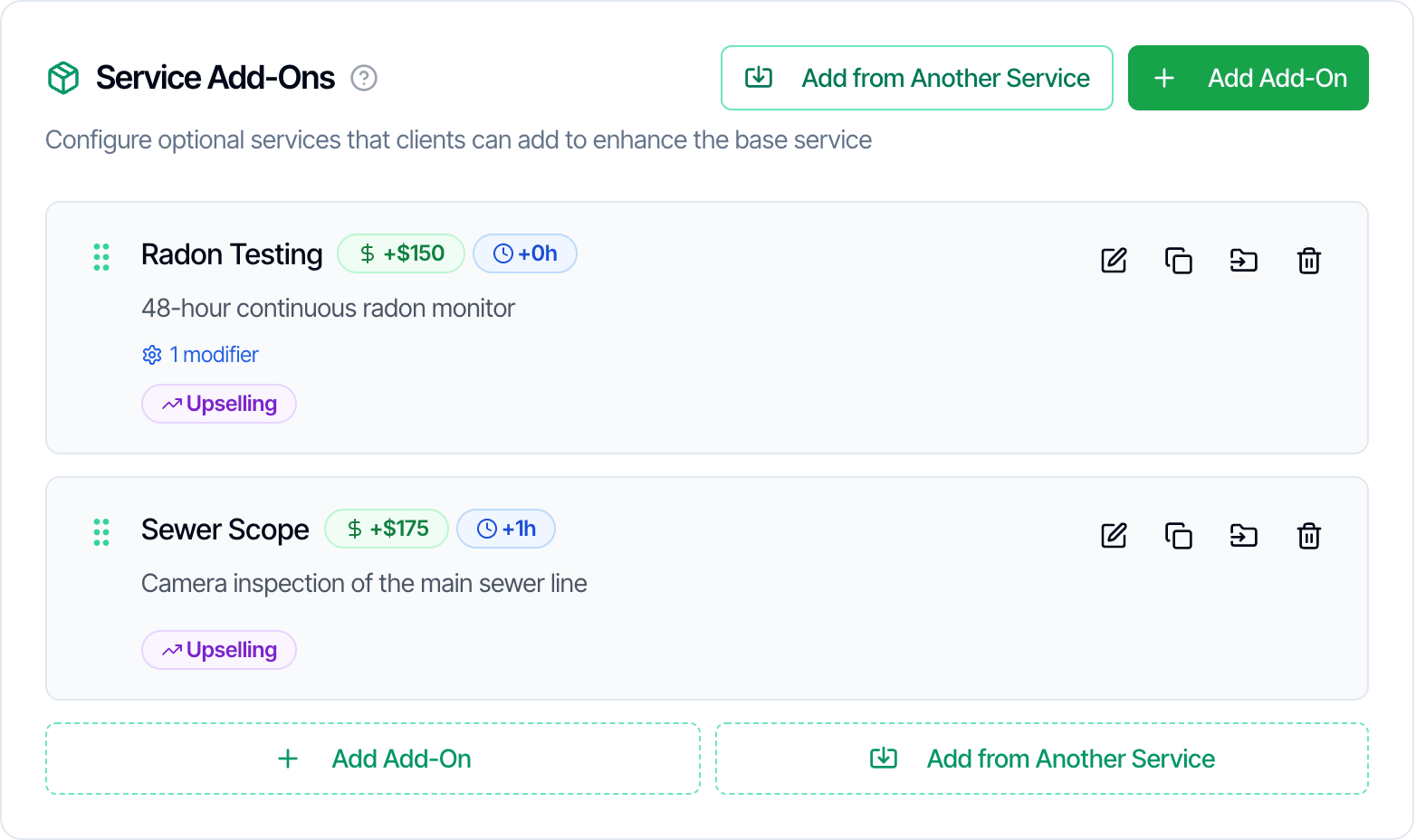
Scroll to **Service Add-Ons** and click **Add Add-On**. The add-ons the service already has are listed here.
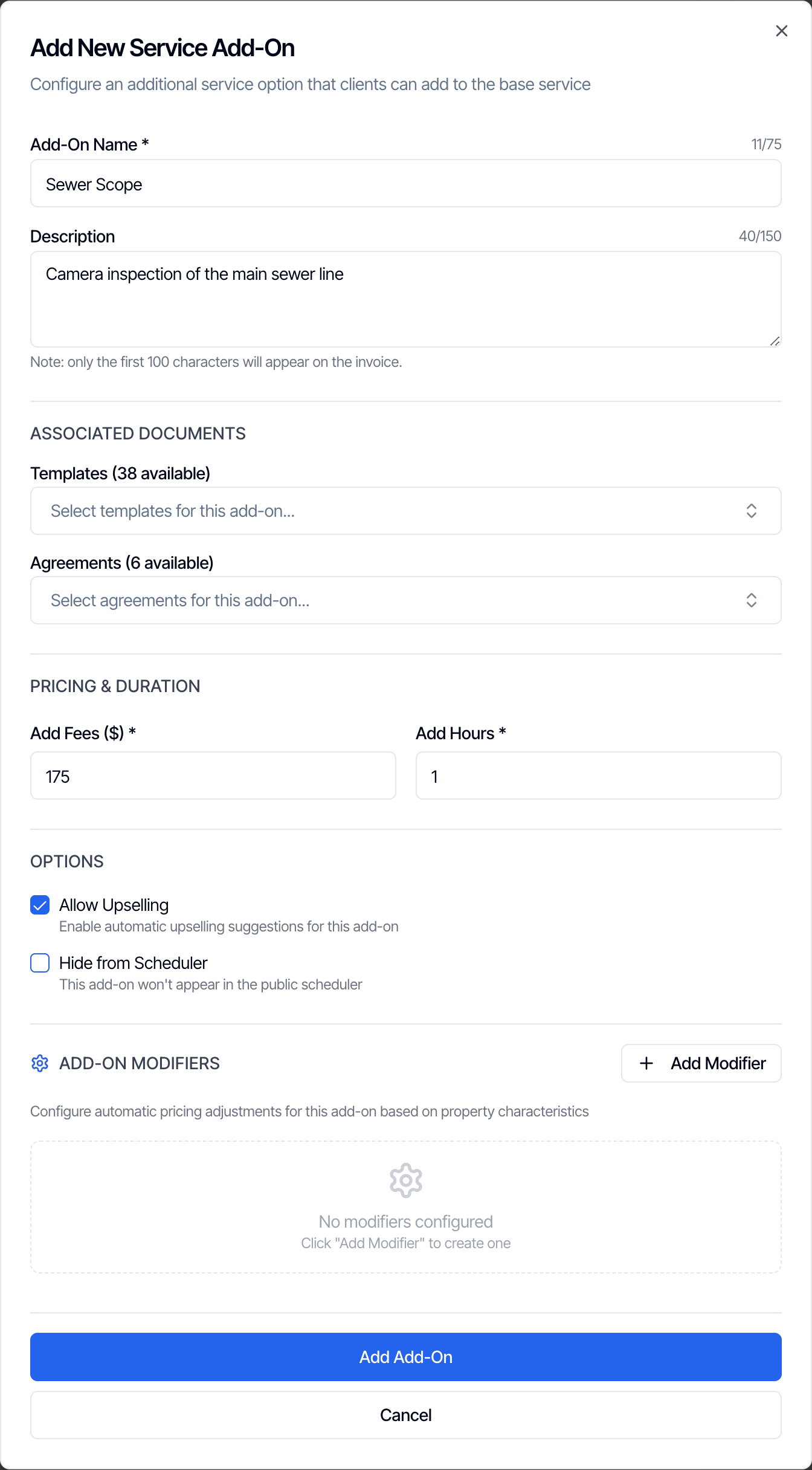 | Field | What it does |
| - | - |
| **Add-On Name** (required, up to 75 characters) | The name you, your clients and your invoices see, such as **Sewer Scope**. |
| **Description** (up to 150 characters) | A short line shown to clients under the name on the online scheduler, the review link and the client portal. The form notes that only the first 100 characters appear on the invoice, so put the important part first. |
| **Templates** | Report templates added to the inspection when this add-on is added. See [Templates and agreements](#templates-and-agreements). |
| **Agreements** | Agreements added to the inspection when this add-on is added. |
| **Add Fees (\$)** (required) | The price of the add-on. It can be \$0 but not negative. |
| **Add Hours** (required) | The time the add-on adds to the inspection. It can be 0. |
| **Allow Upselling** | Clients can add the add-on themselves after the inspection is created. See [Allow Upselling and Hide from Scheduler](#allow-upselling-and-hide-from-scheduler). |
| **Hide from Scheduler** | The add-on isn't offered on your online scheduler or quote widget. |
| **Add-On Modifiers** | Price rules that apply only when this add-on is on the inspection. See [Add-on price and time](#add-on-price-and-time). |
Click **Add Add-On**.
* On a service you are **editing**, the change saves on its own a moment later. The bottom of the **Service Preview** on the right reads **All changes saved**.
* On a **new** service, nothing is saved until you click **Save Service** at the bottom of the page.
Each add-on card shows its price and hours, and badges for what it has: templates, agreements, modifiers, **Upselling** when Allow Upselling is on, and **Hidden** when Hide from Scheduler is on. The **Service Preview** on the right lists every add-on with its price and hours.
## Allow Upselling and Hide from Scheduler
These two options control where the add-on is offered. They are independent: you can turn on both, one or neither.
| Where | Who adds it | Shows the add-on when |
| - | - | - |
| New or edit inspection in the dashboard | Your team | Always. Neither option affects your team. |
| Online scheduler and quote widget | Client, while booking or getting a price | **Hide from Scheduler** is off |
| Inspection review link | Client, after the inspection is created | **Allow Upselling** is on |
| Client portal, **Order Details** | Client, after the inspection is created | **Allow Upselling** is on, and the client hasn't added it yet |
* **Hide from Scheduler** only affects the online scheduler and the quote widget. If every add-on of a service is hidden, the add-on step of the scheduler is skipped for that service.
* **Allow Upselling** is what lets clients add the add-on after the inspection is created. An add-on that is hidden from the scheduler but allows upselling can't be picked while booking, but the client can still add it later from the review link or the client portal.
* Add-on [upsell emails](/how-tos/add-on-upsell-emails) list every add-on the client hasn't added yet, whatever these two options say. The link in those emails opens the review link, which only offers add-ons with **Allow Upselling** on. Turn on Allow Upselling for every add-on you promote by email.
## Add-on price and time
* **Price:** the add-on's **Add Fees** is added to the price of the inspection.
* **Time:** its **Add Hours** is added to the length of the inspection on the calendar.
* **Add-on modifiers:** an add-on can have its own modifiers, of any type: square feet, age, distance, foundation, day, time or custom fields. They apply only when the add-on is on the inspection. For example, "Radon Testing: \$50 for each unit after the first". See [Modifiers on add-ons](/how-tos/price-modifiers#modifiers-on-add-ons).
* **Tax:** add-ons have no tax of their own. The taxes of the main service are charged on the whole order, add-ons included. See [Sales tax](/how-tos/taxes).
* **Discount codes:** a code can be limited to particular add-ons. See [Discount codes](/business-tools/discount-codes).
Changing an add-on's price, hours or modifiers later doesn't change inspections that already have it. They keep the price they were booked at.
## Templates and agreements
When an add-on with templates or agreements is added to an inspection, those templates and agreements are added to the inspection too, unless they are already on it. This happens in the dashboard, on online bookings, and when a client adds the add-on from the review link or the client portal.
Removing the add-on later **doesn't** remove its templates or agreements. A report started or an agreement already sent stays on the inspection. To remove one, do it from the inspection.
## Add add-ons to an inspection
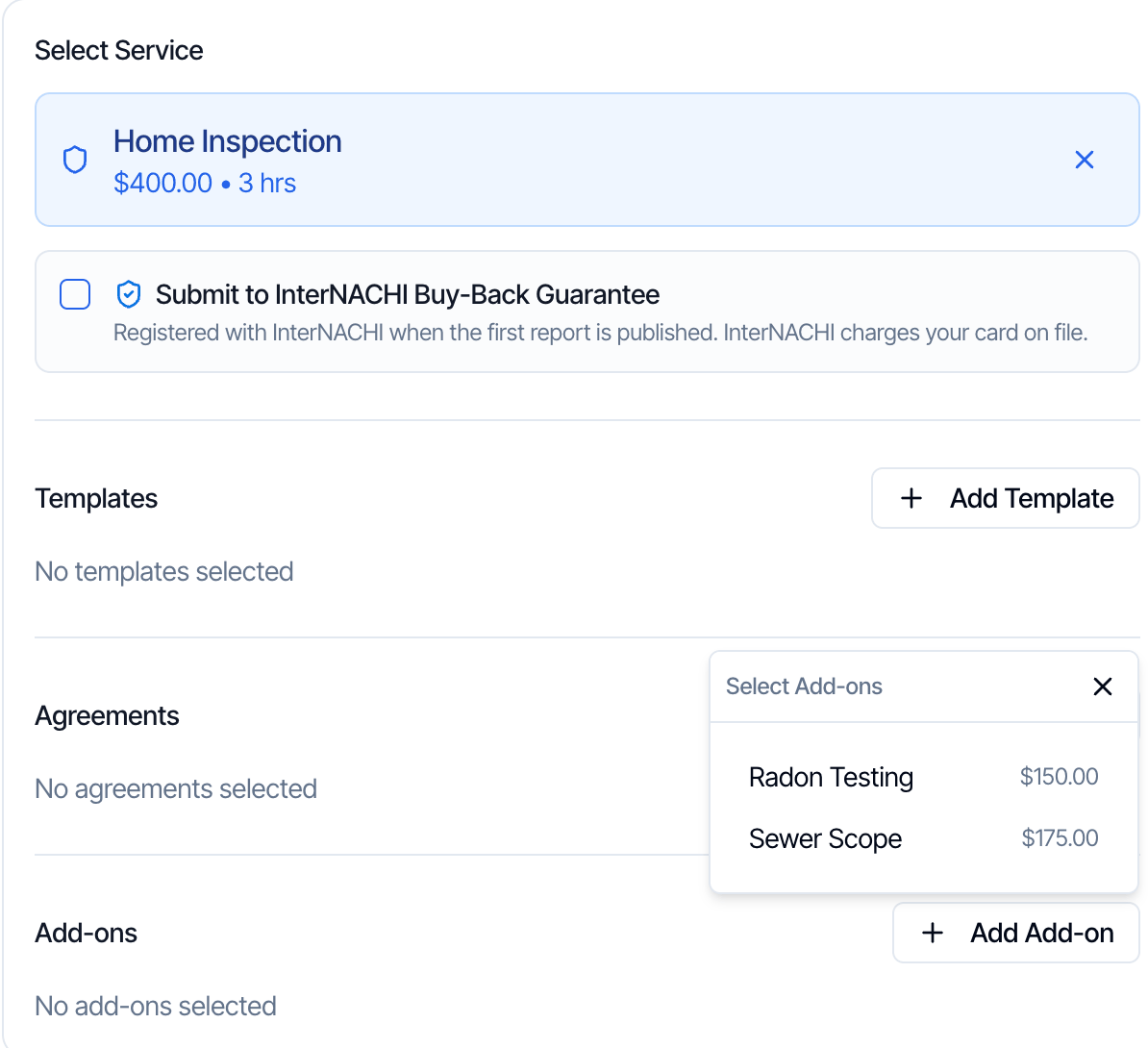
On a new or existing inspection, pick the main service under **Select Service**, then click **Add Add-on** under **Add-ons**. The list shows every add-on of that service with its price, including hidden ones.
| Field | What it does |
| - | - |
| **Add-On Name** (required, up to 75 characters) | The name you, your clients and your invoices see, such as **Sewer Scope**. |
| **Description** (up to 150 characters) | A short line shown to clients under the name on the online scheduler, the review link and the client portal. The form notes that only the first 100 characters appear on the invoice, so put the important part first. |
| **Templates** | Report templates added to the inspection when this add-on is added. See [Templates and agreements](#templates-and-agreements). |
| **Agreements** | Agreements added to the inspection when this add-on is added. |
| **Add Fees (\$)** (required) | The price of the add-on. It can be \$0 but not negative. |
| **Add Hours** (required) | The time the add-on adds to the inspection. It can be 0. |
| **Allow Upselling** | Clients can add the add-on themselves after the inspection is created. See [Allow Upselling and Hide from Scheduler](#allow-upselling-and-hide-from-scheduler). |
| **Hide from Scheduler** | The add-on isn't offered on your online scheduler or quote widget. |
| **Add-On Modifiers** | Price rules that apply only when this add-on is on the inspection. See [Add-on price and time](#add-on-price-and-time). |
Click **Add Add-On**.
* On a service you are **editing**, the change saves on its own a moment later. The bottom of the **Service Preview** on the right reads **All changes saved**.
* On a **new** service, nothing is saved until you click **Save Service** at the bottom of the page.
Each add-on card shows its price and hours, and badges for what it has: templates, agreements, modifiers, **Upselling** when Allow Upselling is on, and **Hidden** when Hide from Scheduler is on. The **Service Preview** on the right lists every add-on with its price and hours.
## Allow Upselling and Hide from Scheduler
These two options control where the add-on is offered. They are independent: you can turn on both, one or neither.
| Where | Who adds it | Shows the add-on when |
| - | - | - |
| New or edit inspection in the dashboard | Your team | Always. Neither option affects your team. |
| Online scheduler and quote widget | Client, while booking or getting a price | **Hide from Scheduler** is off |
| Inspection review link | Client, after the inspection is created | **Allow Upselling** is on |
| Client portal, **Order Details** | Client, after the inspection is created | **Allow Upselling** is on, and the client hasn't added it yet |
* **Hide from Scheduler** only affects the online scheduler and the quote widget. If every add-on of a service is hidden, the add-on step of the scheduler is skipped for that service.
* **Allow Upselling** is what lets clients add the add-on after the inspection is created. An add-on that is hidden from the scheduler but allows upselling can't be picked while booking, but the client can still add it later from the review link or the client portal.
* Add-on [upsell emails](/how-tos/add-on-upsell-emails) list every add-on the client hasn't added yet, whatever these two options say. The link in those emails opens the review link, which only offers add-ons with **Allow Upselling** on. Turn on Allow Upselling for every add-on you promote by email.
## Add-on price and time
* **Price:** the add-on's **Add Fees** is added to the price of the inspection.
* **Time:** its **Add Hours** is added to the length of the inspection on the calendar.
* **Add-on modifiers:** an add-on can have its own modifiers, of any type: square feet, age, distance, foundation, day, time or custom fields. They apply only when the add-on is on the inspection. For example, "Radon Testing: \$50 for each unit after the first". See [Modifiers on add-ons](/how-tos/price-modifiers#modifiers-on-add-ons).
* **Tax:** add-ons have no tax of their own. The taxes of the main service are charged on the whole order, add-ons included. See [Sales tax](/how-tos/taxes).
* **Discount codes:** a code can be limited to particular add-ons. See [Discount codes](/business-tools/discount-codes).
Changing an add-on's price, hours or modifiers later doesn't change inspections that already have it. They keep the price they were booked at.
## Templates and agreements
When an add-on with templates or agreements is added to an inspection, those templates and agreements are added to the inspection too, unless they are already on it. This happens in the dashboard, on online bookings, and when a client adds the add-on from the review link or the client portal.
Removing the add-on later **doesn't** remove its templates or agreements. A report started or an agreement already sent stays on the inspection. To remove one, do it from the inspection.
## Add add-ons to an inspection
On a new or existing inspection, pick the main service under **Select Service**, then click **Add Add-on** under **Add-ons**. The list shows every add-on of that service with its price, including hidden ones.
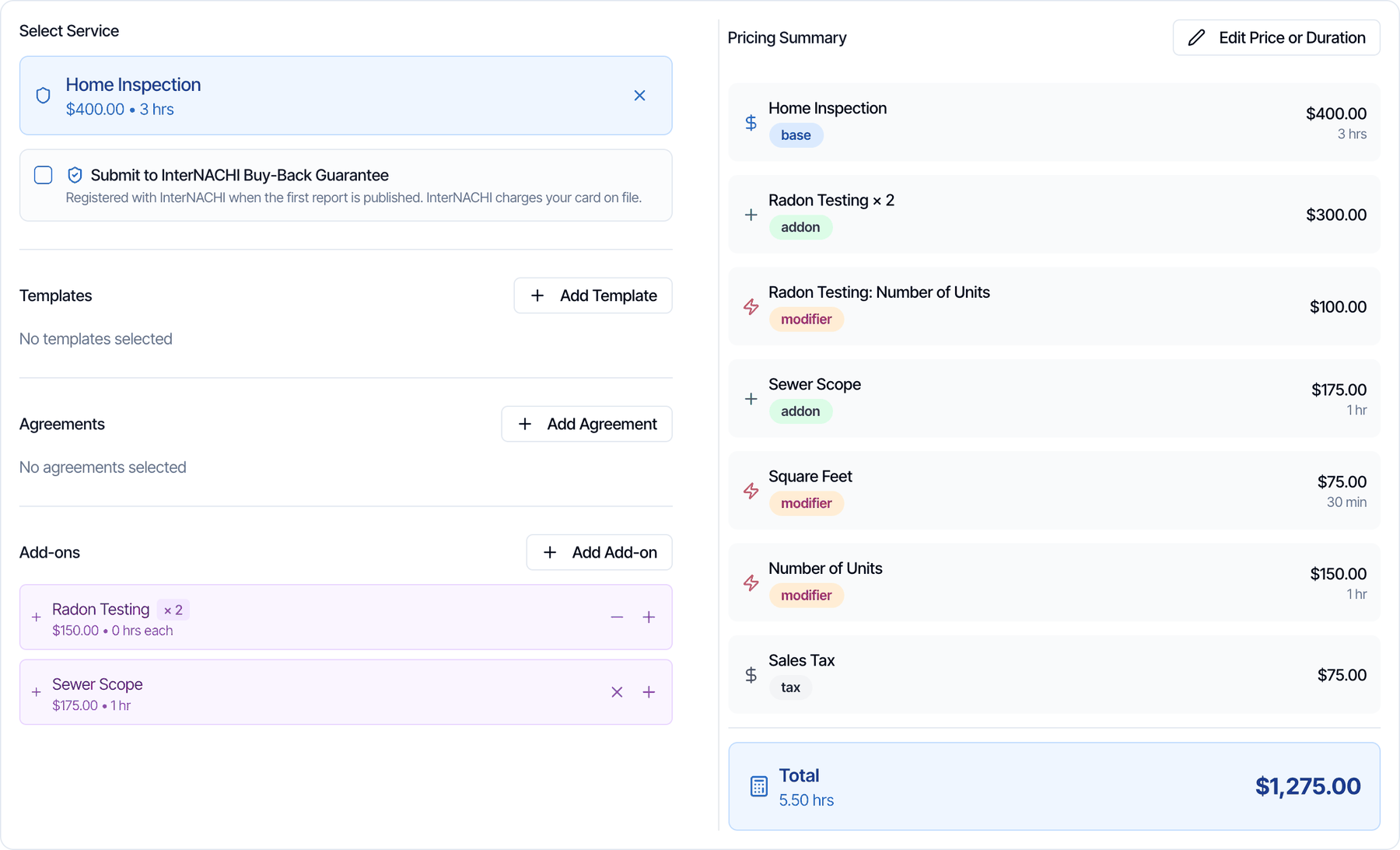
 Each add-on you add gets its own row:
* **+** (Add another) adds one more of the same add-on. See [Quantity](#quantity).
* **−** (Decrease quantity) takes one away. At a quantity of 1 the button is an **X** (Remove add-on).
The **Pricing Summary** shows each add-on as a line marked **addon**, and each add-on modifier as its own line named "Add-on: Modifier", marked **modifier**.
Each add-on you add gets its own row:
* **+** (Add another) adds one more of the same add-on. See [Quantity](#quantity).
* **−** (Decrease quantity) takes one away. At a quantity of 1 the button is an **X** (Remove add-on).
The **Pricing Summary** shows each add-on as a line marked **addon**, and each add-on modifier as its own line named "Add-on: Modifier", marked **modifier**.
 Your team can add or remove add-ons on an inspection at any time.
After the client picks a service, the **Add-on Services** step shows that service's add-ons, except the ones with **Hide from Scheduler** on. The client can pick any number of them, each once, or none.
* The price shown on each add-on includes its modifiers, rounded to the whole dollar. Day and time charges and tax aren't included until the inspection is booked.
* Prices are hidden if **Show Pricing on Online Scheduler** is off under **Org Settings → Scheduling**.
* If the service has no add-ons the client can see, the step is skipped.
The quote widget works the same way. The add-ons picked there carry over when the client goes on to schedule. See [Online booking](/how-tos/booking-online-inspection).
The inspection review link shows **Add-on Services** with the add-ons that have **Allow Upselling** on. Add-ons already on the order show **INCLUDED**. The price shown includes the add-on's modifiers.
Your team can add or remove add-ons on an inspection at any time.
After the client picks a service, the **Add-on Services** step shows that service's add-ons, except the ones with **Hide from Scheduler** on. The client can pick any number of them, each once, or none.
* The price shown on each add-on includes its modifiers, rounded to the whole dollar. Day and time charges and tax aren't included until the inspection is booked.
* Prices are hidden if **Show Pricing on Online Scheduler** is off under **Org Settings → Scheduling**.
* If the service has no add-ons the client can see, the step is skipped.
The quote widget works the same way. The add-ons picked there carry over when the client goes on to schedule. See [Online booking](/how-tos/booking-online-inspection).
The inspection review link shows **Add-on Services** with the add-ons that have **Allow Upselling** on. Add-ons already on the order show **INCLUDED**. The price shown includes the add-on's modifiers.
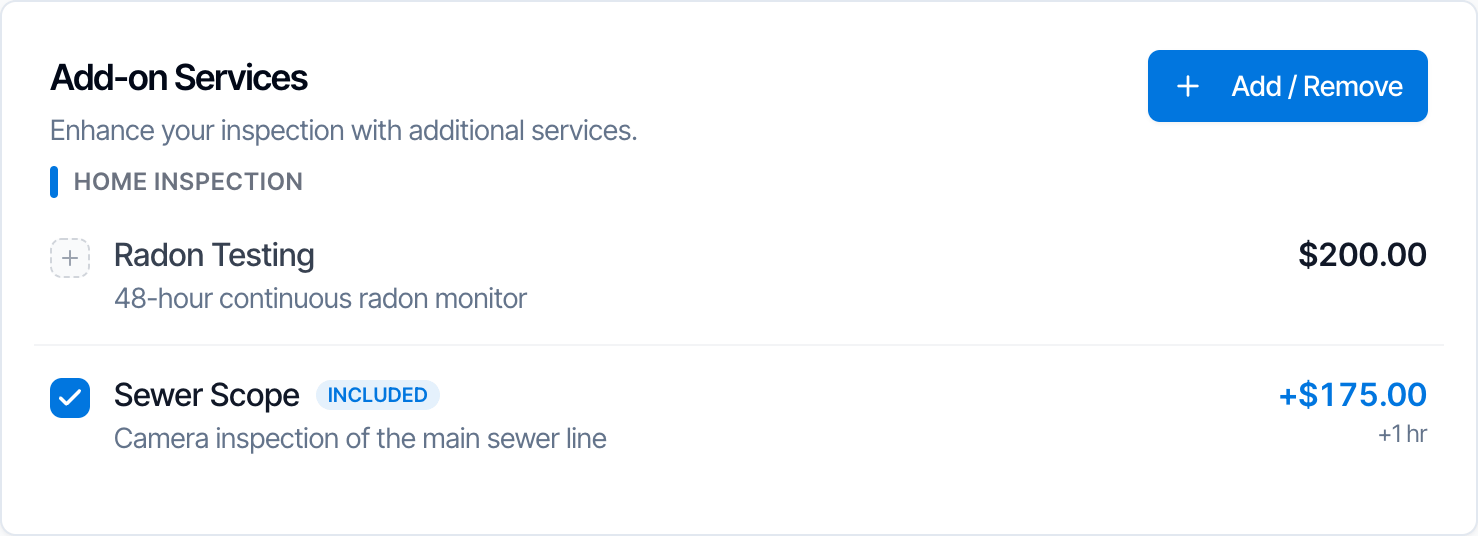 The client clicks **Add / Remove**, taps the add-ons to add or take off, and clicks **Save changes**. They can only add or remove add-ons that have **Allow Upselling** on.
This works while the inspection is waiting for the client to accept it, and after it is confirmed, unless you lock client order changes (see below). On a draft, a booking waiting for your confirmation, or a canceled inspection, the review link shows a notice instead.
In the client portal, **Order Details** shows a card called **Inspect Beyond the Basics** with the add-ons that have **Allow Upselling** on and aren't on the order yet. The client clicks **Add** and the add-on is added to the order and the invoice right away.
The card isn't shown on canceled, rejected or completed inspections, or on booked inspections when you lock client order changes.
### Lock client order changes
To stop clients from adding or removing add-ons themselves once an inspection is booked, go to **Org Settings → Business Management → Client Order Changes** and turn on **Lock services and add-ons after booking**. It is off by default.
The client clicks **Add / Remove**, taps the add-ons to add or take off, and clicks **Save changes**. They can only add or remove add-ons that have **Allow Upselling** on.
This works while the inspection is waiting for the client to accept it, and after it is confirmed, unless you lock client order changes (see below). On a draft, a booking waiting for your confirmation, or a canceled inspection, the review link shows a notice instead.
In the client portal, **Order Details** shows a card called **Inspect Beyond the Basics** with the add-ons that have **Allow Upselling** on and aren't on the order yet. The client clicks **Add** and the add-on is added to the order and the invoice right away.
The card isn't shown on canceled, rejected or completed inspections, or on booked inspections when you lock client order changes.
### Lock client order changes
To stop clients from adding or removing add-ons themselves once an inspection is booked, go to **Org Settings → Business Management → Client Order Changes** and turn on **Lock services and add-ons after booking**. It is off by default.
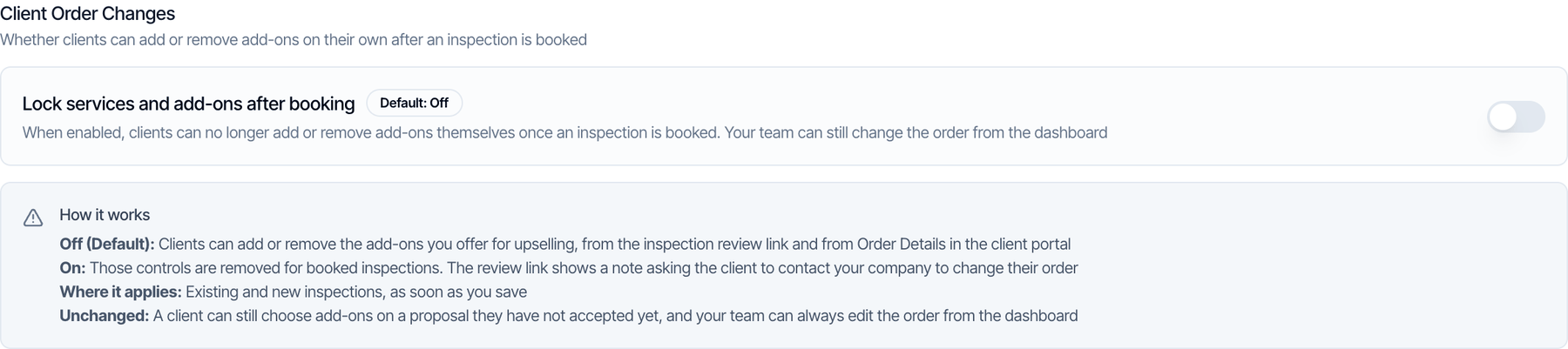 * It applies to existing and new inspections as soon as you save.
* Clients can still pick add-ons on a proposal they haven't accepted yet.
* Your team can always change the order from the dashboard.
## Quantity
In the dashboard, the same add-on can be added more than once, for example two radon monitors. Click **+** on the add-on's row, or pick it again from **Add Add-on**.
* The line shows the quantity, such as **Radon Testing × 2**, and the price and hours are multiplied: 2 × \$150 = \$300.
* The add-on's modifiers are multiplied by the quantity too.
* Changing the quantity clears any price, name or hours you typed for that add-on's lines with **Edit Price or Duration**.
* The add-on's templates and agreements are added once, not once for each.
On the online scheduler, the quote widget, the review link and the client portal, a client can add each add-on only once.
## Use the same add-on on several services
An add-on belongs to one service. To offer the same add-on with other services, copy it. Each copy is separate: changing one doesn't change the others.
On the service that should get the add-ons, click **Add from Another Service** under **Service Add-Ons**. Tick the add-ons you want, or a whole service to take all of its add-ons, and click **Add Add-Ons**.
* It applies to existing and new inspections as soon as you save.
* Clients can still pick add-ons on a proposal they haven't accepted yet.
* Your team can always change the order from the dashboard.
## Quantity
In the dashboard, the same add-on can be added more than once, for example two radon monitors. Click **+** on the add-on's row, or pick it again from **Add Add-on**.
* The line shows the quantity, such as **Radon Testing × 2**, and the price and hours are multiplied: 2 × \$150 = \$300.
* The add-on's modifiers are multiplied by the quantity too.
* Changing the quantity clears any price, name or hours you typed for that add-on's lines with **Edit Price or Duration**.
* The add-on's templates and agreements are added once, not once for each.
On the online scheduler, the quote widget, the review link and the client portal, a client can add each add-on only once.
## Use the same add-on on several services
An add-on belongs to one service. To offer the same add-on with other services, copy it. Each copy is separate: changing one doesn't change the others.
On the service that should get the add-ons, click **Add from Another Service** under **Service Add-Ons**. Tick the add-ons you want, or a whole service to take all of its add-ons, and click **Add Add-Ons**.
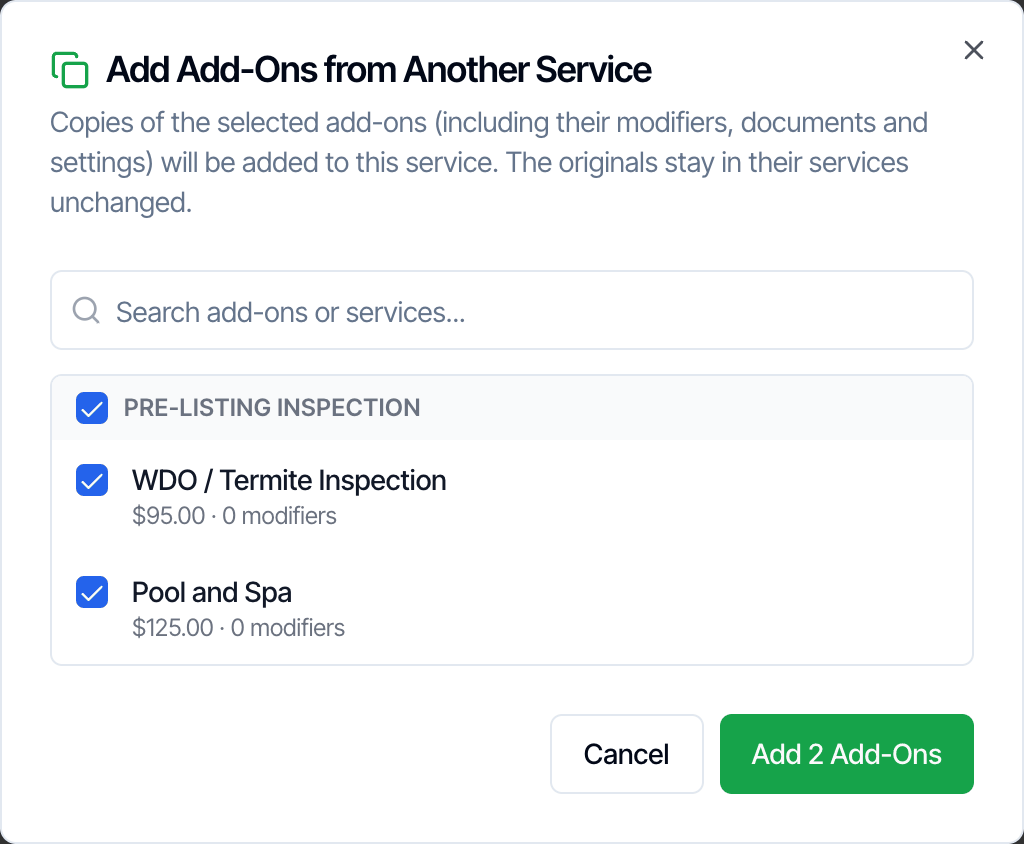 The copies keep the price, hours, description, templates, agreements, options and modifiers of the originals.
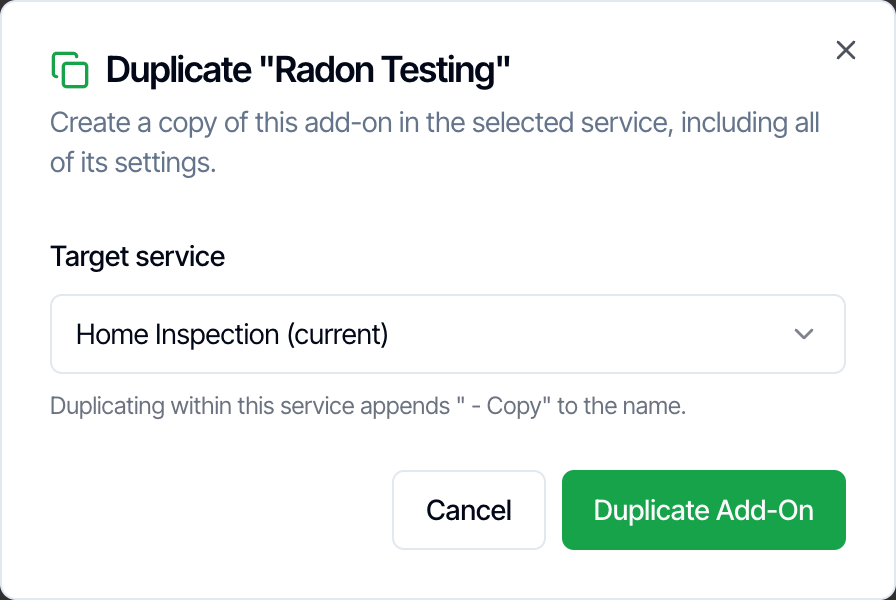
On the add-on's card, click the **Duplicate** icon, pick a **Target service** and click **Duplicate Add-On**. Duplicating within the same service adds " - Copy" to the name.
The copies keep the price, hours, description, templates, agreements, options and modifiers of the originals.
On the add-on's card, click the **Duplicate** icon, pick a **Target service** and click **Duplicate Add-On**. Duplicating within the same service adds " - Copy" to the name.
 On the add-on's card, click the **Move to another service** icon, pick a **Target service** and click **Move Add-On**. The add-on and its settings move to that service.
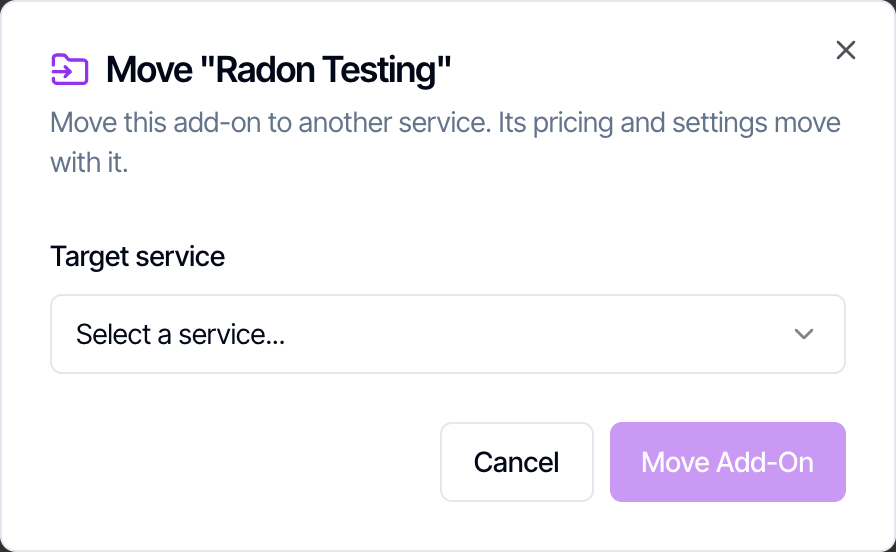 An add-on that is on any inspection can't be moved, because those inspections would lose its price. Duplicate it instead.
Duplicating a whole service, with the copy icon on the **Services & Fees** page, copies all of its add-ons too.
## Reorder, edit or delete an add-on
* **Reorder:** drag an add-on by its handle. Add-ons are listed in this order in the dashboard, on the online scheduler and for clients.
* **Edit:** click the pencil icon. Inspections that already have the add-on keep the name and price they were booked with on their pricing lines.
* **Delete:** click the trash icon and confirm. The add-on and its modifiers are deleted and can't be brought back.
Deleting an add-on that is already on inspections can leave those inspections with a line Hive can no longer match to an add-on. To stop selling an add-on, **hide it instead**: turn on **Hide from Scheduler** and turn off **Allow Upselling**. It disappears for clients, and booked inspections stay as they are. Your team still sees it in the dashboard.
Deleting a main service deletes all of its add-ons too.
## What clients see
* **Online scheduler and quote widget:** each add-on with its description and its price, rounded to the whole dollar.
* **Review link and invoice:** each add-on as its own line, with its modifiers included in its price.
* **Client portal:** the add-ons on the order under **Order Details**.
Clients never see add-on modifiers as separate lines. Your team sees them on their own lines in the dashboard.
## Frequently asked questions
No. An add-on is always added together with its main service. To sell something on its own as well, such as a radon test with no home inspection, also create it as a main service. See [Main services vs add-on services](/how-tos/services-vs-add-ons).
Check three things: **Hide from Scheduler** is off on the add-on, the client picked the main service the add-on belongs to, and the add-on is on that main service (add-ons aren't shared between services). If prices are missing rather than the add-on, turn on **Show Pricing on Online Scheduler** under **Org Settings → Scheduling**.
The add-on needs **Allow Upselling** turned on. Also check that **Lock services and add-ons after booking** is off under **Org Settings → Business Management → Client Order Changes**, and that the inspection isn't canceled.
Yes, by copying it to each service with **Add from Another Service** or **Duplicate**. Each copy has its own price and settings, so a change to one isn't made to the others.
Yes, in the dashboard. Click **+** on the add-on's row and the price, hours and add-on modifiers are multiplied by the quantity. Clients can add each add-on only once.
No. Templates and agreements added with an add-on stay on the inspection when the add-on is removed. Remove them from the inspection if you no longer need them.
Inspections keep the price they were booked at. The new price applies to inspections you create, or add the add-on to, from then on. To change a booked inspection, use **Edit Price or Duration** on the inspection.
Yes, when the main service has a tax. Add-ons have no tax of their own; the main service's tax is charged on the whole order. See [Sales tax](/how-tos/taxes).
An add-on that is on any inspection can't be moved, because those inspections would lose its price. Duplicate it instead.
Duplicating a whole service, with the copy icon on the **Services & Fees** page, copies all of its add-ons too.
## Reorder, edit or delete an add-on
* **Reorder:** drag an add-on by its handle. Add-ons are listed in this order in the dashboard, on the online scheduler and for clients.
* **Edit:** click the pencil icon. Inspections that already have the add-on keep the name and price they were booked with on their pricing lines.
* **Delete:** click the trash icon and confirm. The add-on and its modifiers are deleted and can't be brought back.
Deleting an add-on that is already on inspections can leave those inspections with a line Hive can no longer match to an add-on. To stop selling an add-on, **hide it instead**: turn on **Hide from Scheduler** and turn off **Allow Upselling**. It disappears for clients, and booked inspections stay as they are. Your team still sees it in the dashboard.
Deleting a main service deletes all of its add-ons too.
## What clients see
* **Online scheduler and quote widget:** each add-on with its description and its price, rounded to the whole dollar.
* **Review link and invoice:** each add-on as its own line, with its modifiers included in its price.
* **Client portal:** the add-ons on the order under **Order Details**.
Clients never see add-on modifiers as separate lines. Your team sees them on their own lines in the dashboard.
## Frequently asked questions
No. An add-on is always added together with its main service. To sell something on its own as well, such as a radon test with no home inspection, also create it as a main service. See [Main services vs add-on services](/how-tos/services-vs-add-ons).
Check three things: **Hide from Scheduler** is off on the add-on, the client picked the main service the add-on belongs to, and the add-on is on that main service (add-ons aren't shared between services). If prices are missing rather than the add-on, turn on **Show Pricing on Online Scheduler** under **Org Settings → Scheduling**.
The add-on needs **Allow Upselling** turned on. Also check that **Lock services and add-ons after booking** is off under **Org Settings → Business Management → Client Order Changes**, and that the inspection isn't canceled.
Yes, by copying it to each service with **Add from Another Service** or **Duplicate**. Each copy has its own price and settings, so a change to one isn't made to the others.
Yes, in the dashboard. Click **+** on the add-on's row and the price, hours and add-on modifiers are multiplied by the quantity. Clients can add each add-on only once.
No. Templates and agreements added with an add-on stay on the inspection when the add-on is removed. Remove them from the inspection if you no longer need them.
Inspections keep the price they were booked at. The new price applies to inspections you create, or add the add-on to, from then on. To change a booked inspection, use **Edit Price or Duration** on the inspection.
Yes, when the main service has a tax. Add-ons have no tax of their own; the main service's tax is charged on the whole order. See [Sales tax](/how-tos/taxes).
Next step
Related
This documentation is built and hosted on [Mintlify](https://mintlify.com), a developer documentation platform.