

In the dashboard: Business Tools → Services & Fees, then Automations
The stock upsell email lists every add-on you sell in one message. A targeted upsell sends a separate email for each add-on, so a client hears why a termite inspection matters in a message about termites, and only if they have not already booked it. Set one up per add-on and Hive Inspect decides who gets which one.Sending targeted add-on upsell emails
How the matching works
Each targeted automation uses the Add-on Name Filter. Before sending, Hive looks at the inspection’s remaining add-ons, the add-ons available on that service which the client has not added. The email only goes out when at least one remaining add-on name contains your filter text, so a client who already booked termite never gets the termite pitch. The match is case-insensitive and checks the add-on name, so the text you filter on has to appear in the add-on’s name under Services & Fees.Set it up
Check your add-on names
0:22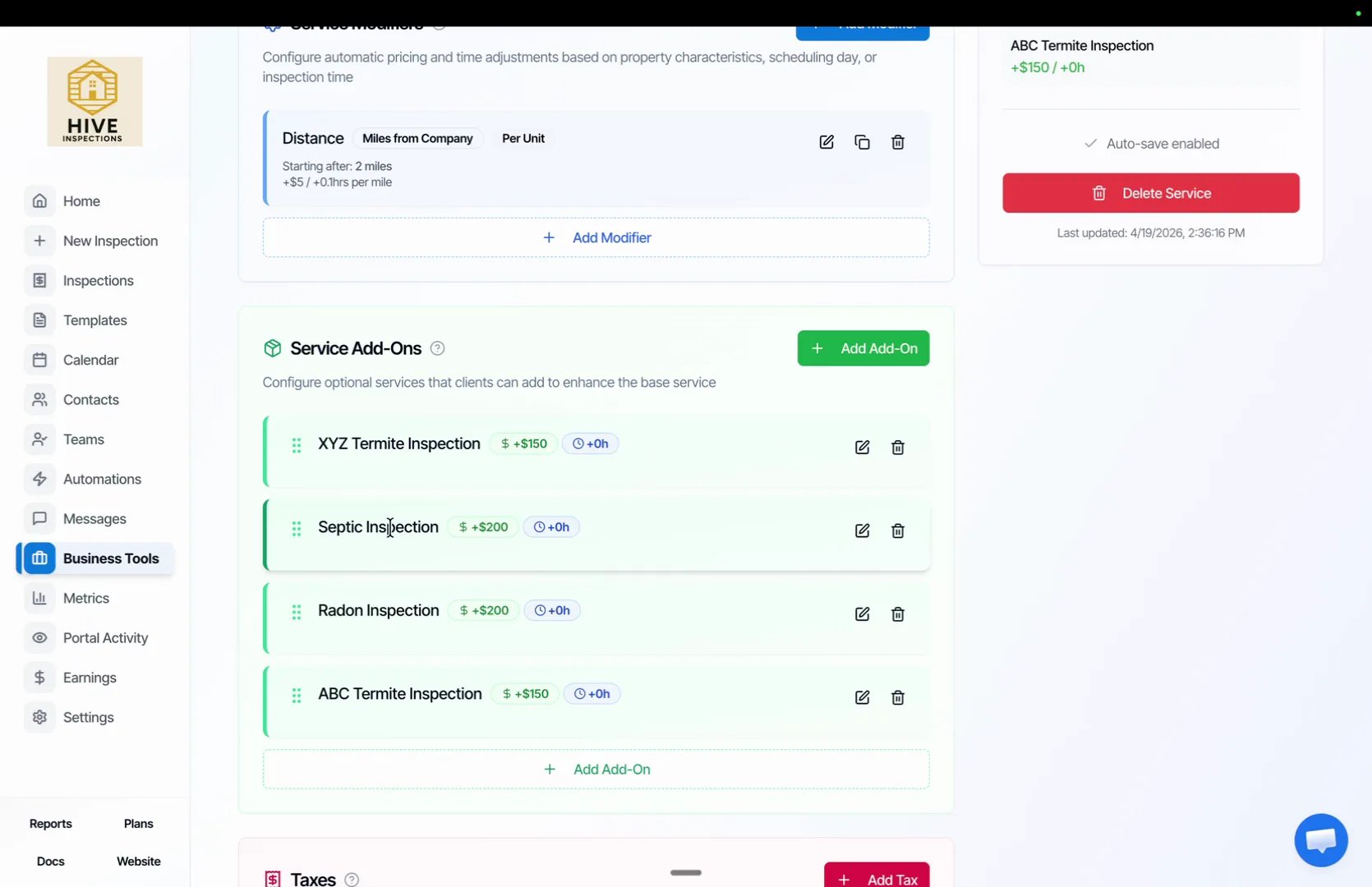
- Go to Business Tools → Services & Fees and click Edit on a service, for example Duplex
- Under Service Add-Ons, make sure each add-on has a clear name, such as Termite Inspection, Septic Inspection and Radon Inspection
- The word you filter on later, such as
termite, must appear in that name
Import the upsell template
0:45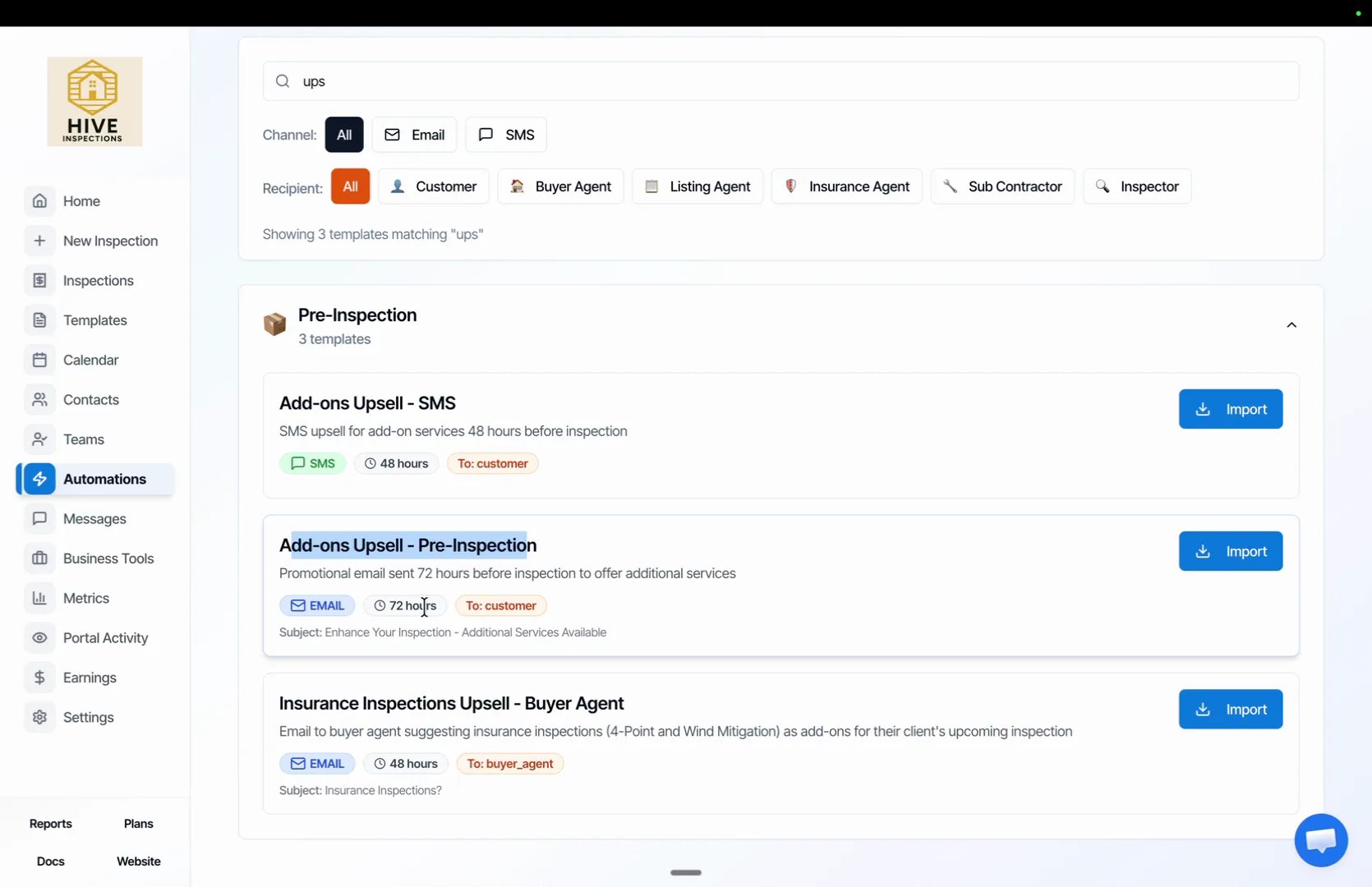
- Go to Automations and click Browse
- Search for
upselland, under Pre-Inspection, click Import on Add-ons Upsell – Pre-Inspection - Select all services and click Done. The stock version is an email sent to the customer 72 hours before the inspection
Set the timing and name
1:12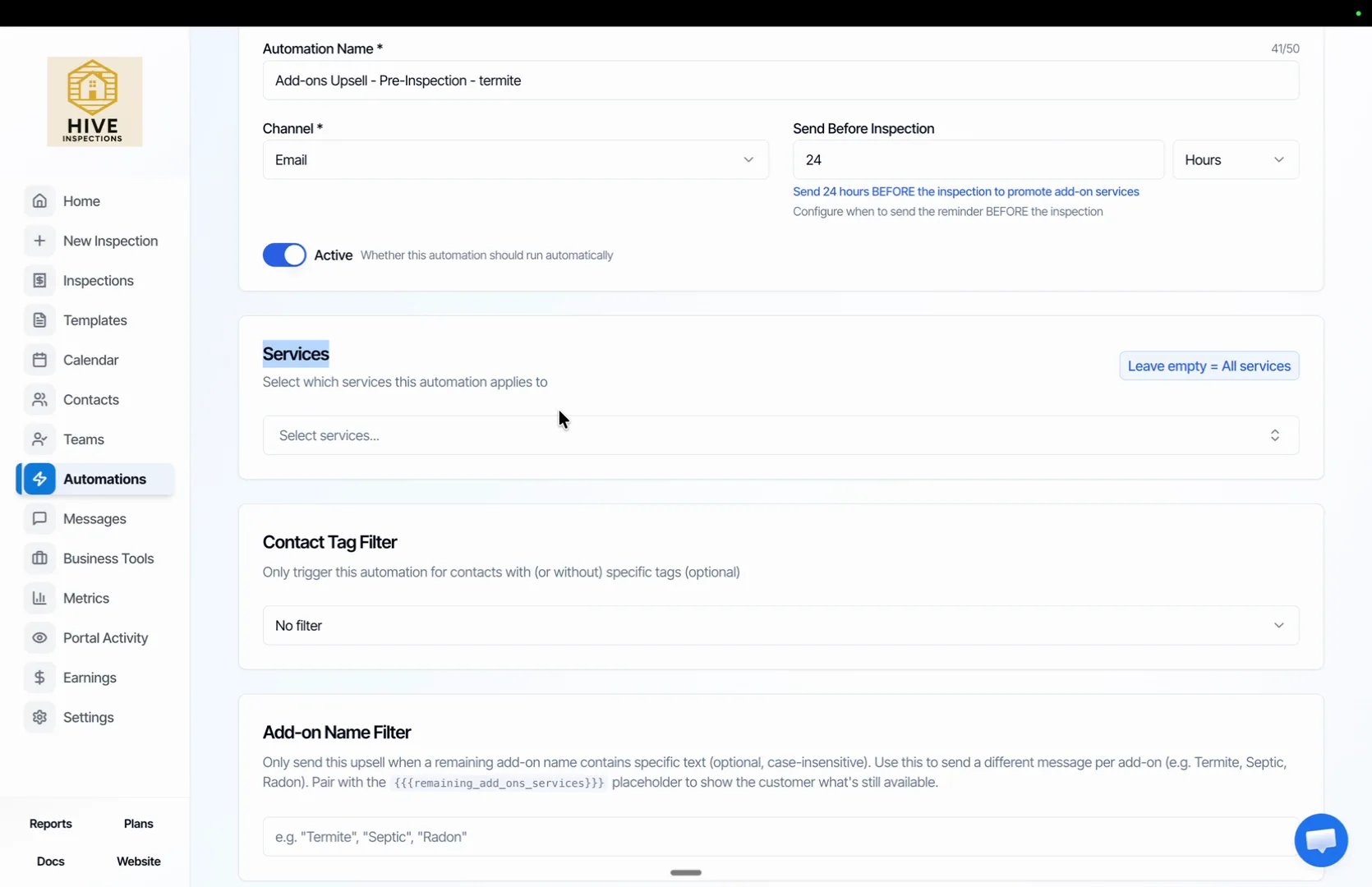
- Open the imported automation from your Automations list
- Change Send Before Inspection from 72 to 24 hours, or whatever lead time suits you
- Rename it so you can tell the copies apart, for example “Add-ons Upsell – Pre-Inspection – termite”
- Leave Services empty so it applies to every service, and leave Contact Tag Filter on No filter
Filter on the add-on name
1:37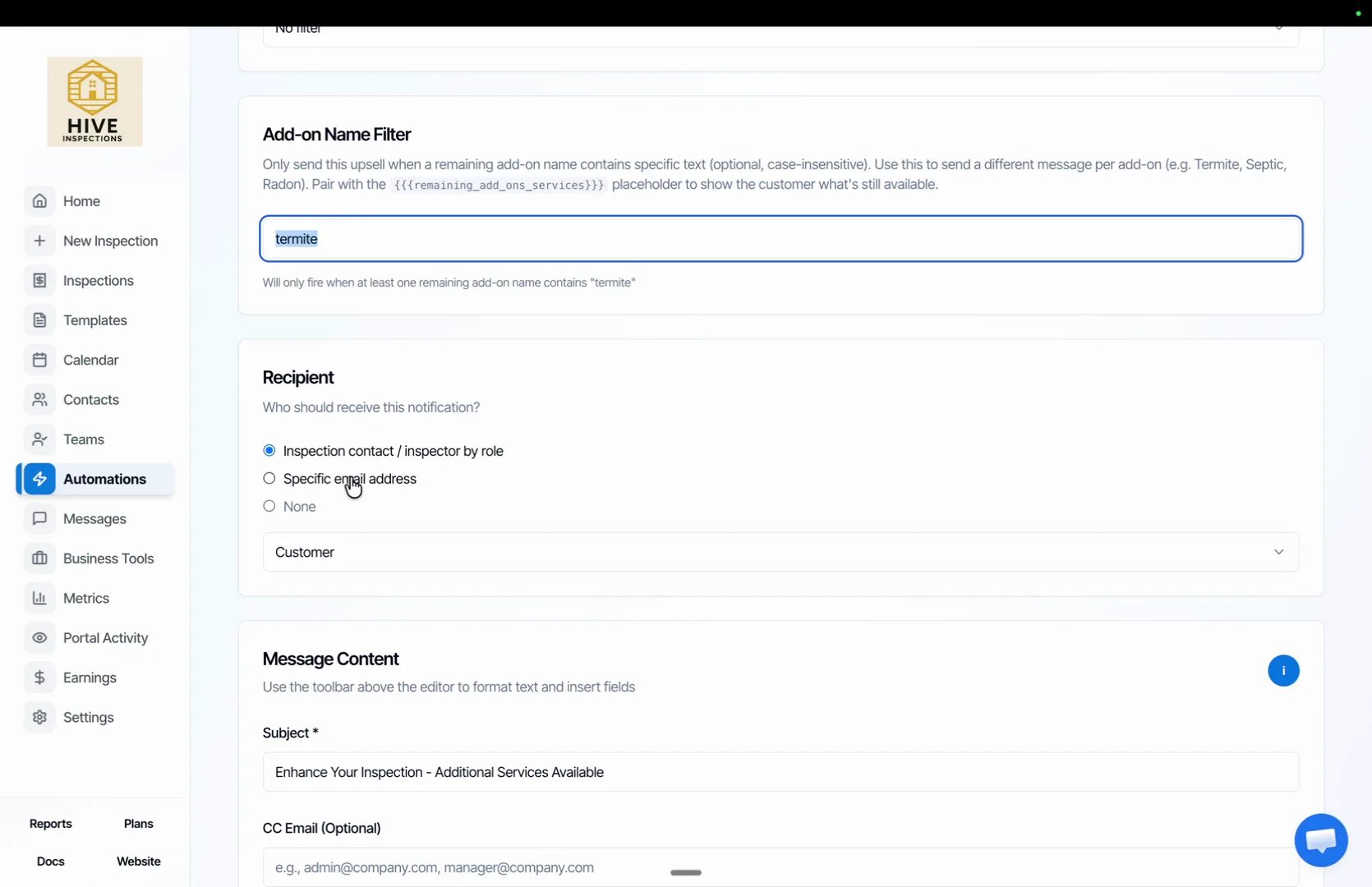
- In Add-on Name Filter, type
termite - Hive confirms underneath: the automation will only fire when at least one remaining add-on name contains “termite”
- Under Recipient, keep Inspection contact / inspector by role with Customer selected
Write the termite message
2:06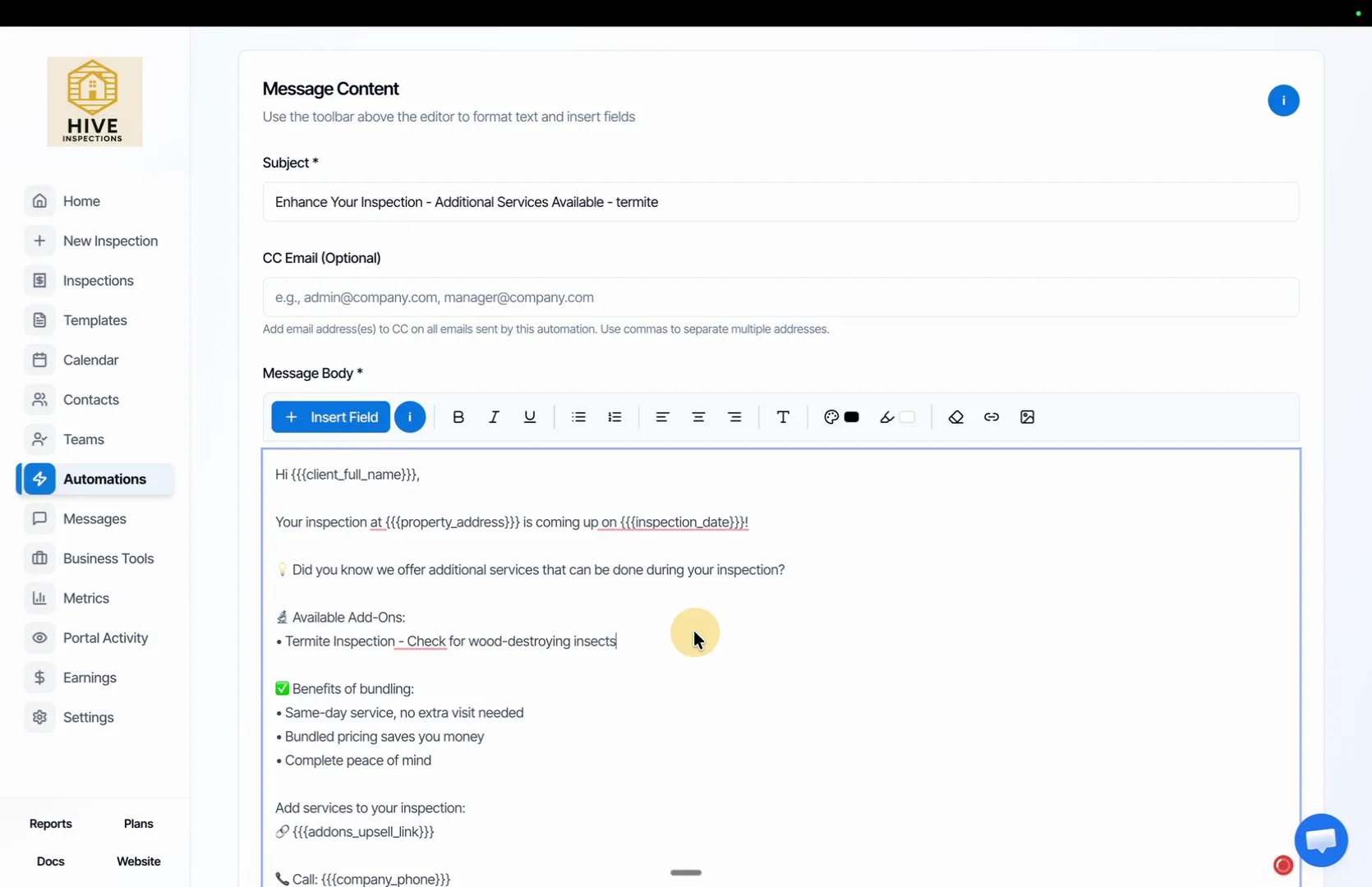
- Reword the Subject for this add-on, for example “Enhance Your Inspection – Termite Inspection Available”
- In Message Body, describe what a termite inspection covers and why it matters for this client
- Keep the
{{{addons_upsell_link}}}placeholder so the client can add the service in one click - Click Save
Understand the remaining add-ons placeholder
2:38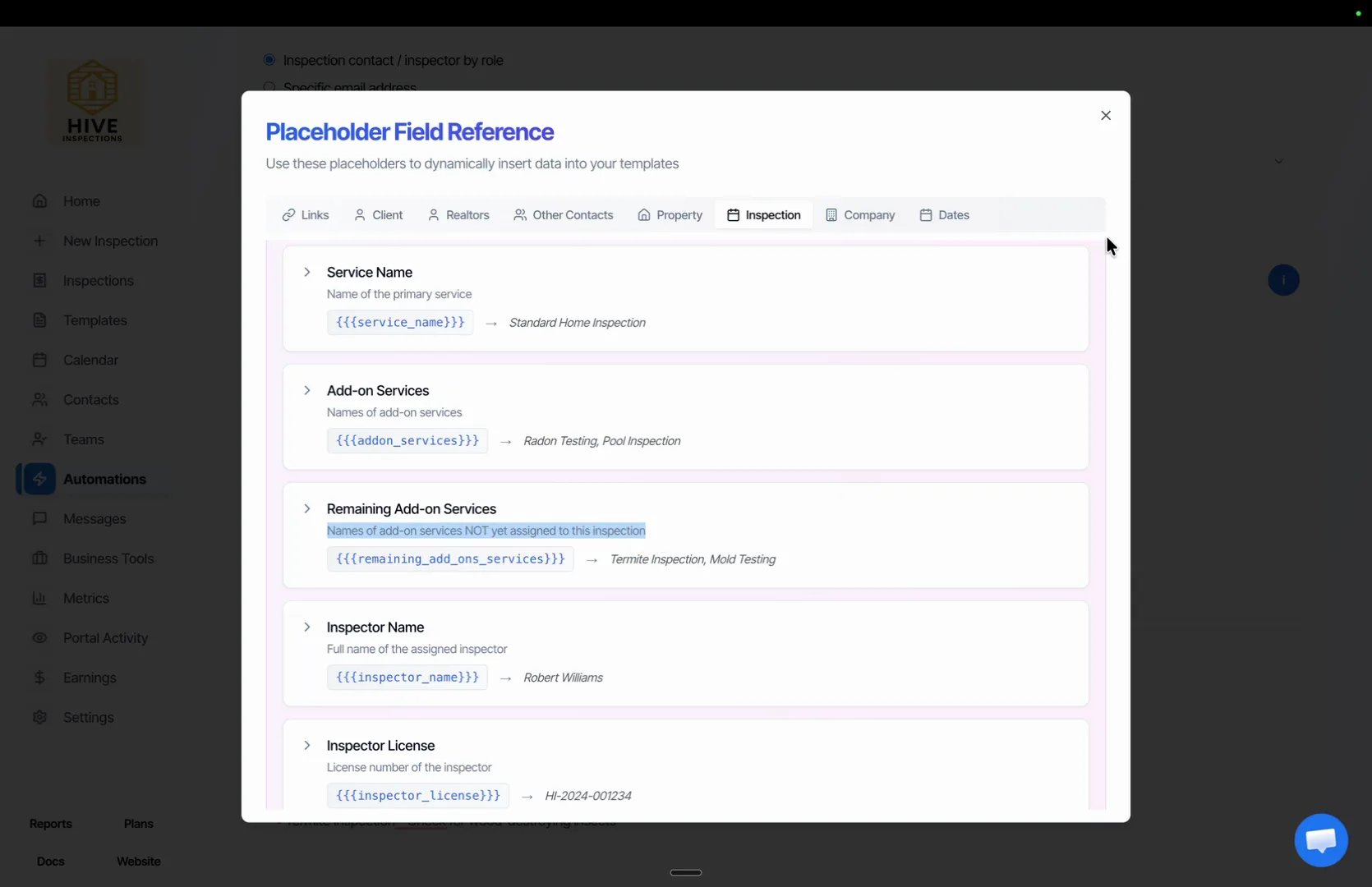
- Click the i button above the editor to open the Placeholder Field Reference, then open the Inspection tab
- Remaining Add-on Services,
{{{remaining_add_ons_services}}}, lists the add-ons not yet assigned to the inspection - If a Duplex inspection offers a termite add-on the client has not booked, “Termite Inspection” appears there, which is exactly what the filter checks
Duplicate it for septic and radon
3:16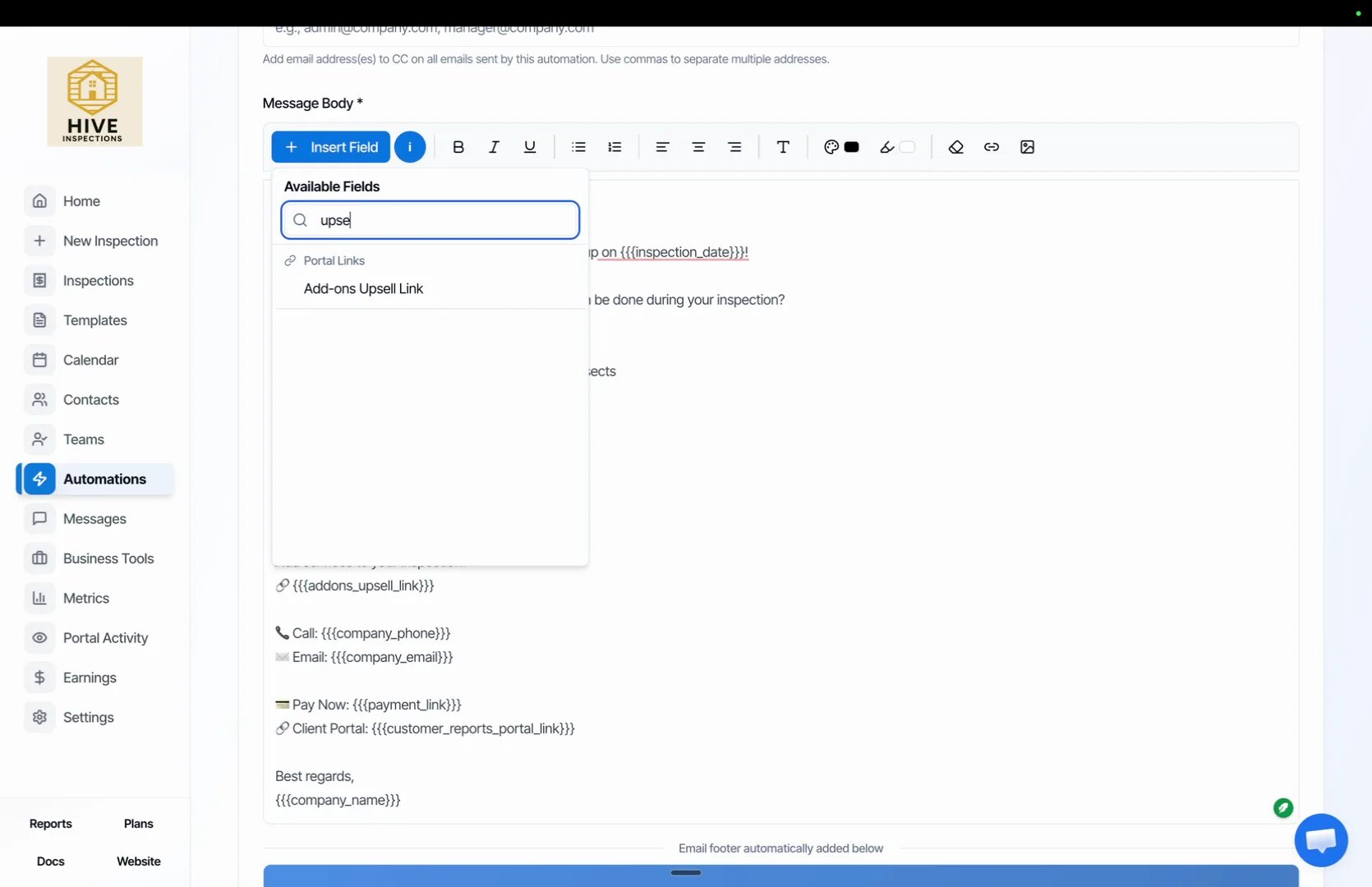
- On the termite automation, click Duplicate
- Change the name, set Add-on Name Filter to
septicorradon, and rewrite the subject and message for that service - Make sure the Add-ons Upsell Link placeholder is still in the body: click Insert Field, type
upselland pick it
Next step
Related