

Turn it on when you connect: Allow page → Also let your assistant look at report photos and write captions. Review captions in: Web Editor → ⋮ (Report Tools) → AI changes
With this option, your AI assistant can see the photos in a report and write their captions. It is an add-on to report editing: it only works together with it.This feature is in beta. It may change as we improve it, and it isn’t available on every account yet.
What you can ask
- “Write captions for every photo in the Roof section that doesn’t have one.”
- “Make all the captions in this report short and consistent.”
- “Does the photo on the water heater comment show the corrosion I described?”
- “Which defect comments have no photo?”
- “What’s in the photo bank? Give me a list.”
- “Look at the photos on the handrail comment and write the defect text.”
Turn it on
Start connecting your assistant
Follow Connect an AI assistant. If your assistant is already connected, disconnect it first and connect again.
Tick the report box, then the photo box
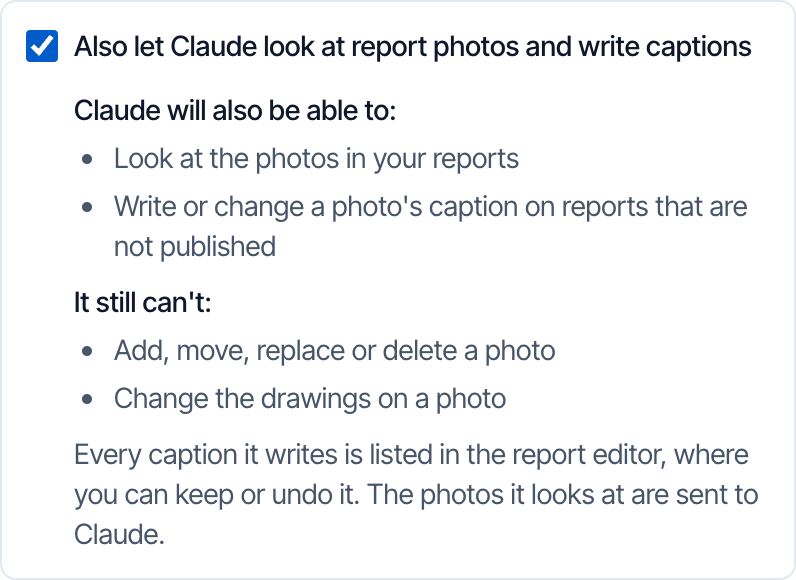
- Tick Also let Claude read and edit reports that are not published (your assistant’s name appears in place of Claude).
- A second option appears below it. Tick Also let Claude look at report photos and write captions.
- Click Allow.
The photo option only appears after you tick the report option. If you don’t see the report option either, your account doesn’t have report editing yet. It is in beta.
What the assistant can do
A caption is plain text on one line, up to 300 characters.
What it can’t do
- Add, move, replace or delete a photo. Nothing about the photo itself changes.
- Put a photo bank photo onto a comment.
- See drawings. Arrows, circles and labels you drew on a photo are not on the copy it sees. It is told when a photo has drawings.
- View videos. Videos are listed, and their captions can be written, but the assistant can’t watch them.
- Change captions on a published report. It can still look at the photos.
- Reach other pictures. The cover photo, your template’s default pictures, pictures placed inside comment text, and the original photos on a reinspection report are not included.
Review the captions
Each caption is saved straight away and added to the same AI changes list as other changes.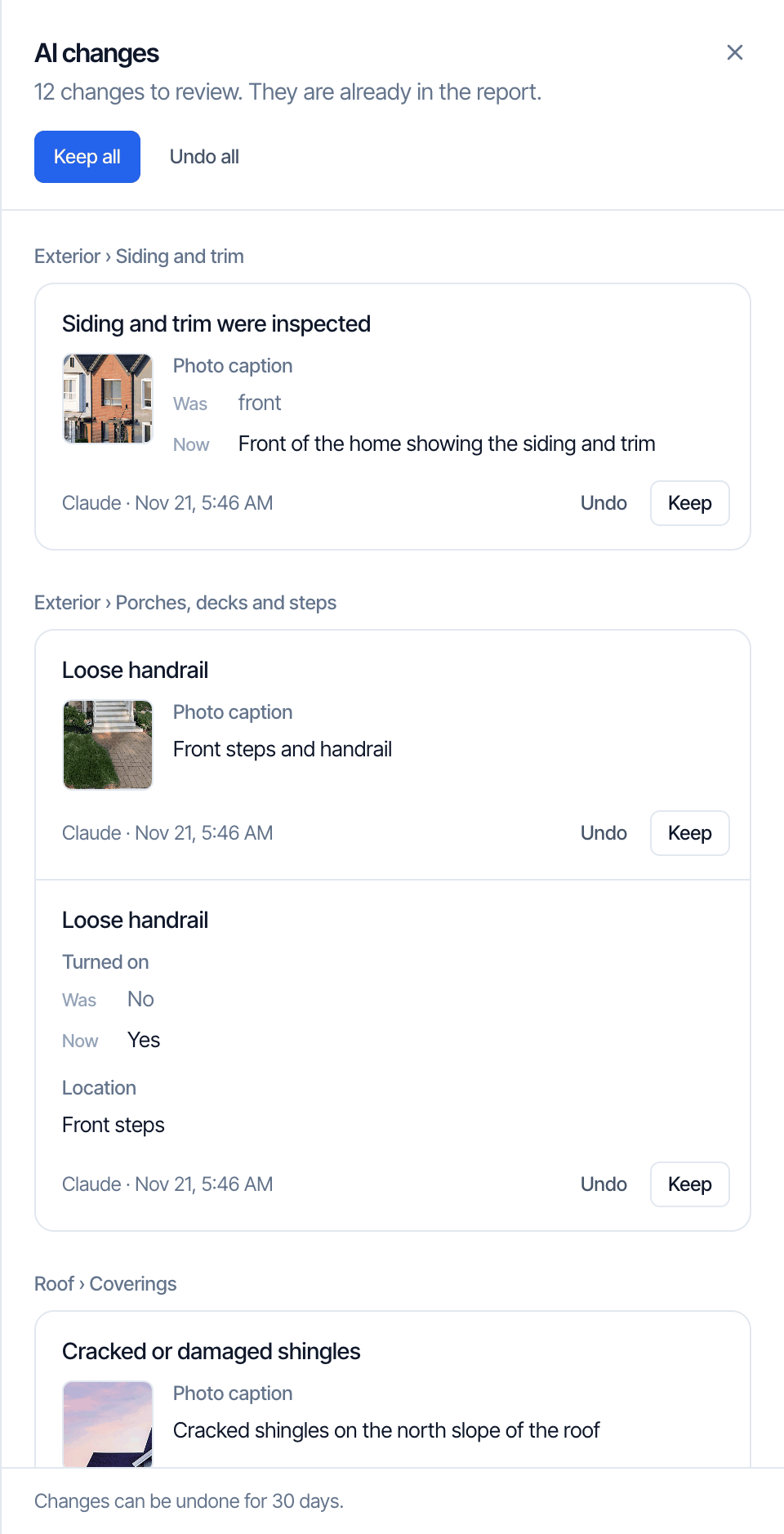
- Open the Web Editor, click ⋮, then AI changes.
- Each caption row shows the photo, so you can judge the caption without leaving the list.
- When the assistant replaced a caption you had written, the row shows Was and Now.
- Click Keep to accept it, or Undo to put the old caption back.
- Captions on photo bank photos are grouped under Photo bank.
Things to know
- Photos are sent to your assistant. That is how it sees them. Only connect an assistant you trust with your clients’ photos.
- One photo per request. Each photo the assistant looks at counts as one request toward your API request limit. Captioning a report with 80 photos uses about 85 requests.
- Check captions against what you saw. The assistant describes what is visible in the photo. It was not at the property.
- A phone that hasn’t synced can bring back an old caption. If the mobile app has an older copy of a comment and saves that comment again, its caption replaces the assistant’s. No photo is affected, and the row reads Edited since. Let the app sync before you keep working on that comment.
- Captions show in the report and the PDF, the same as captions you type yourself.
Tools the assistant gets
These come on top of the report editing tools.
Frequently asked questions
Can it attach my photo bank photos to the right comments?
Can it attach my photo bank photos to the right comments?
No. It can look at photo bank photos and caption them, but it can’t move a photo onto a comment. Add photos to comments yourself in the Web Editor or the mobile app.
Can I send photos to the assistant and have it add them to the report?
Can I send photos to the assistant and have it add them to the report?
No. Take or upload photos in Hive as usual. The assistant works with photos that are already in the report.
My assistant can edit reports but says photo tools are not available. Why?
My assistant can edit reports but says photo tools are not available. Why?
The connection was made without the photo box. Disconnect it under Business Tools → MCP / API / Webhooks, connect again, and tick both boxes.
Why did it refuse a caption?
Why did it refuse a caption?
A caption can’t be longer than 300 characters and can’t contain the characters
< or >. It is also refused if the photo or its caption changed after the assistant looked at it. The assistant reads the photo list again and retries.Where to go next
- Edit reports with AI: fill in answers, comments and ratings.
- Edit templates with AI: build and change templates.
- Connect an AI assistant: set up Claude, ChatGPT or Grok.
- Limits, dates and privacy: request limits and what is shared.