

Turn it on when you connect: Allow page → Also let your assistant read and edit reports that are not published. Review changes in: Web Editor → ⋮ (Report Tools) → AI changes
Your own AI assistant, such as Claude, can work inside a report for you. You give it your notes, a voice memo transcript or a plain instruction, and it fills in the report. Every change it makes is listed in the Web Editor, where you keep it or undo it.This feature is in beta. It may change as we improve it, and it isn’t available on every account yet.
What you can ask
- “Here are my notes from 12 Oak Street. Fill in the report.” Then paste your notes or a voice memo transcript.
- “Turn on the cracked shingles defect in Roof, and say it’s on the north slope near the chimney.”
- “The water heater is 12 years old. Add that, and add a defect about its age.”
- “Fix the spelling and grammar in every comment in the Plumbing section.”
- “Write the report summary from the defects that are turned on.”
- “Which sections still have nothing filled in?”
Turn it on
You choose this when you connect the assistant. A connection keeps the choices it was made with.Start connecting your assistant
Follow Connect an AI assistant. If your assistant is already connected, disconnect it first and connect again.
Tick the report box on the Allow page
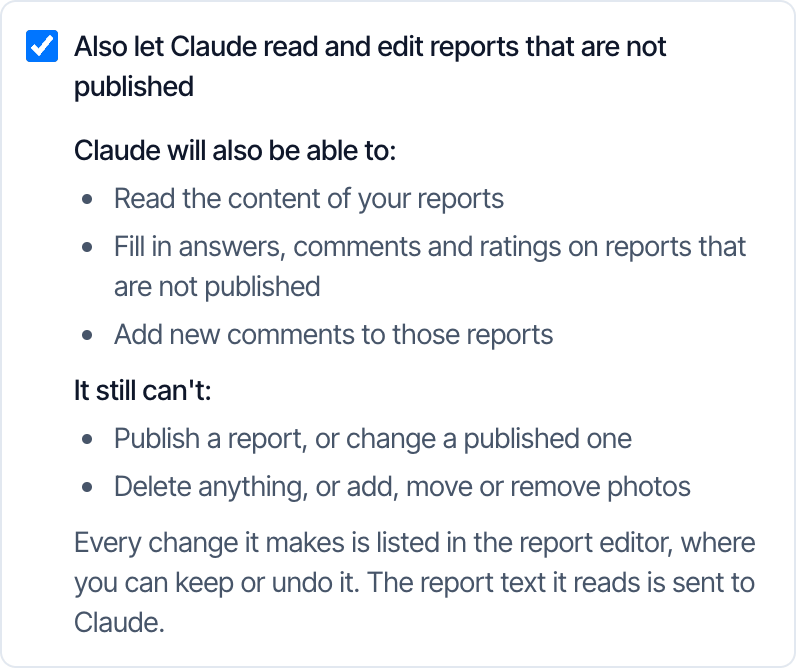
- Tick Also let Claude read and edit reports that are not published (your assistant’s name appears in place of Claude). It is never ticked for you.
- Read what it can and can’t do, then click Allow.

What the assistant can change
When the assistant turns on a defect, Hive also selects the ratings your template marks for defects, the same as when you turn one on yourself. That rating shows as its own row in the review list.
What it can’t do
- Publish a report, or change a report that is already published. It can still read a published report.
- Delete or hide a comment, subsection or section.
- Add, move or remove photos. With the photo option it can write captions only. See Photos and captions with AI.
- Rewrite text that holds a picture, a table or an embedded video. It leaves that comment alone and tells you.
- Save anything back to your template. Changes stay in this one report.
- Edit a reinspection report, a state form, or a form Hive built from another report, such as a Florida 4-Point form created from a general report.
Review what it changed
Changes are saved to the report straight away. If the report is open in the Web Editor, they appear within a few seconds, with no reload. Nothing you were typing is lost.Open Report Tools
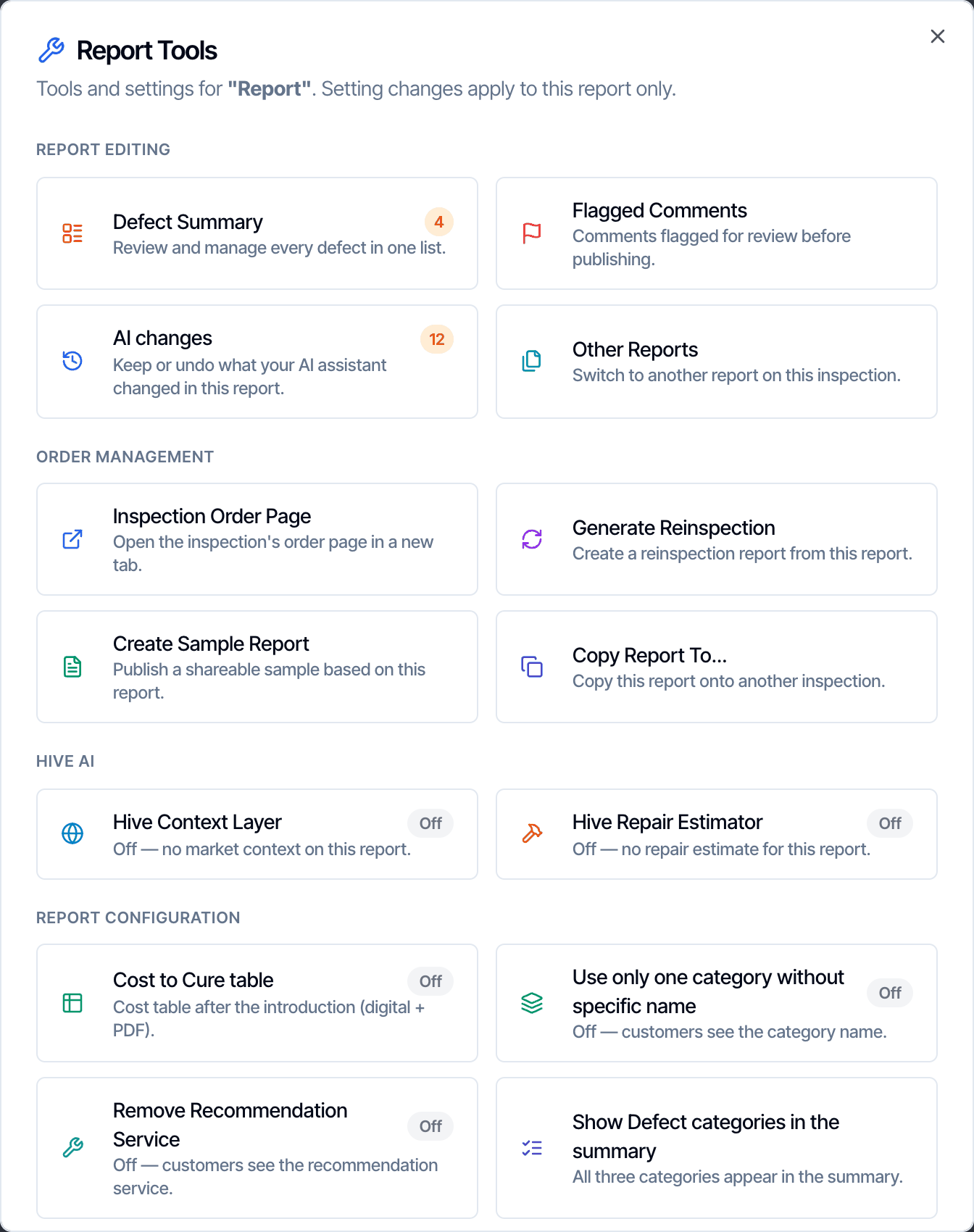
- In the Web Editor, click ⋮ to open Report Tools.
- Click AI changes. The badge is the number of changes waiting.
- The card only shows when there is something to review.
Go through the list
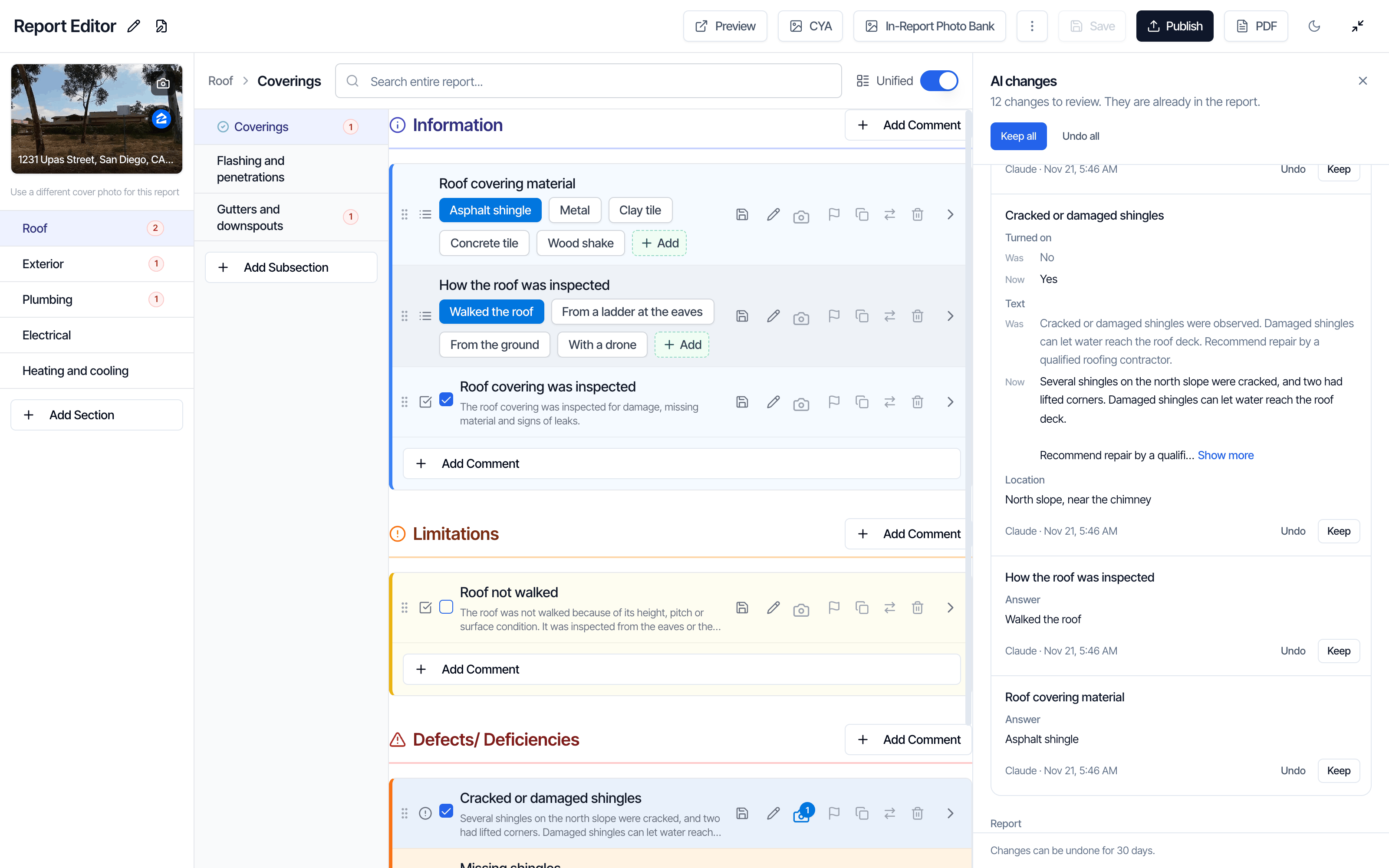
- Click the row’s name to jump to that comment in the report.
- Click Keep to accept the change. It leaves the list.
- Click Undo to put it back the way it was.
- Use Keep all or Undo all at the top for the whole list.
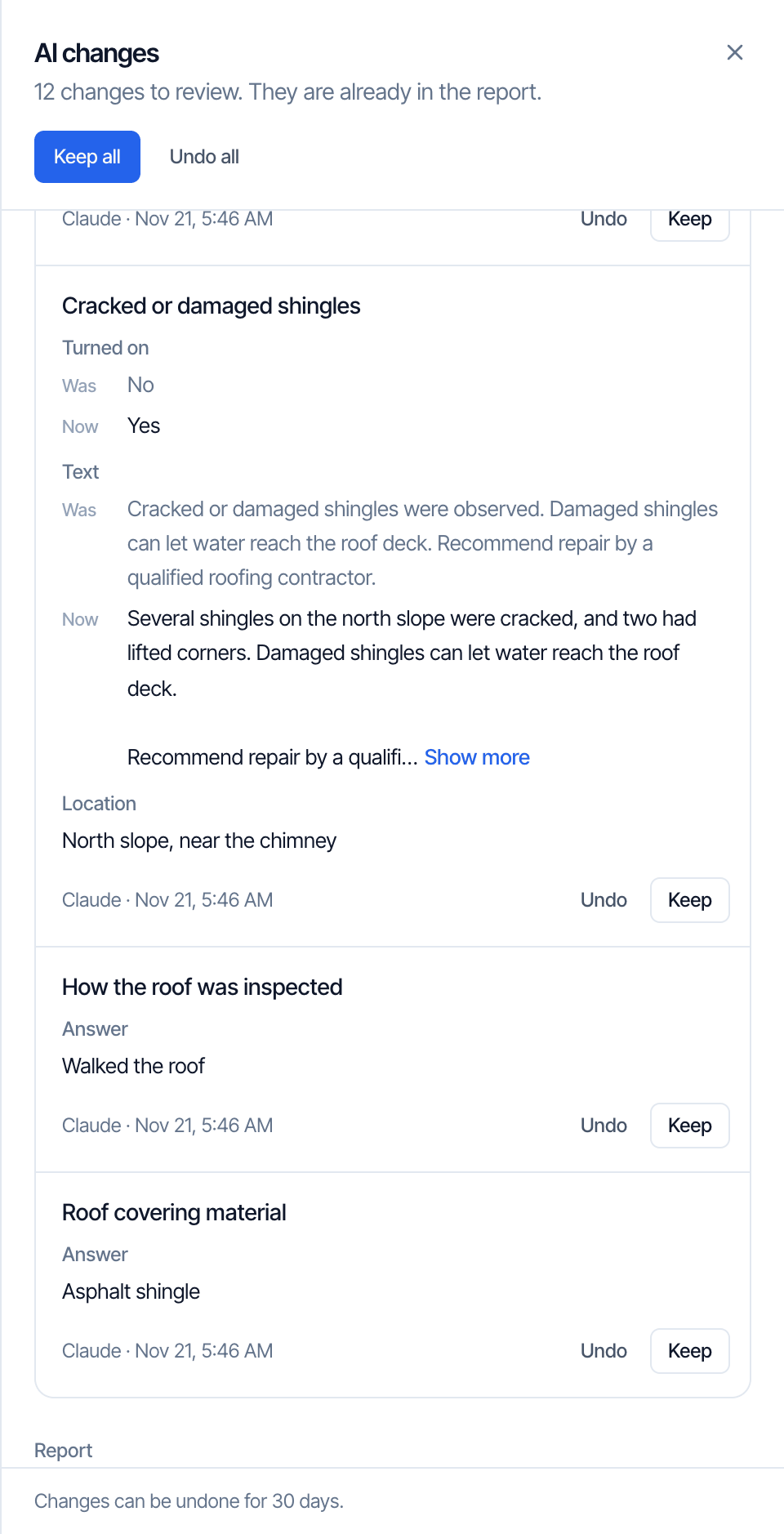
When a row says Edited since
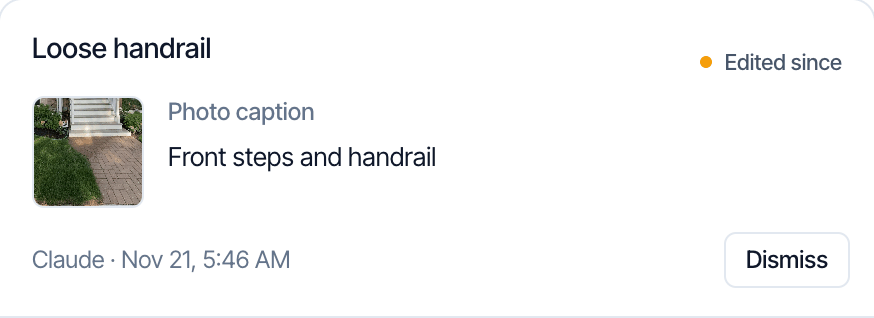
How long you can undo
You can undo a change for 30 days. After that it leaves the list and stays in the report.You can also ask the assistant to undo
- “Undo the last change you made to the summary.”
- “Undo everything you changed in this report.”
How it stays safe
- It never overwrites newer work. If you change a comment after the assistant read it, its change to that comment is refused. It reads the comment again and tries again.
- Each change stands alone. In one request, some changes can be applied and others refused. The assistant tells you which, and why.
- The mobile app stays in step. A phone picks up the changes on its next sync. A later edit on the phone still wins, and shows as Edited since in the list.
- Up to 50 changes at once. For a long report the assistant works in several rounds.
- The report text is sent to your assistant. That is how it reads the report. Only connect an assistant you trust with your clients’ information.
Tools the assistant gets
These tools only work with Sign in with Hive. A connection that uses an API key or a connection address can’t edit reports.
Frequently asked questions
I don't see the checkbox on the Allow page. Why?
I don't see the checkbox on the Allow page. Why?
Report editing is in beta and isn’t available on every account yet. If the checkbox isn’t on your Allow page, your account doesn’t have it yet.
My assistant was already connected. Why can't it edit?
My assistant was already connected. Why can't it edit?
A connection keeps the choices it was made with. Disconnect it under Business Tools → MCP / API / Webhooks, connect again, and tick the report box.
Can it fill in a report from a voice memo?
Can it fill in a report from a voice memo?
Yes, if your assistant can read the memo. Record your walk-through, give the recording or its transcript to your assistant, and ask it to fill in the report for that address. Then review the list in the Web Editor.
Why did it say a report can't be edited?
Why did it say a report can't be edited?
The report is published, or it is a reinspection report, a state form, or a form Hive built from another report. The assistant can only edit regular reports that are not published.
Where is the AI changes list in the mobile app?
Where is the AI changes list in the mobile app?
The list is in the Web Editor only. The changes themselves reach the mobile app on its next sync.
Do I have to click Keep on every change?
Do I have to click Keep on every change?
No. Changes are already in the report. Keep only clears the row from the list. If you do nothing, the change stays and the row leaves the list after 30 days.
Does this use my Hive AI credits or plan?
Does this use my Hive AI credits or plan?
No. The assistant is your own Claude, ChatGPT or Grok account. Each request it makes to Hive counts toward your API request limit.
Where to go next
- Photos and captions with AI: let the assistant look at photos and write captions.
- Edit templates with AI: let the assistant build and change your templates.
- Connect an AI assistant: set up Claude, ChatGPT or Grok.
- Limits, dates and privacy: request limits and what is shared.
- Template Tools and Report Tools: the other tools in the same menu.