

Turn it on when you connect: Allow page → Also let your assistant read and edit your templates. Review changes in: Templates → open a template → Template Tools → AI changes
Your own AI assistant, such as Claude, can build and change your templates. You describe what you want, or give it an example to copy, and it edits the template. Every edit is listed under Template Tools, where you can undo one change or the whole edit.This feature is in beta. It may change as we improve it, and it isn’t available on every account yet.
What you can ask
- “Add a Pool and spa section to my residential template, with subsections for the shell, safety barriers and equipment.”
- “Here is a PDF of one of my old reports. Build a new template that matches it.”
- “Make a copy of my residential template called Condo, and remove the Roof and Exterior sections from the copy.”
- “Rewrite the polybutylene defect comment so it explains the risk in plain words.”
- “Put the Plumbing section before Electrical.”
- “Find every comment that says ‘recommend repair’ and add ‘by a licensed contractor’.”
- “Which defect comments have no recommended service?”
Turn it on
You choose this when you connect the assistant. A connection keeps the choices it was made with.Start connecting your assistant
Follow Connect an AI assistant. If your assistant is already connected, disconnect it first and connect again.
Tick the template box on the Allow page
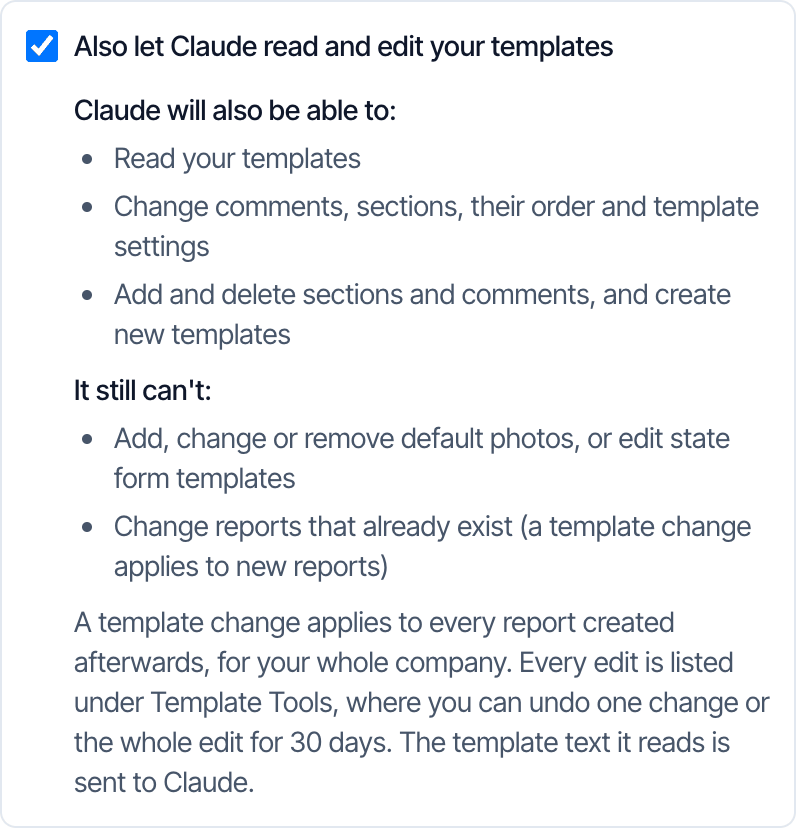
- Tick Also let Claude read and edit your templates (your assistant’s name appears in place of Claude). It is never ticked for you.
- Read what it can and can’t do, then click Allow.
What the assistant can change
What it can’t do
- Add, change or remove default photos on a comment.
- Rewrite text that holds a picture, a table or an embedded video. It leaves that comment alone and tells you.
- Edit a state form template, or a template set up to fill in a Florida 4-Point form.
- Delete a whole template. Delete templates yourself on the Templates page.
- Change reports that already exist. A template change applies to new reports only.
- Set the Hive Context Layer or Hive Repair Estimator defaults.
- Grow a template past 150 sections, 2,000 subsections or 15,000 comments.
Review what it changed
Each request the assistant sends is one edit. An edit can hold many changes, such as a new section and three reworded comments.Open Template Tools
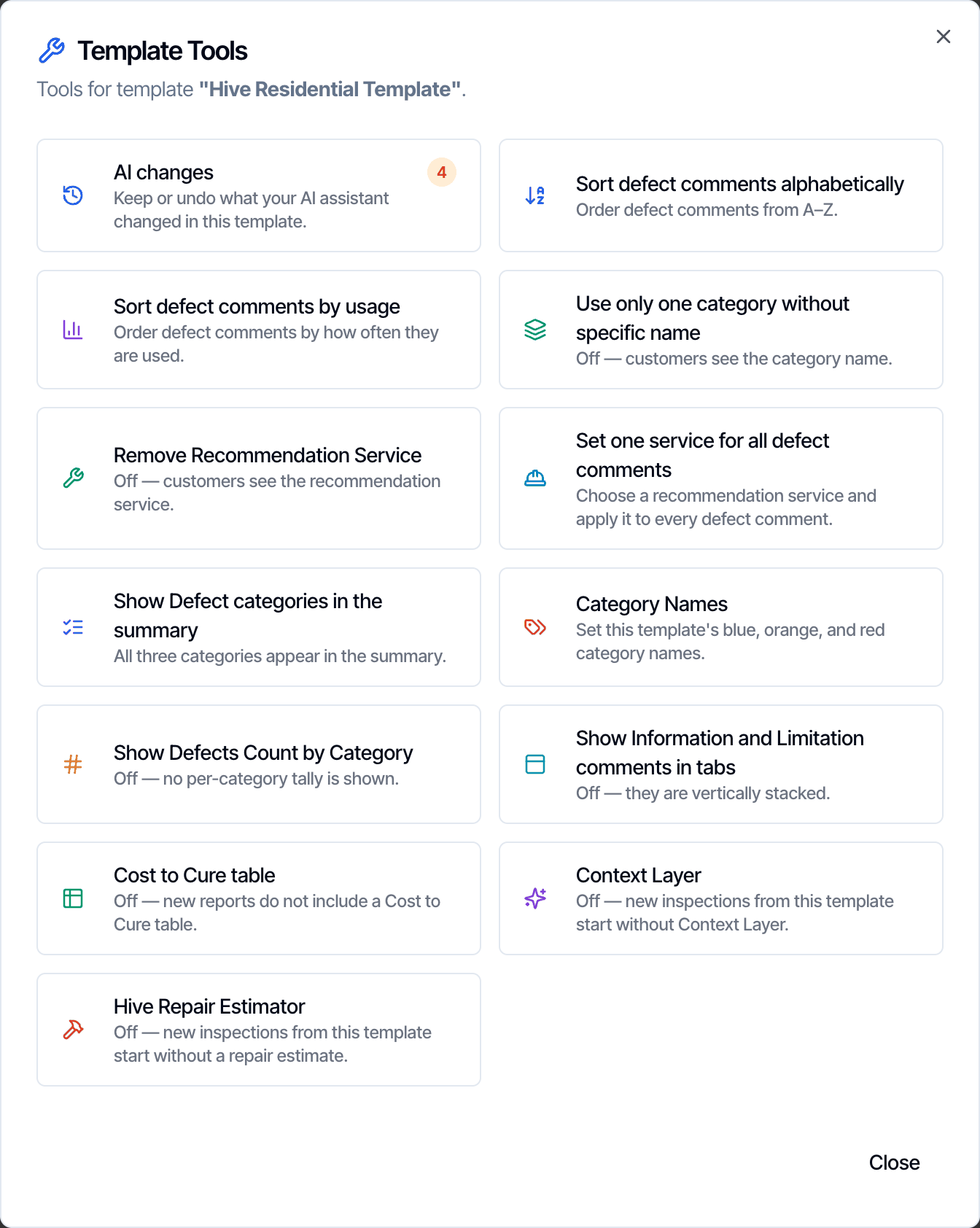
- Click Templates, open the template, and click Template Tools.
- Click AI changes. The badge is the number of changes waiting.
Go through the edit
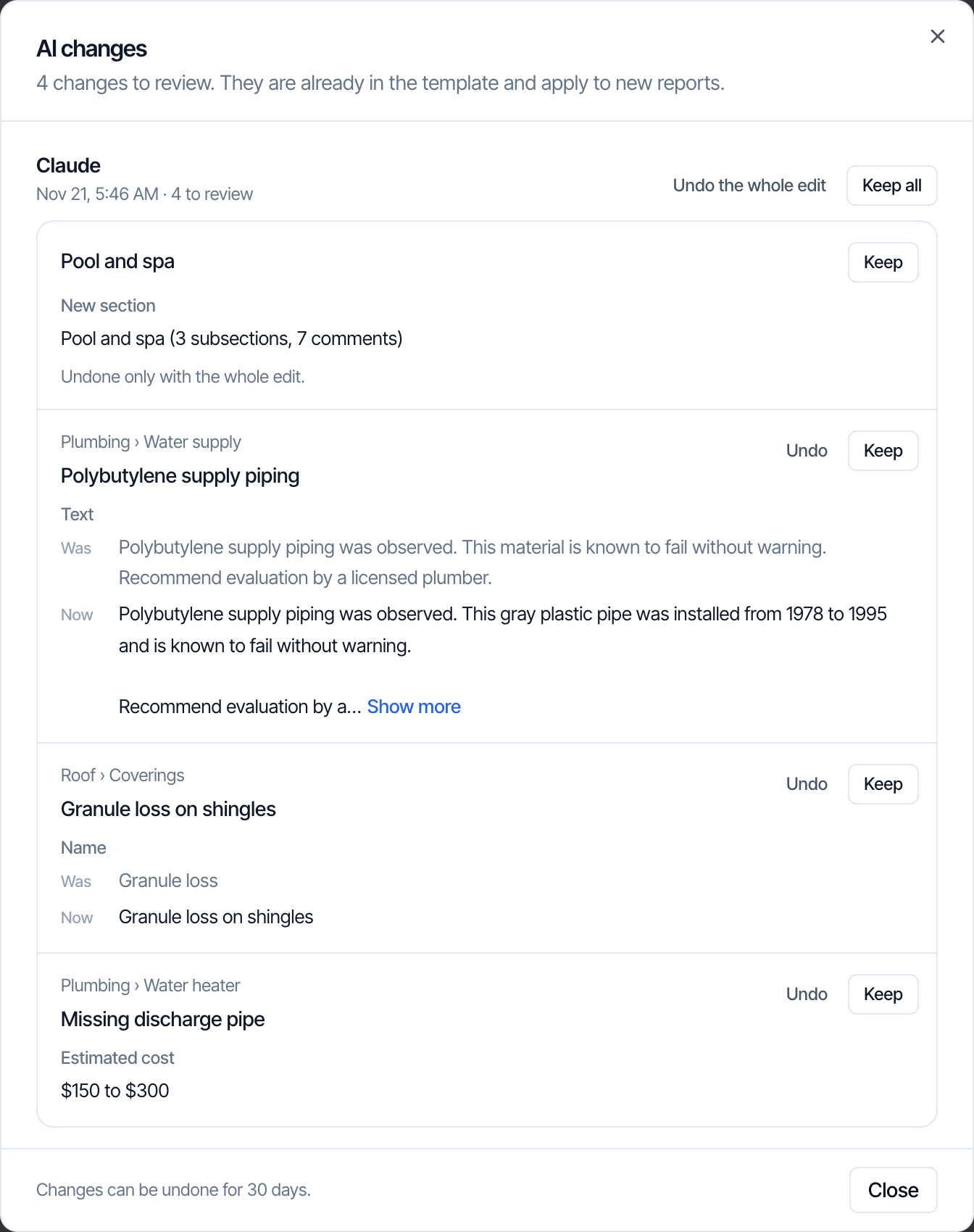
- Click a row’s name to close the list and go to that item in the template.
- Click Keep on a row, or Keep all for the edit.
Two ways to undo
Rows for added, deleted, moved or copied items read Undone only with the whole edit. Undoing them one at a time could leave the template half changed, so they go back together.
If the template changed after the edit
When you or the assistant changed the template again after an edit, that edit reads Template changed again after this. You can still undo the whole edit. Hive warns you first, because the later changes are undone too. Click Undo, including later changes to go ahead. If you have unsaved changes in the template, save or discard them first. The undo buttons wait until you do.How long you can undo
You can undo for 30 days. After that the edit leaves the list and stays in the template.While you have the template open
- If the assistant edits a template you have open, Hive loads the new version within about 20 seconds.
- If you have unsaved changes, Hive does not reload. It tells you the template changed elsewhere and keeps your work.
You can also ask the assistant to undo
- “Undo the wording change you made to the polybutylene comment.”
- “Undo your last edit to this template.”
How it stays safe
- It never overwrites newer work. If the template changed after the assistant read it, the change is refused. It reads the item again and retries.
- A copy is saved before every edit. That copy is what Undo the whole edit puts back.
- If a save fails part-way, the template is put back. You are never left with half an edit.
- Up to 100 changes in one edit. A whole new section with its subsections and comments counts as one change.
- The template text is sent to your assistant. That is how it reads the template.
Tools the assistant gets
These tools only work with Sign in with Hive. A connection that uses an API key or a connection address can’t edit templates.
Frequently asked questions
Can it build a template from my old report or another software's export?
Can it build a template from my old report or another software's export?
Yes, if your assistant can read the file. Give it the PDF or spreadsheet and ask it to build a new template that matches. It creates a new template and adds the sections, subsections and comments. Check the result in Templates before you use it on an inspection. For a full move from other software, see Import templates.
Will this change reports I already started?
Will this change reports I already started?
No. A report copies its template when it is created. Template changes only reach reports created afterwards. To change one report, see Edit reports with AI.
I don't see the template checkbox on the Allow page. Why?
I don't see the template checkbox on the Allow page. Why?
Template editing is in beta and isn’t available on every account yet. If the checkbox isn’t on your Allow page, your account doesn’t have it yet. Having report editing doesn’t mean you have template editing: they are separate.
Can it set up a rule that turns on a defect when I pick a certain answer?
Can it set up a rule that turns on a defect when I pick a certain answer?
No. Hive has no rule that links an answer to a defect comment, so the assistant can’t create one. It can make a defect comment start selected in every new report.
Can it delete things?
Can it delete things?
Yes. It can delete comments, subsections and sections, but not a whole template. A delete can be undone with Undo the whole edit for 30 days.
Who can see the AI changes list?
Who can see the AI changes list?
Anyone on your team who can open Templates. That needs the Edit Templates permission. Account owners always have it.
Where to go next
- Edit reports with AI: fill in a report from your notes.
- Photos and captions with AI: let the assistant caption report photos.
- Connect an AI assistant: set up Claude, ChatGPT or Grok.
- Limits, dates and privacy: request limits and what is shared.
- Template Tools and Report Tools: the other tools in the same menu.