

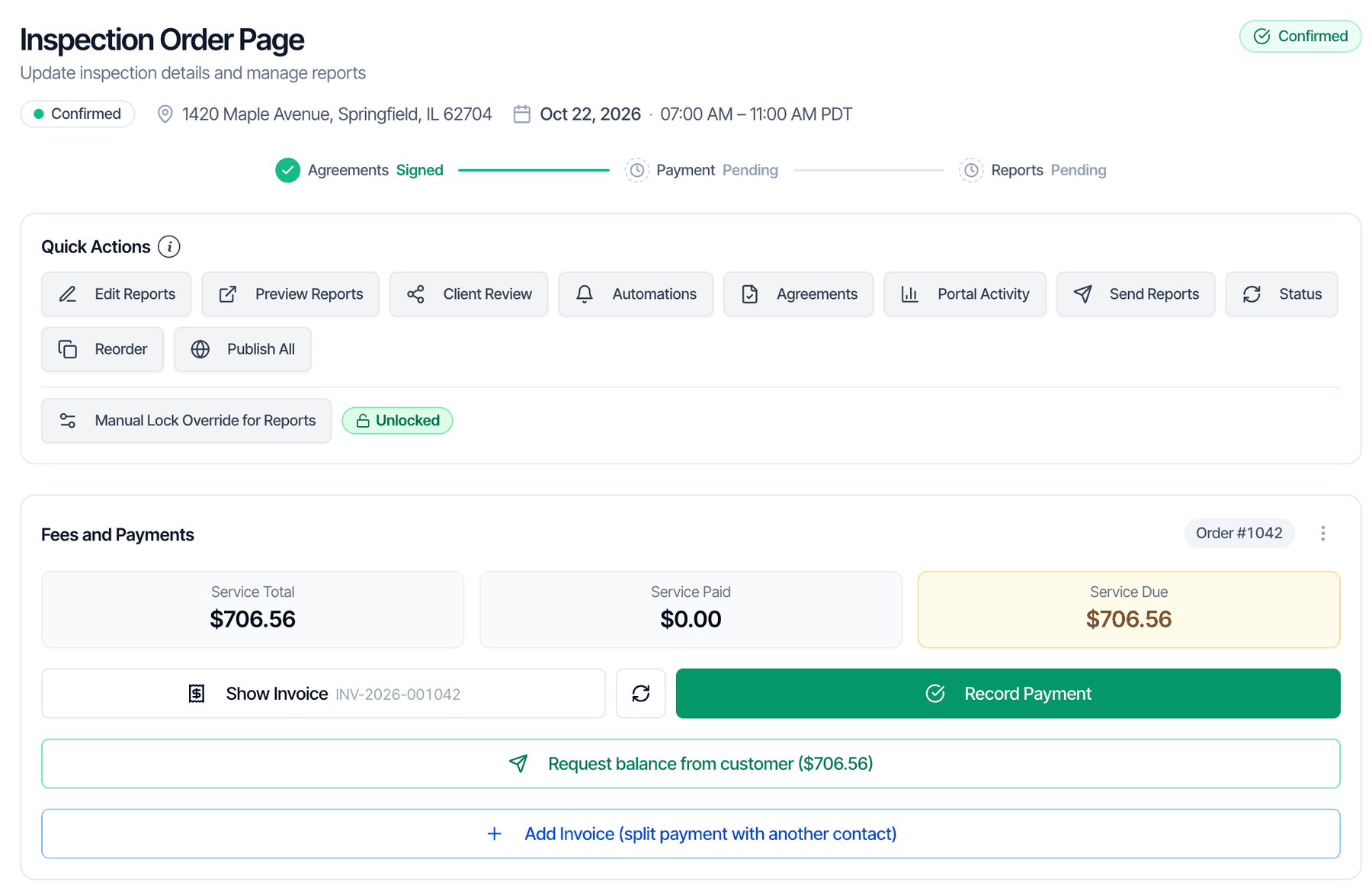
In the dashboard: open a Confirmed inspection, then Fees and Payments → Add Invoice (split payment with another contact)
A split payment bills someone other than your client for part of the inspection fee. That might be the buyer’s agent, the listing agent, the seller, an employer or a relative. Hive calls this Multi-Party Payments. You choose the person and the amount. Their share comes off your client’s balance. Hive emails them a payment request with their own link. Each person pays their own part, and the inspection is Paid once everyone has paid.Split payments are only on the web dashboard. The mobile app can’t create or manage them.
When to use it
Before you start
- The inspection is Confirmed and money is still owed. The Add Invoice button shows only while the payment status is Pending or Partial and there’s a balance due.
- The person is on the inspection. Add them as the buyer’s agent, listing agent or another contact role first. Clients can’t be picked: anyone added as the client or buyer is left out of the list.
- They have a real email address. Contacts with no email, or a placeholder email, show in the list but can’t be selected.
- Stripe is connected, so they can pay online by card, bank transfer or Affirm. See Set up payments and Stripe.
Bill a contact for part of the fee
Open the inspection
On the Inspections page, click the confirmed inspection. The Fees and Payments card is below Quick Actions.
Choose who to bill
In Send invoice to, pick the contact. Each one shows with their role and email, for example “Morgan Lee, Buyer Agent (morgan.lee@example.com)”.If the list says “No other contacts on this inspection to invoice. Add an agent or sub-contractor first.”, add the person to the inspection and try again.
Enter their share
Type the amount in Amount to bill this contact. It can’t be more than the Remaining Balance shown at the top. The note under the box says “The primary customer’s balance drops by this amount.”Enter the share before any card fee. If they pay by card and you pass the 4% Technology Fee on, the fee is added on their payment page.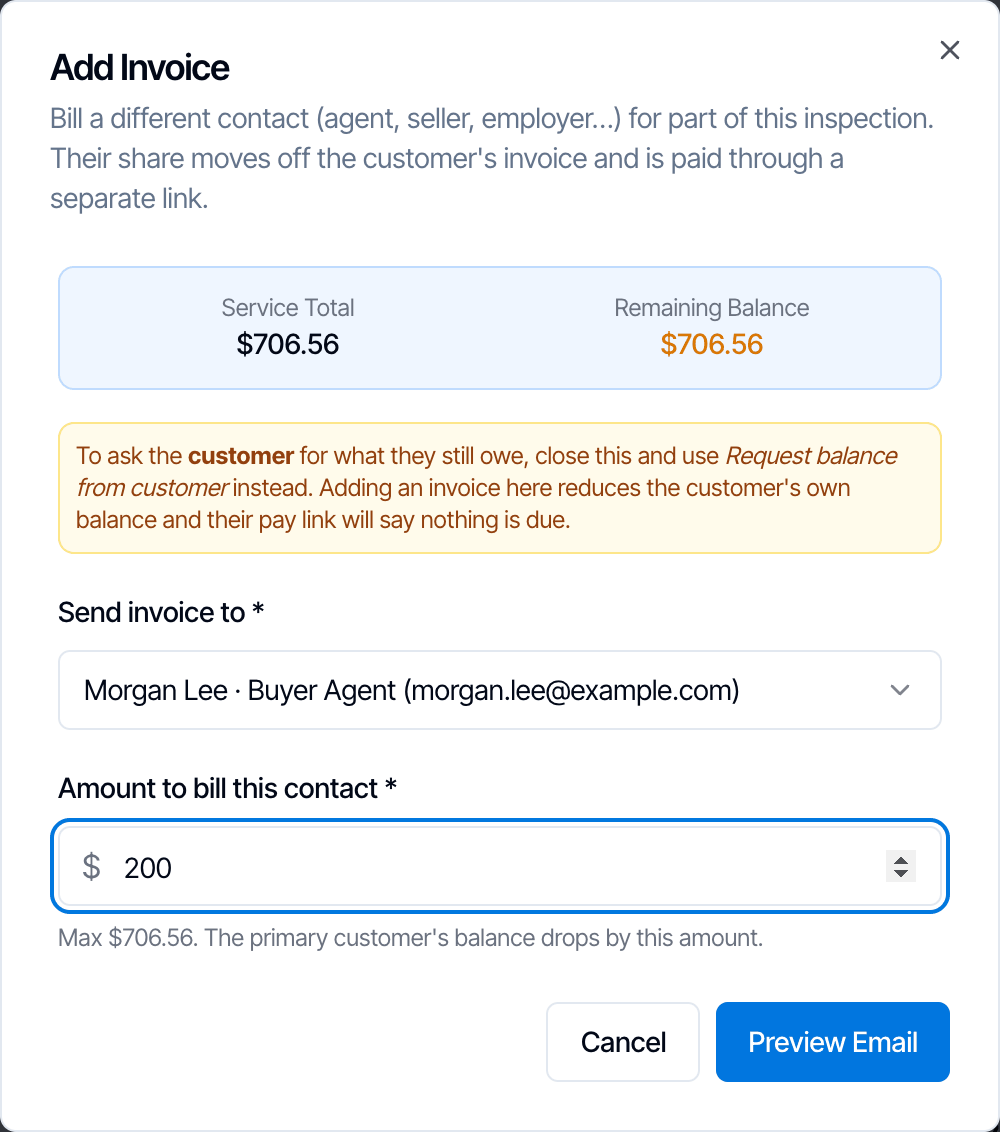
Click Preview Email
Check the email before it goes out. The preview shows who it’s to, the subject and the message.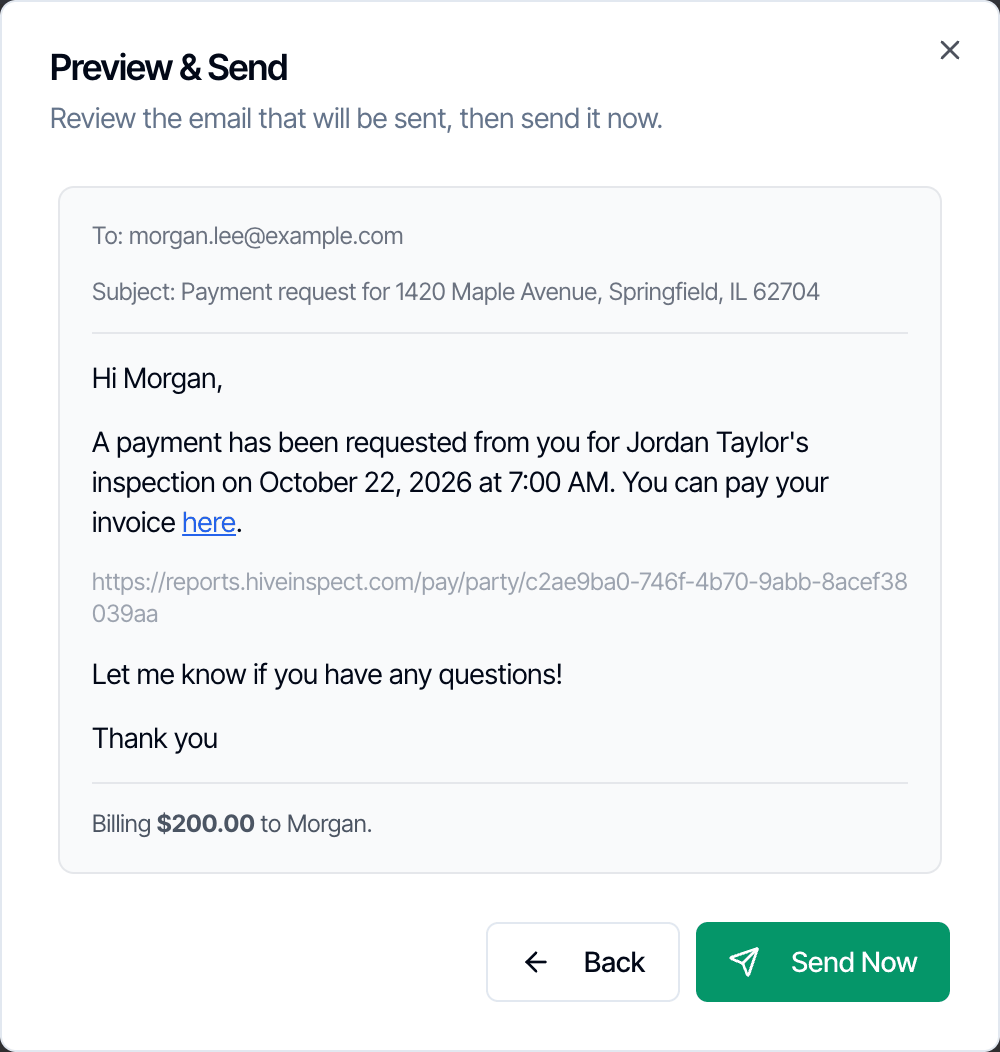
The payment request email
The email doesn’t state the amount. They see it when they open the link. If you want to explain the split, add a note in a separate email or text.
The email is logged in the inspection’s automation history as Payment Request, so you can see when it went out.
What the agent sees and how they pay
The link opens the same payment page your client uses, but only for their share. They see the amount due and the ways you accept payment:- Pay by Card. When you pass the 4% Technology Fee on, it’s added to their share, as for any card payment. See Technology Fee.
- Bank Transfer (ACH). Their share shows as Processing until the transfer clears.
- Buy Now, Pay Later with Affirm, when their share is between $35 and $30,000.
- Pay Another Way, showing your payment instructions, if you turned it on.
Track and manage shares
After you send a share, the card changes: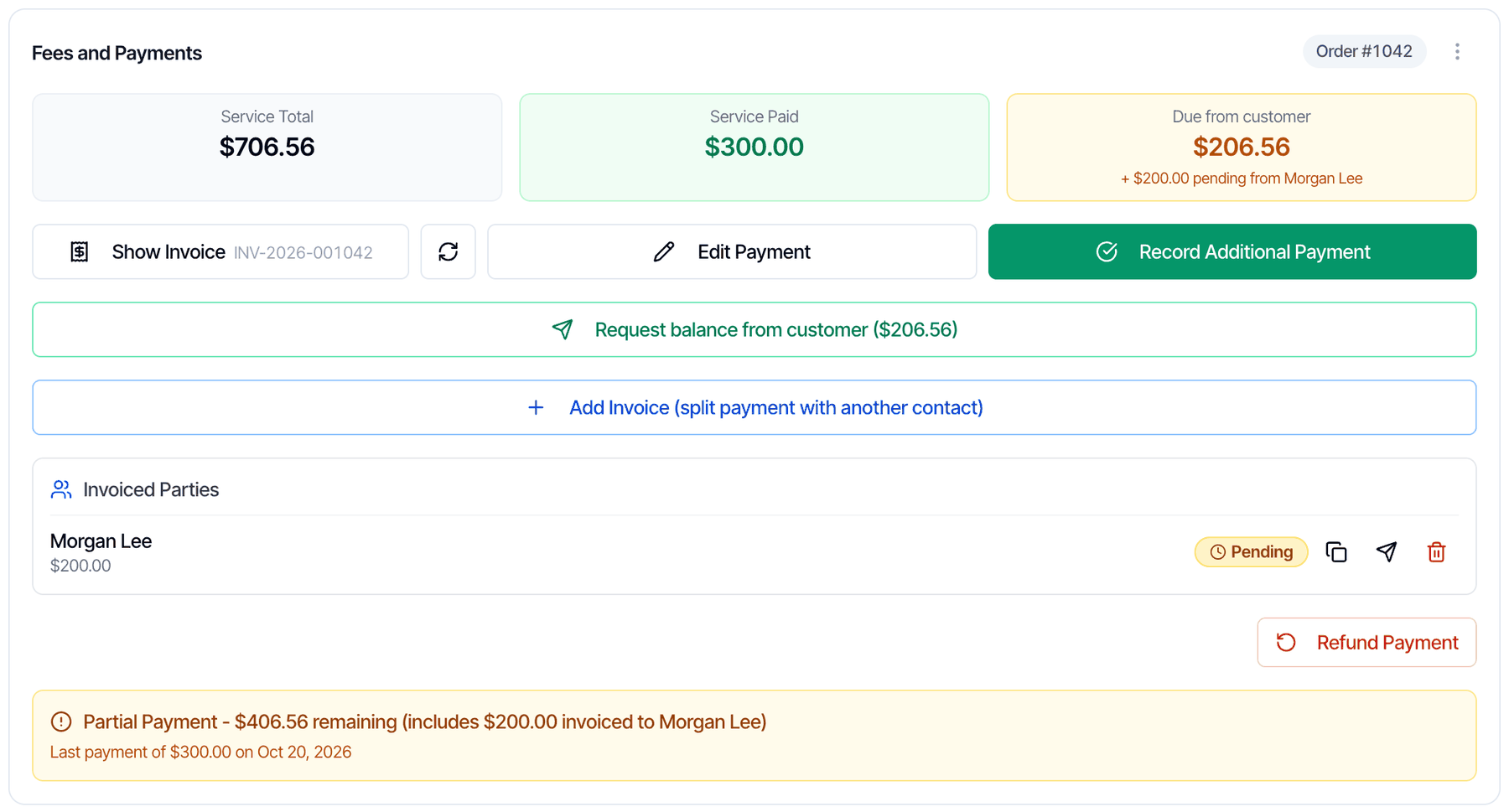
- Service Due becomes Due from customer: the client’s part only. Under it, ”+ $X pending from [name]” shows each unpaid share.
- Invoiced Parties lists every share with its amount and status:
- Pending: not paid yet.
- Processing: paid by bank transfer, waiting to clear.
- Paid: done.
- The Partial Payment banner shows the total still owed by everyone, for example “Partial Payment - $406.56 remaining (includes $200.00 invoiced to Morgan Lee)”.
A paid share has no buttons. You can’t cancel or resend it.
How the balances work
Here’s an example. The inspection costs $706.56. The client paid a $300 deposit, and you bill the buyer’s agent $200.
What to expect:
- Your client’s link asks only for the client’s part. That’s $206.56 here. Request balance from customer also asks for that amount.
- The status stays Pending until someone pays something. It’s Partial while anyone still owes money, and Paid once everyone has paid.
- Payment Received automations run when the whole inspection becomes Paid, whoever pays last.
- The report stays locked for the client until every share is paid and the agreements are signed. To release it sooner, use Manual Lock Override for Reports in Quick Actions. See When clients can see the report.
- The invoice is rebuilt when a share is paid. It lists the payment as “Paid by” with the person’s name. The client sees this invoice in their portal.
If the price changes after you split
A share keeps its amount. Any price change goes on the client’s balance. For example, if you add a $175 radon test, the client owes $175 more, and the agent still owes $200. To change a share, cancel it and send a new one with the right amount.If the agent pays another way
If the agent pays you by check, cash or any way outside their link:- Click Cancel invoice on their share. This puts the amount back on the client’s balance.
- Click Record Additional Payment (or Record Payment) and record what they gave you. Add a note, such as “Check #2041 from Morgan Lee, buyer’s agent”, in Internal Notes.