

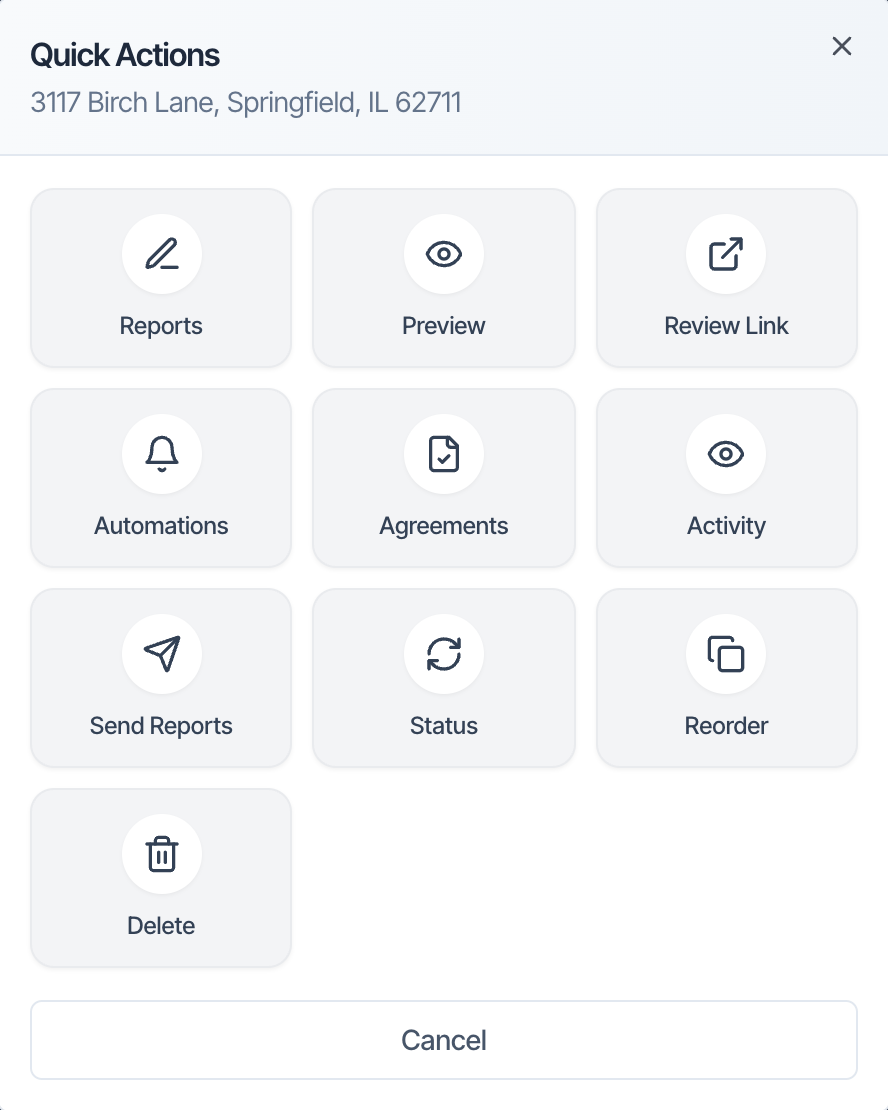
In the dashboard: open the inspection, then Quick Actions → Automations. From the Inspections list: ⋮ → Automations.
Every inspection has its own Automation History page. It lists each email and text Hive has sent, will send or has stopped for that inspection, one entry per person. Use it to answer “did my client get the confirmation?”, see when an email was opened, find out why a reminder didn’t go out, and send something again.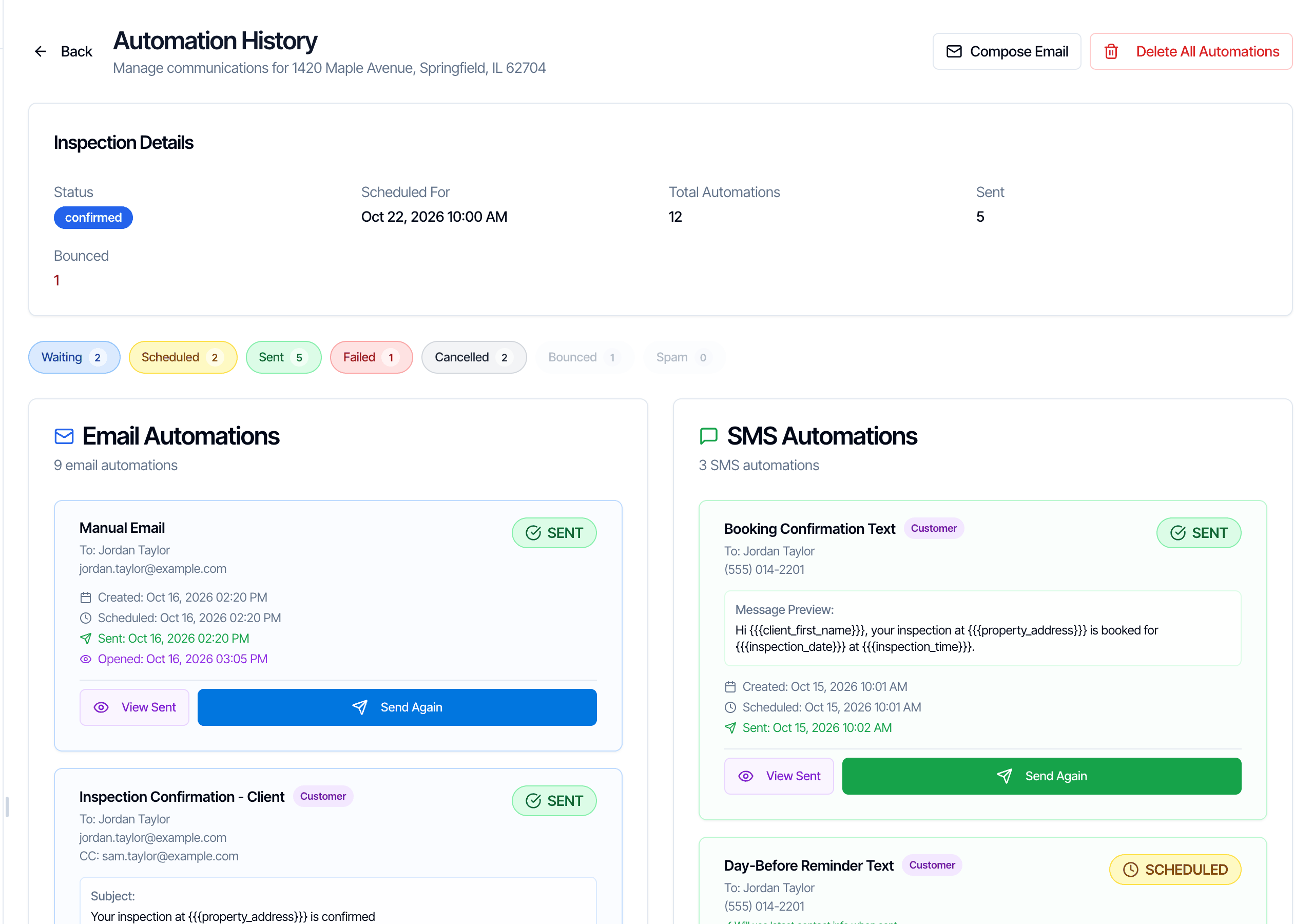
Open the Automation History
You can get there two ways. Both open the same page.- From the inspection's page
- From the Inspections list
- Open the inspection from the Inspections page.
- In the Quick Actions card near the top, click Automations.

What’s on the page
From top to bottom:- Compose Email writes a one-off email to anyone on the inspection. See Send an email by hand with Compose Email.
- Delete All Automations removes every message for this inspection. See Delete all automations.
- Inspection Details shows the inspection’s status, date and time, how many messages there are, how many were sent and, if any, how many bounced or were marked as spam.
- Status filters narrow the list (see Filter the list).
- Email Automations on the left and SMS Automations on the right. Each message is a card.
An automation appears once per recipient. If an automation goes to the Customer and the inspection has two clients, you see two cards, one for each client. An automation that goes to both the client and the agent shows a card for each of them.
What each status means
Read a message card
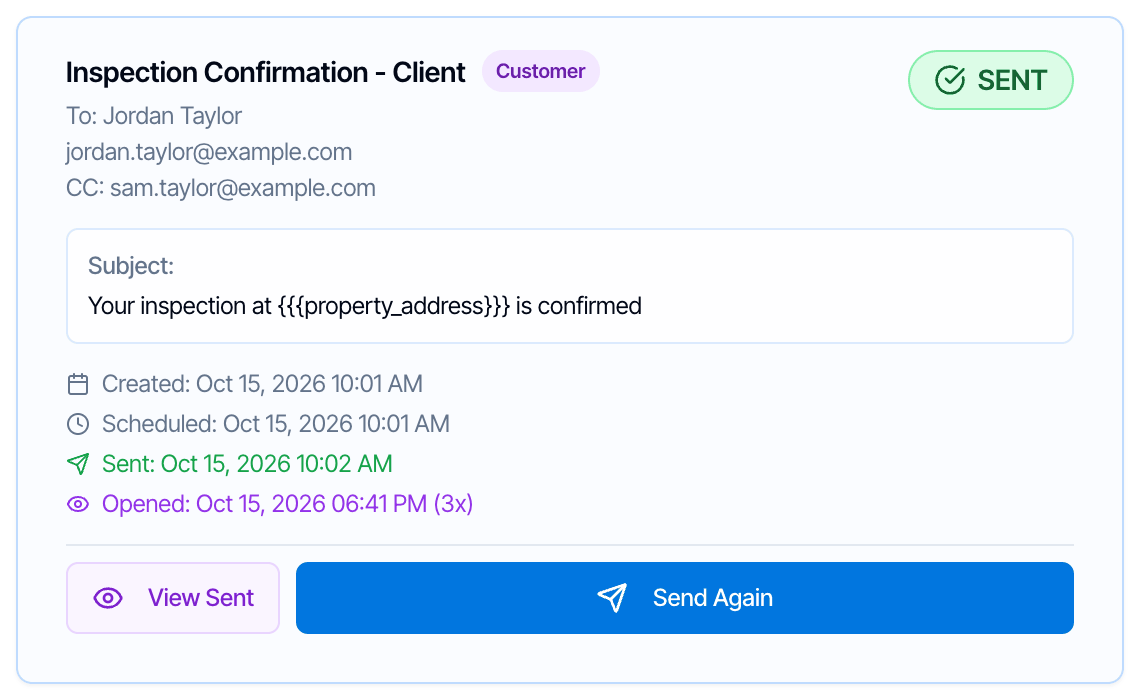
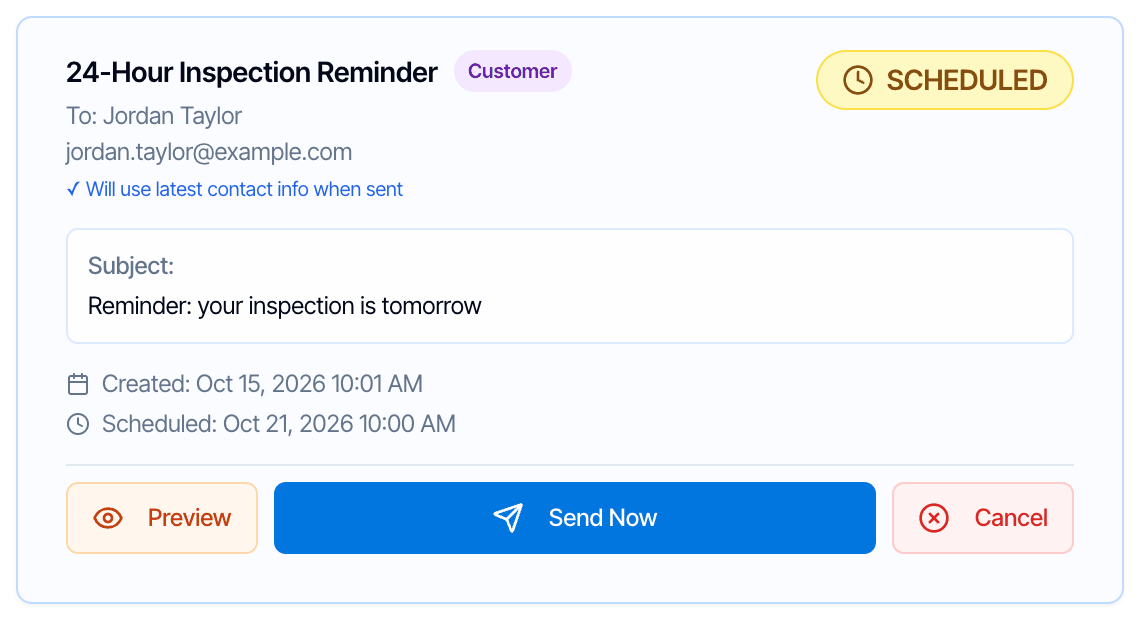
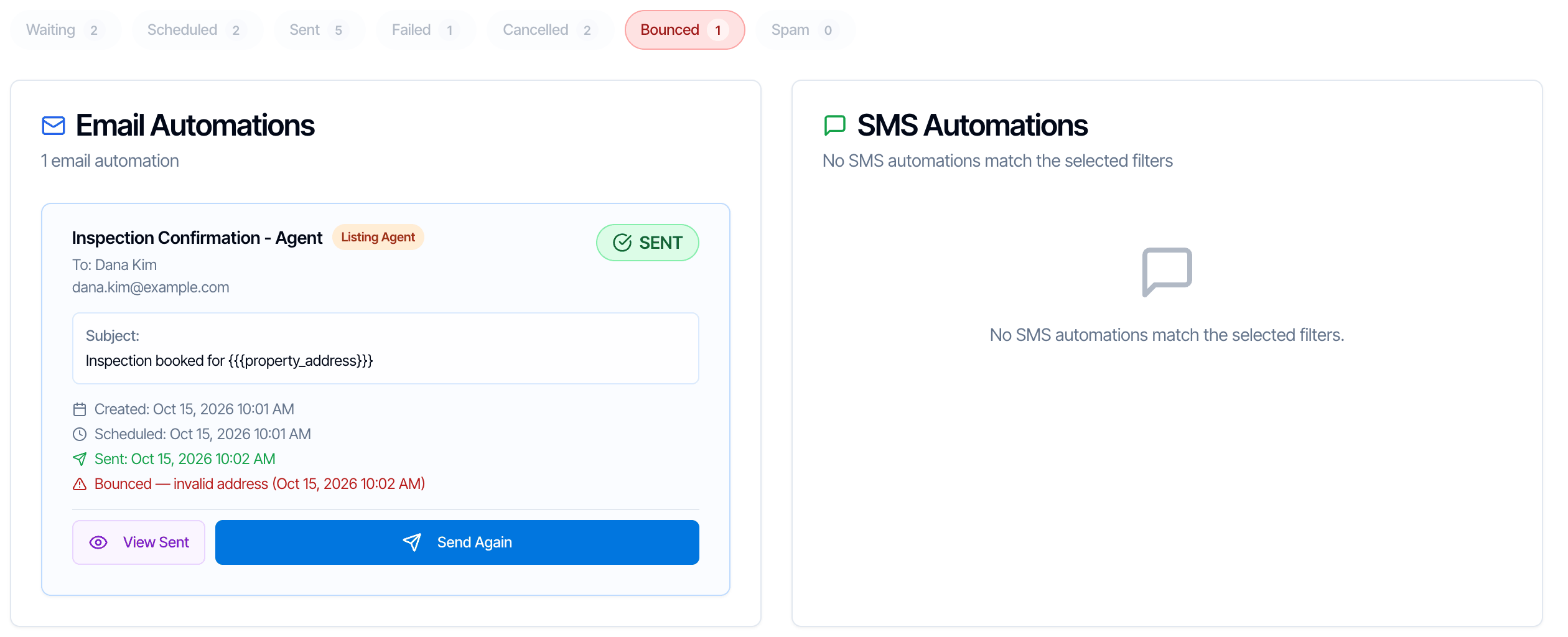
- The automation’s name and a badge with the recipient’s role (Customer, Buyer Agent, Listing Agent, Inspector and so on).
- To: the person’s name and email address (or mobile number for a text). CC: lists any addresses that were copied. CC skipped lists CC entries left out because they weren’t valid email addresses.
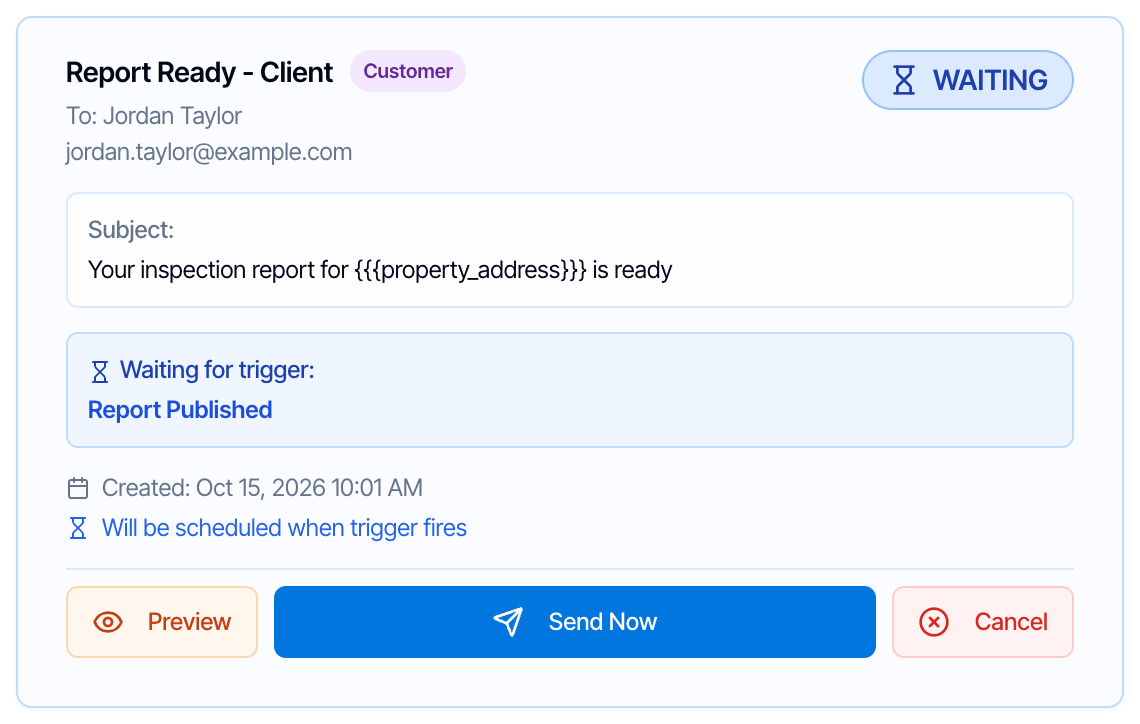
- Subject (emails) or Message Preview (texts). This is the automation’s wording with its placeholders, for example
{{{property_address}}}. Click View Sent or Preview to see it filled in. - Created: when Hive added the message to this inspection. Scheduled: when it was due to go out. Sent: when it went out.
- Opened: when the recipient last opened the email, and how many times (for example (3x)). Not opened yet means no open has been recorded.
Opens are a guide, not proof. Some email apps load emails automatically, which counts as an open even if nobody read it. Others block the tracking, so an email can be read without ever showing Opened. Texts don’t have open tracking.
Bounced emails
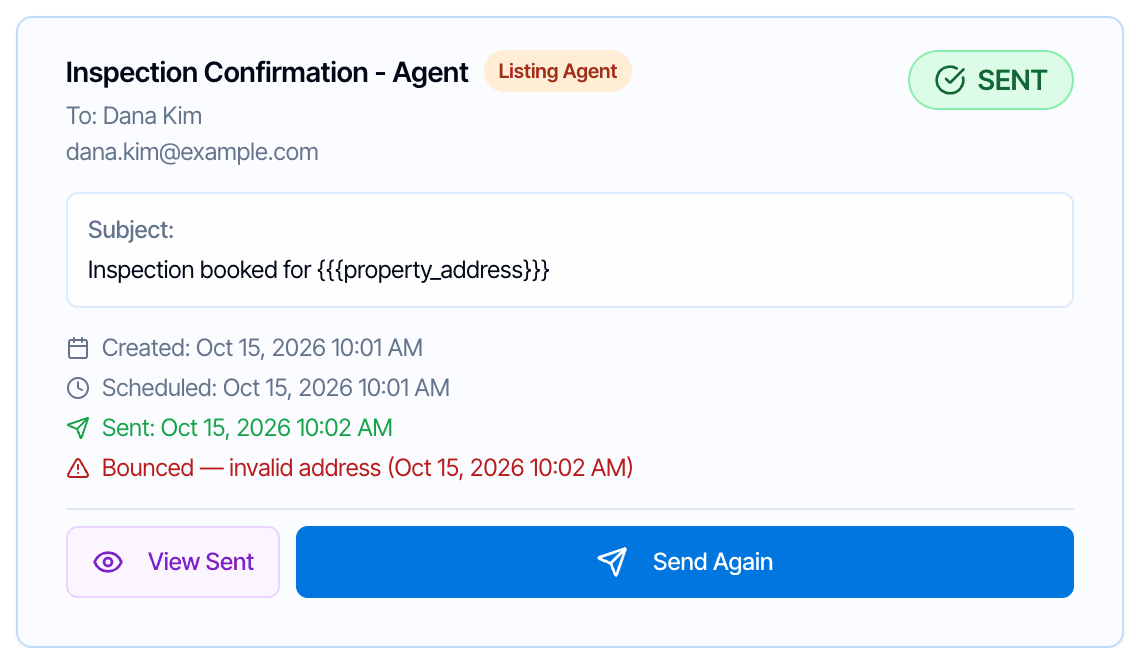
- Bounced — invalid address (red): the address doesn’t exist. Correct the contact’s email, then click Send Again.
- Bounced — temporary issue (amber): the mailbox was full or the server was busy. Try Send Again later.
- Marked as spam: the recipient reported the email as spam.
Scheduled messages
Waiting messages
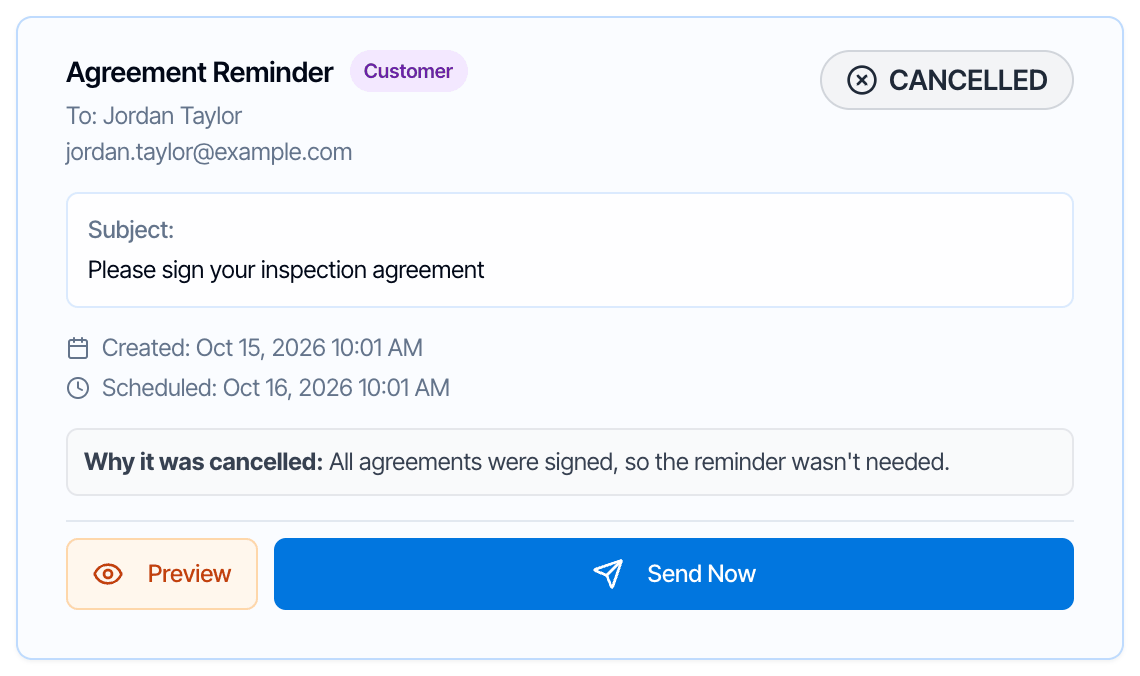
Cancelled messages
Texts
Text messages have their own column with the same statuses and buttons. The Message Preview shows the first 150 characters of the automation’s wording. Texts can’t bounce or be marked as spam, and Hive can’t tell whether they were read.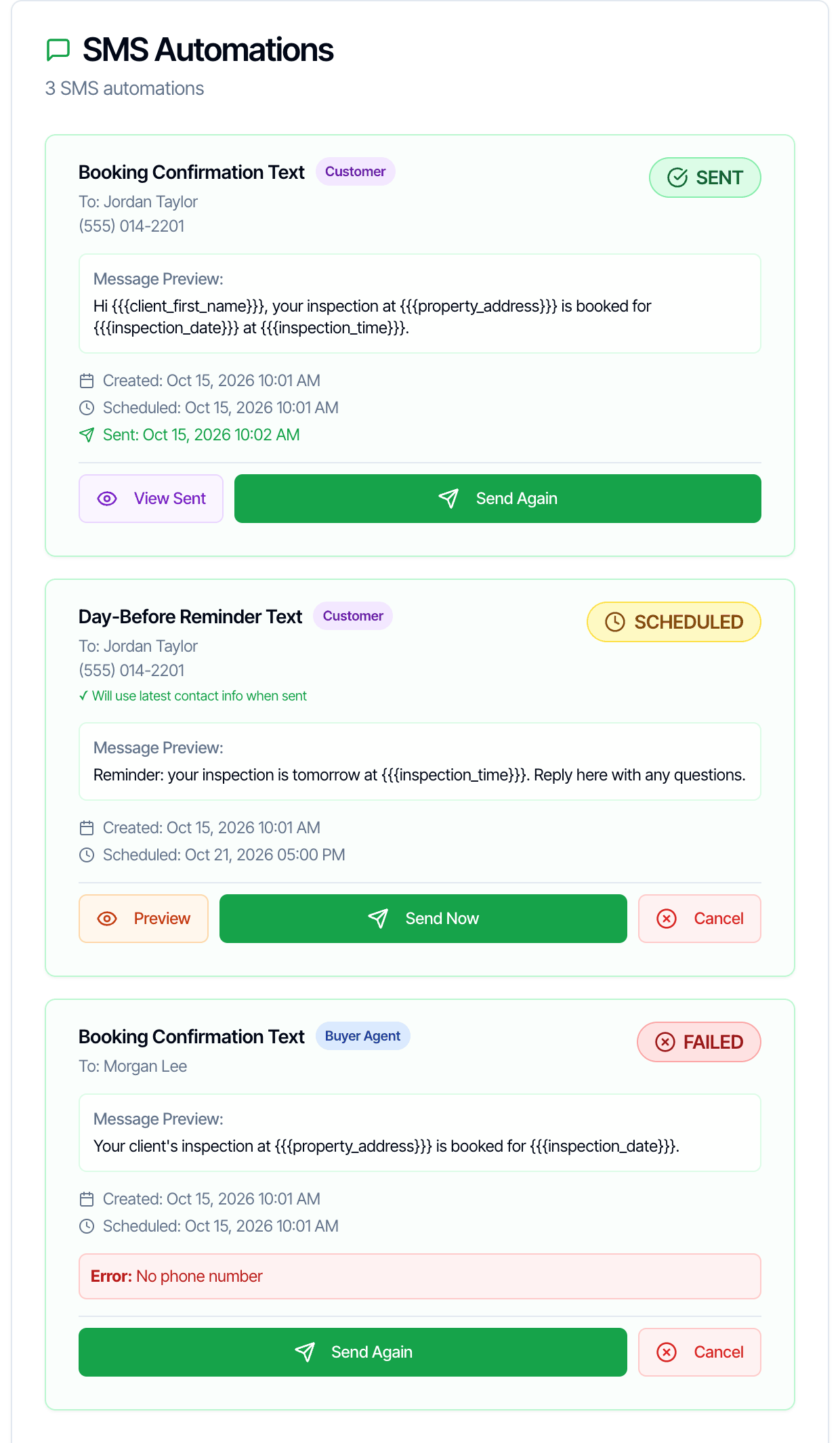
Filter the list
The coloured buttons under Inspection Details turn statuses on and off. Each shows how many messages have that status. All of them except Bounced and Spam are on when the page opens.
See exactly what was sent: View Sent
Click View Sent on a sent message. The Sent Email Content (or Sent SMS Content) window shows the subject and message exactly as the recipient got them, with the placeholders filled in, plus the recipient, CC, send time and open count.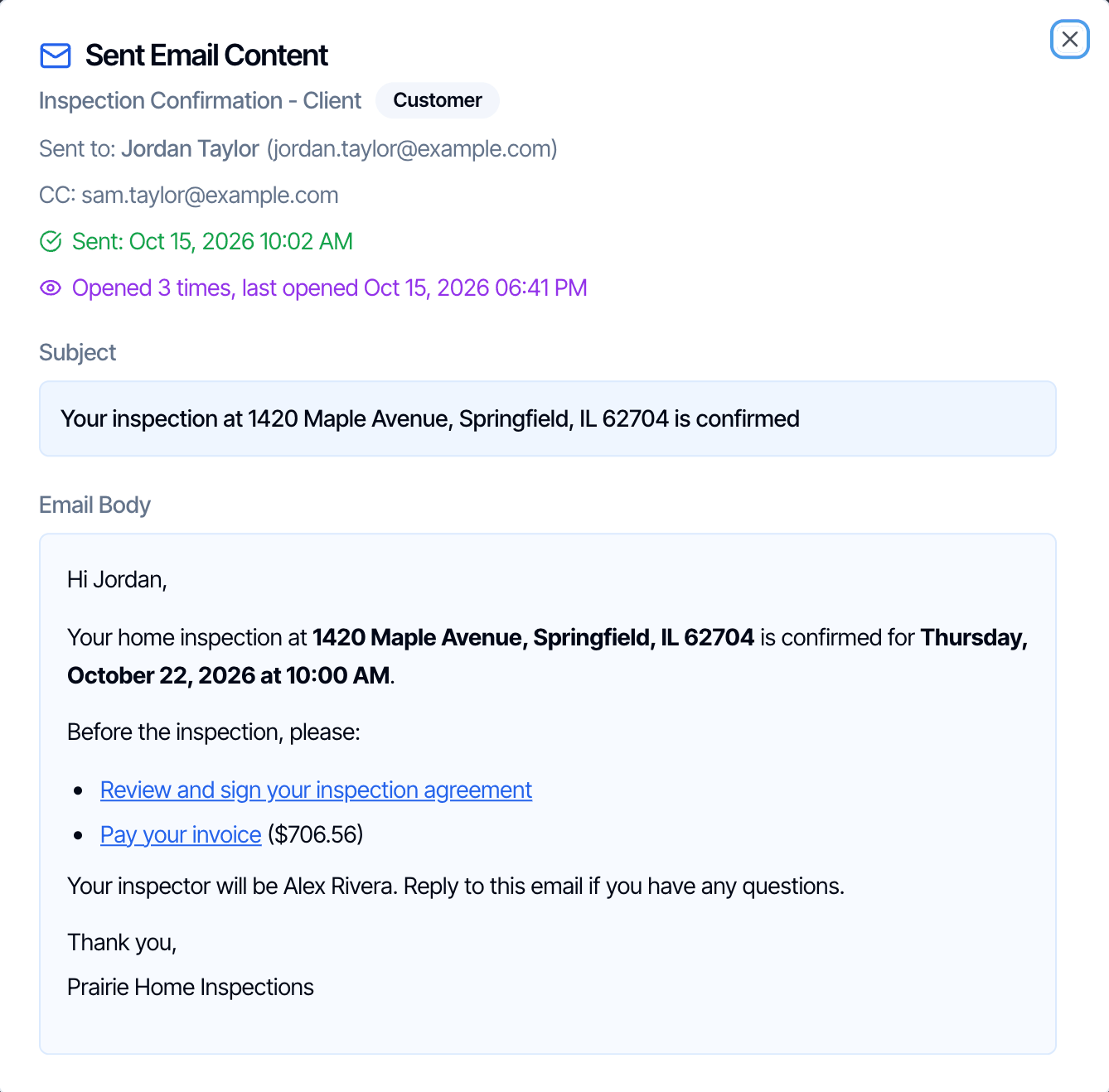
See what will be sent: Preview
Click Preview on a waiting, scheduled or cancelled message. The Email Preview (or SMS Preview) window fills in the placeholders with the inspection’s current details, so you see the message as it would go out right now.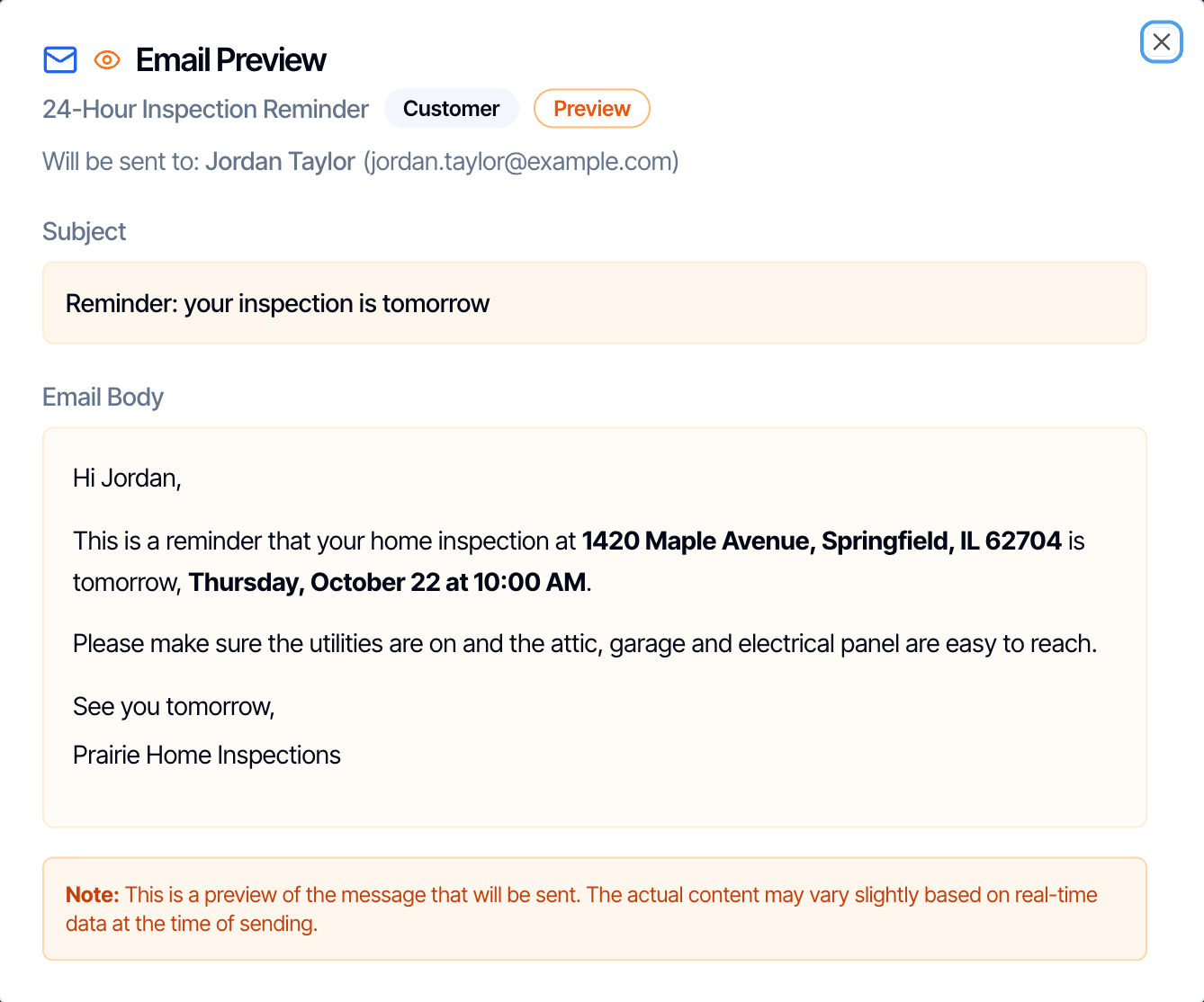
Send a message now: Send Now
Send Now is on waiting, scheduled and cancelled messages. It sends a copy straight away:- It skips the automation’s filters and send conditions, even if the agreement is already signed or the inspection is already paid, so check the message before you click.
- It still waits for the automation’s Sleep Hours. During sleep hours Hive tells you the time it will go out.
- It sends to the contact’s current email or phone.
- The copy shows up as a new Sent card.
Send a message again: Send Again
Send Again is on sent and failed messages. Use it when:- the client says they never got the confirmation or the report email;
- you fixed a wrong email address or phone number on the contact;
- a message failed and you’ve fixed the cause.
Stop a message for this inspection: Cancel
Cancel is on waiting, scheduled and failed messages. The message becomes Cancelled with “Cancelled by a team member.” and won’t send. Other inspections aren’t affected. Use it to stop a single message, for example:- the report email to an agent your client doesn’t want to receive the report;
- the reschedule notice before you change the time, if you want to reschedule quietly;
- a reminder for a client who already confirmed by phone.
Delete all automations for one inspection
Delete All Automations at the top of the page removes every message for this inspection: waiting, scheduled, sent, cancelled and failed.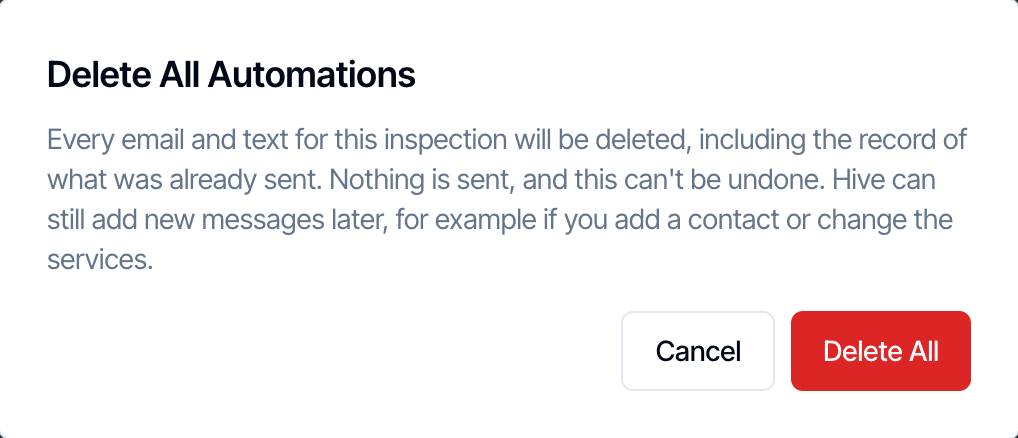
- Nothing is sent. Waiting and scheduled messages simply stop.
- The history is deleted too. You can no longer see what was sent or when it was opened, and you can’t bring it back.
- Other inspections and your automations themselves aren’t touched.
- Hive can still add new messages to this inspection later, for example when you add a contact to it or change its services.
Emails you sent with Compose Email
When you send an email from Compose Email with an inspection selected, it’s saved here as Manual Email, one card per To recipient, with its opens and bounces.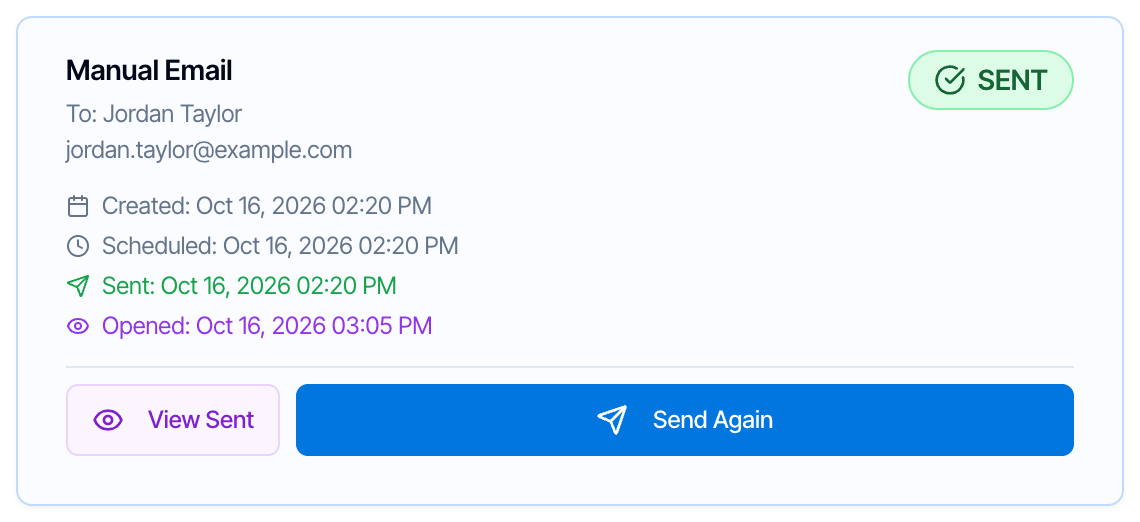
Common questions
My client says they never got the confirmation email. What do I check?
My client says they never got the confirmation email. What do I check?
- Open the inspection’s Automation History and find the confirmation for that client.
- Sent with Opened: it arrived and was opened. Ask them to search their inbox for your company name.
- Sent, Not opened yet: it was delivered. Ask them to check their spam or junk folder. See Why are my emails going to spam.
- Bounced — invalid address: the email address is wrong. Fix it on the contact, then click Send Again.
- Failed: read the Error line. Usually the contact has no email. Add it, then click Send Again.
- Cancelled: read Why it was cancelled. Click Send Now if it should still go out.
- Not on the list: the automation didn’t apply to this inspection. See Why didn’t my automation send?.
Why don't I see an automation I created?
Why don't I see an automation I created?
Automations you create or import later are added only to inspections booked afterwards, unless you chose Include existing future inspections when you saved it. It’s also missing if it’s limited to other services, or the inspection has no one with the recipient’s role (for example no listing agent). See Save your changes.To send it to this inspection anyway, use Compose Email and pick the automation as the email template.
I clicked Send Now on a reminder. Will the client get it twice?
I clicked Send Now on a reminder. Will the client get it twice?
Yes, unless you cancel the original. Send Now sends a copy and leaves the original scheduled. Click Cancel on the original reminder (the one still Scheduled) to stop the second send.
Why does the subject on the card show {{{placeholders}}}?
Why does the subject on the card show {{{placeholders}}}?
The card shows the automation’s wording. The placeholders are filled in when the message is sent. Click View Sent (sent messages) or Preview (waiting and scheduled ones) to see the filled-in version.
Can I edit one message for just this inspection?
Can I edit one message for just this inspection?
No. Edits to an automation apply to every inspection. To send different wording to one client, Cancel the message here and send your own with Compose Email.
Does deleting or canceling the inspection clear this page?
Does deleting or canceling the inspection clear this page?
No. Canceling the inspection stops the waiting and scheduled messages (they show as Cancelled, “The inspection was cancelled.”) and sends any Inspection Cancelled automations. Deleting the inspection stops them too and sends nothing. See Inspection statuses and Delete an inspection.