In the dashboard: Business Tools → Payments

This page walks you through setting up payments from start to finish: connecting Stripe, picking the ways clients can pay, deciding who covers card fees, and writing the text that appears on your payment page and invoices. Follow the steps in order the first time. After that, use it as a reference. To open the page, click Business Tools in the left menu, then the Payments card.

Setup at a glance

1

Check your business country

It sets the currency you charge in: US dollars or Canadian dollars. Go to step
2

Connect Stripe

Link your own Stripe account so clients can pay online. Go to step
3

Learn what each method costs

Cards, bank transfer, Affirm, offline payments and Pay at Close each cost something different. Go to step
4

Turn on your payment methods

Decide how clients can pay, and who covers the card fee. Go to step
5

Write your payment instructions and invoice text

Tell clients how to pay you outside Stripe, and add your license number or terms to every invoice. Go to step
6

Check what your clients see

Look at the payment page from your client’s side. Go to step
Settings on this page save automatically. The bottom of the settings card shows Saving…, then Saved. If it shows Failed to save, refresh the page and make the change again.
The account owner can always open this page. Other team members need the Manage Subscriptions permission, which the owner turns on in Teams. Without it they see Access Denied. See Who can change payment settings.

Step 1: Check your business country

The top of Payment Settings shows which currency your Stripe payments use. A blue notice titled Collecting Stripe payments in USD. It says the business country is United States, so all Stripe charges, invoices and client checkout, are collected in USD; United States collects in USD and Canada collects in CAD, and this should match the country of the connected Stripe account. To change it, update Country under Address Information in Profile Settings

  • United States charges in USD.
  • Canada charges in CAD.
  • Any other country, or no country, charges in USD.
The currency comes from Country under Address Information in Profile Settings, not from this page. Set it before you take your first payment, and make sure it matches the country of your Stripe account.
In Canada, clients can pay by card or Pay Another Way only. Bank transfer (ACH), Affirm and Pay at Close are for US businesses. On a Canadian account, bank transfer and Affirm are marked US only: clients of Canadian businesses won’t see this option. Turning them on has no effect.

Step 2: Connect Stripe

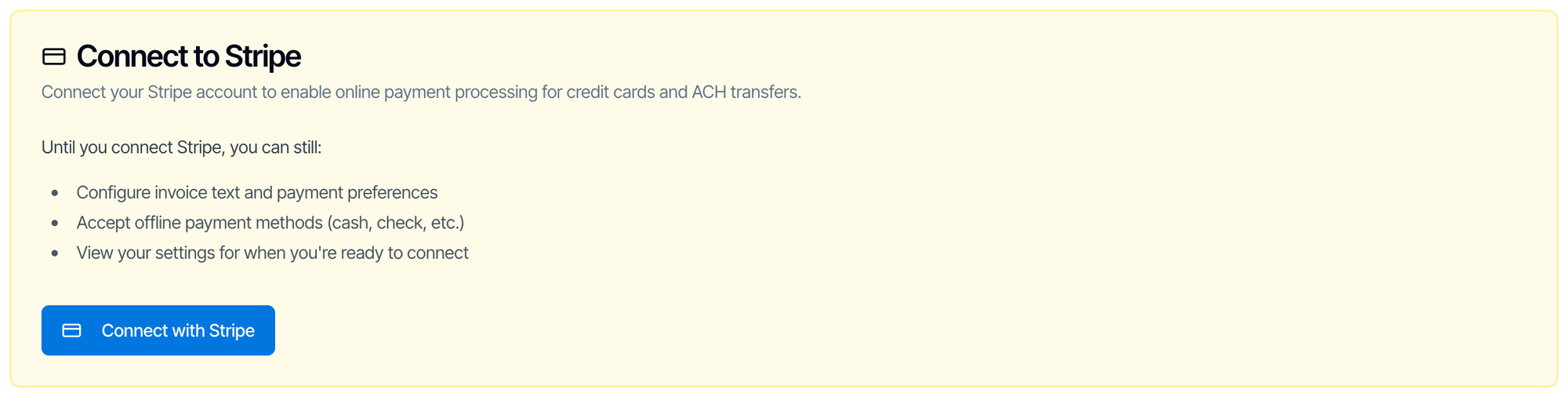
Online payments in Hive Inspect run through Stripe. You connect your own Stripe account. Clients’ money goes into it, and Stripe pays it out to your bank account. Hive never holds your money. Until you connect, the top of the page shows a Connect to Stripe card: A yellow card titled Connect to Stripe: Connect your Stripe account to enable online payment processing for credit cards and ACH transfers. Until you connect Stripe, you can still configure invoice text and payment preferences, accept offline payment methods such as cash and check, and view your settings for when you're ready to connect. A blue Connect with Stripe button is at the bottom
1

Click Connect with Stripe

Stripe opens in the same tab.
2

Sign in to Stripe, or create an account

If you already have a Stripe account, sign in to it. If not, create one there. It’s free to open.
3

Answer Stripe's questions

Stripe asks for your business details, the bank account for your payouts, and details to verify your identity. Have your EIN or SSN (in Canada, your business number or SIN) and your bank details ready.Pick the right business category. When Stripe asks what your business does, choose a professional services category. Stripe’s code for it is MCC 8999 (Professional Services). Contractor or trade categories block Affirm. See Affirm is locked.
4

Come back to Hive Inspect

Stripe sends you back to the Payments page with the message Your Stripe account has been connected successfully. The Connect to Stripe card goes away, and you can now turn on card, bank transfer and Affirm payments.
If you’re on a free trial, the Finish setting up your account checklist ticks off Connect Stripe at this point.

If the connection doesn’t finish

Stripe may still be checking your details after you connect. Until Stripe allows charges on your account, Create Invoice stays greyed out, and client card payments can fail. Open your Stripe Dashboard and finish anything Stripe asks for.

Before you connect

Card, bank transfer and Affirm show Locked and Connect Stripe to enable. You can already turn on Accept other payment methods, write your payment instructions and add your invoice text. The Accept credit / debit cards option greyed out with a Locked badge and the warning Connect Stripe to enable

Step 3: Learn what each payment method costs

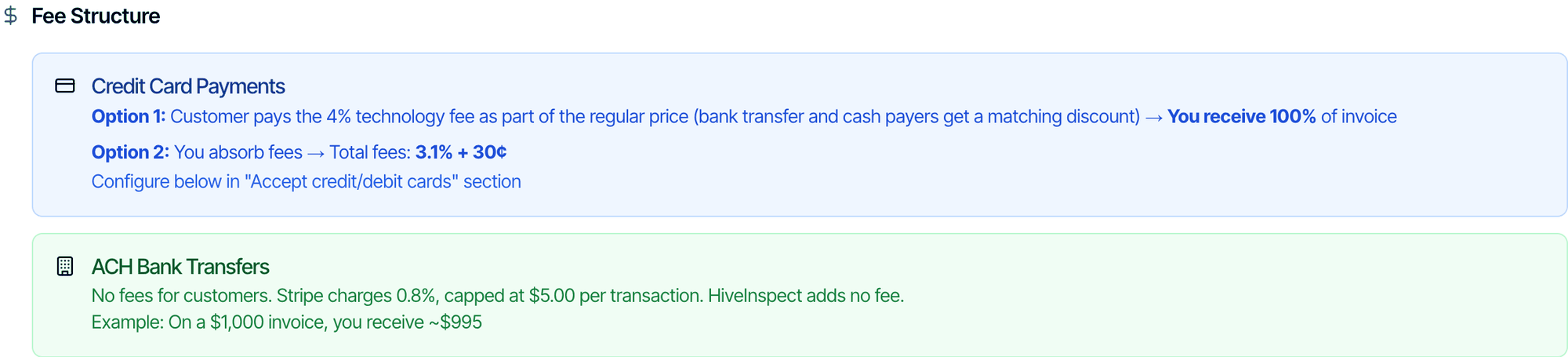
The Fee Structure box sums up card and bank transfer costs: The Fee Structure section. Credit Card Payments: Option 1, the customer pays the 4% technology fee as part of the regular price, with a matching discount for bank transfer and cash payers, so you receive 100% of the invoice. Option 2, you absorb fees, total fees 3.1% plus 30 cents. ACH Bank Transfers: no fees for customers; Stripe charges 0.8%, capped at 5 dollars per transaction, and HiveInspect adds no fee “Your price” is the total of the inspection’s services and fees. When you pass the card fee on, clients who don’t pay by card get a 4% discount, so every method except a card costs them the same. Card amounts assume Stripe’s standard pricing. International cards and currency conversion cost extra, and Stripe takes that from your payout.
Step 4: Turn on your payment methods

Under Payment Methods, flip a switch on to accept that method. Methods that are on are colored and show ON. The counter on the right, such as 3 of 5 enabled, shows how many are on. Keep at least one method on. If none is on, clients see the amount they owe but have no way to pay it.

Credit and debit cards

Accept credit / debit cards takes Visa, Mastercard, American Express and Discover through Stripe. Clients can also pay with Apple Pay or Google Pay on Stripe’s checkout page. Most clients pay by card, so turn this on.

Absorb credit card fees

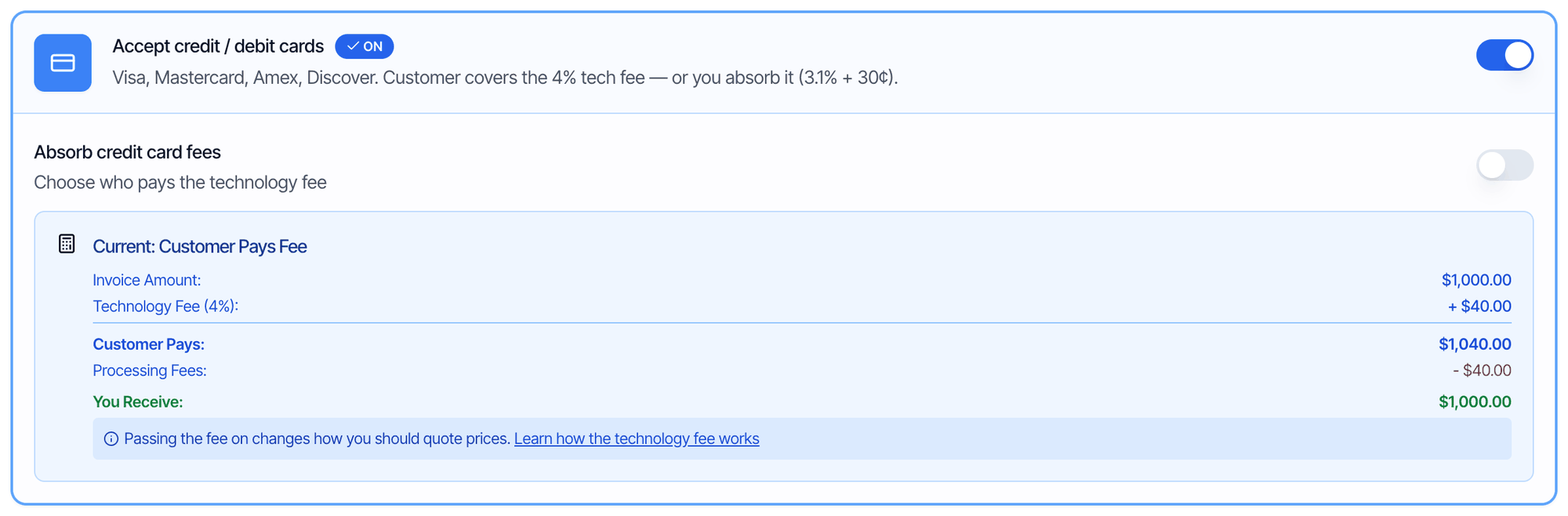
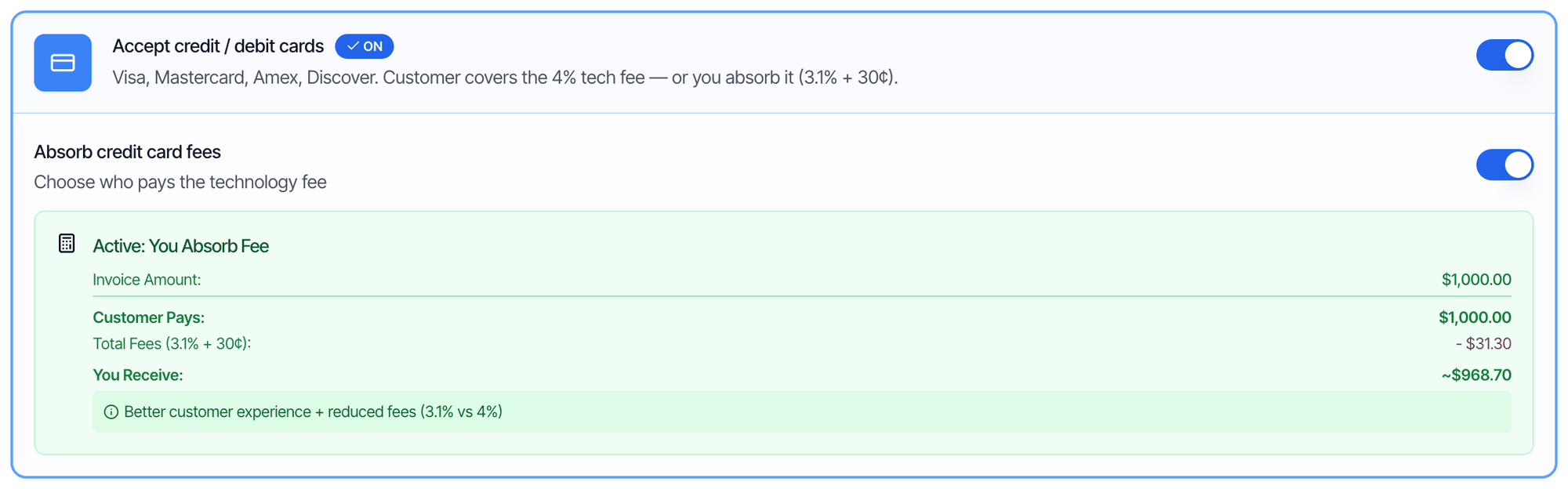
Once cards are on, choose who covers the cost of card payments with Absorb credit card fees. The box under the switch shows an example on a $1,000 invoice.
Accept credit / debit cards switched on, with Absorb credit card fees switched off. The box Current: Customer Pays Fee shows an invoice amount of 1,000 dollars, a 4% technology fee of 40 dollars, the customer pays 1,040 dollars, processing fees of 40 dollars, and you receive 1,000 dollars. A note says passing the fee on changes how you should quote prices, with a link to how the technology fee worksYour regular price includes a 4% Technology Fee, and you receive 100% of your price. Clients who pay by bank transfer, cash, check, Affirm or Pay at Close get a matching discount.For example, on a $500 inspection, card payers pay $520. Everyone else pays $500.This changes how you quote prices. Quote the regular price ($520) first, then the discount for not paying by card. Don’t quote $500 and add 4% at checkout. Read Technology Fee before you turn this on. It explains the rules and the wording to use.
You can change who pays the fee on a single inspection without changing this setting. See Technology Fee: for a single inspection.

ACH bank transfers

Accept ACH bank transfers lets clients pay straight from their US bank account. Stripe charges you 0.8%, capped at $5.00, so it’s the cheapest online method on large invoices. If you pass the card fee on, bank payers get the 4% discount. Bank transfers take time. The money usually clears in 1 to 4 business days.

Mark payment as paid only when ACH settles

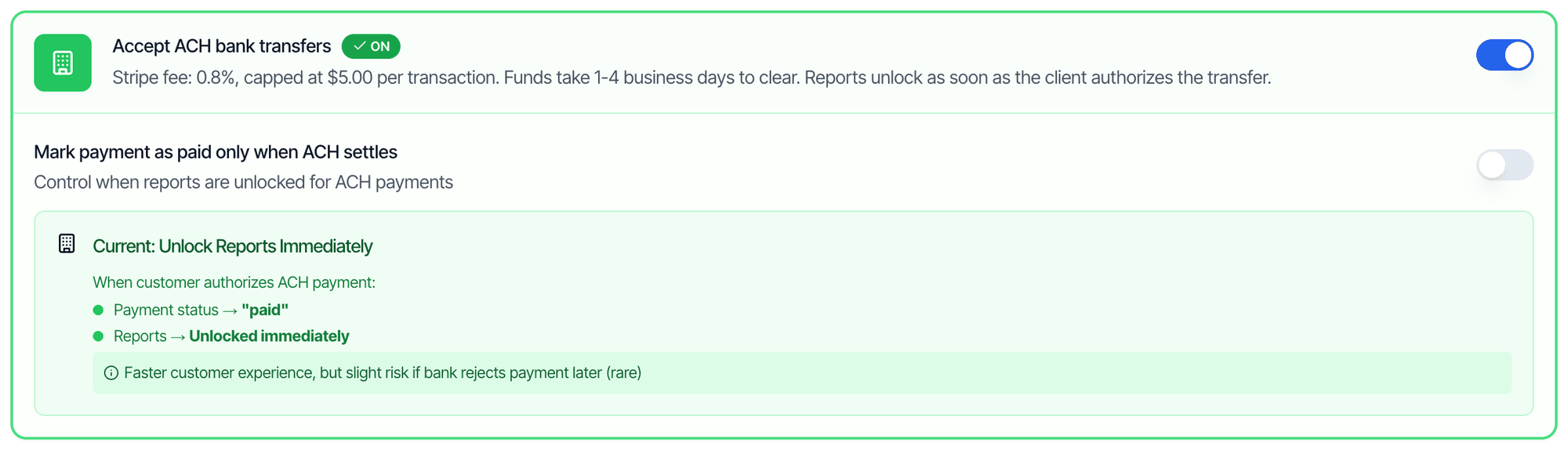
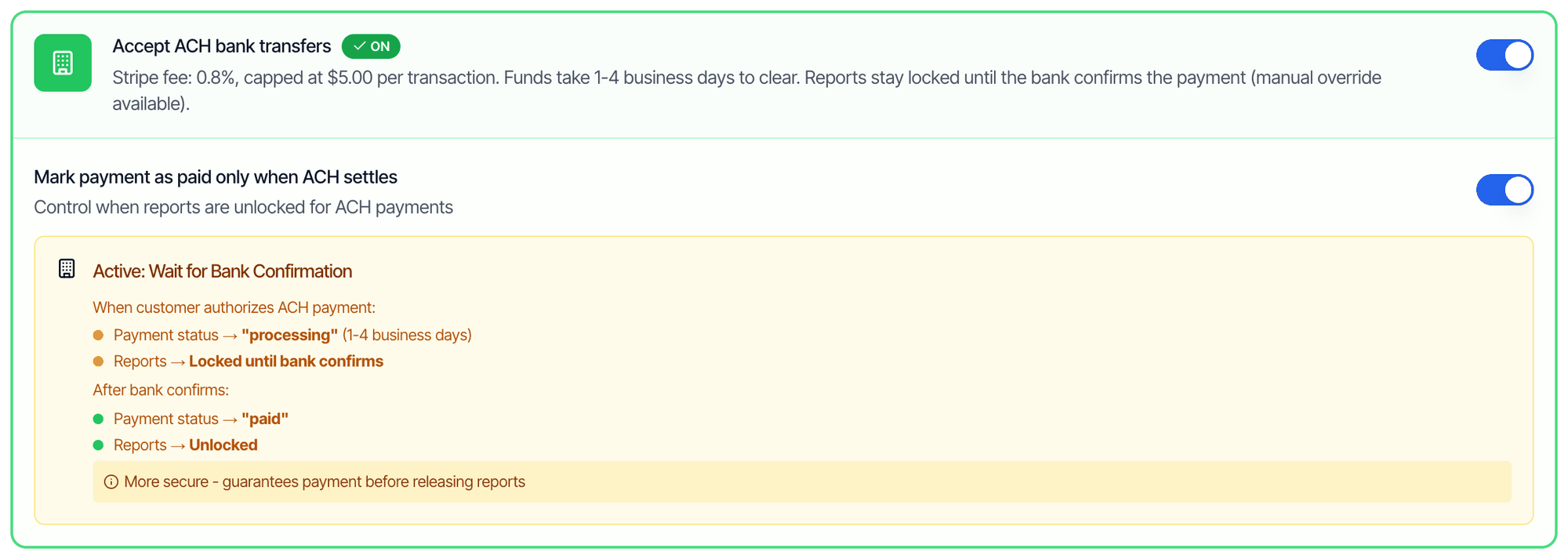
This switch decides what happens while a bank transfer is clearing.
Accept ACH bank transfers switched on, with Mark payment as paid only when ACH settles switched off. The box Current: Unlock Reports Immediately says that when the customer authorizes the ACH payment, the payment status becomes paid and reports are unlocked immediately. A note says faster customer experience, but slight risk if the bank rejects the payment later, which is rareAs soon as the client authorizes the transfer, the inspection is marked paid and the report unlocks. Your client gets the report straight away.The risk: if the client’s bank rejects the transfer days later, for example because there isn’t enough money in the account, Hive doesn’t undo the payment. The inspection stays marked paid. If Stripe tells you a bank payment failed, open the inspection, click Edit Payment under Fees and Payments, then Clear Payment & Reset to Pending, and ask the client to pay again.

Affirm (buy now, pay later)

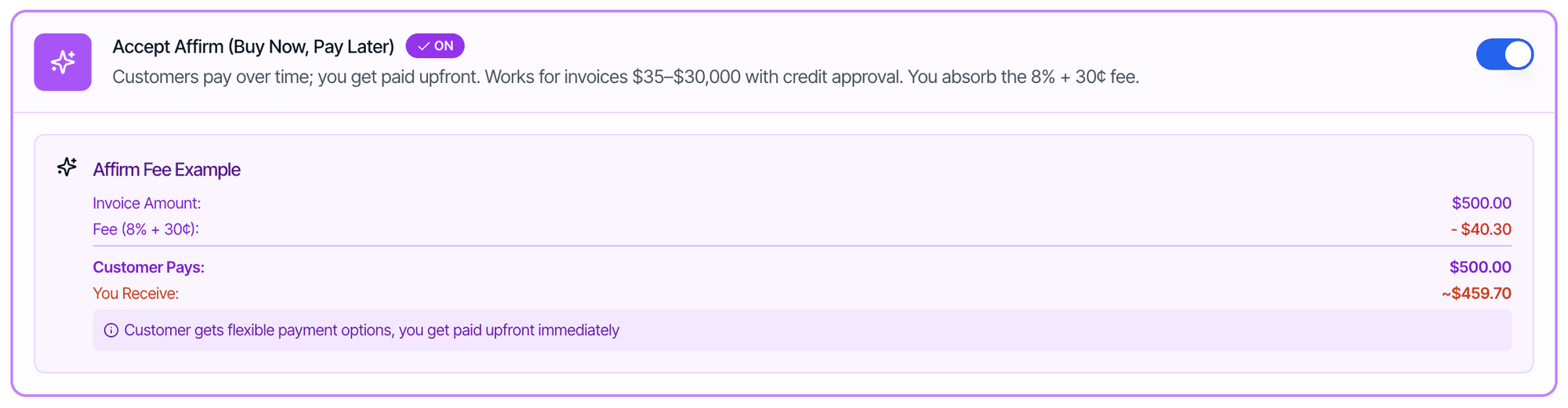
Accept Affirm (Buy Now, Pay Later) lets clients split the inspection fee into payments over time. Affirm approves the client and pays you the full amount upfront, minus 8% + 30¢. You must absorb this fee. Passing it to the client would make you a lender. Accept Affirm (Buy Now, Pay Later) switched on. Customers pay over time and you get paid upfront; it works for invoices from 35 to 30,000 dollars with credit approval, and you absorb the 8% plus 30 cent fee. The Affirm Fee Example shows a 500 dollar invoice, a fee of 40.30 dollars, the customer pays 500 dollars and you receive about 459.70 dollars
  • The Affirm option only appears on the payment page for amounts from $35 to $30,000.
  • Affirm decides whether each client is approved, at checkout.
  • Affirm is for US businesses only.

Affirm is locked

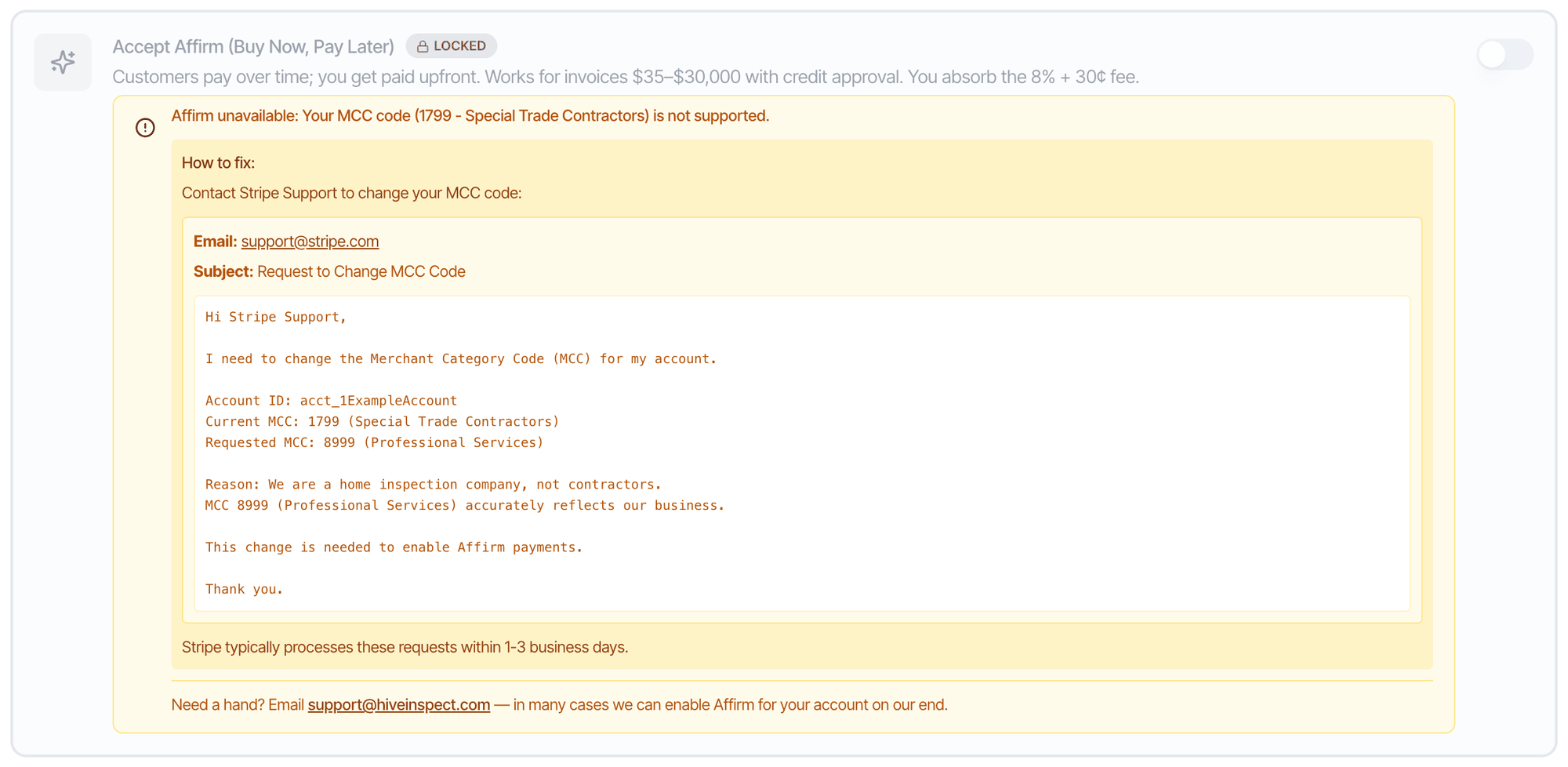
Stripe has to enable Affirm on your Stripe account first. Hive asks Stripe to enable it automatically. Until Stripe does, the switch is greyed out with Locked and a message explaining why: The Affirm option greyed out with a Locked badge and the message Affirm unavailable: Your MCC code (1799 - Special Trade Contractors) is not supported. A How to fix box says to contact Stripe Support at support@stripe.com with the subject Request to Change MCC Code, and shows a ready-to-send email that asks to change the account's MCC from 1799 to 8999 (Professional Services) because the business is a home inspection company, not a contractor. Stripe typically processes these requests within 1-3 business days. At the bottom: Need a hand? Email support@hiveinspect.com, in many cases we can enable Affirm for your account on our end If you’re stuck, email support@hiveinspect.com. In many cases we can enable Affirm for you.
Other payment methods (Pay Another Way)

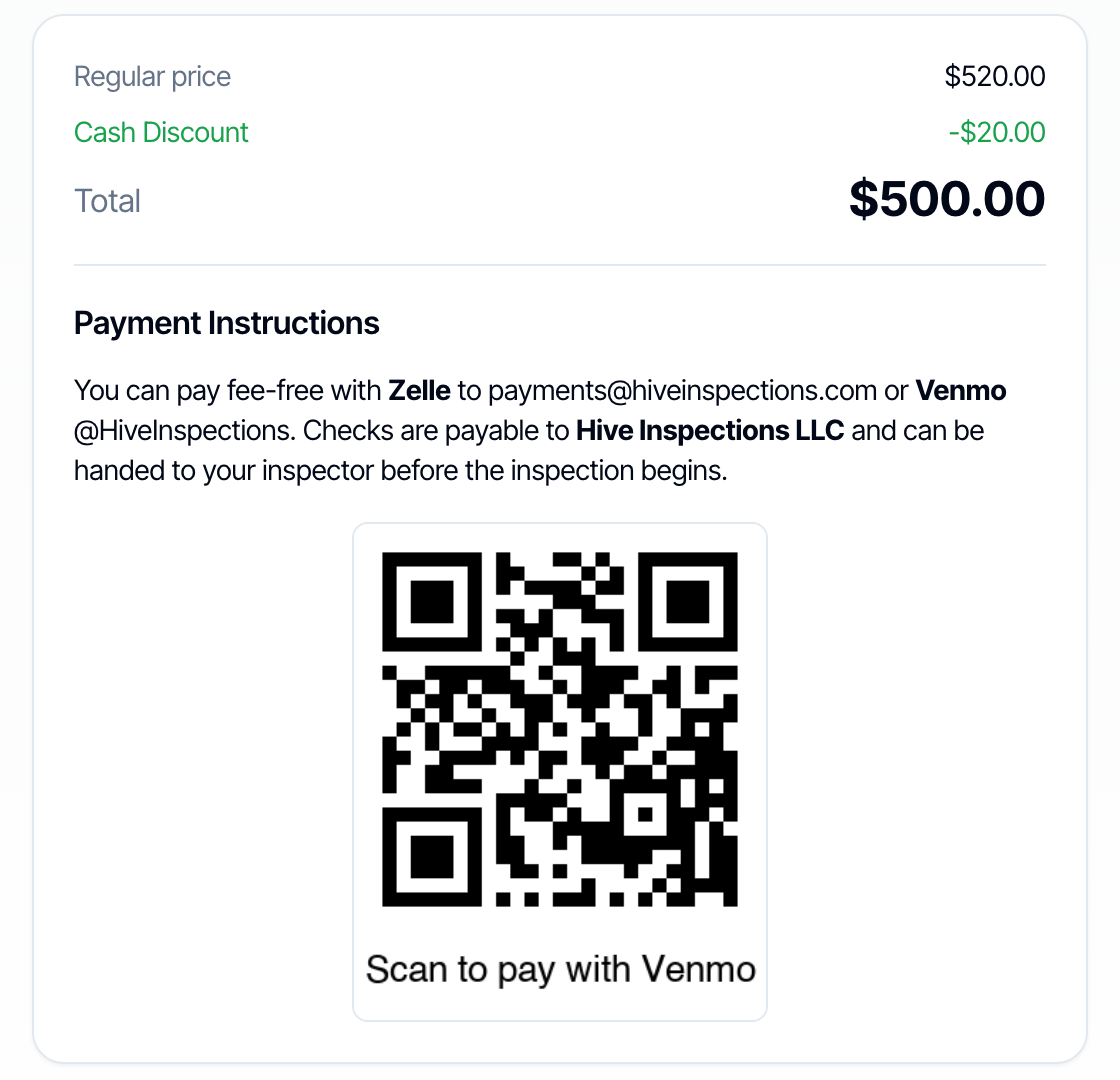
Accept other payment methods lets clients pay you outside Stripe: Zelle, Venmo, Cash App, PayPal, cash, check or anything else you accept. There are no fees. It works even before you connect Stripe. Clients see it on the payment page as Pay Another Way. When they choose it, they see your instructions instead of a pay button. Accept other payment methods switched on, with a No fees badge. Below, Pay Another Way Instructions: a Custom payment instructions box with a formatting toolbar, containing: You can pay fee-free with Zelle to payments@hiveinspections.com or Venmo @HiveInspections. Checks are payable to Hive Inspections LLC and can be handed to your inspector before the inspection begins. Under it, the help text and an example. Below that, Payment instruction image (optional) with an uploaded QR code captioned Scan to pay with Venmo and a red delete button Custom payment instructions tell clients exactly how to pay you. You can use bold, lists, links and colors. Include:
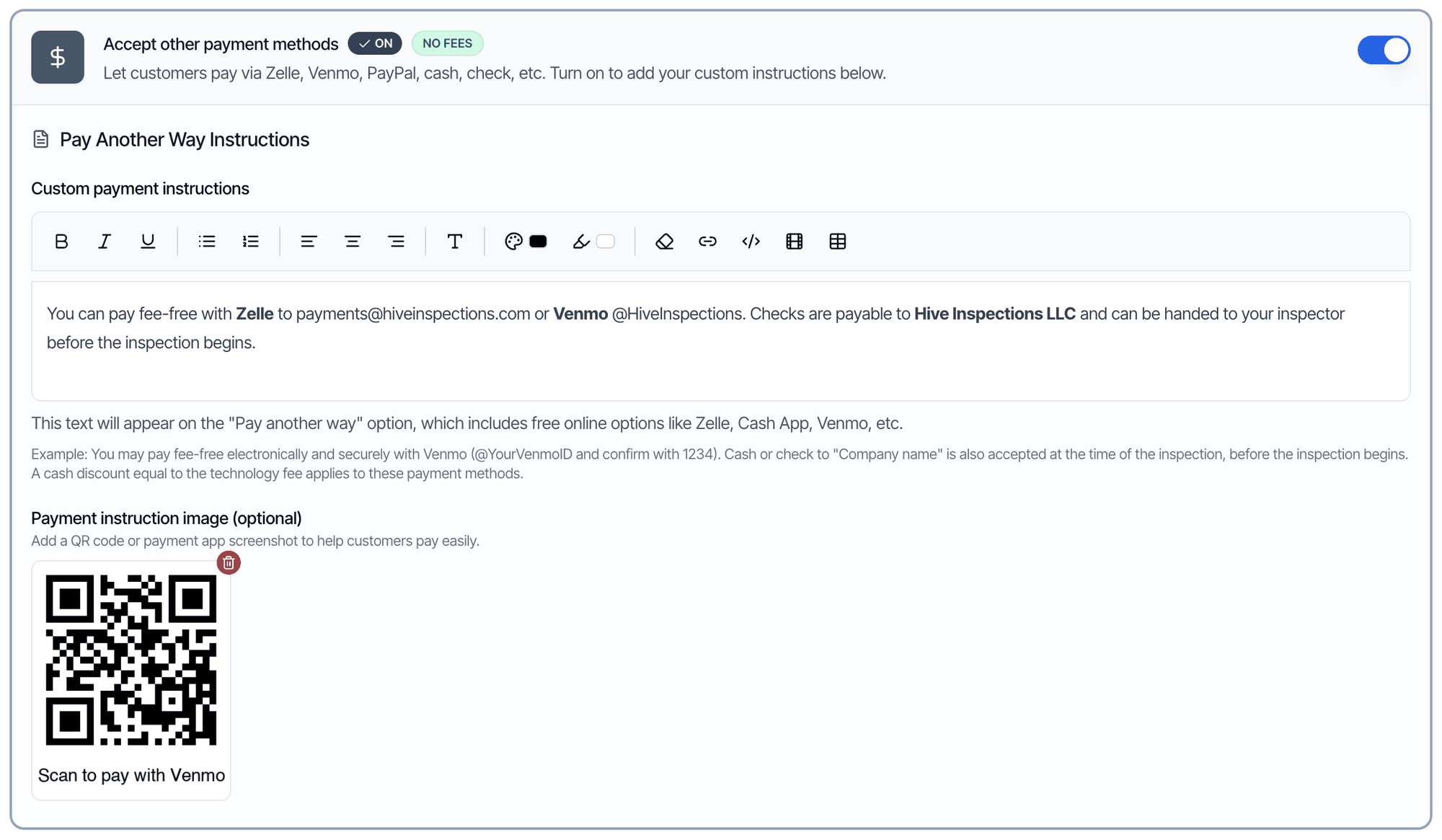
  • Each way you accept money, with the details: your Zelle email or phone, Venmo or Cash App handle, PayPal email.
  • Who to make checks out to, and when and where to hand over cash or a check.
  • What to write in the payment memo, such as the property address.
You can pay fee-free with Zelle to payments@yourcompany.com or Venmo @YourCompany. Please put the property address in the memo. Checks are payable to Your Company LLC and can be handed to your inspector before the inspection begins.
Always fill in your instructions. If the box is empty, clients who choose Pay Another Way only see “Contact your inspector to arrange payment.” The settings page reminds you of this until you add instructions or an image.
Payment instruction image (optional) adds one picture under your instructions, such as a Venmo, Cash App or PayPal QR code. Drag an image onto the box or click it to upload. PNG or JPG, up to 5 MB. To remove it, click the red trash icon. These instructions appear only on the payment page, under Pay Another Way. They aren’t printed on invoices or included in emails. To put text on your invoices, use Invoice Business Text. When the money arrives, record it on the inspection so the balance shows as paid and the report unlocks:
  • Web: open the inspection, click Record Payment under Fees and Payments, choose the Payment Type (such as Cash, Check, Zelle or Venmo) and save.
  • Mobile app: open the inspection, tap Fees & Payments, then Record Payment.
If you pass the card fee on, keep this method or bank transfer turned on. Clients who don’t want to pay by card need a way to get their discount.

Pay at Close

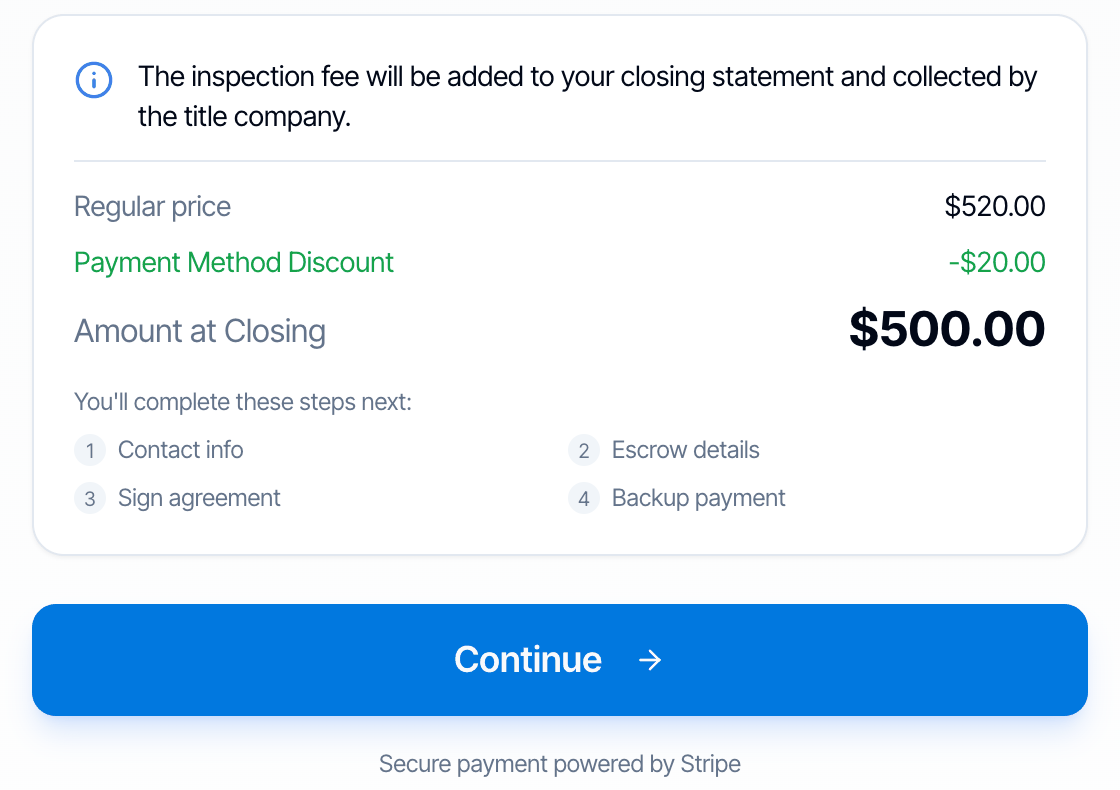
Pay at Close lets clients put off the inspection fee until their home closes. You’re paid within 1-2 business days after you publish the report, and Hive collects the money from the title company. The Pay At Close option switched on, with a Managed by HiveInspect badge: Let customers defer payment until closing. Contact HiveInspect support to enable this feature for your organization. Below, Minimum Invoice Amount set to 500, with the note that invoices below this amount will not show the Pay At Close option, the recommended value is 500 dollars and Pay at Close is capped at 1200 dollars per inspection. Then Applicable Services showing All services eligible (click to restrict), with the note Leave empty to allow all services You can’t turn it on yourself. The switch shows Managed by HiveInspect, so ask us in the chat bubble. Once it’s on, set:
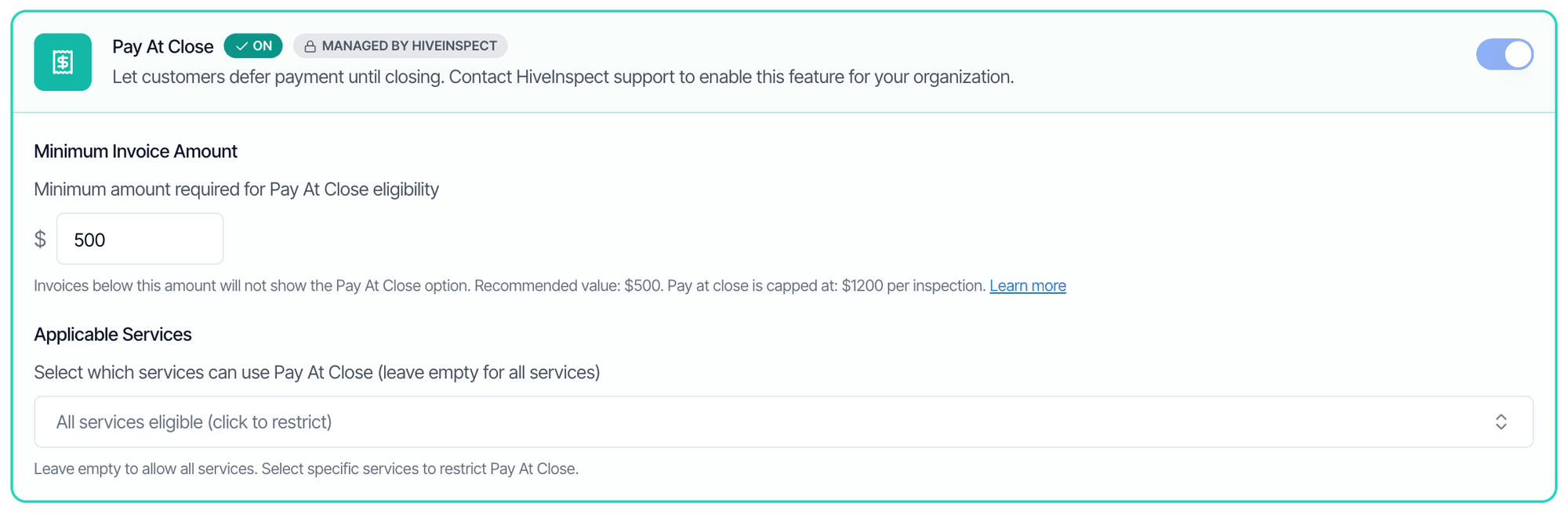
  • Minimum Invoice Amount: inspections below this don’t show Pay at Close. The default and recommended amount is $500. The maximum is $1,200 per inspection.
  • Applicable Services: pick the services that can use Pay at Close. Leave it empty to allow all of them.
It costs $50 per inspection, and clients must choose it at least 24 hours before the inspection. See Offer Pay at Close for the full rules.

Step 5: Add your Invoice Business Text

Invoice Business Text is printed on every invoice PDF, under the list of services. Use it for:
  • Your business license or certification number
  • Your tax ID, or your GST/HST number in Canada
  • Payment terms or a refund policy
  • A thank-you note
The Invoice Business Text box containing Hive Inspections LLC, License #HI-10245, Thank you for choosing us! Under it: This text will appear on your invoices. Use it for business license info, terms, or any custom message It’s plain text, and line breaks are kept. It changes invoices generated after you save it. Invoices are regenerated when an inspection’s price or payment changes, so older invoices pick it up then.

Payment instructions vs. Invoice Business Text

The page has two places to type text for clients. They appear in different places:

Step 6: Check what your clients see

Clients pay on the payment page. They get there in three ways:
  • The Payments section of their client portal.
  • A payment link in your emails. Add {{{payment_link}}} to an automation email. Add {{{invoice_link}}} to link to the invoice PDF.
  • A link you send yourself. Open the inspection, click Record Payment, then the copy button next to Get Payment via CC, ACH, etc.
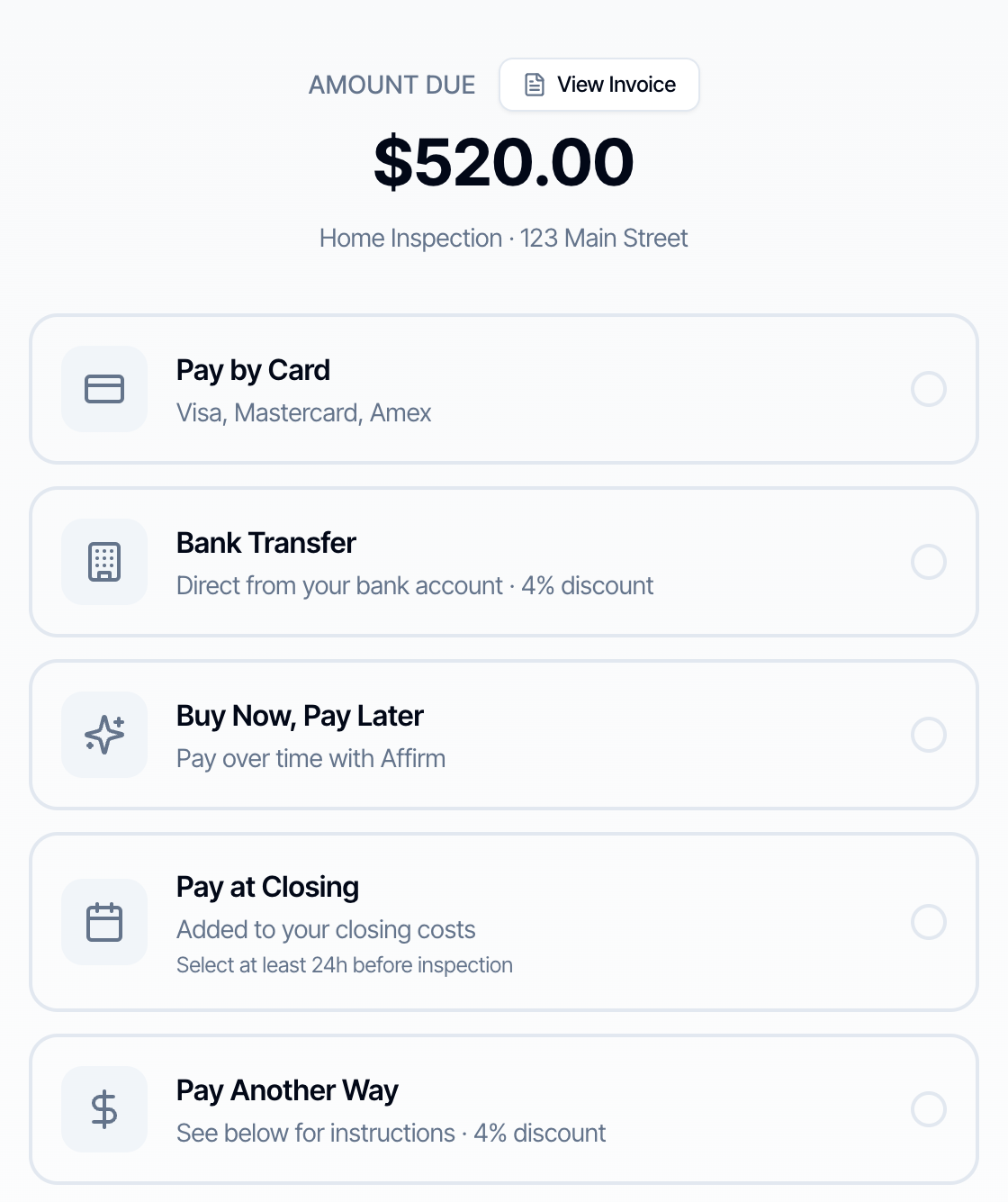
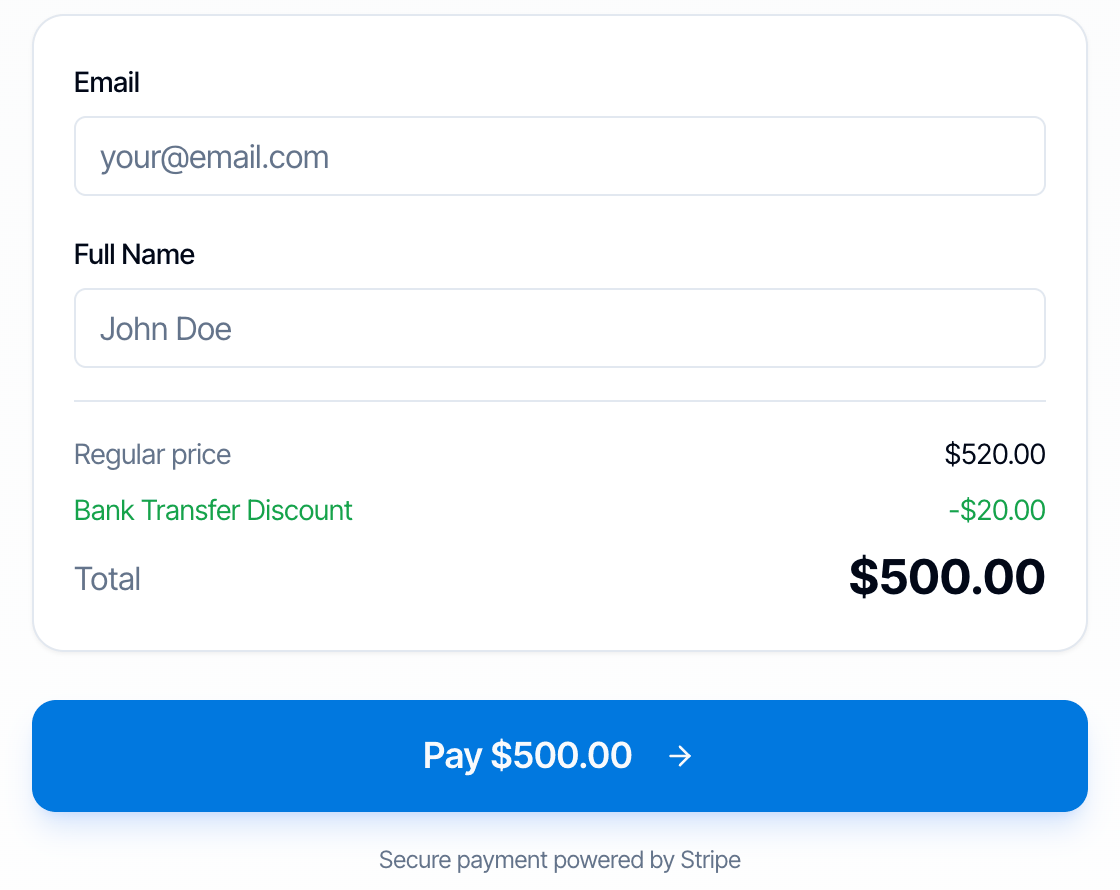
The page lists only the methods you turned on, in this order: The client payment page. At the top, Amount Due 520.00 dollars with a View Invoice button, and Home Inspection, 123 Main Street. Below, five options: Pay by Card (Visa, Mastercard, Amex), Bank Transfer (Direct from your bank account, 4% discount), Buy Now, Pay Later (Pay over time with Affirm), Pay at Closing (Added to your closing costs, Select at least 24h before inspection) and Pay Another Way (See below for instructions, 4% discount) When you pass the card fee on, the big amount at the top is the regular price. Each method shows the client exactly what they’ll pay before they choose it:
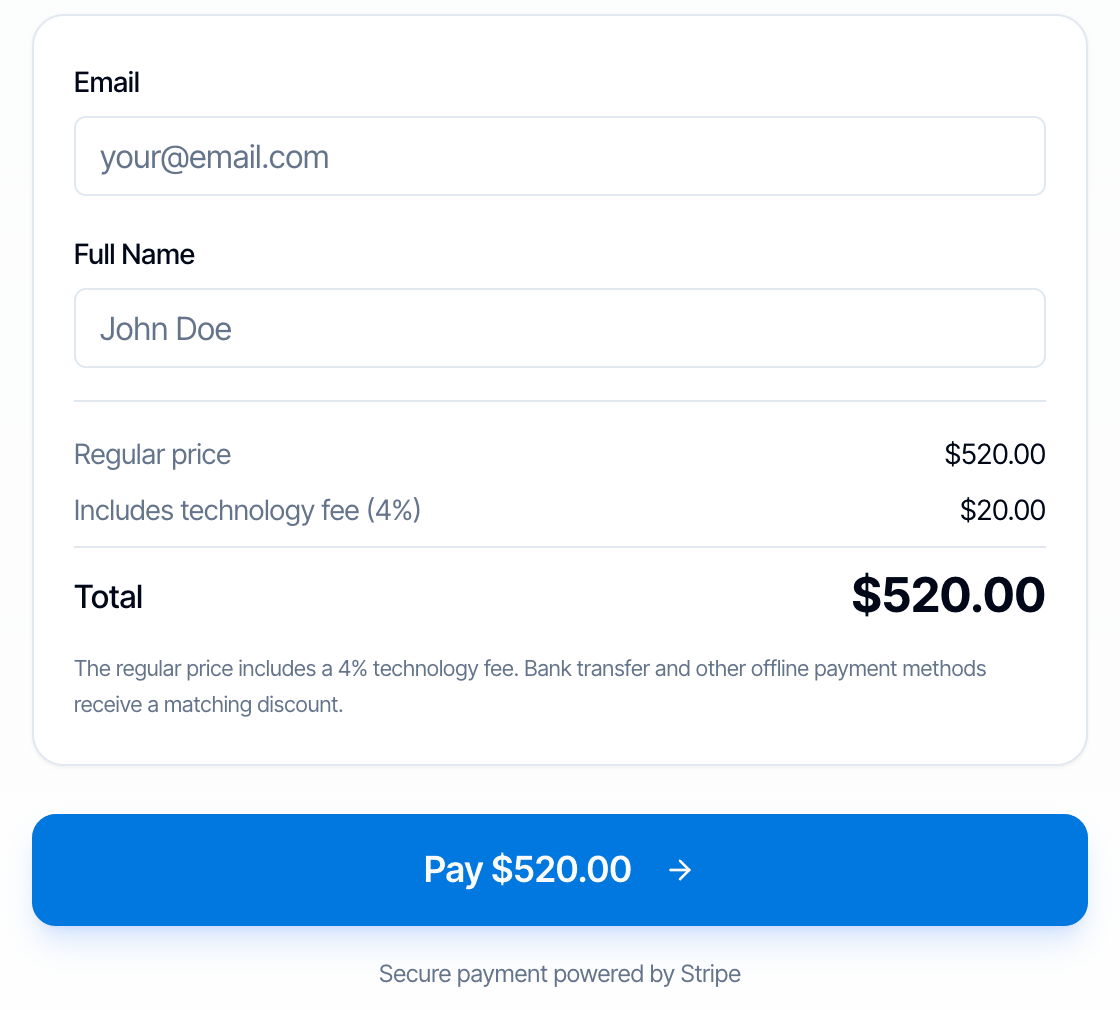
Pay by Card selected: Email and Full Name fields, then Regular price 520.00 dollars, Includes technology fee (4%) 20.00 dollars, Total 520.00 dollars, and the note The regular price includes a 4% technology fee. Bank transfer and other offline payment methods receive a matching discount. A blue Pay 520.00 dollars button, and Secure payment powered by StripeThe client enters their email and name, then pays on Stripe’s secure checkout page.
If you absorb the card fee, every method shows the same price, with no fee or discount lines. Test it yourself. Open one of your inspections, click Record Payment, and copy the payment link. Open it in a private browser window to see exactly what your client sees.

When clients can see the report

By default, the report opens for your client once all three of these are true:
  1. You’ve published the report.
  2. The inspection is paid, or nothing is owed.
  3. Every agreement on the inspection is signed.
Until then, the client sees a message such as Payment Required: Complete payment to access this report. The same rules apply to agents on the inspection. Agents can’t see or pay the invoice themselves. To let an agent pay, bill them with Add Invoice (split payment with another contact) on the inspection. The only setting on this page that changes this is Mark payment as paid only when ACH settles.

Unlock or lock one report by hand

To change the rule for a single inspection, open the inspection and choose Manual Lock Override for Reports in its actions: Use an override rather than recording a payment you haven’t received.

Invoices

Inspection invoices

Hive creates an invoice for every inspection automatically. You don’t need to do anything. It lists the services, discounts, taxes and payments, and it updates itself when the price or a payment changes. Your Invoice Business Text is printed on it.
  • You: open the inspection and click Show Invoice under Fees and Payments.
  • Your client: clicks View Invoice on the payment page, or opens the Payments section of their portal.
To record payments, send the payment link, refund or regenerate an invoice on an inspection, see Fees and payments on an inspection.

Create Invoice: bill someone outside an inspection

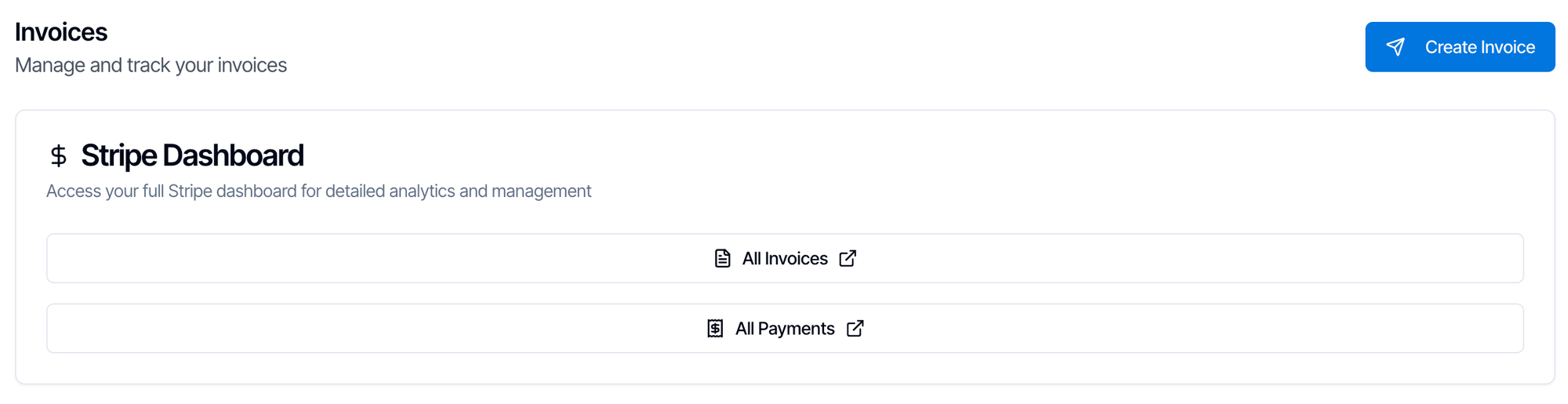
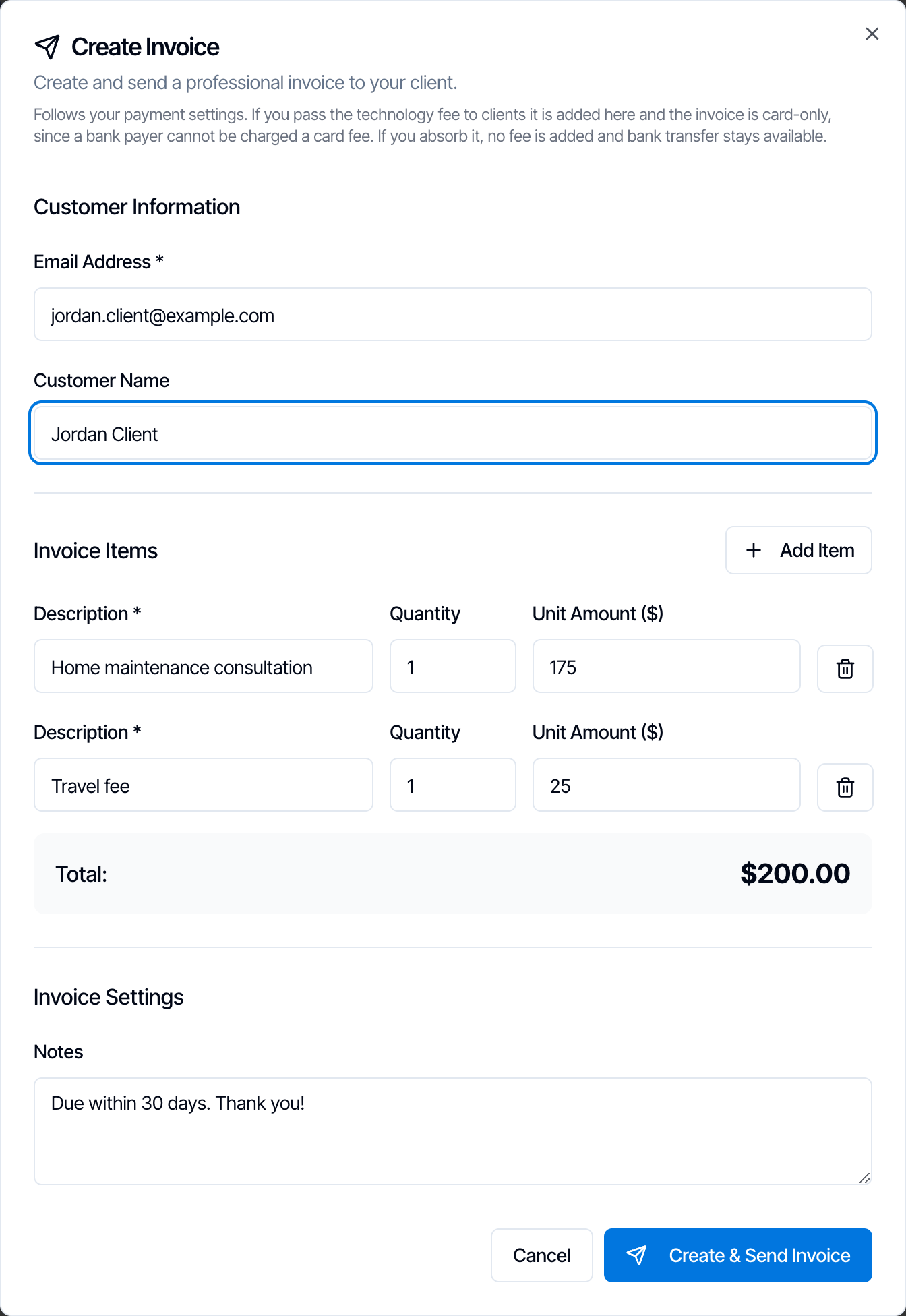
Once Stripe is connected, the bottom of the page has an Invoices section: The Invoices section with the subtitle Manage and track your invoices and a blue Create Invoice button. Below, the Stripe Dashboard card: Access your full Stripe dashboard for detailed analytics and management, with All Invoices and All Payments buttons Create Invoice sends a Stripe invoice to anyone by email, for work that isn’t an inspection in Hive, such as a consultation, a training session, or a job you didn’t book in Hive. The Create Invoice dialog. Customer Information: Email Address jordan.client@example.com and Customer Name Jordan Client. Invoice Items: Home maintenance consultation, quantity 1, 175; and Travel fee, quantity 1, 25, each with a delete button, and an Add Item button. Total 200.00 dollars. Invoice Settings: Notes, Due within 30 days. Thank you! Cancel and Create and Send Invoice buttons
1

Enter the customer

Email Address is required. Customer Name is optional.
2

Add the items

For each line, enter a Description, a Quantity and a Unit Amount. Click Add Item for more lines. The Total updates as you type.
3

Add notes (optional)

Notes appear on the invoice, for example your terms or a thank-you.
4

Click Create & Send Invoice

Stripe emails the invoice to the customer with a link to pay online. It’s due in 30 days.
These invoices follow your card fee setting:
  • Fee passed on: a Technology Fee (4%) line is added, and the customer can pay by card only. That’s because there’s no way to give a bank payer the discount on a fixed invoice.
  • Fee absorbed: no fee is added, and the customer can pay by card, or by bank transfer if ACH is on.
An invoice from Create Invoice isn’t linked to any inspection. When it’s paid, nothing changes on your inspections and no report unlocks. To bill a client for an inspection, use the inspection itself:
  • Request balance from customer after you add a service.
  • Add Invoice (split payment with another contact) to bill an agent or someone else.
  • The payment link from Record Payment.
All Invoices and All Payments open those lists in your Stripe Dashboard. Use them to check a payment, see payouts or answer a client’s question about a charge.

Disconnect Stripe

The Danger Zone at the bottom of the settings lets you disconnect your Stripe account, for example to switch to a different Stripe account. The Danger Zone card: Disconnect Stripe Account. This will stop all payment processing. Existing invoices will remain but new payments cannot be accepted. A red Disconnect Stripe Account button Click Disconnect Stripe Account, then Yes, Disconnect. The Disconnect Stripe Account? dialog: This action will stop all payment processing immediately, prevent creating new invoices; existing invoices will remain in Stripe; you can reconnect anytime. Cancel and Yes, Disconnect buttons What happens:

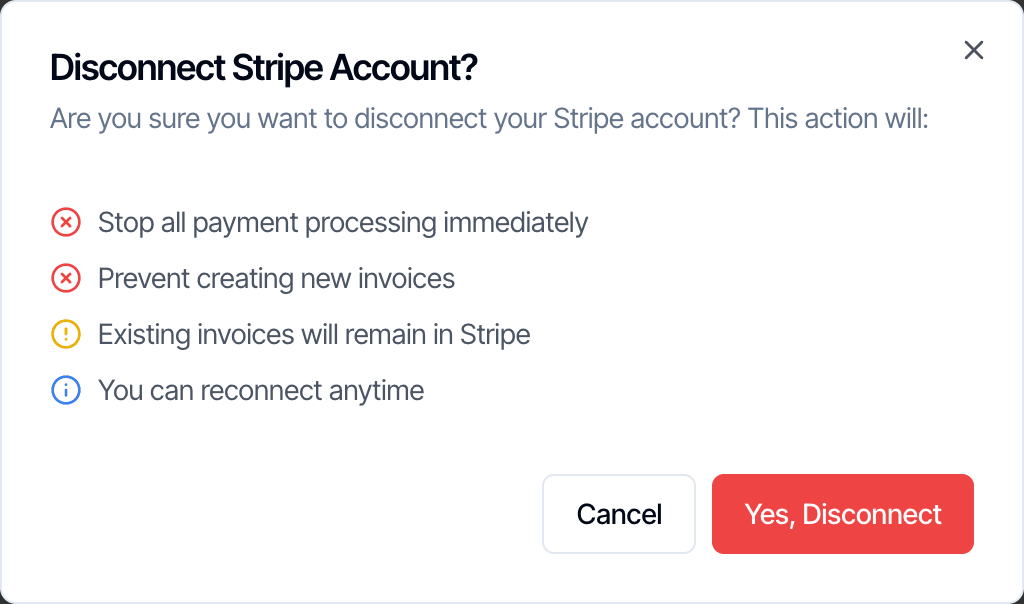
  • Clients can no longer pay by card, bank transfer or Affirm. Pay Another Way still works if it’s on.
  • You can’t use Create Invoice.
  • Past payments, invoices and payouts stay in your Stripe account. Your Stripe account isn’t closed.
  • Your settings are kept. When you connect again, they’re back as they were.
To connect a different account, click Connect with Stripe and sign in to the new account. Refunds of payments taken before the switch must be made in the old account’s Stripe Dashboard.

Who can change payment settings

The owner turns permissions on in Teams, from the team member’s permissions.

Two common setups

  • Accept credit / debit cards: on
  • Absorb credit card fees: on
  • Accept ACH bank transfers: on
  • Accept other payment methods: on, with your Zelle, Venmo or check details
  • Invoice Business Text: your license number
Every client pays your price, whatever method they use. You pay 3.1% + 30¢ on card payments.
Turn on Affirm if clients often ask to pay over time. Ask us about Pay at Close if you work mostly with buyers in the US.

Common problems

A client sees the amount but no way to pay. No payment method is on, or only methods that don’t apply to them, such as Affirm on a $20 balance or bank transfer in Canada. Turn on cards or Accept other payment methods. Bank transfer, Affirm or Pay at Close is missing for a client.
  • Your business country is Canada.
  • Affirm only shows for amounts from $35 to $30,000.
  • Pay at Close only shows between your minimum and $1,200, for eligible services, and at least 24 hours before the inspection.
The client paid but the report is still locked. Check that every agreement is signed. If they paid by bank transfer and Mark payment as paid only when ACH settles is on, the report unlocks once the bank confirms. To open it now, use Manual Lock Override for Reports. Clients who choose Pay Another Way see “Contact your inspector to arrange payment.” Your Custom payment instructions are empty. Fill them in. When will my money arrive? Stripe pays out to your bank on the schedule set in your Stripe account. First payouts often take a week or more while Stripe verifies a new account. See Payments FAQ.

Where to go next

Last modified on October 20, 2026