

In the dashboard: open the inspection, then Fees and Payments → Refund Payment
You refund a client from the inspection itself. Hive can return the money to the client’s card or bank account through Stripe, or record a refund you paid back yourself, such as cash or a check. Hive never refunds on its own. Canceling, rescheduling or deleting an inspection doesn’t give any money back. If the client should get money back, refund them with Refund Payment.Refunds are only on the web dashboard. The mobile app can’t refund. On the inspection summary screen, tap Edit Inspection Order to open the inspection in your browser.
Before you start
You need three things:- A payment on the inspection. The Refund Payment button shows once Service Paid is more than $0.00.
- A Confirmed or Canceled inspection. The Fees and Payments card only shows on these. It stays on a canceled inspection, so you can refund after you cancel.
- The Financial Data Access permission. The account owner always has it. Other team members need it turned on in Teams. See Team permissions.
Refund a payment
Open the inspection
On the Inspections page, click the inspection to open its order page. The Fees and Payments card is below Quick Actions.
Click Refund Payment
On a fully paid inspection, it’s the red button on the green Fully Paid banner. On a partly paid inspection, it’s below the other buttons.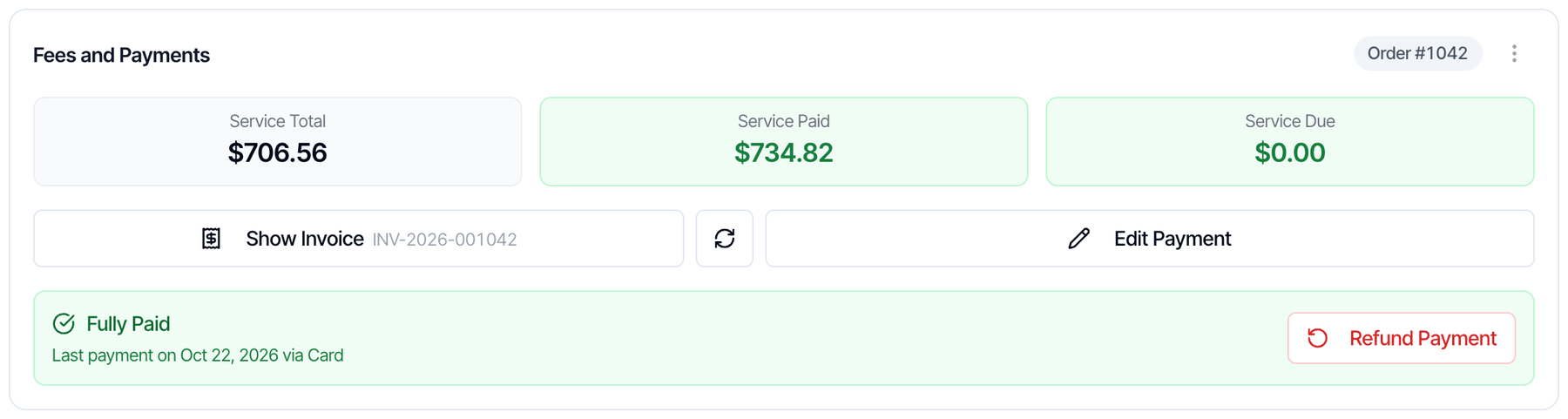
Check the badge and the refundable amount
The badge at the top says what kind of refund this will be:
- Stripe refund (live): Stripe sends the money back to the client.
- External refund (tracking only): Hive only records it. You give the money back yourself.
Choose Custom amount or Refund a service
The dialog opens on Custom amount, with the full refundable amount filled in.
- Custom amount: keep the full amount, or type a smaller one. Refund full amount puts the full amount back.
- Refund a service: tick one or more services or add-ons. Hive adds up their prices, plus the matching 4% fee when the client paid it.
Add a reason (optional)
Reason / notes is for your records. The client doesn’t see it. If you refund a service and leave it blank, Hive saves “Refund:” and the service name.
Click the refund button
It reads Refund $X via Stripe for a Stripe refund, or Record Refund $X for a tracking-only refund.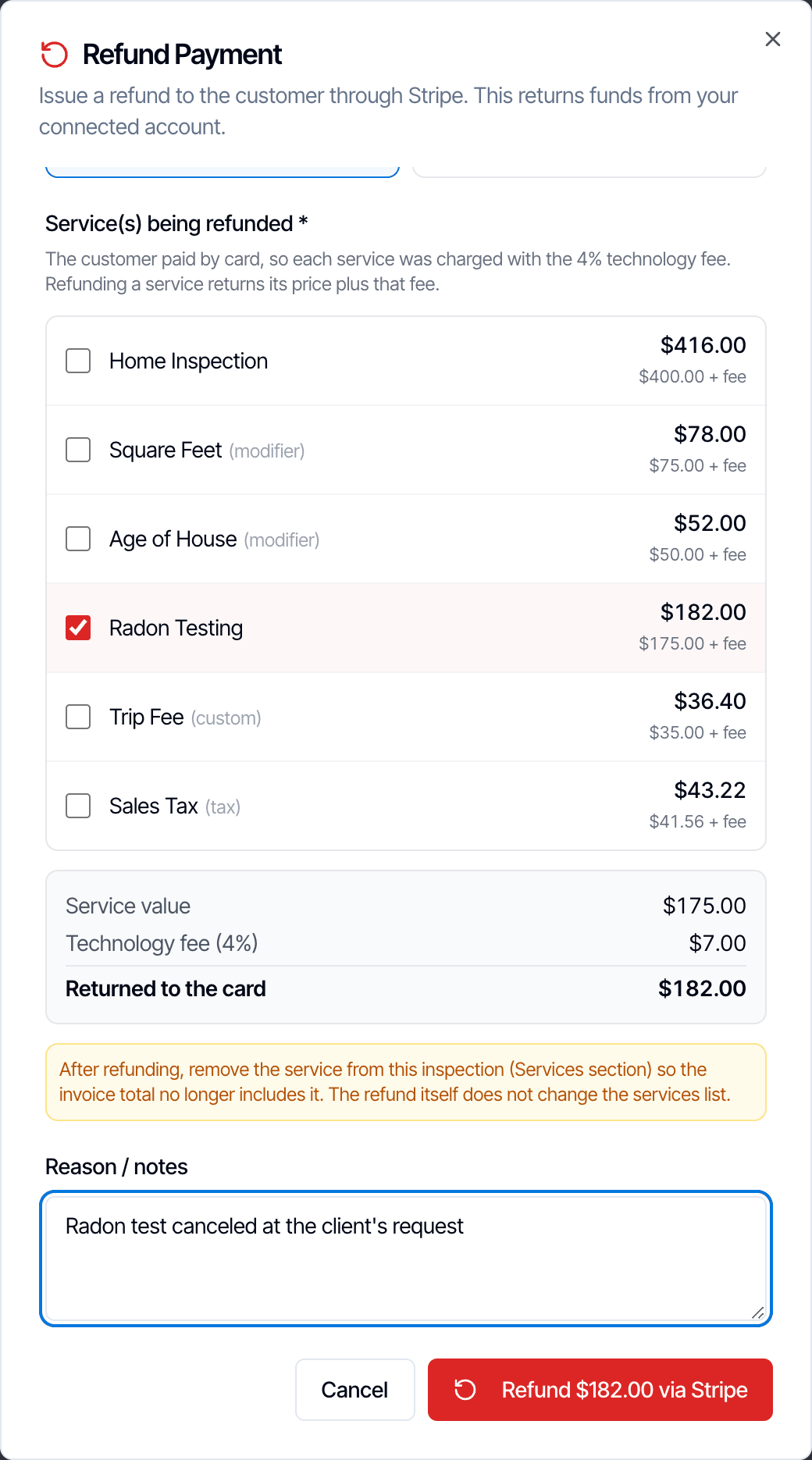
Confirm with Yes, refund
A second window asks you to confirm.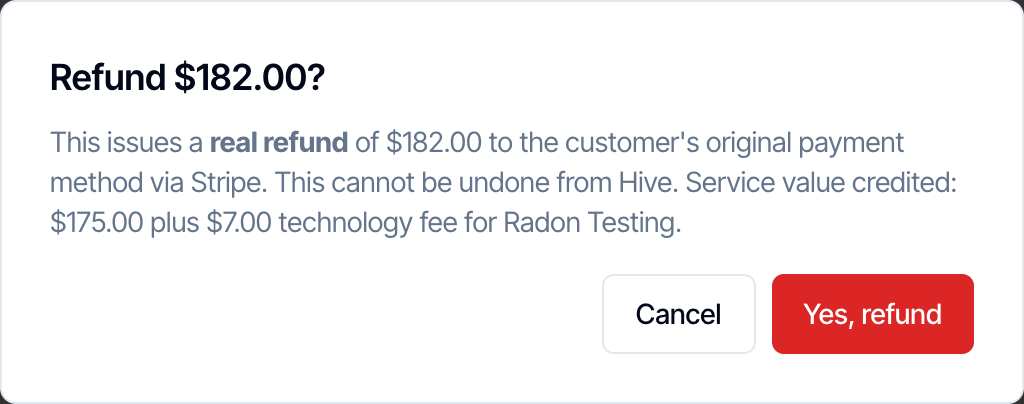
- For Stripe: “This issues a real refund of $X to the customer’s original payment method via Stripe. This cannot be undone from Hive.”
- For tracking only: “This records an external refund of $X for tracking. It does not move any money — issue the actual refund separately.”
Remove refunded services (if any)
If you refunded a service, remove it from the inspection’s services. Otherwise the invoice still bills it, the client shows a balance due, and the report can lock again. See Remove a line.The success message reminds you: “Next: remove [service] from this inspection’s services so the invoice total matches.”
Stripe refund or tracking-only refund
Hive picks the refund type from how the client paid. You can’t choose it.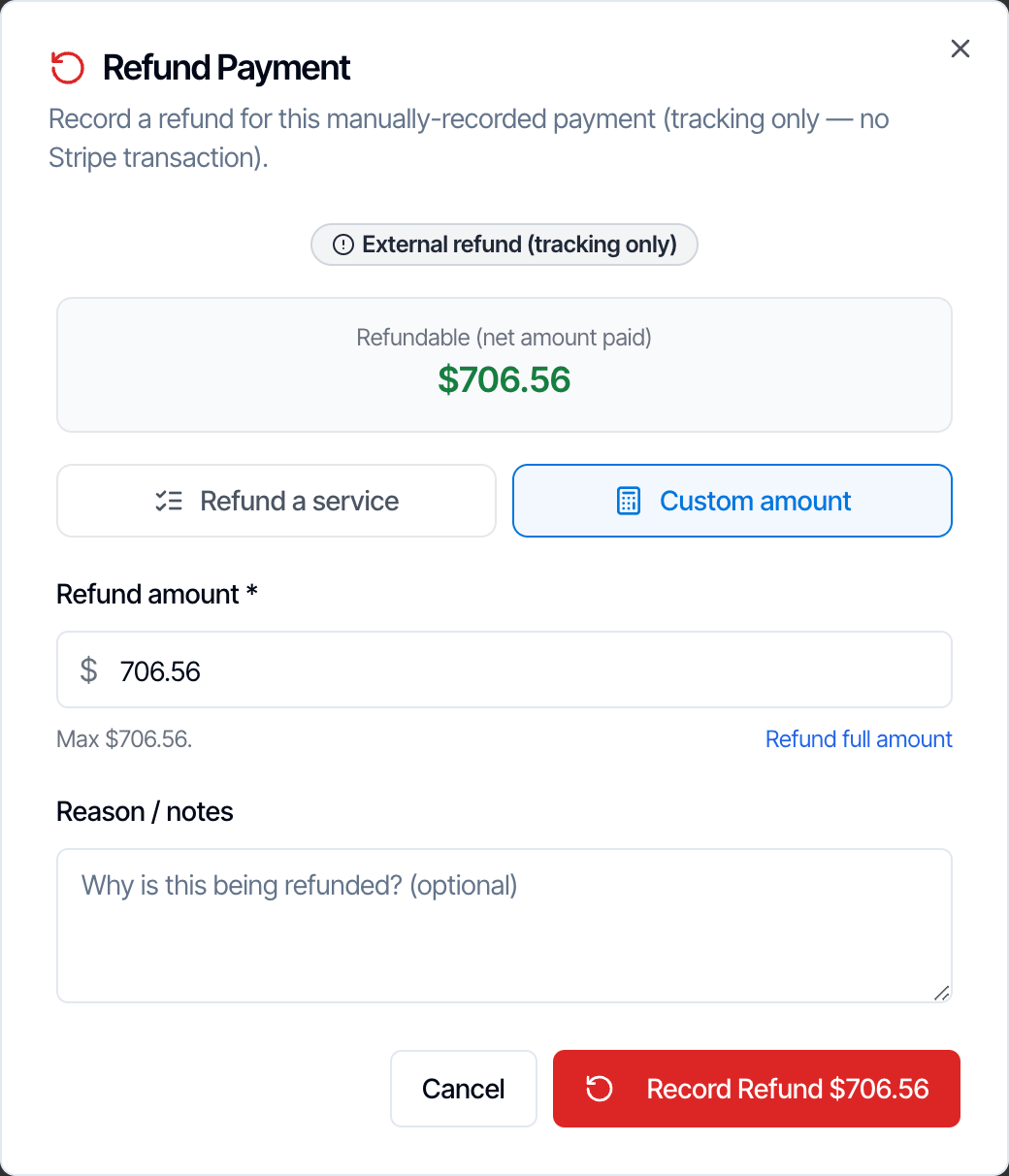
When the client paid more than once
Hive refunds against the most recent payment.- If the last payment went through Stripe, the refund goes back through Stripe, to that card or account. Stripe won’t refund more than that one payment. If you try, you get a Refund failed message and nothing changes.
- If the last payment was recorded by hand, the refund is tracking only.
Choose how much to refund
Full refund
Leave Custom amount at the amount filled in, or click Refund full amount. This is the usual choice when a job is canceled. When the client paid by card and you pass the 4% fee on, a full refund returns the fee too. For example, a $706.56 inspection paid by card was charged $734.82, and a full refund returns $734.82.Partial refund: a custom amount
Type the amount to give back. It can’t be more than Refundable. Use this for a goodwill credit, a late-arrival discount, a trip fee you’re waiving, or a cancellation where you keep a fee. When the client paid the 4% fee, the box reads Amount to return to the card (includes the 4% technology fee). Under it, Hive shows how much service value that credits, for example “Credits $96.15 of service value ($100.00 ÷ 1.04)”. Hive also tells you where the invoice will end up:- “After this refund the invoice will show a balance due of $X.” The client will owe that much, because the services are still on the inspection. Lower the price or remove a service to match.
- “After this refund the customer will still have paid $X more than the services on the invoice.”
- No message means the invoice will be in balance.
Partial refund: one service or add-on
Click Refund a service, then tick what you’re refunding, such as a radon test that couldn’t be done. Each line shows what the client paid for it. When they paid the 4% fee, the line shows the price ”+ fee”, and the summary shows:
The list shows services and add-ons with a price above $0. The Technology Fee isn’t listed on its own, because it’s refunded with each service. If the total is more than Refundable, Hive shows it in red. Untick a service or switch to Custom amount.
Refunding a service doesn’t remove it from the inspection. Remove it yourself afterwards.
Fees on a refund
- The client gets back what they paid. That includes the 4% Technology Fee when you pass it on.
- Processing fees aren’t returned to you. Stripe keeps its processing fee on the original payment, and Hive keeps its platform fee. The refund comes out of your Stripe balance.
- Not enough in your Stripe balance? The refund fails with: “Your Stripe balance doesn’t have enough funds to cover this refund.” Add funds in your Stripe Dashboard under Balance → Add to balance, or wait for new payments to arrive, then try again.
What changes after a refund
Previous refunds
Every refund on the inspection is listed at the bottom of the Refund Payment dialog under Previous refunds. Each one shows the amount, Stripe or External, the date, the reason and a status:
You can refund again until the full amount paid has been returned.
Customer overpaid
After you refund a service at its list price and remove it, the card can show Customer overpaid by $X. This is the 4% fee on that service, which wasn’t part of the refund. The invoice shows it as a credit due to the client. Click Refund $X in that box. The refund dialog opens with the amount and the reason “Refund overpayment (technology fee on refunded service)” filled in. The dialog shows the same hint with a Use $X button.Common situations
Refunds made outside Hive
Refunds from your Stripe Dashboard
You can refund in your Stripe Dashboard instead. Hive picks it up on its own when it’s for the inspection’s most recent Stripe payment. It updates Service Paid, the status and the invoice, and lists it under Previous refunds with the reason “Refund initiated in Stripe dashboard”. If a Stripe Dashboard refund doesn’t show in Hive, don’t refund it again with Refund Payment. That would return the money twice. Ask us in the chat bubble in your dashboard to update the records.Shares paid by an agent or other contact
A share someone else paid through Add Invoice can’t be refunded in Hive. Refund Payment only refunds the client’s own payments. To refund a share, find the payment in your Stripe Dashboard and refund it there. Hive’s records for that share don’t change, so ask us to update them. See Split payment.Payments you edited or cleared
- Edit Payment replaces the payment history with one hand-recorded payment. If the client had paid through Stripe, Hive loses the link to that card payment, and later refunds become tracking only. Refund before you edit a Stripe payment.
- Clear Payment & Reset to Pending erases the payment history, including the refunds listed on it. It doesn’t move any money.
A refund shows failed
If Stripe refuses the refund right away, you see Refund failed with the reason, and nothing changes in Hive. Common reasons are not enough money in your Stripe balance, an amount more than the card payment, or a payment taken on a Stripe account you’ve since disconnected. Refund payments from an old Stripe account in that account’s Stripe Dashboard. If Stripe creates the refund but can’t send it, the message reads “Stripe couldn’t process this refund”, and the refund is listed as failed under Previous refunds. If a refund fails later, which can happen with bank transfers, Hive puts the money back on the inspection by itself:- Service Paid goes back up by the refund amount.
- The refund comes off the invoice, and Hive rebuilds the PDF.
- The payment status is worked out again, for example back to Paid.
- The refund stays under Previous refunds as failed or canceled, so you can see what happened.
QuickBooks
Hive doesn’t send refunds to QuickBooks. A fully refunded inspection stops syncing and is flagged for you to fix by hand. Record the refund in QuickBooks yourself, for example as a refund receipt or credit memo. See QuickBooks.Who can refund
If you can’t see Refund Payment, either you don’t have Financial Data Access, or nothing has been paid on the inspection.