

In the dashboard: open a Confirmed inspection, then Fees and Payments. In the mobile app: open the inspection, then Fees & Payments.
Every confirmed inspection has a Fees and Payments card. From it you can:- get paid online with a Stripe payment link;
- record money you received another way, such as cash, a check or Zelle;
- fix or clear a payment;
- refund;
- ask the client for a balance, or bill an agent for part of the fee;
- open the invoice.
To take card, bank or Affirm payments online, connect Stripe first. See Set up payments and Stripe. Recording cash, checks and other payments by hand works without Stripe.
Where to find it
Open the inspection from the Inspections page. The Fees and Payments card sits below Quick Actions.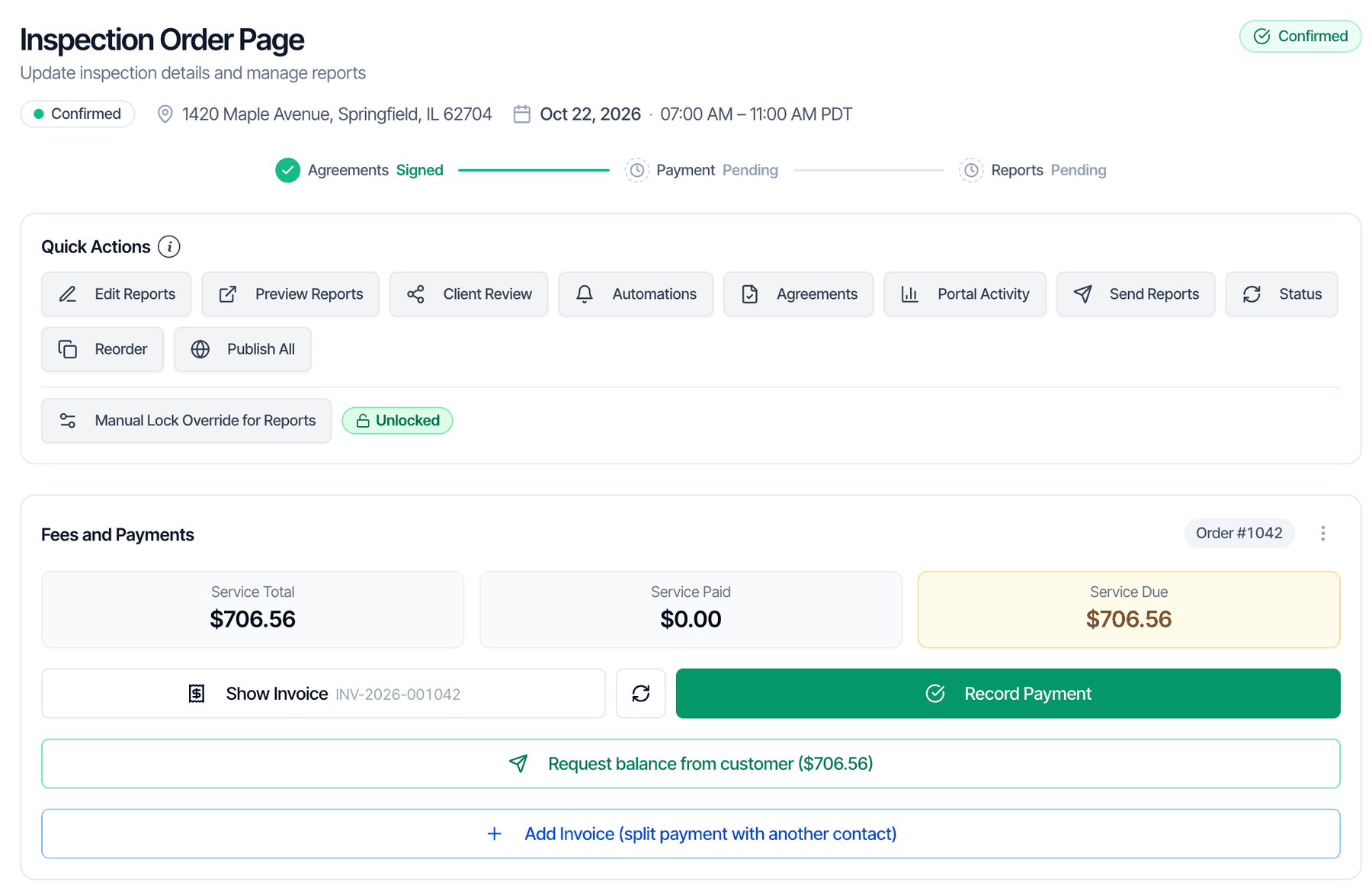
Read the card
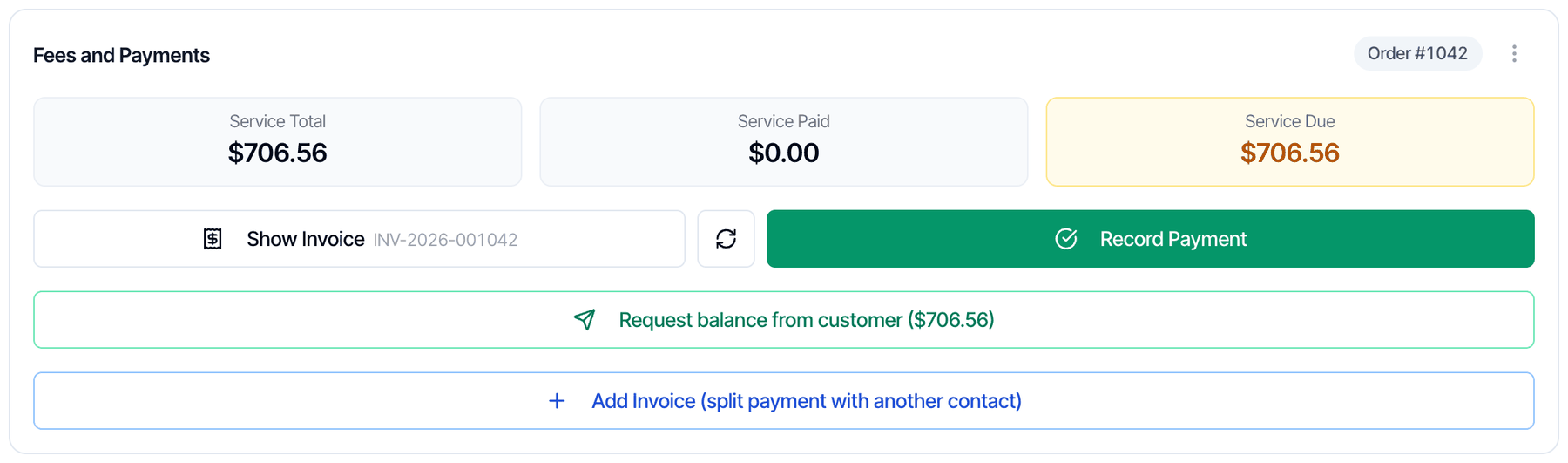
Payment status and buttons
The buttons change with the payment status.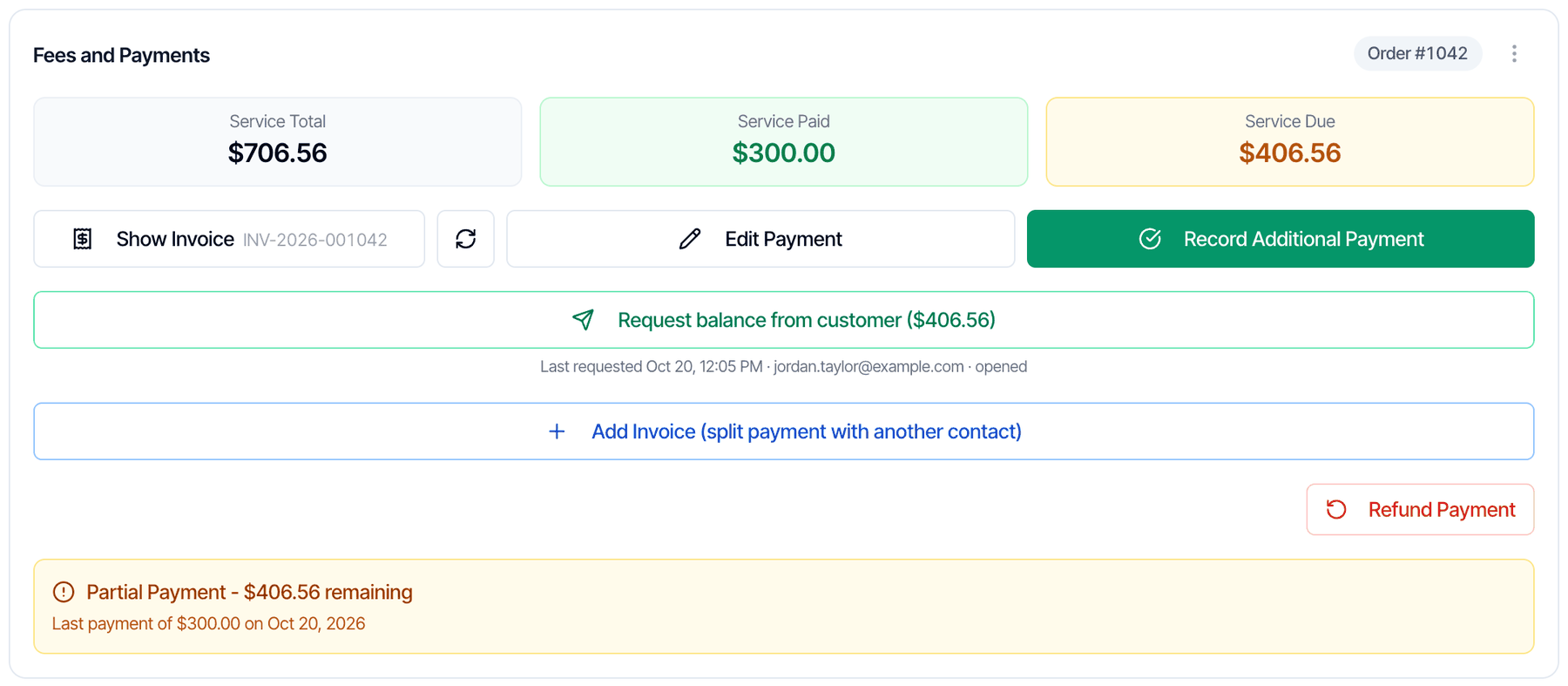
Get paid online with a payment link
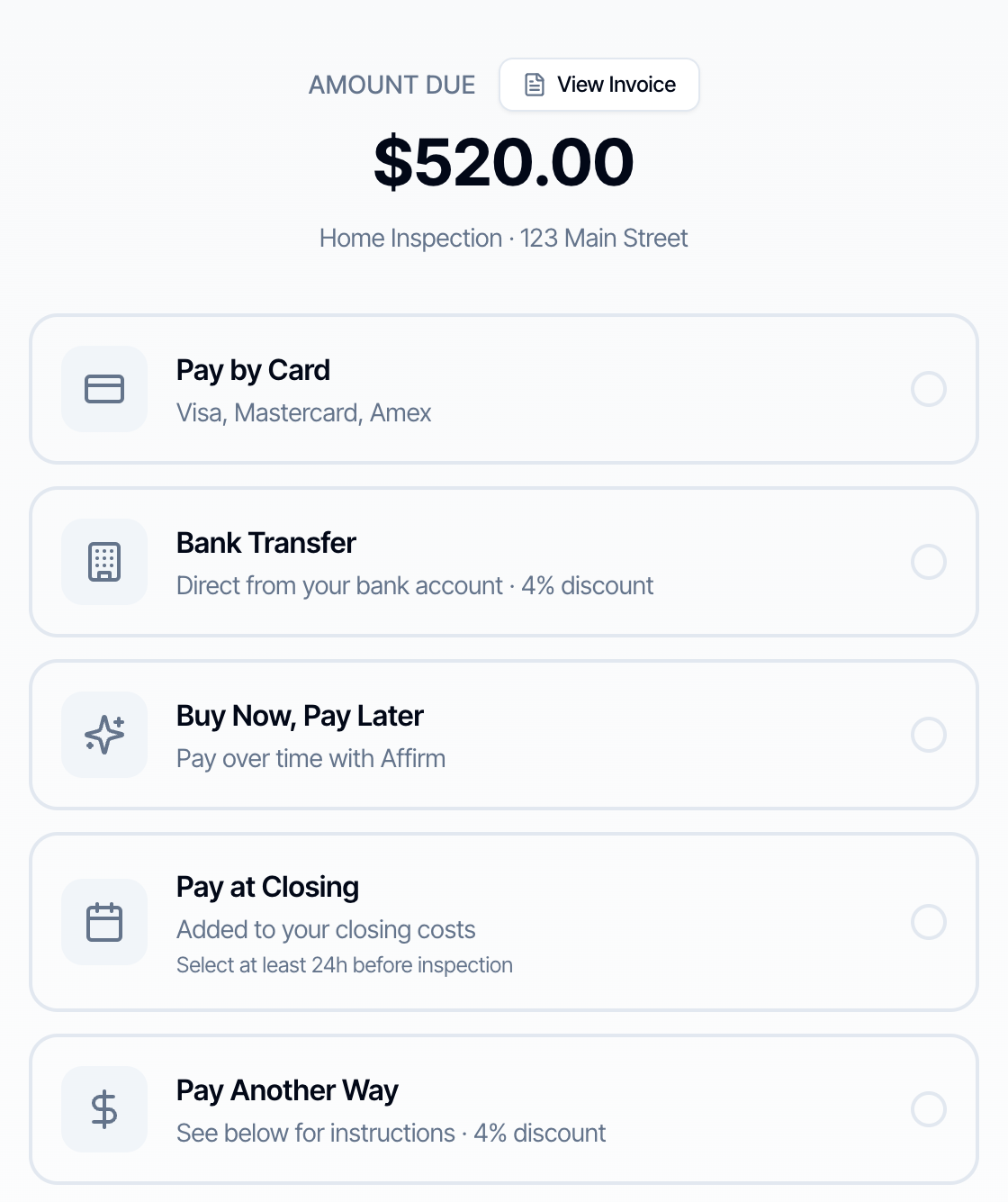
The payment link opens your client’s payment page. There they can pay by card, bank transfer, Affirm or Pay at Close, or see your instructions to pay another way, depending on what you turned on in payment settings.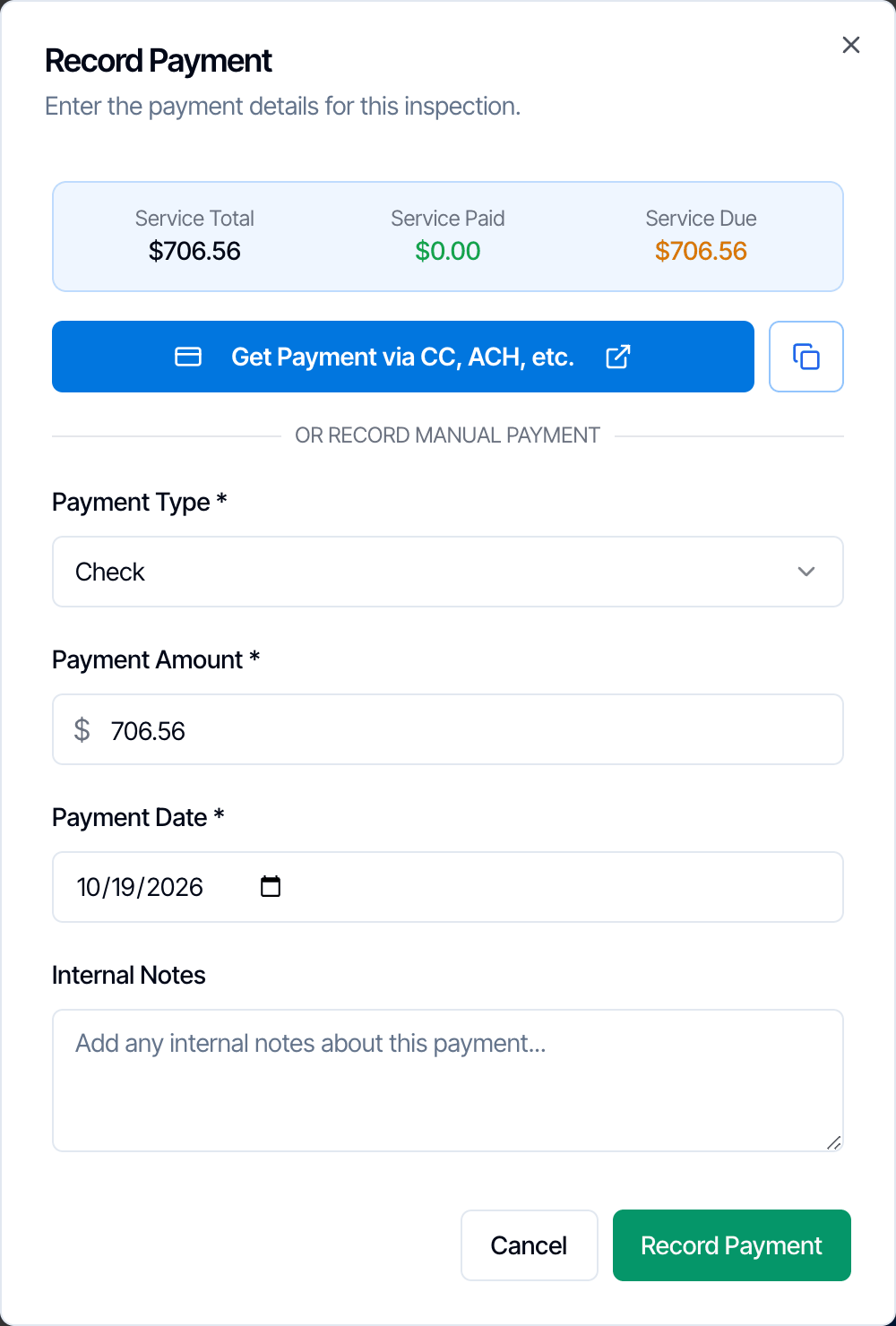
Open or copy the link
- Get Payment via CC, ACH, etc. opens the payment page in a new tab. Use it to type the client’s card in yourself, for example on site or over the phone.
- The copy button next to it copies the link. Paste it into a text or email to the client.
- The inspection is marked Paid, or Partial if they paid less than the full amount.
- The invoice is rebuilt to show the payment.
- Your Payment Received automations run once the inspection is fully paid.
- The report unlocks for the client, if it’s published and all agreements are signed. See When clients can see the report.
Record a payment you received
Use this for money that didn’t go through Hive’s payment page: cash, a check, Zelle, Venmo, Cash App, an e-Transfer, a wire, or a card you charged on your own terminal.Choose the Payment Type
Pick one: Cash, Check, Credit Card, Debit Card, Wire Transfer, Venmo, Zelle, Cash App, E-Transfer or Other.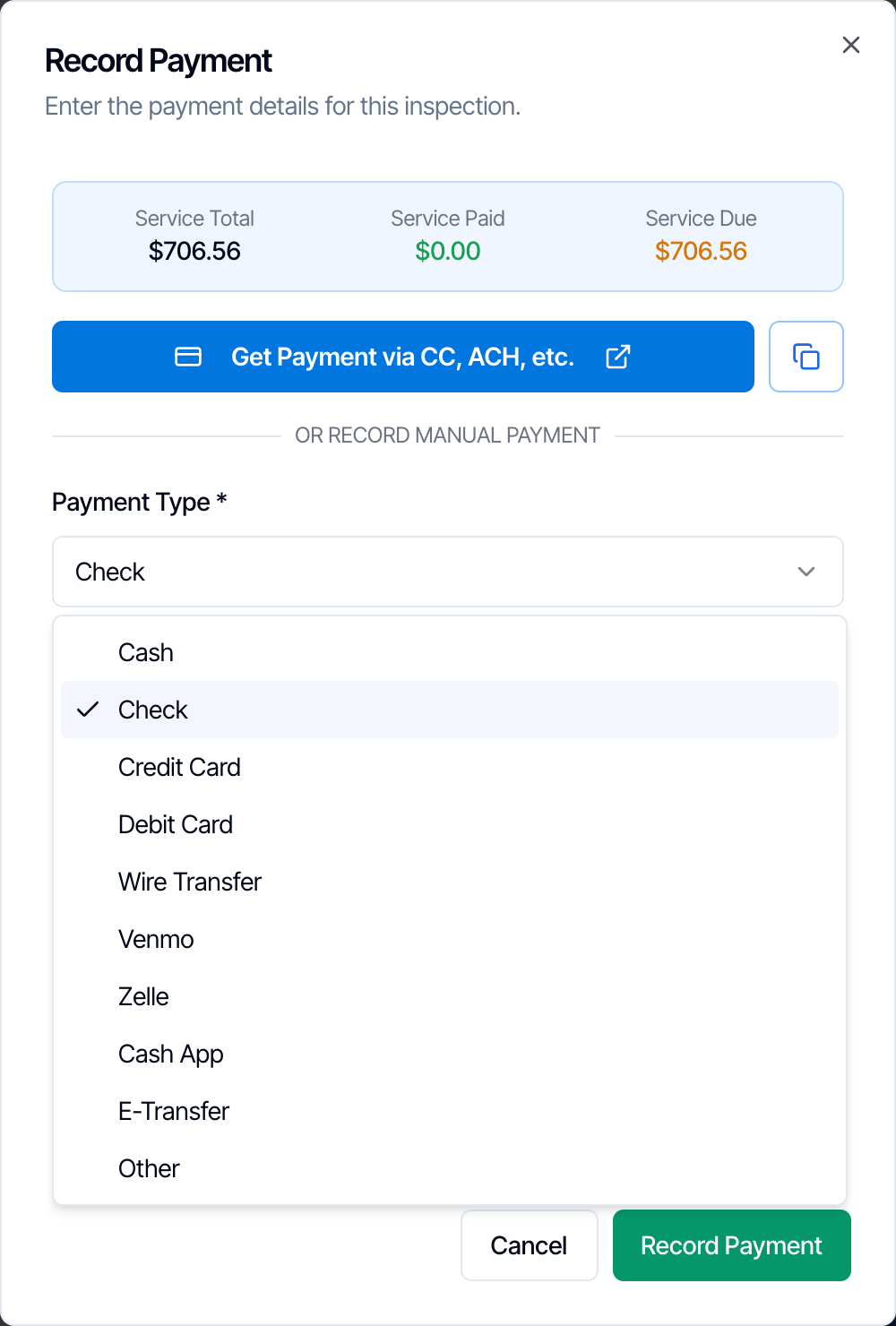
Check the amount and date
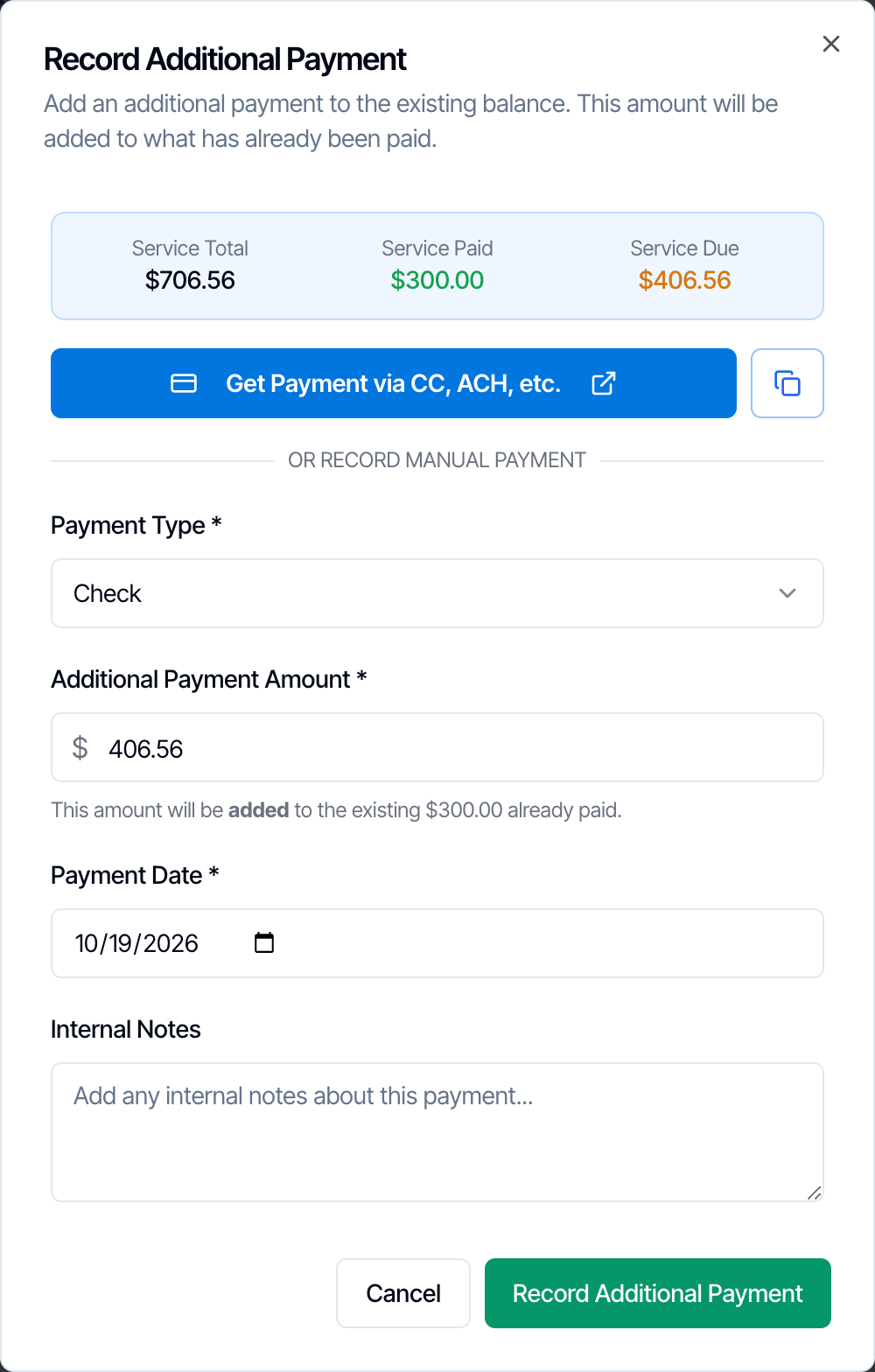
Payment Amount starts at the amount still due. Change it if the client paid part. Payment Date starts at today.
Add a note (optional)
Internal Notes is for your team, for example a check number. Clients never see it.
- The amount is added to what was already paid. Recording never replaces an earlier payment.
- The status changes to Partial, or to Paid when nothing is left to pay. When the status changes to Paid:
- Payment Received automations run;
- the report unlocks, if it’s published and the agreements are signed.
- The invoice is rebuilt with the payment listed.
- Nothing is sent to the client.
Edit a payment
Edit Payment corrects a payment you recorded by hand, such as a wrong amount, date or payment type. It replaces the payment: the amount you enter becomes the total paid, not an extra payment.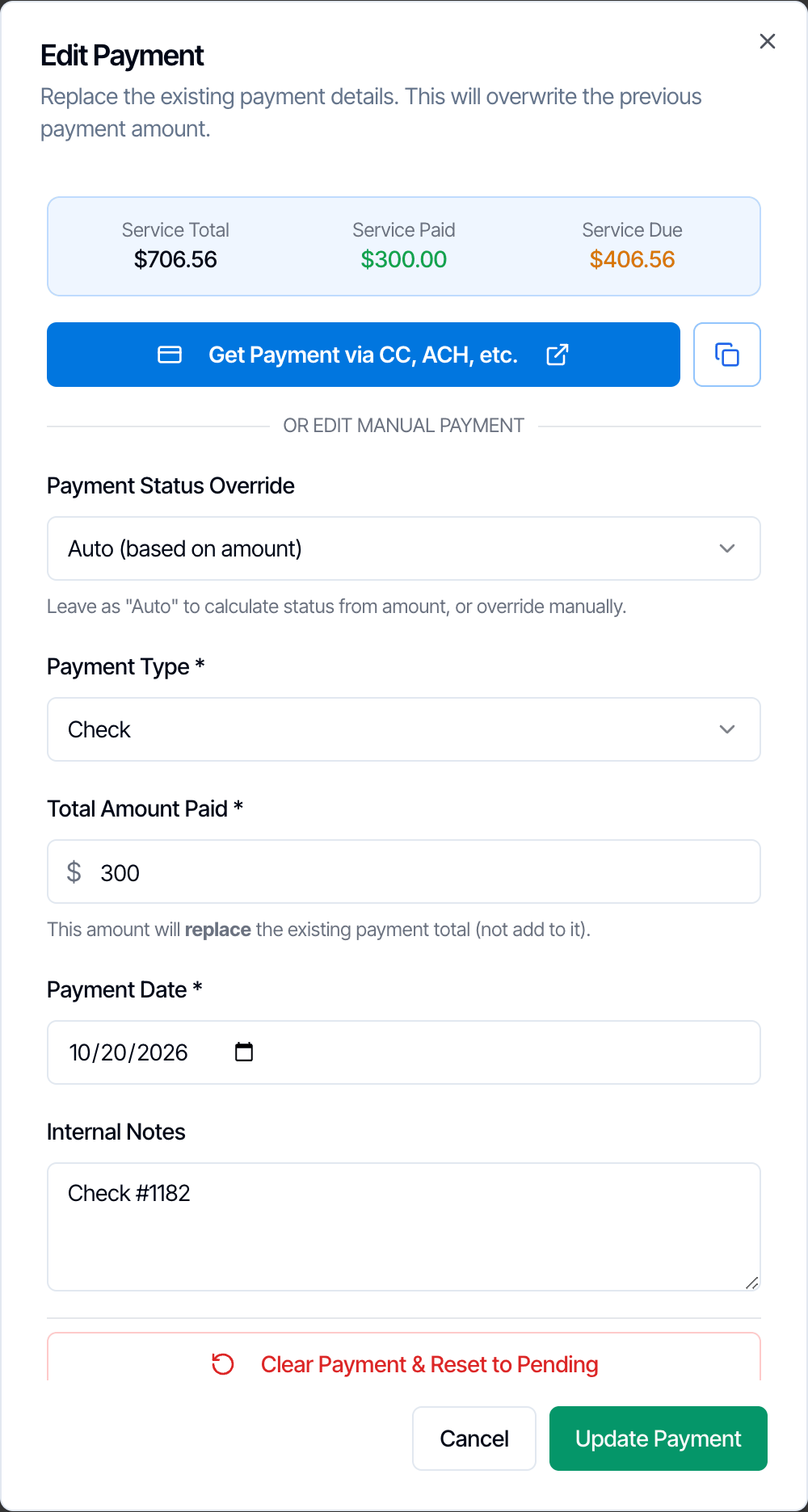
Change the details
Enter the full amount the client has paid in total in Total Amount Paid. Change Payment Type, Payment Date or Internal Notes if needed.
Leave the status on Auto, or override it
Payment Status Override is normally Auto (based on amount): Hive sets Pending, Partial or Paid from the amount. To force a status, pick Pending, Partial, Paid or Pay at Close.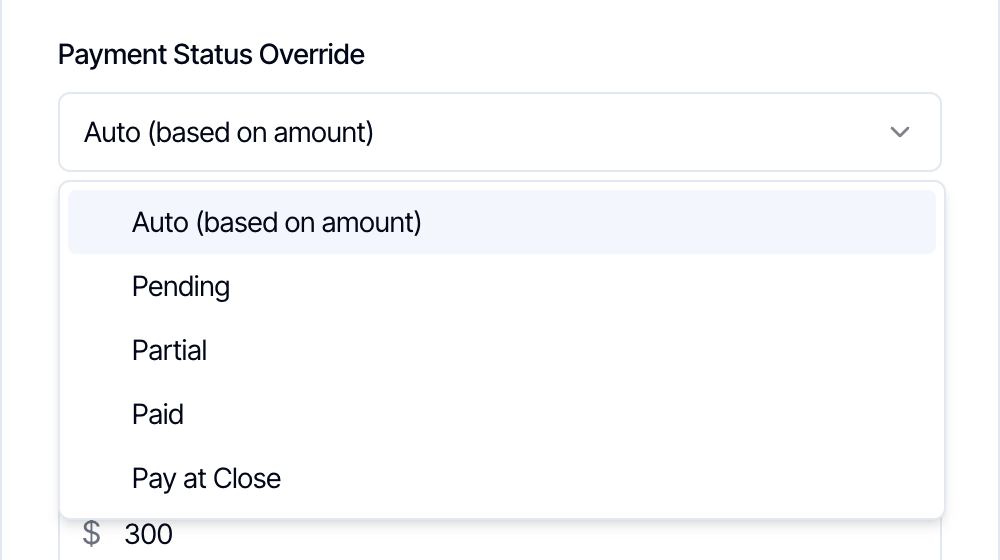
Clear a payment
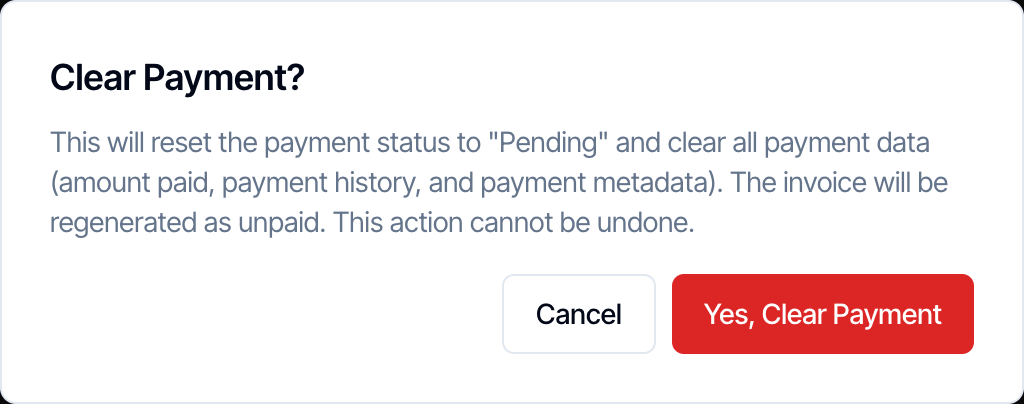
Clear a payment you recorded by mistake, or a check that bounced.
Hive sets Service Paid to $0.00 and erases the payment history, including any refunds listed on it. It rebuilds the invoice as unpaid, so the client can pay again from their portal. If someone you billed with Add Invoice has already paid their share, the status becomes Partial instead of Pending.
Refund a payment
Click Refund Payment
It’s on the Fully Paid banner, or below the buttons on a partly paid inspection.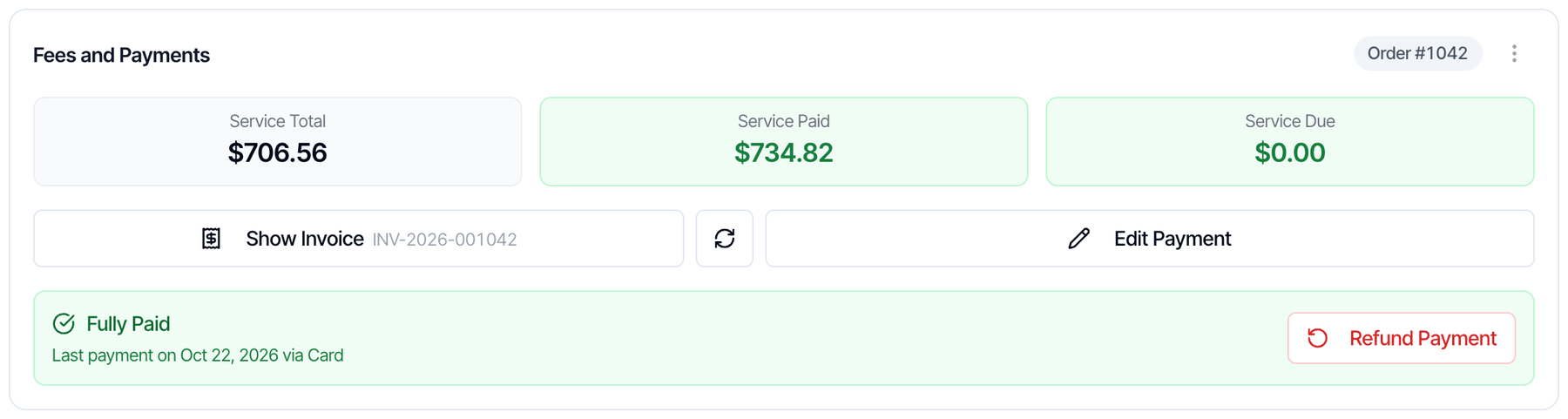
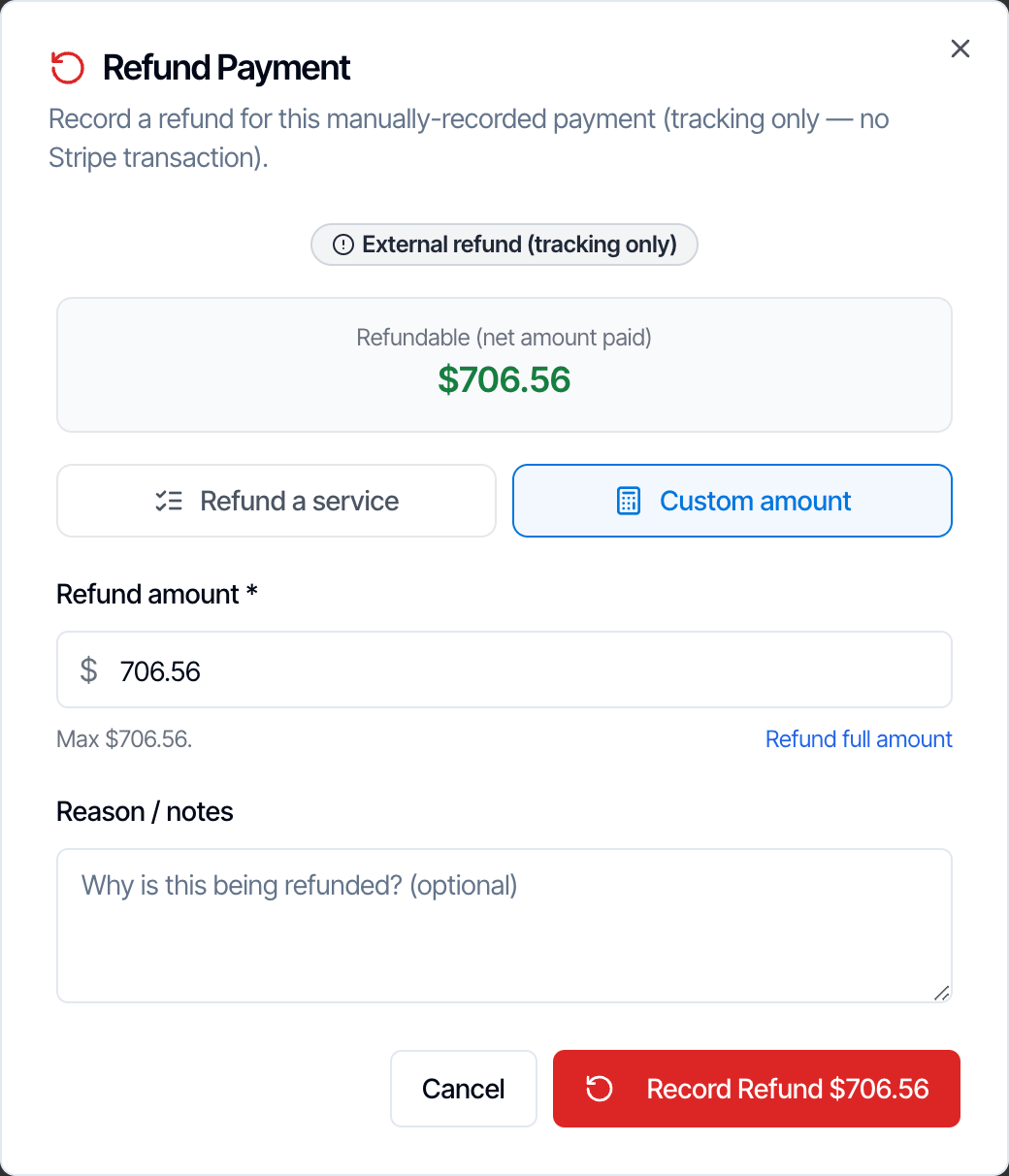
Choose what to refund
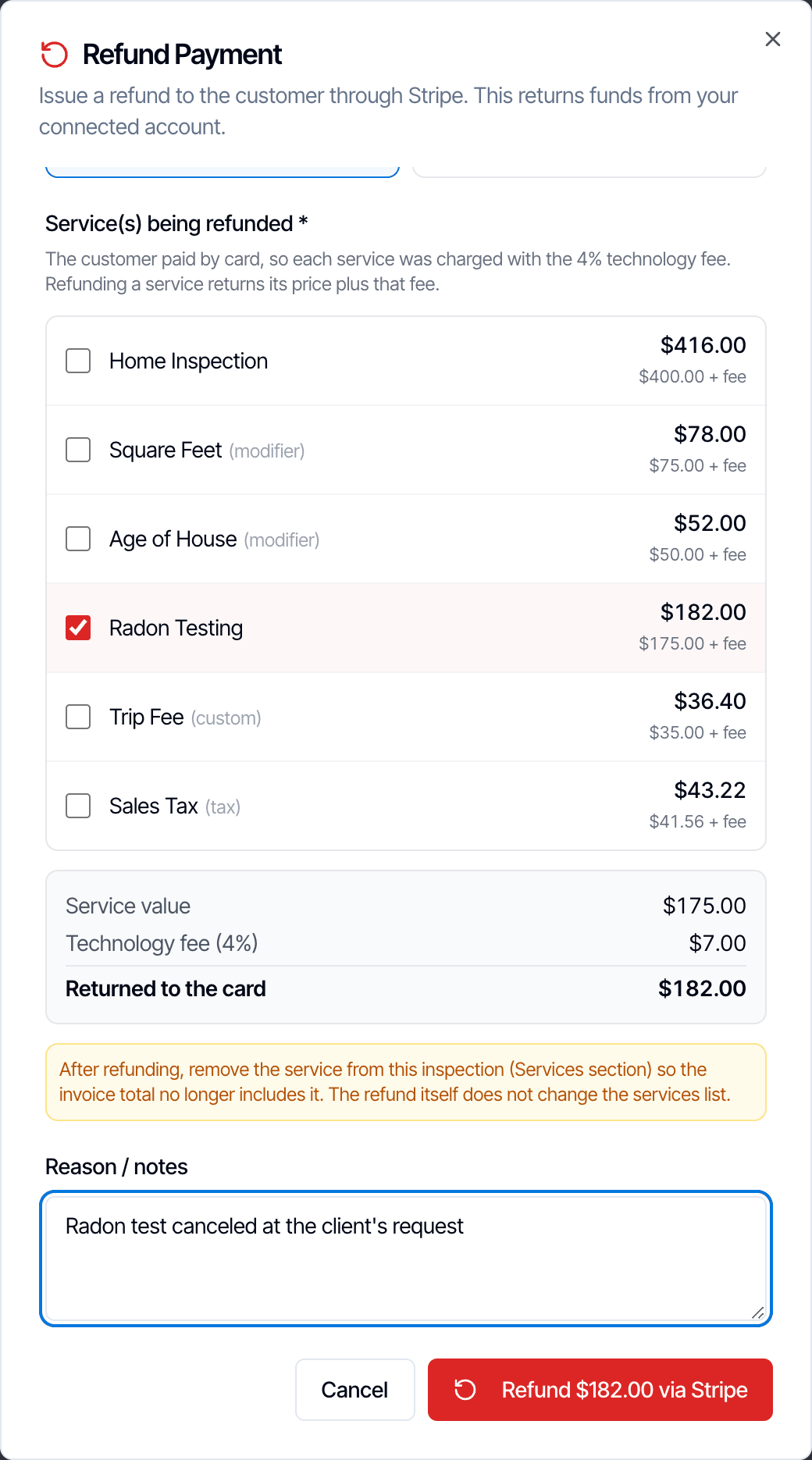
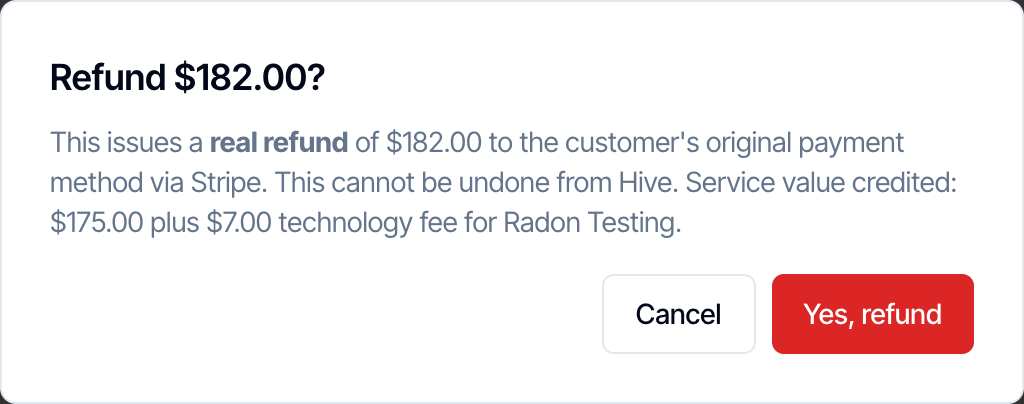
- Refund a service: tick the services or add-ons you’re refunding. Hive works out the amount, including the matching share of the 4% Technology Fee if the client paid by card.
- Custom amount: type any amount up to what was paid, or click Refund full amount.
Refund details
- The most recent payment decides. If the client paid more than once, for example a check deposit and then the rest by card, Hive refunds through the most recent payment: through Stripe if it was paid online, or as a tracking-only refund if you recorded it by hand. A Stripe refund can’t be more than that card payment. To give back more, return the rest yourself and ask us in the chat bubble in your dashboard to update the records.
- Fees aren’t returned. On a Stripe refund, the client gets back what they paid, but the processing fees on the original payment aren’t returned to you. Stripe keeps its fee and Hive keeps its platform fee.
- Earlier refunds show at the bottom of the dialog under Previous refunds. You can refund again until the full amount paid has been returned.
- Refunds made in your Stripe Dashboard show up in Hive on their own when they’re for the inspection’s most recent payment. If one doesn’t show, don’t refund it again with Refund Payment, because that could return the money twice. Ask us in the chat bubble in your dashboard to update the records.
- A share paid through Add Invoice (an agent or other contact) can’t be refunded in Hive. Refund it from your Stripe Dashboard. Hive’s records for that share don’t change. See Split the bill.
- If a Stripe refund fails, Hive shows the error and nothing changes. Refund it from your Stripe Dashboard instead.
- Service Paid goes down, and the invoice shows the refund.
- A full refund sets the status to Refunded. A partial refund usually leaves it Partial.
- The refund doesn’t change the services on the inspection. If you refunded a service, remove it in the services section so the invoice total matches. Otherwise the client still owes it, and the report can stay locked. See Remove a line.
- Nothing is emailed to the client, and no automation runs.
Ask the client for the balance
Use Request balance from customer when the client still owes money, for example after you add a service on site.Click Request balance from customer
The button shows the amount, such as Request balance from customer ($406.56).
Choose who gets it
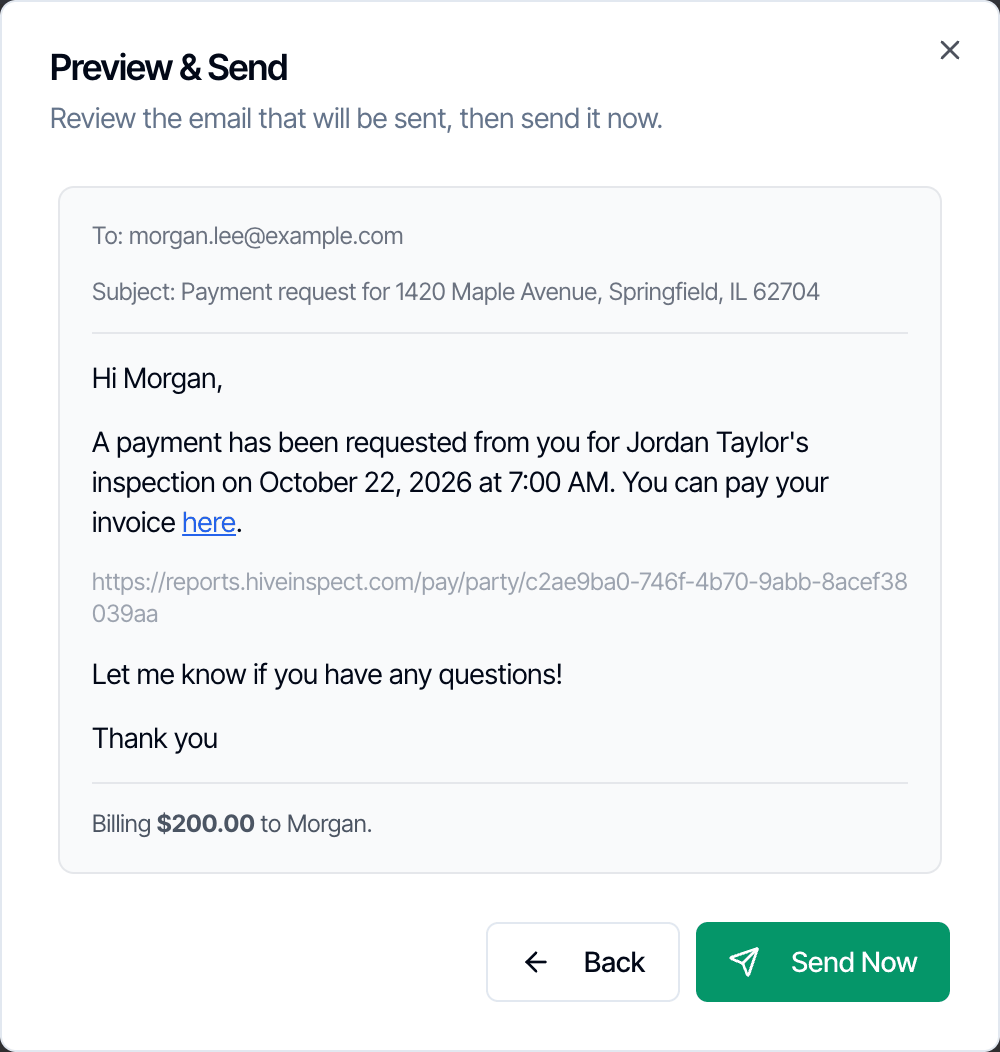
Under Send to, every client on the inspection with an email address is ticked. Untick anyone who shouldn’t get it.
Add a note (optional)
For example, “Radon testing was added during the inspection.” The Preview shows the email.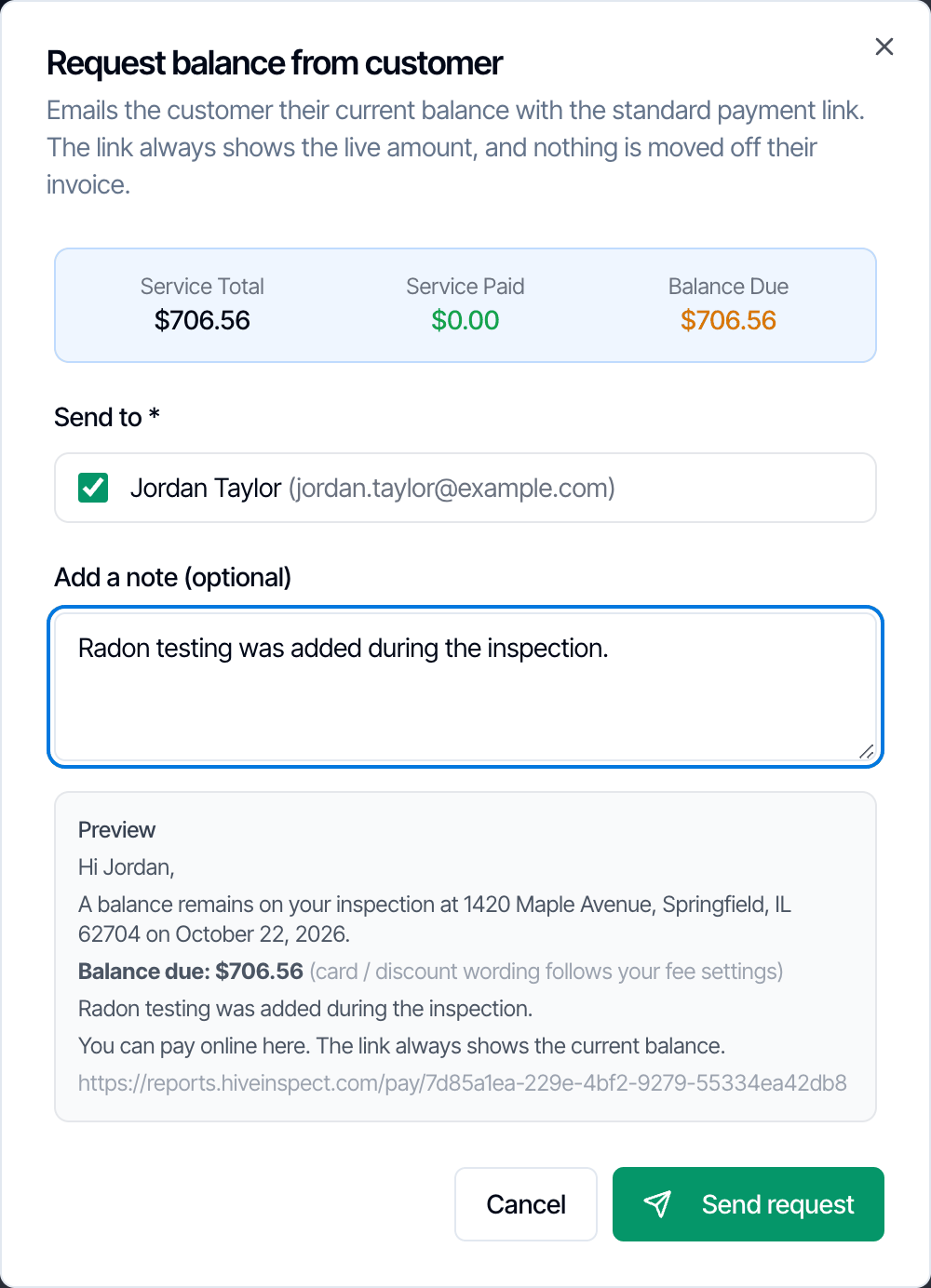
Split the bill with an agent or another contact
Add Invoice (split payment with another contact) bills someone other than the client for part of the fee: an agent, seller, employer or relative. Their share moves off the client’s balance, and they pay it through their own link.Add the person to the inspection
For example, as the buyer’s agent, the listing agent or an additional contact. They need a real email address. The client can’t be billed this way; the list shows everyone on the inspection except the client.
Pick the contact and the amount
Choose them in Send invoice to and enter Amount to bill this contact. It can’t be more than the remaining balance.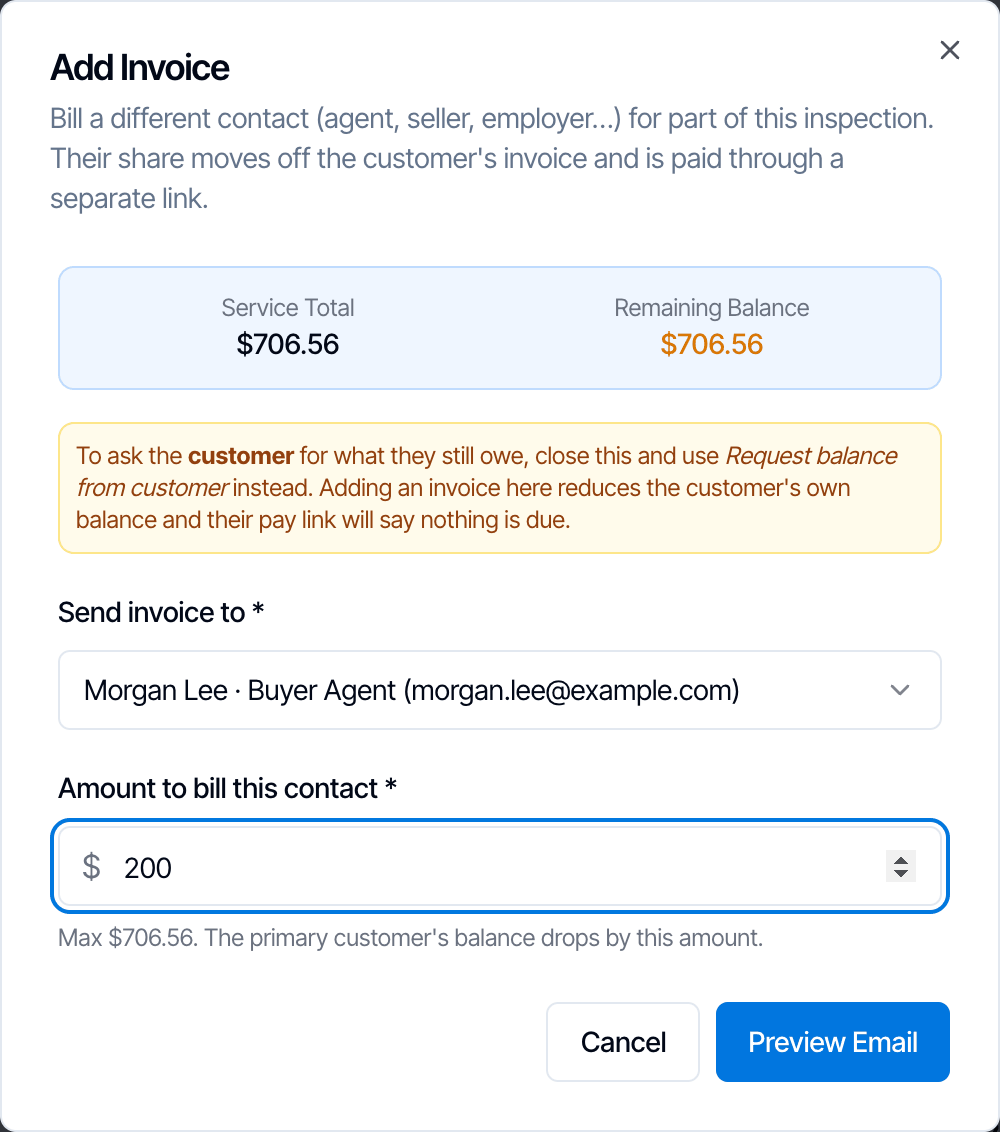
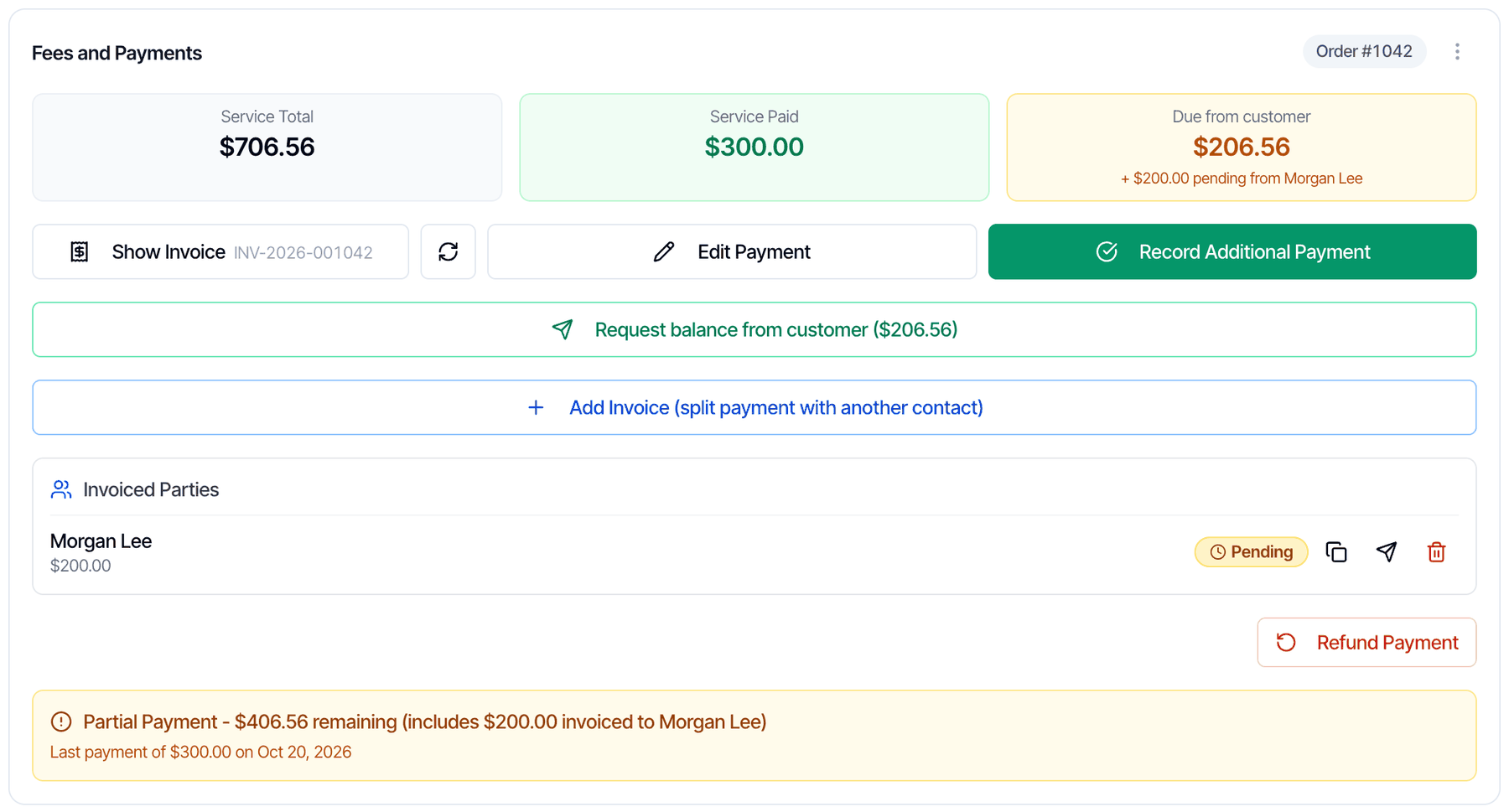
- Pending, Processing or Paid shows where their share stands.
- The copy button copies their payment link. The send button emails the request again.
- The trash button cancels their invoice and puts the amount back on the client’s balance. You can’t cancel a share that’s already paid.
How the agent pays
The email links to the same payment page your client uses, showing only the agent’s share. They can pay by card, bank transfer or Affirm, whichever you accept. A card payment adds the 4% Technology Fee if you pass it on. When they pay:- their line under Invoiced Parties changes to Paid, or Processing while a bank transfer clears;
- the invoice is rebuilt and lists the payment as “Paid by” with their name.
What to expect while a share is unpaid
- Balances: the client’s own link asks only for the client’s part.
- Status: the inspection isn’t Paid until everyone has paid. The card shows Due from customer, plus ”+ $X pending from” the agent.
- Report: it stays locked until every share is paid. To release it sooner, use Manual Lock Override for Reports.
- Price changes: if the price changes after you split the bill, the agent’s share stays the same. The difference goes on the client’s balance.
- Refunds: a share the agent paid can’t be refunded in Hive. Refund it from your Stripe Dashboard.
Don’t use Add Invoice to chase the client. It lowers the client’s own balance, so their pay link would show less than they owe, or nothing due. Use Request balance from customer for the client.
Invoices
Hive creates the invoice when an inspection is confirmed. It also creates one when a client books online or accepts a quote. You don’t need to make it yourself.- Show Invoice opens the PDF in a new tab. If your browser blocks it, allow pop-ups for the dashboard.
- Generate Invoice appears instead if the inspection has no invoice yet. Click it to create one.
- The invoice number is INV-, the year, then the order number padded to six digits, for example INV-2026-001042.
What the invoice shows
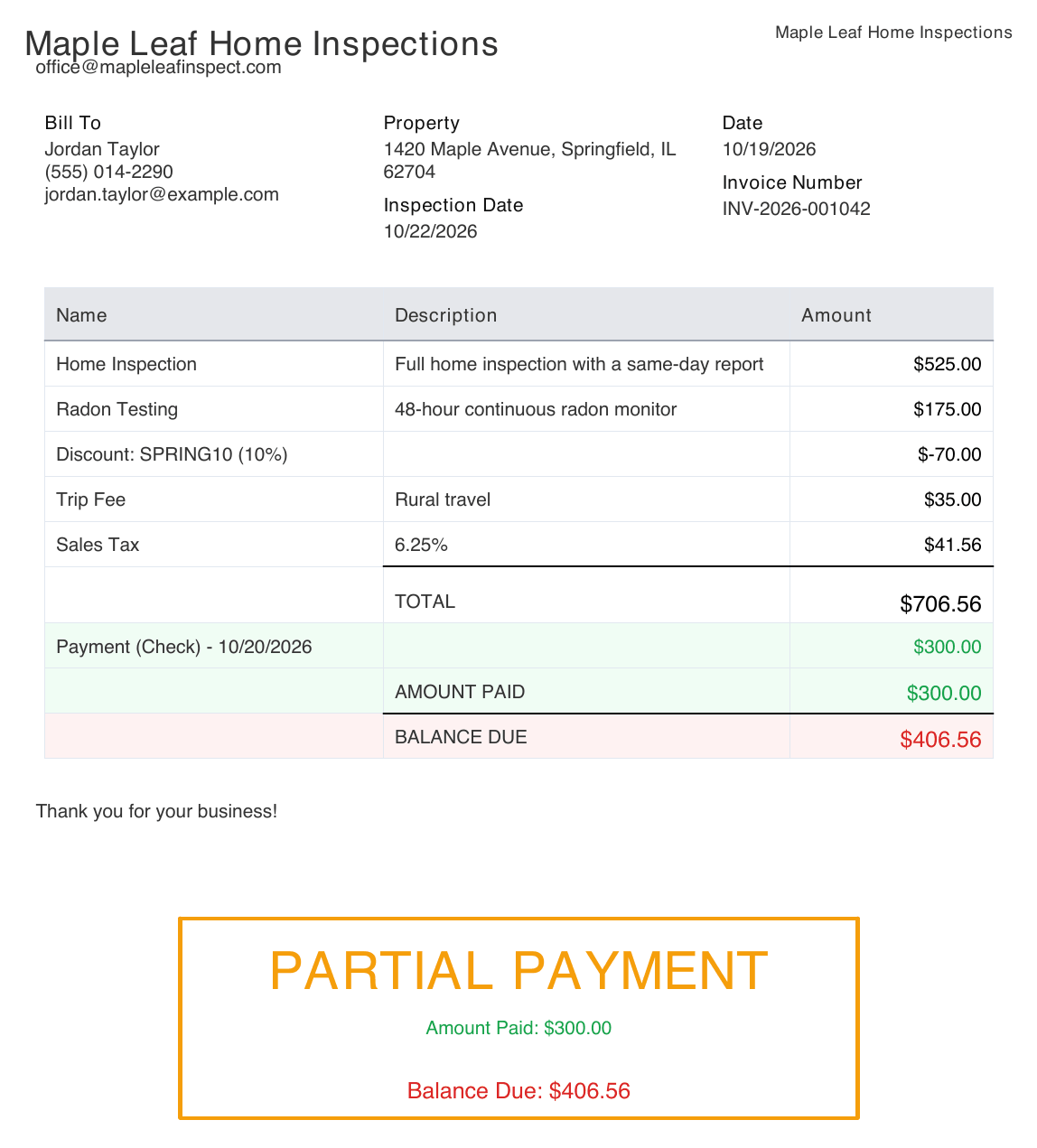
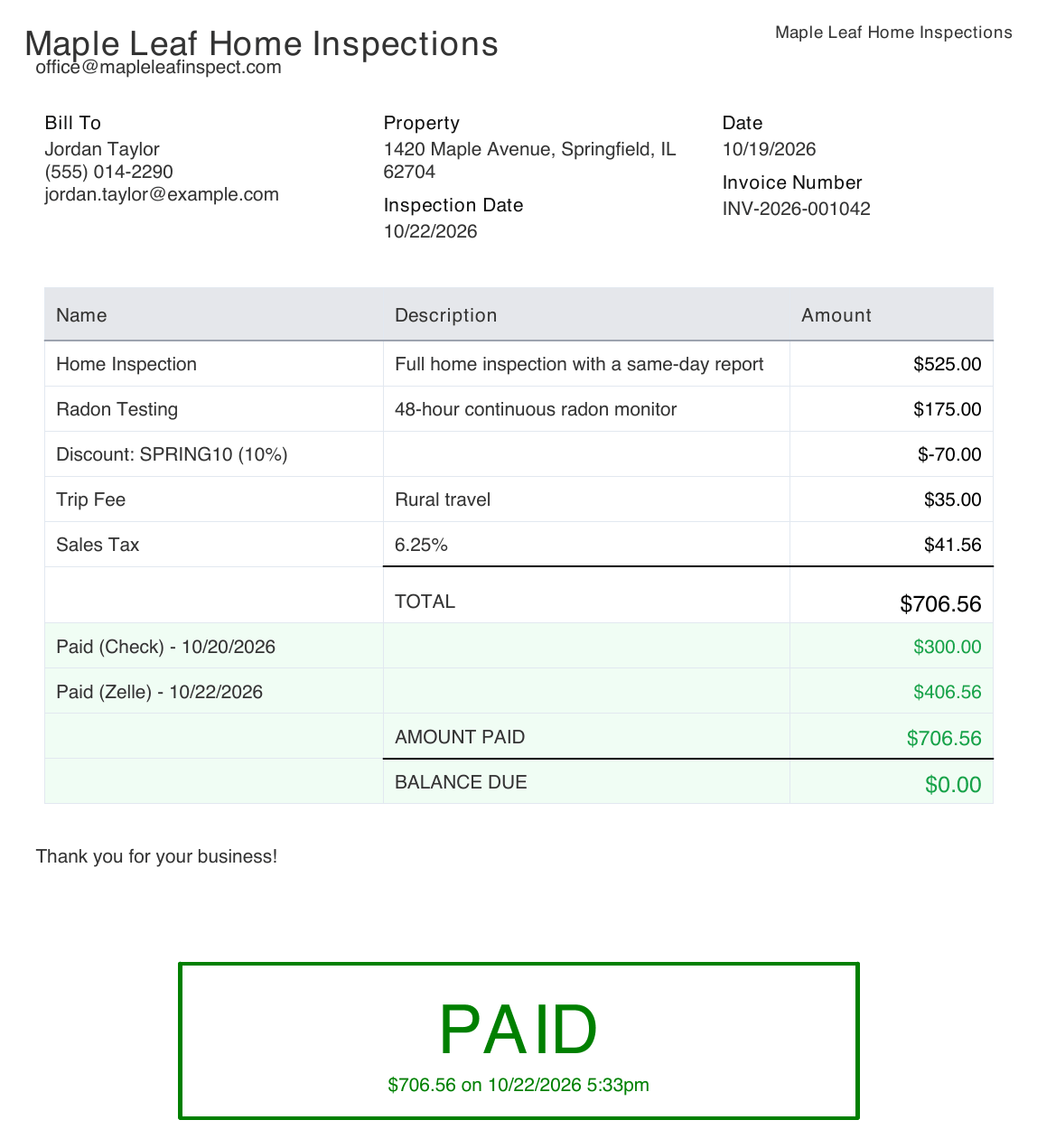
- Your company name and email, the client (Bill To), the property and the inspection date.
- One line for the main service and one for each add-on, plus every discount, urgent fee, custom item and tax.
- Price modifiers, such as a square-footage charge, aren’t listed on their own. Their amount is added to the service or add-on they belong to. See What goes on the invoice.
- TOTAL, every payment with its method and date, AMOUNT PAID and BALANCE DUE.
- A PARTIAL PAYMENT or PAID stamp. Refunds are listed in red.
- Your Invoice Business Text at the bottom. Set it in payment settings.
Partly paid
Paid
Regenerate the invoice
The invoice updates on its own when the price or a payment changes. The refresh button next to Show Invoice rebuilds it straight away from the current client contact, prices and payments. Use it after you fix the client’s name or email. Regenerating sends nothing. The invoice number stays the same, and the invoice date becomes today’s date.Send the invoice
There’s no Send Invoice button. Your client finds the invoice:- in the Payments section of their client portal;
- with View Invoice on the payment page;
- in any automation email that uses the
{{{invoice_link}}}placeholder.
{{{invoice_link}}} to an automation, or download the PDF and forward it.
Credit card fee for one inspection
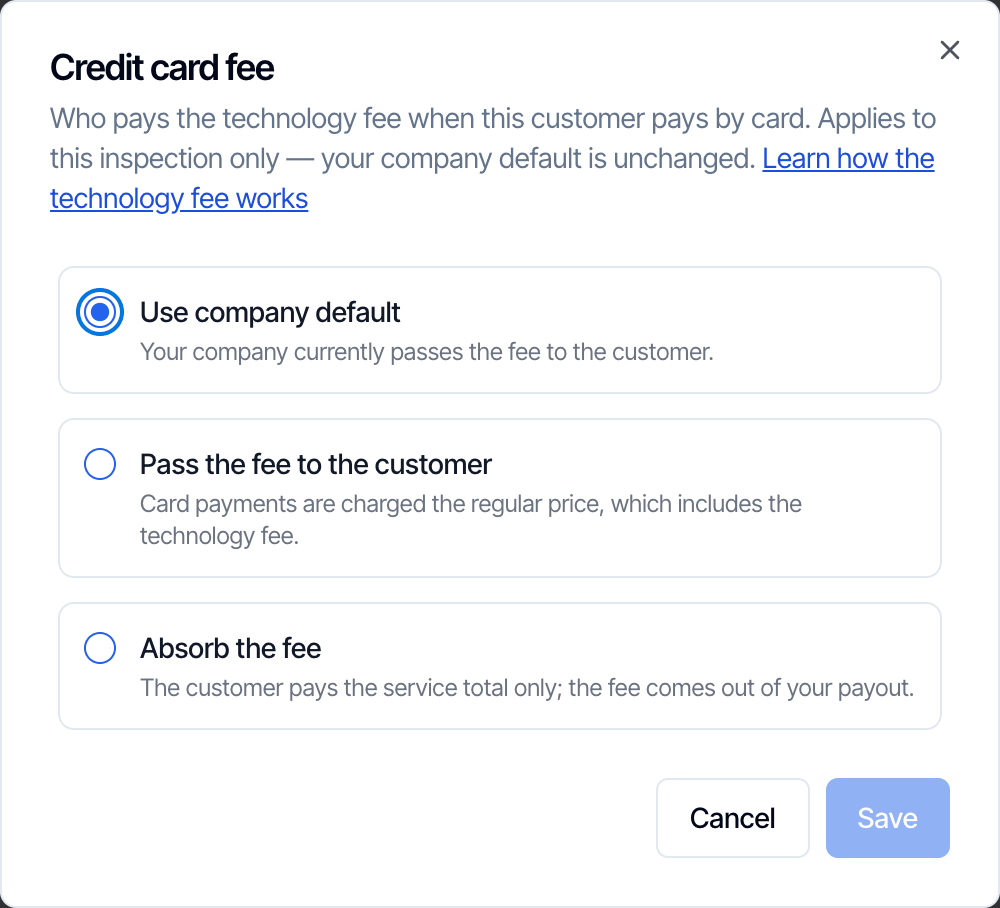
The ⋮ menu has Credit card fee…. Use it to absorb the 4% fee on one inspection, or pass it on, without changing your company default.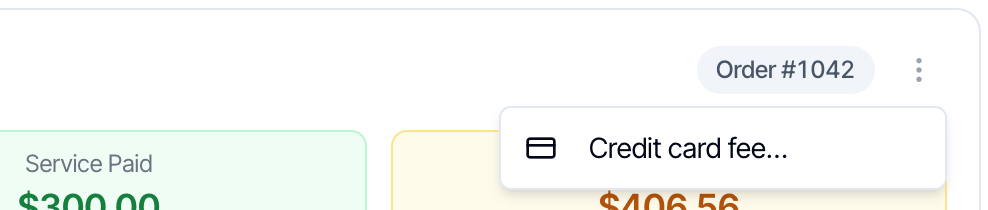
In the mobile app
The mobile app has the same basics on the inspection’s summary screen: the payment link, the invoice and recording a payment.Open the inspection
Tap the inspection on your home screen or in your inspection list. The summary screen opens.
Tap Fees & Payments
It’s next to Agreements and Status. Its subtitle shows the payment status: Pending, Partially Paid or Paid.It works only on Confirmed inspections. Otherwise it’s greyed out and reads Not Available. A $0 inspection shows N/A.
Use the Fees and Payments screen
The screen shows the payment status at the top right and a Payment Management card with the Total Amount:
- Pay via Credit Card shows the amount due. It reads Pay Remaining Balance after a partial payment. Tap it to open the payment page in your browser, where you or the client enter a card. Tap the copy icon on the button to copy the link and text it to the client. While a bank transfer is clearing, the button is replaced by Payment Processing – ACH transfer in progress. It disappears once the inspection is paid.
- Show Invoice opens the invoice PDF. If there isn’t one yet, Hive creates it.
- Record Payment opens the Record Payment screen.
Record a payment
- Amount: tap Use next to Balance due to fill in the full balance.
- Payment type: tap one: Cash, Check, Credit Card, Debit Card, Wire Transfer, Venmo, Zelle, Cash App, E-Transfer or Other.
- Payment date
- Internal notes (“Only visible to your team”)
Edit a payment in the app
On a Paid inspection, the button reads Edit Payment and opens Edit Payment Details. It works like Edit Payment on the web: it replaces the payment instead of adding to it.- Total amount paid starts at what’s recorded now, with the payment type, date and notes filled in.
- The note under it says what you’re replacing, for example “Replaces the 2 payments recorded so far ($706.56) with one payment.”
- To fix only the payment type or date, change it and tap Update Payment. The total stays the same.
- payments made online through Stripe (card, bank transfer or Affirm);
- payments with a refund on them;
- inspections where another contact paid part of the bill.
Who can do what
See Team permissions.