

In the dashboard: the chat bubble at the bottom right of every page, and Business Tools → Feature Requests. In the mobile app: My Profile → Need Help?
There are three ways to get help from Hive:
On the free trial you can also book an onboarding call.
Our team answers in the chat seven days a week.
Chat with us from the dashboard
The blue chat bubble sits at the bottom right of every dashboard page once you’re signed in, including the report editor. Click it to write to our team.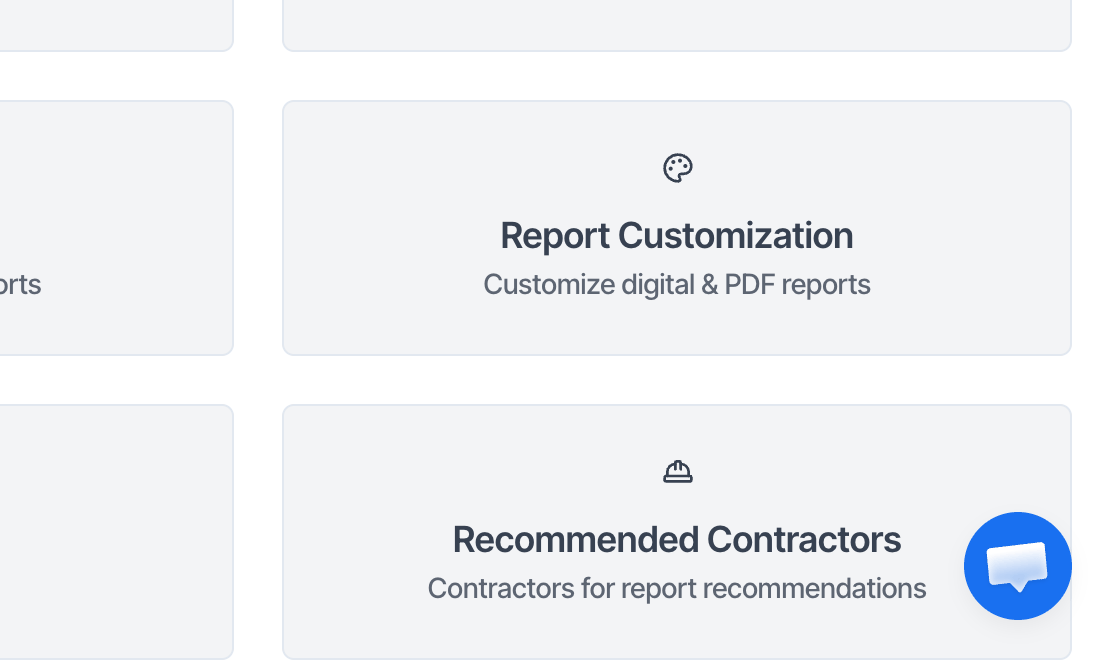
- The chat knows who you are. Hive passes your name, your login email and your company name to it, so you don’t need to explain which account you’re on.
- The bubble isn’t on the sign-in page or on pages your clients see, such as the client portal and your online scheduler. Sign in to the dashboard first.
- While the Ask Agent panel is open, the bubble is hidden, because the panel sits in the same spot. Close the panel and the bubble comes back.
Coming back to a conversation
Your chat is tied to your Hive login, not to the browser. Close the tab, come back on Friday or sign in on another computer, and the same conversation is there when you open the chat bubble. Signing out clears the chat from that browser. Sign back in and your conversation comes back. If you’ve left the dashboard when we reply, our reply is emailed to your login email too. To follow up, come back to the chat bubble and answer there.Chat with us from the mobile app
The mobile app has its own chat. Open the My Profile tab and tap Need Help? (Chat with us now). You can also tap Contact Support under Help and Support on the same tab. It offers:- Live Chat: the same chat as Need Help?.
- Community Support: our Facebook group, where other inspectors answer.
- Email Us: an email to support@hiveinspect.com.
The chat in the mobile app and the chat bubble in the web dashboard are separate conversations. A conversation you start on your computer doesn’t show in the app, and the other way around. Both reach the same team, so you can use either.
What to put in your message
The more we can see, the faster we can fix it. Include:- The inspection address for anything about an inspection, report, invoice or payment.
- A screenshot or a short screen recording of what you see, including any error message.
- Where it happened: the web dashboard or the mobile app, and which page or screen.
- What you did and what you expected, step by step.
- For the mobile app: your phone or tablet model (iPhone, iPad or Android), and whether the app is up to date from the App Store or Google Play.
Help docs, FAQs and videos
- These help docs: the Docs button at the top of your dashboard home page opens them. Use the search at the top of any page.
- FAQ: real questions inspectors asked our team, with the answers.
- Video tutorials: short walkthroughs, starting with the onboarding videos. Watch them in order when you set up your account.
- What’s new: every release.
- Community: the Community button on your dashboard home page opens the Hive Facebook group.
Book an onboarding call
While you’re on the free trial, the banner at the top of your dashboard home page, your Inspections page and Business Tools → Subscriptions has a Book onboarding call button, next to Onboarding videos.
- Click Book onboarding call. A booking page opens in a new tab.
- Fill in your Name, Years of experience in Home Inspection, Company name, City, State, Phone number and Number of home inspectors. Company website and Notes are optional.
- Click Continue to scheduling.
- Pick a time on the calendar. You get a calendar invite. If the calendar doesn’t load, click Calendar not loading? Open the scheduler in a new tab.
Feature Requests
Use Feature Requests to ask for something Hive doesn’t do yet and to follow it until it ships. Report bugs in the chat instead, because bugs are handled first. Open Business Tools → Feature Requests in the web dashboard. You need the Business Tools permission to open Business Tools. See What each permission does.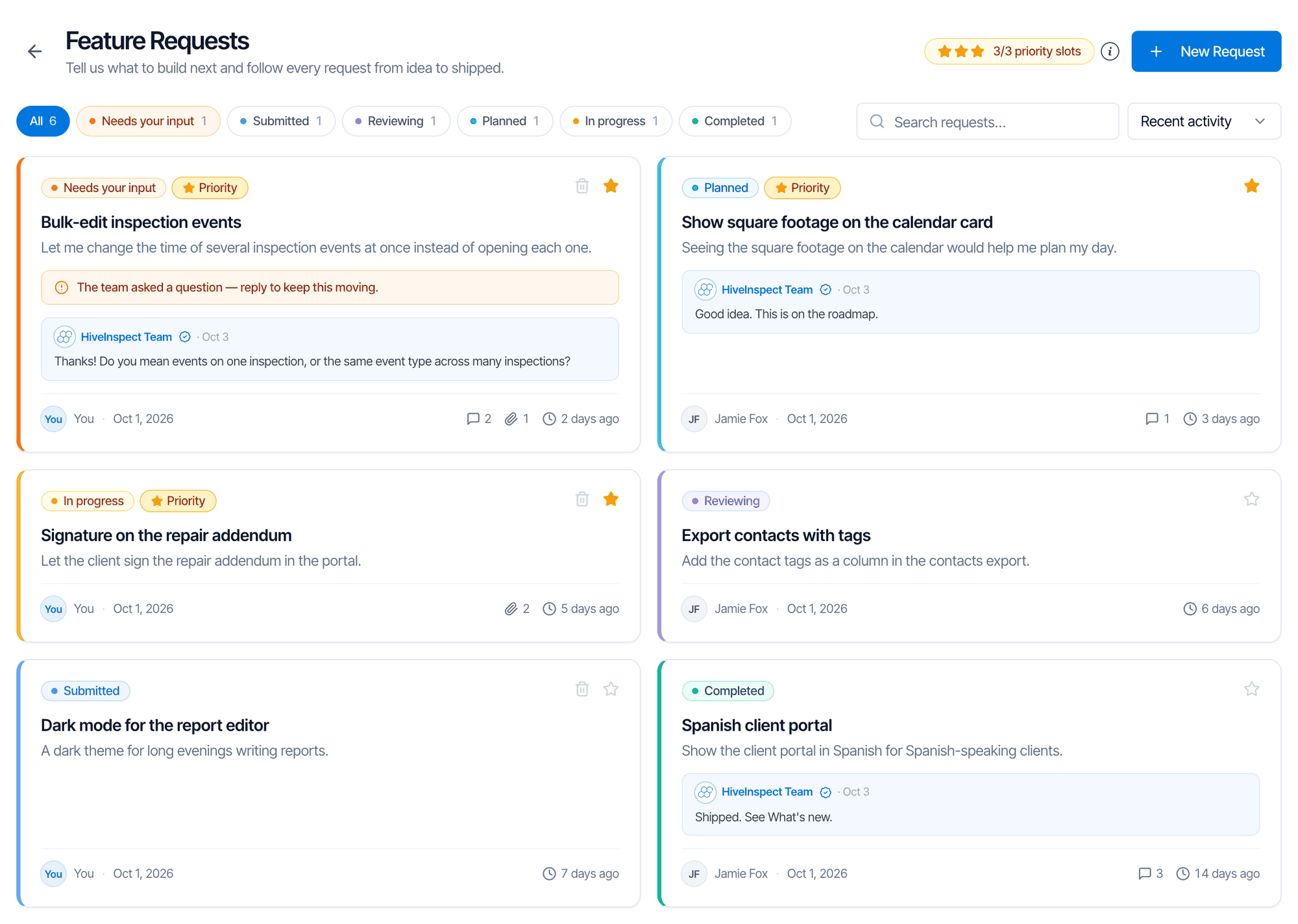
Who sees your requests
Everyone in your company sees all of your company’s requests and replies. Other companies don’t see them. Each request shows who asked for it.Submit a request
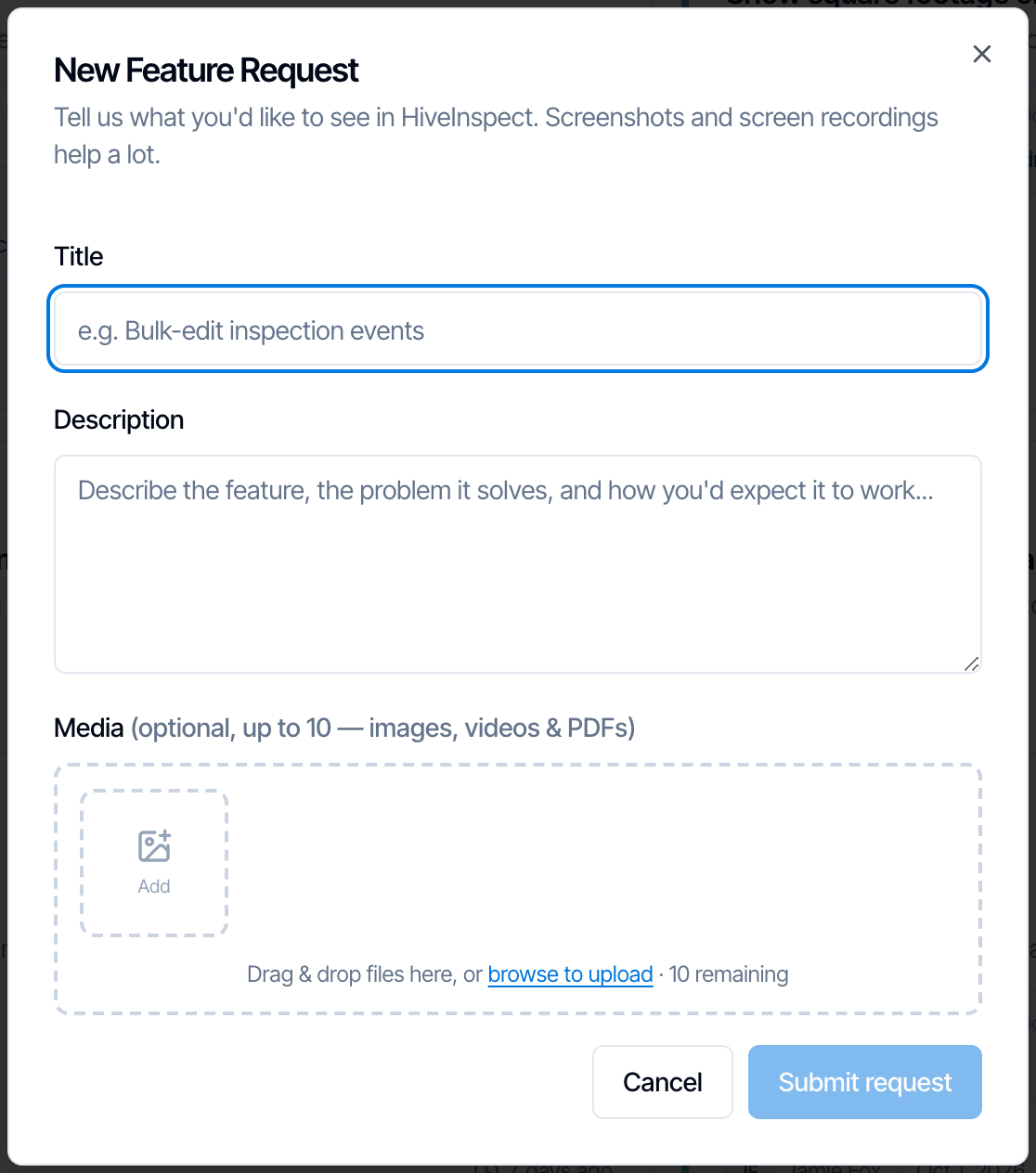
- Click New Request.
- Give it a Title (up to 200 characters) and a Description. Say what you want, the problem it solves and how you’d expect it to work. Say which page or screen it’s for, web or mobile.
- Add Media if you can: up to 10 images, videos and PDFs. Screenshots and screen recordings help a lot, including from your old software if it had the feature.
- Click Submit request. The request opens so you can follow it.
Request statuses
The filter buttons above the list show how many requests have each status. Click one to show only those, or All for everything. Needs your input comes first, so you can see what’s waiting on you.
We let you know when your request’s status changes or our team replies, so you don’t have to keep checking the page.
Follow a request and reply
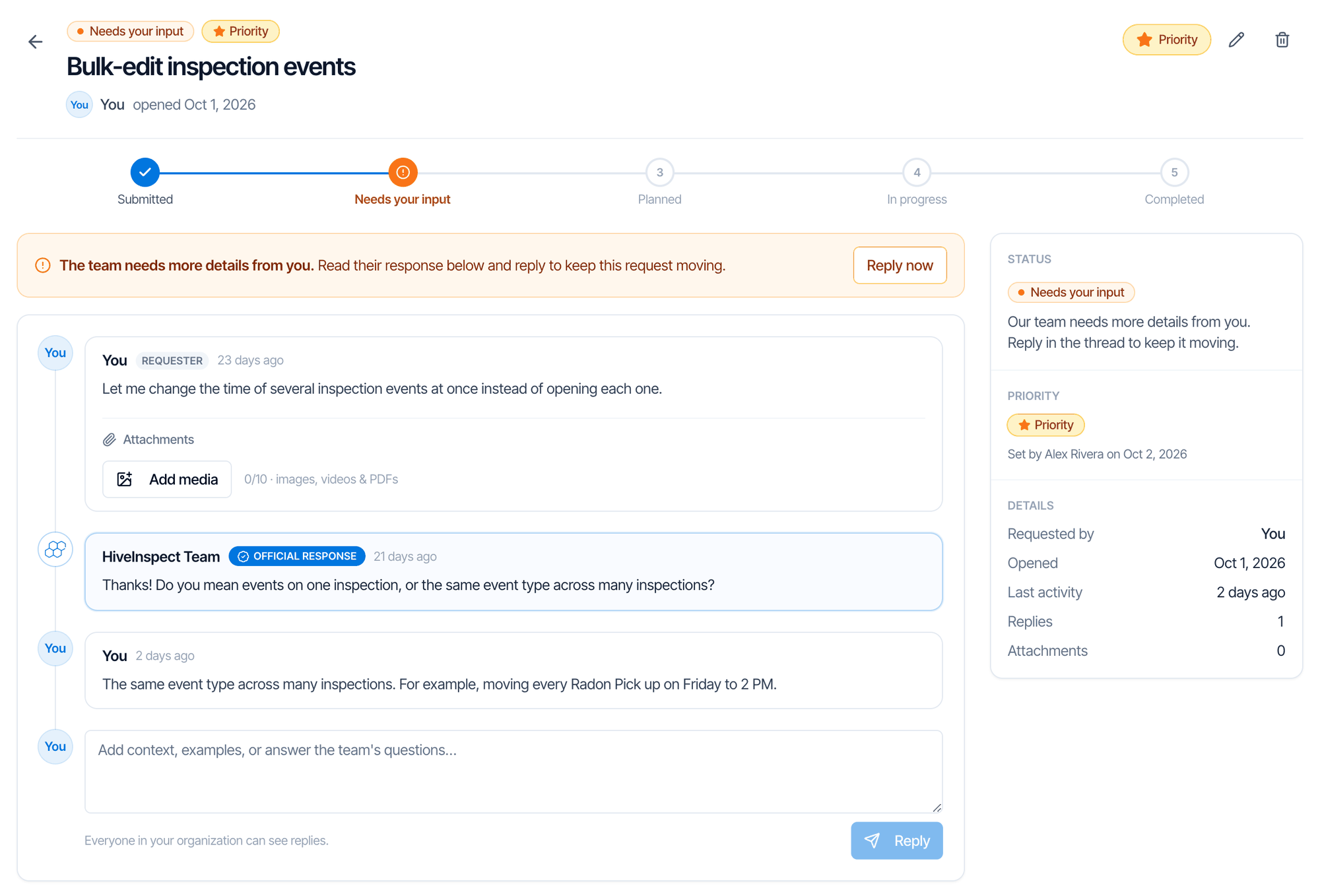
Click a request to open it. It shows:- Its progress from Submitted to Completed.
- Your description and attachments.
- The HiveInspect Team response, marked Official response.
- Replies from your team and ours, oldest first.
- On the right, the Status, Priority and Details: who asked, when it was opened, last activity, replies and attachments.
Mark your top priorities
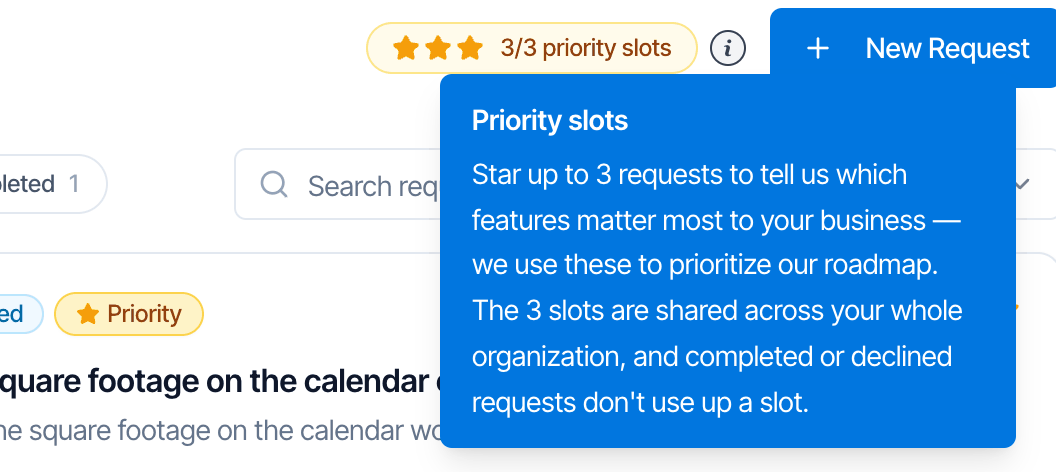
Click the star on a request to mark it as a Priority. It tells us which requests matter most to your business.- Your company has 3 priority slots, shared by everyone. The pill next to New Request shows how many are in use.
- Completed and Declined requests keep their tag but free their slot.
- To use a slot that’s taken, click the star on another request to remove its tag first.
- The request page shows who set the priority and when.
Find, edit or delete a request
- Search requests looks in titles, descriptions, team responses and names.
- Recent activity lists your priorities first, then the most recently active. You can also sort by Newest first or Oldest first.
- Edit: on a request you created, click the pencil to change the title or description, and use Add media to attach more files.
- Delete: on a request you created, click the bin, on its card or on its page. Its replies and attachments are deleted with it, and it can’t be undone.
Common questions
Can someone call me or set up a video call?
Can someone call me or set up a video call?
There’s no phone support line. Support runs through the chat bubble. For something complicated, or when you’re onboarding, our team can send you a Zoom link for a live video call and share screens with you. On the free trial, you can also book an onboarding call with Book onboarding call on your dashboard banner. See Book an onboarding call.
Is my chat visible in the mobile app?
Is my chat visible in the mobile app?
No. The app’s chat (My Profile → Need Help?) and the dashboard’s chat bubble are separate conversations. Both reach the same team.
Can I go back to my conversation later?
Can I go back to my conversation later?
Yes. The chat is tied to your Hive login, so the conversation is there when you open the chat bubble again, even days later or on another computer.
Should I report a bug as a feature request?
Should I report a bug as a feature request?
No. Report bugs in the chat bubble with a screenshot and the inspection address. Feature requests are for things Hive doesn’t do yet.
Why can't I delete or edit a feature request?
Why can't I delete or edit a feature request?
Only the person who created it can. Ask them, or reply in its thread.
Why can't I star another request?
Why can't I star another request?
All 3 of your company’s priority slots are in use. Remove the star from another request first. Completed and declined requests don’t use a slot.
How long does a feature request take?
How long does a feature request take?
It depends on the request. Follow its status on the Feature Requests page. Shipped features are listed in What’s new.