

Setting up your Hive Inspect account
Sign up and access dashboard
0:01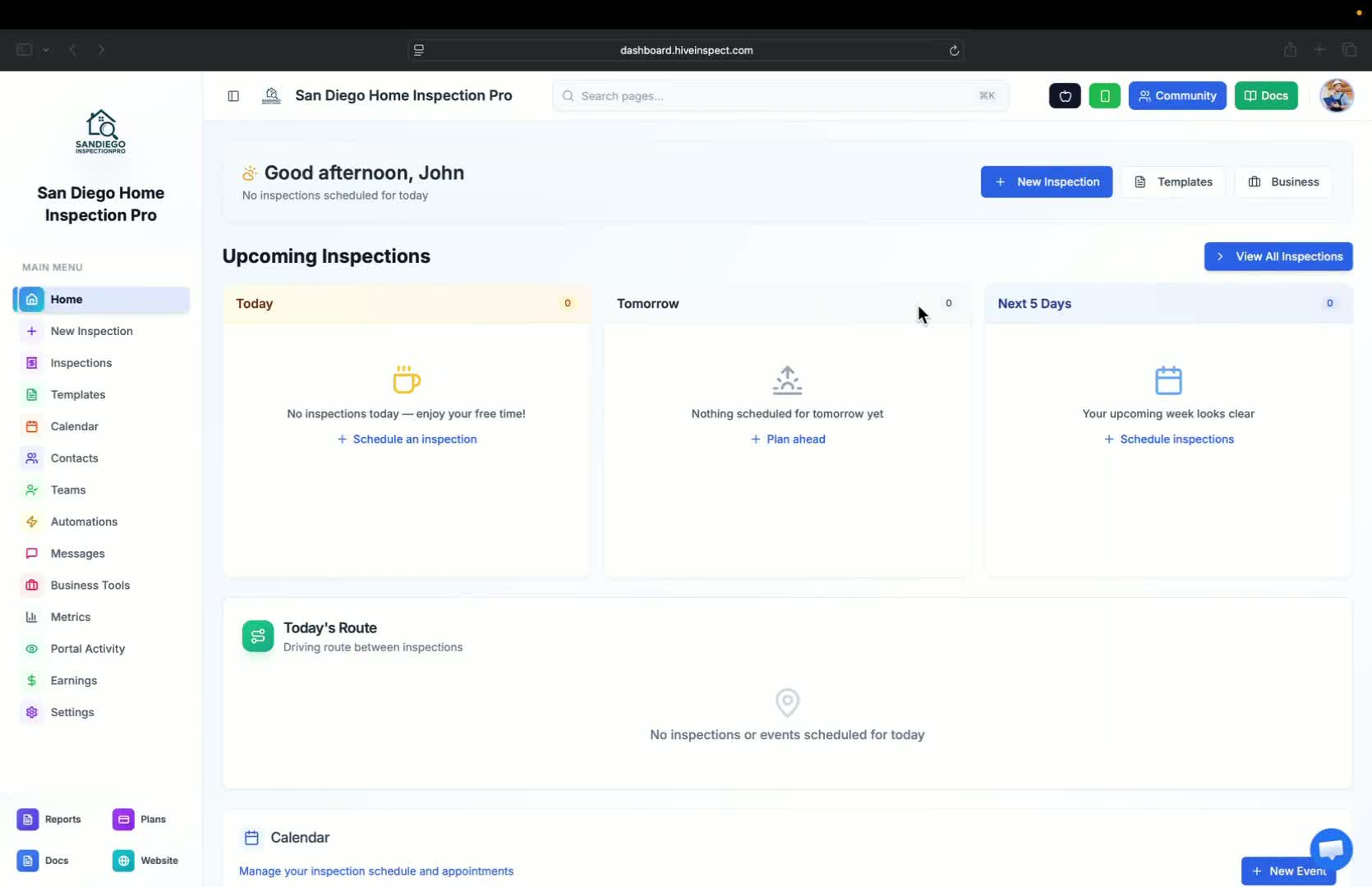
- Sign up and confirm your email
- You will be redirected to the dashboard or access it directly by typing
dashboard.hiveinspect.com
Connect your calendar
Fill in your information
0:22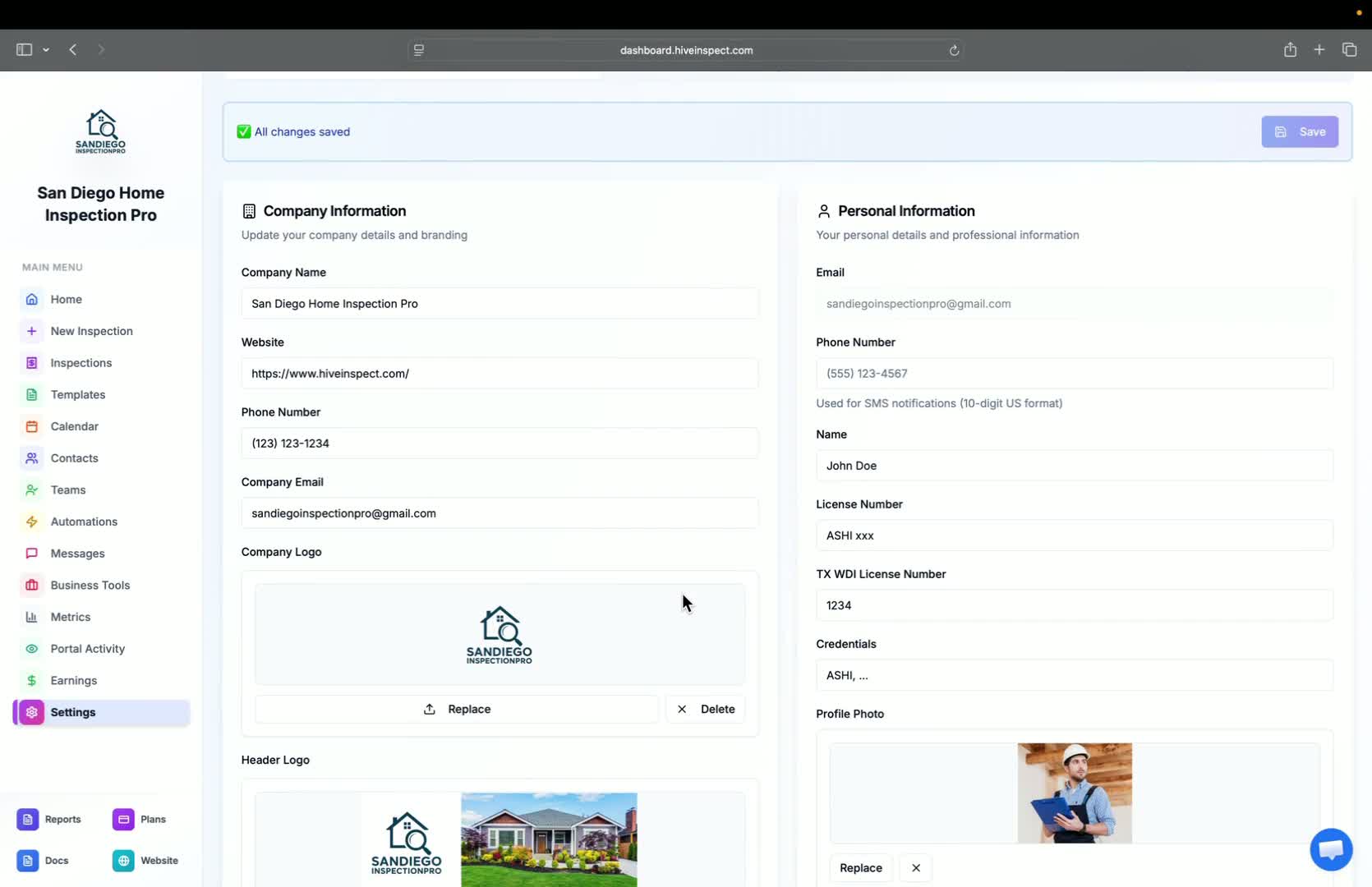
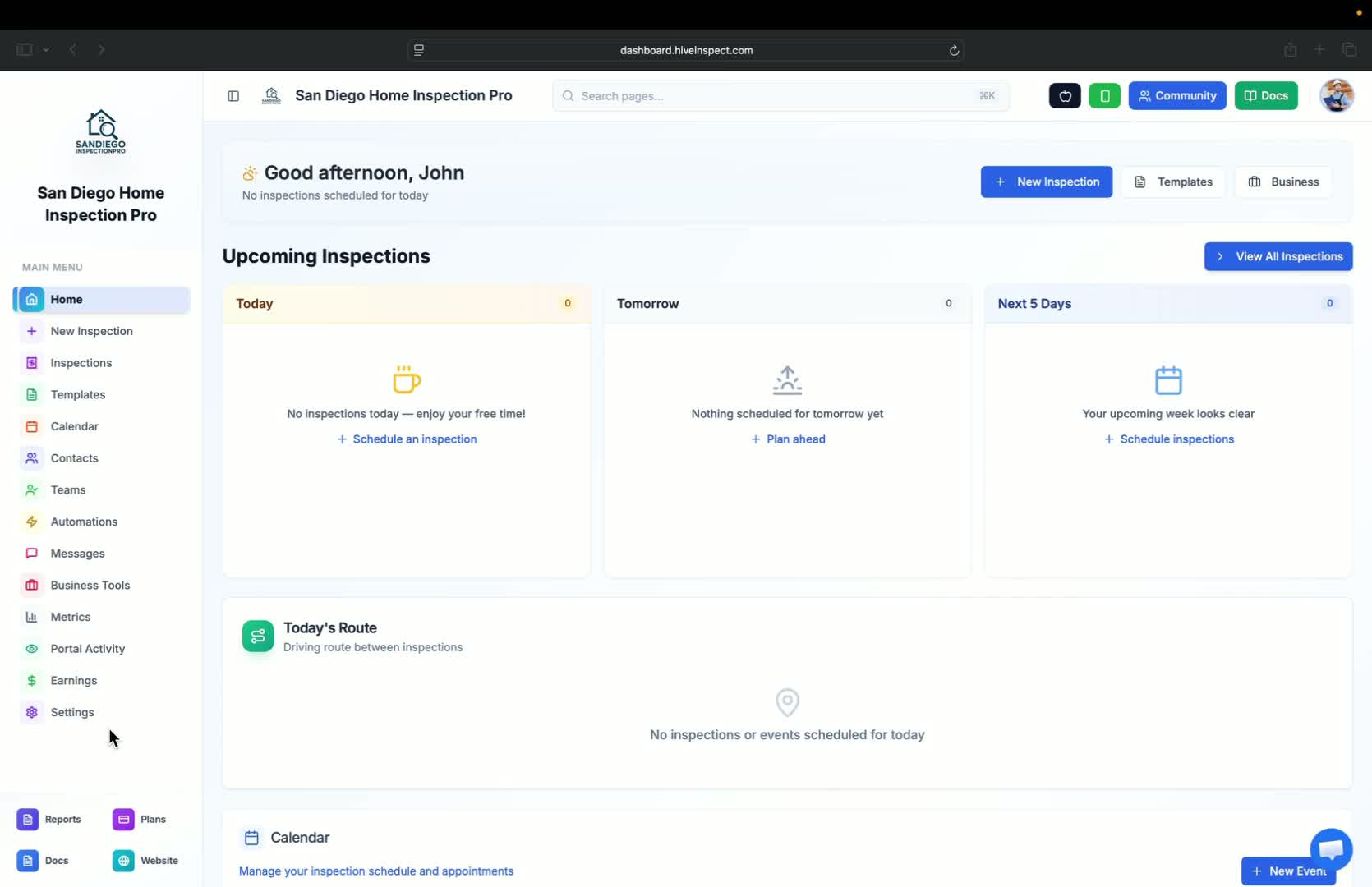
- Go to the settings page
- Enter the following information:
- Company name
- Business website
- Phone number
- Company email (for replies)
- Your name
- License number
- WDI license number (Texas termite and WDI inspections)
- Logos, profile photo, and signature
Address and privacy settings
1:02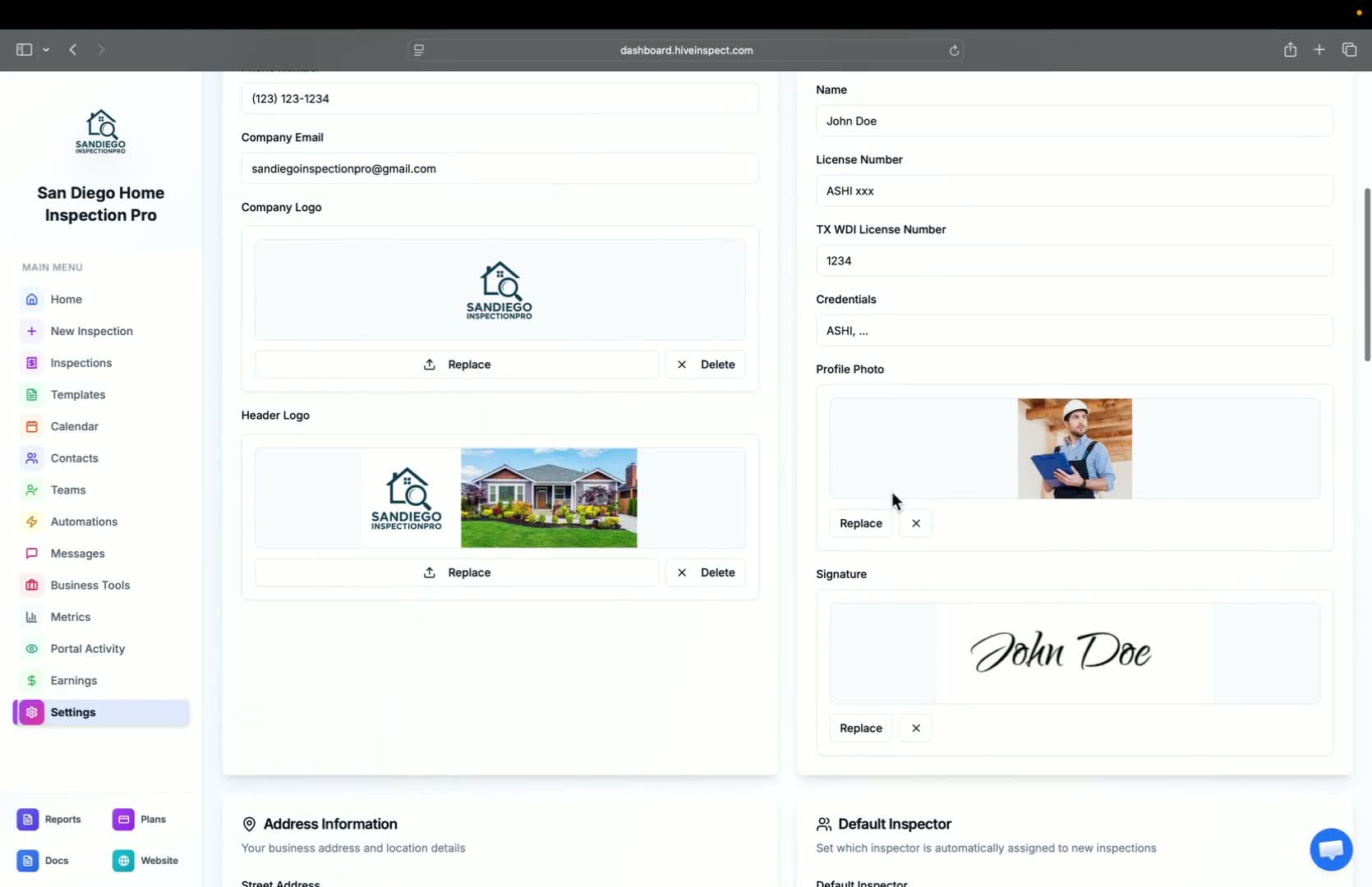
- Enter your address information (required for location-based modifiers)
- Decide whether to display your information publicly by toggling the display flag
Set default inspector
1:34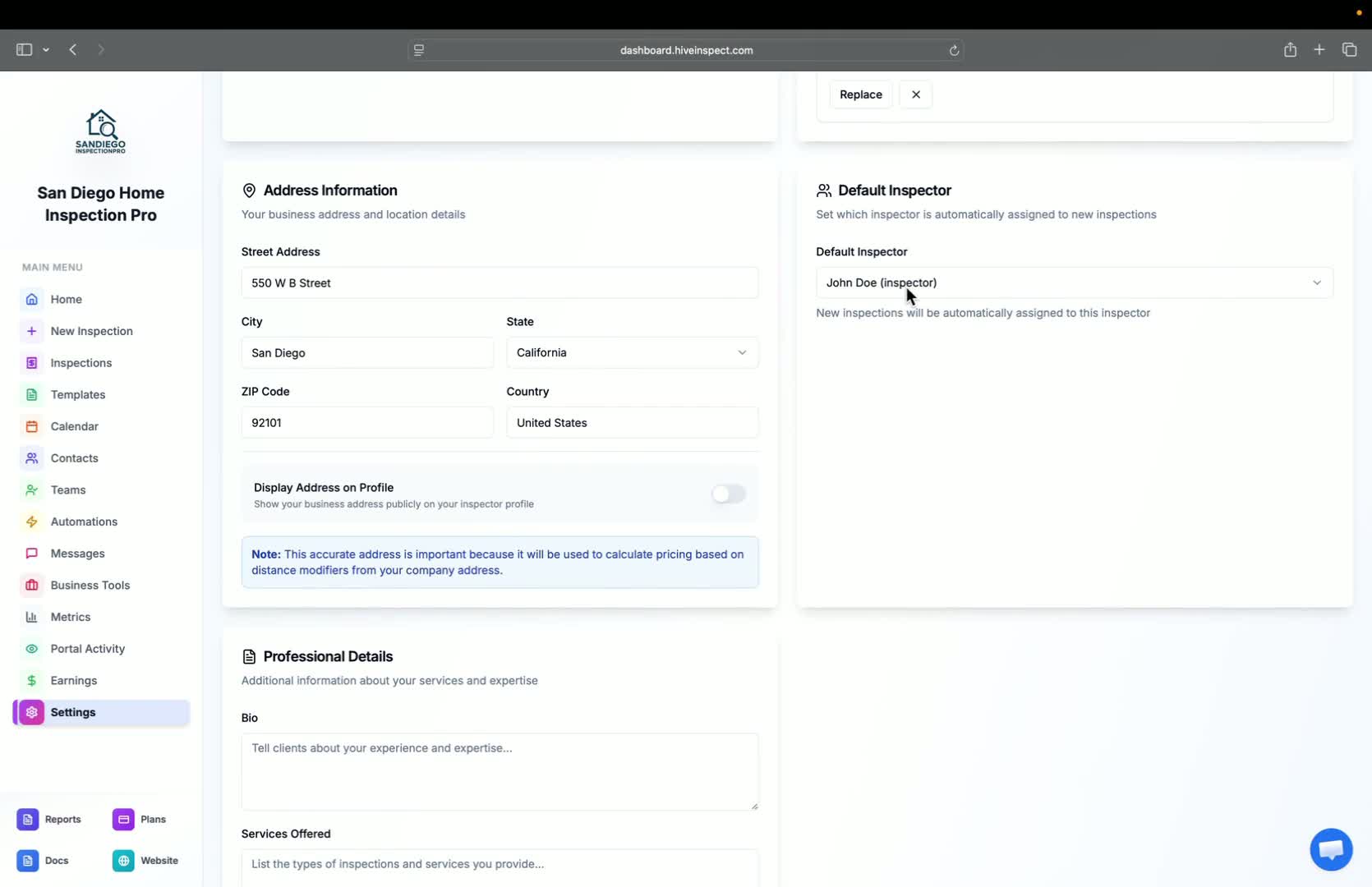
- If you are a solo inspector, you will see one default inspector
- If you have multiple inspectors, select the default inspector
Configure business hours
1:42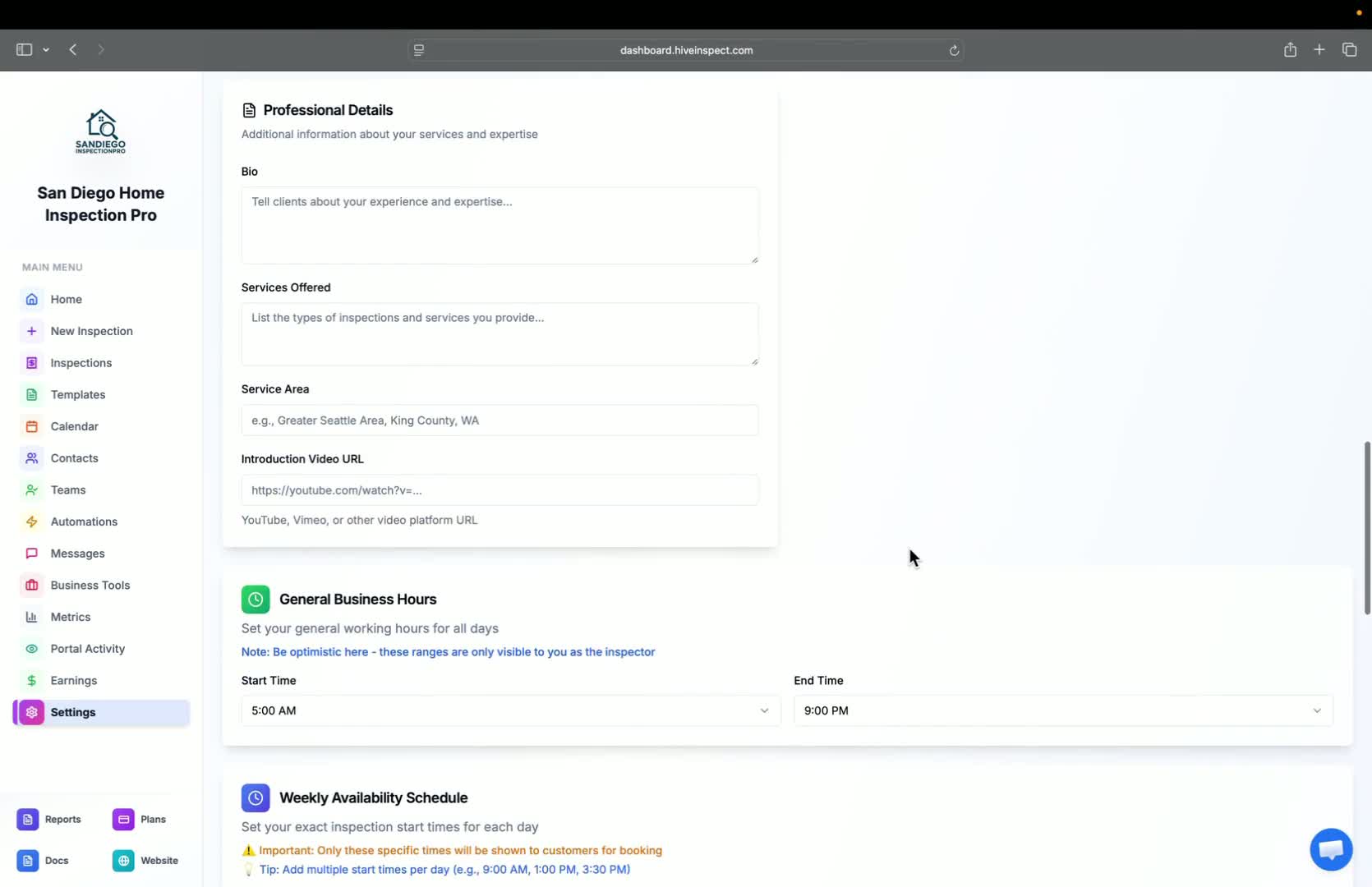
- Set two sets of business hours:
- Internal Use: Set hours from 5 a.m. to 9 p.m. (for your scheduling flexibility)
- Customer Booking: Select start times for your online scheduler widget
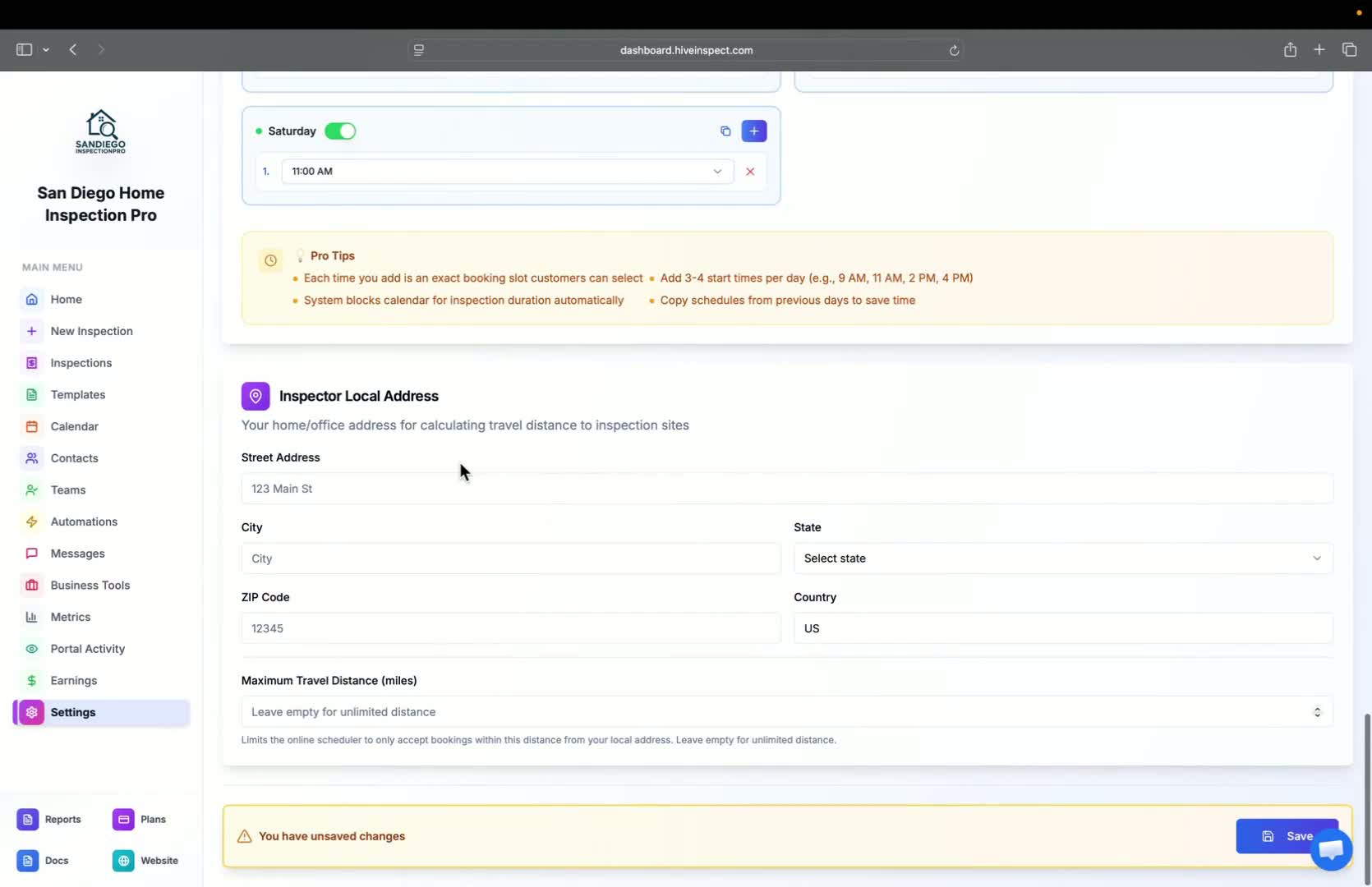
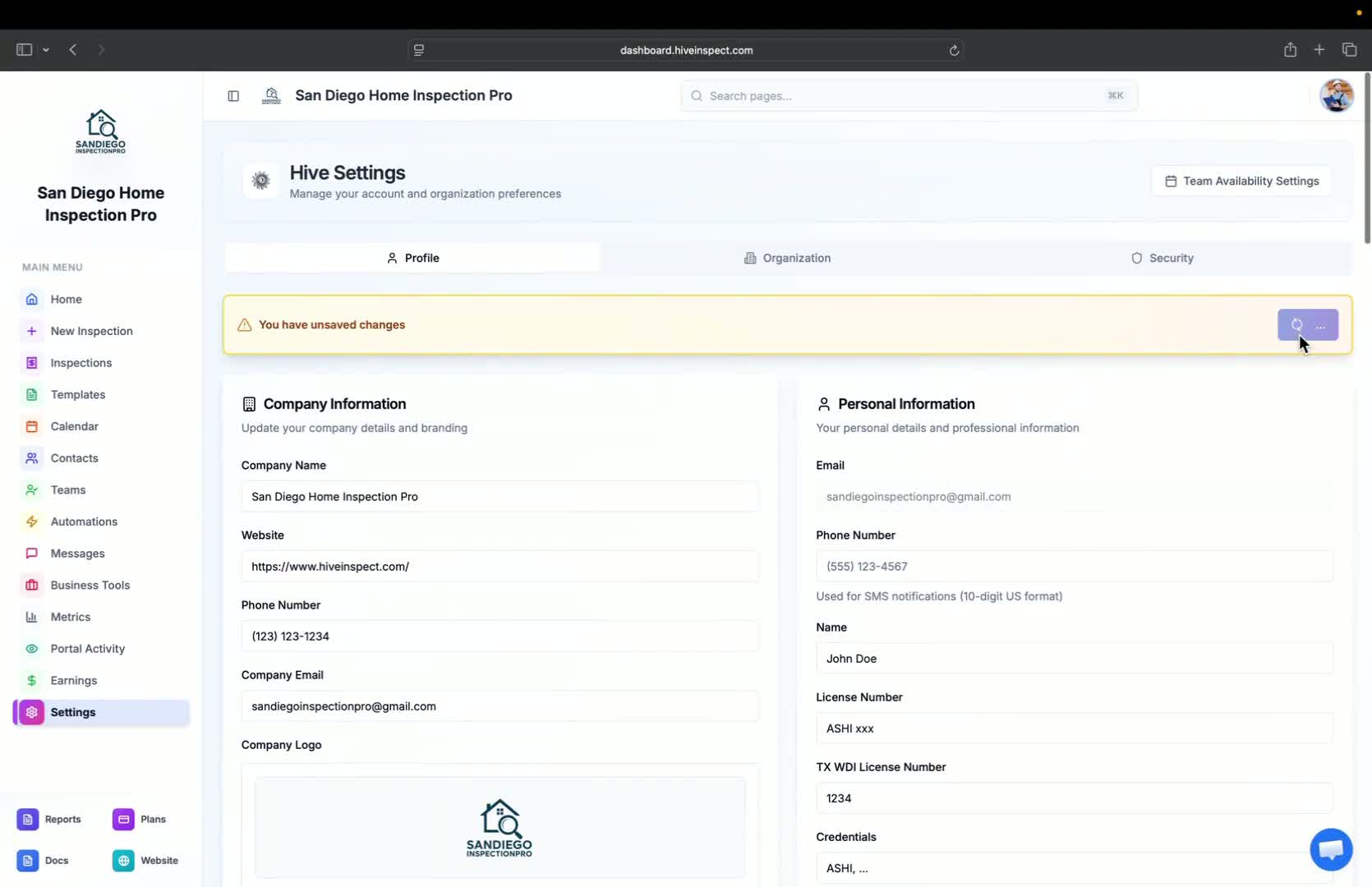
Save changes
Completion
Next step
Related