

In the dashboard: Business Tools → Past Inspections
Past Inspections is where the reports from your old inspection software live after our team moves them into Hive. Each past inspection is a folder of PDFs: usually the report, and often the invoice and agreement. You can find one by address, open its PDFs and email one to a client who asks for an old report. Past inspections are an archive. They’re kept apart from the inspections you run in Hive. See How past inspections differ from your inspections. You need the Business Tools permission to open Business Tools. See What each permission does.Get your past inspections into Hive
Our team imports them for you. Click Import Inspections at the top right of the page to see how to start.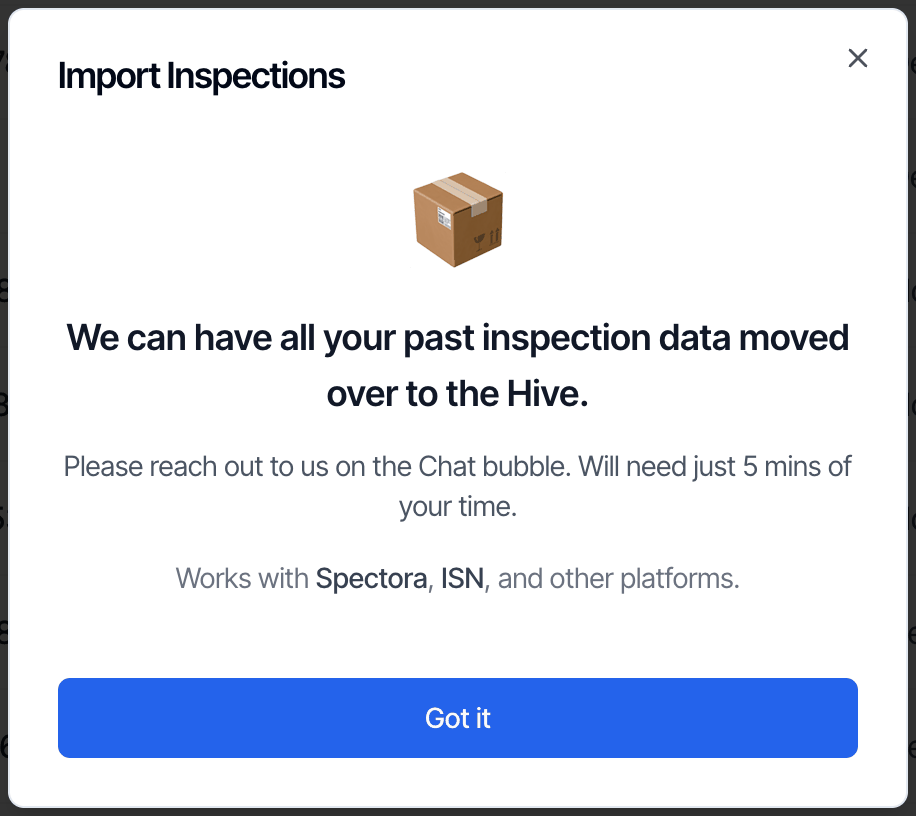
- Wait until you’ve done your last inspection in your old software, so nothing is missed.
- Ask in the chat bubble in your dashboard. Tell us which software you used.
- Follow the export steps for your software. They’re in the FAQ:
- Spectora: share the Spectora Google Drive backup with us.
- Horizon: forward the export emails to us.
- ISN, HomeGauge and other software: share a Google Drive folder of your report PDFs, and for ISN a custom report download.
- Once we’ve imported them, they show on this page.
The list
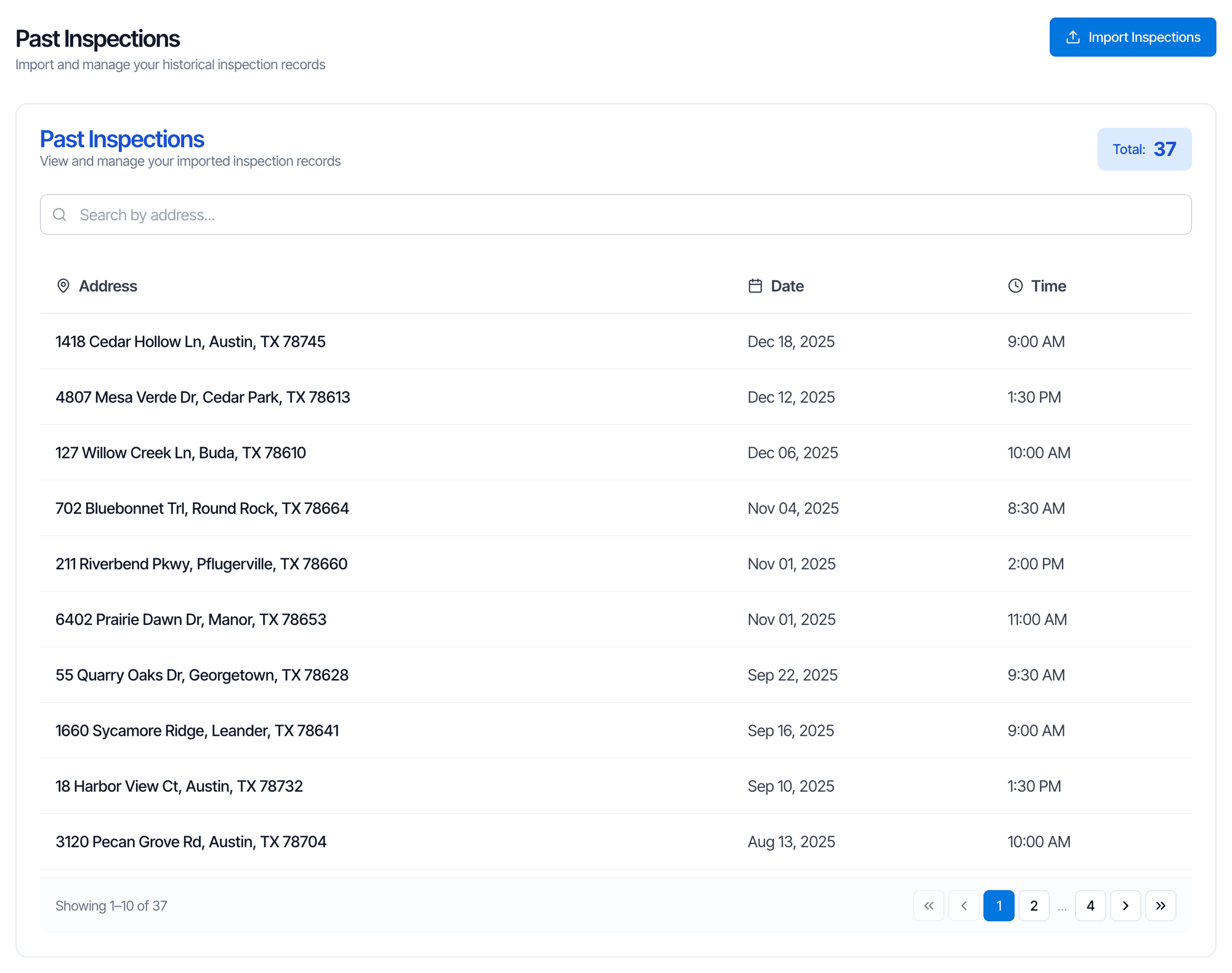
- Total shows how many past inspections you have.
- Each row shows the Address, Date and Time of the inspection, newest first. N/A means the old software’s export didn’t have it.
- The list shows 10 per page. Use the arrows and page numbers at the bottom to move between pages.
- Click a row to open it.
Search
Type in Search by address… to narrow the list. It matches the address and the folder name, so part of a street name is enough. Under the box you see how many matched, for example Found 1 of 37 inspections. Search is the only filter. To find an inspection by client name, search the address instead.Open a past inspection
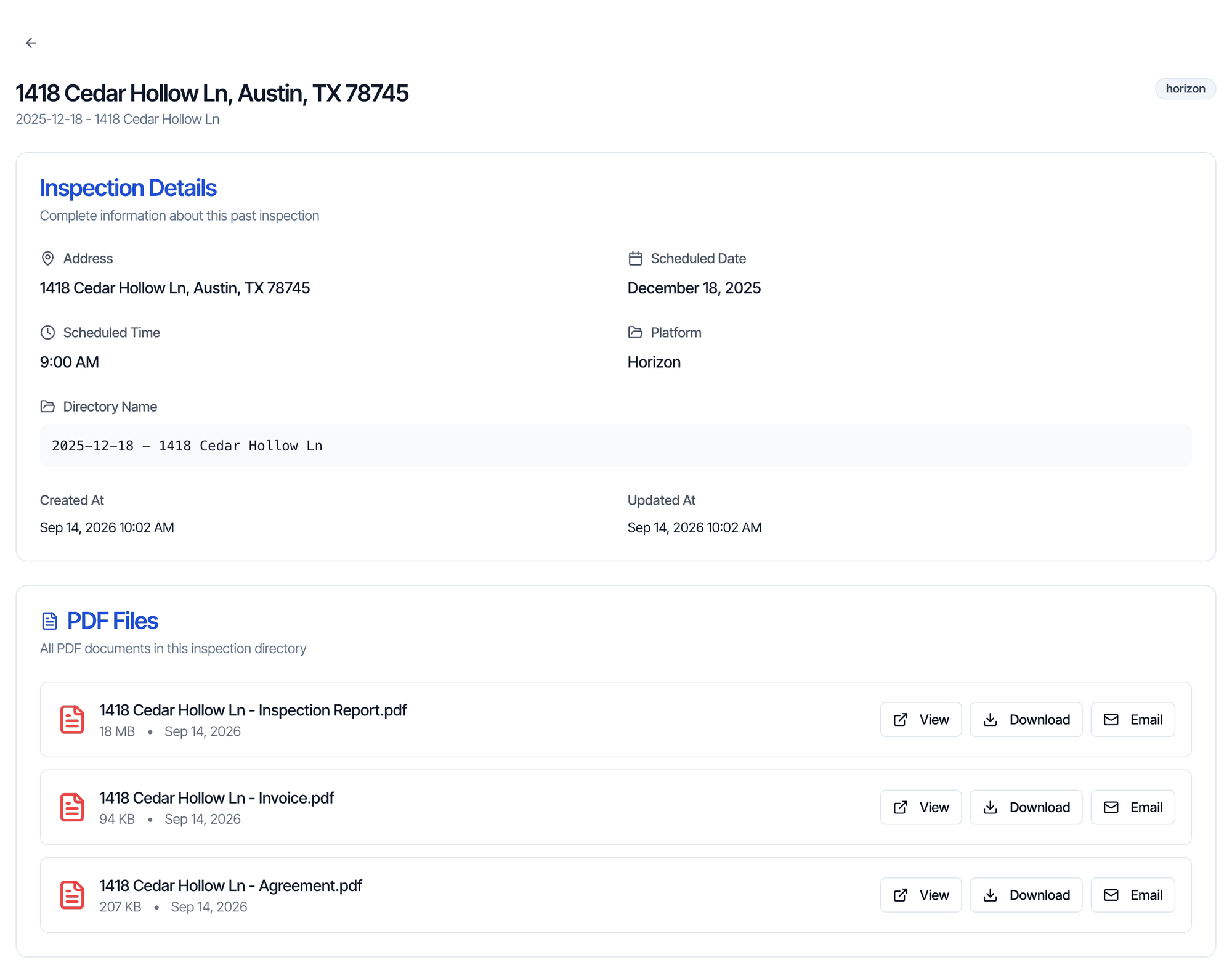
PDF Files lists every PDF in the folder, with its size and the date it was imported. Other file types from your old software, such as photos, aren’t listed.
For each PDF:
- View opens it in a new tab.
- Download saves it to your computer.
- Email sends a link to it. See Email a PDF to a client.
Email a PDF to a client
- Open the past inspection and click Email next to the PDF.
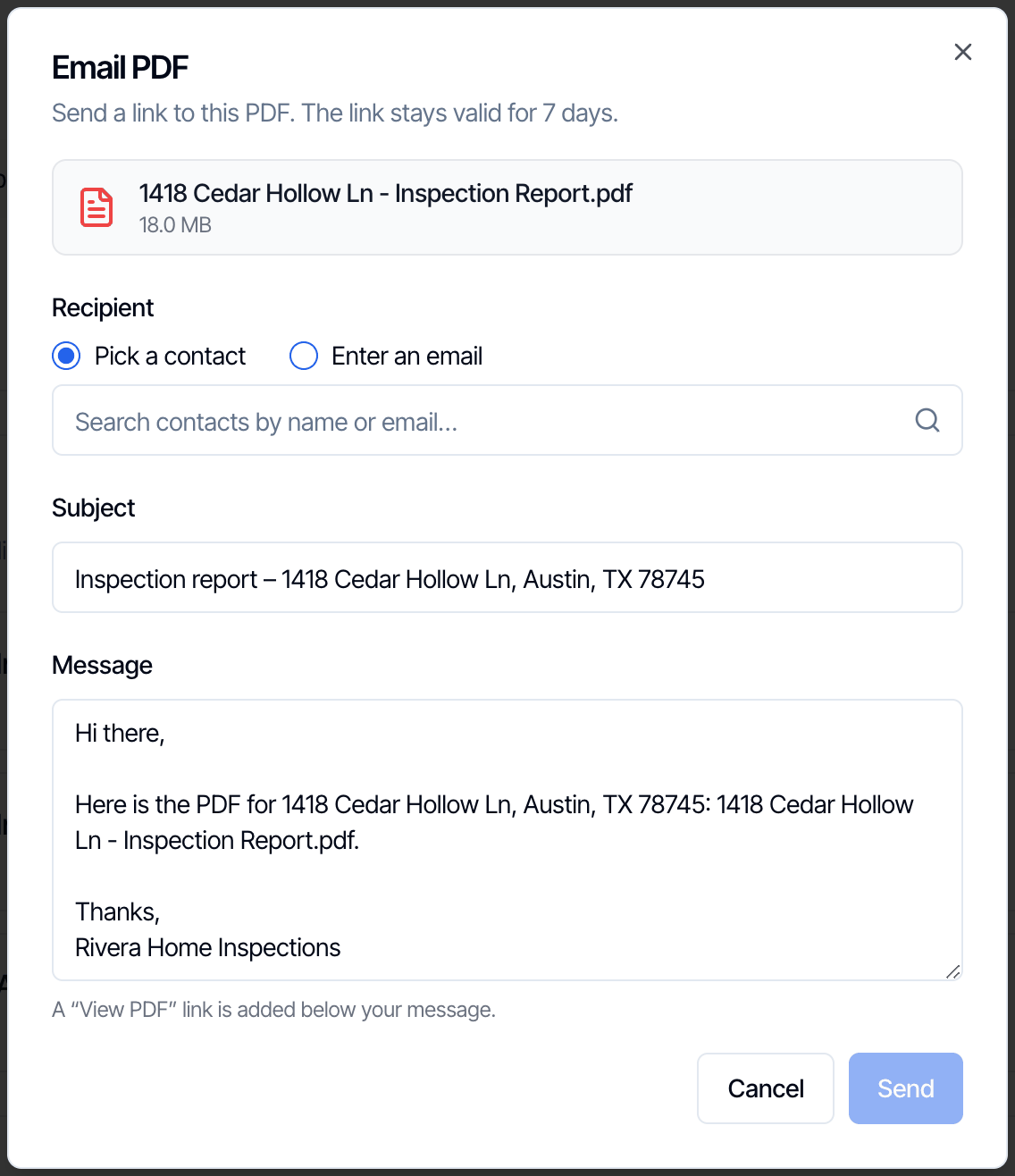
- Under Recipient, choose Pick a contact and search your contacts by name or email, or choose Enter an email and type the Email and an optional Name.
- Check the Subject and Message. Hive fills them in for you: the subject is “Inspection report –” and the address, and the message greets the contact you pick by first name (or says “Hi there”) and signs off with your company name. Edit them as you like.
- Click Send. You see Email sent to and the recipient.
- A plain email with your message and a View PDF button. The PDF isn’t attached, so a large report still gets through.
- The file name and This link expires in 7 days., then your company name.
- It comes from the same sender as your other Hive emails, and replies go to the same address. See Send email from your domain.
How past inspections differ from your inspections
Past inspections are stored separately from the inspections you create in Hive. They don’t show in your inspections list, calendar, Metrics, Earnings or Payout Report, and they don’t count against your free trial reports. Revenue, agents and other numbers from your old software don’t come over with them. For some inspection software, our team can bring over that old business information separately. It can take a few days to a few weeks. Ask in the chat bubble in your dashboard.
Common questions
A client asked for their old report. How do I send it?
A client asked for their old report. How do I send it?
Open Business Tools → Past Inspections, search the address, open it and click Email next to the report. Your client gets a link that works for 7 days. See Email a PDF to a client.
Why don't my past inspections show in my inspections list?
Why don't my past inspections show in my inspections list?
They’re kept separately, in Business Tools → Past Inspections. They’re PDFs from your old software, not inspections created in Hive.
Do past inspections count in Metrics or Earnings?
Do past inspections count in Metrics or Earnings?
No. Metrics, Earnings and the Payout Report only count inspections created in Hive. See Metrics.
Can I edit an imported report or start a re-inspection from it?
Can I edit an imported report or start a re-inspection from it?
No. To re-inspect the property, create a new inspection at the same address in Hive. See Re-inspections.
Can I upload my past inspections myself?
Can I upload my past inspections myself?
No. Ask in the chat bubble and our team imports them for you. See Get your past inspections into Hive.
I did more inspections in my old software after the import. Can you add them?
I did more inspections in my old software after the import. Can you add them?
Yes. Ask in the chat bubble. We add the reports that weren’t imported yet.
Why does a past inspection show N/A or Not available?
Why does a past inspection show N/A or Not available?
Your old software’s export didn’t include that detail for this inspection. The PDFs are still there.
The PDF list is empty or a report is missing. What do I do?
The PDF list is empty or a report is missing. What do I do?
Ask in the chat bubble with the address. Only PDF files are listed, and a report your old software didn’t export can’t be imported.